> ## Documentation Index
> Fetch the complete documentation index at: https://moengage.com/docs/llms.txt
> Use this file to discover all available pages before exploring further.
# OneXtel
# Introduction
[OneXtel](https://www.onextel.com/) is a leading Communication Platform as a Service (CPaaS) provider, offering seamless, end-to-end communication solutions. Their product offering includes channels like SMS, Voice, WhatsApp, Chatbot, RCS, and Email services tailored for businesses of all sizes.
Ensure you have access to the following:
* An active OneXtel account on 365cx.io
* An active MoEngage Account
# Configure OneXtel as an RCS Connector Provider for MoEngage
Perform the following steps:
1. On the left navigation menu in the MoEngage UI, go to **Settings** > **Channels** > **SMS & RCS** > **Sender Configuration**.
2. On the **RCS** tab, click **+ Add RCS Sender**.
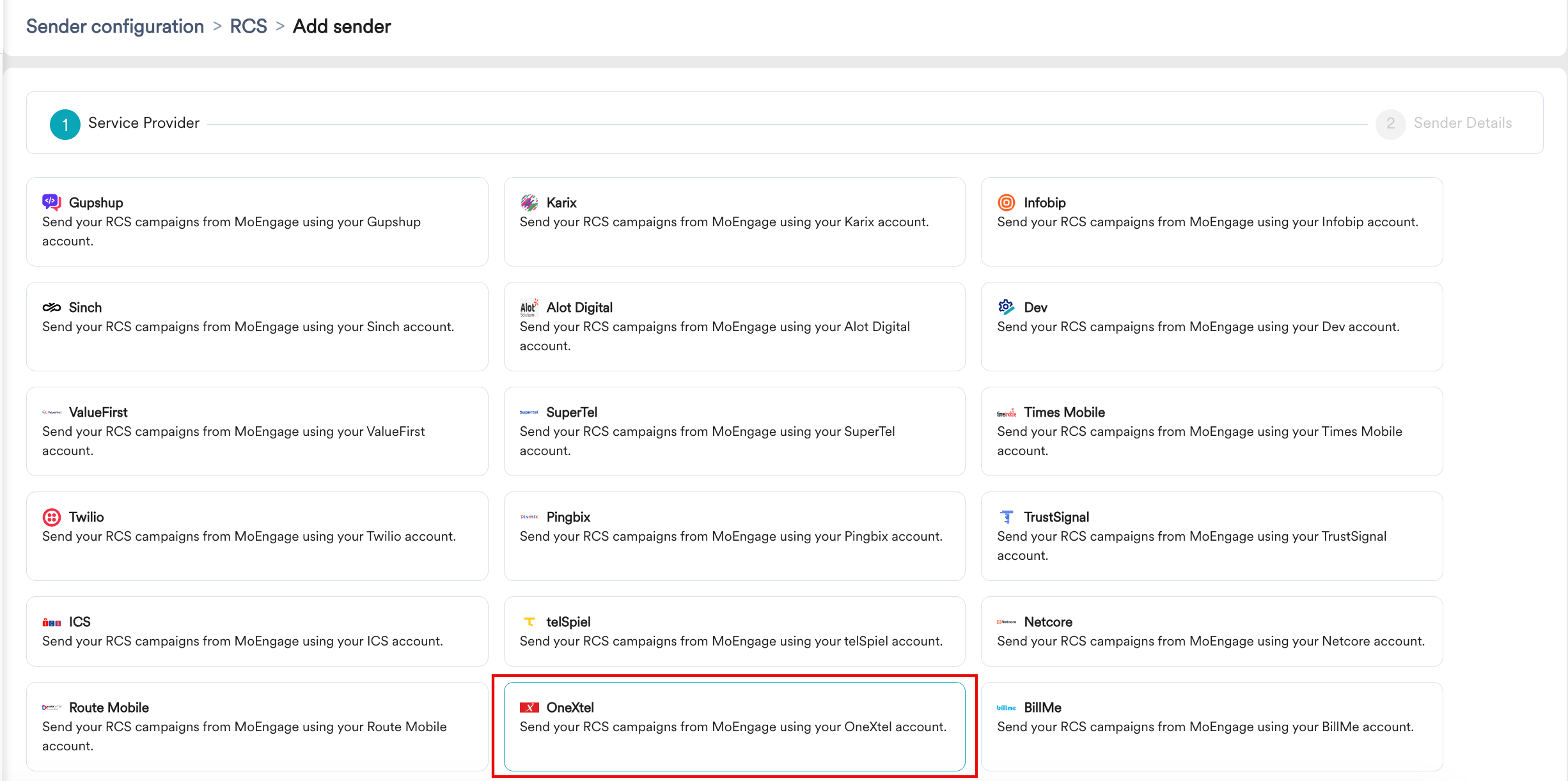
 3. Click the **OneXtel** tile.
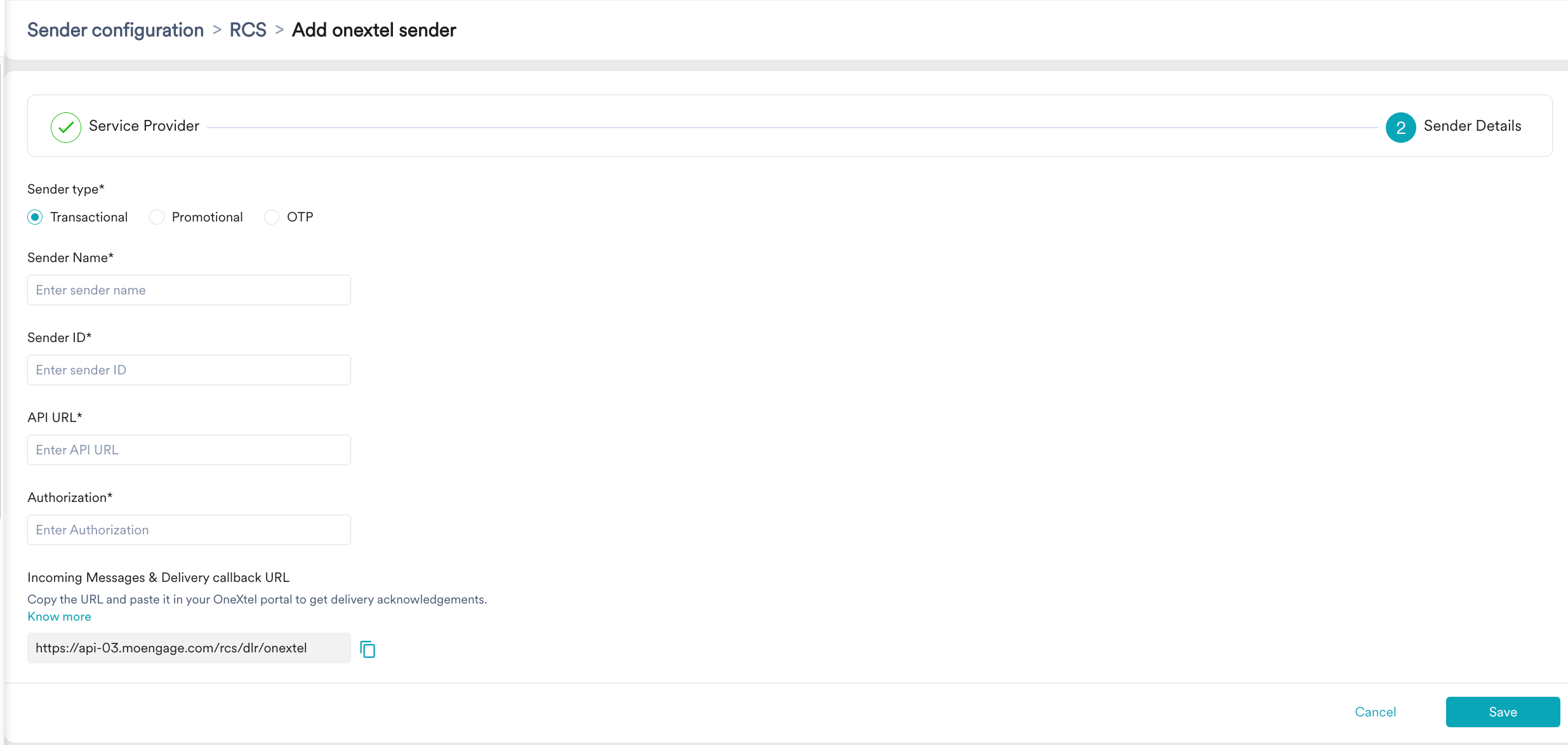
 4. On the **Sender Details** page, add the following details:
 | Field | Description |
| ----------------- | ------------------------------------------------------------------------------------------------------------------------------------------------------------------------------------------------------------------------------------------------------------------------------------------------------------------------------------------------------------------------------------------------------------------------------------------------------------------------------------------------------------------ |
| **Sender type** | Select the sender type. The available options are:
| Field | Description |
| ----------------- | ------------------------------------------------------------------------------------------------------------------------------------------------------------------------------------------------------------------------------------------------------------------------------------------------------------------------------------------------------------------------------------------------------------------------------------------------------------------------------------------------------------------ |
| **Sender type** | Select the sender type. The available options are: - **Transactional**: Select this option when you are using the sender to send alerts about transactions, OTPs, security information, or any information that can be classified as transactional in nature.
- **Promotional**: Select this option when you are using the sender to send information about your brand, promote deals, or engage with users.
- **OTP**: Select this option when you are using the sender to send OTPs.
|
| **Sender Name** | Enter the name of the sender. This field identifies the readable sender name that can be used while creating a campaign or alert. |
| **Sender ID** | Enter the sender ID. This is the RCS agent/bot ID RBM uses to send RCS messages to users. This is the **RCS bot ID** (obtained from onextel). |
| **API URL** | You can get this API URL from the onextel team. |
| **Authorization** | This field refers to the bearer token used for authorization. You can get this token from the Onextel team. |
5. Click **Save** to save this configuration.
## **Configure Incoming Messages & Delivery callback URL**
Configuring delivery tracking allows you to monitor whether messages have been delivered to end users. Configuring incoming message URLs allows you to track messages' responses so that you can act on them accordingly. Copy this URL from the MoEngage UI and email it to the OneXtel team or speak with the Account Manager so they can configure it.