> ## Documentation Index
> Fetch the complete documentation index at: https://moengage.com/docs/llms.txt
> Use this file to discover all available pages before exploring further.
# InMobi
# Introduction
[InMobi](https://www.inmobi.com/) develops an advertisement-serving algorithm that helps optimize the ranking of the advertisements served on mobile phones. It operates a mobile ad network with an extensive range of ad formats, analytics, and monetization tools for app businesses
# MoEngage × InMobi
This integration allows you to sync segment between MoEngage and InMobi Audiences, helping you fuel Campaign performance with laser-focused retargeting. We will use MoEngage [Connecter Campaigns](/user-guide/campaigns-and-channels/connectors/create/create-a-connector-campaign) to build this integration.
# Integration
**Prerequisites**
Ensure you have an InMobi account.
## Step 1: Get your Segment ID or create a new segment
To create a new segment, use the following API:
[http://advertiser.inmobiapis.com/tpce/v1/segment?segmentName=\\&propertyId=\\&membershipTtl=\\&propertyId=\\&membershipTtl=\
* `` - Name of the segment
* `` - propertyId/advertiserId
* `` - TTL for User IDs being tagged to this segment
InMobi will then send a Segment ID in response to a successful segment creation:
```http HTTP theme={null}
{
"status": "OK",
"message": "success",
"code": 200,
"segmentId": "f239dfb4-xxxx-xxxx-xxxx-dfdxxxx4ddb6"
}
```
If you already have a segment created, you can also use that segment's ID.
## Step 2: Create a connector campaign on MoEngage
To create a connector campaign on MoEngage,
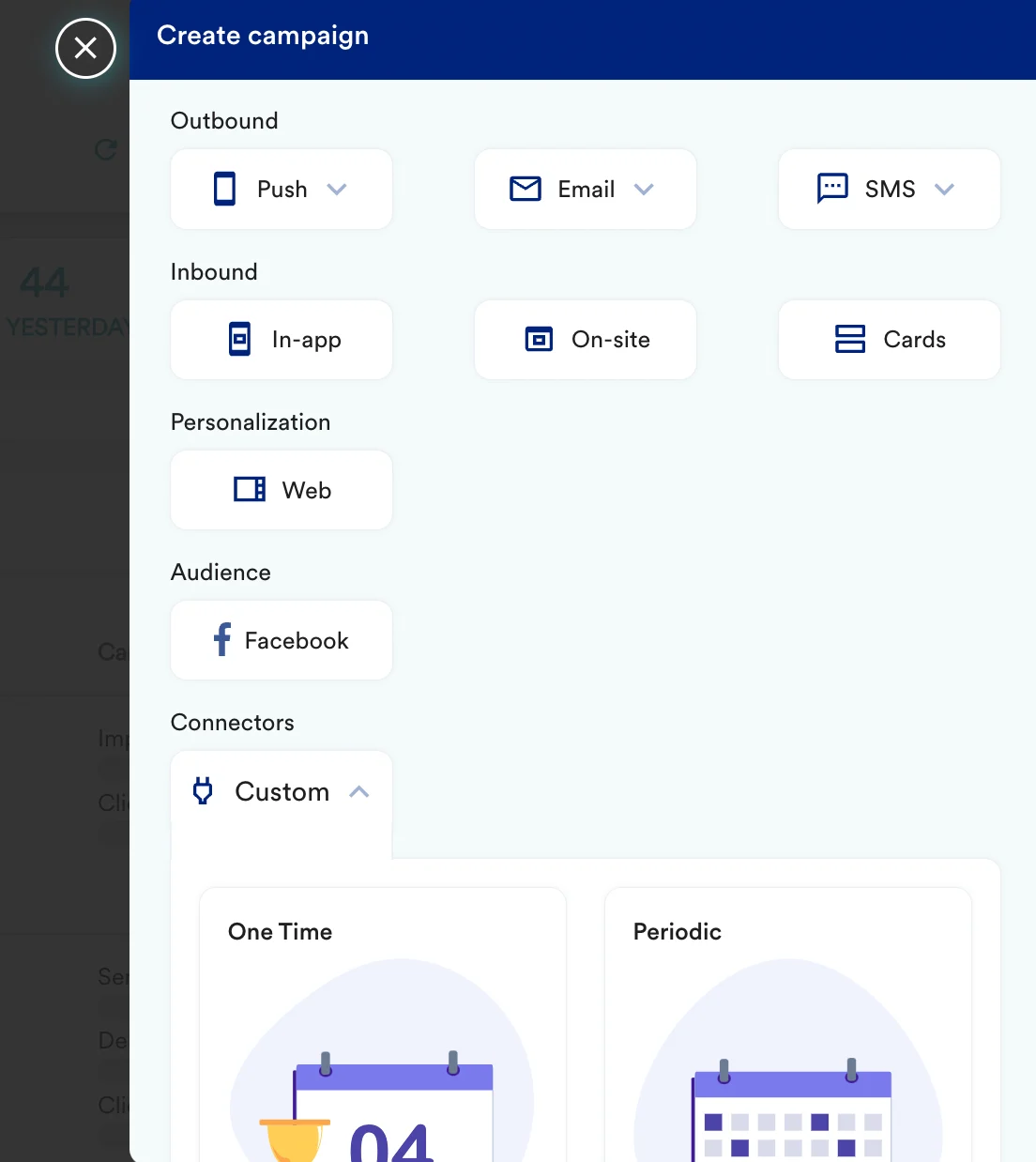
1. Navigate to Create Campaign >> Connectors >> Custom and choose delivery type most suitable to your needs
 2. On step 2 of the campaign,
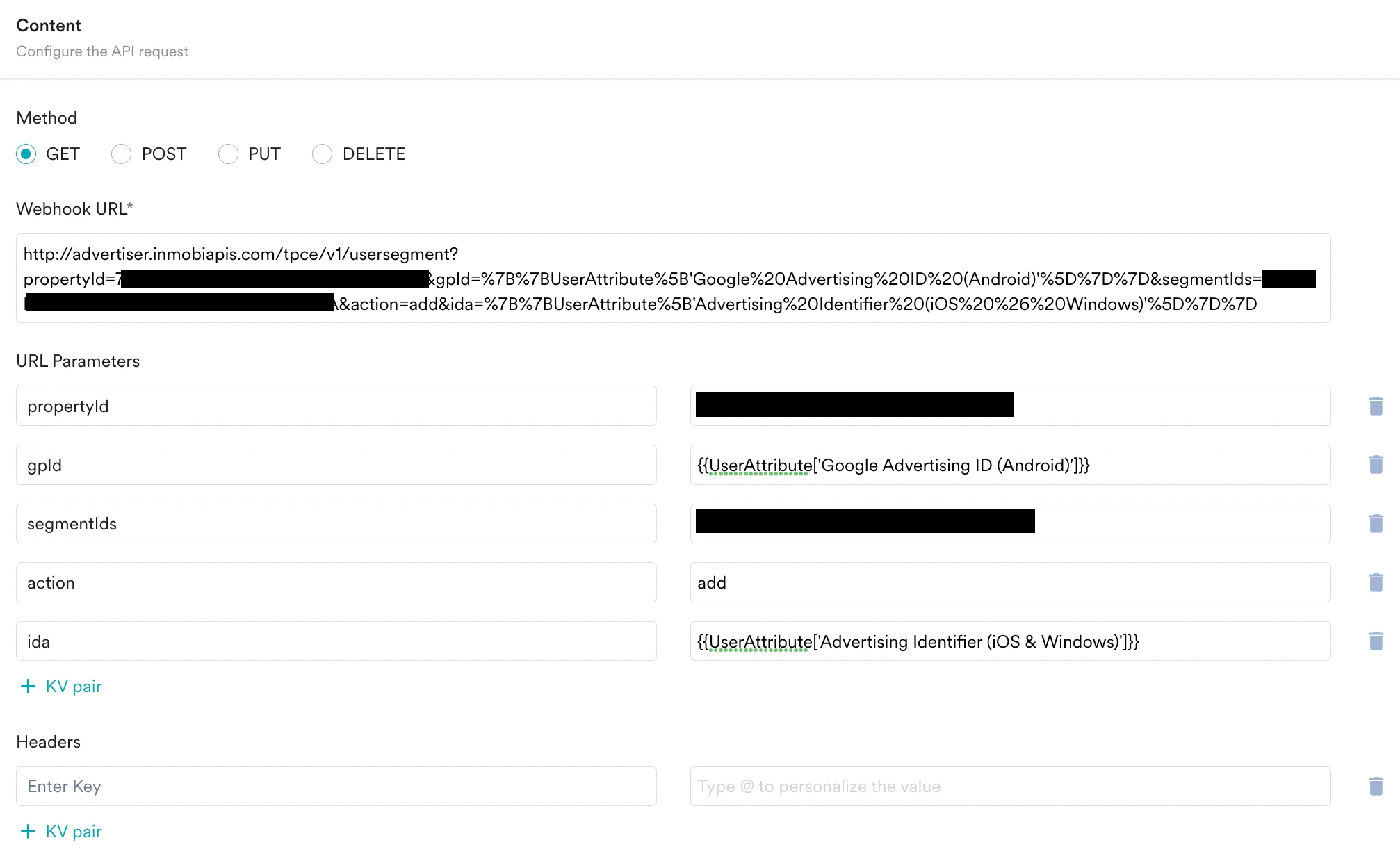
1. Select method as `GET`
2. Add Webhook URL as: [http://advertiser.inmobiapis.com/tpce/v1/usersegment?propertyId=\\&gpId=\\&ida=\\&segmentIds=\\&action=add](http://advertiser.inmobiapis.com/tpce/v1/usersegment?propertyId=\\&gpId=\\&ida=\\&segmentIds=\\&action=add)
3. In Parameters, add
1. `propertyId`: your propertyId/advertiserId
2. `gpId`: Android Device ID, or\
`ida`: iOS Device ID
3. `segmentIds`: your segment ID.
2. On step 2 of the campaign,
1. Select method as `GET`
2. Add Webhook URL as: [http://advertiser.inmobiapis.com/tpce/v1/usersegment?propertyId=\\&gpId=\\&ida=\\&segmentIds=\\&action=add](http://advertiser.inmobiapis.com/tpce/v1/usersegment?propertyId=\\&gpId=\\&ida=\\&segmentIds=\\&action=add)
3. In Parameters, add
1. `propertyId`: your propertyId/advertiserId
2. `gpId`: Android Device ID, or\
`ida`: iOS Device ID
3. `segmentIds`: your segment ID.
 3. At this point, your campaign should be ready to test and send. You can also test your connector configuration using the Test functionality available on Step 2 of Create Connector Campaign.
 4. If you see the test user in your InMobi Audience segment, your set-up is good to go. You can go ahead and publish the campaign.