> ## Documentation Index
> Fetch the complete documentation index at: https://moengage.com/docs/llms.txt
> Use this file to discover all available pages before exploring further.
# How to Show Sale Offers from a Specific Time
# Introduction
Sale campaigns play a crucial role in boosting user engagement and driving sales. To make the most of your sales campaigns, you can use MoEngage to schedule them at specific times when your audience is most likely to engage. By consistently notifying users about offers, you can build anticipation and enhance regular interaction.
In this article, we will create a periodic campaign using MoEngage to promote a weekly flash sale offering up to 70% off on selected items in an e-commerce app. The campaign will run from 9 AM to 1 PM every Monday, ensuring users are regularly informed about the sale during this time slot.
# Expected Result
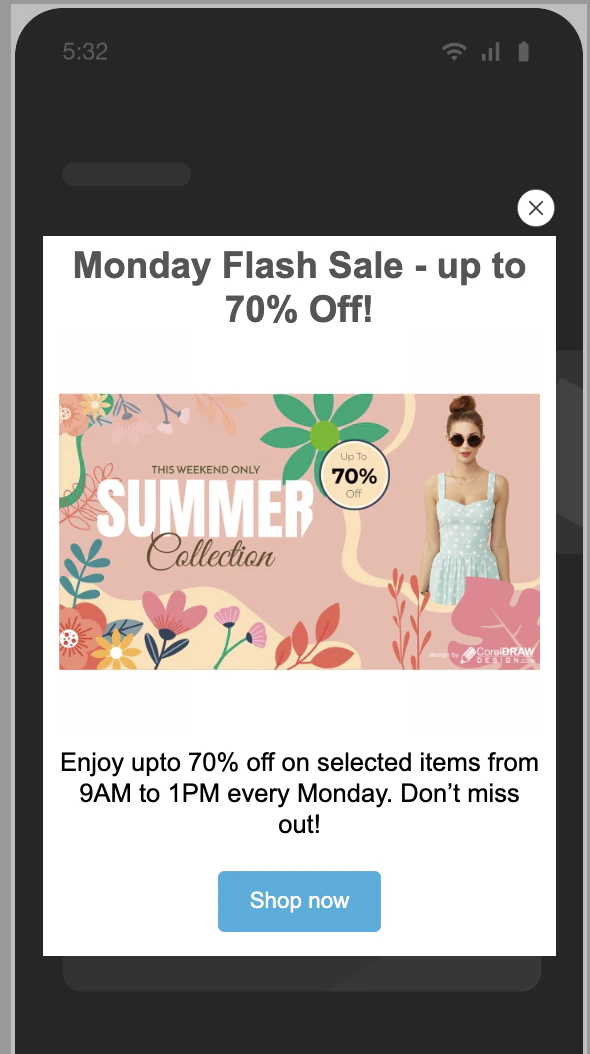
Users will see a pop-up with sale offers every Monday from 9 AM to 1 PM, increasing their engagement with the app and driving sales during this time period.
Integration of the MoEngage Android SDK or iOS SDK with your app. For more information, refer to the [Developer Guide](/developer-guide/introduction).
# Create an In-App Campaign
In this section, let us create a periodic campaign using MoEngage that promotes a weekly flash sale offering up to 70% off on selected items in an e-commerce app.
## Step 1: Target users
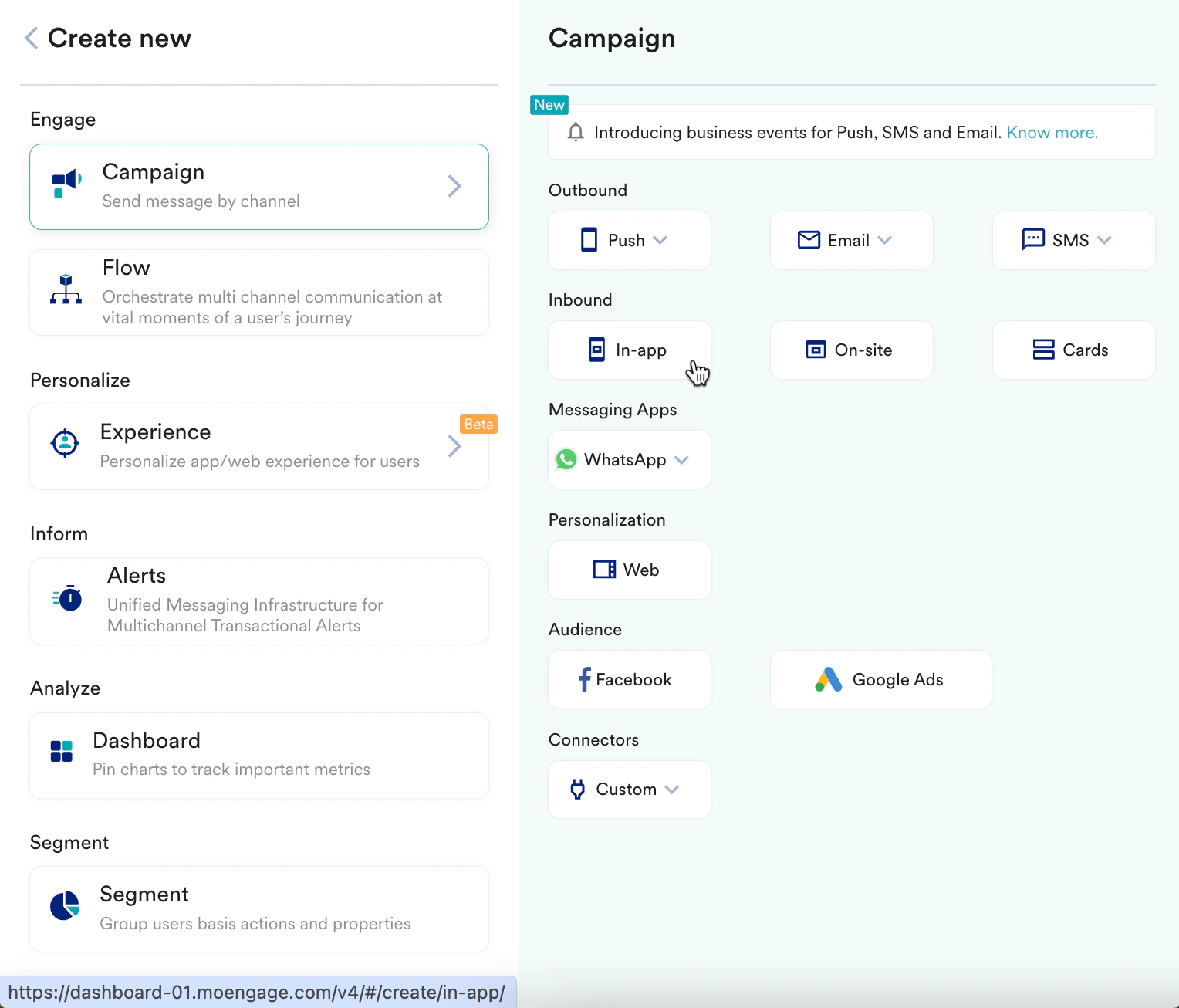
1. Navigate to the sidebar on the left and click **Engage** > **Campaigns** and click **+ Create campaign**, or click **+ Create new**> **Campaign**.
2. Under **Inbound**, click **In-app**. You are taken to the first step, "Target users," of defining your campaign.
3. Enter the following details:
* **Campaign name**: Enter a name for the campaign. For example, "Special sale campaign."
* **Campaign tags**: Select the relevant campaign tags.
4. In the **Target Platforms** section, select **iOS**.
5. In the **Trigger Criteria** section, select **On app open**.
6. In the **Select trigger time** section, select **Immediately** to send the message.
7. In the **Target audience** section, select **Filter users by** to specifically target all those users who are active in the app and exclude users who have already made a purchase to avoid redundancy.
8. Click **Next** to move to the second step, "Content," where you can define the content that will go into your campaign.
## Step 2: Content
MoEngage In-app campaign offers a variety of templates for all your use cases. It also provides the option to start from scratch.
1. Select the drag-and-drop editor option to design the in-app message. Select the **Start with a blank canvas**action to design your pop-up message template.
2. Design your pop-up message by performing the following steps:
* **Add a Title:** "Monday Flash Sale - up to 70% Off!"
* **Style**: Use a bold and attractive font to grab attention.
* **Include a Description:** Provide brief details about the sale.
* **Text**: "Enjoy upto 70% off on selected items from 9AM to 1PM every Monday. Don’t miss out!"
* **Style**: Ensure the text is concise and easy to read.
* **Add Visual Elements:** Drag and drop relevant images or icons highlighting the sale items.
* **Example**: Use images of popular products that are on sale.
* **Include a Call-to-Action (CTA) Button:** "Shop Now"
* **Link**: Direct the button to the sale page. To add navigation, click **+ Add new attribute** and select **Search Attributes** as shown below:
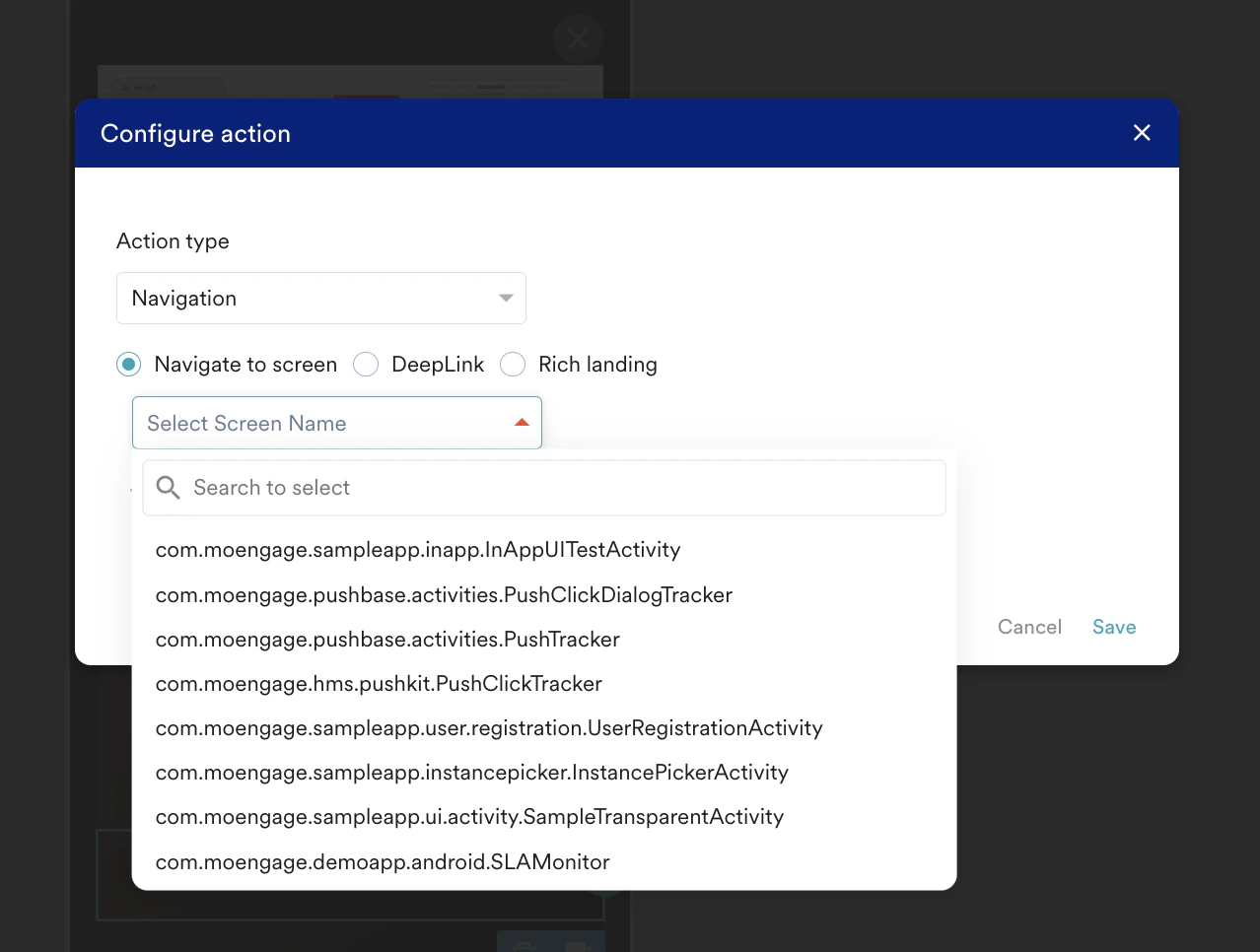
* Select action as navigation and select the screen that you want the user to navigate to after clicking the button.
* **Style**: Make the button stand out with a vibrant color and clear font.
* **Add a Close Button:** The close button is already present in the blank template, but if you want to change it, replace it with a cross-button image, as shown in the video below, and make sure that the `close-btn` class is added to the image.\\
3. Click **Next** to move to the third step, "Schedule and goals," where you can define your campaign's schedule and goals.
## Step 3: Schedule and goals
Here, you can select the campaign schedule, add the conversion goal, choose the campaign's priority, and define custom delivery controls.
1. In the **Send campaign** section, define when you want to start and end your In-app message with the frequency and limits. Configure the pop-up to be shown between 9AM and 1PM every Monday.
2. In the **Conversion Goals** section, add conversion goals that you would like to track.
3. In the **Campaign priority** section, assign a priority to this campaign. Assigning a priority helps you decide which In-app message to show to a user when they are eligible for more than one message at a specific time. For example, selecting **Critical** ensures that the users will always see this even when there are other campaigns for which they are eligible.
4. In the **Delivery Controls** section, define the controls based on your requirements. For more information, refer to [Create In-App Campaign](/user-guide/campaigns-and-channels/in-app-message/create/create-in-app-campaign).
5. Click **Publish**.
# User Interaction
1. Targeted users will open the app between 9AM and 1PM on Mondays.
2. The pop-up highlighting the flash sale will appear, informing them about the up to 70% discount on selected items.
3. Users can click on the CTA button to explore the sale items or dismiss the pop-up if they are uninterested.
# Conclusion
In this use case, we created a periodic sale offer pop-up to ensure users are consistently informed about weekly flash sales. This creates a sense of anticipation and urgency that encourages them to make purchases during the specified time.
This automated campaign will help you increase user engagement and boost sales during the promotional period.
Now that we have published the campaign, we can track our CTR and conversions (if defined) to understand how well it is performing. For more information, refer to [In-app Campaign Analytics](/user-guide/campaigns-and-channels/in-app-message/analyze/analyze-in-app-campaigns).
 You are taken to the first step, "Target users," of defining your campaign.
3. Enter the following details:
* **Campaign name**: Enter a name for the campaign. For example, "Special sale campaign."
* **Campaign tags**: Select the relevant campaign tags.
4. In the **Target Platforms** section, select **iOS**.
5. In the **Trigger Criteria** section, select **On app open**.
You are taken to the first step, "Target users," of defining your campaign.
3. Enter the following details:
* **Campaign name**: Enter a name for the campaign. For example, "Special sale campaign."
* **Campaign tags**: Select the relevant campaign tags.
4. In the **Target Platforms** section, select **iOS**.
5. In the **Trigger Criteria** section, select **On app open**. 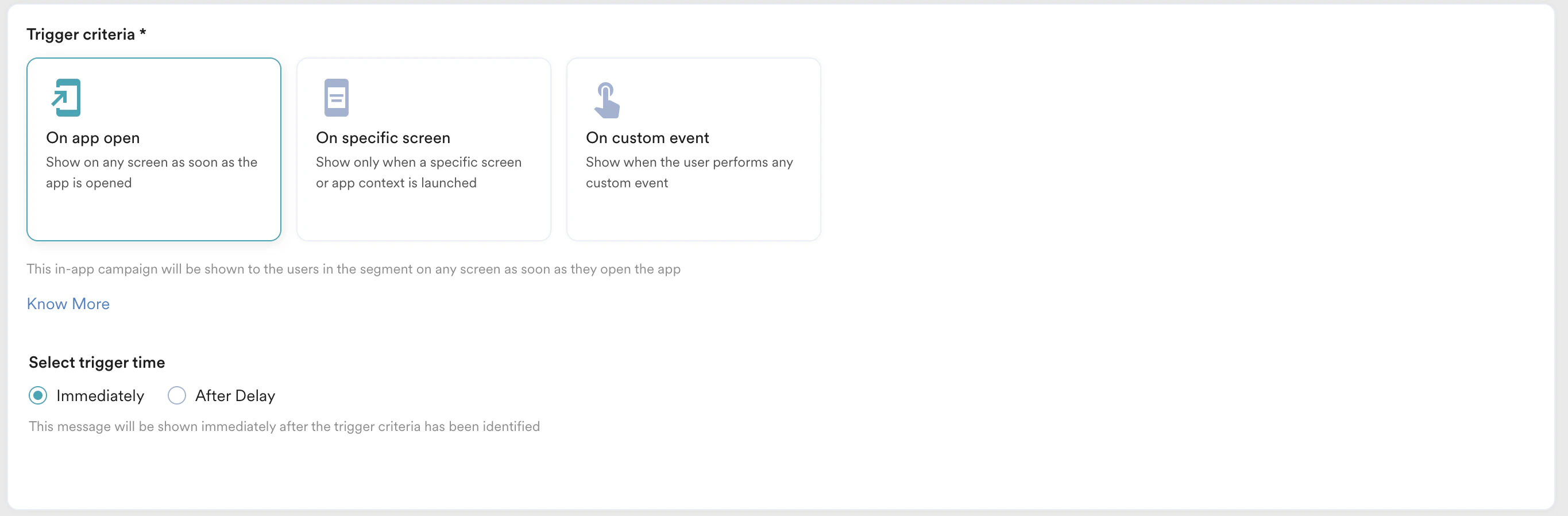 6. In the **Select trigger time** section, select **Immediately** to send the message.
7. In the **Target audience** section, select **Filter users by** to specifically target all those users who are active in the app and exclude users who have already made a purchase to avoid redundancy.
8. Click **Next** to move to the second step, "Content," where you can define the content that will go into your campaign.
## Step 2: Content
MoEngage In-app campaign offers a variety of templates for all your use cases. It also provides the option to start from scratch.
1. Select the drag-and-drop editor option to design the in-app message. Select the **Start with a blank canvas**action to design your pop-up message template.
6. In the **Select trigger time** section, select **Immediately** to send the message.
7. In the **Target audience** section, select **Filter users by** to specifically target all those users who are active in the app and exclude users who have already made a purchase to avoid redundancy.
8. Click **Next** to move to the second step, "Content," where you can define the content that will go into your campaign.
## Step 2: Content
MoEngage In-app campaign offers a variety of templates for all your use cases. It also provides the option to start from scratch.
1. Select the drag-and-drop editor option to design the in-app message. Select the **Start with a blank canvas**action to design your pop-up message template. 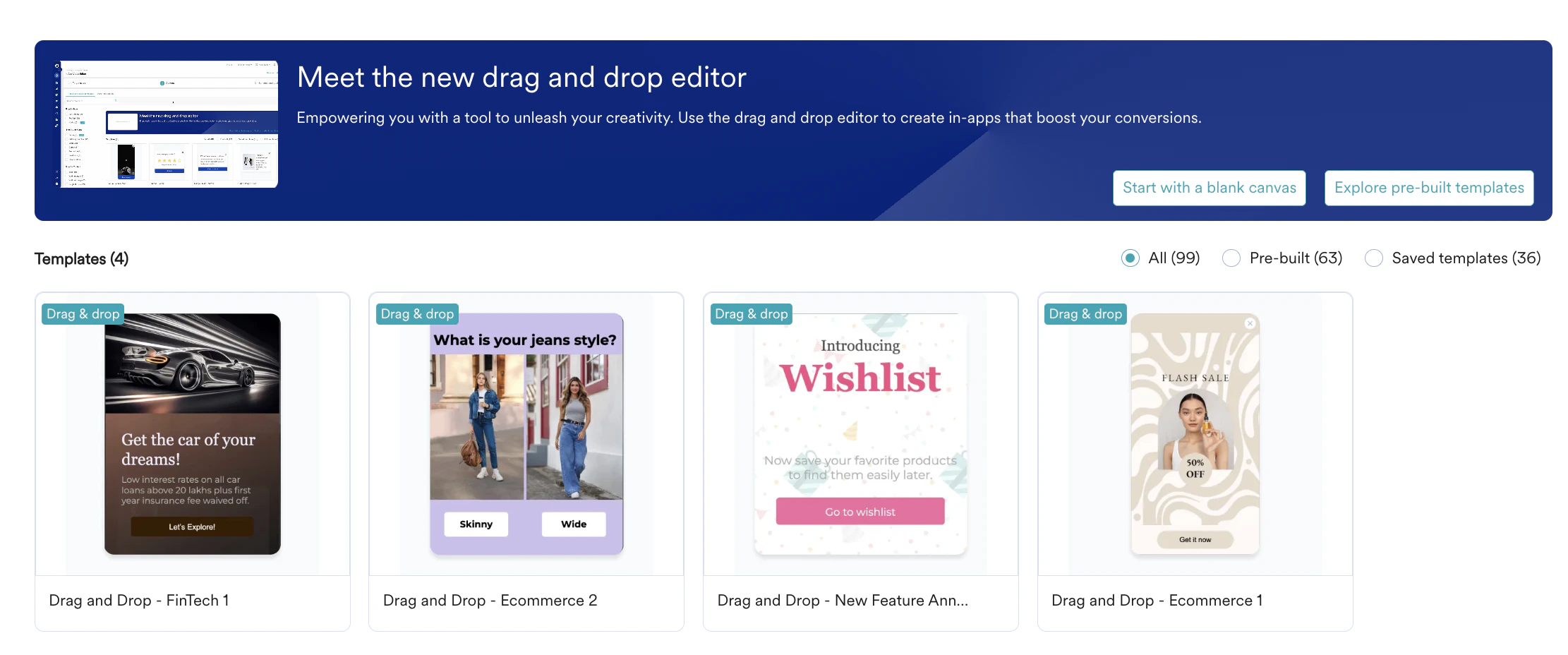
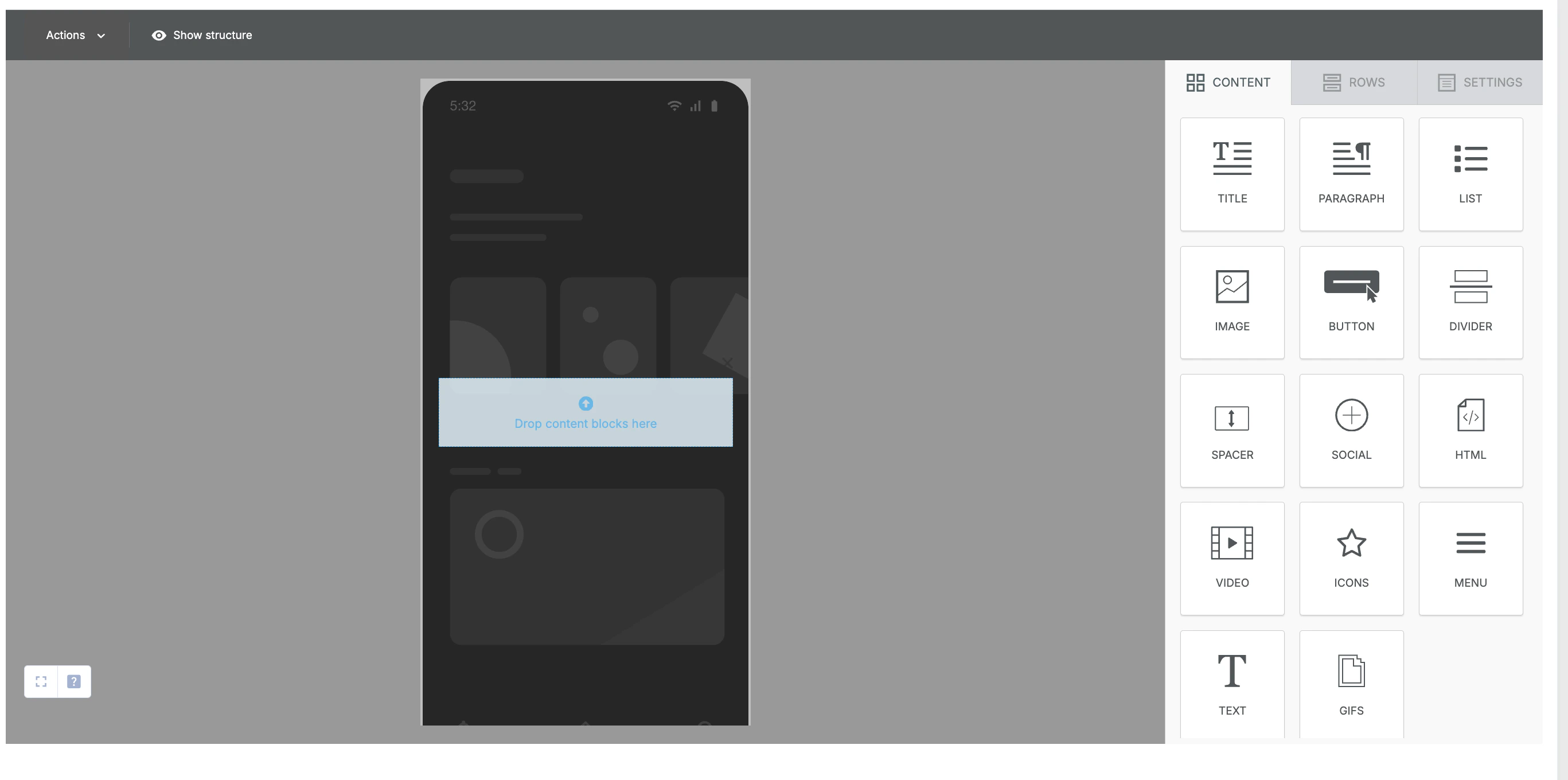 2. Design your pop-up message by performing the following steps:
* **Add a Title:** "Monday Flash Sale - up to 70% Off!"
* **Style**: Use a bold and attractive font to grab attention.
* **Include a Description:** Provide brief details about the sale.
* **Text**: "Enjoy upto 70% off on selected items from 9AM to 1PM every Monday. Don’t miss out!"
* **Style**: Ensure the text is concise and easy to read.
* **Add Visual Elements:** Drag and drop relevant images or icons highlighting the sale items.
* **Example**: Use images of popular products that are on sale.
* **Include a Call-to-Action (CTA) Button:** "Shop Now"
* **Link**: Direct the button to the sale page. To add navigation, click **+ Add new attribute** and select **Search Attributes** as shown below:
2. Design your pop-up message by performing the following steps:
* **Add a Title:** "Monday Flash Sale - up to 70% Off!"
* **Style**: Use a bold and attractive font to grab attention.
* **Include a Description:** Provide brief details about the sale.
* **Text**: "Enjoy upto 70% off on selected items from 9AM to 1PM every Monday. Don’t miss out!"
* **Style**: Ensure the text is concise and easy to read.
* **Add Visual Elements:** Drag and drop relevant images or icons highlighting the sale items.
* **Example**: Use images of popular products that are on sale.
* **Include a Call-to-Action (CTA) Button:** "Shop Now"
* **Link**: Direct the button to the sale page. To add navigation, click **+ Add new attribute** and select **Search Attributes** as shown below: 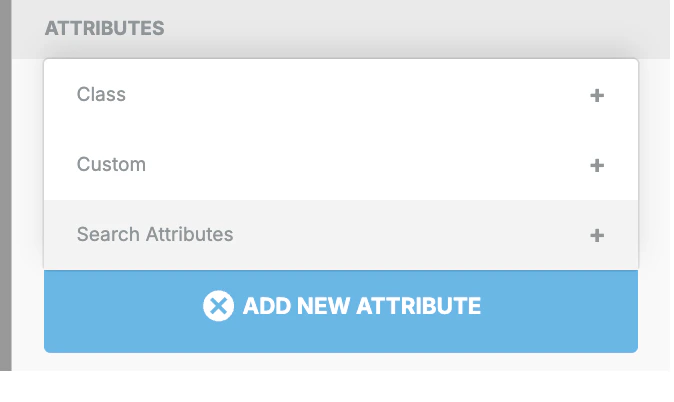 * Select action as navigation and select the screen that you want the user to navigate to after clicking the button.
  * **Style**: Make the button stand out with a vibrant color and clear font.
* **Add a Close Button:** The close button is already present in the blank template, but if you want to change it, replace it with a cross-button image, as shown in the video below, and make sure that the `close-btn` class is added to the image.\\
3. Click **Next** to move to the third step, "Schedule and goals," where you can define your campaign's schedule and goals.
## Step 3: Schedule and goals
Here, you can select the campaign schedule, add the conversion goal, choose the campaign's priority, and define custom delivery controls.
1. In the **Send campaign** section, define when you want to start and end your In-app message with the frequency and limits. Configure the pop-up to be shown between 9AM and 1PM every Monday.
* **Style**: Make the button stand out with a vibrant color and clear font.
* **Add a Close Button:** The close button is already present in the blank template, but if you want to change it, replace it with a cross-button image, as shown in the video below, and make sure that the `close-btn` class is added to the image.\\
3. Click **Next** to move to the third step, "Schedule and goals," where you can define your campaign's schedule and goals.
## Step 3: Schedule and goals
Here, you can select the campaign schedule, add the conversion goal, choose the campaign's priority, and define custom delivery controls.
1. In the **Send campaign** section, define when you want to start and end your In-app message with the frequency and limits. Configure the pop-up to be shown between 9AM and 1PM every Monday. 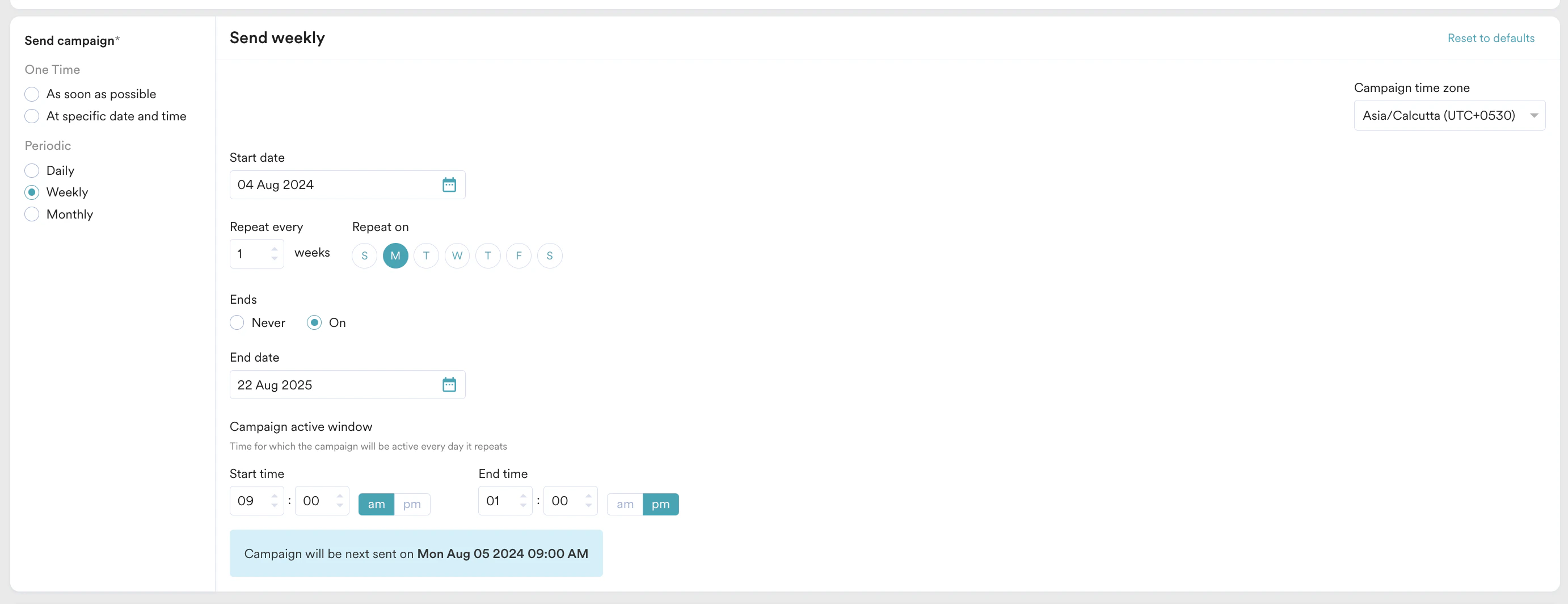 2. In the **Conversion Goals** section, add conversion goals that you would like to track.
3. In the **Campaign priority** section, assign a priority to this campaign. Assigning a priority helps you decide which In-app message to show to a user when they are eligible for more than one message at a specific time. For example, selecting **Critical** ensures that the users will always see this even when there are other campaigns for which they are eligible.
4. In the **Delivery Controls** section, define the controls based on your requirements. For more information, refer to [Create In-App Campaign](/user-guide/campaigns-and-channels/in-app-message/create/create-in-app-campaign).
2. In the **Conversion Goals** section, add conversion goals that you would like to track.
3. In the **Campaign priority** section, assign a priority to this campaign. Assigning a priority helps you decide which In-app message to show to a user when they are eligible for more than one message at a specific time. For example, selecting **Critical** ensures that the users will always see this even when there are other campaigns for which they are eligible.
4. In the **Delivery Controls** section, define the controls based on your requirements. For more information, refer to [Create In-App Campaign](/user-guide/campaigns-and-channels/in-app-message/create/create-in-app-campaign). 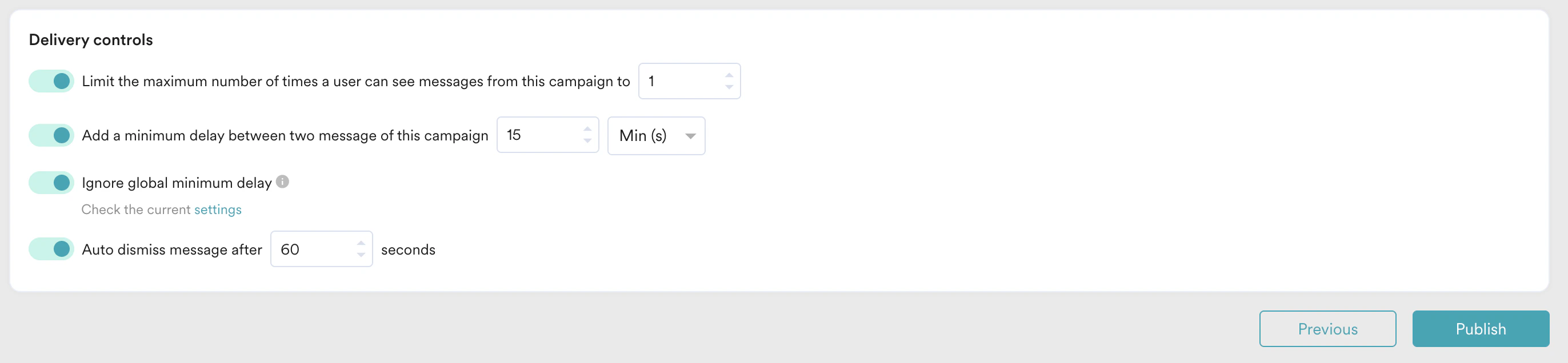 5. Click **Publish**.
# User Interaction
1. Targeted users will open the app between 9AM and 1PM on Mondays.
2. The pop-up highlighting the flash sale will appear, informing them about the up to 70% discount on selected items.
3. Users can click on the CTA button to explore the sale items or dismiss the pop-up if they are uninterested.
# Conclusion
In this use case, we created a periodic sale offer pop-up to ensure users are consistently informed about weekly flash sales. This creates a sense of anticipation and urgency that encourages them to make purchases during the specified time.
This automated campaign will help you increase user engagement and boost sales during the promotional period.
Now that we have published the campaign, we can track our CTR and conversions (if defined) to understand how well it is performing. For more information, refer to [In-app Campaign Analytics](/user-guide/campaigns-and-channels/in-app-message/analyze/analyze-in-app-campaigns).
5. Click **Publish**.
# User Interaction
1. Targeted users will open the app between 9AM and 1PM on Mondays.
2. The pop-up highlighting the flash sale will appear, informing them about the up to 70% discount on selected items.
3. Users can click on the CTA button to explore the sale items or dismiss the pop-up if they are uninterested.
# Conclusion
In this use case, we created a periodic sale offer pop-up to ensure users are consistently informed about weekly flash sales. This creates a sense of anticipation and urgency that encourages them to make purchases during the specified time.
This automated campaign will help you increase user engagement and boost sales during the promotional period.
Now that we have published the campaign, we can track our CTR and conversions (if defined) to understand how well it is performing. For more information, refer to [In-app Campaign Analytics](/user-guide/campaigns-and-channels/in-app-message/analyze/analyze-in-app-campaigns).