> ## Documentation Index
> Fetch the complete documentation index at: https://moengage.com/docs/llms.txt
> Use this file to discover all available pages before exploring further.
# How to Trigger App Rating Pop-up for Champion Users
# Introduction
App ratings provide valuable insights that help improve your app's key features. In this article, we will create a targeted campaign to collect feedback from your most active users regarding the add-to-cart experience. Champion users are defined as those who have added products to their cart at least 15 times within the past month. By focusing on these engaged users, we can gather meaningful feedback and identify opportunities for optimizing the shopping experience.
# Expected Result
Collect actionable feedback from champion users in a non-intrusive way regarding their add-to-cart experience, leading to improved user satisfaction and potentially higher conversion rates.
Integration of the MoEngage Android SDK or iOS SDK with your app. For more information, refer to the [Developer Guide](/developer-guide/introduction).
# Create an In-App Campaign
In this section, let us create a targeted campaign to collect feedback from your most active users regarding the add-to-cart experience.
## Step 1: Target users
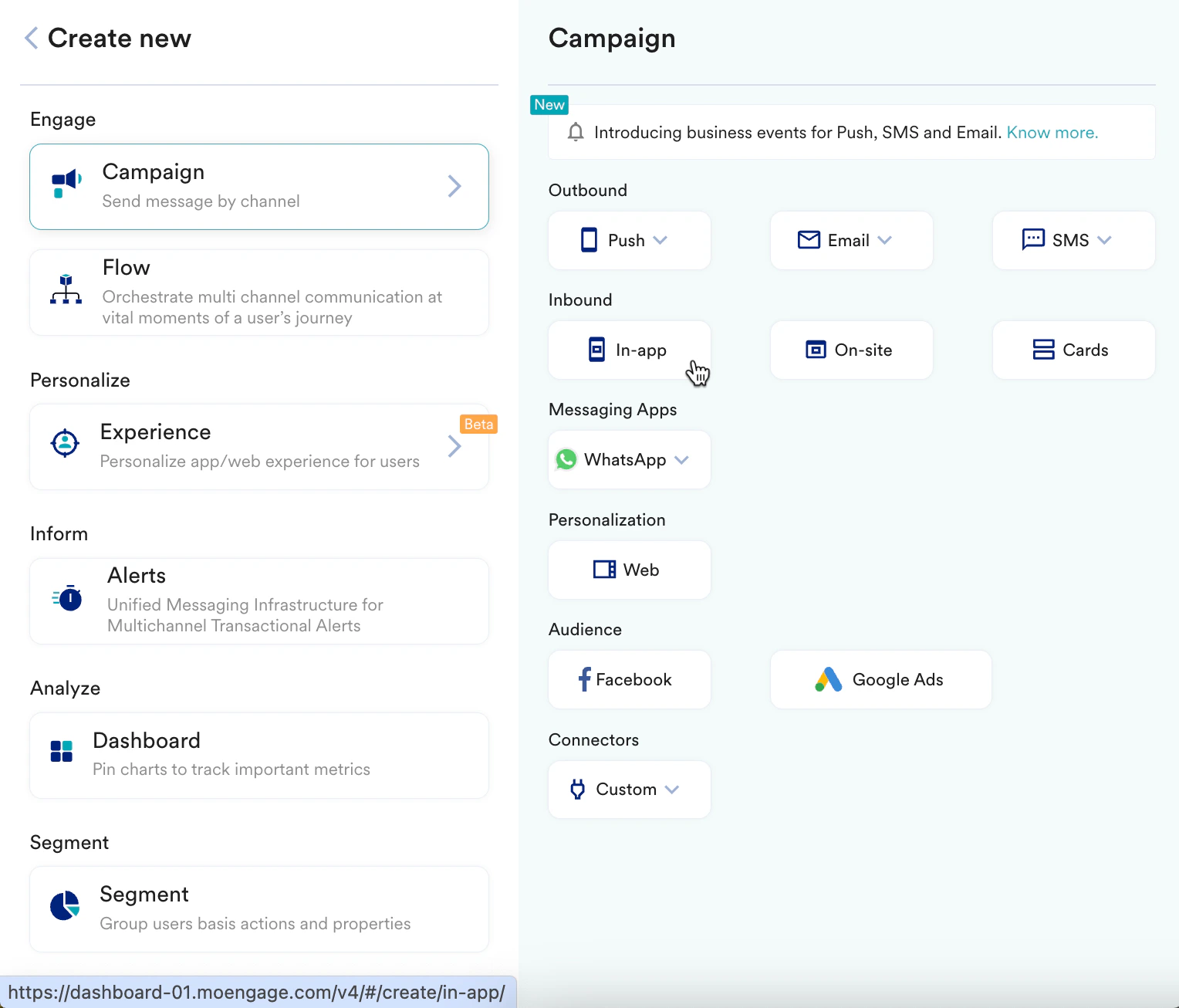
1. Navigate to the sidebar on the left and click **Engage** > **Campaigns** and click **+ Create campaign**, or click **+ Create new**> **Campaign**.
2. Under **Inbound**, click **In-app**. You are taken to the first step, "Target users," of defining your campaign.
3. Enter the following details:
* **Campaign name**: Enter a name for the campaign. For example, "App-rating."
* **Campaign tags**: Select the relevant campaign tags.
4. In the **Target Platforms** section, select **iOS**.
5. In the **Trigger Criteria** section, select **On Custom event**. The trigger for the app rating request will be the action of adding a product to the cart.
6. In the **Trigger the message** section, select **After Delay** and configure the trigger to initiate the in-app message 1 second after the "Add To Cart" action.
7. In the **Target audience** section, select **Filter users by** to specifically target only those users who have added products to their cart at least 15 times in the last month.
8. Click **Next** to move to the second step, "Content," where you can define the content that will go into your campaign.
## Step 2: Content
MoEngage In-app campaign offers a variety of templates for all your use cases. It also provides the option to start from scratch.
1. Select the template you want to show the user. To design the pop-up, you can select any In-app message template. For this use case, we want to trigger this message non-intrusively, so we will choose the **Nudge- Rating** template. You can customize it on the **Template Settings** page.
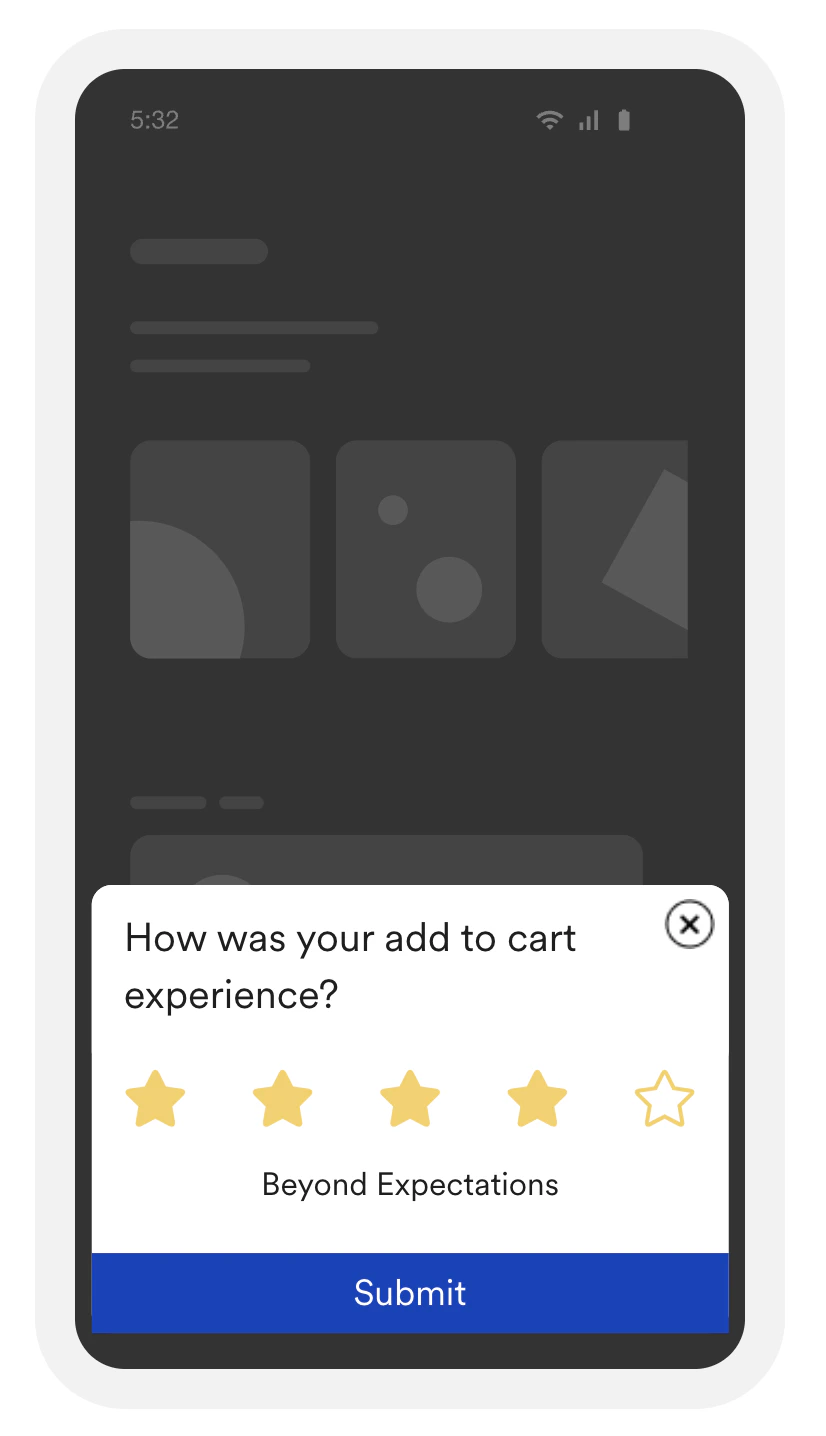
2. Design an In-app message asking users to rate their add-to-cart experience.
* Ensure the message is concise and user-friendly, with a clear call to action (for example, “Rate your add-to-cart experience”). You can see how I have created the pop-up here.\\
3. Add conditional actions:
* You can also add conditional actions. For example, if the rating is less than 3, navigate the user to the support screen so that they can raise their query.
4. Click **Next** to move to the third step, "Schedule and goals," where you can define your campaign's schedule and goals.
## Step 3: Schedule and goals
Here, you can select the campaign schedule, add the conversion goal, choose the campaign's priority, and define custom delivery controls.
1. In the **Send campaign** section, define when you want to start and end your In-app campaign with the frequency and limits.
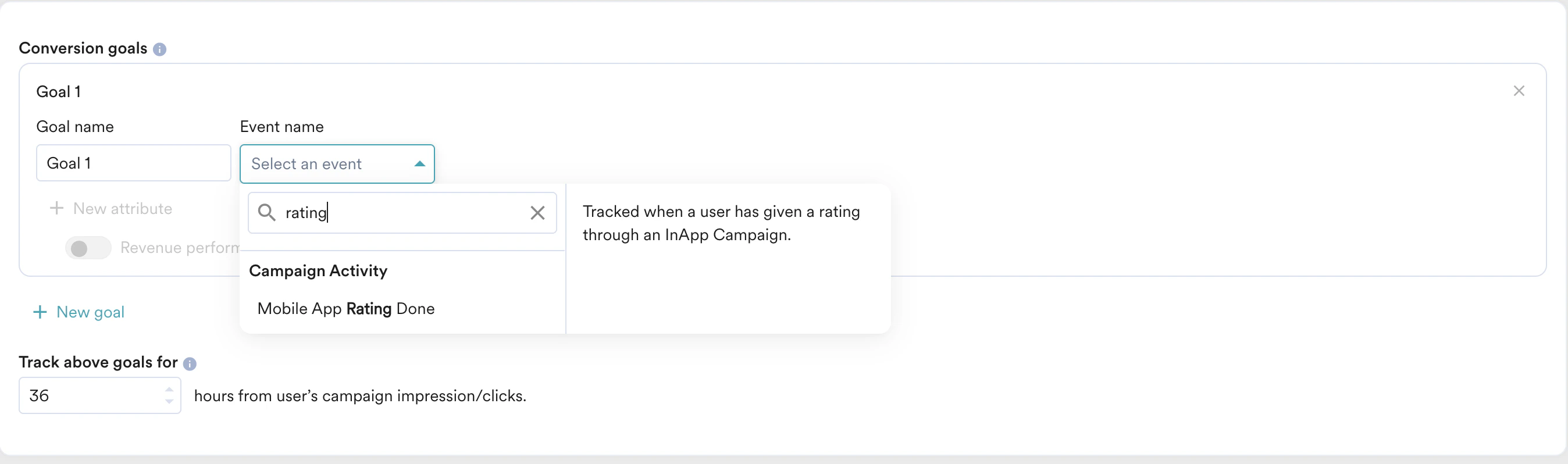
2. In the **Conversion Goals** section, add the conversion goal to the rating done.
3. In the **Campaign priority** section, assign a priority to this campaign. Assigning a priority helps you decide which In-app message to show to a user when they are eligible for more than one message at a specific time. For example, selecting **Critical** ensures that the users will always see this even when there are other campaigns for which they are eligible.
4. In the **Delivery Controls** section, define the controls based on your requirements. For more information, refer to [Create In-App Campaign](/user-guide/campaigns-and-channels/in-app-message/create/create-in-app-campaign).
5. Click **Publish**.
# Monitor the Campaign Performance
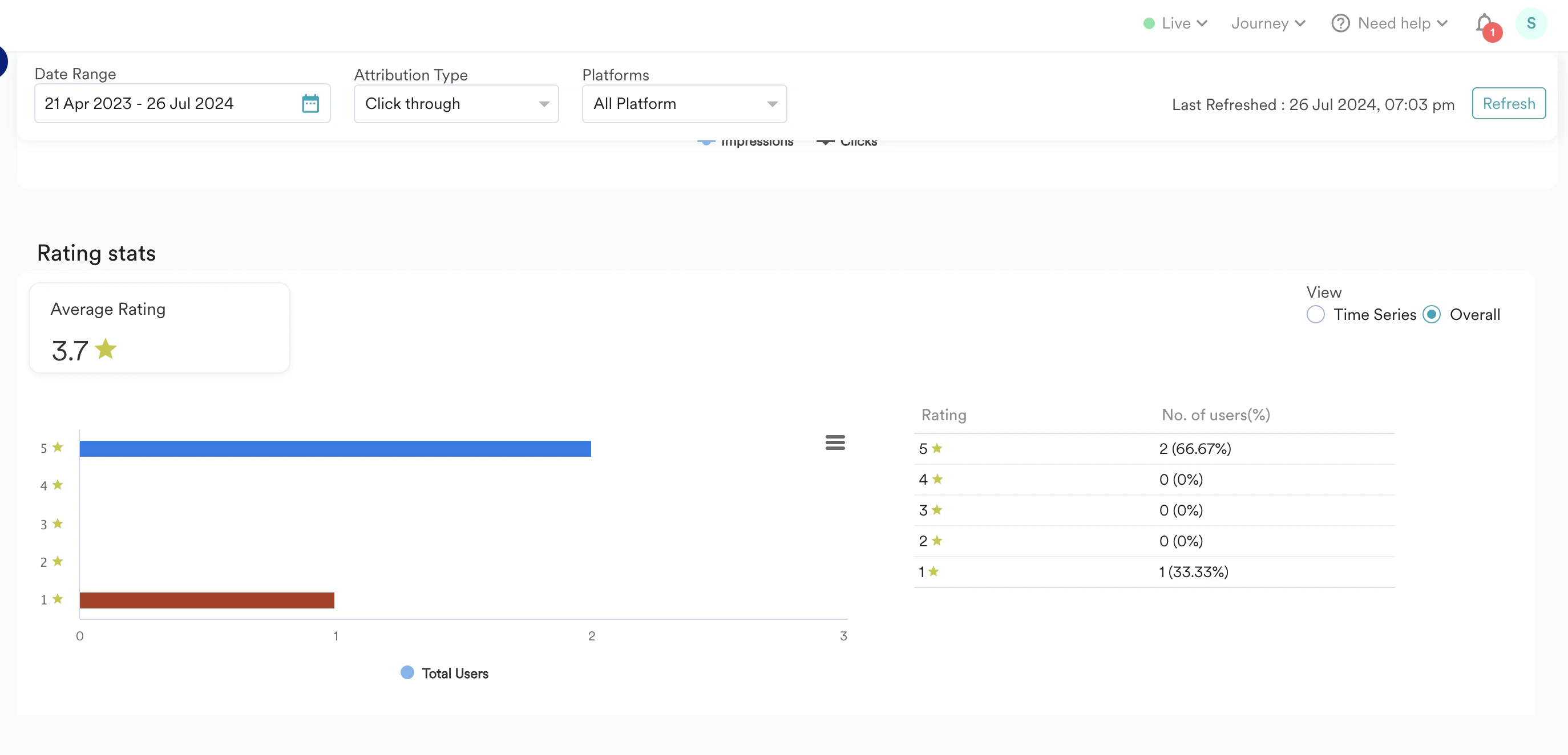
You can analyze the feedback from the ratings on the analytics page. Use it to identify trends and areas for improvement.
# Conclusion
In this use case, we created an In-app campaign to collect feedback from your most active users regarding the add-to-cart experience.
This automated campaign will use app ratings to gain insights into the strengths and weaknesses of the add-to-cart experience. This feedback loop allows continuous improvement, ensuring that the shopping experience meets the users' expectations and increases overall satisfaction.
Now that we have published the campaign, we can track its CTR and conversions (if defined) to understand how well it is performing. For more information, refer to [In-App Campaign Analytics](/user-guide/campaigns-and-channels/in-app-message/analyze/analyze-in-app-campaigns).
 You are taken to the first step, "Target users," of defining your campaign.
3. Enter the following details:
* **Campaign name**: Enter a name for the campaign. For example, "App-rating."
* **Campaign tags**: Select the relevant campaign tags.
4. In the **Target Platforms** section, select **iOS**.
5. In the **Trigger Criteria** section, select **On Custom event**. The trigger for the app rating request will be the action of adding a product to the cart.
You are taken to the first step, "Target users," of defining your campaign.
3. Enter the following details:
* **Campaign name**: Enter a name for the campaign. For example, "App-rating."
* **Campaign tags**: Select the relevant campaign tags.
4. In the **Target Platforms** section, select **iOS**.
5. In the **Trigger Criteria** section, select **On Custom event**. The trigger for the app rating request will be the action of adding a product to the cart. 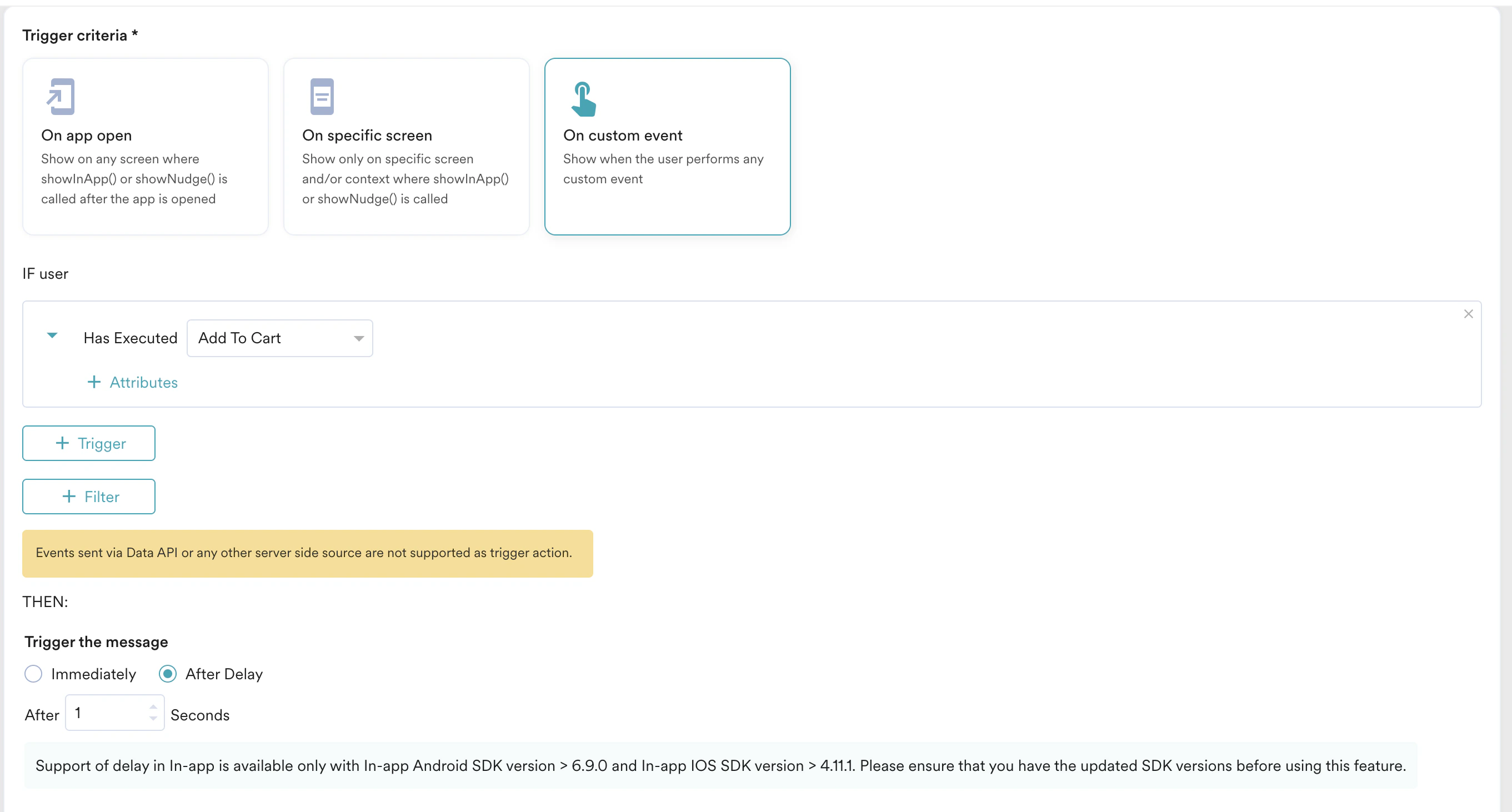 6. In the **Trigger the message** section, select **After Delay** and configure the trigger to initiate the in-app message 1 second after the "Add To Cart" action.
7. In the **Target audience** section, select **Filter users by** to specifically target only those users who have added products to their cart at least 15 times in the last month.
6. In the **Trigger the message** section, select **After Delay** and configure the trigger to initiate the in-app message 1 second after the "Add To Cart" action.
7. In the **Target audience** section, select **Filter users by** to specifically target only those users who have added products to their cart at least 15 times in the last month. 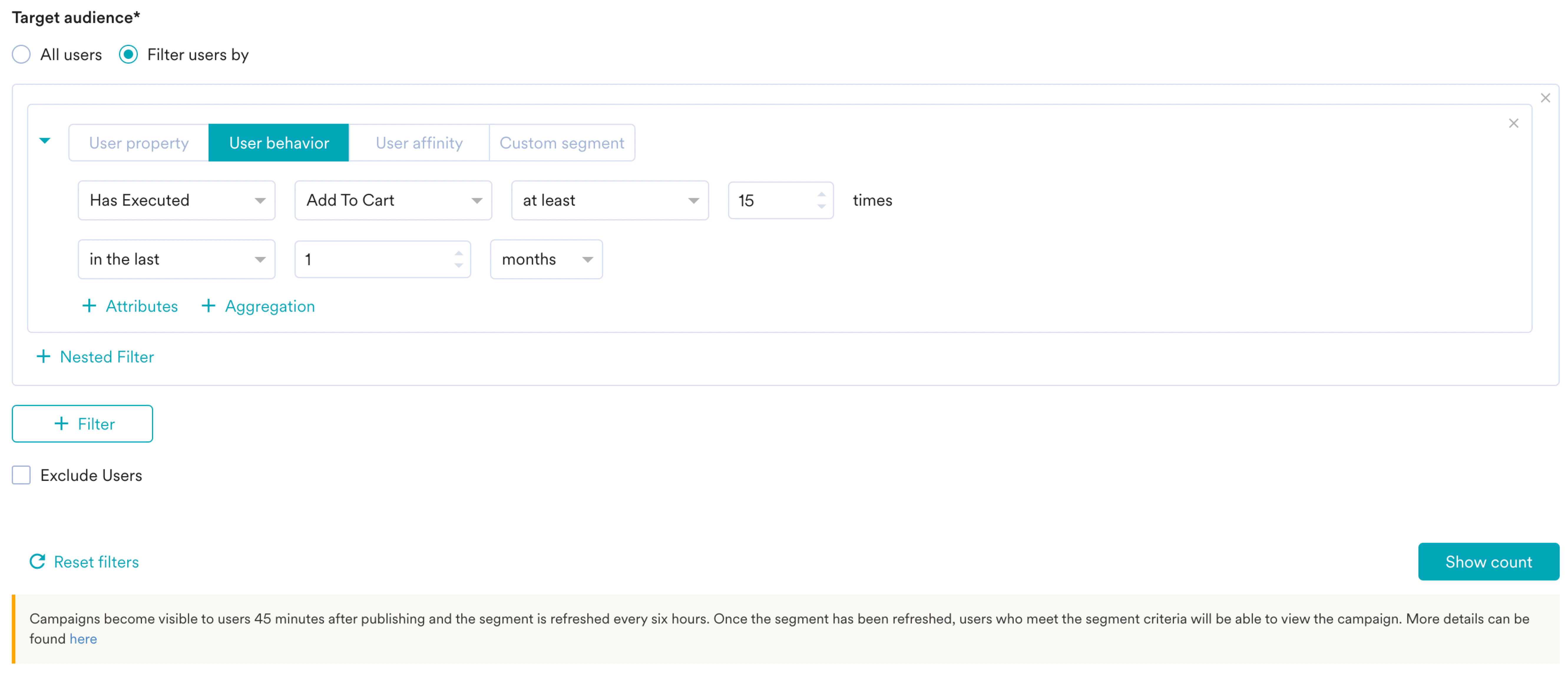 8. Click **Next** to move to the second step, "Content," where you can define the content that will go into your campaign.
## Step 2: Content
MoEngage In-app campaign offers a variety of templates for all your use cases. It also provides the option to start from scratch.
1. Select the template you want to show the user. To design the pop-up, you can select any In-app message template. For this use case, we want to trigger this message non-intrusively, so we will choose the **Nudge- Rating** template. You can customize it on the **Template Settings** page.
8. Click **Next** to move to the second step, "Content," where you can define the content that will go into your campaign.
## Step 2: Content
MoEngage In-app campaign offers a variety of templates for all your use cases. It also provides the option to start from scratch.
1. Select the template you want to show the user. To design the pop-up, you can select any In-app message template. For this use case, we want to trigger this message non-intrusively, so we will choose the **Nudge- Rating** template. You can customize it on the **Template Settings** page. 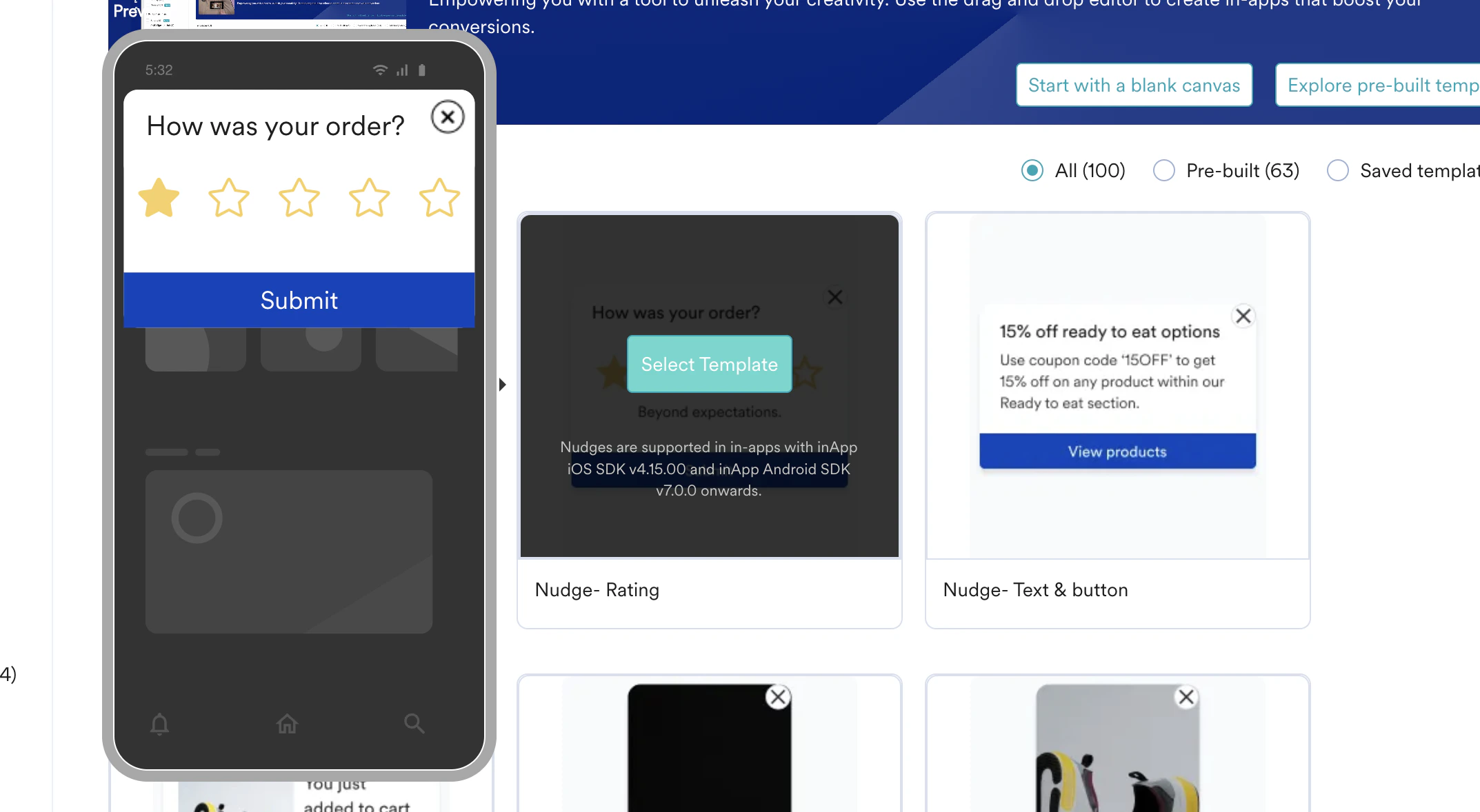 2. Design an In-app message asking users to rate their add-to-cart experience.
* Ensure the message is concise and user-friendly, with a clear call to action (for example, “Rate your add-to-cart experience”). You can see how I have created the pop-up here.\\
3. Add conditional actions:
* You can also add conditional actions. For example, if the rating is less than 3, navigate the user to the support screen so that they can raise their query.
2. Design an In-app message asking users to rate their add-to-cart experience.
* Ensure the message is concise and user-friendly, with a clear call to action (for example, “Rate your add-to-cart experience”). You can see how I have created the pop-up here.\\
3. Add conditional actions:
* You can also add conditional actions. For example, if the rating is less than 3, navigate the user to the support screen so that they can raise their query. 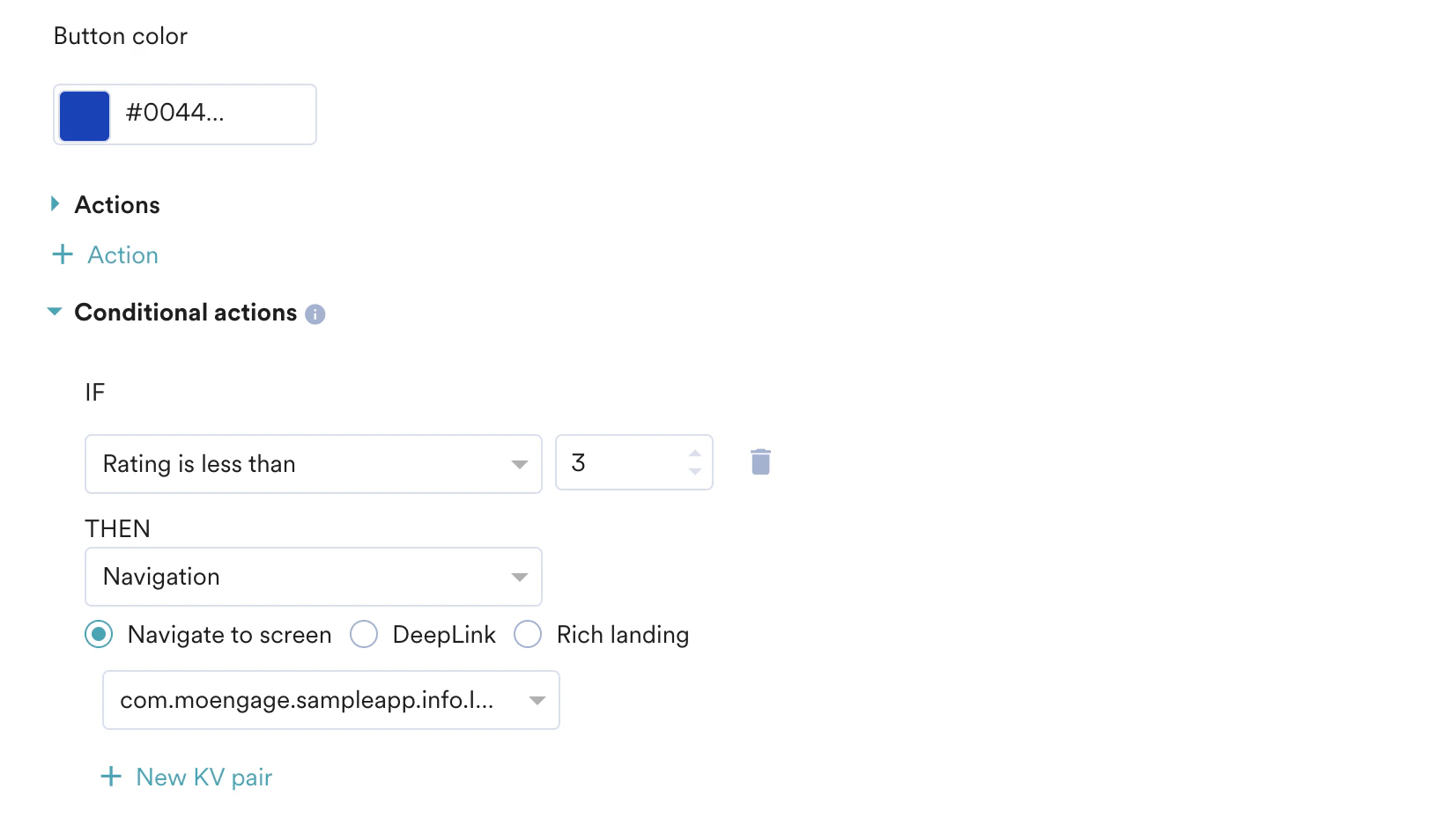 4. Click **Next** to move to the third step, "Schedule and goals," where you can define your campaign's schedule and goals.
## Step 3: Schedule and goals
Here, you can select the campaign schedule, add the conversion goal, choose the campaign's priority, and define custom delivery controls.
1. In the **Send campaign** section, define when you want to start and end your In-app campaign with the frequency and limits.
4. Click **Next** to move to the third step, "Schedule and goals," where you can define your campaign's schedule and goals.
## Step 3: Schedule and goals
Here, you can select the campaign schedule, add the conversion goal, choose the campaign's priority, and define custom delivery controls.
1. In the **Send campaign** section, define when you want to start and end your In-app campaign with the frequency and limits. 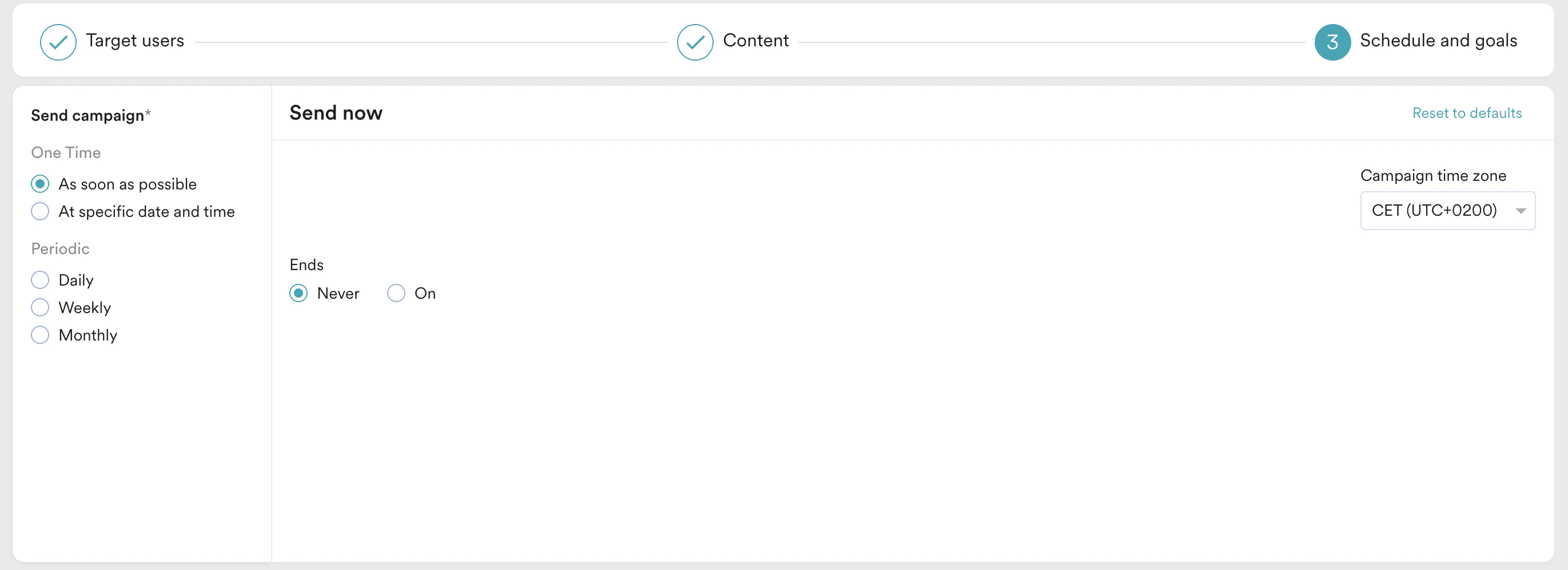 2. In the **Conversion Goals** section, add the conversion goal to the rating done.
  3. In the **Campaign priority** section, assign a priority to this campaign. Assigning a priority helps you decide which In-app message to show to a user when they are eligible for more than one message at a specific time. For example, selecting **Critical** ensures that the users will always see this even when there are other campaigns for which they are eligible.
4. In the **Delivery Controls** section, define the controls based on your requirements. For more information, refer to [Create In-App Campaign](/user-guide/campaigns-and-channels/in-app-message/create/create-in-app-campaign).
3. In the **Campaign priority** section, assign a priority to this campaign. Assigning a priority helps you decide which In-app message to show to a user when they are eligible for more than one message at a specific time. For example, selecting **Critical** ensures that the users will always see this even when there are other campaigns for which they are eligible.
4. In the **Delivery Controls** section, define the controls based on your requirements. For more information, refer to [Create In-App Campaign](/user-guide/campaigns-and-channels/in-app-message/create/create-in-app-campaign). 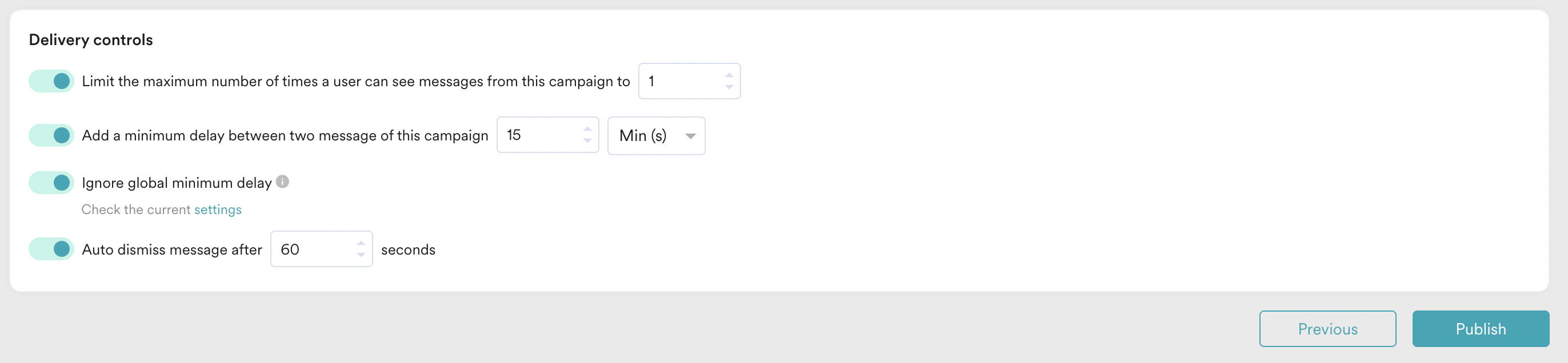 5. Click **Publish**.
# Monitor the Campaign Performance
You can analyze the feedback from the ratings on the analytics page. Use it to identify trends and areas for improvement.
5. Click **Publish**.
# Monitor the Campaign Performance
You can analyze the feedback from the ratings on the analytics page. Use it to identify trends and areas for improvement.
 # Conclusion
In this use case, we created an In-app campaign to collect feedback from your most active users regarding the add-to-cart experience.
This automated campaign will use app ratings to gain insights into the strengths and weaknesses of the add-to-cart experience. This feedback loop allows continuous improvement, ensuring that the shopping experience meets the users' expectations and increases overall satisfaction.
Now that we have published the campaign, we can track its CTR and conversions (if defined) to understand how well it is performing. For more information, refer to [In-App Campaign Analytics](/user-guide/campaigns-and-channels/in-app-message/analyze/analyze-in-app-campaigns).
# Conclusion
In this use case, we created an In-app campaign to collect feedback from your most active users regarding the add-to-cart experience.
This automated campaign will use app ratings to gain insights into the strengths and weaknesses of the add-to-cart experience. This feedback loop allows continuous improvement, ensuring that the shopping experience meets the users' expectations and increases overall satisfaction.
Now that we have published the campaign, we can track its CTR and conversions (if defined) to understand how well it is performing. For more information, refer to [In-App Campaign Analytics](/user-guide/campaigns-and-channels/in-app-message/analyze/analyze-in-app-campaigns).