> ## Documentation Index
> Fetch the complete documentation index at: https://moengage.com/docs/llms.txt
> Use this file to discover all available pages before exploring further.
# How to Recommend Content to Users Based on the Sequence of Preferences
# Introduction
Many OTT Platforms allow users to select the genre of their preference in the very beginning. This helps the brand understand the customers and give them choices that are relevant to them, improving the time spent on the app with relevant, interesting, and new content.
Users can show interest in multiple genres of content. Users selecting Action, Comedy, and Thriller should get recommendations in the same sequence.
We can give choices on the App or in marketing communications. For communications, such as Push or Email, MoEngage can recommend content based on users' preferences. We can achieve this using AI Recommendations.
In this article, we will use Recommendations and Push to recommend content to users based on the sequence of preferences.
# Expected Result
Each user gets a personalized nudge based on their choices. The recommendations are ranked in the order of the choice selection. For example, if the user selects thriller, horror, and comedy in this order, the first preference of recommendations would go to thriller, then horror, and finally comedy.
* Events to track the action of a user searching for content, watching the content, adding content to watch later, rating content, completing the content, and each action’s related information such as the genre, title, type, progress, rating, and platform. To understand how to track events, refer to the [Developer Guide](/developer-guide/introduction).
* Mapping of these tracked events to the concerned MoEngage events. For information on mapping custom events to MoEngage events, refer [here](/user-guide/content/recommendations/prerequisites/map-user-actions-settings).
* A catalog and a respective feed with a list of available contents and all related information about the same, from the name or title to the director, cast, and description to any awards that the title won in any category. Set the feed to refresh at a suitable interval so that the latest information can be maintained. For more information on product catalogs and feeds, refer [here](/user-guide/content/recommendations/prerequisites/catalogs).
* Settings for one or more channels such as Push, Email, SMS, or WhatsApp.
# Create a Recommendation
The first step is to capture the user’s preferences. During their onboarding, they would select the preferred genres, which can be sequentially captured in MoEngage using different user attributes. For example:
* Choice 1: Thriller
* Choice 2: Horror
* Choice 3: Comedy
These are three different user attributes. Once this is captured, we need to create a Recommendation Model.
In this section, let us create a recommendation based on the user's action.
1. Navigate to the MoEngage dashboard and select **Content** > **Recommendations** from the left navigation. The Recommendations page is displayed. For more information, refer to [Creating User Action Recommendations](/user-guide/content/recommendations/basic-recommendations/user-actions-model).
2. At the top right corner, click **+ Create recommendation**. This will take you to the first step, "Select recommendation model."
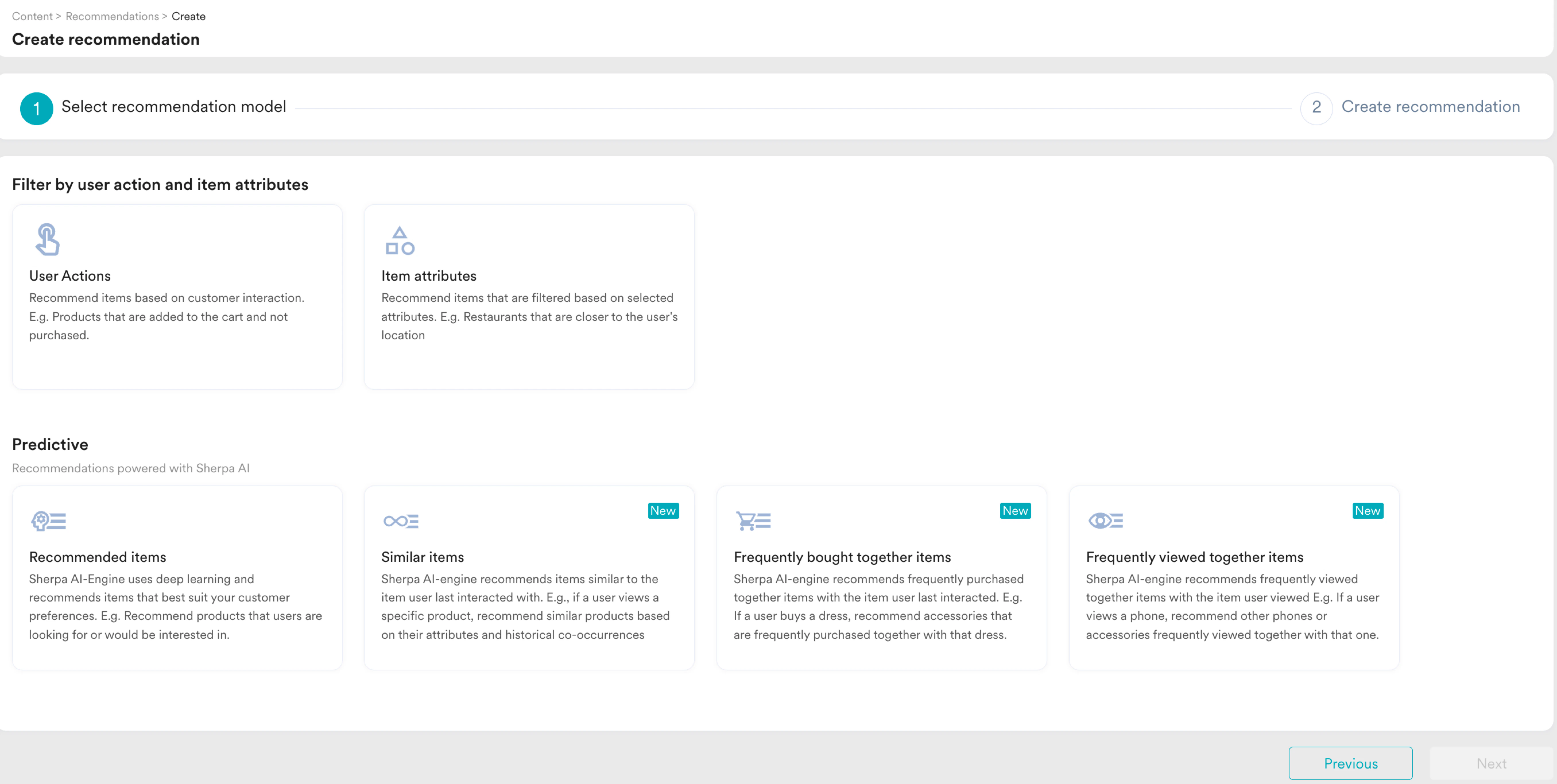 3. Under **Predictive**, click the **Similar items** card.
4. Click **Next**. It takes you to the second step "Create recommendation". Enter the following details:
* **Recommendation name**: Enter a name for the recommendation. This will be the name through which you will refer to the output of this recommendation model.
* **Recommendation description**: Enter a description for the recommendation. This description will help you understand the model's aim.
* **Catalog**: Select the catalog with the list of products you offer with all the related information.
5. Under **Generate recommendation based on the most recen**t, select **All user actions**.
3. Under **Predictive**, click the **Similar items** card.
4. Click **Next**. It takes you to the second step "Create recommendation". Enter the following details:
* **Recommendation name**: Enter a name for the recommendation. This will be the name through which you will refer to the output of this recommendation model.
* **Recommendation description**: Enter a description for the recommendation. This description will help you understand the model's aim.
* **Catalog**: Select the catalog with the list of products you offer with all the related information.
5. Under **Generate recommendation based on the most recen**t, select **All user actions**.
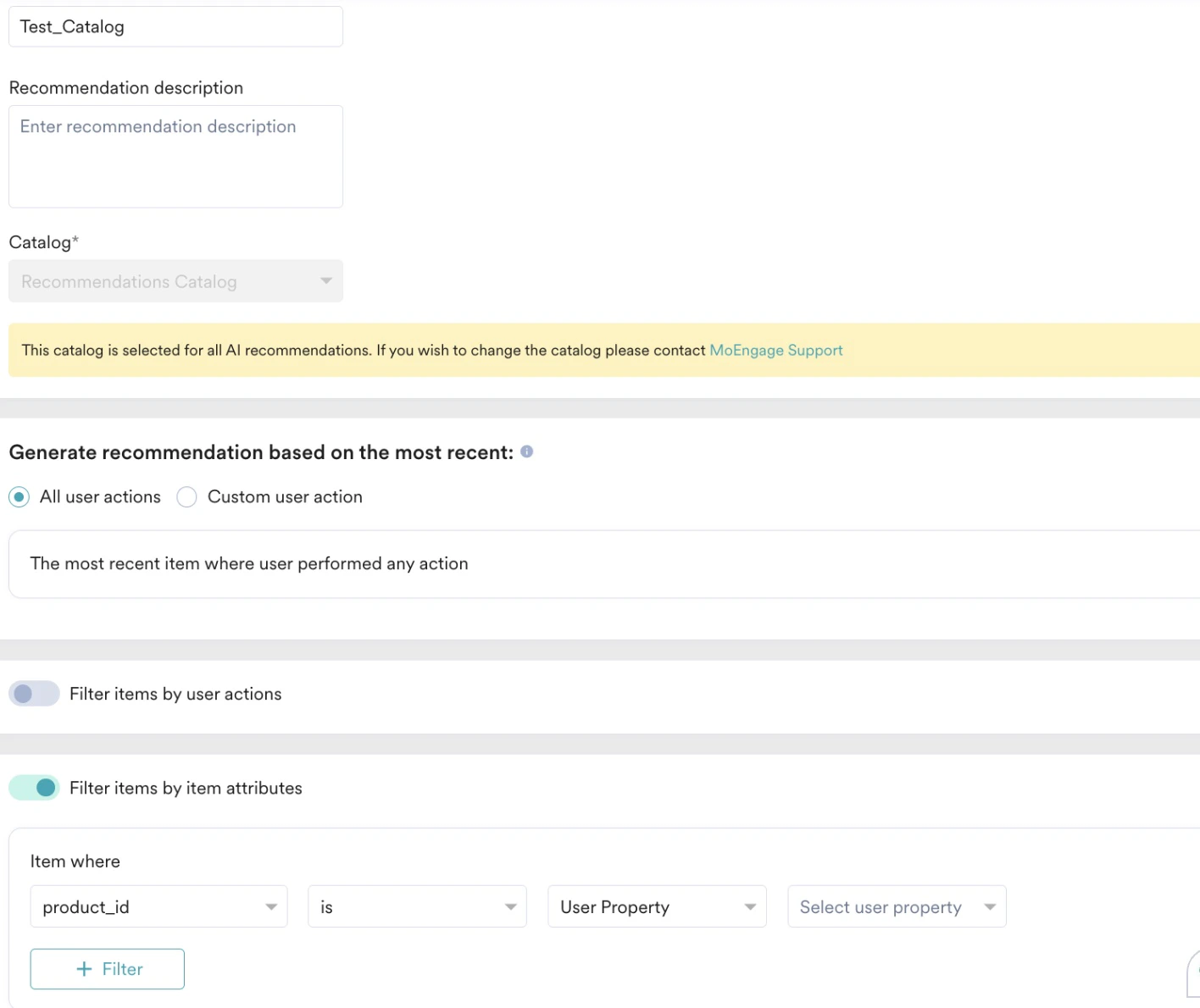 While filtering, note that the value *product\_id* would contain the category names Thriller, Horror, and Comedy. This would be compared with User Attributes: Choice 1, and the results would be populated based on Choice 1.
6. Click **Create** to save the changes and run the model.\
Please note that this will take 24 hours. You can find the status of the model on the Recommendations home page:
Create three different recommendations for three other choices.
Now that we created the recommendation, let us create a Push campaign and personalize it using Recommendations.
# Create a Push Campaign
In this section, let us create a campaign.
## Step 1: Target Users
1. Navigate to the sidebar on the left and click **Engage** > **Campaigns** and click **+ Create campaign** or click **+ Create new** > **Campaign**.
2. Under **Outbound**, select **Push** > **Periodic**.
While filtering, note that the value *product\_id* would contain the category names Thriller, Horror, and Comedy. This would be compared with User Attributes: Choice 1, and the results would be populated based on Choice 1.
6. Click **Create** to save the changes and run the model.\
Please note that this will take 24 hours. You can find the status of the model on the Recommendations home page:
Create three different recommendations for three other choices.
Now that we created the recommendation, let us create a Push campaign and personalize it using Recommendations.
# Create a Push Campaign
In this section, let us create a campaign.
## Step 1: Target Users
1. Navigate to the sidebar on the left and click **Engage** > **Campaigns** and click **+ Create campaign** or click **+ Create new** > **Campaign**.
2. Under **Outbound**, select **Push** > **Periodic**.
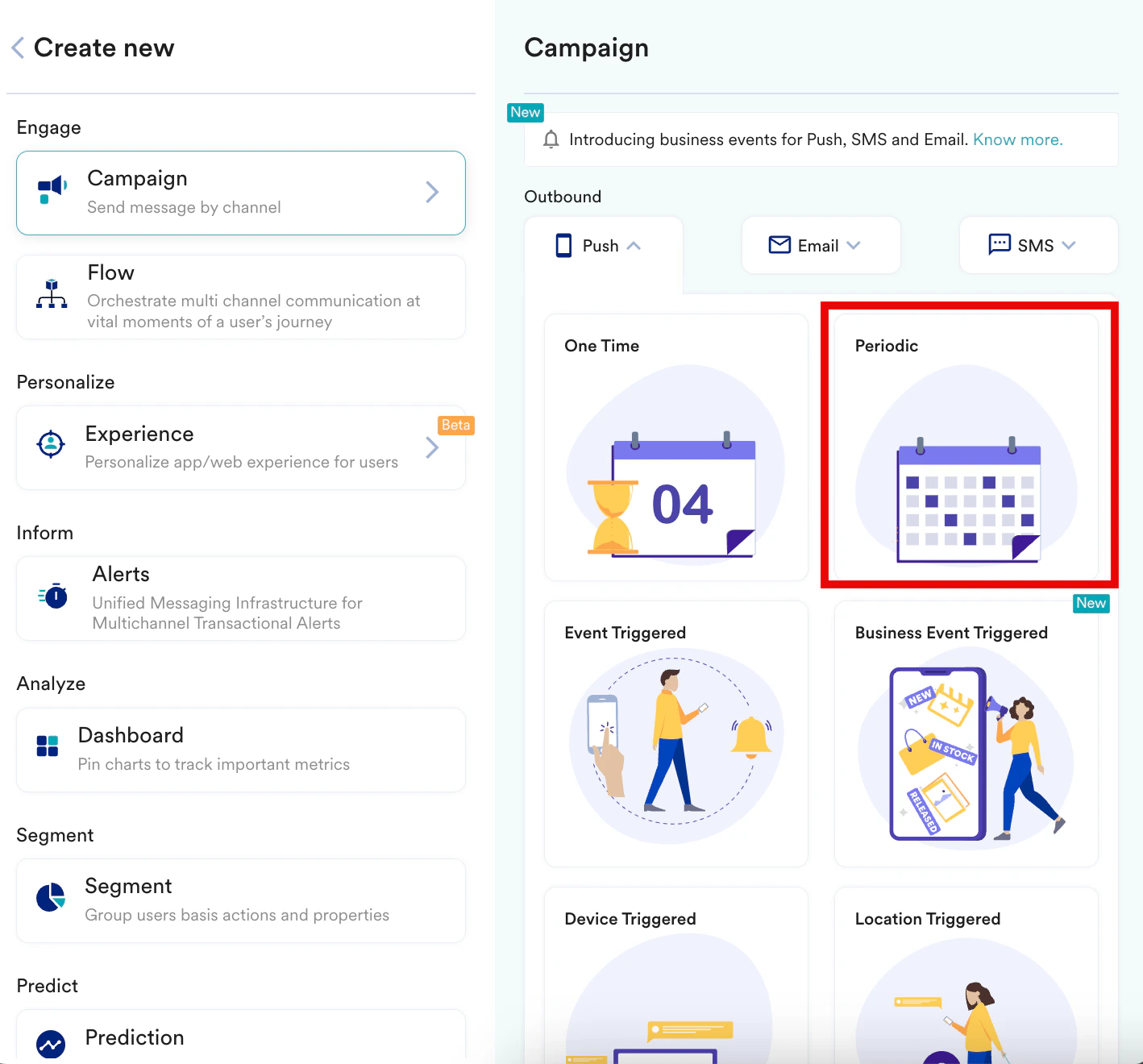 You are taken to the first step, "Target users," of defining your campaign.
3. Enter the following details:
* **Team**: Select a team if your organization has teams enabled for your account.
* **Campaign name**: Enter a name for the campaign.
* **Campaign tags**: Select the required campaign tags.
4. In the **Target Audience** section, select **All users**.
You are taken to the first step, "Target users," of defining your campaign.
3. Enter the following details:
* **Team**: Select a team if your organization has teams enabled for your account.
* **Campaign name**: Enter a name for the campaign.
* **Campaign tags**: Select the required campaign tags.
4. In the **Target Audience** section, select **All users**.
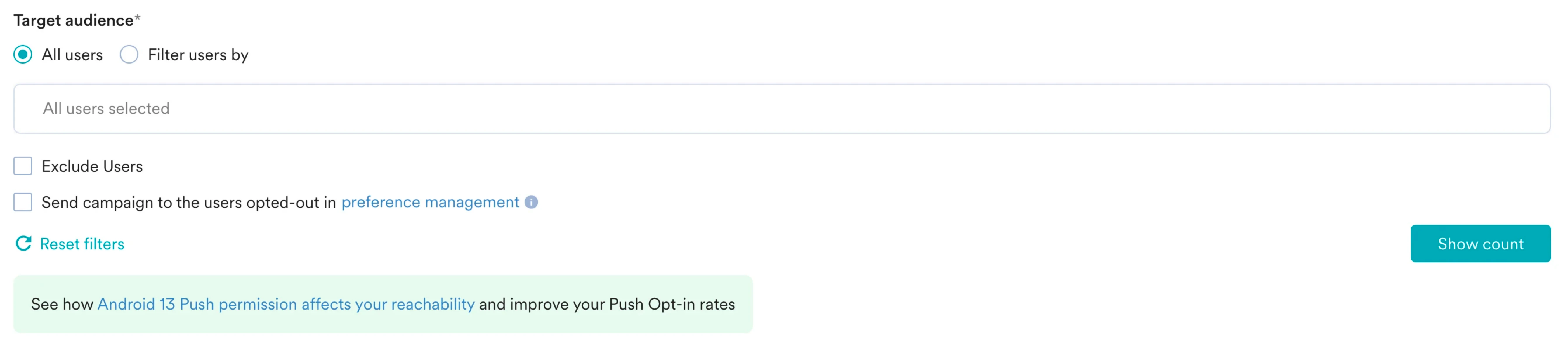 5. In the **Target Platforms** section, select **Android**.
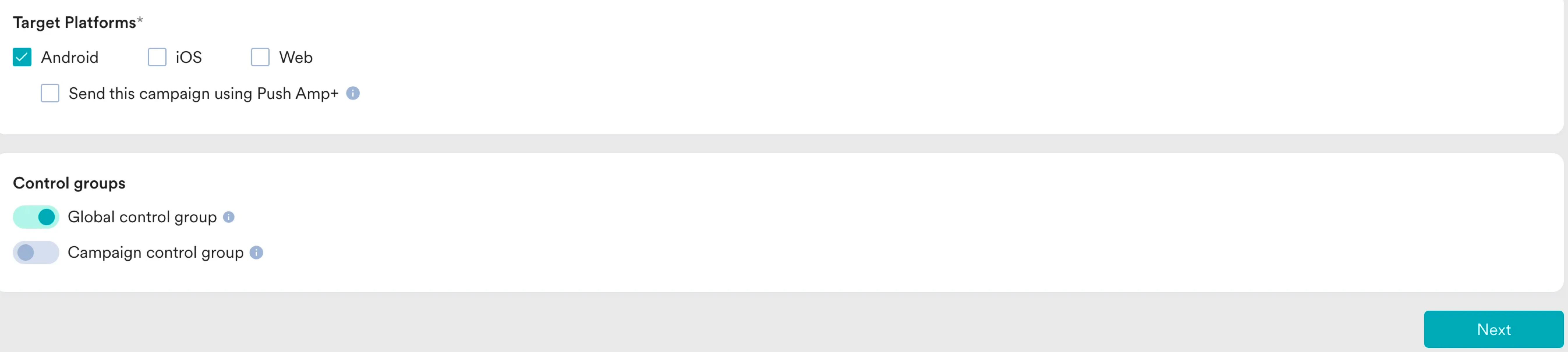 6. Click **Next** to move to the second step "Content" where you can define the content that will go into your Push campaign.
## Step 2: Content
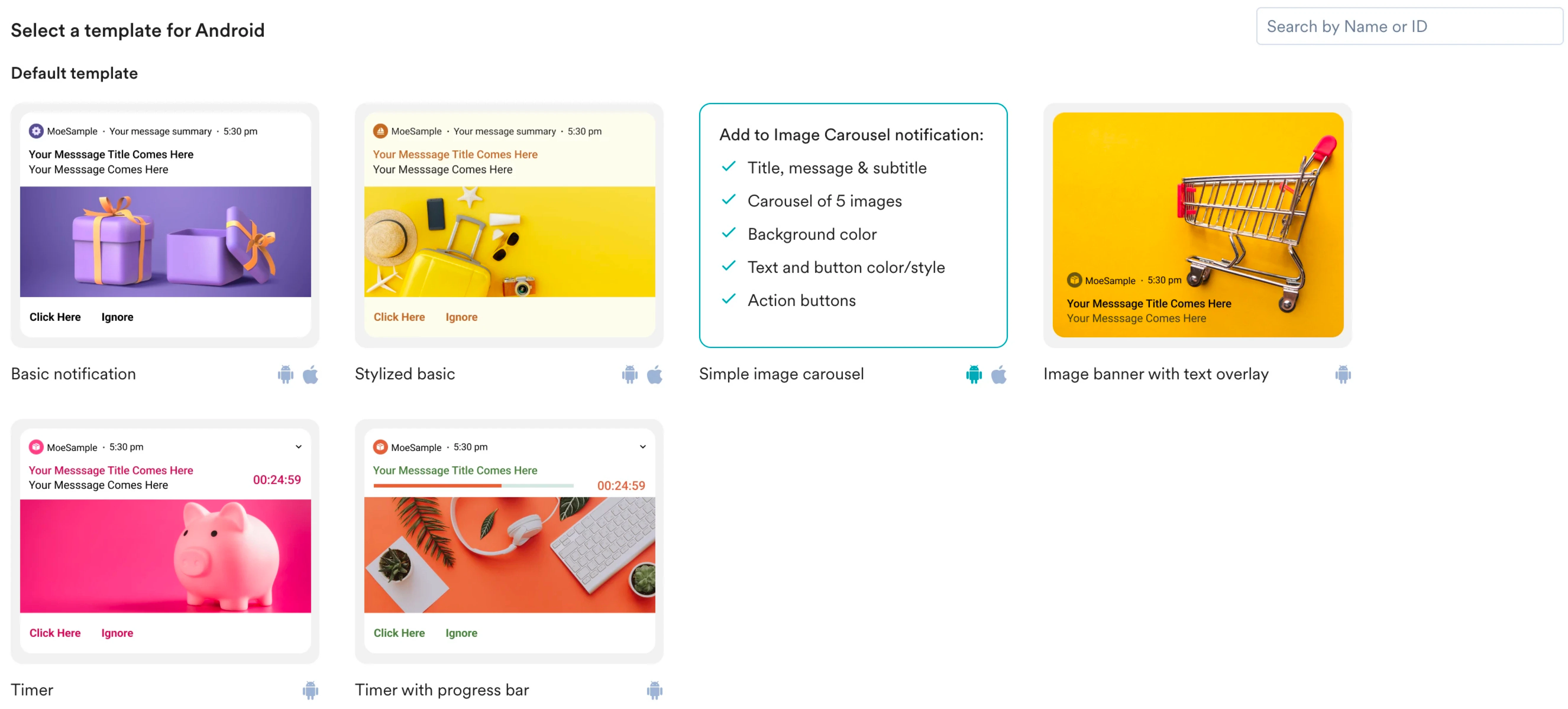
1. Select the template that you would like to use. For our example, select **Basic notification**.
6. Click **Next** to move to the second step "Content" where you can define the content that will go into your Push campaign.
## Step 2: Content
1. Select the template that you would like to use. For our example, select **Basic notification**.
 2. In the **Message title** field, enter a title.
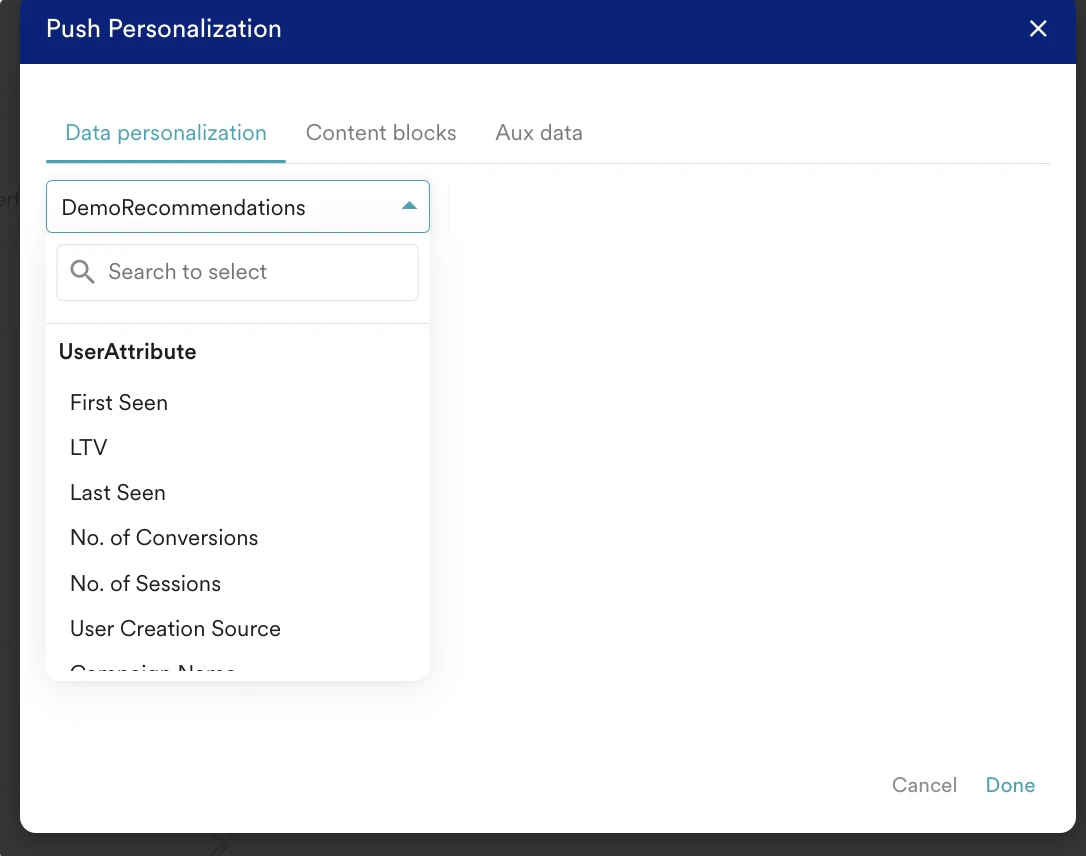
3. While defining the message, select the product set generated through the recommendation [you defined](/user-guide/use-cases/recommendations/how-to-recommend-content-to-users-based-on-the-sequence-of-preferences#create-a-recommendation). Enter “@” and search for the name of the recommendation that you built, in the Push Personalization pop-up.
2. In the **Message title** field, enter a title.
3. While defining the message, select the product set generated through the recommendation [you defined](/user-guide/use-cases/recommendations/how-to-recommend-content-to-users-based-on-the-sequence-of-preferences#create-a-recommendation). Enter “@” and search for the name of the recommendation that you built, in the Push Personalization pop-up.
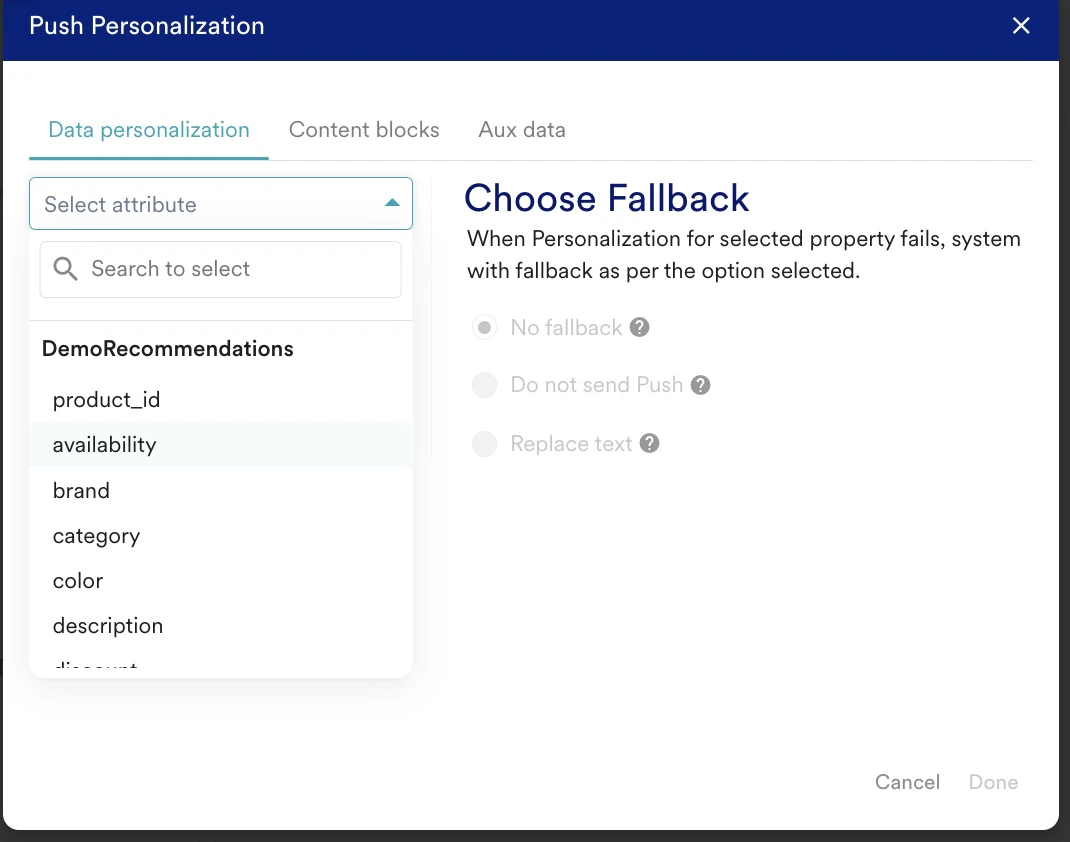 Using product sets, you can personalize the campaign—title, body, and landing page. If the client wants three different communications, they can have a flow with three different Push campaigns with three different recommendations based on the choices in the order of choice 1, choice 2, and choice 3.
You can also put this in an Email in the same order.
Using product sets, you can personalize the campaign—title, body, and landing page. If the client wants three different communications, they can have a flow with three different Push campaigns with three different recommendations based on the choices in the order of choice 1, choice 2, and choice 3.
You can also put this in an Email in the same order.
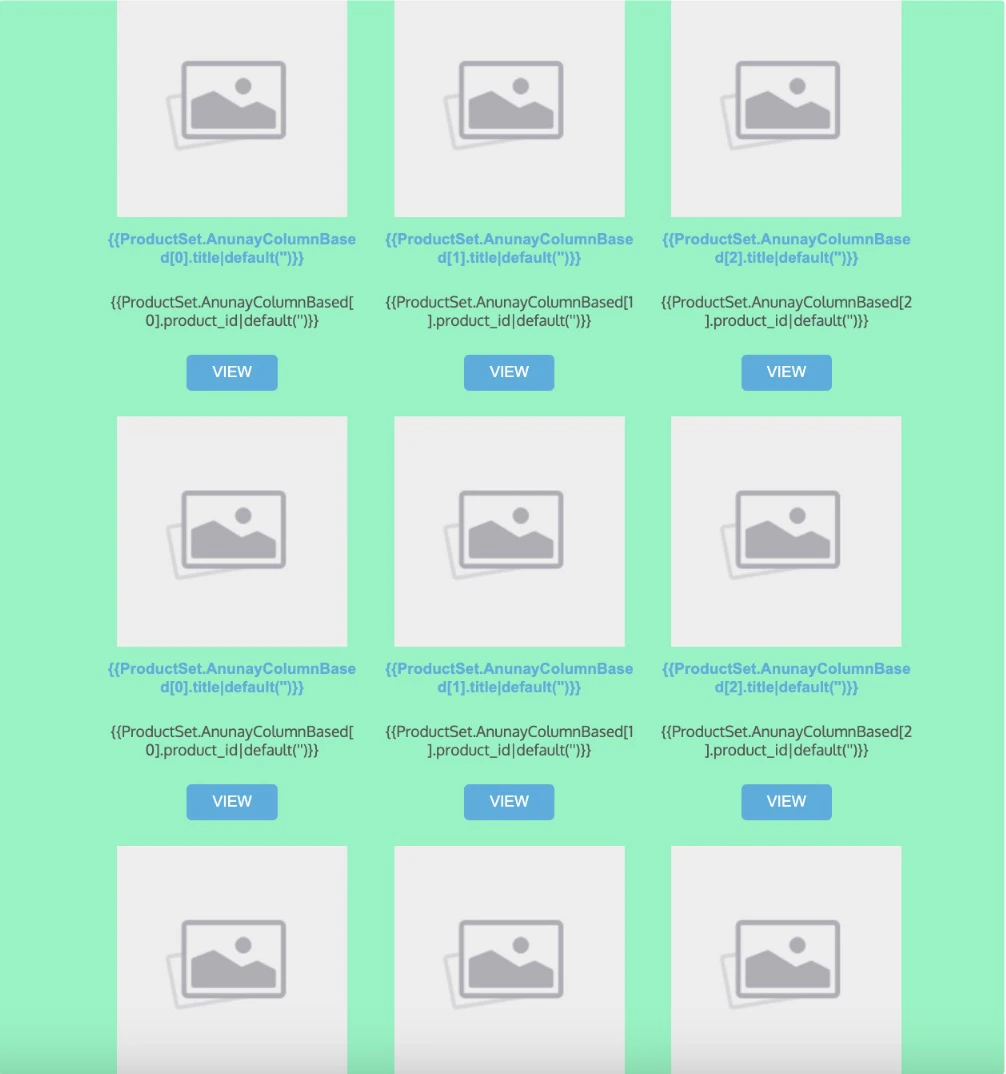 Row 1 is Recommendations for Choice 1; Row 2 is Recommendations for Choice 2; and Row 3 is Recommendations for Choice 3.
4. Click **Next** to move to the third step, "Schedule and goals," where you can define your campaign's schedule and goals.
## Step 3: Schedule and Goals
1. In the **Send campaign** section, select when the campaign should be delivered to your users and the periodicity of delivery.
2. Change the deliverability settings based on your requirements. For more information about these settings, refer to [Create Push Campaigns](/user-guide/campaigns-and-channels/mobile-push/create/create-push-campaigns).
Row 1 is Recommendations for Choice 1; Row 2 is Recommendations for Choice 2; and Row 3 is Recommendations for Choice 3.
4. Click **Next** to move to the third step, "Schedule and goals," where you can define your campaign's schedule and goals.
## Step 3: Schedule and Goals
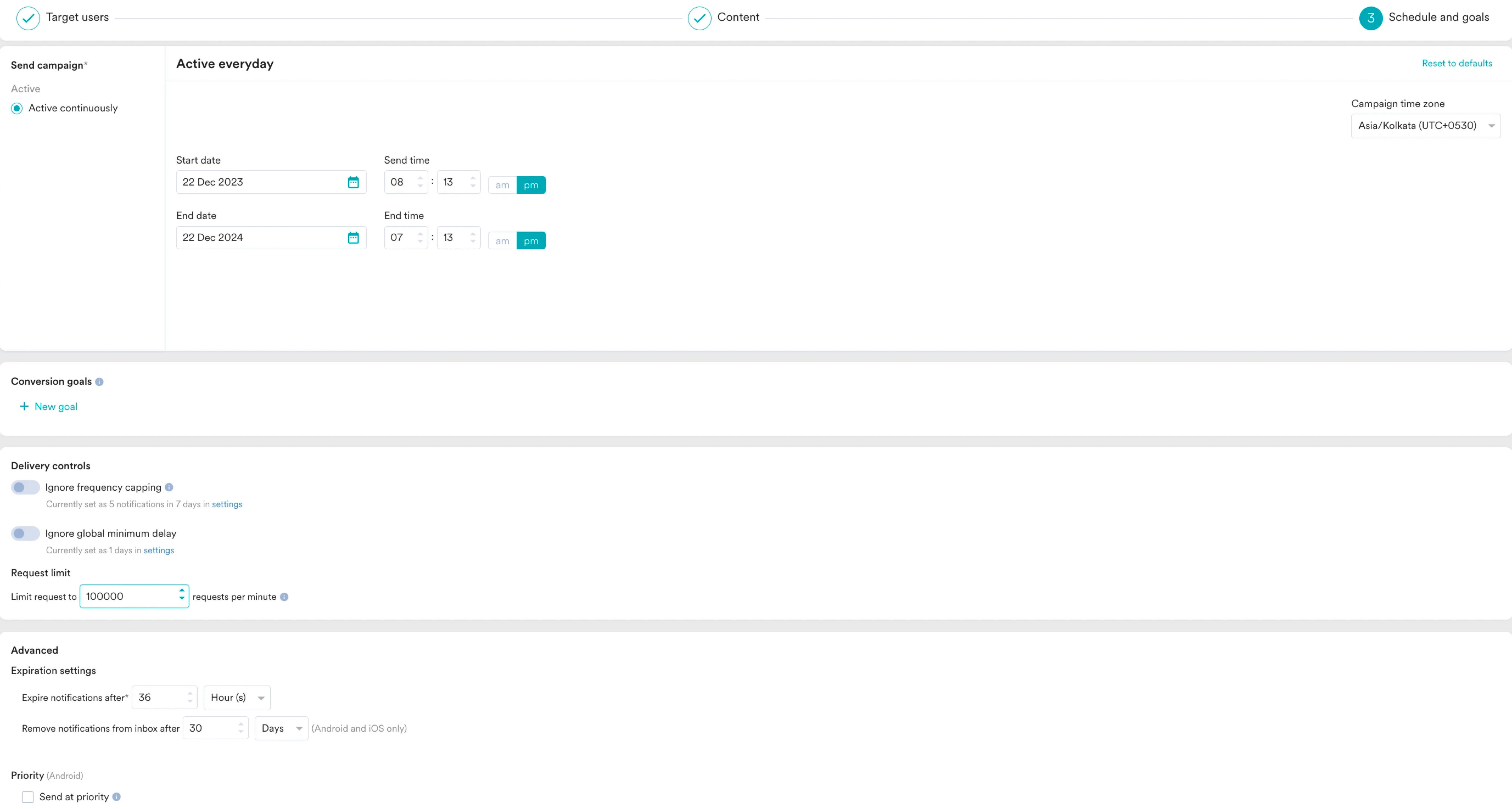
1. In the **Send campaign** section, select when the campaign should be delivered to your users and the periodicity of delivery.
2. Change the deliverability settings based on your requirements. For more information about these settings, refer to [Create Push Campaigns](/user-guide/campaigns-and-channels/mobile-push/create/create-push-campaigns).
 3. Click **Publish**.
This would give the client more personalized communications for the end users to consume and try out. The better the recommendations, the more the end user would be hooked to the app, increasing screen time and becoming a promoter.
# Conclusion
In this use case, we used Recommendations and Push to recommend content to users based on the sequence of preferences.
This is one more step towards increasing the user's screen time and making him binge-watch more shows/ programs. This would increase the user's stickiness to the App.
3. Click **Publish**.
This would give the client more personalized communications for the end users to consume and try out. The better the recommendations, the more the end user would be hooked to the app, increasing screen time and becoming a promoter.
# Conclusion
In this use case, we used Recommendations and Push to recommend content to users based on the sequence of preferences.
This is one more step towards increasing the user's screen time and making him binge-watch more shows/ programs. This would increase the user's stickiness to the App.