> ## Documentation Index
> Fetch the complete documentation index at: https://moengage.com/docs/llms.txt
> Use this file to discover all available pages before exploring further.
# Create a Birthday Email Campaign
# Introduction
Birthdays offer businesses a unique opportunity to connect with customers personally. Recognizing customer birthdays is a highly effective engagement strategy. Businesses send birthday campaigns to make customers feel valued and appreciated on their special day.
#### Advantages of sending birthday campaigns
* **Personalized experience**: Birthday emails are inherently personalized, making customers feel the business pays attention to them individually.
* **Higher engagement rates**: Birthday campaigns often result in higher open rates and conversion rates than regular marketing emails.
* **Increased sales**: Businesses can encourage customers to purchase by offering special discounts or promotions in birthday emails.
* **Customer loyalty building**: Sending a birthday greeting demonstrates that a company cares about its customers beyond just transactional interactions.
* **Positive brand perception**: A thoughtful birthday email can create a positive impression of the brand and strengthen customer relationships. It can differentiate the brand from competitors who might not send such personalized messages.
We can achieve this use case using the following steps:
1. [Verify the Availability of Data](/user-guide/use-cases/segmentation/create-a-birthday-email-campaign#step-1-verify-the-availability-of-data)
2. [Create an Email Campaign](/user-guide/use-cases/segmentation/create-a-birthday-email-campaign#step-2-create-an-email-campaign)
# Expected Result
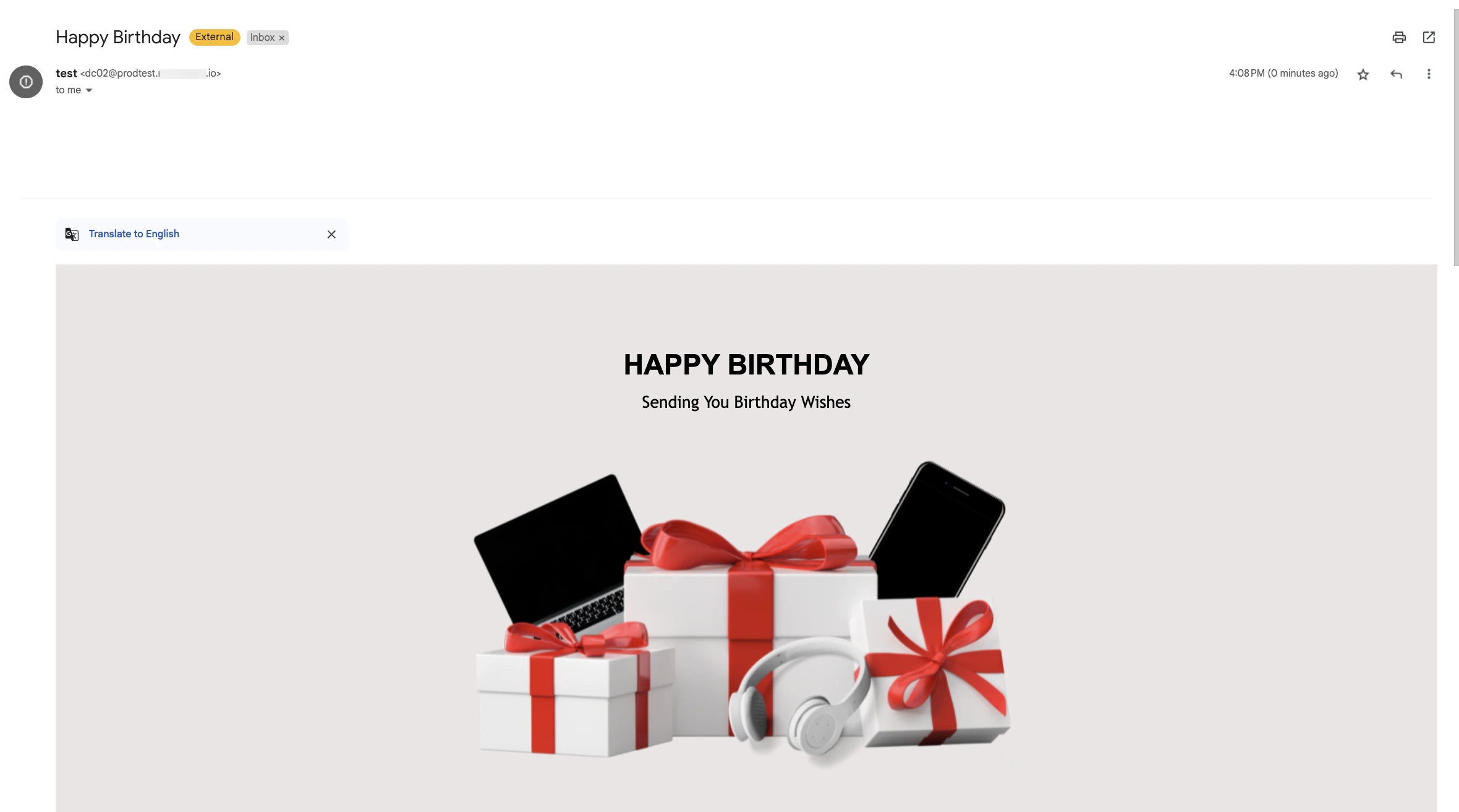
Users receive the birthday email as shown below:
 * The user's birth date must be available in MoEngage.
* The [Email channel](/user-guide/campaigns-and-channels/email/getting-started-with-email/configure-email-channel) must be configured.
# Step 1: Verify the Availability of Data
Before creating a birthday campaign in MoEngage, ensure the user's birth date is available in MoEngage.
1. Go to the user profile of a specific user. For more information, refer to [Find User in MoEngage.](/user-guide/use-cases/segmentation/find-users-in-moengage)
2. On the [User Profile](/user-guide/data/user-data/user-profile) page, check if the **Birthday** field has the birthday data.\
In the following example, the user attribute **Birthday** has the user's birthday information in the **Tracked Standard Attribute** section of the user profile. However, the birthday information may exist in a different user attribute for your account.
* The user's birth date must be available in MoEngage.
* The [Email channel](/user-guide/campaigns-and-channels/email/getting-started-with-email/configure-email-channel) must be configured.
# Step 1: Verify the Availability of Data
Before creating a birthday campaign in MoEngage, ensure the user's birth date is available in MoEngage.
1. Go to the user profile of a specific user. For more information, refer to [Find User in MoEngage.](/user-guide/use-cases/segmentation/find-users-in-moengage)
2. On the [User Profile](/user-guide/data/user-data/user-profile) page, check if the **Birthday** field has the birthday data.\
In the following example, the user attribute **Birthday** has the user's birthday information in the **Tracked Standard Attribute** section of the user profile. However, the birthday information may exist in a different user attribute for your account.
 Ensure the data is available in a date format. If there is no data, contact your technical team to send the user's birthday data to MoEngage and store it in a user attribute.
# Step 2: Create an Email Campaign
In this section, we will create a periodic Email campaign to wish customers on their birthdays.
## Step 2.1: Target Users
1. On the left navigation menu in the MoEngage dashboard, click **Engage**, and then click**Campaigns**.
2. On the **All campaigns** page, click **+ Create campaign**.
3. Under **Outbound**, select **Email** > **Periodic**.
Ensure the data is available in a date format. If there is no data, contact your technical team to send the user's birthday data to MoEngage and store it in a user attribute.
# Step 2: Create an Email Campaign
In this section, we will create a periodic Email campaign to wish customers on their birthdays.
## Step 2.1: Target Users
1. On the left navigation menu in the MoEngage dashboard, click **Engage**, and then click**Campaigns**.
2. On the **All campaigns** page, click **+ Create campaign**.
3. Under **Outbound**, select **Email** > **Periodic**.
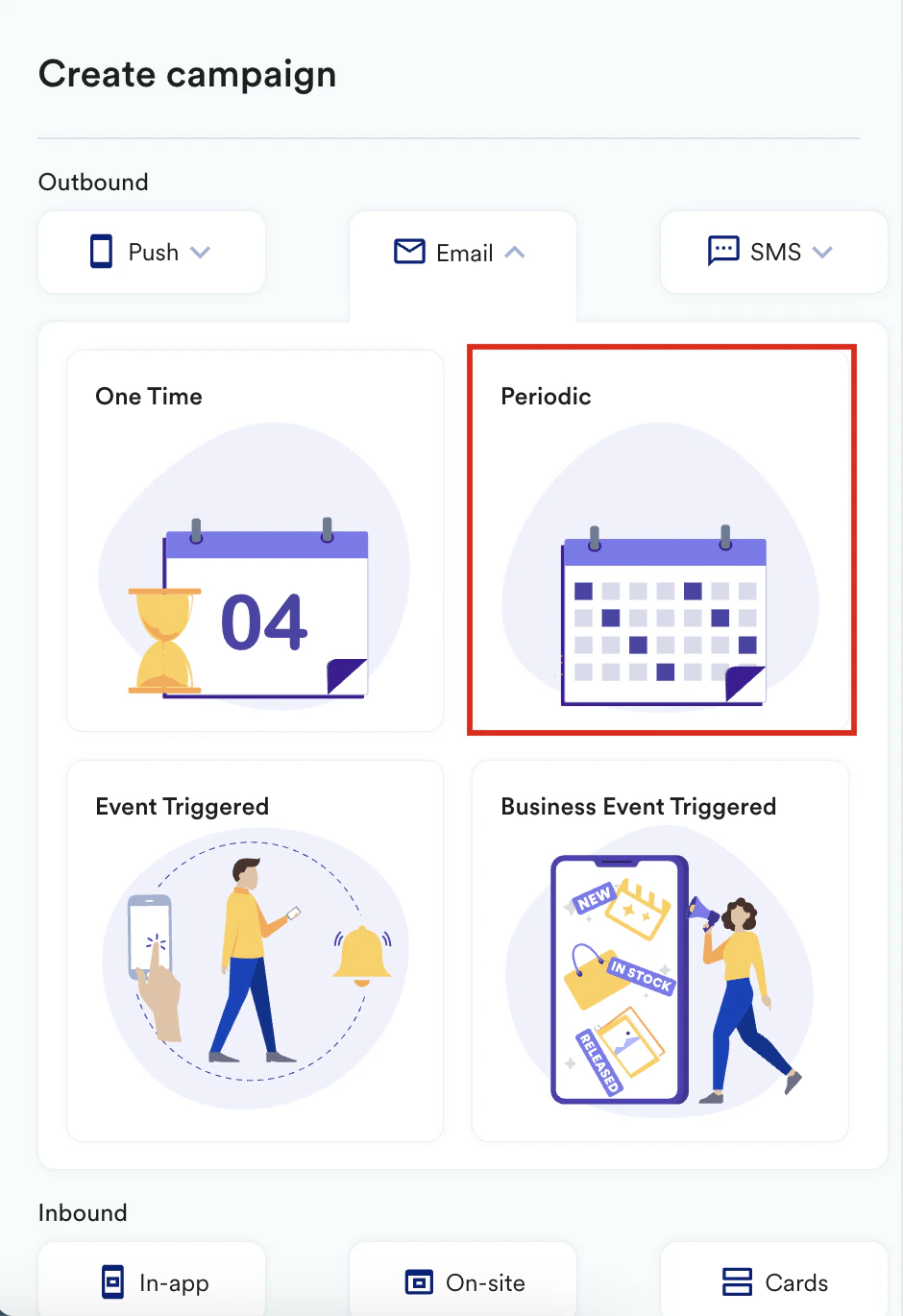 You are taken to the first step, **Target users**, of defining your campaign.
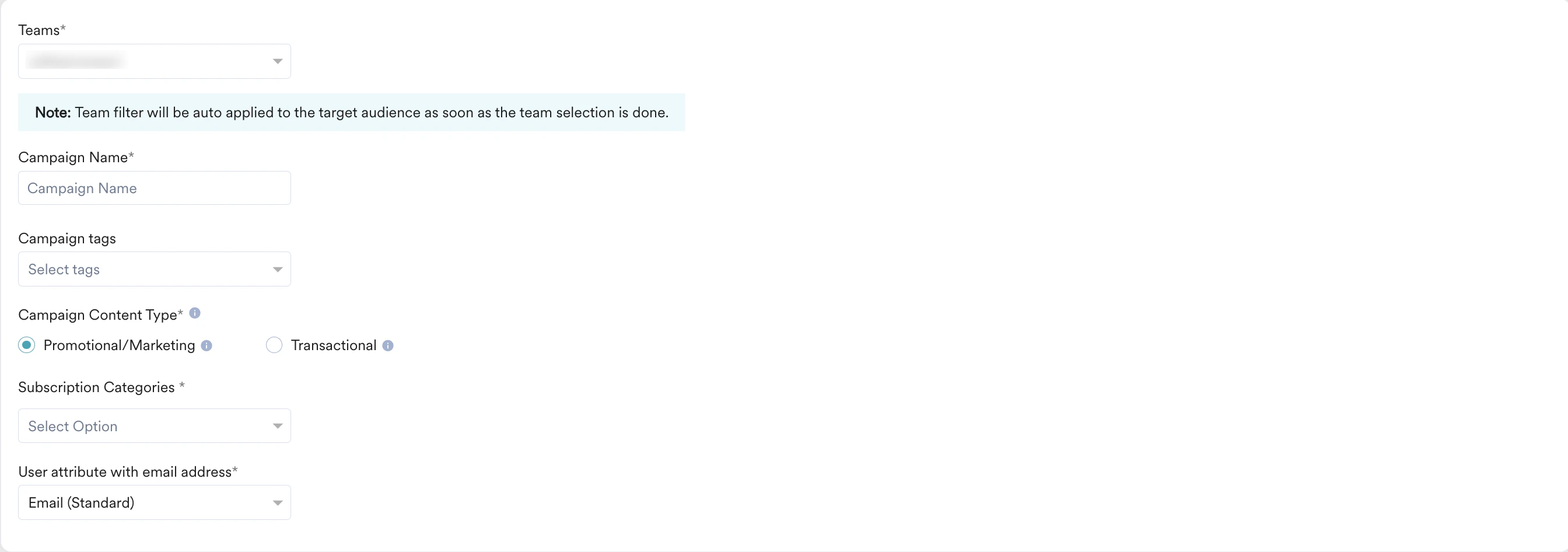
4. Add the team (if **Teams** is enabled), campaign name, campaign tags, subscription categories, and user attribute with email address stored, and move to the segmentation section.
You are taken to the first step, **Target users**, of defining your campaign.
4. Add the team (if **Teams** is enabled), campaign name, campaign tags, subscription categories, and user attribute with email address stored, and move to the segmentation section.
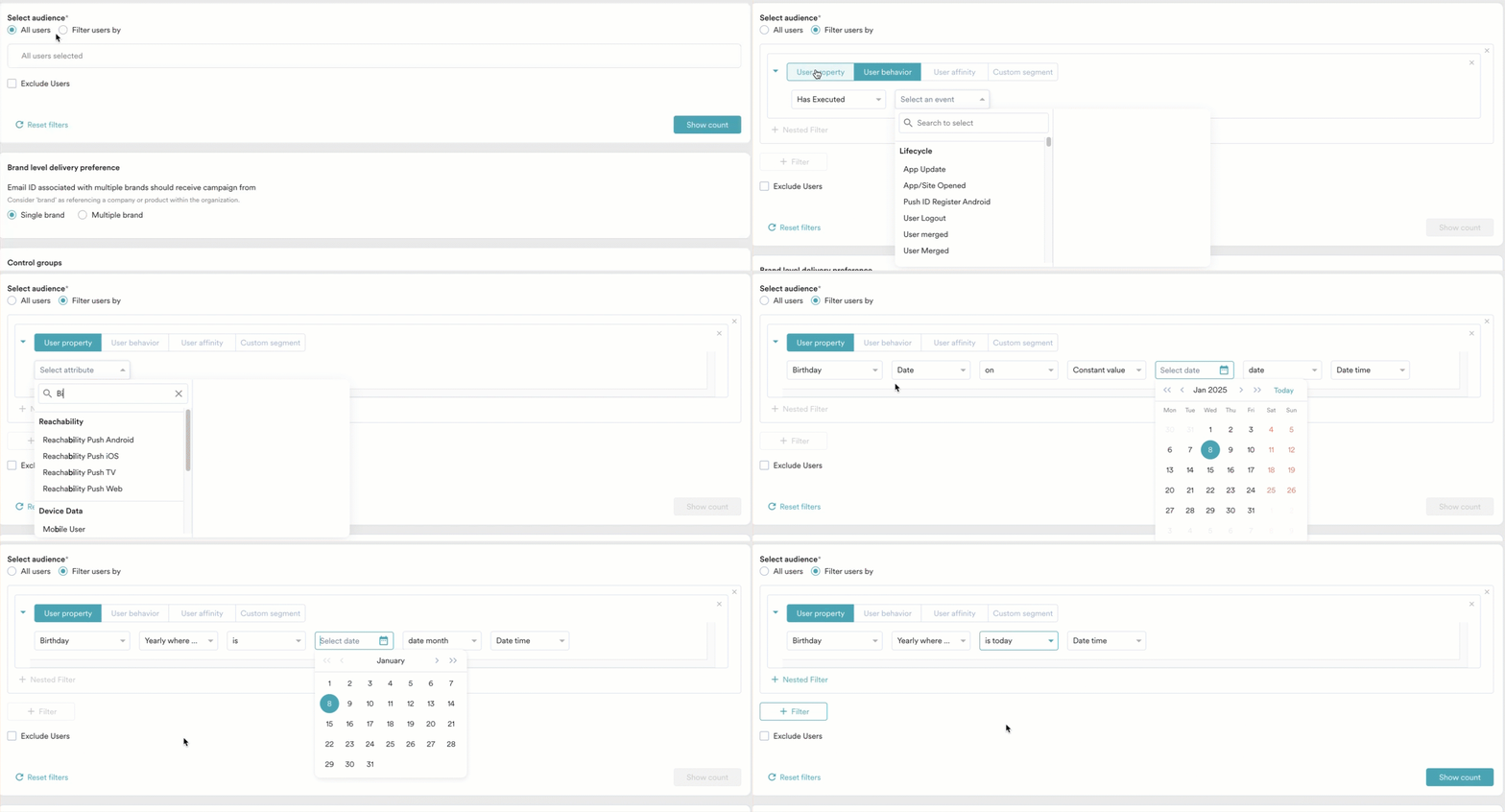
 5. In the **Select audience** section, select the target audience for your campaign:
1. Click **Filter users by**.
2. On the **User property** tab, in the **Select attribute** list, click *Birthday* (or the attribute where you have stored the user's birthdate).
3. For the *Date* operator, select *Yearly where the date* to filter out specific dates across the years.
4. In the filter condition, select *is today*. The *Yearly where the date is today* combination filters out the users whose birthday is today. So whenever this query runs, you will get a list of users whose birthday is that day.
5. In the **Select audience** section, select the target audience for your campaign:
1. Click **Filter users by**.
2. On the **User property** tab, in the **Select attribute** list, click *Birthday* (or the attribute where you have stored the user's birthdate).
3. For the *Date* operator, select *Yearly where the date* to filter out specific dates across the years.
4. In the filter condition, select *is today*. The *Yearly where the date is today* combination filters out the users whose birthday is today. So whenever this query runs, you will get a list of users whose birthday is that day.
 5. Click **Next** to move to the second step, **Content**, where you can define the content for your Email campaign.
## Step 2.2: Content
In this step, create the content for the email.
1. You can select any one of the following options to create the content:
* Drag and drop editor (either blank or pre-built templates)
* Custom HTML editor, where you can upload your templates in HTML format
* My saved templates, if you have saved your previously created templates
2. Enter the sender details on the next screen. For more information, refer to [Create an Email Campaign](/user-guide/campaigns-and-channels/email/create/create-an-email-campaign).
5. Click **Next** to move to the second step, **Content**, where you can define the content for your Email campaign.
## Step 2.2: Content
In this step, create the content for the email.
1. You can select any one of the following options to create the content:
* Drag and drop editor (either blank or pre-built templates)
* Custom HTML editor, where you can upload your templates in HTML format
* My saved templates, if you have saved your previously created templates
2. Enter the sender details on the next screen. For more information, refer to [Create an Email Campaign](/user-guide/campaigns-and-channels/email/create/create-an-email-campaign).
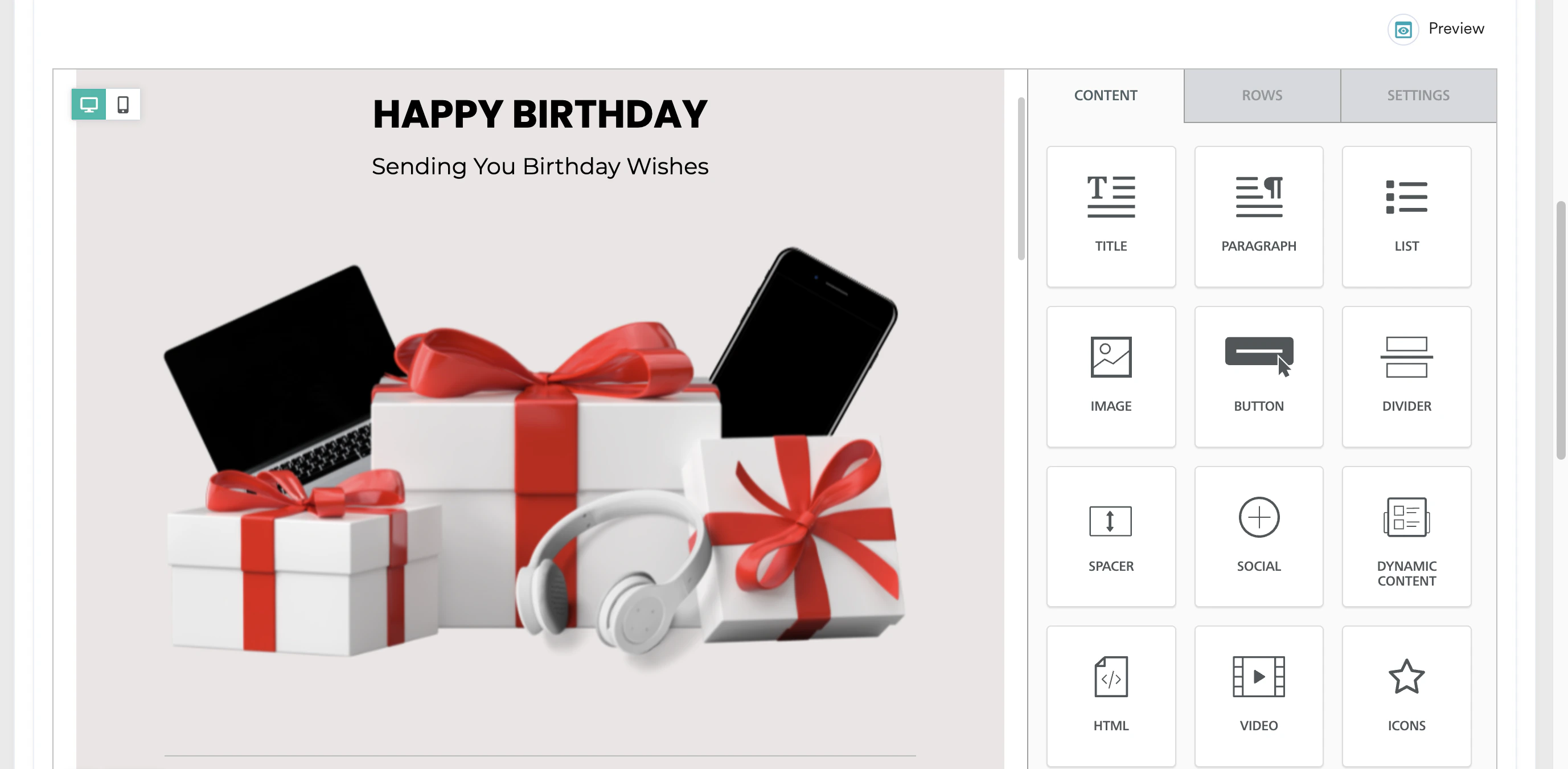 3. Click **Next** to move to the third step, **Schedule and Goals**.
## Step 2.3: Schedule and Goals
In this step, you can define the campaign's delivery schedule and delivery controls.
1. Schedule a daily message and send it in the user’s time zone.
2. Select the campaign time zone, start date, send time, AM/PM, and frequency as daily.
3. Click **Next** to move to the third step, **Schedule and Goals**.
## Step 2.3: Schedule and Goals
In this step, you can define the campaign's delivery schedule and delivery controls.
1. Schedule a daily message and send it in the user’s time zone.
2. Select the campaign time zone, start date, send time, AM/PM, and frequency as daily.
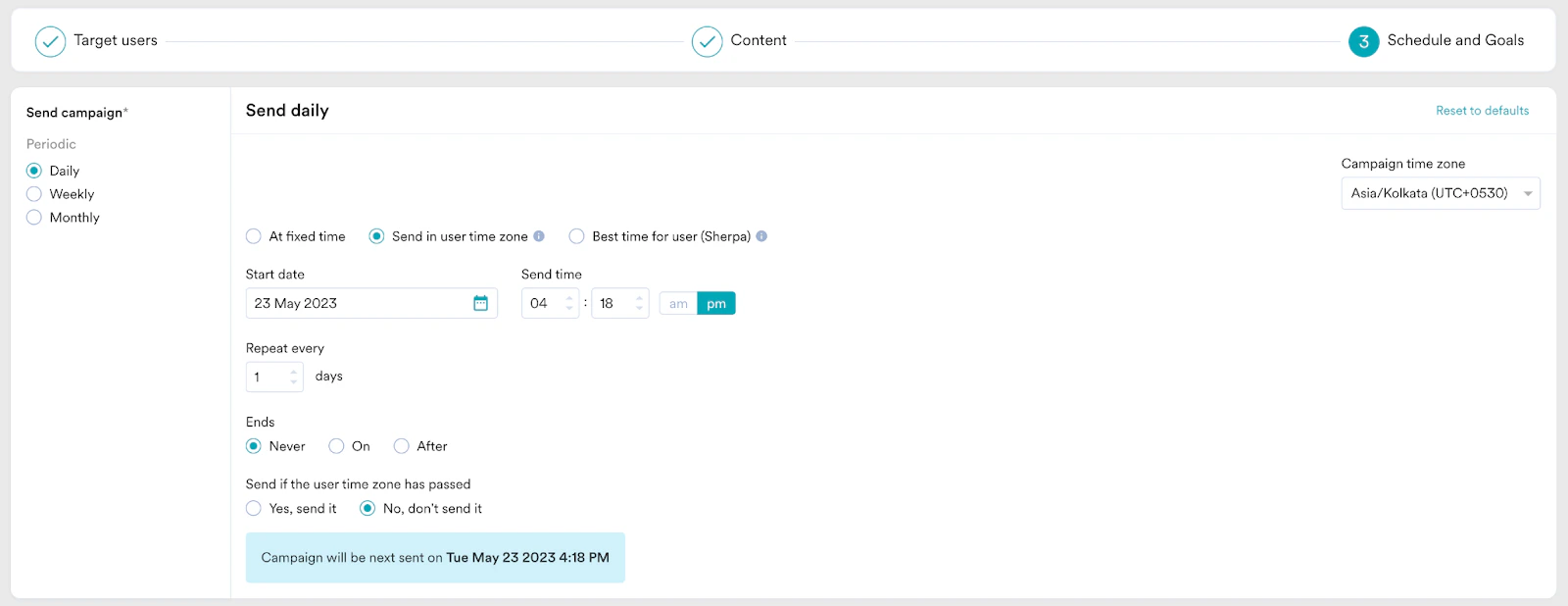 3. In the **Delivery control** section, turn the **Ignore frequency capping** toggle on.
4. Click **Publish**.
# Conclusion
In this use case, we created personalized birthday campaigns to engage customers on their special day. The campaign runs daily and emails a happy birthday message to users whose birthday is on that specific day.
3. In the **Delivery control** section, turn the **Ignore frequency capping** toggle on.
4. Click **Publish**.
# Conclusion
In this use case, we created personalized birthday campaigns to engage customers on their special day. The campaign runs daily and emails a happy birthday message to users whose birthday is on that specific day.