> ## Documentation Index
> Fetch the complete documentation index at: https://moengage.com/docs/llms.txt
> Use this file to discover all available pages before exploring further.
# Use Conversational Messaging in WhatsApp
# Introduction
Conversational messaging is a two-way communication between brands and customers on the preferred channel. Conversational marketing keeps all interactions within a single thread, reducing friction and improving the customer experience. WhatsApp's immediacy allows businesses to effectively engage with customers.
#### Advantages of using conversational messaging in WhatsApp
* **Less cost incurred**: You can use Meta charges only once for each category in the 24-hour window, so no cost is incurred from the second message.
* **Increased trust**: When customers can interact with a brand directly, they are more likely to trust it. This can lead to increased sales and customer loyalty.
* **Improved customer service**: Two-way messaging can provide excellent customer service. Customers can get help with their questions or problems quickly and easily. This can lead to increased customer satisfaction and loyalty.
* **Increased brand awareness**: When customers interact with a brand directly, they are more likely to be aware of that brand. This can lead to increased sales and brand recognition.
* **Innovative engagement strategies:** Conversational messaging can be used to power innovative engagement strategies. The following are some of the innovative strategies:
* Quiz your customers on WhatsApp and provide relevant offers.
* Collect customer preferences and give personalized recommendations.
* Create curiosity by giving buttons such as **Reveal special price** instead of giving away prices directly.
## Use Cases for WhatsApp Conversational Messaging
The following are some use cases for WhatsApp conversational messaging:
| Industry | Use Cases |
| ------------------------------ | ---------------------------------------------------------------------------------- |
| Healthcare | Confirming appointments, customer feedback, answering frequently asked questions |
| Retail and E-commerce | Product recommendations, inventory queries, shipment updates, customer feedback |
| Banking, Finance and Insurance | Answering frequently asked questions, customer feedback, confirming appointments |
| Entertainment and Media | Confirming event attendance, sending event reminders |
| Education | Confirming appointments, providing course updates, and skill tests through quizzes |
In this article, we will create a WhatsApp campaign to nudge users to select a health insurance plan through conversational messaging.
We will achieve this use case in two steps:
* [Create a WhatsApp campaign](#Create-a-WhatsApp-Campaign)
* [Configure a Flow for the WhatsApp campaign created](#Create-a-Flow)
# Expected Result
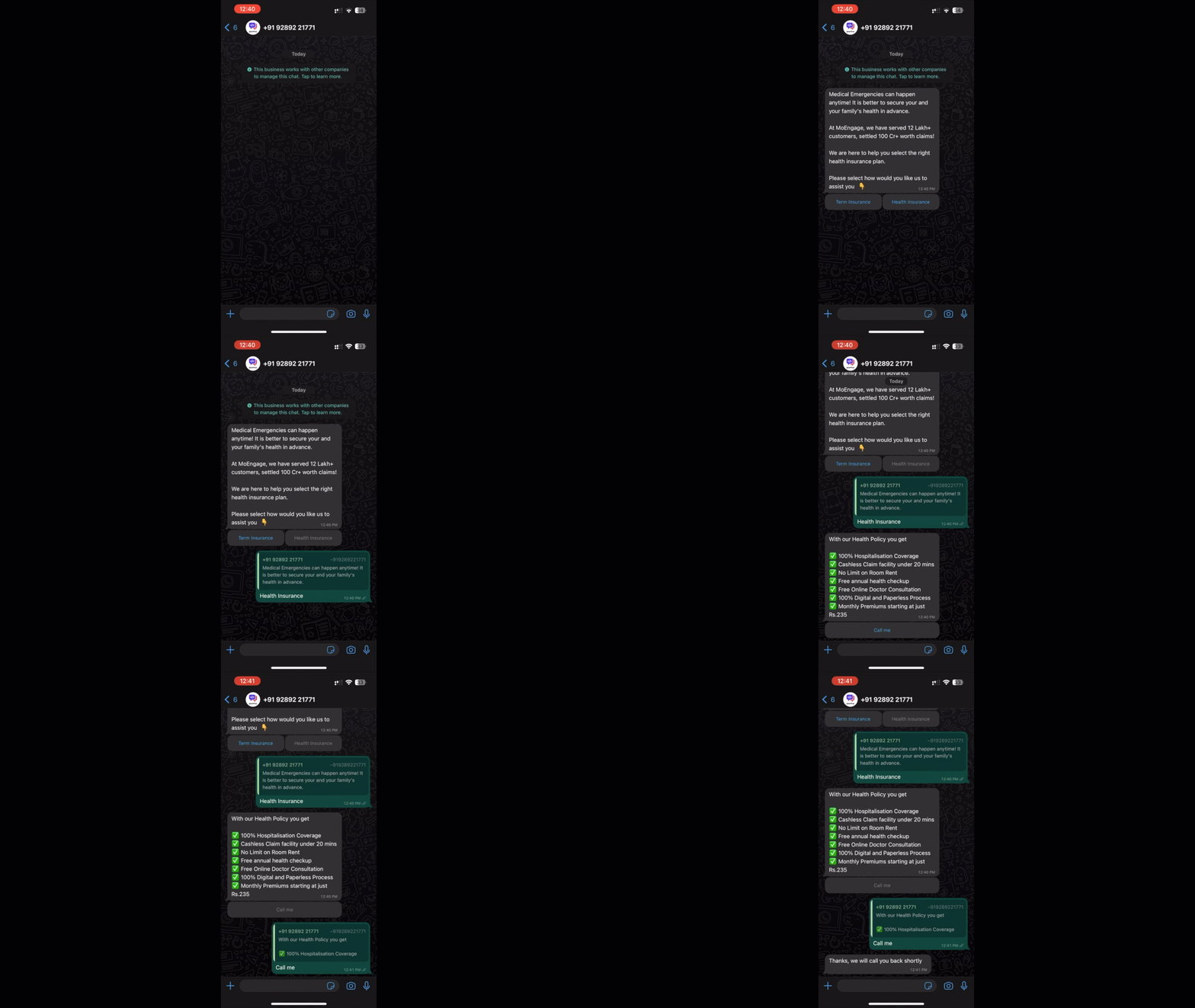
The final outcome looks as shown in the following video:
 # Step 1: Create a WhatsApp Campaign
This section contains steps to create a WhatsApp campaign. For more information, refer to [Create WhatsApp Campaign](/user-guide/campaigns-and-channels/whatsapp/create/create-a-whatsapp-campaign).
## Step 1.1: Target Users
1. Navigate to MoEngage Dashboard and select **Engage** > **Campaigns** from the left navigation. The **All campaigns** page is displayed.
2. At the top right corner, click **+ Create campaign**.
3. Under **Messaging Apps**, click **WhatsApp** and then click **Event Triggered.**
4. Add a **Campaign name**.
5. Select the required audience. In this use case, you can select users without insurance plans as the required audience.\
For more information, refer to **Select Audience** section under [Step 1: Target Users](/user-guide/campaigns-and-channels/whatsapp/create/create-a-whatsapp-campaign) of [Create a WhatsApp Campaign](/user-guide/campaigns-and-channels/whatsapp/create/create-a-whatsapp-campaign).
6. For an event-triggered campaign, select the required trigger criteria. For more information, refer to **Event Triggered Campaigns** section under [Step 1: Target Users](/user-guide/campaigns-and-channels/whatsapp/create/create-a-whatsapp-campaign) of [Create a WhatsApp Campaign](/user-guide/campaigns-and-channels/whatsapp/create/create-a-whatsapp-campaign).
## Step 1.2: Content
1. Select the required sender.
2. Select the required template that contains the quick reply.
3. Personalize the message body with customer attributes or event attributes such as the name and location of the user who you are nudging to select an insurance plan.\
For more information refer to [Step 2: Content](/user-guide/campaigns-and-channels/whatsapp/create/create-a-whatsapp-campaign) of [Create a WhatsApp Campaign](/user-guide/campaigns-and-channels/whatsapp/create/create-a-whatsapp-campaign).
## Step 1.3: Schedule and Goals
1. Select the following:
* Duration of the event-triggered campaign
* Publish date and time for the one-time or periodic campaign
2. Add a conversion goal to track the conversion (if required).\
For more information, refer to [Step 3: Schedule and Goals](/user-guide/campaigns-and-channels/whatsapp/create/create-a-whatsapp-campaign) of [Create a WhatsApp Campaign](/user-guide/campaigns-and-channels/whatsapp/create/create-a-whatsapp-campaign).
3. Click **Publish**. A campaign ID is generated.
# Step 2: Create a Flow
This section contains steps to set up the corresponding flow. For more information, refer to [Create a Flow](/user-guide/flows-cross-channel-messaging/create/create-flows/create-a-flow).
## Step 2.1: Define the Flow
Define the following flow details:
1. Navigate to MoEngage Dashboard and select **Engage** > **Flows** from the left navigation. The Flows page is displayed.
2. At the top right corner, click **+ Create Flow**.
3. In the following **Create new flow** page, you can create the flow using the flow templates available or **+ Start with a blank canvas**.
4. Enter a **Flow name** and click **Next**.
5. In the **When will users enter the flow** section, click **On event trigger** and select the trigger criteria as **WhatsApp Message clicked**.
6. Click **+ Attribute** and select the campaign ID generated when you published the [WhatsApp campaign](#Create-a-WhatsApp-Campaign) created in the previous section.
7. You can schedule the flow as per requirement and click **Next**.
8. In the **Who will enter the flow** section, select the required audience to enter this flow and click **Next**.
## Step 2.2: Set Up a Trigger for the Flow
Perform the following steps to set up a trigger for the flow:
1. Click **+**.
# Step 1: Create a WhatsApp Campaign
This section contains steps to create a WhatsApp campaign. For more information, refer to [Create WhatsApp Campaign](/user-guide/campaigns-and-channels/whatsapp/create/create-a-whatsapp-campaign).
## Step 1.1: Target Users
1. Navigate to MoEngage Dashboard and select **Engage** > **Campaigns** from the left navigation. The **All campaigns** page is displayed.
2. At the top right corner, click **+ Create campaign**.
3. Under **Messaging Apps**, click **WhatsApp** and then click **Event Triggered.**
4. Add a **Campaign name**.
5. Select the required audience. In this use case, you can select users without insurance plans as the required audience.\
For more information, refer to **Select Audience** section under [Step 1: Target Users](/user-guide/campaigns-and-channels/whatsapp/create/create-a-whatsapp-campaign) of [Create a WhatsApp Campaign](/user-guide/campaigns-and-channels/whatsapp/create/create-a-whatsapp-campaign).
6. For an event-triggered campaign, select the required trigger criteria. For more information, refer to **Event Triggered Campaigns** section under [Step 1: Target Users](/user-guide/campaigns-and-channels/whatsapp/create/create-a-whatsapp-campaign) of [Create a WhatsApp Campaign](/user-guide/campaigns-and-channels/whatsapp/create/create-a-whatsapp-campaign).
## Step 1.2: Content
1. Select the required sender.
2. Select the required template that contains the quick reply.
3. Personalize the message body with customer attributes or event attributes such as the name and location of the user who you are nudging to select an insurance plan.\
For more information refer to [Step 2: Content](/user-guide/campaigns-and-channels/whatsapp/create/create-a-whatsapp-campaign) of [Create a WhatsApp Campaign](/user-guide/campaigns-and-channels/whatsapp/create/create-a-whatsapp-campaign).
## Step 1.3: Schedule and Goals
1. Select the following:
* Duration of the event-triggered campaign
* Publish date and time for the one-time or periodic campaign
2. Add a conversion goal to track the conversion (if required).\
For more information, refer to [Step 3: Schedule and Goals](/user-guide/campaigns-and-channels/whatsapp/create/create-a-whatsapp-campaign) of [Create a WhatsApp Campaign](/user-guide/campaigns-and-channels/whatsapp/create/create-a-whatsapp-campaign).
3. Click **Publish**. A campaign ID is generated.
# Step 2: Create a Flow
This section contains steps to set up the corresponding flow. For more information, refer to [Create a Flow](/user-guide/flows-cross-channel-messaging/create/create-flows/create-a-flow).
## Step 2.1: Define the Flow
Define the following flow details:
1. Navigate to MoEngage Dashboard and select **Engage** > **Flows** from the left navigation. The Flows page is displayed.
2. At the top right corner, click **+ Create Flow**.
3. In the following **Create new flow** page, you can create the flow using the flow templates available or **+ Start with a blank canvas**.
4. Enter a **Flow name** and click **Next**.
5. In the **When will users enter the flow** section, click **On event trigger** and select the trigger criteria as **WhatsApp Message clicked**.
6. Click **+ Attribute** and select the campaign ID generated when you published the [WhatsApp campaign](#Create-a-WhatsApp-Campaign) created in the previous section.
7. You can schedule the flow as per requirement and click **Next**.
8. In the **Who will enter the flow** section, select the required audience to enter this flow and click **Next**.
## Step 2.2: Set Up a Trigger for the Flow
Perform the following steps to set up a trigger for the flow:
1. Click **+**.
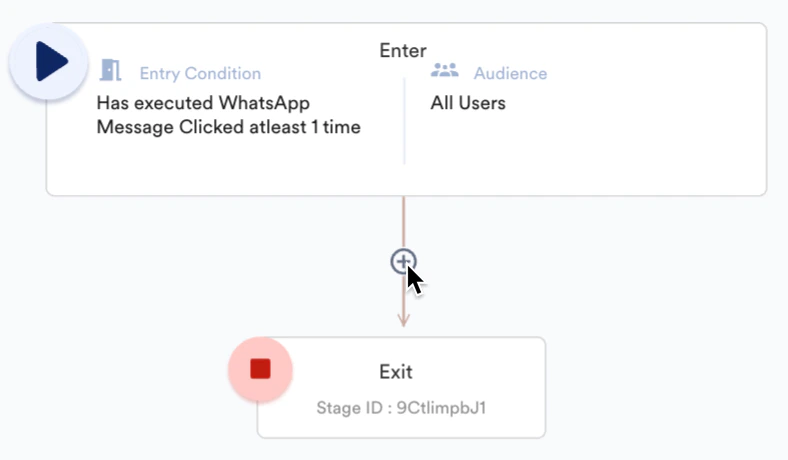 2. Under **Conditions**, add the entry condition as **Conditional Split**.
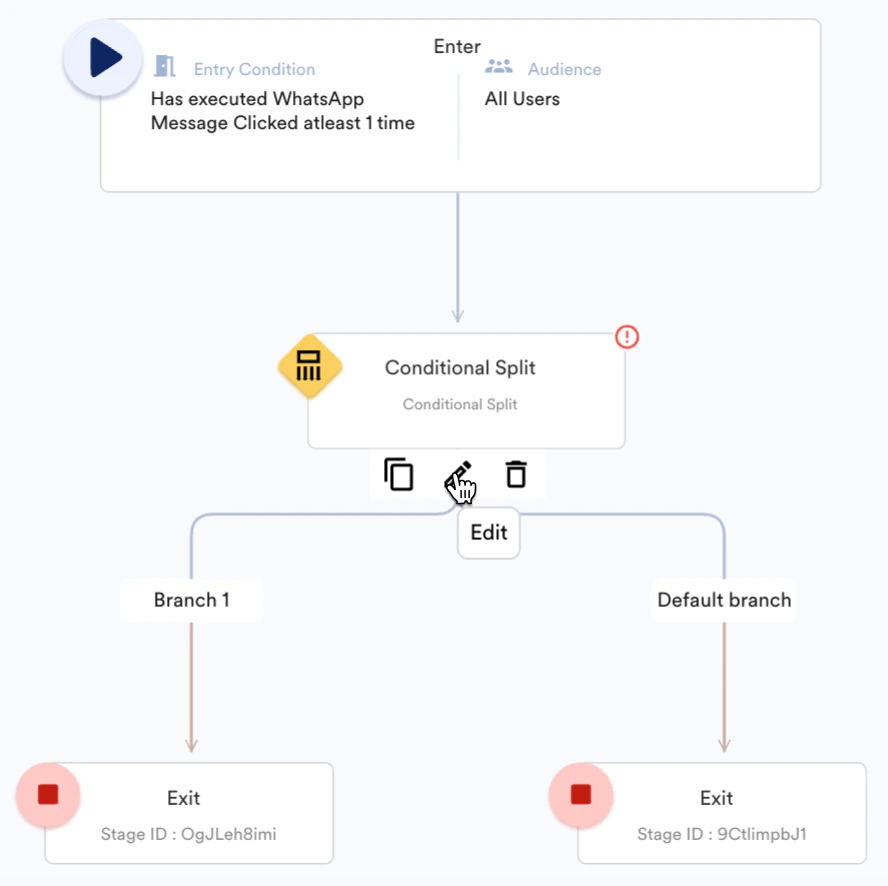
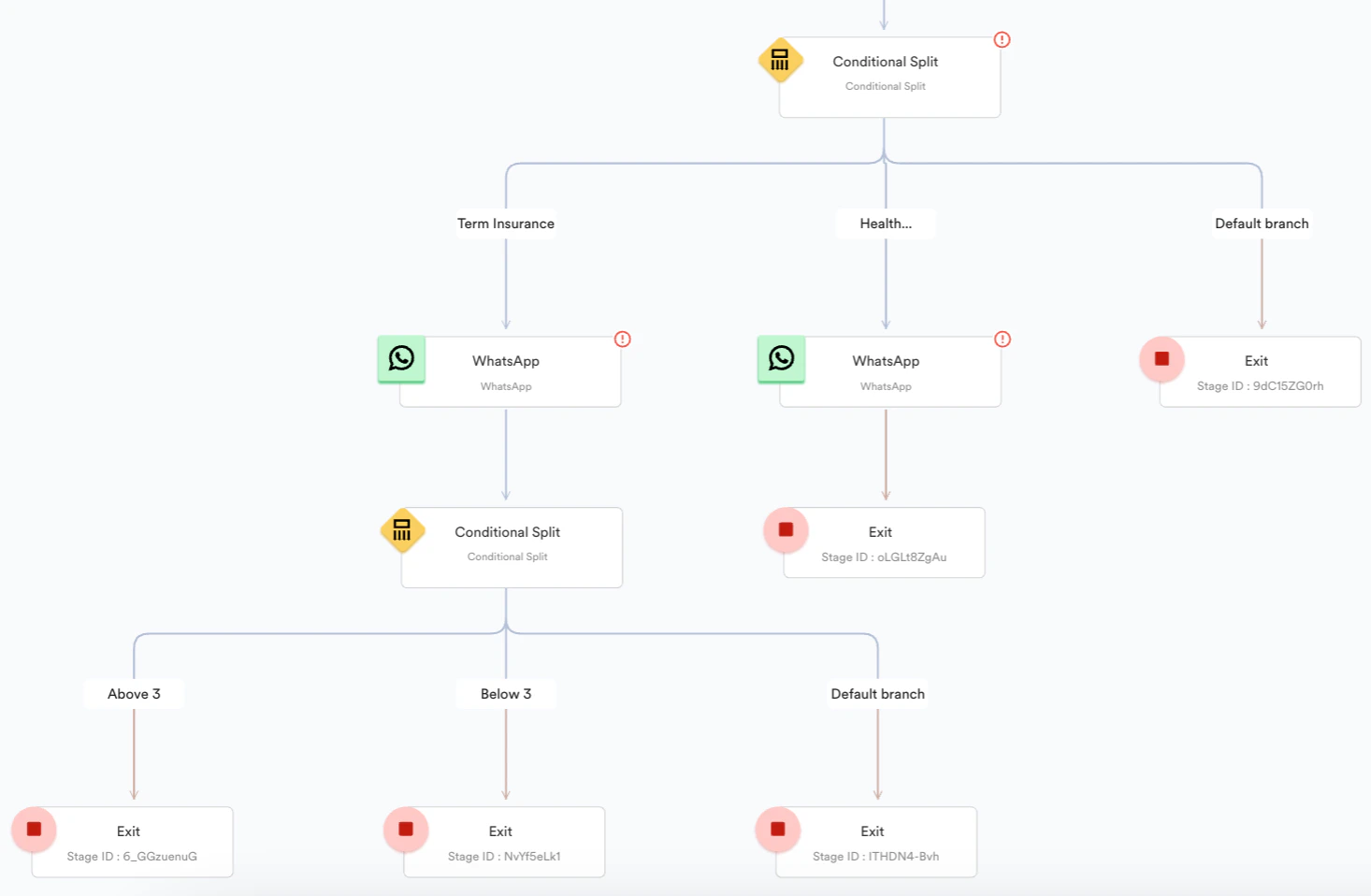
3. Add a branch for each quick reply button. For this use case, you can create two quick reply buttons: *Term Insurance* and *Health Insurance*.
1. Hover your mouse on **Conditional Split** and click the Edit icon.
2. Under **Conditions**, add the entry condition as **Conditional Split**.
3. Add a branch for each quick reply button. For this use case, you can create two quick reply buttons: *Term Insurance* and *Health Insurance*.
1. Hover your mouse on **Conditional Split** and click the Edit icon.
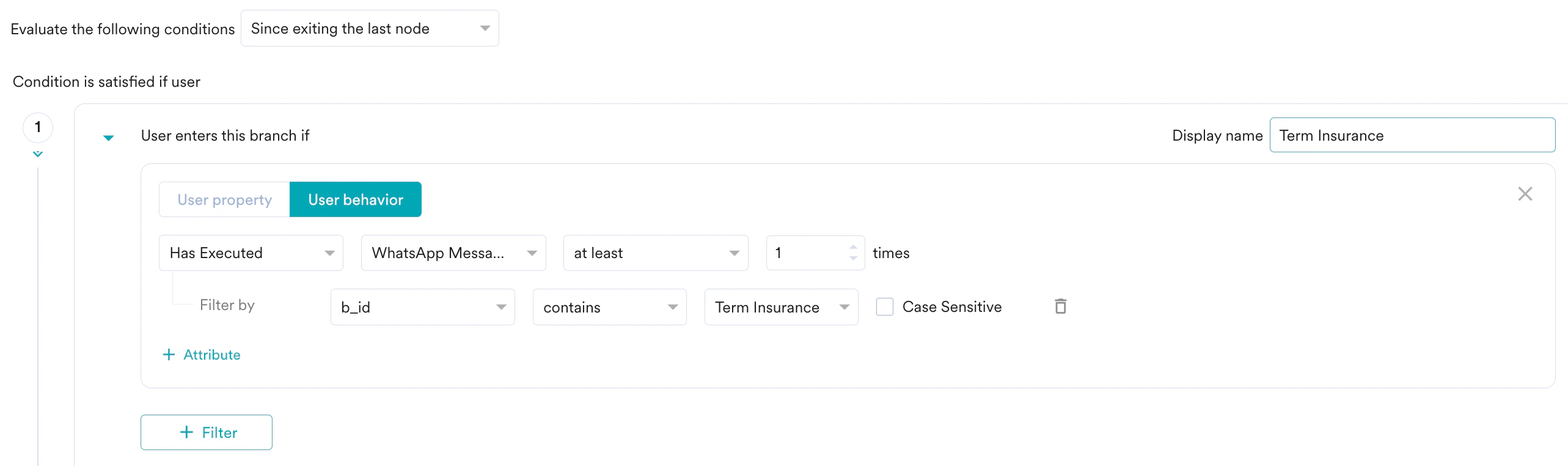
 2. In the **Evaluate the following conditions** drop-down list, select **in the past** and required timeframe.
3. Under **Condition is satisfied if the user**, enter the following details:
1. In the **Display name** field, enter the name of the branch or path. For this use case, enter *Term Insurance*.
2. In **User Behavior**, select **Has Executed** as **WhatsApp Message Clicked**.
3. Add an attribute to map a button to the event of *WhatsApp Message Clicked*:
1. Click **+ Attribute**.
2. In the **Select attribute** drop-down list, select **b\_id**.
3. Select **contains**.
4. In the **Select Option** drop-down list, select the button name. In this case, *Term Insurance*.
2. In the **Evaluate the following conditions** drop-down list, select **in the past** and required timeframe.
3. Under **Condition is satisfied if the user**, enter the following details:
1. In the **Display name** field, enter the name of the branch or path. For this use case, enter *Term Insurance*.
2. In **User Behavior**, select **Has Executed** as **WhatsApp Message Clicked**.
3. Add an attribute to map a button to the event of *WhatsApp Message Clicked*:
1. Click **+ Attribute**.
2. In the **Select attribute** drop-down list, select **b\_id**.
3. Select **contains**.
4. In the **Select Option** drop-down list, select the button name. In this case, *Term Insurance*.
 4. Use the **+** icon to add more branches as part of the conditional split stage. For this use case, add another branch as *Health* *Insurance.*
5. Click **Done**.\
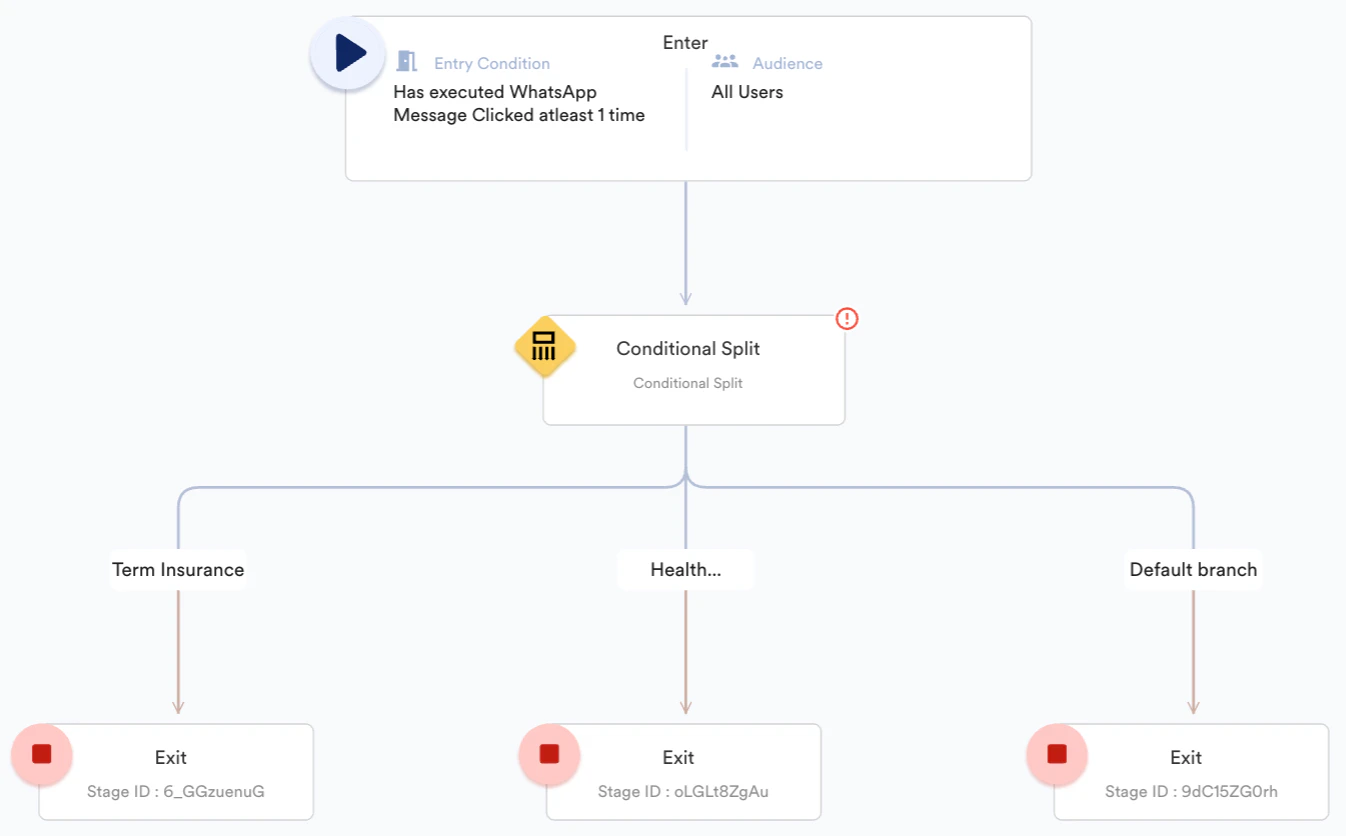
The following image shows the addition of branches for two quick reply buttons (Term Insurance and Health Insurance):
4. Use the **+** icon to add more branches as part of the conditional split stage. For this use case, add another branch as *Health* *Insurance.*
5. Click **Done**.\
The following image shows the addition of branches for two quick reply buttons (Term Insurance and Health Insurance):
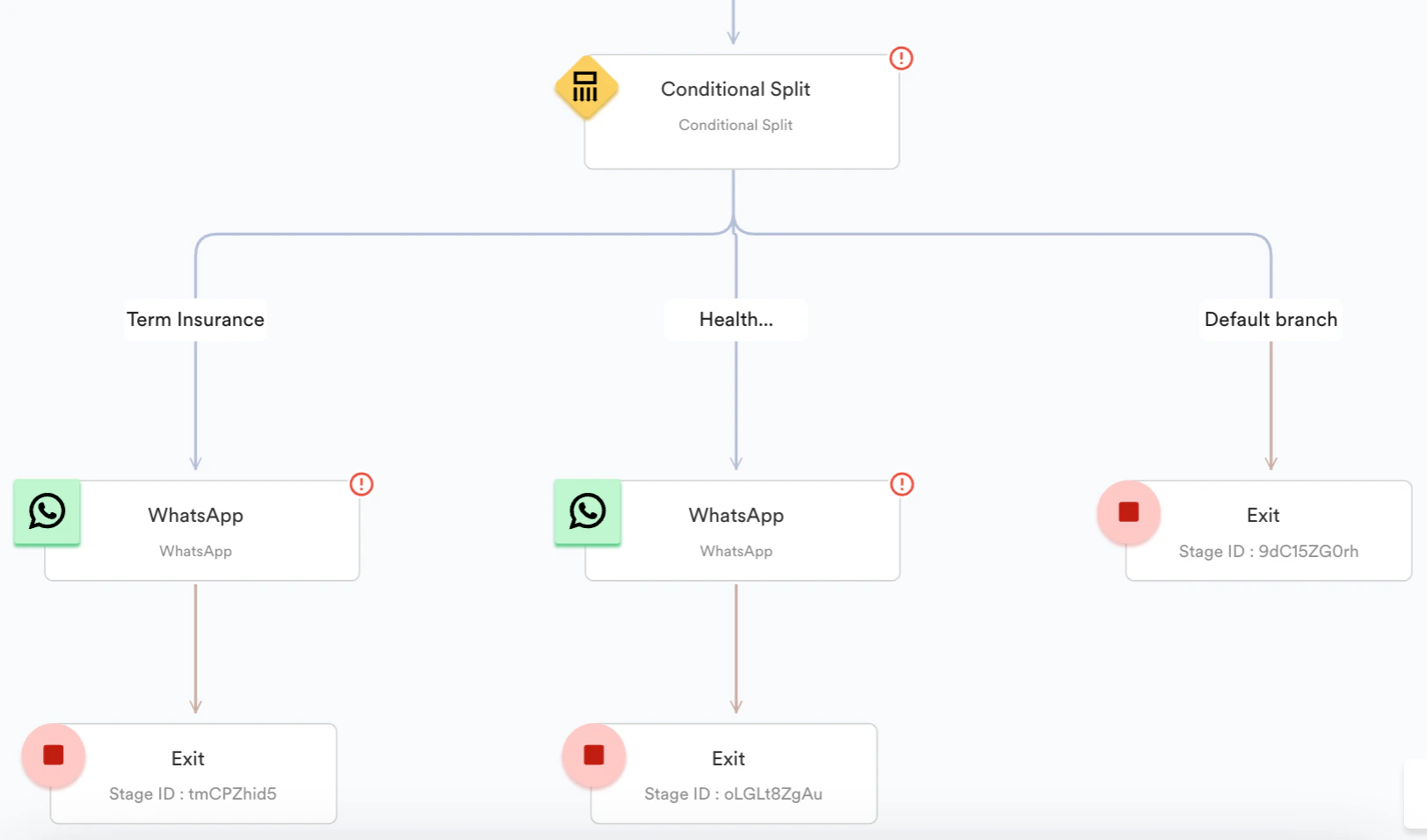
 4. Click **+** on the path of the required branch.
5. Click **WhatsApp** under **Actions**.
4. Click **+** on the path of the required branch.
5. Click **WhatsApp** under **Actions**.
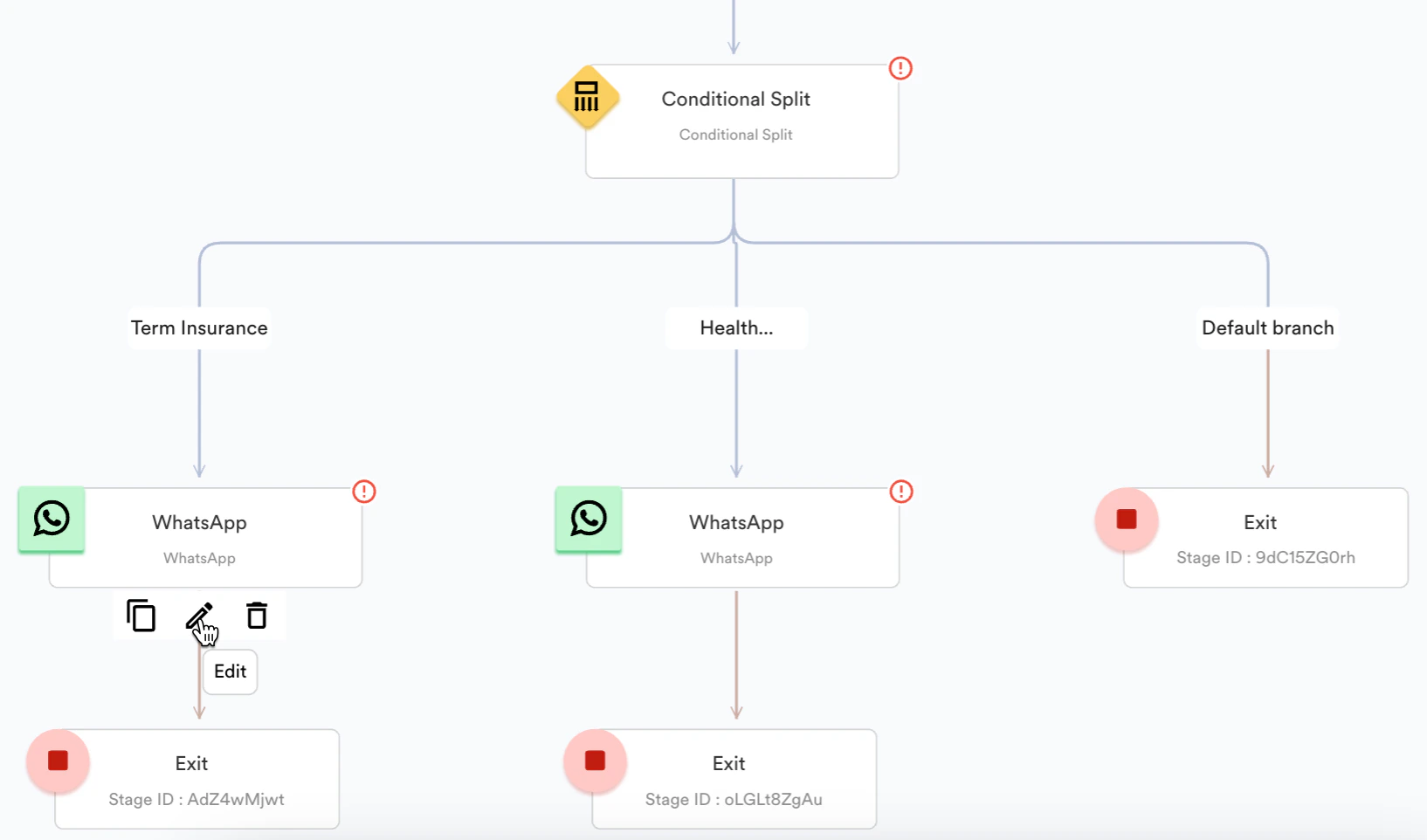
 6. Hover your mouse on WhatsApp and click the **Edit** icon to configure the WhatsApp message.
 7. For each branch, you can add subsequent WhatsApp messages (if required).
1. Click **+** on the path of the required WhatsApp message.
2. Click **WhatsApp** under **Actions**.
7. For each branch, you can add subsequent WhatsApp messages (if required).
1. Click **+** on the path of the required WhatsApp message.
2. Click **WhatsApp** under **Actions**.
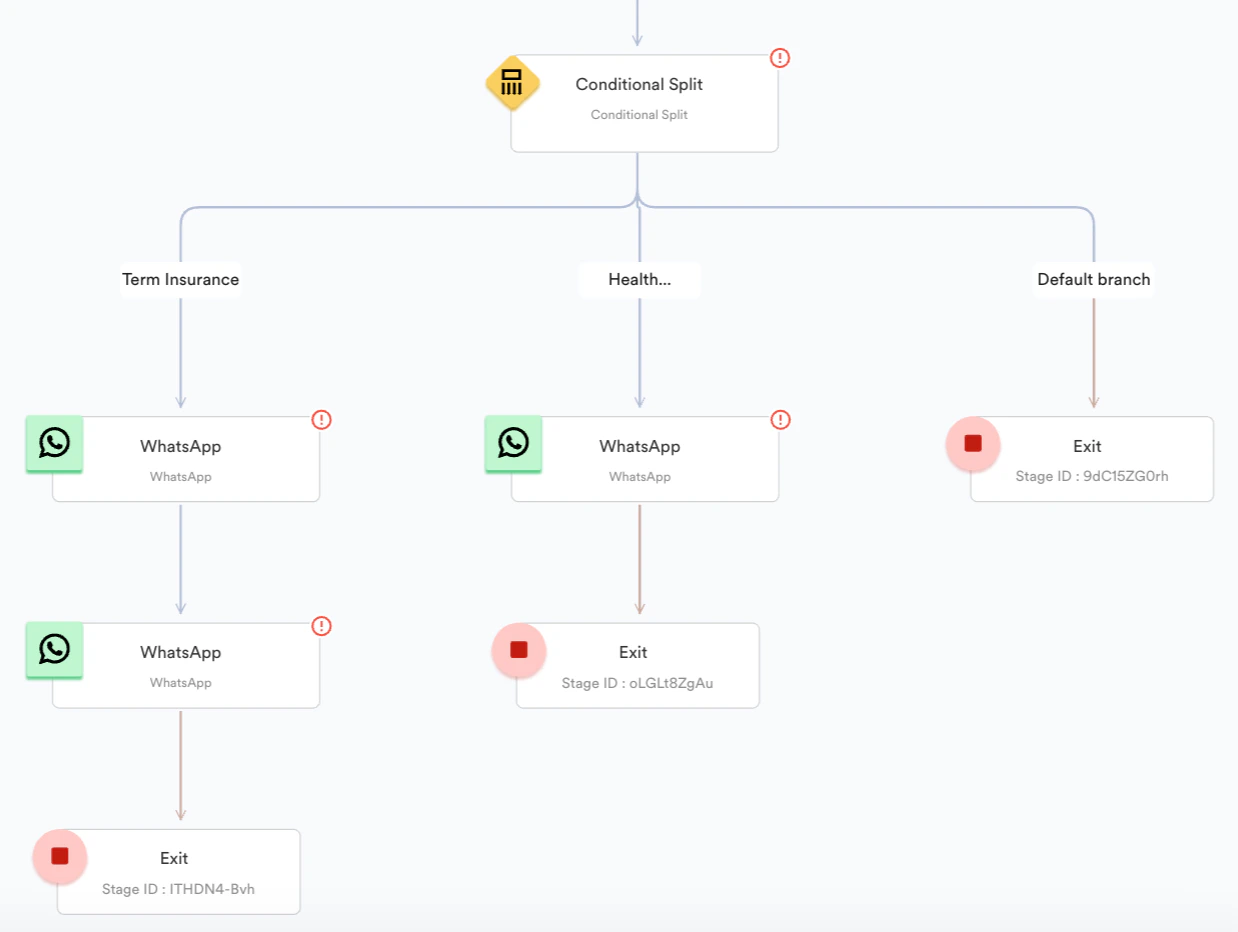 3. Hover your mouse on WhatsApp and click the **Edit** icon to configure the WhatsApp message.
8. At each stage in the respective branch, you can add sub-branches for quick reply buttons (if required). For example, you can display two quick reply buttons when the user clicks the T**erm Insurance** button.
1. 1. Click + on the path of the required WhatsApp message.
2. Click **Conditional Split** under **Conditions**.
3. Hover your mouse over **Conditional Split** and click the **Edit** icon.
4. In the **Evaluate the following conditions** drop-down list, select **Since exiting the last node** and required timeframe.\
**Note:** For the second and subsequent conditions, you must select **Since exiting the last node** in the **Evaluate the following conditions** drop-down list.
5. Under **Condition is satisfied if the user**, enter the required details.
6. Use the + icon to add more branches as part of the conditional split stage.
7. Enable the **Keep evaluating for the next** checkbox and select the timeframe if the condition is satisfied for the set time duration from the start time defined in **Evaluate the following conditions**.
8. Click **Done**.
3. Hover your mouse on WhatsApp and click the **Edit** icon to configure the WhatsApp message.
8. At each stage in the respective branch, you can add sub-branches for quick reply buttons (if required). For example, you can display two quick reply buttons when the user clicks the T**erm Insurance** button.
1. 1. Click + on the path of the required WhatsApp message.
2. Click **Conditional Split** under **Conditions**.
3. Hover your mouse over **Conditional Split** and click the **Edit** icon.
4. In the **Evaluate the following conditions** drop-down list, select **Since exiting the last node** and required timeframe.\
**Note:** For the second and subsequent conditions, you must select **Since exiting the last node** in the **Evaluate the following conditions** drop-down list.
5. Under **Condition is satisfied if the user**, enter the required details.
6. Use the + icon to add more branches as part of the conditional split stage.
7. Enable the **Keep evaluating for the next** checkbox and select the timeframe if the condition is satisfied for the set time duration from the start time defined in **Evaluate the following conditions**.
8. Click **Done**.
 ## Step 2.3: Publish the Flow
1. Click **Settings**.
2. Add a conversion goal to track the conversion (if required).
3. Click **Publish**.
# Conclusion
In this use case, we created a WhatsApp campaign and set up the Flow for the WhatsApp campaign to nudge users to select a health insurance plan through conversational messaging.
## Step 2.3: Publish the Flow
1. Click **Settings**.
2. Add a conversion goal to track the conversion (if required).
3. Click **Publish**.
# Conclusion
In this use case, we created a WhatsApp campaign and set up the Flow for the WhatsApp campaign to nudge users to select a health insurance plan through conversational messaging.