> ## Documentation Index
> Fetch the complete documentation index at: https://moengage.com/docs/llms.txt
> Use this file to discover all available pages before exploring further.
# Generate On-site Messages with Merlin AI
> Create compelling on-site message content using Merlin AI's generative capabilities. Speed up campaign creation while maintaining brand consistency.
Merlin AI is a highly efficient tool that uses the power of generative AI to generate compelling and contextually appropriate on-site messages. With its deep linguistic understanding, Merlin can accelerate the content creation process, thereby increasing efficiency.
In this article, we will guide you through the process of generating creative texts for On-site Message campaigns using Merlin AI.
# Navigation
To access Merlin AI in your On-site campaign, follow these steps: mmm
1. On the sidebar menu in MoEngage, hover over the **Engage** menu item  . The **Engage** menu appears.
2. Click **+ New Campaign**.
. The **Engage** menu appears.
2. Click **+ New Campaign**.
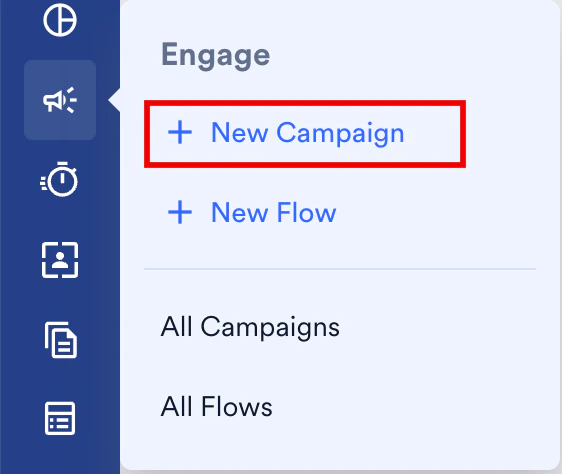 You can also click **All Campaigns** on the **Engage** menu and then click **+ Create campaign** on the All campaigns page.
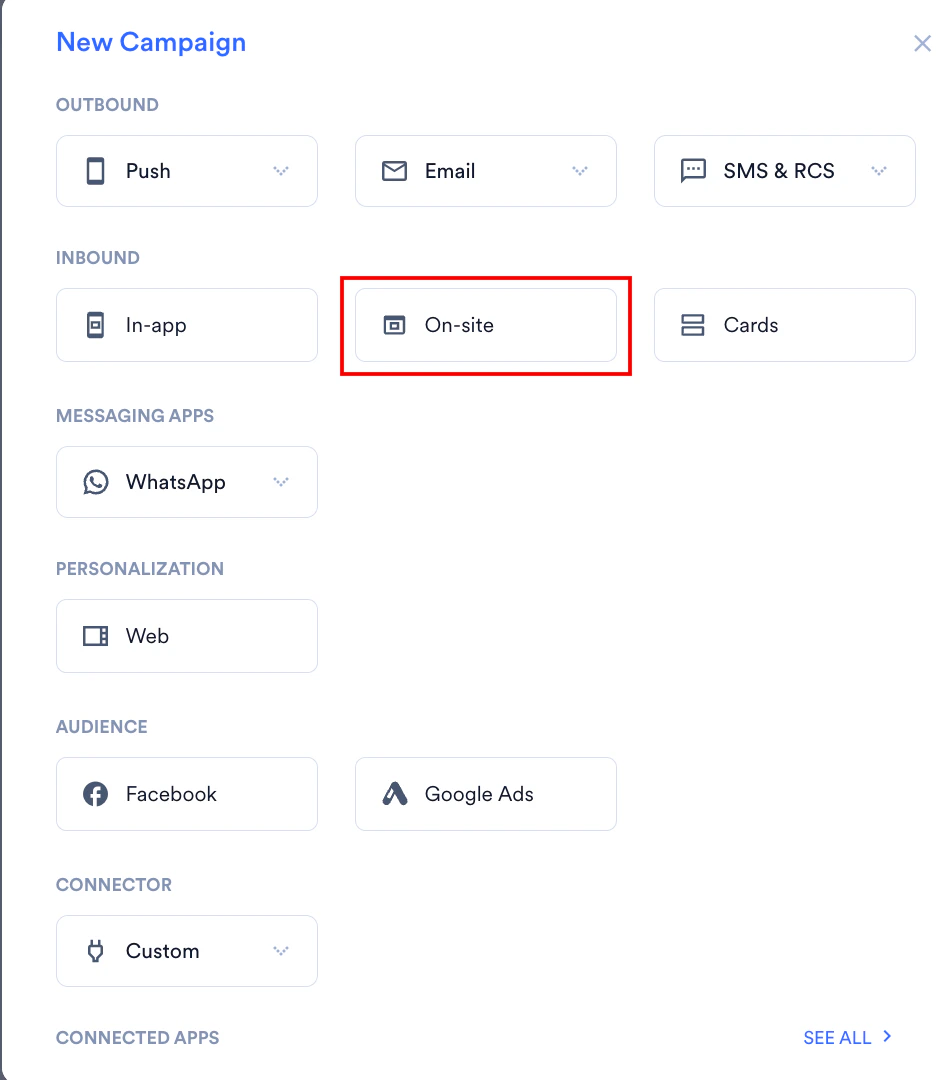
3. On the **New Campaign** dialog box, under **INBOUND**, click **On-site**. The On-site campaign creation page appears.
You can also click **All Campaigns** on the **Engage** menu and then click **+ Create campaign** on the All campaigns page.
3. On the **New Campaign** dialog box, under **INBOUND**, click **On-site**. The On-site campaign creation page appears.
 4. Set up your basic campaign details including the campaign name, target platforms, trigger criteria, and target audience in the **Target users** step. To learn more, see [Create OSM Pro Campaign](/user-guide/campaigns-and-channels/on-site-message/create/create-osm-campaign).
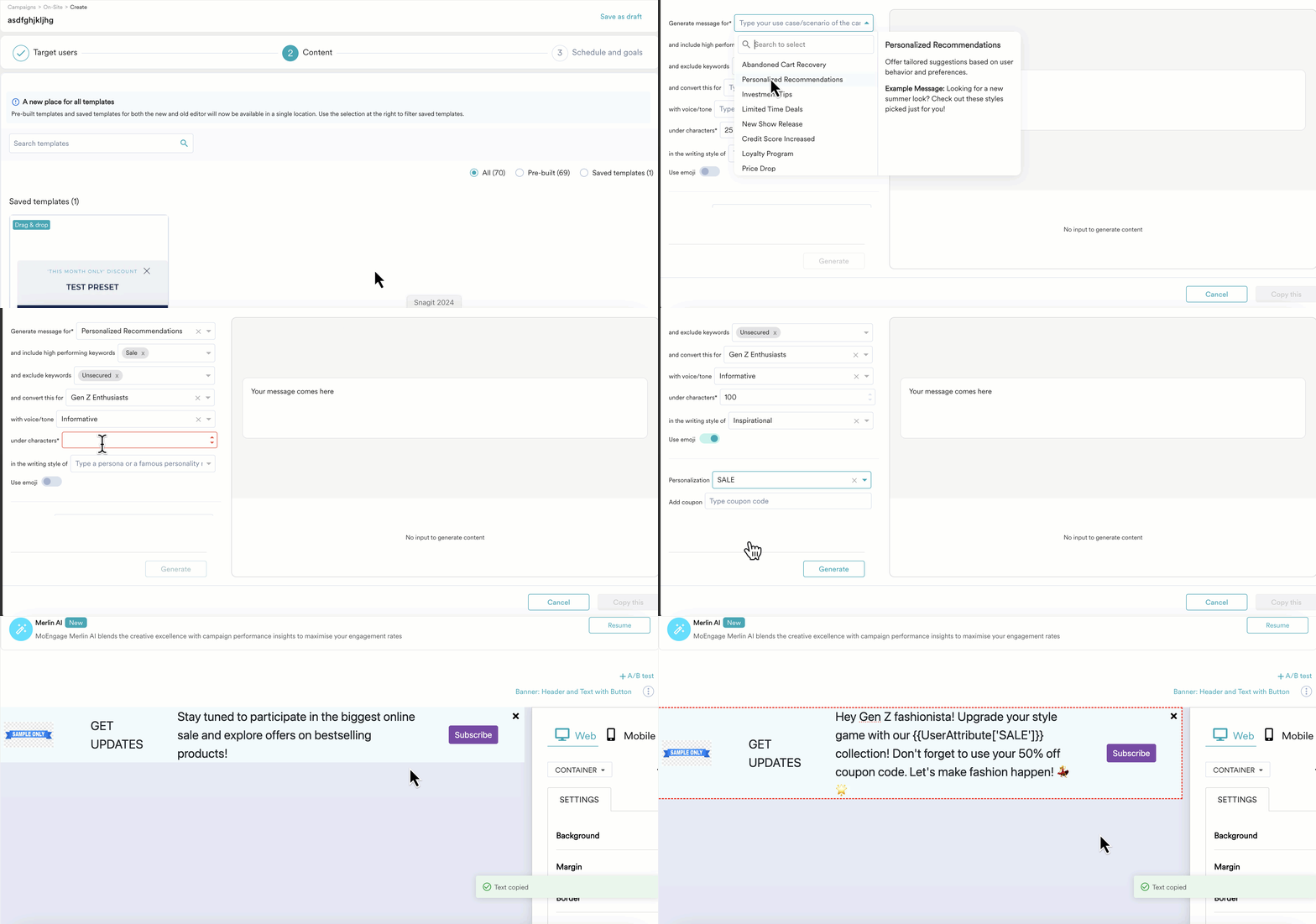
5. In the **Content** step, you will find a **Merlin AI** banner before the template preview once you select a template.
4. Set up your basic campaign details including the campaign name, target platforms, trigger criteria, and target audience in the **Target users** step. To learn more, see [Create OSM Pro Campaign](/user-guide/campaigns-and-channels/on-site-message/create/create-osm-campaign).
5. In the **Content** step, you will find a **Merlin AI** banner before the template preview once you select a template.
 From here, You can generate new On-site messages using Merlin AI copywriter.
# Generate On-site messages
This feature allows you to generate impactful On-site messages by providing manual campaign context or keywords.\
Ensure that you've selected the campaign use case to help Merlin AI learn the ultimate objective of your On-site campaign.
1. On selecting the **Create New** option, a prompt builder will open, enabling you to define your campaign intent and generate relevant On-site messages.
From here, You can generate new On-site messages using Merlin AI copywriter.
# Generate On-site messages
This feature allows you to generate impactful On-site messages by providing manual campaign context or keywords.\
Ensure that you've selected the campaign use case to help Merlin AI learn the ultimate objective of your On-site campaign.
1. On selecting the **Create New** option, a prompt builder will open, enabling you to define your campaign intent and generate relevant On-site messages.
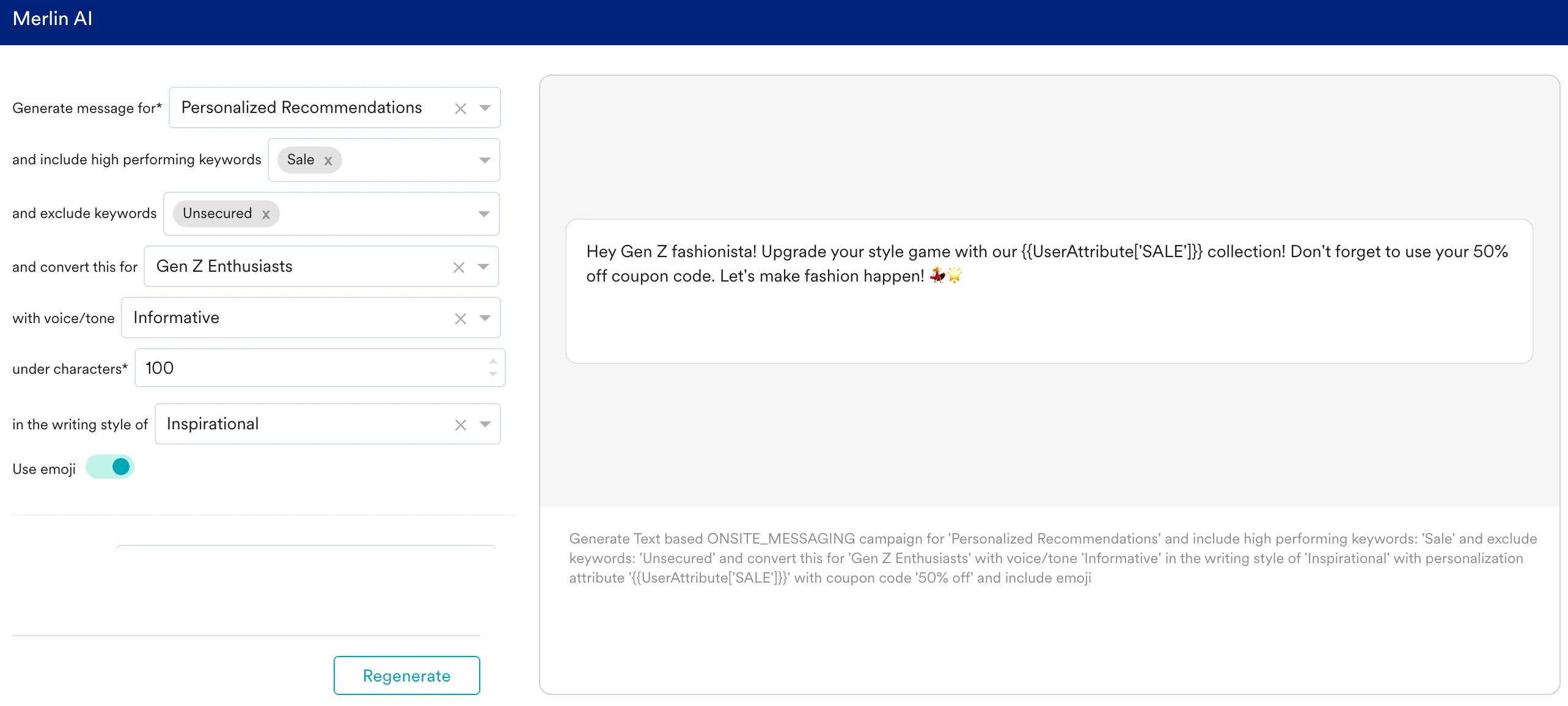 2. Additionally, you can provide more context by selecting the target audience, and intended message tone. You can also define a message style that can be inspired by trends, persona, pop culture, literature references, etc.
3. The **high performing keywords** dropdown provides a sneak peek at the keywords that have performed well in the past. You can select up to three of these keywords to ensure that the generated messages include them. You can also type and select some new keywords to ensure their inclusion in the message.
2. Additionally, you can provide more context by selecting the target audience, and intended message tone. You can also define a message style that can be inspired by trends, persona, pop culture, literature references, etc.
3. The **high performing keywords** dropdown provides a sneak peek at the keywords that have performed well in the past. You can select up to three of these keywords to ensure that the generated messages include them. You can also type and select some new keywords to ensure their inclusion in the message.
 The impactful keywords are suggested from Push campaign performance. To learn how these are calculated, see [Merlin AI Copywriter](/user-guide/ai-and-intelligence/merlin-ai/merlin-ai-copywriter/merlin-ai-copywriter).
4. Likewise, you can exclude historically low-performing keywords or specific keywords by selecting them in the **exclude keywords** input.
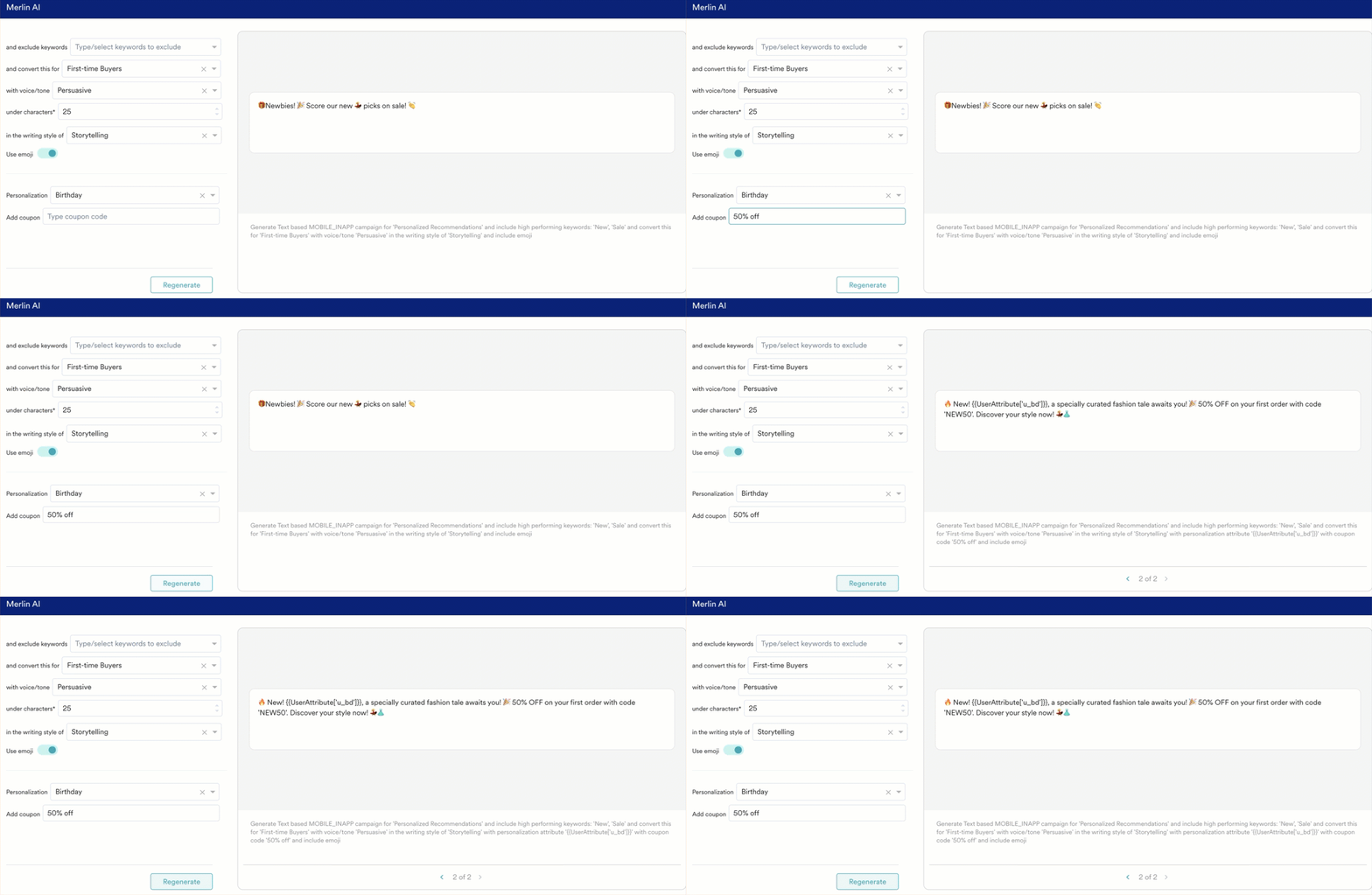
5. Sometimes you may need to customize the generated messages with extra information. For example, the use case may include adding your coupon code that Merlin AI may not know. In such cases, enter the coupon code in the **Add Coupon** field in the Merlin AI prompt builder.
6. You can also add the user property personalization element from the **Personalization** dropdown. This will ensure the generated message positions the personalization element in a cohesive manner.
The impactful keywords are suggested from Push campaign performance. To learn how these are calculated, see [Merlin AI Copywriter](/user-guide/ai-and-intelligence/merlin-ai/merlin-ai-copywriter/merlin-ai-copywriter).
4. Likewise, you can exclude historically low-performing keywords or specific keywords by selecting them in the **exclude keywords** input.
5. Sometimes you may need to customize the generated messages with extra information. For example, the use case may include adding your coupon code that Merlin AI may not know. In such cases, enter the coupon code in the **Add Coupon** field in the Merlin AI prompt builder.
6. You can also add the user property personalization element from the **Personalization** dropdown. This will ensure the generated message positions the personalization element in a cohesive manner.
 * The character limit for the message is **500** characters.
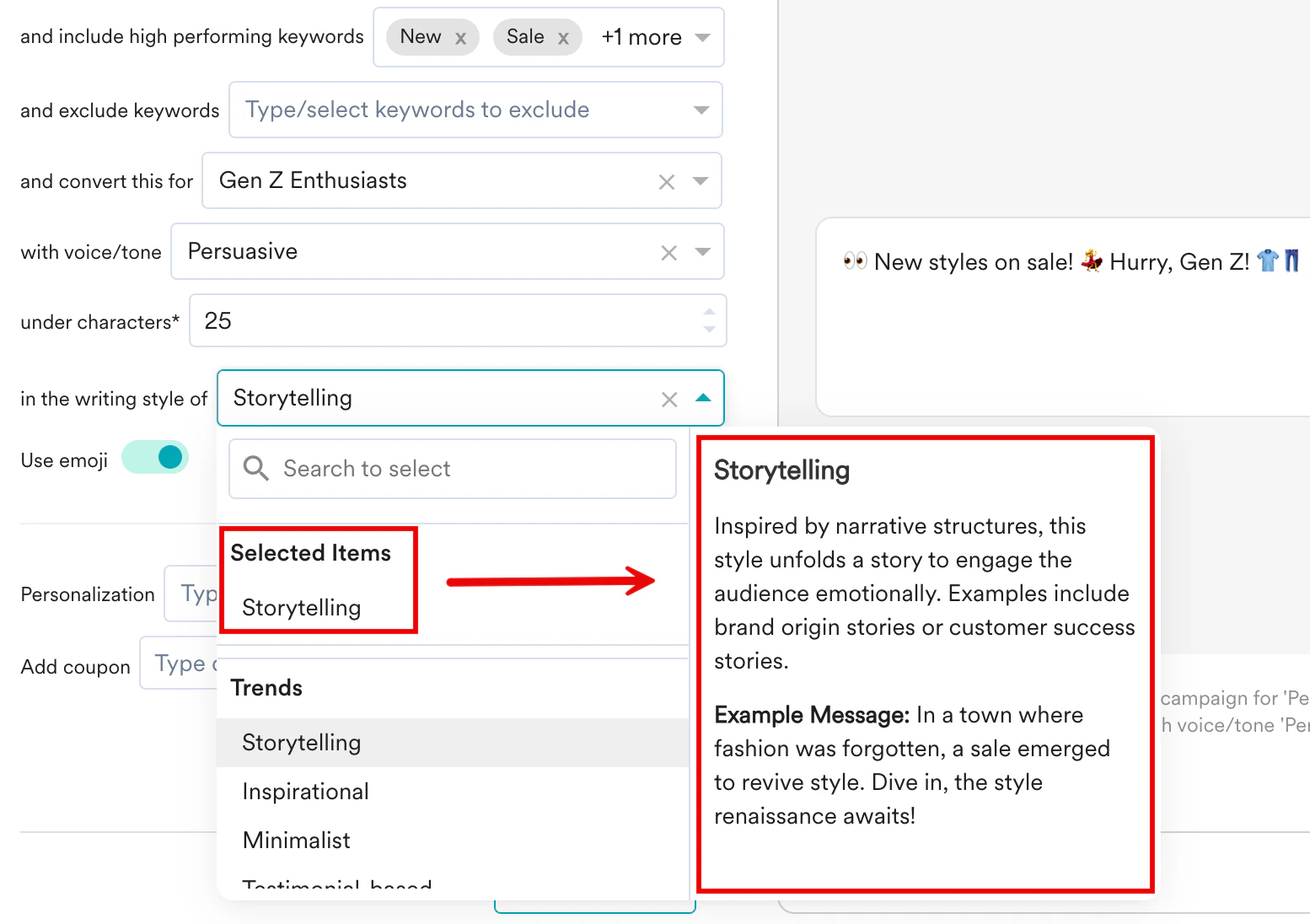
* For each input type in the dropdown, there are descriptions and example messages related to each input option. This can help you visualize the type of AI-generated messages that can be expected.
* The character limit for the message is **500** characters.
* For each input type in the dropdown, there are descriptions and example messages related to each input option. This can help you visualize the type of AI-generated messages that can be expected.
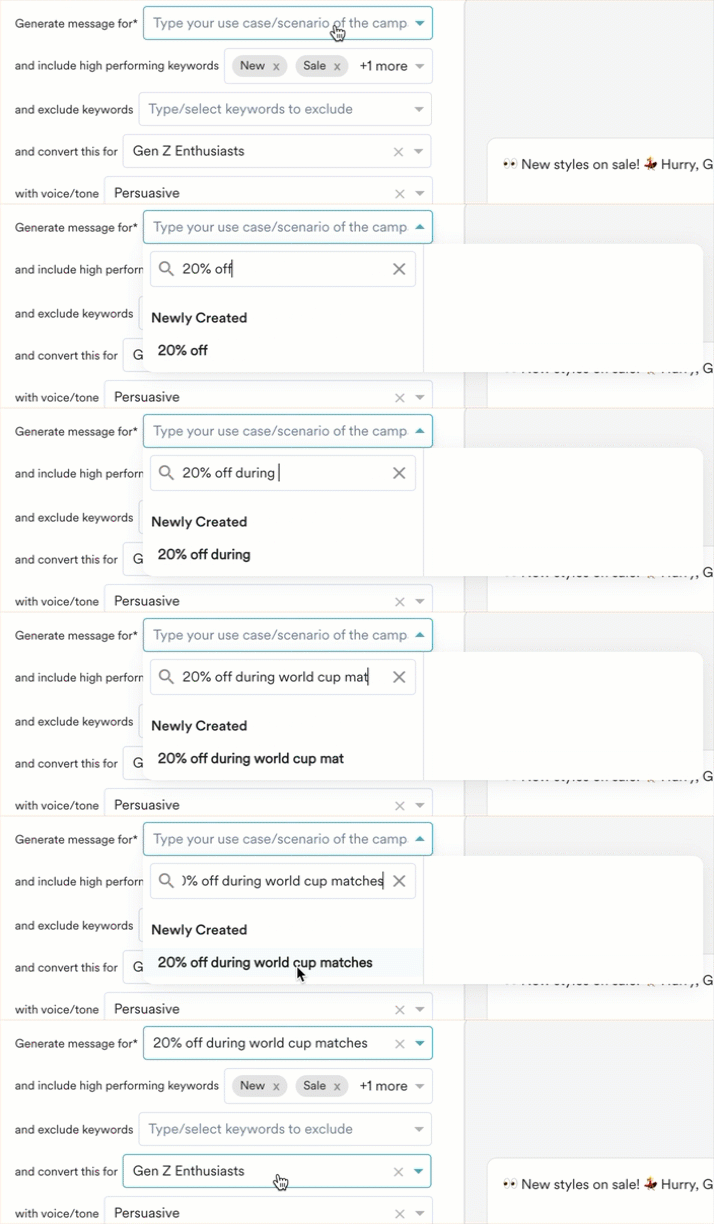
 * You can always select a custom value as input beyond the available options in the dropdown. Simply type the intended text and select it in custom placeholder values.
 7. You can re-generate messages up to 20 times in a campaign using Merlin AI. If needed, you can use the pagination button located at the bottom of the preview to navigate between pages that display one page of results at a time.
8. Once you're satisfied with the generated message, click the **Copy this** button on the Merlin AI prompt builder. You are redirected to the template settings page in the Content tab where you can make intended changes to your template by pasting the Merlin AI generated message in your template.
7. You can re-generate messages up to 20 times in a campaign using Merlin AI. If needed, you can use the pagination button located at the bottom of the preview to navigate between pages that display one page of results at a time.
8. Once you're satisfied with the generated message, click the **Copy this** button on the Merlin AI prompt builder. You are redirected to the template settings page in the Content tab where you can make intended changes to your template by pasting the Merlin AI generated message in your template.