> ## Documentation Index
> Fetch the complete documentation index at: https://moengage.com/docs/llms.txt
> Use this file to discover all available pages before exploring further.
# Merlin AI Segment Assist
> Create audience segments by typing plain-English prompts. Merlin AI Segment Assist maps your request to the right events and attribute filters.
This is an Early Access feature. To enable it for your account, contact your CSM or [raise a support ticket](/user-guide/contact-support/contact-support/raise-a-support-ticket-through-moengage-dashboard).
# Introduction
Merlin AI Segment Assist allows you to create segments easily by entering prompts in simple English. Finding the right events and the right combination of filters to create a segment is no longer your effort. Merlin AI Segment Assist crafts the most suitable segments based on your prompt, which can be edited right before segment creation.
Merlin AI Segment Assist operates at two levels:
* **Create the query structure**: With GPT 3.5 capabilities, Merlin AI Segment Assist can accurately analyze the structure of the MoEngage query language.
* **Map relevant user and event attributes**: With Retrieval-Augmented Generation (RAG), Merlin AI Segment Assist efficiently bridges natural language inputs with corresponding event or user attributes for a particular workspace.
# Segmentation with Merlin AI Segment Assist
Perform the following actions to use Merlin AI Segment Assist to simplify your segment creation process:
* [Create a segment with Merlin AI Segment Assist](/user-guide/ai-and-intelligence/merlin-ai/merlin-ai-segment-assist#create-a-segment)
* [Optimize your AI-generated queries](/user-guide/ai-and-intelligence/merlin-ai/merlin-ai-segment-assist#optimize-your-ai-generated-queries)
## Create a Segment
Perform the following steps to create a segment with Merlin AI:
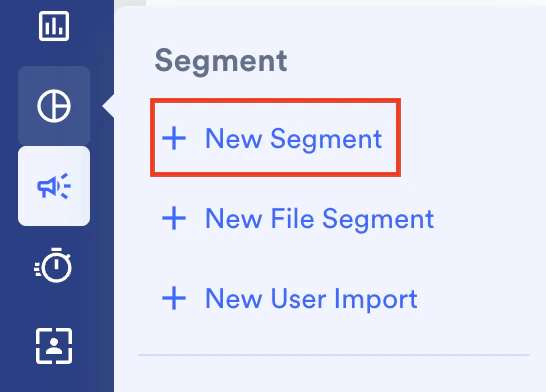
1. On the sidebar menu in MoEngage, hover over the **Segment** menu item  . The **Segment** menu appears.
2. Click **+ New Segment**.
. The **Segment** menu appears.
2. Click **+ New Segment**.
 The **Create Segment** page appears.
3. Click **Use Merlin AI to create segments**. You can switch back to the filter view by clicking **Go to Filter view** to manually generate a query.
4. In the **Type to create a segment** section, enter your prompt. For more information, refer to the [Guidelines to Write Effective Prompts](/user-guide/ai-and-intelligence/merlin-ai/merlin-ai-segment-assist).
The **Create Segment** page appears.
3. Click **Use Merlin AI to create segments**. You can switch back to the filter view by clicking **Go to Filter view** to manually generate a query.
4. In the **Type to create a segment** section, enter your prompt. For more information, refer to the [Guidelines to Write Effective Prompts](/user-guide/ai-and-intelligence/merlin-ai/merlin-ai-segment-assist). 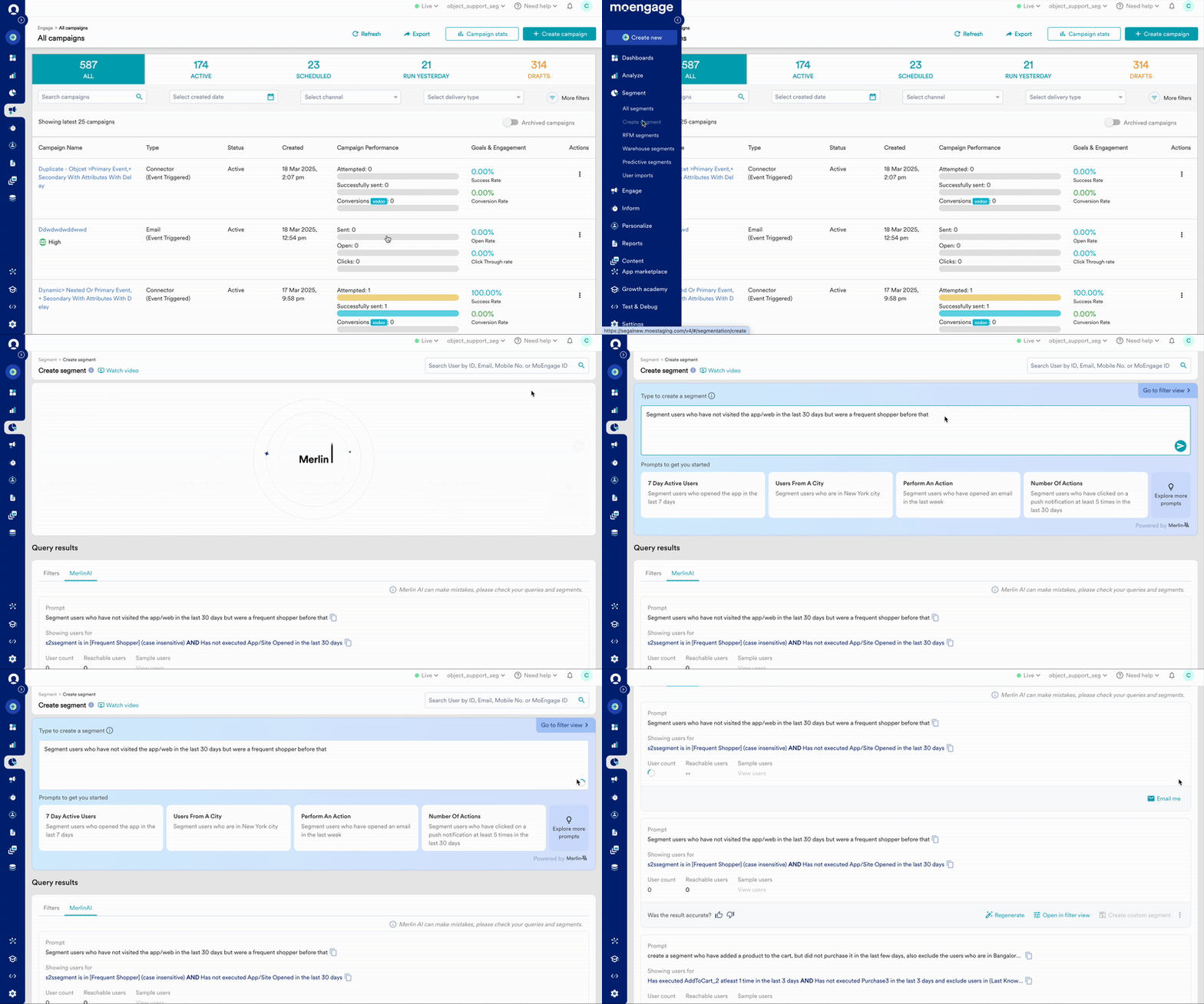 5. Click this
  icon to generate a query. The results of your queries generated with AI will be listed on the **MerlinAI** tab in the **Query results** section.\
A few sample prompts are listed under the **Prompts to Get You Started** section for your reference.
icon to generate a query. The results of your queries generated with AI will be listed on the **MerlinAI** tab in the **Query results** section.\
A few sample prompts are listed under the **Prompts to Get You Started** section for your reference.
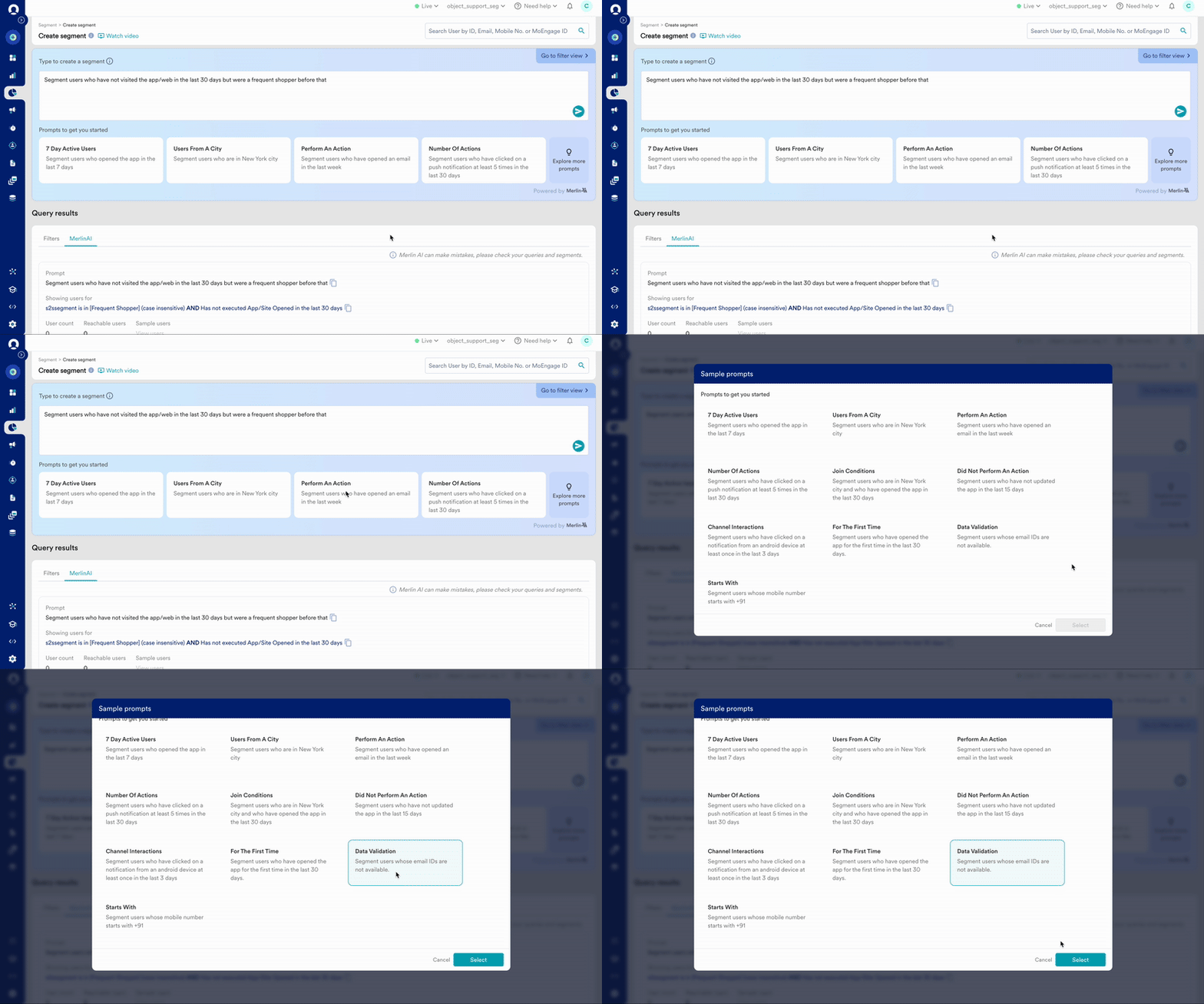 1. To find more prompts, click **Explore more prompts**.
2. You can edit the prompts as required after selecting the sample prompts.
6. To create a segment with the generated query, click **Create custom segment**.
1. To find more prompts, click **Explore more prompts**.
2. You can edit the prompts as required after selecting the sample prompts.
6. To create a segment with the generated query, click **Create custom segment**.
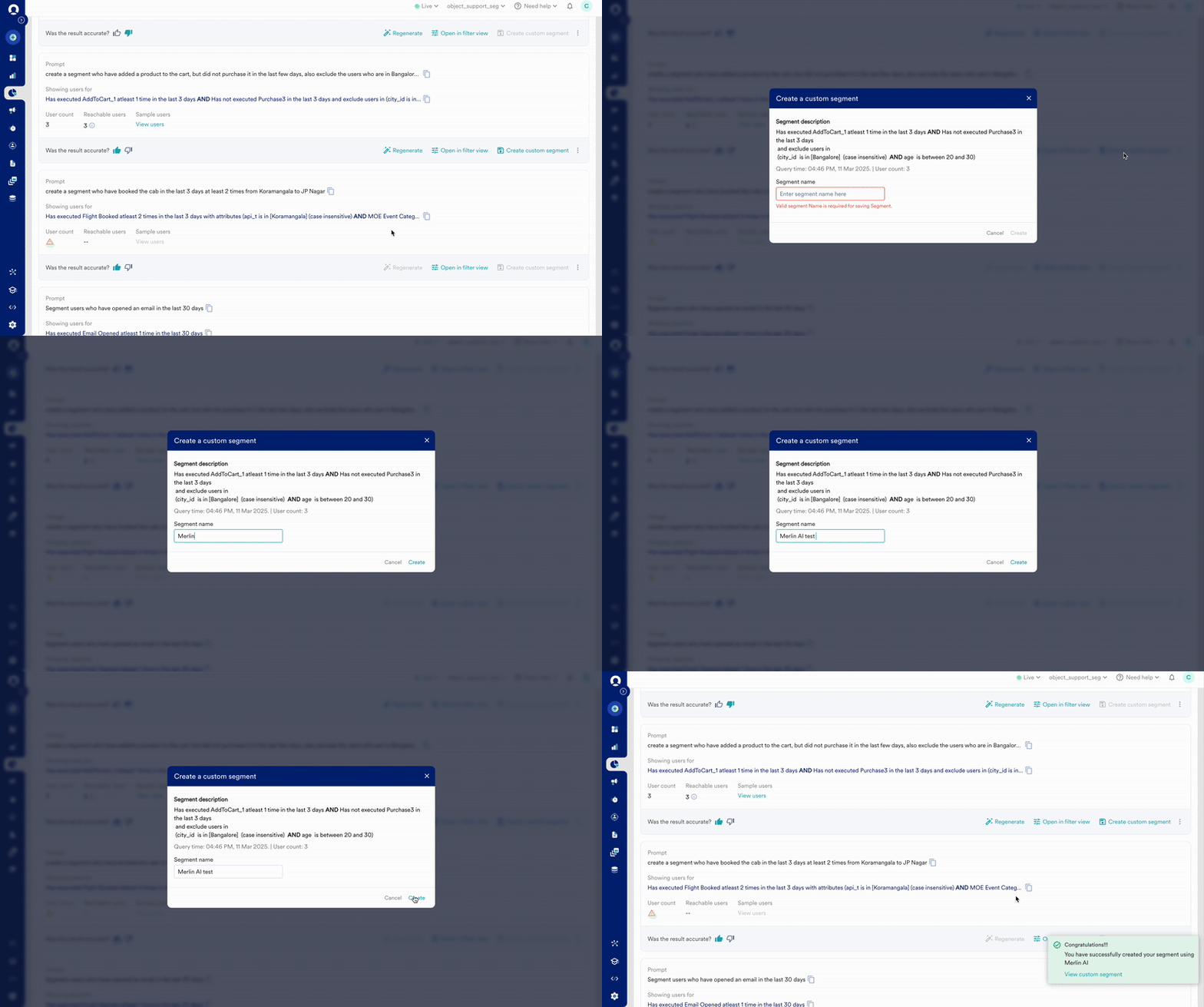 7. In the **MerlinAI** tab of the **Query results** action, you can provide your feedback using the thumbs-up and thumbs-down options below each query.
1. When you click the thumbs-down option, the Feedback dialogue box will appear.
2. Enter the prompt you are looking for and click **Submit**.
7. In the **MerlinAI** tab of the **Query results** action, you can provide your feedback using the thumbs-up and thumbs-down options below each query.
1. When you click the thumbs-down option, the Feedback dialogue box will appear.
2. Enter the prompt you are looking for and click **Submit**.
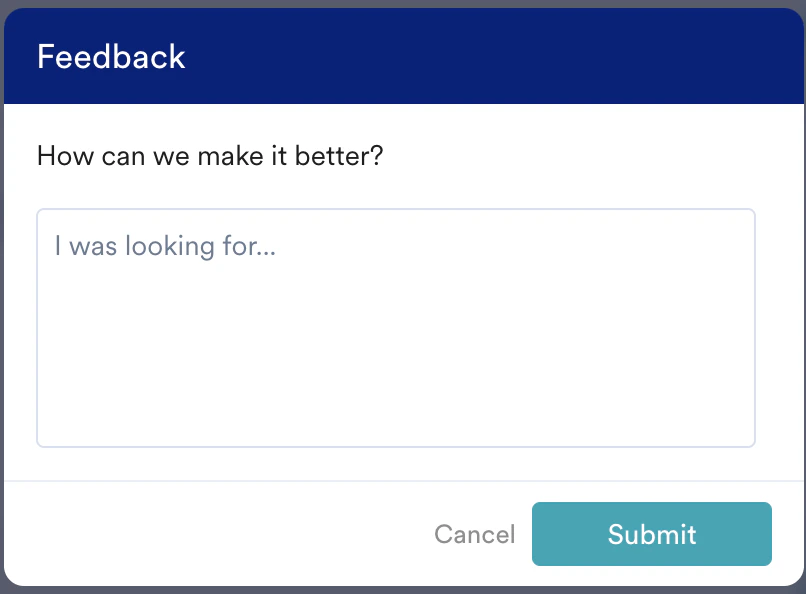 Your feedback helps MoEngage provide better query results that are suitable for your prompt through AI.
## Optimize Your AI-Generated Queries
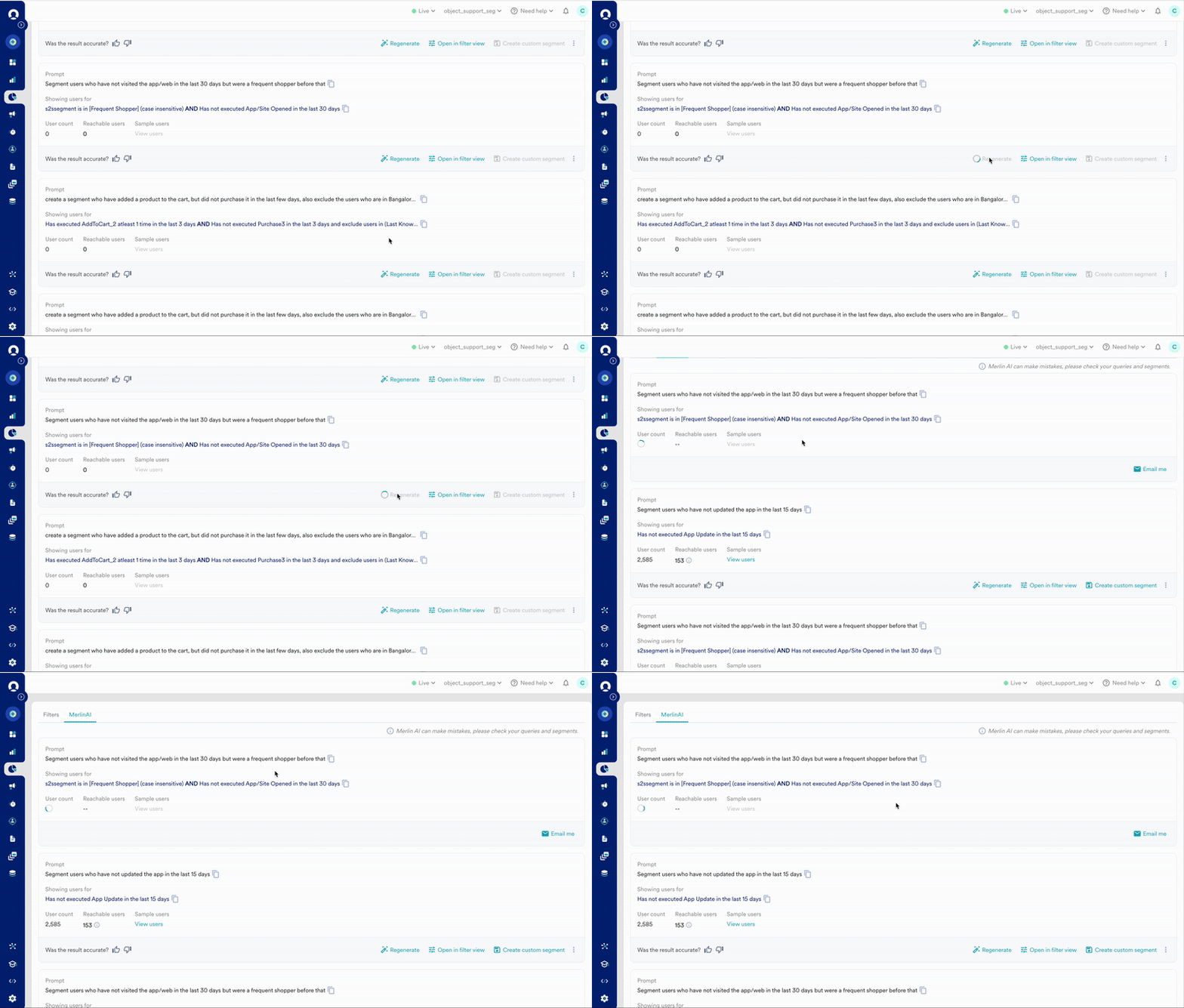
You can optimize your Merlin AI-generated queries by regenerating them, which provides new query results with different filters for the same prompt.
After the query is generated, check the filter condition described under **Showing users for**. If the filters do not match your requirements, click **Regenerate**. Merlin AI will generate a new query with different filters. On regeneration, Merlin AI tries to map the next nearest event or user attribute as per your prompt.
Your feedback helps MoEngage provide better query results that are suitable for your prompt through AI.
## Optimize Your AI-Generated Queries
You can optimize your Merlin AI-generated queries by regenerating them, which provides new query results with different filters for the same prompt.
After the query is generated, check the filter condition described under **Showing users for**. If the filters do not match your requirements, click **Regenerate**. Merlin AI will generate a new query with different filters. On regeneration, Merlin AI tries to map the next nearest event or user attribute as per your prompt.
 ### Optimize the Query in Filter View
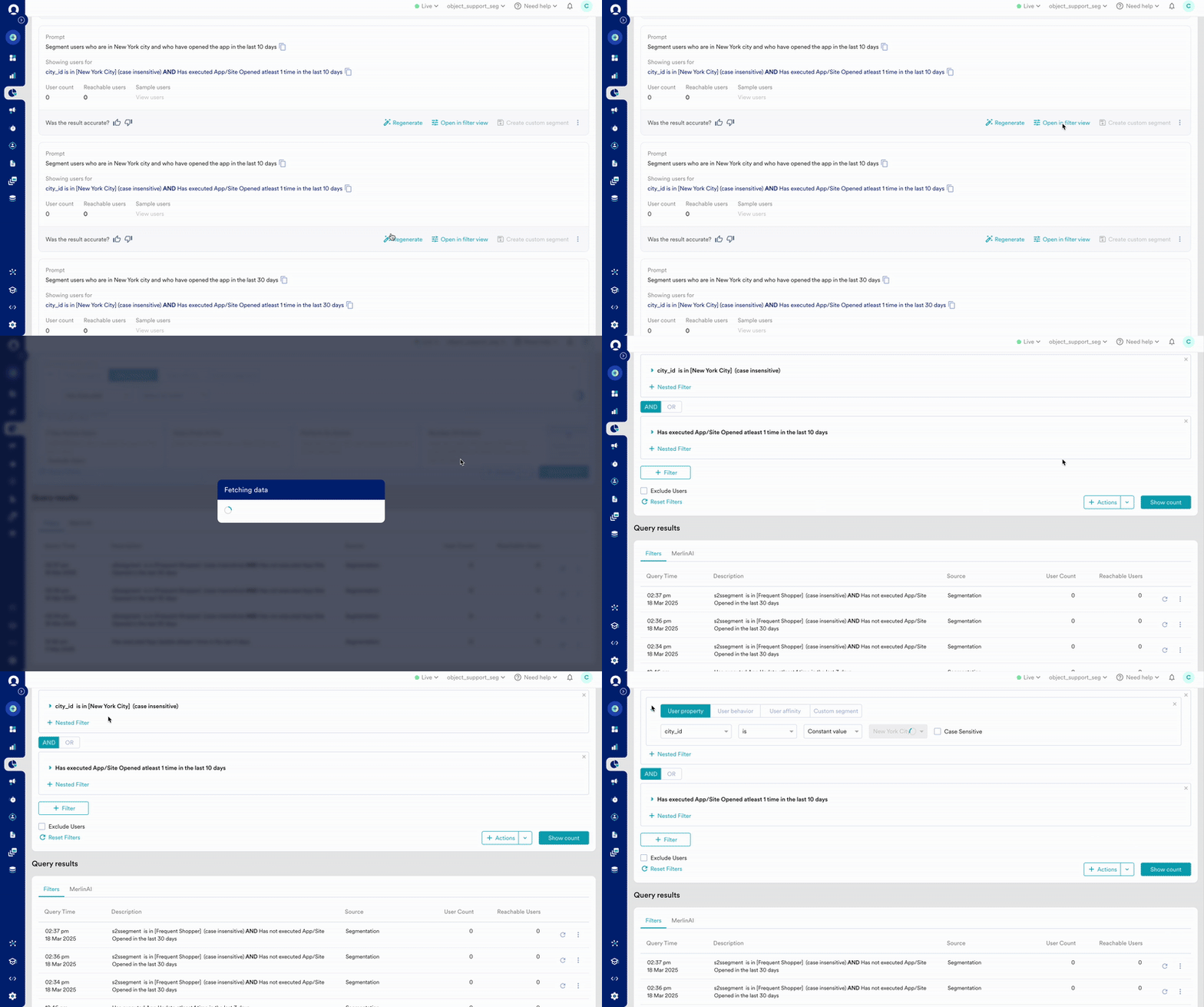
The filter view opens your queries with filters, which allows you to add additional filters (such as nested filters and affinity queries) to your Merlin AI-generated query.
* Click **Open in filter** **view** to edit queries using filters manually. This result will be listed under the **Filters** tab in the **Query Results** section. For more information on creating segments manually, click [here](/user-guide/segment/segment-operations/create-segments).
* Once the query is generated, you can create segments or campaigns by clicking **+ Action**.\\
### Optimize the Query in Filter View
The filter view opens your queries with filters, which allows you to add additional filters (such as nested filters and affinity queries) to your Merlin AI-generated query.
* Click **Open in filter** **view** to edit queries using filters manually. This result will be listed under the **Filters** tab in the **Query Results** section. For more information on creating segments manually, click [here](/user-guide/segment/segment-operations/create-segments).
* Once the query is generated, you can create segments or campaigns by clicking **+ Action**.\\
 # Guidelines to Write Effective Prompts
The guidelines and prompt structures to write effective prompts are discussed below:
* Refer to the [key concepts](/user-guide/segment/basics-of-segmentation/basics-of-segmentation) of segmentation at MoEngage before using a query with Merlin AI Segment Assist.
* User attributes and user activity (events and event attributes) are the building blocks of segmentation.
* Filters are used to filter specific user attributes and events.
* Operators (AND/OR) are used to combine multiple segment blocks.
## Prompt Structures
The following are the best prompt structures with examples:
* You must query events (user behavior) and user attributes (user property) with different prompts to generate the most accurate filters.
* Apply the following structure for querying user attributes:\
Segment users whose city/country/email ID/mobile number, etc, is ``. For example, Segment users who are in New York City.
* Apply the following structure for querying events:\
Segment users who have done/performed an `` in the last n days. For example, Segment users who opened the app in the last 7 days.
* Apply the following structure for querying events with event attributes:\
Segment users who have done/performed a `` with `` containing ``. For example, segment users who have updated the app in the last 15 days with app versions containing 2.3.
* Apply the following structure for querying users who have not performed a certain event:\
Segment users who have not done/performed a `` with `` containing ``. For example, segment users who have not updated the app in the last 15 days.
* Joining queries with AND/OR
* You can combine user attributes and events using an AND or OR as required by your business logic.
* Apply the following structure for queries combining user attributes and events in the following order: user attributes first, followed by events.
* Segment users whose `` is `` and who have done an `` in the last few days. For example, segment users who are in New York City and have opened the app in the last 30 days.
## Sample Prompts to Get You Started
For a better understanding of prompt structure and usage, some of the sample prompts are listed as follows:
* **7-day active users**: Segment users who opened the app in the last 7 days.
* **Users from a city**: Segment users who are in New York City.
* **Perform an action**: Segment users who opened an email last week.
* **Number of actions**: Segment users who have clicked a push notification at least 5 times in the last 30 days.
* **Joint conditions**: Segment users who are in New York City and who have opened the app in the last 30 days.
* **Did not perform an action**: Segment users who have not updated the app in the last 15 days.
* **Channel Interactions**: Segment users who have clicked a notification from an Android device at least once in the last 3 days.
* **For the first time**: Segment users who have opened the app for the first time in the last 30 days.
* **Data validation**: Segment users whose email IDs are not available.
* **Starts with**: Segment users whose mobile number starts with +91.
* **Ends with**: Segment users whose email ID ends with education.
* **Contains a substring**: Segment users whose email ID contains @moengage.
* **Contains multiple substrings**: Segment users whose email ID contains @moengage, @gmail, @hotmail.
* **Numerical actions**: Segment users who opened the app in the last 3 days with an app version greater than 16.1.
- Merlin AI Segment Assist currently does not support nested filters, affinity queries, and custom segments.
- Merlin AI Segment Assist can access any blacklisted attribute in the data management for 1 day from the day of blacklisting. These attributes are not included in your results from the next day. Please check your results before proceeding further.
# Guidelines to Write Effective Prompts
The guidelines and prompt structures to write effective prompts are discussed below:
* Refer to the [key concepts](/user-guide/segment/basics-of-segmentation/basics-of-segmentation) of segmentation at MoEngage before using a query with Merlin AI Segment Assist.
* User attributes and user activity (events and event attributes) are the building blocks of segmentation.
* Filters are used to filter specific user attributes and events.
* Operators (AND/OR) are used to combine multiple segment blocks.
## Prompt Structures
The following are the best prompt structures with examples:
* You must query events (user behavior) and user attributes (user property) with different prompts to generate the most accurate filters.
* Apply the following structure for querying user attributes:\
Segment users whose city/country/email ID/mobile number, etc, is ``. For example, Segment users who are in New York City.
* Apply the following structure for querying events:\
Segment users who have done/performed an `` in the last n days. For example, Segment users who opened the app in the last 7 days.
* Apply the following structure for querying events with event attributes:\
Segment users who have done/performed a `` with `` containing ``. For example, segment users who have updated the app in the last 15 days with app versions containing 2.3.
* Apply the following structure for querying users who have not performed a certain event:\
Segment users who have not done/performed a `` with `` containing ``. For example, segment users who have not updated the app in the last 15 days.
* Joining queries with AND/OR
* You can combine user attributes and events using an AND or OR as required by your business logic.
* Apply the following structure for queries combining user attributes and events in the following order: user attributes first, followed by events.
* Segment users whose `` is `` and who have done an `` in the last few days. For example, segment users who are in New York City and have opened the app in the last 30 days.
## Sample Prompts to Get You Started
For a better understanding of prompt structure and usage, some of the sample prompts are listed as follows:
* **7-day active users**: Segment users who opened the app in the last 7 days.
* **Users from a city**: Segment users who are in New York City.
* **Perform an action**: Segment users who opened an email last week.
* **Number of actions**: Segment users who have clicked a push notification at least 5 times in the last 30 days.
* **Joint conditions**: Segment users who are in New York City and who have opened the app in the last 30 days.
* **Did not perform an action**: Segment users who have not updated the app in the last 15 days.
* **Channel Interactions**: Segment users who have clicked a notification from an Android device at least once in the last 3 days.
* **For the first time**: Segment users who have opened the app for the first time in the last 30 days.
* **Data validation**: Segment users whose email IDs are not available.
* **Starts with**: Segment users whose mobile number starts with +91.
* **Ends with**: Segment users whose email ID ends with education.
* **Contains a substring**: Segment users whose email ID contains @moengage.
* **Contains multiple substrings**: Segment users whose email ID contains @moengage, @gmail, @hotmail.
* **Numerical actions**: Segment users who opened the app in the last 3 days with an app version greater than 16.1.
- Merlin AI Segment Assist currently does not support nested filters, affinity queries, and custom segments.
- Merlin AI Segment Assist can access any blacklisted attribute in the data management for 1 day from the day of blacklisting. These attributes are not included in your results from the next day. Please check your results before proceeding further.