> ## Documentation Index
> Fetch the complete documentation index at: https://moengage.com/docs/llms.txt
> Use this file to discover all available pages before exploring further.
# Split Analysis on Attributes
> Split your Behavior, Funnel, and Retention analyses by event or user attributes in MoEngage to compare results across different dimensions.
[Behavior](/user-guide/analyze/analytics/behavior/behavior-overview), [Funnel](/user-guide/analyze/analytics/funnels/funnels-overview), and [Retention](/user-guide/analyze/analytics/retention/retention-overview) analysis can be compared or split on the values of the event attribute and the user attributes. Using the split functionality, the analysis can be compared to the values present in the selected attributes.
For Example - From which city users are opening the app, comparing different campaigns for the Funnel analysis, or Comparing retention driven by the different user programs.
Analysis can be performed on event attributes or user attributes. In MoEngage analytics, user actions are events and events have event attributes. User properties are user attributes.
# Perform Split Analysis
## Split Analysis on Behavior
To perform the split analysis, add **Split by** attribute to the event in the Behavior Page and click Apply button.
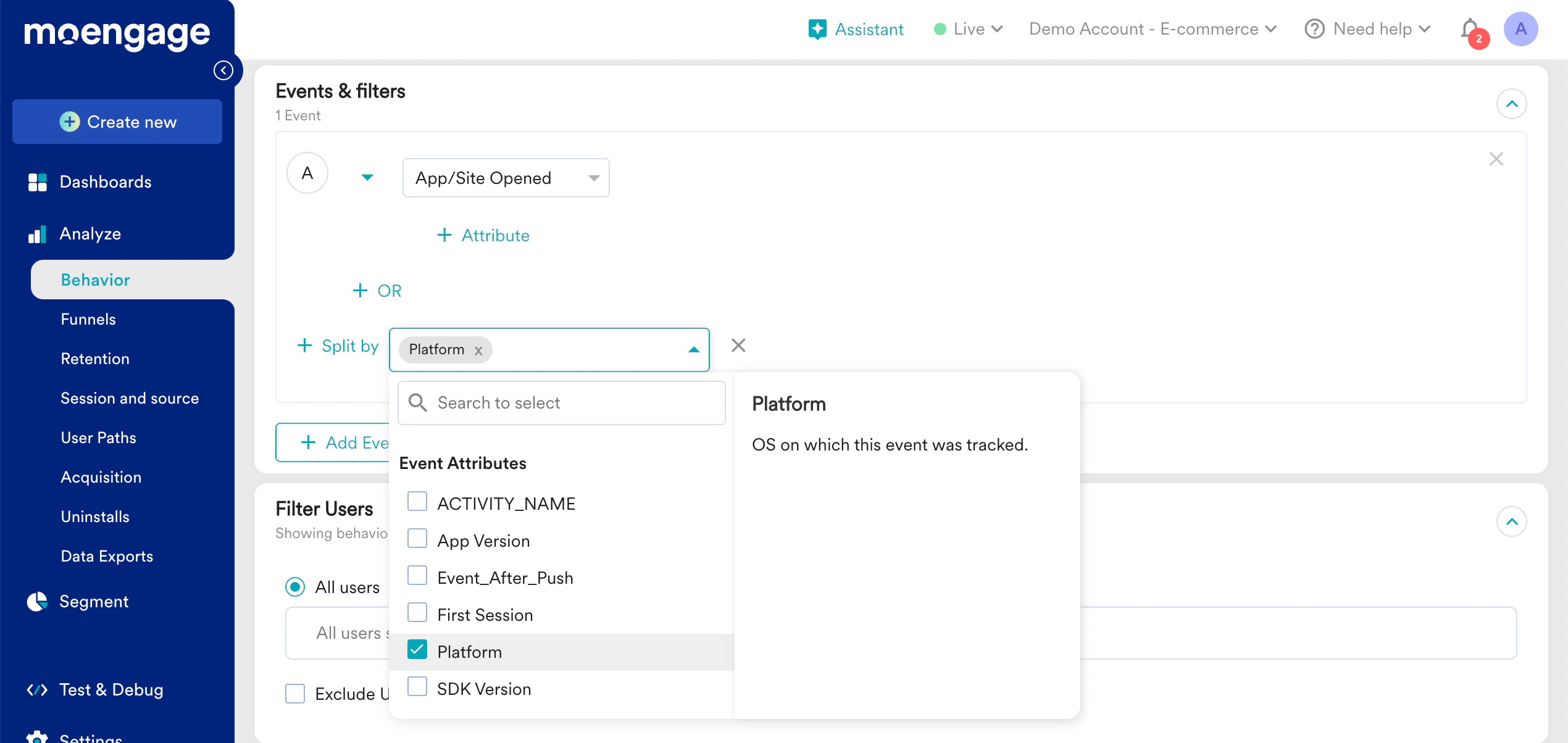 To perform the split analysis on the user attributes, add **Compare by** attributes in the setting options of the Behavior Page and click Apply button.
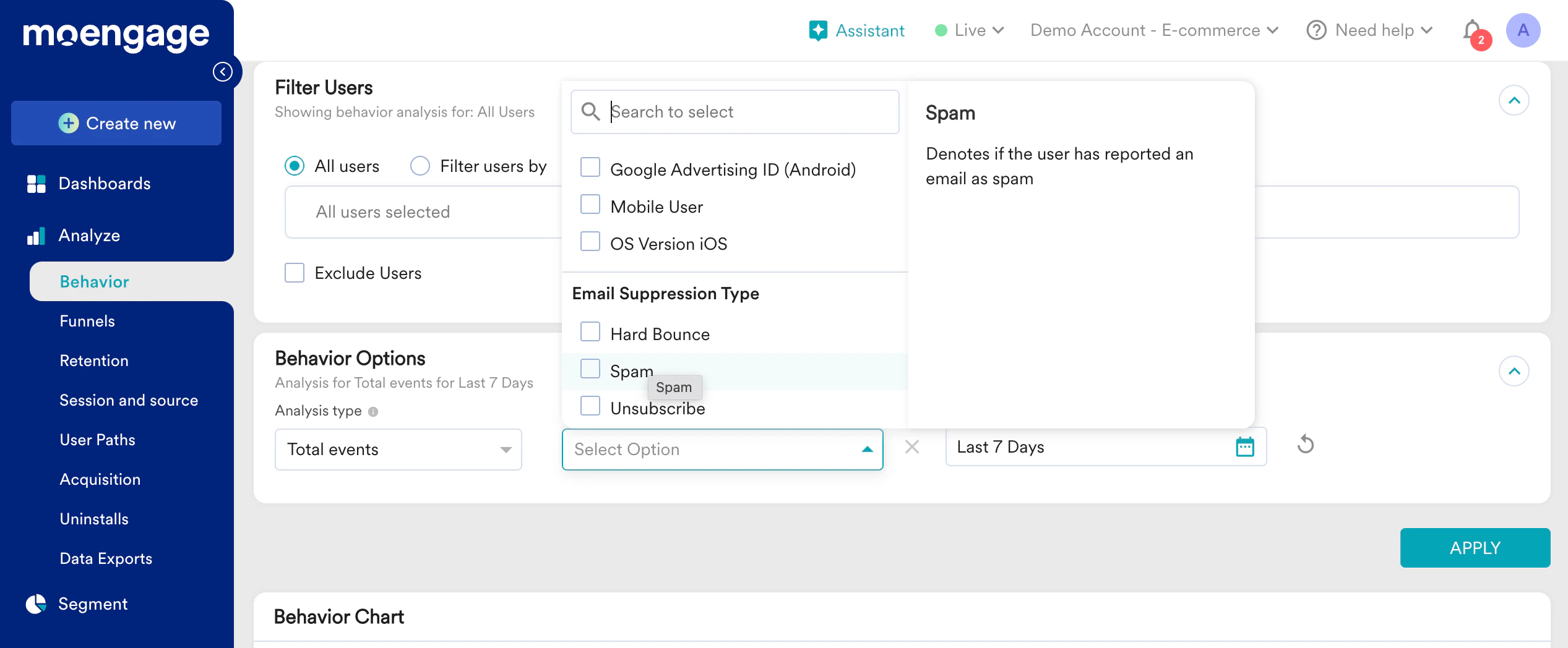 You can add up to a total of 10 split-by and compare by options in behavior analysis.
## Split Analysis on Funnel
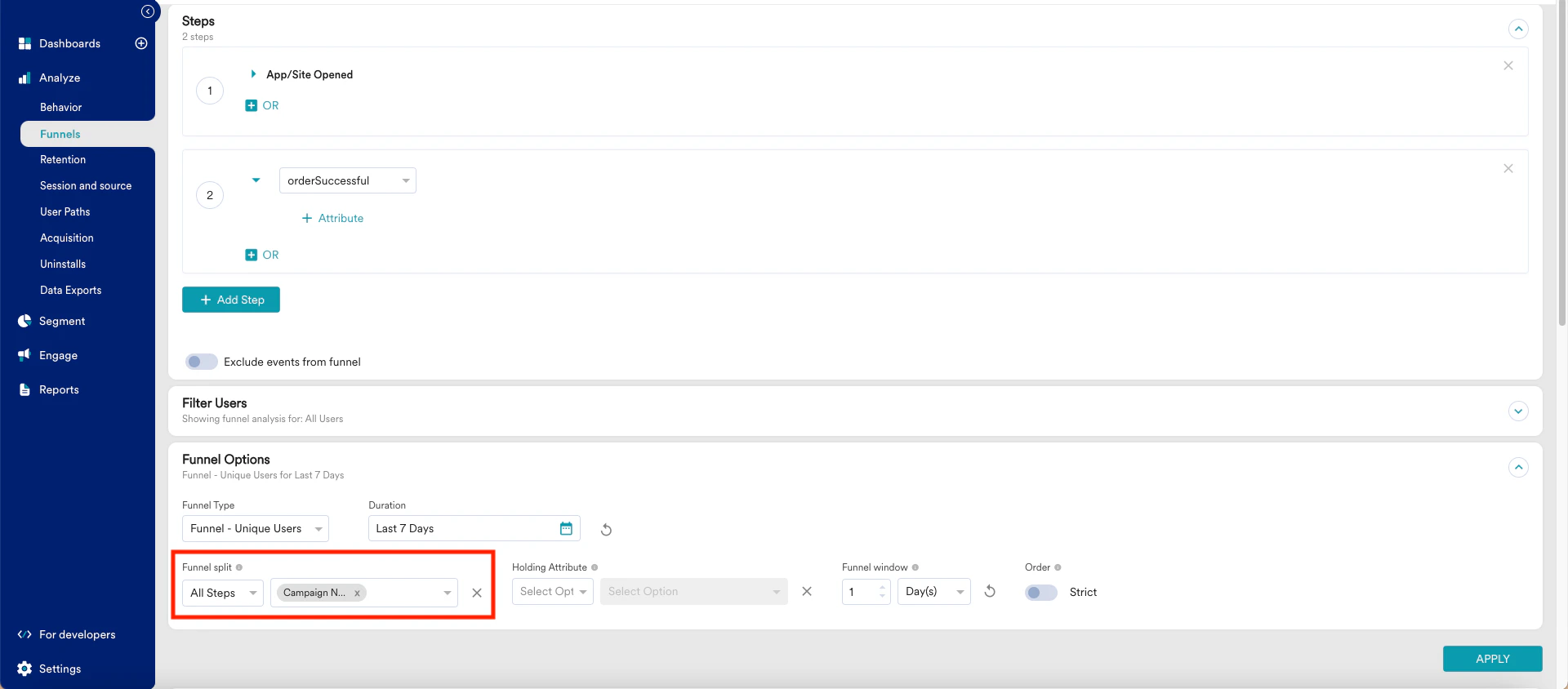
Add the **Split Funnel** attribute to the Funnel Page and click Apply button to get a split analysis. This dropdown has both user and event attributes. You can select up to 5 attributes for the analysis.
You can add up to a total of 10 split-by and compare by options in behavior analysis.
## Split Analysis on Funnel
Add the **Split Funnel** attribute to the Funnel Page and click Apply button to get a split analysis. This dropdown has both user and event attributes. You can select up to 5 attributes for the analysis.
 ## Split Analysis on Retention
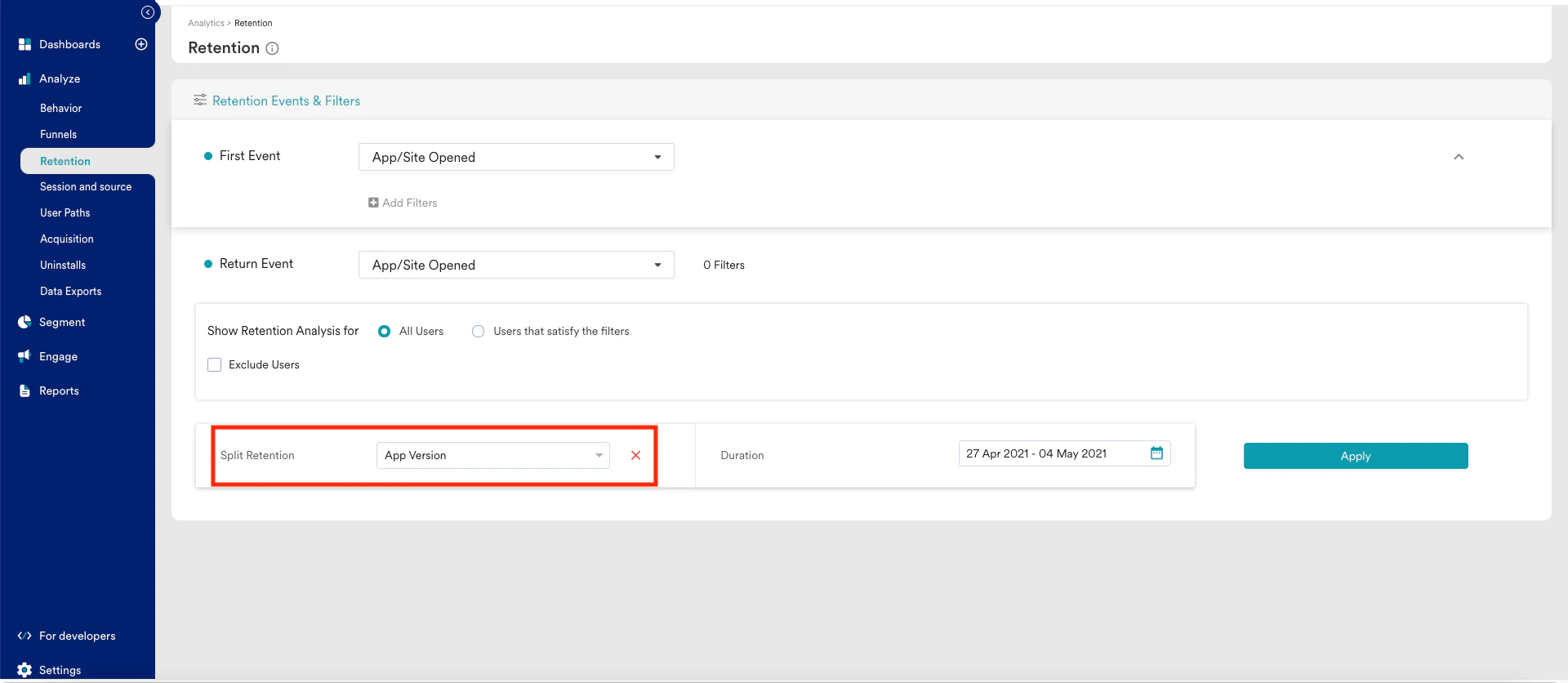
Add the **Split Cohort** attribute to the Retention Page to get a split analysis. This dropdown has both user and event attributes.
## Split Analysis on Retention
Add the **Split Cohort** attribute to the Retention Page to get a split analysis. This dropdown has both user and event attributes.
 ## User Attribute Freshness
All the user attributes, which are selected for the split-by or compare-by analysis, are the latest value of the user attributes available in MoEngage. MoEngage does not provide the split-by analysis of the historical value of user attributes.
## User Attribute Freshness
All the user attributes, which are selected for the split-by or compare-by analysis, are the latest value of the user attributes available in MoEngage. MoEngage does not provide the split-by analysis of the historical value of user attributes.