> ## Documentation Index
> Fetch the complete documentation index at: https://moengage.com/docs/llms.txt
> Use this file to discover all available pages before exploring further.
# Actionable Analytics
> Turn MoEngage analysis into action — create segments, launch campaigns, export users, or drill into data directly from any chart data point.
# Overview
Every analysis you perform is transformed from being just informative to actionable through actionable analytics. The insights generated can be saved as custom segments, which allows you to take various actions on these segments.
This feature is only available in the Product Analytics package of MoEngage Analytics. To enable it for your account, contact your MoEngage Customer Success Manager (CSM) or the Support team.
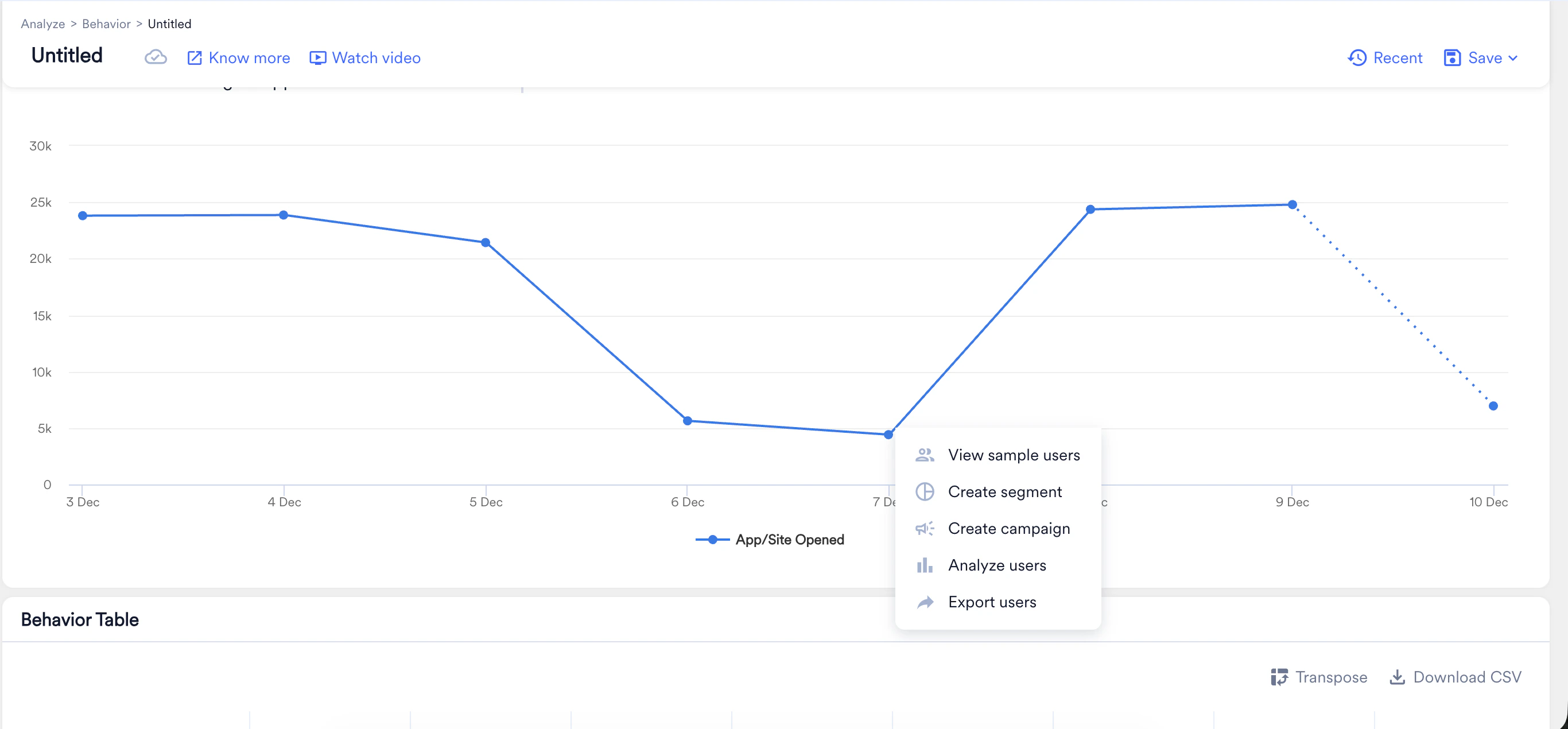
On any of the chart views, click a data point (such as a bar on a bar chart or a point on a line chart) to open a menu with the following actions directly from the analysis:
* [View sample users](/user-guide/analyze/analytics/actionable-analytics#view-sample-users)
* [Create segment](/user-guide/analyze/analytics/actionable-analytics#create-segment)
* [Create campaign](/user-guide/analyze/analytics/actionable-analytics#create-campaign)
* [Analyze users](/user-guide/analyze/analytics/actionable-analytics#analyze-users)
* [Export users](/user-guide/analyze/analytics/actionable-analytics#export-users)
 ## View Sample Users
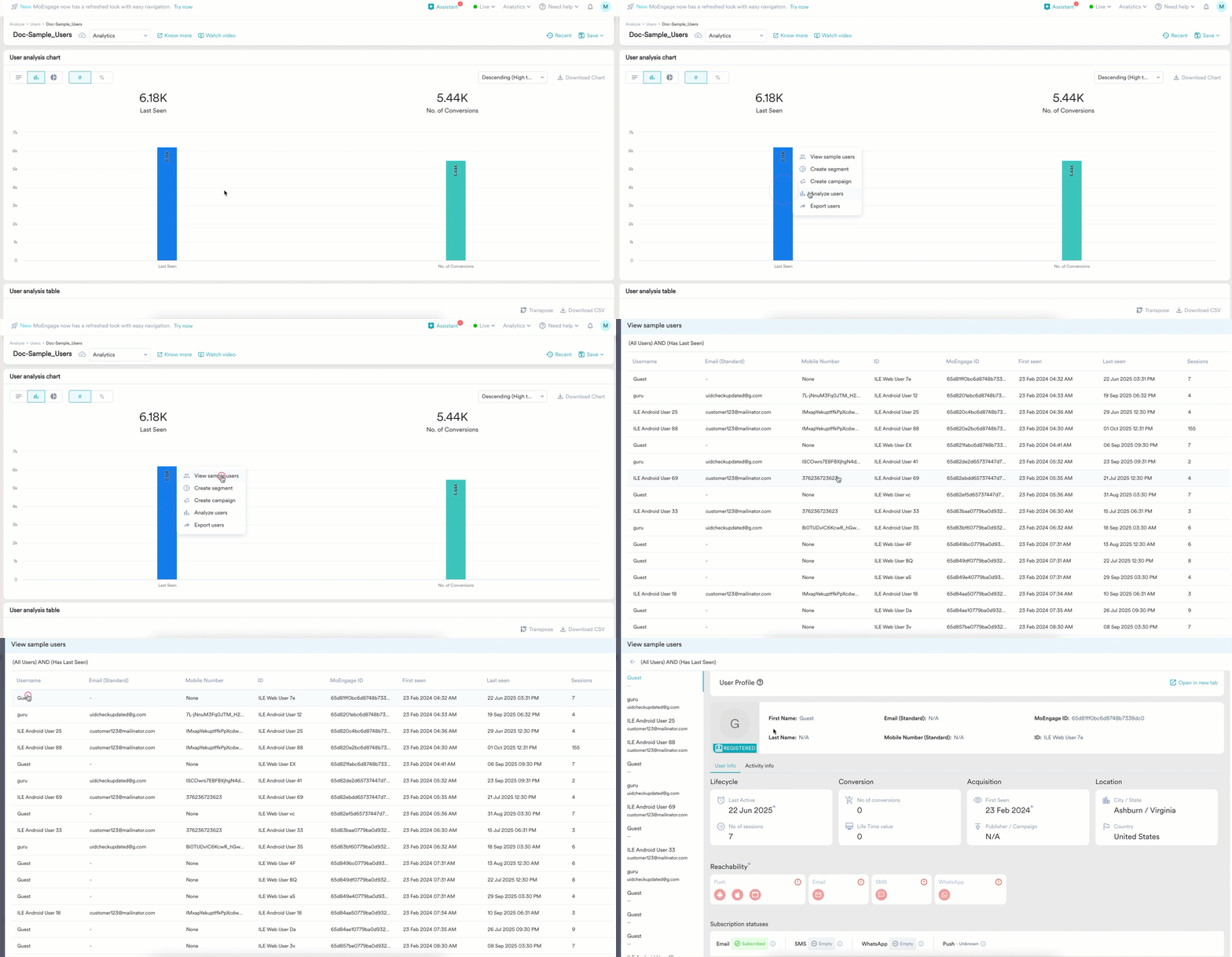
*View sample users* allows you to view a list of up to 50 sample users who are part of the selected data point, helping you validate the data. When you click **View sample users**, a window appears displaying the list of users. Click any user to view their **User Profile**.
## View Sample Users
*View sample users* allows you to view a list of up to 50 sample users who are part of the selected data point, helping you validate the data. When you click **View sample users**, a window appears displaying the list of users. Click any user to view their **User Profile**.
 ## Create Segment
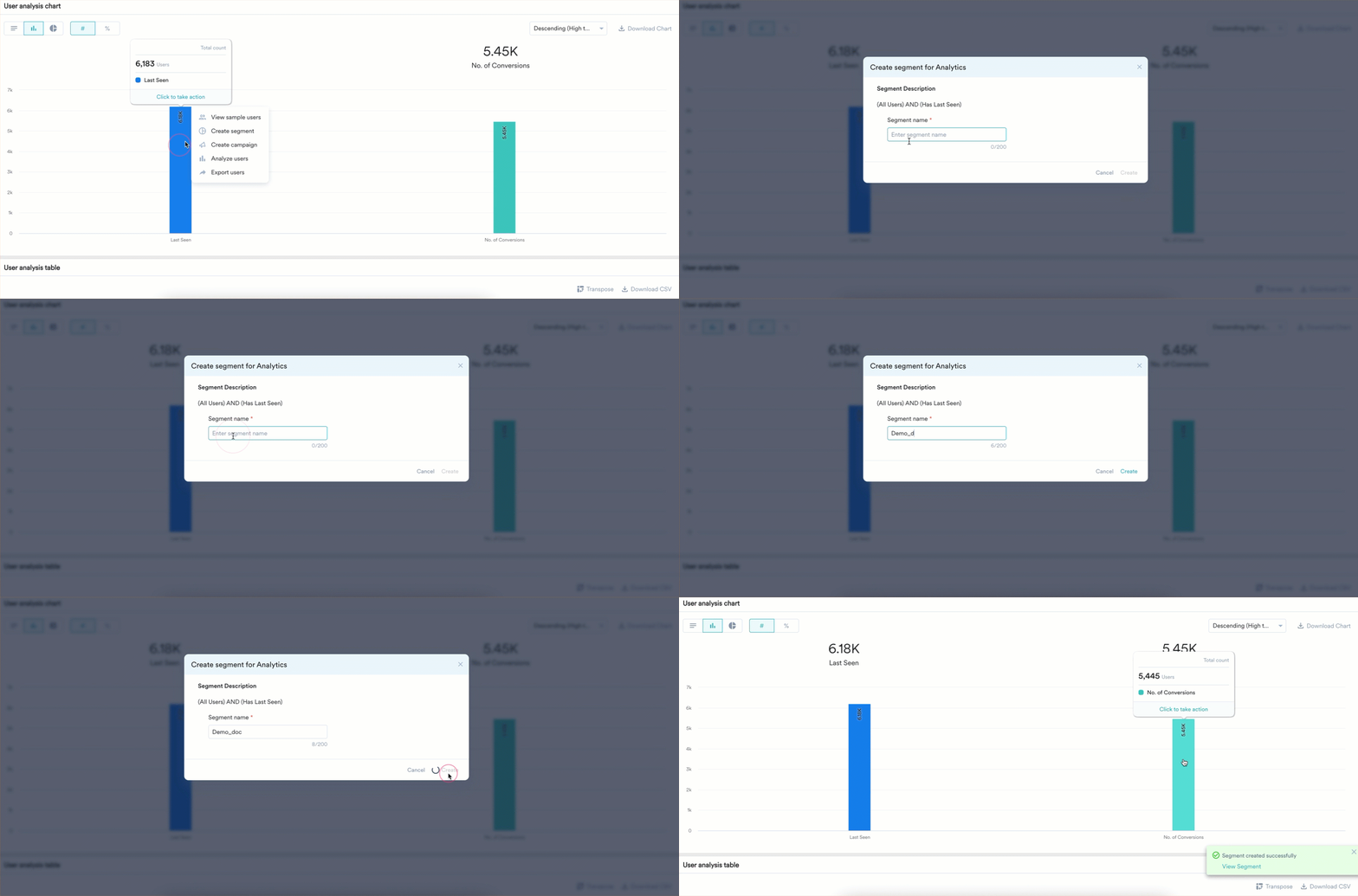
You can save the selected users as a custom segment to take action on them later. Follow these steps:
1. Click **Create segment**. The **Create segment for Analytics** dialog box appears.
2. In the **Segment name** box, enter a name.
3. Click **Create**.
## Create Segment
You can save the selected users as a custom segment to take action on them later. Follow these steps:
1. Click **Create segment**. The **Create segment for Analytics** dialog box appears.
2. In the **Segment name** box, enter a name.
3. Click **Create**.
 ## Create Campaign
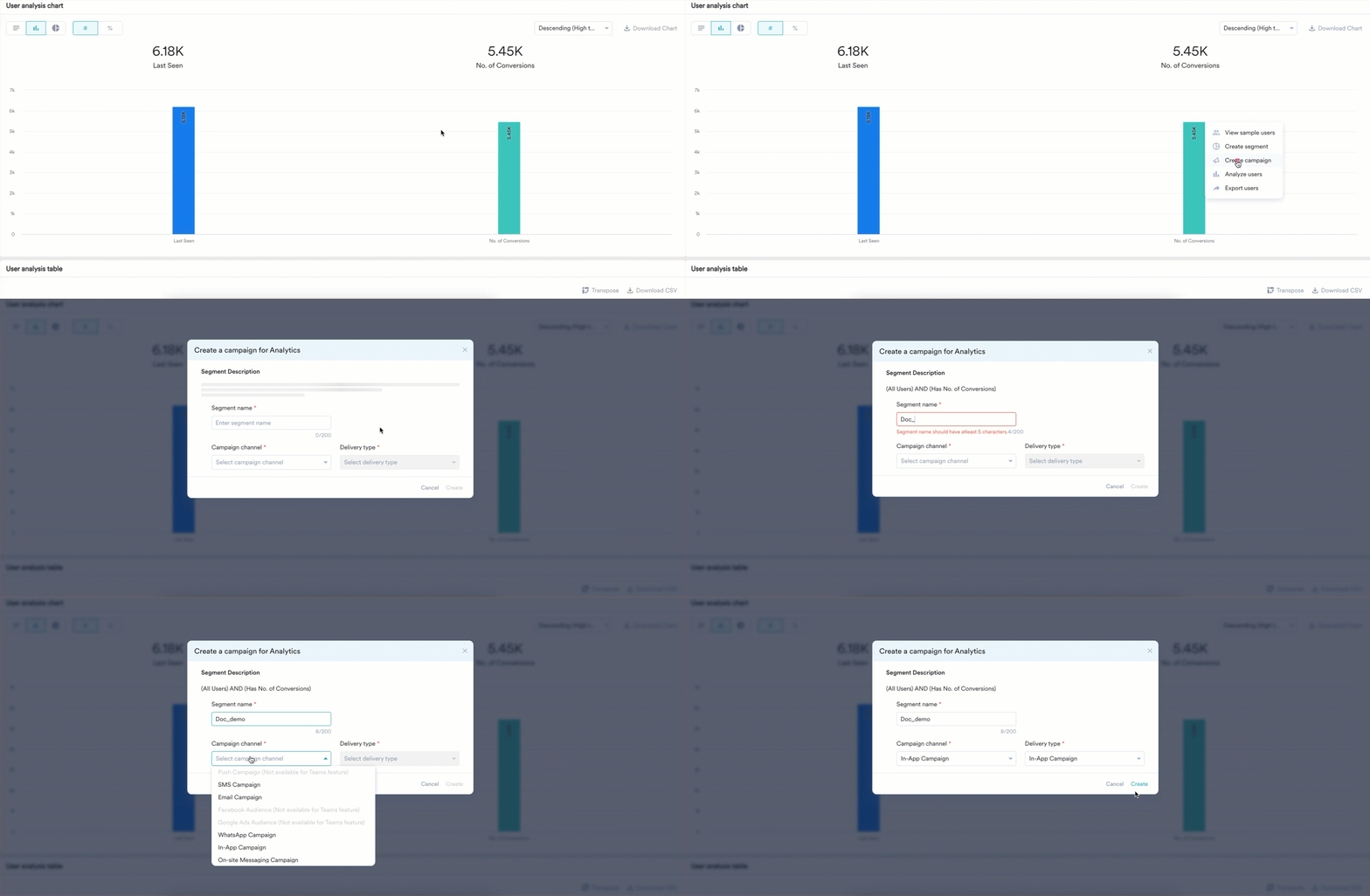
You can create a campaign directly for these users. Follow these steps:
1. Click **Create campaign**. The **Create a campaign for Analytics** dialog box appears.
2. In the **Segment name** box, enter a name.
3. Choose the **Campaign channel** and **Delivery type**.
4. Click **Create**. For more information on creating a campaign, refer to [Campaigns and Channels](/user-guide/campaigns-and-channels/getting-started/introduction/moengage-channels).
## Create Campaign
You can create a campaign directly for these users. Follow these steps:
1. Click **Create campaign**. The **Create a campaign for Analytics** dialog box appears.
2. In the **Segment name** box, enter a name.
3. Choose the **Campaign channel** and **Delivery type**.
4. Click **Create**. For more information on creating a campaign, refer to [Campaigns and Channels](/user-guide/campaigns-and-channels/getting-started/introduction/moengage-channels).
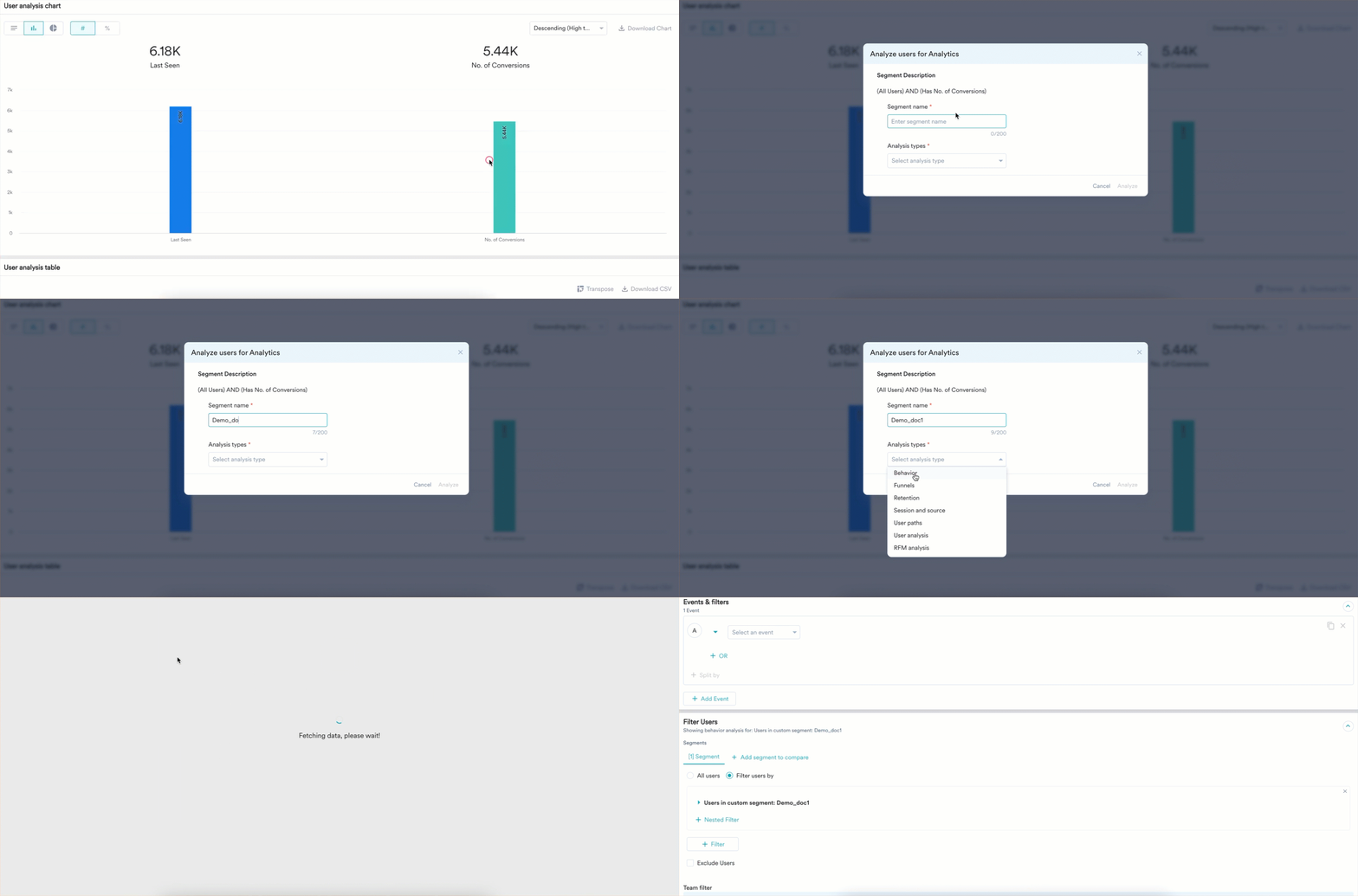
 ## Analyze Users
You can analyze the group of users further. Follow these steps:
1. Click **Analyze users**. The **Analyze users for Analytics** dialog box appears.
2. In the **Segment name** box, enter a name.
3. Choose your analysis type from the **Analysis types** list.
4. Click **Analyze**. For more information, refer [here](/user-guide/analyze/analytics).
## Analyze Users
You can analyze the group of users further. Follow these steps:
1. Click **Analyze users**. The **Analyze users for Analytics** dialog box appears.
2. In the **Segment name** box, enter a name.
3. Choose your analysis type from the **Analysis types** list.
4. Click **Analyze**. For more information, refer [here](/user-guide/analyze/analytics).
 ## Export Users
This allows you to export the user data for the selected data point. For more information, refer [here](/user-guide/analyze/analytics/user-data-exports).
# Next Steps
* [Dashboards](/user-guide/analyze/dashboards)
* [My Studio](/user-guide/analyze/dashboards/my-studio)
## Export Users
This allows you to export the user data for the selected data point. For more information, refer [here](/user-guide/analyze/analytics/user-data-exports).
# Next Steps
* [Dashboards](/user-guide/analyze/dashboards)
* [My Studio](/user-guide/analyze/dashboards/my-studio)