> ## Documentation Index
> Fetch the complete documentation index at: https://moengage.com/docs/llms.txt
> Use this file to discover all available pages before exploring further.
# Customizing Chart Labels
> Rename legend labels and axis ticks in MoEngage Analytics charts to replace technical event names with business-friendly terms for reports.
To provide better clarity and context for your data visualizations, MoEngage allows you to customize legend names and axis ticks within MoEngage Analytics. This ensures that your charts are intuitive and tailored to your specific business terminology when you share dashboards or save queries.
Renaming legends and ticks allows you to replace technical event names or system-generated labels with user-friendly titles. This is particularly useful for executive reporting or cross-functional sharing where stakeholders might not be familiar with backend event naming conventions.
## **Use Cases**
* **Humanize Technical Names**: Rename developer-coded events (for example, 'btn\_clk\_01') to readable titles such as "Home Button Clicks" for instant stakeholder clarity.
* **Contextualize Time Axes**: Replace standard ticks with business milestones (for example, "Holiday Sale") to highlight the impact of specific campaigns directly.
* **Translate Abstract IDs:** Swap technical identifiers, such as Location IDs, for descriptive labels (for example, "London") to remove the friction of using lookup tables.
## **Renaming Chart Legends**
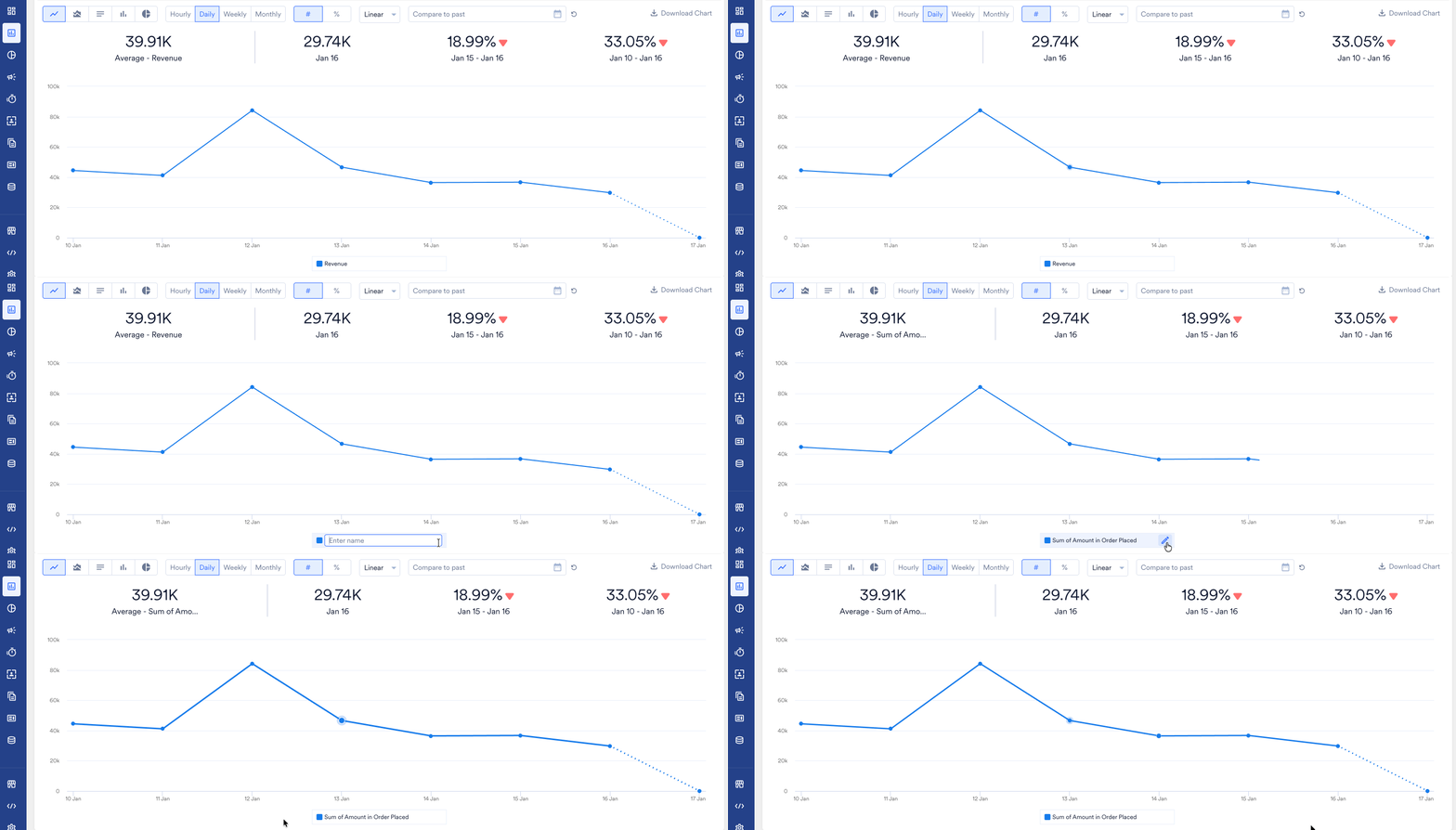
You can edit legend names directly from the chart visualization. After you modify them, these names are preserved when the query is saved or when a chart is added to a dashboard.
Legend and tick renaming are available in the following analysis types:
* **User Analysis**
* **Behavior**
* **Funnel**
* **Retention**
* **Session & Source**
**Information**
This feature is **not supported** for **User Paths**, **Acquisition**, or **Uninstall** analyses. Legend renaming is unavailable for Custom Distribution charts because the distribution buckets are manually defined by the user.
### **How to Rename a Legend**
To rename a legend, perform the following steps:
1. Navigate to a supported Analytics module (such as Behavior).
2. Execute your query to generate the visualization.
3. In the legend area (typically located below the chart), click the **Edit** (pencil) iconnext to the **Legend text** you want to change.
4. Type the new name and press **Enter** or click away to save.
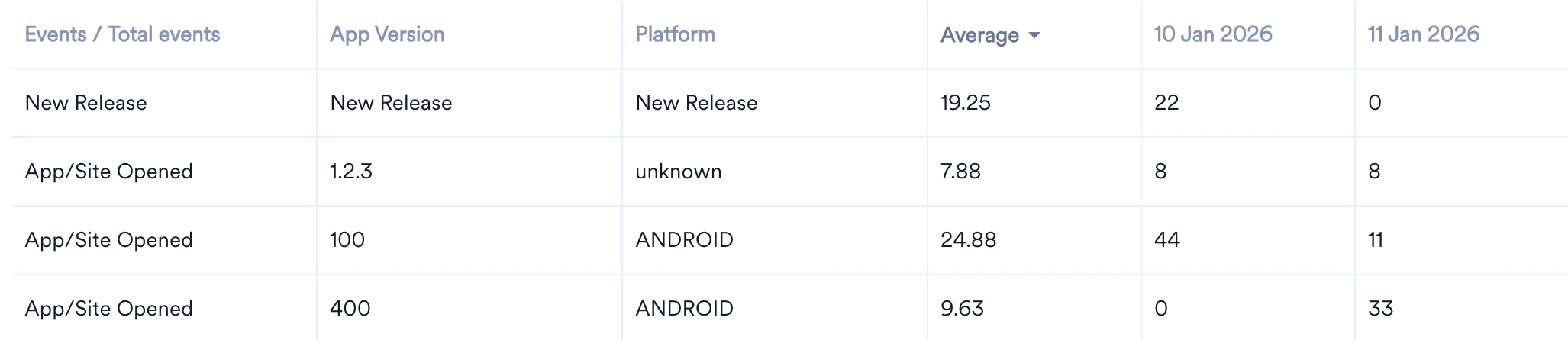
 Saved names will appear in the table. If a data point is represented by multiple cells (such as in **Split By** scenarios), all corresponding cells are updated with the provided name.
 ## **Renaming Axis Ticks**
In specific visualization types, you can rename "ticks" (the labels on the x-axis). This functionality is available exclusively for **Column Charts** in the following scenarios:
* **Time Comparisons:** When comparing data across different time periods (for example, "This Week" vs. "Last Week").
* **Segment Comparisons:** When comparing data across different segments (for example, "New Users" vs. "Returning Users").
### **How to Rename Ticks**
To rename ticks, perform the following steps:
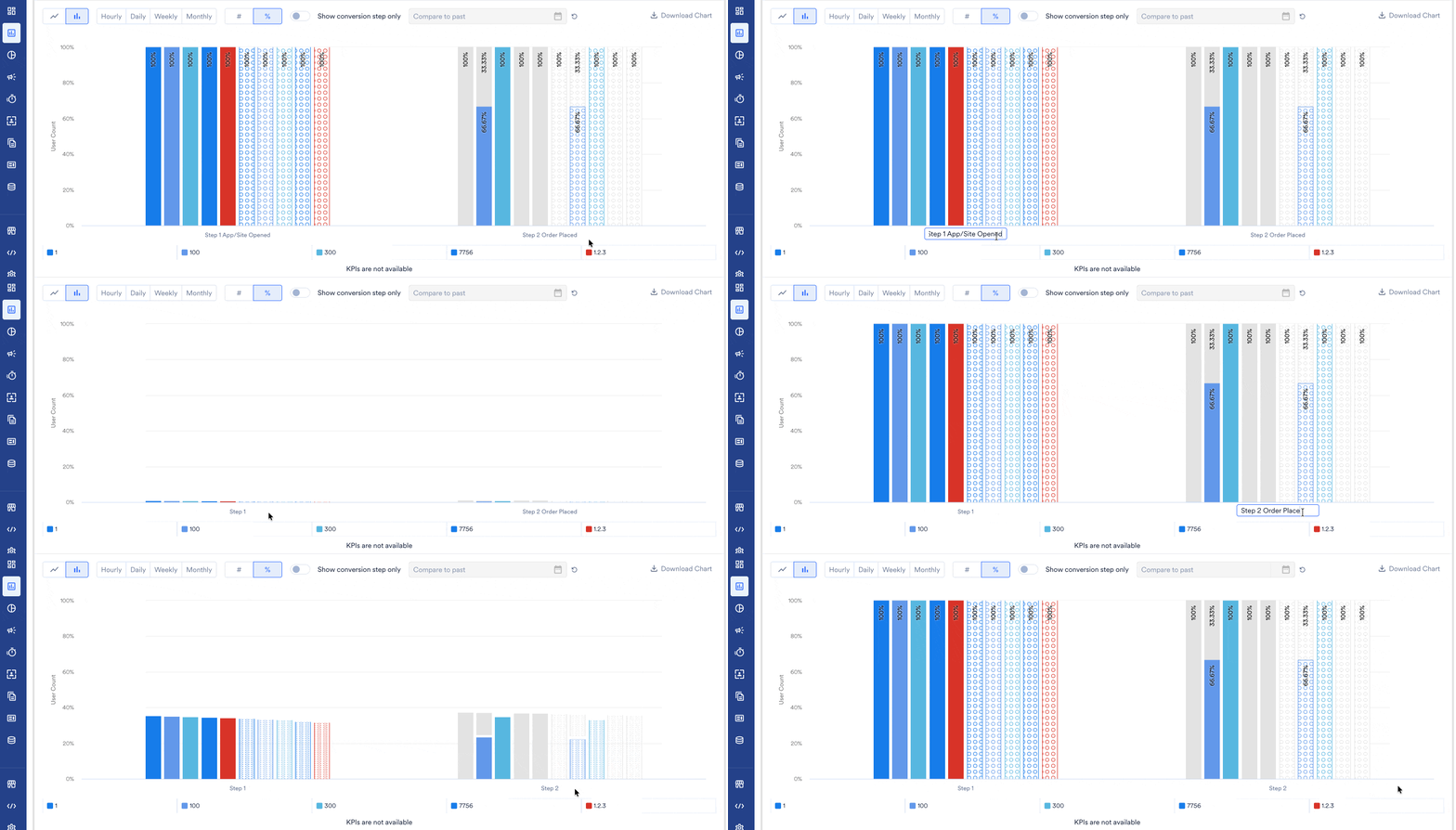
1. Switch your chart view to **Column Chart**.
2. In the tick area (typically located below the chart), click the **Edit** (pencil) icon next to the **Legend text** you want to change.
3. Type the new name and press **Enter** or click away to save.
## **Renaming Axis Ticks**
In specific visualization types, you can rename "ticks" (the labels on the x-axis). This functionality is available exclusively for **Column Charts** in the following scenarios:
* **Time Comparisons:** When comparing data across different time periods (for example, "This Week" vs. "Last Week").
* **Segment Comparisons:** When comparing data across different segments (for example, "New Users" vs. "Returning Users").
### **How to Rename Ticks**
To rename ticks, perform the following steps:
1. Switch your chart view to **Column Chart**.
2. In the tick area (typically located below the chart), click the **Edit** (pencil) icon next to the **Legend text** you want to change.
3. Type the new name and press **Enter** or click away to save.
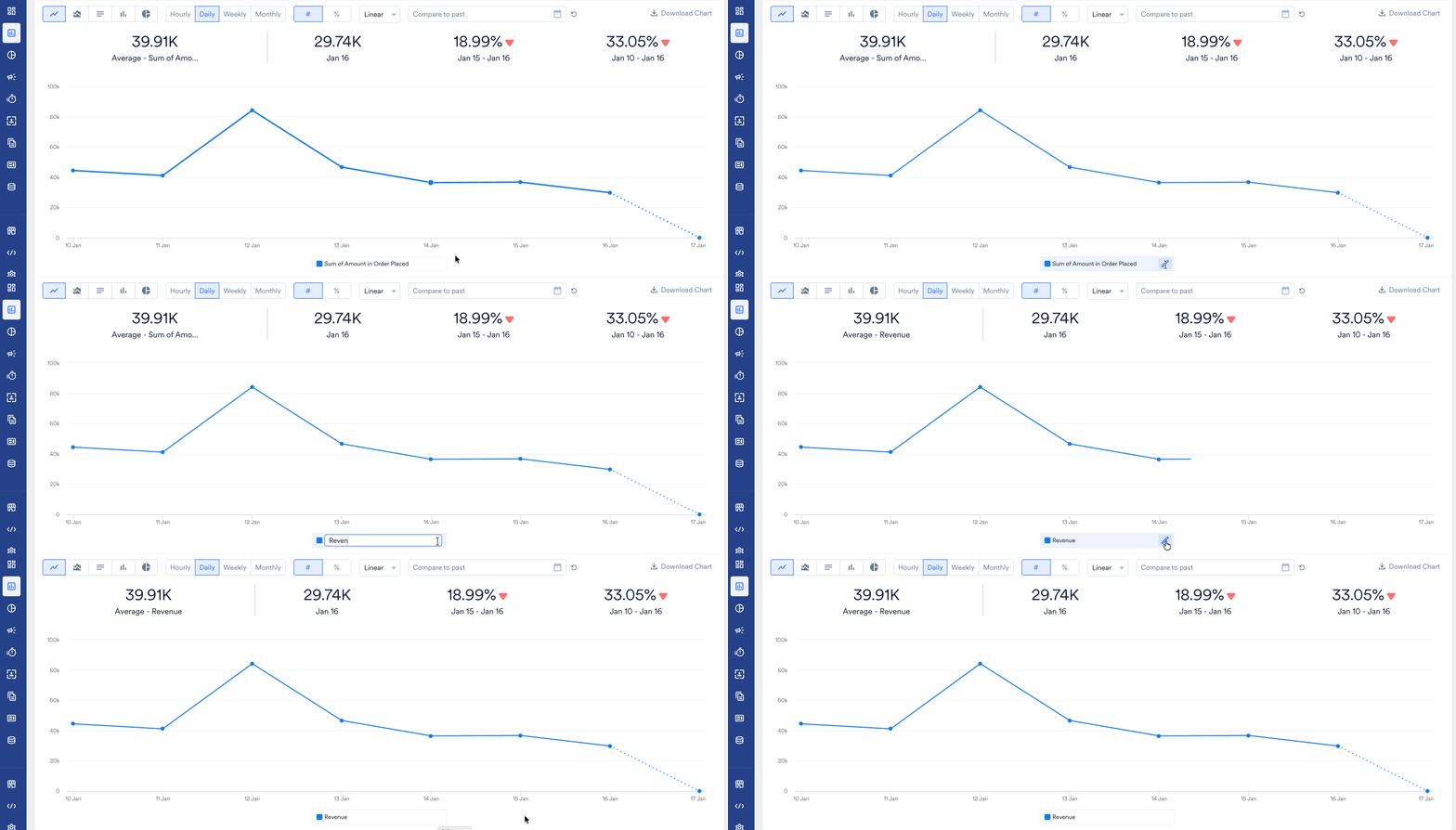
 To restore the original name, click the **Edit** (pencil) icon next to the Legend text you want to restore. Delete the existing name and press **Enter** or click away to save.