> ## Documentation Index
> Fetch the complete documentation index at: https://moengage.com/docs/llms.txt
> Use this file to discover all available pages before exploring further.
# User Data Exports
> Export filtered user attributes like email IDs and phone numbers from MoEngage segments to run re-engagement campaigns on external channels.
On the MoEngage dashboard, you can export user attributes. You can filter the desired user segment and export user attributes.
For example:
* Export the Email ID of users, who were engaged but uninstalled, and run re-engagement campaigns on Facebook.
* Export phone numbers of inactive users and send them an SMS to reactivate them.
## Run Export
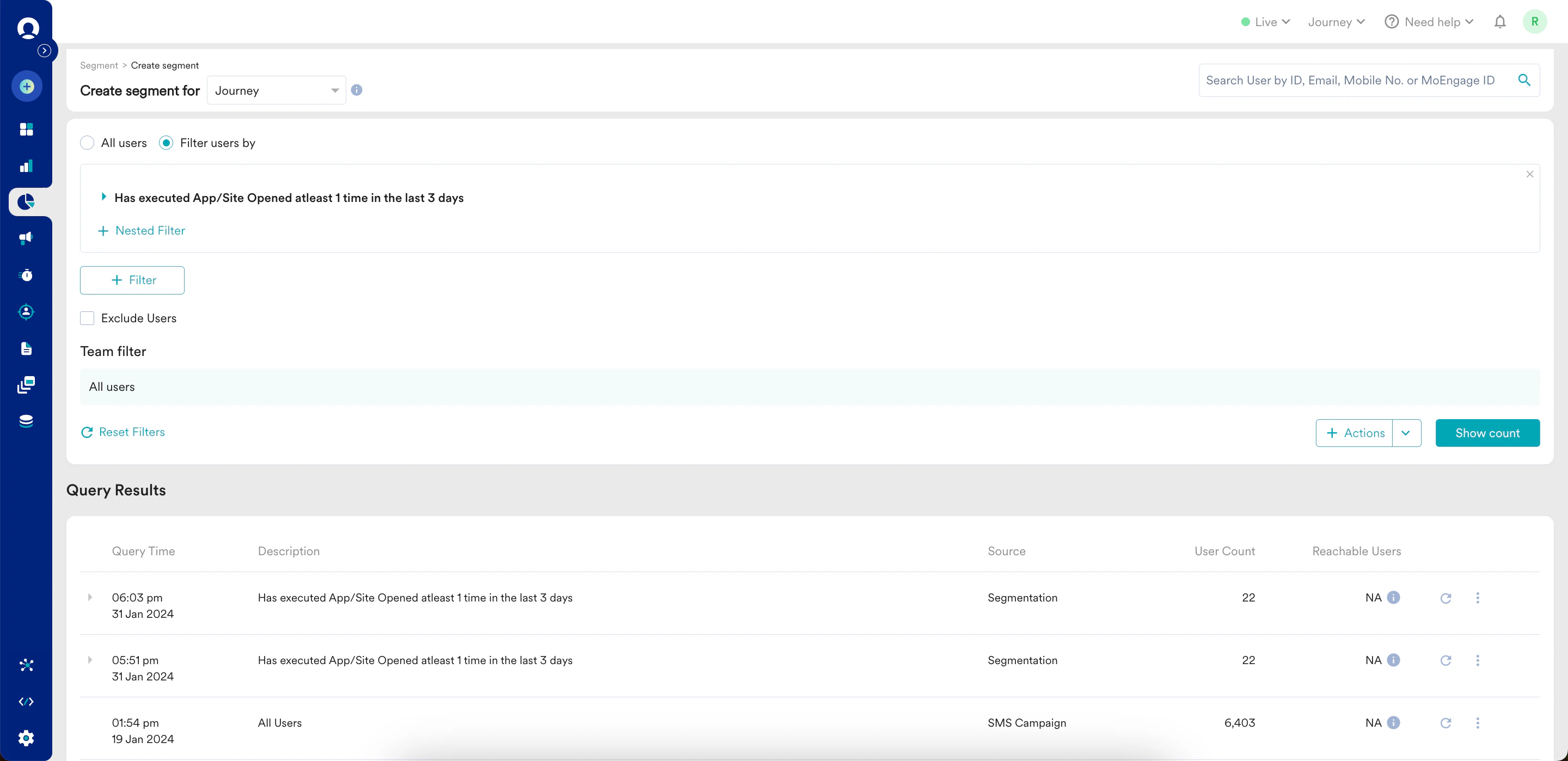
1. Navigate to the MoEngage Dashboard and select **Segment** > **Create segment** from the left navigation. The Create segment page is displayed.
2. Build and run a query for the segment you wish to export. The query is displayed in the Query Results section.
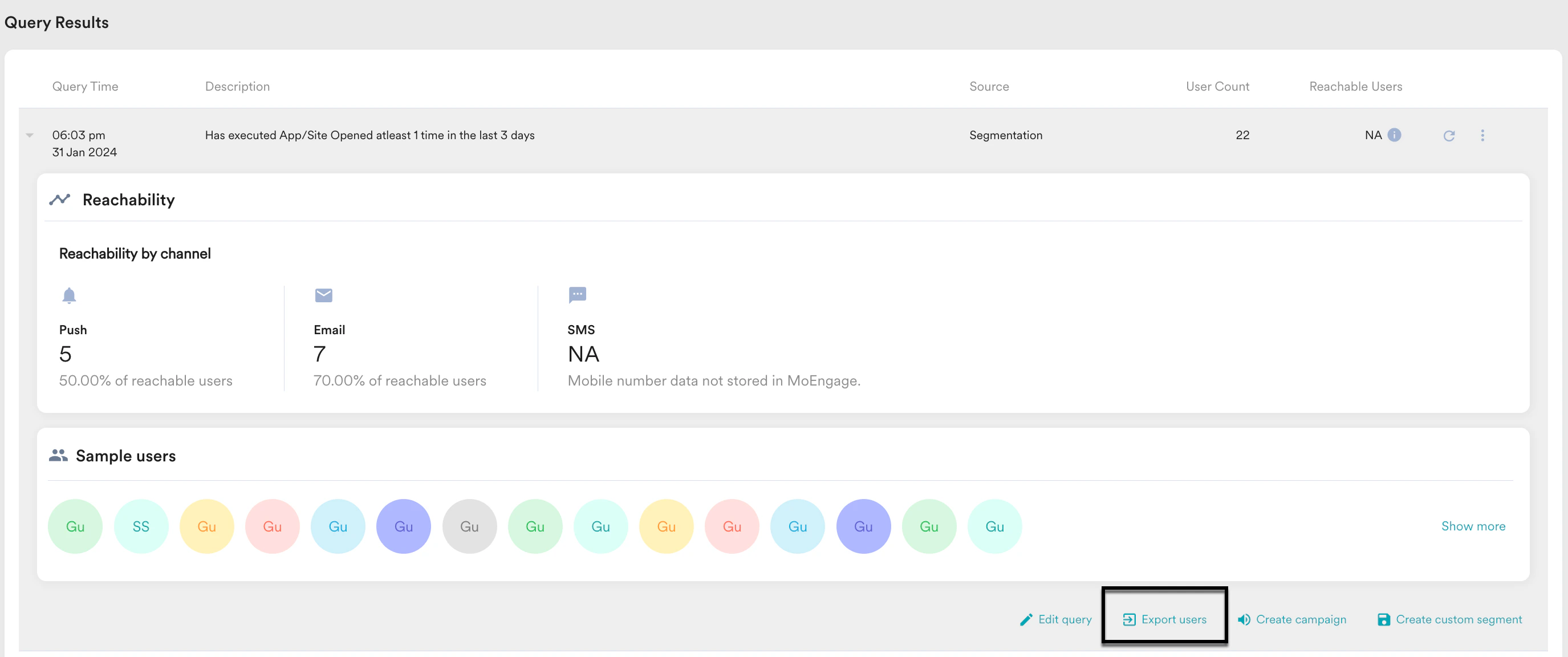
 3. In the **Query Results** section, click a specific query and then click **Export users**.
 The Export users data pop-up window is displayed. Your Email ID is preselected.
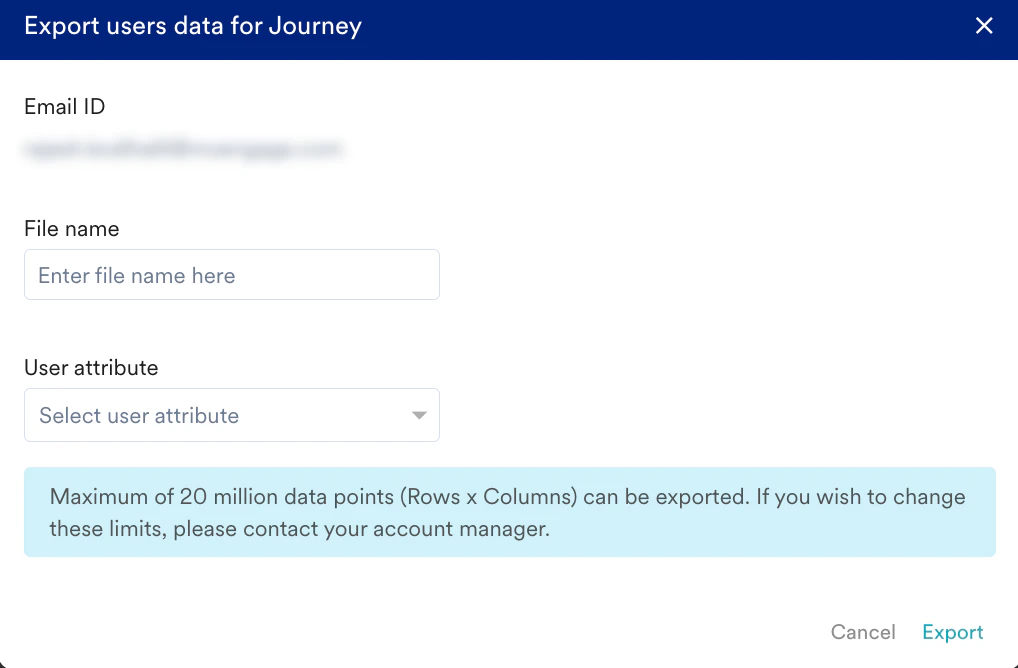 4. In the **File name** field, enter a file name.
5. From the **User attribute** drop-down list, select the user attributes you wish to extract.
6. Click **Export**.
* The export of Personally Identifiable Information (PII) marked user attributes is restricted on the MoEngage dashboard. [Know more](/user-guide/data/privacy/personal-data-or-personally-identifiable-information-pii/pii-masking).
* User data exports fair usage limits:\
The number of data points (number of rows x number of columns) that can be exported is a maximum of 20 million, beyond which the export has a high chance of failure. For example, exports could be:
* 20 million rows with 1 column or
* 4 million rows with 5 columns or
* 1 million rows with 20 columns\
To change these limits, contact your CSM.
## Export Security
User export is a private export service. Users with access to the MoEngage dashboard can access the export file, provided the user is logged in to the designated account. The export is not available to users who are not logged in to the MoEngage dashboard or the designated account.
User export email and link to download the file is sent only to the email address of the user generating the export. Other dashboard users can access this file from the MoEngage dashboard on the Data Export page in the User Export tab.
4. In the **File name** field, enter a file name.
5. From the **User attribute** drop-down list, select the user attributes you wish to extract.
6. Click **Export**.
* The export of Personally Identifiable Information (PII) marked user attributes is restricted on the MoEngage dashboard. [Know more](/user-guide/data/privacy/personal-data-or-personally-identifiable-information-pii/pii-masking).
* User data exports fair usage limits:\
The number of data points (number of rows x number of columns) that can be exported is a maximum of 20 million, beyond which the export has a high chance of failure. For example, exports could be:
* 20 million rows with 1 column or
* 4 million rows with 5 columns or
* 1 million rows with 20 columns\
To change these limits, contact your CSM.
## Export Security
User export is a private export service. Users with access to the MoEngage dashboard can access the export file, provided the user is logged in to the designated account. The export is not available to users who are not logged in to the MoEngage dashboard or the designated account.
User export email and link to download the file is sent only to the email address of the user generating the export. Other dashboard users can access this file from the MoEngage dashboard on the Data Export page in the User Export tab.