> ## Documentation Index
> Fetch the complete documentation index at: https://moengage.com/docs/llms.txt
> Use this file to discover all available pages before exploring further.
# All Campaigns
> Learn how to navigate the All Campaigns page in MoEngage — create and manage custom Views, use Dynamic Columns, apply filters, and perform bulk actions like tagging, downloading, reporting, archiving, pausing, stopping, and resuming campaigns.
## Overview
The **All Campaigns** page is the central hub for viewing, organizing, and managing every campaign in your MoEngage account. From this page you can search for specific campaigns, filter and sort the campaign list, customize which information you see, and perform actions on one or many campaigns at once.
This guide covers every element on the page, including the new **Views**, **Dynamic Columns**, **Filters**, and **Bulk Actions** capabilities, along with step-by-step navigation instructions and common use cases.
The capabilities such as [Views](/docs/user-guide/campaigns-and-channels/campaign-management-and-reports/all-campaigns#views), [Dynamic Columns](/docs/user-guide/campaigns-and-channels/campaign-management-and-reports/all-campaigns#dynamic-columns), [Advanced Filters](/docs/user-guide/campaigns-and-channels/campaign-management-and-reports/all-campaigns#advanced-filters-panel), [Bulk Actions](/docs/user-guide/campaigns-and-channels/campaign-management-and-reports/all-campaigns#bulk-actions), [Recent Search](/docs/user-guide/campaigns-and-channels/campaign-management-and-reports/all-campaigns#recent-searches) and [Multi-Team Selection](/docs/user-guide/campaigns-and-channels/campaign-management-and-reports/all-campaigns#multi-team-selection) are part of the new All Campaigns page and are being rolled out in phases. If you don't see these capabilities on your dashboard, reach out to MoEngage Support or your Customer Success Manager (CSM) to enable it.
## Use Cases
The All Campaigns page supports several recurring business needs for teams that run campaigns at scale:
* **Focus on the campaigns that matter to you**: When you own only a subset of channels or campaigns, a general list adds noise. Saved **Views** let you keep a personal, always-ready slice of the campaign list so you spend less time reapplying the same filters every day.
* **Keep a team aligned on the same set of campaigns**: Sharing a **Public** view across one or more teams gives everyone a common, consistent picture of the campaigns they're responsible for, without each member recreating it.
* **Tailor the information to a role**: Different roles care about different data. **Dynamic Columns** let each user surface the metrics relevant to their work and hide the rest, making the table easier to scan and act on.
* **Land on the right place every time**: Setting a **Default view** removes repetitive navigation, so the campaigns you monitor most are the first thing you see when you open the page.
* **Prepare for reviews and stakeholder updates quickly**: Bulk **Tag**, **Download**, and **Report** actions turn a large campaign list into a shareable summary or a detailed performance report in a few clicks, supporting recurring reporting cycles.
* **Manage many campaigns safely at scale**: Bulk **Pause**, **Stop**, and **Resume** apply an operation across many campaigns at once while respecting each campaign's eligibility, reducing manual, one-by-one effort and the risk of acting on the wrong campaign.
* **Declutter your workspace**: Pinning, unpinning, and reordering views keeps daily navigation focused on the tabs each user actually uses.
## Access the All Campaigns Page
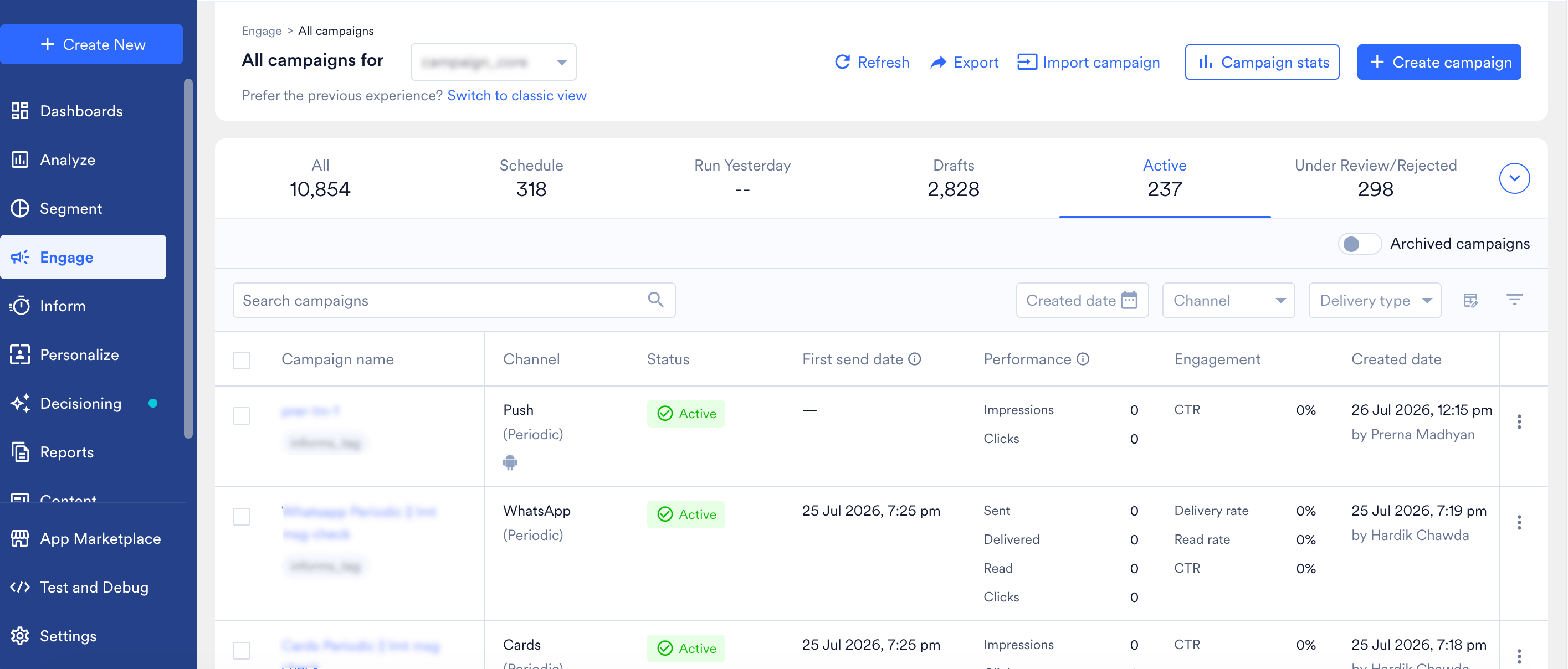 1. Log in to your MoEngage dashboard.
2. From the left navigation, go to **Engage > All Campaigns**.
3. If you have multiple teams configured, use the Teams selector dropdown next to the page title to switch between teams. The campaign list refreshes to show data for the selected team.
If you prefer the older layout, click **Switch to classic view**, located below the page title. This link is only shown to accounts that previously used the classic experience.
1. Log in to your MoEngage dashboard.
2. From the left navigation, go to **Engage > All Campaigns**.
3. If you have multiple teams configured, use the Teams selector dropdown next to the page title to switch between teams. The campaign list refreshes to show data for the selected team.
If you prefer the older layout, click **Switch to classic view**, located below the page title. This link is only shown to accounts that previously used the classic experience.
 ## Page Layout
At the top of the page you'll find the following elements:
## Page Layout
At the top of the page you'll find the following elements:
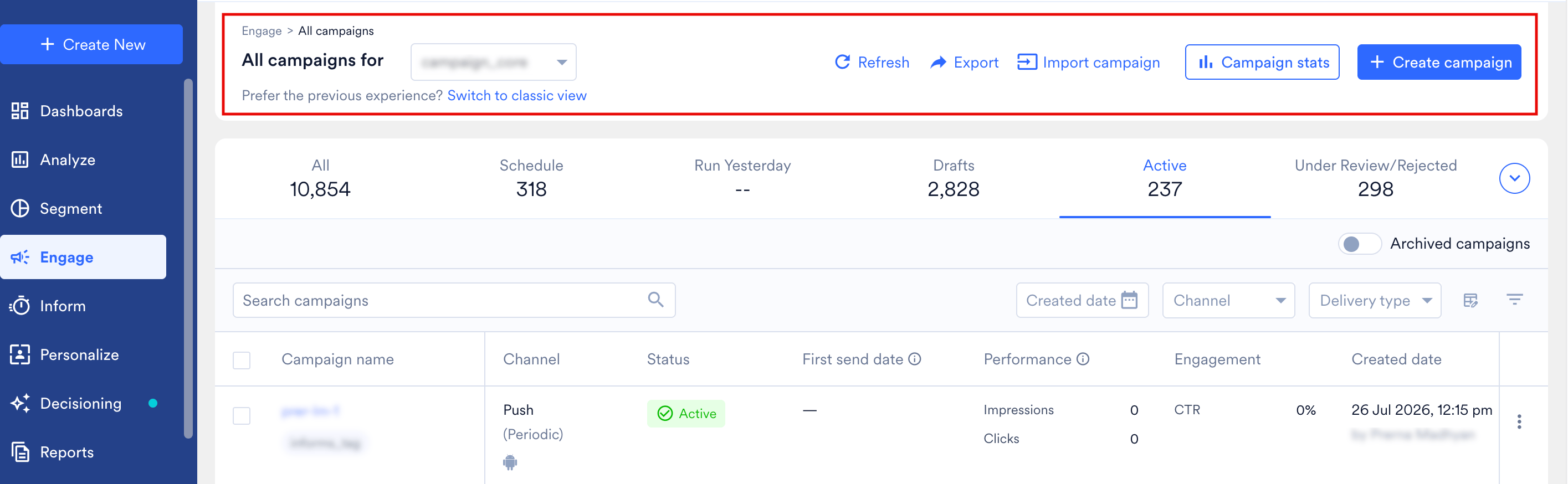 | Element | Description |
| --------------------------- | ------------------------------------------------------------------------------------------------------------------------------------------------------------------------------------------------------------------------------------------------------------------------------------------------------------------------------------------------- |
| **Teams selector dropdown** | Displays the current team and lets you switch between teams you have access to. For more information, refer to [Teams in MoEngage](/docs/user-guide/settings/account/team-management/teams-in-moengage). |
| **Refresh** | Reloads the campaign list to reflect the latest data, without requiring a full page refresh. |
| **Export** | Exports the current campaign list (based on the active view/filters) to a file. For more information, refer to [Create Ad-hoc Campaign Reports](/docs/user-guide/campaigns-and-channels/campaign-management-and-reports/create-ad-hoc-campaign-reports). |
| **Import campaign** | Lets you import a campaign definition, useful for migrating or replicating campaigns. For more information, refer to [Campaign Migration](/docs/user-guide/campaigns-and-channels/campaign-management-and-reports/campaign-migration). |
| **Campaign stats** | Opens a summary/analytics view showing aggregate statistics across your campaigns. For more information, refer to [Campaign Stats](/docs/user-guide/analyze/dashboards/campaign-stats#campaign-stats). |
| **Create campaign** | Opens the campaign creation flow so you can start building a new campaign. |
| **Switch to classic view** | Reverts the page to the classic layout, for users who prefer it. |
| **Show archived campaigns** | Toggle to include or hide archived campaigns in the current list. When turned on, archived campaigns appear inline with the rest of your campaigns; when off, they're hidden. For more information, refer to [Show Archived Campaigns](/docs/user-guide/campaigns-and-channels/campaign-management-and-reports/all-campaigns#show-archived-campaigns). |
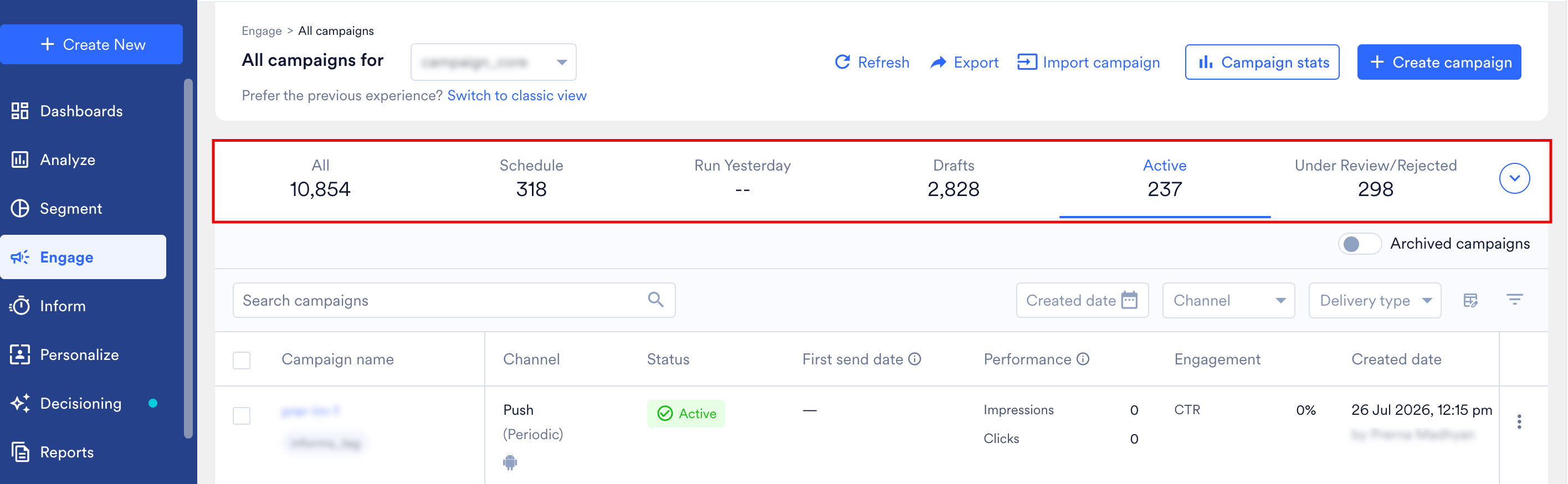
Below this, the page shows **tabs** (a row of numbers such as All, Active, Schedule, Run Yesterday, Drafts) — these are your **Views**, explained in detail below.
| Element | Description |
| --------------------------- | ------------------------------------------------------------------------------------------------------------------------------------------------------------------------------------------------------------------------------------------------------------------------------------------------------------------------------------------------- |
| **Teams selector dropdown** | Displays the current team and lets you switch between teams you have access to. For more information, refer to [Teams in MoEngage](/docs/user-guide/settings/account/team-management/teams-in-moengage). |
| **Refresh** | Reloads the campaign list to reflect the latest data, without requiring a full page refresh. |
| **Export** | Exports the current campaign list (based on the active view/filters) to a file. For more information, refer to [Create Ad-hoc Campaign Reports](/docs/user-guide/campaigns-and-channels/campaign-management-and-reports/create-ad-hoc-campaign-reports). |
| **Import campaign** | Lets you import a campaign definition, useful for migrating or replicating campaigns. For more information, refer to [Campaign Migration](/docs/user-guide/campaigns-and-channels/campaign-management-and-reports/campaign-migration). |
| **Campaign stats** | Opens a summary/analytics view showing aggregate statistics across your campaigns. For more information, refer to [Campaign Stats](/docs/user-guide/analyze/dashboards/campaign-stats#campaign-stats). |
| **Create campaign** | Opens the campaign creation flow so you can start building a new campaign. |
| **Switch to classic view** | Reverts the page to the classic layout, for users who prefer it. |
| **Show archived campaigns** | Toggle to include or hide archived campaigns in the current list. When turned on, archived campaigns appear inline with the rest of your campaigns; when off, they're hidden. For more information, refer to [Show Archived Campaigns](/docs/user-guide/campaigns-and-channels/campaign-management-and-reports/all-campaigns#show-archived-campaigns). |
Below this, the page shows **tabs** (a row of numbers such as All, Active, Schedule, Run Yesterday, Drafts) — these are your **Views**, explained in detail below.
 ## Views
### What Is a View?
A **View** is a saved combination of **filters + columns + search term + visibility setting** that lets you define your own way of looking at the campaign list. Instead of re-applying the same filters every time you visit the page, you save them once as a View and select it whenever you want to see that specific slice of campaigns.
For example, a marketer who only cares about their own active Push and Email campaigns can create a View that always shows exactly that, without touching a filter again.
### System (Default) Views
When you load the All Campaigns page for the first time, MoEngage provides a set of built-in **system views**:
* **All**: every campaign, regardless of status.
* **Active**: campaigns currently running.
* **Schedule**: campaigns that are scheduled to send in the future.
* **Drafts**: campaigns saved but not yet activated.
* **Under Review/Rejected**: campaigns pending approval or rejected during review, if [Campaign Approval Workflow](/docs/user-guide/settings/account/team-management/campaign-approval-workflow#enable-campaign-approval-workflow-for-campaigns) is enabled for your workspace.
These system views cannot be deleted, and the **All** view specifically cannot be unpinned/removed from your tab bar. For more information refer to [Manage Views](/docs/user-guide/campaigns-and-channels/campaign-management-and-reports/all-campaigns#manage-views).
### View Ownership: Private vs. Public
Views are created at the **individual user level**, every user can build their own set of views, and each view can be marked as one of two visibility types:
* **Private**: only visible to and editable by the user who created it. No one else in the workspace can see it.
* **Public (Team-based)**: shared with one or more teams. Every member of the selected team(s) will see this view appear on their own All Campaigns page.
If your workspace is **not** team-based, marking a view as Public shares it with everyone in the workspace.
A single user can create and own **multiple** views. Refer to [View Limits](/docs/user-guide/campaigns-and-channels/campaign-management-and-reports/all-campaigns#view-limits) for the workspace-wide cap.
### Create a View
There are two ways to create a view:
**Method 1: Create from an existing filter**
1. Go to any tab (for example, the **All** tab).
2. Apply your desired filters, search term, and/or column selection.
3. Click **Save as view**. You'll be prompted to configure the view (view the steps below).
## Views
### What Is a View?
A **View** is a saved combination of **filters + columns + search term + visibility setting** that lets you define your own way of looking at the campaign list. Instead of re-applying the same filters every time you visit the page, you save them once as a View and select it whenever you want to see that specific slice of campaigns.
For example, a marketer who only cares about their own active Push and Email campaigns can create a View that always shows exactly that, without touching a filter again.
### System (Default) Views
When you load the All Campaigns page for the first time, MoEngage provides a set of built-in **system views**:
* **All**: every campaign, regardless of status.
* **Active**: campaigns currently running.
* **Schedule**: campaigns that are scheduled to send in the future.
* **Drafts**: campaigns saved but not yet activated.
* **Under Review/Rejected**: campaigns pending approval or rejected during review, if [Campaign Approval Workflow](/docs/user-guide/settings/account/team-management/campaign-approval-workflow#enable-campaign-approval-workflow-for-campaigns) is enabled for your workspace.
These system views cannot be deleted, and the **All** view specifically cannot be unpinned/removed from your tab bar. For more information refer to [Manage Views](/docs/user-guide/campaigns-and-channels/campaign-management-and-reports/all-campaigns#manage-views).
### View Ownership: Private vs. Public
Views are created at the **individual user level**, every user can build their own set of views, and each view can be marked as one of two visibility types:
* **Private**: only visible to and editable by the user who created it. No one else in the workspace can see it.
* **Public (Team-based)**: shared with one or more teams. Every member of the selected team(s) will see this view appear on their own All Campaigns page.
If your workspace is **not** team-based, marking a view as Public shares it with everyone in the workspace.
A single user can create and own **multiple** views. Refer to [View Limits](/docs/user-guide/campaigns-and-channels/campaign-management-and-reports/all-campaigns#view-limits) for the workspace-wide cap.
### Create a View
There are two ways to create a view:
**Method 1: Create from an existing filter**
1. Go to any tab (for example, the **All** tab).
2. Apply your desired filters, search term, and/or column selection.
3. Click **Save as view**. You'll be prompted to configure the view (view the steps below).
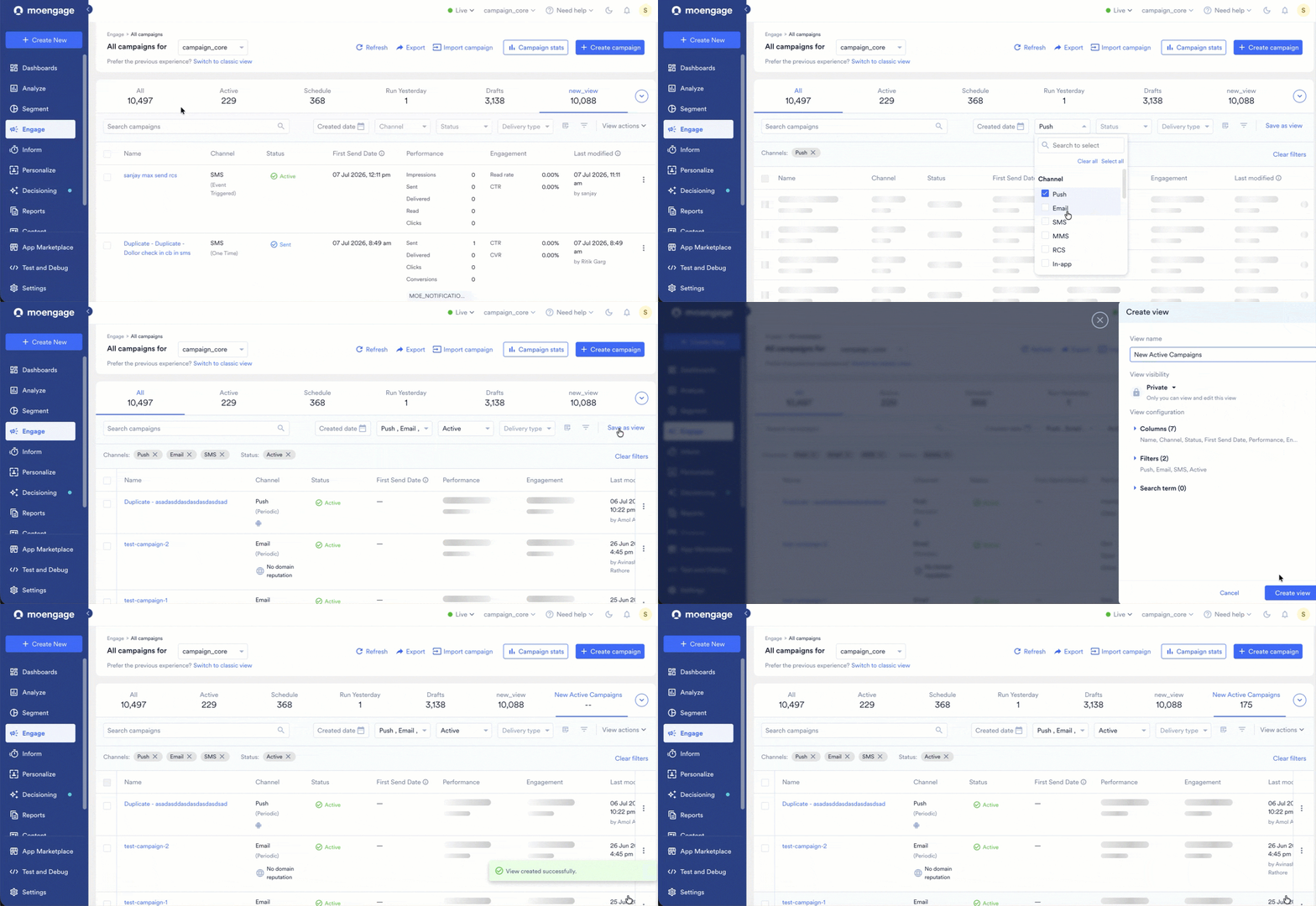 **Method 2: Create from scratch**
1. Click the views dropdown (the down-arrow icon next to your tabs) and select **+ New view**.
2. This opens the **Create view** panel with a blank/default configuration.
3. Configure your filters, columns, and search term as needed, exactly as you would from an existing tab.
**Method 2: Create from scratch**
1. Click the views dropdown (the down-arrow icon next to your tabs) and select **+ New view**.
2. This opens the **Create view** panel with a blank/default configuration.
3. Configure your filters, columns, and search term as needed, exactly as you would from an existing tab.
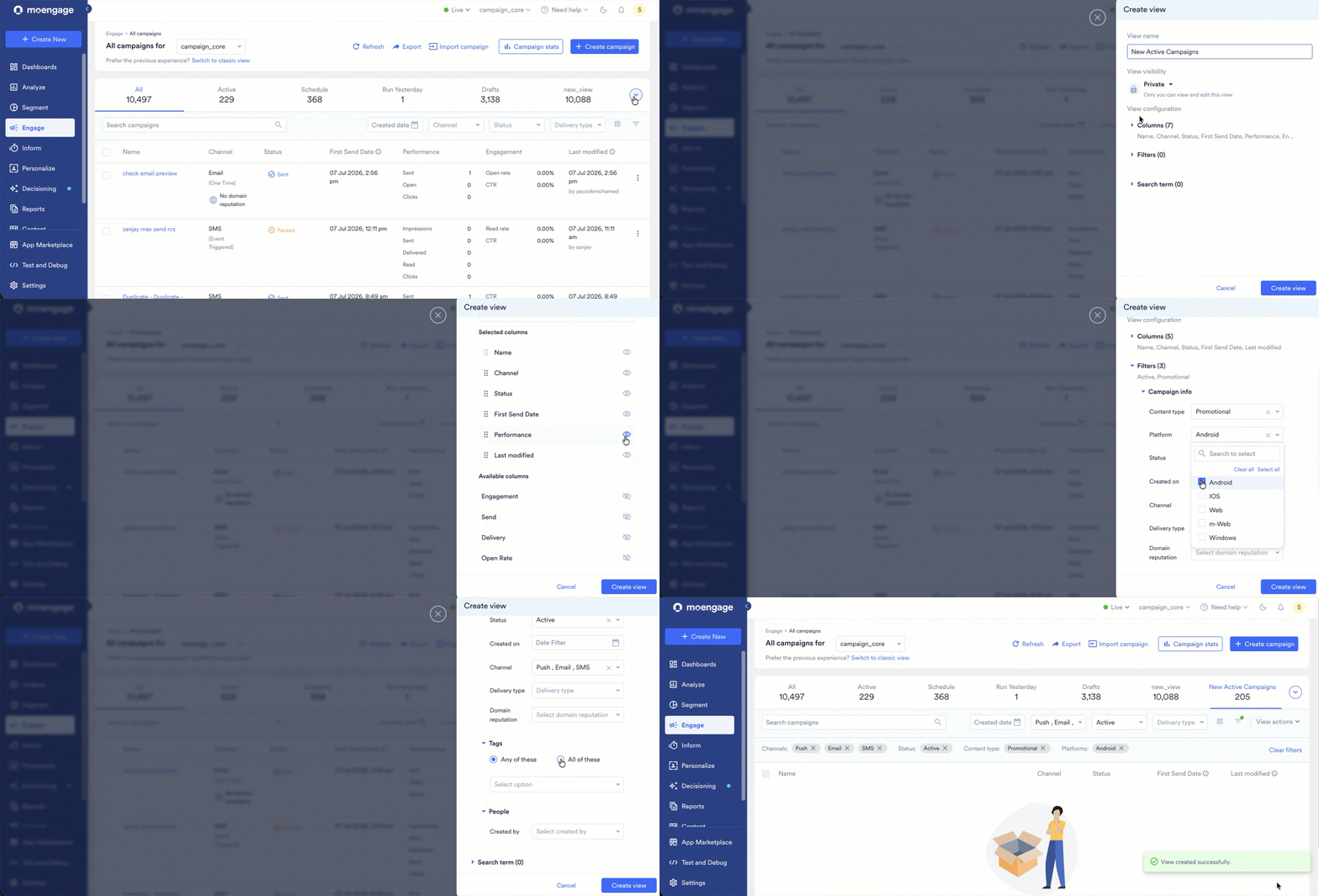 #### Configure the View (both methods)
In the **Create view** panel, add the following details:
#### Configure the View (both methods)
In the **Create view** panel, add the following details:
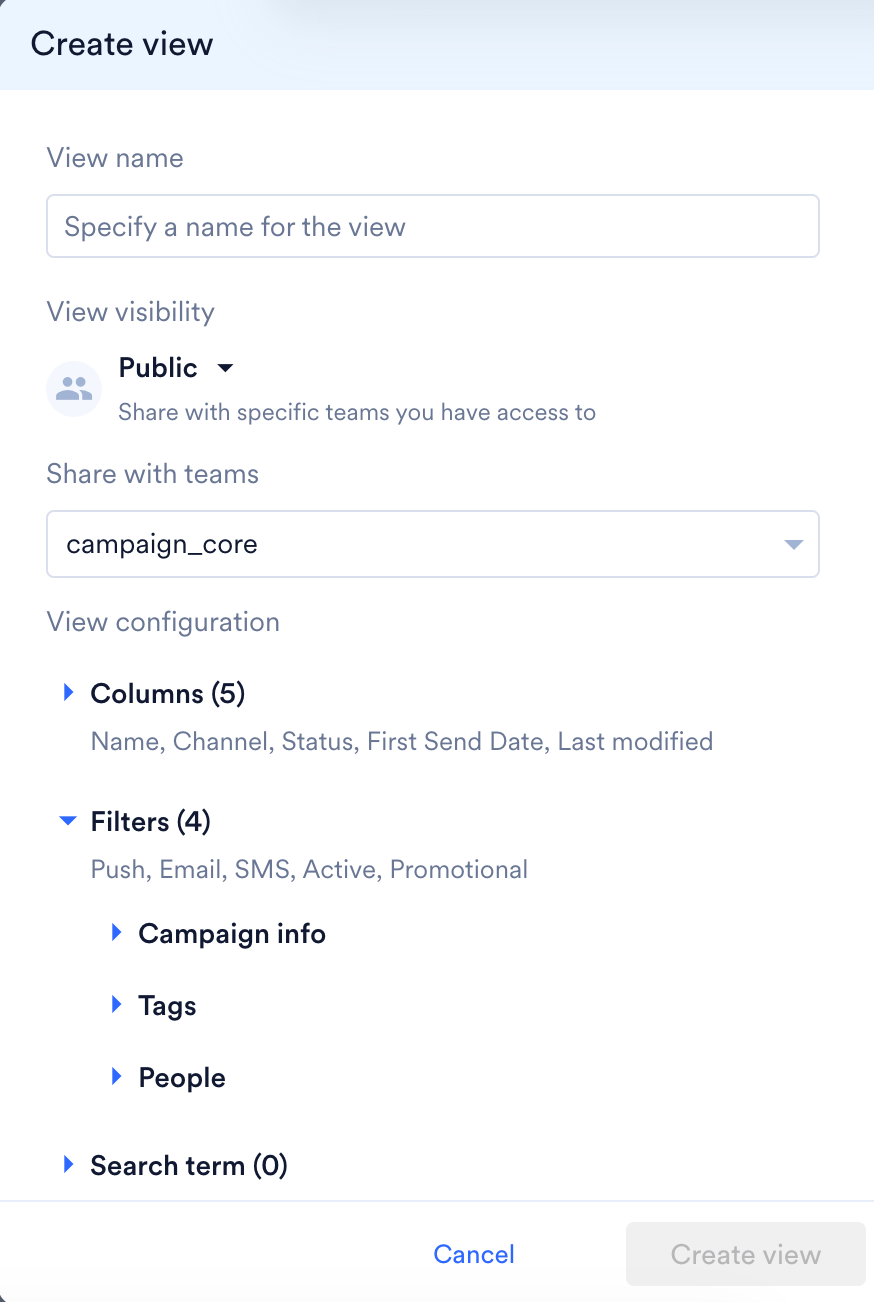 | Field | Description |
| ------------------------------------ | ------------------------------------------------------------------------------------------------------------------------------------------------------------------------------------------------------------------------------------------------------------------------------------------------------------------------------------------------------------------------------- |
| **View name** | A free-text name to identify your view. The **Create view** button stays disabled until a name is entered. |
| **View visibility** | Choose **Private** or **Public**. |
| If Public (team-based workspace) | Select which team(s) to share the view with. The **Share with teams** only lists the teams associated with that specific view, not every team you belong to. For example, if you have access to Teams A, B, C, and D, but you build this view for only Teams A, B, and C, the **Share with teams** list will only show A, B, and C, since the view was defined for those teams. |
| If Public (non-team-based workspace) | The view becomes visible to everyone in the workspace. |
| **Columns** | Expand this section to review or edit which columns will appear in this view. For more information, refer to [Dynamic Columns](/docs/user-guide/campaigns-and-channels/campaign-management-and-reports/all-campaigns#dynamic-columns). |
| **Filters** | Expand to review or add filters that will be applied whenever this view is loaded. |
| **Search term** | Expand to review or set a saved search keyword for this view. |
**Filters available inside Create View**
When you expand the **Filters** section in the Create View panel, filters are grouped into the following categories:
| Category | Field | Description |
| ----------------- | --------------------------- | -------------------------------------------------------------------------------------------------------------------------------------------------------------------------------------------------------------------------------------------------------------------------------------------------------------------------------------------------------------------------------------------------------------------------------------------------------------------------------------------------------------------------------------------------------------------------------------------------------------------------------------------------------------------------------------------------------------------------------------------------------------------------------------------------------------------------------------------------------------------------------------------------------------------------------------------------------------------------------------------------------------------------------------------------------------------------------------------------------------------------------------------------------------------------------------------------------------------------------------------------------------------------------------------------------------------------------------------------------------------------------------------------------------------- |
| **Campaign info** | Content type | Filter by the type of content used in the campaign.
| Field | Description |
| ------------------------------------ | ------------------------------------------------------------------------------------------------------------------------------------------------------------------------------------------------------------------------------------------------------------------------------------------------------------------------------------------------------------------------------- |
| **View name** | A free-text name to identify your view. The **Create view** button stays disabled until a name is entered. |
| **View visibility** | Choose **Private** or **Public**. |
| If Public (team-based workspace) | Select which team(s) to share the view with. The **Share with teams** only lists the teams associated with that specific view, not every team you belong to. For example, if you have access to Teams A, B, C, and D, but you build this view for only Teams A, B, and C, the **Share with teams** list will only show A, B, and C, since the view was defined for those teams. |
| If Public (non-team-based workspace) | The view becomes visible to everyone in the workspace. |
| **Columns** | Expand this section to review or edit which columns will appear in this view. For more information, refer to [Dynamic Columns](/docs/user-guide/campaigns-and-channels/campaign-management-and-reports/all-campaigns#dynamic-columns). |
| **Filters** | Expand to review or add filters that will be applied whenever this view is loaded. |
| **Search term** | Expand to review or set a saved search keyword for this view. |
**Filters available inside Create View**
When you expand the **Filters** section in the Create View panel, filters are grouped into the following categories:
| Category | Field | Description |
| ----------------- | --------------------------- | -------------------------------------------------------------------------------------------------------------------------------------------------------------------------------------------------------------------------------------------------------------------------------------------------------------------------------------------------------------------------------------------------------------------------------------------------------------------------------------------------------------------------------------------------------------------------------------------------------------------------------------------------------------------------------------------------------------------------------------------------------------------------------------------------------------------------------------------------------------------------------------------------------------------------------------------------------------------------------------------------------------------------------------------------------------------------------------------------------------------------------------------------------------------------------------------------------------------------------------------------------------------------------------------------------------------------------------------------------------------------------------------------------------------- |
| **Campaign info** | Content type | Filter by the type of content used in the campaign. 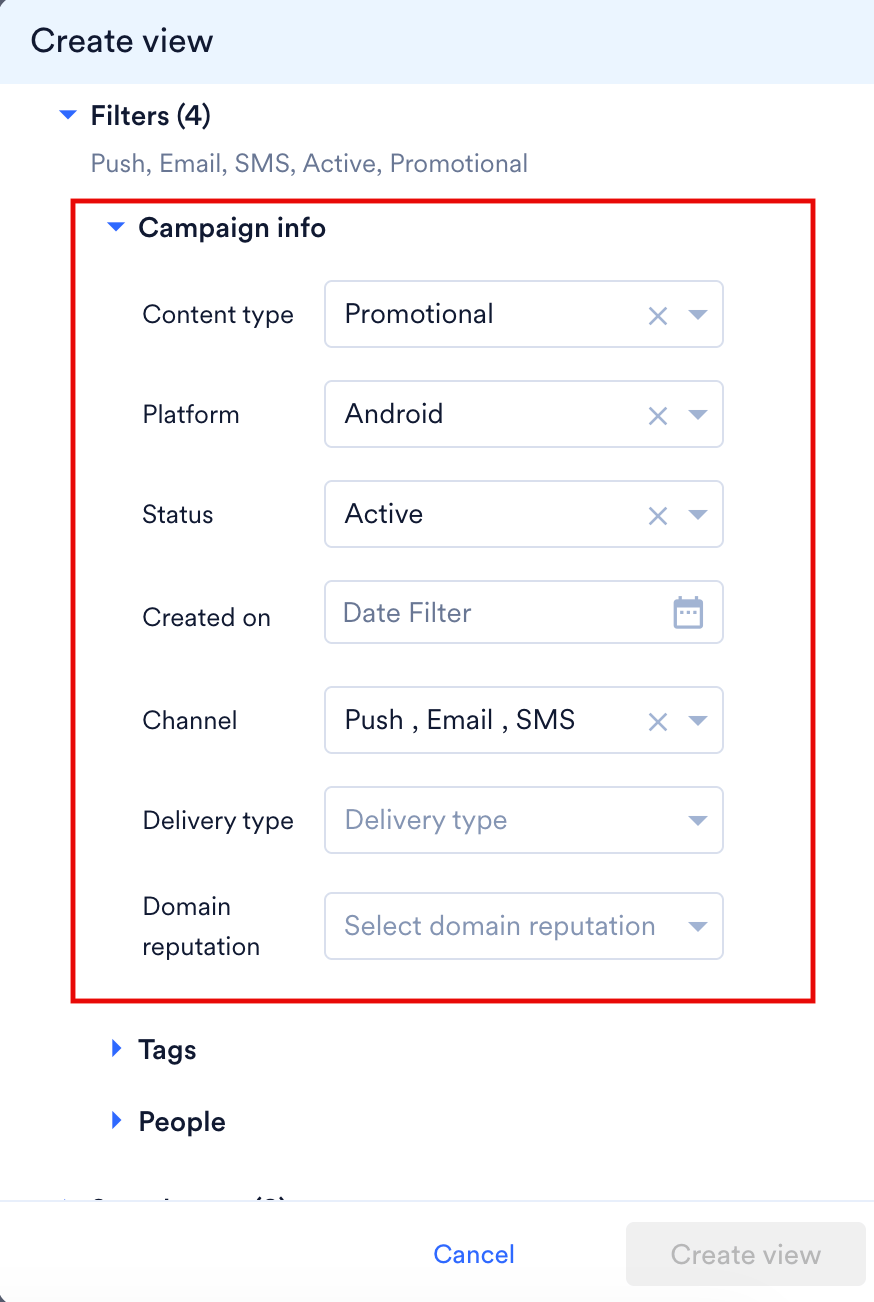 |
| | Platform | Filter by target platform. |
| | Status | Filter by campaign status (e.g., Active, Scheduled, Sent, Draft). |
| | Created on | Filter by the date the campaign was created, using a date picker. |
| | Channel | Filter by campaign channel (e.g., Email, SMS, Push). |
| | Delivery type | Filter by delivery type (e.g., One Time, Event Triggered, Recurring). |
| | Domain reputation | Filter by the sending domain's reputation status. |
| **Tags** | Any of these / All of these | Choose whether a campaign must match **at least one** selected tag (Any) or **every** selected tag (All).
|
| | Platform | Filter by target platform. |
| | Status | Filter by campaign status (e.g., Active, Scheduled, Sent, Draft). |
| | Created on | Filter by the date the campaign was created, using a date picker. |
| | Channel | Filter by campaign channel (e.g., Email, SMS, Push). |
| | Delivery type | Filter by delivery type (e.g., One Time, Event Triggered, Recurring). |
| | Domain reputation | Filter by the sending domain's reputation status. |
| **Tags** | Any of these / All of these | Choose whether a campaign must match **at least one** selected tag (Any) or **every** selected tag (All). 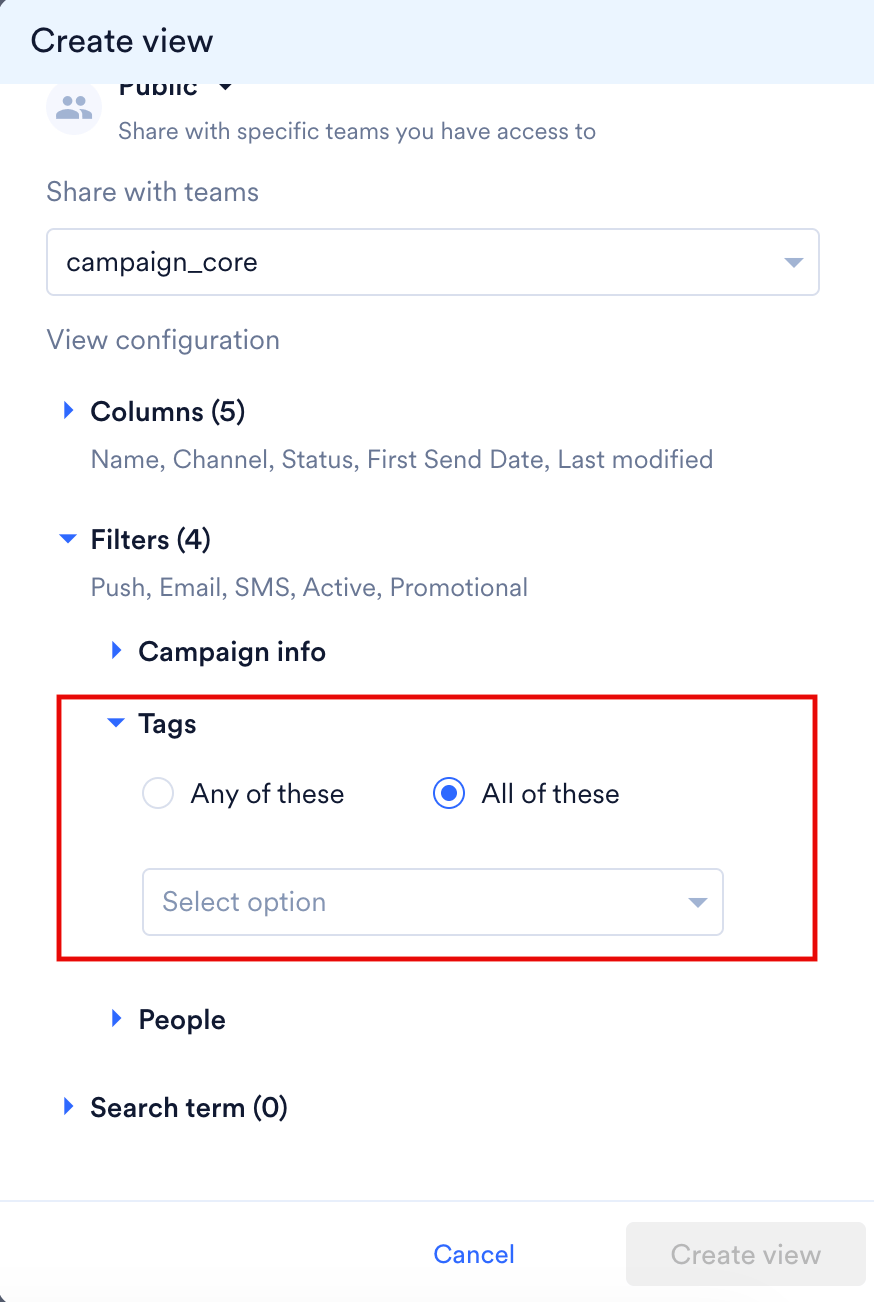 |
| | Select option | Choose the specific tag(s) to filter by. |
| **People** | Created by | Filter campaigns by the user who created them.
|
| | Select option | Choose the specific tag(s) to filter by. |
| **People** | Created by | Filter campaigns by the user who created them. 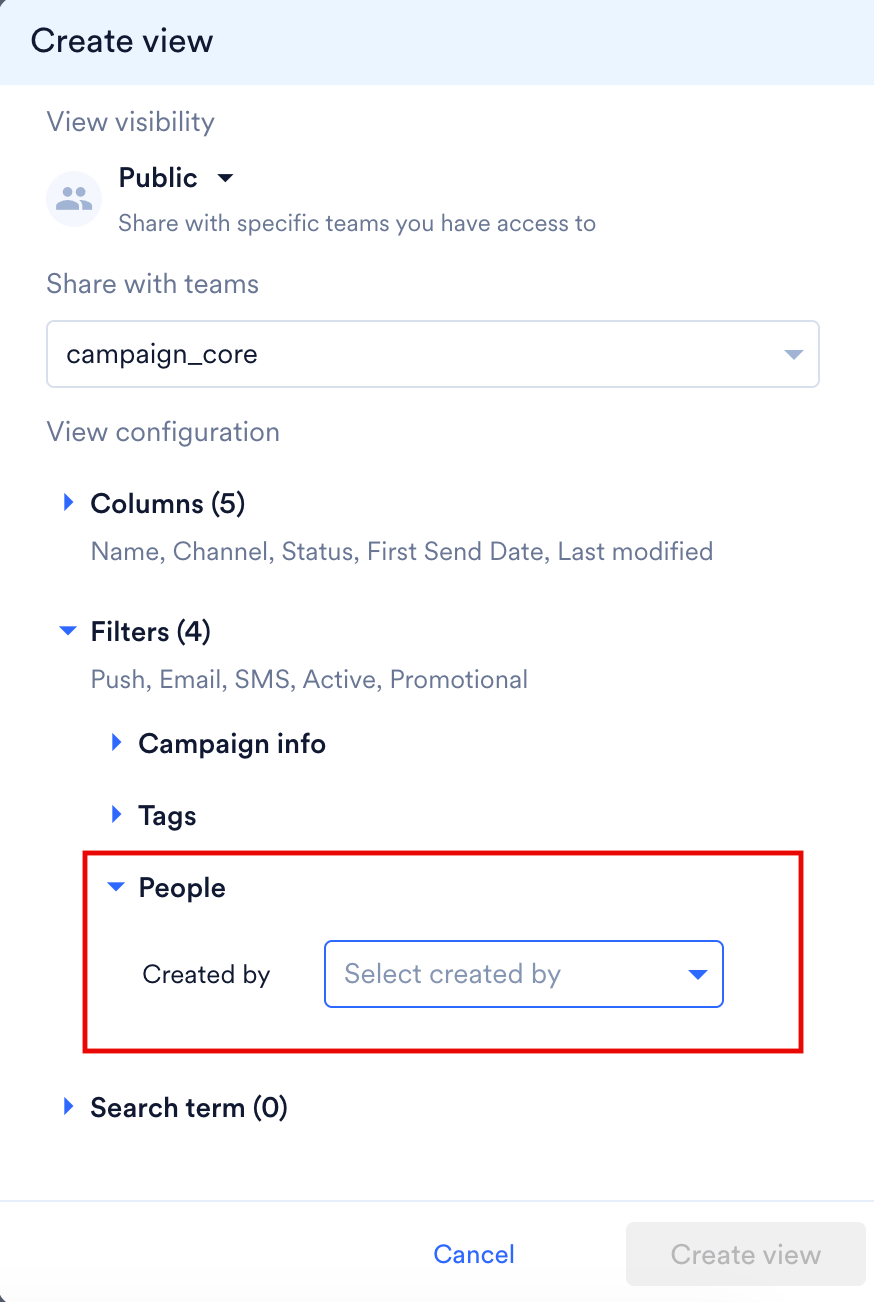 |
These are the same filter categories available in the standalone **Filters** side panel. For more information, refer to [Advanced Filters Panel](/docs/user-guide/campaigns-and-channels/campaign-management-and-reports/all-campaigns#advanced-filters-panel). When creating or editing a view, they're presented inline within the Create View panel so the whole view configuration (columns, filters, search) can be set up in one place.
4. Once configured, click **Create view**.
5. The view is created and automatically loads, showing:
* The view's name
* The filters that are applied
* The total number of campaigns matching the view
Refresh rate
The system (default) views (All, Active, Schedule, Drafts, Under Review/Rejected) refresh their campaign counts every **1 minute**. Custom views that you create refresh every **60 minutes**. This is because a custom view can include many filters, and running those queries against the database in real time, at scale, could slow down performance for everyone. If the campaign count in your custom view looks out of date, it should catch up within 60 minutes.
#### Manage Views
Click **Manage views** (found in the views dropdown) to open a panel where you can control every view available to you — private, team-shared, and system views.
|
These are the same filter categories available in the standalone **Filters** side panel. For more information, refer to [Advanced Filters Panel](/docs/user-guide/campaigns-and-channels/campaign-management-and-reports/all-campaigns#advanced-filters-panel). When creating or editing a view, they're presented inline within the Create View panel so the whole view configuration (columns, filters, search) can be set up in one place.
4. Once configured, click **Create view**.
5. The view is created and automatically loads, showing:
* The view's name
* The filters that are applied
* The total number of campaigns matching the view
Refresh rate
The system (default) views (All, Active, Schedule, Drafts, Under Review/Rejected) refresh their campaign counts every **1 minute**. Custom views that you create refresh every **60 minutes**. This is because a custom view can include many filters, and running those queries against the database in real time, at scale, could slow down performance for everyone. If the campaign count in your custom view looks out of date, it should catch up within 60 minutes.
#### Manage Views
Click **Manage views** (found in the views dropdown) to open a panel where you can control every view available to you — private, team-shared, and system views.
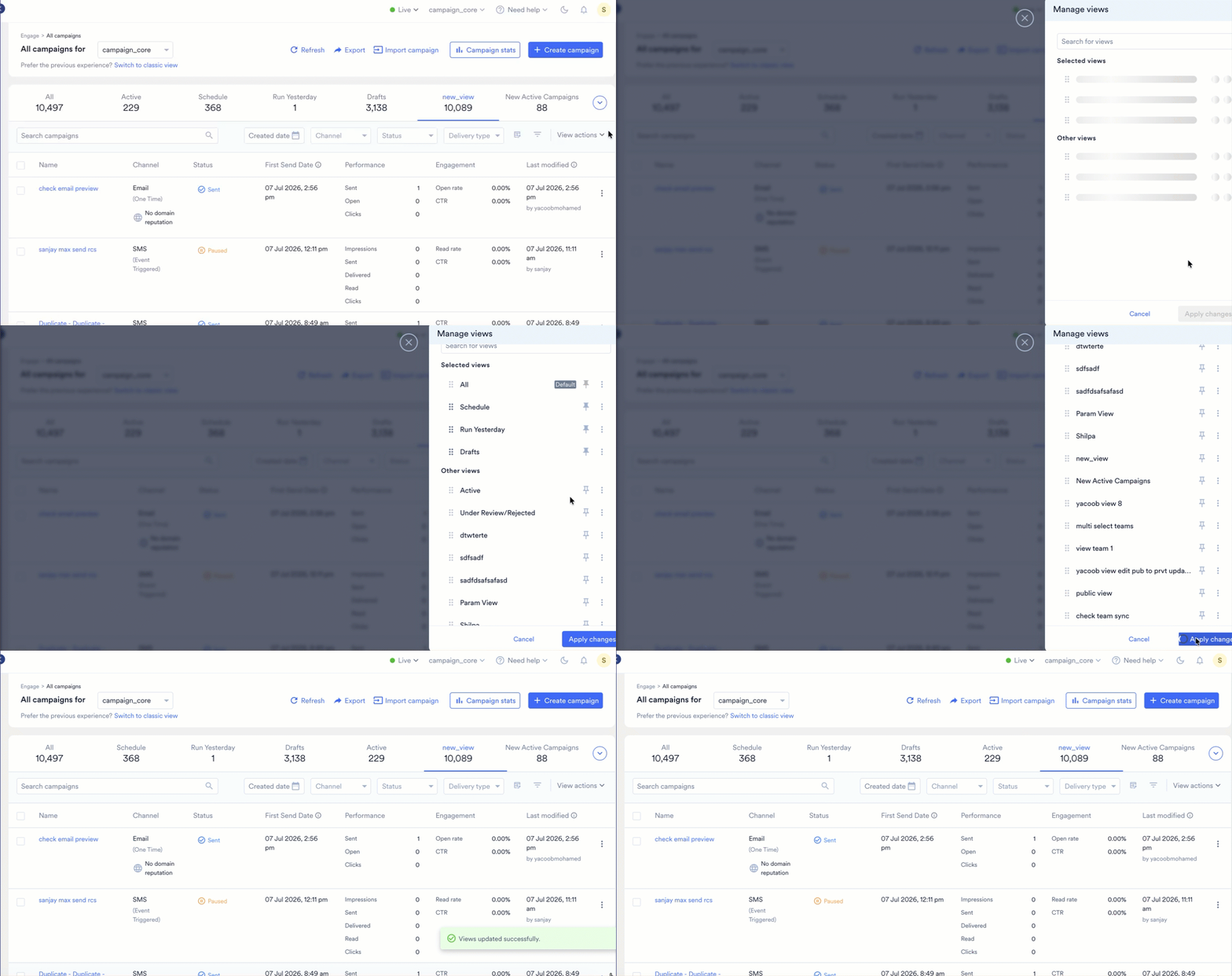 All view management actions described below (creating, editing, pinning, reordering, and setting a default) apply at the individual user level, not at the workspace level. Each user manages their own set of views independently, so changes you make here won't affect what other users see or how their views are configured.
From **Manage views**, you can:
* **Search for a view** using the search box at the top.
* **Reorder views**: drag views using the handle icon to change the order in which they appear as tabs. This ordering is personal to you.
* **Pin/unpin views**: views under **Selected views** are the ones currently pinned as tabs on your main page. Views under **Other views** exist but are not pinned. Click the pin icon to move a view in or out of your pinned tab bar.
* The **All** view is always pinned and cannot be unpinned.
* All other views (including system views like Under Review/Rejected) can be freely pinned or unpinned based on your preference.
* **Set a default view**: use the three-dot (⋮) menu next to a view to mark it as **Default**. The default view is the one that automatically loads every time you navigate to the All Campaigns page (for example, after navigating away and returning). The current default is indicated with a **Default** badge. A view must be **pinned** before it can be set as your default, if a view is unpinned, the option to mark it as default won't be available.
* **Edit a view**: use the three-dot menu to modify a view's filters, columns, or visibility. System views cannot be edited.
* **Delete a view**: also available from the three-dot menu. You can only delete views that you created yourself; system views and views created by other users cannot be deleted.
* Click **Apply changes** to save your pinning/reordering updates, or **Cancel** to discard them.
**Pinned views vs. session views:** If you temporarily bring up a view that isn't pinned (for instance, by applying a one-off filter), it will appear in your tab bar only for that session. Once you navigate away to another page and come back, only your pinned views (and your default view) will be shown again.
### Editing an Existing View (View Actions)
If you modify the filters or columns of a view you've already saved (without creating a brand-new one), a **View actions** option appears with three choices:
All view management actions described below (creating, editing, pinning, reordering, and setting a default) apply at the individual user level, not at the workspace level. Each user manages their own set of views independently, so changes you make here won't affect what other users see or how their views are configured.
From **Manage views**, you can:
* **Search for a view** using the search box at the top.
* **Reorder views**: drag views using the handle icon to change the order in which they appear as tabs. This ordering is personal to you.
* **Pin/unpin views**: views under **Selected views** are the ones currently pinned as tabs on your main page. Views under **Other views** exist but are not pinned. Click the pin icon to move a view in or out of your pinned tab bar.
* The **All** view is always pinned and cannot be unpinned.
* All other views (including system views like Under Review/Rejected) can be freely pinned or unpinned based on your preference.
* **Set a default view**: use the three-dot (⋮) menu next to a view to mark it as **Default**. The default view is the one that automatically loads every time you navigate to the All Campaigns page (for example, after navigating away and returning). The current default is indicated with a **Default** badge. A view must be **pinned** before it can be set as your default, if a view is unpinned, the option to mark it as default won't be available.
* **Edit a view**: use the three-dot menu to modify a view's filters, columns, or visibility. System views cannot be edited.
* **Delete a view**: also available from the three-dot menu. You can only delete views that you created yourself; system views and views created by other users cannot be deleted.
* Click **Apply changes** to save your pinning/reordering updates, or **Cancel** to discard them.
**Pinned views vs. session views:** If you temporarily bring up a view that isn't pinned (for instance, by applying a one-off filter), it will appear in your tab bar only for that session. Once you navigate away to another page and come back, only your pinned views (and your default view) will be shown again.
### Editing an Existing View (View Actions)
If you modify the filters or columns of a view you've already saved (without creating a brand-new one), a **View actions** option appears with three choices:
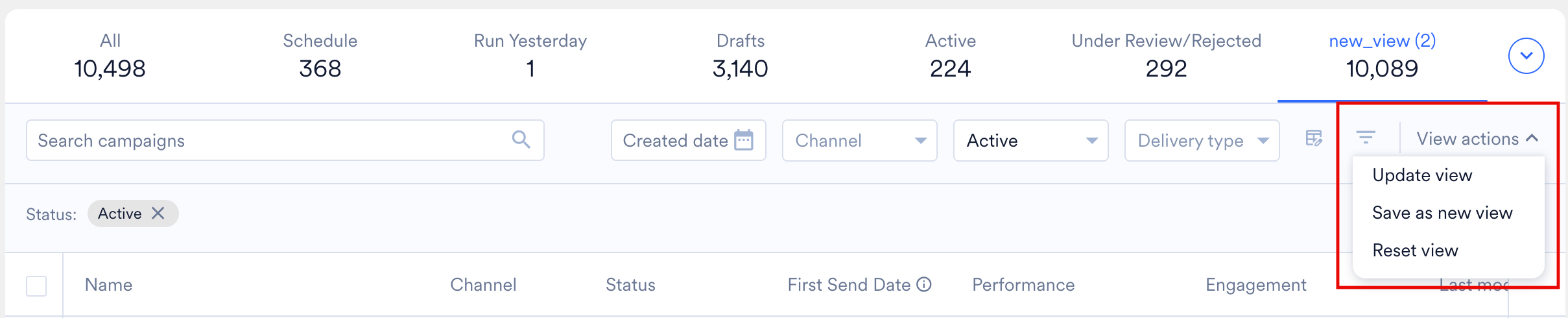 | Action | What it does |
| -------------------- | ---------------------------------------------------------------------------------------- |
| **Update view** | Saves your changes to the current view, overwriting its previous configuration. |
| **Save as new view** | Creates a brand-new view with your changes, leaving the original view untouched. |
| **Reset view** | Discards your unsaved changes and reverts the view back to its last saved configuration. |
### Change Visibility (Private ↔ Public)
You can change a view's visibility at any time:
1. Open **Manage views**.
2. Select the view and choose to edit it.
3. Change the **View visibility** setting:
* **Private → Public**: If your workspace uses teams, you'll need to select which team(s) to share it with. The **Share with teams** only lists the teams associated with that specific view, not every team you belong to.
If there are no teams, the view becomes visible to the entire workspace.
* **Public → Private**: The view becomes visible only to you again; other users lose access.
4. When switching to Public in a team-based workspace, all currently selected teams are pre-selected by default. You can deselect any team you no longer want to share the view with.
### View Limits
* A workspace can have a maximum of **100 views in total**, combined across all users.
* Once this limit is reached, no user in the workspace can create a new view until an existing one is deleted. You'll see a message indicating the workspace's view limit has been exhausted.
### Multi-Team Selection
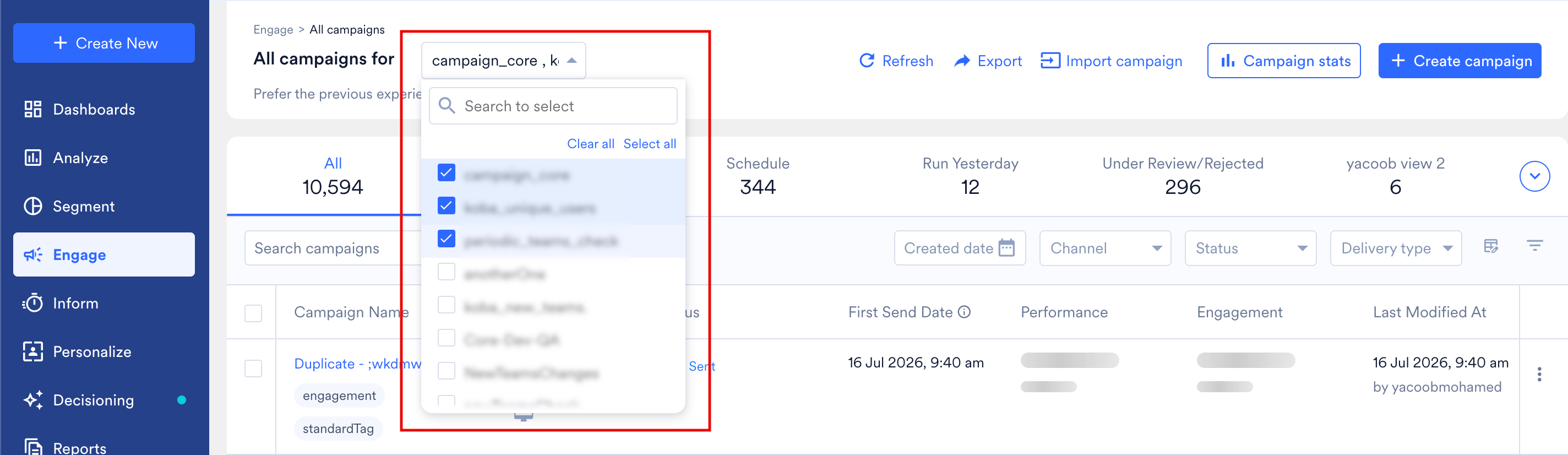
With multi-team selection, you can:
* **Select multiple specific teams** (rather than only "one" or "all") to filter the campaign list down to exactly the teams you care about. This is especially useful when building a view for a specific group of teams. For example, selecting Team A and Team B together, then saving that combination as a shared view for those teams.
| Action | What it does |
| -------------------- | ---------------------------------------------------------------------------------------- |
| **Update view** | Saves your changes to the current view, overwriting its previous configuration. |
| **Save as new view** | Creates a brand-new view with your changes, leaving the original view untouched. |
| **Reset view** | Discards your unsaved changes and reverts the view back to its last saved configuration. |
### Change Visibility (Private ↔ Public)
You can change a view's visibility at any time:
1. Open **Manage views**.
2. Select the view and choose to edit it.
3. Change the **View visibility** setting:
* **Private → Public**: If your workspace uses teams, you'll need to select which team(s) to share it with. The **Share with teams** only lists the teams associated with that specific view, not every team you belong to.
If there are no teams, the view becomes visible to the entire workspace.
* **Public → Private**: The view becomes visible only to you again; other users lose access.
4. When switching to Public in a team-based workspace, all currently selected teams are pre-selected by default. You can deselect any team you no longer want to share the view with.
### View Limits
* A workspace can have a maximum of **100 views in total**, combined across all users.
* Once this limit is reached, no user in the workspace can create a new view until an existing one is deleted. You'll see a message indicating the workspace's view limit has been exhausted.
### Multi-Team Selection
With multi-team selection, you can:
* **Select multiple specific teams** (rather than only "one" or "all") to filter the campaign list down to exactly the teams you care about. This is especially useful when building a view for a specific group of teams. For example, selecting Team A and Team B together, then saving that combination as a shared view for those teams.
 ## Show Archived Campaigns
At the top of the campaign list, a **Show archived campaigns** toggle lets you decide whether archived campaigns appear alongside your other campaigns.
## Show Archived Campaigns
At the top of the campaign list, a **Show archived campaigns** toggle lets you decide whether archived campaigns appear alongside your other campaigns.
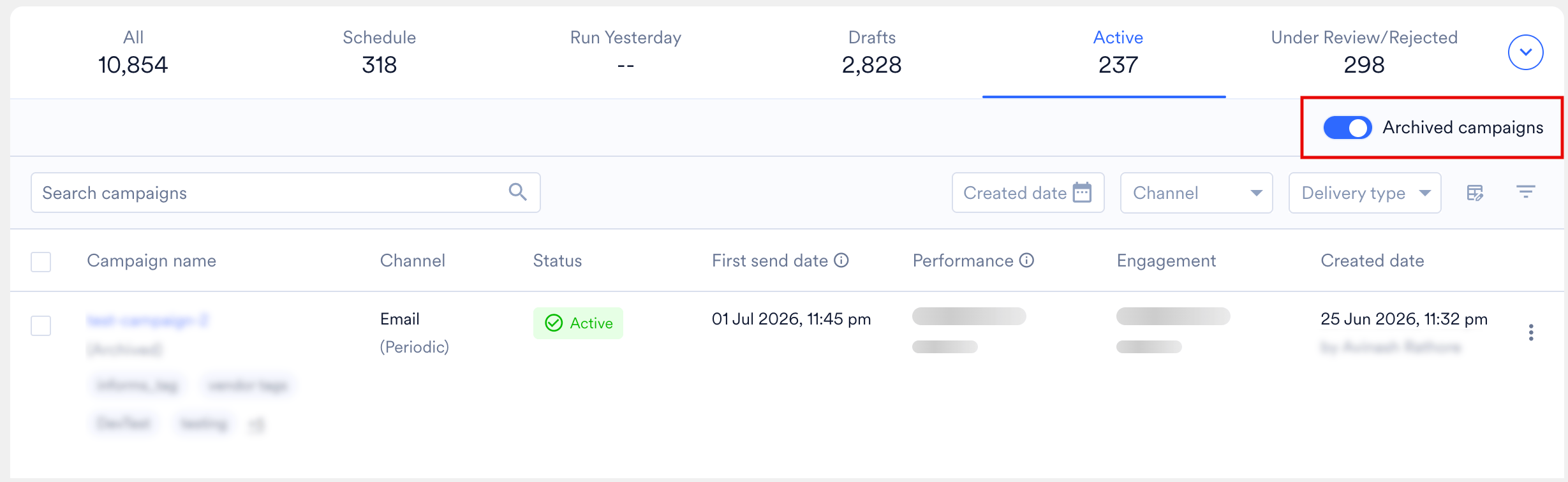 * **Toggle ON**: Archived campaigns are included in the campaign list along with your other campaigns (Sent, Scheduled, Active, Draft, and so on). They aren't shown in a separate group, they appear inline with the rest of the campaigns and follow the same [default sorting](/docs/user-guide/campaigns-and-channels/campaign-management-and-reports/all-campaigns#default-sorting) (last **Created**, newest first). Because archived campaigns often haven't been modified recently, they may appear lower down the list, or higher up if they were archived recently.
* **Toggle OFF**: Archived campaigns are hidden from the list.
There is **no time-based restriction** on which archived campaigns are shown. Every campaign in the **Archive** state is included when the toggle is on, regardless of when it was archived. **Archive** is a campaign status, not a separate storage tier.
* The **Show archived campaigns** toggle affects only the visibility of archived campaigns in the current list. It does not archive or unarchive any campaign on its own.
* Card campaigns cannot be archived. For more information, refer to [Cards Overview](/docs/user-guide/campaigns-and-channels/cards/getting-started-with-cards/cards-overview).
### Auto-archival of Campaigns in Final States
Campaigns that reach a **final state** are automatically moved to the **Archive** state **6 months** after the date they entered that state. The final states covered by auto-archival are:
* **Sent**
* **Stopped**
* **Expired**
For example, a one-time campaign that was **sent on 21 July 2026** will be auto-archived on **21 January 2027**. Once auto-archived, the campaign no longer appears in the default view as a Sent campaign — it appears only when the **Show archived campaigns** toggle is turned on.
* Auto-archival applies only to campaigns in the **Sent**, **Stopped**, or **Expired** states. Campaigns in **Active**, **Scheduled**, **Draft**, or **Under Review** states are not affected.
* If you rely on Sent campaigns being visible in your reports or views, make sure to turn on **Show archived campaigns** when reviewing older campaigns (older than 6 months from their final-state date).
## Search and Filters
Below the views/tabs row, the All Campaigns page provides several ways to narrow down the campaign list:
### Quick Filter Bar
* **Toggle ON**: Archived campaigns are included in the campaign list along with your other campaigns (Sent, Scheduled, Active, Draft, and so on). They aren't shown in a separate group, they appear inline with the rest of the campaigns and follow the same [default sorting](/docs/user-guide/campaigns-and-channels/campaign-management-and-reports/all-campaigns#default-sorting) (last **Created**, newest first). Because archived campaigns often haven't been modified recently, they may appear lower down the list, or higher up if they were archived recently.
* **Toggle OFF**: Archived campaigns are hidden from the list.
There is **no time-based restriction** on which archived campaigns are shown. Every campaign in the **Archive** state is included when the toggle is on, regardless of when it was archived. **Archive** is a campaign status, not a separate storage tier.
* The **Show archived campaigns** toggle affects only the visibility of archived campaigns in the current list. It does not archive or unarchive any campaign on its own.
* Card campaigns cannot be archived. For more information, refer to [Cards Overview](/docs/user-guide/campaigns-and-channels/cards/getting-started-with-cards/cards-overview).
### Auto-archival of Campaigns in Final States
Campaigns that reach a **final state** are automatically moved to the **Archive** state **6 months** after the date they entered that state. The final states covered by auto-archival are:
* **Sent**
* **Stopped**
* **Expired**
For example, a one-time campaign that was **sent on 21 July 2026** will be auto-archived on **21 January 2027**. Once auto-archived, the campaign no longer appears in the default view as a Sent campaign — it appears only when the **Show archived campaigns** toggle is turned on.
* Auto-archival applies only to campaigns in the **Sent**, **Stopped**, or **Expired** states. Campaigns in **Active**, **Scheduled**, **Draft**, or **Under Review** states are not affected.
* If you rely on Sent campaigns being visible in your reports or views, make sure to turn on **Show archived campaigns** when reviewing older campaigns (older than 6 months from their final-state date).
## Search and Filters
Below the views/tabs row, the All Campaigns page provides several ways to narrow down the campaign list:
### Quick Filter Bar
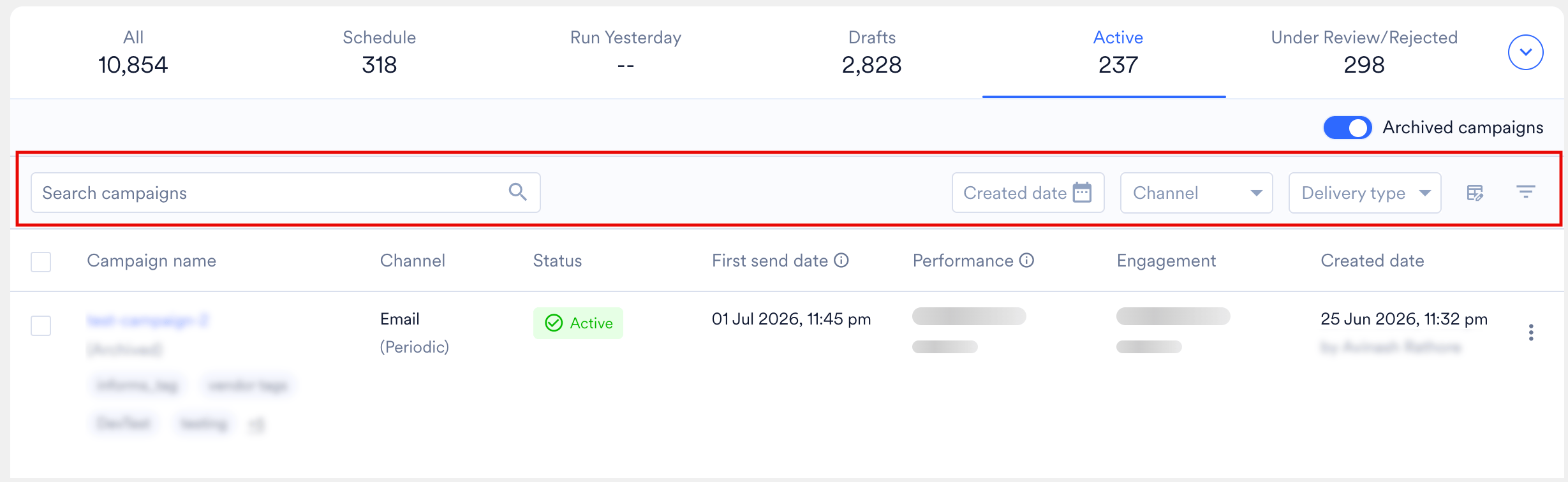 | Field | Description |
| -------------------- | ----------------------------------------------------------------------------------------------------------------------------------------------------------------------------------------------------------------------------------------------------------------------------------- |
| **Search campaigns** | Free-text search box to find campaigns by **Name** or **Campaign ID**. The search is a "contains" match rather than an exact match. For example, if a campaign is named "20 July USA Sweet Shop," searching for "July" or "Shop" will return it, since it matches part of the name. |
| **Created date** | Filter campaigns by the date they were created. |
| **Channel** | Filter by campaign channel (e.g., Email, SMS, Push). |
| **Status** | Filter by campaign status (e.g., Active, Scheduled, Sent, Draft). |
| **Delivery type** | Filter by how the campaign is delivered (e.g., One Time, Event Triggered, Recurring). |
#### Recent Searches
When you click into the **Search campaigns** box, a dropdown shows your recent search terms, so you can quickly reapply a past search without typing it again.
| Field | Description |
| -------------------- | ----------------------------------------------------------------------------------------------------------------------------------------------------------------------------------------------------------------------------------------------------------------------------------- |
| **Search campaigns** | Free-text search box to find campaigns by **Name** or **Campaign ID**. The search is a "contains" match rather than an exact match. For example, if a campaign is named "20 July USA Sweet Shop," searching for "July" or "Shop" will return it, since it matches part of the name. |
| **Created date** | Filter campaigns by the date they were created. |
| **Channel** | Filter by campaign channel (e.g., Email, SMS, Push). |
| **Status** | Filter by campaign status (e.g., Active, Scheduled, Sent, Draft). |
| **Delivery type** | Filter by how the campaign is delivered (e.g., One Time, Event Triggered, Recurring). |
#### Recent Searches
When you click into the **Search campaigns** box, a dropdown shows your recent search terms, so you can quickly reapply a past search without typing it again.
 * **Personal to you**: Recent searches are tracked on a per-user basis. The terms shown come from your own search activity only, they aren't shared with or visible to other users, even within the same team.
* **Up to 5 terms**: The dropdown shows your **5 most recent** search terms. Once you perform a new search, the oldest entry is dropped so the list always reflects your last 5 searches.
* **Only successful searches are saved**: A search term is added to your Recent searches list only if that search returned **at least one matching campaign**. If a search returns zero results, the term is not saved to your recent search history.
You can't remove an entry from the Recent searches list manually. The list updates automatically as you perform new, successful searches.
### Advanced Filters Panel
Click the filter () icon to open the full **Filters** side panel. Filters here are organized into expandable **categories** — more categories and filters will be added over time as new filtering needs arise. Currently available categories:
* **Personal to you**: Recent searches are tracked on a per-user basis. The terms shown come from your own search activity only, they aren't shared with or visible to other users, even within the same team.
* **Up to 5 terms**: The dropdown shows your **5 most recent** search terms. Once you perform a new search, the oldest entry is dropped so the list always reflects your last 5 searches.
* **Only successful searches are saved**: A search term is added to your Recent searches list only if that search returned **at least one matching campaign**. If a search returns zero results, the term is not saved to your recent search history.
You can't remove an entry from the Recent searches list manually. The list updates automatically as you perform new, successful searches.
### Advanced Filters Panel
Click the filter () icon to open the full **Filters** side panel. Filters here are organized into expandable **categories** — more categories and filters will be added over time as new filtering needs arise. Currently available categories:
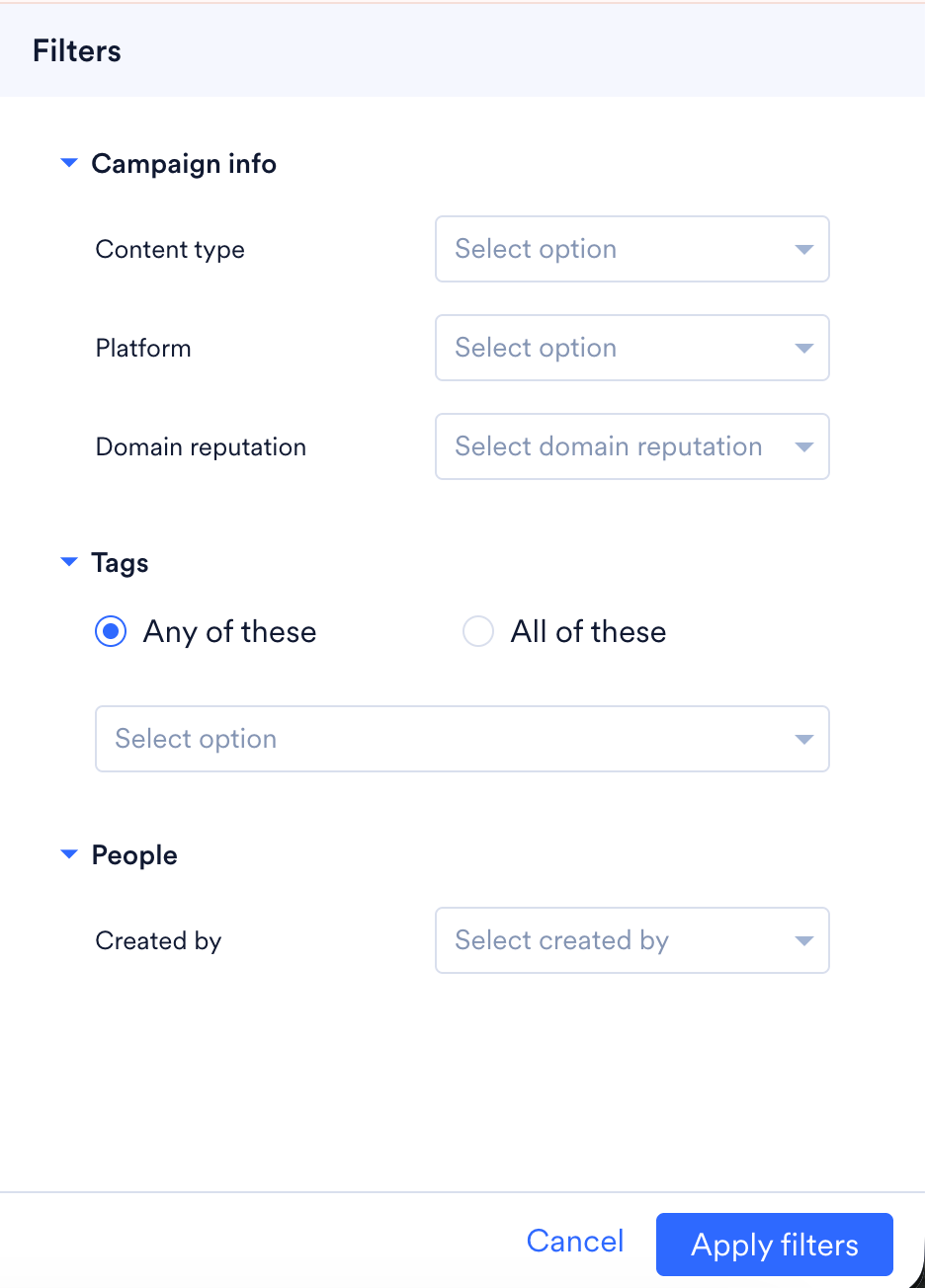 **Campaign info**
| Field | Description |
| --------------------- | ---------------------------------------------------- |
| **Content type** | Filter by the type of content used in the campaign. |
| **Platform** | Filter by target platform (e.g., iOS, Android, Web). |
| **Domain reputation** | Filter by the sending domain's reputation status. |
**Tags**
| Field | Description |
| ------------------------------- | --------------------------------------------------------------------------------------------------------------------------------------------------------------------------------------------------------------------------------------------------------------------------- |
| **Any of these / All of these** | Choose whether a campaign must match **at least one** selected [tag](/docs/user-guide/campaigns-and-channels/getting-started/introduction/campaign-tags) (Any) or **every** selected [tag](/docs/user-guide/campaigns-and-channels/getting-started/introduction/campaign-tags) (All). |
| **Select option** | Choose the specific tag(s) to filter by. |
**People**
| Field | Description |
| -------------- | ---------------------------------------------- |
| **Created by** | Filter campaigns by the user who created them. |
After you've set your desired filters, click **Apply filters** to update the campaign list, or **Cancel** to discard.
Any combination of search term and filters can be saved directly as a View. For more information refer to [Create a View](/docs/user-guide/campaigns-and-channels/campaign-management-and-reports/all-campaigns#create-a-view).
## Dynamic Columns
Previously, every user saw the same fixed set of columns on the All Campaigns page. **Dynamic Columns** lets each user personalize exactly which data points they want displayed. This is a **per-user** setting.
**Campaign info**
| Field | Description |
| --------------------- | ---------------------------------------------------- |
| **Content type** | Filter by the type of content used in the campaign. |
| **Platform** | Filter by target platform (e.g., iOS, Android, Web). |
| **Domain reputation** | Filter by the sending domain's reputation status. |
**Tags**
| Field | Description |
| ------------------------------- | --------------------------------------------------------------------------------------------------------------------------------------------------------------------------------------------------------------------------------------------------------------------------- |
| **Any of these / All of these** | Choose whether a campaign must match **at least one** selected [tag](/docs/user-guide/campaigns-and-channels/getting-started/introduction/campaign-tags) (Any) or **every** selected [tag](/docs/user-guide/campaigns-and-channels/getting-started/introduction/campaign-tags) (All). |
| **Select option** | Choose the specific tag(s) to filter by. |
**People**
| Field | Description |
| -------------- | ---------------------------------------------- |
| **Created by** | Filter campaigns by the user who created them. |
After you've set your desired filters, click **Apply filters** to update the campaign list, or **Cancel** to discard.
Any combination of search term and filters can be saved directly as a View. For more information refer to [Create a View](/docs/user-guide/campaigns-and-channels/campaign-management-and-reports/all-campaigns#create-a-view).
## Dynamic Columns
Previously, every user saw the same fixed set of columns on the All Campaigns page. **Dynamic Columns** lets each user personalize exactly which data points they want displayed. This is a **per-user** setting.
 ### Manage Columns
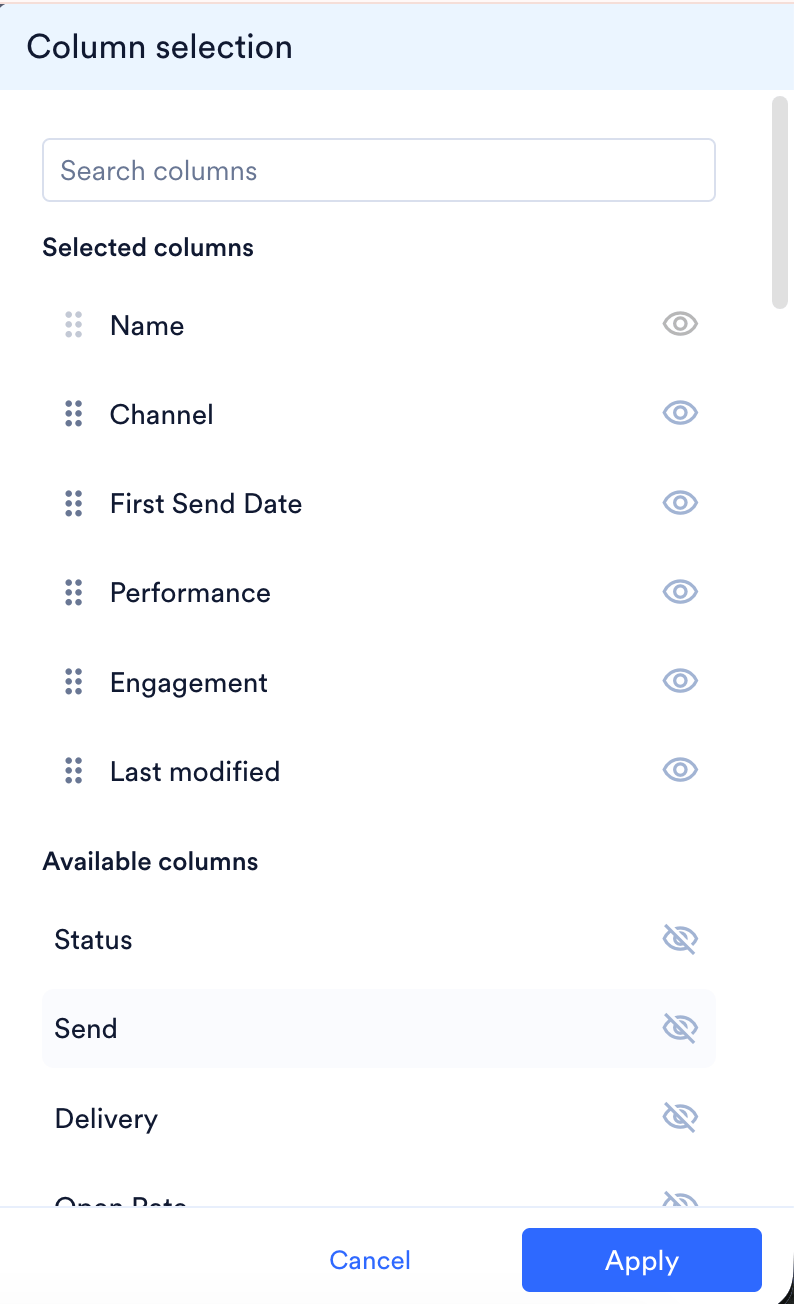 1. Click the **column selection icon** near the filter bar to open the **Column selection** panel.
2. The panel is split into two lists:
* **Selected columns**: currently visible on your table. Each has:
* A **drag handle** (⠿) to reorder columns, the order here determines the left-to-right order in the table.
* An **eye icon**: click to hide (remove) that column from the view. Once removed, the column moves to **Available columns**.
* **Available columns**: columns not currently shown. Each has a **crossed-out eye icon**: click to add (show) that column,which moves it into **Selected columns**.
3. Use the **Search columns** box to quickly find a specific column by name.
4. Click **Apply** to save your column selection to the current view, or **Cancel** to discard changes.
### Available Column Options
Depending on your data, columns you can add include (non-exhaustive): Campaign name, Channel, Status, First send date, Performance, Engagement, Created date, Send, Delivery, Open Rate, Conversions, Approved by, Trigger event name, Custom segment, Scheduled on, Created on, Estimated audience count, and Team (visible only in team-based workspaces).
### Default Columns per Tab
Each system tab now ships with a **different, tab-relevant** default column set, rather than one identical set across all tabs. This makes each tab more readable and surfaces only the information that matters for that campaign state.
* If you don't want the tailored column sets, you can toggle back to a simpler, unified view using the **Switch to classic view** provided at the top of the table.
* **Estimated audience count** refreshes every **24 hours** and reflects an estimate, not the exact audience size at send time. If you need an accurate count, check this closer to when the campaign is scheduled to go out.
* For a periodic (recurring) campaign, hover over its **First Send Date** to see when the **next instance** is scheduled to go out and when the **last instance** was sent. This hover detail is only available for periodic campaigns.
## Understanding the Data Table Fields
The main table lists your campaigns as rows. Below is an explanation of the fields you may encounter (the exact columns shown depend on your active view/tab — see [Dynamic Columns](#dynamic-columns)):
1. Click the **column selection icon** near the filter bar to open the **Column selection** panel.
2. The panel is split into two lists:
* **Selected columns**: currently visible on your table. Each has:
* A **drag handle** (⠿) to reorder columns, the order here determines the left-to-right order in the table.
* An **eye icon**: click to hide (remove) that column from the view. Once removed, the column moves to **Available columns**.
* **Available columns**: columns not currently shown. Each has a **crossed-out eye icon**: click to add (show) that column,which moves it into **Selected columns**.
3. Use the **Search columns** box to quickly find a specific column by name.
4. Click **Apply** to save your column selection to the current view, or **Cancel** to discard changes.
### Available Column Options
Depending on your data, columns you can add include (non-exhaustive): Campaign name, Channel, Status, First send date, Performance, Engagement, Created date, Send, Delivery, Open Rate, Conversions, Approved by, Trigger event name, Custom segment, Scheduled on, Created on, Estimated audience count, and Team (visible only in team-based workspaces).
### Default Columns per Tab
Each system tab now ships with a **different, tab-relevant** default column set, rather than one identical set across all tabs. This makes each tab more readable and surfaces only the information that matters for that campaign state.
* If you don't want the tailored column sets, you can toggle back to a simpler, unified view using the **Switch to classic view** provided at the top of the table.
* **Estimated audience count** refreshes every **24 hours** and reflects an estimate, not the exact audience size at send time. If you need an accurate count, check this closer to when the campaign is scheduled to go out.
* For a periodic (recurring) campaign, hover over its **First Send Date** to see when the **next instance** is scheduled to go out and when the **last instance** was sent. This hover detail is only available for periodic campaigns.
## Understanding the Data Table Fields
The main table lists your campaigns as rows. Below is an explanation of the fields you may encounter (the exact columns shown depend on your active view/tab — see [Dynamic Columns](#dynamic-columns)):
 | Field | Description |
| ----------------------------- | -------------------------------------------------------------------------------------------------------------------------------------------------------------------------------------------------------------------------------------------------------------------------------------------------------------------- |
| **Checkbox (row selector)** | Selects an individual campaign for [bulk actions](/docs/user-guide/campaigns-and-channels/campaign-management-and-reports/all-campaigns#bulk-actions). The checkbox in the header selects/deselects all visible campaigns. |
| **Campaign Name** | The campaign's name, shown as a clickable link that opens the campaign's detail page. |
| **Channel** | The messaging channel used (e.g., SMS, Email, Push), along with the delivery type in parentheses — for example, "SMS (Event Triggered)" or "SMS (One Time)". |
| **Status** | The current lifecycle state of the campaign (e.g., **Scheduled**, **Sent**, **Active**, **Draft**, **Under Review**, **Rejected**), shown with a status icon. |
| **First Send Date** | The date and time the campaign first sent (or "—" if it hasn't sent yet). An info icon (ⓘ) next to the header provides additional clarification on how this date is calculated. |
| **Performance** | A set of delivery-funnel metrics for the campaign, including: **Impressions**, **Sent**, **Delivered**, **Read**, and **Clicks**. |
| **Engagement** | Rate-based metrics derived from performance data, including: **Read rate**, **CTR** (Click-Through Rate), and **CVR** (Conversion Rate), typically shown as percentages. |
| **Created Date** | Date and time the campaign was created, along with the name of the user who created it. |
| **Scheduled on / Created on** | Optional date columns, primarily used in the Schedule tab. |
| **Estimated audience count** | Optional column showing the projected number of users the scheduled campaign will reach. **Estimated audience count** refreshes every **24 hours** and reflects an estimate, not the exact audience size at send time. If you need an accurate count, check this closer to when the campaign is scheduled to go out. |
| **Team** | Visible only in team-enabled workspaces; shows which team owns the campaign. |
### Default Sorting
All views, system (default) views and any custom views you create, are sorted by **Created Date** by default.
## Bulk Actions
Bulk Actions let you perform the same operation on multiple campaigns at once, instead of opening each campaign individually.
| Field | Description |
| ----------------------------- | -------------------------------------------------------------------------------------------------------------------------------------------------------------------------------------------------------------------------------------------------------------------------------------------------------------------- |
| **Checkbox (row selector)** | Selects an individual campaign for [bulk actions](/docs/user-guide/campaigns-and-channels/campaign-management-and-reports/all-campaigns#bulk-actions). The checkbox in the header selects/deselects all visible campaigns. |
| **Campaign Name** | The campaign's name, shown as a clickable link that opens the campaign's detail page. |
| **Channel** | The messaging channel used (e.g., SMS, Email, Push), along with the delivery type in parentheses — for example, "SMS (Event Triggered)" or "SMS (One Time)". |
| **Status** | The current lifecycle state of the campaign (e.g., **Scheduled**, **Sent**, **Active**, **Draft**, **Under Review**, **Rejected**), shown with a status icon. |
| **First Send Date** | The date and time the campaign first sent (or "—" if it hasn't sent yet). An info icon (ⓘ) next to the header provides additional clarification on how this date is calculated. |
| **Performance** | A set of delivery-funnel metrics for the campaign, including: **Impressions**, **Sent**, **Delivered**, **Read**, and **Clicks**. |
| **Engagement** | Rate-based metrics derived from performance data, including: **Read rate**, **CTR** (Click-Through Rate), and **CVR** (Conversion Rate), typically shown as percentages. |
| **Created Date** | Date and time the campaign was created, along with the name of the user who created it. |
| **Scheduled on / Created on** | Optional date columns, primarily used in the Schedule tab. |
| **Estimated audience count** | Optional column showing the projected number of users the scheduled campaign will reach. **Estimated audience count** refreshes every **24 hours** and reflects an estimate, not the exact audience size at send time. If you need an accurate count, check this closer to when the campaign is scheduled to go out. |
| **Team** | Visible only in team-enabled workspaces; shows which team owns the campaign. |
### Default Sorting
All views, system (default) views and any custom views you create, are sorted by **Created Date** by default.
## Bulk Actions
Bulk Actions let you perform the same operation on multiple campaigns at once, instead of opening each campaign individually.
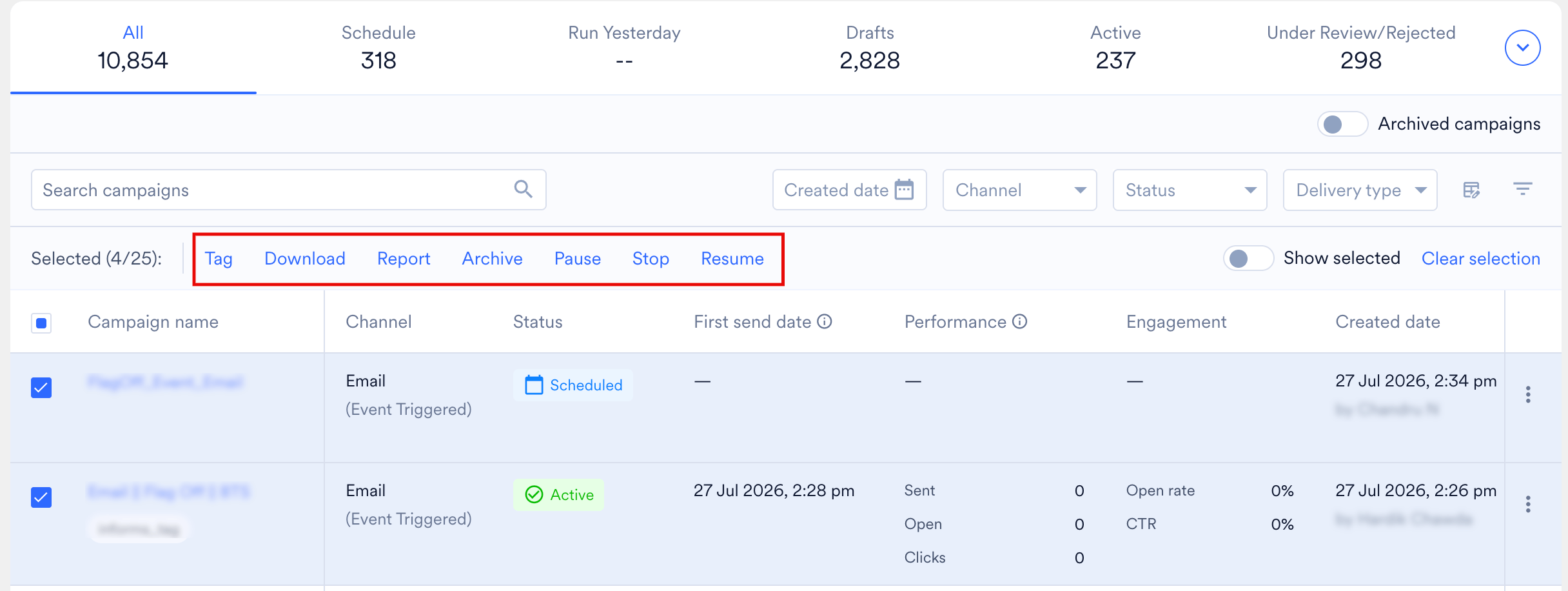 You can select up to **50 campaigns** at a time for a bulk action. If you need to act on more than 50 campaigns, run the bulk action in multiple batches (for example, split 100 campaigns into two batches of 50).
### Select Campaigns
1. Use the checkboxes on the left of each row to select one or more campaigns.
2. Once at least one campaign is selected, an action bar appears showing **Selected (X/Total)** along with the available actions.
3. Use **Show selected** (toggle) to filter the table down to only the campaigns you've currently selected. This is useful for reviewing your selection before running an action.
4. Use **Clear selection** to deselect all campaigns and reset the action bar.
### Available Bulk Actions
| Action | Description |
| ------------ | -------------------------------------------------------------------------------------------------------------------------------------------------------------------------------------------------------------------------------------------------------------------------------------------------------------------------------------------------------------------------------------------------------------------------------------------------------------------------------------------------------------------------------------------------------------------------------------------------------------------------------------------------------------------------------------------------------------------------------------------------------------------------------------------------------------------------------------------------------------------------------------------------------------------------------------------------------------------------------------------------------------------------------------------------------------------------------------------------------------------------------------------------------------------------------------------------------------------------------------------------------------------------------------------------------------------------------------------------------------------------------------------------------------------------------------------------------------------------------------------------------------------------------------------------------------------------------------------------------------------------------------------------------------- |
| **Tag** | Apply one or more tags to all selected campaigns at once. |
| **Download** | Downloads a CSV file containing the columns currently visible on your screen, for the selected campaigns. This is a quick export of only the on-screen data. |
| **Report** | Navigates you to the Reports page with the selected campaigns and their channels pre-loaded — no need to reselect campaigns. Reports include a much more detailed set of columns than Download, such as content and delivery-funnel details. |
| **Archive** | Archives all eligible selected campaigns. Campaigns not eligible for archiving are skipped. |
| **Pause** | Pauses all eligible selected campaigns (e.g., active campaigns). If some selected campaigns can't be paused (for example, they're already sent), only the eligible ones are paused, and you're shown how many will be affected before confirming (e.g., "3 of 6 campaigns can be paused").
You can select up to **50 campaigns** at a time for a bulk action. If you need to act on more than 50 campaigns, run the bulk action in multiple batches (for example, split 100 campaigns into two batches of 50).
### Select Campaigns
1. Use the checkboxes on the left of each row to select one or more campaigns.
2. Once at least one campaign is selected, an action bar appears showing **Selected (X/Total)** along with the available actions.
3. Use **Show selected** (toggle) to filter the table down to only the campaigns you've currently selected. This is useful for reviewing your selection before running an action.
4. Use **Clear selection** to deselect all campaigns and reset the action bar.
### Available Bulk Actions
| Action | Description |
| ------------ | -------------------------------------------------------------------------------------------------------------------------------------------------------------------------------------------------------------------------------------------------------------------------------------------------------------------------------------------------------------------------------------------------------------------------------------------------------------------------------------------------------------------------------------------------------------------------------------------------------------------------------------------------------------------------------------------------------------------------------------------------------------------------------------------------------------------------------------------------------------------------------------------------------------------------------------------------------------------------------------------------------------------------------------------------------------------------------------------------------------------------------------------------------------------------------------------------------------------------------------------------------------------------------------------------------------------------------------------------------------------------------------------------------------------------------------------------------------------------------------------------------------------------------------------------------------------------------------------------------------------------------------------------------------- |
| **Tag** | Apply one or more tags to all selected campaigns at once. |
| **Download** | Downloads a CSV file containing the columns currently visible on your screen, for the selected campaigns. This is a quick export of only the on-screen data. |
| **Report** | Navigates you to the Reports page with the selected campaigns and their channels pre-loaded — no need to reselect campaigns. Reports include a much more detailed set of columns than Download, such as content and delivery-funnel details. |
| **Archive** | Archives all eligible selected campaigns. Campaigns not eligible for archiving are skipped. |
| **Pause** | Pauses all eligible selected campaigns (e.g., active campaigns). If some selected campaigns can't be paused (for example, they're already sent), only the eligible ones are paused, and you're shown how many will be affected before confirming (e.g., "3 of 6 campaigns can be paused").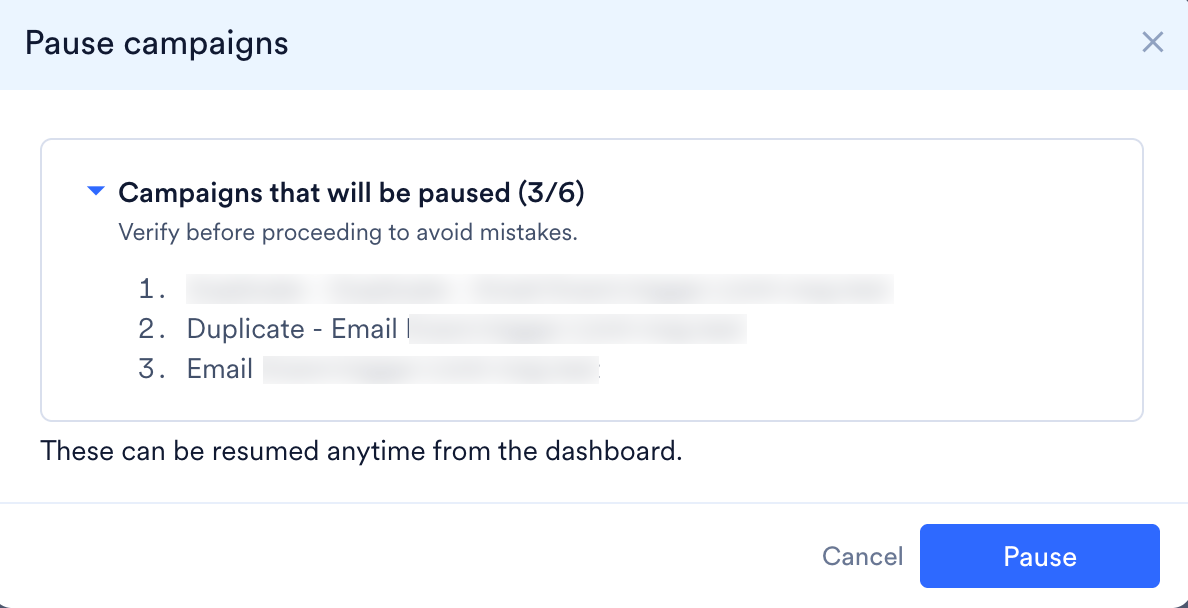 |
| **Stop** | Stops all eligible selected campaigns, following the same eligibility logic as Pause. |
| **Resume** | Resumes previously paused campaigns, where eligible. |
### Tab-Dependent Availability
The set of bulk actions shown in the action bar changes depending on which tab (view) you're in, since not every action makes sense for every campaign state. For example, **Resume** never appears in the **Schedule** tab because a scheduled campaign hasn't started yet, and **Delete** only appears in the **Drafts** tab because it's the only tab where all campaigns are safely removable.
The table below shows which bulk actions are available in each system tab:
| Bulk Action | All | Active | Schedule | Drafts | Under Review / Rejected |
| ----------- | :-: | :----: | :------: | :----: | :---------------------: |
| Tag | ✅ | ✅ | ✅ | — | ✅ |
| Download | ✅ | ✅ | ✅ | ✅ | ✅ |
| Report | ✅ | ✅ | — | — | — |
| Archive | ✅ | ✅ | — | — | ✅ |
| Pause | ✅ | ✅ | — | — | — |
| Stop | ✅ | ✅ | ✅ | — | — |
| Resume | ✅ | ✅ | — | — | — |
| Delete | — | — | — | ✅ | — |
* On the **All** tab, every bulk action is available. Eligibility is evaluated per campaign at execution time — for example, if you select a mix of Sent and Active campaigns and click **Pause**, only the Active ones are paused, and you're shown a confirmation like "3 of 6 campaigns can be paused" before running.
* On tabs that contain only one class of campaigns (Schedule, Drafts, Under Review/Rejected), the action bar is narrowed to just the actions that make sense for that state. For instance, **Report** doesn't appear on the **Schedule** tab because scheduled campaigns haven't sent yet and have no reporting data.
* **Delete** is only exposed as a bulk action on the **Drafts** tab, in line with the row-level menu.
**Difference between Download and Report:**
* **Download** gives you the basic set of columns you already see on the UI, in CSV format.
* **Report** gives you a full, detailed report including content and delivery-funnel information for the selected campaigns and channels.
## Row Level Actions
The three-dot menu shows a different set of actions depending on the campaign's current status:
| Action | Draft | Scheduled | Active | Paused | Under Review | Sent / Stopped / Rejected |
| --------- | :---: | :-------: | :----: | :----: | :----------: | :-----------------------: |
| View | — | ✅ | ✅ | ✅ | ✅ | ✅ |
| Copy Link | — | ✅ | ✅ | ✅ | ✅ | ✅ |
| Duplicate | ✅ | ✅ | ✅ | ✅ | ✅ | ✅ |
| Edit | ✅ | ✅ | ✅ | ✅ | — | — |
| Stop | — | ✅ | — | — | — | — |
| Pause | — | — | ✅ | — | — | — |
| Resume | — | — | — | ✅ | — | — |
| Archive | — | ✅ | ✅ | ✅ | ✅ | ✅ |
| Delete | ✅ | — | — | — | — | — |
* **Stop**, **Pause**, and **Resume** are mutually exclusive — you'll only see one at a time based on the campaign's current status (Scheduled → Stop, Active → Pause, Paused → Resume).
* **Delete** is only available for Draft campaigns. Once a campaign is scheduled or activated, it can no longer be deleted; use **Stop** and **Archive** instead.
* **Edit** is not available once a campaign has entered an approval or terminal state (Under Review, Sent, Stopped, Rejected). Use **Duplicate** to create a new campaign based on the original.
* Sent, Stopped, and Rejected campaigns all show the same set of read-only actions: View, Copy Link, Duplicate, and Archive.
## Permissions and Roles
The actions available to you on the All Campaigns page — both in the ⋮ menu on individual campaigns and in the Bulk Actions bar — depend on your **role** in the workspace. If your role doesn't have permission for an action, the action will not appear.
There are two categories of roles:
* **System roles**: pre-defined roles that ship with MoEngage (Admin, Manager, Marketer, Developer, Analyst). Their permissions are fixed and cannot be modified.
* **Custom roles**: roles configured by your workspace's Admin with a specific set of permissions. What a user with a custom role can do depends entirely on which permissions were granted when that role was set up.
For more information on roles and how to configure them, refer to [Access Roles](/docs/user-guide/settings/account/team-management/access-roles).
### Permissions by System Role
The table below maps each row-level and bulk action to the system roles that can perform it.
| Action | Admin | Manager | Marketer | Developer | Analyst |
| ---------- | :---: | :-----: | :--------------: | :-------: | :-----: |
| View | ✅ | ✅ | ✅ | ✅ | ✅ |
| Copy Link | ✅ | ✅ | ✅ | ✅ | ✅ |
| Create | ✅ | ✅ | ✅ | ✅ | — |
| Duplicate | ✅ | ✅ | ✅ | ✅ | — |
| Edit | ✅ | ✅ | ✅ | ✅ | — |
| Publish | ✅ | ✅ | ✅ / ⚠️ via CAF\* | — | — |
| Pause | ✅ | ✅ | ✅ | ✅ | — |
| Resume | ✅ | ✅ | ✅ | ✅ | — |
| Stop | ✅ | ✅ | ✅ | ✅ | — |
| Archive | ✅ | ✅ | ✅ | ✅ | — |
| Delete | ✅ | ✅ | ✅ | ✅ | — |
| Tag (bulk) | ✅ | ✅ | ✅ | ✅ | — |
| Download | ✅ | ✅ | ✅ | ✅ | ✅ |
| Report | ✅ | ✅ | ✅ | ✅ | ✅ |
\*If the [Campaign Approval Workflow](/docs/user-guide/settings/account/team-management/campaign-approval-workflow) (CAF) is enabled for your workspace, Marketers cannot publish campaigns directly — they must submit campaigns through the approval flow instead. Admins and Managers continue to publish directly.
Users with a custom role see actions based on the specific permissions granted when the role was created. If a permission is not enabled for the role, the corresponding action will not appear in the ⋮ menu or Bulk Actions bar.
## Frequently Asked Questions
These capabilities are being rolled out in phases and may not be available on your account yet. Reach out to your Customer Success Manager (CSM) to request access.
Out-of-the-box system views refresh their counts every 1 minute, while custom views refresh every 60 minutes. This is intentional: custom views can include many filters, and running those queries in real time at scale would slow down the page for everyone. Give it up to 60 minutes to catch up.
No. Views and view management (creating, editing, pinning, reordering, setting a default) are scoped to your individual user account, unless you explicitly share a view as Public with a team. Your default view and pinned tabs are personal to you.
A view must be pinned before it can be set as your default. Pin the view first from Manage Views, then use the three-dot menu to mark it as Default.
The Share with teams list only shows the teams that were selected when the view was built. If you have access to more teams than were used to define the view, only the teams associated with that view will appear.
You can select up to 50 campaigns per bulk action. For larger batches, split your selection and run the action multiple times.
No. It's an estimate that refreshes every 24 hours, not the exact audience size at send time. Check closer to send time if you need precise numbers.
Two things determine which actions appear in the ⋮ menu on a campaign row: the campaign's current status and your role's permissions. For example, Edit doesn't appear once a campaign is Sent or Under Review, Delete only appears for Drafts, and Stop only appears for Scheduled campaigns. If the action still isn't showing on a campaign where you expect it, your role may not have permission for it. See [Row Level Actions](#row-level-actions) and [Permissions and Roles](#permissions-and-roles) for the full mapping.
No. Recent searches are tracked per user, so the terms you see are based only on your own search activity and aren't visible to teammates.
A search term is only saved to Recent searches if it returned at least one matching campaign. Searches that return zero results aren't added to the list, and only your 5 most recent successful searches are kept.
|
| **Stop** | Stops all eligible selected campaigns, following the same eligibility logic as Pause. |
| **Resume** | Resumes previously paused campaigns, where eligible. |
### Tab-Dependent Availability
The set of bulk actions shown in the action bar changes depending on which tab (view) you're in, since not every action makes sense for every campaign state. For example, **Resume** never appears in the **Schedule** tab because a scheduled campaign hasn't started yet, and **Delete** only appears in the **Drafts** tab because it's the only tab where all campaigns are safely removable.
The table below shows which bulk actions are available in each system tab:
| Bulk Action | All | Active | Schedule | Drafts | Under Review / Rejected |
| ----------- | :-: | :----: | :------: | :----: | :---------------------: |
| Tag | ✅ | ✅ | ✅ | — | ✅ |
| Download | ✅ | ✅ | ✅ | ✅ | ✅ |
| Report | ✅ | ✅ | — | — | — |
| Archive | ✅ | ✅ | — | — | ✅ |
| Pause | ✅ | ✅ | — | — | — |
| Stop | ✅ | ✅ | ✅ | — | — |
| Resume | ✅ | ✅ | — | — | — |
| Delete | — | — | — | ✅ | — |
* On the **All** tab, every bulk action is available. Eligibility is evaluated per campaign at execution time — for example, if you select a mix of Sent and Active campaigns and click **Pause**, only the Active ones are paused, and you're shown a confirmation like "3 of 6 campaigns can be paused" before running.
* On tabs that contain only one class of campaigns (Schedule, Drafts, Under Review/Rejected), the action bar is narrowed to just the actions that make sense for that state. For instance, **Report** doesn't appear on the **Schedule** tab because scheduled campaigns haven't sent yet and have no reporting data.
* **Delete** is only exposed as a bulk action on the **Drafts** tab, in line with the row-level menu.
**Difference between Download and Report:**
* **Download** gives you the basic set of columns you already see on the UI, in CSV format.
* **Report** gives you a full, detailed report including content and delivery-funnel information for the selected campaigns and channels.
## Row Level Actions
The three-dot menu shows a different set of actions depending on the campaign's current status:
| Action | Draft | Scheduled | Active | Paused | Under Review | Sent / Stopped / Rejected |
| --------- | :---: | :-------: | :----: | :----: | :----------: | :-----------------------: |
| View | — | ✅ | ✅ | ✅ | ✅ | ✅ |
| Copy Link | — | ✅ | ✅ | ✅ | ✅ | ✅ |
| Duplicate | ✅ | ✅ | ✅ | ✅ | ✅ | ✅ |
| Edit | ✅ | ✅ | ✅ | ✅ | — | — |
| Stop | — | ✅ | — | — | — | — |
| Pause | — | — | ✅ | — | — | — |
| Resume | — | — | — | ✅ | — | — |
| Archive | — | ✅ | ✅ | ✅ | ✅ | ✅ |
| Delete | ✅ | — | — | — | — | — |
* **Stop**, **Pause**, and **Resume** are mutually exclusive — you'll only see one at a time based on the campaign's current status (Scheduled → Stop, Active → Pause, Paused → Resume).
* **Delete** is only available for Draft campaigns. Once a campaign is scheduled or activated, it can no longer be deleted; use **Stop** and **Archive** instead.
* **Edit** is not available once a campaign has entered an approval or terminal state (Under Review, Sent, Stopped, Rejected). Use **Duplicate** to create a new campaign based on the original.
* Sent, Stopped, and Rejected campaigns all show the same set of read-only actions: View, Copy Link, Duplicate, and Archive.
## Permissions and Roles
The actions available to you on the All Campaigns page — both in the ⋮ menu on individual campaigns and in the Bulk Actions bar — depend on your **role** in the workspace. If your role doesn't have permission for an action, the action will not appear.
There are two categories of roles:
* **System roles**: pre-defined roles that ship with MoEngage (Admin, Manager, Marketer, Developer, Analyst). Their permissions are fixed and cannot be modified.
* **Custom roles**: roles configured by your workspace's Admin with a specific set of permissions. What a user with a custom role can do depends entirely on which permissions were granted when that role was set up.
For more information on roles and how to configure them, refer to [Access Roles](/docs/user-guide/settings/account/team-management/access-roles).
### Permissions by System Role
The table below maps each row-level and bulk action to the system roles that can perform it.
| Action | Admin | Manager | Marketer | Developer | Analyst |
| ---------- | :---: | :-----: | :--------------: | :-------: | :-----: |
| View | ✅ | ✅ | ✅ | ✅ | ✅ |
| Copy Link | ✅ | ✅ | ✅ | ✅ | ✅ |
| Create | ✅ | ✅ | ✅ | ✅ | — |
| Duplicate | ✅ | ✅ | ✅ | ✅ | — |
| Edit | ✅ | ✅ | ✅ | ✅ | — |
| Publish | ✅ | ✅ | ✅ / ⚠️ via CAF\* | — | — |
| Pause | ✅ | ✅ | ✅ | ✅ | — |
| Resume | ✅ | ✅ | ✅ | ✅ | — |
| Stop | ✅ | ✅ | ✅ | ✅ | — |
| Archive | ✅ | ✅ | ✅ | ✅ | — |
| Delete | ✅ | ✅ | ✅ | ✅ | — |
| Tag (bulk) | ✅ | ✅ | ✅ | ✅ | — |
| Download | ✅ | ✅ | ✅ | ✅ | ✅ |
| Report | ✅ | ✅ | ✅ | ✅ | ✅ |
\*If the [Campaign Approval Workflow](/docs/user-guide/settings/account/team-management/campaign-approval-workflow) (CAF) is enabled for your workspace, Marketers cannot publish campaigns directly — they must submit campaigns through the approval flow instead. Admins and Managers continue to publish directly.
Users with a custom role see actions based on the specific permissions granted when the role was created. If a permission is not enabled for the role, the corresponding action will not appear in the ⋮ menu or Bulk Actions bar.
## Frequently Asked Questions
These capabilities are being rolled out in phases and may not be available on your account yet. Reach out to your Customer Success Manager (CSM) to request access.
Out-of-the-box system views refresh their counts every 1 minute, while custom views refresh every 60 minutes. This is intentional: custom views can include many filters, and running those queries in real time at scale would slow down the page for everyone. Give it up to 60 minutes to catch up.
No. Views and view management (creating, editing, pinning, reordering, setting a default) are scoped to your individual user account, unless you explicitly share a view as Public with a team. Your default view and pinned tabs are personal to you.
A view must be pinned before it can be set as your default. Pin the view first from Manage Views, then use the three-dot menu to mark it as Default.
The Share with teams list only shows the teams that were selected when the view was built. If you have access to more teams than were used to define the view, only the teams associated with that view will appear.
You can select up to 50 campaigns per bulk action. For larger batches, split your selection and run the action multiple times.
No. It's an estimate that refreshes every 24 hours, not the exact audience size at send time. Check closer to send time if you need precise numbers.
Two things determine which actions appear in the ⋮ menu on a campaign row: the campaign's current status and your role's permissions. For example, Edit doesn't appear once a campaign is Sent or Under Review, Delete only appears for Drafts, and Stop only appears for Scheduled campaigns. If the action still isn't showing on a campaign where you expect it, your role may not have permission for it. See [Row Level Actions](#row-level-actions) and [Permissions and Roles](#permissions-and-roles) for the full mapping.
No. Recent searches are tracked per user, so the terms you see are based only on your own search activity and aren't visible to teammates.
A search term is only saved to Recent searches if it returned at least one matching campaign. Searches that return zero results aren't added to the list, and only your 5 most recent successful searches are kept.