> ## Documentation Index
> Fetch the complete documentation index at: https://moengage.com/docs/llms.txt
> Use this file to discover all available pages before exploring further.
# Campaign Migration
> Move campaigns between MoEngage workspaces within the same data center. Migrate from test to production without recreating campaigns from scratch.
# Overview
The campaign migration feature allows you to move campaigns from one workspace to another within the same data center (DC). You can use this feature to:
* Migrate campaigns from a test workspace to a production workspace without recreating them from scratch. You only see the list of workspaces where you have been added as a user.
* Create one campaign and then migrate it to multiple other workspaces, if you need similar campaigns across them.
* Migrate the same campaign multiple times.
* Ensure that changes made to an imported campaign in the destination workspace do not affect the original campaign in the source workspace.
This feature supports migrating campaigns only (not flows) across all channels except In-app Messaging, On-site Messaging (OSM), and Web Personalization.
# Import a Campaign
You can import campaigns if you have the **Create and Manage** permission on the **Campaigns** component for your role.
Perform the following steps to migrate a campaign from one workspace to another:
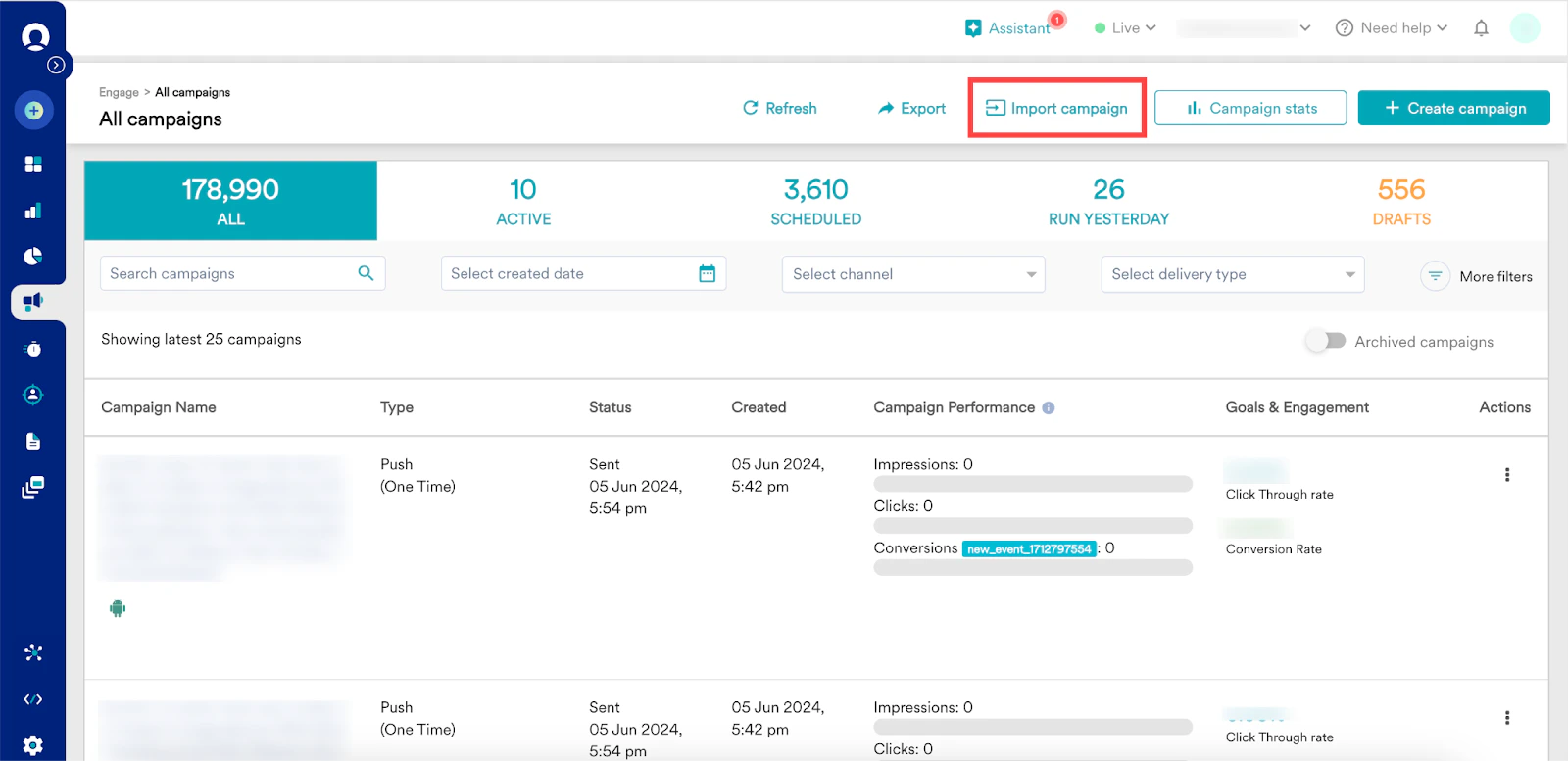
1. Go to the All campaigns page in your MoEngage dashboard.
2. In the upper-right corner, click **Import Campaign**. The Import campaign page appears.
There are two steps to importing a campaign, and they are:
1. [Select campaigns](/user-guide/campaigns-and-channels/campaign-management-and-reports/campaign-migration#step-1-select-campaigns)
2. [Imported campaigns](/user-guide/campaigns-and-channels/campaign-management-and-reports/campaign-migration#step-2-imported-campaigns)
## Step 1: Select Campaigns
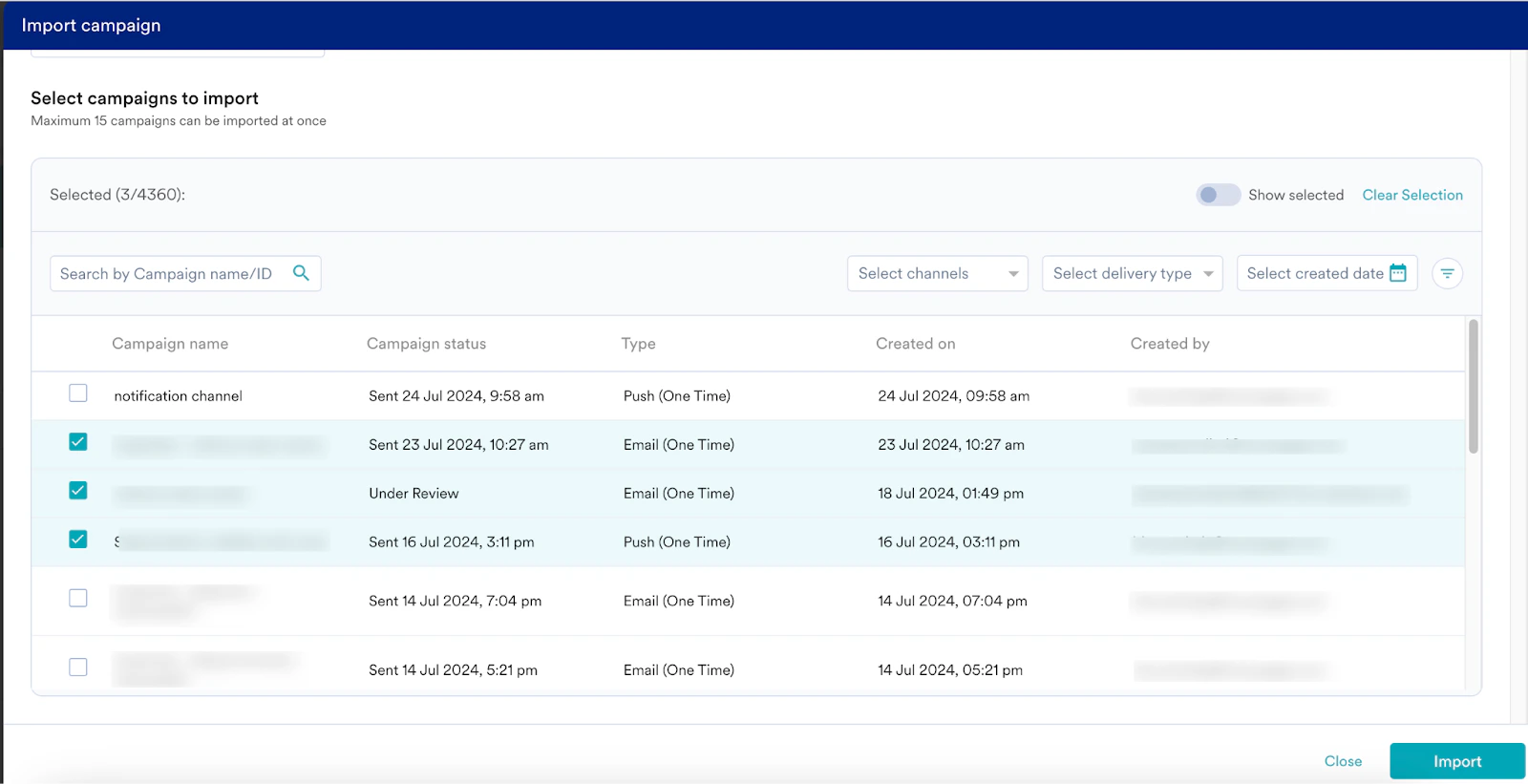
 1. On the Import campaign page, select the source workspace in the **Source workspace** list. This is the workspace from which you want to import the campaigns. After you select the source workspace, a list of campaigns in that workspace appears below.
2. Search for the required campaigns by their name or ID.
3. You can filter the campaigns by channels, delivery type, and created date.
4. Click the filter icon. On the Filter campaigns dialog box, you can filter campaigns by their status, campaign tags, platform, and campaign creator.
5. Click **Import**.
1. On the Import campaign page, select the source workspace in the **Source workspace** list. This is the workspace from which you want to import the campaigns. After you select the source workspace, a list of campaigns in that workspace appears below.
2. Search for the required campaigns by their name or ID.
3. You can filter the campaigns by channels, delivery type, and created date.
4. Click the filter icon. On the Filter campaigns dialog box, you can filter campaigns by their status, campaign tags, platform, and campaign creator.
5. Click **Import**.
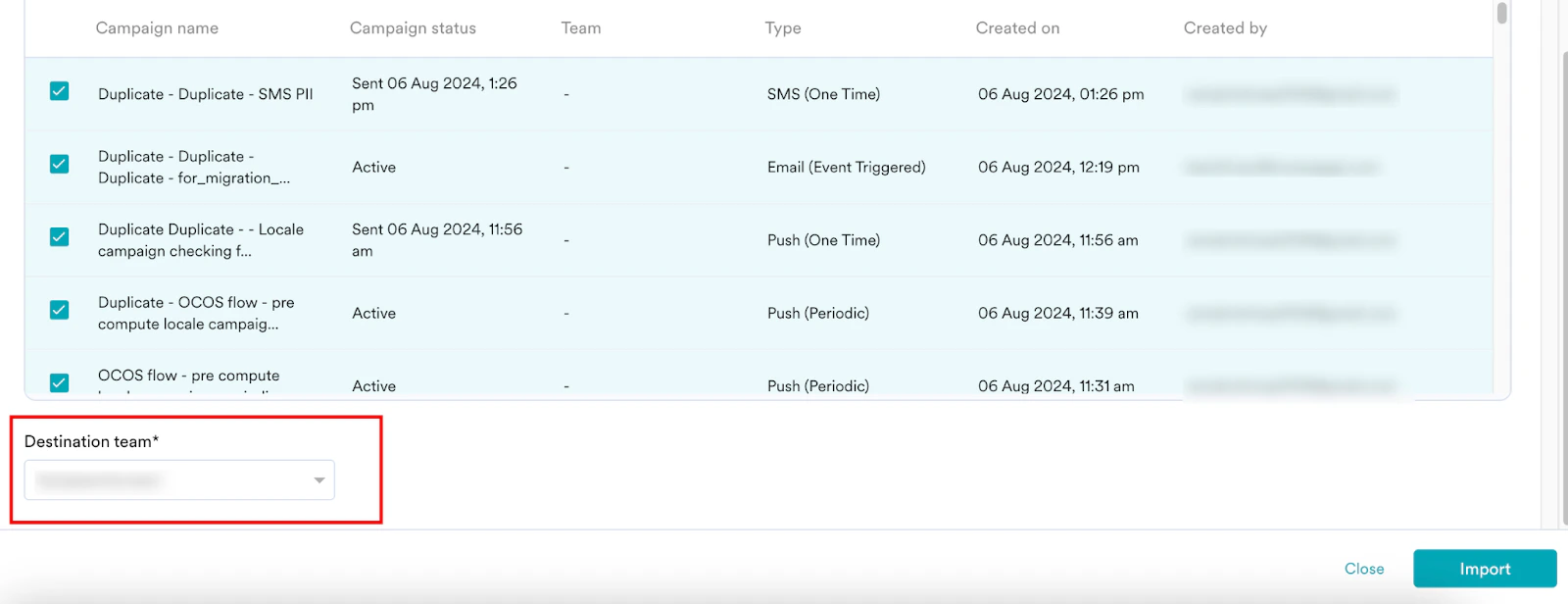
 6. If the **Team** feature is enabled for your workspace, select the **Destination team** to activate the **Import** option.
 You are taken to step 2, Imported campaigns.
You can migrate campaigns in any status other than **Draft**. You can select a maximum of 15 campaigns for a single import.
## Step 2: Imported Campaigns
1. After you import a campaign, it is in the **Draft** status, and an **Import Status** appears next to it. The following table lists the possible import statuses.
| **Status** | **Definition** | **Example** |
| ----------------------------------- | -------------------------------------------------------------------------------------------------------------------------------------------- | ------------------------------------------------------------------------------------------------------------------------------------------------------------------------------------------------------------------------------------------------------------------------------------------------------------------------------------------------------ |
| **Successful** | Indicates your campaign imported successfully. | |
| **Imported with errors** | Indicates the imported campaign is missing a required field value. You must fix these errors before you can publish the campaign. | For example, if a campaign in the source workspace uses a *productpurchase* event that is not available in the destination workspace, you will see the **Imported with errors** status. |
| **Imported with warnings** | Indicates the imported campaign has warnings. You can still publish the campaign with warnings, but fixing them is optional. | For example, if a campaign in the source workspace uses a *sales* tag that is not available in the destination workspace, you will see the **Imported with warnings** status. |
| **Imported with errors & warnings** | Indicates the imported campaign has both missing required and optional field values. You must fix all errors before publishing the campaign. | For example, if a campaign in the source workspace uses a Content API for personalization and also campaign tags, and these are not available in the destination workspace, you will see the **Imported with errors & warnings** status. Click the link provided to access the campaign in **Draft** mode and fix these issues. |
| **Failed** | Indicates the campaign failed to import because required conditions were not met. | For example, if a WhatsApp campaign is created in the source workspace, but the WhatsApp channel is not enabled in the destination workspace, the WhatsApp campaign import will fail. To view the reason for failure, expand the arrow below the campaign name. You must correct the error and then publish the campaign in the destination workspace. |
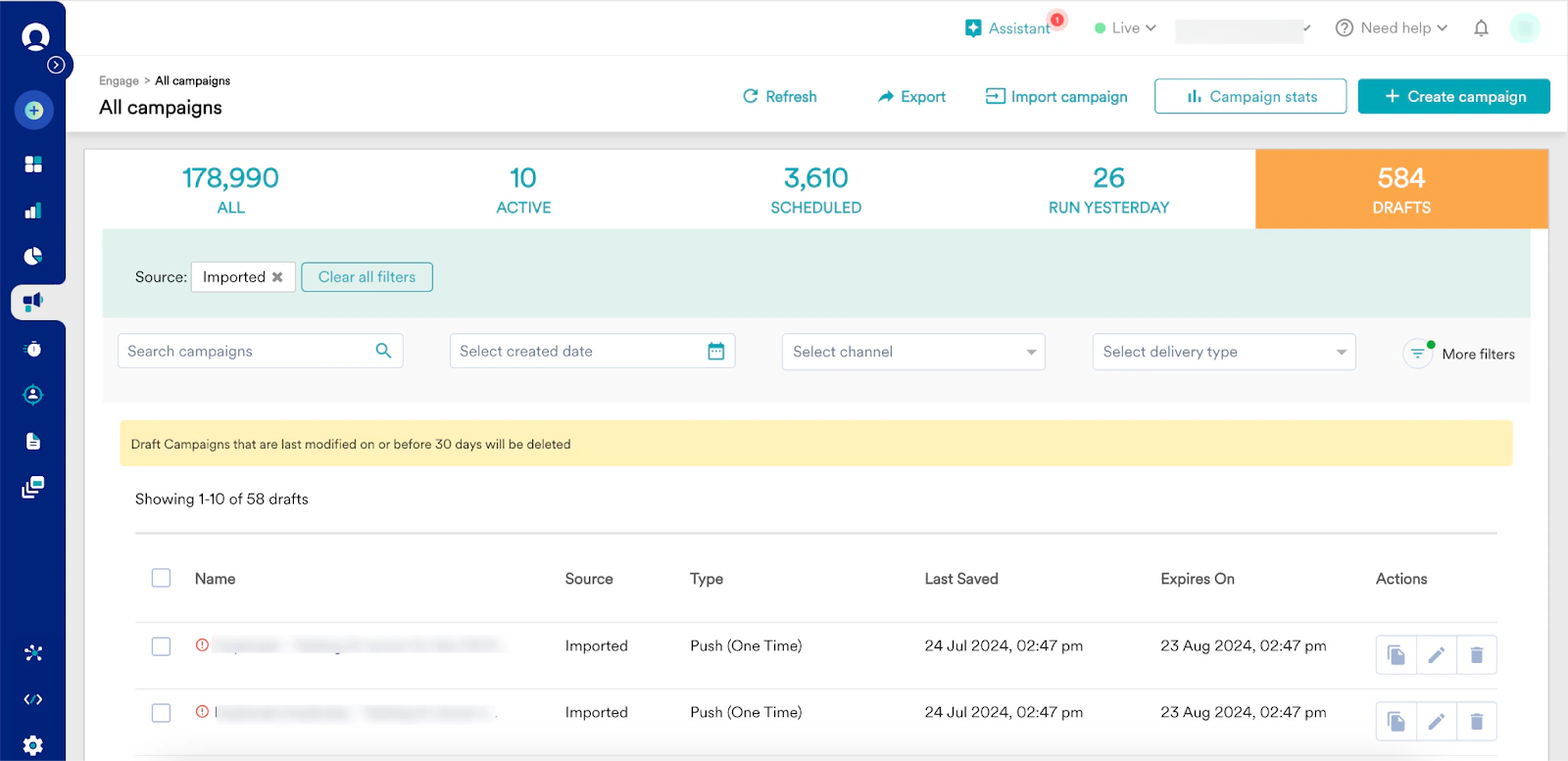
2. To view all imported campaigns, click **View imported campaigns**. This opens the **Drafts** tab on the All campaigns page. Here, campaigns imported display **Imported** as their source. Campaigns with errors or warnings have a warning or error symbol next to their name.
You are taken to step 2, Imported campaigns.
You can migrate campaigns in any status other than **Draft**. You can select a maximum of 15 campaigns for a single import.
## Step 2: Imported Campaigns
1. After you import a campaign, it is in the **Draft** status, and an **Import Status** appears next to it. The following table lists the possible import statuses.
| **Status** | **Definition** | **Example** |
| ----------------------------------- | -------------------------------------------------------------------------------------------------------------------------------------------- | ------------------------------------------------------------------------------------------------------------------------------------------------------------------------------------------------------------------------------------------------------------------------------------------------------------------------------------------------------ |
| **Successful** | Indicates your campaign imported successfully. | |
| **Imported with errors** | Indicates the imported campaign is missing a required field value. You must fix these errors before you can publish the campaign. | For example, if a campaign in the source workspace uses a *productpurchase* event that is not available in the destination workspace, you will see the **Imported with errors** status. |
| **Imported with warnings** | Indicates the imported campaign has warnings. You can still publish the campaign with warnings, but fixing them is optional. | For example, if a campaign in the source workspace uses a *sales* tag that is not available in the destination workspace, you will see the **Imported with warnings** status. |
| **Imported with errors & warnings** | Indicates the imported campaign has both missing required and optional field values. You must fix all errors before publishing the campaign. | For example, if a campaign in the source workspace uses a Content API for personalization and also campaign tags, and these are not available in the destination workspace, you will see the **Imported with errors & warnings** status. Click the link provided to access the campaign in **Draft** mode and fix these issues. |
| **Failed** | Indicates the campaign failed to import because required conditions were not met. | For example, if a WhatsApp campaign is created in the source workspace, but the WhatsApp channel is not enabled in the destination workspace, the WhatsApp campaign import will fail. To view the reason for failure, expand the arrow below the campaign name. You must correct the error and then publish the campaign in the destination workspace. |
2. To view all imported campaigns, click **View imported campaigns**. This opens the **Drafts** tab on the All campaigns page. Here, campaigns imported display **Imported** as their source. Campaigns with errors or warnings have a warning or error symbol next to their name.
 # Identify and Resolve Errors and Warnings in Imported Campaigns
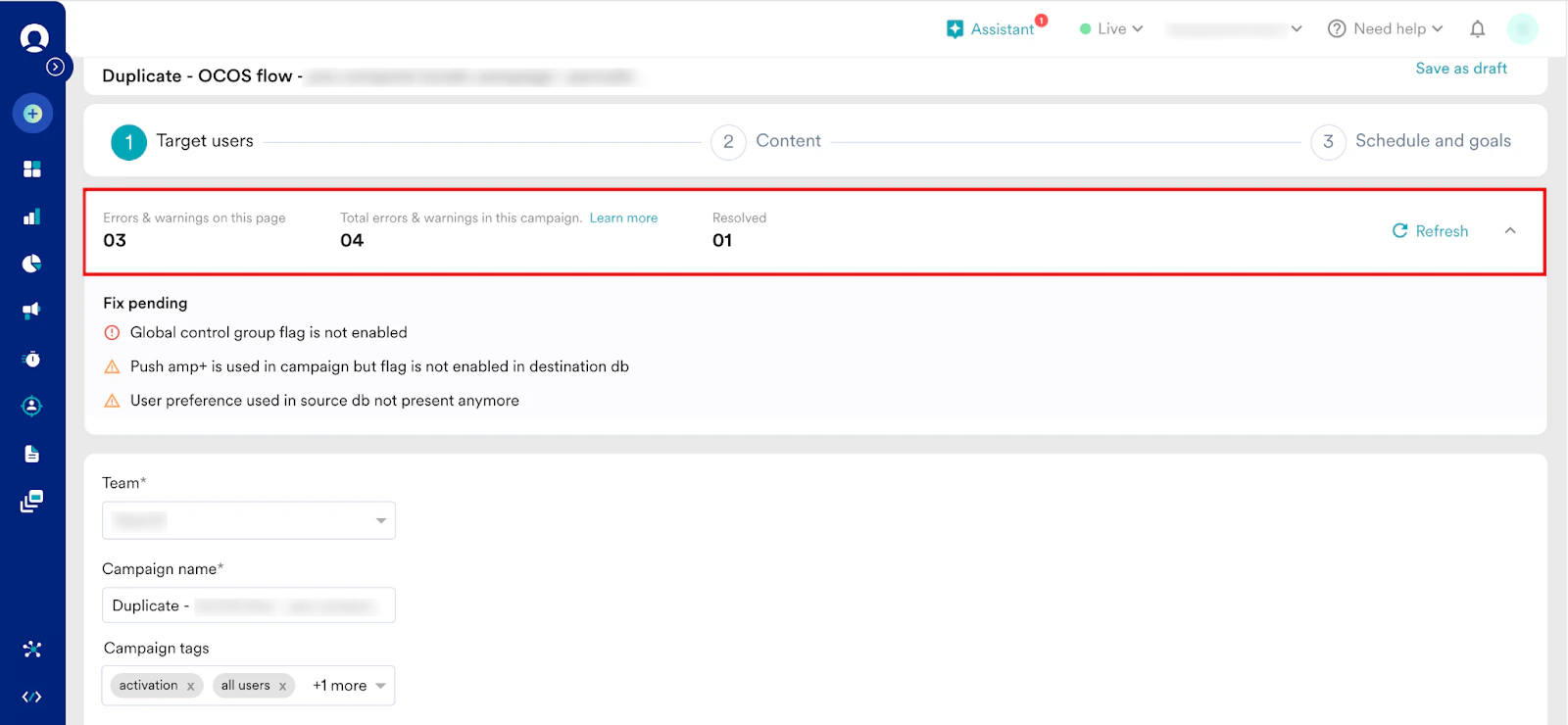
When you click a campaign name with errors or warnings on the **Drafts** tab of the All campaigns page, the campaign opens in **Draft** mode. At the top of each campaign step, you see a section with the following information:
| **Error Status and Count** | **Definition** |
| -------------------------------------------- | -------------------------------------------------------------------------------------------------------------------------------------------------------------------------------------------------------- |
| **Errors & warnings on this page** | This shows the count of errors and warnings on the current campaign page or step. |
| **Total errors & warnings in this campaign** | This shows the total count of warnings and errors in this campaign. |
| **Resolved** | This shows the count of resolved errors and warnings in this campaign. |
| **Fix pending** | This section lists the reasons for errors and warnings. Use this information to fix the issues. After you fix an issue, click the refresh button next to it. The **Resolved** count updates accordingly. |
# Identify and Resolve Errors and Warnings in Imported Campaigns
When you click a campaign name with errors or warnings on the **Drafts** tab of the All campaigns page, the campaign opens in **Draft** mode. At the top of each campaign step, you see a section with the following information:
| **Error Status and Count** | **Definition** |
| -------------------------------------------- | -------------------------------------------------------------------------------------------------------------------------------------------------------------------------------------------------------- |
| **Errors & warnings on this page** | This shows the count of errors and warnings on the current campaign page or step. |
| **Total errors & warnings in this campaign** | This shows the total count of warnings and errors in this campaign. |
| **Resolved** | This shows the count of resolved errors and warnings in this campaign. |
| **Fix pending** | This section lists the reasons for errors and warnings. Use this information to fix the issues. After you fix an issue, click the refresh button next to it. The **Resolved** count updates accordingly. |
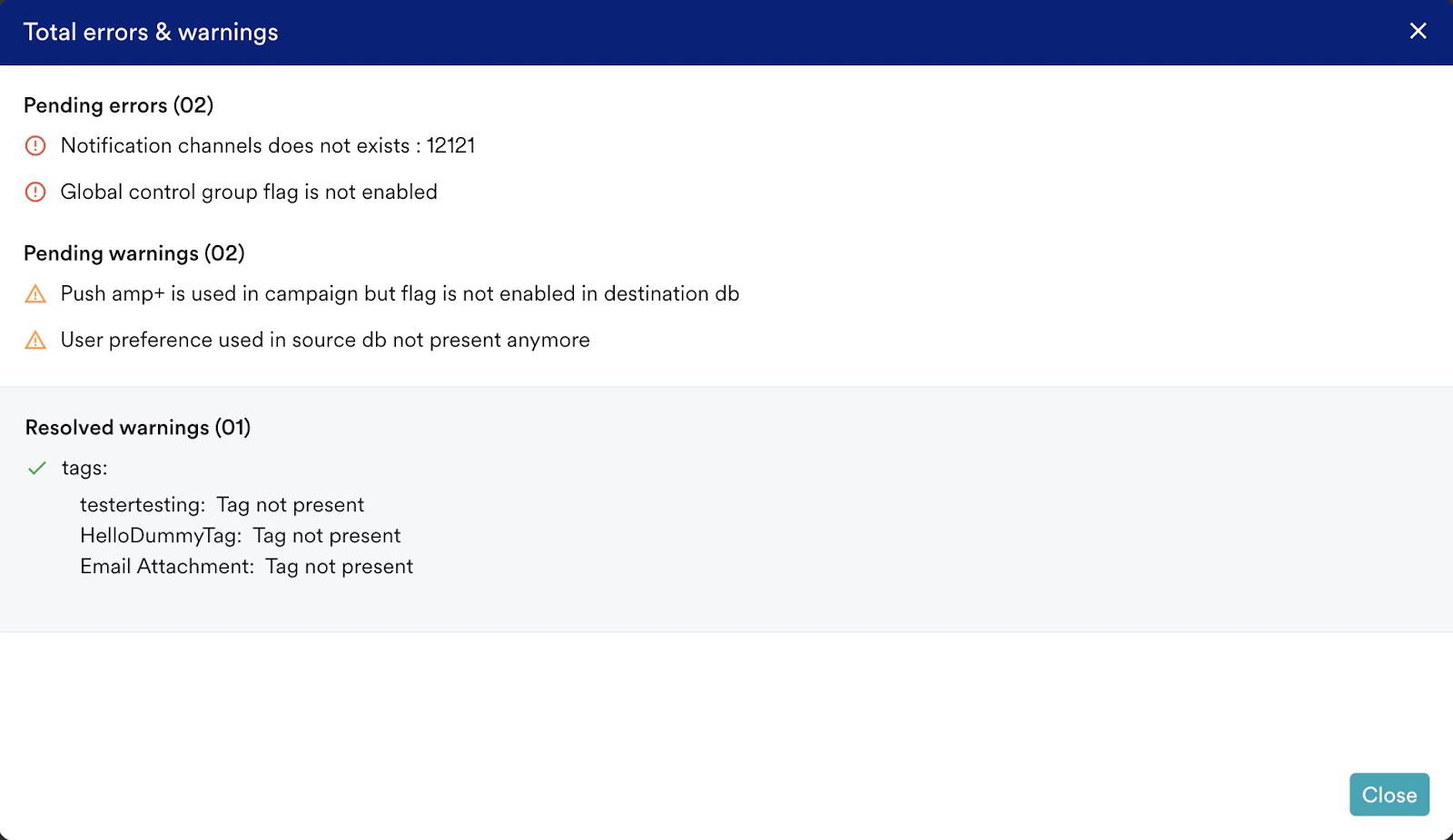
 To see all warnings, errors, and resolved issues across all campaign steps, click **Learn More** next to **Total errors & warnings in this campaign**.
 * You can continue to the next steps even if warnings are present, unless an inline error message appears. For example, if an *addtocart* event is unavailable, you can resolve the issue by using the same event in segmentation or selecting a different, more suitable event in the destination workspace.
* Auto-save functionality is not available for migrated campaigns.
# Publish the Imported Campaign
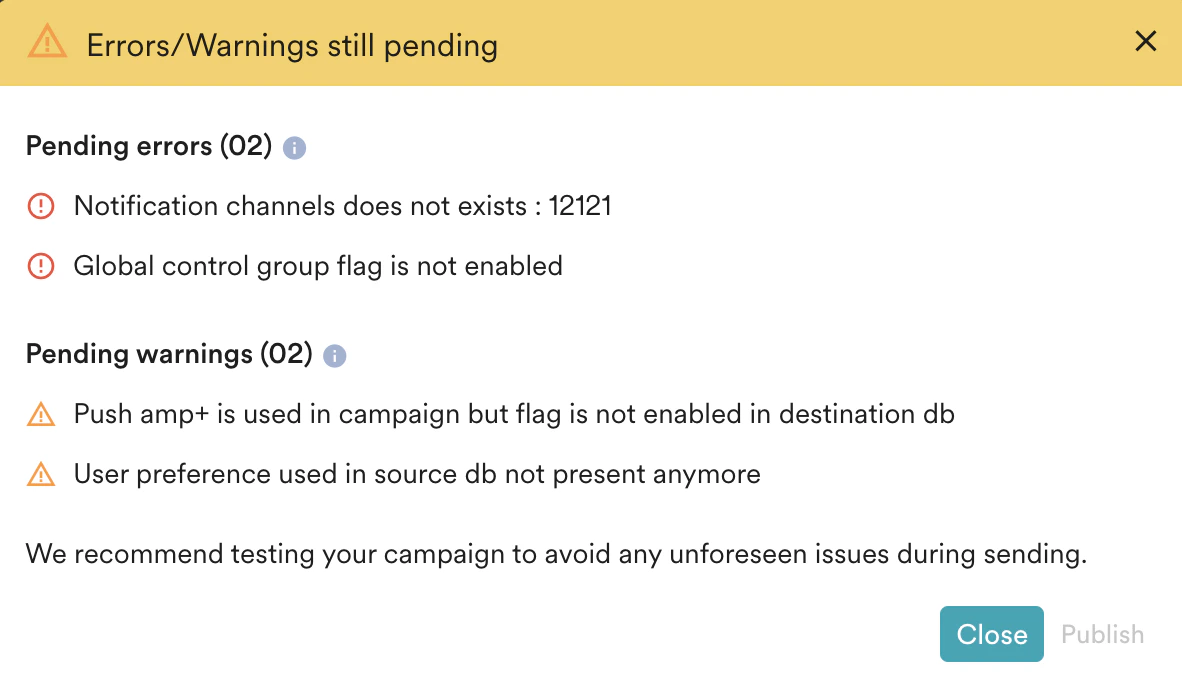
After you resolve the errors and warnings, click **Publish** to launch the campaign. If you attempt to publish the campaign without fixing all errors, the **Errors/Warnings still pending** dialog box appears. This dialog box lists all remaining errors and warnings. You must fix all errors to deliver your campaign successfully. You can publish campaigns with warnings, but not with errors.
* You can continue to the next steps even if warnings are present, unless an inline error message appears. For example, if an *addtocart* event is unavailable, you can resolve the issue by using the same event in segmentation or selecting a different, more suitable event in the destination workspace.
* Auto-save functionality is not available for migrated campaigns.
# Publish the Imported Campaign
After you resolve the errors and warnings, click **Publish** to launch the campaign. If you attempt to publish the campaign without fixing all errors, the **Errors/Warnings still pending** dialog box appears. This dialog box lists all remaining errors and warnings. You must fix all errors to deliver your campaign successfully. You can publish campaigns with warnings, but not with errors.