> ## Documentation Index
> Fetch the complete documentation index at: https://moengage.com/docs/llms.txt
> Use this file to discover all available pages before exploring further.
# Campaign Versioning
> Edit active campaigns in MoEngage without creating duplicates. Campaign versioning tracks changes to targeting, triggers, and content automatically.
# Overview
The *Campaign Versioning* feature allows you to edit any fields of an active campaign. This saves time and eliminates the need to create new campaigns by duplicating existing ones. You can edit fields such as **Target Audience**, **Trigger Criteria**, and **Exclude Users Criteria** in an active campaign. Each time an active campaign is edited and published, the system creates a new version, and the older version is retired.
This feature enhances time efficiency and facilitates quick adjustments by streamlining the campaign update process. It also enables better targeting through experimentation with different versions, which enhances personalization and performance tracking.
# Use Cases
These use cases illustrate how Campaign Versioning helps you achieve your goals:
* To analyze and modify the audience size, user attributes, or event attributes for campaign performance, create a campaign version with the desired changes instead of building a new campaign from scratch.
* The **All versions** drop-down list ensures continuity of statistics, allowing you to track performance without losing data when you edit an active campaign.
* Manage multiple versions of the same campaign more easily with Campaign Versioning.
# Create a Campaign Version
To create a campaign version, follow these steps:
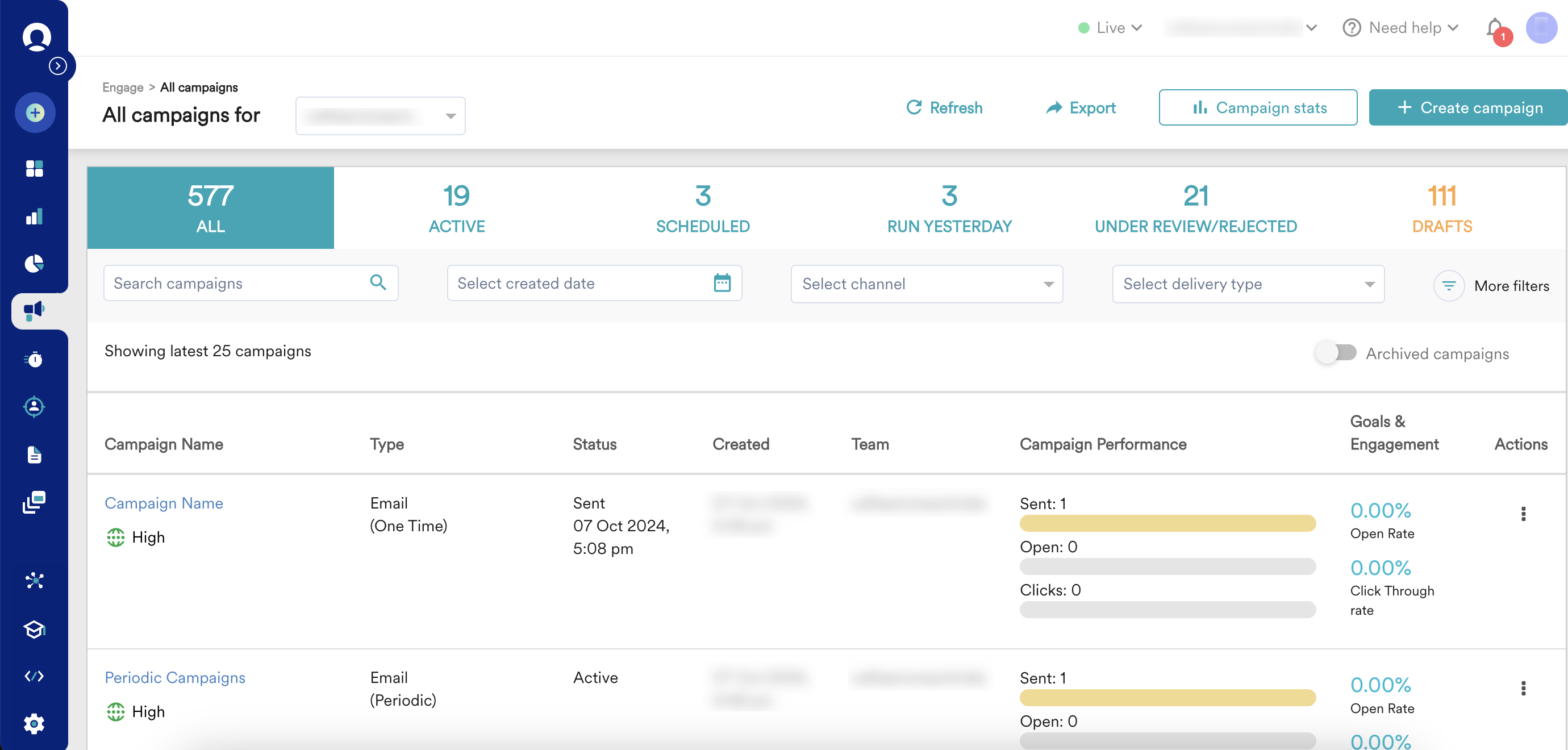
1. On the left navigation menu in the MoEngage UI, click **Engage**, and then click **Campaigns**. The All campaigns page appears.
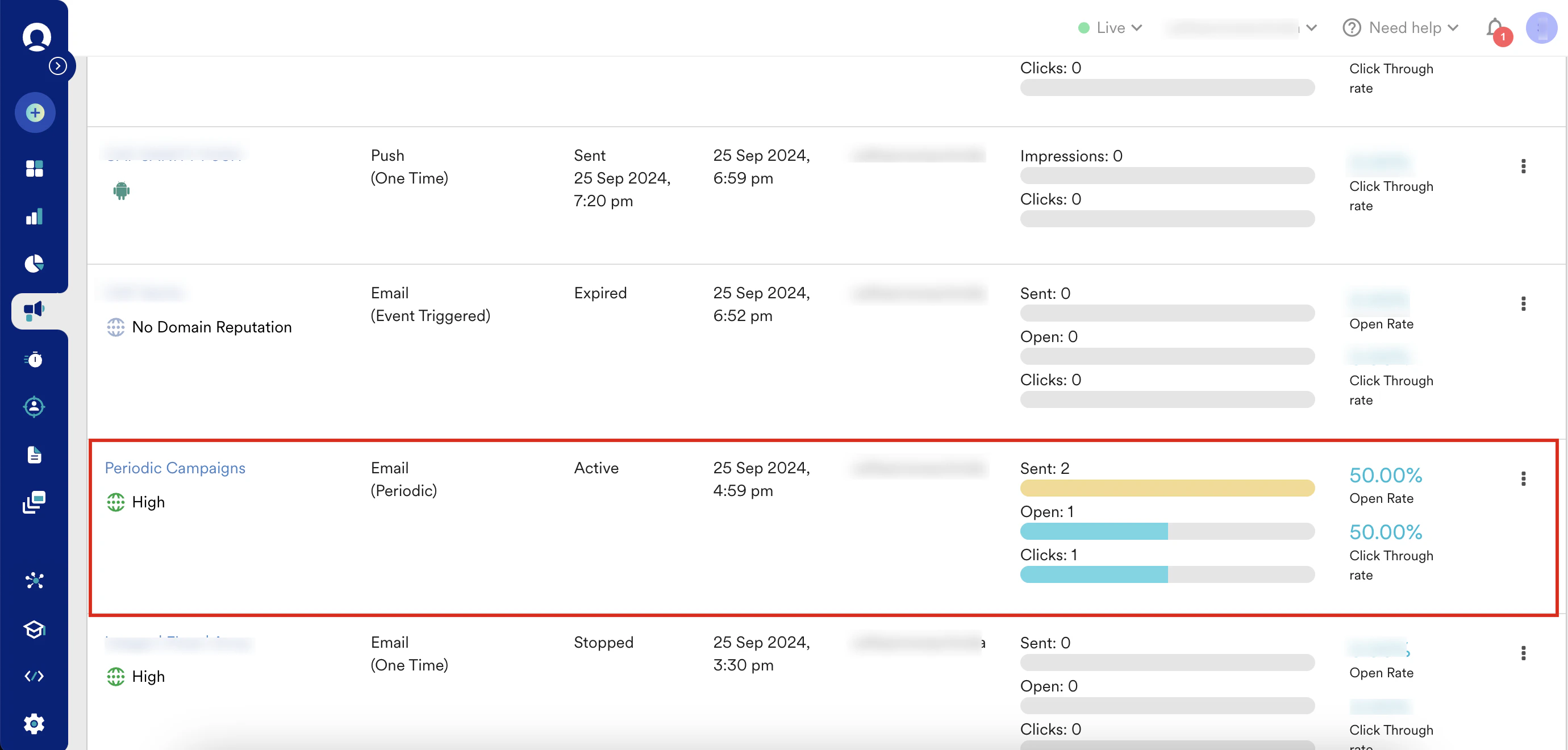
 2. Select the campaign to edit. For example, the following image shows a selected Email (Periodic) campaign.
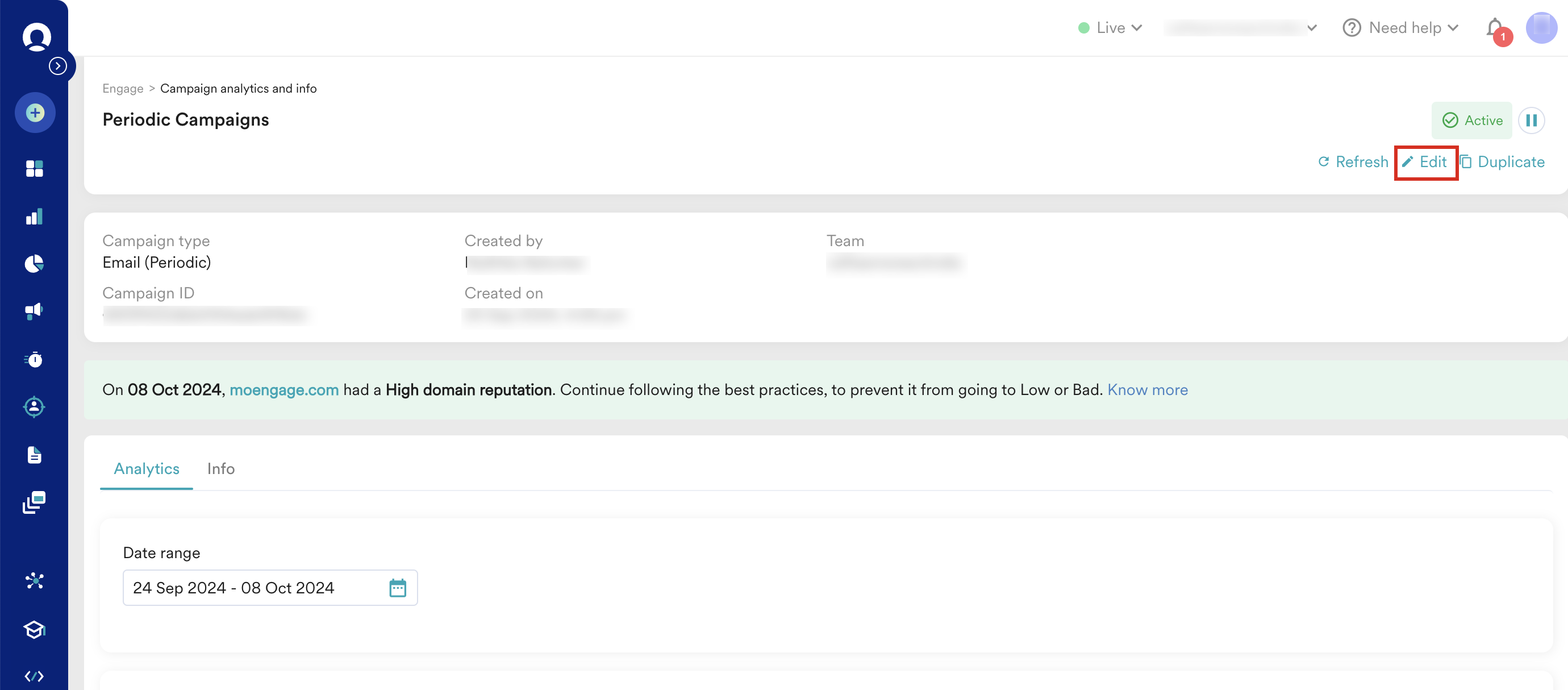
 3. On the Campaign analytics and info page, click **Edit**.
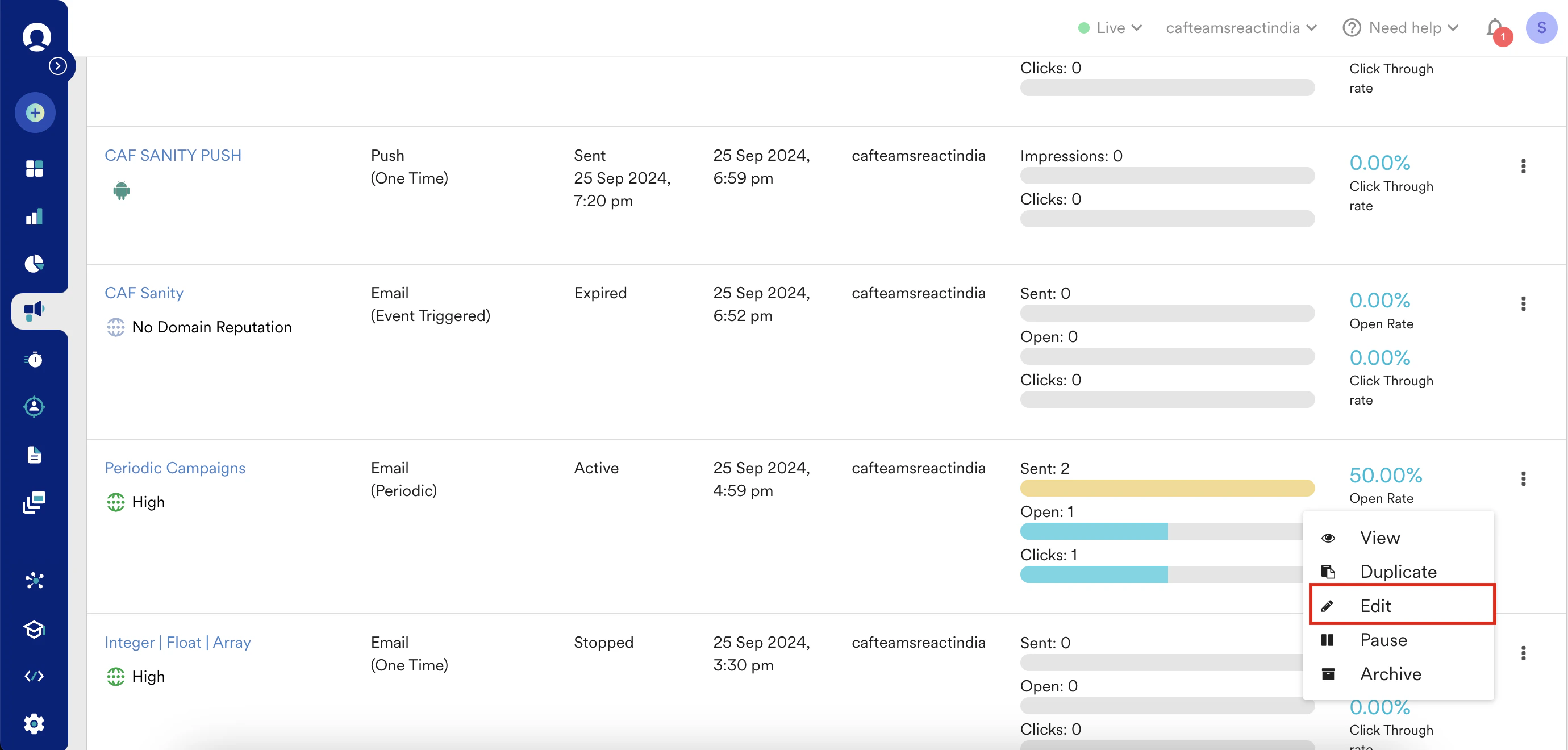
 You can also click the ellipsis icon under the **Actions** column for the preferred campaign, and then click **Edit**.
 4. Modify the configured values in the relevant fields of the existing campaign. For example, the **Target Platforms** and **Campaign control group** field values are modified in the following image:
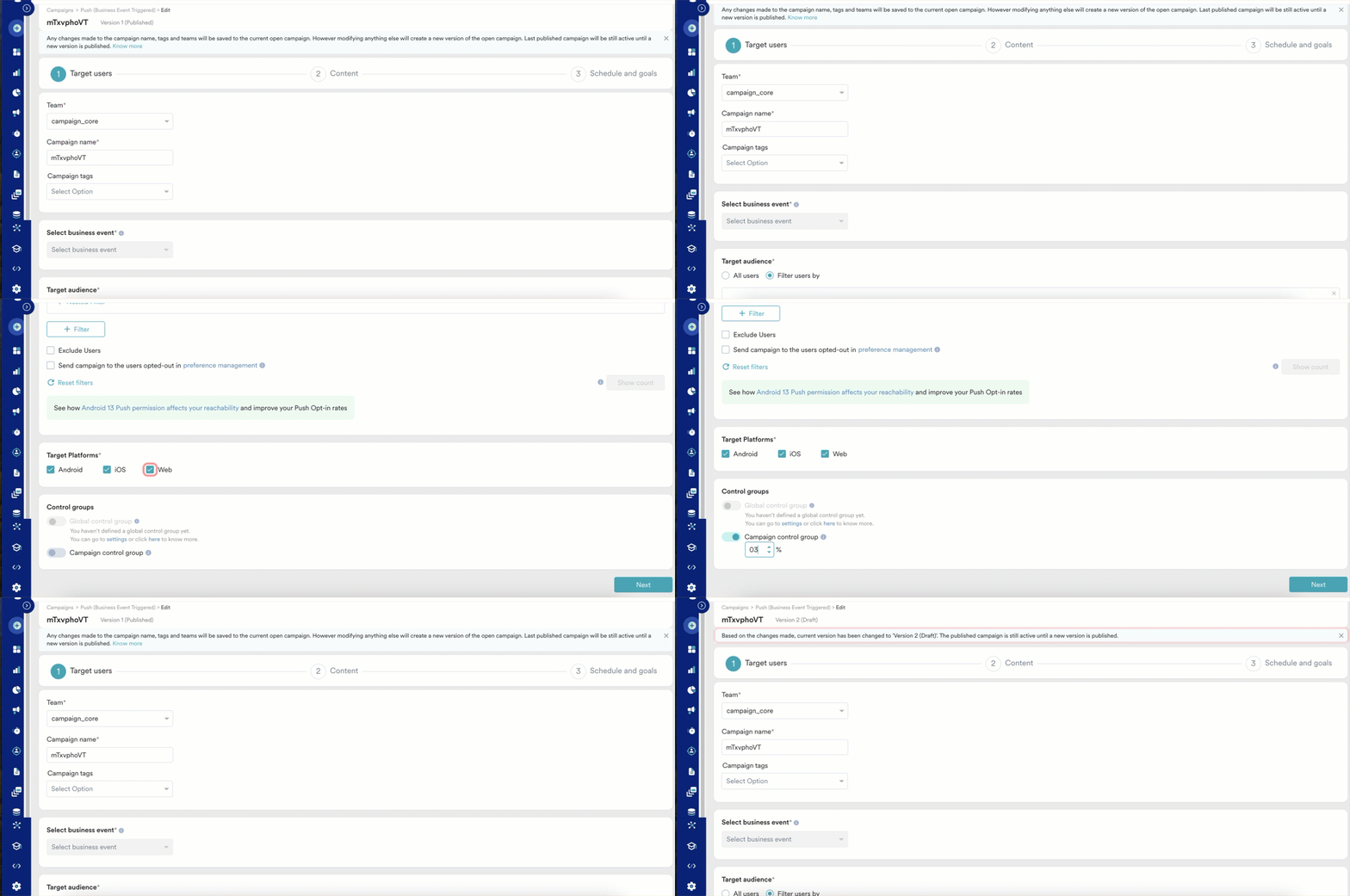 After you make the changes, MoEngage creates a new draft version and displays a notification with the version name at the top of the screen.
* Changes to the **Team**, **Campaign Name**, and **Campaign Tags** save to the original campaign. Modifying other fields creates a new version.
* You cannot modify the **Start Date** field value in step 3, **Schedule and goals**.
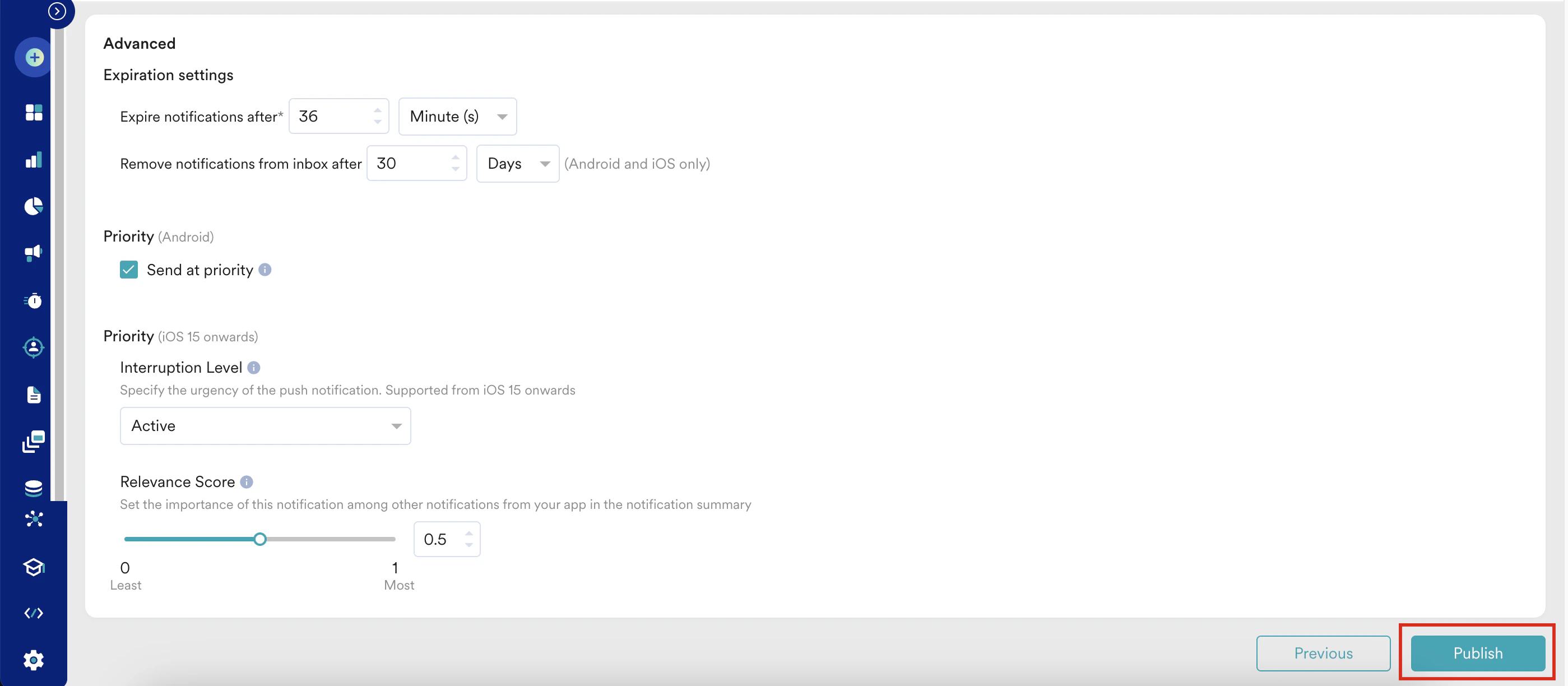
5. After you make the required changes, click **Publish**.
After you make the changes, MoEngage creates a new draft version and displays a notification with the version name at the top of the screen.
* Changes to the **Team**, **Campaign Name**, and **Campaign Tags** save to the original campaign. Modifying other fields creates a new version.
* You cannot modify the **Start Date** field value in step 3, **Schedule and goals**.
5. After you make the required changes, click **Publish**.
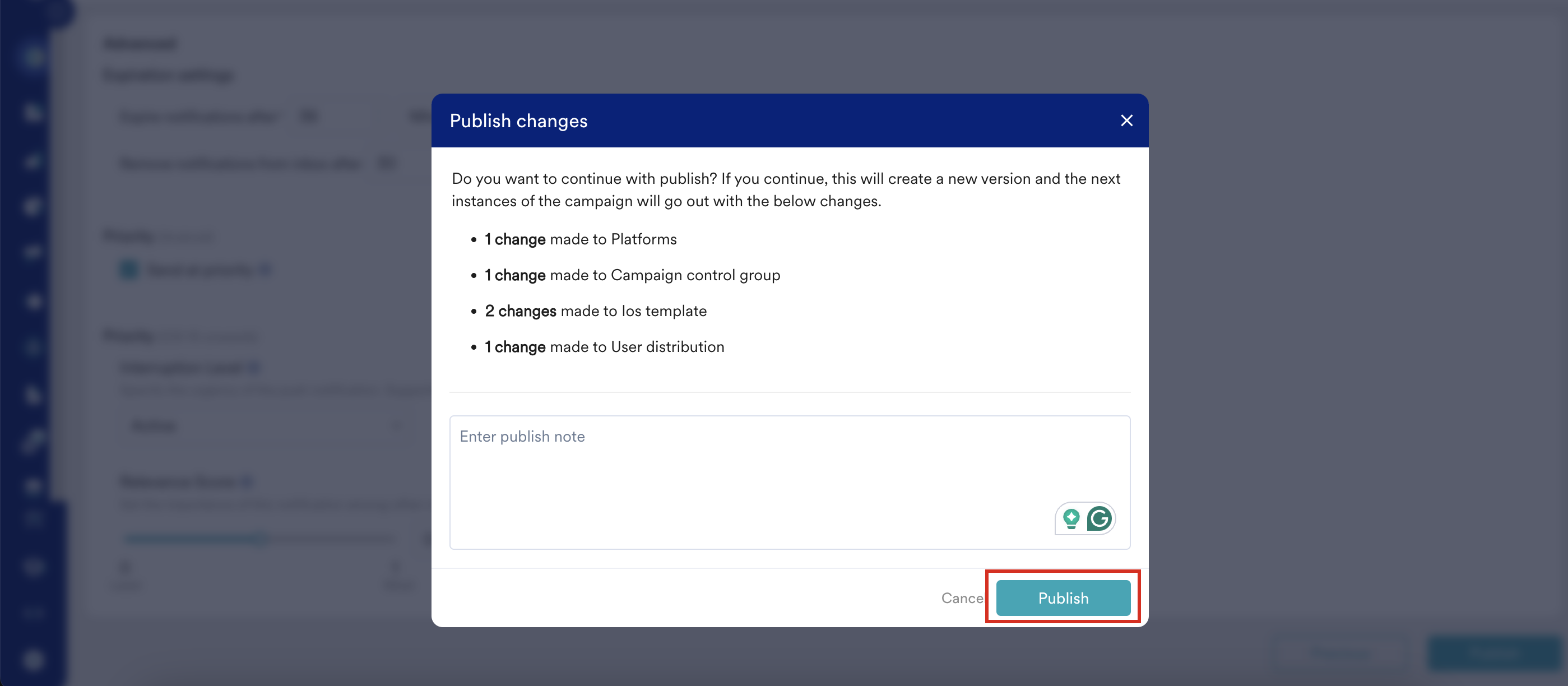
 6. On the **Publish changes** dialog box,
1. Verify all changes made to the last version of this campaign.
2. Enter a note in the text box.
3. Click **Publish**.
6. On the **Publish changes** dialog box,
1. Verify all changes made to the last version of this campaign.
2. Enter a note in the text box.
3. Click **Publish**.
 After publishing, the older version is retired.
# View Campaign Version History
Analyzing campaign versions and their history helps you monitor changes and optimize future strategies based on performance data. It provides insights into the effectiveness of each version and allows for data-driven decision-making.
To view and analyze the campaign version history, follow these steps:
1. On the All campaigns page, click the required campaign name.
2. On the Campaign analytics and info page, click the **History** icon to analyze existing versions of the campaign. On the Version History page, you can view updates made in individual versions.
After publishing, the older version is retired.
# View Campaign Version History
Analyzing campaign versions and their history helps you monitor changes and optimize future strategies based on performance data. It provides insights into the effectiveness of each version and allows for data-driven decision-making.
To view and analyze the campaign version history, follow these steps:
1. On the All campaigns page, click the required campaign name.
2. On the Campaign analytics and info page, click the **History** icon to analyze existing versions of the campaign. On the Version History page, you can view updates made in individual versions.
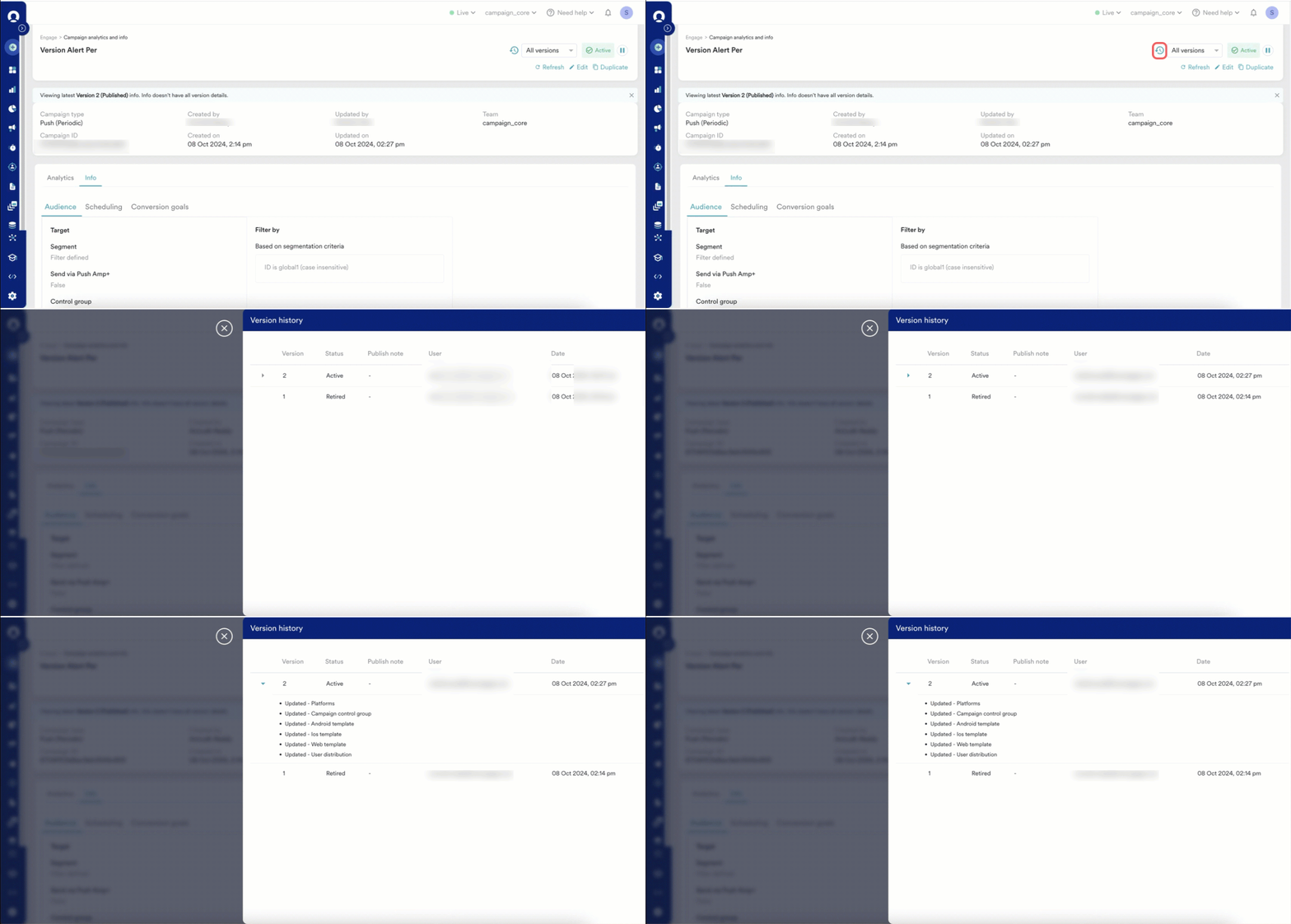 3. On the versions list, select the required version to view its performance statistics.
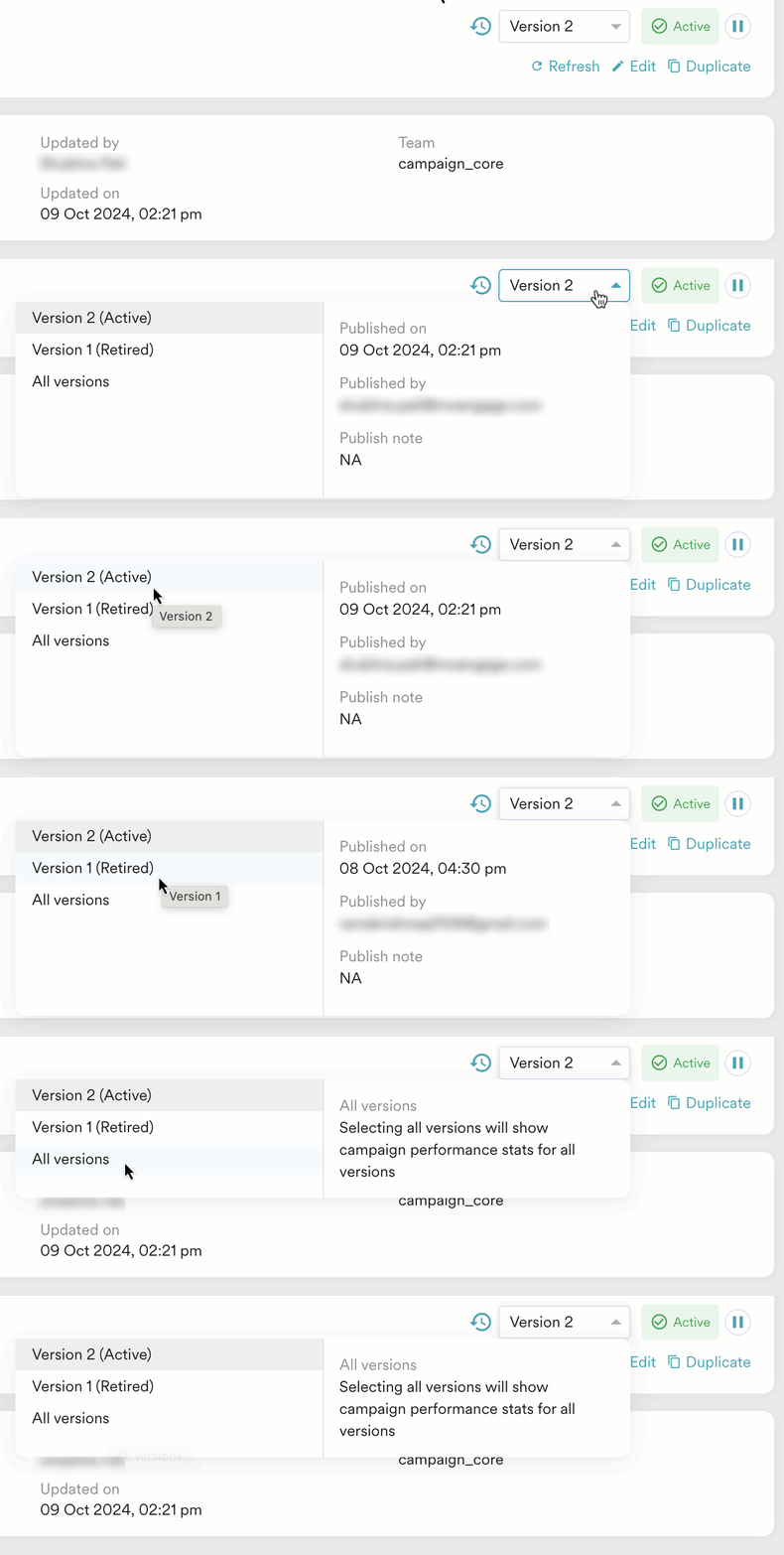 The **All versions** option displays the performance of all versions on a continuous timeline. The following information is available across all campaign versions:
* Campaign performance statistics
* Table and chart for metrics across date and time
* Periodic campaign instance performance
* Delivery Funnel
* Error breakdown table
* The **Edit** button is unavailable for retired campaign versions.
* A published campaign remains active until you publish a new version.
# Manage Campaign Versions
You can manage campaign versions by clicking the ellipsis icon under the **Actions** column for the required campaign on the All campaigns page. The following actions are available to manage versions:
| Action | Description |
| ------------- | ------------------------------------------------------------------------------------------------------------- |
| **Edit** | Redirects you to the Edit page of the latest published version associated with the campaign for modification. |
| **Duplicate** | Duplicates the current version of the campaign with the configured values. |
| **View** | Redirects you to the Campaign analytics and info page for all campaign versions. |
| **Pause** | Prevents the latest version of the campaign from sending any more notifications. |
| **Archive** | Archives the campaign. |
To duplicate a retired campaign version, navigate to the Campaign analytics and info page for that specific campaign, select the preferred version, and then click **Duplicate**.
# Supported Channels and Campaign Types
Campaign Versioning supports the following channels and delivery types:
| Channels/Delivery Types | One Time | Periodic | Business Trigger | Event-Triggered | Device-Triggered | Location-Triggered |
| ----------------------- | -------------- | -------- | ---------------- | --------------- | ---------------- | ------------------ |
| Push | Not applicable | Yes | Yes | Yes | Yes | Yes |
| Email | Not applicable | Yes | Yes | Yes | Not applicable | Not applicable |
| In-App Messaging | No | No | Not applicable | Not applicable | Not applicable | Not applicable |
| SMS | Not applicable | Yes | Yes | Yes | Not applicable | Not applicable |
| WhatsApp | Not applicable | No | Not applicable | No | Not applicable | Not applicable |
| On-site Messaging | No | No | Not applicable | Not applicable | Not applicable | Not applicable |
| Connectors | Not applicable | No | Not applicable | No | Not applicable | Not applicable |
| Facebook | Not applicable | No | Not applicable | No | Not applicable | Not applicable |
| Google Ads | Not applicable | No | Not applicable | No | Not applicable | Not applicable |
| Cards | Not applicable | No | Not applicable | No | Not applicable | Not applicable |
* "No" indicates that the feature is applicable but not supported. "Not applicable" means the delivery type does not apply to the channel.
* Flow child campaigns do not support Campaign Versioning.
* MoEngage allows creating up to 15 versions when editing a campaign.
The **All versions** option displays the performance of all versions on a continuous timeline. The following information is available across all campaign versions:
* Campaign performance statistics
* Table and chart for metrics across date and time
* Periodic campaign instance performance
* Delivery Funnel
* Error breakdown table
* The **Edit** button is unavailable for retired campaign versions.
* A published campaign remains active until you publish a new version.
# Manage Campaign Versions
You can manage campaign versions by clicking the ellipsis icon under the **Actions** column for the required campaign on the All campaigns page. The following actions are available to manage versions:
| Action | Description |
| ------------- | ------------------------------------------------------------------------------------------------------------- |
| **Edit** | Redirects you to the Edit page of the latest published version associated with the campaign for modification. |
| **Duplicate** | Duplicates the current version of the campaign with the configured values. |
| **View** | Redirects you to the Campaign analytics and info page for all campaign versions. |
| **Pause** | Prevents the latest version of the campaign from sending any more notifications. |
| **Archive** | Archives the campaign. |
To duplicate a retired campaign version, navigate to the Campaign analytics and info page for that specific campaign, select the preferred version, and then click **Duplicate**.
# Supported Channels and Campaign Types
Campaign Versioning supports the following channels and delivery types:
| Channels/Delivery Types | One Time | Periodic | Business Trigger | Event-Triggered | Device-Triggered | Location-Triggered |
| ----------------------- | -------------- | -------- | ---------------- | --------------- | ---------------- | ------------------ |
| Push | Not applicable | Yes | Yes | Yes | Yes | Yes |
| Email | Not applicable | Yes | Yes | Yes | Not applicable | Not applicable |
| In-App Messaging | No | No | Not applicable | Not applicable | Not applicable | Not applicable |
| SMS | Not applicable | Yes | Yes | Yes | Not applicable | Not applicable |
| WhatsApp | Not applicable | No | Not applicable | No | Not applicable | Not applicable |
| On-site Messaging | No | No | Not applicable | Not applicable | Not applicable | Not applicable |
| Connectors | Not applicable | No | Not applicable | No | Not applicable | Not applicable |
| Facebook | Not applicable | No | Not applicable | No | Not applicable | Not applicable |
| Google Ads | Not applicable | No | Not applicable | No | Not applicable | Not applicable |
| Cards | Not applicable | No | Not applicable | No | Not applicable | Not applicable |
* "No" indicates that the feature is applicable but not supported. "Not applicable" means the delivery type does not apply to the channel.
* Flow child campaigns do not support Campaign Versioning.
* MoEngage allows creating up to 15 versions when editing a campaign.