> ## Documentation Index
> Fetch the complete documentation index at: https://moengage.com/docs/llms.txt
> Use this file to discover all available pages before exploring further.
# Analyze Card Campaigns
> Review Card campaign analytics in MoEngage to measure impressions, clicks, and conversions. Access performance data to optimize your messaging strategy.
Card campaigns provide important information regarding how the campaign performed in terms of impressions, clicks, and conversions. This information can help you to improve the performance of your business metrics and bring more value to your business.
You can view Card analytics and info in the **MoEngage Go** mobile app. Monitor performance stats, track conversions, and review campaign details right from your phone. For more information, refer to [MoEngage Go](/user-guide/moengage-go/moengage-go-overview).
# Accessing the Card Info and Analytics Page
Upon successful creation of a Card campaign, you will be redirected to the **Campaign Info** page. An alternate method to access the Campaign Info page is as follows:
1. On the sidebar menu in MoEngage, hover over the **Engage** icon  . The **Engage** menu appears.
2. Click **All Campaigns**.
. The **Engage** menu appears.
2. Click **All Campaigns**.
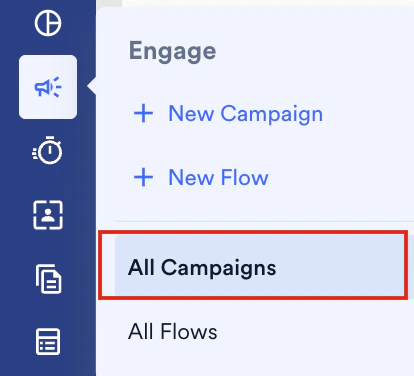 3. Click the row that displays the information about the campaign for which you wish to see the analytics information.
4. Click the **Select channel** dropdown and then select **Cards**.
5. Select the Card you want to view the analytics for.\
The Campaign Info page will display the following information:
* [Card Details](/user-guide/campaigns-and-channels/cards/analyze/analyze-card-campaigns#card-details)
* [Card Analytics](/user-guide/campaigns-and-channels/cards/analyze/analyze-card-campaigns#card-analytics)
* [Card Summary](/user-guide/campaigns-and-channels/cards/analyze/analyze-card-campaigns#card-summary)
## Card Details
3. Click the row that displays the information about the campaign for which you wish to see the analytics information.
4. Click the **Select channel** dropdown and then select **Cards**.
5. Select the Card you want to view the analytics for.\
The Campaign Info page will display the following information:
* [Card Details](/user-guide/campaigns-and-channels/cards/analyze/analyze-card-campaigns#card-details)
* [Card Analytics](/user-guide/campaigns-and-channels/cards/analyze/analyze-card-campaigns#card-analytics)
* [Card Summary](/user-guide/campaigns-and-channels/cards/analyze/analyze-card-campaigns#card-summary)
## Card Details
 This section gives you an overview of the Card details as follows:
* Card name
* The time when the Card was created.
* The user who created the Card campaign.
* Card Tags
* Card ID
* Option to edit/duplicate/pause the Card campaign.
* Option to show/hide the Card.
## Card Analytics
The following metrics are displayed to assess how the Card has performed:
This section gives you an overview of the Card details as follows:
* Card name
* The time when the Card was created.
* The user who created the Card campaign.
* Card Tags
* Card ID
* Option to edit/duplicate/pause the Card campaign.
* Option to show/hide the Card.
## Card Analytics
The following metrics are displayed to assess how the Card has performed:
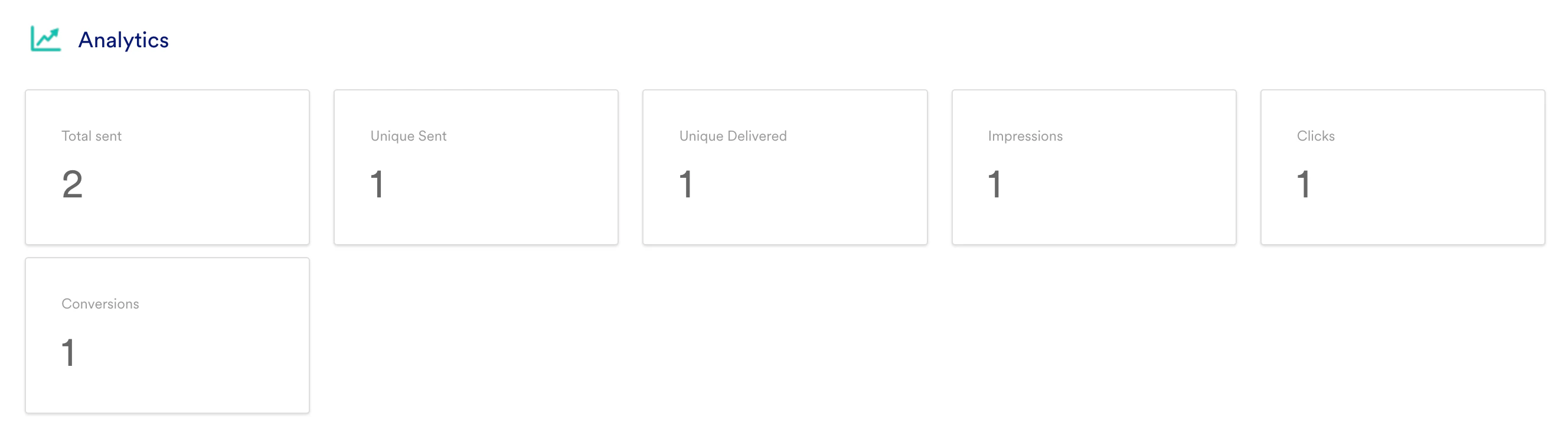 Total Sent is tracked when the MoEngage server successfully sends the Card campaign to the user and the user may/may not have opened the App Inbox. For an event-triggered campaign, every trigger adds to this count.
Unique Sent is tracked when the MoEngage server successfully sends the Card campaign to the user and the user may/may not have opened the App Inbox.
Unique Delivered is tracked when the user has opened the App Inbox and the Card is delivered to their device inside the App Inbox.
When the user views a Card in the Inbox, the Impression is tracked. For a new Card, an impression would be tracked as soon as the Card is loaded when the user opens the Inbox. For older Cards that are present below the new ones, the impression would be tracked only when the user scrolls down to them.
* Impression for a particular Card is tracked once per session irrespective of how many times the user scrolls to it.
* In rare cases, you might observe 2 to 3 extra Impressions. This happens because of Android limitations where the system creates 2 to 3 extra rows for the Cards that have to be shown immediately if the user scrolls.
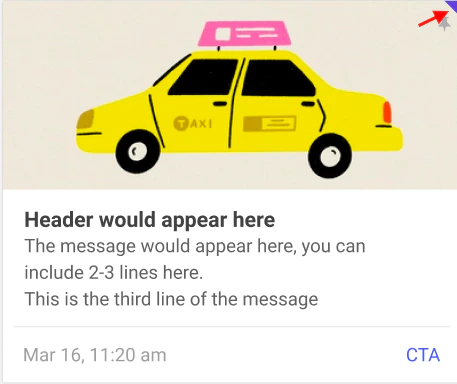
Clicks are tracked when the user clicks anywhere on the Card or the CTA. The Cards that have not been clicked by the user will display a small triangle in the right corner, nudging the user to interact with such Cards.
Total Sent is tracked when the MoEngage server successfully sends the Card campaign to the user and the user may/may not have opened the App Inbox. For an event-triggered campaign, every trigger adds to this count.
Unique Sent is tracked when the MoEngage server successfully sends the Card campaign to the user and the user may/may not have opened the App Inbox.
Unique Delivered is tracked when the user has opened the App Inbox and the Card is delivered to their device inside the App Inbox.
When the user views a Card in the Inbox, the Impression is tracked. For a new Card, an impression would be tracked as soon as the Card is loaded when the user opens the Inbox. For older Cards that are present below the new ones, the impression would be tracked only when the user scrolls down to them.
* Impression for a particular Card is tracked once per session irrespective of how many times the user scrolls to it.
* In rare cases, you might observe 2 to 3 extra Impressions. This happens because of Android limitations where the system creates 2 to 3 extra rows for the Cards that have to be shown immediately if the user scrolls.
Clicks are tracked when the user clicks anywhere on the Card or the CTA. The Cards that have not been clicked by the user will display a small triangle in the right corner, nudging the user to interact with such Cards.
 You can see how many users perform the conversion event from the time the user clicks the Card. Higher conversion events indicate the higher effectiveness of your campaign in driving the business goals.
Points to be noted:
* All the above except **Total Sent** are unique counts.
* These unique counts are maintained for 72 hours.
* For example, if the user opens the Inbox 5 times a day and a Card gets delivered every time, then the **Delivered** count will not be 5. The same logic applies to **Impressions**, **Clicks**, and **Conversions**. Despite the number of times a user views or clicks a Card or performs the conversion event, these numbers will be tracked only once in the 72-hour window
* Let us say, after a week (post 72-hour window), the same Card gets delivered to the user's Inbox. In such cases, the **Delivered** count will be incremented by 1, and so on.
* These counts are combined for both Android and iOS.
If you have configured the Card dismiss option during SDK integration, the user can also dismiss a Card from the Inbox with a long press on the Card. Upon long press, users will get an option to delete/dismiss the Card. If the user performs this option for a Card, that Card will not be delivered to the same user again.
## Card Summary
You can see how many users perform the conversion event from the time the user clicks the Card. Higher conversion events indicate the higher effectiveness of your campaign in driving the business goals.
Points to be noted:
* All the above except **Total Sent** are unique counts.
* These unique counts are maintained for 72 hours.
* For example, if the user opens the Inbox 5 times a day and a Card gets delivered every time, then the **Delivered** count will not be 5. The same logic applies to **Impressions**, **Clicks**, and **Conversions**. Despite the number of times a user views or clicks a Card or performs the conversion event, these numbers will be tracked only once in the 72-hour window
* Let us say, after a week (post 72-hour window), the same Card gets delivered to the user's Inbox. In such cases, the **Delivered** count will be incremented by 1, and so on.
* These counts are combined for both Android and iOS.
If you have configured the Card dismiss option during SDK integration, the user can also dismiss a Card from the Inbox with a long press on the Card. Upon long press, users will get an option to delete/dismiss the Card. If the user performs this option for a Card, that Card will not be delivered to the same user again.
## Card Summary
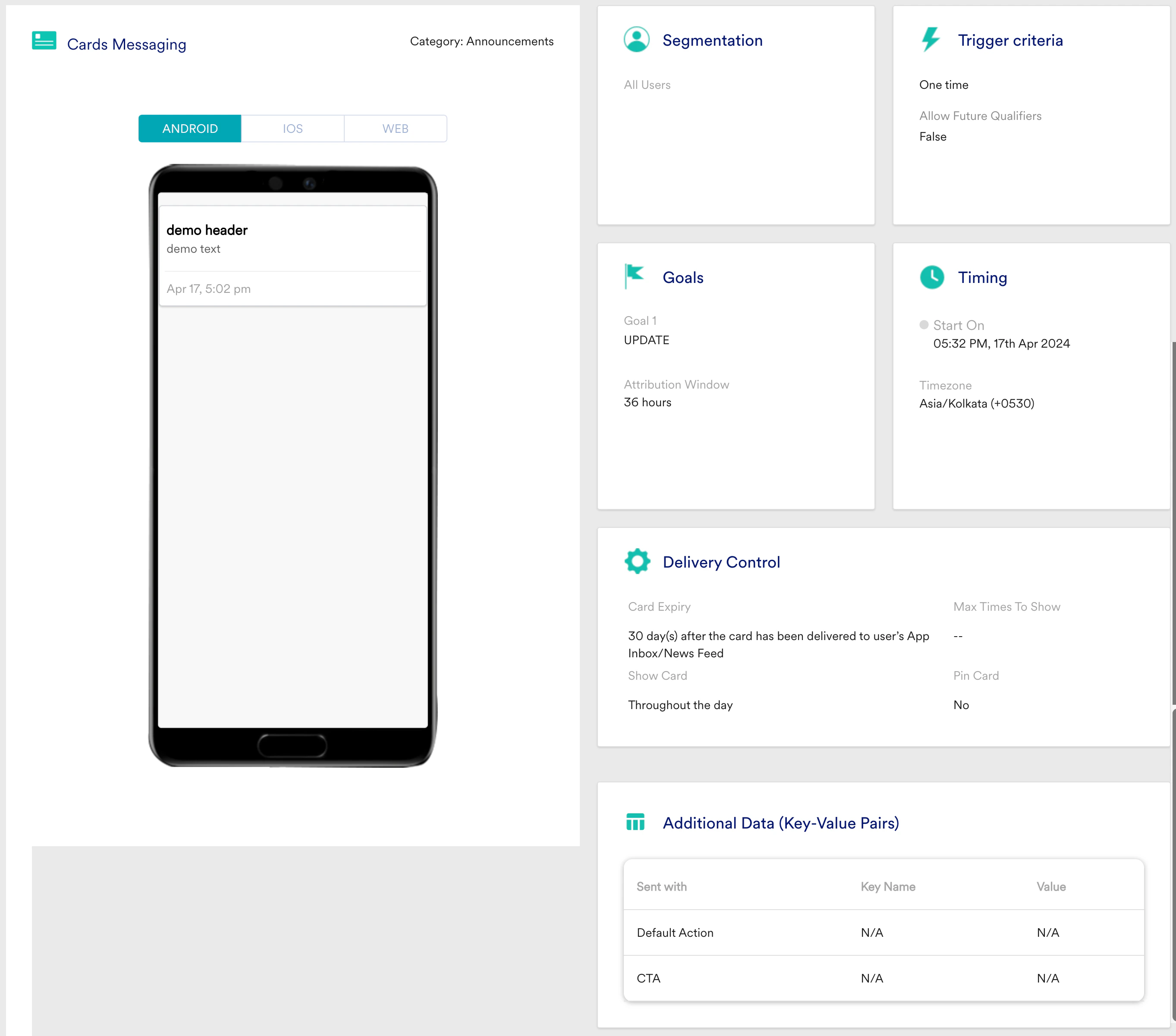 A summary of the Card campaign is shown in this section to help you understand the users you targeted, the message you included in the Card, the time you sent the Card, the platforms you chose to deliver your Card, Expiry time set for the Card, and additional data.
It also allows you to check the message preview on all the platforms (Android, iOS, and web). In the preview section, you can hover over the Card or the CTA to see the action that you configured for this Card.
Under the Trigger Criteria section, you can see the type of campaign. For **One time** campaigns, you can see the value of the **Allow Future Qualifiers** setting.
## Card Events
Campaign events may not match the campaign stats because of the different methods with which they are calculated.
| Name | Description | Channel / Platform |
| ----------------------- | --------------------------------------------------------------------------------------------------------------- | ------------------ |
| Card Campaign Clicked | Triggered when the user clicks on a Card present in the app inbox. | Android, iOS, Web |
| Card Campaign Delivered | Tracked when the Card is sent to the app inbox after the user clicks the app inbox icon. | Android, iOS, Web |
| Card Campaign Dismissed | Tracked when a particular Card is dismissed/deleted by the user. | Android, iOS, Web |
| Card Campaign Sent | Tracked when a notification is sent to the user as a Cards campaign, but it doesn't indicate if it is received. | Android, iOS, Web |
| Card Campaign Viewed | Tracked when the user views the Card. | Android, iOS, Web |
| App Inbox Icon Clicked | Tracked when the user clicks on the app inbox icon. | Android, iOS, Web |
A summary of the Card campaign is shown in this section to help you understand the users you targeted, the message you included in the Card, the time you sent the Card, the platforms you chose to deliver your Card, Expiry time set for the Card, and additional data.
It also allows you to check the message preview on all the platforms (Android, iOS, and web). In the preview section, you can hover over the Card or the CTA to see the action that you configured for this Card.
Under the Trigger Criteria section, you can see the type of campaign. For **One time** campaigns, you can see the value of the **Allow Future Qualifiers** setting.
## Card Events
Campaign events may not match the campaign stats because of the different methods with which they are calculated.
| Name | Description | Channel / Platform |
| ----------------------- | --------------------------------------------------------------------------------------------------------------- | ------------------ |
| Card Campaign Clicked | Triggered when the user clicks on a Card present in the app inbox. | Android, iOS, Web |
| Card Campaign Delivered | Tracked when the Card is sent to the app inbox after the user clicks the app inbox icon. | Android, iOS, Web |
| Card Campaign Dismissed | Tracked when a particular Card is dismissed/deleted by the user. | Android, iOS, Web |
| Card Campaign Sent | Tracked when a notification is sent to the user as a Cards campaign, but it doesn't indicate if it is received. | Android, iOS, Web |
| Card Campaign Viewed | Tracked when the user views the Card. | Android, iOS, Web |
| App Inbox Icon Clicked | Tracked when the user clicks on the app inbox icon. | Android, iOS, Web |