> ## Documentation Index
> Fetch the complete documentation index at: https://moengage.com/docs/llms.txt
> Use this file to discover all available pages before exploring further.
# Why Is Card Data Not Getting Populated Based on the Entered Key Value?
> Fix card data not populating by correctly configuring the Navigate to screen option with the proper link and key-value pairs in Card Action settings.
## Problem
Card data is not getting populated based on the entered key value.
## Explanation
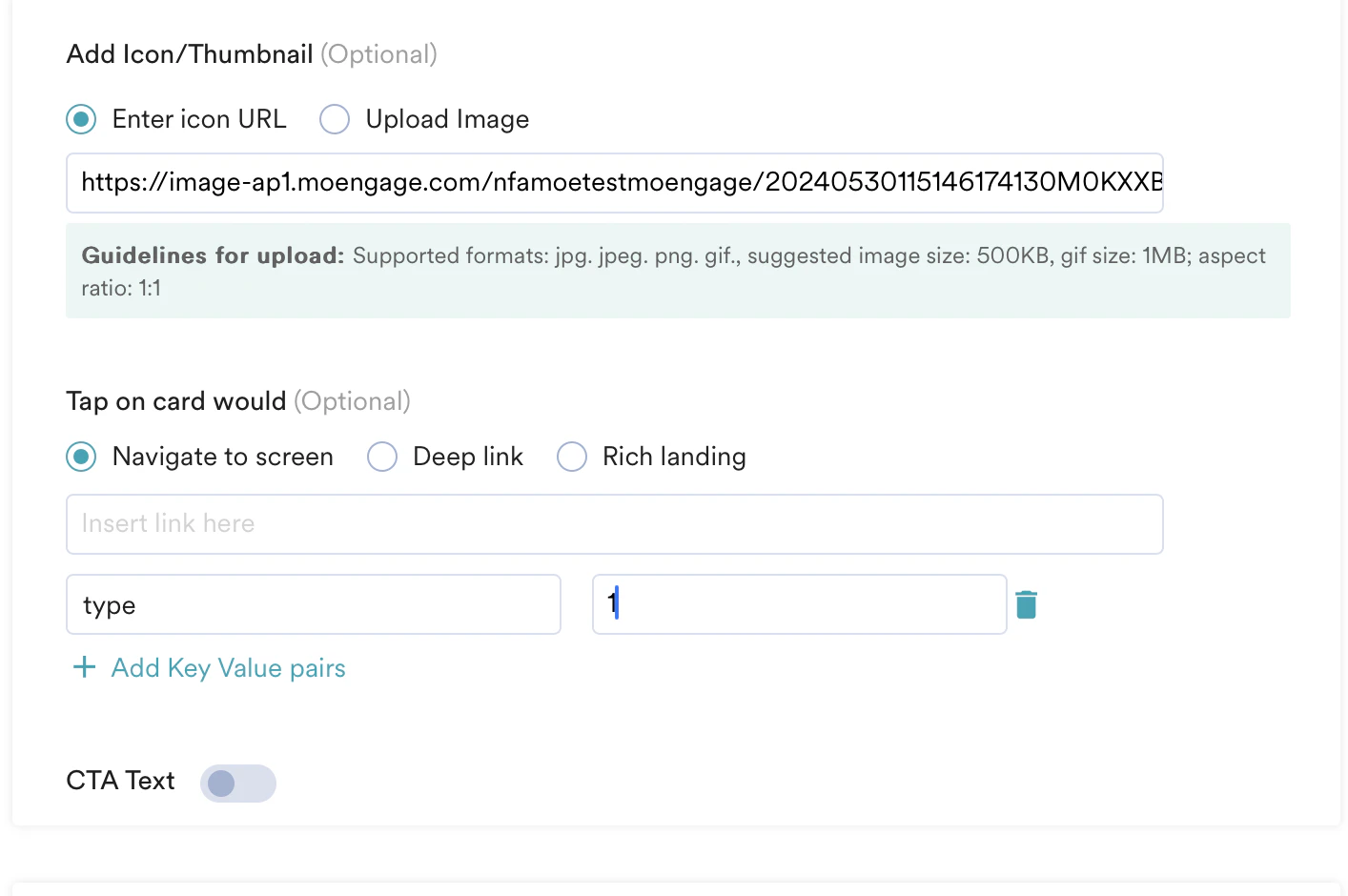
When using the **Navigate to screen** option in the **Card Action (Tap on Card would)** feature, ensure that you select the option, insert the link, and add the key-value pairs for the card data to be populated.
 ## Card Action (Tap on Card would) Feature
* **Navigate to a screen.** This option redirects the user to a specific screen. On Android, select the screen from a drop-down menu, while on iOS, manually enter the link to the screen. Then, you can add multiple key-value pairs to direct the user to specific parts of the page with relevant results.\
For instance, if you wish to offer discounts on Apple iPhone 11 Yellow, you must specify the screen name as `` and send the key-value pairs (brand, Apple), (Model, iPhone 11), (Color, Yellow) so that you can display results relevant to the Card campaign.
* **Deep-link.** This option directs the user to a deep-linked URL inside the app.
* **Rich landing.** This option directs the user to a mobile-optimized rich landing page (Web or Mobile Web).
You can use key-value pairs to add additional information to the deep linking or rich landing URLs.
For more information, refer to [Create a card campaign](/user-guide/campaigns-and-channels/cards/create/create-a-card-campaign).
## Card Action (Tap on Card would) Feature
* **Navigate to a screen.** This option redirects the user to a specific screen. On Android, select the screen from a drop-down menu, while on iOS, manually enter the link to the screen. Then, you can add multiple key-value pairs to direct the user to specific parts of the page with relevant results.\
For instance, if you wish to offer discounts on Apple iPhone 11 Yellow, you must specify the screen name as `` and send the key-value pairs (brand, Apple), (Model, iPhone 11), (Color, Yellow) so that you can display results relevant to the Card campaign.
* **Deep-link.** This option directs the user to a deep-linked URL inside the app.
* **Rich landing.** This option directs the user to a mobile-optimized rich landing page (Web or Mobile Web).
You can use key-value pairs to add additional information to the deep linking or rich landing URLs.
For more information, refer to [Create a card campaign](/user-guide/campaigns-and-channels/cards/create/create-a-card-campaign).