> ## Documentation Index
> Fetch the complete documentation index at: https://moengage.com/docs/llms.txt
> Use this file to discover all available pages before exploring further.
# Domain Reputation in MoEngage
> Monitor and manage your email domain reputation in MoEngage. Learn how ISPs evaluate sender reputation based on engagement, bounces, and spam reports.
# Overview
Domain reputation is the health of a domain as perceived by Internet Service Providers (ISPs) and mailbox providers.
* A good domain reputation means ISPs deliver your emails to recipients' inboxes, assuming the emails are relevant and valuable.
* A poor domain reputation can cause ISPs to send your emails to spam folders or block them entirely.
Many factors influence a domain's reputation in email marketing. These include engagement and conversion rates, spam complaint rates, spam traps, unsubscribe rates, and bounce rates.
If you are getting started with sending emails from a new domain, it is crucial to build your domain's reputation. For more information on how to build your domain reputation, refer to [Email Warm-Up](/user-guide/campaigns-and-channels/email/getting-started-with-email/email-warm-up).
# Domain Reputation Information in MoEngage Dashboard
MoEngage displays domain reputation directly in your dashboard. This helps you understand your domain's health and its impact on email campaign performance. Reputation levels are classified as High, Medium, Low, or Bad. This feature helps you connect campaign performance with domain reputation. It is recommended to add a domain with a high reputation because it directly impacts email deliverability.
To display updated domain reputation data from Google Postmaster in the MoEngage dashboard, you must first provide access to your domain's reputation information within Google Postmaster.
You can view the domain reputation of your email campaign on the following pages of the MoEngage dashboard:
* [All campaigns](/user-guide/campaigns-and-channels/email/deliverability/domain-reputation/domain-reputation-in-moengage#all-campaigns-page)
* [Email settings](/user-guide/campaigns-and-channels/email/deliverability/domain-reputation/domain-reputation-in-moengage#email-settings-page)
* [Step 2: Content of email creation](/user-guide/campaigns-and-channels/email/deliverability/domain-reputation/domain-reputation-in-moengage#email-creation-page)
* [Email analytics](/user-guide/campaigns-and-channels/email/deliverability/domain-reputation/domain-reputation-in-moengage#email-campaign-analytics-page)
## All Campaigns Page
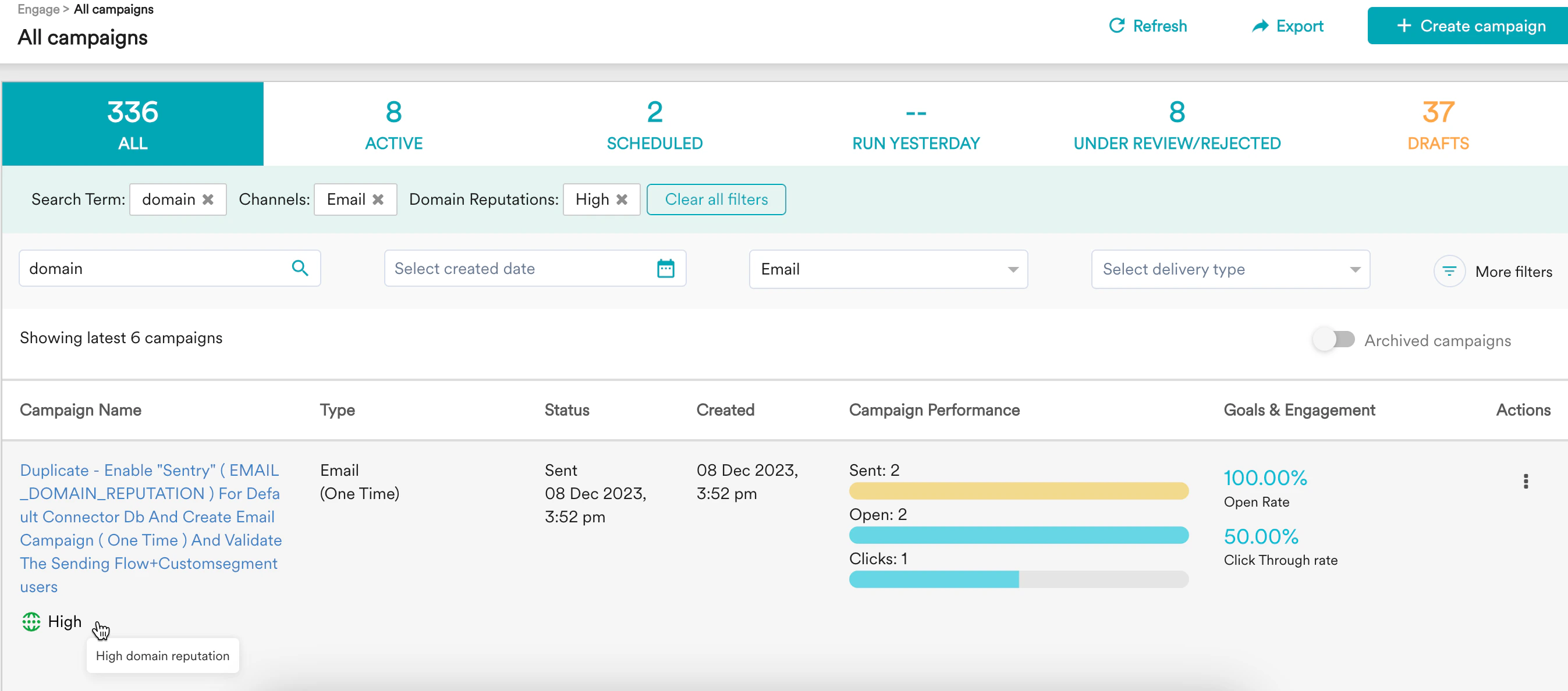
On the **All campaigns** page, MoEngage displays the domain reputation for email campaigns only. The current reputation of a specific domain used for the email campaign is displayed below the name of each campaign.
 ### Filter Campaigns
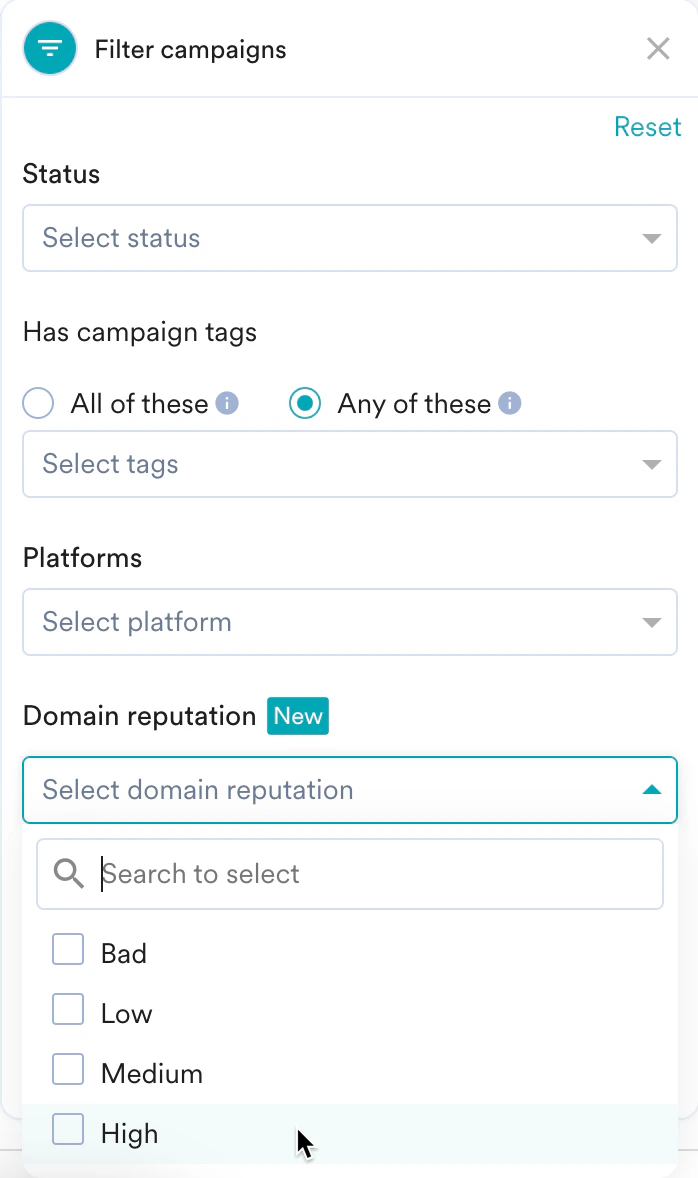
You can filter email campaigns based on their domain reputation.
### Filter Campaigns
You can filter email campaigns based on their domain reputation.
 ## Email Settings Page
MoEngage displays the domain reputation for each verified domain when you add a new **From email address** in email settings. Go to **Settings** > **Channels** > **Email**. The **Email Settings** page is displayed. In the **General Settings** tab, you can view the domain reputation for verified domains in the **Domain reputation (DR)** column.
## Email Settings Page
MoEngage displays the domain reputation for each verified domain when you add a new **From email address** in email settings. Go to **Settings** > **Channels** > **Email**. The **Email Settings** page is displayed. In the **General Settings** tab, you can view the domain reputation for verified domains in the **Domain reputation (DR)** column.
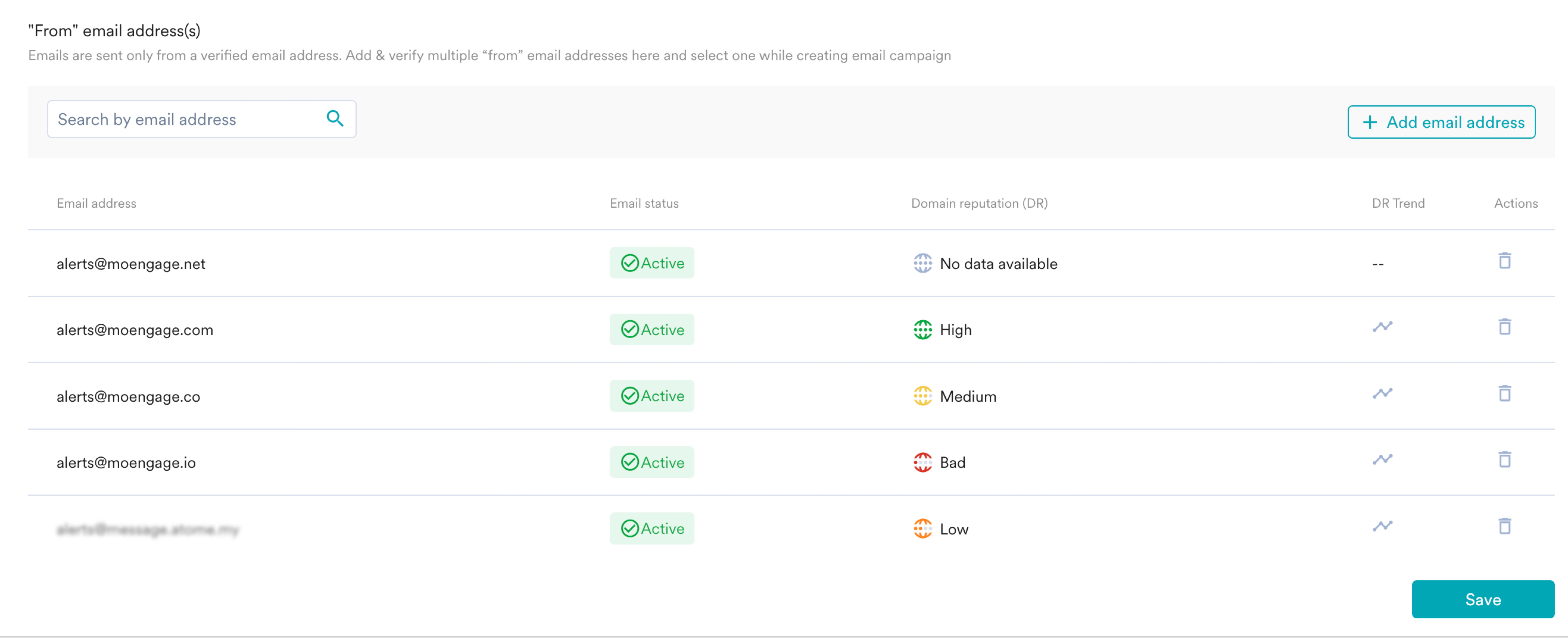 Knowing the current reputation of a specific domain while adding a "from email address" in email settings helps you decide whether you must employ that domain or not.
### View Domain Reputation Trends
You can also view your domain's reputation trend, as reputation can change over time. Click the Trend icon to view this information.
You must have access to email settings to view this information.
Knowing the current reputation of a specific domain while adding a "from email address" in email settings helps you decide whether you must employ that domain or not.
### View Domain Reputation Trends
You can also view your domain's reputation trend, as reputation can change over time. Click the Trend icon to view this information.
You must have access to email settings to view this information.
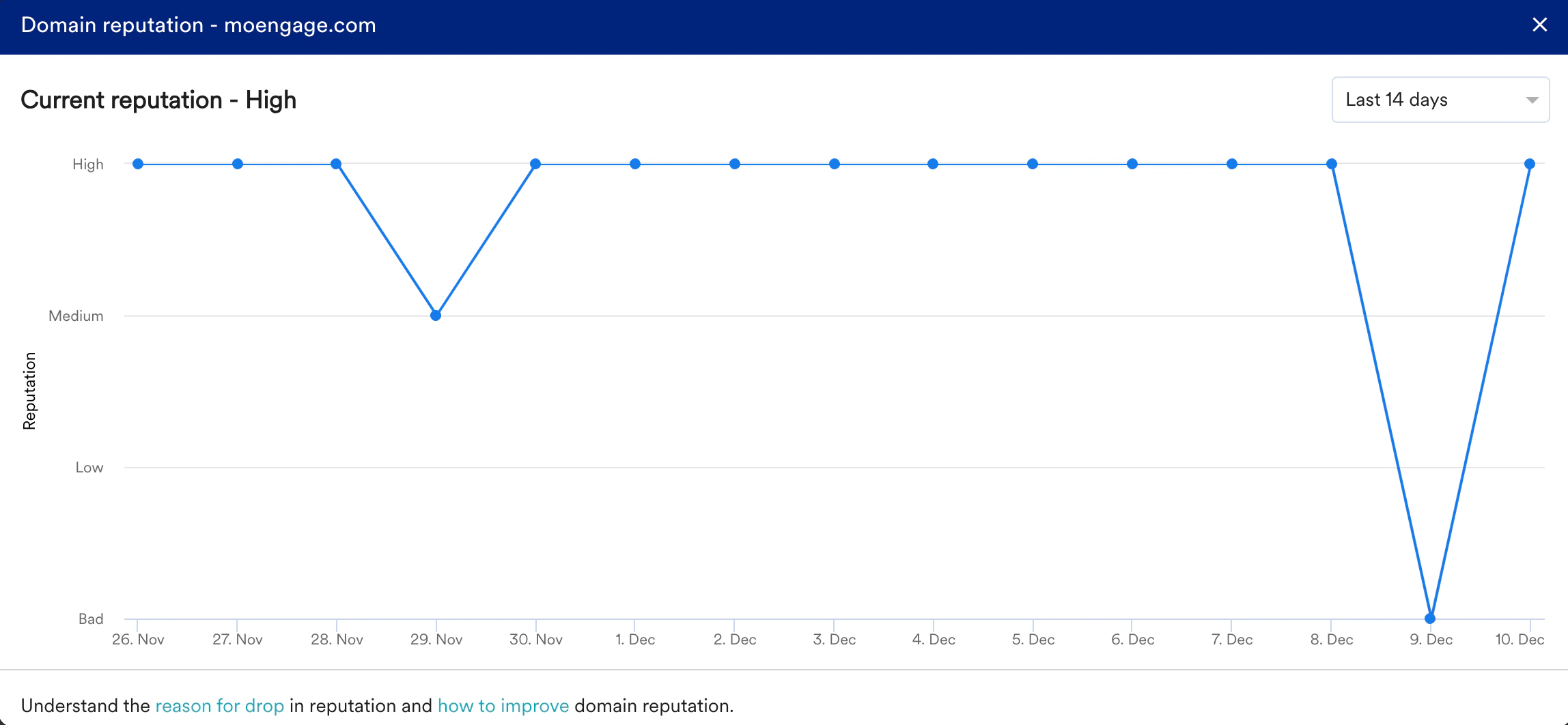
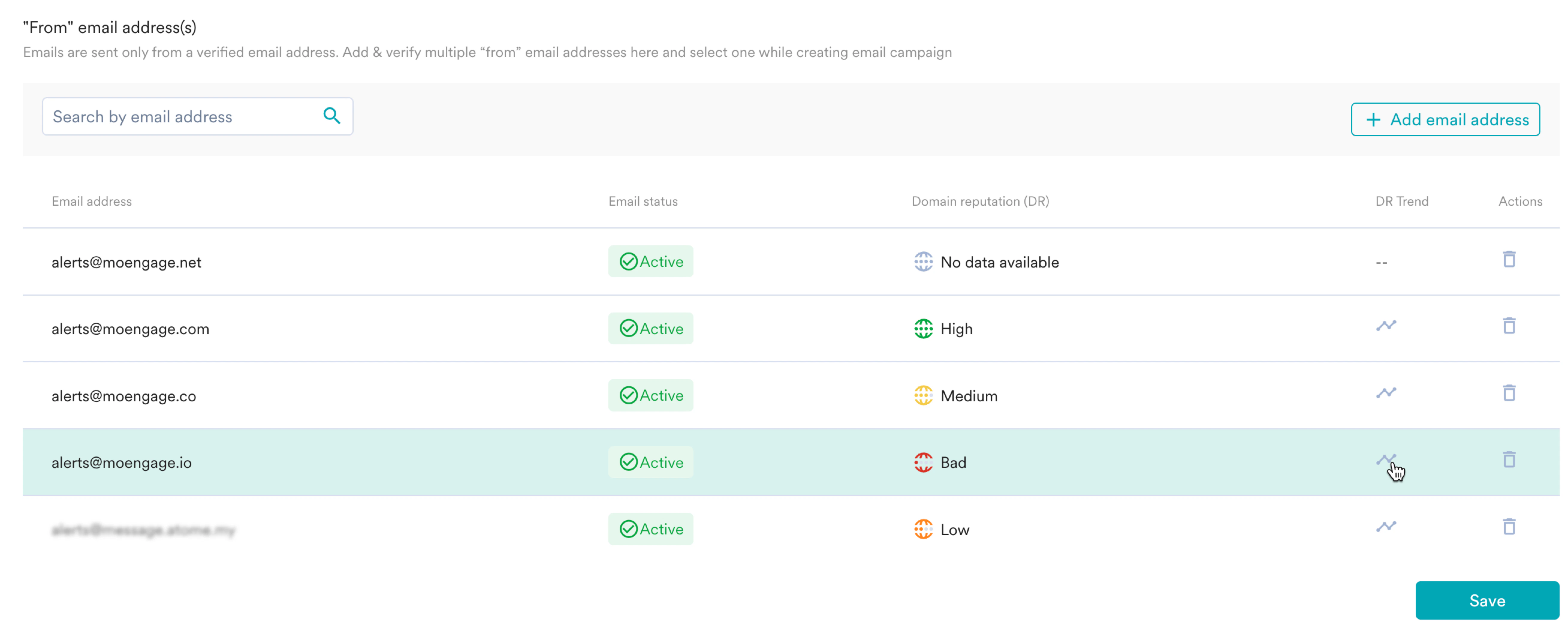 The Domain reputation pop-up with the trend of your domain reputation is displayed. By default, you can see the trend for the last 14 days.
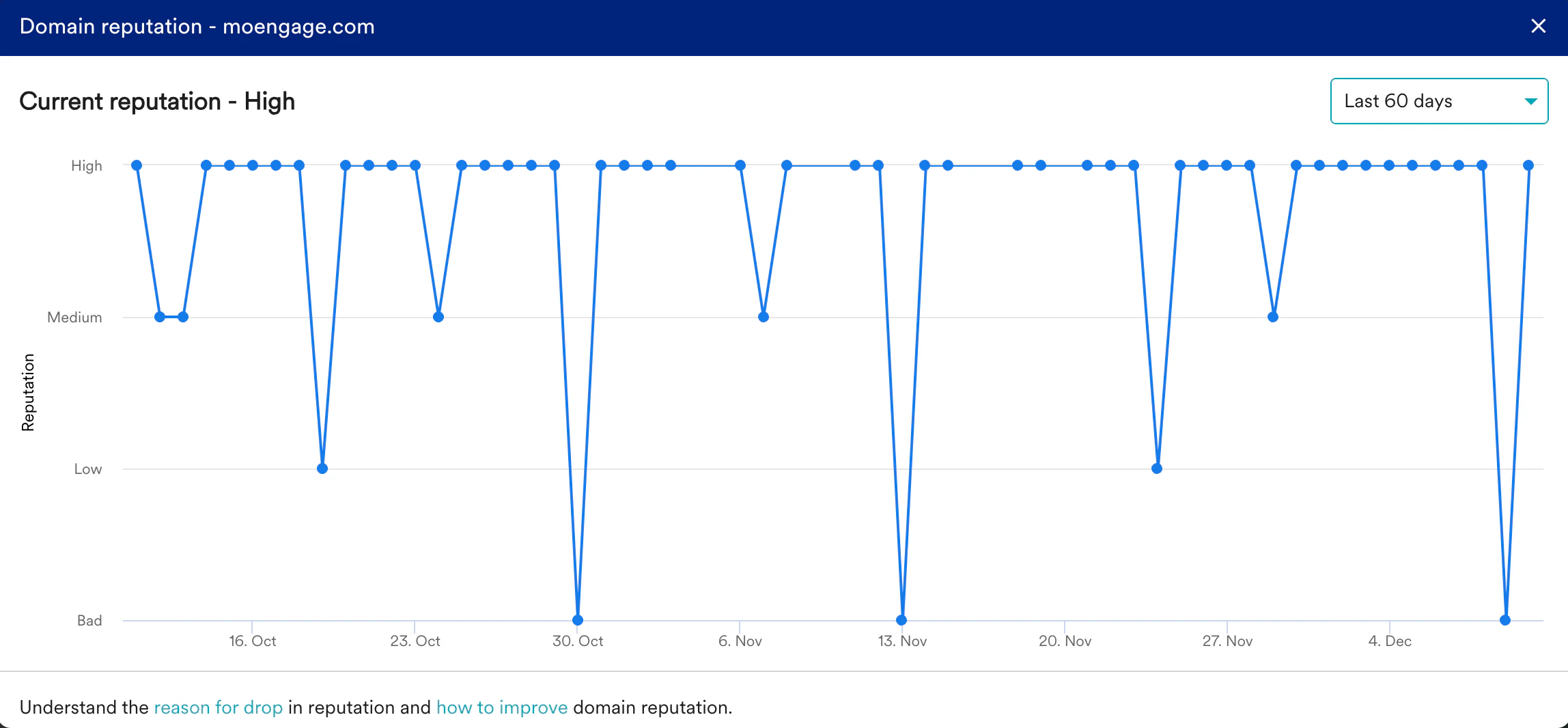
 You can select other periods from the drop-down list to see the domain reputation information in the past. Other supported periods are: Last 7 days, Last 30 days, Last 60 days, Last 90 days, and Last 120 days.
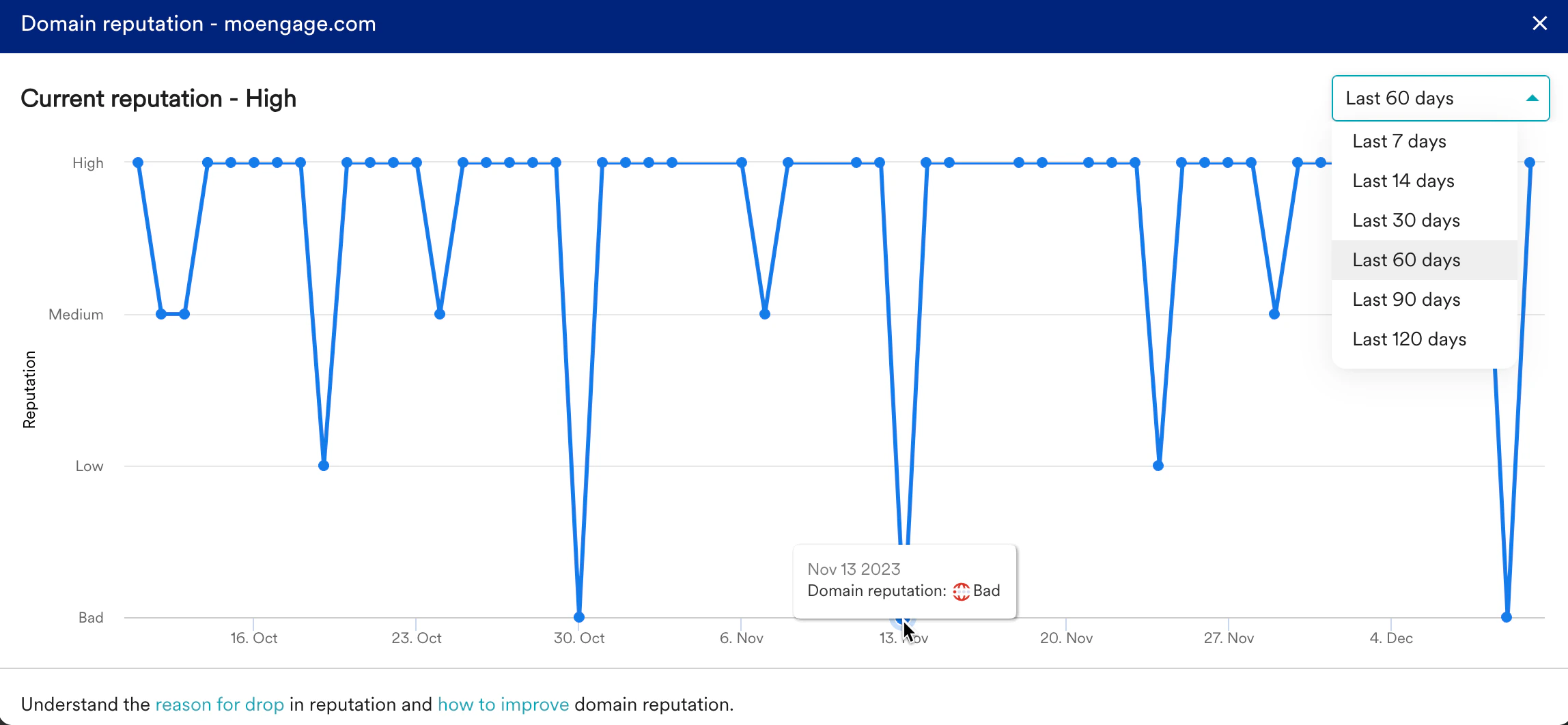
 You can hover your mouse on the timeline to see the reputation of your domain on a specific date.
 ## Email Creation Page
MoEngage shows the domain reputation for each unique domain when you select a **From email address** during email campaign creation.
## Email Creation Page
MoEngage shows the domain reputation for each unique domain when you select a **From email address** during email campaign creation.
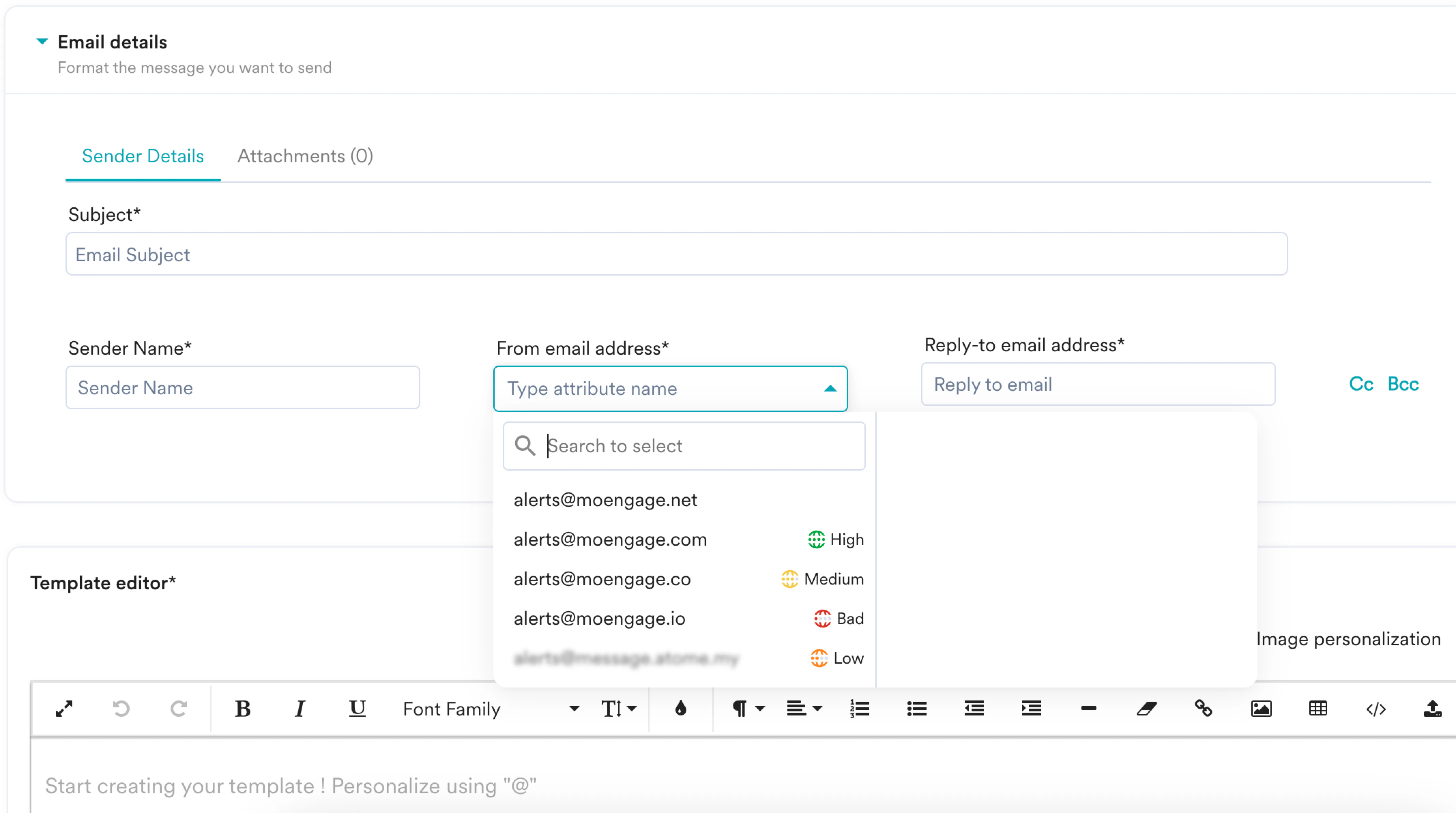 When you hover over a specific domain, you can view more information, such as when the reputation information was last updated. For example:
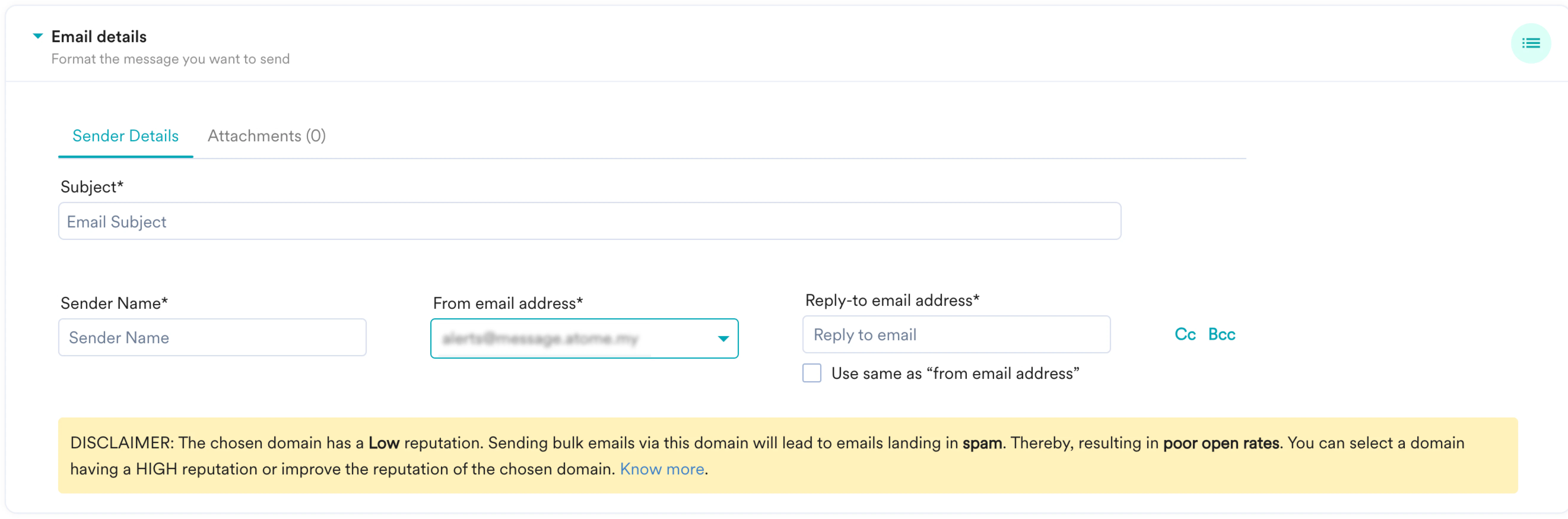
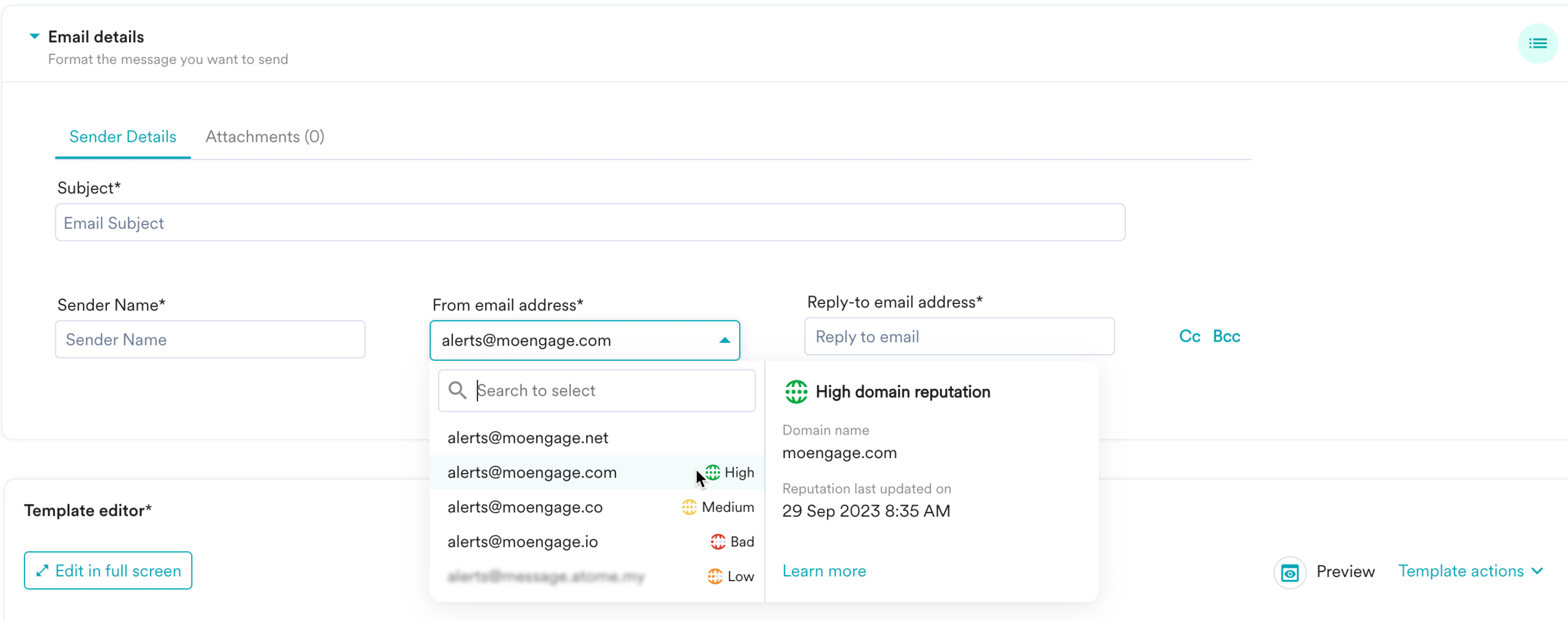 When you select a domain with a Medium/Low/Bad reputation, you can view a disclaimer. For example, in the following image, the marketer has selected a domain with a Low reputation:
 ## Email Campaign Analytics Page
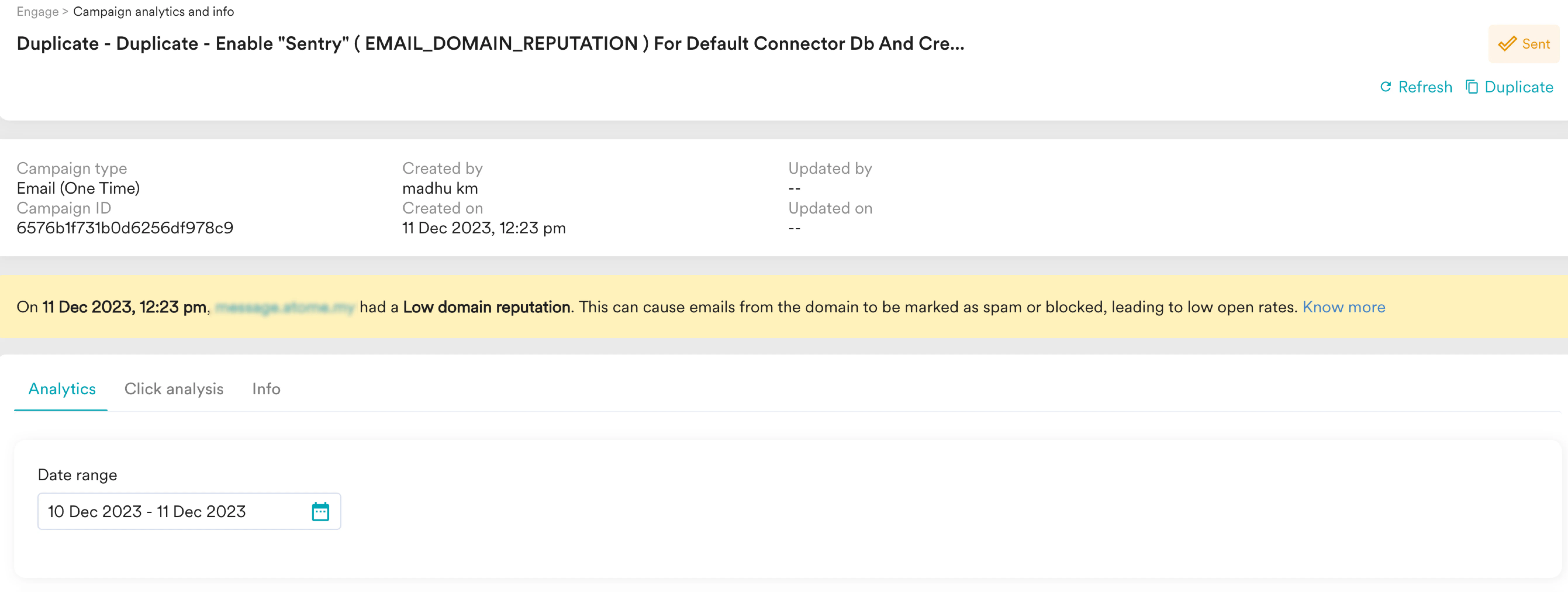
On the **Campaign analytics and info** page, MoEngage displays a disclaimer when the reputation of the domain used for that campaign is Medium/Low/Bad on the day when the campaign is published.
## Email Campaign Analytics Page
On the **Campaign analytics and info** page, MoEngage displays a disclaimer when the reputation of the domain used for that campaign is Medium/Low/Bad on the day when the campaign is published.
 For more information on domain reputation issues and preventive measures, refer [here](/user-guide/campaigns-and-channels/email/deliverability/domain-reputation/issues-with-domain-reputation-and-preventive-measures).