> ## Documentation Index
> Fetch the complete documentation index at: https://moengage.com/docs/llms.txt
> Use this file to discover all available pages before exploring further.
# How to Segment Users Who Complained About Spam?
> Step-by-step instructions for creating a segment of users who reported an email as spam, so you can suppress them or investigate the campaigns driving complaints.
If you need to isolate users who marked one of your emails as spam — for suppression, list hygiene, or investigating a spike in complaints — you can build this as a **User Behavior** segment based on the **Email Spam Complained** event.
## Steps
1. On the sidebar menu in MoEngage, hover over the **Segment** menu item. The **Segment** menu appears. Click **Create New**. The **Create segment** page appears.
2. Select **Filter users by**, then click the **User behavior** tab.
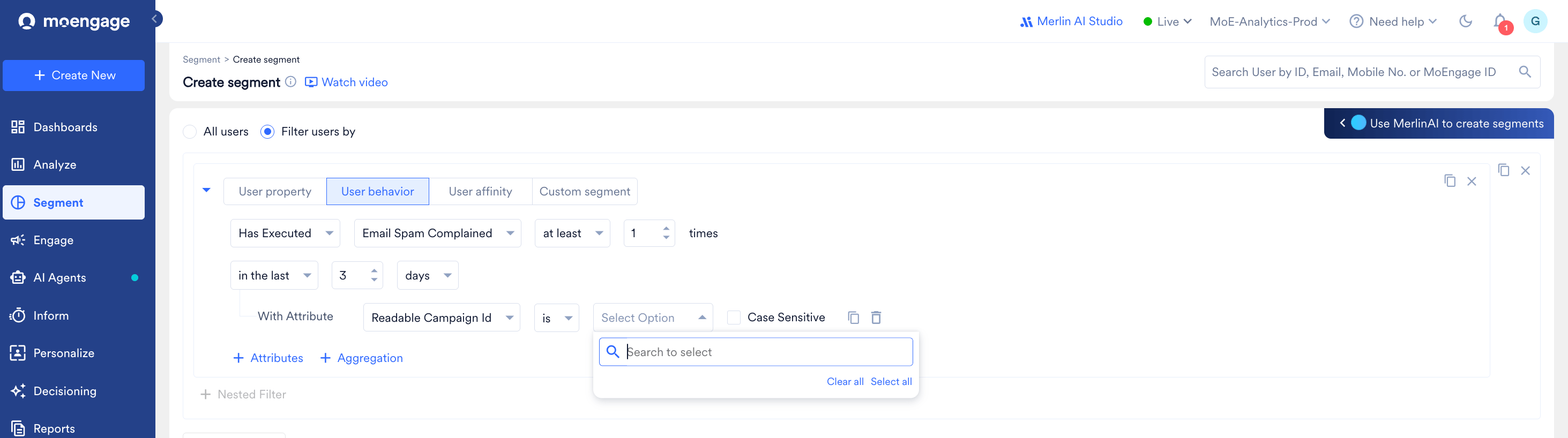
3. In the first dropdown, leave the condition as **Has Executed**, then select **Email Spam Complained** from the event dropdown.
 4. Set how many times and over what period the event should have occurred:
* Choose a frequency comparator (e.g., **at least**) and enter the number of times (e.g., **1**).
* Choose a time window (e.g., **in the last 3 days**) — increase this if you want to capture complaints going further back.
5. **(Optional)** Narrow the segment to complaints tied to a specific campaign or condition:
* Click **+ Attributes**.
* Select an attribute, such as **Readable Campaign Id**, from the dropdown.
* Set the condition (e.g., **is**) and search for or select the value in the **Select Option** field.
6. **(Optional)** Add more rules or refine the segment further:
* Click **+ Filter** to add another condition (combine with AND/OR).
* Check **Exclude Users** if you want to use this as an exclusion rule instead of an inclusion rule (for example, to exclude spam complainers from a campaign's target audience).
* Click **+ Nested Filter** to group conditions.
7. Click **Show count** to preview how many users currently match this segment before saving.
8. Name and save the segment once you're satisfied with the criteria.
## Using the Same Steps for Bounces and Unsubscribes
The **User behavior** tab lists other email-hygiene events alongside **Email Spam Complained** — including **Email Bounced**, **Email Soft Bounced**, and **Email Unsubscribed**. You can build the equivalent segment for either of these by repeating the same steps and swapping the event in step 3:
* For hard bounces, select **Email Bounced**. To combine hard and soft bounces in a single segment, see [How to Find Users With Bounced Emails?](/docs/user-guide/campaigns-and-channels/email/faqs-email/how-to-find-users-with-bounced-emails).
4. Set how many times and over what period the event should have occurred:
* Choose a frequency comparator (e.g., **at least**) and enter the number of times (e.g., **1**).
* Choose a time window (e.g., **in the last 3 days**) — increase this if you want to capture complaints going further back.
5. **(Optional)** Narrow the segment to complaints tied to a specific campaign or condition:
* Click **+ Attributes**.
* Select an attribute, such as **Readable Campaign Id**, from the dropdown.
* Set the condition (e.g., **is**) and search for or select the value in the **Select Option** field.
6. **(Optional)** Add more rules or refine the segment further:
* Click **+ Filter** to add another condition (combine with AND/OR).
* Check **Exclude Users** if you want to use this as an exclusion rule instead of an inclusion rule (for example, to exclude spam complainers from a campaign's target audience).
* Click **+ Nested Filter** to group conditions.
7. Click **Show count** to preview how many users currently match this segment before saving.
8. Name and save the segment once you're satisfied with the criteria.
## Using the Same Steps for Bounces and Unsubscribes
The **User behavior** tab lists other email-hygiene events alongside **Email Spam Complained** — including **Email Bounced**, **Email Soft Bounced**, and **Email Unsubscribed**. You can build the equivalent segment for either of these by repeating the same steps and swapping the event in step 3:
* For hard bounces, select **Email Bounced**. To combine hard and soft bounces in a single segment, see [How to Find Users With Bounced Emails?](/docs/user-guide/campaigns-and-channels/email/faqs-email/how-to-find-users-with-bounced-emails).
 * For unsubscribes, select **Email Unsubscribed**.
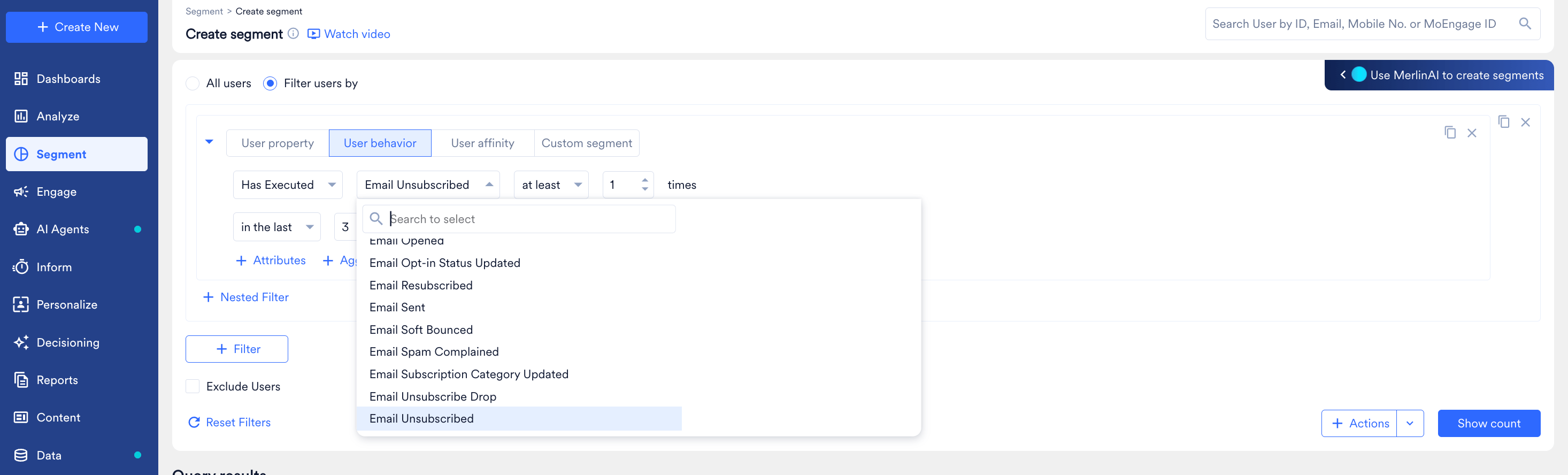 Other related events available in the same dropdown include **Email Resubscribed**, **Email Subscription Category Updated**, **Email Unsubscribe Drop**, and **Email Opt-in Status Updated** — useful if you want to build segments around re-engagement or preference changes instead of suppression.
## What This Segment Is Useful For
* **Suppression / list hygiene:** Use the segment (with **Exclude Users**) to keep recent spam complainers, bounces, or unsubscribes out of upcoming campaigns.
* **Root-cause investigation:** Narrow by **Readable Campaign Id** to check whether complaints are concentrated around a specific send, so you can review its content, frequency, or targeting.
* **Compliance reporting:** Track complaint volume over a rolling window (e.g., last 3, 7, or 30 days) to monitor whether your complaint rate is trending toward mailbox provider thresholds.
Other related events available in the same dropdown include **Email Resubscribed**, **Email Subscription Category Updated**, **Email Unsubscribe Drop**, and **Email Opt-in Status Updated** — useful if you want to build segments around re-engagement or preference changes instead of suppression.
## What This Segment Is Useful For
* **Suppression / list hygiene:** Use the segment (with **Exclude Users**) to keep recent spam complainers, bounces, or unsubscribes out of upcoming campaigns.
* **Root-cause investigation:** Narrow by **Readable Campaign Id** to check whether complaints are concentrated around a specific send, so you can review its content, frequency, or targeting.
* **Compliance reporting:** Track complaint volume over a rolling window (e.g., last 3, 7, or 30 days) to monitor whether your complaint rate is trending toward mailbox provider thresholds.