> ## Documentation Index
> Fetch the complete documentation index at: https://moengage.com/docs/llms.txt
> Use this file to discover all available pages before exploring further.
# Why Does the Zip Upload Fail When Uploading to an HTML Template?
> Fix ZIP upload failures in MoEngage HTML email templates by checking file size limits, naming rules, supported image formats, and folder paths.
## Problem
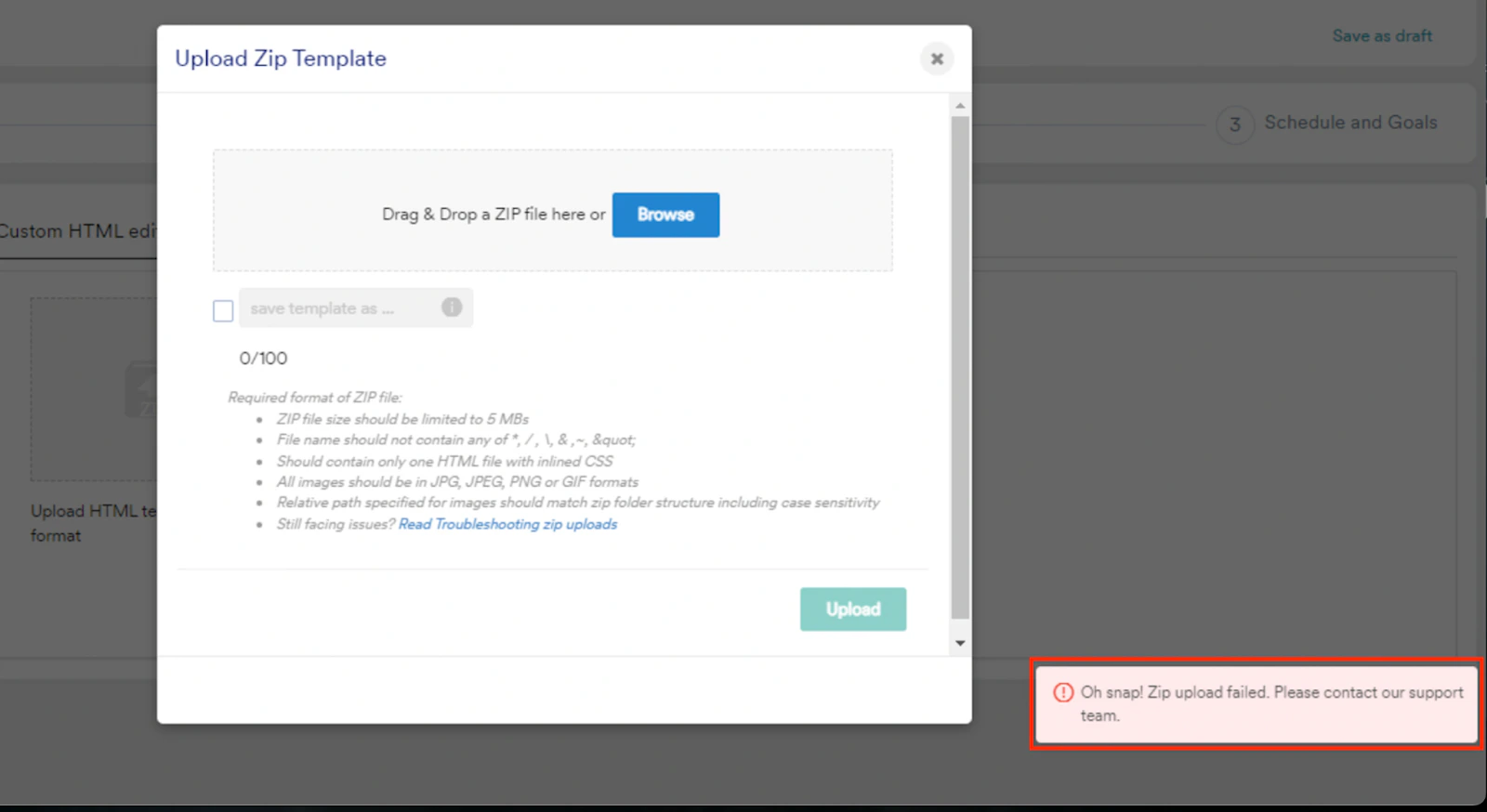
Unable to upload the ZIP file to the HTML template in the Email campaign, resulting in the following error message:
Oh snap! Zip upload failed. Please contact our support team.
 ## Prerequisites
Ensure the ZIP file meets the following requirements during the upload process:
* Ensure that the file size is under 5 MB.
* Use a file name without the \*, /, , &, \~, or " characters.
* Include only one HTML file with inlined CSS.
* Use JPG, JPEG, PNG, or GIF formats for images.
* Ensure the image paths match the ZIP folder structure, including case sensitivity.
## Explanation
* HTML is a markup language where minor code issues do not usually impact rendering on the localhost or server.
* The HTML editor accepts code without errors, so the uploaded code should be error-free.
## Instructions
* Ensure that both opening and closing tags exist because they are essential for proper functionality. For example, the correct code must look as follows:
```html HTML theme={null}
```
* Ensure that all created classes have a corresponding closing tag. For example, the correct code must look as follows:
```text Code theme={null}
.myclass{
color:"red"
}
.mysecondclass{
color:"blue"
}
```
You can perform checks on the utilized CSS.
## Prerequisites
Ensure the ZIP file meets the following requirements during the upload process:
* Ensure that the file size is under 5 MB.
* Use a file name without the \*, /, , &, \~, or " characters.
* Include only one HTML file with inlined CSS.
* Use JPG, JPEG, PNG, or GIF formats for images.
* Ensure the image paths match the ZIP folder structure, including case sensitivity.
## Explanation
* HTML is a markup language where minor code issues do not usually impact rendering on the localhost or server.
* The HTML editor accepts code without errors, so the uploaded code should be error-free.
## Instructions
* Ensure that both opening and closing tags exist because they are essential for proper functionality. For example, the correct code must look as follows:
```html HTML theme={null}
```
* Ensure that all created classes have a corresponding closing tag. For example, the correct code must look as follows:
```text Code theme={null}
.myclass{
color:"red"
}
.mysecondclass{
color:"blue"
}
```
You can perform checks on the utilized CSS.