> ## Documentation Index
> Fetch the complete documentation index at: https://moengage.com/docs/llms.txt
> Use this file to discover all available pages before exploring further.
# Portfolio for Email Campaigns
> Use the Portfolio feature to manage Email campaigns across multiple projects with cross-project segmentation, triggers, personalization, and reachability.
## Overview
The [Portfolio](/docs/user-guide/settings/account/portfolio/portfolio) feature allows you to manage multiple brands or applications as individual projects within a single MoEngage workspace. This enables you to use cross-project data to segment, personalize, and deploy targeted Email campaigns while maintaining project-specific compliance and settings.
This article describes how the Portfolio feature affects the following key areas:
* [Target Users and Personalization](#target-users-and-personalization)
* [Target Specific Projects](#target-specific-projects)
* [Cross-Project Segmentation](#cross-project-segmentation)
* [Cross-Project Triggered Campaigns](#cross-project-triggered-campaigns)
* [Personalization](#personalization)
* [Email Campaign Content](#email-campaign-content)
* [Portfolio and Project-Level Reachability](#portfolio-and-project-level-reachability)
To illustrate these concepts, consider a campaign from a company with two distinct brands: Project A and Project B. The campaign's goal is to cross-promote the premium brand (Project B) to loyal customers of the standard app (Project A).
**Prerequisites**
* To create email campaigns in a Portfolio-enabled workspace, you must add at least one project to your account. For more information about adding projects, refer to [Portfolio](/docs/user-guide/settings/account/portfolio/portfolio).
* The [Email settings](/docs/user-guide/campaigns-and-channels/email/getting-started-with-email/configure-email-channel) page supports project-specific configurations. If your portfolio contains multiple projects, a **Project** drop-down list appears on these settings pages, enabling you to select and configure unique settings for each. The following email settings support project-specific configurations:
* Overview
* Sender Configuration
* General Settings
* Subscription Management
* Font Management
* PII Tokenization
**Note**: Dynamic Sender Routing in Email Settings does not support project-specific configurations.
## Target Users and Personalization
The Portfolio feature affects the following areas within the **Target Users and Personalization** section of email campaigns:
* Target Specific Projects
* Cross-Project Segmentation
* Cross-Project Triggered Campaigns
* Personalization
MoEngage dynamically loads project-specific email configurations during campaign creation. To ensure successful deployment, MoEngage prevents campaign creation if it cannot fetch your email settings. If you see an error message, wait a few minutes and try again. If the issue persists, log a support ticket for assistance.
### Target Specific Projects
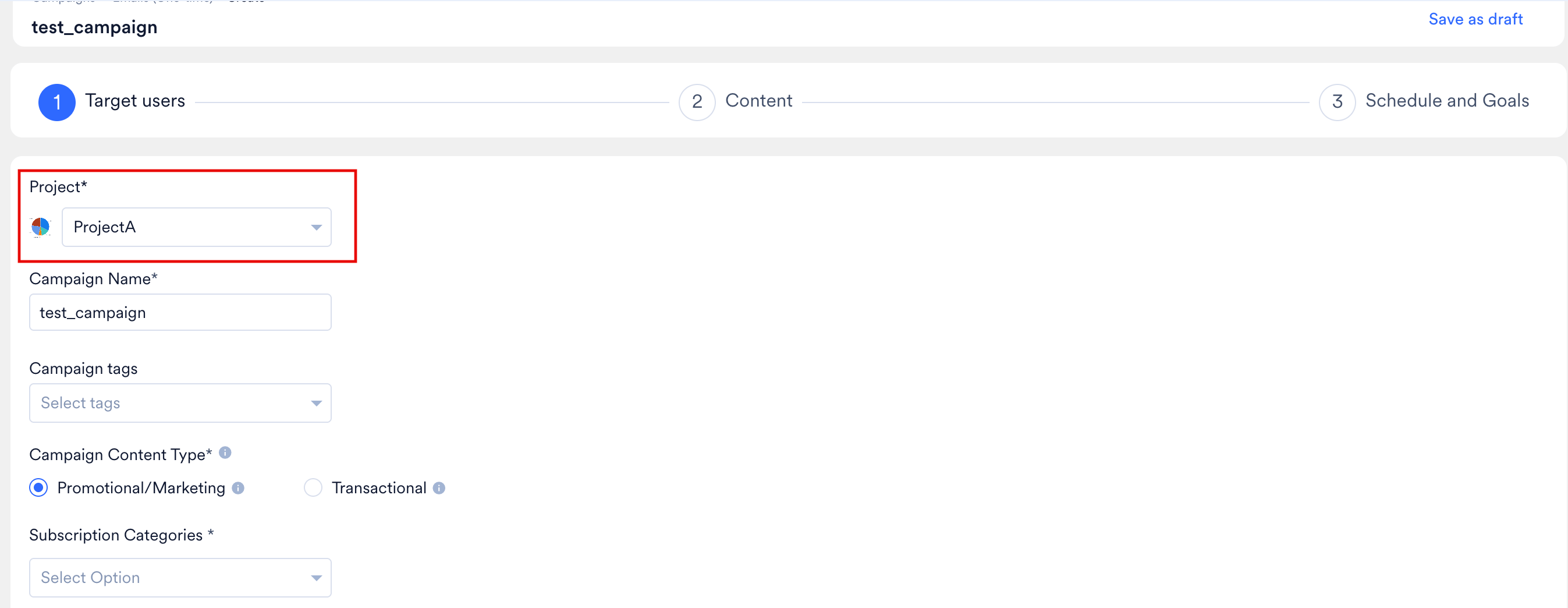
When you create a new email campaign, the MoEngage platform automatically defaults to the last project you interacted with to streamline your workflow. By linking campaigns to a specific project, the system automatically loads that project's email configurations, including connectors, "From" addresses, and subscription categories.
In the following example, the goal is to send an email promoting a new offer to customers of Project A.
1. In [Step 1: Target users](/docs/user-guide/campaigns-and-channels/email/create/create-an-email-campaign) of campaign creation, locate the project selection drop-down.
2. Select your target project (for example, **Project A**). MoEngage immediately loads all project-specific email configurations.
 ### Cross-Project Segmentation
You can segment users based on their complete journey across all your projects, not just their behavior within one. For example, even if you are creating a campaign for Project A, you can target and shortlist users based on actions they took in Project B.
**The scenario:** Your goal is to send an introductory discount for Project B (the premium brand) to users who are actively shopping in Project A (the primary app), but only if they have not made a purchase in Project B.
**How to set this up:**
1. In the **Target audience** section, select **Filter users by**, and then click the **User behavior** tab.
2. For the first rule, use the project drop-down list to select **Project A**. Set the condition to **Has executed** the event *Added to Cart* in the **last 3 days**.
### Cross-Project Segmentation
You can segment users based on their complete journey across all your projects, not just their behavior within one. For example, even if you are creating a campaign for Project A, you can target and shortlist users based on actions they took in Project B.
**The scenario:** Your goal is to send an introductory discount for Project B (the premium brand) to users who are actively shopping in Project A (the primary app), but only if they have not made a purchase in Project B.
**How to set this up:**
1. In the **Target audience** section, select **Filter users by**, and then click the **User behavior** tab.
2. For the first rule, use the project drop-down list to select **Project A**. Set the condition to **Has executed** the event *Added to Cart* in the **last 3 days**.
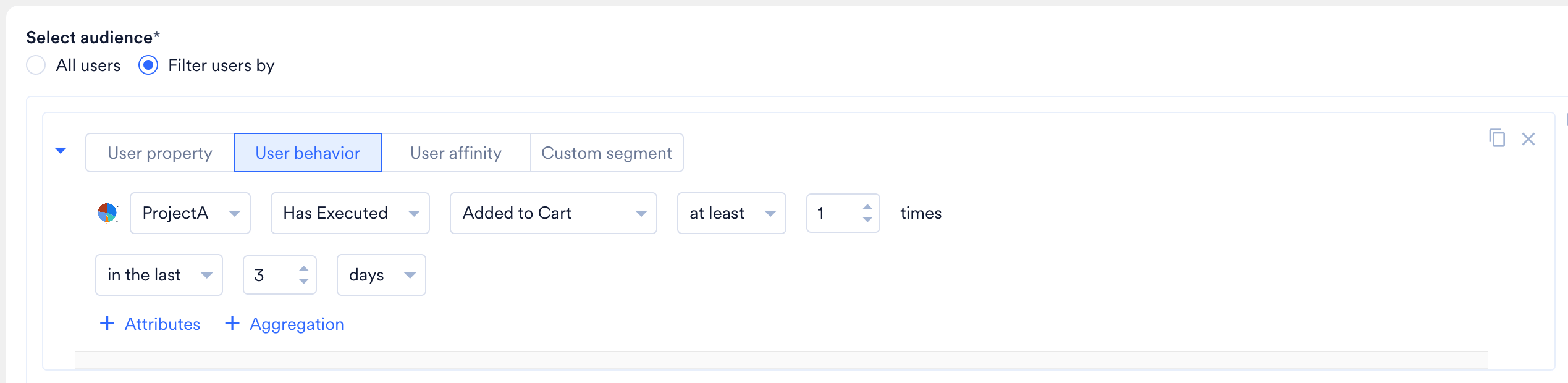 3. Click **+ Filter** to add a second rule. Select **Project B** from the drop-down list, set the condition to **Has not executed** the event *Order Placed* in the **last 3 days**.
 By setting up your target audience with these rules, MoEngage ensures your cross-promotional email is sent only to active shoppers in Project A while excluding anyone who has already made a purchase in Project B.
### Cross-Project Triggered Campaigns
For event-triggered and business event-triggered email campaigns, you can use customer behavior in one project to trigger Email campaigns in another. This allows you to create automated cross-promotional strategies that respond to user actions in real-time across your entire brand portfolio.
**Scenario:** Your goal is to introduce the premium brand (Project B) to users who are actively in a shopping mindset. When a user shows high commercial intent by either completing a purchase or adding an item to their cart in your standard brand (Project A), you want to instantly trigger an email from your premium brand showcasing your luxury collection.
**How to set this up:** Build your automated campaign inside Project B and define the triggers based on how the user interacts with Project A:
1. In the **Select condition** section, ensure **If user performs** is selected.
2. For the first rule, in the **Primary trigger event(s)** box, select **Project A** from the project drop-down list. Set the condition to **Has Executed** the event *Purchased*.
By setting up your target audience with these rules, MoEngage ensures your cross-promotional email is sent only to active shoppers in Project A while excluding anyone who has already made a purchase in Project B.
### Cross-Project Triggered Campaigns
For event-triggered and business event-triggered email campaigns, you can use customer behavior in one project to trigger Email campaigns in another. This allows you to create automated cross-promotional strategies that respond to user actions in real-time across your entire brand portfolio.
**Scenario:** Your goal is to introduce the premium brand (Project B) to users who are actively in a shopping mindset. When a user shows high commercial intent by either completing a purchase or adding an item to their cart in your standard brand (Project A), you want to instantly trigger an email from your premium brand showcasing your luxury collection.
**How to set this up:** Build your automated campaign inside Project B and define the triggers based on how the user interacts with Project A:
1. In the **Select condition** section, ensure **If user performs** is selected.
2. For the first rule, in the **Primary trigger event(s)** box, select **Project A** from the project drop-down list. Set the condition to **Has Executed** the event *Purchased*.
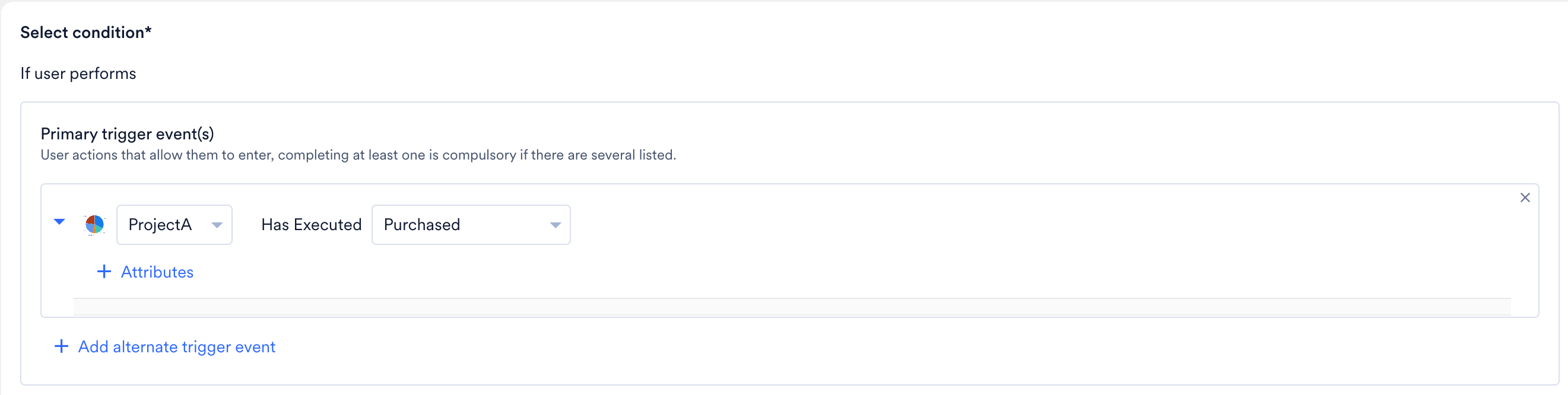 3. Click **+ Add alternate trigger event** to add a second rule, and set the condition to **Has Executed** the event *Added to Cart*.
 By setting up the campaign in Project B with these triggers, MoEngage automatically sends the cross-promotional email whenever a user either completes a purchase or adds an item to their cart in Project A.
For more information, refer to [Create an Event-Triggered Campaign](/docs/user-guide/campaigns-and-channels/getting-started/triggers/event/create-an-event-triggered-campaign).
### Personalization
Personalization tailors messaging to the specific project context of the sender, ensuring data integrity and brand relevance. To prevent using data from one brand context in another, MoEngage filters the available attributes based on the **sending project**.
When you send a campaign from Project B to target users who interacted with Project A, the system focuses on the context of the message being delivered.
* **Targeted attribute list**: In the campaign's Content step, you see a filtered list containing **Global user attributes** and **custom attributes specific to Project B**.
* **Data isolation**: Custom attributes that exist only in Project A are hidden. This ensures the message uses only the attributes relevant to the brand the customer is currently receiving an email from.
* **Consistency**: By scoping attributes to the sending project, the system ensures personalized tags (such as loyalty tier or brand-specific preferences) remain accurate to the brand experience you deliver.
For more information, refer to [Personalize Email Content](/docs/user-guide/campaigns-and-channels/email/create/personalize-email-content).
## Email Campaign Content
Within Step 2: Content of email campaign creation, the following areas are managed at the project level:
* Email connector
* From email address
* Custom fonts
* Test campaign
The following areas are managed at the global level:
* Template manager
* Content blocks
* Conversion goals
* UTM tracking
* Locales
* Attachments
## Portfolio and Project-Level Reachability
When managing a multi-brand portfolio within a single workspace, organizations need the flexibility to decide how they maintain user reachability information (such as bounce, unsubscribes, and spam complaints).
When your workspace has a multi-brand portfolio enabled, each user's subscription status is tracked independently for each project. When this configuration is active, global BUC (Bounce, Unsubscribe, and Complaint) attributes are not evaluated. This ensures that when a user updates their communication preferences for one brand, it does not unintentionally affect their subscription status for another brand within your portfolio.
When you create a campaign, the system automatically checks the user's reachability status specifically for the project you selected.
If your workspace ran Email campaigns with the *Portfolio* feature before project-level Email was enabled, you cannot edit or duplicate those existing campaigns. Project-level reachability and project-level Email settings take effect as soon as you edit an existing campaign or create a new one, which can render the existing campaign's configuration invalid. Create a new Email campaign under the relevant project instead.
**The scenario:** Your parent company manages two distinct brands within your MoEngage workspace: Project A (a retail clothing app) and Project B (a grocery delivery app). A single user has signed up for and uses both apps.
* The user decides they no longer want promotional emails about clothing and unsubscribes from Project A.
* However, they still want to receive weekly discount codes for their groceries, so they remain subscribed to Project B.
**The result:** If this user falls into the target audience for a new email campaign created under Project A, MoEngage identifies them as unreachable and suppresses the message. If the same user falls into the audience for an email campaign created under Project B, they remain fully reachable and receive the email.
# FAQs
MoEngage prevents campaign creation to ensure a successful deployment. If you see an error message, wait a few minutes and try again. If the issue persists, contact the MoEngage Support team.
Yes. With Cross-Project Segmentation, you can filter users based on their complete journey across your entire brand portfolio. For example, you can target users who recently added an item to their cart in Project A, but exclude them if they have already placed an order in Project B.
Yes. Cross-Project Triggered Campaigns allow you to use customer behavior in one project to trigger an email in another in real-time. For example, a user purchasing an item in your standard brand (Project A) can instantly trigger a welcome email from your premium brand (Project B).
No. To ensure data integrity, MoEngage uses data isolation. During the content creation step, the system filters the available attributes based on the sending project. You only see global user attributes and custom attributes specific to the sending project; custom attributes from other projects are hidden.
# Related Articles
* [Portfolio](/docs/user-guide/settings/account/portfolio/portfolio)
* [Create an Email Campaign](/docs/user-guide/campaigns-and-channels/email/create/create-an-email-campaign)
* [Personalize Email Content](/docs/user-guide/campaigns-and-channels/email/create/personalize-email-content)
* [Create an Event-Triggered Campaign](/docs/user-guide/campaigns-and-channels/getting-started/triggers/event/create-an-event-triggered-campaign)
* [Configure Email Channel](/docs/user-guide/campaigns-and-channels/email/getting-started-with-email/configure-email-channel)
By setting up the campaign in Project B with these triggers, MoEngage automatically sends the cross-promotional email whenever a user either completes a purchase or adds an item to their cart in Project A.
For more information, refer to [Create an Event-Triggered Campaign](/docs/user-guide/campaigns-and-channels/getting-started/triggers/event/create-an-event-triggered-campaign).
### Personalization
Personalization tailors messaging to the specific project context of the sender, ensuring data integrity and brand relevance. To prevent using data from one brand context in another, MoEngage filters the available attributes based on the **sending project**.
When you send a campaign from Project B to target users who interacted with Project A, the system focuses on the context of the message being delivered.
* **Targeted attribute list**: In the campaign's Content step, you see a filtered list containing **Global user attributes** and **custom attributes specific to Project B**.
* **Data isolation**: Custom attributes that exist only in Project A are hidden. This ensures the message uses only the attributes relevant to the brand the customer is currently receiving an email from.
* **Consistency**: By scoping attributes to the sending project, the system ensures personalized tags (such as loyalty tier or brand-specific preferences) remain accurate to the brand experience you deliver.
For more information, refer to [Personalize Email Content](/docs/user-guide/campaigns-and-channels/email/create/personalize-email-content).
## Email Campaign Content
Within Step 2: Content of email campaign creation, the following areas are managed at the project level:
* Email connector
* From email address
* Custom fonts
* Test campaign
The following areas are managed at the global level:
* Template manager
* Content blocks
* Conversion goals
* UTM tracking
* Locales
* Attachments
## Portfolio and Project-Level Reachability
When managing a multi-brand portfolio within a single workspace, organizations need the flexibility to decide how they maintain user reachability information (such as bounce, unsubscribes, and spam complaints).
When your workspace has a multi-brand portfolio enabled, each user's subscription status is tracked independently for each project. When this configuration is active, global BUC (Bounce, Unsubscribe, and Complaint) attributes are not evaluated. This ensures that when a user updates their communication preferences for one brand, it does not unintentionally affect their subscription status for another brand within your portfolio.
When you create a campaign, the system automatically checks the user's reachability status specifically for the project you selected.
If your workspace ran Email campaigns with the *Portfolio* feature before project-level Email was enabled, you cannot edit or duplicate those existing campaigns. Project-level reachability and project-level Email settings take effect as soon as you edit an existing campaign or create a new one, which can render the existing campaign's configuration invalid. Create a new Email campaign under the relevant project instead.
**The scenario:** Your parent company manages two distinct brands within your MoEngage workspace: Project A (a retail clothing app) and Project B (a grocery delivery app). A single user has signed up for and uses both apps.
* The user decides they no longer want promotional emails about clothing and unsubscribes from Project A.
* However, they still want to receive weekly discount codes for their groceries, so they remain subscribed to Project B.
**The result:** If this user falls into the target audience for a new email campaign created under Project A, MoEngage identifies them as unreachable and suppresses the message. If the same user falls into the audience for an email campaign created under Project B, they remain fully reachable and receive the email.
# FAQs
MoEngage prevents campaign creation to ensure a successful deployment. If you see an error message, wait a few minutes and try again. If the issue persists, contact the MoEngage Support team.
Yes. With Cross-Project Segmentation, you can filter users based on their complete journey across your entire brand portfolio. For example, you can target users who recently added an item to their cart in Project A, but exclude them if they have already placed an order in Project B.
Yes. Cross-Project Triggered Campaigns allow you to use customer behavior in one project to trigger an email in another in real-time. For example, a user purchasing an item in your standard brand (Project A) can instantly trigger a welcome email from your premium brand (Project B).
No. To ensure data integrity, MoEngage uses data isolation. During the content creation step, the system filters the available attributes based on the sending project. You only see global user attributes and custom attributes specific to the sending project; custom attributes from other projects are hidden.
# Related Articles
* [Portfolio](/docs/user-guide/settings/account/portfolio/portfolio)
* [Create an Email Campaign](/docs/user-guide/campaigns-and-channels/email/create/create-an-email-campaign)
* [Personalize Email Content](/docs/user-guide/campaigns-and-channels/email/create/personalize-email-content)
* [Create an Event-Triggered Campaign](/docs/user-guide/campaigns-and-channels/getting-started/triggers/event/create-an-event-triggered-campaign)
* [Configure Email Channel](/docs/user-guide/campaigns-and-channels/email/getting-started-with-email/configure-email-channel)