> ## Documentation Index
> Fetch the complete documentation index at: https://moengage.com/docs/llms.txt
> Use this file to discover all available pages before exploring further.
# Campaign Tags
> Organize and filter your MoEngage campaigns with descriptive tags and tag categories. Add context like campaign type, target region, or audience.
Campaign tags add descriptive context to your campaigns, such as "onboarding," "retention," "country," or "all users." After you add tags to campaigns, you can filter your campaigns or identify how users interact with those campaigns.
For example, if you create a campaign for mobile phone discounts during a sale event, you can add tags such as *Discount*, *Diwali Sale*, *Mobile*, and *India*.
For details about managing tags in MoEngage, refer to [Manage Tags](/user-guide/settings/advanced-settings/manage-tags).
## Tag Categories
You can also group tags into categories. Categories help you organize your tags.
For example, during an annual sale, you might want to send multiple campaigns related to "Electronics Sale" and "Home Decor Sale." You can create a category called *Annual Sale* and add individual tags for each category vertical under it.
MoEngage provides two categories by default:
* **Default:** This category contains all default tags that MoEngage provides.
* **Uncategorized:** This category contains all your tags that you have not assigned to any category.
## Add Tags to a Campaign
To add tags to your campaign, follow these steps:
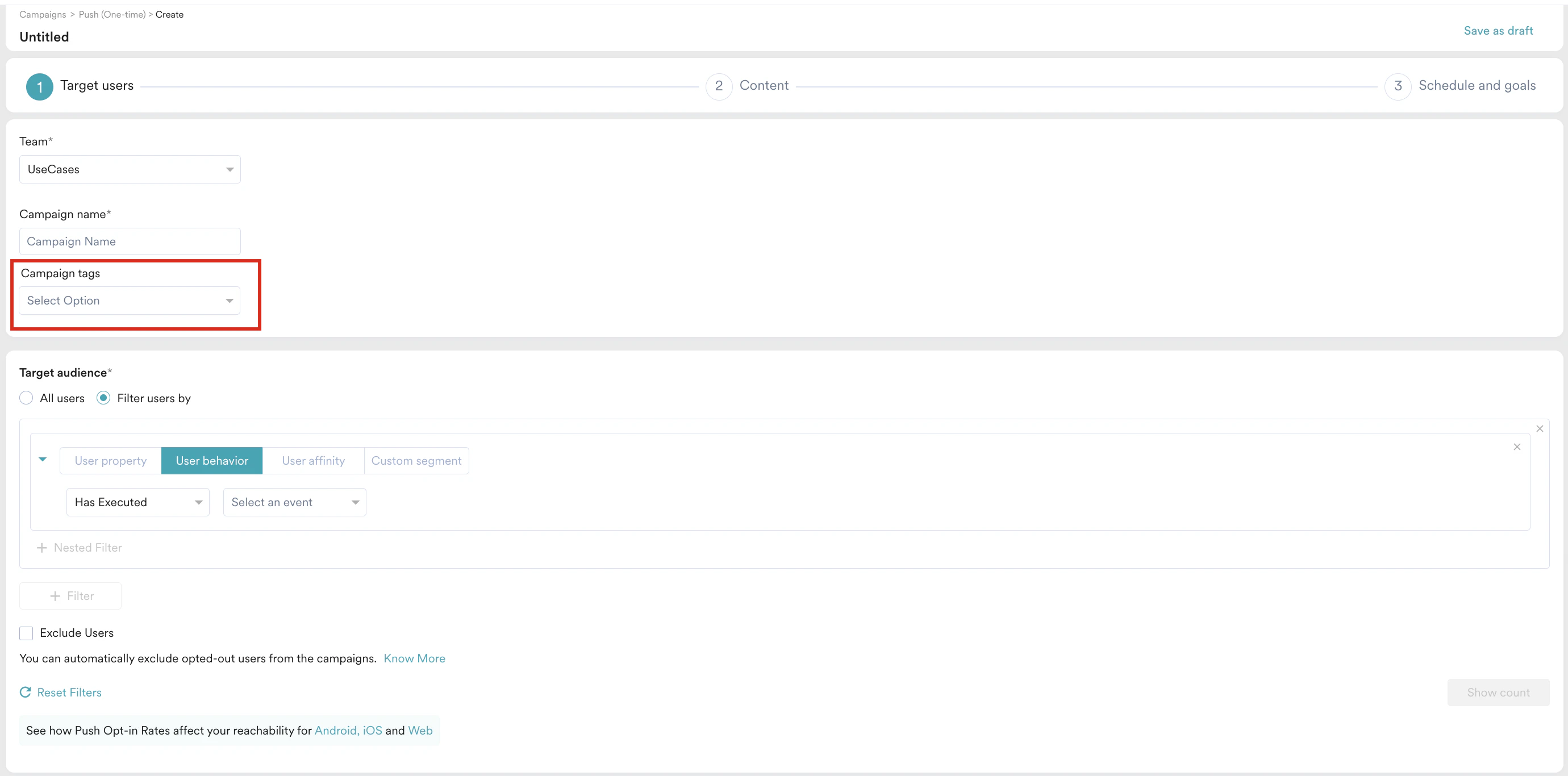
1. In Step 1 of campaign creation, find the **Campaign Tags** option.
 2. The drop-down menu displays a list of all your tags, grouped by categories.
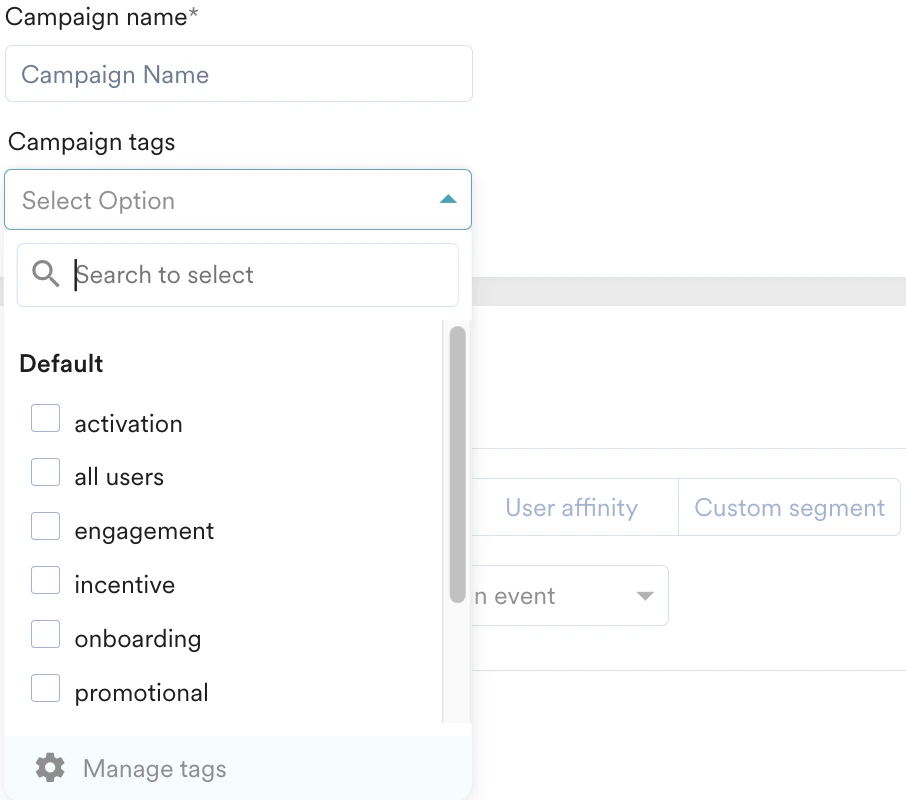 Your workspace can contain up to 500 tags in total. You can use a maximum of 12 tags per campaign.
3. Select a tag from the drop-down list, or create a new tag. To create a new tag, enter the tag name and then press **Enter**. MoEngage creates a new tag.
MoEngage automatically moves all newly created tags to the **Uncategorized** category.
## Identify Campaigns Using Tags
To filter your campaigns by tags:
1. On the All Campaigns page, click **More filters**.
Your workspace can contain up to 500 tags in total. You can use a maximum of 12 tags per campaign.
3. Select a tag from the drop-down list, or create a new tag. To create a new tag, enter the tag name and then press **Enter**. MoEngage creates a new tag.
MoEngage automatically moves all newly created tags to the **Uncategorized** category.
## Identify Campaigns Using Tags
To filter your campaigns by tags:
1. On the All Campaigns page, click **More filters**.
 2. Under **Has campaign tags**, you see two options:
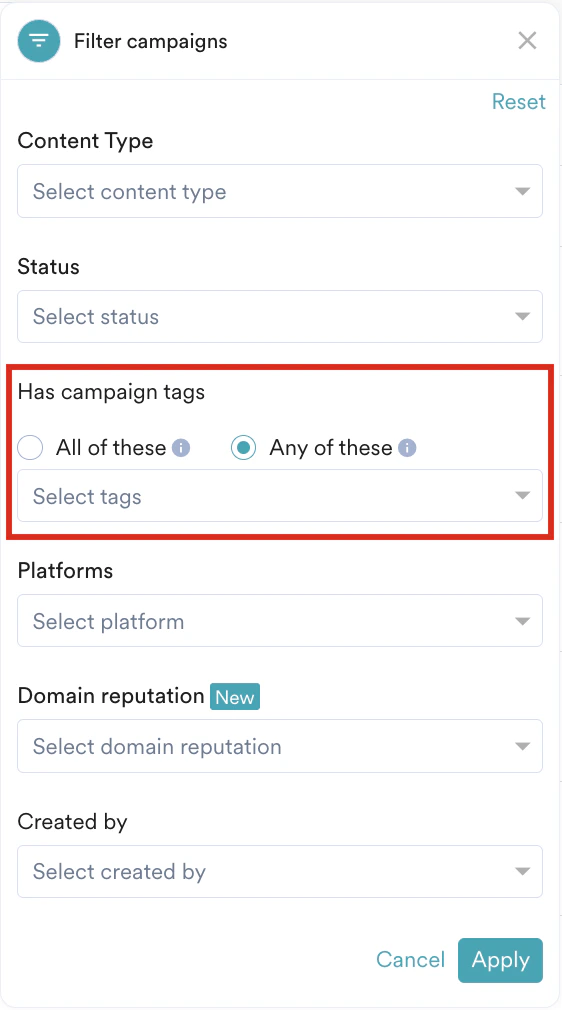 * **Any of these:** This option displays campaigns that include at least one of your selected tags. For example, if you select *Tag A* and *Tag B*, MoEngage displays campaigns that have either *Tag A* or *Tag B*.
* **All of these:** This option displays campaigns that include all your selected tags. For example, if you select *Tag A* and *Tag B*, MoEngage displays campaigns that have both *Tag A* and *Tag B*.
## Analyze and Segment Users Based on Tags
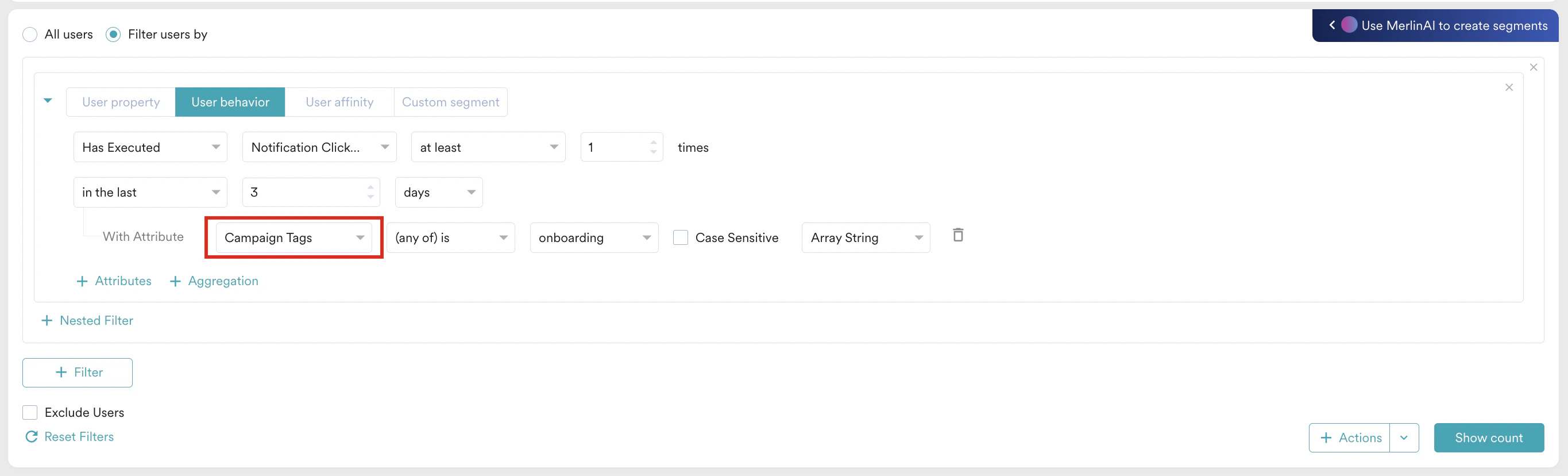
You can filter your users based on campaign tags. Use filter queries to find users who received a campaign with specific tags. These filter options are under the **Campaign Tags** filter.
* **Any of these:** This option displays campaigns that include at least one of your selected tags. For example, if you select *Tag A* and *Tag B*, MoEngage displays campaigns that have either *Tag A* or *Tag B*.
* **All of these:** This option displays campaigns that include all your selected tags. For example, if you select *Tag A* and *Tag B*, MoEngage displays campaigns that have both *Tag A* and *Tag B*.
## Analyze and Segment Users Based on Tags
You can filter your users based on campaign tags. Use filter queries to find users who received a campaign with specific tags. These filter options are under the **Campaign Tags** filter.
 #### Segment Users by Tags
Consider the following scenario:
* You have two categories: *Country* and *Sale*.
* The *Country* category contains the tags *India* and *US*.
* The *Sale* category contains the tags *Mobile* and *Apparel*.
* You have three push campaigns: C1, C2, and C3.
* C1 contains tags *US* and *Mobile*.
* C2 contains tags *India* and *Apparel*.
* C3 contains tags *India* and *Mobile*.
To segment users who clicked any mobile-related campaigns, follow these steps:
1. On the left navigation menu in the MoEngage UI, click **Segments**, and then click **Create segment**.
2. On the Create segment page, click **Filter users by**.
3. On the **User behavior** tab, select the **Notification clicked** **iOS** or **Notification clicked** **Android** event.
4. Click **+ Attributes** and select **Campaign Tags** from the filter options.
5. Select the required operator and then select **Mobile**.
This action segments all users who clicked notifications from campaigns C1 and C3, regardless of the country tag.
To learn more about segments, see the [Segments documentation](/user-guide/segment).
## Tags in Campaign Reports
All campaign tags are available in campaign reports. The reports include each tag category as a separate column.
In the scenario above, the output report includes two additional columns: "Tag category Country" and "Tag category Sale." Each column lists the selected tags for the specific campaign.
#### Segment Users by Tags
Consider the following scenario:
* You have two categories: *Country* and *Sale*.
* The *Country* category contains the tags *India* and *US*.
* The *Sale* category contains the tags *Mobile* and *Apparel*.
* You have three push campaigns: C1, C2, and C3.
* C1 contains tags *US* and *Mobile*.
* C2 contains tags *India* and *Apparel*.
* C3 contains tags *India* and *Mobile*.
To segment users who clicked any mobile-related campaigns, follow these steps:
1. On the left navigation menu in the MoEngage UI, click **Segments**, and then click **Create segment**.
2. On the Create segment page, click **Filter users by**.
3. On the **User behavior** tab, select the **Notification clicked** **iOS** or **Notification clicked** **Android** event.
4. Click **+ Attributes** and select **Campaign Tags** from the filter options.
5. Select the required operator and then select **Mobile**.
This action segments all users who clicked notifications from campaigns C1 and C3, regardless of the country tag.
To learn more about segments, see the [Segments documentation](/user-guide/segment).
## Tags in Campaign Reports
All campaign tags are available in campaign reports. The reports include each tag category as a separate column.
In the scenario above, the output report includes two additional columns: "Tag category Country" and "Tag category Sale." Each column lists the selected tags for the specific campaign.
 When you create custom automated reports, you must select **Tags**. To learn more, see the [Campaign Reports documentation](/user-guide/campaigns-and-channels/campaign-management-and-reports/create-ad-hoc-campaign-reports).