> ## Documentation Index
> Fetch the complete documentation index at: https://moengage.com/docs/llms.txt
> Use this file to discover all available pages before exploring further.
# Business Event Triggered Campaigns
> Create campaigns triggered by business events like product restocks or new releases in MoEngage, and automatically target relevant user segments.
# Overview
Business event-triggered campaigns send messages to your customers when specific business events occur in your system. To create and use these campaigns, follow these main steps:
1. [Create the business event](/user-guide/campaigns-and-channels/getting-started/triggers/business-event/business-event-triggered-campaigns#create-the-business-event) in MoEngage using an API.
2. [Create a business event-triggered campaign](/user-guide/campaigns-and-channels/getting-started/triggers/business-event/business-event-triggered-campaigns#create-a-business-event-triggered-campaign) that uses this event.
3. [Trigger the business event](/user-guide/campaigns-and-channels/getting-started/triggers/business-event/business-event-triggered-campaigns#trigger-the-business-event).
Consider these scenarios for using business event-triggered campaigns:
* An OTT platform releases a new series and wants to notify users who watch similar content.
* A product is back in stock, and you need to inform users who previously viewed the product.
* A flight or train is delayed, and you need to communicate this information to ticketed users.
## Create the Business Event
Create a business event, such as NewSeriesAlert, by using the [Create Business Event API](https://www.moengage.com/docs/api/business-events/create-business-event). This is typically a one-time setup to define the event and its attributes. A sample payload is shown below.
```json Sample Payload wrap theme={null}
--data '{
"event\_name": "NewSeriesAlert",
"event\_attributes": [
{
"attribute\_name": "season",
"attribute\_data\_type": "string"
},
{
"attribute\_name": "episodes",
"attribute\_data\_type": "int"
},
{
"attribute\_name": "cast",
"attribute\_data\_type": "array"
},
{
"attribute\_name": "genre",
"attribute\_data\_type": "string"
}
],
"created\_by": "john.doe@example.com"
}'
```
After you create the business event, you can proceed with campaign creation.
## Create a Business Event-Triggered Campaign
For example, to create a business event-triggered push campaign to notify users when a product is back in stock:
1. On the left navigation menu in the MoEngage dashboard, click **Engage**, and then click **Campaigns**.
2. On the All campaigns page, click **+** **Create campaign**.
3. Under **Outbound**, click **Push**, and then click **Business Event Triggered**.
4. Add the team (if teams are configured for the account), campaign name, and tags on the campaign creation page.
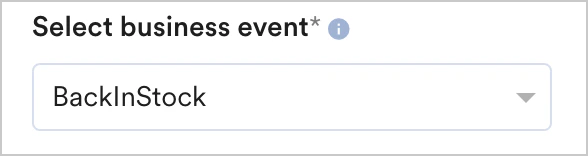
5. In the **Select Business Event** drop-down list, click the **BackInStock** event.
 6. In the **Target audience** section, match user or event attributes with the business event's attributes dynamically. This allows you to use a single campaign for many business events.
For example, for a back-in-stock business event, if a user has viewed a product that was out of stock, you can map one or more of its attributes (such as product ID, product name, item code, product URL, product image, brand, or category) with the business event's attributes. When a business event is triggered for any product that is back in stock, this campaign will run.
* **User Property**: Match user properties or user attributes with event attributes. If a user property stores the product ID, you can match it with the business event attribute containing the product ID for the back-in-stock product.
6. In the **Target audience** section, match user or event attributes with the business event's attributes dynamically. This allows you to use a single campaign for many business events.
For example, for a back-in-stock business event, if a user has viewed a product that was out of stock, you can map one or more of its attributes (such as product ID, product name, item code, product URL, product image, brand, or category) with the business event's attributes. When a business event is triggered for any product that is back in stock, this campaign will run.
* **User Property**: Match user properties or user attributes with event attributes. If a user property stores the product ID, you can match it with the business event attribute containing the product ID for the back-in-stock product.
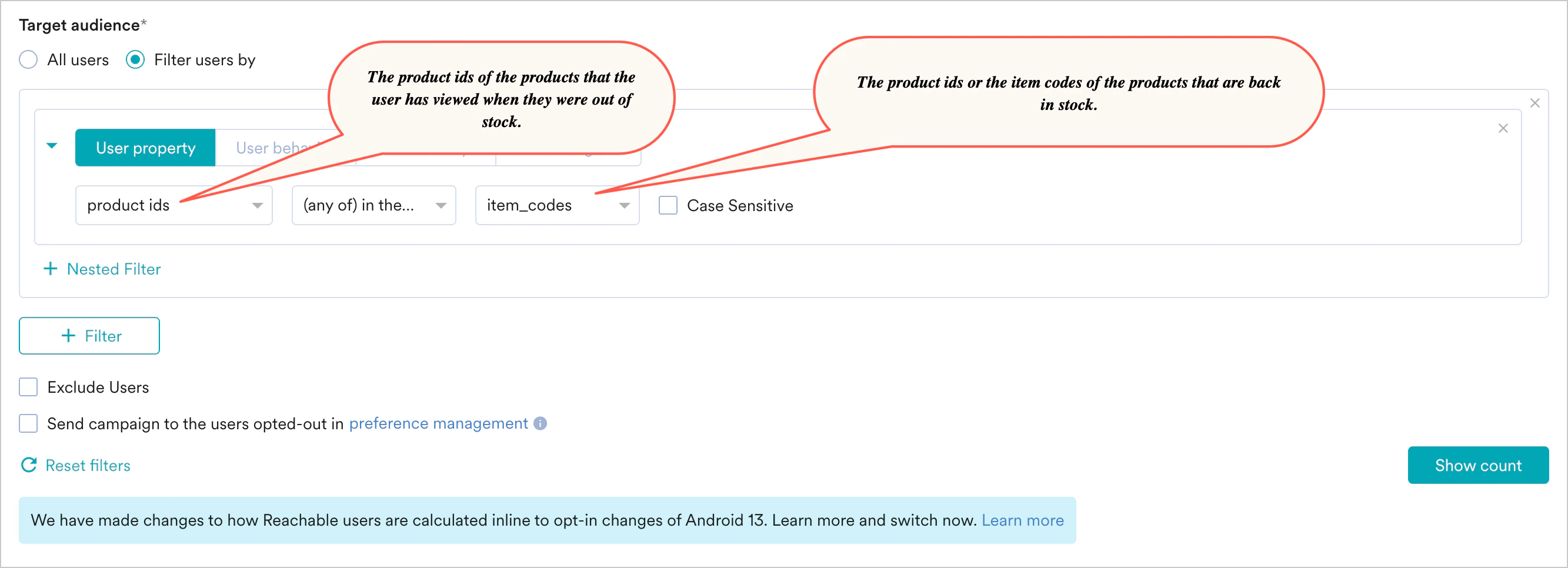 **Note**: For Array attributes, the following operators are supported in segmentation for Business Events: *exists, does not exist, (any of) in the following, (all of) in the following, not in the following.*
* **User Behavior**: Target audiences who have viewed out-of-stock products in the past 25 days. Match the attributes of products viewed by them with the attributes of products now back in stock using Business Event Attributes. The example below shows how to match product names, brands, and item codes of products viewed by users to those now back in stock.
**Note**: For Array attributes, the following operators are supported in segmentation for Business Events: *exists, does not exist, (any of) in the following, (all of) in the following, not in the following.*
* **User Behavior**: Target audiences who have viewed out-of-stock products in the past 25 days. Match the attributes of products viewed by them with the attributes of products now back in stock using Business Event Attributes. The example below shows how to match product names, brands, and item codes of products viewed by users to those now back in stock.
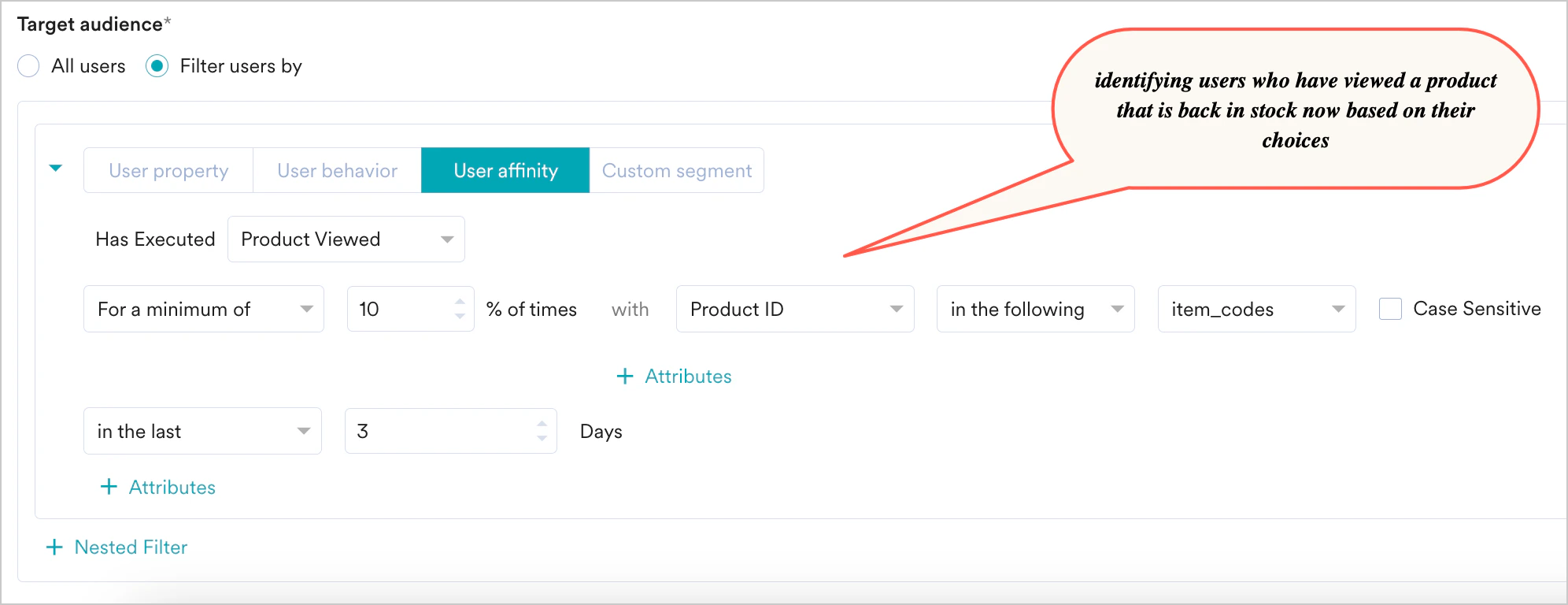
.png?fit=max&auto=format&n=S5VM4C7aiU6sct6c&q=85&s=e78e25ed636895e0f67c596da9256f8c) * **User Affinity**: Recommend products to users who have previously shown an affinity for a certain product. In the example below, back-in-stock products are shown to users who have viewed the product in the past three days.
* **User Affinity**: Recommend products to users who have previously shown an affinity for a certain product. In the example below, back-in-stock products are shown to users who have viewed the product in the past three days.
 7. Add the platforms and control group (optional) for the campaign, and then move to the next step.
8. Create the content for the push campaign and add the delivery schedule. You can personalize the message, title, and summary with the business event's attributes. For more information, see [Personalization](/user-guide/campaigns-and-channels/mobile-push/create/personalize-push-campaigns/overview#event-attributes).
9. In step 3 of campaign creation:
1. Select the **Start date** and **End date** for the campaign, along with the timezone for delivery.
2. Add conversion goals as needed.
3. Add delivery controls to ignore frequency capping and override default throttling limits.
10. Publish the campaign. This campaign sends messages to customers when the business event is triggered.
For example, to create a business event-triggered SMS, MMS and RCS campaign to notify users about a flight delay:
1. On the left navigation menu in the MoEngage dashboard, click **Engage**, and then click **Campaigns**.
2. On the All campaigns page, click **+** **Create campaign**.
3. Under **Outbound**, click **SMS** / **MMS** / **RCS**, and then click **Business Event Triggered**.
4. On the campaign creation page, add the campaign name, tags, and the user attribute that stores the mobile number.
5. In the **Select Business Event** drop-down list, click the **FlightDelayEvent**.
7. Add the platforms and control group (optional) for the campaign, and then move to the next step.
8. Create the content for the push campaign and add the delivery schedule. You can personalize the message, title, and summary with the business event's attributes. For more information, see [Personalization](/user-guide/campaigns-and-channels/mobile-push/create/personalize-push-campaigns/overview#event-attributes).
9. In step 3 of campaign creation:
1. Select the **Start date** and **End date** for the campaign, along with the timezone for delivery.
2. Add conversion goals as needed.
3. Add delivery controls to ignore frequency capping and override default throttling limits.
10. Publish the campaign. This campaign sends messages to customers when the business event is triggered.
For example, to create a business event-triggered SMS, MMS and RCS campaign to notify users about a flight delay:
1. On the left navigation menu in the MoEngage dashboard, click **Engage**, and then click **Campaigns**.
2. On the All campaigns page, click **+** **Create campaign**.
3. Under **Outbound**, click **SMS** / **MMS** / **RCS**, and then click **Business Event Triggered**.
4. On the campaign creation page, add the campaign name, tags, and the user attribute that stores the mobile number.
5. In the **Select Business Event** drop-down list, click the **FlightDelayEvent**.
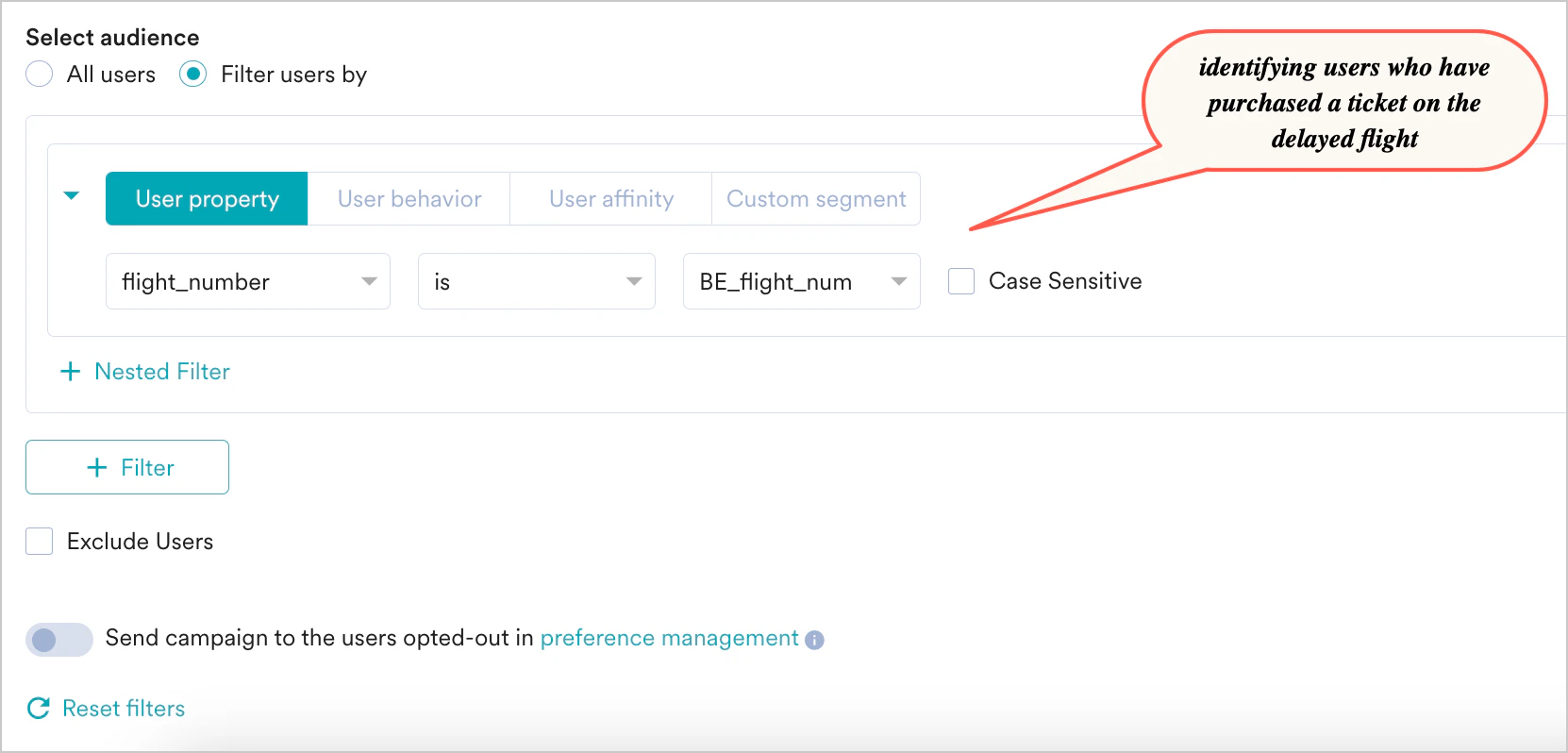
 6. In the **Select audience** section, dynamically match the user's flight information with the delayed flight's information. This allows you to use a single campaign for many business events.
You can match user properties, user behavior, and user affinity information with event attributes in segmentation. If the user has purchased tickets for a flight, and the flight number and travel information are stored as user properties, you can match this information to the business event attributes of the delayed flight, as shown below.
6. In the **Select audience** section, dynamically match the user's flight information with the delayed flight's information. This allows you to use a single campaign for many business events.
You can match user properties, user behavior, and user affinity information with event attributes in segmentation. If the user has purchased tickets for a flight, and the flight number and travel information are stored as user properties, you can match this information to the business event attributes of the delayed flight, as shown below.
 7. Add the control group (optional) for the campaign, and then move to the next step.
8. Create the content for the SMS, MMS, and RCS campaign and add the delivery schedule. You can personalize the message with the business event's attributes. For more information, see [Personalization with Business Event Attributes](/user-guide/campaigns-and-channels/sms-mms-and-rcs/sms/personalize-sms-campaign).
9. In step 3 of campaign creation:
1. Select the **Start date** and **End date** for the campaign, along with the timezone for delivery.
2. Add conversion goals as needed.
3. Add delivery controls to ignore frequency capping and override default throttling limits.
10. Publish the campaign. This campaign sends messages to customers when the business event is triggered.
To create a business event-triggered email campaign:
1. On the left navigation menu in the MoEngage dashboard, click **Engage**, and then click **Campaigns**.
2. On the All campaigns page, click **+** **Create campaign**.
3. Under **Outbound**, click **Email**, and then click **Business Event Triggered**.
4. On the campaign creation page, add the campaign name, tags, subscription categories (if enabled), and campaign content type (promotional in this case).
5. In the **Select Business Event** drop-down list, click the **NewSeriesAlert** event.
6. In the **Select audience** section, dynamically match the user's interest genre with the business event attribute. This allows you to use a single campaign for many business events.
* **User Property**: Match user properties or user attributes with event attributes. If the user's preferred genre or the genre of content watched by the user is stored in the user property named **genre**, you can match this to the business event's genre, as shown below.
7. Add the control group (optional) for the campaign, and then move to the next step.
8. Create the content for the SMS, MMS, and RCS campaign and add the delivery schedule. You can personalize the message with the business event's attributes. For more information, see [Personalization with Business Event Attributes](/user-guide/campaigns-and-channels/sms-mms-and-rcs/sms/personalize-sms-campaign).
9. In step 3 of campaign creation:
1. Select the **Start date** and **End date** for the campaign, along with the timezone for delivery.
2. Add conversion goals as needed.
3. Add delivery controls to ignore frequency capping and override default throttling limits.
10. Publish the campaign. This campaign sends messages to customers when the business event is triggered.
To create a business event-triggered email campaign:
1. On the left navigation menu in the MoEngage dashboard, click **Engage**, and then click **Campaigns**.
2. On the All campaigns page, click **+** **Create campaign**.
3. Under **Outbound**, click **Email**, and then click **Business Event Triggered**.
4. On the campaign creation page, add the campaign name, tags, subscription categories (if enabled), and campaign content type (promotional in this case).
5. In the **Select Business Event** drop-down list, click the **NewSeriesAlert** event.
6. In the **Select audience** section, dynamically match the user's interest genre with the business event attribute. This allows you to use a single campaign for many business events.
* **User Property**: Match user properties or user attributes with event attributes. If the user's preferred genre or the genre of content watched by the user is stored in the user property named **genre**, you can match this to the business event's genre, as shown below.
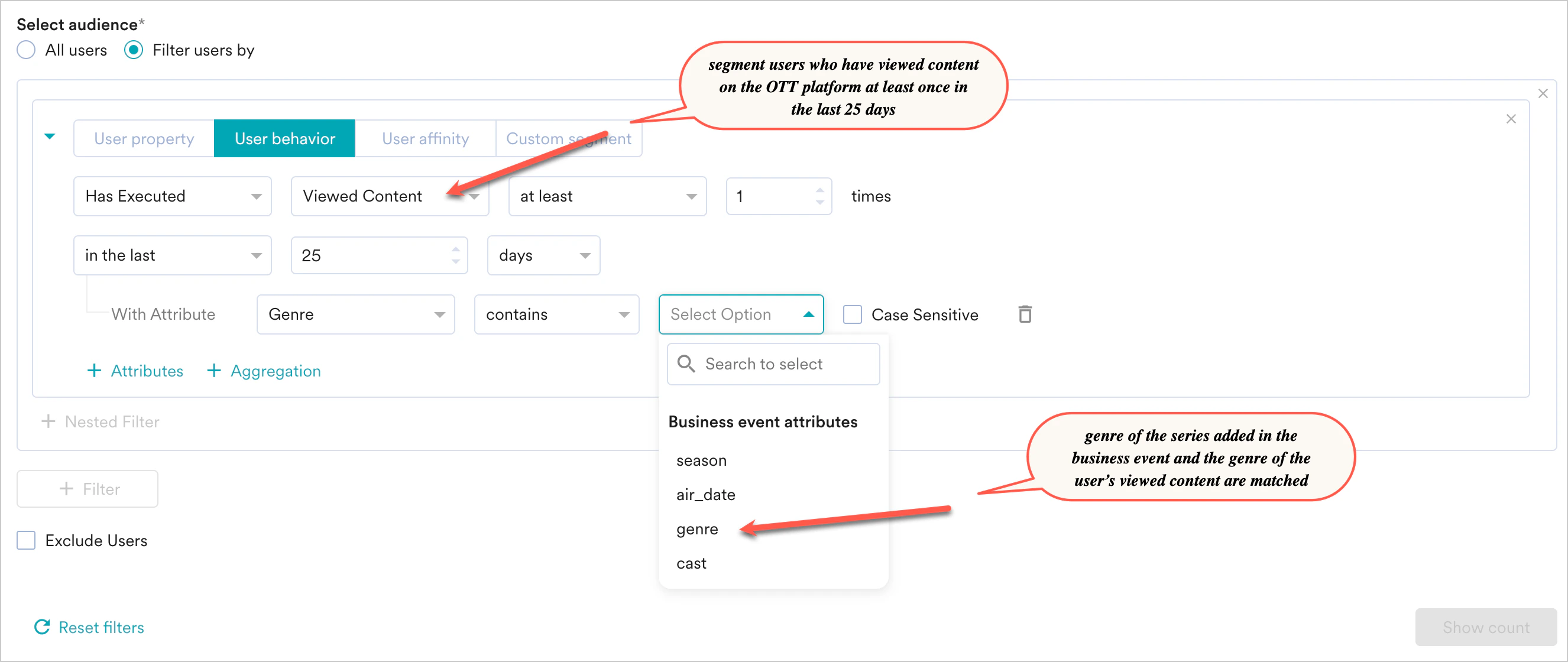
.png?fit=max&auto=format&n=S5VM4C7aiU6sct6c&q=85&s=ab3e7e48ca148578e4f074b1a24b6d78) * **User Behavior**: If **genre** is an event attribute of a **Viewed Content** event (triggered when a user watches content on the OTT platform), and **genre** contains a list of all genres viewed by the user in that session, you can map these attributes as shown below.
You can target audiences who have viewed similar content or send it to users who have shown interest in movies/series by actors in the new series. In the example below, the genre of content viewed by users in the last 25 days matches the new series' genre.
* **User Behavior**: If **genre** is an event attribute of a **Viewed Content** event (triggered when a user watches content on the OTT platform), and **genre** contains a list of all genres viewed by the user in that session, you can map these attributes as shown below.
You can target audiences who have viewed similar content or send it to users who have shown interest in movies/series by actors in the new series. In the example below, the genre of content viewed by users in the last 25 days matches the new series' genre.
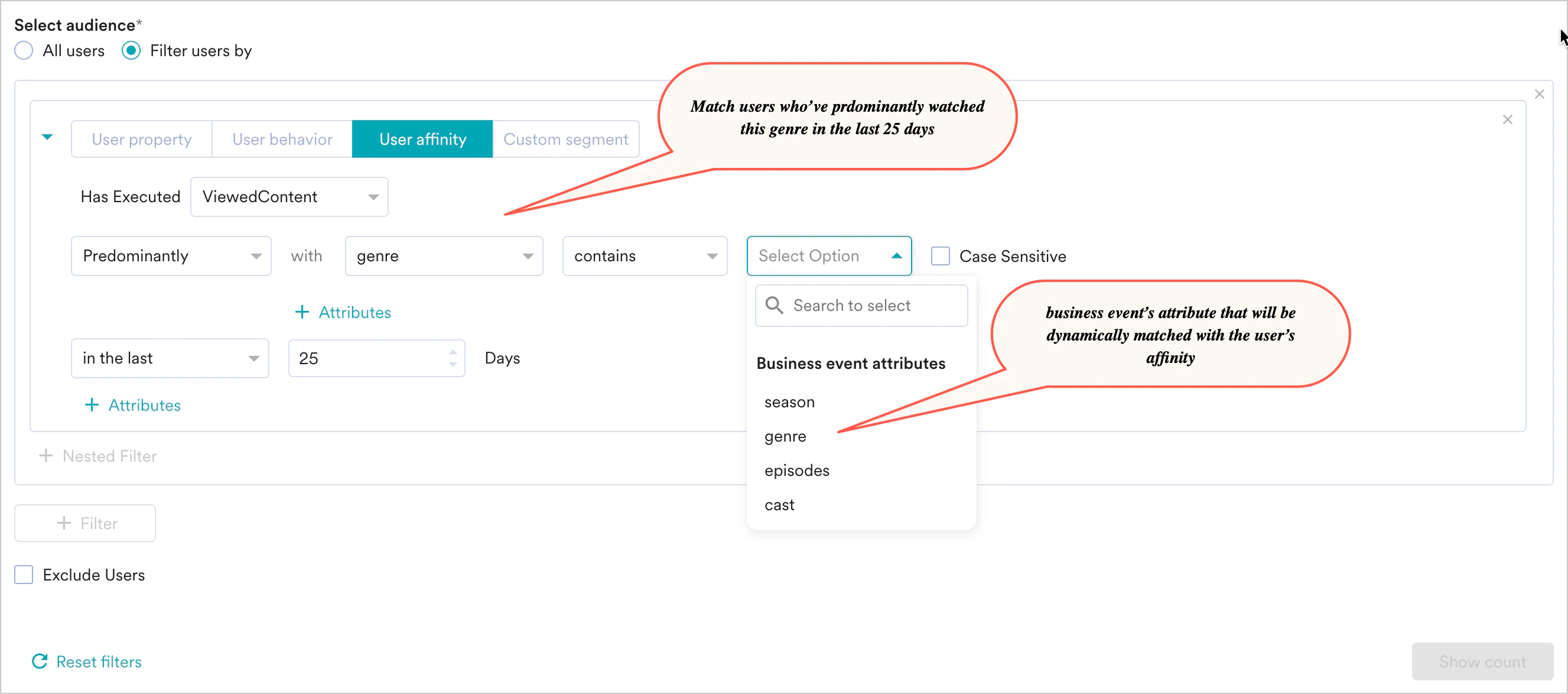
 * **User Affinity**: Recommend similar content to users who have previously displayed an affinity for a certain genre. You can target users who predominantly view a particular genre and match it with the business event's genre.
In the example below, the new series alert business event is shown to users who have viewed content in a similar genre (to that of the new series) for the past 25 days.
* **User Affinity**: Recommend similar content to users who have previously displayed an affinity for a certain genre. You can target users who predominantly view a particular genre and match it with the business event's genre.
In the example below, the new series alert business event is shown to users who have viewed content in a similar genre (to that of the new series) for the past 25 days.
 **Note**: For Array attributes, the following operators are supported in segmentation for Business Events: exists, does not exist, (any of) in the following, (all of) in the following, not in the following
7. Add the control group (optional) for the campaign, and then move to the next step.
8. Create the content for the email campaign and add the delivery schedule. You can personalize the subject, preview text, and email content with the business event's attributes. For more information, see [Personalization with Business Event Attributes](/user-guide/campaigns-and-channels/email/create/personalize-email-content).
9. In step 3 of campaign creation:
1. Select the **Start date** and **End date** for the campaign, along with the timezone for delivery.
2. Add conversion goals as needed.
3. Add delivery controls to ignore frequency capping and override default throttling limits.
10. Publish the campaign. This campaign sends messages to customers when the business event is triggered.
To create a business event-triggered flow:
1. On the left navigation menu in the MoEngage dashboard, click **Engage**, and then click **Flows**.
2. On the **Flows** page, click **+ Create flow**.
3. In the **Create new flow** dialog box, click **+ Start with a blank canvas**.
4. Define the flow's goal and add any other required details. For more information, refer to [Details and Goals](/user-guide/flows-cross-channel-messaging/create/create-flows/create-a-flow#option-2-create-a-flow-from-scratch).
5. Select the **On the business event trigger** tab to define when users enter the flow. For more information, see [When Will Users Enter the Flow On business event trigger](/user-guide/flows-cross-channel-messaging/create/create-flows/create-a-flow#when-will-users-enter-the-flow).
6. In the **Audience** section, match the user or event attributes dynamically with the business event's attributes. This enables you to use a single flow for many business events.
For example, consider a **Series launched** business event. If a new Thriller series launches, you can map one or more business event attributes (such as episode number, episode name, episode rating, or cast) with event or user attributes. This allows a single flow to run whenever a business event is triggered for any launched series.
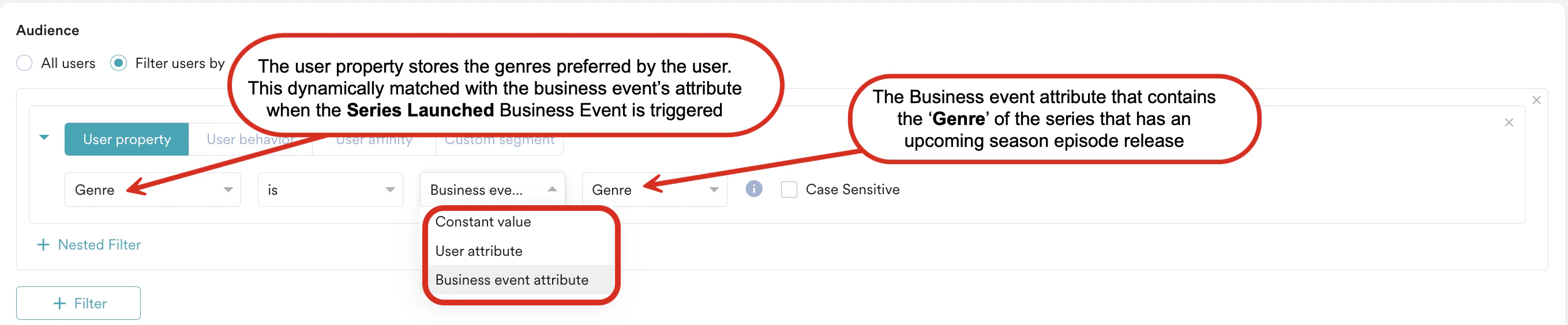
* **User Property**: Match user properties or user attributes with business event attributes. If the user's preferred genre or the genre of an episode watched by the user is stored in the user property named **Genre**, you can match this to the business event's genre, as shown below:
**Note**: For Array attributes, the following operators are supported in segmentation for Business Events: exists, does not exist, (any of) in the following, (all of) in the following, not in the following
7. Add the control group (optional) for the campaign, and then move to the next step.
8. Create the content for the email campaign and add the delivery schedule. You can personalize the subject, preview text, and email content with the business event's attributes. For more information, see [Personalization with Business Event Attributes](/user-guide/campaigns-and-channels/email/create/personalize-email-content).
9. In step 3 of campaign creation:
1. Select the **Start date** and **End date** for the campaign, along with the timezone for delivery.
2. Add conversion goals as needed.
3. Add delivery controls to ignore frequency capping and override default throttling limits.
10. Publish the campaign. This campaign sends messages to customers when the business event is triggered.
To create a business event-triggered flow:
1. On the left navigation menu in the MoEngage dashboard, click **Engage**, and then click **Flows**.
2. On the **Flows** page, click **+ Create flow**.
3. In the **Create new flow** dialog box, click **+ Start with a blank canvas**.
4. Define the flow's goal and add any other required details. For more information, refer to [Details and Goals](/user-guide/flows-cross-channel-messaging/create/create-flows/create-a-flow#option-2-create-a-flow-from-scratch).
5. Select the **On the business event trigger** tab to define when users enter the flow. For more information, see [When Will Users Enter the Flow On business event trigger](/user-guide/flows-cross-channel-messaging/create/create-flows/create-a-flow#when-will-users-enter-the-flow).
6. In the **Audience** section, match the user or event attributes dynamically with the business event's attributes. This enables you to use a single flow for many business events.
For example, consider a **Series launched** business event. If a new Thriller series launches, you can map one or more business event attributes (such as episode number, episode name, episode rating, or cast) with event or user attributes. This allows a single flow to run whenever a business event is triggered for any launched series.
* **User Property**: Match user properties or user attributes with business event attributes. If the user's preferred genre or the genre of an episode watched by the user is stored in the user property named **Genre**, you can match this to the business event's genre, as shown below:
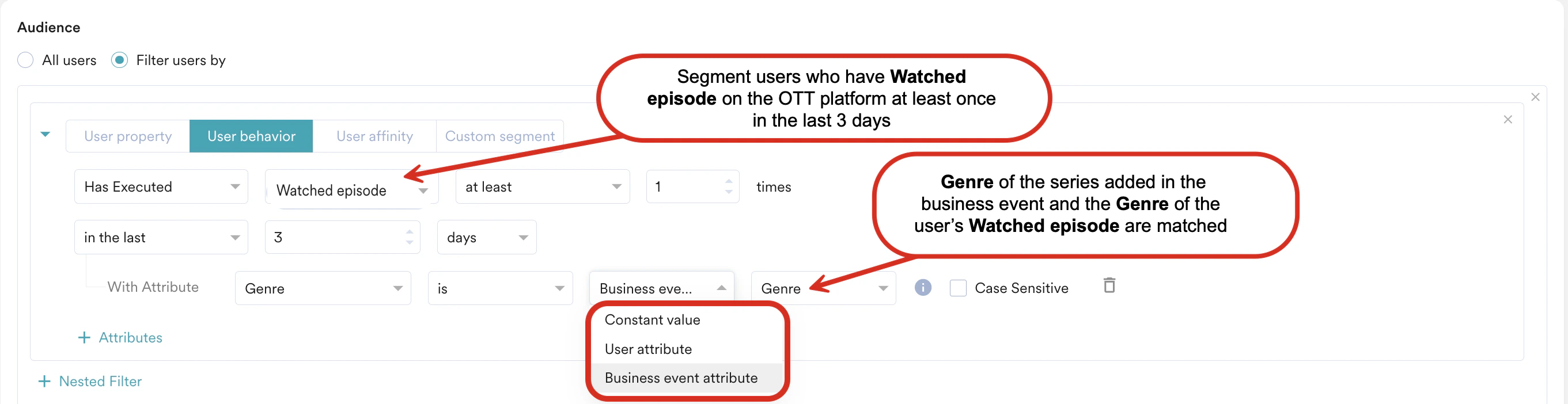
 * **User Behavior**: If the **genre** is an event attribute of a **Watched episode** event (triggered when a user watches content on the OTT platform), and **Genre** contains a list of all genres viewed by the user in that session, you can map these attributes as shown in the following image.
You can target audiences who have watched the episode or who have shown interest in movies/series by actors in the new series. In the example below, the genre of episodes watched by users in the last 3 days matches the launched series.
* **User Behavior**: If the **genre** is an event attribute of a **Watched episode** event (triggered when a user watches content on the OTT platform), and **Genre** contains a list of all genres viewed by the user in that session, you can map these attributes as shown in the following image.
You can target audiences who have watched the episode or who have shown interest in movies/series by actors in the new series. In the example below, the genre of episodes watched by users in the last 3 days matches the launched series.
 7. Add the control group (optional) for the flow, and then move to the next step.
8. Build your flow by adding stages that align with your strategy. You can also personalize the message in the [Action Stages](/user-guide/flows-cross-channel-messaging/create/actions-in-flows/add-actions-to-flows) of the flow with the business event's attributes. For more information, refer to [Personalization with Business Event Attributes](/user-guide/flows-cross-channel-messaging/create/actions-in-flows/personalization-in-flows).
9. Publish the flow. This flow triggers when the business event occurs.
* Because segmentation is dynamic, you cannot view the number of reachable users during campaign or flow creation. The number is calculated at run time based on the business event that triggers the campaign or flow. For example, if you target users who prefer comedy and want to inform them about an upcoming comedy series, only users who have watched comedy or prefer comedy receive the email based on their qualification in the dynamic segment defined for the campaign.
* For segmentation to work, the data types of the event attributes or user properties used in segmentation must match those of the business event's attributes. If the attributes do not match, segmentation will not run, and the campaigns will not be sent to users.
* You can also send business event-triggered campaigns or flows to all users in the system by using the **All Users** segmentation option.
* You can look up information for up to 60 days in the segmentation filters for business events.
## Trigger the Business Event
After you set up your business event and create a campaign that uses it, trigger the business event by using the [Trigger Business Event API](https://www.moengage.com/docs/api/business-events/trigger-business-event). This action initiates the campaign to send messages to your targeted users. A sample payload is shown below.
```json Sample Payload wrap theme={null}
--data '{
"event\_name": "NewSeriesAlert",
"event\_attributes": {
"season": "Season 1",
"episodes": 12,
"cast": ["John Doe", "Jane Doe"],
"genre": "Comedy"
},
"triggered\_by": "john.doe@example.com"
}
```
You do not have to send all attributes when you trigger the business event. When the trigger is active, the user receives the campaign message. You can view the analytics for the campaign on the **Campaign Analytics and Info** page of the respective campaign. Business event-triggered campaigns send messages similarly to any other event-triggered campaign in MoEngage.
7. Add the control group (optional) for the flow, and then move to the next step.
8. Build your flow by adding stages that align with your strategy. You can also personalize the message in the [Action Stages](/user-guide/flows-cross-channel-messaging/create/actions-in-flows/add-actions-to-flows) of the flow with the business event's attributes. For more information, refer to [Personalization with Business Event Attributes](/user-guide/flows-cross-channel-messaging/create/actions-in-flows/personalization-in-flows).
9. Publish the flow. This flow triggers when the business event occurs.
* Because segmentation is dynamic, you cannot view the number of reachable users during campaign or flow creation. The number is calculated at run time based on the business event that triggers the campaign or flow. For example, if you target users who prefer comedy and want to inform them about an upcoming comedy series, only users who have watched comedy or prefer comedy receive the email based on their qualification in the dynamic segment defined for the campaign.
* For segmentation to work, the data types of the event attributes or user properties used in segmentation must match those of the business event's attributes. If the attributes do not match, segmentation will not run, and the campaigns will not be sent to users.
* You can also send business event-triggered campaigns or flows to all users in the system by using the **All Users** segmentation option.
* You can look up information for up to 60 days in the segmentation filters for business events.
## Trigger the Business Event
After you set up your business event and create a campaign that uses it, trigger the business event by using the [Trigger Business Event API](https://www.moengage.com/docs/api/business-events/trigger-business-event). This action initiates the campaign to send messages to your targeted users. A sample payload is shown below.
```json Sample Payload wrap theme={null}
--data '{
"event\_name": "NewSeriesAlert",
"event\_attributes": {
"season": "Season 1",
"episodes": 12,
"cast": ["John Doe", "Jane Doe"],
"genre": "Comedy"
},
"triggered\_by": "john.doe@example.com"
}
```
You do not have to send all attributes when you trigger the business event. When the trigger is active, the user receives the campaign message. You can view the analytics for the campaign on the **Campaign Analytics and Info** page of the respective campaign. Business event-triggered campaigns send messages similarly to any other event-triggered campaign in MoEngage.