> ## Documentation Index
> Fetch the complete documentation index at: https://moengage.com/docs/llms.txt
> Use this file to discover all available pages before exploring further.
# Create In-App Campaign for TV
> Deliver rich, personalized in-app messages on TV screens with MoEngage. Promote content, drive upgrades, and re-engage users on connected TV apps.
Ensure your TV app is integrated with the MoEngage SDK. For more information, refer [here](/docs/developer-guide/tv-and-ott-integrations/getting-started/tv-and-ott-integrations).
# Overview
In-App campaigns for TV enable you to engage users directly on their TV screens. You can deliver rich, personalized content experiences, making your messages a seamless part of their viewing journey.
# Use Cases
In-App campaigns for TV offer a powerful way to engage with users directly on their TV screens. Here are a few examples of how you can use them:
* **Promote new content**: Drive viewership by displaying a full-screen message about a new series or movie when a user opens your streaming app.
* **Encourage subscription upgrades**: Target users on free trials with a banner that highlights the benefits of a premium plan and includes a call-to-action button to upgrade.
* **Announce product updates**: Inform users about new features or improvements to the app with a clear, engaging pop-up.
# Steps to Create a TV In-App Campaign
To create an In-App campaign for TV, follow these three main steps:
* [**Target Users**](#step-1-target-users)**:** Define the audience for your campaign.
* [**Content**](#step-2-content)**:** Design the campaign content and how it appears on TV screens.
* [**Schedule and Goals**](#step-3-schedule-and-goals)**:** Set the campaign's delivery times and conversion goals.
## Navigation
1. In the MoEngage Dashboard, from the left navigation, select **Engage** > **Campaigns**.
2. On the All Campaigns page, click **+ Create Campaign**.
3. From the list of inbound channels, select **In-App**.
## Step 1: Target Users
On the **Target users** page:
1. Enter the campaign details.
2. In the **Target Platforms** section, select **TV.**
3. Select the **TV OS Type** where you want to run your In-App Campaign. You must select at least one OS type. 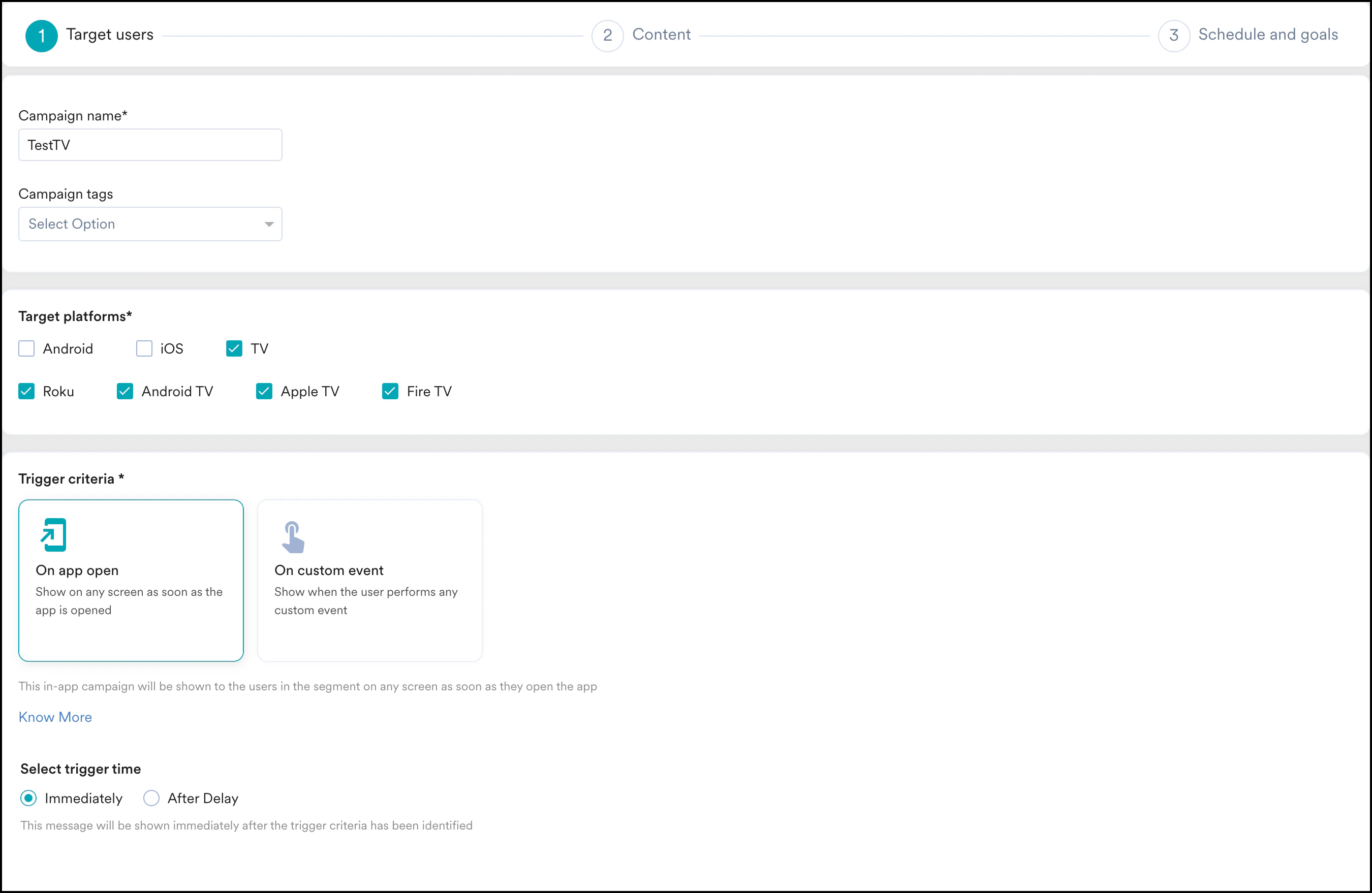 * You cannot select the **TV** platform along with **Web** or **Mobile Web**. You must select only **TV** to continue.
* The **On Specific Screen** trigger criteria is not currently supported for In-App campaigns for TV. MoEngage plans to release this feature soon.
For more information on various fields on this page, refer to [Target Users](/docs/user-guide/campaigns-and-channels/in-app-message/create/create-in-app-campaign).
## Step 2: Content
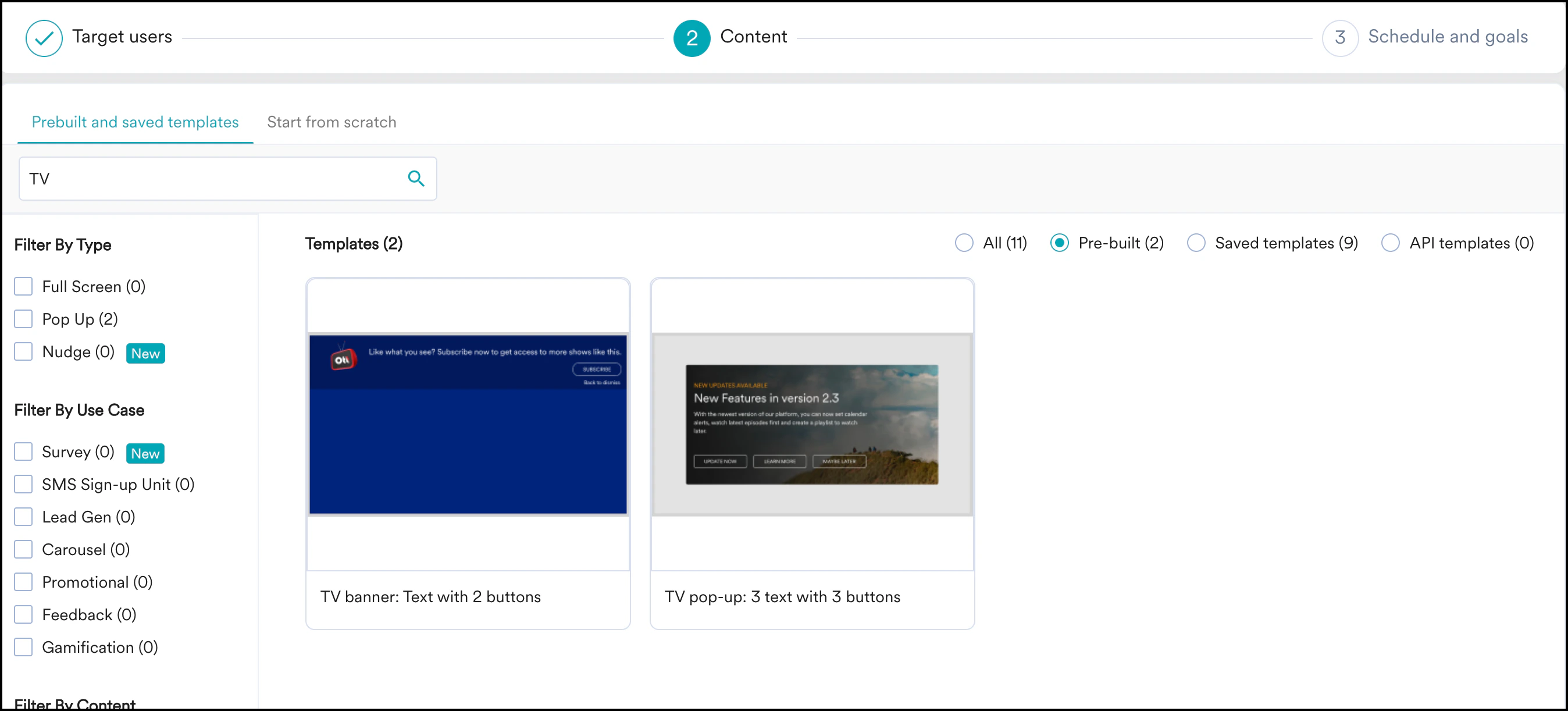
You are redirected to the **Template Selection** page. Select an available TV template, and then click **Select Template** to open the editor.
* You cannot select the **TV** platform along with **Web** or **Mobile Web**. You must select only **TV** to continue.
* The **On Specific Screen** trigger criteria is not currently supported for In-App campaigns for TV. MoEngage plans to release this feature soon.
For more information on various fields on this page, refer to [Target Users](/docs/user-guide/campaigns-and-channels/in-app-message/create/create-in-app-campaign).
## Step 2: Content
You are redirected to the **Template Selection** page. Select an available TV template, and then click **Select Template** to open the editor.
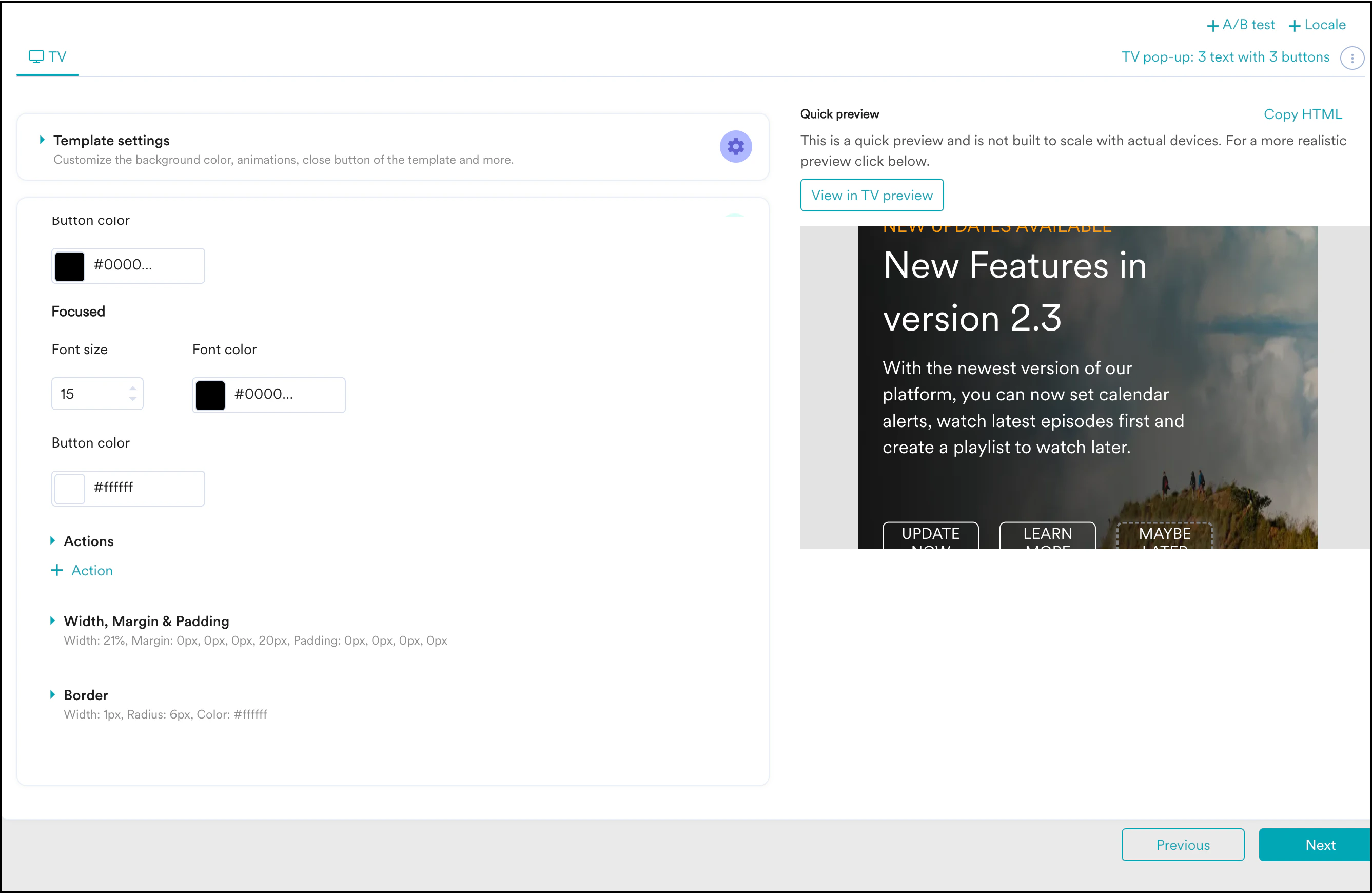
 You can customize the templates using the In-App NATIV editor. The editor enables you to edit the image, background, text, and other elements on the template.
The NATIV editor also includes the **View in TV preview** button, which shows how the In-App campaign appears on a TV screen. However, this preview does not show buttons in focus mode.
For more information about the editing options in the In-App editor, refer [In-App Editor](/docs/user-guide/campaigns-and-channels/in-app-message/templates/drag-and-drop-editor/drag-and-drop-editor).
You can customize the templates using the In-App NATIV editor. The editor enables you to edit the image, background, text, and other elements on the template.
The NATIV editor also includes the **View in TV preview** button, which shows how the In-App campaign appears on a TV screen. However, this preview does not show buttons in focus mode.
For more information about the editing options in the In-App editor, refer [In-App Editor](/docs/user-guide/campaigns-and-channels/in-app-message/templates/drag-and-drop-editor/drag-and-drop-editor).
 ### Edit Buttons for the Focus System
Unlike touch interfaces, TV interfaces use a focus state to highlight the currently selected element and guide user navigation. This state acts as the starting point for navigation. Users navigate TV interfaces using a remote control, which limits interaction compared to touch devices.
When an element is in focus, users can use navigation buttons on their remote control to move to other interactive elements or click **OK** (or a similar button, depending on the TV operating system) to activate the focused element.
The In-App NATIV editor allows you to configure buttons using the **Focused** section:
### Edit Buttons for the Focus System
Unlike touch interfaces, TV interfaces use a focus state to highlight the currently selected element and guide user navigation. This state acts as the starting point for navigation. Users navigate TV interfaces using a remote control, which limits interaction compared to touch devices.
When an element is in focus, users can use navigation buttons on their remote control to move to other interactive elements or click **OK** (or a similar button, depending on the TV operating system) to activate the focused element.
The In-App NATIV editor allows you to configure buttons using the **Focused** section:
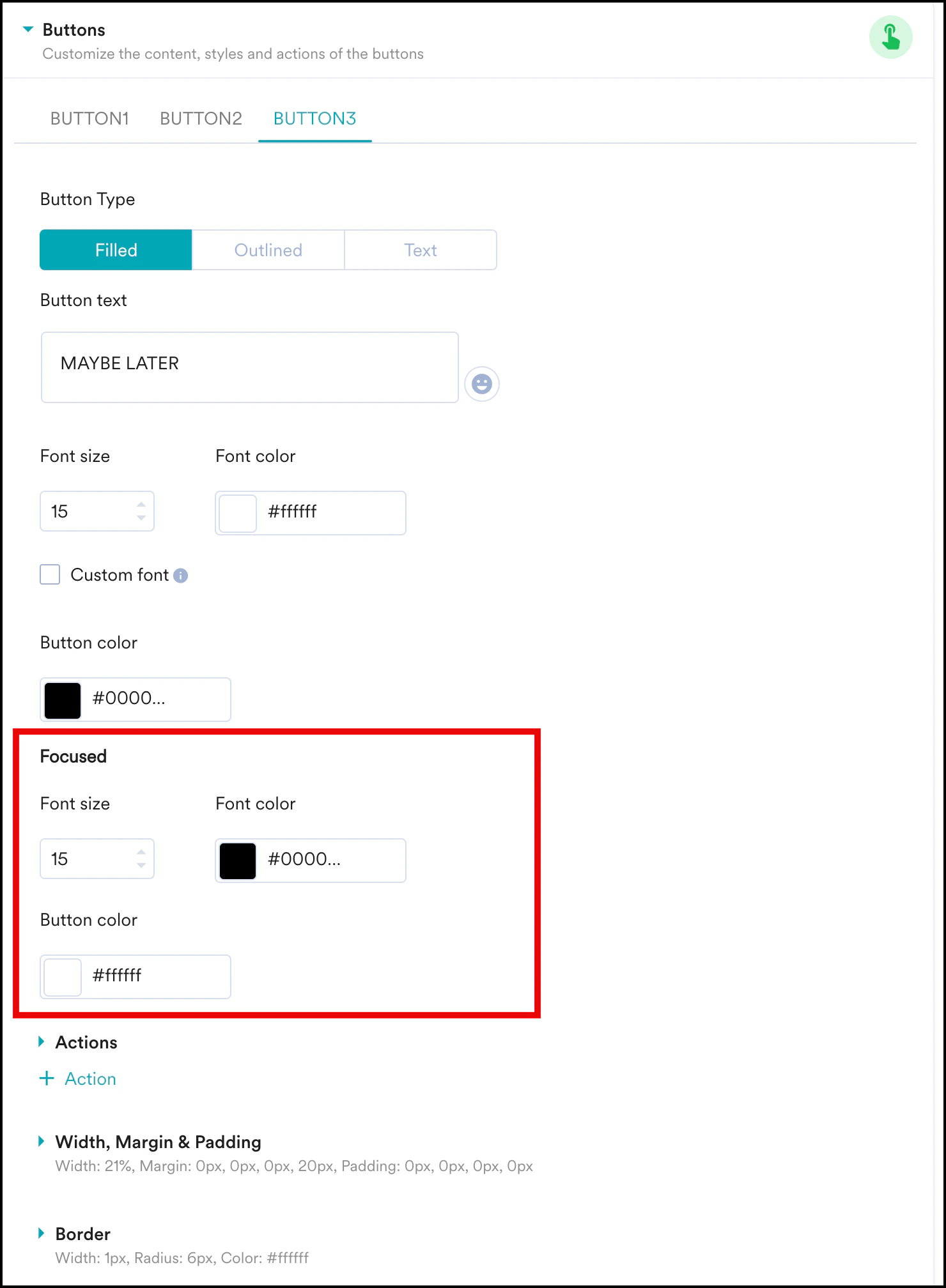 * The **Focused** sub-section allows you to edit the **Font size**, **Font color**, and **Button color** of your button.
* Ensure the button appears distinct in focus mode to improve TV navigation.
After you make your desired changes, click **Next** to proceed to **Schedule and Goals**.
You can only add action items to buttons in TV templates. Actions added to other widgets will not work.
## Step 3: Schedule and Goals
Configure the sending criteria, conversion goals, and other campaign details. For more information about the **Schedule and Goals** page, refer to [Scheduling and Goals](/docs/user-guide/campaigns-and-channels/in-app-message/create/create-in-app-campaign).
* The **Focused** sub-section allows you to edit the **Font size**, **Font color**, and **Button color** of your button.
* Ensure the button appears distinct in focus mode to improve TV navigation.
After you make your desired changes, click **Next** to proceed to **Schedule and Goals**.
You can only add action items to buttons in TV templates. Actions added to other widgets will not work.
## Step 3: Schedule and Goals
Configure the sending criteria, conversion goals, and other campaign details. For more information about the **Schedule and Goals** page, refer to [Scheduling and Goals](/docs/user-guide/campaigns-and-channels/in-app-message/create/create-in-app-campaign).
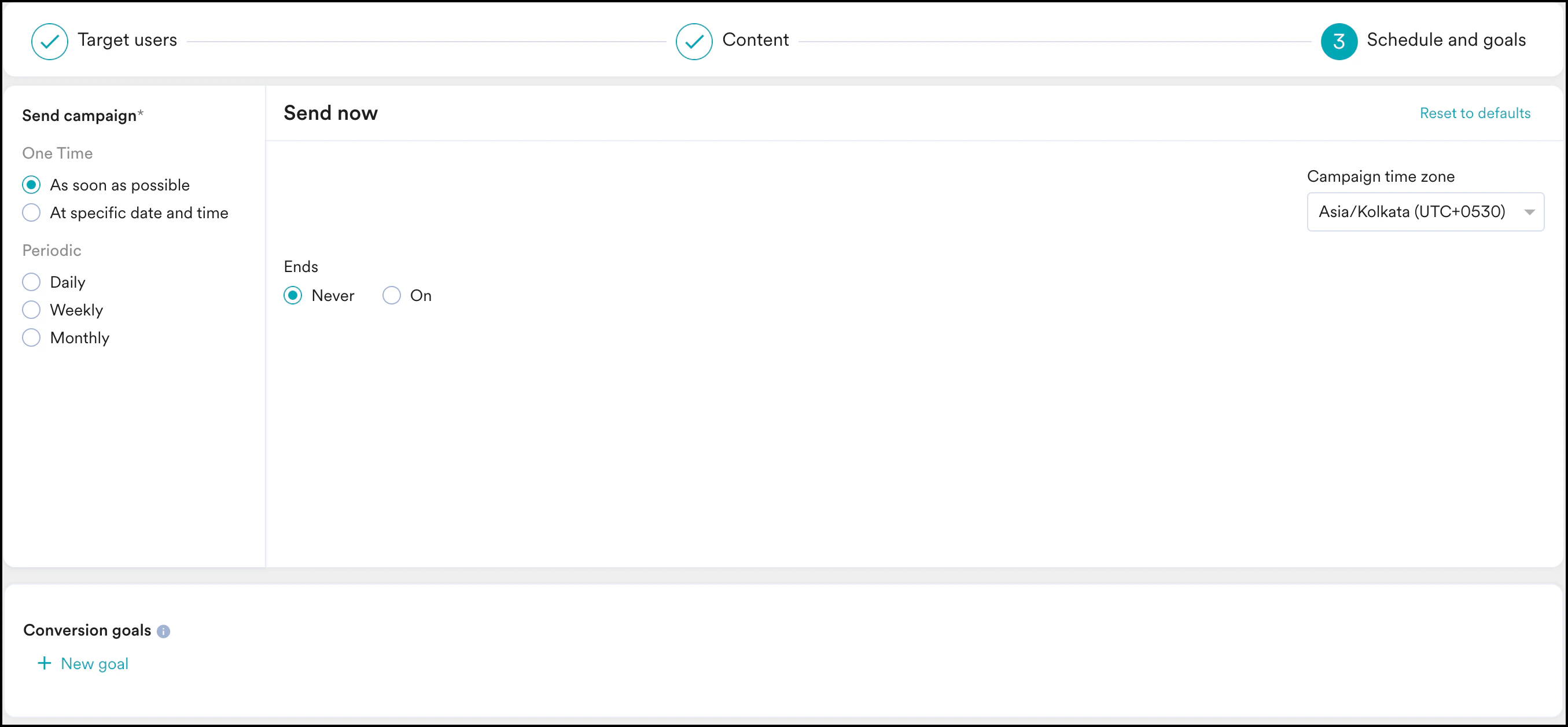 After filling in these details, click **Publish** to publish your campaign.
Certain delivery control settings may not work for In-App campaigns on Apple TV OS due to limited device storage.
You have successfully created an In-App campaign for TV.
After filling in these details, click **Publish** to publish your campaign.
Certain delivery control settings may not work for In-App campaigns on Apple TV OS due to limited device storage.
You have successfully created an In-App campaign for TV.