> ## Documentation Index
> Fetch the complete documentation index at: https://moengage.com/docs/llms.txt
> Use this file to discover all available pages before exploring further.
# How to Change the In-App Template Background Overlay Color and Transparency
> Adjust the background overlay color and transparency of MoEngage in-app message templates using opacity settings during campaign creation.
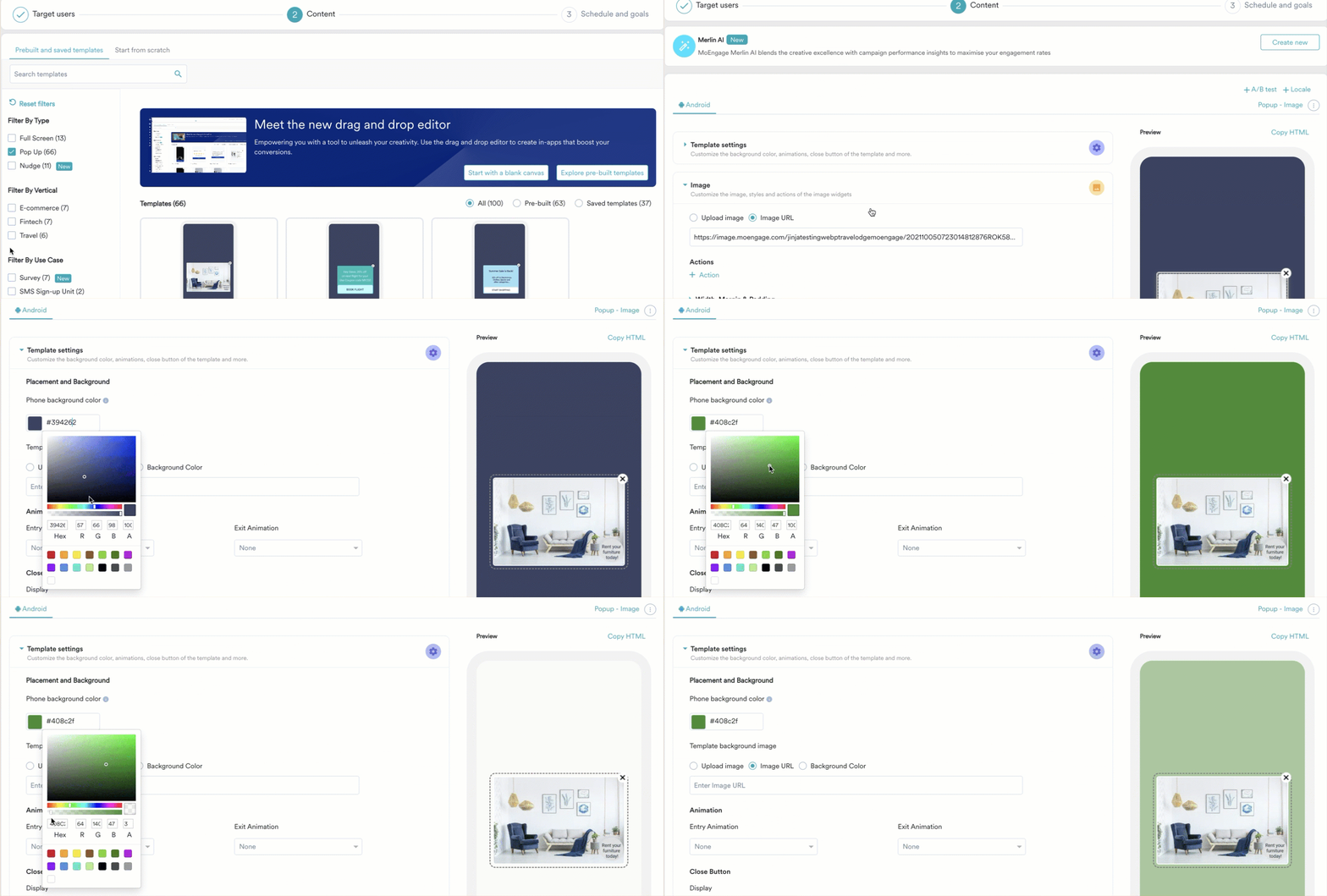
The color gradient contains an optional parameter to specify the background transparency of the templates between 0 (transparent) and 100 (opaque). A low opacity means high transparency, whereas a high opacity means low transparency.
Perform the following steps to use the transparency parameter while customizing the selected template for In-app messages:
Ensure that you have initiated the [In-app campaign creation](/user-guide/campaigns-and-channels/in-app-message/create/create-in-app-campaign) process.
1. Go to Step 2 "Content" of the campaign creation process.
2. Select the required template.
3. In the **Template settings** section, under **Placement and Background**, select the **Background Color** option.
4. Click the background color input field to view the color palette.
5. Scroll the color gradient bar from left to right to select the background color.
6. Scroll the opacity bar from left to right to customize the transparency between the template and the screen behind it.
7. Click the verticle ellipsis, select **Save template**, or click **Next** to continue the campaign creation process.
 **What's Next?**
* [Create In-App Campaign](/user-guide/campaigns-and-channels/in-app-message/create/create-in-app-campaign).
* [In-App Campaign Analytics](/user-guide/campaigns-and-channels/in-app-message/analyze/analyze-in-app-campaigns).
**What's Next?**
* [Create In-App Campaign](/user-guide/campaigns-and-channels/in-app-message/create/create-in-app-campaign).
* [In-App Campaign Analytics](/user-guide/campaigns-and-channels/in-app-message/analyze/analyze-in-app-campaigns).