> ## Documentation Index
> Fetch the complete documentation index at: https://moengage.com/docs/llms.txt
> Use this file to discover all available pages before exploring further.
# Create Push Campaigns
> Step-by-step guide to creating mobile push campaigns in MoEngage. Define your target audience, design content, and configure scheduling options.
To create a push campaign, perform the following steps:
If your system requires IP whitelisting, refer [here](/user-guide/settings/account/security/ip-whitelisting-in-moengage) before setting up the Push Campaign.
1. Navigate to the MoEngage Dashboard and select **Engage** -> **Campaigns** from the left navigation.
2. Click  at the top right corner of the **All Campaigns** Page.
3. Select *Push* from the Outbound channels listed.
4. Select one of the following campaign delivery types:
* One Time
* Periodic
* Event Triggered
* Business Event Triggered
* Device Triggered
* Location Triggered For more information about delivery types, refer to [Delivery Types](/user-guide/campaigns-and-channels/getting-started/introduction/delivery-types-moengage-channels).
# Steps to Create a Push Campaign
There are three steps to creating a push campaign, and they are:
1. [Target users](#step-1-target-users): Define the target audience for the campaign
2. [Content](#step-2-define-content): Define the content of the push notification to be sent
3. [Schedule and Goals](#step-3-scheduling-and-goals): Define the campaign's delivery schedule and goals
## Step 1: Target Users
This section defines the audience for your campaign and includes campaign details, audience limits, targeting rules, and platform selection.
### Campaign Details
The campaign details section contains the following fields:
| | |
| ------------------------------------------------------------------------------------------------------------------------------------------------------------------------------------------------------------------------------ | ---------------------------------------------------------------------------------------------------------------------------------------------------------------------------------------------------------------------------------------------------------------------------------------------------------------------------------------------------------------------------------------------------------------------------------------------------------------------------------------------------------------------------------------------------------------------------------------------------------------------------------------------------------------------------------------------------------------------------------------------------------------------------------------------------------------------------------------------------------------------------------------------------------------------------------------------------------------------------------------------------------------------------------------------------------------------------------------------------------------------------------------------------------------------------------------------------------------------------------------------------------------------------------------------------------------------------------------------------------------------------------------------------------------------------- |
| **Team**- If your organization has teams enabled, select the Team in the dropdown.For more information, refer to [Teams in MoEngage](/user-guide/settings/account/team-management/teams-in-moengage). | |
| **Campaign name** - Type the name of the campaign to manage and identify the campaign. The campaign name must have at least five characters, and the limit is 256. |
at the top right corner of the **All Campaigns** Page.
3. Select *Push* from the Outbound channels listed.
4. Select one of the following campaign delivery types:
* One Time
* Periodic
* Event Triggered
* Business Event Triggered
* Device Triggered
* Location Triggered For more information about delivery types, refer to [Delivery Types](/user-guide/campaigns-and-channels/getting-started/introduction/delivery-types-moengage-channels).
# Steps to Create a Push Campaign
There are three steps to creating a push campaign, and they are:
1. [Target users](#step-1-target-users): Define the target audience for the campaign
2. [Content](#step-2-define-content): Define the content of the push notification to be sent
3. [Schedule and Goals](#step-3-scheduling-and-goals): Define the campaign's delivery schedule and goals
## Step 1: Target Users
This section defines the audience for your campaign and includes campaign details, audience limits, targeting rules, and platform selection.
### Campaign Details
The campaign details section contains the following fields:
| | |
| ------------------------------------------------------------------------------------------------------------------------------------------------------------------------------------------------------------------------------ | ---------------------------------------------------------------------------------------------------------------------------------------------------------------------------------------------------------------------------------------------------------------------------------------------------------------------------------------------------------------------------------------------------------------------------------------------------------------------------------------------------------------------------------------------------------------------------------------------------------------------------------------------------------------------------------------------------------------------------------------------------------------------------------------------------------------------------------------------------------------------------------------------------------------------------------------------------------------------------------------------------------------------------------------------------------------------------------------------------------------------------------------------------------------------------------------------------------------------------------------------------------------------------------------------------------------------------------------------------------------------------------------------------------------------------- |
| **Team**- If your organization has teams enabled, select the Team in the dropdown.For more information, refer to [Teams in MoEngage](/user-guide/settings/account/team-management/teams-in-moengage). | |
| **Campaign name** - Type the name of the campaign to manage and identify the campaign. The campaign name must have at least five characters, and the limit is 256. | 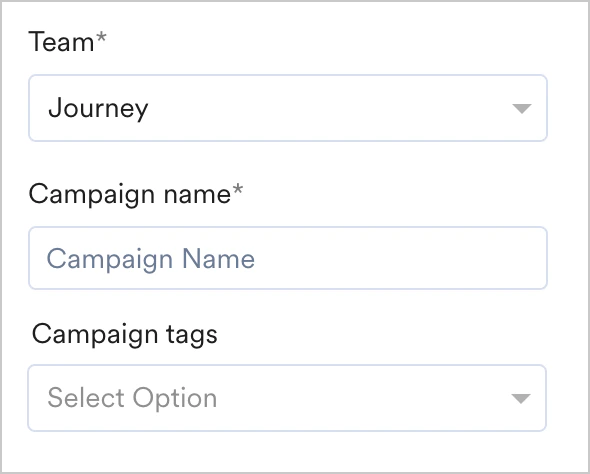 |
| **Campaign tags** - Select campaign tags from the drop-down list. You can select up to 5 tags. For more information, refer to [Campaign Tags](/user-guide/campaigns-and-channels/getting-started/introduction/campaign-tags). | |
Event-triggered campaigns allow you to send personalized notifications triggered by different user action events. For example, you can remind users about the item they added to the cart but have not purchased.
If [*Portfolio*](/user-guide/settings/account/portfolio/portfolio) is enabled for your workspace, you can create advanced event-triggered campaigns that are initiated by user actions in one project (brand) to send a message from another project (brand).
For more information on creating such campaigns, refer to [Create an Event-Triggered Campaign](/user-guide/campaigns-and-channels/triggers/event/create-an-event-triggered-campaign).
| | |
| ---------------------------------------------------------------------------------------------------------------------------------------------------------------------------------------------------------------------------------------------- | ----------------------------------------------------------------------------------------------------------------------------------------------------------------------------------------------------------------------------------------------------------------------------------------------------------------------------------------------------------------------------------------------------------------------------------------------------------------------------------------------------------------------------------------------------------------------------------------------------------------------------------------------------------------------------------------------------------------------------------------------------------------------------------------------------------------------------------------------------------------------------------------------------------------------------------------------------------------------------------------------------------------------------------------------------------------------------------------------------------------------------------------------------------------------------------------------------------------------------------------------------------------------------------------------------------------------------------------------------------------------------------------------------------------- |
| For business event-triggered campaigns,
|
| **Campaign tags** - Select campaign tags from the drop-down list. You can select up to 5 tags. For more information, refer to [Campaign Tags](/user-guide/campaigns-and-channels/getting-started/introduction/campaign-tags). | |
Event-triggered campaigns allow you to send personalized notifications triggered by different user action events. For example, you can remind users about the item they added to the cart but have not purchased.
If [*Portfolio*](/user-guide/settings/account/portfolio/portfolio) is enabled for your workspace, you can create advanced event-triggered campaigns that are initiated by user actions in one project (brand) to send a message from another project (brand).
For more information on creating such campaigns, refer to [Create an Event-Triggered Campaign](/user-guide/campaigns-and-channels/triggers/event/create-an-event-triggered-campaign).
| | |
| ---------------------------------------------------------------------------------------------------------------------------------------------------------------------------------------------------------------------------------------------- | ----------------------------------------------------------------------------------------------------------------------------------------------------------------------------------------------------------------------------------------------------------------------------------------------------------------------------------------------------------------------------------------------------------------------------------------------------------------------------------------------------------------------------------------------------------------------------------------------------------------------------------------------------------------------------------------------------------------------------------------------------------------------------------------------------------------------------------------------------------------------------------------------------------------------------------------------------------------------------------------------------------------------------------------------------------------------------------------------------------------------------------------------------------------------------------------------------------------------------------------------------------------------------------------------------------------------------------------------------------------------------------------------------------------- |
| For business event-triggered campaigns,
you can select the business event to be mapped to the campaign using the *Select business event* dropdown.
The dropdown contains all the business events created in your MoEngage account. | 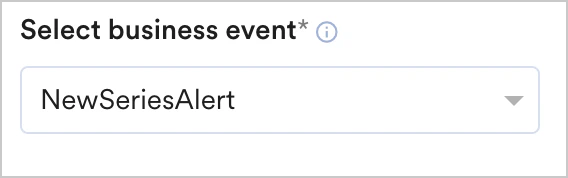 |
Once the business event is selected, the event attributes associated with the business event are available in the segmentation filters. Business event attributes are available in the following segmentation filters:
* segment by user property - you can map the user property to the business event attribute
* segment by user behavior - you can map the attribute of an event executed by the user to that of the business event attribute
* segment by user affinity- you can map the attribute of an event executed by the user to that of the business event attribute
- The data types of the user attribute or event attribute chosen should match with that of the business event attribute for segmentation to work.
- Show count is disabled for business event-triggered campaigns as business events are modeled to run on dynamic segmentation (based on the values with which the business event is triggered).
Click
|
Once the business event is selected, the event attributes associated with the business event are available in the segmentation filters. Business event attributes are available in the following segmentation filters:
* segment by user property - you can map the user property to the business event attribute
* segment by user behavior - you can map the attribute of an event executed by the user to that of the business event attribute
* segment by user affinity- you can map the attribute of an event executed by the user to that of the business event attribute
- The data types of the user attribute or event attribute chosen should match with that of the business event attribute for segmentation to work.
- Show count is disabled for business event-triggered campaigns as business events are modeled to run on dynamic segmentation (based on the values with which the business event is triggered).
Click  . In the *Add Geofence* popup that opens, do the following:
1. Add the Geofence name.
2. Select the trigger criteria from the user action drop-down to trigger the push message on entry/exit/stay inside the geo-fence. The following options are available:
* *User enters the Geofence* - A message will be triggered when the user enters the defined perimeter.
* *User exits the Geofence* - A message will be triggered when the user exits the defined perimeter
* *Dwell based (user stays in Geofence)* - A message will be triggered when a user enters and stays inside the defined perimeter for X mins. **Please note that this type of trigger is supported only for Android**. If your customers receive many alerts when driving briefly past your geofences, dwell-based fences are very effective in reducing this spam.
3. Specify the Geofence by searching for the location. The Latitude and Longitude are auto-populated in this case. Alternatively, you can provide the following information to specify the geofence:
* *Latitude*
* *Longitude*
* *Radius (in meters)*- Enter an appropriate radius parameter for the geo-fence to be triggered. For example, if a geofence of 7 km is set around Foley Sq in New York, the push notification will be triggered based on the criteria chosen (entry/exit/dwell).
4. Click **Done** to add the geofence. You can add multiple geo-fences with separate messages and locations for each. Remove a geofence by clicking the "x" sign in the geo-fence list.
AB variation/Locales is not supported in Location-triggered and API triggered campaigns.
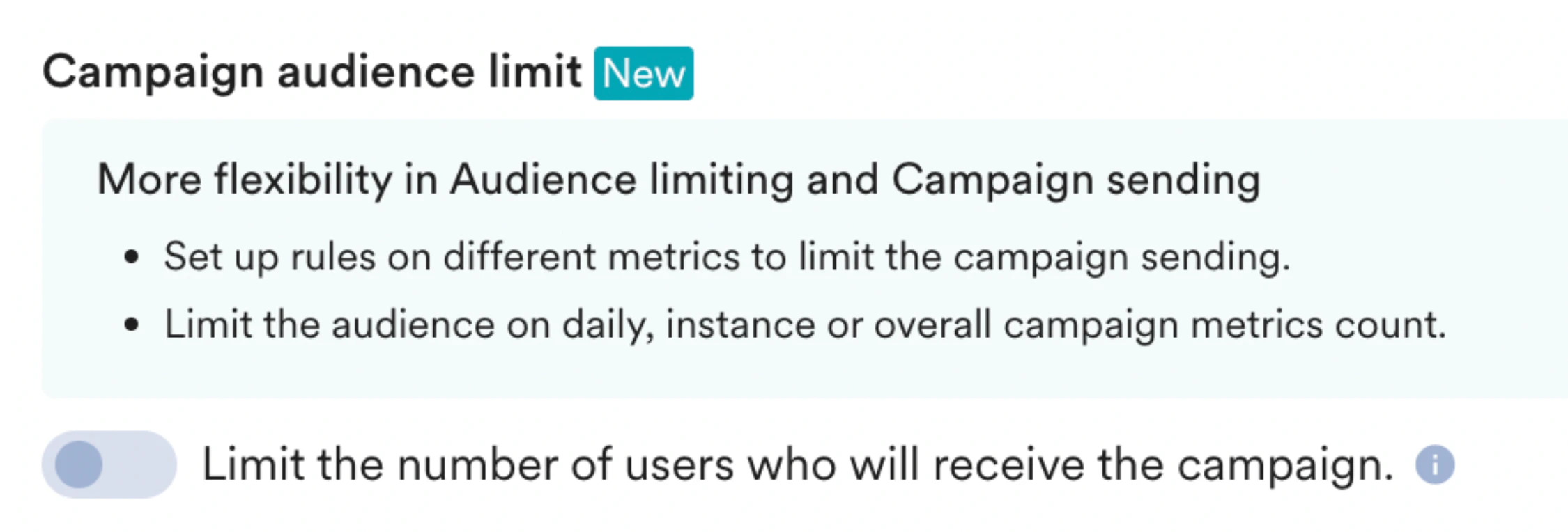
### Campaign Audience Limit
This feature empowers you to control campaign reach and expenditure by capping the number of users who receive it based on engagement metrics like sends, impressions, and conversions. It allows you to set total, daily, or instance-level limits to campaigns. For more information, refer to [Campaign Audience Limit.](/user-guide/settings/delivery-controls/campaign-audience-limit#h_01JP4SSADV881HJE0QB5PYYG36)
. In the *Add Geofence* popup that opens, do the following:
1. Add the Geofence name.
2. Select the trigger criteria from the user action drop-down to trigger the push message on entry/exit/stay inside the geo-fence. The following options are available:
* *User enters the Geofence* - A message will be triggered when the user enters the defined perimeter.
* *User exits the Geofence* - A message will be triggered when the user exits the defined perimeter
* *Dwell based (user stays in Geofence)* - A message will be triggered when a user enters and stays inside the defined perimeter for X mins. **Please note that this type of trigger is supported only for Android**. If your customers receive many alerts when driving briefly past your geofences, dwell-based fences are very effective in reducing this spam.
3. Specify the Geofence by searching for the location. The Latitude and Longitude are auto-populated in this case. Alternatively, you can provide the following information to specify the geofence:
* *Latitude*
* *Longitude*
* *Radius (in meters)*- Enter an appropriate radius parameter for the geo-fence to be triggered. For example, if a geofence of 7 km is set around Foley Sq in New York, the push notification will be triggered based on the criteria chosen (entry/exit/dwell).
4. Click **Done** to add the geofence. You can add multiple geo-fences with separate messages and locations for each. Remove a geofence by clicking the "x" sign in the geo-fence list.
AB variation/Locales is not supported in Location-triggered and API triggered campaigns.
### Campaign Audience Limit
This feature empowers you to control campaign reach and expenditure by capping the number of users who receive it based on engagement metrics like sends, impressions, and conversions. It allows you to set total, daily, or instance-level limits to campaigns. For more information, refer to [Campaign Audience Limit.](/user-guide/settings/delivery-controls/campaign-audience-limit#h_01JP4SSADV881HJE0QB5PYYG36)
 ### Target Audience
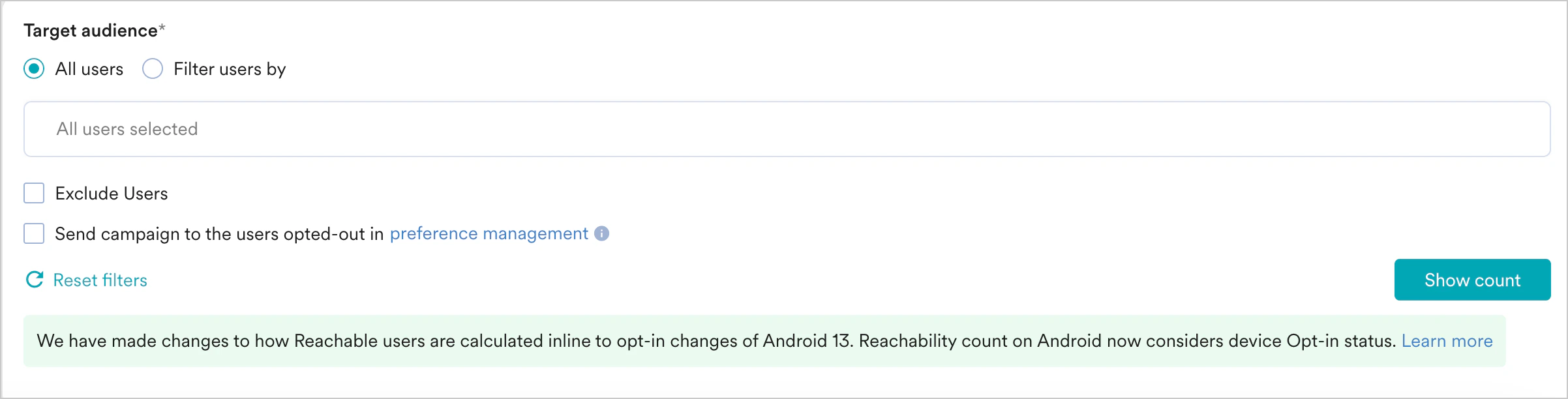
This section contains segmentation filters that help you choose the target audience for your campaign. The following options are available:
This filter option allows you to send the campaign to all the app users. When you use this option, you cannot add multiple filters.
### Target Audience
This section contains segmentation filters that help you choose the target audience for your campaign. The following options are available:
This filter option allows you to send the campaign to all the app users. When you use this option, you cannot add multiple filters.
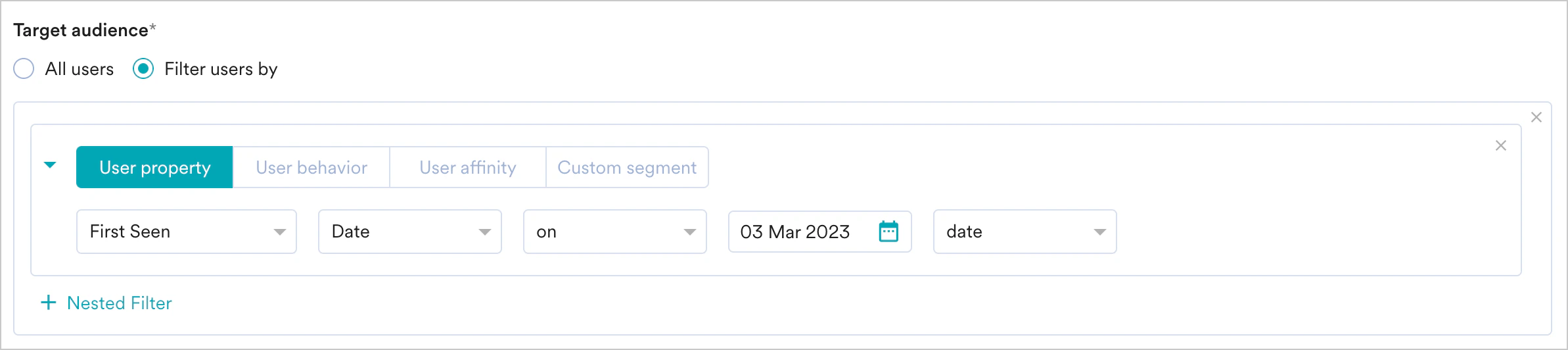
 This filter option allows you to target the users based on user properties such as first seen, last seen, city, and so on. Select the User property tab and do the following:
1. Select the desired attribute in the dropdown. This will enable the filters based on the attributes chosen. For example, attributes that are numbers can have filter conditions such as 'is equal to', 'is not equal to', 'is between', and so on, while String attributes will have different filters.
2. Provide the filter value(s) to create the desired user segment.
For more information, refer to [Create Segments](/user-guide/segment/segment/segment-operations/create-segments).
This filter option allows you to target the users based on user properties such as first seen, last seen, city, and so on. Select the User property tab and do the following:
1. Select the desired attribute in the dropdown. This will enable the filters based on the attributes chosen. For example, attributes that are numbers can have filter conditions such as 'is equal to', 'is not equal to', 'is between', and so on, while String attributes will have different filters.
2. Provide the filter value(s) to create the desired user segment.
For more information, refer to [Create Segments](/user-guide/segment/segment/segment-operations/create-segments).
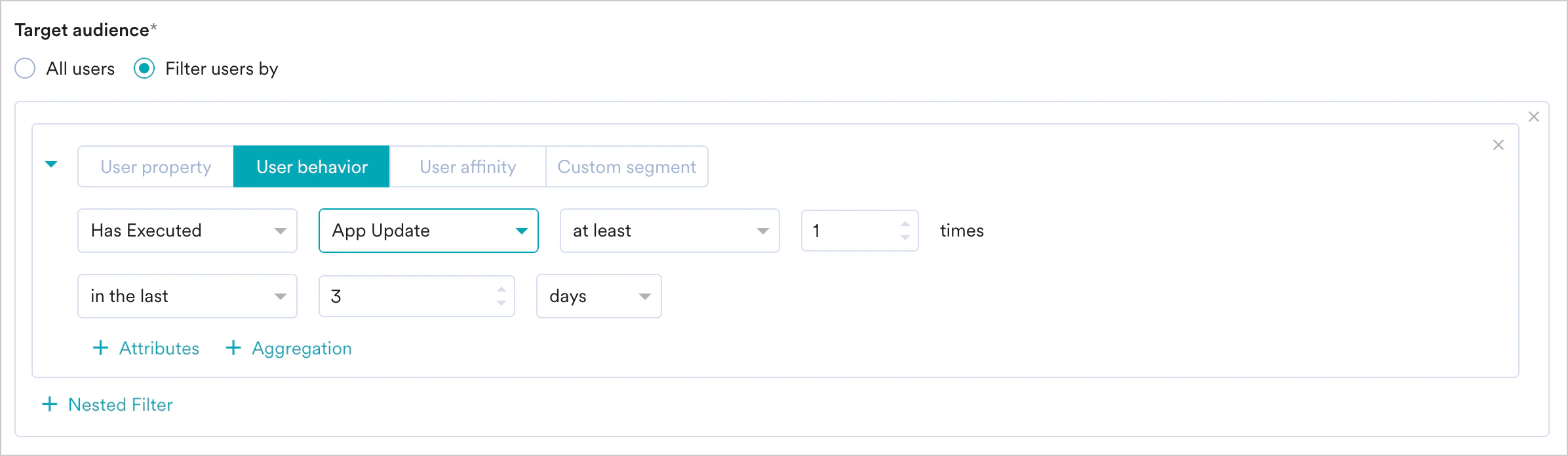
 This filter option allows you to target the users based on the behavior of the user or event, such as app/site opened, viewed product, and so on. Select the User Behavior and do the following:
1. Select the execution condition and the desired user activity (event).
2. Provide event frequency and time duration for the event execution.
3. Click +Attributes and add an Event attribute with a filter condition.
4. Provide the filter value/s to create a rule.
For more information, refer to [Create Segments](/user-guide/segment/segment/segment-operations/create-segments).
This filter option allows you to target the users based on the behavior of the user or event, such as app/site opened, viewed product, and so on. Select the User Behavior and do the following:
1. Select the execution condition and the desired user activity (event).
2. Provide event frequency and time duration for the event execution.
3. Click +Attributes and add an Event attribute with a filter condition.
4. Provide the filter value/s to create a rule.
For more information, refer to [Create Segments](/user-guide/segment/segment/segment-operations/create-segments).
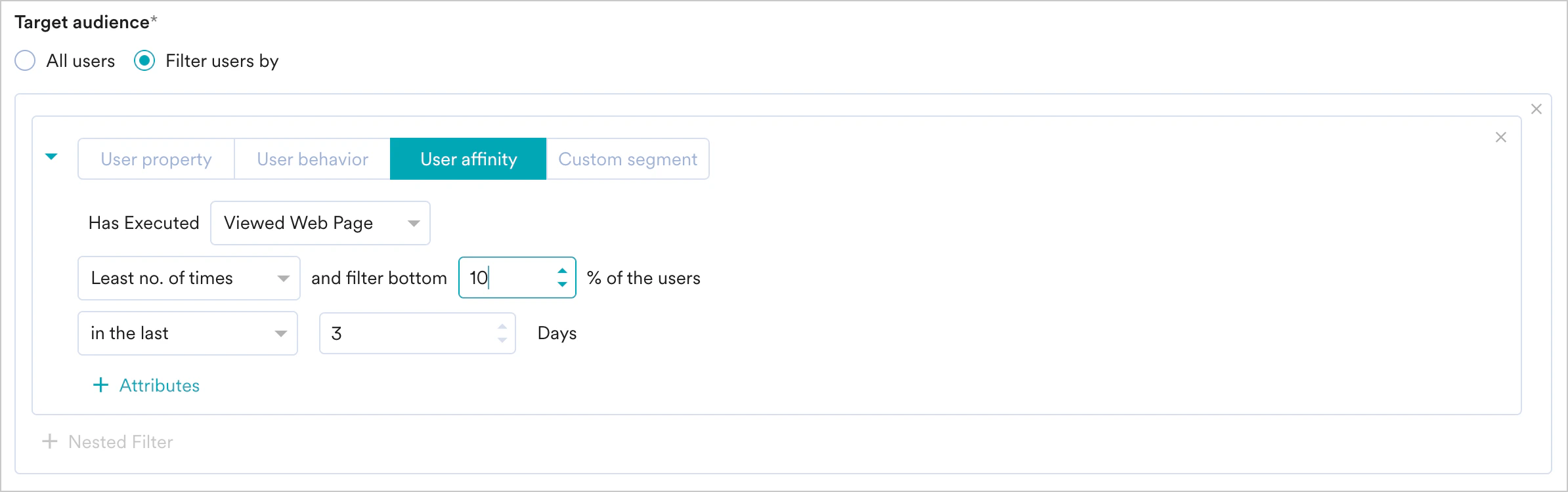
 This filter option allows you to target groups of users created based on the user performing an action with a specific attribute value. For more information, refer to User Affinity. Select User Affinity and do the following:
1. Select the desired user event or attribute.
2. Select the user affinity parameter from the following:
* Predominantly Select affinity attribute with a filter condition and provide the affinity values
* Minimum of Select affinity attribute with a filter condition and provide the affinity values
* Most no. of times Type or use the arrows to provide the top or bottom percentage of users
* Least no. of times
3. Type or use the arrows to provide the top or bottom percentage of users Type or use the arrows to provide the time duration for the event execution.
4. Click the Attribute button to add more attributes to the filter.
This filter option allows you to target groups of users created based on the user performing an action with a specific attribute value. For more information, refer to User Affinity. Select User Affinity and do the following:
1. Select the desired user event or attribute.
2. Select the user affinity parameter from the following:
* Predominantly Select affinity attribute with a filter condition and provide the affinity values
* Minimum of Select affinity attribute with a filter condition and provide the affinity values
* Most no. of times Type or use the arrows to provide the top or bottom percentage of users
* Least no. of times
3. Type or use the arrows to provide the top or bottom percentage of users Type or use the arrows to provide the time duration for the event execution.
4. Click the Attribute button to add more attributes to the filter.
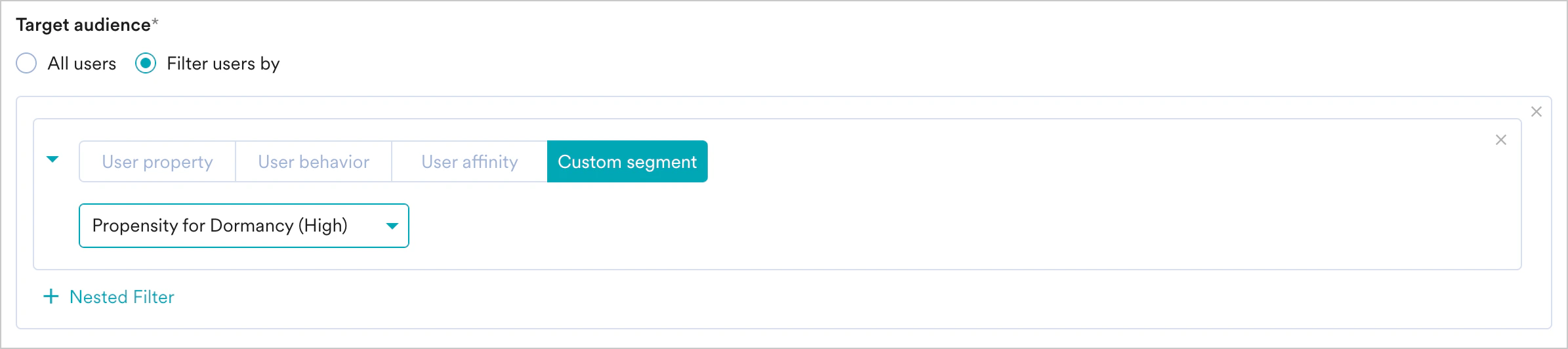
 This filter option allows you to select a Custom Segment as the target audience from the list of custom segments available. For more information, refer to [Custom Segments](/user-guide/segment/segment/segment-operations/custom-segments).
 If you have the [*Portfolio*](/user-guide/settings/account/portfolio/portfolio) feature enabled, you can create user segments by combining user data and behavior from different apps and websites (Projects) within your workspace. For more information, refer to [Segmentation in a Multi-Project Portfolio](/user-guide/segment/segment/advanced-concepts/segmentation-in-a-multi-project-portfolio).
If teams are enabled for your account, the segmentation criteria specified for the team for which you are creating will get appended to the campaign with an AND condition. For more information, refer to [Teams in MoEngage](/user-guide/settings/account/team-management/teams-in-moengage).
After choosing the filter criteria, you can do the following as well:
* Create and combine multiple user property rules, user activity rules, and custom Segment rules to create a complex user segment using this option.
* Click *+ Filter*.
* Click *AND or OR*.
* Select the attribute or event and define the filter conditions.
* **Exclude Users**- Check the *Exclude Users* checkbox to define the filter criteria for users to be excluded from the campaign.
* **Send campaign to the users opted out in preference management** -Check this option to include users opted out in preference management for the campaign. For more information, refer to [Preference Management](/user-guide/campaigns-and-channels/mobile-push/getting-started-with-mobile-push/preference-management-for-push-notifications).
* **Reset Filters** - Click this option to reset the segmentation filters.
* **Show Count**- Click *Show Count* to display the total number of users who are currently in the configured segment.
If you have the [*Portfolio*](/user-guide/settings/account/portfolio/portfolio) feature enabled, you can create user segments by combining user data and behavior from different apps and websites (Projects) within your workspace. For more information, refer to [Segmentation in a Multi-Project Portfolio](/user-guide/segment/segment/advanced-concepts/segmentation-in-a-multi-project-portfolio).
If teams are enabled for your account, the segmentation criteria specified for the team for which you are creating will get appended to the campaign with an AND condition. For more information, refer to [Teams in MoEngage](/user-guide/settings/account/team-management/teams-in-moengage).
After choosing the filter criteria, you can do the following as well:
* Create and combine multiple user property rules, user activity rules, and custom Segment rules to create a complex user segment using this option.
* Click *+ Filter*.
* Click *AND or OR*.
* Select the attribute or event and define the filter conditions.
* **Exclude Users**- Check the *Exclude Users* checkbox to define the filter criteria for users to be excluded from the campaign.
* **Send campaign to the users opted out in preference management** -Check this option to include users opted out in preference management for the campaign. For more information, refer to [Preference Management](/user-guide/campaigns-and-channels/mobile-push/getting-started-with-mobile-push/preference-management-for-push-notifications).
* **Reset Filters** - Click this option to reset the segmentation filters.
* **Show Count**- Click *Show Count* to display the total number of users who are currently in the configured segment.
 ### Target Platforms
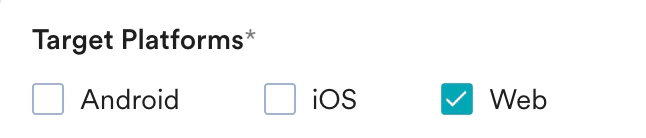
This section lets you choose the target platforms for your campaign. The following options are available:
| | |
| -------------------------------------------------------------------------------------------------------------------------------------------------------------------------------------------------------------------------------------------------------------------------------------------------------------------------------------------------------------------------------------------------------------------------------------------------------------------------------------------------------------------------------------------------------------------------------------------------------------------------------------------------------------------------------------------------------------------------------- | ---------------------------------------------------------------------------------------------------------------------------------------------------------------------------------------------------------------------------------------------------------------------------------------------------------------------------------------------------------------------------------------------------------------------------------------------------------------------------------------------------------------------------------------------------------------------------------------------------------------------------------------------------------------------------------------------------------------------------------------------------------------------------------------------------------------------------------------------------------------------------------------------------------------------------------------------------------------------------------------------------------------------------------------------------------------------------------------------------------------------------------------------------------------------------------------------------------------------------------------------------------------------------------------------------------------------------------------------------------------------------------------------------------------------------- |
| **Android** - Select this option to send campaigns only to Android devices.
### Target Platforms
This section lets you choose the target platforms for your campaign. The following options are available:
| | |
| -------------------------------------------------------------------------------------------------------------------------------------------------------------------------------------------------------------------------------------------------------------------------------------------------------------------------------------------------------------------------------------------------------------------------------------------------------------------------------------------------------------------------------------------------------------------------------------------------------------------------------------------------------------------------------------------------------------------------------- | ---------------------------------------------------------------------------------------------------------------------------------------------------------------------------------------------------------------------------------------------------------------------------------------------------------------------------------------------------------------------------------------------------------------------------------------------------------------------------------------------------------------------------------------------------------------------------------------------------------------------------------------------------------------------------------------------------------------------------------------------------------------------------------------------------------------------------------------------------------------------------------------------------------------------------------------------------------------------------------------------------------------------------------------------------------------------------------------------------------------------------------------------------------------------------------------------------------------------------------------------------------------------------------------------------------------------------------------------------------------------------------------------------------------------------- |
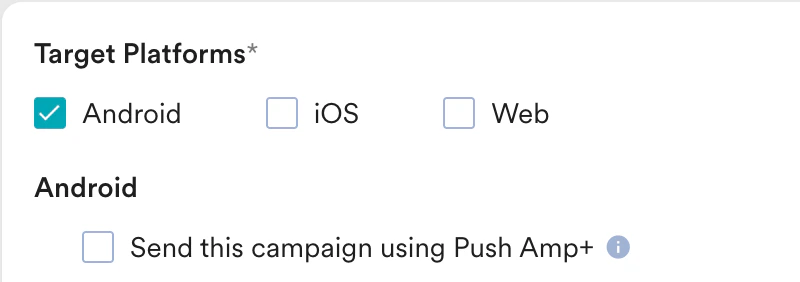
| **Android** - Select this option to send campaigns only to Android devices.
When this is selected, you get the following option:
*Send this campaign using Push Amp+*.
For more information refer to, [Push Amp+ and Delivery Impact](/user-guide/campaigns-and-channels/mobile-push/analyze/push-amplification-plus-and-delivery-impact). |
 |
| **iOS** - Select this option to send campaigns only to iOS devices.
|
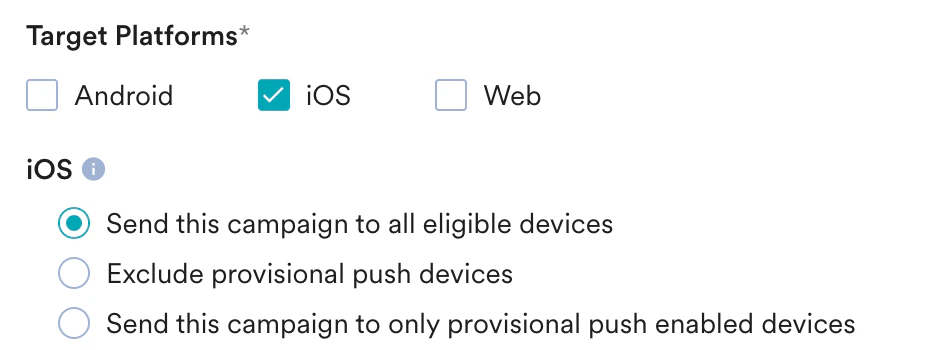
| **iOS** - Select this option to send campaigns only to iOS devices.
When this is selected, you get the following options:
*Send this campaign to all eligible devices*
*Exclude provisional push devices*
*Send this campaign to only provisional push enabled devices*.
For more information refer to [iOS Push Permission and Reachability](/user-guide/campaigns-and-channels/mobile-push/notification-features-and-behavior/ios-push-permission-and-reachability). |
 |
| **Web** - Select this option to send a Web Push campaign.
|
| **Web** - Select this option to send a Web Push campaign.
This option is available only for One Time and
*Periodic Push campaigns*.
For more information, refer to [Web Push Campaigns.](/user-guide/campaigns-and-channels/web-push/create/create-web-push-campaign) |
 |
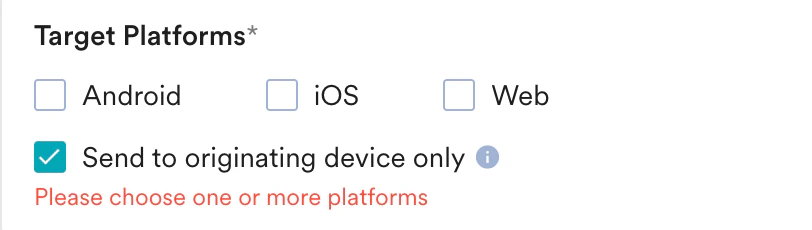
| **Send to Originating Device** -
|
| **Send to Originating Device** -
Upon selecting the checkbox, the system sends
the push notification only to
the device where the event that
triggers the campaign occurs.
This option is available only for
event-triggered campaigns.
For example: A user logs into an e-commerce
site from three devices:
Web, Android 1, and Android 2.
If the Add to Cart event occurs on
Android 1, the notification goes only to Android 1.
**Note**: If the device where the event occurs isn’t the user’s primary
device, and the Last Active Device checkbox
is also selected for the campaign,
the notification doesn’t get delivered. |
 |
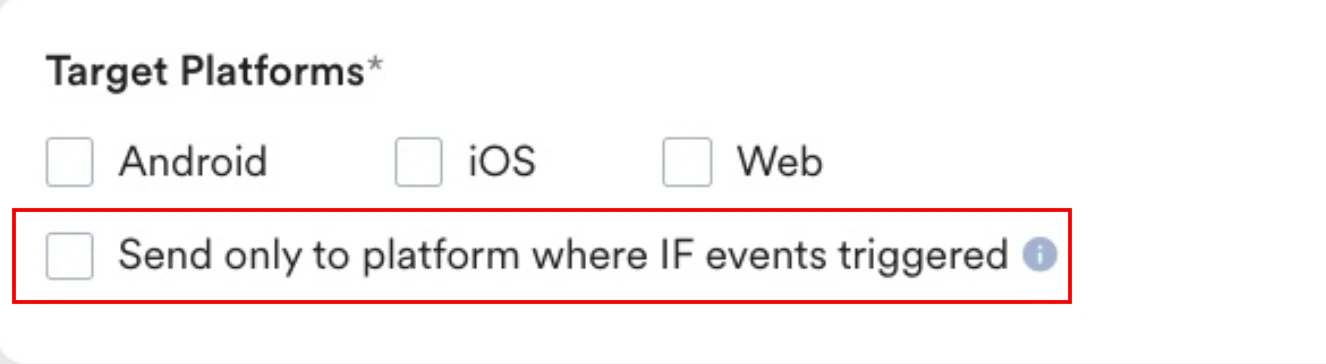
| **Send only to a platform where IF events triggered** -
|
| **Send only to a platform where IF events triggered** -
This option is available only for Event Triggered campaigns.
Select this checkbox to send the campaign only to devices that
share the same platform (e.g., Android, iOS) as the device
where the event was triggered.
For example, if a user has two Android devices and one iOS
device and triggers the event on one of the Android devices, the
campaign will be sent to both of their Android devices but not to
their iOS device. |
 |
### Control Groups
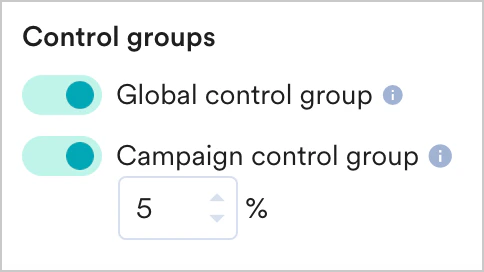
This section contains information about control groups for the campaign. To exclude users in the control groups, do the following:
* Enable the **Global control group** toggle to exclude the users in the control group from the campaign's target segment.
* Enable the **Campaign control group** to exclude a fixed percentage of users in the campaign from the campaign's target segment. Specify the percentage of users to be excluded from the campaign in the box below the toggle. Note: This option is not available for location and device triggered campaigns.
|
### Control Groups
This section contains information about control groups for the campaign. To exclude users in the control groups, do the following:
* Enable the **Global control group** toggle to exclude the users in the control group from the campaign's target segment.
* Enable the **Campaign control group** to exclude a fixed percentage of users in the campaign from the campaign's target segment. Specify the percentage of users to be excluded from the campaign in the box below the toggle. Note: This option is not available for location and device triggered campaigns.
 For more information about control groups, refer to [Control Groups](/user-guide/campaigns-and-channels/getting-started/introduction/control-groups).
Click **Next** or use the tabs on the top of the create campaign navigation to move to Step 2.
## Step 2: Define Content
This section contains various templates that you can choose from to define the content of the push notification. Select one of the templates and follow the steps described in [Push Templates](/user-guide/campaigns-and-channels/mobile-push/create/push-templates).
MoEngage recommends that you verify your push message displayed in the preview and then click next to set the schedule and goals of the campaign.
If the UTM parameters are enabled in the general settings, the **UTM parameters** toggle for the current push campaign is turned on. For more information, refer to [Setting Up General UTM Parameters at Account Level](/user-guide/settings/settings/advanced-settings/configure-general-utm-parameters-at-account-level).
You can set UTM parameters for campaigns individually. The changes you make in the UTM parameters for a campaign override the general settings. The changes are applicable only to the specific campaign you are creating or editing, and they do not impact the general settings. For more information, refer to [Adding UTM Parameters to Campaigns](/user-guide/settings/settings/advanced-settings/add-utm-parameters-to-campaigns).
Test campaigns enable previewing the campaign on a test device to ensure that your notification is conveyed in the manner that you desire.
You can test the campaign you created by selecting any of the following options and providing the value for the attribute chosen for your test user.
* Unique ID
* Email ID
* Mobile Number
* Google Advertising identifier
* iOS Identifier for advertising
* Device Push Token
* Custom Segment
For more information about control groups, refer to [Control Groups](/user-guide/campaigns-and-channels/getting-started/introduction/control-groups).
Click **Next** or use the tabs on the top of the create campaign navigation to move to Step 2.
## Step 2: Define Content
This section contains various templates that you can choose from to define the content of the push notification. Select one of the templates and follow the steps described in [Push Templates](/user-guide/campaigns-and-channels/mobile-push/create/push-templates).
MoEngage recommends that you verify your push message displayed in the preview and then click next to set the schedule and goals of the campaign.
If the UTM parameters are enabled in the general settings, the **UTM parameters** toggle for the current push campaign is turned on. For more information, refer to [Setting Up General UTM Parameters at Account Level](/user-guide/settings/settings/advanced-settings/configure-general-utm-parameters-at-account-level).
You can set UTM parameters for campaigns individually. The changes you make in the UTM parameters for a campaign override the general settings. The changes are applicable only to the specific campaign you are creating or editing, and they do not impact the general settings. For more information, refer to [Adding UTM Parameters to Campaigns](/user-guide/settings/settings/advanced-settings/add-utm-parameters-to-campaigns).
Test campaigns enable previewing the campaign on a test device to ensure that your notification is conveyed in the manner that you desire.
You can test the campaign you created by selecting any of the following options and providing the value for the attribute chosen for your test user.
* Unique ID
* Email ID
* Mobile Number
* Google Advertising identifier
* iOS Identifier for advertising
* Device Push Token
* Custom Segment
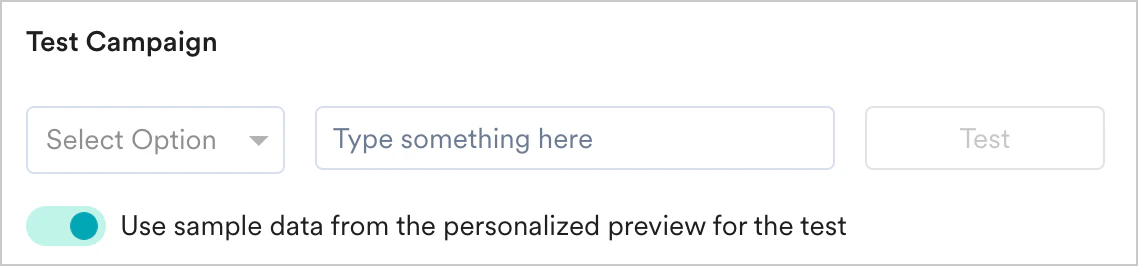 For business event-triggered campaigns, you will be asked to enter the attributes with which the event should be triggered, as shown below. If you have mapped any business event attribute(s) to user attribute(s) or event attribute(s) in segmentation, these values have to be passed while testing the campaign. If they are not passed, the test campaign will fail.
## Step 3: Scheduling and Goals
This section contains the following:
* [Delivery Schedule](#h_01F9H84424V8J9W1X10MJBMSZR) - Choose when the campaign should be delivered to your users and the periodicity of delivery.
* [Pre-compute audience](#01GV0JRXFXE0MEPFW70SR53QM8) - this is an optional configuration for time-sensitive campaigns.
* [Conversion Goals](#01GPMY5KDGMY1P005MWPHD8VVW) - Choose the conversion goals and revenue metrics to be tracked for the campaign.
* [Delivery Controls](#01GTZQQQYE0QA54ZHH4T6S83AQ) - Choose the advanced delivery control options such as throttling, frequency capping, and expiration settings for the notification.
### Delivery Schedule
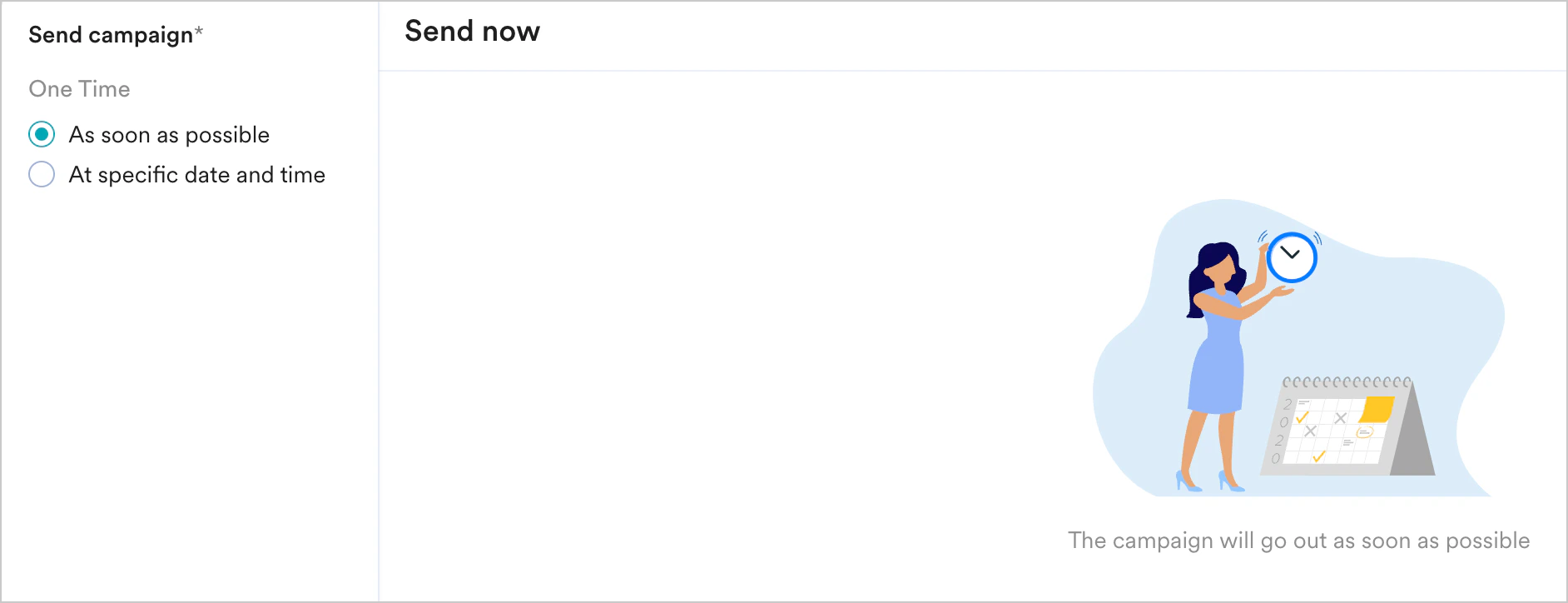
Send the campaign immediately to the target users.
For business event-triggered campaigns, you will be asked to enter the attributes with which the event should be triggered, as shown below. If you have mapped any business event attribute(s) to user attribute(s) or event attribute(s) in segmentation, these values have to be passed while testing the campaign. If they are not passed, the test campaign will fail.
## Step 3: Scheduling and Goals
This section contains the following:
* [Delivery Schedule](#h_01F9H84424V8J9W1X10MJBMSZR) - Choose when the campaign should be delivered to your users and the periodicity of delivery.
* [Pre-compute audience](#01GV0JRXFXE0MEPFW70SR53QM8) - this is an optional configuration for time-sensitive campaigns.
* [Conversion Goals](#01GPMY5KDGMY1P005MWPHD8VVW) - Choose the conversion goals and revenue metrics to be tracked for the campaign.
* [Delivery Controls](#01GTZQQQYE0QA54ZHH4T6S83AQ) - Choose the advanced delivery control options such as throttling, frequency capping, and expiration settings for the notification.
### Delivery Schedule
Send the campaign immediately to the target users.
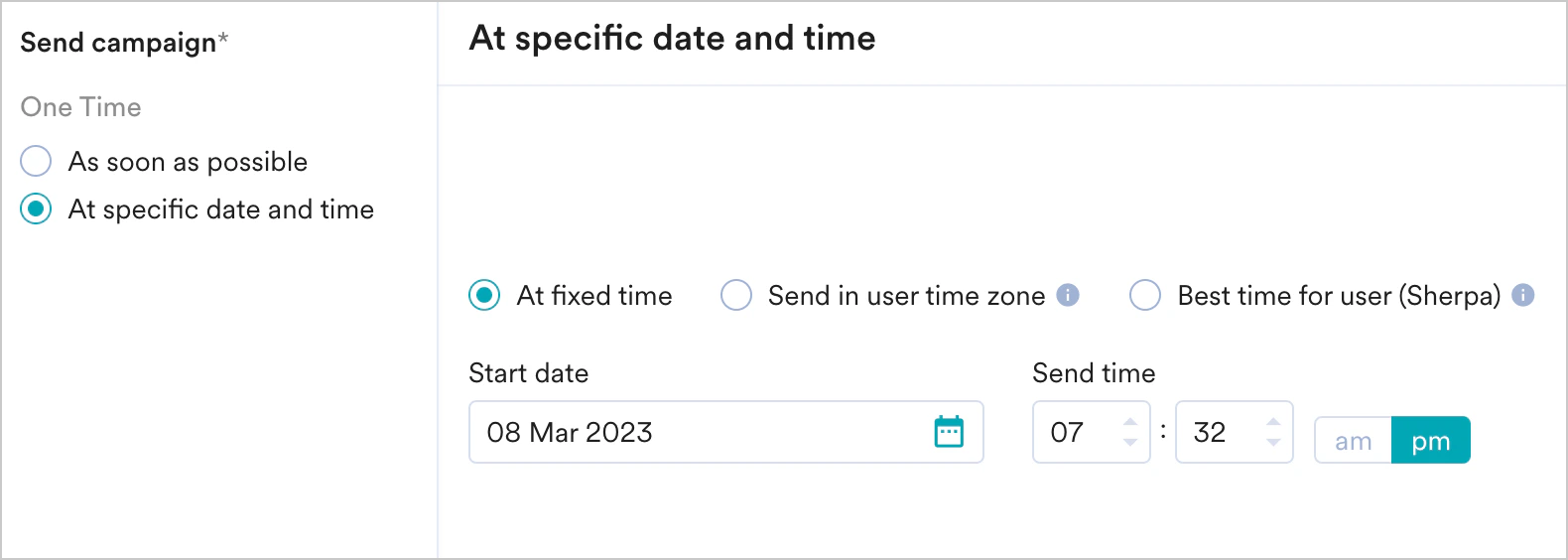
 Send the campaign at the specified time, time zone, or predicted time. Select one of the following:
| Field | Description |
| ------------------------------ | --------------------------------------------------------------------------------------------------------------------------------------------------------------------------------------------------------------------------------------------------------------------------------------------------------------------------------------------------------------------------------------------------------------------------------------------------------------------------------------------------------------------------------------------------------------------------------------------------------------------------------------------------------------------------------------------------------------------------------------------------------------------------------------------------------------------------------------------------------------------------------------------------------------------------------------------------------------------------------------------------------------------------------------------------------------------------------------------------------------------------------------------------------------------------------------------------------------------------------------------------------------------------------------------------------------------------------------------------------------------------------------------------------------------------------------------------------------------------------------------------------------------------------------------------------------------------------------------------------------------------------------------------------------------------------------------------------------------------------------------------------------------------------------- |
| **At fixed time** | This section helps you send the campaign on a specific date and time and contains the following fields:
Send the campaign at the specified time, time zone, or predicted time. Select one of the following:
| Field | Description |
| ------------------------------ | --------------------------------------------------------------------------------------------------------------------------------------------------------------------------------------------------------------------------------------------------------------------------------------------------------------------------------------------------------------------------------------------------------------------------------------------------------------------------------------------------------------------------------------------------------------------------------------------------------------------------------------------------------------------------------------------------------------------------------------------------------------------------------------------------------------------------------------------------------------------------------------------------------------------------------------------------------------------------------------------------------------------------------------------------------------------------------------------------------------------------------------------------------------------------------------------------------------------------------------------------------------------------------------------------------------------------------------------------------------------------------------------------------------------------------------------------------------------------------------------------------------------------------------------------------------------------------------------------------------------------------------------------------------------------------------------------------------------------------------------------------------------------------------- |
| **At fixed time** | This section helps you send the campaign on a specific date and time and contains the following fields: - **Campaign time zone:** The timezone in which the campaign should be sent.
- **Start date**: The date on which the campaign should be sent.
- **Send time**: The time at which the campaign should be sent. Select AM or PM depending on the time of day.
|
| **Send in user time zone** | This section helps you send the campaign on a specific date and time within the time zone of the user and contains the following fields: - **Campaign time zone**: The timezone in which the campaign should be sent.
- **Start date**: The date on which the campaign should be sent.
- **Send time**: The time at which the campaign should be sent. Select am or pm depending on the time of day.
- **Send if the user time zone has passed**: If the campaign's start time has passed in the user's timezone, you have the option to do the following:
- **Yes, send it**: Send the campaign to the user even if the specified start time has passed in their timezone.
- **No, don't send it**: Do not send the campaign to the user as the specified start time has passed in their timezone.
|
| Best time for user (Merlin AI) | This section helps you send the campaign based on the MoEngage intelligence-determined date and time and contains the following fields: - **Campaign time zone**: The timezone in which the campaign should be sent.
- **Start date:** The date on which the campaign should be sent.
- **Start time**: The time at which the campaign should be sent. Select am or pm depending on the time of day.
- **Send messages based on best time only till**: The time until which the campaign should be sent based on the best time to send (BTS). Select **am** or **pm** depending on the time of day. Click **View best time distribution** to see the best time for sending push notifications, represented in a graphical manner.
- **If user's best time is outside this time window**: You choose when the campaign is to be sent when the user's BTS is outside the time window selected. You can do the following:
- Send the campaign to the user either at the start or end time by selecting Send message at start time or end time.
- Avoid sending the campaign to the user by selecting **Do not send message**.
- **If user's best time is not available**: You choose when the campaign is to be sent when the user does not have BTS. You can do the following:
- Send the campaign to the user at the start time by selecting **Yes, send at start time**.
- Send the campaign to the user at the app's best time by selecting **Yes, send at the app's best time**.
- Avoid sending the campaign to the user by selecting **Do not send message**.
For more information, refer to the Best time to send [BTS](/user-guide/ai-and-intelligence/timing/best-time-to-send). |
 Choose this option to send the campaign on a specified date and time. The following fields are available in this section:
* **Campaign time zone**: The timezone in which the campaign should be sent.
* **Start date**: The date on which the campaign should be sent.
* **Send time**: The time at which the campaign should be sent. Select **am** or **pm** depending on the time of day.
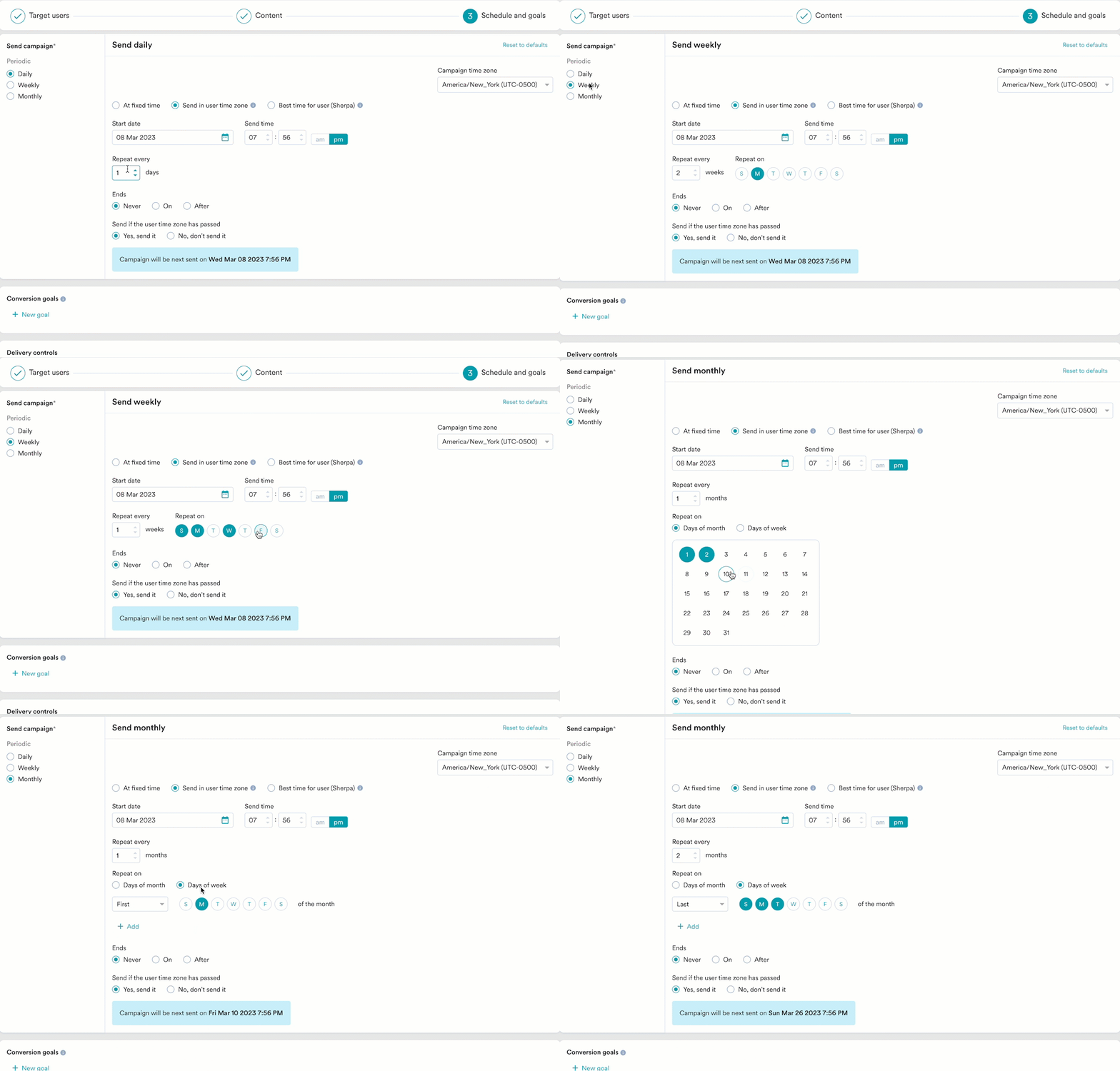
* **Periodic:** The periodicity of the campaign. You have the following options: **Daily**, **Weekly**, and **Monthly**.
| Periodicity | Description |
| :---------- | :-------------------------------------------------------------------------------------------------------------------------------------------------------------------------------------------------------------------------------------------------------------------------------------------------------------------------------------------------------------------------------------------------------------------------------------------------------------------------------------------------------------------------------------------------------------------------------------------------------------------------------------------------------------------------------------------------------------------------------------------------------------------------------------------------------------------------------------------------------------------------------------------------------------------------------------------------------------------------------------------------------------------------------------------------------------------------------------------------------------------------------------------------------------------------------------------------------------------------------------------------------------------------------------------------------------------------------------------------------------- |
| **Daily** | **Repeat every**: This option lets you specify the number of days after which the campaign should be repeated. For example, if you choose to repeat every 3 days and the campaign starts on Monday, it will run again on Thursday. |
| **Weekly** |
Choose this option to send the campaign on a specified date and time. The following fields are available in this section:
* **Campaign time zone**: The timezone in which the campaign should be sent.
* **Start date**: The date on which the campaign should be sent.
* **Send time**: The time at which the campaign should be sent. Select **am** or **pm** depending on the time of day.
* **Periodic:** The periodicity of the campaign. You have the following options: **Daily**, **Weekly**, and **Monthly**.
| Periodicity | Description |
| :---------- | :-------------------------------------------------------------------------------------------------------------------------------------------------------------------------------------------------------------------------------------------------------------------------------------------------------------------------------------------------------------------------------------------------------------------------------------------------------------------------------------------------------------------------------------------------------------------------------------------------------------------------------------------------------------------------------------------------------------------------------------------------------------------------------------------------------------------------------------------------------------------------------------------------------------------------------------------------------------------------------------------------------------------------------------------------------------------------------------------------------------------------------------------------------------------------------------------------------------------------------------------------------------------------------------------------------------------------------------------------------------- |
| **Daily** | **Repeat every**: This option lets you specify the number of days after which the campaign should be repeated. For example, if you choose to repeat every 3 days and the campaign starts on Monday, it will run again on Thursday. |
| **Weekly** | - **Repeat every**: This option lets you specify the number of weeks after which the campaign should be repeated.For example, if you choose to repeat every 3 weeks and the campaign starts in the first week, it will run again in the fourth week.
- **Repeat on**: This option lets you specify the day(s) of the week on which the campaign is to be sent. For example, if you wish to send the campaign every Monday, Wednesday, and Friday, select these days in this option.
|
| **Monthly** | - **Repeat every**: This option lets you specify the number of months after which the campaign should be repeated. For example, if you choose to repeat every 3 months and the campaign starts in January, it will run again in April.
- **Repeat on**: This option lets you do the following:
Days of month: Choose this option for repeating campaigns that are date-specific. Select the date(s) of the month the campaign is to be sent. For example, to send the campaign on the 5th and the 25th of a month, select the 5th and 25th in the calendar widget.
**Note**: If the selected date(s) doesn't exist in the specified month (as it is a shorter month), a campaign will be sent on the last date. For example, if the 30th and 31st are selected and the month is February, one campaign would be sent on the 28th.
Days of week: Choose this option to specify the day(s) of the week on which the campaign is to be sent. For example, if you wish to send the campaign every Monday, Wednesday, and Friday, select these days in this option.
**Note**: In case of a day of the week not existing in a month (for example, fifth Saturday), the campaign would be skipped for that instance. And in case of overlap (for example, 4th Monday and last Monday), only one instance would be sent.
|
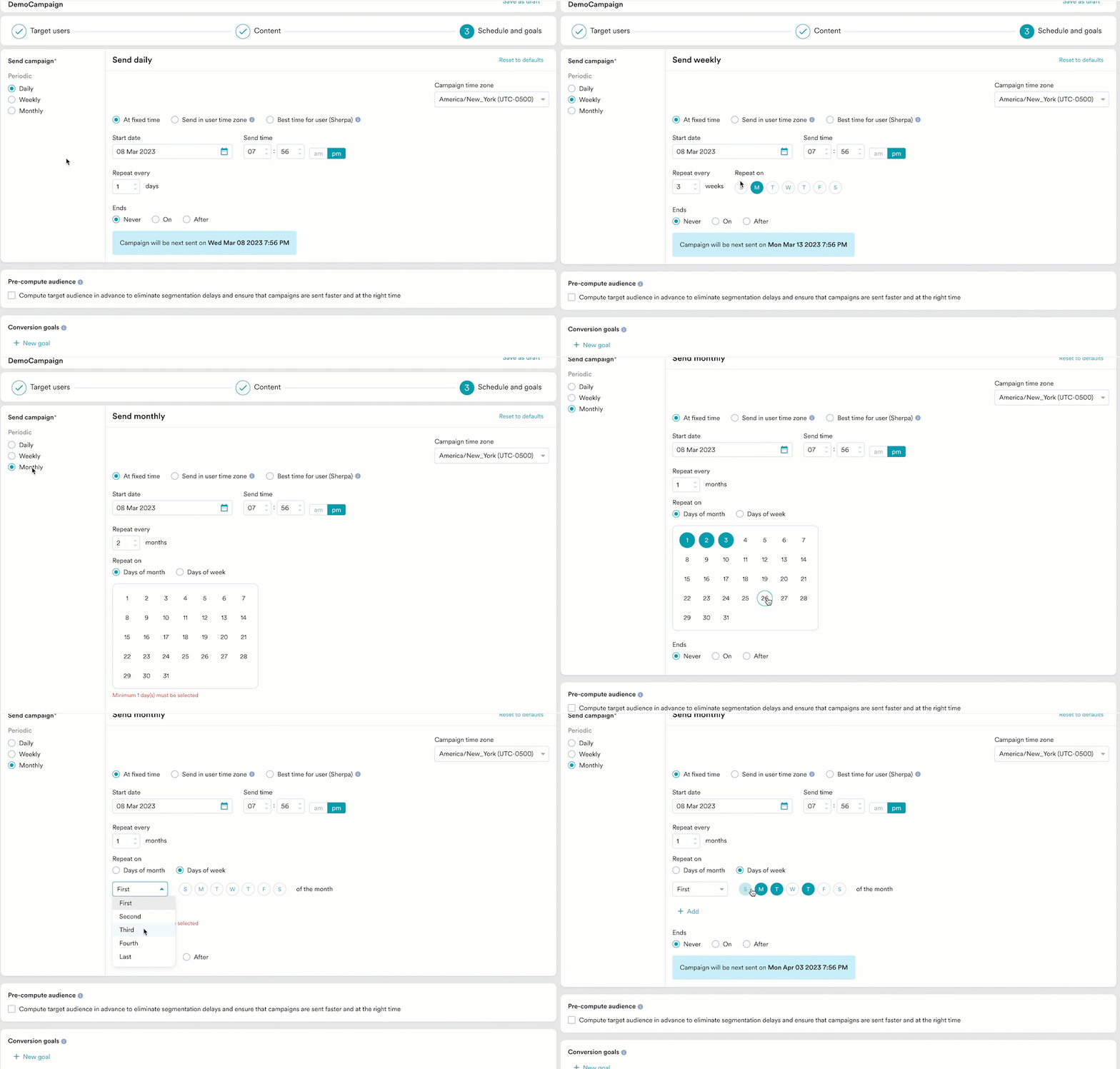 * **Ends**: The date on which the campaign ends. The following options are available:
* **Never**: The campaign is scheduled to run daily.
* **On**: The campaign ends on the date specified in the **End Date** field.
* **After**: The campaign ends after the number of occurrences specified in the **occurrences** field.
Choose this option to send the campaign on a specified date and time. The following fields are available in this section:
* **Campaign time zone**: The timezone in which the campaign should be sent.
* **Start date**: The date on which the campaign should be sent.
* **Send time**: The time at which the campaign should be sent. Select **am** or **pm** depending on the time of day.
* **Periodic:** The periodicity of the campaign. You have the following options: **Daily**, **Weekly**, and **Monthly**.
| Periodicity | Description |
| ------------------------------------------------------------------------------------------------------------------------------------------------------------------------------------------------------------------------------------------------------------------------------------------------------ | ------------------------------------------------------------------------------------------------------------------------------------------------------------------------------------------------------------------------------------------------------------------------------------------------------------------------------------------------------------------------------------------------------------------------------------------------------------------------------------------------------------------------------------------------------------------------------------------------------------------------------------------------------------------------------------------------------------------------------------------------------------------------------------------------------------------------------------------------------------------------------------------------------------------------------------------------------------------------------------------------------------------------------------------------------------------------------------------------------------------------------------------------------------------------------------------------------------------------------------------------------------------------------------------------------------------------------------------------ |
| **Daily** | **Repeat every**: This option lets you specify the number of days after which the campaign should be repeated. For example, if you choose to repeat every 3 days and the campaign starts on Monday, it will run again on Thursday. |
| **Weekly** | **Repeat every**: This option lets you specify the number of weeks after which the campaign should be repeated. For example, if you choose to repeat every 3 weeks and the campaign starts in the first week, it will run again in the fourth week.
* **Ends**: The date on which the campaign ends. The following options are available:
* **Never**: The campaign is scheduled to run daily.
* **On**: The campaign ends on the date specified in the **End Date** field.
* **After**: The campaign ends after the number of occurrences specified in the **occurrences** field.
Choose this option to send the campaign on a specified date and time. The following fields are available in this section:
* **Campaign time zone**: The timezone in which the campaign should be sent.
* **Start date**: The date on which the campaign should be sent.
* **Send time**: The time at which the campaign should be sent. Select **am** or **pm** depending on the time of day.
* **Periodic:** The periodicity of the campaign. You have the following options: **Daily**, **Weekly**, and **Monthly**.
| Periodicity | Description |
| ------------------------------------------------------------------------------------------------------------------------------------------------------------------------------------------------------------------------------------------------------------------------------------------------------ | ------------------------------------------------------------------------------------------------------------------------------------------------------------------------------------------------------------------------------------------------------------------------------------------------------------------------------------------------------------------------------------------------------------------------------------------------------------------------------------------------------------------------------------------------------------------------------------------------------------------------------------------------------------------------------------------------------------------------------------------------------------------------------------------------------------------------------------------------------------------------------------------------------------------------------------------------------------------------------------------------------------------------------------------------------------------------------------------------------------------------------------------------------------------------------------------------------------------------------------------------------------------------------------------------------------------------------------------------ |
| **Daily** | **Repeat every**: This option lets you specify the number of days after which the campaign should be repeated. For example, if you choose to repeat every 3 days and the campaign starts on Monday, it will run again on Thursday. |
| **Weekly** | **Repeat every**: This option lets you specify the number of weeks after which the campaign should be repeated. For example, if you choose to repeat every 3 weeks and the campaign starts in the first week, it will run again in the fourth week.
**Repeat on**: This option lets you specify the day(s) of the week on which the campaign is to be sent. For example, if you wish to send the campaign every Monday, Wednesday, and Friday, select these days in this option. |
| **Monthly** | **Repeat every**: This option lets you specify the number of months after which the campaign should be repeated. For example, if you choose to repeat every 3 months and the campaign starts in January, it will run again in April.
**Repeat on**: This option lets you do the following:
- Days of month: Choose this option for repeating campaigns that are date-specific. Select the date(s) of the month the campaign is to be sent. For example, to send the campaign on the 5th and the 25th of a month, select the 5th and 25th in the calendar widget.
**Note**: If the selected date(s) doesn't exist in the specified month (as it is a shorter month), a campaign will be sent on the last date. For example, if the 30th and 31st are selected and the month is February, one campaign would be sent on the 28th.
- Days of week: Choose this option to specify the day(s) of the week on which the campaign is to be sent. For example, if you wish to send the campaign every Monday, Wednesday, and Friday, select these days in this option.
**Note**: In case of a day of the week not existing in a month (for example, fifth Saturday), the campaign would be skipped for that instance. And in case of overlap (for example, 4th Monday and last Monday), only one instance would be sent. |
|  | |
* **Ends**: The date on which the campaign ends. The following options are available:
* **Never**: The campaign is scheduled to run daily.
* **On**: The campaign ends on the date specified in the **End Date** field.
* **After**: The campaign ends after the number of occurrences specified in the **occurrences** field.
* **Send if the user time zone has passed**: if the campaign's start time has passed in the user's timezone, you have the option to do the following:
* **Yes, send it**: Send the campaign to the user even if the specified start time has passed in their timezone.
* **No, don't send it**: Do not send the campaign to the user as the specified start time has passed in their timezone.
Choose this option to send the campaign on a specified date and time. The following fields are available in this section:
* **Campaign time zone**: The timezone in which the campaign should be sent.
* **Start date**: The date on which the campaign should be sent.
* **Start time**: The time at which the campaign should be sent. Select **am** or **pm** depending on the time of day.
* **Send messages based on best time only till**: The time until which the campaign should be sent based on the best time to send (BTS). Select **am** or **pm** depending on the time of day. Click **View best time distribution** to see the best time for sending push notifications, represented in a graphical manner.
* **If user's best time is outside this time window**: You can choose the time when the campaign is to be sent when the user's BTS is outside the time window selected. You can do the following:
* * Send the campaign to the user either at the start or end time by selecting **Send message at start time or end time**.
* Avoid sending the campaign to the user by selecting **Do not send message**.
* **If user's best time is not available**: You can choose the time when the campaign is to be sent when the user does not have BTS. You can do the following:
* * Send the campaign to the user at the start time by selecting **Yes, send at start time**.
* Send the campaign to the user at the app's best time by selecting **Yes, send at the app's best time**.
* Avoid sending the campaign to the user by selecting **Do not send message**.\
For more information, refer to the [Best time to send (BTS)](/user-guide/ai-and-intelligence/timing/best-time-to-send).
* **Periodic**: Denotes the periodicity of the campaign. The following options are available: **Daily**, **Weekly**, and **Monthly**.
| Periodicity | Description |
| ----------- | ----------------------------------------------------------------------------------------------------------------------------------------------------------------------------------------------------------------------------------------------------------------------------------------------------------------------------------------------------------------------------------------------------------------------------------------------------------------------------------------------------------------------------------------------------------------------------------------------------------------------------------------------------------------------------------------------------------------------------------------------------------------------------------------------------------------------------------------------------------------------------------------------------------------------------------------------------------------------------------------------------------------------------------------------------------------------------------------------------------------------------------------------------------------------------------------------------------------------------------------------------------------------------------------------------------------------------------------------------------------- |
| **Daily** | **Repeat every**: This option lets you specify the number of days after which the campaign should be repeated. For example, if you choose to repeat every 3 days and the campaign starts on Monday, it will run again on Thursday. |
| **Weekly** | **Repeat every**: This option lets you specify the number of weeks after which the campaign should be repeated. For example, if you choose to repeat every 3 weeks and the campaign starts in the first week, it will run again in the fourth week. **Repeat on**: This option lets you specify the day(s) of the week on which the campaign is to be sent. For example, if you wish to send the campaign every Monday, Wednesday, and Friday, select these days in this option. |
| **Monthly** |
| |
* **Ends**: The date on which the campaign ends. The following options are available:
* **Never**: The campaign is scheduled to run daily.
* **On**: The campaign ends on the date specified in the **End Date** field.
* **After**: The campaign ends after the number of occurrences specified in the **occurrences** field.
* **Send if the user time zone has passed**: if the campaign's start time has passed in the user's timezone, you have the option to do the following:
* **Yes, send it**: Send the campaign to the user even if the specified start time has passed in their timezone.
* **No, don't send it**: Do not send the campaign to the user as the specified start time has passed in their timezone.
Choose this option to send the campaign on a specified date and time. The following fields are available in this section:
* **Campaign time zone**: The timezone in which the campaign should be sent.
* **Start date**: The date on which the campaign should be sent.
* **Start time**: The time at which the campaign should be sent. Select **am** or **pm** depending on the time of day.
* **Send messages based on best time only till**: The time until which the campaign should be sent based on the best time to send (BTS). Select **am** or **pm** depending on the time of day. Click **View best time distribution** to see the best time for sending push notifications, represented in a graphical manner.
* **If user's best time is outside this time window**: You can choose the time when the campaign is to be sent when the user's BTS is outside the time window selected. You can do the following:
* * Send the campaign to the user either at the start or end time by selecting **Send message at start time or end time**.
* Avoid sending the campaign to the user by selecting **Do not send message**.
* **If user's best time is not available**: You can choose the time when the campaign is to be sent when the user does not have BTS. You can do the following:
* * Send the campaign to the user at the start time by selecting **Yes, send at start time**.
* Send the campaign to the user at the app's best time by selecting **Yes, send at the app's best time**.
* Avoid sending the campaign to the user by selecting **Do not send message**.\
For more information, refer to the [Best time to send (BTS)](/user-guide/ai-and-intelligence/timing/best-time-to-send).
* **Periodic**: Denotes the periodicity of the campaign. The following options are available: **Daily**, **Weekly**, and **Monthly**.
| Periodicity | Description |
| ----------- | ----------------------------------------------------------------------------------------------------------------------------------------------------------------------------------------------------------------------------------------------------------------------------------------------------------------------------------------------------------------------------------------------------------------------------------------------------------------------------------------------------------------------------------------------------------------------------------------------------------------------------------------------------------------------------------------------------------------------------------------------------------------------------------------------------------------------------------------------------------------------------------------------------------------------------------------------------------------------------------------------------------------------------------------------------------------------------------------------------------------------------------------------------------------------------------------------------------------------------------------------------------------------------------------------------------------------------------------------------------------- |
| **Daily** | **Repeat every**: This option lets you specify the number of days after which the campaign should be repeated. For example, if you choose to repeat every 3 days and the campaign starts on Monday, it will run again on Thursday. |
| **Weekly** | **Repeat every**: This option lets you specify the number of weeks after which the campaign should be repeated. For example, if you choose to repeat every 3 weeks and the campaign starts in the first week, it will run again in the fourth week. **Repeat on**: This option lets you specify the day(s) of the week on which the campaign is to be sent. For example, if you wish to send the campaign every Monday, Wednesday, and Friday, select these days in this option. |
| **Monthly** | - **Repeat every**: This option lets you specify the number of months after which the campaign should be repeated. For example, if you choose to repeat every 3 months and the campaign starts in January, it will run again in April.
- **Repeat on** - This option lets you do the following: - Days of month - Choose this option for repeating campaigns that are date-specific. Select the date(s) of the month the campaign is to be sent. For example, to send the campaign on the 5th and the 25th of a month, select the 5th and 25th in the calendar widget.
**Note**: If the selected date(s) doesn't exist in the specified month (as it is a shorter month), a campaign will be sent on the last date. For example, if the 30th and 31st are selected and the month is February, one campaign would be sent on the 28th.
Days of week - Choose this option to specify the day(s) of the week on which the campaign is to be sent. For example, if you wish to send the campaign every Monday, Wednesday, and Friday, select these days in this option.
**Note**: In case of a day of the week not existing in a month (for example, fifth Saturday), the campaign would be skipped for that instance. And in case of overlap (for example, 4th Monday and last Monday), only one instance would be sent. |
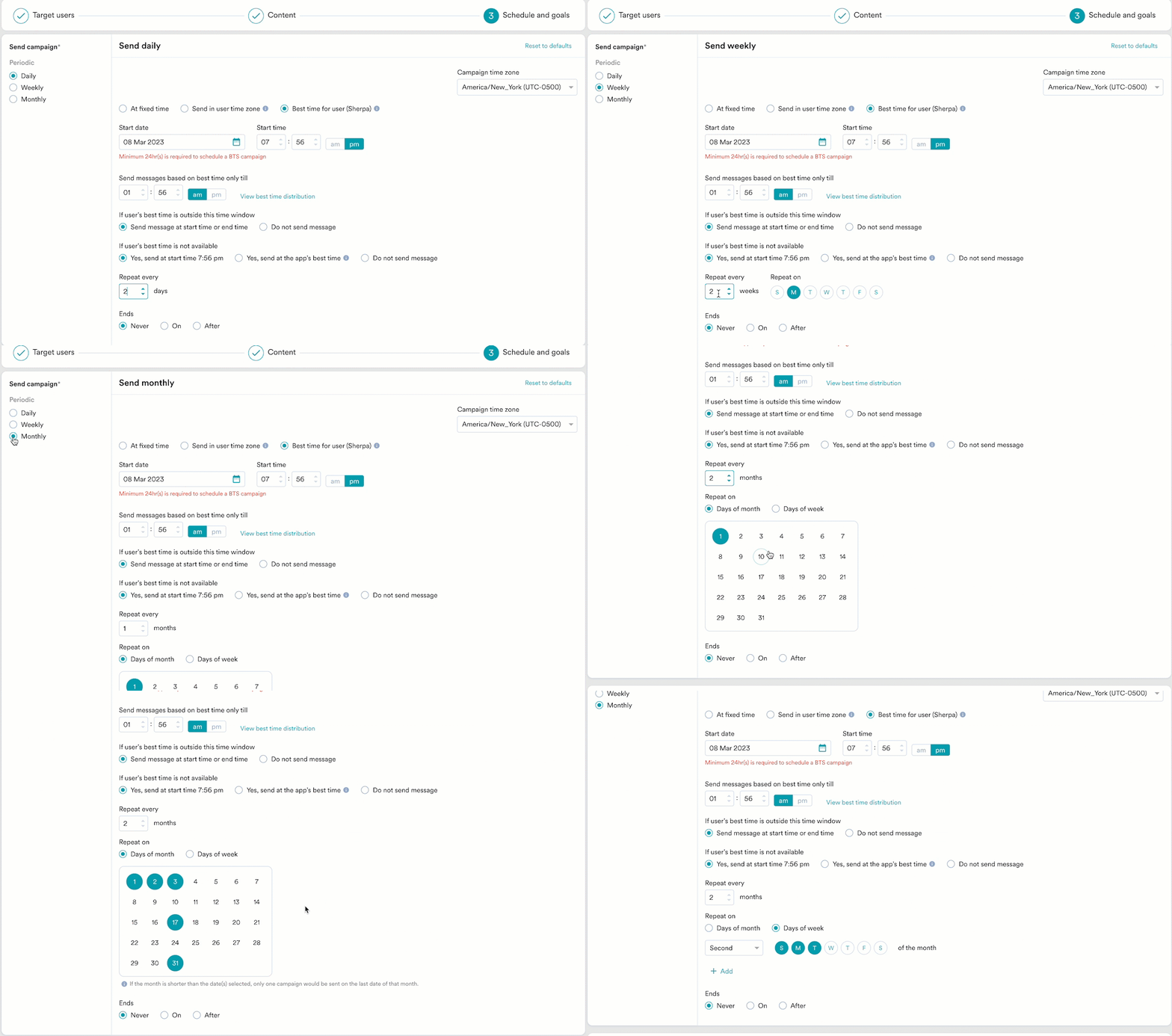 * **Ends:** Denotes the date on which the campaign ends. The following options are available:
* **Never**: The campaign is scheduled to run daily.
* **On**: The campaign ends on the date specified in the **End Date** field.
* **After**: The campaign ends after the number of occurrences specified in the **occurrences** field.
Click **Active continuously** under **Send campaign** and do the following:
| Field | Description |
| ---------------------- | ----------------------------------------------------------------------------------------------------- |
| **Campaign time zone** | Select the campaign time zone in which the campaign is sent |
| **Start date** | Set the start date at which the campaign is sent. |
| **Send time** |
* **Ends:** Denotes the date on which the campaign ends. The following options are available:
* **Never**: The campaign is scheduled to run daily.
* **On**: The campaign ends on the date specified in the **End Date** field.
* **After**: The campaign ends after the number of occurrences specified in the **occurrences** field.
Click **Active continuously** under **Send campaign** and do the following:
| Field | Description |
| ---------------------- | ----------------------------------------------------------------------------------------------------- |
| **Campaign time zone** | Select the campaign time zone in which the campaign is sent |
| **Start date** | Set the start date at which the campaign is sent. |
| **Send time** | - Set the send time at which the campaign is sent.
- Select **am** or **pm**.
|
| **End date** | Set the end date at which the campaign is stopped. |
| **End time** | - Set the end time at which the campaign is stopped.
- Select **am** or **pm**.
|
**When will event triggered campaigns be sent?**
The campaign will be sent only when:
* The event property/attribute being used to create these types of triggers (like the flight\_time example) is in a valid date-time format. If it is not in a date-time format, the string should have data in one of the [supported formats](/user-guide/campaigns-and-channels/mobile-push/create/create-push-campaigns). If the selected attributes do not contain data in any of these formats, the campaign won't be sent to your users.
* The date/time value from the attribute is greater than the time at which the trigger condition is fulfilled.
* The date/time value from the attribute is less than 30 Days + the time at which the trigger condition is fulfilled. For example, if your trigger condition is fulfilled at date D, your notification will be sent only when the attribute value is less than D+30.
* The intelligent delay optimization (**With Delay**) does not work for campaigns sent on relative timing.
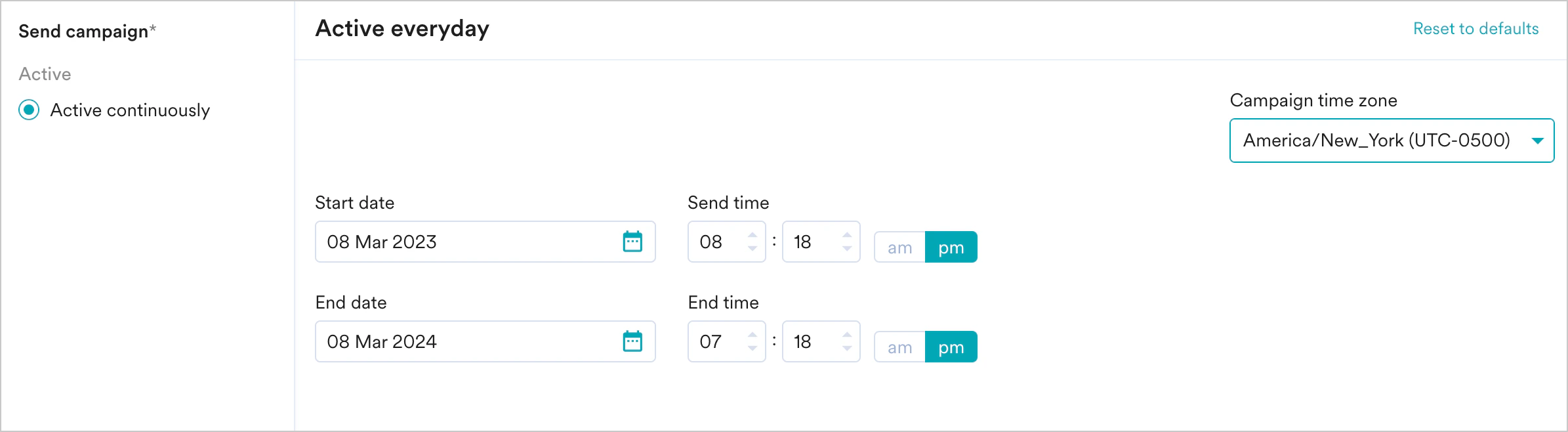 Click **Active continuously** under **Send campaign** and do the following:
| Field | Description |
| ---------------------- | ------------------------------------------------------------------------------------------------------------ |
| **Campaign time zone** | Select the campaign time zone in which the campaign should be sent. |
| **Start date** | Set the start date at which the campaign should be sent. |
| **Send time** |
Click **Active continuously** under **Send campaign** and do the following:
| Field | Description |
| ---------------------- | ------------------------------------------------------------------------------------------------------------ |
| **Campaign time zone** | Select the campaign time zone in which the campaign should be sent. |
| **Start date** | Set the start date at which the campaign should be sent. |
| **Send time** | - Set the send time at which the campaign should be sent.
- Select **am** or **pm**.
|
| **End date** | Set the end date at which the campaign should be stopped. |
| **End time** | - Set the end time at which the campaign should be stopped.
- Select **am** or **pm**.
|
**When will business event-triggered campaigns be sent?**
The campaign will be sent only when:
* The data type(s) of the user attribute(s) or event attribute(s) mapped to the data type(s) of the business event's attribute(s) match.
* The attribute(s) used in segmentation are passed in the trigger request for the business event.
* The intelligent delay optimization (**With Delay**) does not work for campaigns sent on relative timing.
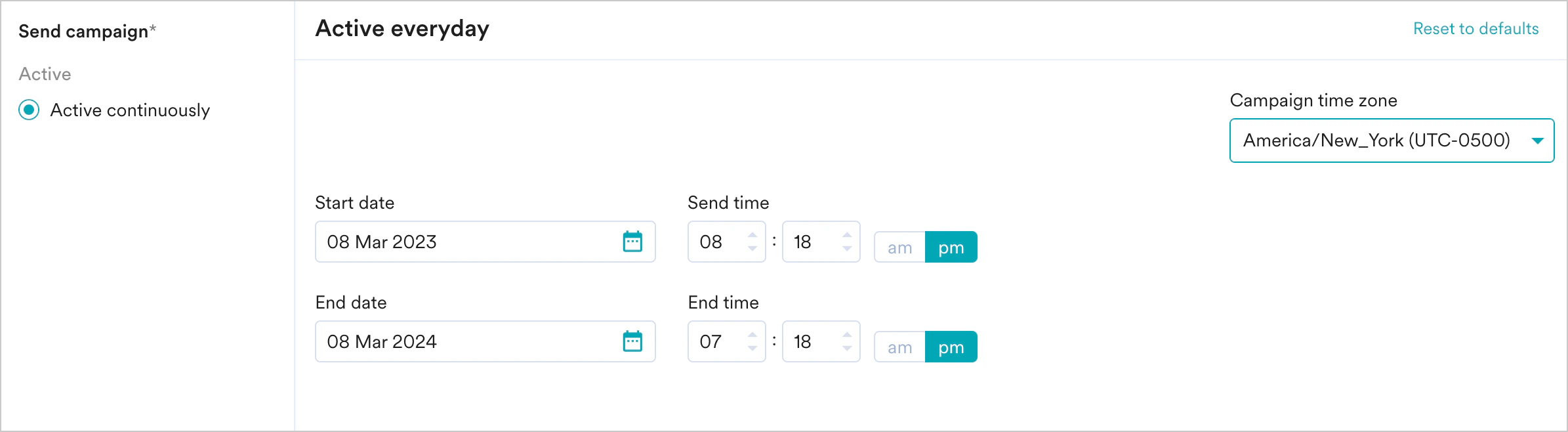
Click Active continuously under Send campaign and do the following:
| Field | Description |
| ------------------ | -------------------------------------------------------------------------------------------- |
| Campaign Time Zone | Select the campaign time zone in which the campaign is sent |
| Start Date | Set the start date at which the campaign is sent. |
| Send Time | - Set the send time at which the campaign is sent.
- Select AM or PM
|
| End Date | Set the end date at which the campaign is stopped. |
| End Time | - Set the end time at which the campaign is stopped.
- Select AM or PM
|
 Location campaigns are started as soon as the campaign is created and are triggered when a user satisfies the location/radius criteria. The campaign's frequency can be limited by setting an upper cap on the number of times to display the message in a defined time interval.
 Location triggered campaigns have the option to include **time-bounds**. The following options are available for Time bound for Geofences:
* **Limited** -The user will get a notification only between specified time intervals for a time zone. Multiple time bounds can be entered here (for example, cover both evening and morning times).
* **Always -** The user will get notification irrespective of the specified time intervals.
Location triggered campaigns have the option to include **time-bounds**. The following options are available for Time bound for Geofences:
* **Limited** -The user will get a notification only between specified time intervals for a time zone. Multiple time bounds can be entered here (for example, cover both evening and morning times).
* **Always -** The user will get notification irrespective of the specified time intervals.
 ### Pre compute Audience
This option lets you pre-compute the target audience for time-sensitive campaigns with complex segments and unusually high volumes and ensure that campaigns are sent faster and at exactly the scheduled time to the target users, without even a few seconds of delay. For more information, refer to [Pre-Compute Segments and send Push at the right time](/user-guide/campaigns-and-channels/mobile-push/notification-features-and-behavior/pre-compute-segments-and-send-push-at-the-right-time).
### Pre compute Audience
This option lets you pre-compute the target audience for time-sensitive campaigns with complex segments and unusually high volumes and ensure that campaigns are sent faster and at exactly the scheduled time to the target users, without even a few seconds of delay. For more information, refer to [Pre-Compute Segments and send Push at the right time](/user-guide/campaigns-and-channels/mobile-push/notification-features-and-behavior/pre-compute-segments-and-send-push-at-the-right-time).
 ### Conversion Goals
You can add conversion goals to track the business metrics for your campaigns. You can track up to five conversion goals. You can choose any app event as a conversion goal activity and set more than one conversion goal. The first goal will be treated as a primary goal.
For example, if you want to track the number of customers who've purchased an iPhone after your campaign was sent. (Event - purchase event, Product - iPhone). Your conversion goal set-up might look similar to the image shown below with the following details:
* **Goal Name** - *iPhonePurchase*
* **App Event you wish to track**-*Made Purchase*
* **Event Attribute/Property**- product is *event attribute/property*
* **Value of Event Attribute/Property** - *iPhone*
### Conversion Goals
You can add conversion goals to track the business metrics for your campaigns. You can track up to five conversion goals. You can choose any app event as a conversion goal activity and set more than one conversion goal. The first goal will be treated as a primary goal.
For example, if you want to track the number of customers who've purchased an iPhone after your campaign was sent. (Event - purchase event, Product - iPhone). Your conversion goal set-up might look similar to the image shown below with the following details:
* **Goal Name** - *iPhonePurchase*
* **App Event you wish to track**-*Made Purchase*
* **Event Attribute/Property**- product is *event attribute/property*
* **Value of Event Attribute/Property** - *iPhone*
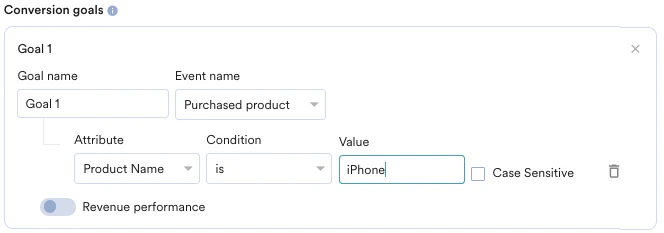 With multiple conversion goals, you can track more than one business metric or visualize a funnel for your user actions. For example, if you want to check the following, you can do so with multiple conversion goals.
* How many users have viewed the product page?
* How many of them added that product to the cart?
* How many of them made a successful order?
| | |
| --------------------------------------------------------------------------------------------------------------------------------------------------------------------------------------------------------------------------------------------------------------------------------------------------------------------------------------------------------------------------------------------------------------------------------------- | ------------------------------------------------------------------------------------------------------------------------------------------------------------------------------------------------------------------------------------------------------------------------------------------------------------------------------------------------------------------------------------------------------------------------------------------------------------------------------------------------------------------------------------------------------------------------------------------------------------------------------------------------------------------------------------------------------------------------------------------------------------------------------------------------------------------------------------------------------------------------------------------------------------------------------------------------------------------------------------------------------------------------------------------------------------------------------------------------------------------------------------------------------------------------------------------------------------------------------------------------------------------------------------------------------------------------------------------------------------------------------------------------------------------------------ |
| With MoEngage, you can track the revenue generated by your campaigns. For example, you can track the revenue generated by your product after sending a communication. To track revenue performance, enable the **Revenue performance** toggle for the conversion goal for which you want to track the revenue. In the example here, to track revenue for *orderSuccessful* events, you must enable the **Revenue performance** toggle. |
With multiple conversion goals, you can track more than one business metric or visualize a funnel for your user actions. For example, if you want to check the following, you can do so with multiple conversion goals.
* How many users have viewed the product page?
* How many of them added that product to the cart?
* How many of them made a successful order?
| | |
| --------------------------------------------------------------------------------------------------------------------------------------------------------------------------------------------------------------------------------------------------------------------------------------------------------------------------------------------------------------------------------------------------------------------------------------- | ------------------------------------------------------------------------------------------------------------------------------------------------------------------------------------------------------------------------------------------------------------------------------------------------------------------------------------------------------------------------------------------------------------------------------------------------------------------------------------------------------------------------------------------------------------------------------------------------------------------------------------------------------------------------------------------------------------------------------------------------------------------------------------------------------------------------------------------------------------------------------------------------------------------------------------------------------------------------------------------------------------------------------------------------------------------------------------------------------------------------------------------------------------------------------------------------------------------------------------------------------------------------------------------------------------------------------------------------------------------------------------------------------------------------------ |
| With MoEngage, you can track the revenue generated by your campaigns. For example, you can track the revenue generated by your product after sending a communication. To track revenue performance, enable the **Revenue performance** toggle for the conversion goal for which you want to track the revenue. In the example here, to track revenue for *orderSuccessful* events, you must enable the **Revenue performance** toggle. | 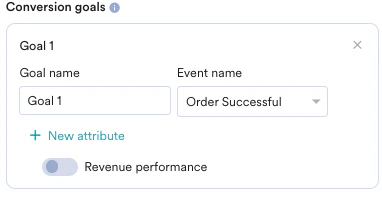 |
| | |
| ------------------------------------------------------------------------------------------------------------------------------------------------------------------------------------------------------------------------------------------------------ | -------------------------------------------------------------------------------------------------------------------------------------------------------------------------------------------------------------------------------------------------------------------------------------------------------------------------------------------------------------------------------------------------------------------------------------------------------------------------------------------------------------------------------------------------------------------------------------------------------------------------------------------------------------------------------------------------------------------------------------------------------------------------------------------------------------------------------------------------------------------------------------------------------------------------------------------------------------------------------------------------------------------------------------------------------------------------------------------------------------------------------------------------------------------------------------------------------------------------------------------------------------------------------------------------------------------------------------------------------------------------------------------------------------------- |
| After choosing the goal, you can select the numeric attribute that captures the order's total monetary value. In this example, *cartValue* contains the total order value. You can choose the currency in which your monetary value is being reported. |
|
| | |
| ------------------------------------------------------------------------------------------------------------------------------------------------------------------------------------------------------------------------------------------------------ | -------------------------------------------------------------------------------------------------------------------------------------------------------------------------------------------------------------------------------------------------------------------------------------------------------------------------------------------------------------------------------------------------------------------------------------------------------------------------------------------------------------------------------------------------------------------------------------------------------------------------------------------------------------------------------------------------------------------------------------------------------------------------------------------------------------------------------------------------------------------------------------------------------------------------------------------------------------------------------------------------------------------------------------------------------------------------------------------------------------------------------------------------------------------------------------------------------------------------------------------------------------------------------------------------------------------------------------------------------------------------------------------------------------------- |
| After choosing the goal, you can select the numeric attribute that captures the order's total monetary value. In this example, *cartValue* contains the total order value. You can choose the currency in which your monetary value is being reported. | 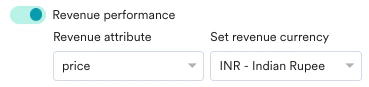 |
| | |
| ------------------------------------------------------------------------------------------------------------------------------------------------------------------------------------------------------------------------------------------------------------------------------------------------------------------------------------------------------------------------------------------------------------- | ---------------------------------------------------------------------------------------------------------------------------------------------------------------------------------------------------------------------------------------------------------------------------------------------------------------------------------------------------------------------------------------------------------------------------------------------------------------------------------------------------------------------------------------------------------------------------------------------------------------------------------------------------------------------------------------------------------------------------------------------------------------------------------------------------------------------------------------------------------------------------------------------------------------------------------------------------------------------------------------------------------------------------------------------------------------------------------------------------------------------------------------------------------------------------------------------------------------------------------------------------------------------------------------------------------------------------------------------------------------------------------------------------------------------- |
| **Set Attribution window**: You can set an attribution window (a time period or window that is calculated since the user has received/clicked the campaign, for which you want to attribute the conversion goals to a specific campaign). By default, it is set for 36 hours, while the maximum attribution window can be set up to 10 days. In the example below, the attribution window is set to 36 hours. |
|
| | |
| ------------------------------------------------------------------------------------------------------------------------------------------------------------------------------------------------------------------------------------------------------------------------------------------------------------------------------------------------------------------------------------------------------------- | ---------------------------------------------------------------------------------------------------------------------------------------------------------------------------------------------------------------------------------------------------------------------------------------------------------------------------------------------------------------------------------------------------------------------------------------------------------------------------------------------------------------------------------------------------------------------------------------------------------------------------------------------------------------------------------------------------------------------------------------------------------------------------------------------------------------------------------------------------------------------------------------------------------------------------------------------------------------------------------------------------------------------------------------------------------------------------------------------------------------------------------------------------------------------------------------------------------------------------------------------------------------------------------------------------------------------------------------------------------------------------------------------------------------------- |
| **Set Attribution window**: You can set an attribution window (a time period or window that is calculated since the user has received/clicked the campaign, for which you want to attribute the conversion goals to a specific campaign). By default, it is set for 36 hours, while the maximum attribution window can be set up to 10 days. In the example below, the attribution window is set to 36 hours. |  |
### Delivery Controls
This section contains the following options:
* **Ignore frequency capping** - Enable this toggle to ignore the frequency capping settings. For more information, refer to [Frequency Capping](/user-guide/settings/channels/delivery-controls/frequency-capping).
* **Ignore global minimum delay** - Enable this toggle to ignore the settings for the minimum delay set for Push notifications.
* **Throttle** -Set the throttling for Push notifications. For more information, refer to [Push Throttling](/user-guide/settings/channels/delivery-controls/throttling).
|
### Delivery Controls
This section contains the following options:
* **Ignore frequency capping** - Enable this toggle to ignore the frequency capping settings. For more information, refer to [Frequency Capping](/user-guide/settings/channels/delivery-controls/frequency-capping).
* **Ignore global minimum delay** - Enable this toggle to ignore the settings for the minimum delay set for Push notifications.
* **Throttle** -Set the throttling for Push notifications. For more information, refer to [Push Throttling](/user-guide/settings/channels/delivery-controls/throttling). 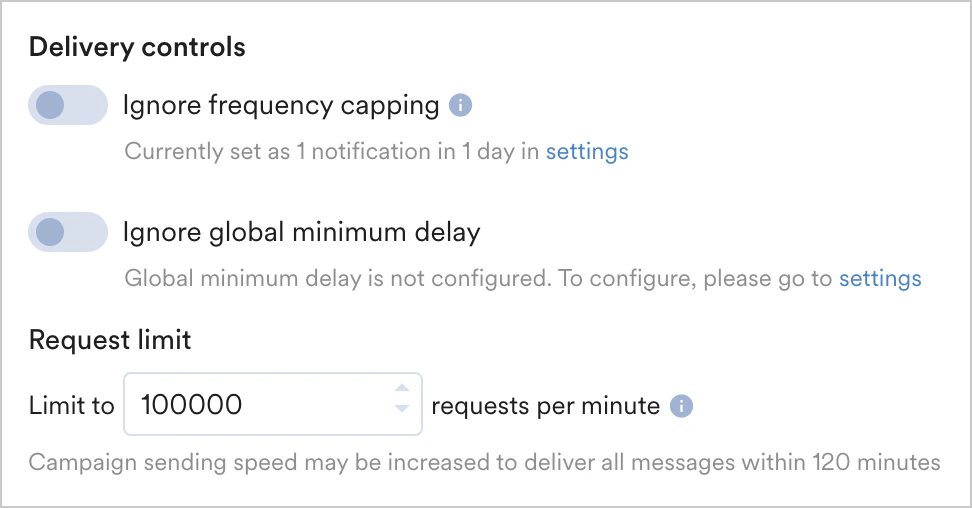 * **Ignore DND settings**-Enable this toggle to ignore the DND settings. For more information, refer to [Do Not Disturb](/user-guide/settings/channels/delivery-controls/do-not-disturb). For *One-Time* and *Periodic* push campaigns, the **Ignore DND settings** toggle is displayed when the *Campaign Queueing* feature is enabled.
* **Enable message queuing**- Enable this toggle to automatically queue messages that are blocked by Frequency Capping or Minimum Delay. For more information, refer to [Message Queuing](/user-guide/settings/channels/delivery-controls/message-queuing).
* **Ignore DND settings**-Enable this toggle to ignore the DND settings. For more information, refer to [Do Not Disturb](/user-guide/settings/channels/delivery-controls/do-not-disturb). For *One-Time* and *Periodic* push campaigns, the **Ignore DND settings** toggle is displayed when the *Campaign Queueing* feature is enabled.
* **Enable message queuing**- Enable this toggle to automatically queue messages that are blocked by Frequency Capping or Minimum Delay. For more information, refer to [Message Queuing](/user-guide/settings/channels/delivery-controls/message-queuing). 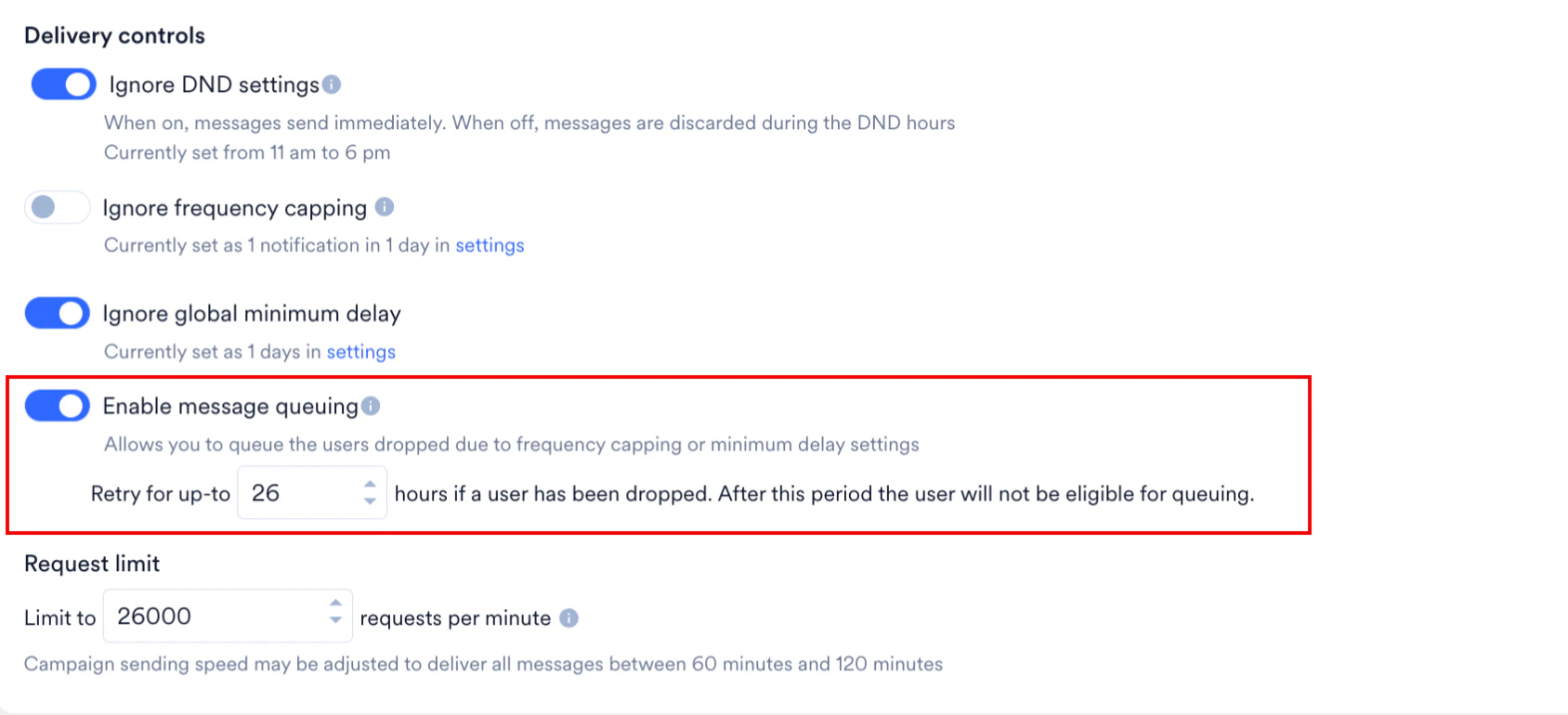 The [*Message Queueing*](/user-guide/settings/channels/delivery-controls/message-queuing) feature is an Early Access feature. To enable it for your account, contact your MoEngage Customer Success Manager (CSM) or the Support team.
With the reduction in the default FCM API rate limits to 600,000 RPM, we are changing the maximum allowed throttle speed for Push notifications to 500,000 RPM to ensure a single campaign does not breach the project limit. This change will apply to new and existing campaigns. You may still see drops because of multiple campaigns being triggered together. For more information, refer to [Changes in Sending Speed with Private Key Configuration](https://www.moengage.com/docs/developer-guide/android-sdk/push/basic/fcm-authentication#authorize-server-requests-to-firebase-services).
This section contains the following options:
| | |
| ------------------------------------------------------------------------------------------------------------------------------------------------------------------------------------------------------------------------------------------------------------------------------------------------------------------------------------------------------------------------------------------------------------------------------------------------------------------------------------------------------------------------------------------------------------------------------------------------------------------------------------------------------------------------------------------------------------------- | ---------------------------------------------------------------------------------------------------------------------------------------------------------------------------------------------------------------------------------------------------------------------------------------------------------------------------------------------------------------------------------------------------------------------------------------------------------------------------------------------------------------------------------------------------------------------------------------------------------------------------------------------------------------------------------------------------------------------------------------------------------------------------------------------------------------------------------------------------------------------------------------------------------------------------------------------------------------------------------------------------------------------------------------------------------------------------------------------------------------------------------------------------------------------------------------------------------------------------------------------------------------------------------------------------------------------------------------------------------------------------------------------------- |
|
The [*Message Queueing*](/user-guide/settings/channels/delivery-controls/message-queuing) feature is an Early Access feature. To enable it for your account, contact your MoEngage Customer Success Manager (CSM) or the Support team.
With the reduction in the default FCM API rate limits to 600,000 RPM, we are changing the maximum allowed throttle speed for Push notifications to 500,000 RPM to ensure a single campaign does not breach the project limit. This change will apply to new and existing campaigns. You may still see drops because of multiple campaigns being triggered together. For more information, refer to [Changes in Sending Speed with Private Key Configuration](https://www.moengage.com/docs/developer-guide/android-sdk/push/basic/fcm-authentication#authorize-server-requests-to-firebase-services).
This section contains the following options:
| | |
| ------------------------------------------------------------------------------------------------------------------------------------------------------------------------------------------------------------------------------------------------------------------------------------------------------------------------------------------------------------------------------------------------------------------------------------------------------------------------------------------------------------------------------------------------------------------------------------------------------------------------------------------------------------------------------------------------------------------- | ---------------------------------------------------------------------------------------------------------------------------------------------------------------------------------------------------------------------------------------------------------------------------------------------------------------------------------------------------------------------------------------------------------------------------------------------------------------------------------------------------------------------------------------------------------------------------------------------------------------------------------------------------------------------------------------------------------------------------------------------------------------------------------------------------------------------------------------------------------------------------------------------------------------------------------------------------------------------------------------------------------------------------------------------------------------------------------------------------------------------------------------------------------------------------------------------------------------------------------------------------------------------------------------------------------------------------------------------------------------------------------------------------- |
| - Minimum delay between two notifications -lets you specify the minimum time gap between two notifications received by the same user.
- Ignore DND settings -Enable this toggle to ignore the DND settings. For more information, refer to [Do Not Disturb](/user-guide/settings/channels/delivery-controls/do-not-disturb).
- **Ignore frequency capping** - Enable this toggle to ignore the frequency capping settings. For more information, refer to [Frequency Capping](/user-guide/settings/channels/delivery-controls/frequency-capping).
- **Ignore global minimum delay** - Enable this toggle to ignore the settings for the minimum delay set for Push notifications.
| 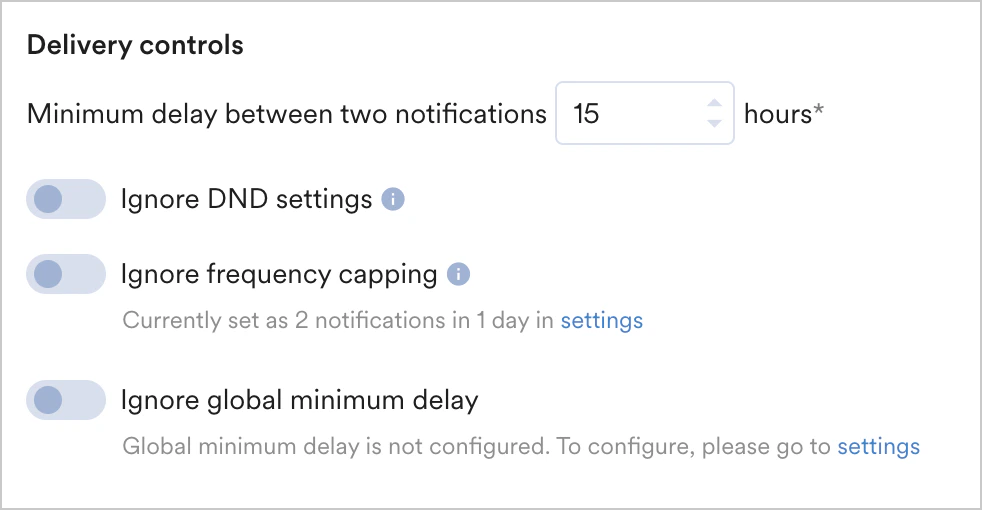 |
|
|
| - **Enable message queuing**- Enable this toggle to automatically queue messages that are blocked by Frequency Capping or Minimum Delay. For more information, refer to [Message Queuing](/user-guide/settings/channels/delivery-controls/message-queuing). **Note:** The [*Message Queueing*](/user-guide/settings/channels/delivery-controls/message-queuing) feature is an Early Access feature. To enable it for your account, contact your MoEngage Customer Success Manager (CSM) or the Support team.
| |
### Advanced Settings
The following options are available in this section:
| | |
| -------------------------------------------------------------------------------------------------------------------------------------------------------------------------------------------------------------------------------------------------- | ------------------------------------------------------------------------------------------------------------------------------------------------------------------------------------------------------------------------------------------------------------------------------------------------------------------------------------------------------------------------------------------------------------------------------------------------------------------------------------------------------------------------------------------------------------------------------------------------------------------------------------------------------------------------------------------------------------------------------------------------------------------------------------------------------------------------------------------------------------------------------------------------------------------------------------------------------------------------------------------------------------------------------------------------------------------------------------------------------------------------------------------------------------------------------------------------------------------------------------------------------------------------------------------------------------------------------------------------------------------------------------------------------------------------- |
| **Expiration Settings** - let you specify an expiry value for the push notification. This section contains information about when to stop sending push notifications (after a specific time duration mentioned) for the iOS and Android platforms. | 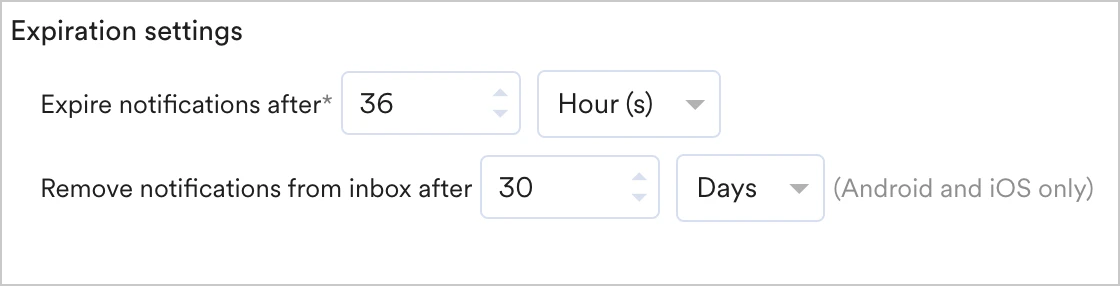 |
To set the push expiry value, the following options are available here:
* **Expire notifications after** - This field specifies how long push notification services store a message for delivery before discarding it if undelivered. Push services (FCM/APNS) retry sending the message until the **Expire notifications after** duration (in minutes) expires. After this period, delivery attempts stop. The default value is 36 hours and applies to Android and APNS push notifications.
* **Remove notifications from inbox after** - If you use the Notification Center (Inbox) feature of the MoEngage SDK, you can specify the duration after which the notification should be removed from the Inbox. The duration can be set in days or hours. By default, the value will be set to 30 days.
MoEngage sends the configured **Expire Notifications After** value to the respective delivery partner (such as FCM, APNS, or Web Push services). However, these services may not honor this value in all cases. In some campaigns, FCM has delivered notifications beyond the expiry time for approximately 0.1%–0.5% of users, and APNS for up to 0.1%.
| | |
| ----------------------------------------------------------------------------------------------------------------------------------------------------------------------------------------------------------------------------------------------------------------------------------------------------------------------------------------------------------------------------------------------------------------------------------------------------------------------------------------------------------------------------------------------------------------------------------------------------------------------------------------------------------------------------------------------------------------------------------------------------------------------------------------------------------------------------------------------------------------------------------------------------------------------------------------------------------------------------------------------------------------------------------------------------------------------------------------------------------------------------------------------------------------------------------------------------------------------------------------------------------------------------------------------------------------------------------------------------------------------------------------------------------------------------------------------------------------------------------------------------------------------------------------------------------------------------------------------------------------------------------------------------------------------------------------------------------------------------------------------------------------------- | --------------------------------------------------------------------------------------------------------------------------------------------------------------------------------------------------------------------------------------------------------------------------------------------------------------------------------------------------------------------------------------------------------------------------------------------------------------------------------------------------------------------------------------------------------------------------------------------------------------------------------------------------------------------------------------------------------------------------------------------------------------------------------------------------------------------------------------------------------------------------------------------------------------------------------------------------------------------------------------------------------------------------------------------------------------------------------------------------------------------------------------------------------------------------------------------------------------------------------------------------------------------------------------------------------------------------------------------------------------------------------------------------------------------------------- |
| **Priority** — Choose this option for time-critical notifications. The following options are available:
|
To set the push expiry value, the following options are available here:
* **Expire notifications after** - This field specifies how long push notification services store a message for delivery before discarding it if undelivered. Push services (FCM/APNS) retry sending the message until the **Expire notifications after** duration (in minutes) expires. After this period, delivery attempts stop. The default value is 36 hours and applies to Android and APNS push notifications.
* **Remove notifications from inbox after** - If you use the Notification Center (Inbox) feature of the MoEngage SDK, you can specify the duration after which the notification should be removed from the Inbox. The duration can be set in days or hours. By default, the value will be set to 30 days.
MoEngage sends the configured **Expire Notifications After** value to the respective delivery partner (such as FCM, APNS, or Web Push services). However, these services may not honor this value in all cases. In some campaigns, FCM has delivered notifications beyond the expiry time for approximately 0.1%–0.5% of users, and APNS for up to 0.1%.
| | |
| ----------------------------------------------------------------------------------------------------------------------------------------------------------------------------------------------------------------------------------------------------------------------------------------------------------------------------------------------------------------------------------------------------------------------------------------------------------------------------------------------------------------------------------------------------------------------------------------------------------------------------------------------------------------------------------------------------------------------------------------------------------------------------------------------------------------------------------------------------------------------------------------------------------------------------------------------------------------------------------------------------------------------------------------------------------------------------------------------------------------------------------------------------------------------------------------------------------------------------------------------------------------------------------------------------------------------------------------------------------------------------------------------------------------------------------------------------------------------------------------------------------------------------------------------------------------------------------------------------------------------------------------------------------------------------------------------------------------------------------------------------------------------- | --------------------------------------------------------------------------------------------------------------------------------------------------------------------------------------------------------------------------------------------------------------------------------------------------------------------------------------------------------------------------------------------------------------------------------------------------------------------------------------------------------------------------------------------------------------------------------------------------------------------------------------------------------------------------------------------------------------------------------------------------------------------------------------------------------------------------------------------------------------------------------------------------------------------------------------------------------------------------------------------------------------------------------------------------------------------------------------------------------------------------------------------------------------------------------------------------------------------------------------------------------------------------------------------------------------------------------------------------------------------------------------------------------------------------------- |
| **Priority** — Choose this option for time-critical notifications. The following options are available: - **Android**:
- **Send at priority**: Specifies whether the notification should be sent with high priority.
- Selected: Delivers the notification immediately, bypassing device restrictions such as battery optimizations or low-power modes.
- Cleared: Delivers the notification in a way that conserves device resources, such as when the device is idle or in low-power mode.
This checkbox ensures urgent notifications reach users promptly while non-urgent ones adhere to power-saving policies. - **iOS**:
- **APNS Priority**: Specifies the priority of a notification's delivery, informing APNS how to handle delivery under network or power constraints.
- A value of `10` delivers the notification immediately and wakes the device if necessary.
- A value of `5` delivers the notification in a way that conserves device power.
- A value of `1` delivers the notification, prioritizing power conservation over all other factors without waking the device.
- **Interruption Level**: You can specify the importance and timing of the notification. For more information, see [Notifications in iOS 15](/user-guide/campaigns-and-channels/mobile-push/notification-features-and-behavior/notifications-in-ios-15).
- **Relevance Score**: You can specify a value between 0 and 1 that indicates the importance of the notification. For more information, refer to [Notifications in iOS 15](/user-guide/campaigns-and-channels/mobile-push/notification-features-and-behavior/notifications-in-ios-15).
| 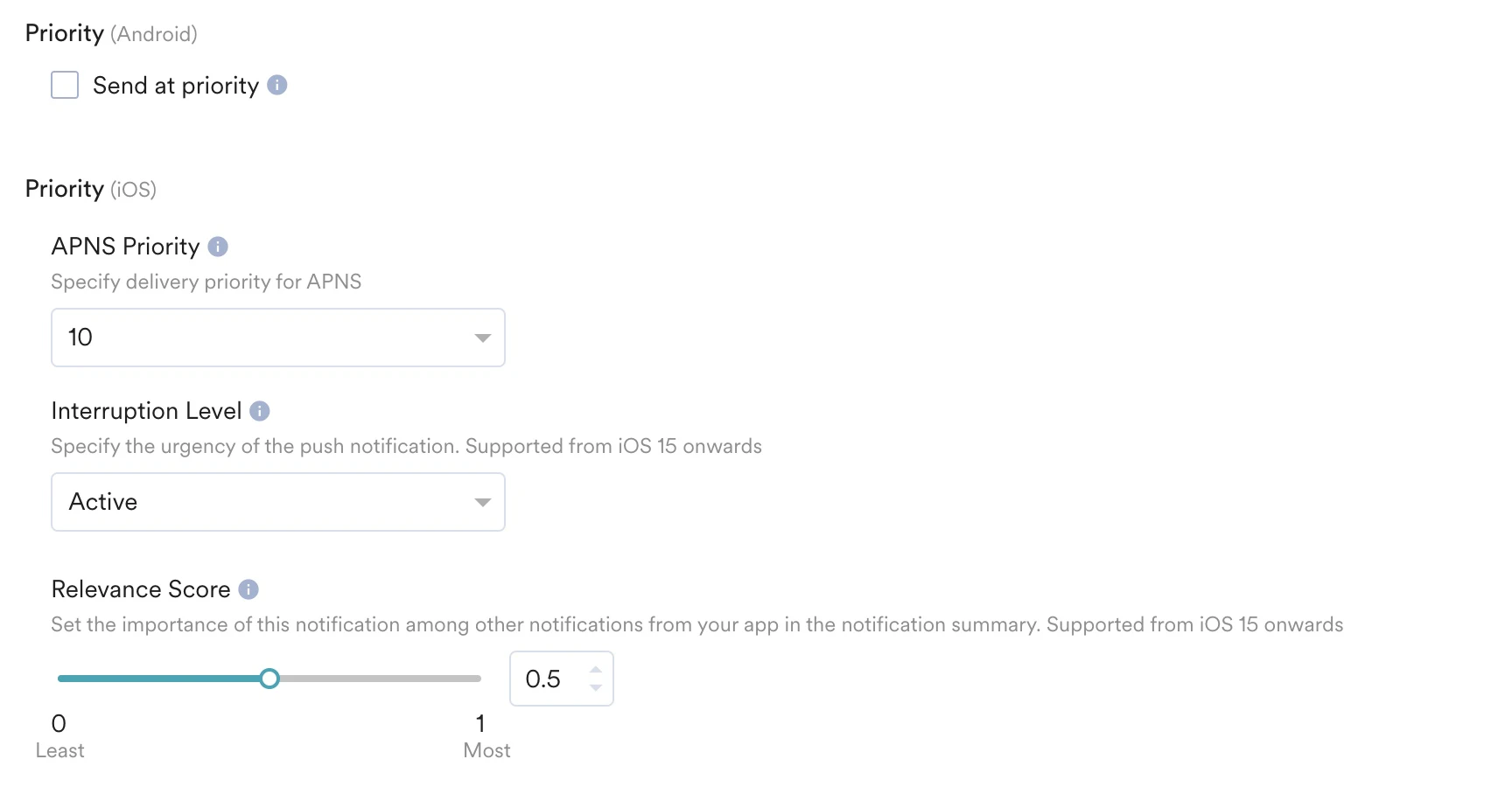 |
| | |
APNS stores only one notification per bundle ID and selects it non-deterministically when multiple notifications are sent to the same bundle ID. Note that the delivery depends on the APNS and is not controlled by MoEngage. In case of multiple undelivered notifications, typically, the notification with the highest priority gets delivered when the device returns online. For more information, see [APNS documentation](https://developer.apple.com/documentation/usernotifications/sending-notification-requests-to-apns?language=objc).
While you have the option to set your notification priorities based on your requirements, we recommend keeping the value at '10' (default) to ensure immediate delivery, unless there is a specific strategic need to prioritize the delivery of certain categories of notifications differently. For instance, if there is a need to deliver transactional notifications and it is observed that promotional notifications are hampering the delivery of transactional notifications, the marketer may choose to reduce the priority of the promotional campaigns to improve the chances of transactional notifications getting delivered.
**Background Update Targeting**
If you have selected the Background Update template in Step 2 for all platforms, locales, and variants, the **Background Update Targeting** option will appear here:
|
| | |
APNS stores only one notification per bundle ID and selects it non-deterministically when multiple notifications are sent to the same bundle ID. Note that the delivery depends on the APNS and is not controlled by MoEngage. In case of multiple undelivered notifications, typically, the notification with the highest priority gets delivered when the device returns online. For more information, see [APNS documentation](https://developer.apple.com/documentation/usernotifications/sending-notification-requests-to-apns?language=objc).
While you have the option to set your notification priorities based on your requirements, we recommend keeping the value at '10' (default) to ensure immediate delivery, unless there is a specific strategic need to prioritize the delivery of certain categories of notifications differently. For instance, if there is a need to deliver transactional notifications and it is observed that promotional notifications are hampering the delivery of transactional notifications, the marketer may choose to reduce the priority of the promotional campaigns to improve the chances of transactional notifications getting delivered.
**Background Update Targeting**
If you have selected the Background Update template in Step 2 for all platforms, locales, and variants, the **Background Update Targeting** option will appear here:  * **Send campaign to opted out users (Background push notifications do not need explicit push permissions)**: Enable this checkbox to reach users who have manually opted out of push notifications. Because Background Updates are silent and do not require explicit push permissions, they can be delivered to these users for app state management or background syncing.
* The "Target Audience" count displayed in Step 1 may be lower than your final "Sent" count, as opted-out users are added dynamically during the delivery phase.
For more information, refer to [Push Templates](/user-guide/campaigns-and-channels/create/push-templates#h_01HCM6A9GPQWGQBKTQ7504CZAK).
Background updates on iOS are sent with Low APNS Priority. According to Apple's documentation, these are "best-effort" deliveries and may be dropped if the device is in a "killed" state, has a low battery, or if the user has disabled **Background App Refresh** in their device settings.
| | |
| ------------------------------------------------------------------------------------------------------------------------------------------------------------------------------------------------------------------------------------------------------------------------------------------------------------------------ | --------------------------------------------------------------------------------------------------------------------------------------------------------------------------------------------------------------------------------------------------------------------------------------------------------------------------------------------------------------------------------------------------------------------------------------------------------------------------------------------------------------------------------------------------------------------------------------------------------------------------------------------------------------------------------------------------------------------------------------------------------------------------------------------------------------------------------------------------------------------------------------------------------------------------------------------------------------------------------------------------------------------------------------------------------------------------------------------------------------------------------------------------------------------------------------------------------------------------------------------------------------------------------------------------------------------------------------------------------------------------------- |
| **Last Active device** - Select the **Last Active device** checkbox to send this push campaign only to the latest active device of the target user. For more information, refer to [Primary Device Per User](/user-guide/campaigns-and-channels/mobile-push/notification-features-and-behavior/primary-device-per-user). |
* **Send campaign to opted out users (Background push notifications do not need explicit push permissions)**: Enable this checkbox to reach users who have manually opted out of push notifications. Because Background Updates are silent and do not require explicit push permissions, they can be delivered to these users for app state management or background syncing.
* The "Target Audience" count displayed in Step 1 may be lower than your final "Sent" count, as opted-out users are added dynamically during the delivery phase.
For more information, refer to [Push Templates](/user-guide/campaigns-and-channels/create/push-templates#h_01HCM6A9GPQWGQBKTQ7504CZAK).
Background updates on iOS are sent with Low APNS Priority. According to Apple's documentation, these are "best-effort" deliveries and may be dropped if the device is in a "killed" state, has a low battery, or if the user has disabled **Background App Refresh** in their device settings.
| | |
| ------------------------------------------------------------------------------------------------------------------------------------------------------------------------------------------------------------------------------------------------------------------------------------------------------------------------ | --------------------------------------------------------------------------------------------------------------------------------------------------------------------------------------------------------------------------------------------------------------------------------------------------------------------------------------------------------------------------------------------------------------------------------------------------------------------------------------------------------------------------------------------------------------------------------------------------------------------------------------------------------------------------------------------------------------------------------------------------------------------------------------------------------------------------------------------------------------------------------------------------------------------------------------------------------------------------------------------------------------------------------------------------------------------------------------------------------------------------------------------------------------------------------------------------------------------------------------------------------------------------------------------------------------------------------------------------------------------------------- |
| **Last Active device** - Select the **Last Active device** checkbox to send this push campaign only to the latest active device of the target user. For more information, refer to [Primary Device Per User](/user-guide/campaigns-and-channels/mobile-push/notification-features-and-behavior/primary-device-per-user). | 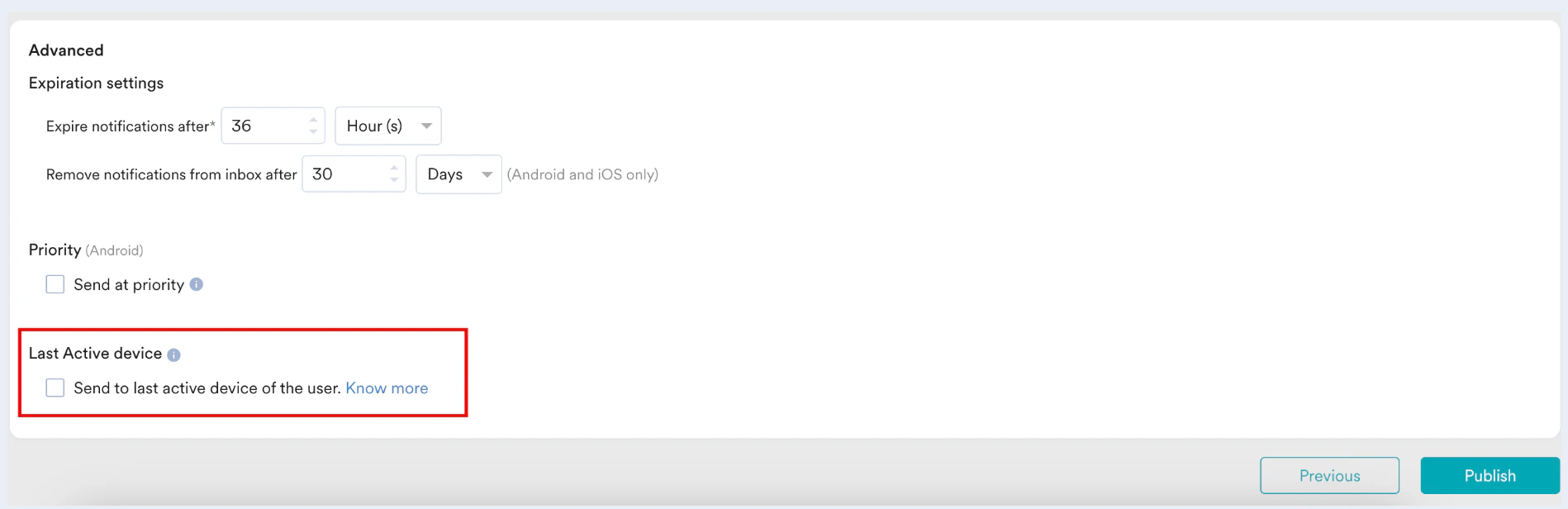 |
The **Last Active device** feature is an Early Access feature. To enable it for your account, contact your MoEngage Customer Success Manager (CSM) or the Support team.
Your campaign is now ready to be sent. To create the campaign, click **Publish** and confirm in the dialog box that opens.
The **Campaign Info** page will be displayed once the campaign has been created successfully.
## Next Steps
* [View Push Campaign Analytics](/user-guide/campaigns-and-channels/mobile-push/analyze/push-analytics-and-info)
* [Edit Push Campaign](/user-guide/campaigns-and-channels/mobile-push/create/edit-push-campaigns)
## Additional Resources
* [Create Push Campaigns API](https://www.moengage.com/docs/api/create-campaigns/create-campaign)
All MoEngage AI products, which were previously referred to as *Sherpa AI*, are now known as *Merlin AI*.
|
The **Last Active device** feature is an Early Access feature. To enable it for your account, contact your MoEngage Customer Success Manager (CSM) or the Support team.
Your campaign is now ready to be sent. To create the campaign, click **Publish** and confirm in the dialog box that opens.
The **Campaign Info** page will be displayed once the campaign has been created successfully.
## Next Steps
* [View Push Campaign Analytics](/user-guide/campaigns-and-channels/mobile-push/analyze/push-analytics-and-info)
* [Edit Push Campaign](/user-guide/campaigns-and-channels/mobile-push/create/edit-push-campaigns)
## Additional Resources
* [Create Push Campaigns API](https://www.moengage.com/docs/api/create-campaigns/create-campaign)
All MoEngage AI products, which were previously referred to as *Sherpa AI*, are now known as *Merlin AI*.