> ## Documentation Index
> Fetch the complete documentation index at: https://moengage.com/docs/llms.txt
> Use this file to discover all available pages before exploring further.
# Getting Google Authentication Error while sending Mobile Push notifications
> Fix Google authentication or sender ID mismatch errors when sending push notifications in MoEngage. Migrate from GCM to FCM and update server keys.
If you get a *Google Authentication Error or Mismatch Sender Id Error* while sending the campaign, your server key is probably not authenticated/valid to send the push notification to your registered users. This error occurs because of the following reasons:
* Google has deprecated GCM, and apps need to migrate to FCM. Read more about the change & Google's recommendations [here](https://developers.google.com/cloud-messaging/android/android-migrate-fcm).
* You have migrated your Google project to Firebase and are using the Legacy key in the MoEngage Dashboard.
In this article, we will help you to get the server key that works for sending push notifications.
* Login to the [Firebase Console](https://console.firebase.google.com/u/0/).
* Select the project name that you are using to send push notifications.
* Click on Project settings, there is a settings icon, right to the overview. You will find it there.
* Under Project Settings, select Cloud Messaging. You will see 2 keys mentioned in there.
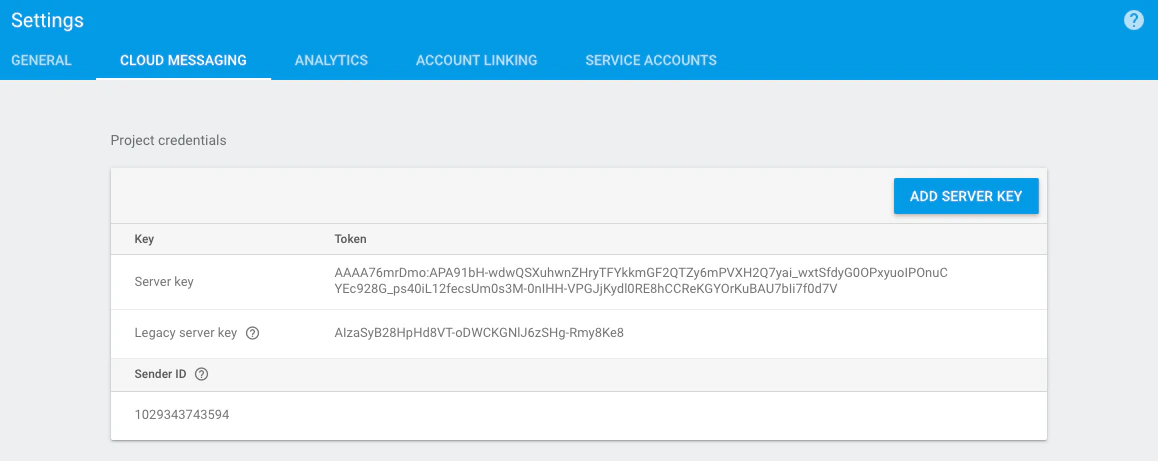 * The legacy server key is what you might be using on the MoEngage Dashboard, and you are not able to send notifications.
* Pick up the Server key (which is the longer one), and update it under **the Server key** in MoEngage Dashboard in **Settings -> Channels -> Push Settings-> Mobile Push**.
Note: The key quoted below is just a sample key. You need to use your Server key there.
* The legacy server key is what you might be using on the MoEngage Dashboard, and you are not able to send notifications.
* Pick up the Server key (which is the longer one), and update it under **the Server key** in MoEngage Dashboard in **Settings -> Channels -> Push Settings-> Mobile Push**.
Note: The key quoted below is just a sample key. You need to use your Server key there.
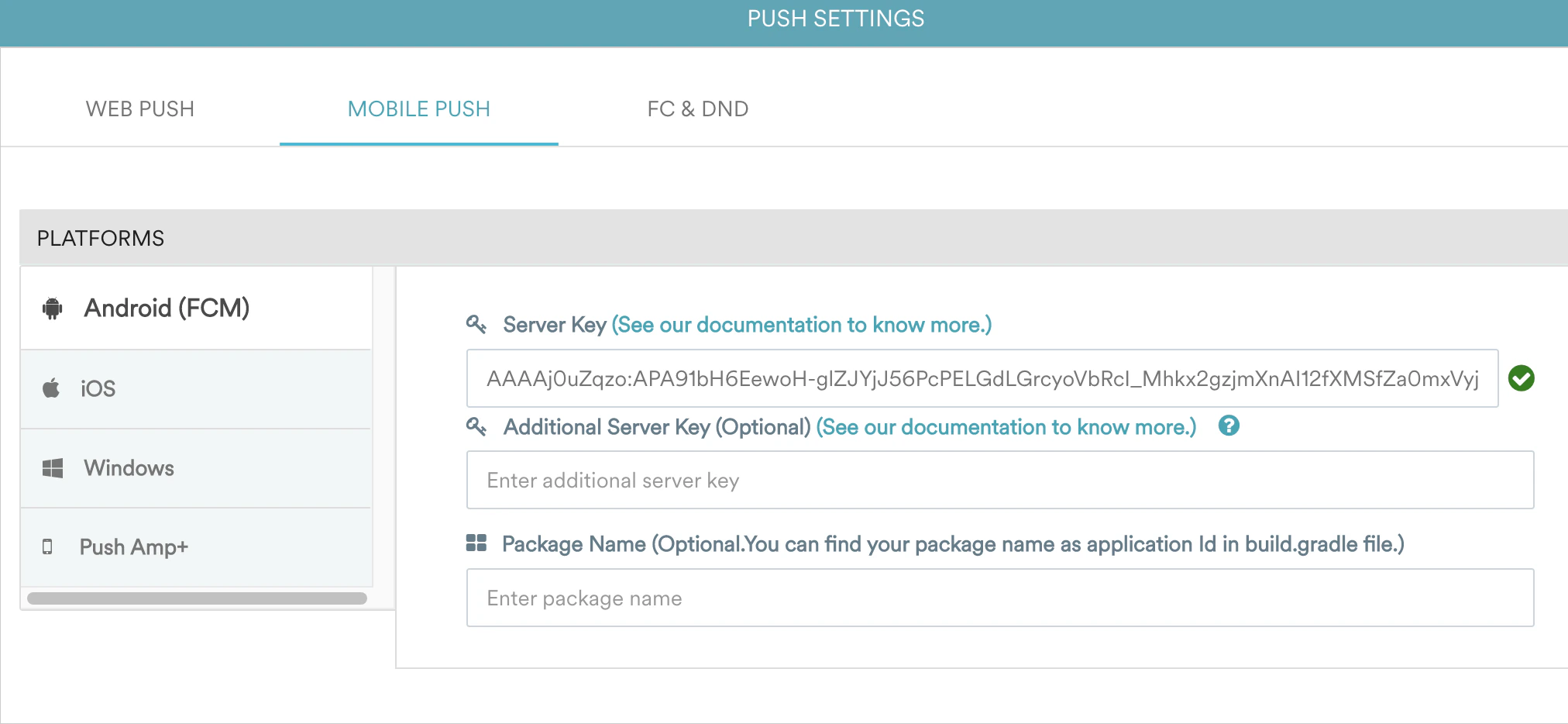 * Once you update the Server key, create a campaign on the dashboard and check if you receive push notifications on your mobile app.