> ## Documentation Index
> Fetch the complete documentation index at: https://moengage.com/docs/llms.txt
> Use this file to discover all available pages before exploring further.
# How Do Location Triggered Push Campaigns Work in MoEngage?
> Understand how location-triggered push campaigns are configured, evaluated, and delivered in MoEngage.
## Problem
Issues occur while working with location-based push notifications.
## Solution
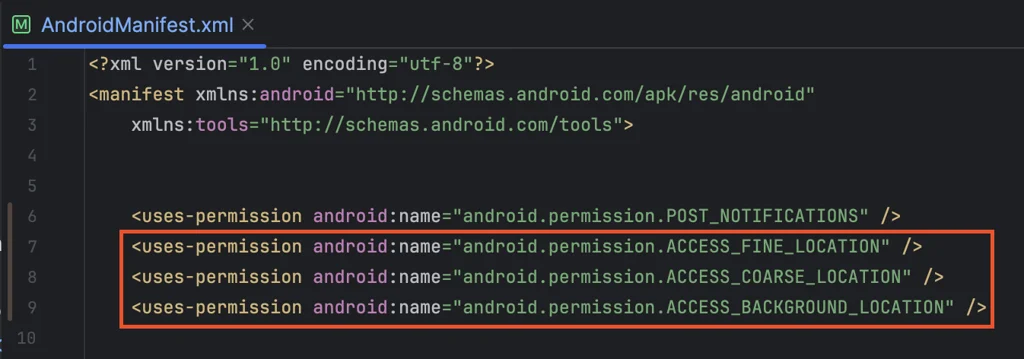
1. Open the AndroidManifest.xml file and add the following dependency:
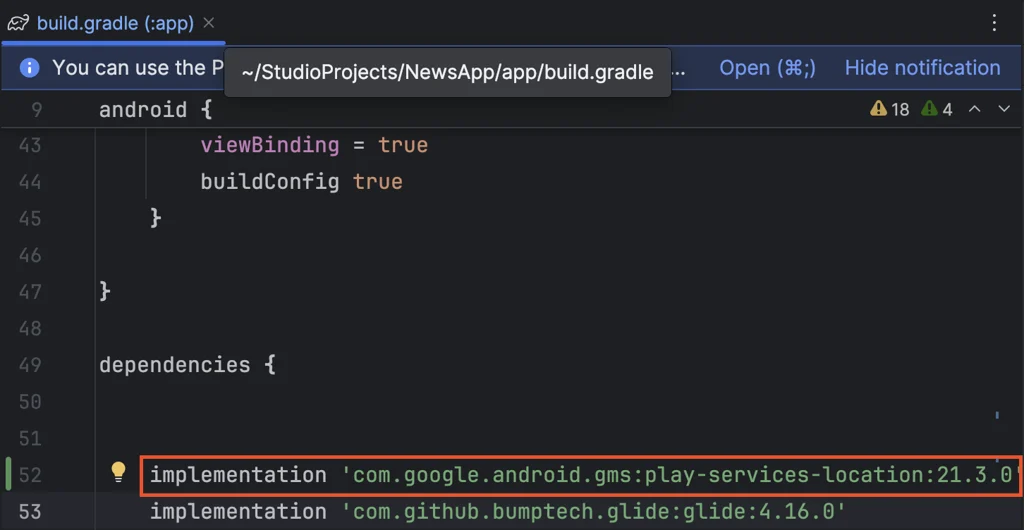
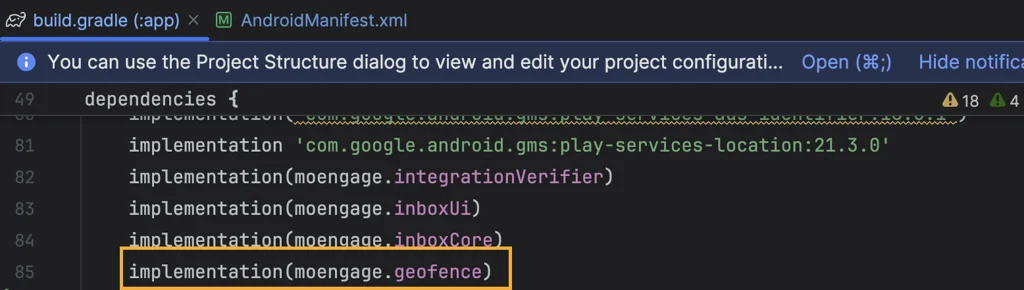
 2. Open the app level `build.gradle` file, and add the following dependency:
 3. Refer to the following sections in the [Location Triggered](https://www.moengage.com/docs/developer-guide/android-sdk/push/optional/location-triggered) documentation to create a location-triggered push campaign:
* Creating a Geofence.
* Users entering or exiting the Geofence.
* Users dwelling under the Geofence.
4. After following the documentation and adding the necessary dependencies and permissions, opening the app on Android 14 and above devices displays the user's permissions, as shown in the screenshot.
3. Refer to the following sections in the [Location Triggered](https://www.moengage.com/docs/developer-guide/android-sdk/push/optional/location-triggered) documentation to create a location-triggered push campaign:
* Creating a Geofence.
* Users entering or exiting the Geofence.
* Users dwelling under the Geofence.
4. After following the documentation and adding the necessary dependencies and permissions, opening the app on Android 14 and above devices displays the user's permissions, as shown in the screenshot.
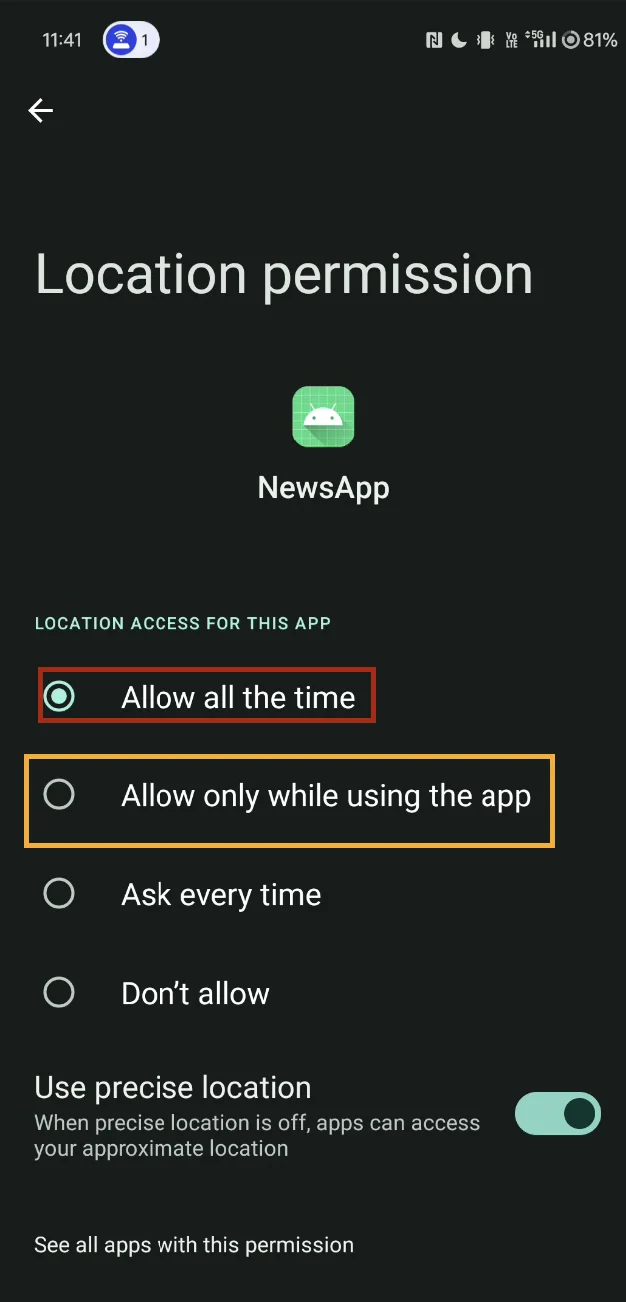 Android devices list two location permission settings:
* **Allow all the time**
* **Allow only while using the app**: By default, Android 14 and above devices grant location access only while the app is active.
* On Android 14 and above devices, the default `"Allow only while using the app"` location permission blocks geofence and location-triggered pushes when the app is closed or in the background. Change the location permission setting to `"Allow all the time"` so that location-triggered campaigns run in all states.
This is the default behavior for all devices running Android 14 and above.
Android devices list two location permission settings:
* **Allow all the time**
* **Allow only while using the app**: By default, Android 14 and above devices grant location access only while the app is active.
* On Android 14 and above devices, the default `"Allow only while using the app"` location permission blocks geofence and location-triggered pushes when the app is closed or in the background. Change the location permission setting to `"Allow all the time"` so that location-triggered campaigns run in all states.
This is the default behavior for all devices running Android 14 and above.