> ## Documentation Index
> Fetch the complete documentation index at: https://moengage.com/docs/llms.txt
> Use this file to discover all available pages before exploring further.
# How Do You Show a Timer With a Progress Bar in Rich Push Notifications?
> Display a timer with a progress bar in Android rich push notifications using MoEngage. Includes template setup and required manifest permissions.
## Problem
The timer with a progress bar in rich push notifications is unable to be displayed on Android.
## Instructions
Perform the following steps:
1. On the left navigation menu in the MoEngage dashboard, click **Engage**, and then click **Campaigns**.
2. On the All campaigns page, click **Create new**.
3. On the **Create campaign** pane, under **Outbound**, click **Push** and then click a delivery type.
4. In Step 2, Content, select the **Timer with progress bar** template.
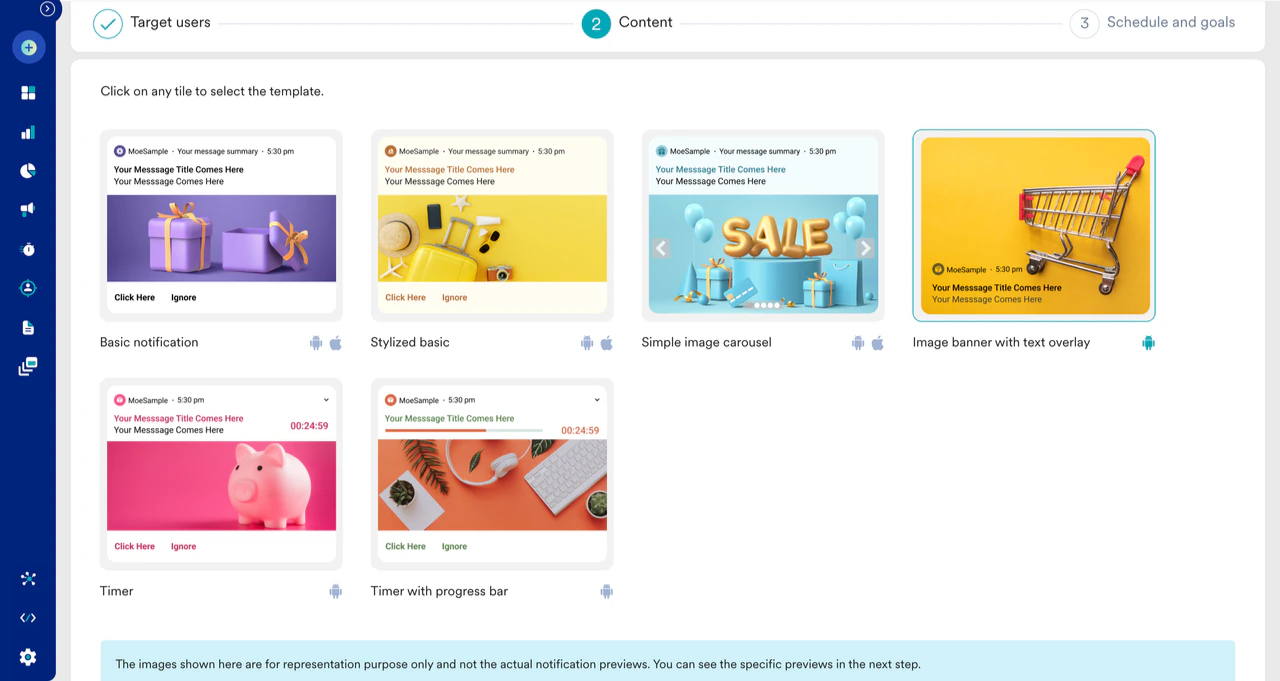 5. Work with the **Timer** section in this template, which synchronizes with the progress bar.
 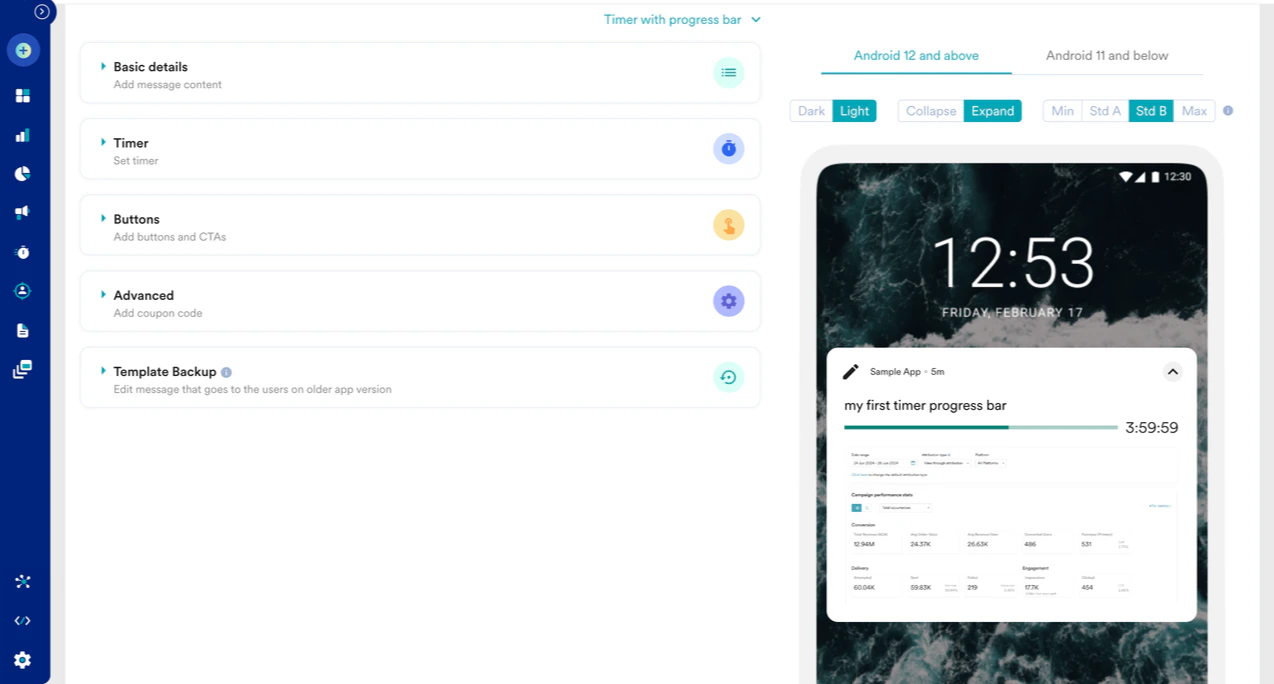 6. Include the following permission in the Android Manifest.xml file before sending the test Push campaigns.
```xml Code theme={null}
Android Manifest.xml
```
7. For Android 12 and above, request the SCHEDULE\_EXACT\_ALARM permission from the user and enable it using the following code:
```json Code theme={null}
if (Build.VERSION.SDK_INT = Build.VERSION_CODES.S) {
val alarmManager = ContextCompat.getSystemService(this, AlarmManager::class.java)
if (alarmManager?.canScheduleExactAlarms() == false) {
startActivity(Intent(Settings.ACTION_REQUEST_SCHEDULE_EXACT_ALARM))
}
else {
Toast.makeText(this, "Notification Permission already granted", Toast.LENGTH_LONG).show()
}
}
```
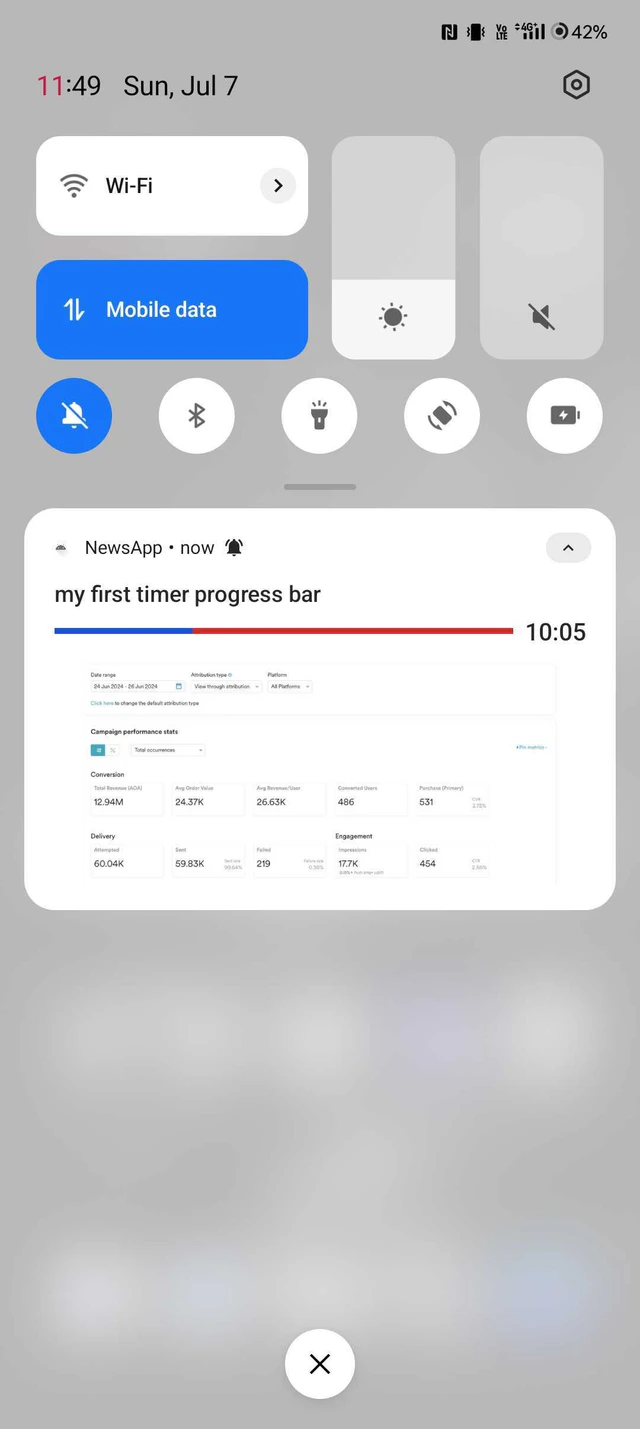
8. You can now view the rich push notification with the timer and the progress bar.
6. Include the following permission in the Android Manifest.xml file before sending the test Push campaigns.
```xml Code theme={null}
Android Manifest.xml
```
7. For Android 12 and above, request the SCHEDULE\_EXACT\_ALARM permission from the user and enable it using the following code:
```json Code theme={null}
if (Build.VERSION.SDK_INT = Build.VERSION_CODES.S) {
val alarmManager = ContextCompat.getSystemService(this, AlarmManager::class.java)
if (alarmManager?.canScheduleExactAlarms() == false) {
startActivity(Intent(Settings.ACTION_REQUEST_SCHEDULE_EXACT_ALARM))
}
else {
Toast.makeText(this, "Notification Permission already granted", Toast.LENGTH_LONG).show()
}
}
```
8. You can now view the rich push notification with the timer and the progress bar.