> ## Documentation Index
> Fetch the complete documentation index at: https://moengage.com/docs/llms.txt
> Use this file to discover all available pages before exploring further.
# No-Code Gamification Templates (OSM)
> Overview and configuration guide for Spin the Wheel and Scratch Card templates in On-site Messaging.
# Overview
MoEngage provides no-code gamification templates for On-site Messaging (OSM) campaigns, including:
* [Spin the wheel](#spin-the-wheel)
* [Scratch cards](#scratch-card)
These templates are fully customizable in an editor that does not require you to write code. You can create and launch these campaigns to increase user engagement on your website.
# Spin the Wheel
The Spin the Wheel template allows you to create an interactive prize wheel to engage and reward users.
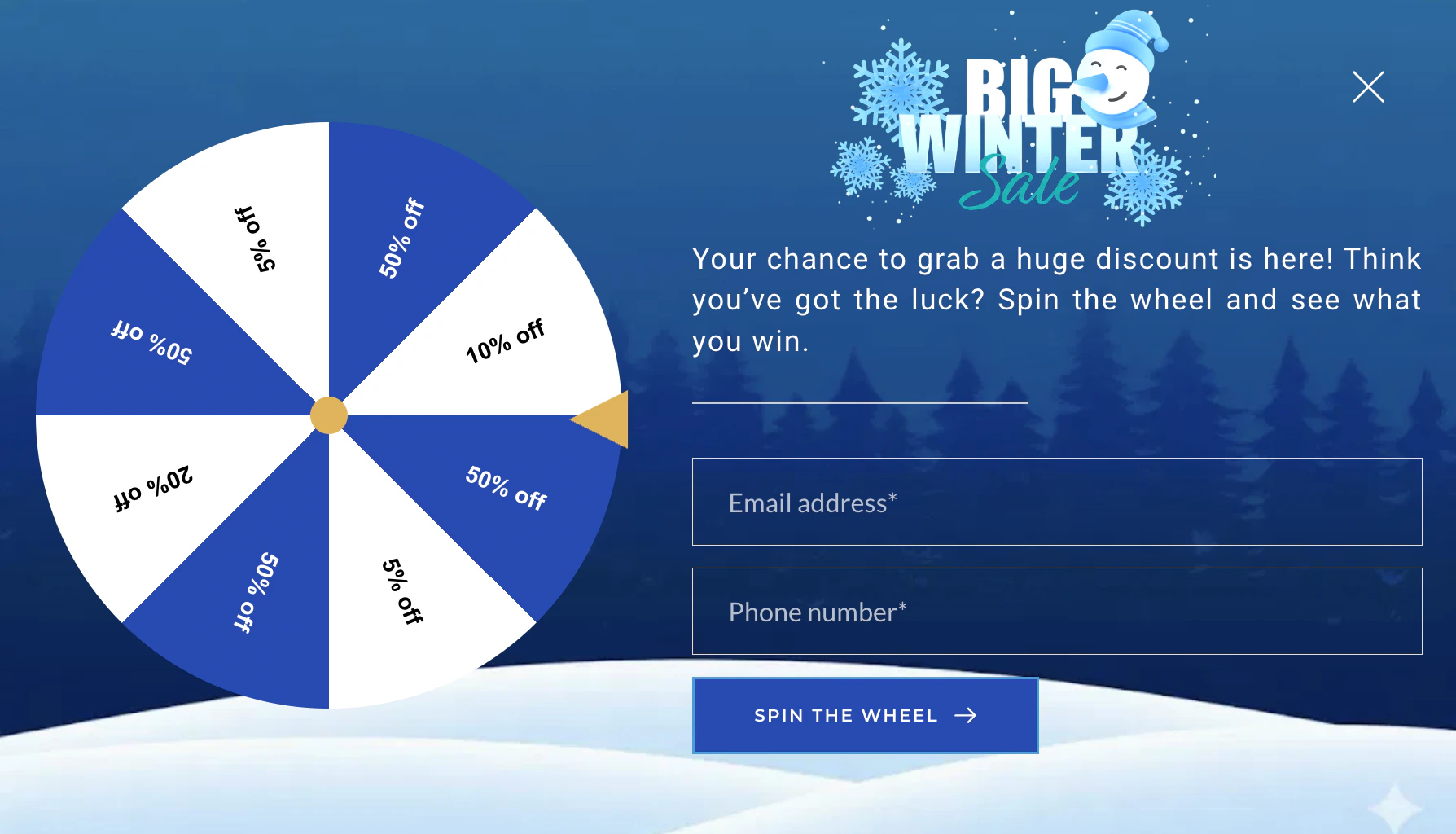 ## Use cases
* **Capture leads:** Encourage users to sign up or provide their email/phone number to spin the wheel.
* **Distribute coupons:** Offer varying discount percentages (for example, "10% Off", "Free Shipping") as prizes.
* **Drive daily engagement:** Create "Daily Spin" campaigns to encourage users to return to your website.
## Configure the Template
After you select the template, customize it using the **Spin** and **Styling** tabs in the editor side panel.
To access these settings:
* Click the wheel element on the canvas and select the **Settings** icon from the floating toolbar.
## Use cases
* **Capture leads:** Encourage users to sign up or provide their email/phone number to spin the wheel.
* **Distribute coupons:** Offer varying discount percentages (for example, "10% Off", "Free Shipping") as prizes.
* **Drive daily engagement:** Create "Daily Spin" campaigns to encourage users to return to your website.
## Configure the Template
After you select the template, customize it using the **Spin** and **Styling** tabs in the editor side panel.
To access these settings:
* Click the wheel element on the canvas and select the **Settings** icon from the floating toolbar.
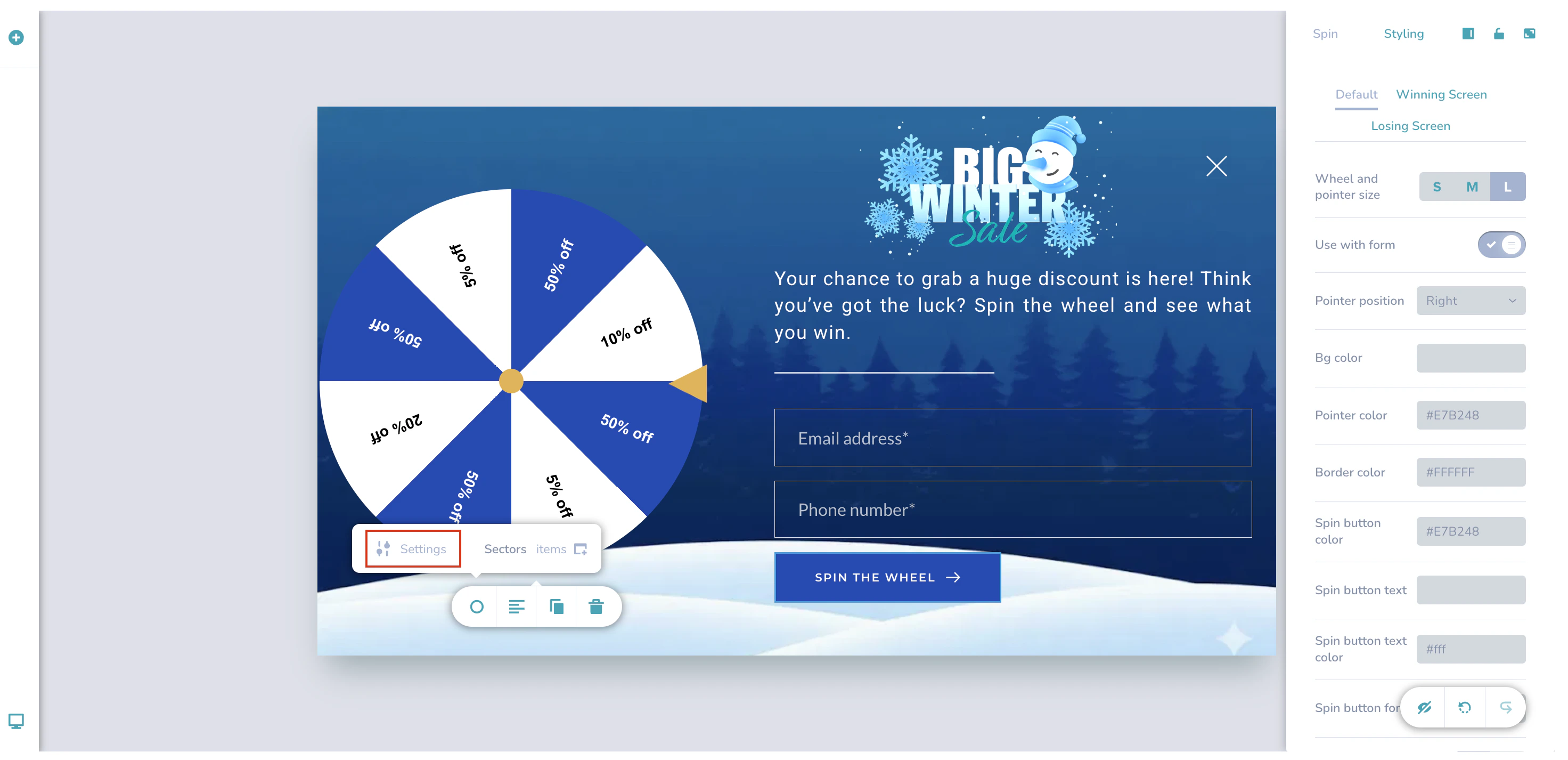 ## Configure the Default Styling
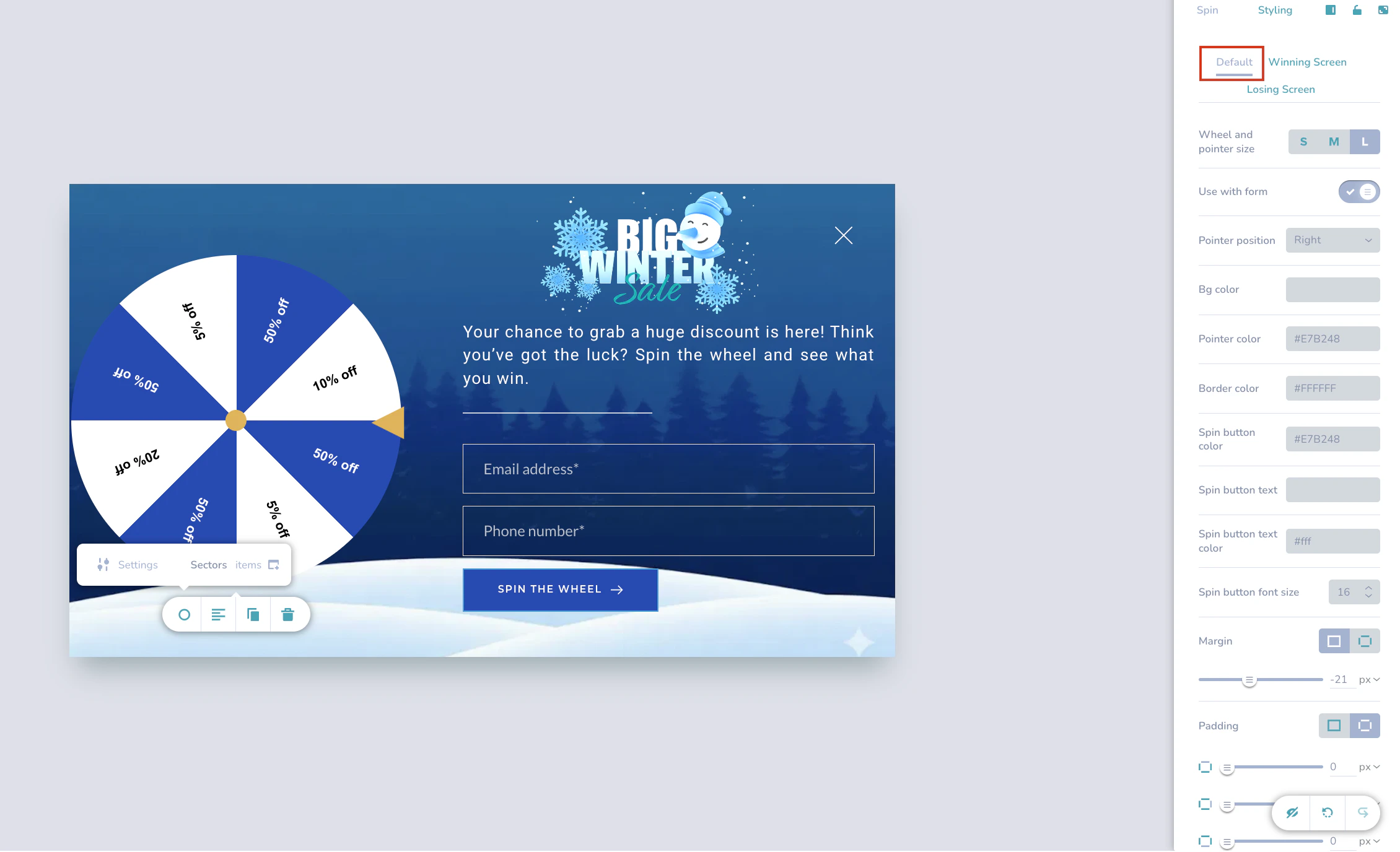
Under the **Styling** tab, select **Default**. This section lets you customize the wheel's appearance before the user interacts with it.
## Configure the Default Styling
Under the **Styling** tab, select **Default**. This section lets you customize the wheel's appearance before the user interacts with it.
 | Section | Customization options |
| :---------------------- | :-------------------------------------------------------------------------------------------------------------------------------------------------------------------------------------------------------------------------------------------------------------------------------------------------------------------------------------------------------------------------------- |
| **Wheel Configuration** |
| Section | Customization options |
| :---------------------- | :-------------------------------------------------------------------------------------------------------------------------------------------------------------------------------------------------------------------------------------------------------------------------------------------------------------------------------------------------------------------------------- |
| **Wheel Configuration** | - **Wheel and pointer size:** Select **S** (Small), **M** (Medium), or **L** (Large).
- **Use with form:** Toggle **On** to require users to fill out a form (for example, Email/Phone) before spinning. Toggle **Off** for an immediate spin action.
- **Pointer position:** Choose the position of the winning indicator (for example, Right, Top).
|
| **Colors** | - **Bg color:** Set the background color behind the wheel.
- **Pointer color:** Set the color of the indicator arrow.
- **Border color:** Set the color of the wheel's border.
|
| **Spin Button** | - **Spin button color:** Customize the background color of the button.
- **Spin button text:** Enter the display text on the button (for example, "Spin to Win").
- **Spin button text color:** Set the color of the button text.
- **Spin button font size:** Adjust the text size.
|
| **Layout & Borders** | - **Margin:** Adjust spacing outside the wheel container.
- **Padding:** Adjust spacing inside the wheel container.
- **Border width:** Set the thickness of the container border.
|
## Configure Wheel Sectors (Widgets)
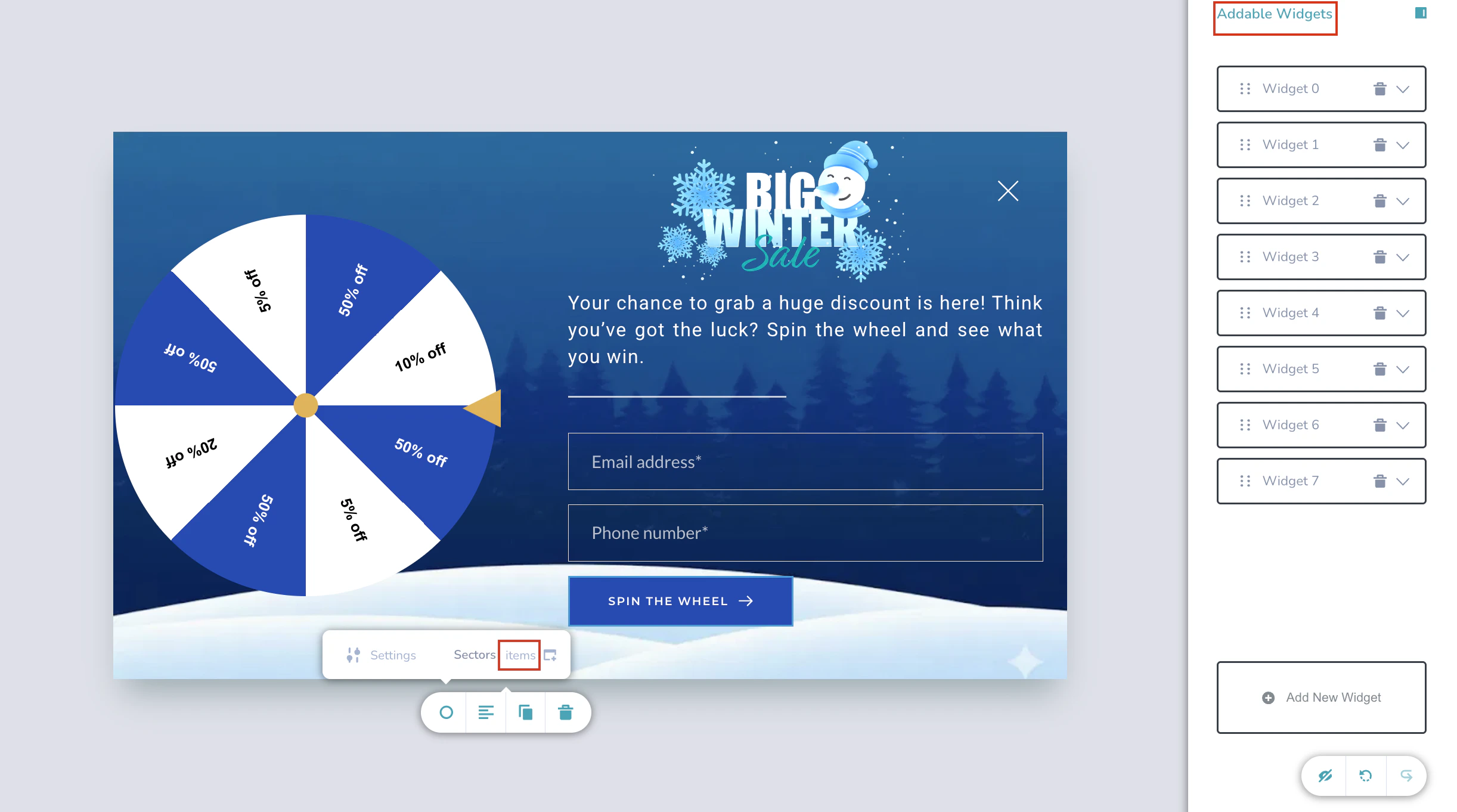
To define prizes, probability, and appearance of the wheel sectors, configure the **Addable Widgets**. Each Widget corresponds to a specific sector on the wheel.
To access these settings:
1. Select the wheel element on the canvas.
2. On the floating toolbar, click the **Items** icon. The **Addable Widgets** panel appears on the right.
 | Section | Customization Options |
| :-------------------- | :----------------------------------------------------------------------------------------------------------------------------------------------------------------------------------------------------------------------------------------------------------------------------------------------------------------------------------------------------------------------------------------------------------------- |
| **Widget Management** |
| Section | Customization Options |
| :-------------------- | :----------------------------------------------------------------------------------------------------------------------------------------------------------------------------------------------------------------------------------------------------------------------------------------------------------------------------------------------------------------------------------------------------------------- |
| **Widget Management** | - **Add New Widget:** Click the button at the bottom of the panel to add a new sector to the wheel.
- **Delete Widget:** Click the **Trash icon** on a widget card to remove that sector.
- **Expand/Collapse:** Click the arrow on the widget card to show or hide details.
|
| **Widget Details** | - **Set win %:** Enter a numerical value to determine the probability of landing on this sector.
- **Title:** Enter the text displayed on the sector (for example, "50% off", "Try Again").
- **Coupon code:** Enter the coupon code associated with this prize (for example, KIWI\_100).
- **Lose option:** Toggle this **On** if this sector represents a non-winning outcome.
|
| **Styling** | - **Font size:** Adjust the size of the sector text.
- **Font color:** Set the color of the sector text.
- **Sector color:** Set the background color for this specific slice of the wheel.
- **Upload image:** (Optional) Upload an icon or image to display on the sector instead of, or along with, text.
|
## Configure the Winning Screen
On the **Styling** tab, select **Winning Screen**. This allows you to customize the content revealed to users after a successful spin. This section is divided into three sub-tabs: **Image**, **Text**, and **Coupon box**.
### Image
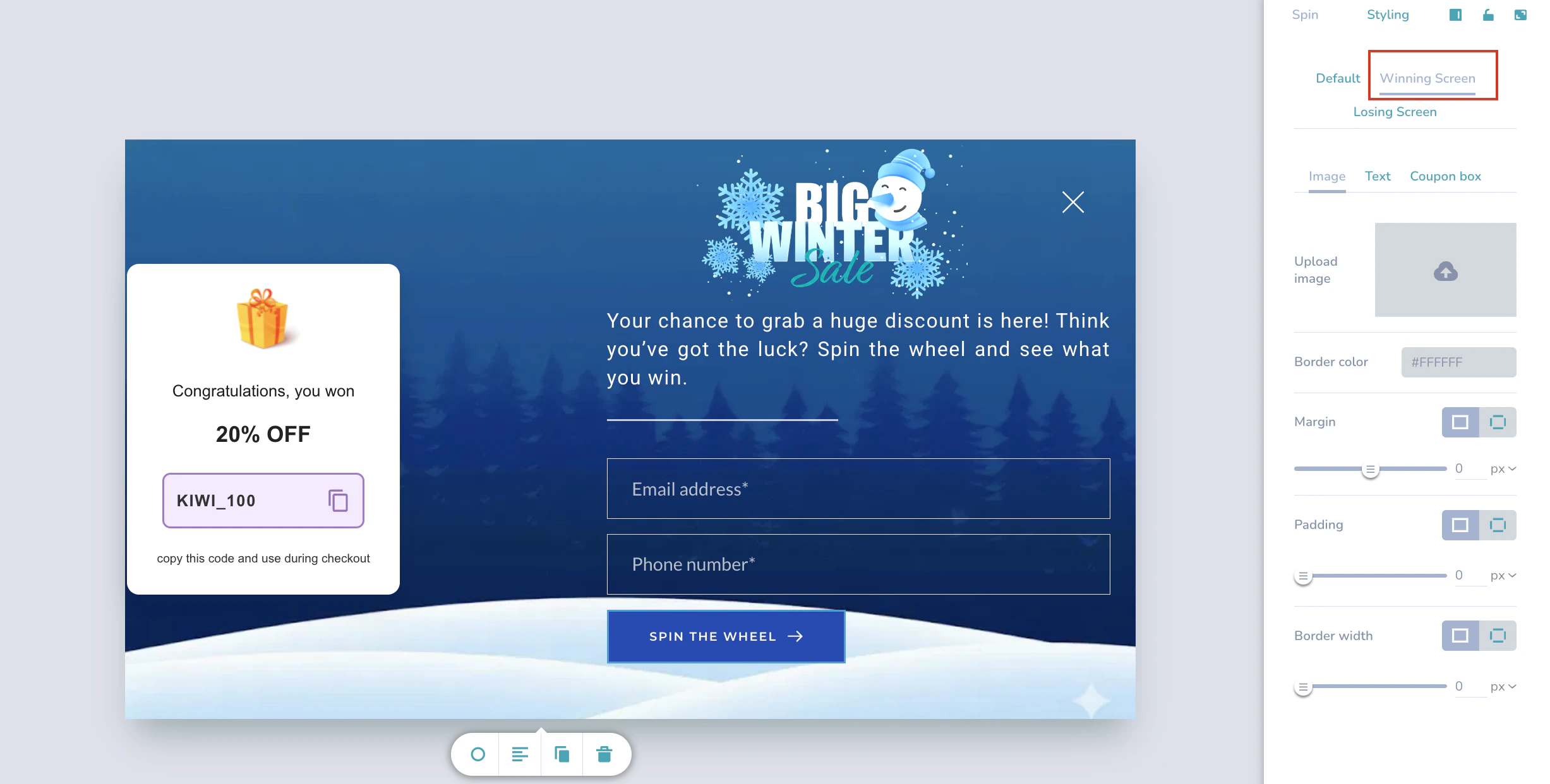 | Section | Customization Options |
| :----------------- | :----------------------------------------------------------------------------------------------------------------------------------------------------------------------------------------------------------------------------------------------------------------------------------------------------------------------------------------------- |
| **Image Settings** |
| Section | Customization Options |
| :----------------- | :----------------------------------------------------------------------------------------------------------------------------------------------------------------------------------------------------------------------------------------------------------------------------------------------------------------------------------------------- |
| **Image Settings** | - **Upload image:** Upload a custom image to display on the winning screen.
- **Border color:** Set the color of the image border.
- **Margin:** Adjust the outer spacing of the image.
- **Padding:** Adjust the inner spacing of the image.
- **Border width:** Set the thickness of the image border.
|
### Text
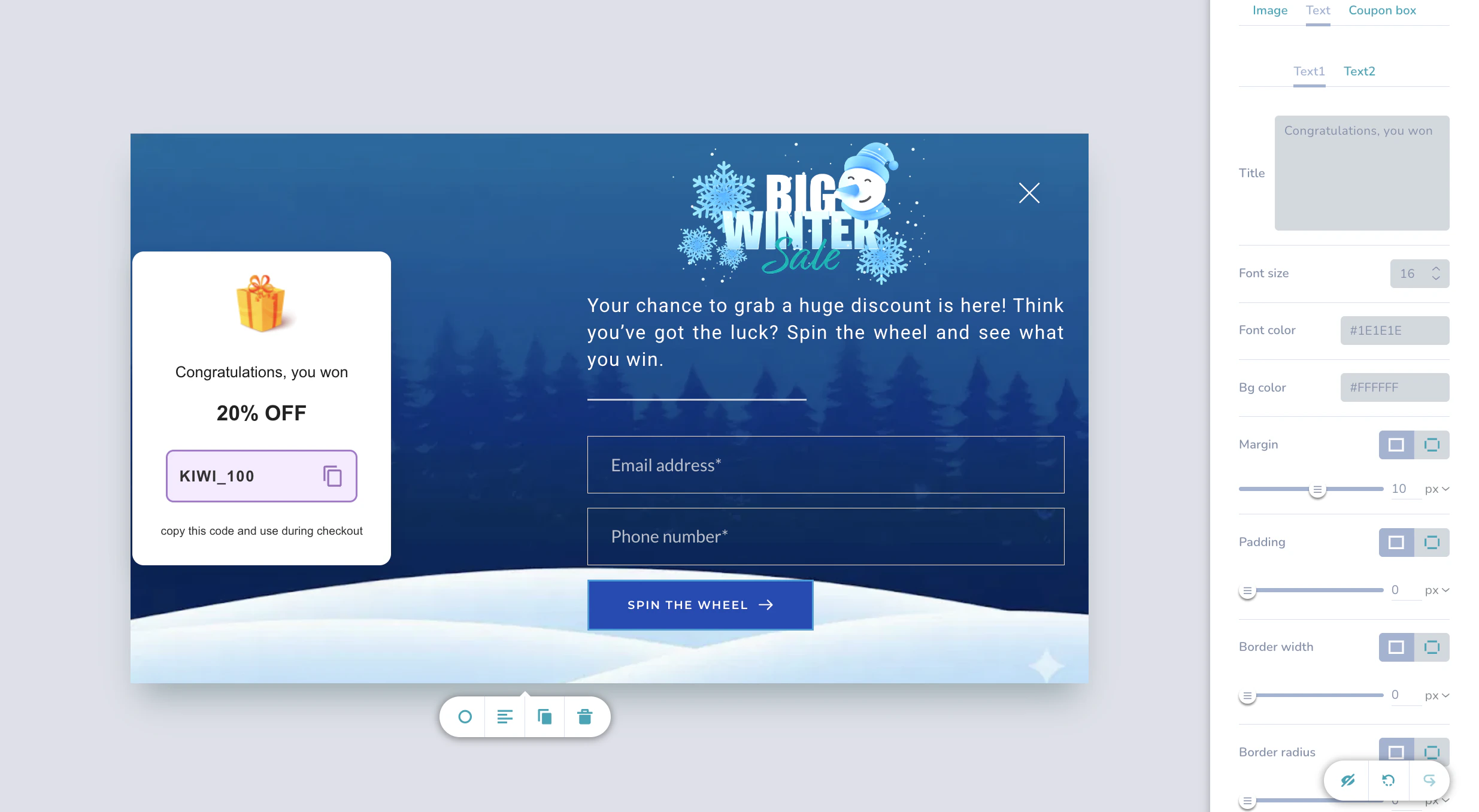 | Section | Customization options |
| :------------------- | :------------------------------------------------------------------------------------------------------------------------------------------------------------------------------------------------------------------------------------------------------------------------- |
| **Text Styling** |
| Section | Customization options |
| :------------------- | :------------------------------------------------------------------------------------------------------------------------------------------------------------------------------------------------------------------------------------------------------------------------- |
| **Text Styling** | - **Title:** Enter the congratulatory text (for example, "Congratulations, you won").
- **Font size:** Adjust the size of the text.
- **Font color:** Choose the text color.
- **Bg color:** Set the background color for the text area.
|
| **Layout & Borders** | - **Margin & Padding:** Adjust spacing around the text.
- **Border width & radius:** Customize the thickness and roundness of the border.
- **Border color:** Set the color of the text area border.
|
### Coupon Box
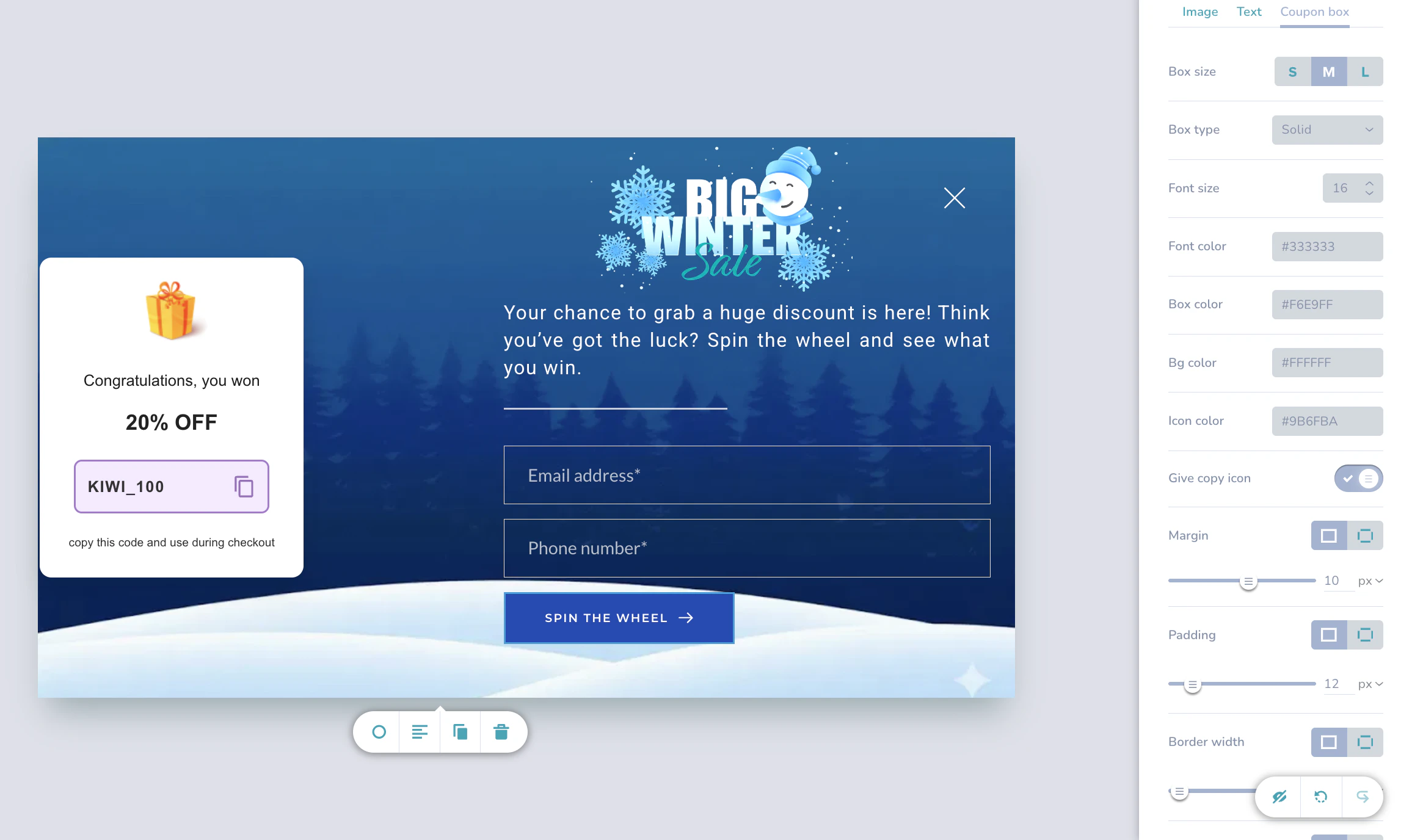 | Section | Customization Options |
| :------------------- | :-------------------------------------------------------------------------------------------------------------------------------------------------------------------------------------------------------------------------------------------------------------------- |
| **Box Settings** |
| Section | Customization Options |
| :------------------- | :-------------------------------------------------------------------------------------------------------------------------------------------------------------------------------------------------------------------------------------------------------------------- |
| **Box Settings** | - **Box size:** Select **S** (Small), **M** (Medium), or **L** (Large).
- **Box type:** Choose the style (for example, **Solid**).
- **Box color:** Set the main color of the coupon box.
- **Bg color:** Set the background color.
|
| **Text & Icons** | - **Font size & color:** Customize the coupon code text appearance.
- **Icon color:** Set the color for the copy icon.
- **Give copy icon:** Toggle **On** to allow users to copy the code with one click.
|
| **Layout & Borders** | - **Margin & Padding:** Adjust spacing around the coupon box.
- **Border width, radius & color:** Customize the border appearance.
|
## Configure the Losing Screen
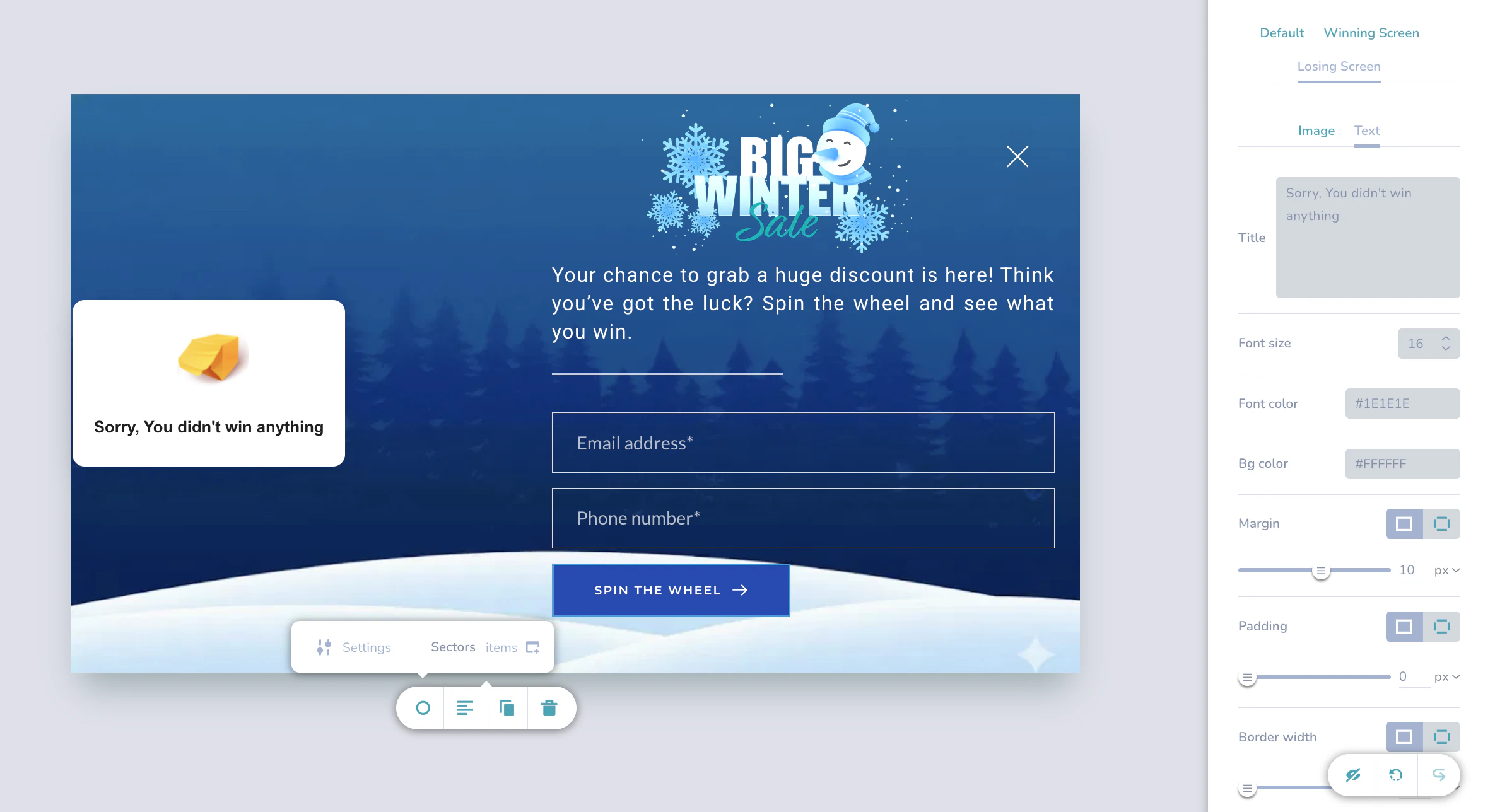
On the **Styling** tab, select **Losing Screen**. This allows you to customize the view displayed to users when they do not win a prize. This section is divided into two sub-tabs: **Image** and **Text**.
### Image
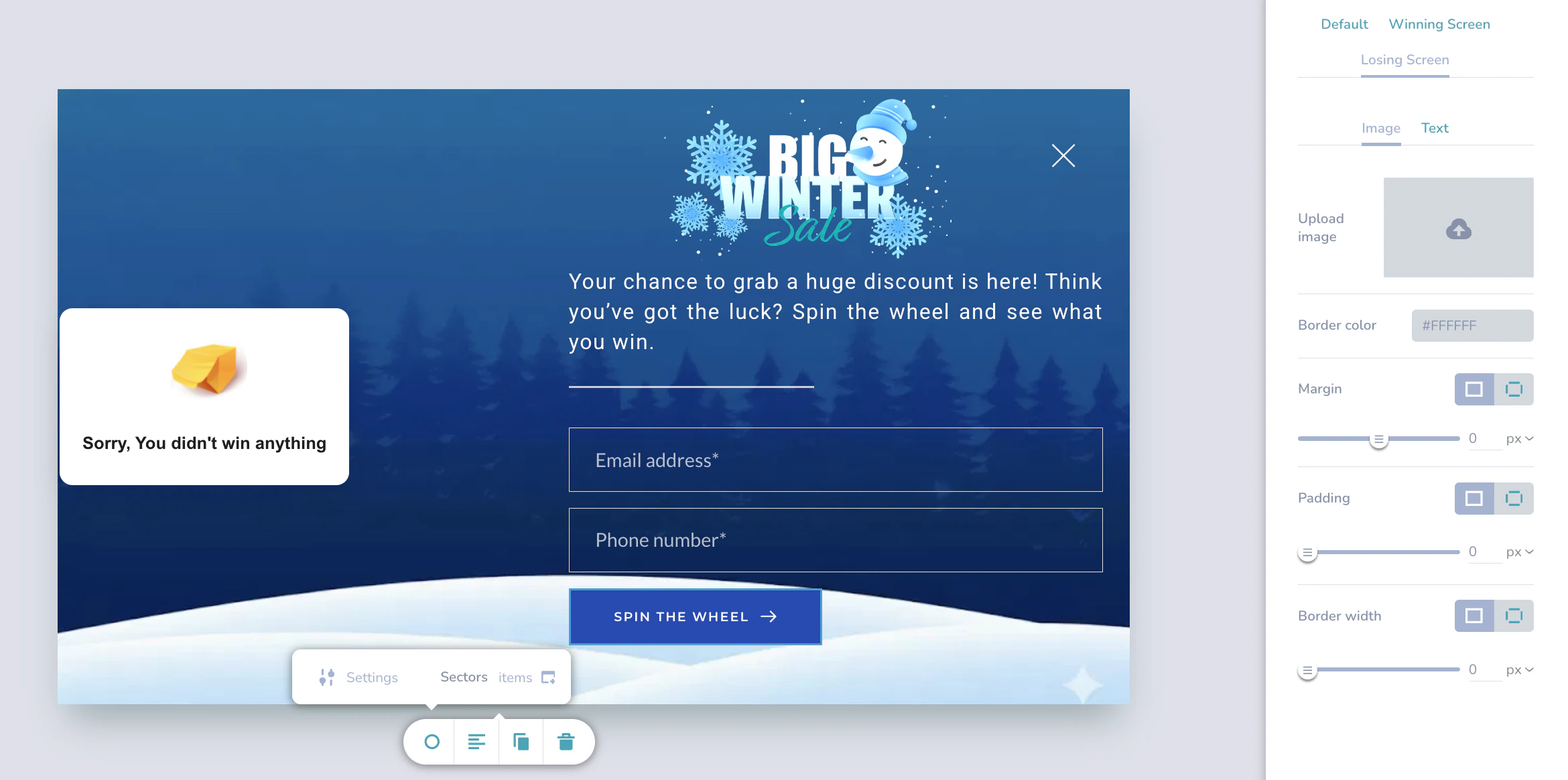 | Section | Customization Options |
| :----------------- | :---------------------------------------------------------------------------------------------------------------------------------------------------------------------------------------------------------------------------------------------------------------------------------------------------------------------------------------------- |
| **Image Settings** |
| Section | Customization Options |
| :----------------- | :---------------------------------------------------------------------------------------------------------------------------------------------------------------------------------------------------------------------------------------------------------------------------------------------------------------------------------------------- |
| **Image Settings** | - **Upload image:** Upload a custom image to display on the losing screen.
- **Border color:** Set the color of the image border.
- **Margin:** Adjust the outer spacing of the image.
- **Padding:** Adjust the inner spacing of the image.
- **Border width:** Set the thickness of the image border.
|
### Text
 | Section | Customization Options |
| :------------------- | :------------------------------------------------------------------------------------------------------------------------------------------------------------------------------------------------------------------------------------------------------------------- |
| **Text Styling** |
| Section | Customization Options |
| :------------------- | :------------------------------------------------------------------------------------------------------------------------------------------------------------------------------------------------------------------------------------------------------------------- |
| **Text Styling** | - **Title:** Enter the non-winning text (for example, "Better luck next time").
- **Font size:** Adjust the size of the text.
- **Font color:** Choose the text color.
- **Bg color:** Set the background color for the text area.
|
| **Layout & Borders** | - **Margin & Padding:** Adjust spacing around the text.
- **Border width & radius:** Customize the thickness and roundness of the border.
- **Border color:** Set the color of the text area border.
|
# Scratch Card
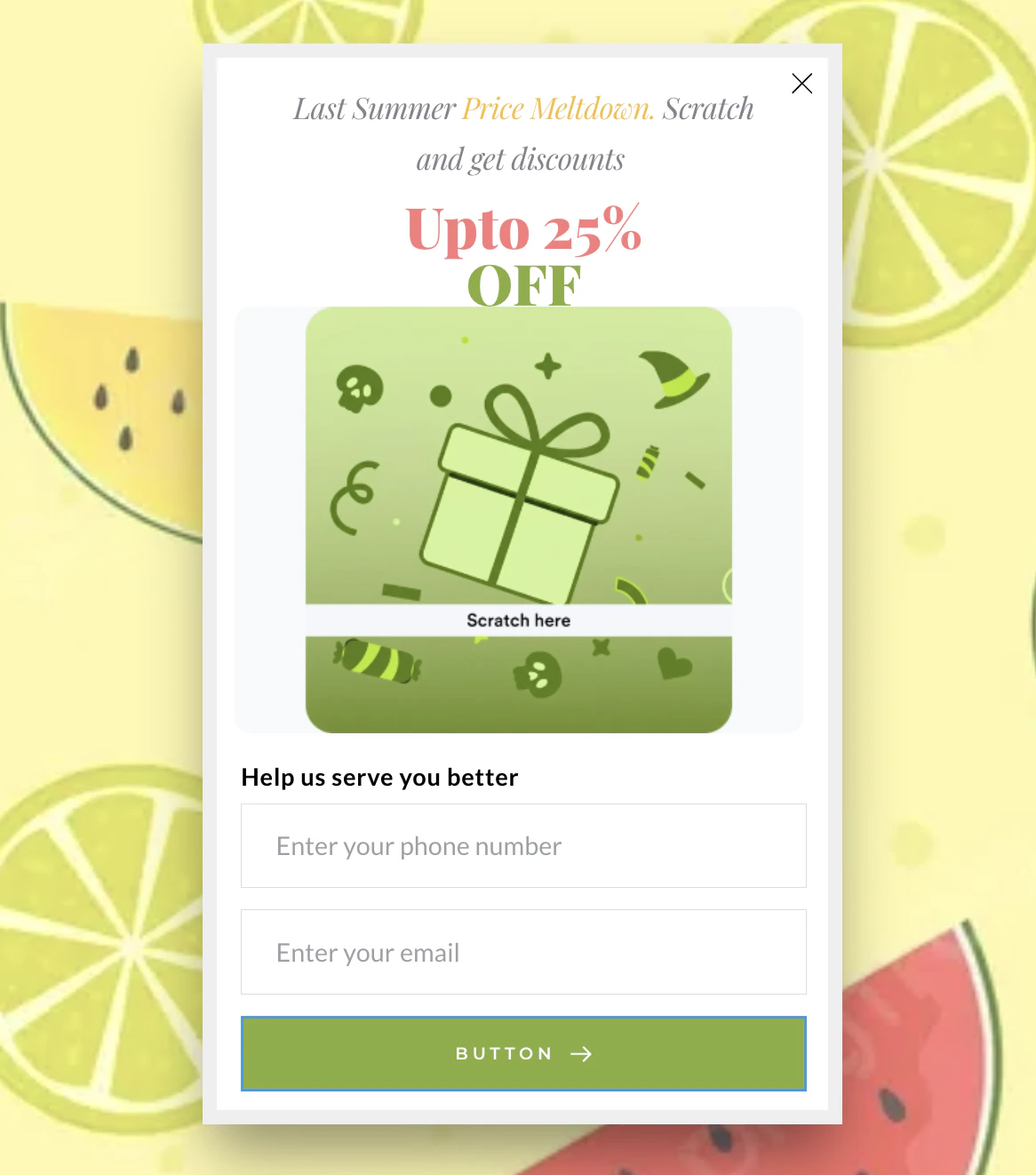
The Scratch Card template creates a virtual "scratch-off" experience. Users interact with the campaign by scrubbing their cursor or finger over an image to reveal a hidden prize or message underneath.
 ## Use Cases
* **Reveal mystery discounts:** Build anticipation by hiding the discount amount (for example, "Scratch to reveal your deal").
* **Contest entries:** Use a "Scratch and Win" mechanic for instant-win contests.
* **Exclusive promos:** Engage users by requiring an interaction to access a promo code.
## Configure the Template
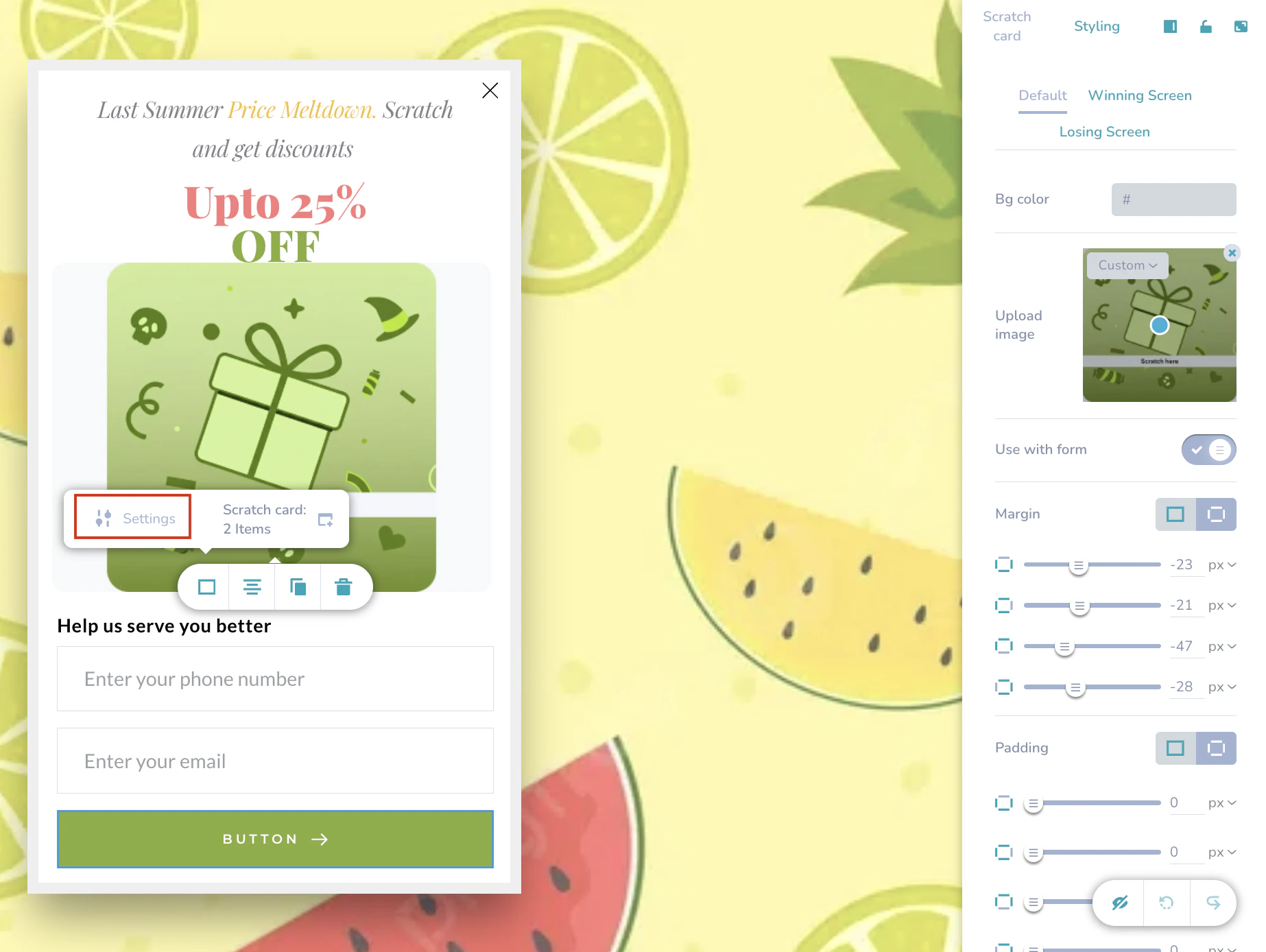
To configure the Scratch Card, you will use the floating toolbar and the configuration side panel.
To access these settings:
1. Click the scratch card element on the canvas.
2. On the floating toolbar, click the **Settings** icon.
3. Click the square icon.
## Use Cases
* **Reveal mystery discounts:** Build anticipation by hiding the discount amount (for example, "Scratch to reveal your deal").
* **Contest entries:** Use a "Scratch and Win" mechanic for instant-win contests.
* **Exclusive promos:** Engage users by requiring an interaction to access a promo code.
## Configure the Template
To configure the Scratch Card, you will use the floating toolbar and the configuration side panel.
To access these settings:
1. Click the scratch card element on the canvas.
2. On the floating toolbar, click the **Settings** icon.
3. Click the square icon.
 ## Configure Default Styling
Under the **Styling** tab, select **Default**. This section controls the card's appearance before the user scratches it.
| Section | Customization Options |
| :------------------ | :------------------------------------------------------------------------------------------------------------------------------------------------------------------------------------------------------------------------------------------------------------------------- |
| **Card Appearance** |
## Configure Default Styling
Under the **Styling** tab, select **Default**. This section controls the card's appearance before the user scratches it.
| Section | Customization Options |
| :------------------ | :------------------------------------------------------------------------------------------------------------------------------------------------------------------------------------------------------------------------------------------------------------------------- |
| **Card Appearance** | - **Bg color:** Set the background color for the scratch card container.
- **Upload image:** Choose the "cover" image that users will scratch away (for example, a gift box, a pattern, or a "Scratch Here" graphic). You can upload a custom image.
|
| **Behavior** | **Use with form:** - **Toggle On:** Requires the user to submit details (like email/phone) before they can scratch the card.
- **Toggle Off:** Allows immediate interaction with the scratch card.
|
| **Layout** | - **Margin:** Adjust the spacing outside the scratch card element.
- **Padding:** Adjust the spacing inside the scratch card element.
|
## Configure the Winning Screen
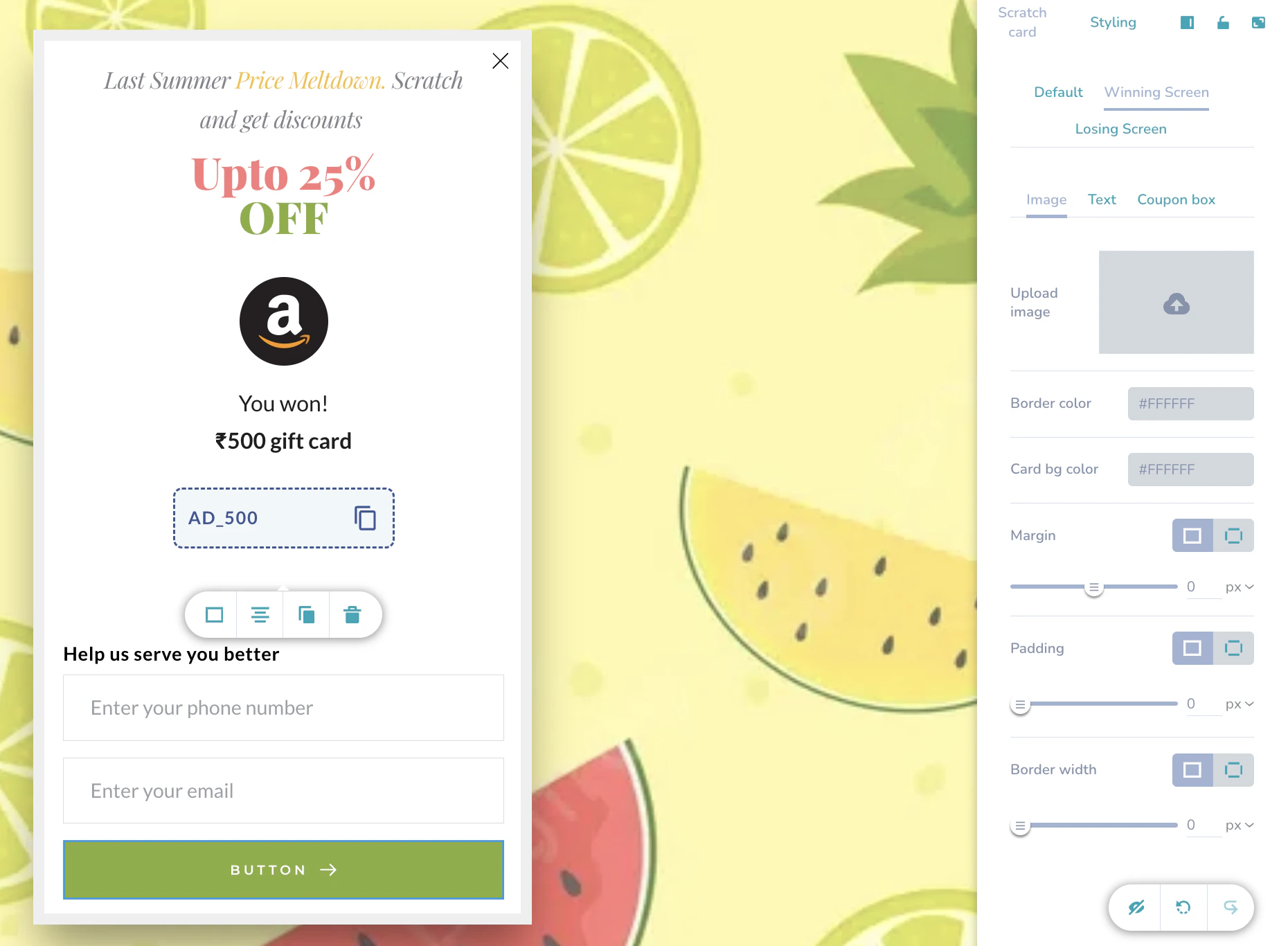
On the **Styling** tab, select **Winning Screen**. This section defines the content revealed when the user successfully scratches the card and wins.
The Winning Screen has three sub-tabs: **Image**, **Text**, and **Coupon box**.
### Image
 | Section | Customization Options |
| :----------------- | :----------------------------------------------------------------------------------------------------------------------------------------------------------------------------------------------------------------------------------------------------------------------------------------------------------------------------------------------------------------------------------------------------------------- |
| **Image Settings** |
| Section | Customization Options |
| :----------------- | :----------------------------------------------------------------------------------------------------------------------------------------------------------------------------------------------------------------------------------------------------------------------------------------------------------------------------------------------------------------------------------------------------------------- |
| **Image Settings** | - **Upload image:** Upload a custom image to display as the main visual.
- **Card Bg color:** Set the background color of the card that is revealed underneath the scratch layer.
- **Border color:** Set the color of the image border.
- **Margin & Padding:** Adjust the outer and inner spacing around the image.
- **Border width:** Set the thickness of the border.
|
### Text
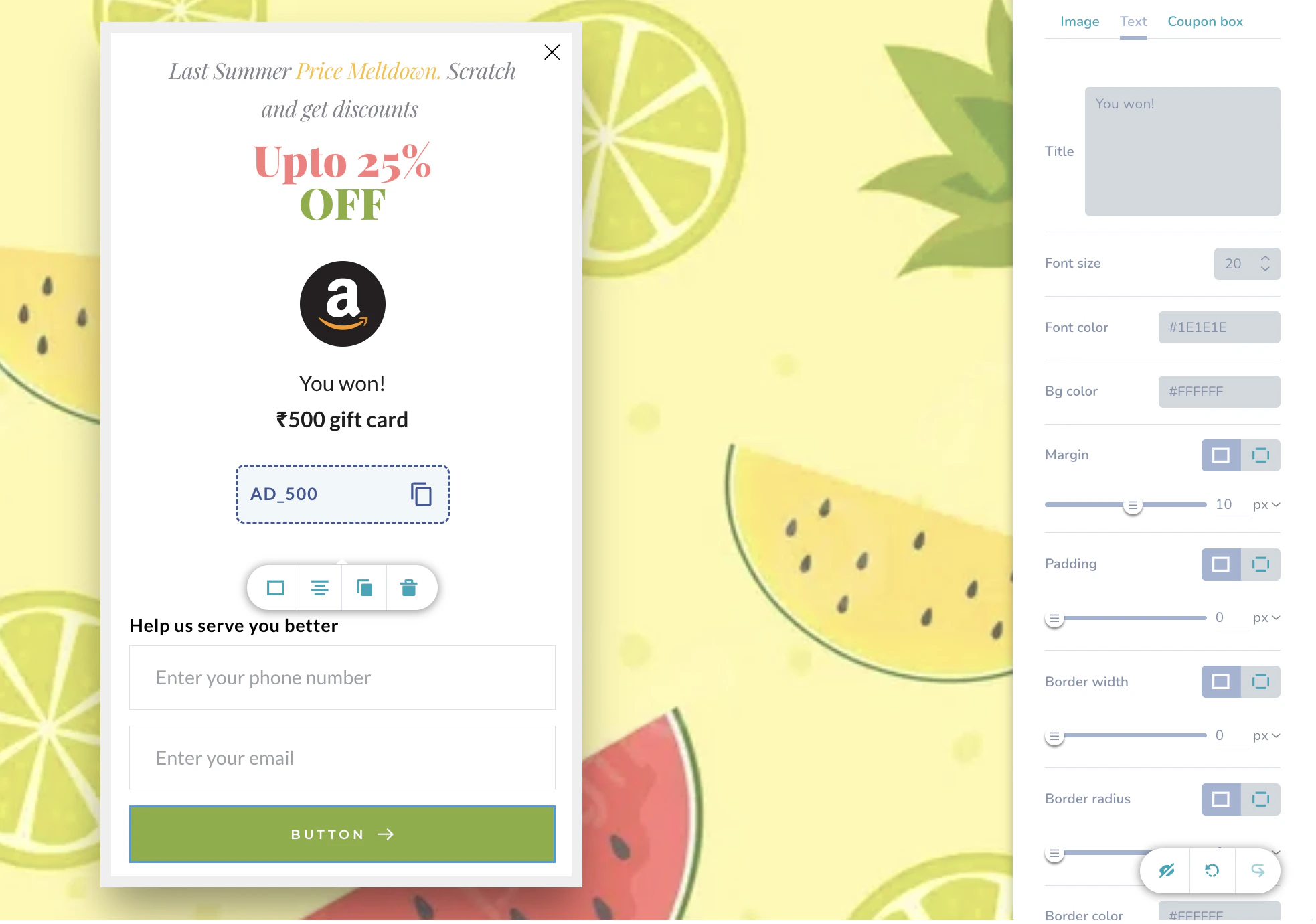 | Section | Customization Options |
| :------------------- | :-------------------------------------------------------------------------------------------------------------------------------------------------------------------------------------- |
| **Text Styling** |
| Section | Customization Options |
| :------------------- | :-------------------------------------------------------------------------------------------------------------------------------------------------------------------------------------- |
| **Text Styling** | - **Title:** Enter the congratulatory text.
- **Font size & color:** Customize text appearance.
- **Bg color:** Set the background color for the text area.
|
| **Layout & Borders** | - **Margin & Padding:** Adjust the spacing around the text.
- **Border width, radius & color:** Customize border appearance.
|
### Coupon Box
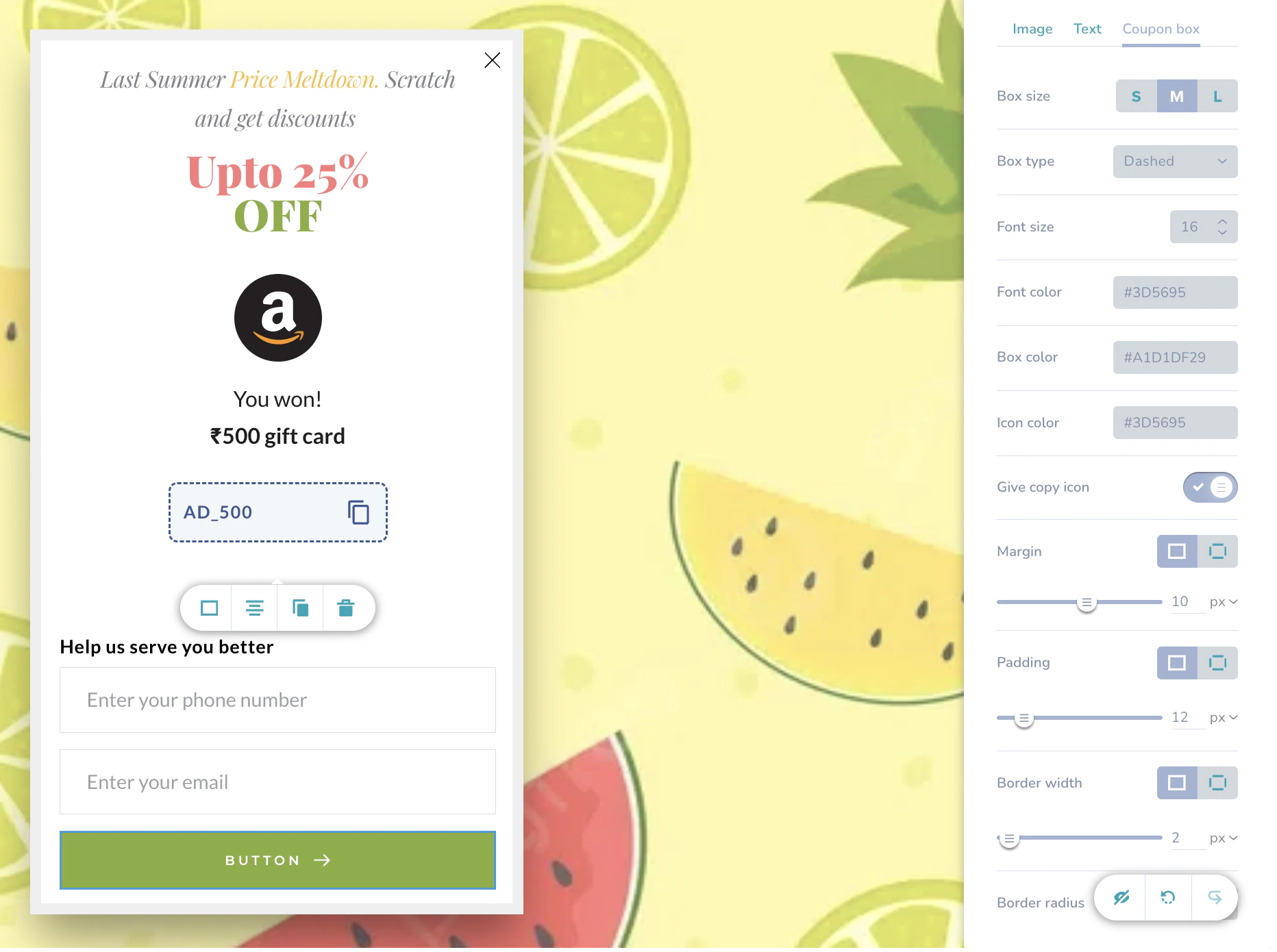 | Section | Customization Options |
| :--------------- | :--------------------------------------------------------------------------------------------------------------------------------------------------------- |
| **Box Settings** |
| Section | Customization Options |
| :--------------- | :--------------------------------------------------------------------------------------------------------------------------------------------------------- |
| **Box Settings** | - **Box size, type & color:** Customize the coupon container appearance.
- **Bg color:** Set the background color of the coupon box.
|
| **Text & Icons** | - **Text styling:** Adjust font size and color of the code.
- **Copy icon:** Enable a copy button and set its color.
|
## Configure the Losing Screen
On the **Styling** tab, select **Losing Screen**. This allows you to customize the view displayed when users do not win a prize.
### Image
| Section | Customization Options |
| :----------------- | :----------------------------------------------------------------------------------------------------------------------------------------------------------------------------------------------------------------------------------------------------------------- |
| **Image Settings** | - **Upload image:** Upload a custom image to display.
- **Border color:** Set the color of the image border.
- **Margin & Padding:** Adjust spacing around the image.
- **Border width:** Set the thickness of the image border.
|
### Text
| Section | Customization Options |
| :------------------- | :-------------------------------------------------------------------------------------------------------------------------------------------------------------------------------------------------------------------------------------- |
| **Text Styling** | - **Title:** Enter the non-winning text.
- **Font size & color:** Customize text appearance.
- **Bg color:** Set the background color for the text area.
|
| **Layout & Borders** | - **Margin & Padding:** Adjust spacing around the text.
- **Border width, radius & color:** Customize the thickness and roundness of the border.
- **Border color:** Set the color of the text area border.
|