> ## Documentation Index
> Fetch the complete documentation index at: https://moengage.com/docs/llms.txt
> Use this file to discover all available pages before exploring further.
# Portfolio for On-site Messaging
> Manage On-site Messaging campaigns across multiple websites with MoEngage Portfolio. Cross-project segmentation, personalization, and analytics.
# Overview
The [Portfolio](/docs/user-guide/settings/account/portfolio/portfolio) feature provides a unified view of your customers across all your websites. This enhances how you segment, personalize, and analyze On-site Messaging (OSM) campaigns.
This article covers:
* Targeting Specific Websites and Platforms
* Cross-Project Segmentation
* Personalization
* Test Campaigns
* Analytics and Project Identification
To illustrate these concepts, we will follow a campaign for a company with two brands: *Project Alpha* and *Project Beta*. The goal is to cross-promote *Project Beta* to the loyal visitors of *Project Alpha*.
* Before creating an OSM campaign, ensure that all necessary channel configurations are complete.
* To leverage the Portfolio feature, you must add at least one project to your account. For more information, refer [here](/docs/user-guide/settings/account/portfolio/portfolio).
* A **Project** drop-down list appears in the settings, allowing you to choose the specific website context for your OSM.
# Target Specific Websites and Platforms
You can tailor your OSM overlays to appear only on the relevant project’s domain.
1. In the Target Users step of campaign creation, locate the **Target platforms** section.
2. In the **Select** **Project** list, select your target project (for example, *Project Alpha*).
3. Select the Platform checkbox, such as *Web* and *Mobile Web*, to ensure the message is eligible for all potential web sessions for that brand. 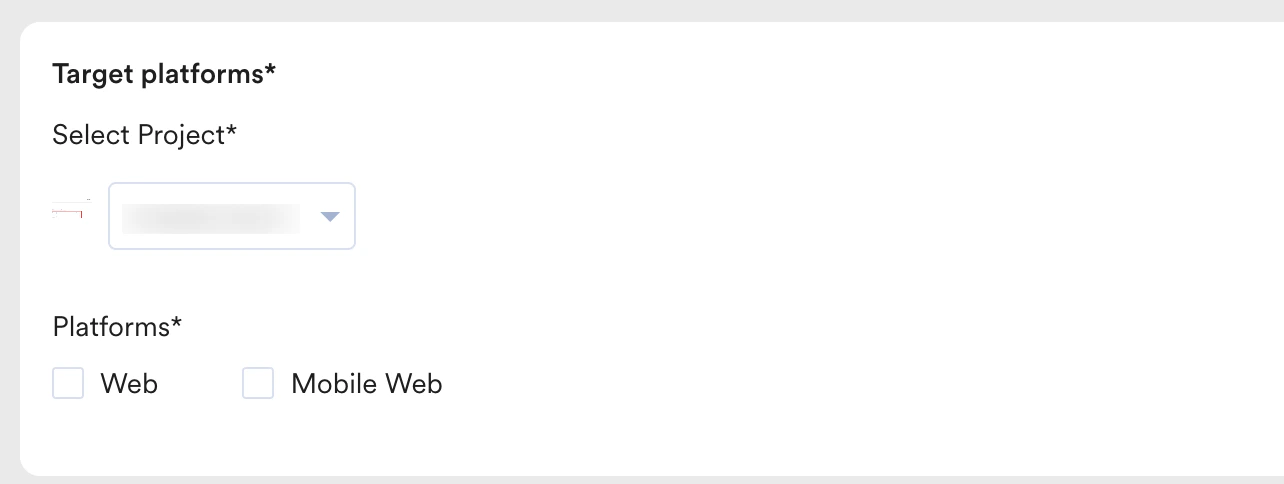 For a complete walkthrough of the campaign creation steps, refer to our guide on [Creating a OSM Campaign](/docs/user-guide/campaigns-and-channels/on-site-message/create/create-osm-campaign).
# Cross-Project Segmentation
You can segment users based on their complete journey across your projects. This is essential for effective cross-promotion.
**Example**: Find high-value customers of *Project Alpha* who have not yet engaged with *Project Beta*.
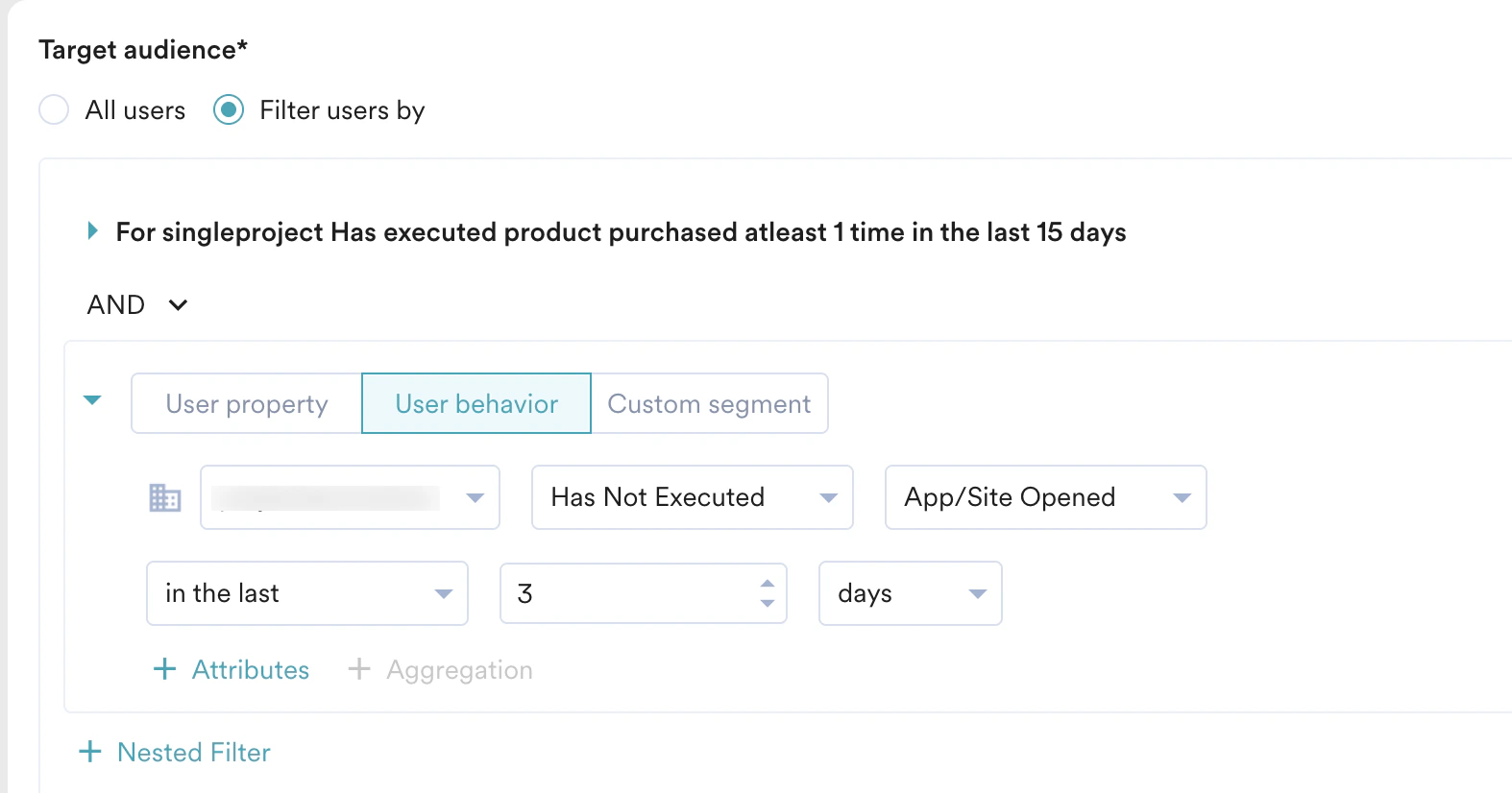
In the **Target audience** section, we will target users who have made a purchase from *Project Alph*a and have not yet opened the app or visited the website for *Project Beta*. By following the steps mentioned below, you can configure this logic:
1. In the **Target audience** section, select **Filter users by** and choose the **User behavior** tab.
2. For the first rule, select *Project Alpha* from the drop-down list and set the condition "*Has Executed Made Purchase.*"
For a complete walkthrough of the campaign creation steps, refer to our guide on [Creating a OSM Campaign](/docs/user-guide/campaigns-and-channels/on-site-message/create/create-osm-campaign).
# Cross-Project Segmentation
You can segment users based on their complete journey across your projects. This is essential for effective cross-promotion.
**Example**: Find high-value customers of *Project Alpha* who have not yet engaged with *Project Beta*.
In the **Target audience** section, we will target users who have made a purchase from *Project Alph*a and have not yet opened the app or visited the website for *Project Beta*. By following the steps mentioned below, you can configure this logic:
1. In the **Target audience** section, select **Filter users by** and choose the **User behavior** tab.
2. For the first rule, select *Project Alpha* from the drop-down list and set the condition "*Has Executed Made Purchase.*" 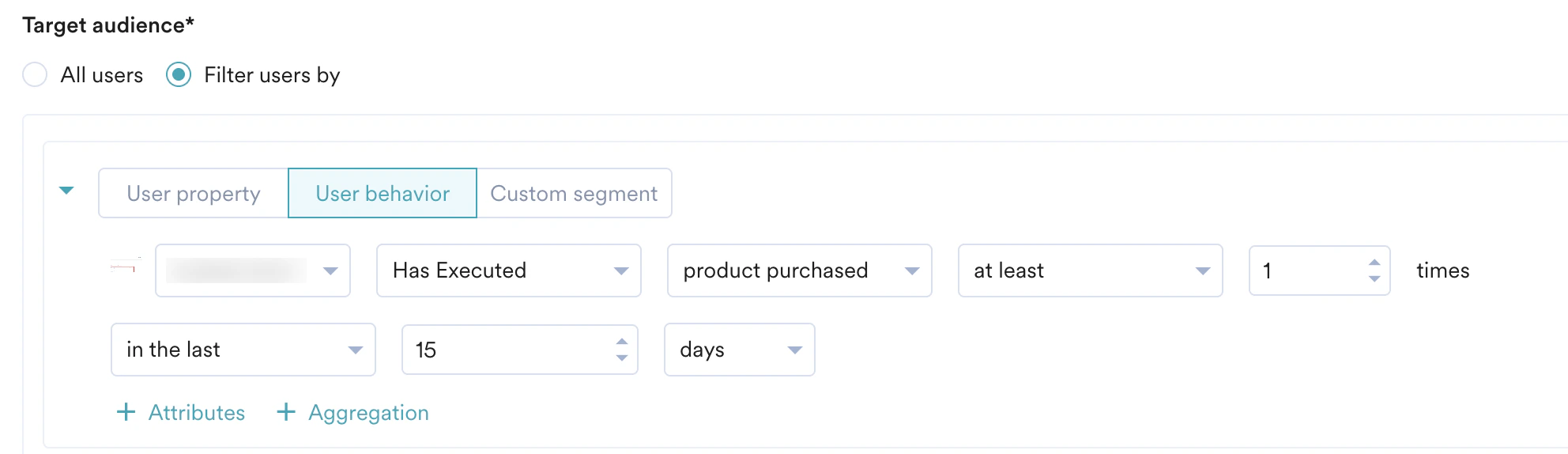 3. Click **+ Filter** to add a second rule. Select *Project Beta* and set the condition "Has NOT Executed App Opened."
  * Unlike Push notifications, cross-project triggers are not supported for In-app and OSM campaigns.For example, you cannot trigger an OSM in *Project Alpha* based on an "Add to Cart" event occurring in *Project Beta*.
* For these channels, the project selected for sending the campaign is automatically applied to the trigger condition, and cross-project trigger selection is unavailable.
# Personalization
Personalization tailors messaging to the project you target, ensuring relevance. When you create a campaign for a specific project, MoEngage automatically filters the user attribute list to display only those from the target project and any global attributes.
**Example**: For a campaign promoting *Project Beta* to *Project Alpha* customers, personalization uses data from *Project Alpha*. Even if a user has different profile details in *Project Beta* (such as a different "First Name" or "Loyalty Status"), the campaign correctly uses their *Project Alpha* information to maintain the brand context the user is currently experiencing.
1. In the campaign's Content step, type @ to open the list of personalization attributes.
2. Select an attribute (for example, **First Name**) from the available *Project Alpha* or global attributes.\
The message, "Hi @User Attributes.First Name! An exclusive offer awaits," now correctly uses the name the user provided for *Project Alpha*.
For more information on Personalization of OSM Content, refer [here](/docs/user-guide/campaigns-and-channels/on-site-message/create/personalization-of-osm-content).
# Test Campaigns
Test campaigns for OSM are context-specific and only execute within the environment of the selected project.
* When you initiate a test, the OSM is triggered exclusively on the website or domain associated with the project configured in the campaign settings.
* This segregation ensures that a test for Project Alpha does not inadvertently display on the Project Beta domain, maintaining the integrity of the user experience across your portfolio.
# FAQs
MoEngage currently doesn’t support real-time cross-project triggers for OSM. An OSM campaign can only be triggered by an action that happens on the same website where the message appears.
MoEngage suggests you use Cross-Project Segmentation as a workaround. You can target users who are part of a specific segment (e.g., "Recent Airline Purchasers") and set the campaign to show the Travel offer the next time they visit the Travel domain.
Yes, potentially. Because MoEngage treats each project as its own environment, an active campaign on Site A and an active campaign on Site B will trigger independently.
To avoid a cluttered experience, use the "Last Seen" or "Campaign Viewed" filters to ensure you aren't over-communicating to users who are heavily engaged across your entire portfolio at the same time.
This is a built-in safety filter to prevent "brand-mixing" of data. By default, the personalization menu only surfaces attributes for the specific project you are currently working in.
If you need to use data from Project B inside a campaign for Project A, that attribute must be configured as a Global Attribute in your MoEngage settings.
No. Test campaigns for OSM are context-specific and only execute within the environment of the selected project. This ensures that a test triggered for *Project Alpha* will only appear on the website or domain associated with that specific project, keeping your experimental designs away from your other live brands.
# Related Articles
* [Create OSM Campaign](/docs/user-guide/campaigns-and-channels/on-site-message/create/create-osm-campaign)
* [Create Event-Triggered Campaign](/docs/user-guide/campaigns-and-channels/getting-started/triggers/event/create-an-event-triggered-campaign)
* Unlike Push notifications, cross-project triggers are not supported for In-app and OSM campaigns.For example, you cannot trigger an OSM in *Project Alpha* based on an "Add to Cart" event occurring in *Project Beta*.
* For these channels, the project selected for sending the campaign is automatically applied to the trigger condition, and cross-project trigger selection is unavailable.
# Personalization
Personalization tailors messaging to the project you target, ensuring relevance. When you create a campaign for a specific project, MoEngage automatically filters the user attribute list to display only those from the target project and any global attributes.
**Example**: For a campaign promoting *Project Beta* to *Project Alpha* customers, personalization uses data from *Project Alpha*. Even if a user has different profile details in *Project Beta* (such as a different "First Name" or "Loyalty Status"), the campaign correctly uses their *Project Alpha* information to maintain the brand context the user is currently experiencing.
1. In the campaign's Content step, type @ to open the list of personalization attributes.
2. Select an attribute (for example, **First Name**) from the available *Project Alpha* or global attributes.\
The message, "Hi @User Attributes.First Name! An exclusive offer awaits," now correctly uses the name the user provided for *Project Alpha*.
For more information on Personalization of OSM Content, refer [here](/docs/user-guide/campaigns-and-channels/on-site-message/create/personalization-of-osm-content).
# Test Campaigns
Test campaigns for OSM are context-specific and only execute within the environment of the selected project.
* When you initiate a test, the OSM is triggered exclusively on the website or domain associated with the project configured in the campaign settings.
* This segregation ensures that a test for Project Alpha does not inadvertently display on the Project Beta domain, maintaining the integrity of the user experience across your portfolio.
# FAQs
MoEngage currently doesn’t support real-time cross-project triggers for OSM. An OSM campaign can only be triggered by an action that happens on the same website where the message appears.
MoEngage suggests you use Cross-Project Segmentation as a workaround. You can target users who are part of a specific segment (e.g., "Recent Airline Purchasers") and set the campaign to show the Travel offer the next time they visit the Travel domain.
Yes, potentially. Because MoEngage treats each project as its own environment, an active campaign on Site A and an active campaign on Site B will trigger independently.
To avoid a cluttered experience, use the "Last Seen" or "Campaign Viewed" filters to ensure you aren't over-communicating to users who are heavily engaged across your entire portfolio at the same time.
This is a built-in safety filter to prevent "brand-mixing" of data. By default, the personalization menu only surfaces attributes for the specific project you are currently working in.
If you need to use data from Project B inside a campaign for Project A, that attribute must be configured as a Global Attribute in your MoEngage settings.
No. Test campaigns for OSM are context-specific and only execute within the environment of the selected project. This ensures that a test triggered for *Project Alpha* will only appear on the website or domain associated with that specific project, keeping your experimental designs away from your other live brands.
# Related Articles
* [Create OSM Campaign](/docs/user-guide/campaigns-and-channels/on-site-message/create/create-osm-campaign)
* [Create Event-Triggered Campaign](/docs/user-guide/campaigns-and-channels/getting-started/triggers/event/create-an-event-triggered-campaign)