> ## Documentation Index
> Fetch the complete documentation index at: https://moengage.com/docs/llms.txt
> Use this file to discover all available pages before exploring further.
# FAQs about Subscription Analytics
> Get answers to common questions about SMS subscription analytics in MoEngage, including tracking opt-ins, opt-outs, and keyword-based user responses.
In this article, we've covered frequently asked questions about SMS Subscription Management.
# How do I get the number of opt-ins and opt-outs over time?
The number of opt-ins/opt-outs can be obtained using the *SMS Keyword Received* Event. This event gets triggered when a user responds to an auto-responder message with any of the keywords configured in any of the keyword categories.
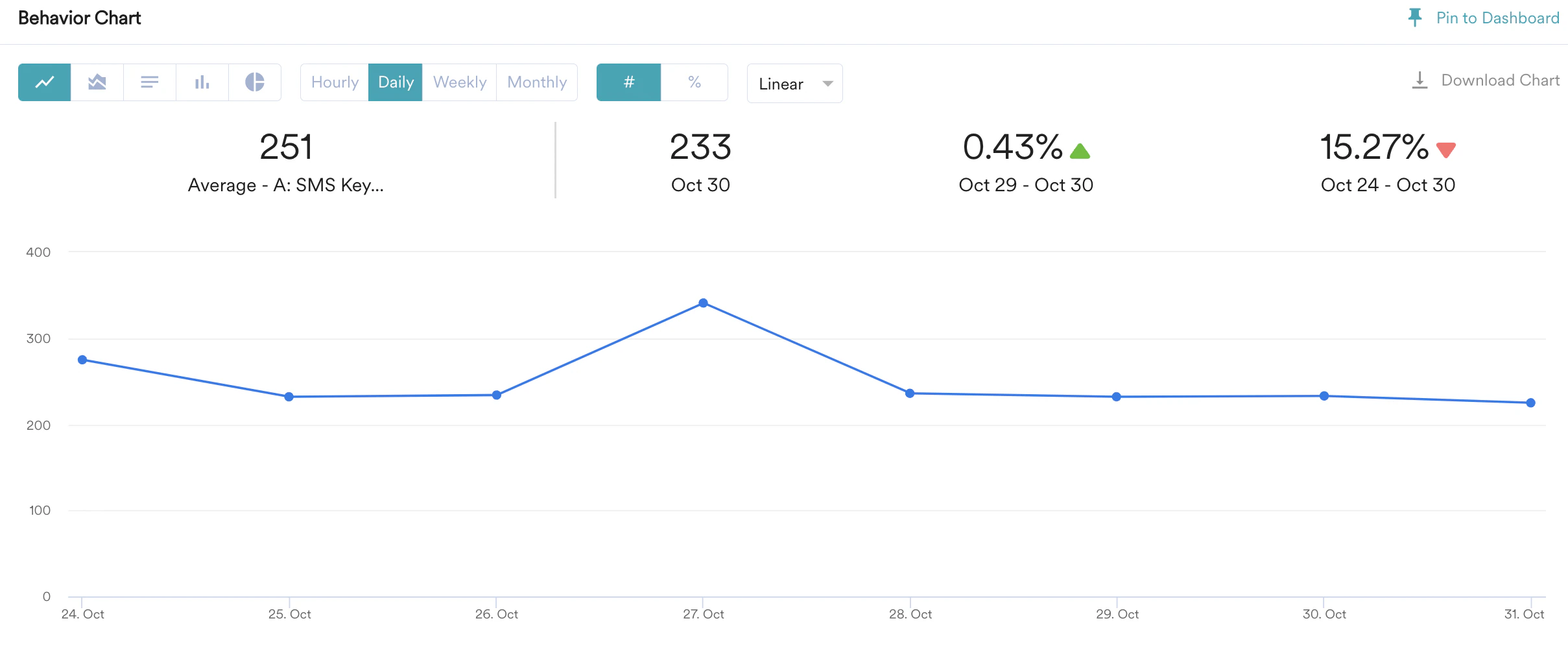
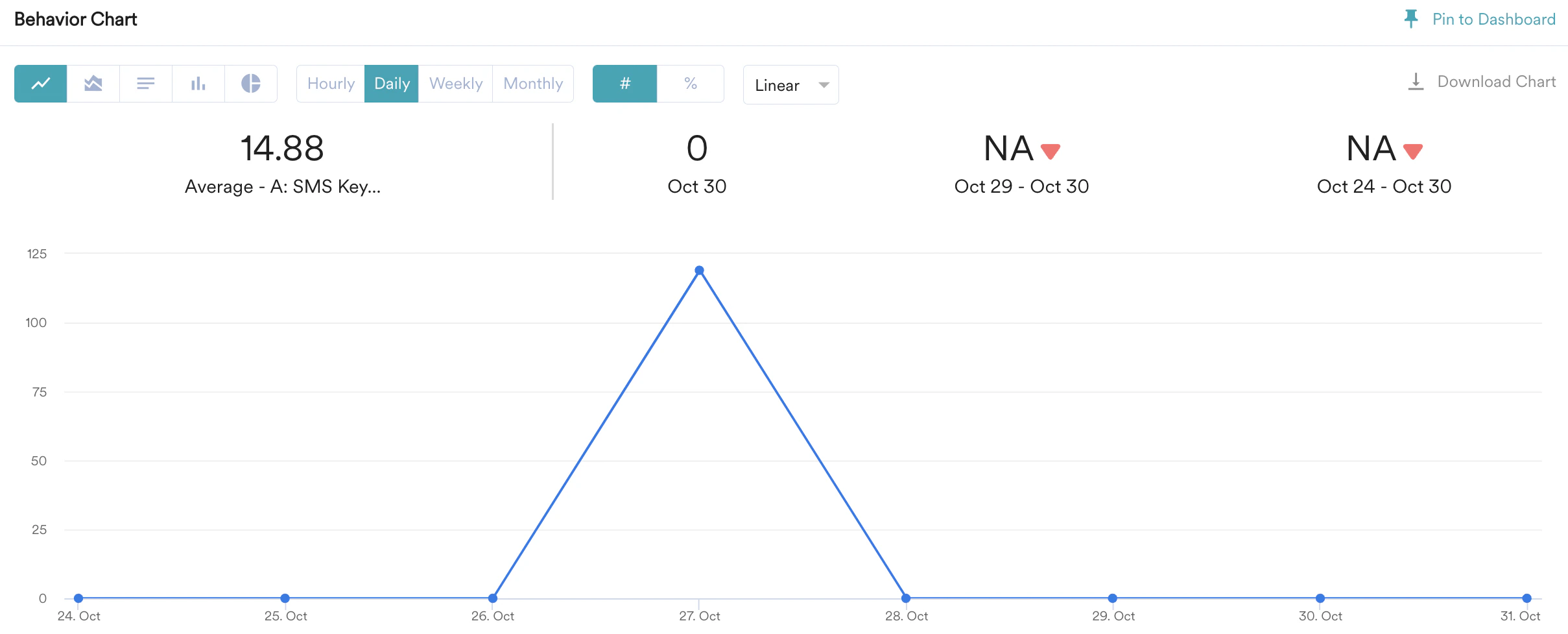
Depending on the keyword category (represented by the *keyword\_type* event attribute) that the user response falls in, the user is opted in or opted out. Their subscription status is updated in the *SMS Subscription Status* user property. This event and its attribute can be used to calculate the number of opt-ins and opt-outs, as shown below.
To get the number of opt-ins over time, do the following:
1. Navigate to Analyze -> Behavior -> Events & Filters section and choose the event as *SMS Keyword Received*.
2. Choose the Filter by condition as *Keyword Type is OPTIN,* as shown in the image below.
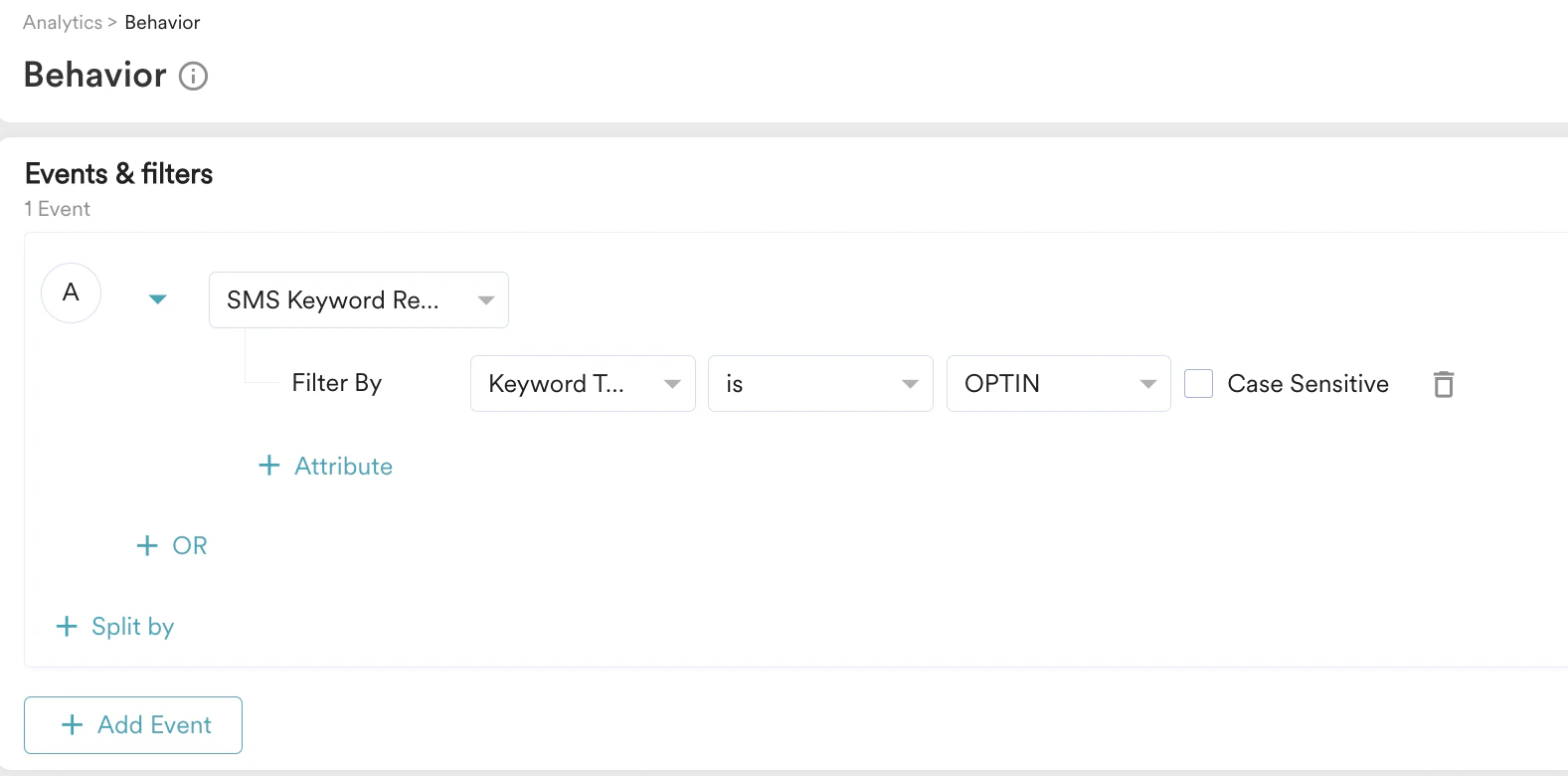 3. Click on Apply. The opt-in statistics are displayed in the behavior chart, as shown in the image below.
 To get the number of opt-outs over time, do the following:
1. Navigate to Analyze -> Behavior -> Events & Filters section and choose the event as *SMS Keyword Received*.
2. Choose the Filter by condition as *Keyword Type is OPTOUT*, as shown in the image below.
To get the number of opt-outs over time, do the following:
1. Navigate to Analyze -> Behavior -> Events & Filters section and choose the event as *SMS Keyword Received*.
2. Choose the Filter by condition as *Keyword Type is OPTOUT*, as shown in the image below.
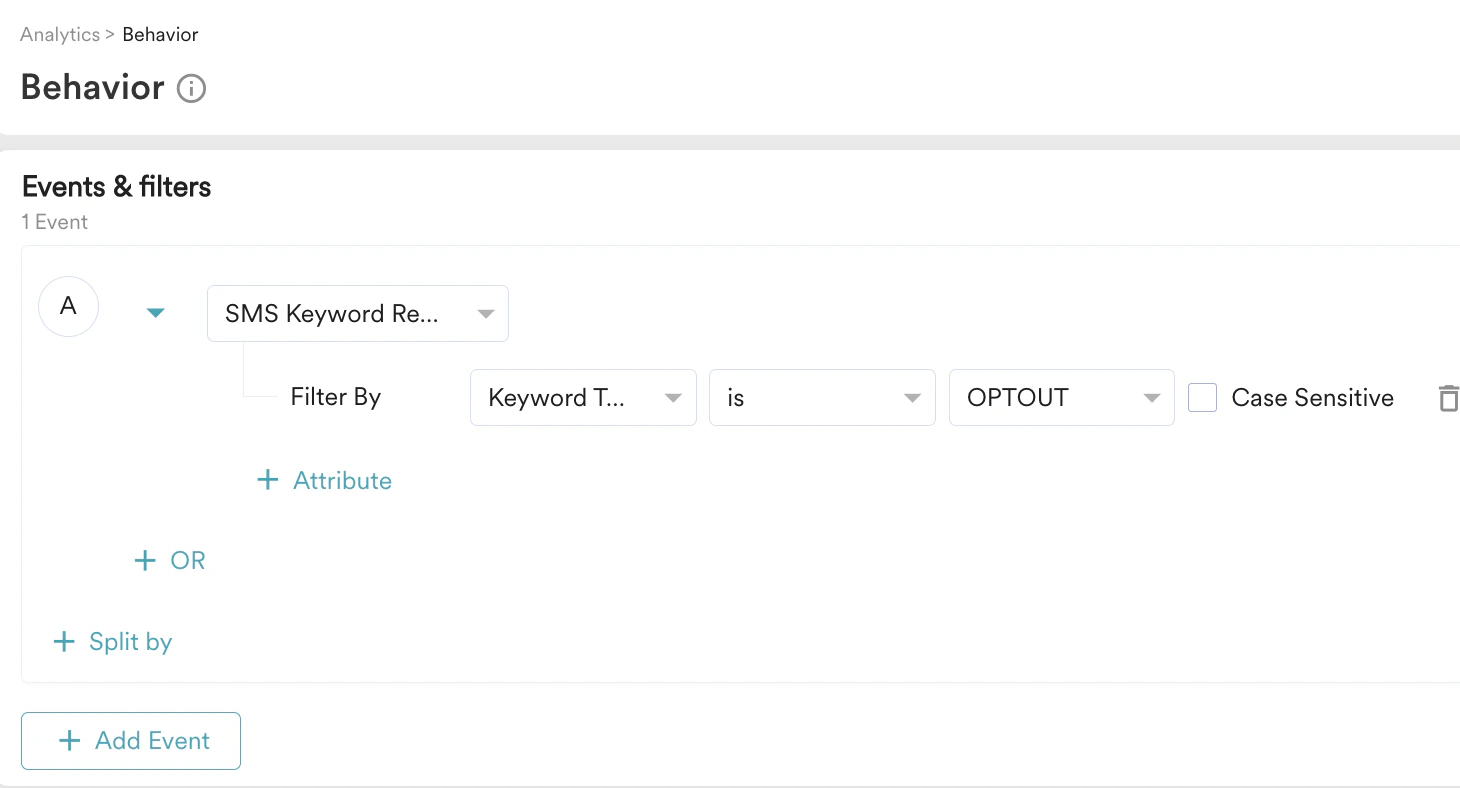 3. Click on Apply. The opt-out statistics are displayed in the behavior chart, as shown in the image below.
 # How do I get the total number of active SMS subscribers?
The number of active SMS subscribers can be obtained by looking at the count of the number of users who have opted in. If a user has opted in, the SMS Subscription Status user property would be 'OPTIN' for them.
To get the total number of active SMS subscribers, do the following:
1. Navigate to **Segment** > **Create Segment** and select the **Filter Users by** option.
2. Select the **User Property** as the filter condition and select *SMS Subscription Status* is *OPTIN* as shown in the image below:
# How do I get the total number of active SMS subscribers?
The number of active SMS subscribers can be obtained by looking at the count of the number of users who have opted in. If a user has opted in, the SMS Subscription Status user property would be 'OPTIN' for them.
To get the total number of active SMS subscribers, do the following:
1. Navigate to **Segment** > **Create Segment** and select the **Filter Users by** option.
2. Select the **User Property** as the filter condition and select *SMS Subscription Status* is *OPTIN* as shown in the image below:
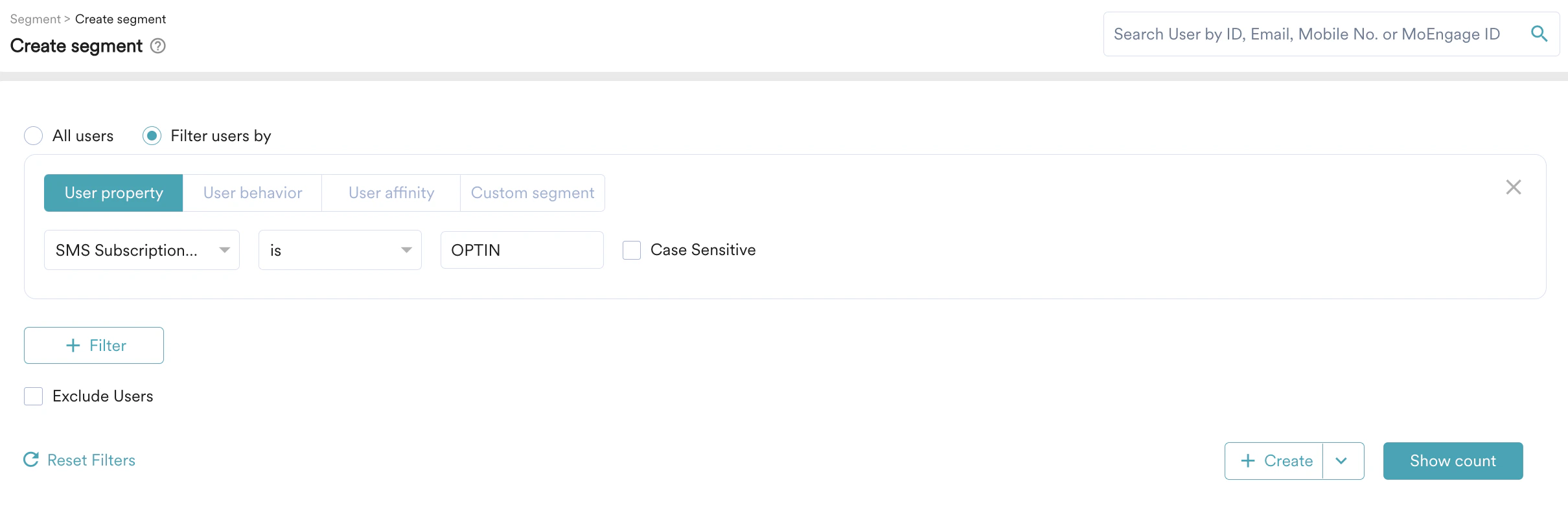 3. Click **Show count**, and you'll have the total number of active SMS subscribers.