> ## Documentation Index
> Fetch the complete documentation index at: https://moengage.com/docs/llms.txt
> Use this file to discover all available pages before exploring further.
# Configure Web Push Settings
> Set up web push notification settings in MoEngage, including default icons, subdomains, notification opt-in prompts, and multi-project support.
This article describes the steps to configure the Web Push Settings.
1. Navigate to **Settings > Channels > Push > Web Push**.
2. It consists of two sub-sections, **Configure** and **Notification Opt-in**.
For a [Portfolio](/user-guide/settings/account/portfolio/portfolio)-enabled workspace, before configuring Web Push settings, you must add at least one project to your MoEngage [Portfolio](/user-guide/settings/account/portfolio/portfolio). For more information on how to add a project, refer [here](/user-guide/settings/account/portfolio/portfolio).
# Project selection
If your portfolio has multiple projects, a dropdown appears at the top of the **Web push** settings tab. Select the project you want to configure from the dropdown menu. The related settings (such as the default notification icon) load automatically. For portfolios with a single project, all settings are appended to that project.
# Icons and Sub-domains
**Configure**
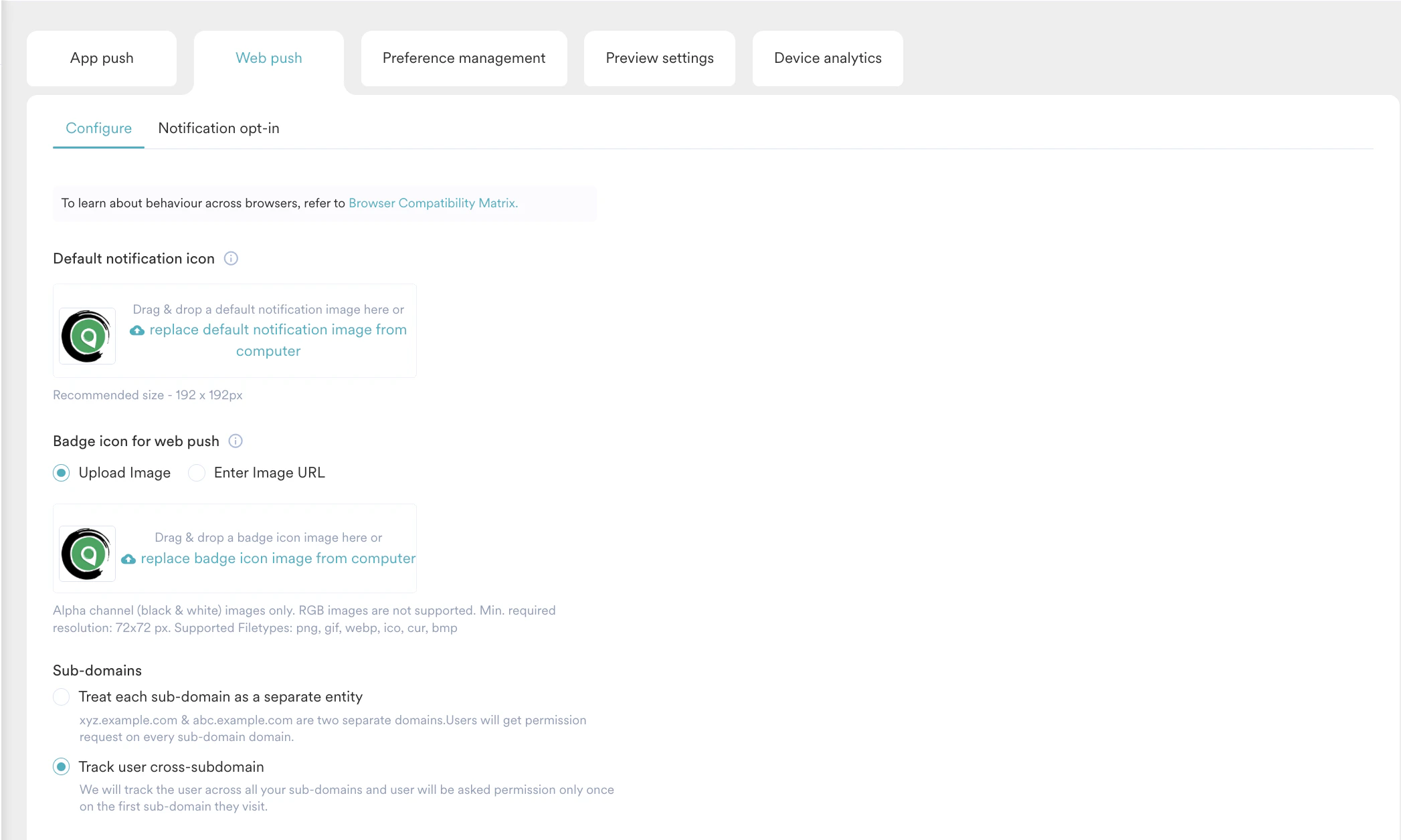 You can configure the default push icon, subdomains, and badges to be used for Web Push, as shown in the table below. For more information on preference management for push notifications, refer [here](/user-guide/campaigns-and-channels/mobile-push/getting-started-with-mobile-push/preference-management-for-push-notifications).
| Field | Description |
| ------------------------------- | -------------------------------------------------------------------------------------------------------------------------------------------------------------------------------------------------------------------------------------------------------------------------------------------------------------------------------------------------------------------------------------------------------------------------------------------------------------------------------------------------------------------------------------------------------------------------------------------------------------------------------------------------------------------------------------------------------------------------------------------------------------------------------------------------------------------------------------------------------------------------------------------------------------------------------------------------------------------------------------------------------------------------------------------------------------------------------------------------------------------------------------------------------------------------------------------------------------------------------------------------------------------------------------------------------------------------------------------------------------------------------------------------------------------------------------------------------------------------------------------------------------------------------------------------------------------------------------------------------------------------------------------------------------------------------------------------------------------------------------------------------------------------------------------------------------------------------------------------------------------------------------------------------------------------------------------------------------------------------------------------------------------------------------------------------------------------------------------------------------------------------------------------------------------------------------------------------------------------------------------------------------------------------------------------------- |
| Project | Select the preferred project from the dropdown menu. This field appears if you have configured more than one project on your portfolio. For more information, refer [here](/user-guide/settings/account/portfolio/portfolio). |
| Default Notification Icon | This field contains the icon that would be used in the Web Push notification. The MoEngage icon is the default icon. You can change this by uploading your Brand’s logo. |
| Badge Icon for Android Web Push | For Android devices receiving Web Push, the badge icon is the app icon available at the top section on the left in the push notifications. Two options are available for uploading the badge icon:
You can configure the default push icon, subdomains, and badges to be used for Web Push, as shown in the table below. For more information on preference management for push notifications, refer [here](/user-guide/campaigns-and-channels/mobile-push/getting-started-with-mobile-push/preference-management-for-push-notifications).
| Field | Description |
| ------------------------------- | -------------------------------------------------------------------------------------------------------------------------------------------------------------------------------------------------------------------------------------------------------------------------------------------------------------------------------------------------------------------------------------------------------------------------------------------------------------------------------------------------------------------------------------------------------------------------------------------------------------------------------------------------------------------------------------------------------------------------------------------------------------------------------------------------------------------------------------------------------------------------------------------------------------------------------------------------------------------------------------------------------------------------------------------------------------------------------------------------------------------------------------------------------------------------------------------------------------------------------------------------------------------------------------------------------------------------------------------------------------------------------------------------------------------------------------------------------------------------------------------------------------------------------------------------------------------------------------------------------------------------------------------------------------------------------------------------------------------------------------------------------------------------------------------------------------------------------------------------------------------------------------------------------------------------------------------------------------------------------------------------------------------------------------------------------------------------------------------------------------------------------------------------------------------------------------------------------------------------------------------------------------------------------------------------------- |
| Project | Select the preferred project from the dropdown menu. This field appears if you have configured more than one project on your portfolio. For more information, refer [here](/user-guide/settings/account/portfolio/portfolio). |
| Default Notification Icon | This field contains the icon that would be used in the Web Push notification. The MoEngage icon is the default icon. You can change this by uploading your Brand’s logo. |
| Badge Icon for Android Web Push | For Android devices receiving Web Push, the badge icon is the app icon available at the top section on the left in the push notifications. Two options are available for uploading the badge icon: - **Upload image** Choose the *Upload Image* radio button and click the *Browse and Upload* button to upload the image from your device.
- **Enter Image URL** Choose the *Enter Image URL* radio option and type or paste the image URL for the badge icon for your app.
MoEngage supports the following file types to be uploaded for the Badge Icon image: .png, .gif, .webp, .ico, .cur, and .bmp.
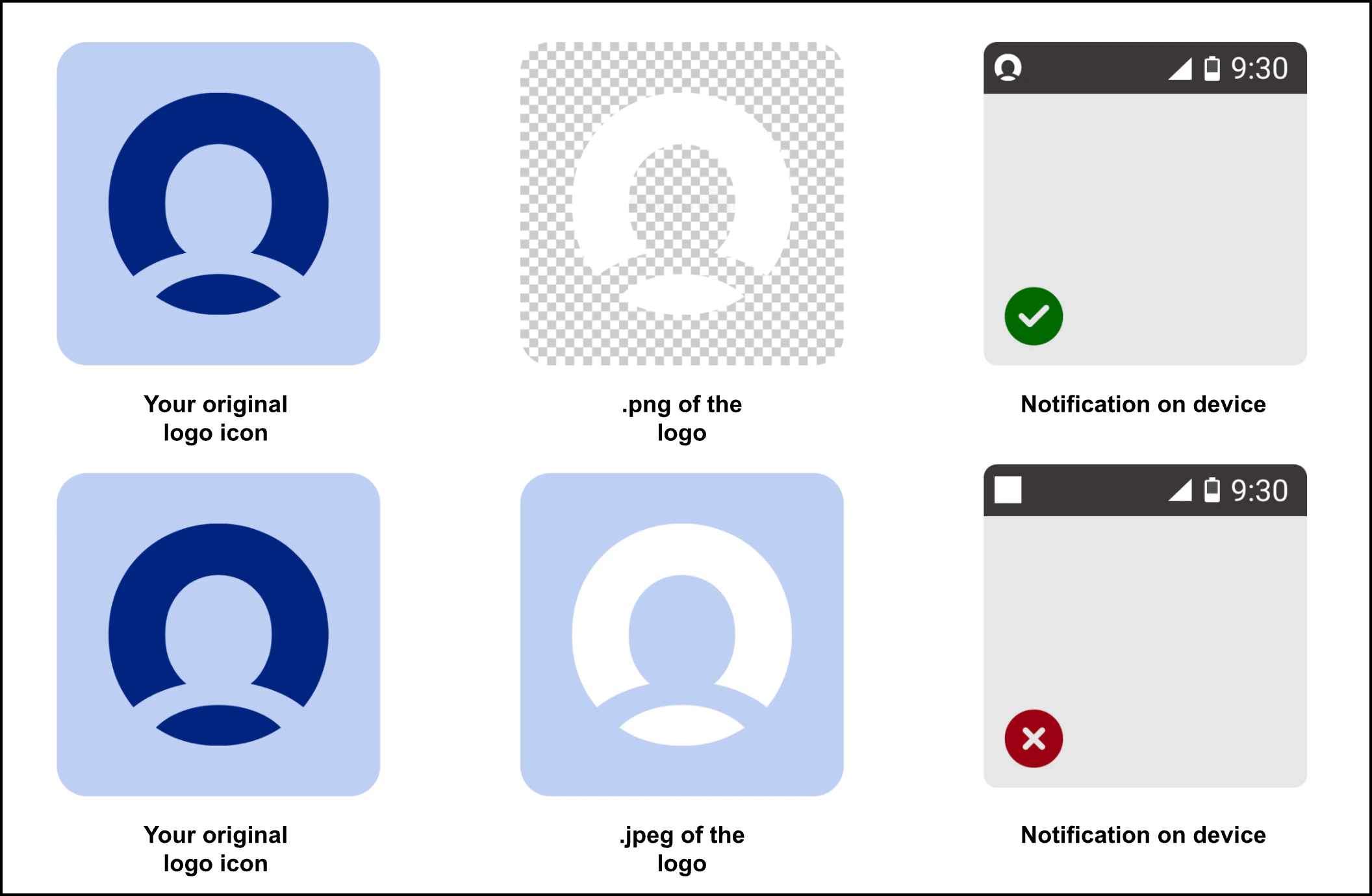
- Only Alpha Channel (black & white) images are supported.
- RGB images are not supported.
- The recommended resolution for the Badge Icon is 72x72 pixels or larger.
|
| Sub-domains | This field denotes the subdomains for your website and has the following options: - *Treat each subdomain as a separate entity* - If you have multiple sub-domains, they will all be treated as separate entities, and users will be asked for permissions in each one of them.
- *Track user cross-domain* - If you have multiple subdomains and want to use the same Dashboard to track, choose Track user cross-domain.
|
# Notification Opt-in Configuration
You can configure the Web Push Opt-In information in this section. Opt-In refers to how push permission is sought from the users on your webpage.
* Select the preferred project from the **Project** dropdown. This field appears if you have configured more than one project on your portfolio. For more information, refer [here](/user-guide/settings/account/portfolio/portfolio).
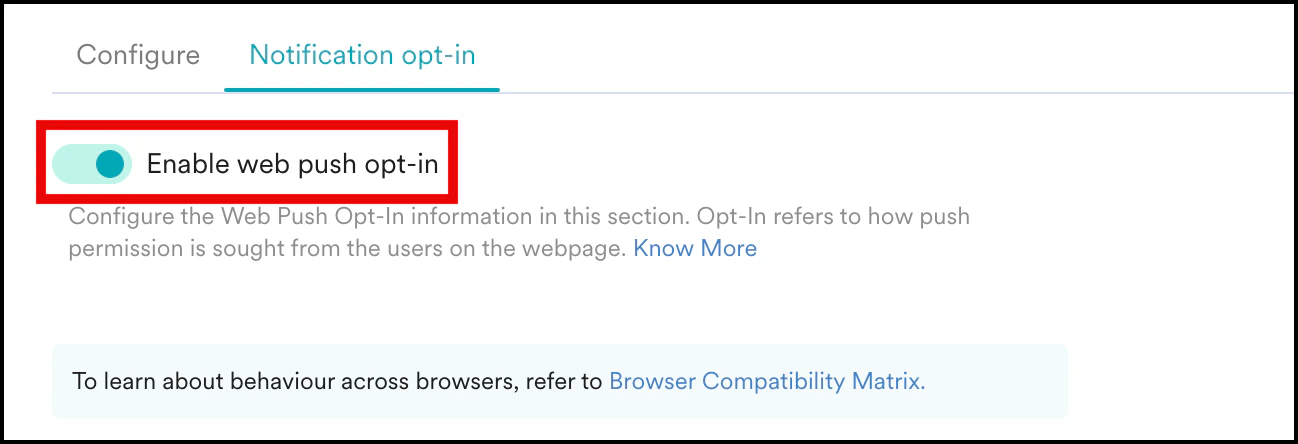
* To enable this feature, you must enable the Web Push opt-in under the **Notification opt-in** tab.
 * MoEngage provides three types of push opt-in:
* Two-Step Opt-In (Recommended)
* 1-Click Opt-In
* Self Handled Opt-in
The Two Step opt-in is the recommended option as it is a soft ask. Soft ask means the option is displayed multiple times even if the user does not allow it and this will maximize your reachable users.
On the web page, users are asked a "soft ask" that gauges user preference and proceeds to show the main browser permission upon permission.
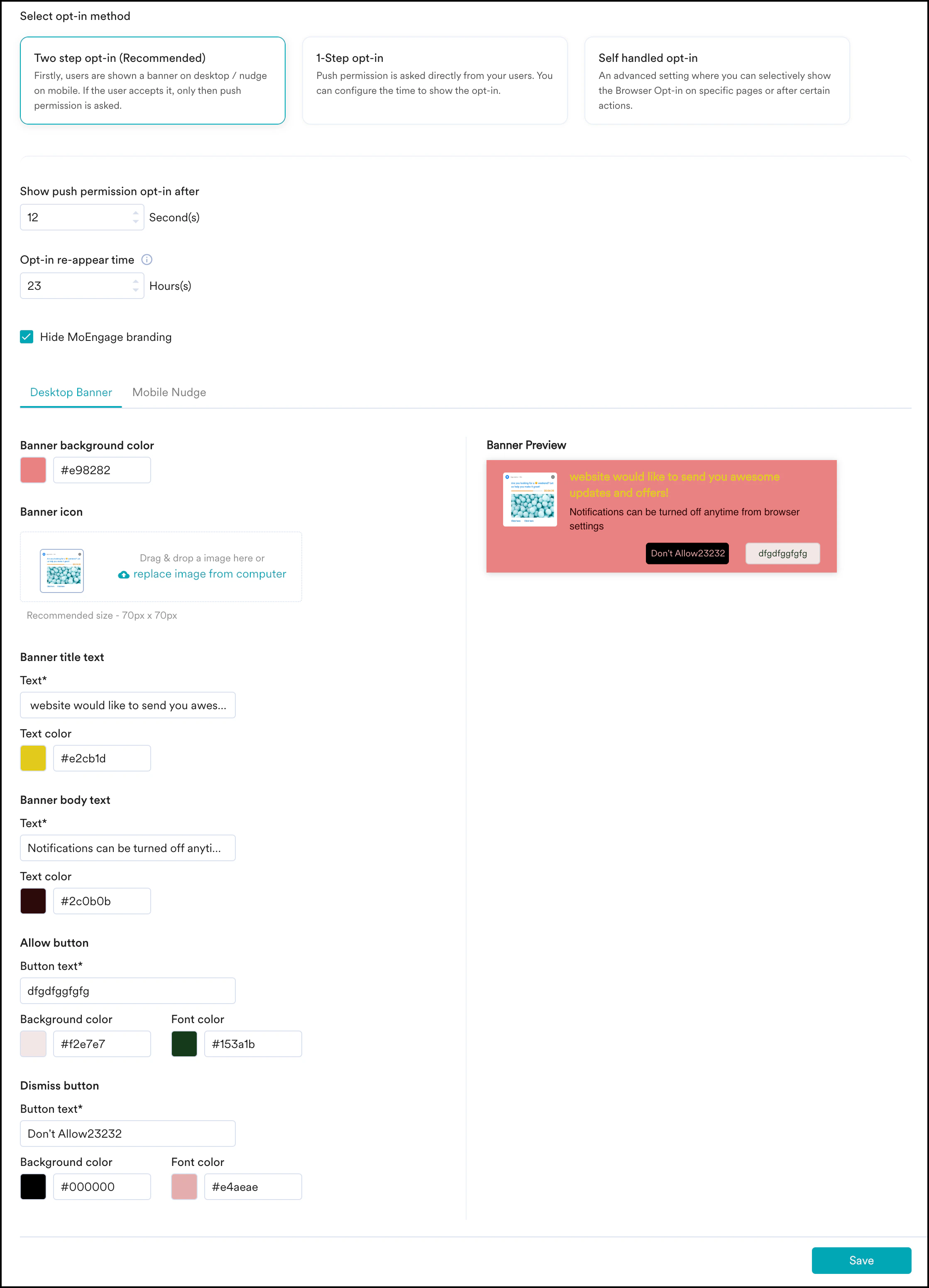
The Two Step Opt-in section has the following options:
| Field | Description |
| ---------------------------------------- | ---------------------------------------------------------------------------------------------------------------------------------------------------------------------------------------------------------------------------------------------------------------------------------------------------------------------------------------------------------------------------- |
| Show Push Permission opt-in after | You can configure the time after which to show the push permission opt-in to the user. |
| Show Desktop Banner / Mobile Nudge after | You can configure the time after which to show the desktop banner/ mobile nudge to the user. |
| Opt-In re-appear time | In case the users close the opt-in or banner/nudge, you can configure the time after which to show the opt-in again to the user. |
| Hide Moengage Branding | You can hide the MoEngage logo appearing on the soft ask and hard ask. |
| Desktop Banner/Mobile Nudge |
* MoEngage provides three types of push opt-in:
* Two-Step Opt-In (Recommended)
* 1-Click Opt-In
* Self Handled Opt-in
The Two Step opt-in is the recommended option as it is a soft ask. Soft ask means the option is displayed multiple times even if the user does not allow it and this will maximize your reachable users.
On the web page, users are asked a "soft ask" that gauges user preference and proceeds to show the main browser permission upon permission.
The Two Step Opt-in section has the following options:
| Field | Description |
| ---------------------------------------- | ---------------------------------------------------------------------------------------------------------------------------------------------------------------------------------------------------------------------------------------------------------------------------------------------------------------------------------------------------------------------------- |
| Show Push Permission opt-in after | You can configure the time after which to show the push permission opt-in to the user. |
| Show Desktop Banner / Mobile Nudge after | You can configure the time after which to show the desktop banner/ mobile nudge to the user. |
| Opt-In re-appear time | In case the users close the opt-in or banner/nudge, you can configure the time after which to show the opt-in again to the user. |
| Hide Moengage Branding | You can hide the MoEngage logo appearing on the soft ask and hard ask. |
| Desktop Banner/Mobile Nudge | - Banner/ Nudge Icon
- Accessibility text
- Banner/ Nudge Background Color
- Banner/ Nudge Text
- Banner Text Color
- Allow Button
- Dismiss Button
**Note**: For more information on Accessibility, refer [here](/user-guide/campaigns-and-channels/getting-started/campaign-content/accessible-campaigns-in-moengage). |
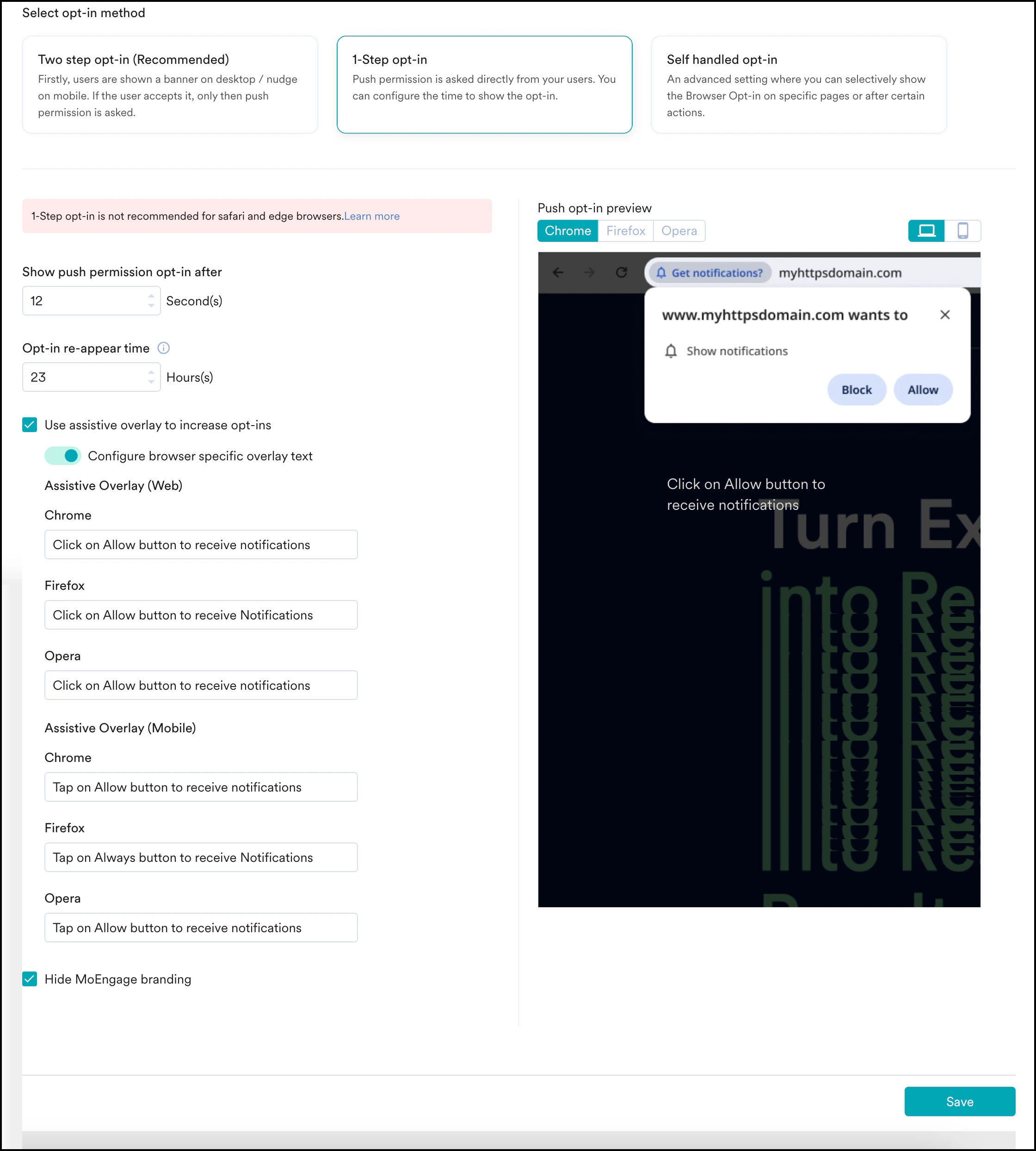
 The 1-Click Opt-in section has the following options:
| Field | Description |
| ------------------------------------------- | -------------------------------------------------------------------------------------------------------------------------------- |
| Opt-In re-appear time | In case the users close the opt-in or banner/nudge, you can configure the time after which to show the opt-in again to the user. |
| Hide Moengage Branding | You can hide the MoEngage logo appearing on the soft ask and hard ask. |
| Show Push Permission Opt-in after | You can configure the time after which the users will see the Push permission opt-in. |
| Use Assistive Overlay to increase opt-ins | This will automatically nudge the users to opt-in for your push notifications. You can also edit the assistive overlay text. |
| Push Opt-in Preview (Click on text to edit) | You can view and edit the text of the Push opt-in nudge. |
The 1-Click Opt-in section has the following options:
| Field | Description |
| ------------------------------------------- | -------------------------------------------------------------------------------------------------------------------------------- |
| Opt-In re-appear time | In case the users close the opt-in or banner/nudge, you can configure the time after which to show the opt-in again to the user. |
| Hide Moengage Branding | You can hide the MoEngage logo appearing on the soft ask and hard ask. |
| Show Push Permission Opt-in after | You can configure the time after which the users will see the Push permission opt-in. |
| Use Assistive Overlay to increase opt-ins | This will automatically nudge the users to opt-in for your push notifications. You can also edit the assistive overlay text. |
| Push Opt-in Preview (Click on text to edit) | You can view and edit the text of the Push opt-in nudge. |
 For Safari
* The *Show Push Permission Opt-in after* value is ignored.
* The opt-in is triggered on the *click* event as against page load.
One-Click Opt-In
* does not work on newer versions of Microsoft Edge.
* does not render the Hard-ask completely on Safari when the user clicks any link on the webpage. This is because the opt-in is triggered on the *click* event as against page load.
The Self Handled Opt-in can be enabled only with Web SDK Integration. For information about configuring Self-Handled Opt-In, refer to [Configure Self-Handled Opt-In](https://www.moengage.com/docs/developer-guide/web-sdk/web-push/configure-self-handled-opt-in).
For Safari
* The *Show Push Permission Opt-in after* value is ignored.
* The opt-in is triggered on the *click* event as against page load.
One-Click Opt-In
* does not work on newer versions of Microsoft Edge.
* does not render the Hard-ask completely on Safari when the user clicks any link on the webpage. This is because the opt-in is triggered on the *click* event as against page load.
The Self Handled Opt-in can be enabled only with Web SDK Integration. For information about configuring Self-Handled Opt-In, refer to [Configure Self-Handled Opt-In](https://www.moengage.com/docs/developer-guide/web-sdk/web-push/configure-self-handled-opt-in).
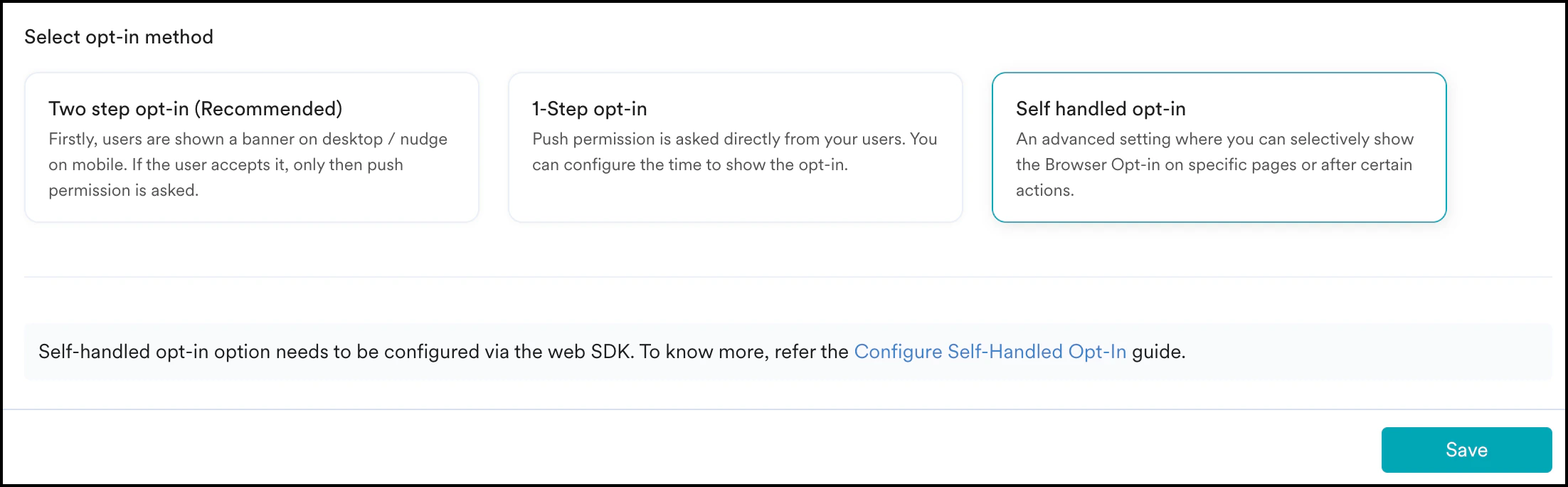 With Microsoft Edge, Hard-ask on page load does not get rendered using the Self-Handled Opt-In. Hence, it is recommended to invoke Soft-ask first.
**Caching**: All of the above settings take a minimum of 24 hours to reflect on your website.
# Browser Compatibility Matrix
| Operating System | Browser | Web Push Support | Onsite Messaging Support |
| ---------------- | ----------------- | ----------------------------- | ------------------------ |
| Windows | Internet Explorer | ❌ | ❌ |
| Windows | Google Chrome | ✅ | ✅ |
| Windows | Mozilla Firefox | ✅ | ✅ |
| Windows | Opera/ Opera Neon | ✅ | ✅ |
| Windows | Chromium Edge | ✅ | ✅ |
| Mac OS | Google Chrome | ✅ | ✅ |
| Mac OS | Mozilla Firefox | ✅ | ✅ |
| Mac OS | Opera/ Opera Neon | ✅ | ✅ |
| Mac OS | Chromium Edge | ✅ | ✅ |
| Mac OS | Safari | ✅ (macOS 13 or higher) | ✅ |
| Android | Google Chrome | ✅ | ✅ |
| Android | Mozilla Firefox | ✅ | ✅ |
| Android | Samsung Internet | ✅ | ✅ |
| Android | UC browser | ✅ | ✅ |
| iOS | Google Chrome | ❌ | ✅ |
| iOS | Safari | ✅ (Both iOS and Safari 16.4+) | ✅ |
For web push to work on Safari for iOS devices, the following is required:
* Your website must be a Progressive Website App (PWA).
* A web app manifest file must be created and linked.
* The MoEngage service worker file should be imported and placed in the root folder.
* The PWA must be added to the Home Screen.
* The user should be prompted for permission to receive web push notifications. We recommend a two-step opt-in process.
For more information, refer to the [Web Push Integration Steps for Safari on iOS and iPadOS](https://www.moengage.com/docs/developer-guide/web-sdk/web-push/safari-web-push-for-i-os-and-i-pad-os).
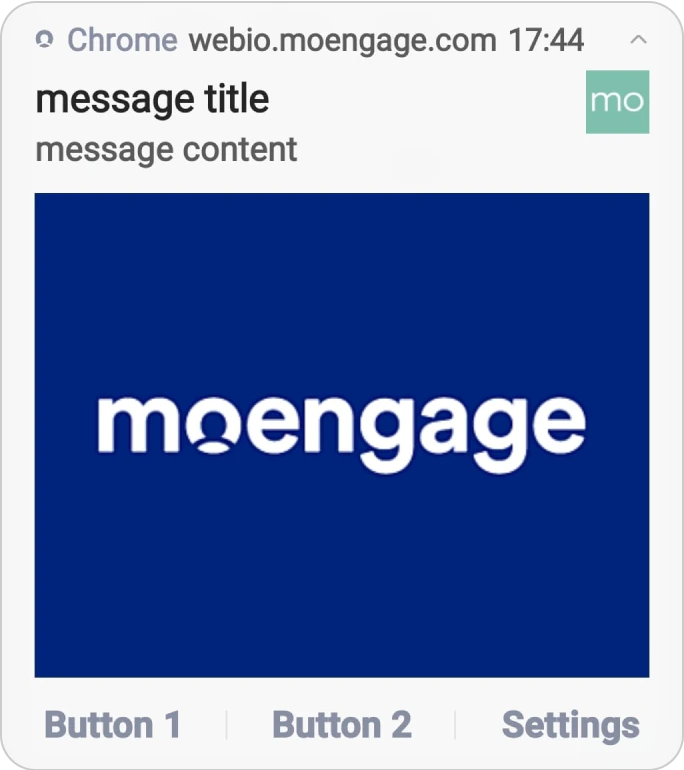
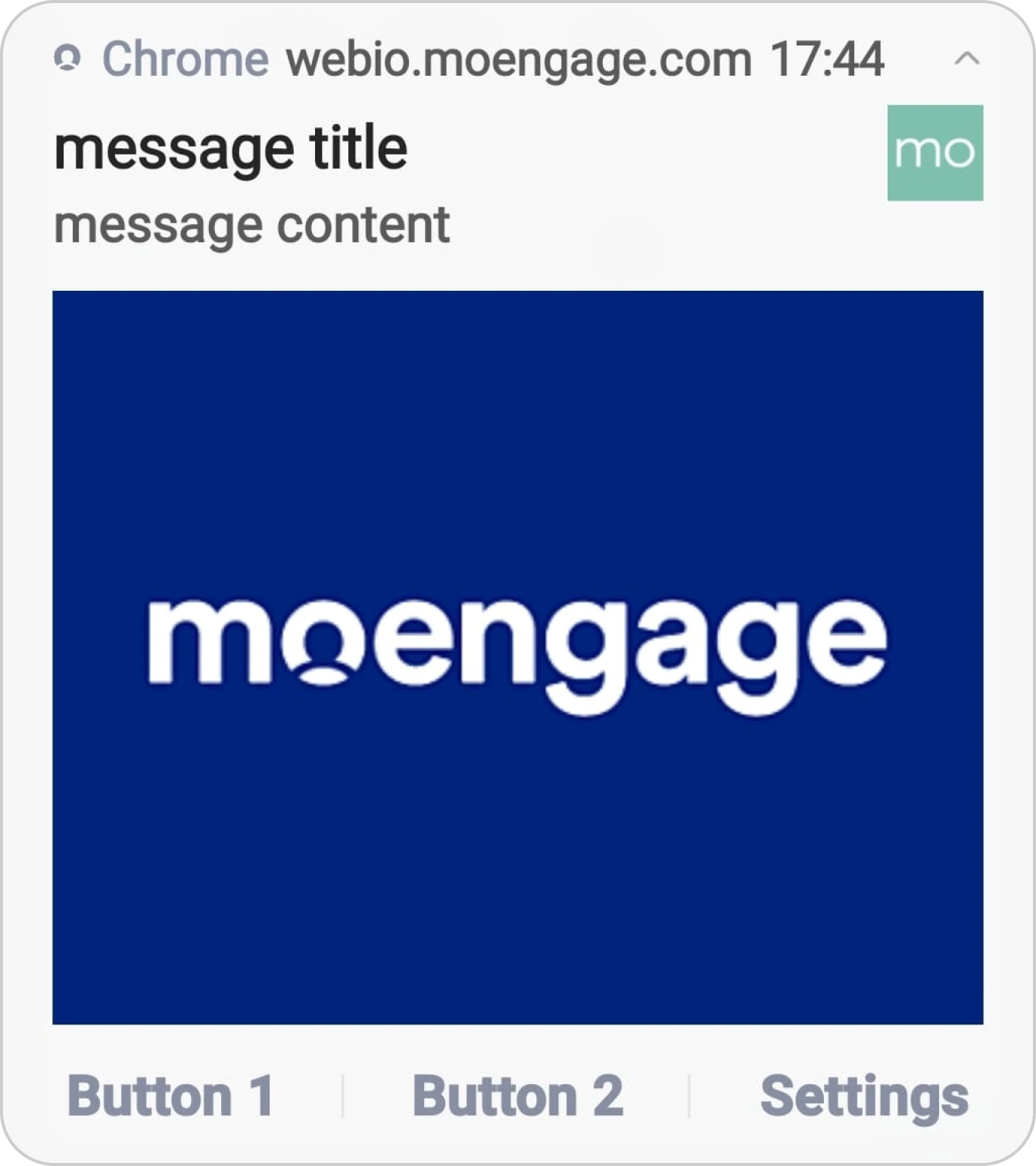
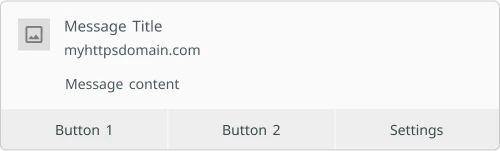
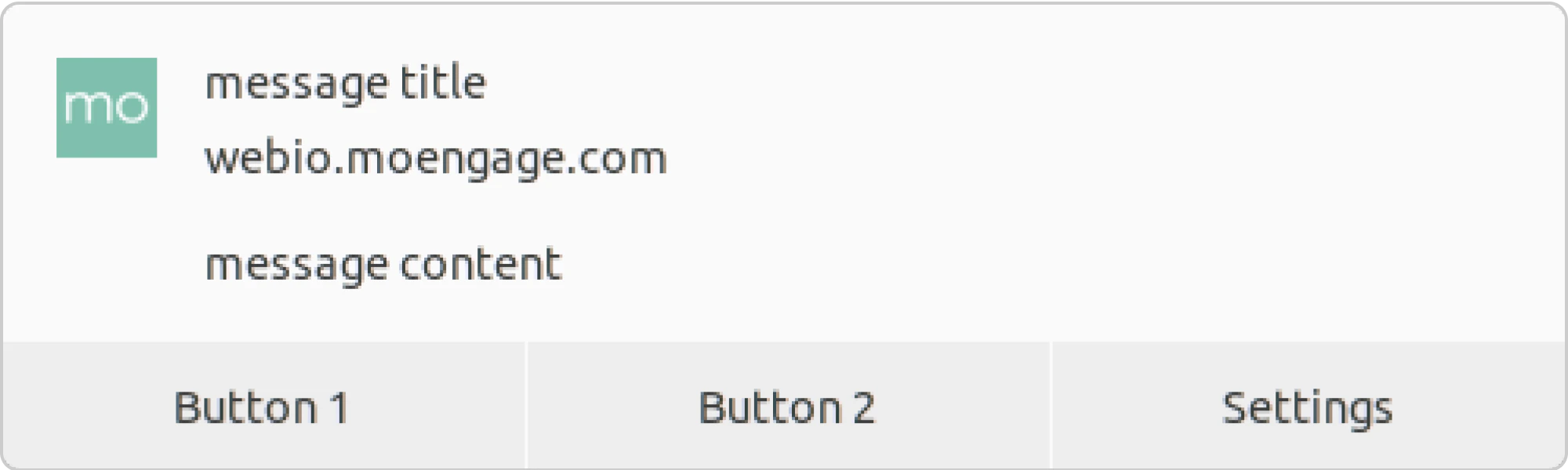
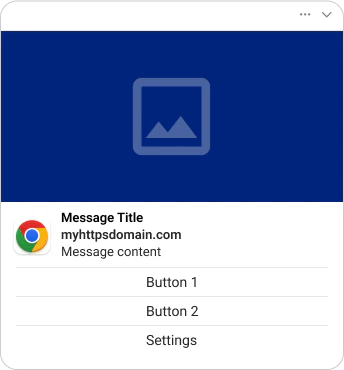
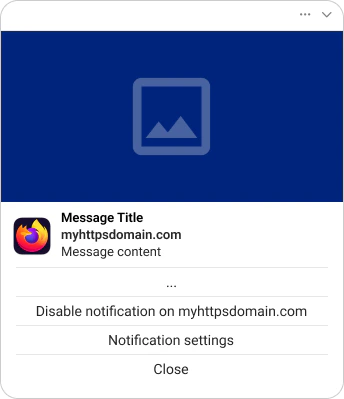
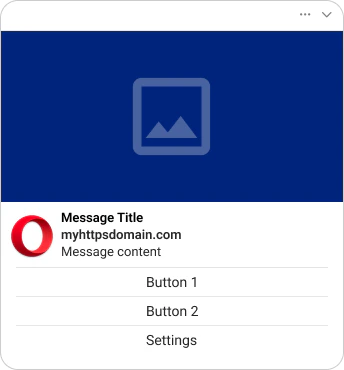
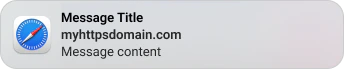
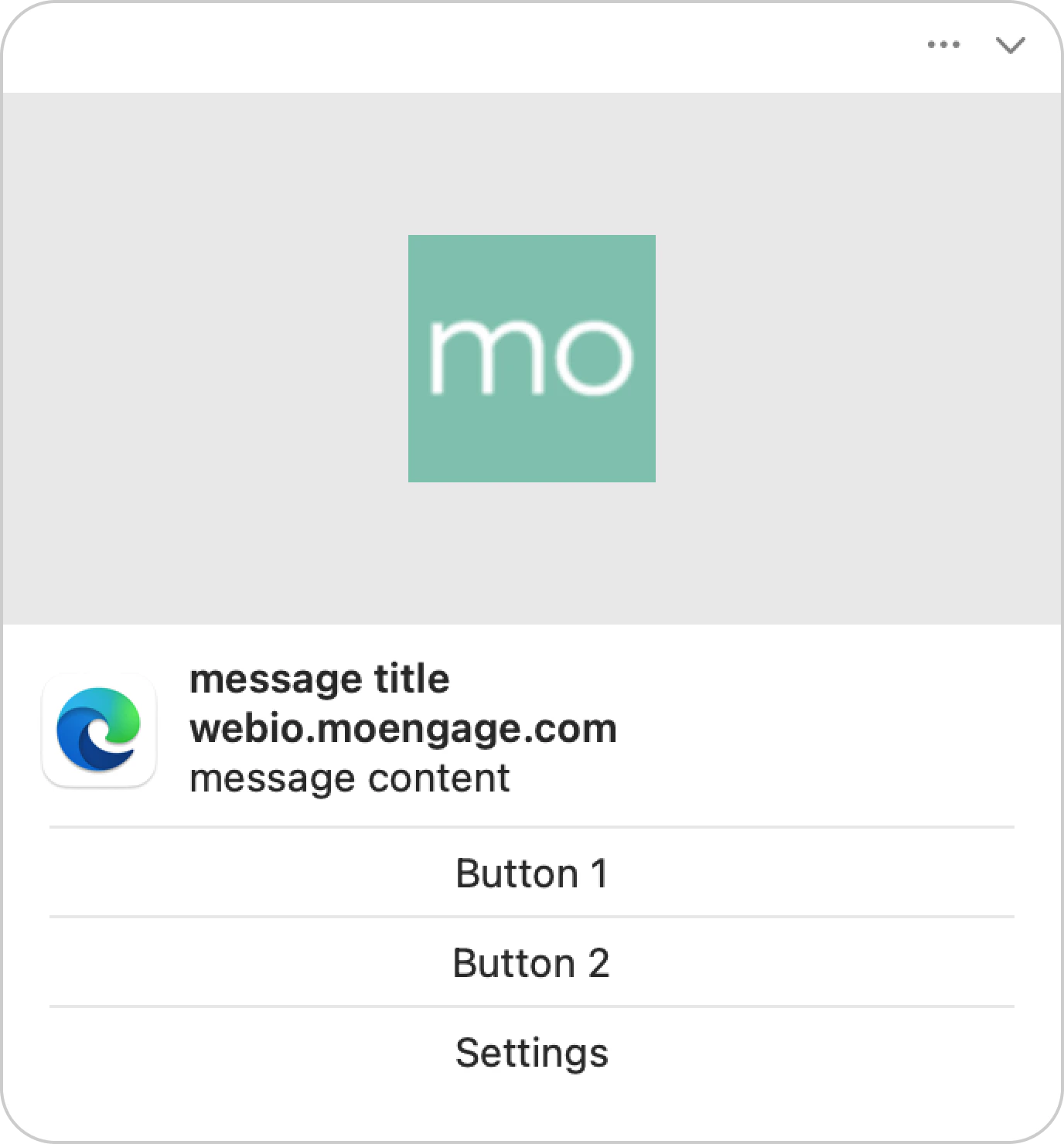
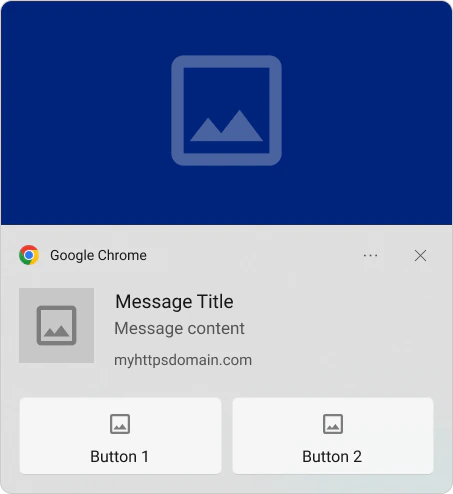
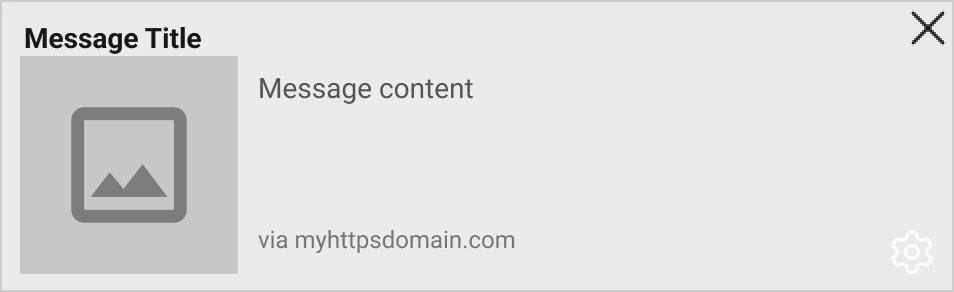
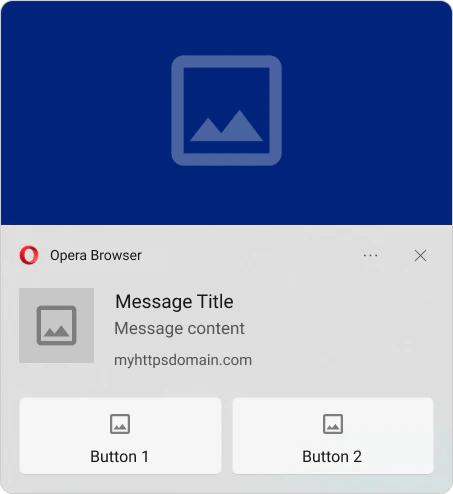
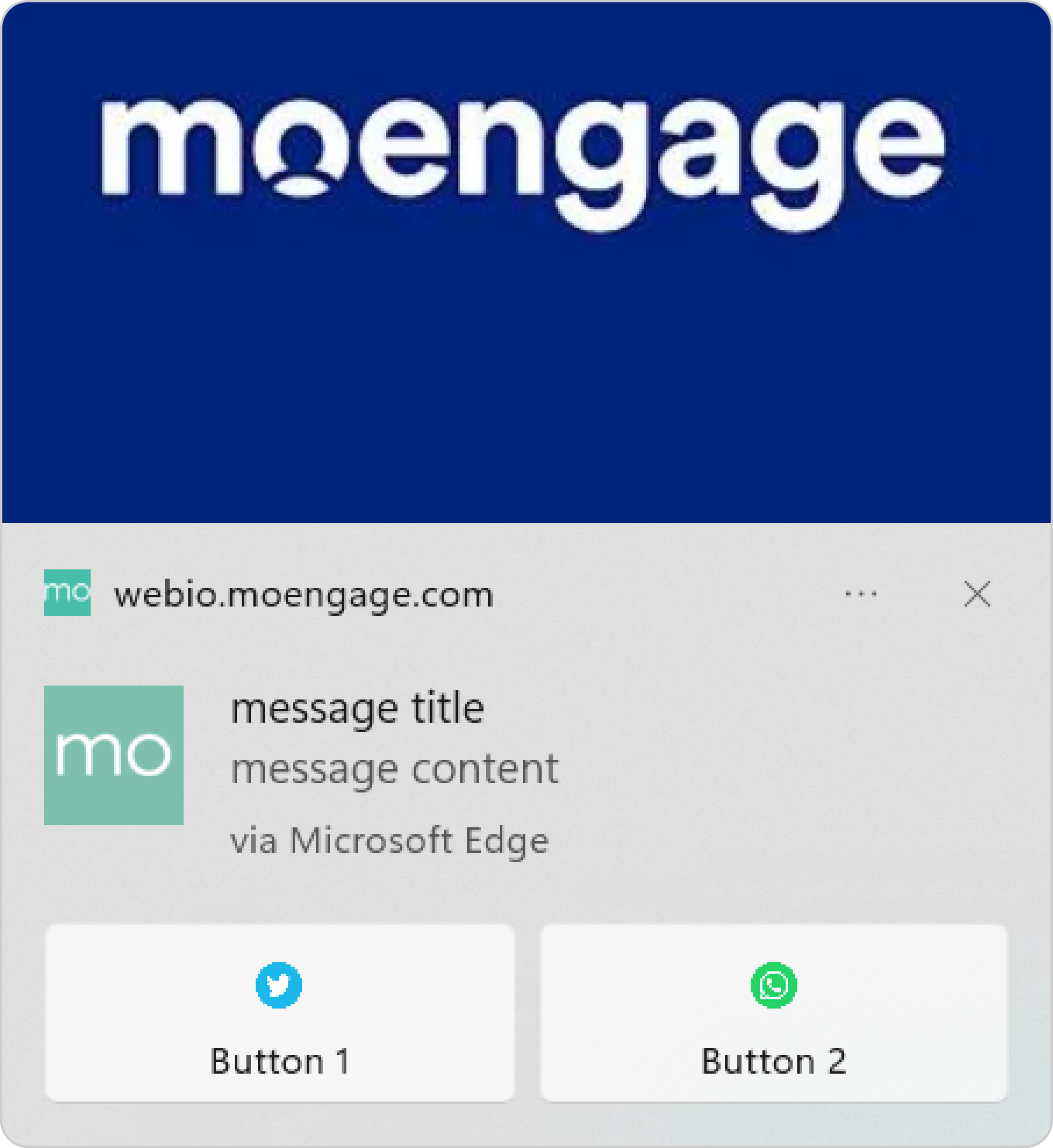
# Preview for various OS/Browser combinations
With Microsoft Edge, Hard-ask on page load does not get rendered using the Self-Handled Opt-In. Hence, it is recommended to invoke Soft-ask first.
**Caching**: All of the above settings take a minimum of 24 hours to reflect on your website.
# Browser Compatibility Matrix
| Operating System | Browser | Web Push Support | Onsite Messaging Support |
| ---------------- | ----------------- | ----------------------------- | ------------------------ |
| Windows | Internet Explorer | ❌ | ❌ |
| Windows | Google Chrome | ✅ | ✅ |
| Windows | Mozilla Firefox | ✅ | ✅ |
| Windows | Opera/ Opera Neon | ✅ | ✅ |
| Windows | Chromium Edge | ✅ | ✅ |
| Mac OS | Google Chrome | ✅ | ✅ |
| Mac OS | Mozilla Firefox | ✅ | ✅ |
| Mac OS | Opera/ Opera Neon | ✅ | ✅ |
| Mac OS | Chromium Edge | ✅ | ✅ |
| Mac OS | Safari | ✅ (macOS 13 or higher) | ✅ |
| Android | Google Chrome | ✅ | ✅ |
| Android | Mozilla Firefox | ✅ | ✅ |
| Android | Samsung Internet | ✅ | ✅ |
| Android | UC browser | ✅ | ✅ |
| iOS | Google Chrome | ❌ | ✅ |
| iOS | Safari | ✅ (Both iOS and Safari 16.4+) | ✅ |
For web push to work on Safari for iOS devices, the following is required:
* Your website must be a Progressive Website App (PWA).
* A web app manifest file must be created and linked.
* The MoEngage service worker file should be imported and placed in the root folder.
* The PWA must be added to the Home Screen.
* The user should be prompted for permission to receive web push notifications. We recommend a two-step opt-in process.
For more information, refer to the [Web Push Integration Steps for Safari on iOS and iPadOS](https://www.moengage.com/docs/developer-guide/web-sdk/web-push/safari-web-push-for-i-os-and-i-pad-os).
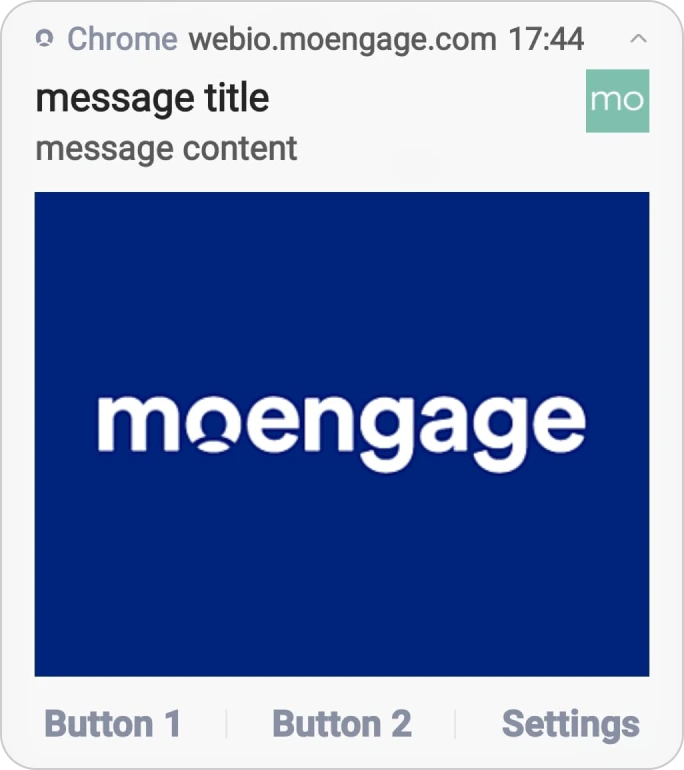
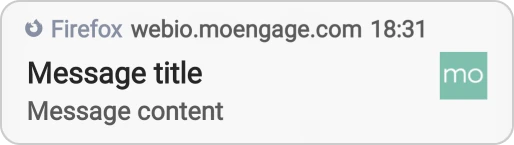
# Preview for various OS/Browser combinations

 # Device Analytics
Under the **Device analytics** tab, you can configure your tracking preferences to refine your reporting. This includes:
* **App Version Buckets:** Grouping versions into buckets (e.g., Beta vs. Stable) to analyze adoption trends.
* **OEM & Browser Tracking:** Selecting the top 5 device manufacturers or browsers most relevant to your users, while grouping the rest under "Others."
For detailed steps on configuring these preferences, refer to [Device Analytics Configuration](/user-guide/campaigns-and-channels/mobile-push/getting-started-with-mobile-push/device-analytics-configuration).
# Whitelist IPs
If your system requires IP whitelisting for using Content API or PII tokenization in Push campaigns, refer [here](/user-guide/settings/account/security/ip-whitelisting-in-moengage).
# Frequently Asked Questions
The position of web push notifications on the screen varies and depends on the browser and operating system. They may appear in a notification center or as a pop-up and cannot be customized.
# Device Analytics
Under the **Device analytics** tab, you can configure your tracking preferences to refine your reporting. This includes:
* **App Version Buckets:** Grouping versions into buckets (e.g., Beta vs. Stable) to analyze adoption trends.
* **OEM & Browser Tracking:** Selecting the top 5 device manufacturers or browsers most relevant to your users, while grouping the rest under "Others."
For detailed steps on configuring these preferences, refer to [Device Analytics Configuration](/user-guide/campaigns-and-channels/mobile-push/getting-started-with-mobile-push/device-analytics-configuration).
# Whitelist IPs
If your system requires IP whitelisting for using Content API or PII tokenization in Push campaigns, refer [here](/user-guide/settings/account/security/ip-whitelisting-in-moengage).
# Frequently Asked Questions
The position of web push notifications on the screen varies and depends on the browser and operating system. They may appear in a notification center or as a pop-up and cannot be customized.