> ## Documentation Index
> Fetch the complete documentation index at: https://moengage.com/docs/llms.txt
> Use this file to discover all available pages before exploring further.
# Manage WhatsApp Campaigns
> Manage your WhatsApp campaigns in MoEngage. View campaign statuses, monitor performance metrics, duplicate successful campaigns, or delete old ones.
To effectively manage your WhatsApp campaigns in MoEngage, it's helpful to understand their various statuses and how to manage them. This guide explains how to view, duplicate, and delete your WhatsApp campaigns.
## Understand WhatsApp Campaign Statuses
The table below describes the different statuses a WhatsApp campaign can have in MoEngage.
| Status | Description |
| ------------ | ---------------------------------------------------------------------------------------------------------------------------------------------------------------------------------------------------------------------- |
| Draft | The campaign is in a draft state and has not been published. |
| Not Sent | The campaign has not been sent to any of the target audiences. |
| Sending | The campaign is currently being sent to the target audience. |
| Scheduled | The campaign is scheduled to be sent to the target audience at a future time. |
| Sent | The campaign has been sent to all of the target audiences. |
| Active | The campaign has been sent and is available to all target audiences. |
| Paused | The campaign has been paused for all target audiences. |
| Stopped | The campaign has been stopped for all target audiences. |
| Expired | The campaign has expired for all the target audiences. |
| Under Review | The campaign is currently under review as part of the campaign approval process. For more information, refer to [Campaign Approval Workflow](/docs/user-guide/settings/account/team-management/campaign-approval-workflow). |
| Rejected | The campaign has been rejected during the campaign approval process. For more information, refer to [Campaign Approval Workflow](/docs/user-guide/settings/account/team-management/campaign-approval-workflow). |
## View WhatsApp Campaigns
Viewing campaign details allows you to monitor the performance and status of your campaigns. By accessing the Campaign info page, you can review key metrics, analyze audience engagement, track delivery, and assess conversion goals. This provides a comprehensive overview of how a campaign is performing, helping you to make data-driven decisions for future marketing efforts. To view your WhatsApp campaigns, perform the following steps:
1. On the MoEngage Dashboard, navigate to **Engage** > **All Campaigns**.
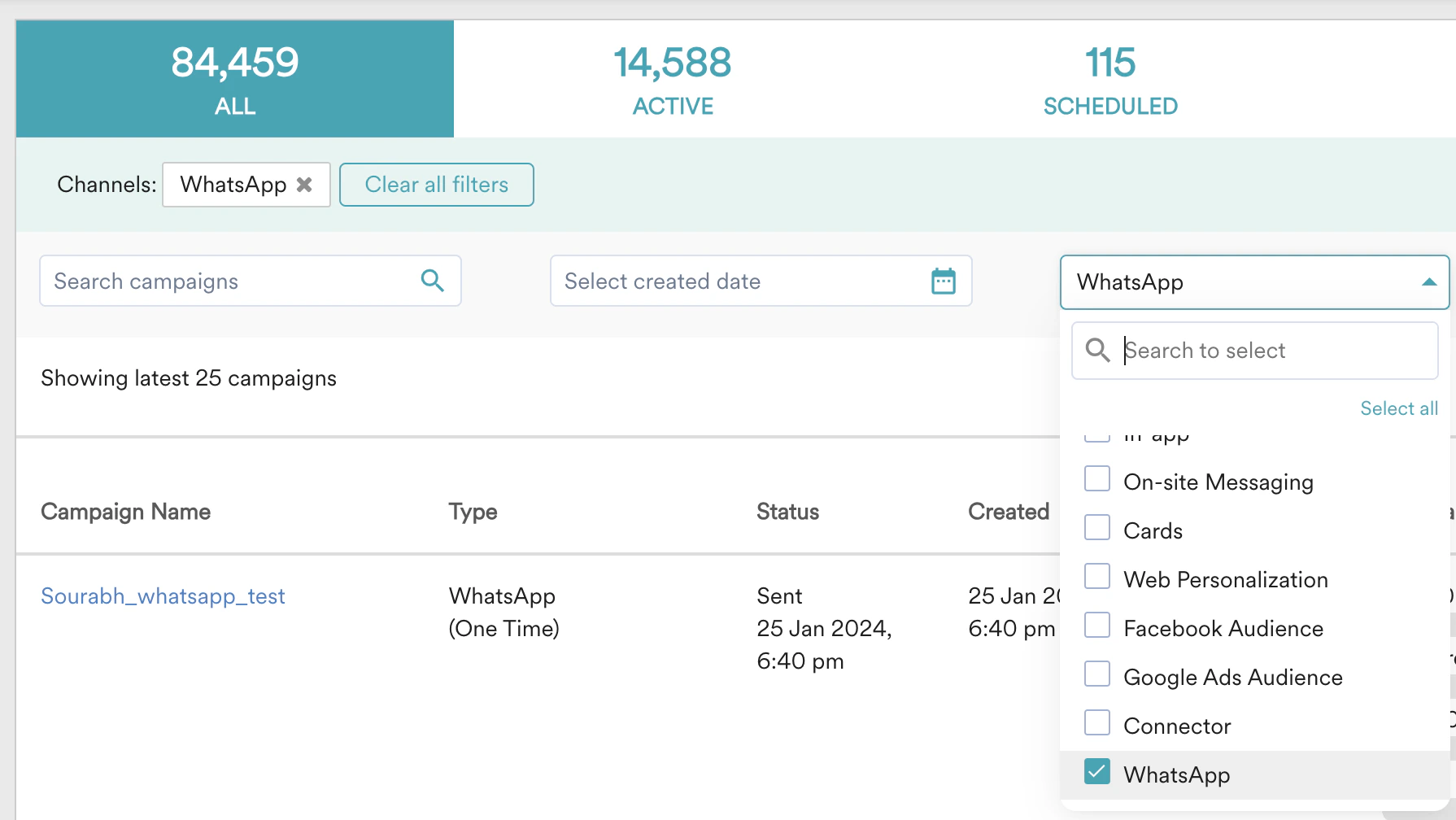
2. On the **All Campaigns** page, use the filters to find the campaigns you want. You can also use the channel filter to see only WhatsApp campaigns.
3. After filtering the required campaign, use one of the following methods to view the campaign details:
* Click the ellipsis menu on the right side of a campaign row, and then select **View**.
* Click the campaign row directly to open the **Campaign Info** page.
 ## Duplicate WhatsApp Campaigns
Duplicating a campaign saves you time and effort. Rather than creating a new campaign from scratch, you can quickly reuse a successful campaign as a template. To duplicate a WhatsApp campaign, perform the following steps:
1. On the MoEngage Dashboard, navigate to **Engage** > **All Campaigns**.
2. On the **All Campaigns** page, use the filters to find the campaign you want to duplicate.
3. After filtering the required campaign, use one of the following methods to duplicate the campaign:
* Click the ellipsis icon and click **Duplicate**.
* Click the campaign to open the **Campaign Info** page. On this page, click the **Duplicate** (
## Duplicate WhatsApp Campaigns
Duplicating a campaign saves you time and effort. Rather than creating a new campaign from scratch, you can quickly reuse a successful campaign as a template. To duplicate a WhatsApp campaign, perform the following steps:
1. On the MoEngage Dashboard, navigate to **Engage** > **All Campaigns**.
2. On the **All Campaigns** page, use the filters to find the campaign you want to duplicate.
3. After filtering the required campaign, use one of the following methods to duplicate the campaign:
* Click the ellipsis icon and click **Duplicate**.
* Click the campaign to open the **Campaign Info** page. On this page, click the **Duplicate** ( ) button.
## Delete WhatsApp Campaigns
Deleting a campaign permanently removes it from your dashboard. You can only delete campaigns that are in a Draft state. This helps you keep your list of active and completed campaigns clean and organised. To delete a WhatsApp campaign, perform the following steps:
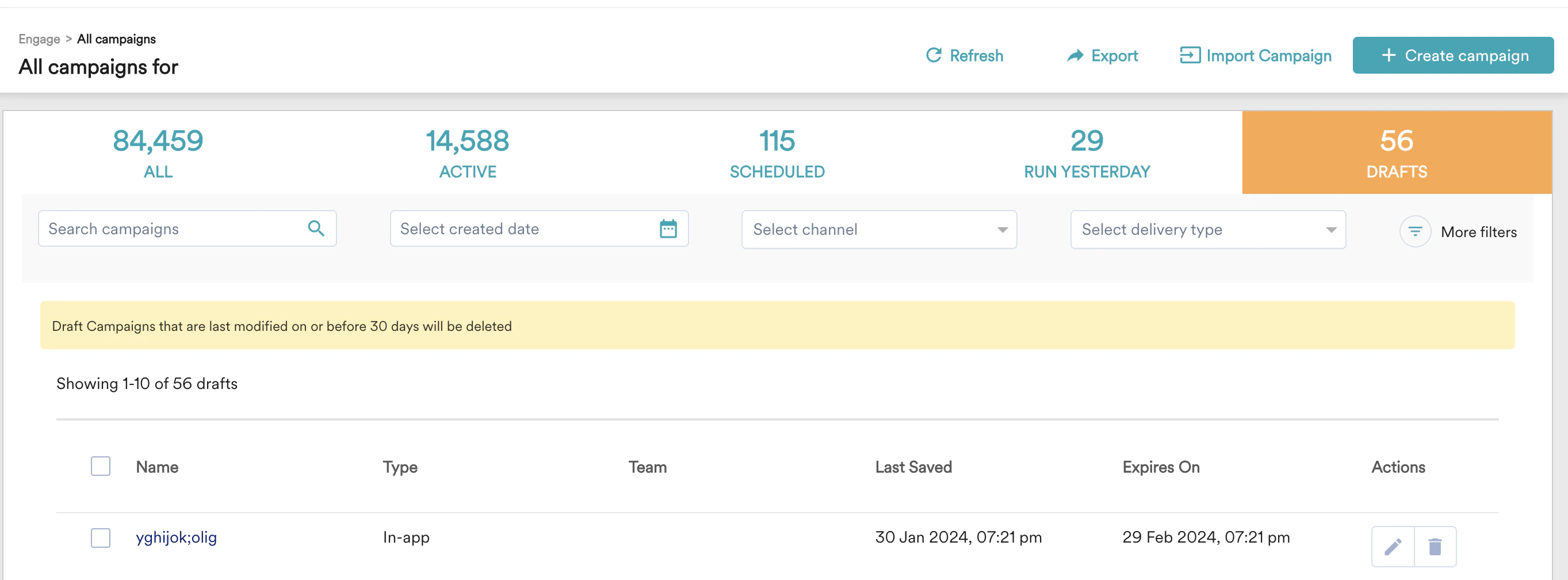
1. On the MoEngage Dashboard, navigate to **Engage** > **Drafts**. You can also find drafts from the **All Campaigns** page.
) button.
## Delete WhatsApp Campaigns
Deleting a campaign permanently removes it from your dashboard. You can only delete campaigns that are in a Draft state. This helps you keep your list of active and completed campaigns clean and organised. To delete a WhatsApp campaign, perform the following steps:
1. On the MoEngage Dashboard, navigate to **Engage** > **Drafts**. You can also find drafts from the **All Campaigns** page.
 2. On the required draft campaign, perform one of the following steps to delete the campaign:
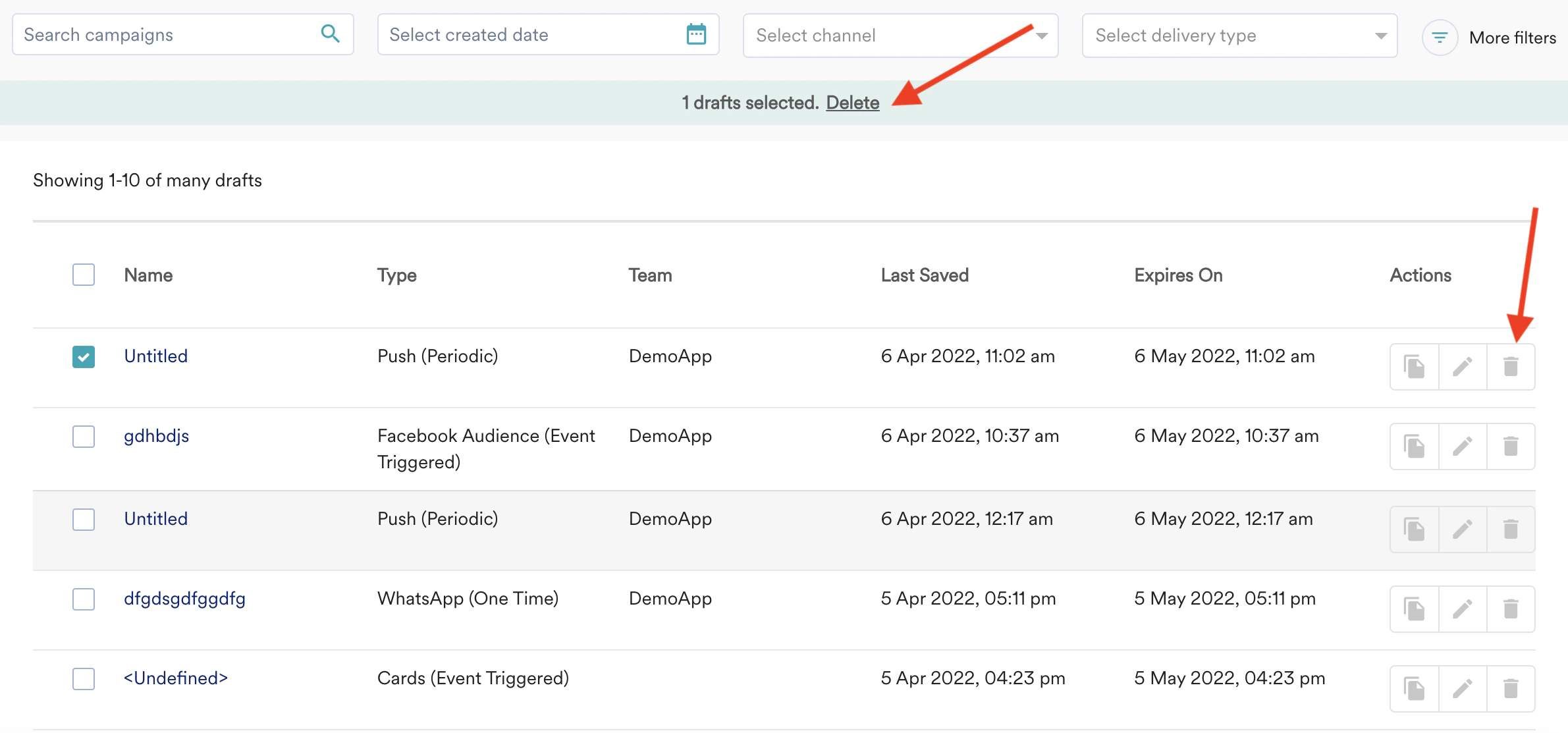
* Click the delete icon( ) in the **Actions** column for the campaign that you want to delete.
* You can also click the check box present along with the name of the campaign. Click **Delete** on the top bar as shown below. You can delete multiple drafts at the same time using this method.
2. On the required draft campaign, perform one of the following steps to delete the campaign:
* Click the delete icon( ) in the **Actions** column for the campaign that you want to delete.
* You can also click the check box present along with the name of the campaign. Click **Delete** on the top bar as shown below. You can delete multiple drafts at the same time using this method.