> ## Documentation Index
> Fetch the complete documentation index at: https://moengage.com/docs/llms.txt
> Use this file to discover all available pages before exploring further.
# How To Verify Your Email Using AIRA?
> Verify your email address on MoEngage instantly using the AIRA bot. Follow these quick steps to trigger the verification process from your dashboard.
Verifying your email address used to be a slow, manual process. Now, it’s quick and seamless. You can complete this quickly using the AIRA bot on your dashboard.
## Prerequisites
* Access to the MoEngage dashboard.
* The email address that you want to verify.
## Instructions
Perform the following steps to verify your email using the AIRA directly from the **MoEngage dashboard**:
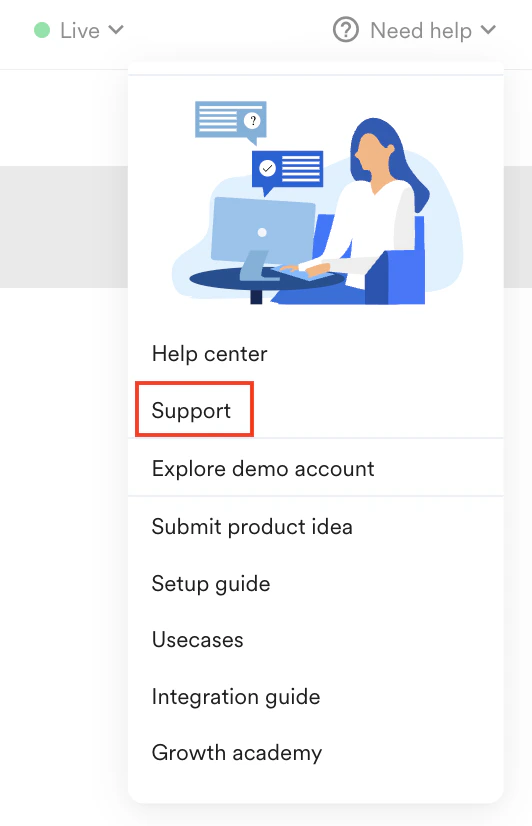
1. To launch the AIRA, click on **Need help** and then select **Support.**
2. Click on **Ask a question,** and in the chat window, type “Verify email”.
You can use any prompts that indicate you want to verify your email. The options listed below are just a few examples to help you begin the email verification process:
1. Need to verify email IDs.
2. Verify the email.
3. Verify a new email address.
4. Email verification pending.
3. AIRA will guide you with the next steps and trigger the verification process.
4. Once verified, you will see a confirmation from AIRA in the chat and on the dashboard.
* Ensure the dashboard page is refreshed.
* If there are multiple email senders, AIRA will prompt you to select the one you want to verify.
* After completing the process, take a moment to rate your experience with AIRA.
 2. Click on **Ask a question,** and in the chat window, type “Verify email”.
