> ## Documentation Index
> Fetch the complete documentation index at: https://moengage.com/docs/llms.txt
> Use this file to discover all available pages before exploring further.
# Raise a Support Ticket Through MoEngage Dashboard
> Learn how to raise a support ticket through the MoEngage dashboard by navigating to the Need Help option and filling out the request form.
This section provides step-by-step instructions to raise a support ticket through the MoEngage dashboard.
Ensure that you use the correct URL of the dashboard to raise a ticket.
The following are the available dashboards:
| Data Center Name | Dashboard URL |
| ---------------- | ----------------------------------------------------------------------- |
| DC-01 | [https://dashboard-01.moengage.com](https://dashboard-01.moengage.com/) |
| DC-02 | [https://dashboard-02.moengage.com](https://dashboard-02.moengage.com/) |
| DC-03 | [https://dashboard-03.moengage.com](https://dashboard-03.moengage.com/) |
| DC-04 | [https://dashboard-04.moengage.com](https://dashboard-04.moengage.com/) |
| DC-05 | [https://dashboard-05.moengage.com](https://dashboard-05.moengage.com/) |
| DC-06 | [https://dashboard-06.moengage.com](https://dashboard-06.moengage.com/) |
1. Go to your Moengage Dashboard. The login page is displayed.
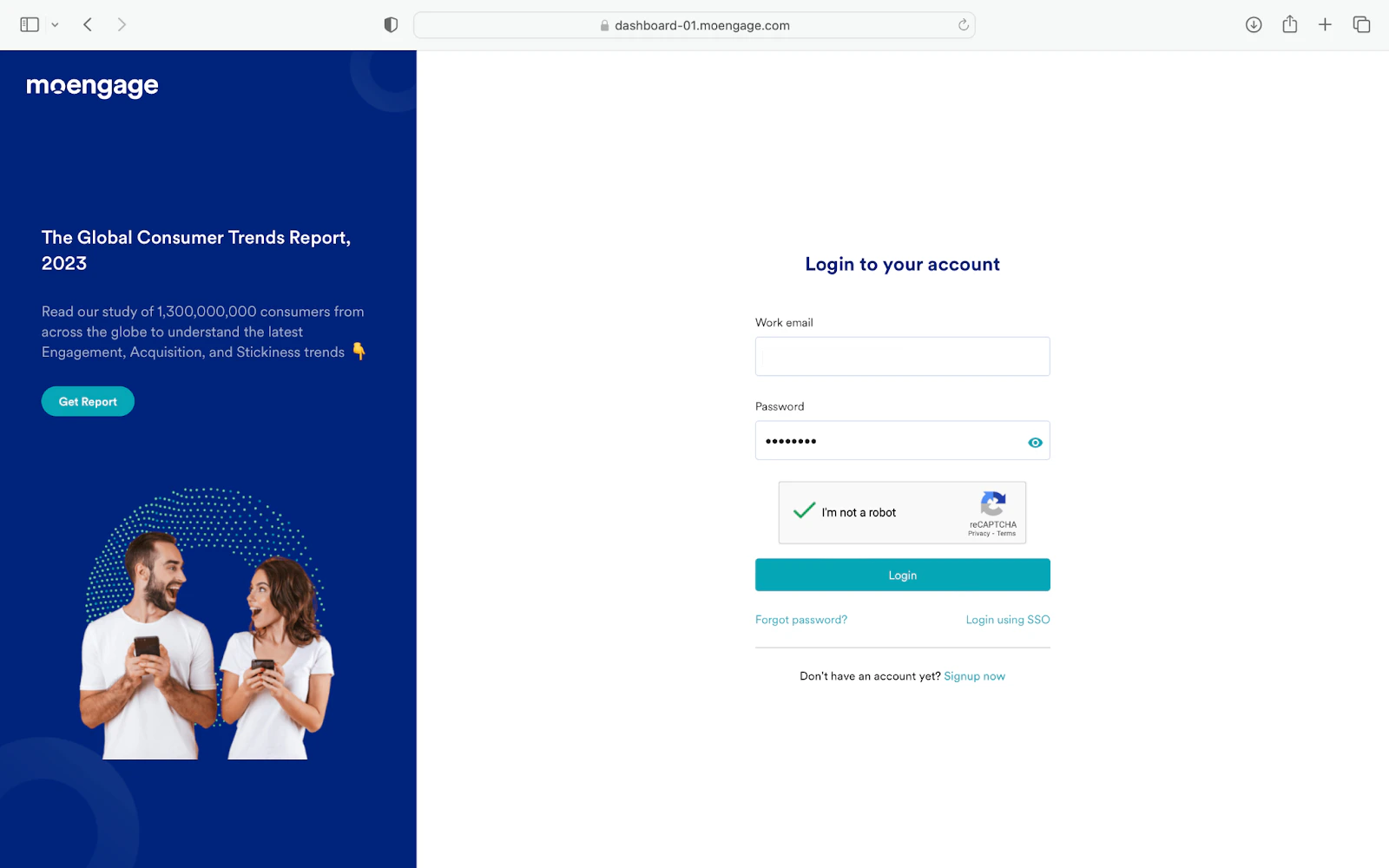 2. Log in to the dashboard using your credentials.
If you are unable to log in, you can create a support ticket from the login page. For more information, refer to [Raise a Support Ticket from the MoEngage Login Page](/user-guide/contact-support/raise-a-support-ticket-from-the-moengage-login-page).
1. In the **Work email** field, enter your email.
2. In the **Password** field, enter your password.
3. Select the **I’m not a robot** checkbox.
4. Click **Login**. After your login is successful, you are in the MoEngage dashboard.
2. Log in to the dashboard using your credentials.
If you are unable to log in, you can create a support ticket from the login page. For more information, refer to [Raise a Support Ticket from the MoEngage Login Page](/user-guide/contact-support/raise-a-support-ticket-from-the-moengage-login-page).
1. In the **Work email** field, enter your email.
2. In the **Password** field, enter your password.
3. Select the **I’m not a robot** checkbox.
4. Click **Login**. After your login is successful, you are in the MoEngage dashboard.
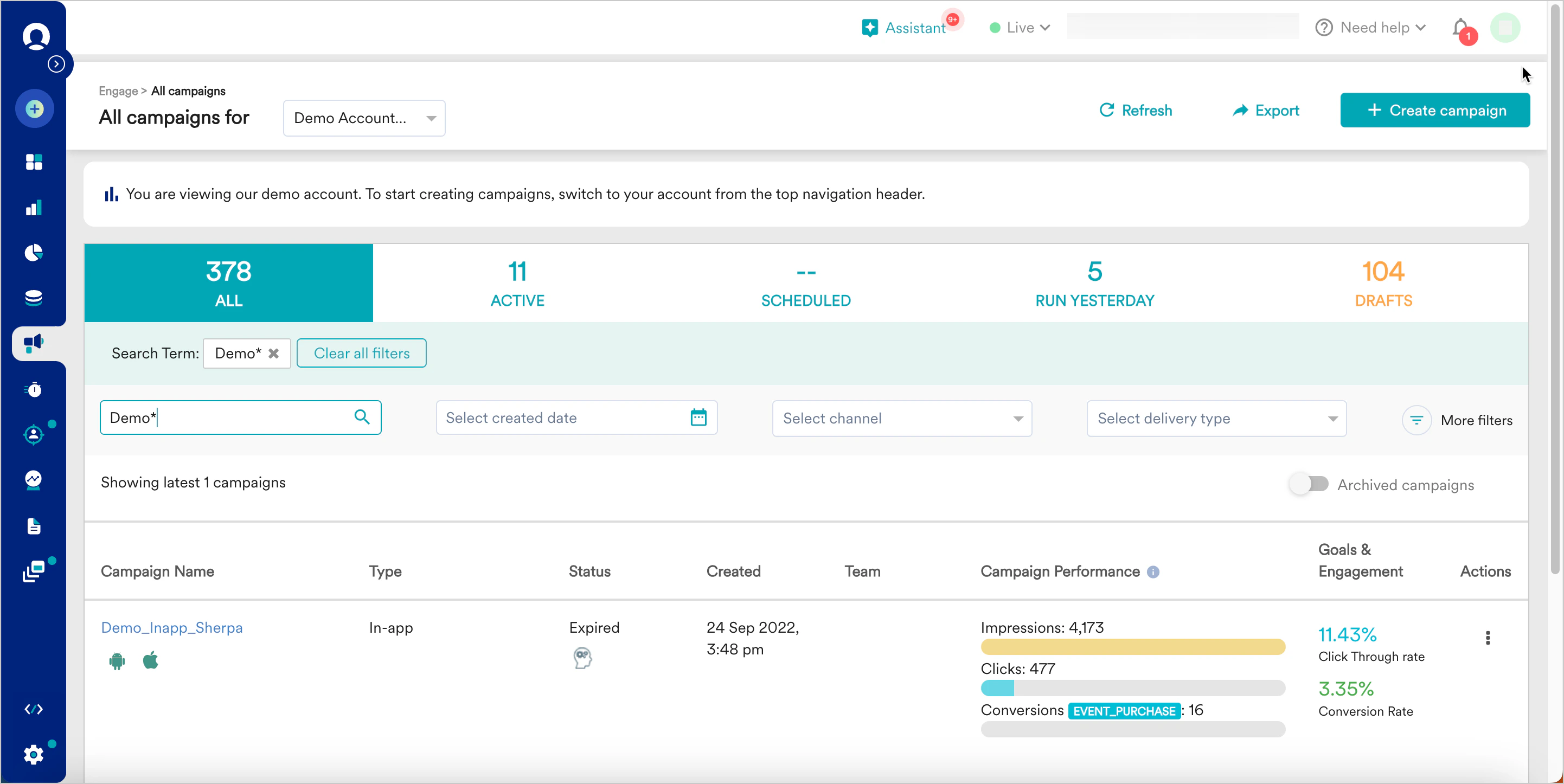 3. In the top right corner of the screen, click **Need help** and then click **Support**.
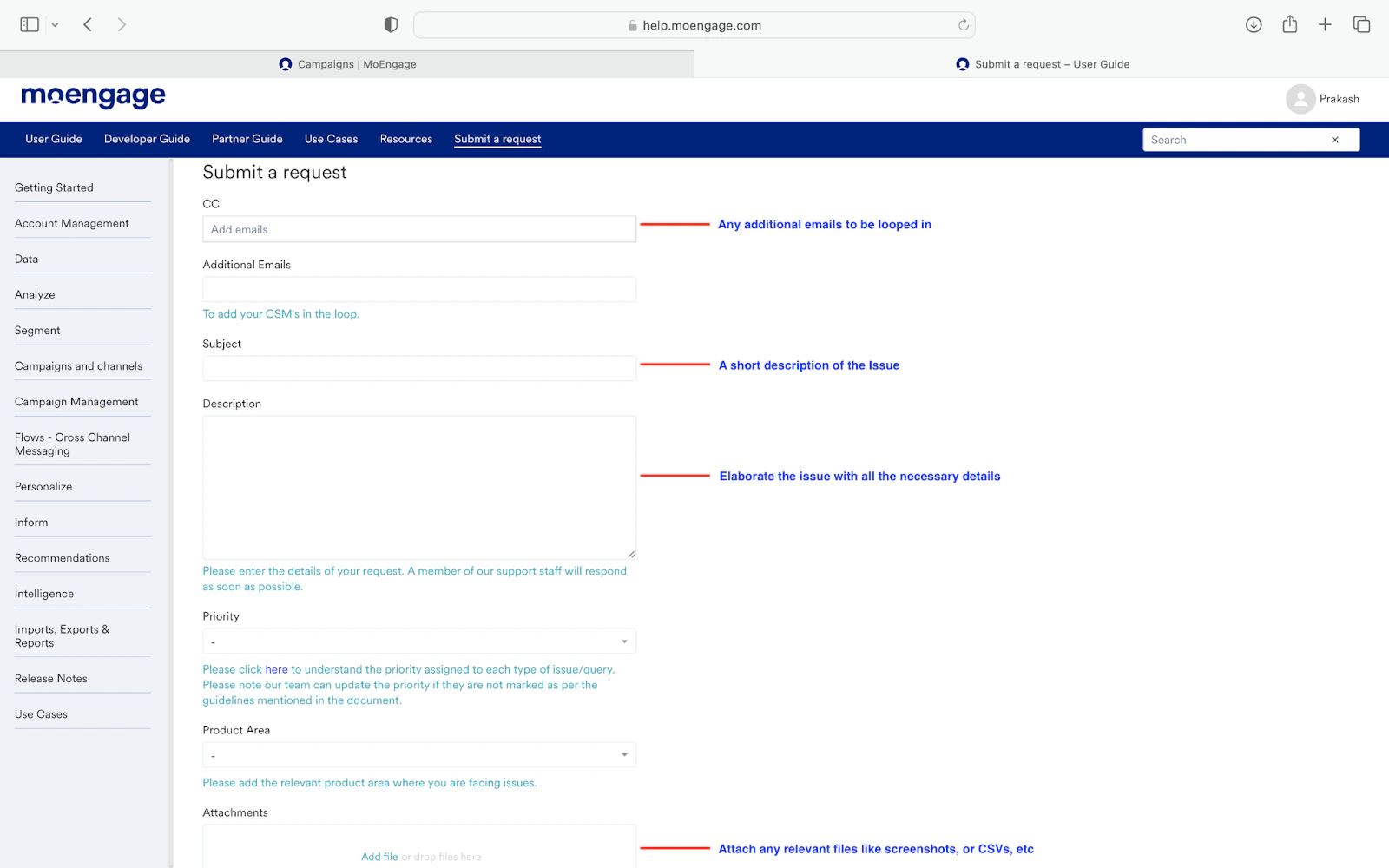
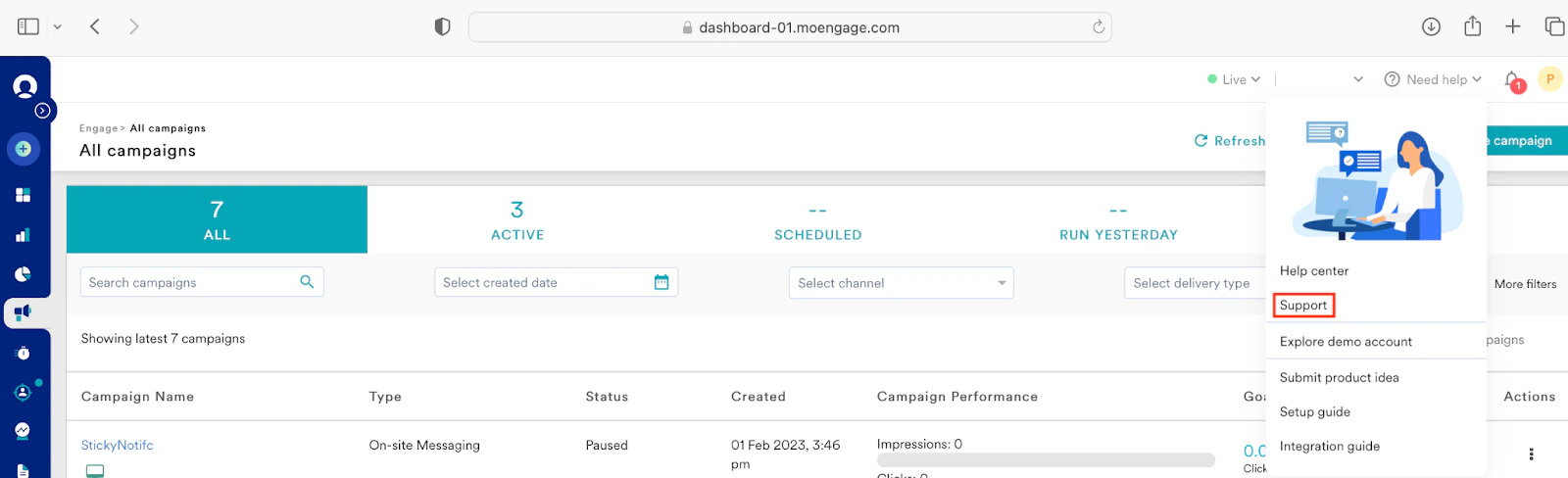 The Submit a request page is displayed.
4. Enter the following details:
1. In the **CC** field, enter an email ID that must be included in the ticket loop.
2. In the **Additional Emails** field, add the email ID of your CSM. (This is optional.)
3. In the **Subject** field, enter a brief description of the issue.
4. In the **Description** field, enter a detailed description of the issue.
5. In the **Priority** drop-down list, select the priority of the issue. For more information on priorities, refer to [Support Issue Types and Priority](/user-guide/contact-support/support-issue-types-and-priority).
6. In the **Product Area** drop-down list, select your product area.
7. In the **Attachments** section, click **Add file** to attach a file relevant to the issue. You can also drag and drop the file you want to attach to the ticket.
The Submit a request page is displayed.
4. Enter the following details:
1. In the **CC** field, enter an email ID that must be included in the ticket loop.
2. In the **Additional Emails** field, add the email ID of your CSM. (This is optional.)
3. In the **Subject** field, enter a brief description of the issue.
4. In the **Description** field, enter a detailed description of the issue.
5. In the **Priority** drop-down list, select the priority of the issue. For more information on priorities, refer to [Support Issue Types and Priority](/user-guide/contact-support/support-issue-types-and-priority).
6. In the **Product Area** drop-down list, select your product area.
7. In the **Attachments** section, click **Add file** to attach a file relevant to the issue. You can also drag and drop the file you want to attach to the ticket.
 5. Click **Submit**.
After the issue is submitted successfully, the dashboard displays the ticket number and details such as the subject, description, and the attached files.
We are updating our support process at MoEngage and transitioning from a web form to the AIRA support bot. This advanced tool allows you to submit queries and create tickets, offering a smooth and expedited experience. Currently, AIRA is under progressive development and is accessed by a limited number of users. However, we are excited to announce that it will soon be fully available, serving as the replacement for the current web form.
For more information, read [Introducing AIRA](/user-guide/contact-support/aira-support-bot/aira-overview).
5. Click **Submit**.
After the issue is submitted successfully, the dashboard displays the ticket number and details such as the subject, description, and the attached files.
We are updating our support process at MoEngage and transitioning from a web form to the AIRA support bot. This advanced tool allows you to submit queries and create tickets, offering a smooth and expedited experience. Currently, AIRA is under progressive development and is accessed by a limited number of users. However, we are excited to announce that it will soon be fully available, serving as the replacement for the current web form.
For more information, read [Introducing AIRA](/user-guide/contact-support/aira-support-bot/aira-overview).