> ## Documentation Index
> Fetch the complete documentation index at: https://moengage.com/docs/llms.txt
> Use this file to discover all available pages before exploring further.
# Creating Advanced Recommendations
> Configure an advanced recommendation in MoEngage by selecting an ML model, choosing a catalog, applying filters, and defining your business rules.
The recommendations can be created by Admin/ Manager / Marketer roles only
Before you proceed, you must map the user actions and add a catalog. For more information, refer to [User Actions](/user-guide/content/recommendations/prerequisites/map-user-actions-settings) and [Catalogs](/user-guide/content/recommendations/prerequisites/catalogs).
To create a recommendation, perform the following steps:
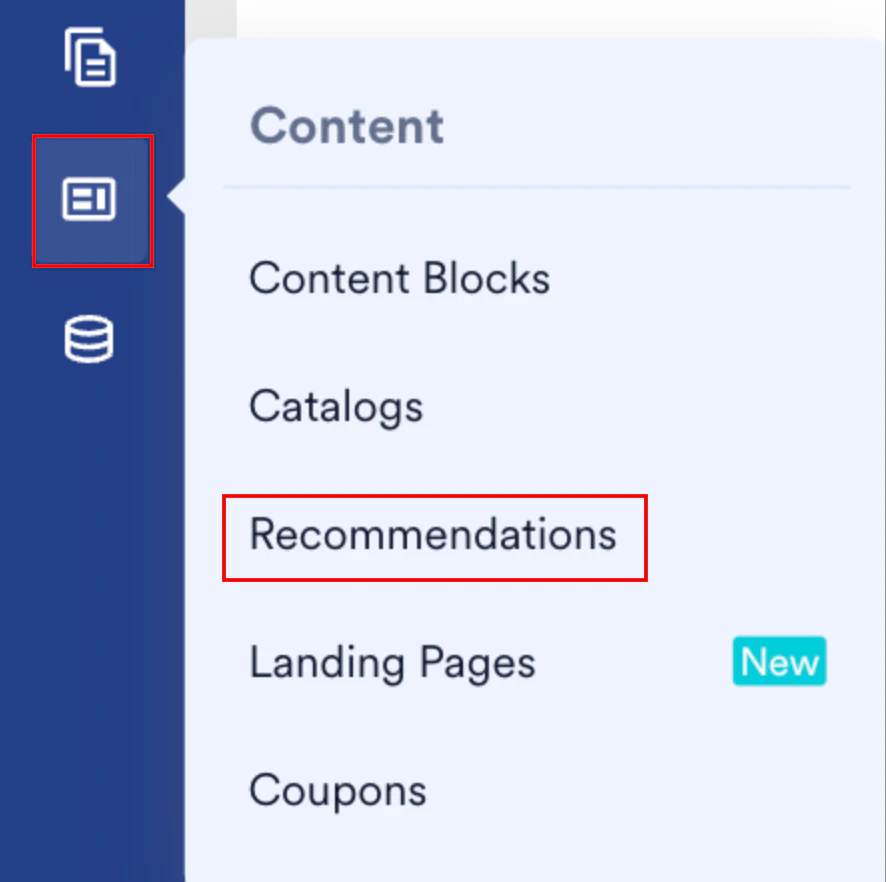
1. On the sidebar menu in MoEngage, hover over the Content menu item  . The **Content** menu appears.
2. Click **Recommendations**.
. The **Content** menu appears.
2. Click **Recommendations**.
 The Recommendations page appears.
3. Click **+ Create recommendation**. The Create recommendation page is displayed.
The Recommendations page appears.
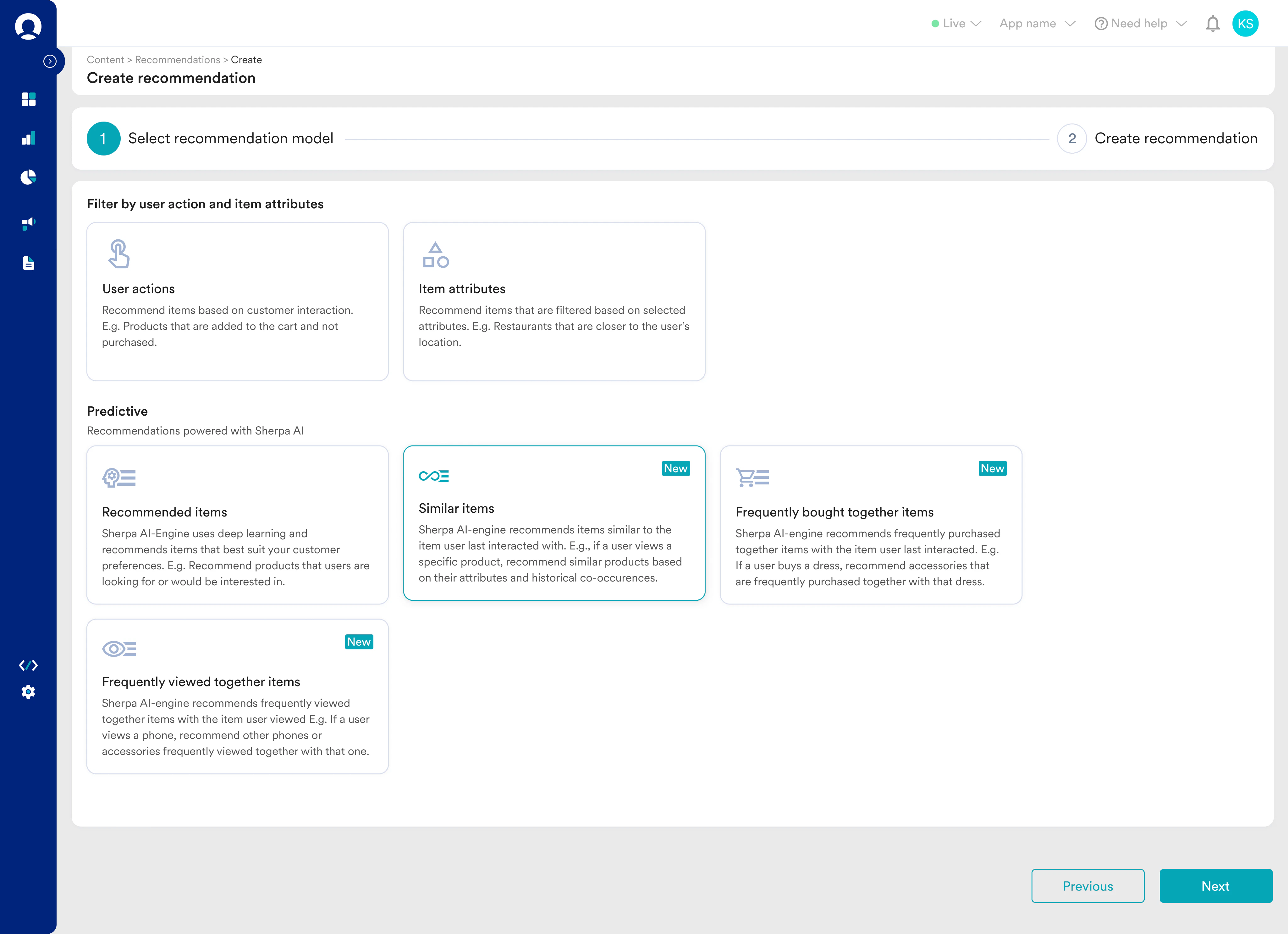
3. Click **+ Create recommendation**. The Create recommendation page is displayed. 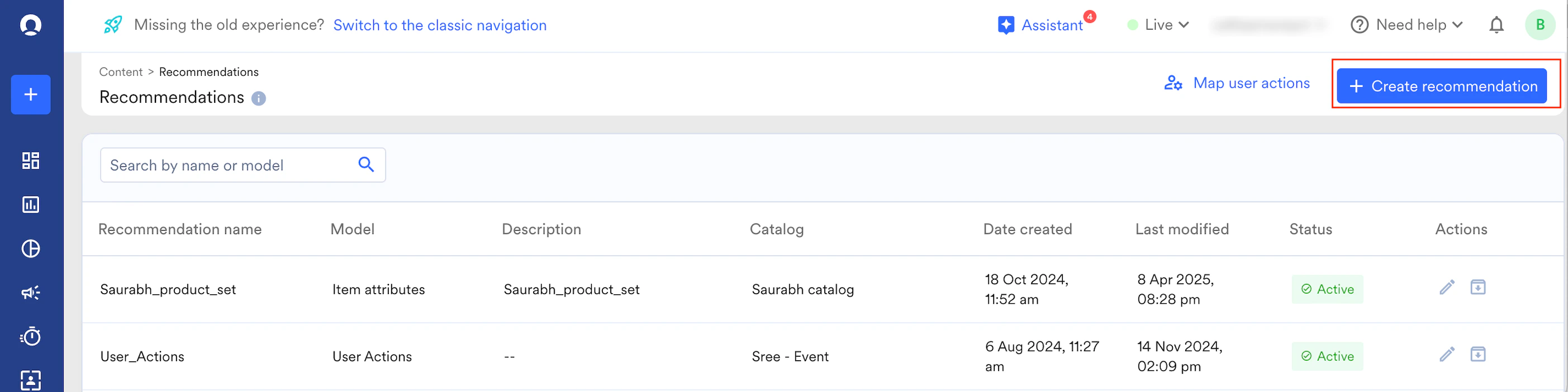 4. Select the relevant model according to your use case and click **Next**.
 5. In the **Recommendation name** field, enter a name for the recommendation.
6. In the **Recommendation description** field, enter a description for the recommendation
7. In the **Catalog** drop-down list, select the relevant catalog from which you wish to retrieve these recommendations.\
**Note:** All AI recommendations consider one catalog. After you use a catalog in any AI recommendations, it will be automatically configured for all other types of AI recommendations.
8. Choose the relevant **user actions** based on your use case from the drop-down list.
* In the case of Similar items, Frequently bought together items, and Frequently viewed together items, the recent most item based on the configured user action events will be used to generate.
* In the case of Recommended items, you are not required to configure any user actions. All performed user actions by a user are considered to learn their behavior patterns automatically and the recommendations are generated tailored to the shifting interests of individuals.
9. Turn the **Filter items by user actions** toggle on to add filtering criteria and control which items to recommend to their customers. These filters are applied to the results of the core recommendation further. You will see two types of filters for user actions:
5. In the **Recommendation name** field, enter a name for the recommendation.
6. In the **Recommendation description** field, enter a description for the recommendation
7. In the **Catalog** drop-down list, select the relevant catalog from which you wish to retrieve these recommendations.\
**Note:** All AI recommendations consider one catalog. After you use a catalog in any AI recommendations, it will be automatically configured for all other types of AI recommendations.
8. Choose the relevant **user actions** based on your use case from the drop-down list.
* In the case of Similar items, Frequently bought together items, and Frequently viewed together items, the recent most item based on the configured user action events will be used to generate.
* In the case of Recommended items, you are not required to configure any user actions. All performed user actions by a user are considered to learn their behavior patterns automatically and the recommendations are generated tailored to the shifting interests of individuals.
9. Turn the **Filter items by user actions** toggle on to add filtering criteria and control which items to recommend to their customers. These filters are applied to the results of the core recommendation further. You will see two types of filters for user actions:
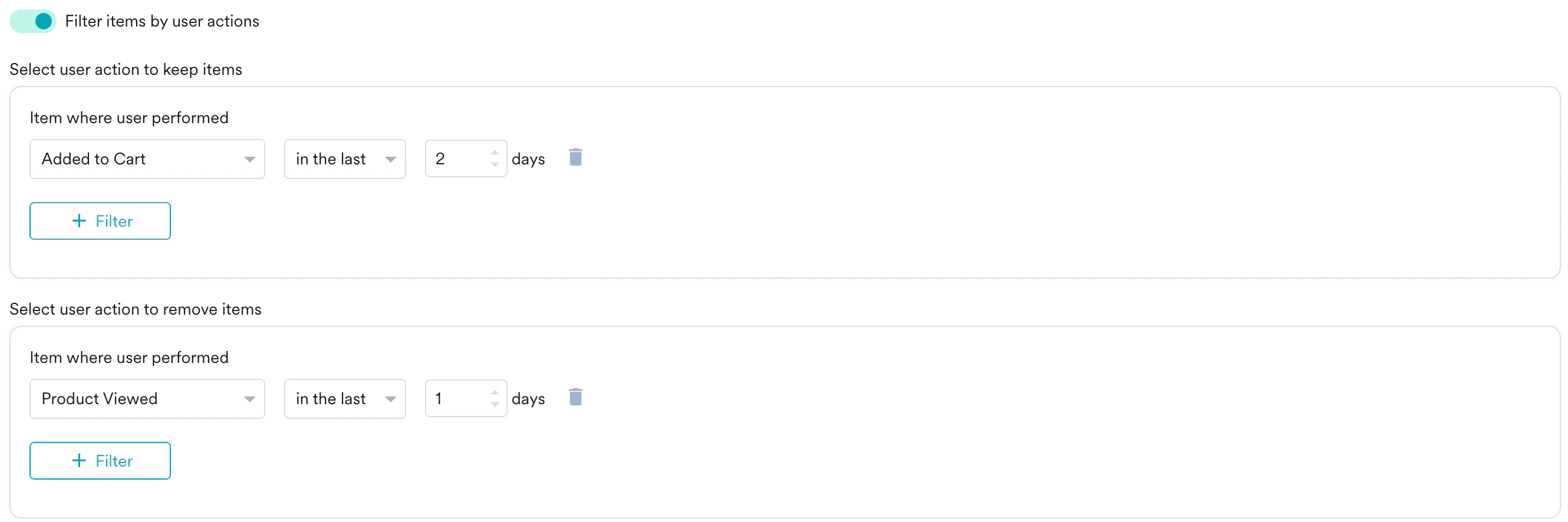 * **Select user action to keep items**: Marketers can define the user action criteria that includes only those items that are common in filtering user action criteria and recommendation results. Click **+ User actions** and select the items to be included.
* **Select user action to remove items**: Marketers can define the user action criteria that removes the items according to the filtering user action criteria from recommendation items. Click **+ User actions** and select the items to be excluded.
10. Turn the **Filter items by item attributes** toggle on to add filtering criteria based on catalog information. These filters are also applied to the results of the core recommendation further.
* **Select user action to keep items**: Marketers can define the user action criteria that includes only those items that are common in filtering user action criteria and recommendation results. Click **+ User actions** and select the items to be included.
* **Select user action to remove items**: Marketers can define the user action criteria that removes the items according to the filtering user action criteria from recommendation items. Click **+ User actions** and select the items to be excluded.
10. Turn the **Filter items by item attributes** toggle on to add filtering criteria based on catalog information. These filters are also applied to the results of the core recommendation further. 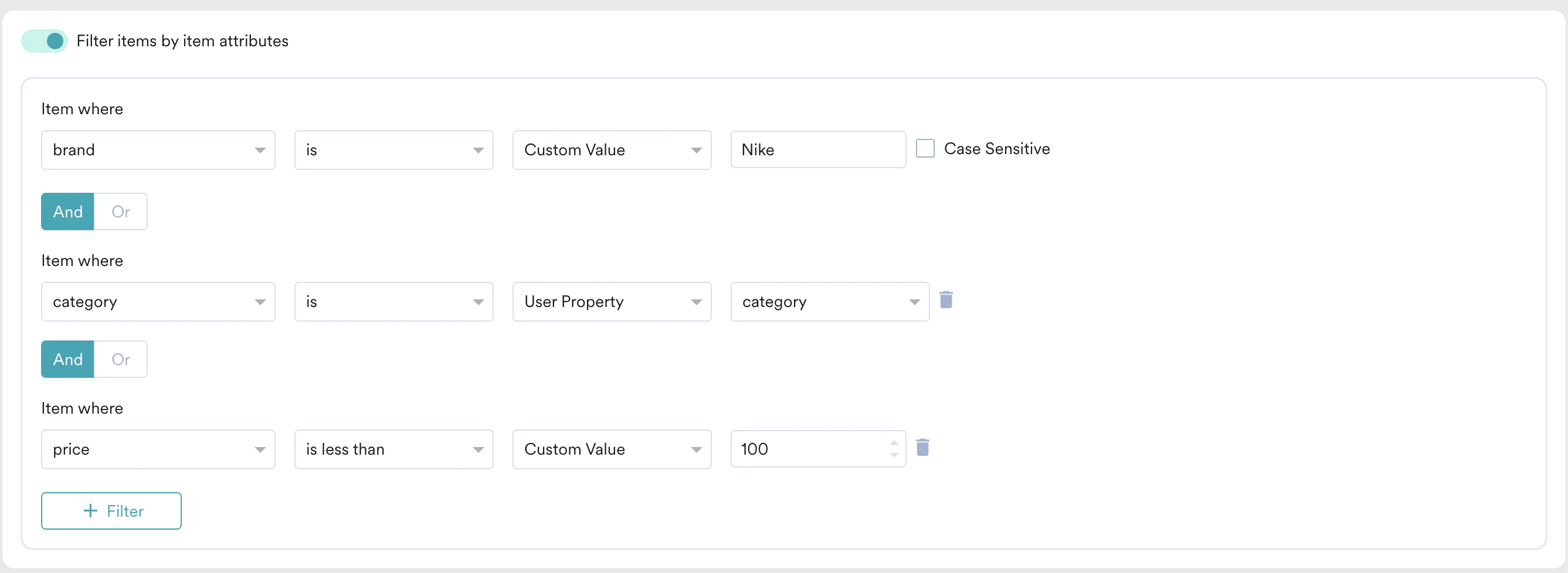 11. Click **Save**. A recommendation is created with a 'Processing' state on the Recommendations page. It can take a maximum of 24 hours for recommendations to be active.
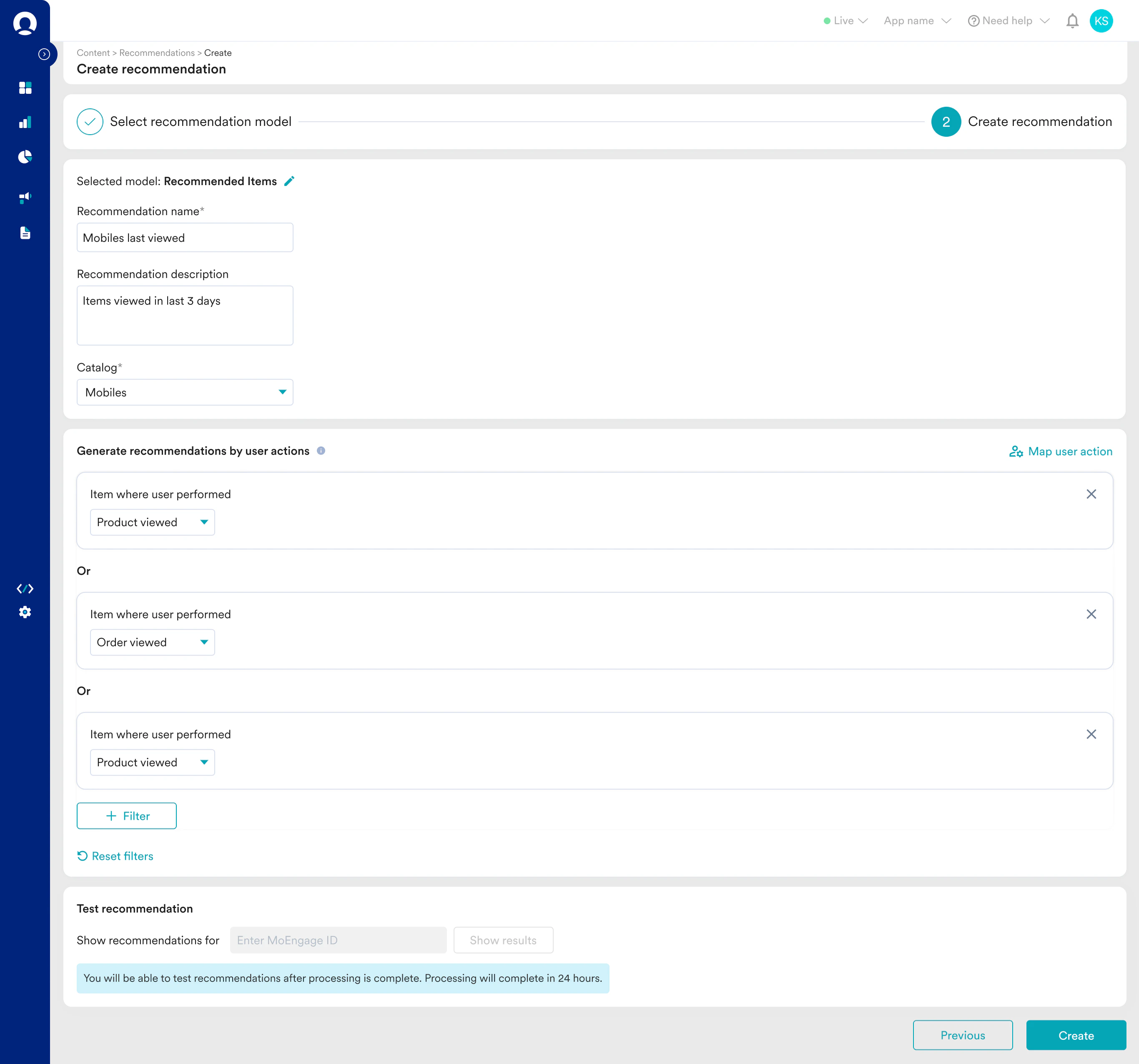 12. After the recommendation is ready, you can test results for sample users before using it in any campaign.
# Best Practices
* Choose the global catalog inclusive of all the business offerings or the type of offerings you want to generate recommendations for.
* Map all relevant events in the relevant user action buckets.
* Ensure that the unique item ID attribute has the same information as the unique item ID in the catalog.
* Configure all possible user-item interactions in the Recommended Items settings, such as Product Viewed, Added to Wishlist, Added to Cart, and Product Purchased. This allows the algorithm to learn from a wide range of user behaviors and adapt to rapid changes.
* Test the results for sample users before incorporating them into your campaign.
12. After the recommendation is ready, you can test results for sample users before using it in any campaign.
# Best Practices
* Choose the global catalog inclusive of all the business offerings or the type of offerings you want to generate recommendations for.
* Map all relevant events in the relevant user action buckets.
* Ensure that the unique item ID attribute has the same information as the unique item ID in the catalog.
* Configure all possible user-item interactions in the Recommended Items settings, such as Product Viewed, Added to Wishlist, Added to Cart, and Product Purchased. This allows the algorithm to learn from a wide range of user behaviors and adapt to rapid changes.
* Test the results for sample users before incorporating them into your campaign.