> ## Documentation Index
> Fetch the complete documentation index at: https://moengage.com/docs/llms.txt
> Use this file to discover all available pages before exploring further.
# Fallback Items
> Fill the empty slots in a MoEngage recommendation with popular items or another recommendation, so a recommendation never reaches a user blank.
When you use a recommendation in a campaign, you set how many items it returns. Each item fills one slot, which is one place in the campaign where an item appears. The model does not always find enough items, so some slots stay empty and the campaign reaches the user with gaps, or with nothing at all.
Fallback items let you choose what fills the slots your recommendation could not. MoEngage uses that choice whenever the recommendation comes up short, so users see items rather than gaps.
# Why Fallback Items Are Needed
A recommendation returns fewer items than you asked for in the following situations:
* **The user is new or inactive.** A personalized model has no history to work from. This also affects every user in the hours after a catalog upload.
* **Filters narrow the pool too far.** Each item attribute filter and business rule removes candidates, and several together can leave few items or none.
* **Items are out of stock or the feed is stale.** A feed that carries only in-stock items excludes the rest, and one that refreshes on a lag can hold items that are gone.
* **The source item is not in the catalog.** An item-to-item model needs the current item's ID in the catalog. If your site sends a different ID than the feed carries, it has nothing to match.
Fallback items cover all of these, because they respond to the result rather than the cause. Whenever the recommendation returns too few items, MoEngage fills the rest.
# How Fallback Items Work
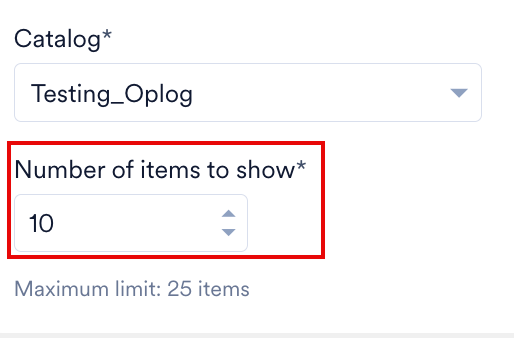
**Number of items to show** sets the number of slots.
MoEngage runs your recommendation first. This is the primary recommendation. If it returns fewer items than there are slots, MoEngage fills the leftover slots from the fallback you configured. MoEngage keeps every item the primary recommendation found and fills only what is left over, so personalized results come first.
A fallback is one level deep. Suppose your recommendation uses Fallback 1, and Fallback 1 has a fallback of its own. MoEngage runs your recommendation, then fills the leftover slots from Fallback 1, and stops there. It does not go on to Fallback 1's own fallback.
A fallback fills empty slots. It does not widen the recommendation itself, so it does not change which items the model considers or the order it ranks them in.
# Set the Number of Items to Show
**Number of items to show** sets how many items you want the recommendation to return. That number decides how many slots the fallback has to fill. For example, if you set 10 and the recommendation finds 6 items, the fallback fills the other 4.
MoEngage fills the field with 10 when you create a recommendation. You can change it up to the maximum for your workspace, which MoEngage shows under the field. That maximum is 25 unless you ask for more, so contact MoEngage Support if you need a higher number.
 # Configure Fallback Items
You can configure fallback items while you create a recommendation, or on one you already have. Catalog alerts recommendations have no **Fallback items** section.
The **Fallback items** section opens in a different state for each recommendation:
| Recommendation | State of the section |
| - | - |
| A new Advanced recommendation that can use popular items | MoEngage turns the toggle on and selects **Popular items**. |
| A new Advanced recommendation that cannot | MoEngage turns the toggle on and selects **Select specific recommendation**. |
| A new Basic recommendation | MoEngage leaves the toggle off and selects no option. |
| A recommendation you already have | MoEngage shows whatever you configured earlier. |
An Advanced recommendation cannot use popular items in either of the following cases:
* It uses the Trending Items model, which offers only **Select specific recommendation**.
* Your workspace has no active Advanced recommendation for popular items to draw on, which is the case for your first one.
# Configure Fallback Items
You can configure fallback items while you create a recommendation, or on one you already have. Catalog alerts recommendations have no **Fallback items** section.
The **Fallback items** section opens in a different state for each recommendation:
| Recommendation | State of the section |
| - | - |
| A new Advanced recommendation that can use popular items | MoEngage turns the toggle on and selects **Popular items**. |
| A new Advanced recommendation that cannot | MoEngage turns the toggle on and selects **Select specific recommendation**. |
| A new Basic recommendation | MoEngage leaves the toggle off and selects no option. |
| A recommendation you already have | MoEngage shows whatever you configured earlier. |
An Advanced recommendation cannot use popular items in either of the following cases:
* It uses the Trending Items model, which offers only **Select specific recommendation**.
* Your workspace has no active Advanced recommendation for popular items to draw on, which is the case for your first one.
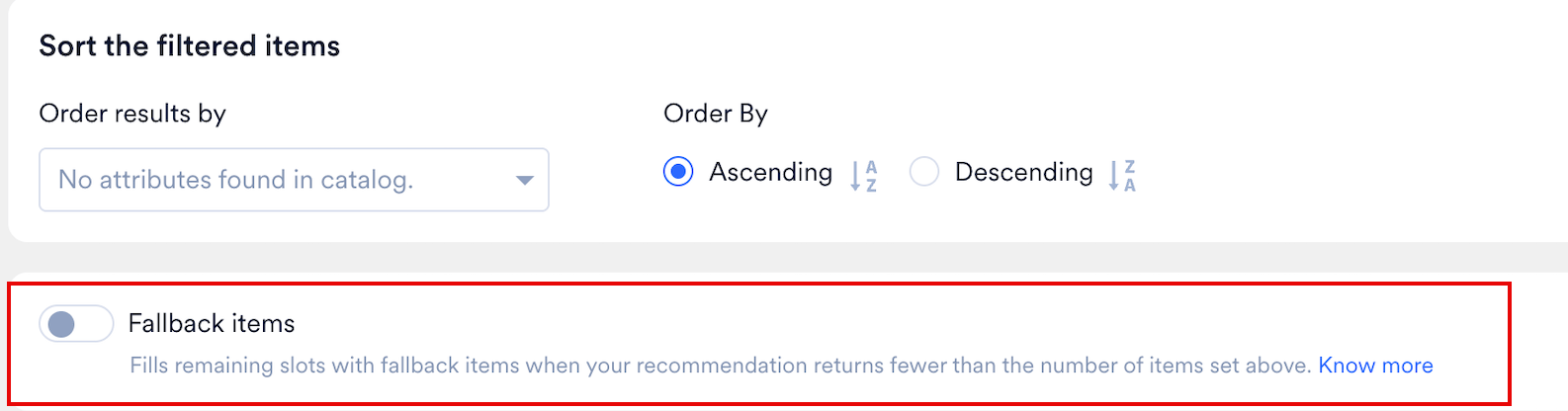 To configure fallback items, perform the following steps:
1. Open an existing recommendation, or create one:
* To add a fallback to a recommendation you already have, find it on the Recommendations page and click the edit icon under **Actions**.
* To create a new recommendation, follow the steps in [Creating Advanced Recommendations](/docs/user-guide/content/recommendations/advanced-recommendations/creating-advanced-recommendations) or in the article for the model you want.
2. Scroll to **Fallback items**, and then turn the **Fallback items** toggle on.
To configure fallback items, perform the following steps:
1. Open an existing recommendation, or create one:
* To add a fallback to a recommendation you already have, find it on the Recommendations page and click the edit icon under **Actions**.
* To create a new recommendation, follow the steps in [Creating Advanced Recommendations](/docs/user-guide/content/recommendations/advanced-recommendations/creating-advanced-recommendations) or in the article for the model you want.
2. Scroll to **Fallback items**, and then turn the **Fallback items** toggle on.
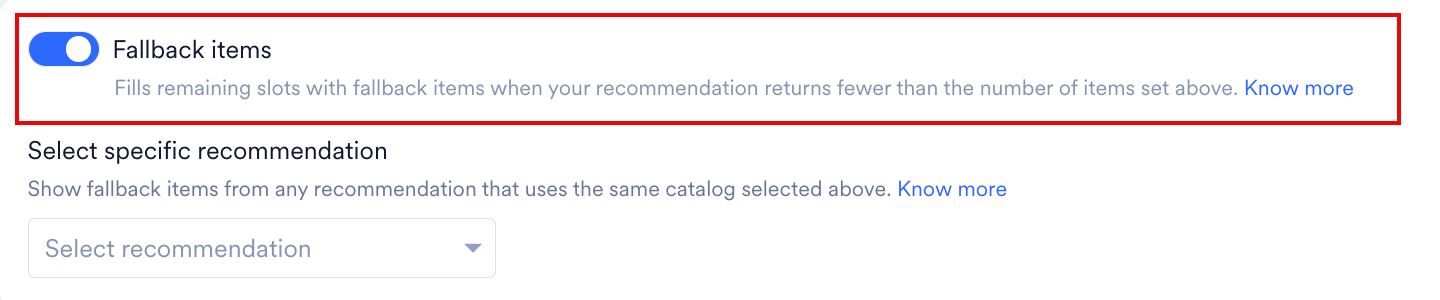 3. Select one of the following options:
* **Popular items**: MoEngage fills the empty slots with popular items. For more information, refer to [Popular Items](#popular-items).
* **Select specific recommendation**: MoEngage fills the empty slots with the items from a recommendation you choose. For more information, refer to [Specific Recommendation](#specific-recommendation).
3. Select one of the following options:
* **Popular items**: MoEngage fills the empty slots with popular items. For more information, refer to [Popular Items](#popular-items).
* **Select specific recommendation**: MoEngage fills the empty slots with the items from a recommendation you choose. For more information, refer to [Specific Recommendation](#specific-recommendation).
 4. Click **Save**.
## Popular Items
MoEngage fills the empty slots with popular items. Popular items do not depend on a user's history, so they return results for every user, including a new one.
4. Click **Save**.
## Popular Items
MoEngage fills the empty slots with popular items. Popular items do not depend on a user's history, so they return results for every user, including a new one.
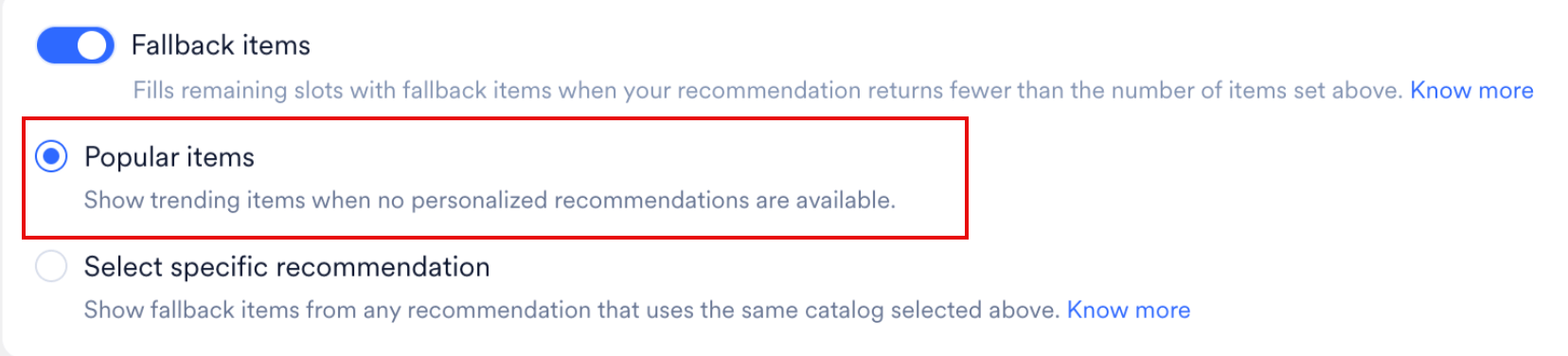 You can use this option only on the Recommended items, Similar items, Frequently bought together items, and Frequently viewed together items models. The User Actions, Item attributes, and Trending Items models offer only **Select specific recommendation**.
The option also needs at least one active Advanced recommendation in your workspace. Until you have one, MoEngage disables the option. Hover over it to view the reason.
You can use this option only on the Recommended items, Similar items, Frequently bought together items, and Frequently viewed together items models. The User Actions, Item attributes, and Trending Items models offer only **Select specific recommendation**.
The option also needs at least one active Advanced recommendation in your workspace. Until you have one, MoEngage disables the option. Hover over it to view the reason.
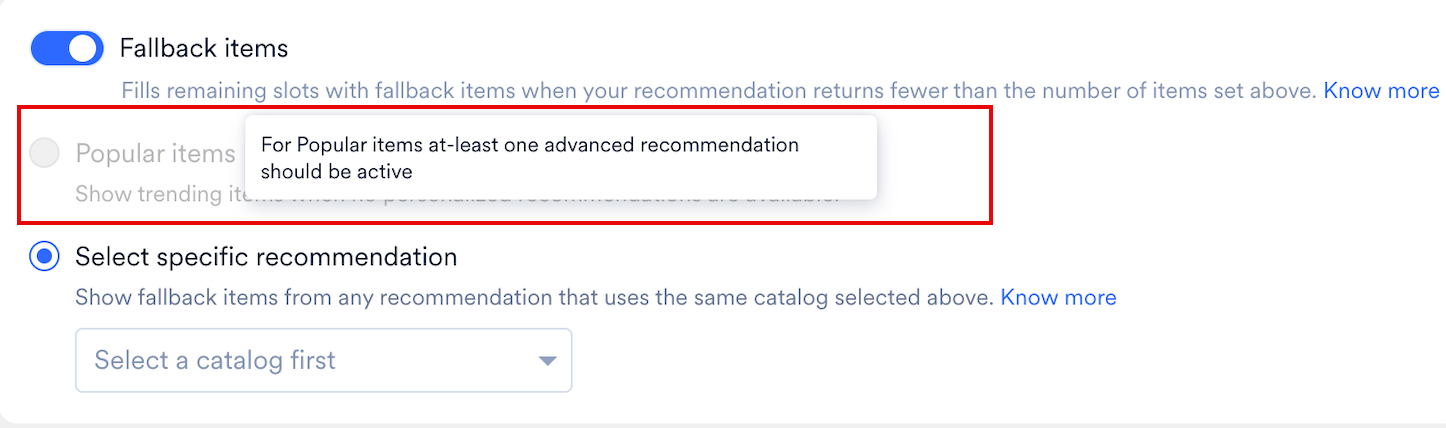 If your model does not offer popular items, or your workspace has no Advanced recommendation yet, choose a specific recommendation instead.
## Specific Recommendation
MoEngage fills the empty slots with the items from a recommendation you choose. Choose one that returns results for any user, such as a Trending Items recommendation, because a fallback that depends on user history can come back empty for the same users your recommendation already missed.
To choose a recommendation as the fallback, perform the following steps:
1. Click the **Select recommendation** box.
2. In the **Search to select** box, type the name of the recommendation you want.
3. Click the recommendation. Its description, the model it uses, and when someone last modified it appear on the right.
If your model does not offer popular items, or your workspace has no Advanced recommendation yet, choose a specific recommendation instead.
## Specific Recommendation
MoEngage fills the empty slots with the items from a recommendation you choose. Choose one that returns results for any user, such as a Trending Items recommendation, because a fallback that depends on user history can come back empty for the same users your recommendation already missed.
To choose a recommendation as the fallback, perform the following steps:
1. Click the **Select recommendation** box.
2. In the **Search to select** box, type the name of the recommendation you want.
3. Click the recommendation. Its description, the model it uses, and when someone last modified it appear on the right.
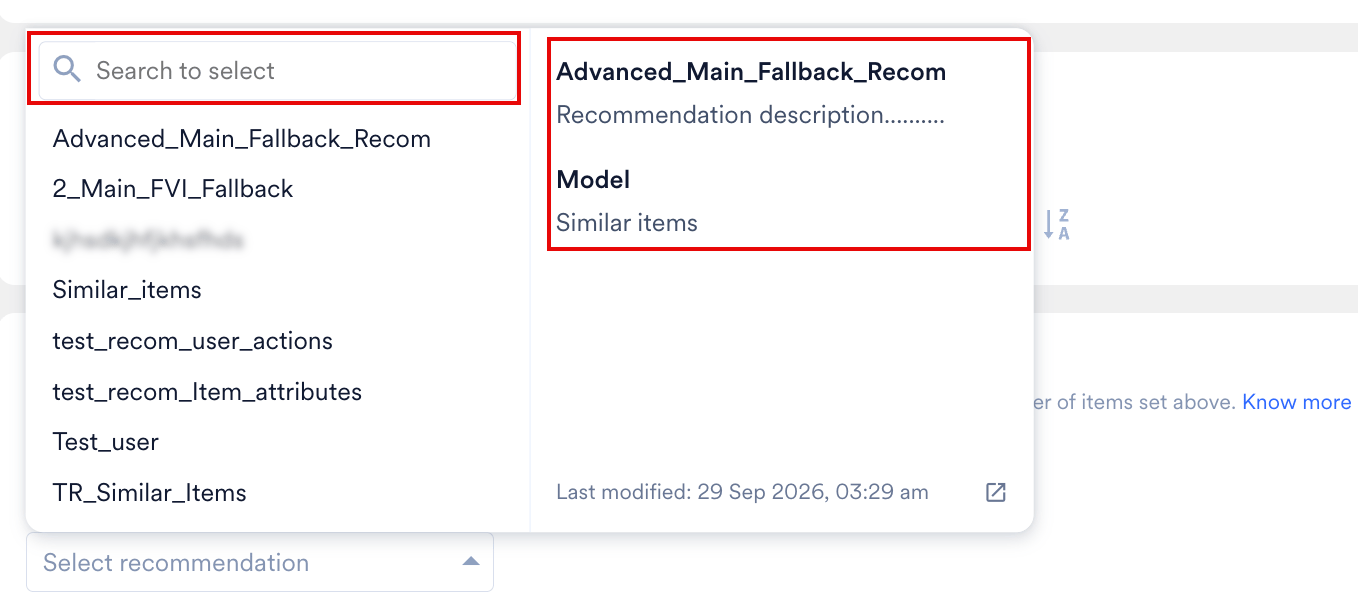 The list holds only the recommendations that:
* Use the same catalog as the recommendation you are configuring.
* Carry the Active status.
* Are not Catalog alerts recommendations.
# Test a Recommendation with Fallback Items
Test a recommendation to check whether its fallback fills the empty slots for a user. Run the test as described in [Test a Recommendation](/docs/user-guide/content/recommendations/getting-started/test-a-recommendation). In the result, the fallback appears under **Recommendation conditions** as **Fallback items**, with a checkbox named after the fallback you configured.
To check what the fallback contributes, perform one of the following actions:
* Select the checkbox to view the recommendation's own items and the fallback items together.
* Clear the checkbox to view only the items the recommendation returned.
The list holds only the recommendations that:
* Use the same catalog as the recommendation you are configuring.
* Carry the Active status.
* Are not Catalog alerts recommendations.
# Test a Recommendation with Fallback Items
Test a recommendation to check whether its fallback fills the empty slots for a user. Run the test as described in [Test a Recommendation](/docs/user-guide/content/recommendations/getting-started/test-a-recommendation). In the result, the fallback appears under **Recommendation conditions** as **Fallback items**, with a checkbox named after the fallback you configured.
To check what the fallback contributes, perform one of the following actions:
* Select the checkbox to view the recommendation's own items and the fallback items together.
* Clear the checkbox to view only the items the recommendation returned.
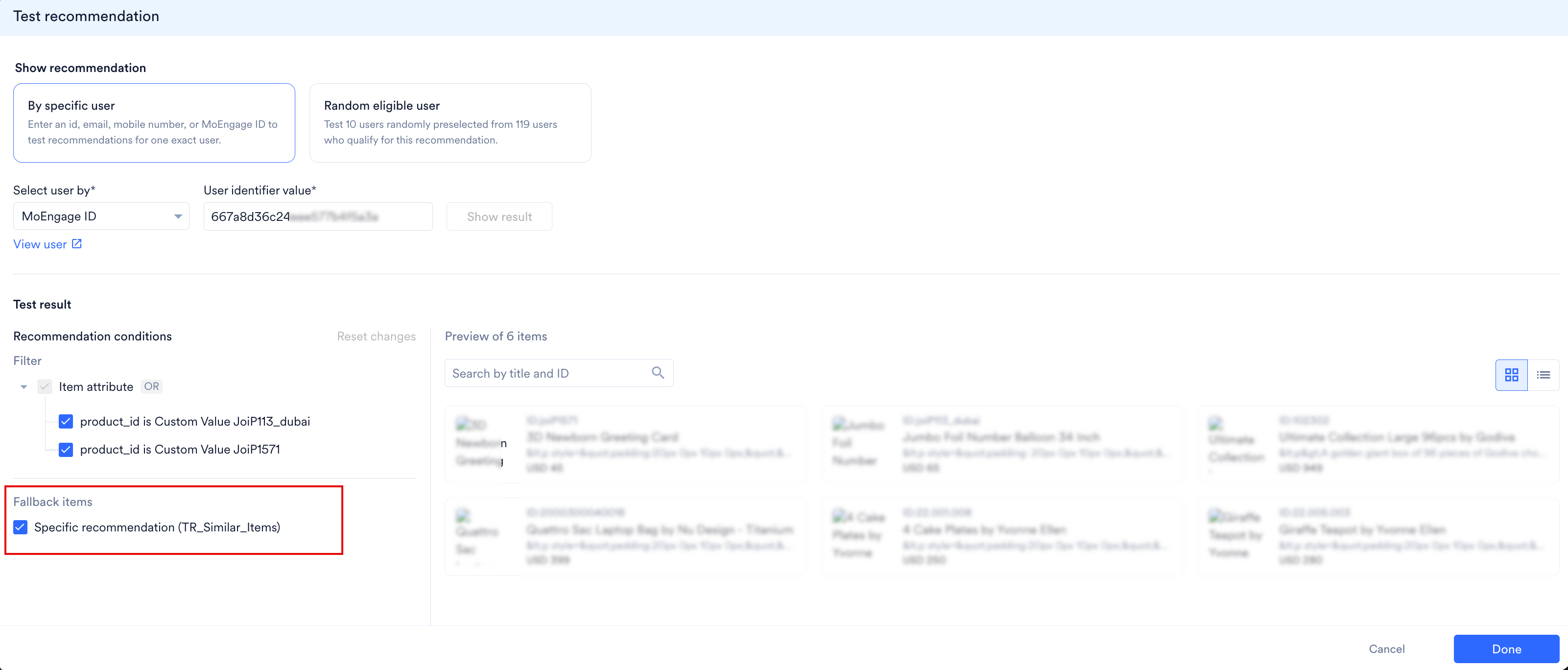 Compare the two results. The fallback added any item that appears only when you select the checkbox. If both results show the same items, the recommendation found enough items on its own.
# Change the Catalog on a Recommendation
A recommendation and its fallback must use the same catalog, so changing the catalog breaks any fallback link the recommendation is part of. MoEngage warns you when you pick the new catalog, and again when you save.
The first warning states a different message for each fallback link the recommendation has:
| The recommendation | What the dialog box states |
| - | - |
| Has a fallback | Changing the catalog removes that fallback, because both recommendations must use the same catalog. |
| Is the fallback for other recommendations | Changing the catalog removes it as their fallback. The dialog box lists them by name, with the status of each. |
| Both | Both messages. |
To change the catalog, perform the following steps:
1. Open the recommendation.
2. In the **Catalog** list, select the catalog you want to use. The **Are you sure you want to change the catalog for this recommendation?** confirmation dialog box appears.
Compare the two results. The fallback added any item that appears only when you select the checkbox. If both results show the same items, the recommendation found enough items on its own.
# Change the Catalog on a Recommendation
A recommendation and its fallback must use the same catalog, so changing the catalog breaks any fallback link the recommendation is part of. MoEngage warns you when you pick the new catalog, and again when you save.
The first warning states a different message for each fallback link the recommendation has:
| The recommendation | What the dialog box states |
| - | - |
| Has a fallback | Changing the catalog removes that fallback, because both recommendations must use the same catalog. |
| Is the fallback for other recommendations | Changing the catalog removes it as their fallback. The dialog box lists them by name, with the status of each. |
| Both | Both messages. |
To change the catalog, perform the following steps:
1. Open the recommendation.
2. In the **Catalog** list, select the catalog you want to use. The **Are you sure you want to change the catalog for this recommendation?** confirmation dialog box appears.
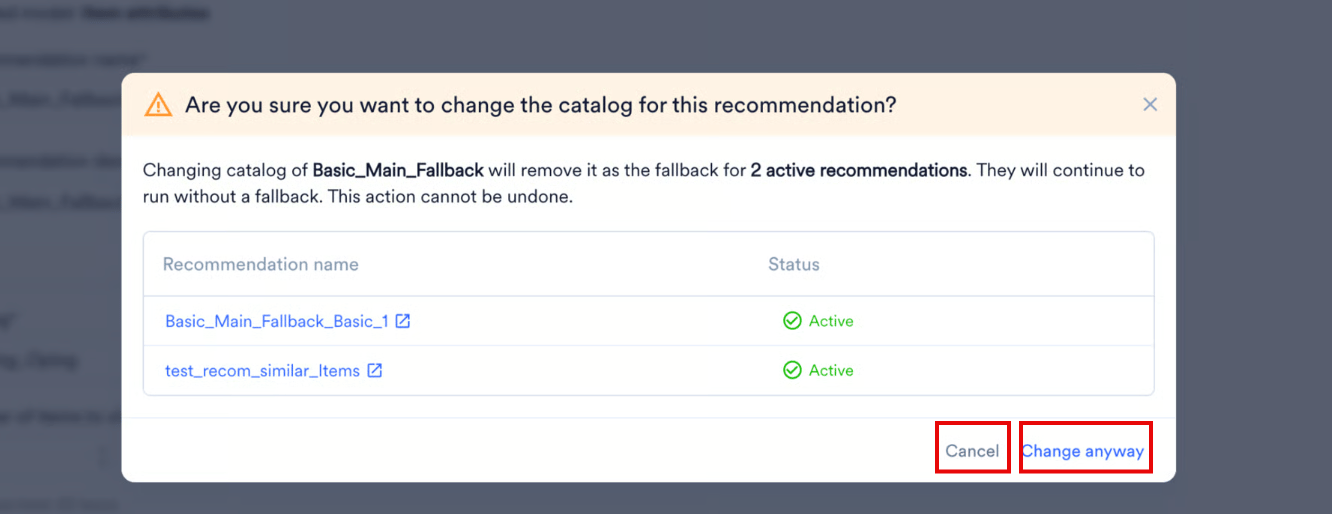 3. Perform one of the following actions:
* To change the catalog, click **Change anyway**.
* To keep the current catalog, click **Cancel**.
4. Scroll to **Fallback items**, and then select a fallback again.
5. Click **Save**. The **Are you sure you want to save this recommendation?** confirmation dialog box appears.
3. Perform one of the following actions:
* To change the catalog, click **Change anyway**.
* To keep the current catalog, click **Cancel**.
4. Scroll to **Fallback items**, and then select a fallback again.
5. Click **Save**. The **Are you sure you want to save this recommendation?** confirmation dialog box appears.
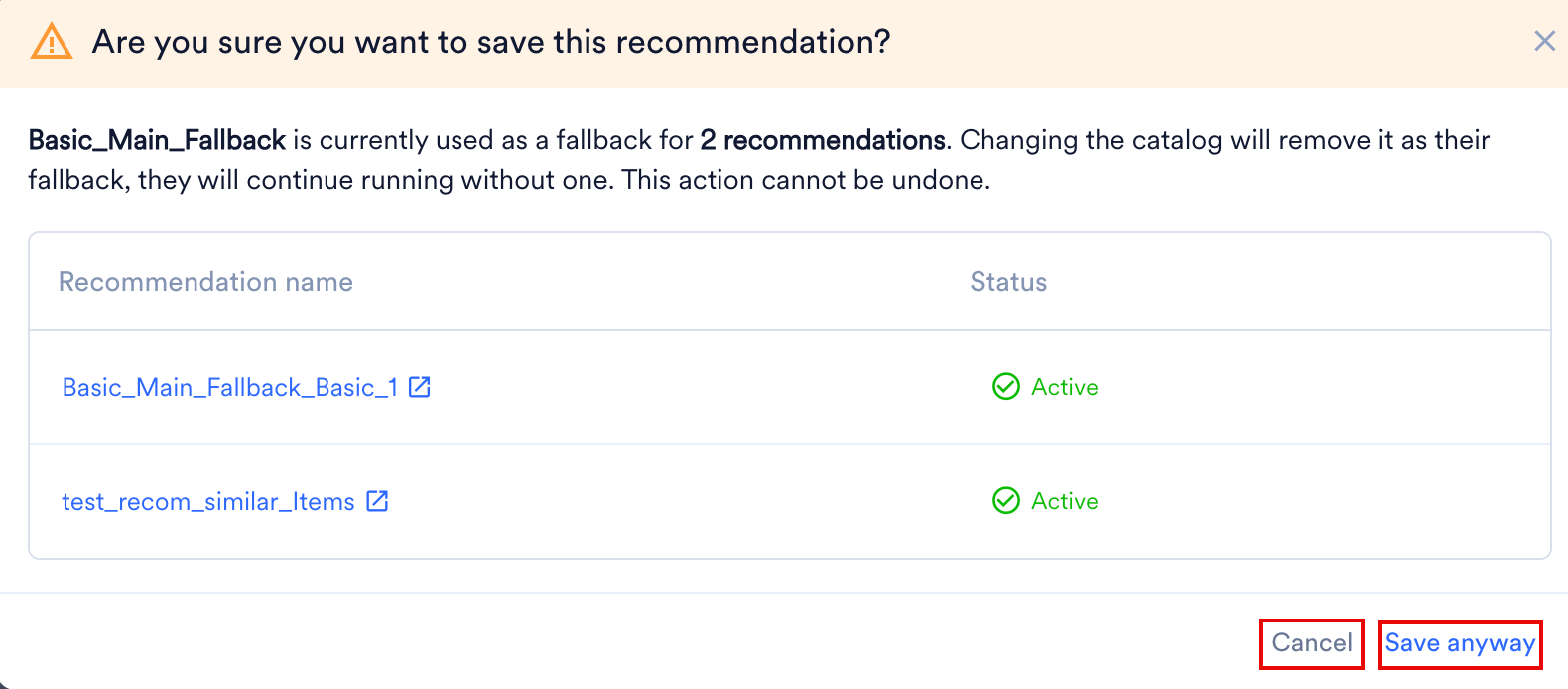 6. Click **Save anyway**.
MoEngage removes the fallbacks when you save, which is why it asks a second time. The recommendations that lose the fallback keep running without one, and you cannot undo this. Set a new fallback on each of them afterwards.
# Archive a Recommendation Used as a Fallback
An archived recommendation stops returning items, so it can no longer serve as a fallback. When you archive one, MoEngage removes it from every recommendation that was using it as a fallback.
To archive a recommendation that other recommendations use as their fallback, perform the following steps:
1. On the Recommendations page, click the archive icon under **Actions** for the recommendation. The **Are you sure you want to archive this recommendation?** confirmation dialog box appears.
6. Click **Save anyway**.
MoEngage removes the fallbacks when you save, which is why it asks a second time. The recommendations that lose the fallback keep running without one, and you cannot undo this. Set a new fallback on each of them afterwards.
# Archive a Recommendation Used as a Fallback
An archived recommendation stops returning items, so it can no longer serve as a fallback. When you archive one, MoEngage removes it from every recommendation that was using it as a fallback.
To archive a recommendation that other recommendations use as their fallback, perform the following steps:
1. On the Recommendations page, click the archive icon under **Actions** for the recommendation. The **Are you sure you want to archive this recommendation?** confirmation dialog box appears.
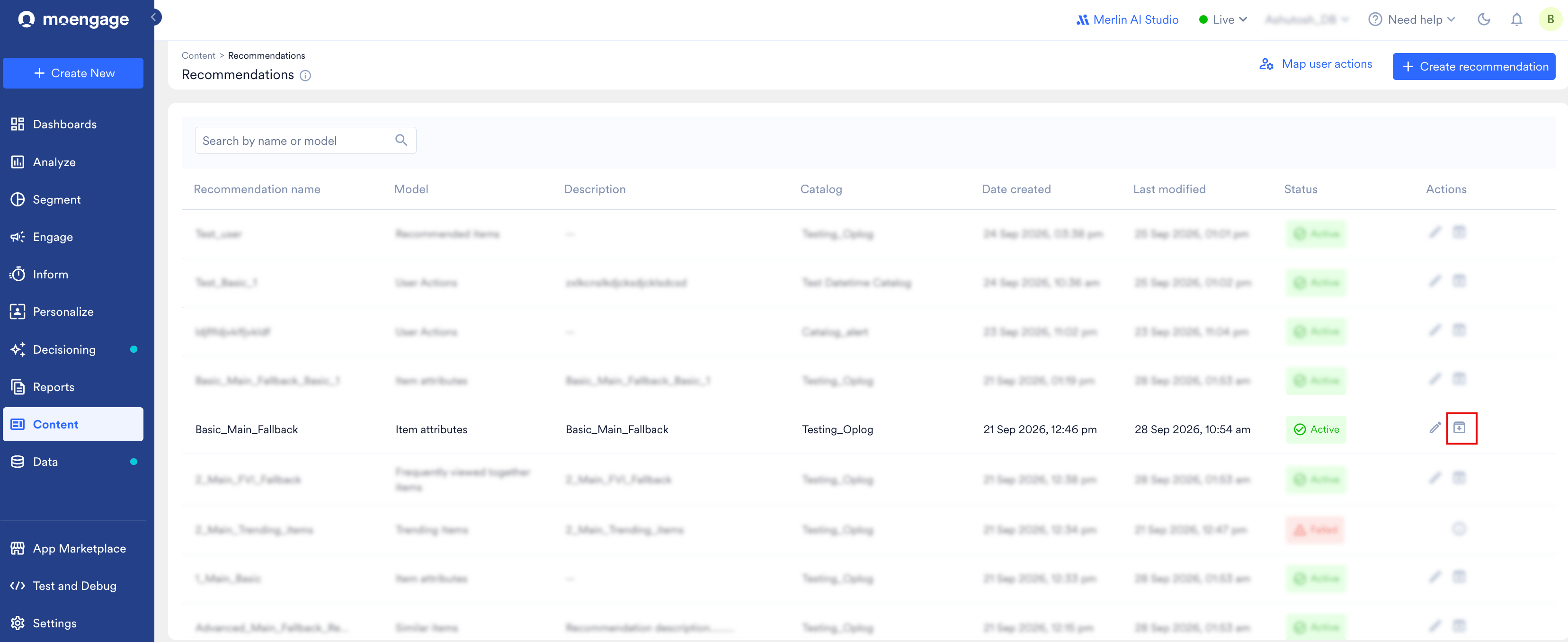 2. Perform one of the following actions:
* To archive the recommendation, click **Archive Anyway**.
* To leave the recommendation active, click **Cancel**.
2. Perform one of the following actions:
* To archive the recommendation, click **Archive Anyway**.
* To leave the recommendation active, click **Cancel**.
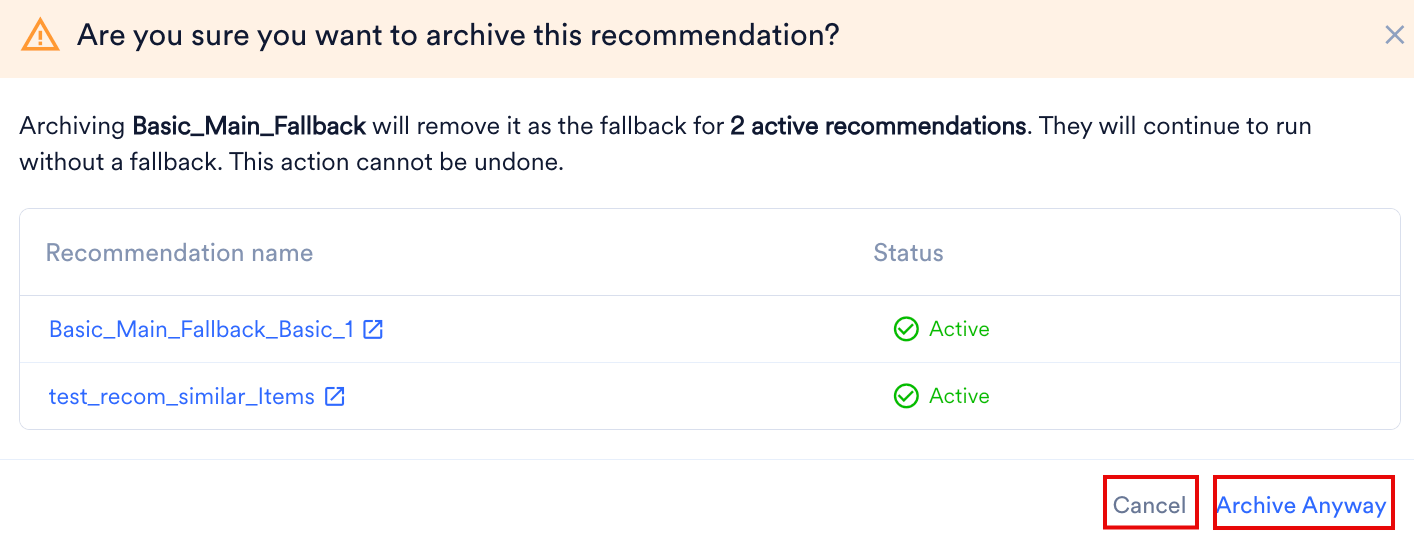 The dialog box lists every recommendation that uses this one as its fallback, with the status of each. After you archive, those recommendations keep running, but with no fallback. Open each one and select a new fallback. You cannot undo this.
A recommendation that nothing uses as a fallback shows the standard archive prompt instead. For more information, refer to [Manage Recommendations](/docs/user-guide/content/recommendations/basic-recommendations/manage-basic-recommendations).
# When Fallback Items Are Locked
Fallback items is part of Advanced Recommendations. If your workspace does not have Advanced Recommendations, the **Fallback items** section carries a **Locked** badge and you cannot turn the toggle on. The lock covers the whole workspace, so you find it on every recommendation, whichever model you use.
The dialog box lists every recommendation that uses this one as its fallback, with the status of each. After you archive, those recommendations keep running, but with no fallback. Open each one and select a new fallback. You cannot undo this.
A recommendation that nothing uses as a fallback shows the standard archive prompt instead. For more information, refer to [Manage Recommendations](/docs/user-guide/content/recommendations/basic-recommendations/manage-basic-recommendations).
# When Fallback Items Are Locked
Fallback items is part of Advanced Recommendations. If your workspace does not have Advanced Recommendations, the **Fallback items** section carries a **Locked** badge and you cannot turn the toggle on. The lock covers the whole workspace, so you find it on every recommendation, whichever model you use.
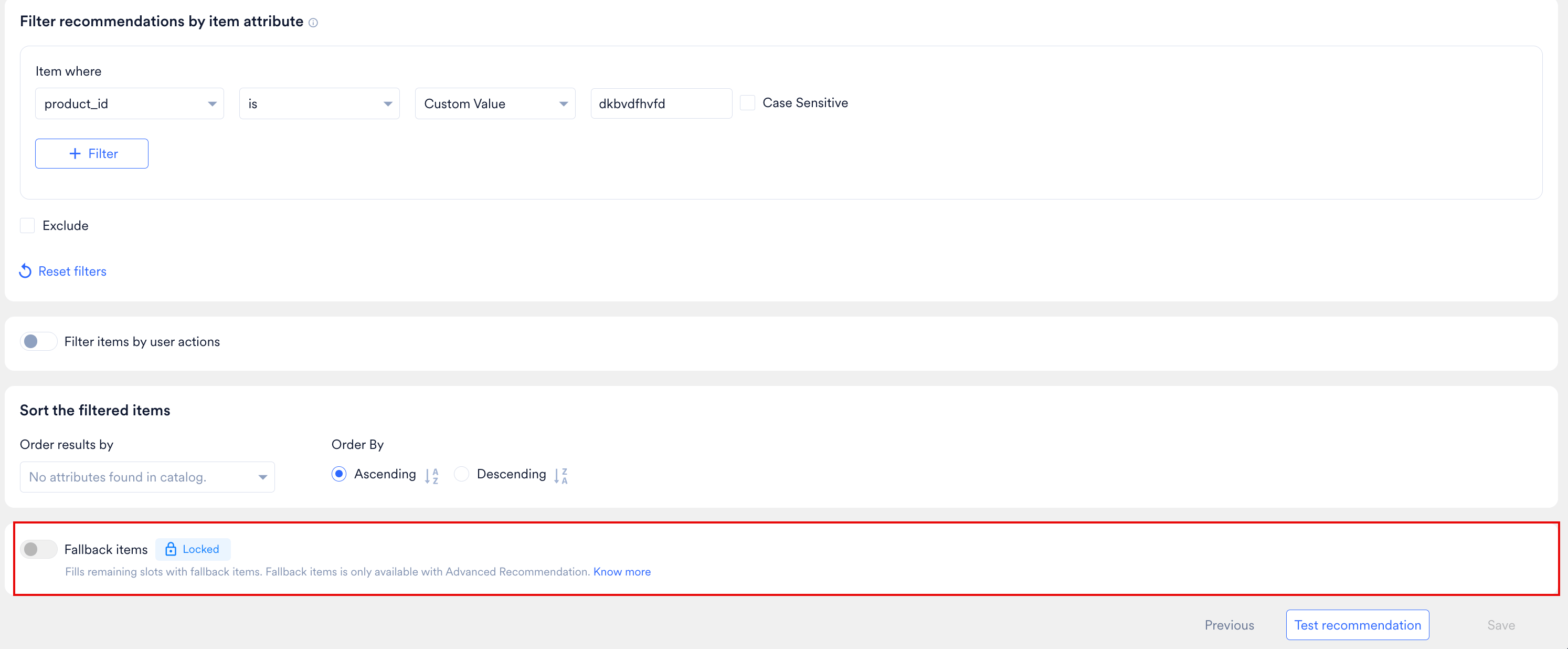 To add Advanced Recommendations to your workspace, contact your MoEngage CSM (customer success manager).
# Related Articles
* [Test a Recommendation](/docs/user-guide/content/recommendations/getting-started/test-a-recommendation)
* [Manage Recommendations](/docs/user-guide/content/recommendations/basic-recommendations/manage-basic-recommendations)
* [Creating Advanced Recommendations](/docs/user-guide/content/recommendations/advanced-recommendations/creating-advanced-recommendations)
To add Advanced Recommendations to your workspace, contact your MoEngage CSM (customer success manager).
# Related Articles
* [Test a Recommendation](/docs/user-guide/content/recommendations/getting-started/test-a-recommendation)
* [Manage Recommendations](/docs/user-guide/content/recommendations/basic-recommendations/manage-basic-recommendations)
* [Creating Advanced Recommendations](/docs/user-guide/content/recommendations/advanced-recommendations/creating-advanced-recommendations)