> ## Documentation Index
> Fetch the complete documentation index at: https://moengage.com/docs/llms.txt
> Use this file to discover all available pages before exploring further.
# Databricks Imports
> Bring user profiles and event data from Databricks into MoEngage. Configure the integration to import registered users, anonymous users, and events.
# Overview
MoEngage allows you to import users and events through tables in your Databricks databases.
# Types of Imports
MoEngage supports the following types of imports from your Databricks data warehouse:
* **Registered Users**: Users who are already registered on MoEngage.
* **Anonymous Users**: Users who are not yet registered on MoEngage.
* **Events** (standard and user-defined): MoEngage can import standard events like campaign interaction events and your user-defined events.
# Prepare the Data
MoEngage does not require a specific table schema for imports; all columns in the table can be skipped or mapped individually on the MoEngage dashboard. However, certain considerations must be addressed before configuring the imports.
When users configure periodic User Imports on MoEngage, MoEngage syncs data that has been changed since the last synchronization by referencing the updated\_at timestamp column. You can assign any name to this column as long as it accurately reflects the time of the data modification. If you're assigning this column by a different name in your table, you can configure this mapping separately on the MoEngage dashboard.
When you set up Event Imports on MoEngage, you must map a column containing the event's timestamp (date+time) in UTC. This column is used to sync the new events from the previous sync. If you have a different name for this column, you can also configure this mapping on the MoEngage dashboard.
To import standard MoEngage events, ensure that the event names in your table align with MoEngage standard event names.
# Required Access Permissions
MoEngage requires `READ` access to your database so that we can fetch data into MoEngage. You can grant the following permissions to an existing database user or create a new dedicated database user for MoEngage:
### Query 1 (Required)
`GRANT SELECT ON SCHEMA `catalog\_name`.`schema\_name`TO`[user@example.com](mailto:user@example.com)`;`
The query above grants the `SELECT` permission on all tables within the schema `schema\_name` in the catalog `catalog\_name` to the user with the email `user@example.com`.
Granting the `SELECT` permission enables MoEngage to perform the following actions within the schema:
* Read data from all tables within the schema.
* Execute `SELECT` queries on any table.
* View the contents of tables without the permission to modify the underlying data.
### Query 2 (Required)
`GRANT USE SCHEMA ON SCHEMA `catalog\_name`.`schema\_name`TO`[user@example.com](mailto:user@example.com)`;`
The query above grants the `USE SCHEMA` permission on all tables within the schema `schema\_name` in the catalog `catalog\_name` to the user with the email `user@example.com`.
The `USE SCHEMA` permission grants a user the ability to:
* Access and view the schema's metadata.
* Set the schema as their active working context (for example, using `USE
SCHEMA`).
* View the schema in schema listings.
* Utilize the schema name when referring to fully-qualified object names.
When you use both Query 1 and Query 2, the permissions function as follows:
* `USE SCHEMA`: This permission is required to access and reference the specified schema.
* `SELECT`: This permission allows data to be read from tables within that schema.
* Without the `USE SCHEMA` permission, a user cannot access the schema, even if they have `SELECT` permissions on its tables. [Query 2](/user-guide/data/imports/data-warehouses-imports/databricks-imports#required-access-permissions) explicitly grants the `USE SCHEMA` permission to enable schema access.
In all the queries provided, ensure you replace the following placeholder values with your specific details:
* ``: The name of your catalog.
* ``: The name of your database/schema.
* ``: The email ID of the user who created the token.
## Import Datetype Attributes
Importing Datetype attributes requires additional steps. For more information, refer [here](/user-guide/data/imports/data-warehouses-imports/import-datetime-attributes).
# Set Up Imports from Databricks
Prerequisites
* Ensure you have an existing Databricks connection setup in the MoEngage App Marketplace with relevant permissions.
* If your security policies require you to whitelist our IPs, you can refer to [here](/user-guide/settings/account/security/ip-whitelisting-in-moengage).
* Support for [Object Data Type](/user-guide/data/key-concepts/support-for-object-data-type) needs to be enabled for your account - Optional.
To set up Databricks Imports, perform the following steps:
1. On the sidebar menu in MoEngage, hover over the Data menu item
 . The **Data** menu appears.
2. Click **Data imports**.
. The **Data** menu appears.
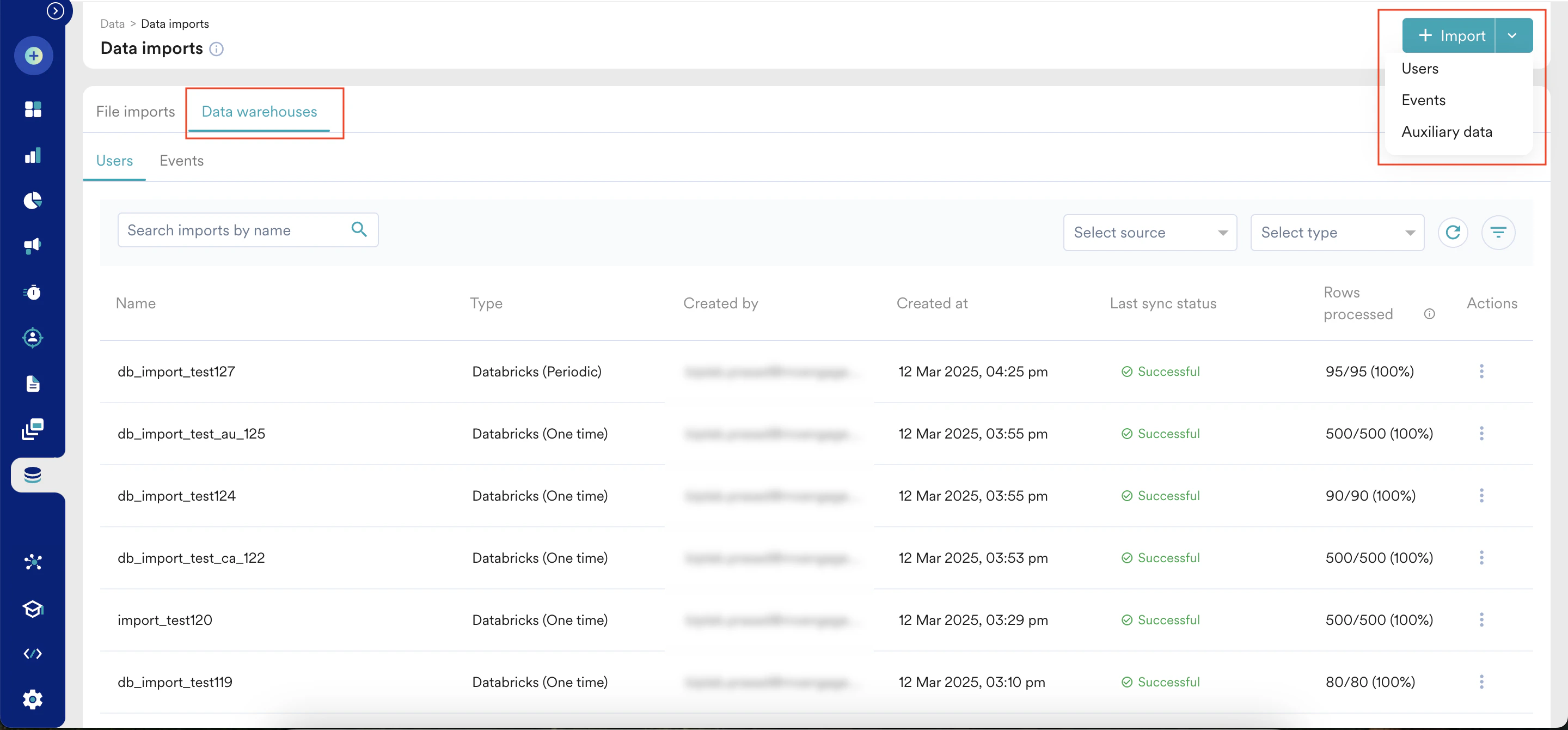
2. Click **Data imports**. 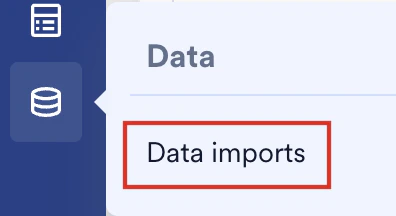 3. On the **Data imports** page, click the **Data warehouses** tab.
4. Click **+ Import** in the upper-right corner and select **Users** or **Events** to create a new import.
3. On the **Data imports** page, click the **Data warehouses** tab.
4. Click **+ Import** in the upper-right corner and select **Users** or **Events** to create a new import.
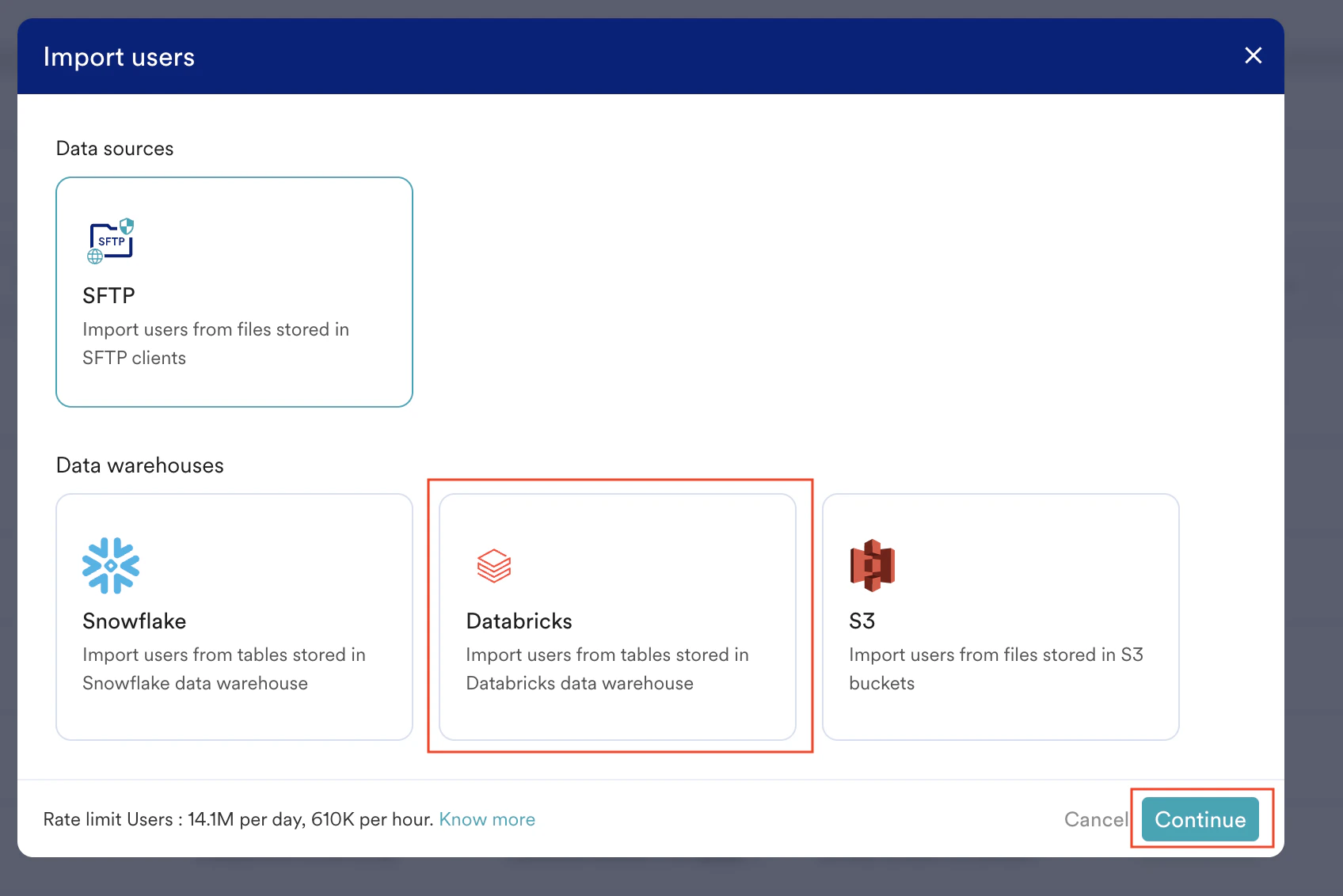
 5. Click the **Databricks** tile.
6. Click **Continue**.
5. Click the **Databricks** tile.
6. Click **Continue**.
 ## Step 1: Select Your Databricks Connection and Table Source
### Import Name
## Step 1: Select Your Databricks Connection and Table Source
### Import Name
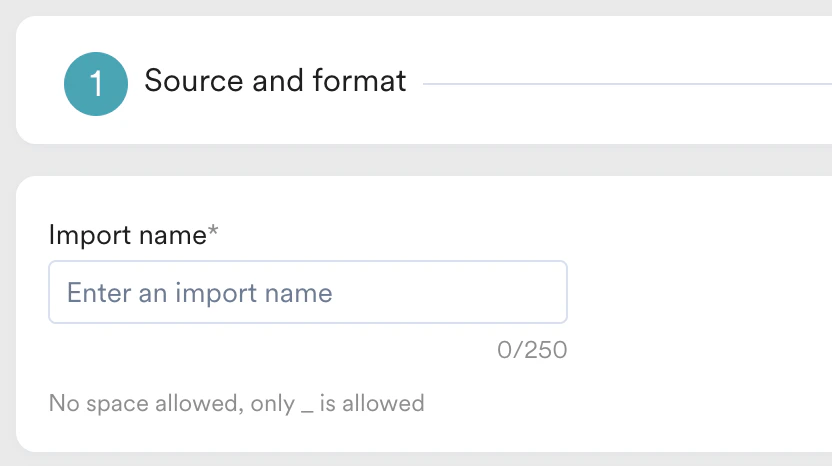 Enter a name for this import to identify it on the Imports Dashboard easily. Based on the type of import selected, your next steps might vary:
You can now select whether to import Registered users or Anonymous users. You can also choose to import both together:
Enter a name for this import to identify it on the Imports Dashboard easily. Based on the type of import selected, your next steps might vary:
You can now select whether to import Registered users or Anonymous users. You can also choose to import both together:
.png?fit=max&auto=format&n=ug1DZn3QSotOzs8r&q=85&s=05df7939a46afdf1d10559814be4b341) For Event imports, you can select which event it is that you want to import:
For Event imports, you can select which event it is that you want to import:
.png?fit=max&auto=format&n=ug1DZn3QSotOzs8r&q=85&s=17b8c70bb9142590ba48c4a4176cb12c) You can either select an existing event or create a new one. If you have multiple events stored in a single table, MoEngage determines matching rows to import based on the **Event Name** column. The value of the **Event name** column is determined by the event you pick. Some of these events might have different **Display name** and **Event name**. You can always view the event information on the [Data Management](/user-guide/settings/data-management/overview-data-management#usage)
You can either select an existing event or create a new one. If you have multiple events stored in a single table, MoEngage determines matching rows to import based on the **Event Name** column. The value of the **Event name** column is determined by the event you pick. Some of these events might have different **Display name** and **Event name**. You can always view the event information on the [Data Management](/user-guide/settings/data-management/overview-data-management#usage)
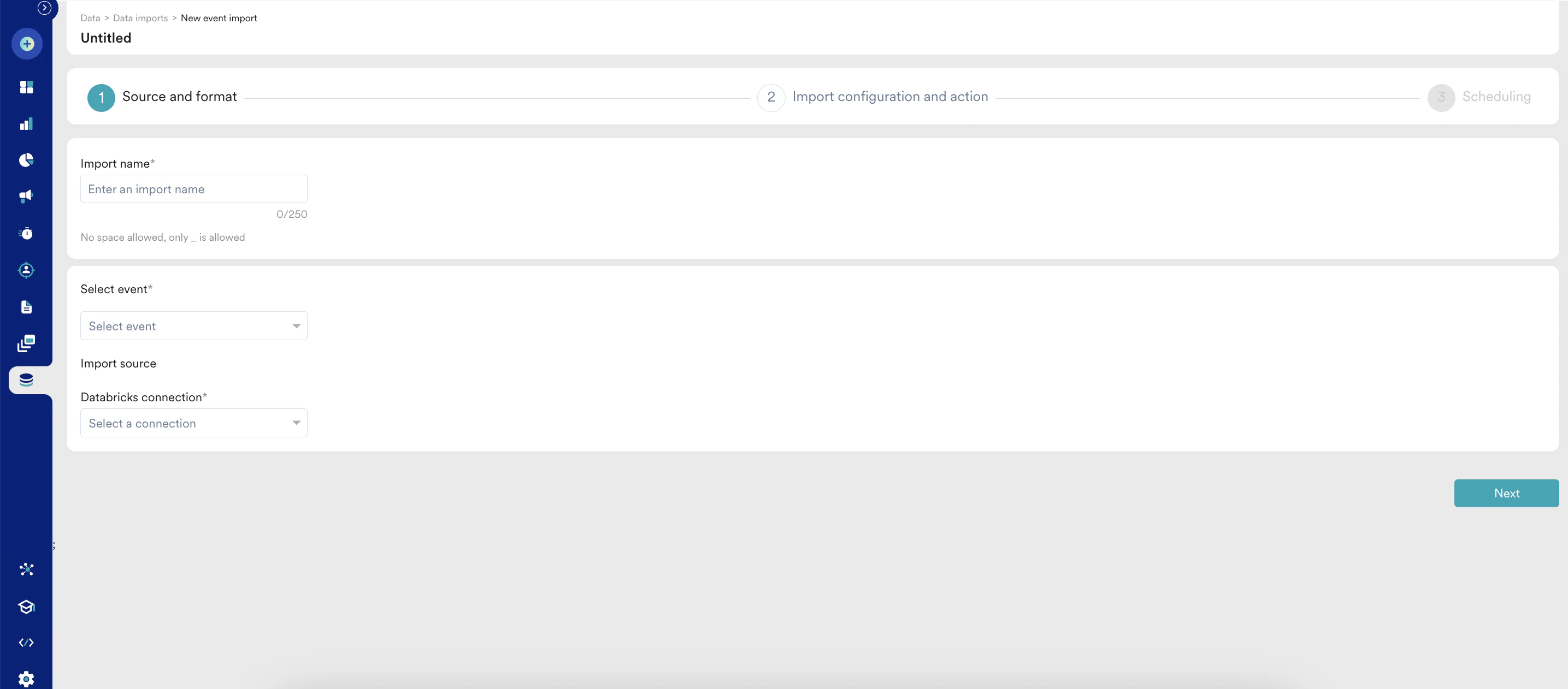 page. For example, the event **App/Site Opened** must have the value of the **Event name** column as `MOE\_APP\_OPENED`:
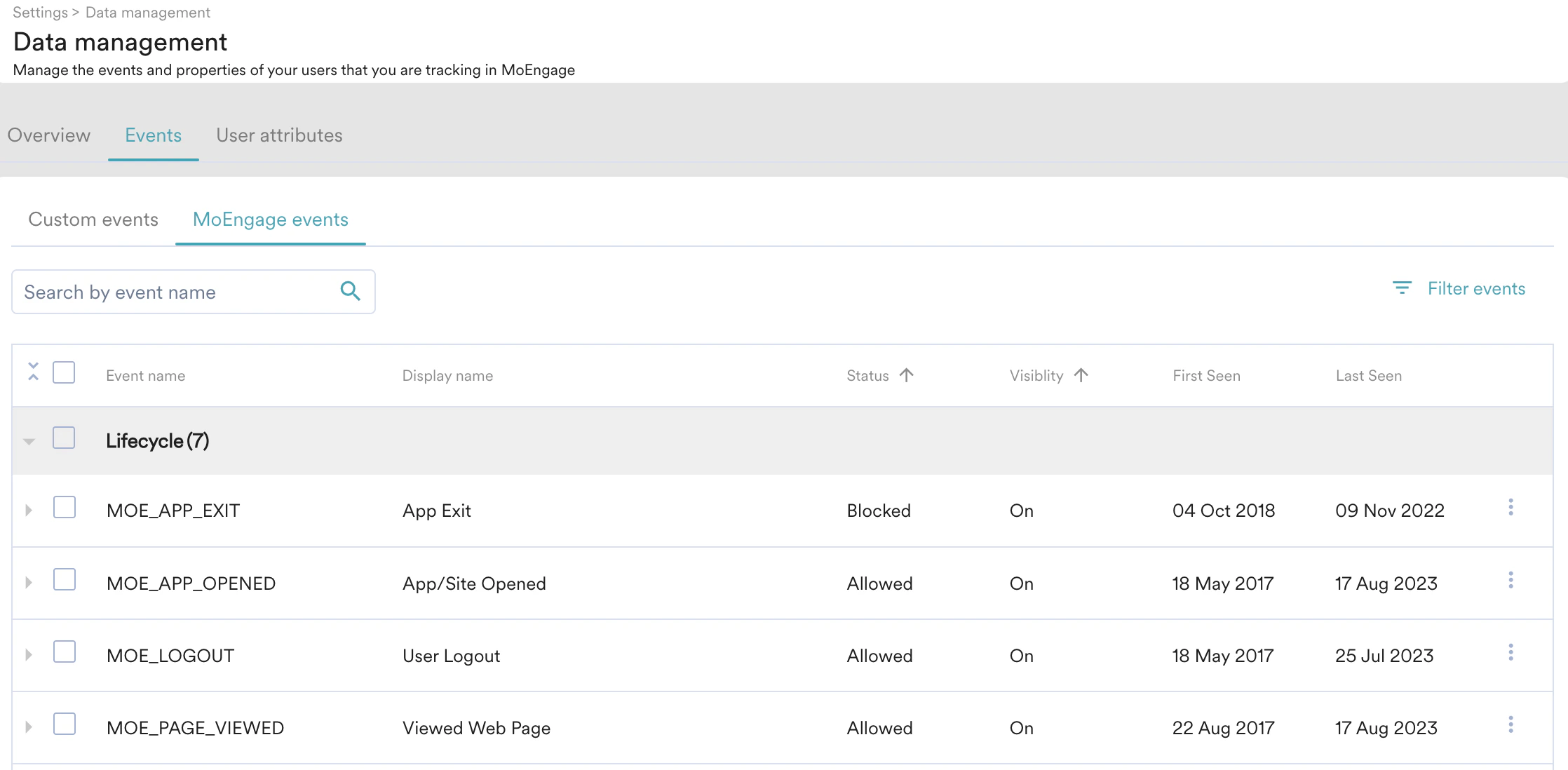 To create a new event, perform the following steps:
1. Click the **+ Create event** at the end of the **Select event** list. The Create new event dialog box is displayed.
2. In the **Event name** box, type a unique name for your event. By default, your Display Name will be the same as the Event Name.
To create a new event, perform the following steps:
1. Click the **+ Create event** at the end of the **Select event** list. The Create new event dialog box is displayed.
2. In the **Event name** box, type a unique name for your event. By default, your Display Name will be the same as the Event Name.
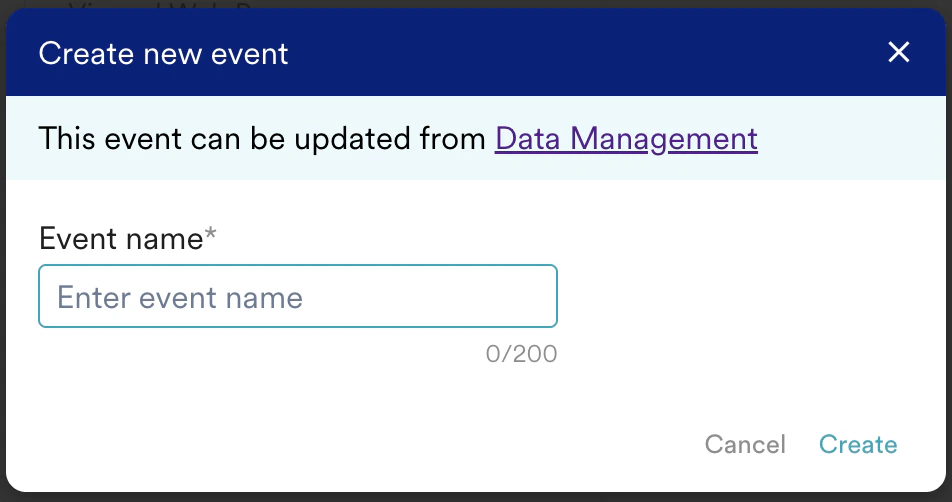 You can go to the [Data Management](/user-guide/settings/data-management/overview-data-management#volume) page to view or edit this event and your other MoEngage events.
The newly created events do not appear on the **Data Management** page until the initial import is successful.
### Import Source
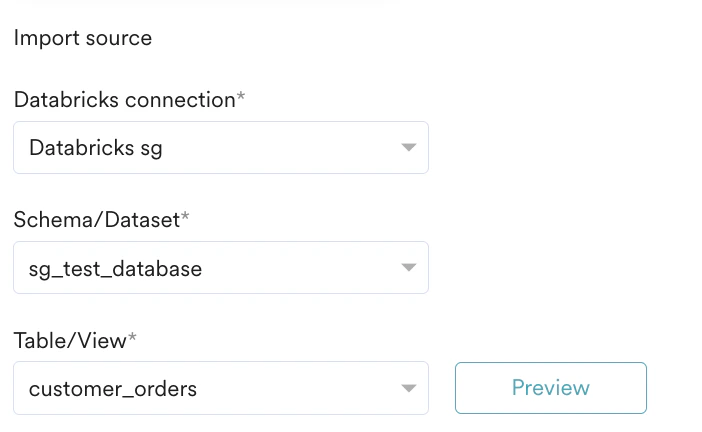
In this first step, **Source and format**, you must specify MoEngage, which Databricks connection to use, and the table from which to import. To get started, perform the following steps:
1. In the **Databricks connection** list, select a connection to use for this Import. If you have not already created a Databricks connection, click **+ Add connection** at the end of the Databricks connection list, and you will be redirected to the App Marketplace to set it up. You can learn more about connecting your Databricks warehouse to MoEngage [here](https://partners.moengage.com/hc/en-us/articles/35576430608916-Databricks?_gl=1*59mm86*_ga*MTI4NzU1MDQ5My4xNzcwOTY5MjE3*_ga_SEBHW7YTZ7*czE3NzU1NDMxNzckbzQ5JGcxJHQxNzc1NTU5MjQxJGo2MCRsMCRoMA).
You can go to the [Data Management](/user-guide/settings/data-management/overview-data-management#volume) page to view or edit this event and your other MoEngage events.
The newly created events do not appear on the **Data Management** page until the initial import is successful.
### Import Source
In this first step, **Source and format**, you must specify MoEngage, which Databricks connection to use, and the table from which to import. To get started, perform the following steps:
1. In the **Databricks connection** list, select a connection to use for this Import. If you have not already created a Databricks connection, click **+ Add connection** at the end of the Databricks connection list, and you will be redirected to the App Marketplace to set it up. You can learn more about connecting your Databricks warehouse to MoEngage [here](https://partners.moengage.com/hc/en-us/articles/35576430608916-Databricks?_gl=1*59mm86*_ga*MTI4NzU1MDQ5My4xNzcwOTY5MjE3*_ga_SEBHW7YTZ7*czE3NzU1NDMxNzckbzQ5JGcxJHQxNzc1NTU5MjQxJGo2MCRsMCRoMA). 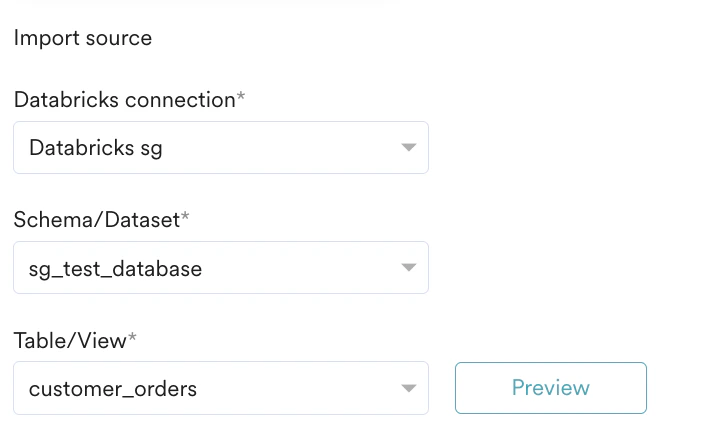 2. After you have selected your Databricks connection, the **Schema/Dataset** and **Table/View** lists are displayed.
3. In the **Schema/Dataset**, select the schema/dataset. **Note**: Ensure that MoEngage has been granted the necessary permissions detailed in the Prerequisites if your schemas are loading incorrectly.
4. In the **Table/View** list, select table/view to import data from.
2. After you have selected your Databricks connection, the **Schema/Dataset** and **Table/View** lists are displayed.
3. In the **Schema/Dataset**, select the schema/dataset. **Note**: Ensure that MoEngage has been granted the necessary permissions detailed in the Prerequisites if your schemas are loading incorrectly.
4. In the **Table/View** list, select table/view to import data from.
 ### Event Imports
In addition to the above steps, MoEngage provides additional support for tables containing multiple events. If your table contains multiple events, you must first **Preview** the table and then select the **Table contains multiple events** check box.
### Event Imports
In addition to the above steps, MoEngage provides additional support for tables containing multiple events. If your table contains multiple events, you must first **Preview** the table and then select the **Table contains multiple events** check box.
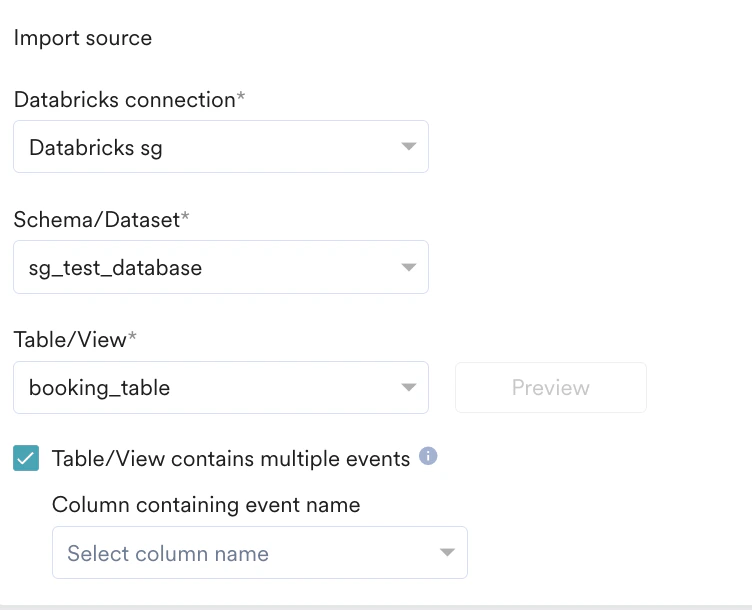 MoEngage uses the values of the **Event name** column to filter out rows that need to be imported. It imports only those rows that match the selected event name. You can designate an existing column in your table as the event name column. After selecting this column and previewing the data again, filtered rows are displayed for your review before proceeding with the import:
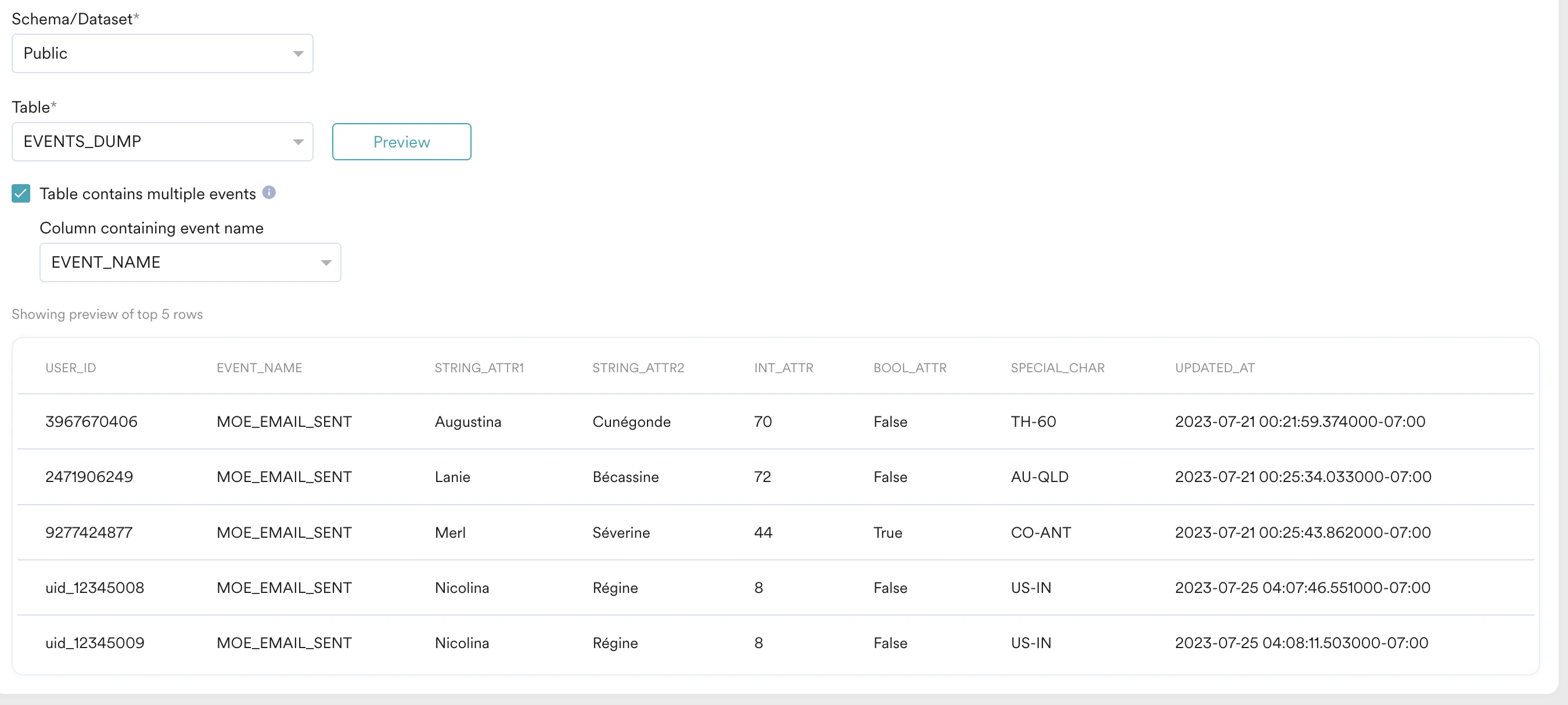 After you preview your table, you will move to the second step, **Import configuration and action**.
## Step 2: Map Your Columns to MoEngage Attributes
In this step, you need to map the columns of your table to the attributes present in MoEngage. All your columns are shown one below the other:
After you preview your table, you will move to the second step, **Import configuration and action**.
## Step 2: Map Your Columns to MoEngage Attributes
In this step, you need to map the columns of your table to the attributes present in MoEngage. All your columns are shown one below the other:
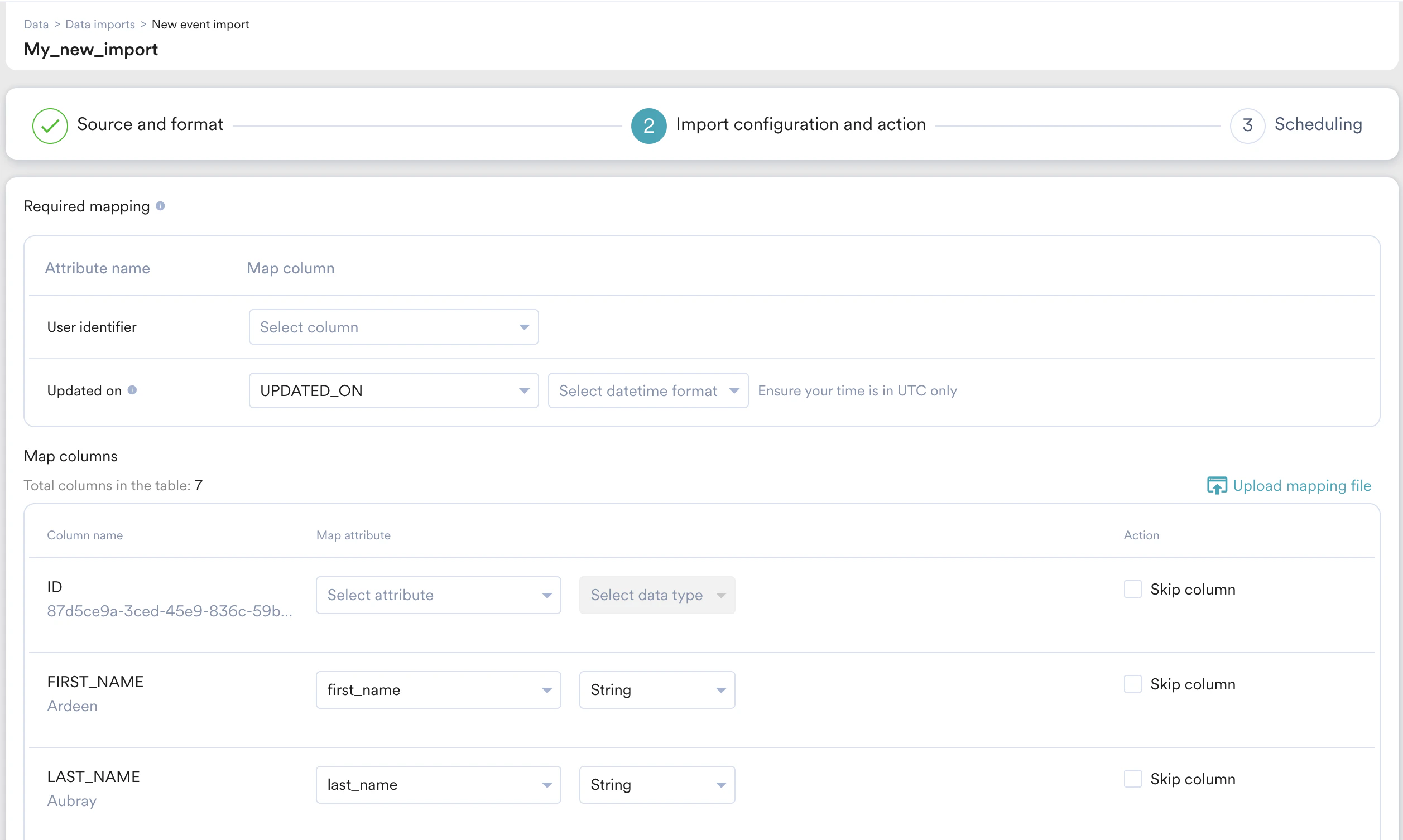 1. **Column name**: This specifies the column name to be mapped. Below the column name, MoEngage also displays a sample value (picked from the first row of the fetched table in the previous step) for your reference.
2. **Map attribute**: This specifies the MoEngage attribute you want to map the table column to. You can also choose to create a new attribute. Some attributes support ingestion from multiple data types, so you need to pick the column's data type as well. For the **datetime** columns, you must pick the format. For more information, refer [here](/user-guide/data/imports/overview/overview-imports).
3. **Action**: You can optionally choose to skip the column. The skipped column will not be imported.
Depending on the type of import, there are a few mandatory mappings required:
| Mapping | Description |
| ---------- | --------------------------------------------------------------------------------------------------------------------------------------------------------------------------------------------------------------------------------------------------------------------------------------------------------------------------------------------------------- |
| User ID | In your table, include a column with a unique user identifier, which is essential for identifying user accounts within your system. |
| Updated at | MoEngage uses this column to determine which rows have been added/updated since the last sync. You must ensure that this timestamp (date+time) is in UTC Timezone. The column type for this should be `TIMESTAMP`. For the complete list of supported **datetime** formats, refer to this [section](/user-guide/data/imports/overview/overview-imports). |
| Mapping | Description |
| ------------ | --------------------------------------------------------------------------------------------------------------------------------------------------------------------------------------------------------------------------------------------------------------------------------------------------------------------------------------------------------- |
| Anonymous ID | You need to mark a column from your table (email, mobile number, etc.) as an identifier of these users. |
| Updated at | MoEngage uses this column to determine which rows have been added/updated since the last sync. You must ensure that this timestamp (date+time) is in UTC Timezone. The column type for this should be `TIMESTAMP`. For the complete list of supported **datetime** formats, refer to this [section](/user-guide/data/imports/overview/overview-imports). |
| Mapping | Description |
| ------------ | ------------------------------------------------------------------------------------------------------------------------------------------------------------------------------------------------------------------------------------------------------------------------------------------------------------------------------------------------------------ |
| User ID | Your table must have a column containing a unique user identifier (that identifies a user's account in your system). Any user with an empty user ID automatically gets imported as an anonymous user. |
| Anonymous ID | You must mark a column from your table (email, mobile number, etc.) as an identifier of these users. |
| Updated at | MoEngage will use this column to determine which rows have been added/updated since the last sync. You need to ensure that this timestamp (date+time) is in UTC Timezone. The column type for this should be `TIMESTAMP`. For the complete list of supported datetime formats, refer to this [section](/user-guide/data/imports/overview/overview-imports). |
| Mapping | Description |
| ---------- | ---------------------------------------------------------------------------------------------------------------------------------------------------------------------------------------------------------------------------------------------------------------------------------------------------------------------------------------------------------------------------------------------------------------------------------------------------------------------------------------------------------------------------------------------------------------------------------------------------------------------------------------------------------------------------------------------------------------------------------------------------------------------------------------------------------------------------------------------------------------------------------------------------------------------------------------------------------------------------------------------------------------------------------------------------------------------------------------------------------------------------------------------------------------------------------------------------------------------------------------------------------------------------------------------------------------------------------------------------------------------------------------------------------------------------------------------------------------------------------------------------------------------------------------------------------------------------------------------------------------------------------------------------------------------------------------------------------------------------------------------------------------------------- |
| User ID | This column matches MoEngage user IDs to your events. |
| Event time | Map the column that contains the timestamp (date + time) of when the event occurred. MoEngage uses this column to sync new events. Ensure that this timestamp (date + time) is in the UTC time zone. The column type must be `TIMESTAMP`. The *Event Time* of the imported event will be converted to the timezone chosen in your MoEngage dashboard settings. For a complete list of supported datetime formats, refer to this
1. **Column name**: This specifies the column name to be mapped. Below the column name, MoEngage also displays a sample value (picked from the first row of the fetched table in the previous step) for your reference.
2. **Map attribute**: This specifies the MoEngage attribute you want to map the table column to. You can also choose to create a new attribute. Some attributes support ingestion from multiple data types, so you need to pick the column's data type as well. For the **datetime** columns, you must pick the format. For more information, refer [here](/user-guide/data/imports/overview/overview-imports).
3. **Action**: You can optionally choose to skip the column. The skipped column will not be imported.
Depending on the type of import, there are a few mandatory mappings required:
| Mapping | Description |
| ---------- | --------------------------------------------------------------------------------------------------------------------------------------------------------------------------------------------------------------------------------------------------------------------------------------------------------------------------------------------------------- |
| User ID | In your table, include a column with a unique user identifier, which is essential for identifying user accounts within your system. |
| Updated at | MoEngage uses this column to determine which rows have been added/updated since the last sync. You must ensure that this timestamp (date+time) is in UTC Timezone. The column type for this should be `TIMESTAMP`. For the complete list of supported **datetime** formats, refer to this [section](/user-guide/data/imports/overview/overview-imports). |
| Mapping | Description |
| ------------ | --------------------------------------------------------------------------------------------------------------------------------------------------------------------------------------------------------------------------------------------------------------------------------------------------------------------------------------------------------- |
| Anonymous ID | You need to mark a column from your table (email, mobile number, etc.) as an identifier of these users. |
| Updated at | MoEngage uses this column to determine which rows have been added/updated since the last sync. You must ensure that this timestamp (date+time) is in UTC Timezone. The column type for this should be `TIMESTAMP`. For the complete list of supported **datetime** formats, refer to this [section](/user-guide/data/imports/overview/overview-imports). |
| Mapping | Description |
| ------------ | ------------------------------------------------------------------------------------------------------------------------------------------------------------------------------------------------------------------------------------------------------------------------------------------------------------------------------------------------------------ |
| User ID | Your table must have a column containing a unique user identifier (that identifies a user's account in your system). Any user with an empty user ID automatically gets imported as an anonymous user. |
| Anonymous ID | You must mark a column from your table (email, mobile number, etc.) as an identifier of these users. |
| Updated at | MoEngage will use this column to determine which rows have been added/updated since the last sync. You need to ensure that this timestamp (date+time) is in UTC Timezone. The column type for this should be `TIMESTAMP`. For the complete list of supported datetime formats, refer to this [section](/user-guide/data/imports/overview/overview-imports). |
| Mapping | Description |
| ---------- | ---------------------------------------------------------------------------------------------------------------------------------------------------------------------------------------------------------------------------------------------------------------------------------------------------------------------------------------------------------------------------------------------------------------------------------------------------------------------------------------------------------------------------------------------------------------------------------------------------------------------------------------------------------------------------------------------------------------------------------------------------------------------------------------------------------------------------------------------------------------------------------------------------------------------------------------------------------------------------------------------------------------------------------------------------------------------------------------------------------------------------------------------------------------------------------------------------------------------------------------------------------------------------------------------------------------------------------------------------------------------------------------------------------------------------------------------------------------------------------------------------------------------------------------------------------------------------------------------------------------------------------------------------------------------------------------------------------------------------------------------------------------------------- |
| User ID | This column matches MoEngage user IDs to your events. |
| Event time | Map the column that contains the timestamp (date + time) of when the event occurred. MoEngage uses this column to sync new events. Ensure that this timestamp (date + time) is in the UTC time zone. The column type must be `TIMESTAMP`. The *Event Time* of the imported event will be converted to the timezone chosen in your MoEngage dashboard settings. For a complete list of supported datetime formats, refer to this  . |
| Updated on | MoEngage uses this column to determine which rows were added or updated since the last sync. Use this column to import backdated events or manage delays in upstream pipelines. Ensure that this timestamp (date and time) uses the UTC time zone. If you do not have this column, select *Use same as Event time*. The column type must be `TIMESTAMP`.
. |
| Updated on | MoEngage uses this column to determine which rows were added or updated since the last sync. Use this column to import backdated events or manage delays in upstream pipelines. Ensure that this timestamp (date and time) uses the UTC time zone. If you do not have this column, select *Use same as Event time*. The column type must be `TIMESTAMP`.
For the complete list of supported datetime formats, refer to this [section](/user-guide/data/imports/overview/overview-imports). |
After a mandatory mapping is marked, it will reflect against the column name in the mapping table, and you can no longer mark the column as skippable.
Just like new events, you can also create a new user attribute. To do so:
1. Click **+ Create attribute** available in the **Select attribute** list. The Create new attribute dialog box is displayed.
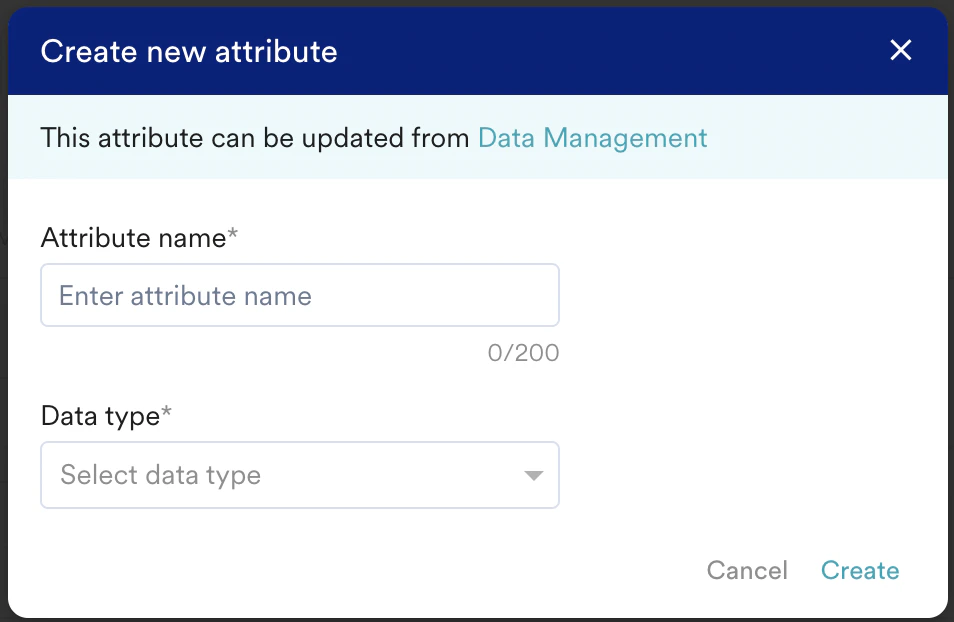 2. In the **Attribute name** box, type a name for your attribute.
3. In the **Data type** list, select a data type. You can edit this and existing attributes from the [Data Management](/user-guide/settings/data-management/overview-data-management#event-tab) page.
The newly created user attributes will not appear on the **Data Management** page until the initial import is successful.
### Manifest Files
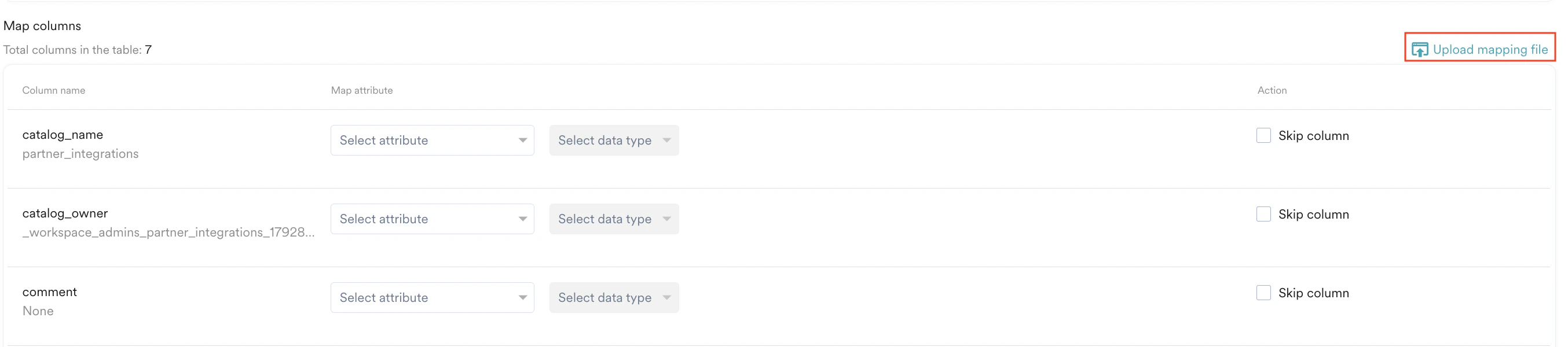
Optionally, you can choose to auto-map these columns by uploading a [Manifest file](/user-guide/data/imports/overview/overview-imports#manifest-files). To upload a manifest file:
1. Click the **Upload mapping** file in the upper-right of the mapping table.
2. In the **Attribute name** box, type a name for your attribute.
3. In the **Data type** list, select a data type. You can edit this and existing attributes from the [Data Management](/user-guide/settings/data-management/overview-data-management#event-tab) page.
The newly created user attributes will not appear on the **Data Management** page until the initial import is successful.
### Manifest Files
Optionally, you can choose to auto-map these columns by uploading a [Manifest file](/user-guide/data/imports/overview/overview-imports#manifest-files). To upload a manifest file:
1. Click the **Upload mapping** file in the upper-right of the mapping table.
 2. On the Upload mapping dialog box, upload your manifest file.
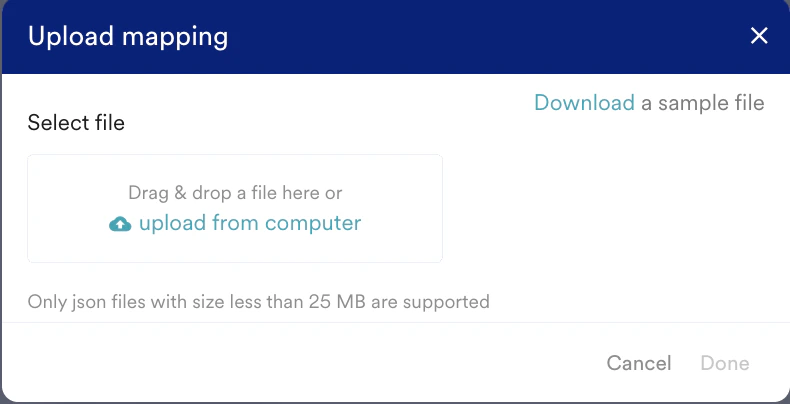 3. Click **Done**.
Your mappings are auto-configured accordingly. Any columns with non-MoEngage attributes are left blank, and you can either manually map the column or create a new attribute for it. Make sure your manifest file follows the [expected conventions](/user-guide/data/imports/overview/overview-imports#manifest-files).
Any additional columns in your Manifest File that are not in your table will be ignored. Also, if the mapping for an existing table column is not present in the manifest file, MoEngage will keep the mapping blank so that you can manually configure it.
If a column in the manifest file is mapped to a non-existent MoEngage attribute, the mapping will be blank, and you will need to manually create a new attribute from the UI and then map it.
### Support for Object Data Type
The Object data type is supported in Databricks as well.
#### Store Compatible JSON Data in Databricks
To store JSON data inside Databricks, you must change the data type of the column to *VARIANT* type. For more information, refer [here](https://docs.databricks.com/aws/en/sql/language-manual/data-types/variant-type). The JSON stored inside Databricks should be a valid JSON; otherwise, the values will not be written as JSON. Here is an example JSON column:
```javascript JavaScript wrap theme={null}
{ "Designation": "SSE", "Palace": "Banglore", "age": 30, "name": "Shasha" }
```
#### Import JSON Data via Databricks
The JSON data can be imported into Databricks by associating existing attributes in the MoEngage platform that have been designated as Object type with columns in Databricks.
3. Click **Done**.
Your mappings are auto-configured accordingly. Any columns with non-MoEngage attributes are left blank, and you can either manually map the column or create a new attribute for it. Make sure your manifest file follows the [expected conventions](/user-guide/data/imports/overview/overview-imports#manifest-files).
Any additional columns in your Manifest File that are not in your table will be ignored. Also, if the mapping for an existing table column is not present in the manifest file, MoEngage will keep the mapping blank so that you can manually configure it.
If a column in the manifest file is mapped to a non-existent MoEngage attribute, the mapping will be blank, and you will need to manually create a new attribute from the UI and then map it.
### Support for Object Data Type
The Object data type is supported in Databricks as well.
#### Store Compatible JSON Data in Databricks
To store JSON data inside Databricks, you must change the data type of the column to *VARIANT* type. For more information, refer [here](https://docs.databricks.com/aws/en/sql/language-manual/data-types/variant-type). The JSON stored inside Databricks should be a valid JSON; otherwise, the values will not be written as JSON. Here is an example JSON column:
```javascript JavaScript wrap theme={null}
{ "Designation": "SSE", "Palace": "Banglore", "age": 30, "name": "Shasha" }
```
#### Import JSON Data via Databricks
The JSON data can be imported into Databricks by associating existing attributes in the MoEngage platform that have been designated as Object type with columns in Databricks.
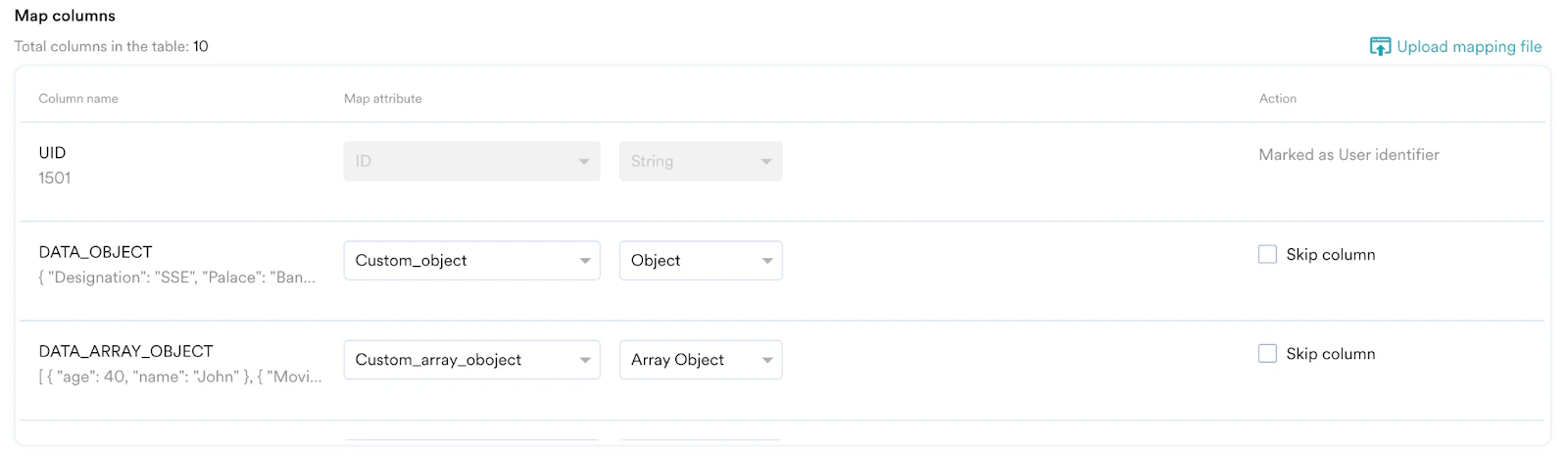 You can also create new Object attributes by clicking **Create new attribute** in the Select attribute list under the **Map attribute** column.
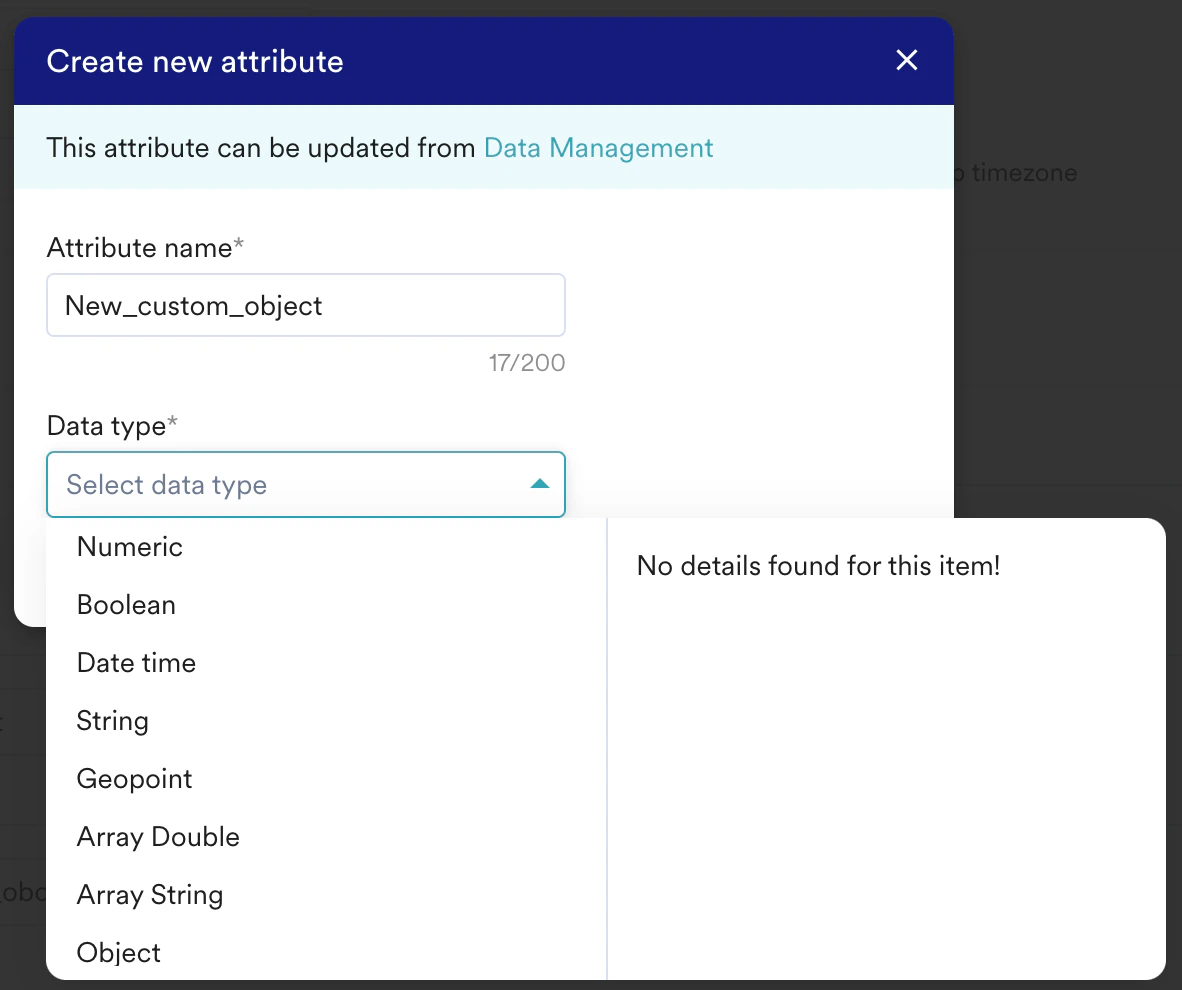 MoEngage does not support mapping with nested attributes. Only top-level attributes are available to map.
### Save Users as a Segment
When importing users, you can include them in a custom segment in MoEngage. The imported users are consistently added to this segment with each sync, and no users will be removed. To save imported users as a custom segment, perform the following steps:
1. Turn the **Save as a custom segment** toggle on to save your imported users in a custom segment and send tailored campaigns to the same.
MoEngage does not support mapping with nested attributes. Only top-level attributes are available to map.
### Save Users as a Segment
When importing users, you can include them in a custom segment in MoEngage. The imported users are consistently added to this segment with each sync, and no users will be removed. To save imported users as a custom segment, perform the following steps:
1. Turn the **Save as a custom segment** toggle on to save your imported users in a custom segment and send tailored campaigns to the same. 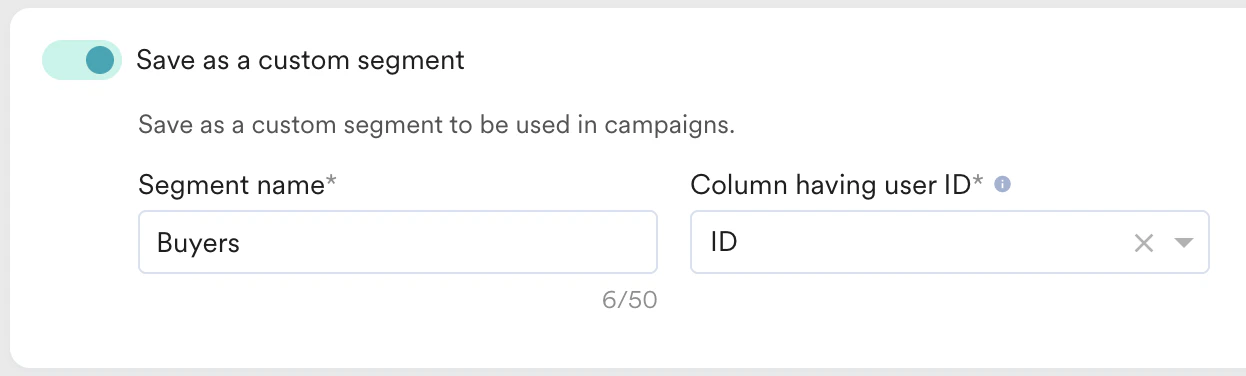 2. In the **Segment name** box, type a name for your segment.
3. In the **Column having user ID** list, select the Identifier column in your table.
### Import Behaviour
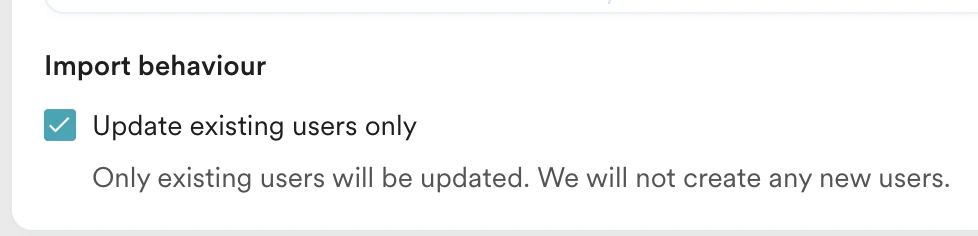
In the case of User Imports, you can also choose to update existing users only. This is helpful when you want to bulk update users' attributes in MoEngage without creating any new users. To enable this, select the **Update existing users only** check box under **Import Behaviour**:
2. In the **Segment name** box, type a name for your segment.
3. In the **Column having user ID** list, select the Identifier column in your table.
### Import Behaviour
In the case of User Imports, you can also choose to update existing users only. This is helpful when you want to bulk update users' attributes in MoEngage without creating any new users. To enable this, select the **Update existing users only** check box under **Import Behaviour**:
 ### Send Import Notifications
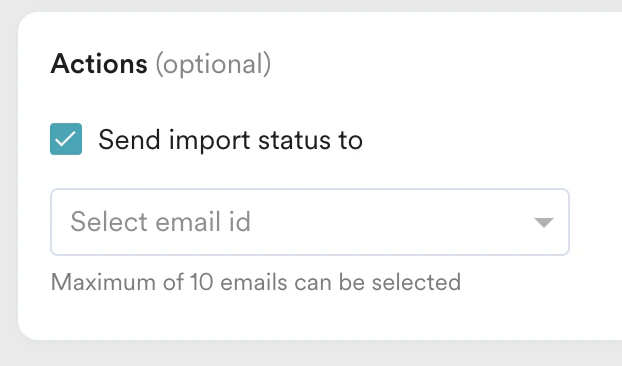
You can choose to be notified about the status of your imports via email. To do so:
1. Select the **Send import status to** check box.
2. In the **Select email id** list, select the email ID. You can select up to 10 emails to send the status emails to.
### Send Import Notifications
You can choose to be notified about the status of your imports via email. To do so:
1. Select the **Send import status to** check box.
2. In the **Select email id** list, select the email ID. You can select up to 10 emails to send the status emails to.
 The import status email contains info about the following events:
* An import was created
* An import was successful
* An import failed
After completing all mappings, click **Next**.
## Step 3: Select the Import Frequency
The import status email contains info about the following events:
* An import was created
* An import was successful
* An import failed
After completing all mappings, click **Next**.
## Step 3: Select the Import Frequency
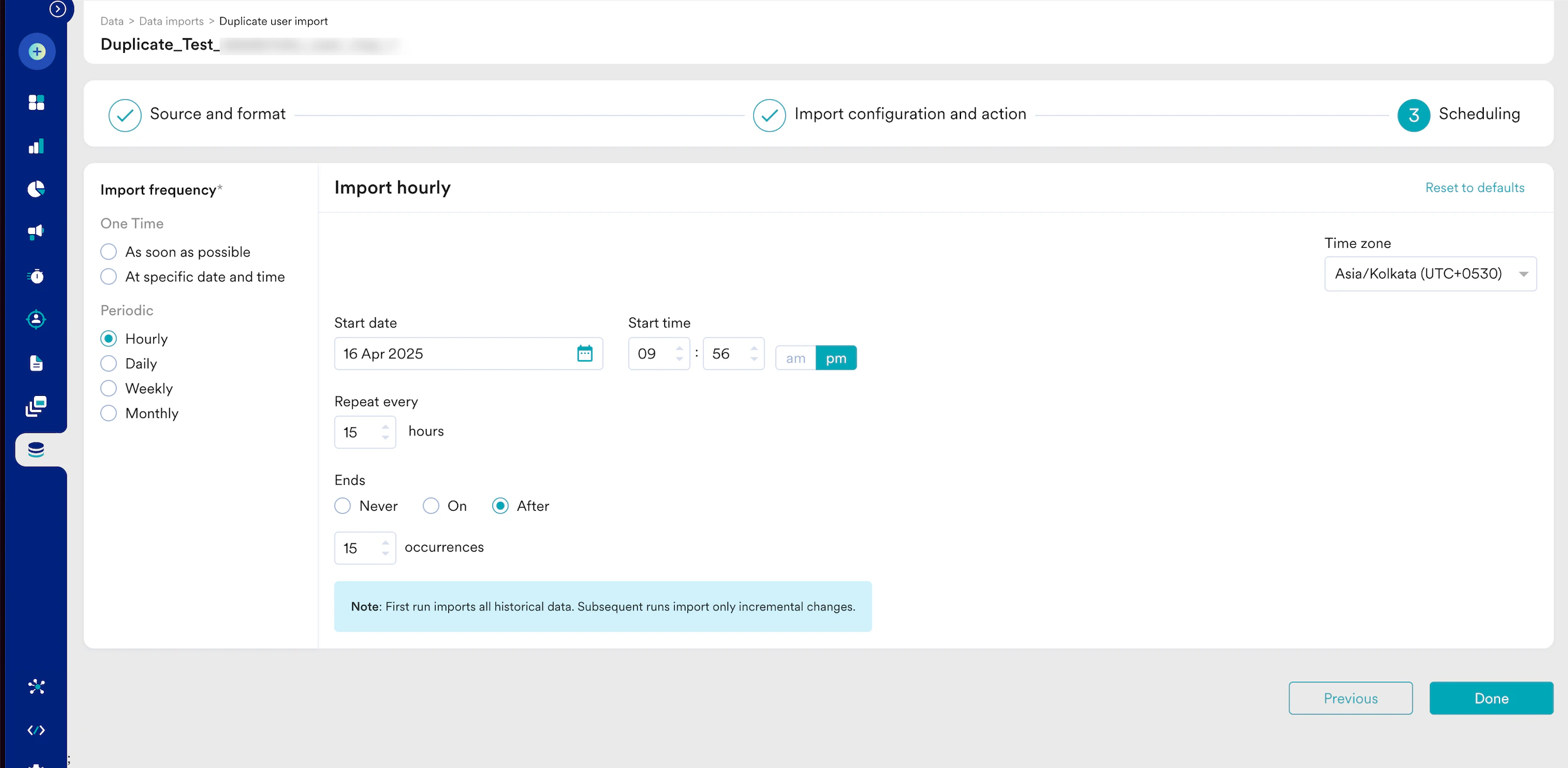 In this step, you must define when to sync with your tables. We support the following types of imports:
* **One-Time**: You can run the import as soon as possible or at a later date and time (scheduled). All existing rows that match the import criteria are imported.
* **Periodic**: You can run your imports hourly, daily, weekly, or monthly, or with intervals and advanced configurations.
Optionally, you can specify whether the import should end after a specified set of occurrences or at a particular date. Click **Done** when ready.
Upon initial import, all matching rows from your table are imported. Subsequent imports only include changed rows.
## Duplicate Imports
A duplicate import is considered when the:
* Users/ Events import types are the same.
* Event name/ Registered/ Anonymous/ All users import subtypes are the same.
* Event name/ Registered/Anonymous/All users import types with the same Databricks connection.
* Event name/ Registered/Anonymous/All users import types with the Schema/Dataset and Table/View are the same.
## Import Failure Policy
In the event of a connection failure, a recurring Databricks import will retry up to 10 times. If all retries fail, the import is marked FAILED. The following table outlines the behavior and required action when a recurring Databricks import fails due to connection issues (for example, credentials, network, or warehouse unavailability).
| Policy | Description | Action |
| --------------- | ------------------------------------------------------------------------------------------------------------------------------------------------------------------------------------------------------------------------------------------- | ------------------------------------- |
| Automatic Retry | MoEngage automatically attempts to restore the connection and retries the import up to 10 times in the event of a connection failure. | None (MoEngage handles automatically) |
| Import Failure | If all 10 retries fail, MoEngage marks the import as FAILED and stops all further automatic attempts and future imports. After it has failed, you must create a new import by either duplicating the failed import or creating a fresh one. | Mandatory Investigation and Restart |
### Restart a Failed Import
Any import that has FAILED requires your manual intervention:
1. You must investigate and resolve the underlying issue on your Databricks side (for example, update credentials, check permissions, or ensure warehouse availability).
2. After resolving the issue, you must manually duplicate the import from the MoEngage UI to restart it.
* The first successful execution of any new recurring import is always a historical import (it fetches all the data from the configured table/view).
* Duplicating a failed import initiates a new historical import. If the original import previously succeeded, this duplication may result in redundant data. To control data flow effectively, MoEngage recommends using views.
# FAQ
**Answer:** Yes, MoEngage's Databricks import is built upon the Databricks Unity Catalog. Therefore, the setup process is the same as a standard Databricks connection.
**Answer:** No, there are no specific version requirements for compatibility.
**Answer:** Databricks requires the column type to be `VARIANT` during table creation.
**Answer:** MoEngage interprets stored time as UTC, as Databricks lacks a local time concept. Databricks advises storing timestamps in UTC.
In this step, you must define when to sync with your tables. We support the following types of imports:
* **One-Time**: You can run the import as soon as possible or at a later date and time (scheduled). All existing rows that match the import criteria are imported.
* **Periodic**: You can run your imports hourly, daily, weekly, or monthly, or with intervals and advanced configurations.
Optionally, you can specify whether the import should end after a specified set of occurrences or at a particular date. Click **Done** when ready.
Upon initial import, all matching rows from your table are imported. Subsequent imports only include changed rows.
## Duplicate Imports
A duplicate import is considered when the:
* Users/ Events import types are the same.
* Event name/ Registered/ Anonymous/ All users import subtypes are the same.
* Event name/ Registered/Anonymous/All users import types with the same Databricks connection.
* Event name/ Registered/Anonymous/All users import types with the Schema/Dataset and Table/View are the same.
## Import Failure Policy
In the event of a connection failure, a recurring Databricks import will retry up to 10 times. If all retries fail, the import is marked FAILED. The following table outlines the behavior and required action when a recurring Databricks import fails due to connection issues (for example, credentials, network, or warehouse unavailability).
| Policy | Description | Action |
| --------------- | ------------------------------------------------------------------------------------------------------------------------------------------------------------------------------------------------------------------------------------------- | ------------------------------------- |
| Automatic Retry | MoEngage automatically attempts to restore the connection and retries the import up to 10 times in the event of a connection failure. | None (MoEngage handles automatically) |
| Import Failure | If all 10 retries fail, MoEngage marks the import as FAILED and stops all further automatic attempts and future imports. After it has failed, you must create a new import by either duplicating the failed import or creating a fresh one. | Mandatory Investigation and Restart |
### Restart a Failed Import
Any import that has FAILED requires your manual intervention:
1. You must investigate and resolve the underlying issue on your Databricks side (for example, update credentials, check permissions, or ensure warehouse availability).
2. After resolving the issue, you must manually duplicate the import from the MoEngage UI to restart it.
* The first successful execution of any new recurring import is always a historical import (it fetches all the data from the configured table/view).
* Duplicating a failed import initiates a new historical import. If the original import previously succeeded, this duplication may result in redundant data. To control data flow effectively, MoEngage recommends using views.
# FAQ
**Answer:** Yes, MoEngage's Databricks import is built upon the Databricks Unity Catalog. Therefore, the setup process is the same as a standard Databricks connection.
**Answer:** No, there are no specific version requirements for compatibility.
**Answer:** Databricks requires the column type to be `VARIANT` during table creation.
**Answer:** MoEngage interprets stored time as UTC, as Databricks lacks a local time concept. Databricks advises storing timestamps in UTC.