> ## Documentation Index
> Fetch the complete documentation index at: https://moengage.com/docs/llms.txt
> Use this file to discover all available pages before exploring further.
# Set Up a Data Warehouse Import
> Import users and events directly from Snowflake, BigQuery, and Databricks tables and views into MoEngage. Set up the connection, map columns, and schedule syncs.
MoEngage imports users and events directly from tables and views in your data warehouse: Snowflake, BigQuery, or Databricks. Warehouse imports are connection-driven: you grant MoEngage read access, map your columns once, and run the import on a one-time or periodic schedule.
Select your warehouse in any tabbed section below and the page stays on that warehouse throughout.
# Types of Imports
MoEngage can import the following from your data warehouse:
* **Registered Users**: Users who are already registered on MoEngage. Also used to bulk-update existing users.
* **Anonymous Users**: Users who are not yet registered on MoEngage.
* **Events** (Standard and User-Defined): Standard events such as Campaign Interaction Events, as well as your own user-defined events.
Auxiliary Data is not supported for data warehouse imports. It is available for file-based sources only. See [Auxiliary Data](/docs/user-guide/data/imports/auxiliary-data).
# Prepare Your Data
MoEngage does not require a specific table schema. Every column can be mapped or skipped on the dashboard. Before you set up the import, note how MoEngage detects changed rows:
For periodic User Imports, MoEngage syncs only the data that changed since the last sync. It uses a timestamp (date + time) column, commonly named `updated_at`, to identify changed rows. You can name this column anything, as long as it holds the timestamp of when the row last changed, and map it on the dashboard.
For Event Imports, you must map a column containing the event's timestamp (date + time) in UTC. MoEngage uses it to sync new events since the previous sync. To import standard MoEngage events, ensure the event names in your table match MoEngage's standard event names.
**Importing datetime attributes:** When you map a column that holds dates or times, create it as a **Date Time** attribute and select the matching format (see [Supported Datetime Formats](#supported-datetime-formats)). After the first successful import, an account Admin should open [Data Management](/docs/user-guide/settings/data-management/overview-data-management) and set the **allowed data type** to *datetime* for each new attribute, for both user and event attributes. Until the data type is pinned, values may not be ingested or segmented as datetime.
## How Periodic Sync Detects Changed Rows
For **periodic** imports, MoEngage syncs each run over a fixed time window `[last_run_time, next_run_time)`, half-open and non-overlapping, advancing on a fixed wall-clock cadence (for an hourly import, `last_run_time + 1 hour`), never derived from the data seen. A row is included in a run only if its mapped reference timestamp (`Updated At` for users; `Updated At`, or `Event Time` when not mapped separately, for events) falls inside that window.
Because windows only ever move forward, **a row whose reference timestamp is earlier than the current `last_run_time` is permanently missed**, not delayed, and not caught up on a later run. This applies no matter why the timestamp is early: upstream pipeline delay, an intentional backfill, a missing `Updated At` mapping, or a timezone conversion that shifts the value backward. The first, historic run has no lower bound, which is why it never loses data this way. See the note in [Step 3](#step-3-select-the-import-frequency).
### Users vs Events
**Users**, a single `Updated At` column drives both *what changed* and *when it changed*; the two cannot be decoupled. To avoid permanent misses, ensure `Updated At` reflects **table write-time**, not business or event time. This is commonly done with a view whose column defaults to `CURRENT_TIMESTAMP` on insert, so even late-arriving writes get a current, ever-advancing timestamp.
**Events**, two separate mappable columns:
* `Event Time`, the true, possibly-backdated business timestamp, used for analytics.
* `Updated At`, drives the delta filter; defaults to `Event Time` if not mapped separately.
Mapping `Updated At` to table write-time lets genuinely backdated events still import via periodic sync without corrupting `Event Time` for analysis. If you leave `Updated At` defaulted to `Event Time`, backdated events carry the same permanent-miss risk as users. Events are immutable in MoEngage once imported, there is no update-in-place for a previously synced event.
### The Reference Column Must Be Genuine UTC
Across all three warehouses, the mapped reference column's values must be genuine UTC. What MoEngage does with that column differs:
MoEngage converts the column using `CONVERT_TIMEZONE('UTC', col)`. For a `TIMESTAMP_NTZ` column, the conversion first interprets the naive value using the session's effective timezone (session → user → account, in that precedence). If that timezone isn't actually UTC, an already-correct value is double-shifted. Check it with `SHOW PARAMETERS LIKE 'TIMEZONE'` and, if needed, set it at the user level for the MoEngage connection user.
MoEngage applies no conversion, the raw column value is compared directly. The risk is specific to `DATETIME`-typed columns (naive, no timezone) holding non-UTC values. `TIMESTAMP`-typed columns are safe by construction, because BigQuery stores them as true UTC instants.
MoEngage applies no conversion and reads only `TIMESTAMP`-typed columns over its connector. (Databricks' `TIMESTAMP_NTZ` type isn't supported over JDBC/ODBC, so it isn't a path here.) Since `TIMESTAMP` is already UTC-normalized, the only realistic failure mode is your own pipeline writing local-time values into a UTC-typed column, a data-hygiene issue.
An import can run in a timezone different from your workspace timezone, but schedule run times are always computed and stored in UTC. Choosing a non-UTC import timezone only changes the time the schedule appears to run in the UI, it does not change the window mechanics above.
### Worked Example
Suppose you create an hourly Users import at `10:07 UTC`. The first `next_run_time` fast-forwards to the next hour boundary, `11:00 UTC`, and the **historic run** imports every matching row up to `11:00`. Each table below shows the full source table state after a run, along with the run that imported each row.
After the historic run (imports everything with `Updated At < 11:00`):
| user\_id | updated\_at (UTC) | Imported in |
| -------- | ----------------- | ------------ |
| u\_100 | 10:50 | Historic run |
Before Run 1, `u_101` is written with `Updated At = 11:30`. Run 1 covers the window `[11:00, 12:00)`:
| user\_id | updated\_at (UTC) | Imported in |
| -------- | ----------------- | ------------ |
| u\_100 | 10:50 | Historic run |
| u\_101 | 11:30 | Run 1 |
`u_101` (`11:30`) falls inside `[11:00, 12:00)`, so Run 1 imports it cleanly.
Before Run 2, two more rows land: `u_102` with `Updated At = 12:00:00`, and `u_103`, physically written to the table at `12:45` but carrying a backdated `Updated At = 09:15`. Run 2 covers `[12:00, 13:00)`:
| user\_id | updated\_at (UTC) | Imported in |
| -------- | ----------------- | ------------ |
| u\_100 | 10:50 | Historic run |
| u\_101 | 11:30 | Run 1 |
| u\_102 | 12:00:00 | Run 2 |
| u\_103 | 09:15 | Not imported |
`u_102` sits exactly on the boundary: it was excluded from Run 1 (`< 12:00` fails there) and imported by Run 2 (`>= 12:00` passes), no gap, no double-count. `u_103` carries `Updated At = 09:15`, already earlier than Run 2's lower bound of `12:00`, and earlier than the `11:00` historic cutoff too, so no run's window contains it.
Run 3 covers `[13:00, 14:00)`. No new rows have landed, and `u_103` is still sitting in the table:
| user\_id | updated\_at (UTC) | Imported in |
| -------- | ----------------- | ------------ |
| u\_100 | 10:50 | Historic run |
| u\_101 | 11:30 | Run 1 |
| u\_102 | 12:00:00 | Run 2 |
| u\_103 | 09:15 | Not imported |
`u_103` never appears in any run, because `09:15` is earlier than every future `last_run_time`. It is permanently missed, even though it was added to the table only moments before Run 3.
Events expose two mappable columns: `Event Time` (the true business timestamp, kept for analytics) and `Updated At` (drives the delta filter). This example uses the same hourly cadence (created `10:07 UTC`, historic cutoff `11:00`) and imports on `2024-01-16 UTC`. As before, each table shows the full source table state after a run.
After the historic run (imports everything with `Updated At < 11:00`):
| event | user\_id | event\_time (UTC) | updated\_at (UTC) | Imported in |
| -------- | -------- | ----------------- | ----------------- | ------------ |
| purchase | u\_200 | 2024-01-16 10:40 | 2024-01-16 10:40 | Historic run |
`u_200`'s `Updated At` (`10:40`) is before the `11:00` cutoff, so the historic run imports it.
Before Run 1, two events are written. `u_201`'s event happened in real time at `11:45`. `u_202`'s event happened *yesterday* (`2024-01-15 18:00`) but only landed in the table today, with `Updated At` set to its true write-time (`11:20`). Run 1 covers `[11:00, 12:00)`:
| event | user\_id | event\_time (UTC) | updated\_at (UTC) | Imported in |
| -------- | -------- | ----------------- | ----------------- | ------------ |
| purchase | u\_200 | 2024-01-16 10:40 | 2024-01-16 10:40 | Historic run |
| purchase | u\_201 | 2024-01-16 11:45 | 2024-01-16 11:45 | Run 1 |
| purchase | u\_202 | 2024-01-15 18:00 | 2024-01-16 11:20 | Run 1 |
`u_201` (`Updated At = 11:45`) falls inside `[11:00, 12:00)` and imports cleanly. `u_202` also imports, even though its `Event Time` is a day old, the delta filter reads `Updated At` (write-time `11:20`, inside the window), not `Event Time`. MoEngage stores the event at its real `Event Time` (`2024-01-15 18:00`), so analytics still reflect when it actually happened.
Before Run 2, two more events are written. `u_203`'s `Updated At` is exactly `12:00:00`. `u_204` is a backdated event whose customer left `Updated At` **defaulted to `Event Time`** (`09:30`), so the two columns aren't decoupled. Run 2 covers `[12:00, 13:00)`:
| event | user\_id | event\_time (UTC) | updated\_at (UTC) | Imported in |
| -------- | -------- | ------------------- | ------------------- | ------------ |
| purchase | u\_200 | 2024-01-16 10:40 | 2024-01-16 10:40 | Historic run |
| purchase | u\_201 | 2024-01-16 11:45 | 2024-01-16 11:45 | Run 1 |
| purchase | u\_202 | 2024-01-15 18:00 | 2024-01-16 11:20 | Run 1 |
| purchase | u\_203 | 2024-01-16 12:00:00 | 2024-01-16 12:00:00 | Run 2 |
| refund | u\_204 | 2024-01-16 09:30 | 2024-01-16 09:30 | Not imported |
`u_203`'s `Updated At` sits exactly on the boundary: it was excluded from Run 1 (`< 12:00` fails there) and imported by Run 2 (`>= 12:00` passes), no gap, no double-count. `u_204`'s `Updated At` is `09:30`, earlier than Run 2's lower bound of `12:00` and the `11:00` historic cutoff, so no window contains it, and it is missed. The only difference from `u_202`, which imported successfully, is that `u_202` mapped `Updated At` to write-time while `u_204` left it defaulted to `Event Time`.
Run 3 covers `[13:00, 14:00)`. No new events have landed, and `u_204` is still in the table:
| event | user\_id | event\_time (UTC) | updated\_at (UTC) | Imported in |
| -------- | -------- | ------------------- | ------------------- | ------------ |
| purchase | u\_200 | 2024-01-16 10:40 | 2024-01-16 10:40 | Historic run |
| purchase | u\_201 | 2024-01-16 11:45 | 2024-01-16 11:45 | Run 1 |
| purchase | u\_202 | 2024-01-15 18:00 | 2024-01-16 11:20 | Run 1 |
| purchase | u\_203 | 2024-01-16 12:00:00 | 2024-01-16 12:00:00 | Run 2 |
| refund | u\_204 | 2024-01-16 09:30 | 2024-01-16 09:30 | Not imported |
`u_204` still does not import, because `09:30` is earlier than every future `last_run_time`, so the miss does not self-correct. Because events are immutable once imported, there is no update-in-place to fix `u_204` later, recovery requires a one-time import (see below).
### Recovering Missed or Backdated Data
Once data is already missed, periodic sync will not pick it up. To recover it, or to intentionally backfill, build a one-time view containing the corrected or missed records and run a **one-time import** against it. One-time imports have no lower-bound filter, so they capture every matching row regardless of reference timestamp. Alternatively, duplicate the import (which triggers a fresh historic run) or edit the schedule's start time backward to force `last_run_time` to recompute.
# Required Access Permissions
MoEngage requires `READ` access to your warehouse. Grant the permissions below to an existing database user or a dedicated MoEngage user.
Grant MoEngage `READ` access to the database you want to import from. For the connection setup and required grants, see the [Snowflake connection guide](https://partners.moengage.com/hc/en-us/articles/17870012683028-Snowflake).
Grant MoEngage the necessary permissions on your dataset. For the full list and setup, see [Grant Permissions to MoEngage](https://partners.moengage.com/hc/en-us/articles/7403404539412-Google-BigQuery#introduction-0-0).
MoEngage's Databricks import is built on Unity Catalog. Grant the following to an existing or dedicated user, replacing `catalog_name`, `schema_name`, and `user@example.com` with your values:
```sql theme={null}
-- Required: read data from all tables in the schema
GRANT SELECT ON SCHEMA `catalog_name`.`schema_name` TO `user@example.com`;
-- Required: access and reference the schema
GRANT USE SCHEMA ON SCHEMA `catalog_name`.`schema_name` TO `user@example.com`;
```
Both grants are required: `USE SCHEMA` allows MoEngage to access the schema, and `SELECT` allows it to read data from the tables within. Without `USE SCHEMA`, a user cannot access the schema even with `SELECT` on its tables.
# Set Up the Import
Set up your import in three steps: select your connection and table source, map your columns to MoEngage attributes, and select the import frequency.
**Prerequisites**
* An existing warehouse connection set up in the MoEngage App Marketplace with the permissions above.
* If your security policies require IP whitelisting, see [IP Whitelisting in MoEngage](/docs/user-guide/settings/account/security/ip-whitelisting-in-moengage).
* To import JSON as an Object data type, [Object Data Type support](/docs/user-guide/data/key-concepts/support-for-object-data-type) must be enabled for your account (optional).
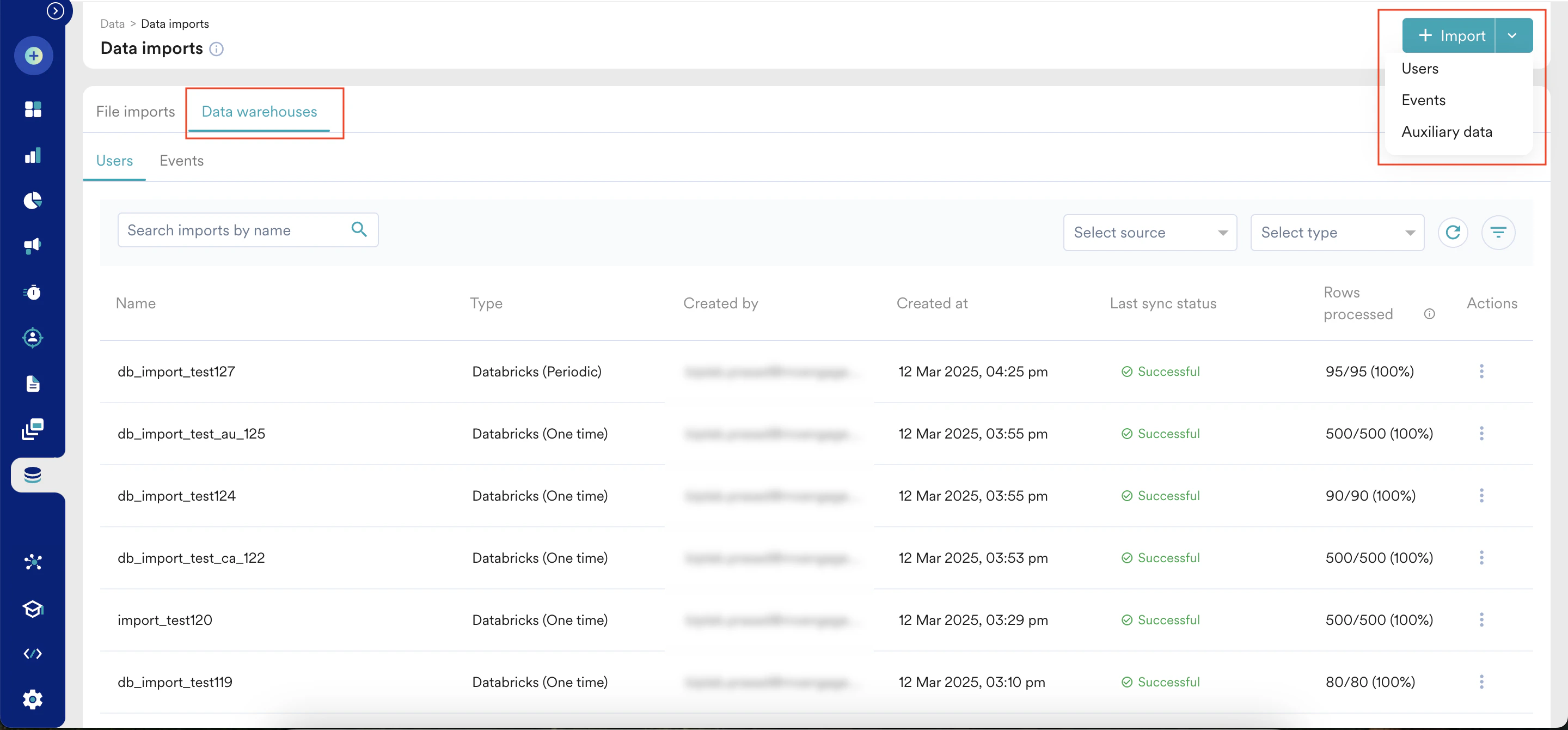
To start, on the MoEngage sidebar go to **Data** > **Data imports**, open the **Data warehouses** tab, click **+ Import** in the upper-right corner, and select **Users** or **Events**.
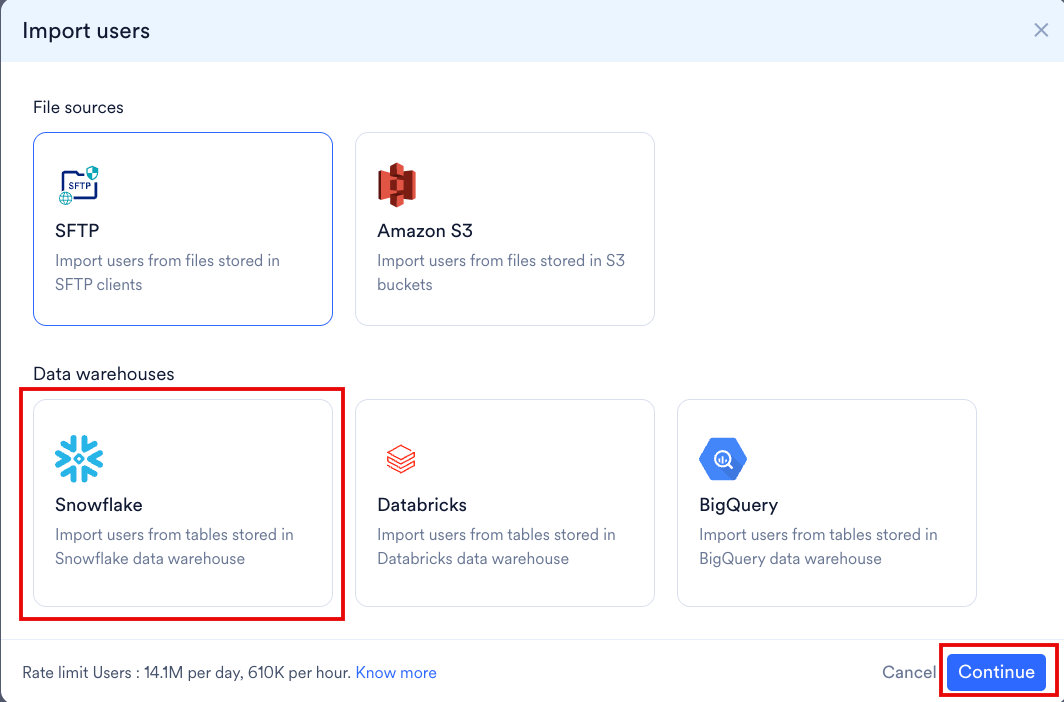
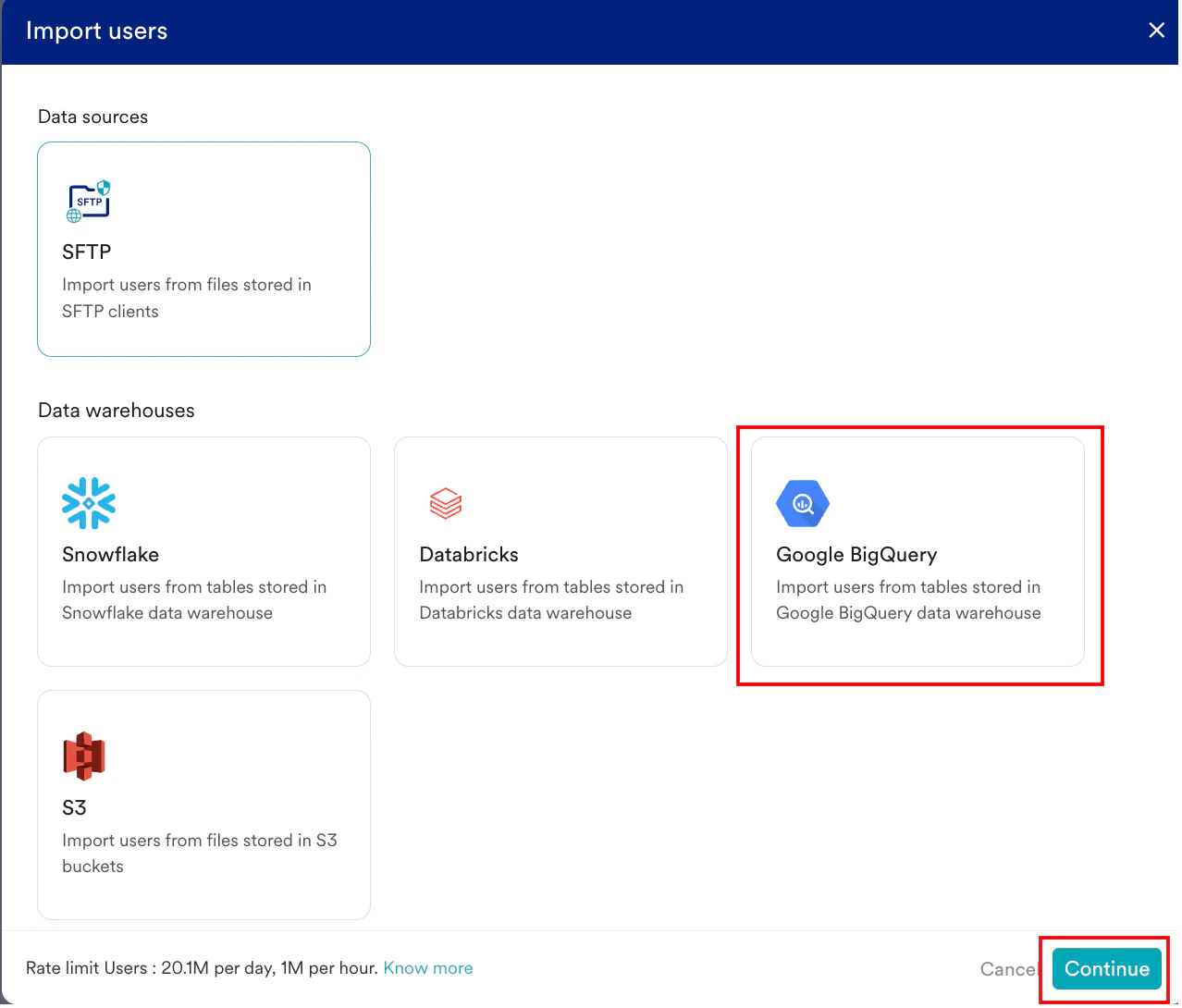
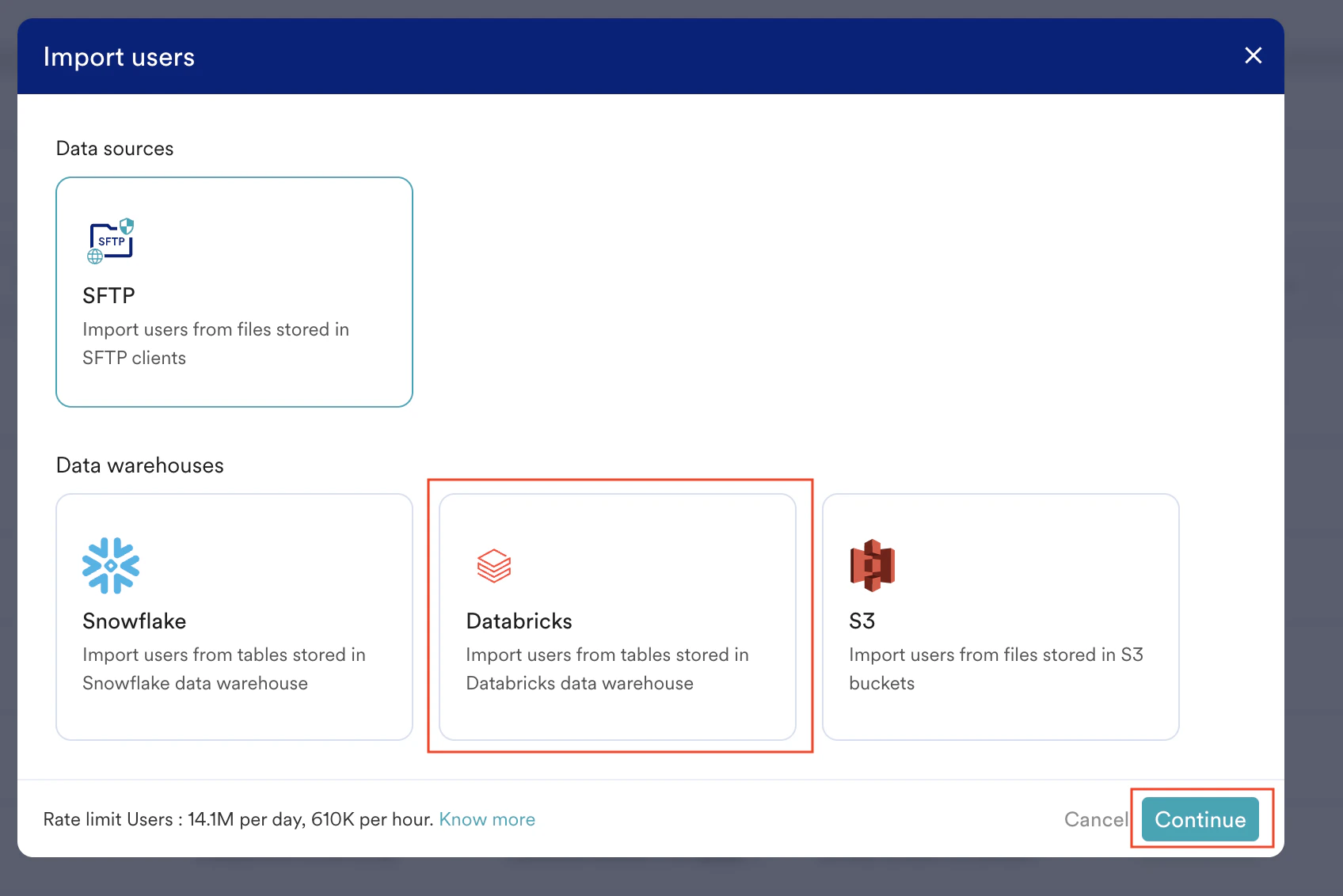
 Then select your warehouse tile and click **Continue**.
 ## Step 1: Select Your Connection and Table Source
Enter a name for this import to identify it on the Imports Dashboard. Based on the import type, your next steps vary:
Select whether to import **Registered users**, **Anonymous users**, or both together.
Select the event you want to import, or create a new one. If a single table holds multiple events, MoEngage uses the **Event Name** column to determine which rows to import, the value depends on the event you select. Event display names and event names can differ; view them on the [Data Management](/docs/user-guide/settings/data-management/overview-data-management) page. For example, the event *App/Site Opened* has the event name `MOE_APP_OPENED`.
To create a new event, click **+ Create event** at the end of the **Select event** list and enter a unique name. New events appear on the Data Management page only after the first successful import.
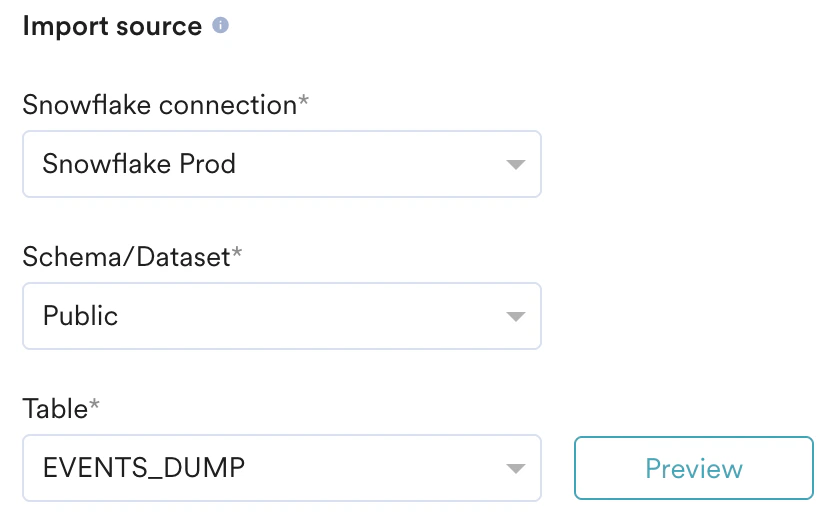
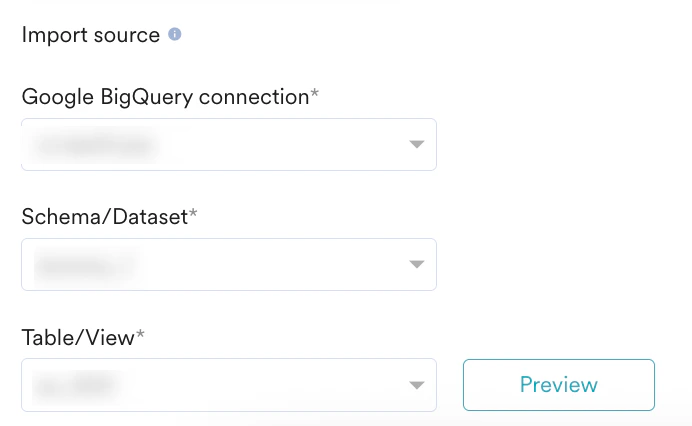
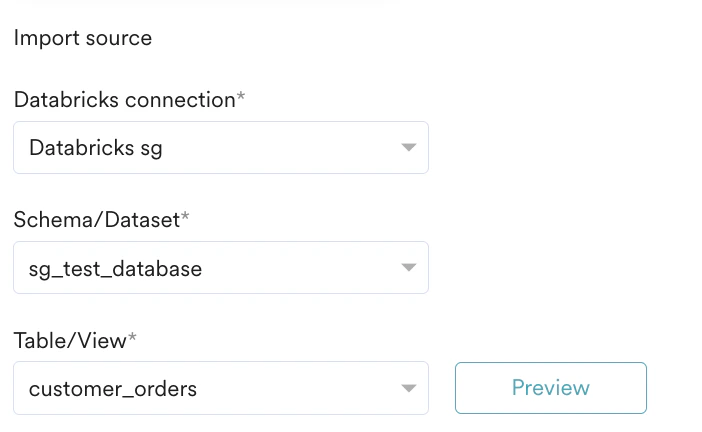
Next, select the connection and the table or view to import from. If you have not created a connection, click **+ Add connection** to set one up in the App Marketplace. After selecting the connection, choose the **Schema/Dataset** and **Table/View**. If schemas fail to load, confirm you granted the permissions above.
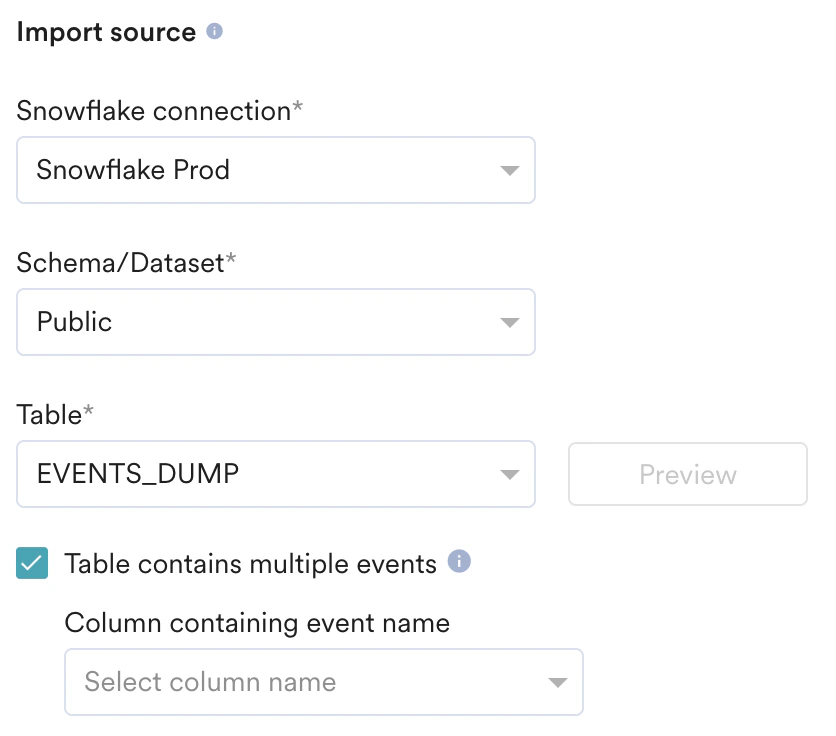
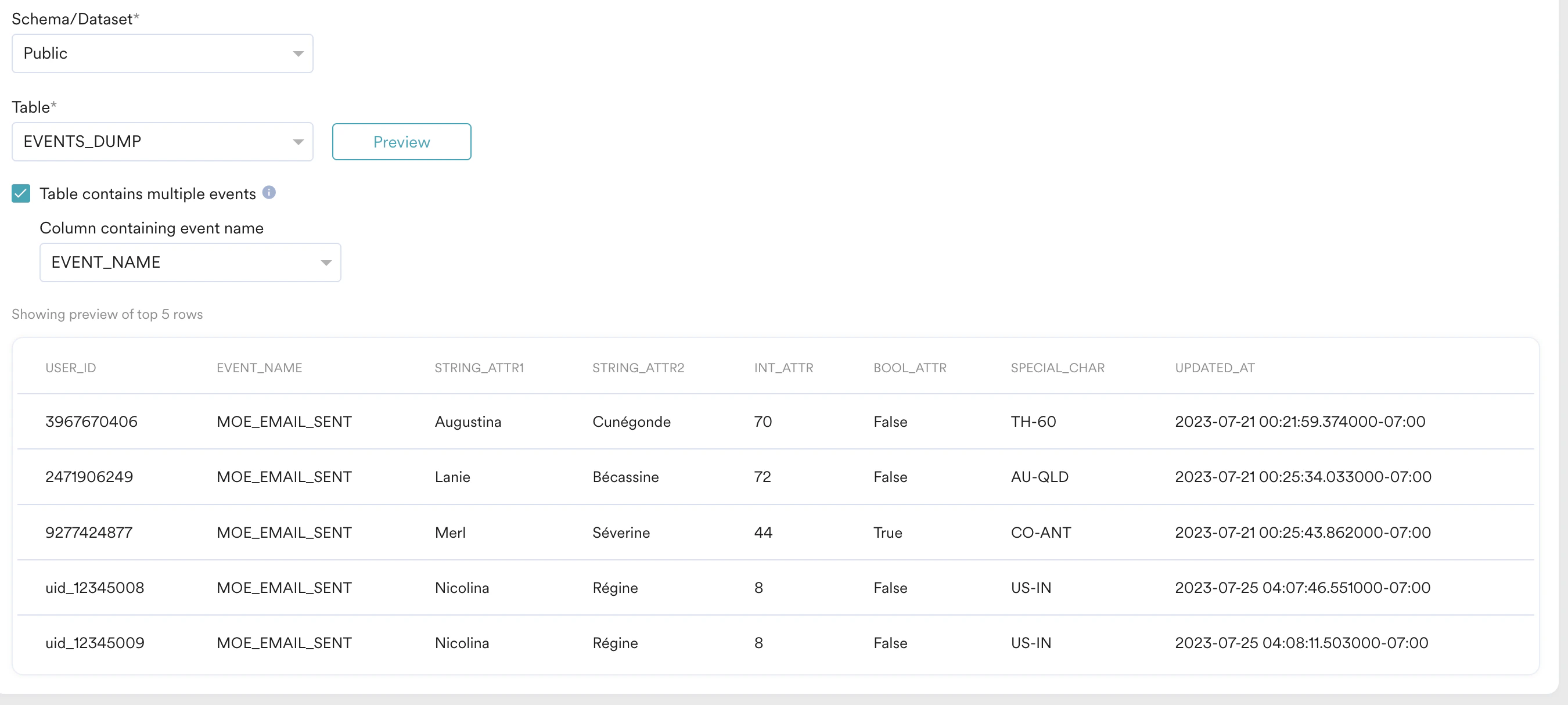
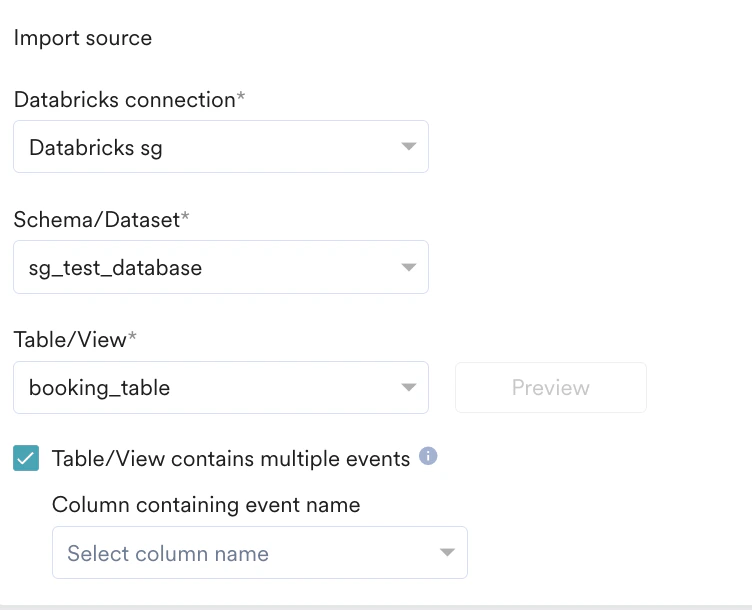
For a table containing multiple events, first **Preview** the table, then select **Table contains multiple events** and mark the column that holds the event name. Preview again to confirm the filtered rows before proceeding.
## Step 1: Select Your Connection and Table Source
Enter a name for this import to identify it on the Imports Dashboard. Based on the import type, your next steps vary:
Select whether to import **Registered users**, **Anonymous users**, or both together.
Select the event you want to import, or create a new one. If a single table holds multiple events, MoEngage uses the **Event Name** column to determine which rows to import, the value depends on the event you select. Event display names and event names can differ; view them on the [Data Management](/docs/user-guide/settings/data-management/overview-data-management) page. For example, the event *App/Site Opened* has the event name `MOE_APP_OPENED`.
To create a new event, click **+ Create event** at the end of the **Select event** list and enter a unique name. New events appear on the Data Management page only after the first successful import.
Next, select the connection and the table or view to import from. If you have not created a connection, click **+ Add connection** to set one up in the App Marketplace. After selecting the connection, choose the **Schema/Dataset** and **Table/View**. If schemas fail to load, confirm you granted the permissions above.
For a table containing multiple events, first **Preview** the table, then select **Table contains multiple events** and mark the column that holds the event name. Preview again to confirm the filtered rows before proceeding.
 ## Step 2: Map Your Columns to MoEngage Attributes
Map each table column to a MoEngage attribute. For every column you see:
1. **Column name**: The source column, with a sample value from the fetched table.
2. **Map attribute**: The MoEngage attribute to map to. Some attributes accept multiple data types, so pick the column's data type. For DateTime columns, also pick the format.
3. **Action**: Optionally skip the column. Skipped columns are not imported.
Once a mandatory mapping is marked, you can no longer skip that column. To create a new attribute, click **+ Create attribute**, enter a name, and select a data type. New attributes appear on the Data Management page only after the first successful import.
### Mandatory Mappings
The timestamp column type differs by warehouse:
| Mapping | Description |
| ----------------------------------------------- | ----------------------------------------------------------------------------------------------------------------------------------------------------------------------------------------- |
| User ID (Registered) / Anonymous ID (Anonymous) | A column with a unique user identifier, or an identifier such as email or mobile for anonymous users. For **All Users**, map both, users with an empty User ID are imported as anonymous. |
| Updated at | Determines which rows changed since the last sync. Must be a UTC timestamp of column type `TIMESTAMP_NTZ`. |
| Mapping | Description |
| ---------- | ------------------------------------------------------------------------------------------------------------------------------------------------------------------------------ |
| User ID | Matches MoEngage user IDs to your events. |
| Event time | Timestamp (date + time) of when the event occurred, in UTC. Column type `TIMESTAMP`. Converted to your dashboard timezone. |
| Updated on | Determines which rows changed since the last sync; use for backdated events or upstream delays. UTC, column type `TIMESTAMP`. If unavailable, select *Use same as Event time*. |
| Mapping | Description |
| ---------- | ------------------------------------------------------------------------------------------------------ |
| User ID | A column with a unique user identifier. |
| Updated on | Determines which rows changed since the last sync. Must be a UTC timestamp of column type `TIMESTAMP`. |
| Mapping | Description |
| ---------- | ----------------------------------------------------------------------------------------------------------------------------------------------------------------------------- |
| User ID | Matches MoEngage user IDs to your events. |
| Event time | Timestamp (date + time) of when the event occurred, in UTC. Column type `DATETIME`. Converted to your dashboard timezone. |
| Updated on | Determines which rows changed since the last sync; use for backdated events or upstream delays. UTC, column type `DATETIME`. If unavailable, select *Use same as Event time*. |
| Mapping | Description |
| ----------------------------------------------- | ----------------------------------------------------------------------------------------------------------------------------------------------------------------------------------------- |
| User ID (Registered) / Anonymous ID (Anonymous) | A column with a unique user identifier, or an identifier such as email or mobile for anonymous users. For **All Users**, map both, users with an empty User ID are imported as anonymous. |
| Updated at | Determines which rows changed since the last sync. Must be a UTC timestamp of column type `TIMESTAMP`. |
| Mapping | Description |
| ---------- | ------------------------------------------------------------------------------------------------------------------------------------------------------------------------------ |
| User ID | Matches MoEngage user IDs to your events. |
| Event time | Timestamp (date + time) of when the event occurred, in UTC. Column type `TIMESTAMP`. Converted to your dashboard timezone. |
| Updated on | Determines which rows changed since the last sync; use for backdated events or upstream delays. UTC, column type `TIMESTAMP`. If unavailable, select *Use same as Event time*. |
For the complete list of supported datetime formats, see [Supported Datetime Formats](#supported-datetime-formats) below.
### Mapping Files
Optionally, auto-map your columns by uploading a mapping file. Click **Upload mapping file** at the top-right of the mapping table and select your file. MoEngage auto-configures the mapping; if the mapping file references attributes that don't exist yet, a modal lets you create them during import.
A mapping file contains the mappings between each source column and a MoEngage attribute, along with the data type of the column. The file must be in JSON format. Instead of mapping columns one by one on the dashboard, you can upload a mapping file to automate the mapping.
```json theme={null}
{
"mapping": [
{ "column": "ID", "moe_attr": "uid", "type": "string", "is_skipped": false },
{ "column": "First Name", "moe_attr": "u_fn", "type": "string", "is_skipped": false },
{ "column": "First Seen", "moe_attr": "cr_t", "type": "datetime", "datetime_format": "YYYY-MM-DD hh:mm:ss", "is_skipped": false },
{ "column": "LTV", "moe_attr": "t_rev", "type": "double", "is_skipped": false },
{ "column": "Install Status", "moe_attr": "installed", "type": "bool", "is_skipped": false }
]
}
```
```json theme={null}
{
"mapping": [
{ "column": "customer_id", "moe_attr": "uid", "type": "string", "is_skipped": false },
{ "column": "user.first_name", "moe_attr": "u_fn", "type": "string", "is_skipped": false },
{ "column": "user.first_seen", "moe_attr": "cr_t", "type": "datetime", "datetime_format": "YYYY-MM-DD hh:mm:ss", "is_skipped": false },
{ "column": "attribution.lifetime_value", "moe_attr": "t_rev", "type": "double", "is_skipped": false },
{ "column": "attribution.device_installed", "moe_attr": "installed", "type": "bool", "is_skipped": false }
]
}
```
For each column, provide the following fields:
1. **`column`** *(required)*: The column name from the source file. For Level 2 keys in a JSON file, use dot notation (`key1.key2`).
2. **`moe_attr`** *(required)*: The MoEngage attribute to map the column to. Ensure each column maps to a unique `moe_attr`.
3. **`type`** *(optional)*: The data type of the column. See the supported types below.
4. **`datetime_format`** *(optional)*: The date-time format. Mandatory for DateTime fields only.
5. **`is_skipped`** *(optional)*: A boolean field. Any column marked `true` is skipped during import.
### Standard User Attributes for Reference
Map your source columns to MoEngage standard user attributes using the keys below. For the exhaustive list, refer to your [Data Management](/docs/user-guide/settings/data-management/overview-data-management) dashboard.
| Key | Attribute Name on Dashboard | Datatype | Description |
| :----------------- | :-------------------------- | :------------------- | :--------------------------------------------------------------------------------------------------------------------- |
| `uid` | ID | String | Unique ID that the app has set for a user. |
| `u_n` | Name | String | Full name of the user. |
| `u_fn` | First Name | String | First name of the user. |
| `u_ln` | Last Name | String | Last name of the user. |
| `u_em` | Email (Standard) | String | The email address of the user. For example, `john@example.com`. |
| `u_gd` | Gender | String | Gender of the user. |
| `u_bd` | Birthday | DateTime | Birth date of the user. Use this standard attribute instead of age; data sent as age is tracked as a custom attribute. |
| `u_mb` | Mobile Number (Standard) | String | Mobile number of the user. For example, `918888444411`. |
| `moe_geo_location` | Location | Array of `[lat,lng]` | The location of the user, in the format `{"lat": 12.11, "lon": 123.122}`. |
| `source` | Publisher Name | String | The publisher name of the install. For example, `Google Ads`. |
| `revenue` | LTV | Numeric | Lifetime value of the user. |
| `moe_unsubscribe` | Unsubscribe | Boolean | Email unsubscribe attribute. Emails are not sent to the user when set to `true`. |
| `moe_hard_bounce` | Hard Bounce | Boolean | Email hard bounce attribute. Emails are not sent to the user when set to `true`. |
| `moe_spam` | Spam | Boolean | Email spam attribute. Emails are not sent to the user when set to `true`. |
Track standard string attributes with the correct data type. For example, if **First Name** (`u_fn`) is ingested as a number or an array instead of a string, the sample users on the [Create segment](/docs/user-guide/segment/create-segments/rule-based-filter-segments) page fail to load with a 500 error ("There seems to be an error"). To fix this, pin the attribute's data type to String on the [Data Management](/docs/user-guide/settings/data-management/overview-data-management) dashboard and re-send the corrected data for the affected users.
### Supported Attribute Types
| **Type** | **Description** | **Value in Mapping File** |
| --------- | -------------------------------------------------------------- | ------------------------- |
| String | Any string value. For example, `ABC`, `ABC XYZ`, `ABC123`. | `"type": "string"` |
| Double | Any decimal value. For example, `3.14159`, `241.23`, `-123.1`. | `"type": "double"` |
| Boolean | For example, `true`, `false`. | `"type": "bool"` |
| Date Time | Any date-time value. For example, `2019/02/22 17:54:14.933`. | `"type": "datetime"` |
MoEngage does not support the `|` (pipe) character in non-array type columns. Ensure your String, Numeric, and Boolean columns do not contain this character.
### Reserved Keywords for User Attributes
MoEngage reserves the following keys. Do not use them when you map or track user attributes.
* `USER_ATTRIBUTE_UNIQUE_ID`
* `USER_ATTRIBUTE_USER_EMAIL`
* `USER_ATTRIBUTE_USER_MOBILE`
* `USER_ATTRIBUTE_USER_NAME`
* `USER_ATTRIBUTE_USER_GENDER`
* `USER_ATTRIBUTE_USER_FIRST_NAME`
* `USER_ATTRIBUTE_USER_LAST_NAME`
* `USER_ATTRIBUTE_USER_BDAY`
* `USER_ATTRIBUTE_NOTIFICATION_PREF`
* `USER_ATTRIBUTE_OLD_ID`
* `MOE_TIME_FORMAT`
* `MOE_TIME_TIMEZONE`
* `USER_ATTRIBUTE_DND_START_TIME`
* `USER_ATTRIBUTE_DND_END_TIME`
* `MOE_GAID`
* `INSTALL`
* `UPDATE`
* `MOE_ISLAT`
* `status`
* `user_id`
* `source`
**Mapping discrepancy rules:**
* Columns mapped to a non-existent MoEngage attribute (that you don't create via the modal) are left blank for manual mapping.
* Columns in the mapping file but not in your source table or view are ignored.
* Columns in the table but missing from the mapping file are left blank for manual mapping.
### Support for Object Data Type
MoEngage can import JSON columns as an Object data type (Object Data Type support must be enabled for your account). MoEngage maps only top-level attributes, nested attributes are not supported. You can map existing Object attributes or create new ones during mapping.
Store the JSON in the correct column type for your warehouse:
Change the column data type to `VARIANT`. The stored value must be valid JSON. For more information, see the [Snowflake JSON basics tutorial](https://docs.snowflake.com/en/user-guide/tutorials/json-basics-tutorial).
```json theme={null}
{ "Designation": "SSE", "Palace": "Bangalore", "age": 30, "name": "Shasha" }
```
Set the column data type to `JSON` when creating the table. The stored value must be valid JSON.
```json theme={null}
{ "Designation": "SSE", "Palace": "Bangalore", "age": 30, "name": "Shasha" }
```
Change the column data type to `VARIANT`. The stored value must be valid JSON. For more information, see the [Databricks VARIANT type reference](https://docs.databricks.com/aws/en/sql/language-manual/data-types/variant-type).
```json theme={null}
{ "Designation": "SSE", "Palace": "Bangalore", "age": 30, "name": "Shasha" }
```
### Portfolio Support (Project-Level Routing)
You can route imported users and events to specific projects in your MoEngage portfolio workspace using column mapping. Map your identifier column (such as `brand_name` or `app_id`) to the MoEngage attribute `moe_project_name`. Values must match your MoEngage project names exactly (matching is case-sensitive).
* **Successful routing**: If the value matches a project in your portfolio, MoEngage ingests the user or event at that project level.
* **Fallback**: If the mapping is missing, blank, or does not match a project name, MoEngage ingests the data at your global portfolio level.
### Save Users as a Segment
When importing users, turn on **Save as a custom segment** to add the imported users to a MoEngage segment. Enter a segment name and select the identifier column. Users are added to this segment on every sync (append only, no users are removed), so you can target them with campaigns.
### Import Behaviour
For User Imports, select **Update existing users only** under Import Behaviour to bulk-update attributes without creating new users.
### Send Import Notifications
Turn on **Send import status to** and select up to **10 email recipients**. MoEngage emails you when an import is created, succeeds, or fails. When your mappings are complete, click **Next**.
## Step 3: Select the Import Frequency
Define when MoEngage syncs with your table:
* **One-Time**: Run as soon as possible or at a scheduled date and time. All matching rows are imported.
* **Periodic**: Run hourly, daily, weekly, or monthly, with intervals and advanced configurations.
Optionally, set the import to end after a number of occurrences or on a specific date. Click **Done**.
The first run of any import fetches all matching rows from your table (a historical import). Every subsequent run pulls only changed rows.
Import schedule and detail times shown on the Data Imports dashboard use your app's configured timezone. If no app timezone is set, they display in UTC by default. Set the app timezone from **Settings** to see these times in your preferred timezone. This display timezone is separate from the requirement that mapped timestamp columns (such as **Event time** or **Updated at**) always be in UTC.
# Supported Datetime Formats
Use these in the `datetime_format` field of your mapping file, or when configuring DateTime columns during mapping.
| **Datetime Format** | **Examples** |
| ----------------------------------------------- | ---------------------------------------------------------------------------------------------------------------------------- |
| `"datetime_format": "YYYY-MM-DD"` | 2022-01-22 |
| `"datetime_format": "YYYY/MM/DD"` | 2022/01/22 |
| `"datetime_format": "DD/MM/YYYY"` | 22/01/2022 |
| `"datetime_format": "DD-MM-YYYY"` | 22-01-2022 |
| `"datetime_format": "DD-MM-YYYY hh:mm:ss"` | 31-12-2022 12:10:33 |
| `"datetime_format": "DD/MM/YYYY hh:mm:ss"` | 31/12/2022 12:10:33 |
| `"datetime_format": "YYYY-MM-DD hh:mm:ss"` | 2019-02-22 17:54:14 |
| `"datetime_format": "YYYY/MM/DD hh:mm:ss"` | 2019/02/22 17:54:14 |
| `"datetime_format": "DD-MM-YYYYThh:mm:ss.s"` | 31-12-2022T12:10:33.882 |
| `"datetime_format": "DD/MM/YYYYThh:mm:ss.s"` | 31/12/2022T12:10:33.882 |
| `"datetime_format": "DD-MM-YYYYThh:mm:ssTZD"` |
## Step 2: Map Your Columns to MoEngage Attributes
Map each table column to a MoEngage attribute. For every column you see:
1. **Column name**: The source column, with a sample value from the fetched table.
2. **Map attribute**: The MoEngage attribute to map to. Some attributes accept multiple data types, so pick the column's data type. For DateTime columns, also pick the format.
3. **Action**: Optionally skip the column. Skipped columns are not imported.
Once a mandatory mapping is marked, you can no longer skip that column. To create a new attribute, click **+ Create attribute**, enter a name, and select a data type. New attributes appear on the Data Management page only after the first successful import.
### Mandatory Mappings
The timestamp column type differs by warehouse:
| Mapping | Description |
| ----------------------------------------------- | ----------------------------------------------------------------------------------------------------------------------------------------------------------------------------------------- |
| User ID (Registered) / Anonymous ID (Anonymous) | A column with a unique user identifier, or an identifier such as email or mobile for anonymous users. For **All Users**, map both, users with an empty User ID are imported as anonymous. |
| Updated at | Determines which rows changed since the last sync. Must be a UTC timestamp of column type `TIMESTAMP_NTZ`. |
| Mapping | Description |
| ---------- | ------------------------------------------------------------------------------------------------------------------------------------------------------------------------------ |
| User ID | Matches MoEngage user IDs to your events. |
| Event time | Timestamp (date + time) of when the event occurred, in UTC. Column type `TIMESTAMP`. Converted to your dashboard timezone. |
| Updated on | Determines which rows changed since the last sync; use for backdated events or upstream delays. UTC, column type `TIMESTAMP`. If unavailable, select *Use same as Event time*. |
| Mapping | Description |
| ---------- | ------------------------------------------------------------------------------------------------------ |
| User ID | A column with a unique user identifier. |
| Updated on | Determines which rows changed since the last sync. Must be a UTC timestamp of column type `TIMESTAMP`. |
| Mapping | Description |
| ---------- | ----------------------------------------------------------------------------------------------------------------------------------------------------------------------------- |
| User ID | Matches MoEngage user IDs to your events. |
| Event time | Timestamp (date + time) of when the event occurred, in UTC. Column type `DATETIME`. Converted to your dashboard timezone. |
| Updated on | Determines which rows changed since the last sync; use for backdated events or upstream delays. UTC, column type `DATETIME`. If unavailable, select *Use same as Event time*. |
| Mapping | Description |
| ----------------------------------------------- | ----------------------------------------------------------------------------------------------------------------------------------------------------------------------------------------- |
| User ID (Registered) / Anonymous ID (Anonymous) | A column with a unique user identifier, or an identifier such as email or mobile for anonymous users. For **All Users**, map both, users with an empty User ID are imported as anonymous. |
| Updated at | Determines which rows changed since the last sync. Must be a UTC timestamp of column type `TIMESTAMP`. |
| Mapping | Description |
| ---------- | ------------------------------------------------------------------------------------------------------------------------------------------------------------------------------ |
| User ID | Matches MoEngage user IDs to your events. |
| Event time | Timestamp (date + time) of when the event occurred, in UTC. Column type `TIMESTAMP`. Converted to your dashboard timezone. |
| Updated on | Determines which rows changed since the last sync; use for backdated events or upstream delays. UTC, column type `TIMESTAMP`. If unavailable, select *Use same as Event time*. |
For the complete list of supported datetime formats, see [Supported Datetime Formats](#supported-datetime-formats) below.
### Mapping Files
Optionally, auto-map your columns by uploading a mapping file. Click **Upload mapping file** at the top-right of the mapping table and select your file. MoEngage auto-configures the mapping; if the mapping file references attributes that don't exist yet, a modal lets you create them during import.
A mapping file contains the mappings between each source column and a MoEngage attribute, along with the data type of the column. The file must be in JSON format. Instead of mapping columns one by one on the dashboard, you can upload a mapping file to automate the mapping.
```json theme={null}
{
"mapping": [
{ "column": "ID", "moe_attr": "uid", "type": "string", "is_skipped": false },
{ "column": "First Name", "moe_attr": "u_fn", "type": "string", "is_skipped": false },
{ "column": "First Seen", "moe_attr": "cr_t", "type": "datetime", "datetime_format": "YYYY-MM-DD hh:mm:ss", "is_skipped": false },
{ "column": "LTV", "moe_attr": "t_rev", "type": "double", "is_skipped": false },
{ "column": "Install Status", "moe_attr": "installed", "type": "bool", "is_skipped": false }
]
}
```
```json theme={null}
{
"mapping": [
{ "column": "customer_id", "moe_attr": "uid", "type": "string", "is_skipped": false },
{ "column": "user.first_name", "moe_attr": "u_fn", "type": "string", "is_skipped": false },
{ "column": "user.first_seen", "moe_attr": "cr_t", "type": "datetime", "datetime_format": "YYYY-MM-DD hh:mm:ss", "is_skipped": false },
{ "column": "attribution.lifetime_value", "moe_attr": "t_rev", "type": "double", "is_skipped": false },
{ "column": "attribution.device_installed", "moe_attr": "installed", "type": "bool", "is_skipped": false }
]
}
```
For each column, provide the following fields:
1. **`column`** *(required)*: The column name from the source file. For Level 2 keys in a JSON file, use dot notation (`key1.key2`).
2. **`moe_attr`** *(required)*: The MoEngage attribute to map the column to. Ensure each column maps to a unique `moe_attr`.
3. **`type`** *(optional)*: The data type of the column. See the supported types below.
4. **`datetime_format`** *(optional)*: The date-time format. Mandatory for DateTime fields only.
5. **`is_skipped`** *(optional)*: A boolean field. Any column marked `true` is skipped during import.
### Standard User Attributes for Reference
Map your source columns to MoEngage standard user attributes using the keys below. For the exhaustive list, refer to your [Data Management](/docs/user-guide/settings/data-management/overview-data-management) dashboard.
| Key | Attribute Name on Dashboard | Datatype | Description |
| :----------------- | :-------------------------- | :------------------- | :--------------------------------------------------------------------------------------------------------------------- |
| `uid` | ID | String | Unique ID that the app has set for a user. |
| `u_n` | Name | String | Full name of the user. |
| `u_fn` | First Name | String | First name of the user. |
| `u_ln` | Last Name | String | Last name of the user. |
| `u_em` | Email (Standard) | String | The email address of the user. For example, `john@example.com`. |
| `u_gd` | Gender | String | Gender of the user. |
| `u_bd` | Birthday | DateTime | Birth date of the user. Use this standard attribute instead of age; data sent as age is tracked as a custom attribute. |
| `u_mb` | Mobile Number (Standard) | String | Mobile number of the user. For example, `918888444411`. |
| `moe_geo_location` | Location | Array of `[lat,lng]` | The location of the user, in the format `{"lat": 12.11, "lon": 123.122}`. |
| `source` | Publisher Name | String | The publisher name of the install. For example, `Google Ads`. |
| `revenue` | LTV | Numeric | Lifetime value of the user. |
| `moe_unsubscribe` | Unsubscribe | Boolean | Email unsubscribe attribute. Emails are not sent to the user when set to `true`. |
| `moe_hard_bounce` | Hard Bounce | Boolean | Email hard bounce attribute. Emails are not sent to the user when set to `true`. |
| `moe_spam` | Spam | Boolean | Email spam attribute. Emails are not sent to the user when set to `true`. |
Track standard string attributes with the correct data type. For example, if **First Name** (`u_fn`) is ingested as a number or an array instead of a string, the sample users on the [Create segment](/docs/user-guide/segment/create-segments/rule-based-filter-segments) page fail to load with a 500 error ("There seems to be an error"). To fix this, pin the attribute's data type to String on the [Data Management](/docs/user-guide/settings/data-management/overview-data-management) dashboard and re-send the corrected data for the affected users.
### Supported Attribute Types
| **Type** | **Description** | **Value in Mapping File** |
| --------- | -------------------------------------------------------------- | ------------------------- |
| String | Any string value. For example, `ABC`, `ABC XYZ`, `ABC123`. | `"type": "string"` |
| Double | Any decimal value. For example, `3.14159`, `241.23`, `-123.1`. | `"type": "double"` |
| Boolean | For example, `true`, `false`. | `"type": "bool"` |
| Date Time | Any date-time value. For example, `2019/02/22 17:54:14.933`. | `"type": "datetime"` |
MoEngage does not support the `|` (pipe) character in non-array type columns. Ensure your String, Numeric, and Boolean columns do not contain this character.
### Reserved Keywords for User Attributes
MoEngage reserves the following keys. Do not use them when you map or track user attributes.
* `USER_ATTRIBUTE_UNIQUE_ID`
* `USER_ATTRIBUTE_USER_EMAIL`
* `USER_ATTRIBUTE_USER_MOBILE`
* `USER_ATTRIBUTE_USER_NAME`
* `USER_ATTRIBUTE_USER_GENDER`
* `USER_ATTRIBUTE_USER_FIRST_NAME`
* `USER_ATTRIBUTE_USER_LAST_NAME`
* `USER_ATTRIBUTE_USER_BDAY`
* `USER_ATTRIBUTE_NOTIFICATION_PREF`
* `USER_ATTRIBUTE_OLD_ID`
* `MOE_TIME_FORMAT`
* `MOE_TIME_TIMEZONE`
* `USER_ATTRIBUTE_DND_START_TIME`
* `USER_ATTRIBUTE_DND_END_TIME`
* `MOE_GAID`
* `INSTALL`
* `UPDATE`
* `MOE_ISLAT`
* `status`
* `user_id`
* `source`
**Mapping discrepancy rules:**
* Columns mapped to a non-existent MoEngage attribute (that you don't create via the modal) are left blank for manual mapping.
* Columns in the mapping file but not in your source table or view are ignored.
* Columns in the table but missing from the mapping file are left blank for manual mapping.
### Support for Object Data Type
MoEngage can import JSON columns as an Object data type (Object Data Type support must be enabled for your account). MoEngage maps only top-level attributes, nested attributes are not supported. You can map existing Object attributes or create new ones during mapping.
Store the JSON in the correct column type for your warehouse:
Change the column data type to `VARIANT`. The stored value must be valid JSON. For more information, see the [Snowflake JSON basics tutorial](https://docs.snowflake.com/en/user-guide/tutorials/json-basics-tutorial).
```json theme={null}
{ "Designation": "SSE", "Palace": "Bangalore", "age": 30, "name": "Shasha" }
```
Set the column data type to `JSON` when creating the table. The stored value must be valid JSON.
```json theme={null}
{ "Designation": "SSE", "Palace": "Bangalore", "age": 30, "name": "Shasha" }
```
Change the column data type to `VARIANT`. The stored value must be valid JSON. For more information, see the [Databricks VARIANT type reference](https://docs.databricks.com/aws/en/sql/language-manual/data-types/variant-type).
```json theme={null}
{ "Designation": "SSE", "Palace": "Bangalore", "age": 30, "name": "Shasha" }
```
### Portfolio Support (Project-Level Routing)
You can route imported users and events to specific projects in your MoEngage portfolio workspace using column mapping. Map your identifier column (such as `brand_name` or `app_id`) to the MoEngage attribute `moe_project_name`. Values must match your MoEngage project names exactly (matching is case-sensitive).
* **Successful routing**: If the value matches a project in your portfolio, MoEngage ingests the user or event at that project level.
* **Fallback**: If the mapping is missing, blank, or does not match a project name, MoEngage ingests the data at your global portfolio level.
### Save Users as a Segment
When importing users, turn on **Save as a custom segment** to add the imported users to a MoEngage segment. Enter a segment name and select the identifier column. Users are added to this segment on every sync (append only, no users are removed), so you can target them with campaigns.
### Import Behaviour
For User Imports, select **Update existing users only** under Import Behaviour to bulk-update attributes without creating new users.
### Send Import Notifications
Turn on **Send import status to** and select up to **10 email recipients**. MoEngage emails you when an import is created, succeeds, or fails. When your mappings are complete, click **Next**.
## Step 3: Select the Import Frequency
Define when MoEngage syncs with your table:
* **One-Time**: Run as soon as possible or at a scheduled date and time. All matching rows are imported.
* **Periodic**: Run hourly, daily, weekly, or monthly, with intervals and advanced configurations.
Optionally, set the import to end after a number of occurrences or on a specific date. Click **Done**.
The first run of any import fetches all matching rows from your table (a historical import). Every subsequent run pulls only changed rows.
Import schedule and detail times shown on the Data Imports dashboard use your app's configured timezone. If no app timezone is set, they display in UTC by default. Set the app timezone from **Settings** to see these times in your preferred timezone. This display timezone is separate from the requirement that mapped timestamp columns (such as **Event time** or **Updated at**) always be in UTC.
# Supported Datetime Formats
Use these in the `datetime_format` field of your mapping file, or when configuring DateTime columns during mapping.
| **Datetime Format** | **Examples** |
| ----------------------------------------------- | ---------------------------------------------------------------------------------------------------------------------------- |
| `"datetime_format": "YYYY-MM-DD"` | 2022-01-22 |
| `"datetime_format": "YYYY/MM/DD"` | 2022/01/22 |
| `"datetime_format": "DD/MM/YYYY"` | 22/01/2022 |
| `"datetime_format": "DD-MM-YYYY"` | 22-01-2022 |
| `"datetime_format": "DD-MM-YYYY hh:mm:ss"` | 31-12-2022 12:10:33 |
| `"datetime_format": "DD/MM/YYYY hh:mm:ss"` | 31/12/2022 12:10:33 |
| `"datetime_format": "YYYY-MM-DD hh:mm:ss"` | 2019-02-22 17:54:14 |
| `"datetime_format": "YYYY/MM/DD hh:mm:ss"` | 2019/02/22 17:54:14 |
| `"datetime_format": "DD-MM-YYYYThh:mm:ss.s"` | 31-12-2022T12:10:33.882 |
| `"datetime_format": "DD/MM/YYYYThh:mm:ss.s"` | 31/12/2022T12:10:33.882 |
| `"datetime_format": "DD-MM-YYYYThh:mm:ssTZD"` | - 31-12-2022T12:10:33Z
- 31-12-2022T12:10:33+08:00
- 31-12-2022T12:10:33-08:00
|
| `"datetime_format": "DD/MM/YYYYThh:mm:ssTZD"` | - 31/12/2022T12:10:33Z
- 31/12/2022T12:10:33+08:00
- 31/12/2022T12:10:33-08:00
|
| `"datetime_format": "YYYY-MM-DD hh:mm:ss.s"` | 2019-02-22 17:54:14.933 |
| `"datetime_format": "YYYY/MM/DD hh:mm:ss.s"` | 2019/02/22 17:54:14.933 |
| `"datetime_format": "YYYY-MM-DDThh:mm:ssTZD"` | - 2019-11-14T00:01:02Z
- 2019-11-14T00:01:02+08:00
- 2019-11-14T00:01:02-08:00
|
| `"datetime_format": "YYYY/MM/DDThh:mm:ssTZD"` | - 2019/11/14T00:01:02Z
- 2019/11/14T00:01:02+08:00
- 2019/11/14T00:01:02-08:00
|
| `"datetime_format": "YYYY-MM-DDThh:mm:ss.sTZD"` | - 2019-02-22T17:54:14.957Z
- 2019-02-22T17:54:14.957299-08:00
- 2019-02-22T17:54:14.957299+08:00
|
| `"datetime_format": "YYYY/MM/DDThh:mm:ss.sTZD"` | - 2019/02/22T17:54:14.957Z
- 2019/02/22T17:54:14.957299-08:00
- 2019/02/22T17:54:14.957299+08:00
|
**Snowflake only:** Snowflake imports additionally support `"datetime_format": "YYYY-MM-DD hh:mm:ss.sTZD"`, for example, `2019-01-31 17:54:14.957299-08:00` or `2019-01-31 17:54:14.957299+08:00`.
# Duplicate Imports
You can configure only one unique import at a time. An import is a duplicate when **all** of these match an existing import:
1. **Import type**: Users or Events.
2. **Import sub-type**: Event name, or Registered / Anonymous / All users.
3. **Warehouse connection**.
4. **Schema/Dataset and Table/View**.
If any one of these differs, the import is unique.
# Limits
Data warehouse imports are subject to the following ingestion rate limits (defaults, contact MoEngage to increase):
| Phase | Hourly | Daily |
| ------------------------- | ------------ | ------------ |
| Historical (first sync) | 15M rows/hr | 50M rows/day |
| Normal (subsequent syncs) | 600K rows/hr | 14M rows/day |
The first run of any import is a historical sync that pulls in all matching rows and uses the higher migration limit. Every subsequent periodic run uses the normal limit.
# Import Failure Policy
In the event of a connection failure (for example, credentials, network, or warehouse unavailability), a recurring import retries up to 10 times. If all retries fail, the import is marked FAILED.
| Policy | Description | Action |
| --------------- | ----------------------------------------------------------------------------------- | ------------------------------------------ |
| Automatic Retry | MoEngage retries the import up to 10 times to restore the connection. | None. MoEngage handles this automatically. |
| Import Failure | If all 10 retries fail, MoEngage marks the import FAILED and stops all future runs. | Investigate and restart (see below). |
### Restart a Failed Import
A FAILED import requires manual intervention:
1. Investigate and resolve the underlying issue on your warehouse (for example, update credentials, check permissions, or ensure warehouse availability).
2. Manually duplicate the import from the MoEngage UI to restart it.
3. Check the imported data for duplicates. Duplicating a failed import starts a new historical import, so if the original import previously succeeded, this may create redundant data. To control data flow, MoEngage recommends using views.
* The first successful run of any new recurring import is always a historical import (it fetches all data from the configured table/view).
* Because the historical run pulls in all matching rows, a very large single import can fail to complete, for example, the run may time out or its schedule may expire, due to payload-size and processing-time limits. If you have a large dataset, split it into multiple smaller imports (for example, by date range) instead of importing everything in a single sync.
# Manage Your Imports
To monitor your imports, understand import statuses, or trigger a run manually or via API, see [How Imports Work](/docs/user-guide/data/imports/overview-imports#how-imports-work) on the Imports Overview.
# Frequently Asked Questions
Click the ellipsis on the right and click **View** to look up the Import details. Hover over the **Failed** Status to learn the reason.
In such cases, the new data will still be added to the archived segment. You can unarchive the segment as required.
Once an import process starts, it can't be stopped midway. This is because the data goes through several steps, and interrupting it could lead to incomplete or inconsistent results. It's best to let the current import finish.
Yes, you can stop future scheduled imports from running automatically. To do this, find the import schedule and select the **Archive** option from the Actions menu on the Data Imports dashboard. This will prevent it from running on its next scheduled time.
If an import appears to be stuck or is taking longer than usual, it's best to wait. The system has checks in place to handle these situations automatically and retry if necessary. Manually starting the same import again while it's still processing can cause conflicts and may prevent the original import from completing successfully.
No. Writing manual queries (to perform joins, and so on) is not supported. Create a dedicated table or view with all the columns you want to import into MoEngage.
Yes. MoEngage also supports importing data from your data warehouse Views. If you grant MoEngage access to read Views, they are automatically listed in the Table/View selection dropdown.
Yes. Creating a one-time import is essentially the same as importing historical data, because MoEngage pulls in all the rows on the first sync.
A Successful status with 0 rows processed is not necessarily an error, it often means the run genuinely found no rows to process. The most common causes are:
* **No new or changed rows since the last run.** After the first import, subsequent runs only include rows added or updated since the previous sync, based on the mapped reference (`Updated at`) column. If nothing changed, no rows are processed.
* **No rows match the selected event.** For event imports, MoEngage processes only the rows whose **Event Name** column matches the event you selected. If none match, no rows are processed.
* **The mapped reference column isn't genuine UTC**: Or it reflects business/event time rather than write-time, so backdated rows fall outside the current window and are permanently skipped (see the warehouse-specific guidance and periodic-sync behavior explained earlier on this page).
To check whether 0 rows is expected, confirm that rows were added or updated after the last successful sync time, and that the **Event Name** values match the event you selected. The MoEngage UI does not currently expose your import's query window or query ID, so if none of these explanations fit, contact MoEngage Support for further investigation.
No Snowflake-specific questions beyond the above.
BigQuery requires the column type to be `JSON` at table creation.
MoEngage imports `STRUCT` columns as Object data types, pulling in the struct's schema and creating a corresponding set of fields. You cannot cherry-pick or rename individual fields within a struct during import.
MoEngage applies no timezone conversion to your reference column, it compares the raw value directly. `TIMESTAMP`-typed columns are safe, because BigQuery stores them as true UTC instants. The risk is with `DATETIME`-typed columns, which are naive (no timezone): if they hold non-UTC values, the delta filter uses those values as-is. Store UTC values in `DATETIME` columns, or use the `TIMESTAMP` type.
Yes. MoEngage's Databricks import is built on Unity Catalog, so the setup is the same as a standard Databricks connection.
No, there are no specific version requirements for compatibility.
Databricks requires the column type to be `VARIANT` at table creation.
MoEngage applies no timezone conversion and reads only `TIMESTAMP`-typed columns over its JDBC/ODBC connector. `TIMESTAMP` is UTC-normalized, so the only realistic issue is your own pipeline writing local-time values into a UTC-typed column, a data-hygiene problem, not a type choice. (Databricks' naive `TIMESTAMP_NTZ` type isn't supported over the driver, so it isn't a path here.)