> ## Documentation Index
> Fetch the complete documentation index at: https://moengage.com/docs/llms.txt
> Use this file to discover all available pages before exploring further.
# PII Masking
> Mask personally identifiable information in MoEngage to prevent sensitive user data from being displayed or downloaded by workspace team members.
MoEngage protects your end users' Personally Identifiable Information (PII). Admin can mask any user attribute or event attribute, regardless of the encryption. Additionally, when Admin encrypts a user attribute or event attribute marked as PII, MoEngage automatically masks it for you.
Only admins have the privilege to view unmasked PII data and to export PII attributes on the MoEngage dashboard.
However, if you wish to mask PII data for admins or block PII exports for admins entirely, you will need to contact your MoEngage Customer Success Manager (CSM) or the Support team.
Masking prevents the sensitive data from being directly displayed to other users within your workspace (such as marketers, managers, analysts, and developers) and prevents them from downloading it from the MoEngage UI. This ensures an extra layer of security and privacy for your users' data.
# Mask the User Attributes
Perform the following steps to mask user attributes:
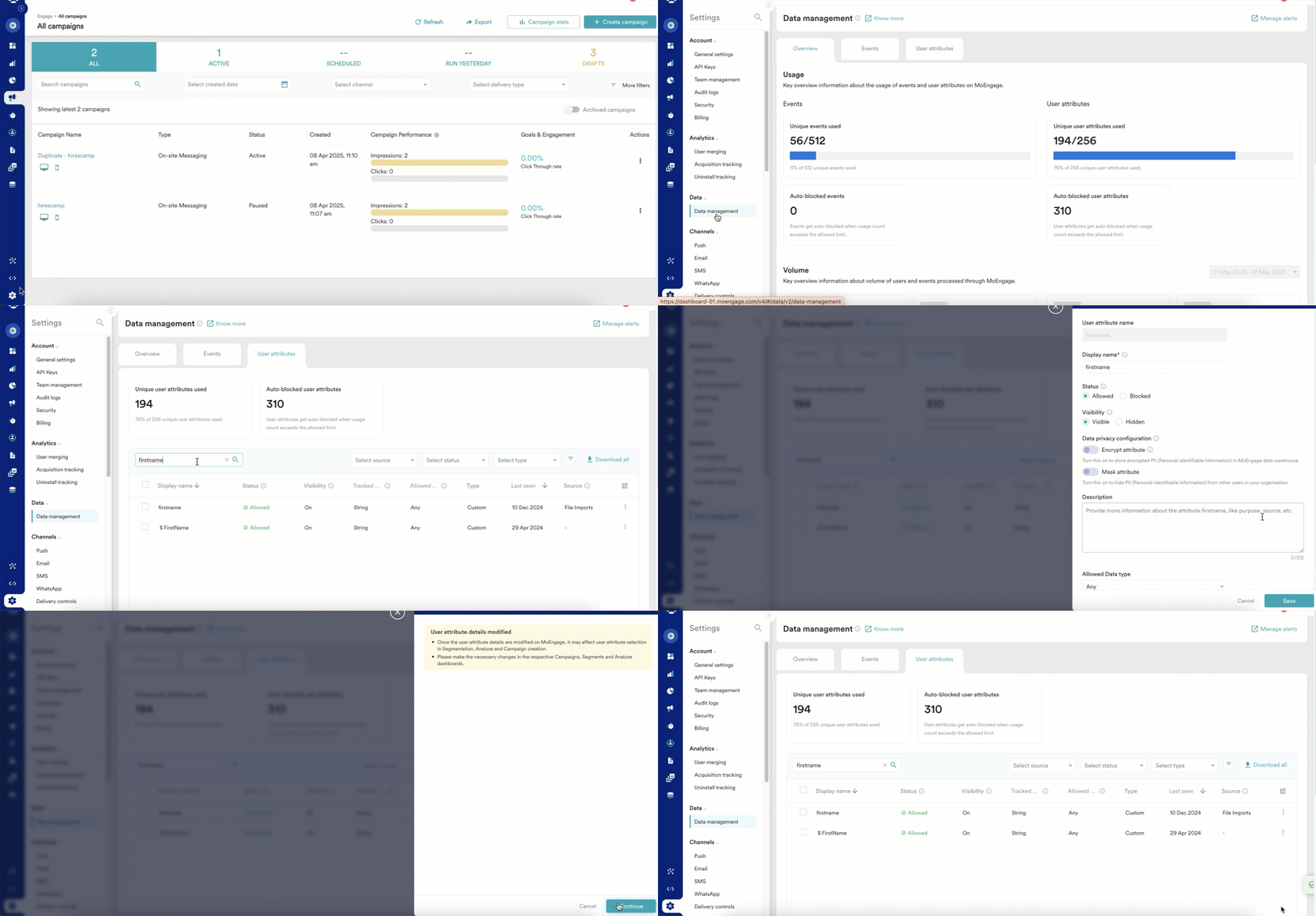 1. On the left navigation menu of the MoEngage dashboard, click **Settings** > **Data management**.
2. On the **Data management** page, click the **User attributes** tab.
3. Search for the desired user attribute and click the ellipsis icon against that attribute.
4. Click **Edit attribute**.
5. On the **Edit attribute details** side drawer, turn on the **Mask attribute** toggle to ensure sensitive data is concealed from other users within your workspace.
6. Click **Save**.
# Mask the Event Attributes
1. On the left navigation menu of the MoEngage dashboard, click **Settings** > **Data management**.
2. On the **Data management** page, click the **User attributes** tab.
3. Search for the desired user attribute and click the ellipsis icon against that attribute.
4. Click **Edit attribute**.
5. On the **Edit attribute details** side drawer, turn on the **Mask attribute** toggle to ensure sensitive data is concealed from other users within your workspace.
6. Click **Save**.
# Mask the Event Attributes
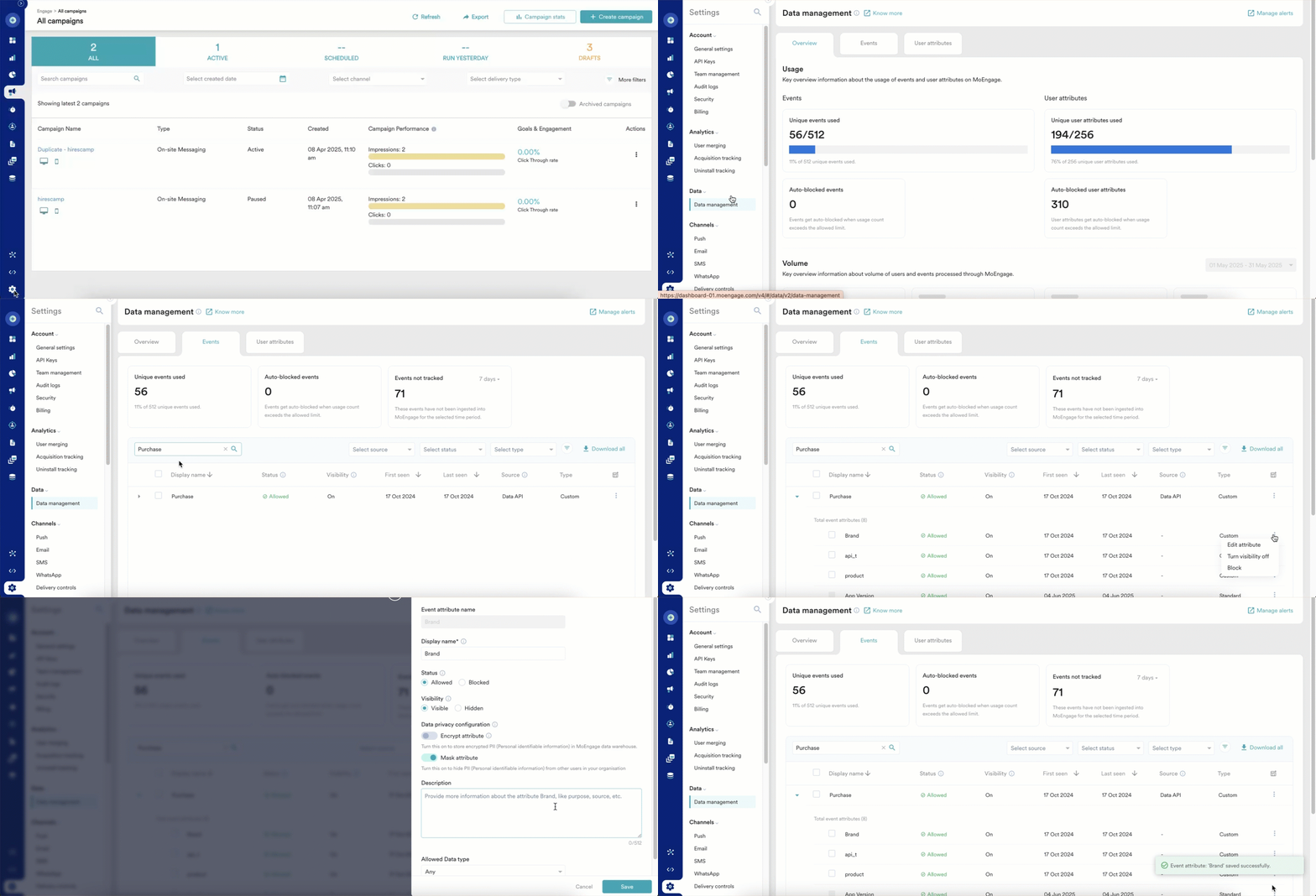 1. On the left navigation menu of the MoEngage dashboard, click **Settings** > **Data management**.
2. On the **Data management** page, click the **Events** tab.
3. Search for the event and then expand the event to view the event attributes under that. Click the ellipsis against that attribute.
4. Click **Edit attribute**.
5. On the **Edit attribute details** side drawer, turn on the **Mask attribute** toggle. Turning on this toggle hides the PII from other users in your workspace.
6. Click **Save** and **Continue**.
# View Masked User and Event Attributes
After you mask user or event attributes, users in your workspace can view them on the following pages, tabs, and dialog boxes of the MoEngage UI, depending on their assigned roles and permissions.
## User Search Box
You can view masked user or event attributes on the Create Segment page. Search for a user in the **Search user by ID, Email, Mobile No, or MoEngage ID** search box.
Accessibility to masked attributes depends on your assigned role. If you have the permission to view these attributes, you can see the real values of masked attributes. Otherwise, these appear as **Private** on the **Name** column and **---** (masked).
1. On the left navigation menu of the MoEngage dashboard, click **Settings** > **Data management**.
2. On the **Data management** page, click the **Events** tab.
3. Search for the event and then expand the event to view the event attributes under that. Click the ellipsis against that attribute.
4. Click **Edit attribute**.
5. On the **Edit attribute details** side drawer, turn on the **Mask attribute** toggle. Turning on this toggle hides the PII from other users in your workspace.
6. Click **Save** and **Continue**.
# View Masked User and Event Attributes
After you mask user or event attributes, users in your workspace can view them on the following pages, tabs, and dialog boxes of the MoEngage UI, depending on their assigned roles and permissions.
## User Search Box
You can view masked user or event attributes on the Create Segment page. Search for a user in the **Search user by ID, Email, Mobile No, or MoEngage ID** search box.
Accessibility to masked attributes depends on your assigned role. If you have the permission to view these attributes, you can see the real values of masked attributes. Otherwise, these appear as **Private** on the **Name** column and **---** (masked).  ## Show Users Window
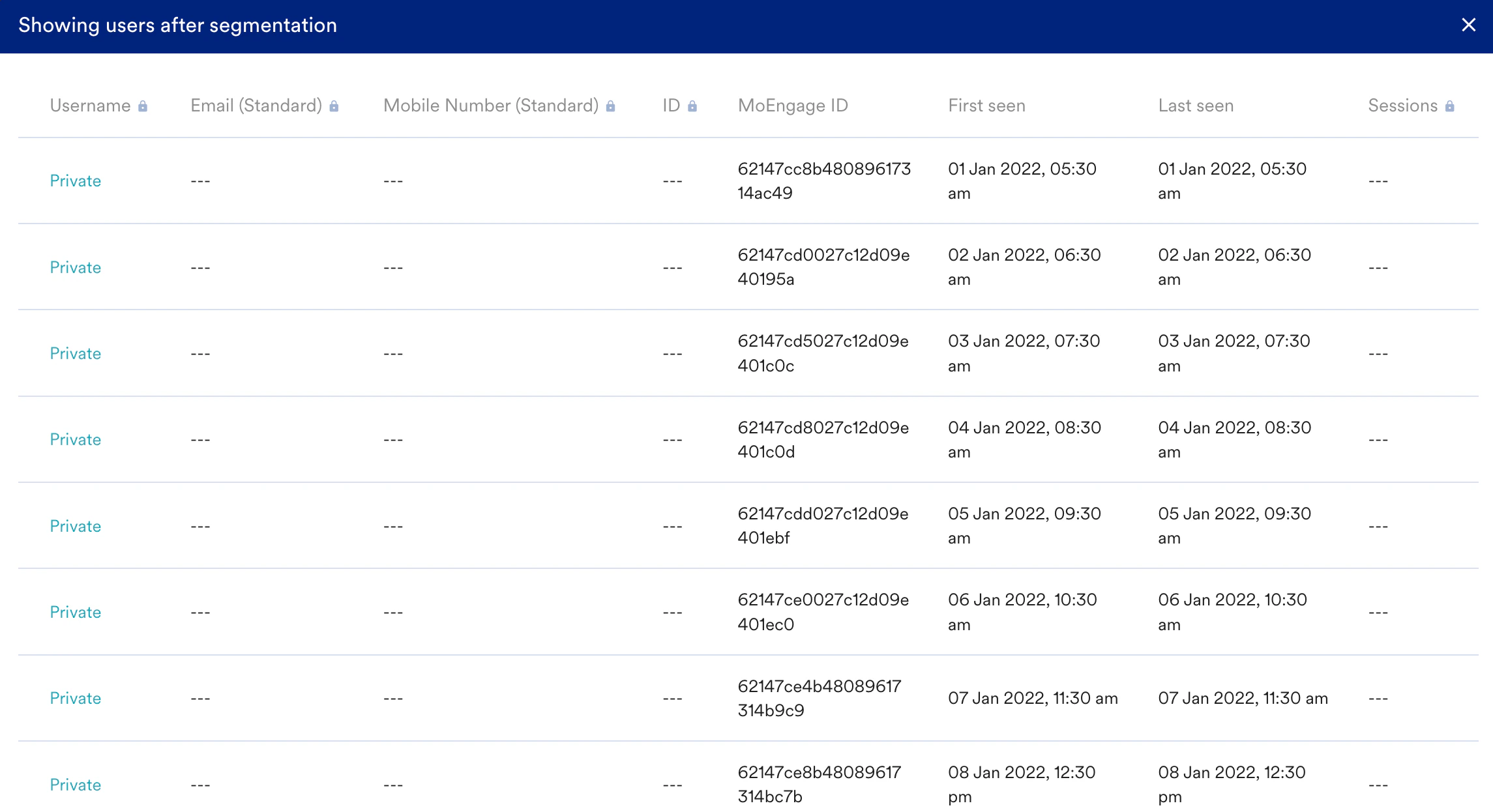
You can view masked user or event attributes on the **Showing users after segmentation** page. Perform the following steps to view the **Showing users after segmentation** page:
1. Click **Show count** while creating a segment on the **Create Segment** page, and expand the **Query results.**
2. On the **Sample users** section, click **Show more**.
3. The **Showing users after segmentation** page displays all the users after segmentation.\
Accessibility to masked attributes depends on your assigned role. If you have the permission to view these attributes, you can see the real values of masked attributes. Otherwise, these appear as **Private** and **---** (masked).
## Show Users Window
You can view masked user or event attributes on the **Showing users after segmentation** page. Perform the following steps to view the **Showing users after segmentation** page:
1. Click **Show count** while creating a segment on the **Create Segment** page, and expand the **Query results.**
2. On the **Sample users** section, click **Show more**.
3. The **Showing users after segmentation** page displays all the users after segmentation.\
Accessibility to masked attributes depends on your assigned role. If you have the permission to view these attributes, you can see the real values of masked attributes. Otherwise, these appear as **Private** and **---** (masked).
 ## User Exports Window
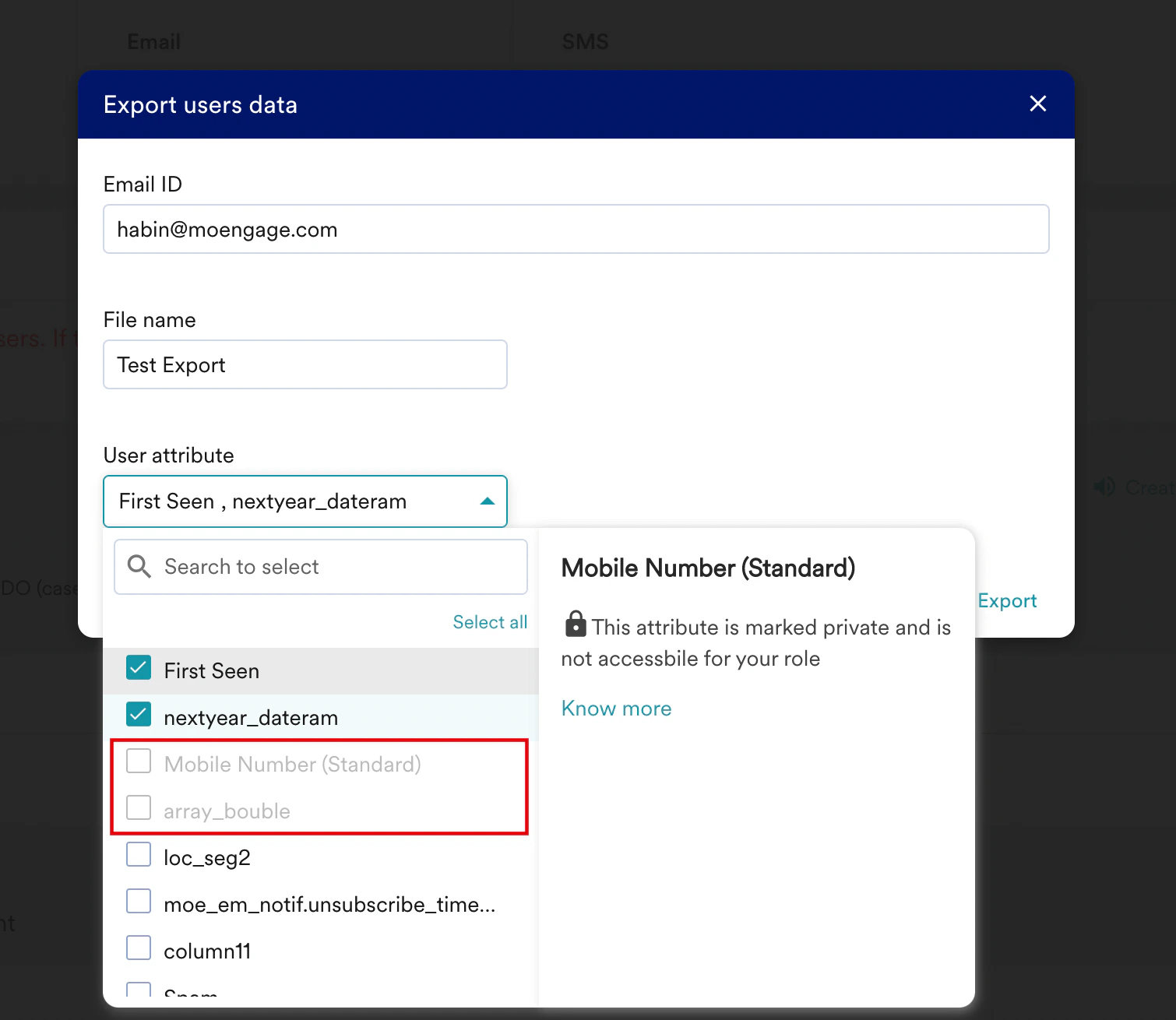
You can view masked user or event attributes on the **Export users data** dialog box. MoEngage disables masked user attributes on the **Export users data** dialog box based on your role. This means if masking is not accessible for your role, you cannot export masked attributes using the **Export users** option on the **Create Segment** page.
## User Exports Window
You can view masked user or event attributes on the **Export users data** dialog box. MoEngage disables masked user attributes on the **Export users data** dialog box based on your role. This means if masking is not accessible for your role, you cannot export masked attributes using the **Export users** option on the **Create Segment** page.
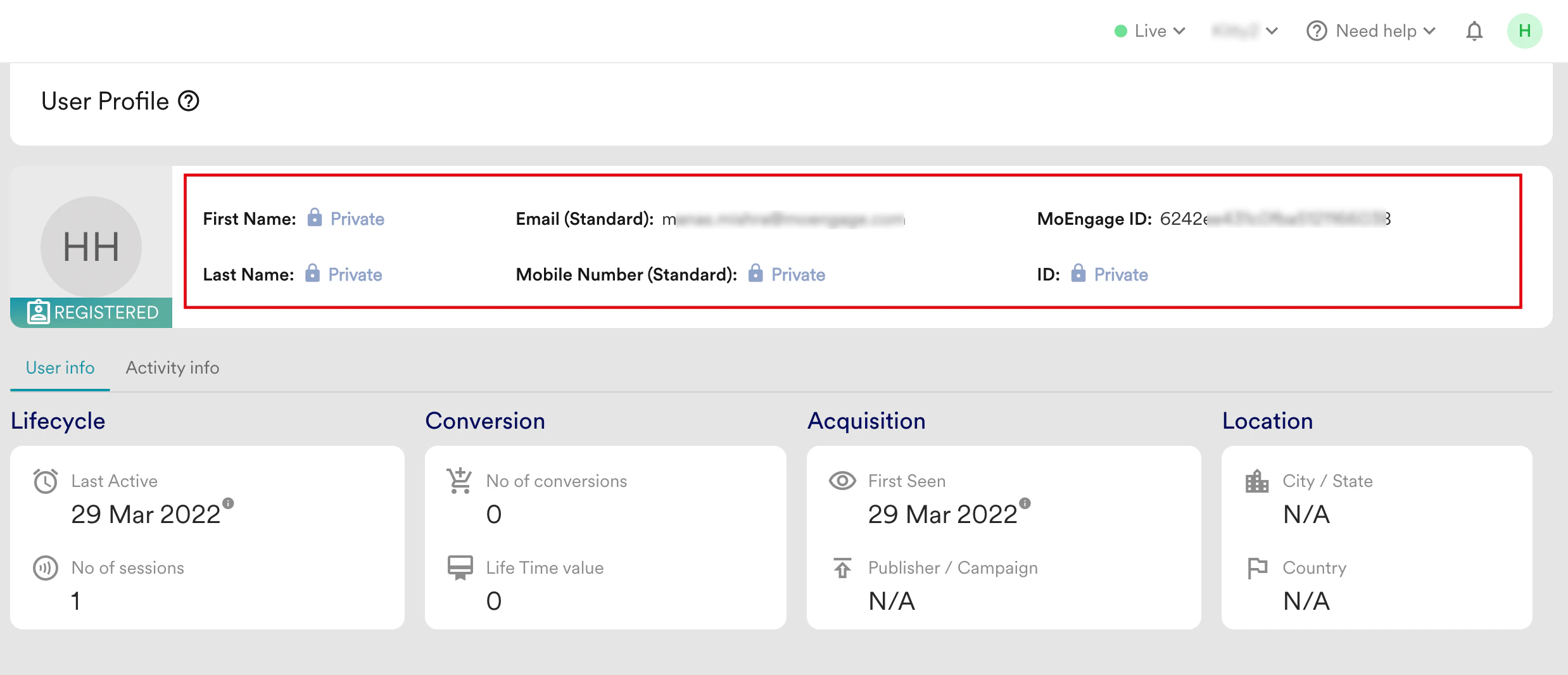
 ## User Profile Page
You can view masked user or event attributes on the User Profile page. Perform the following steps to view the masked attributes on the User Profile page:
1. Click **Show count** while creating a segment on the **Create Segment** page, and expand the **Query results**.
2. On the **Sample users** section, select the desired user to view their user profile.\
Accessibility to masked attributes depends on your assigned role. If you have the permission to view these attributes, you can see the real values of masked attributes. Otherwise, these appear as **Private**.
You can also access the User Profile page using the **Search user by ID, Email, Mobile No, or MoEngage ID** search box on the **Create Segment** page. Search for the user in the search box and click the name of the desired user.
## User Profile Page
You can view masked user or event attributes on the User Profile page. Perform the following steps to view the masked attributes on the User Profile page:
1. Click **Show count** while creating a segment on the **Create Segment** page, and expand the **Query results**.
2. On the **Sample users** section, select the desired user to view their user profile.\
Accessibility to masked attributes depends on your assigned role. If you have the permission to view these attributes, you can see the real values of masked attributes. Otherwise, these appear as **Private**.
You can also access the User Profile page using the **Search user by ID, Email, Mobile No, or MoEngage ID** search box on the **Create Segment** page. Search for the user in the search box and click the name of the desired user.
 ## User Info Tab
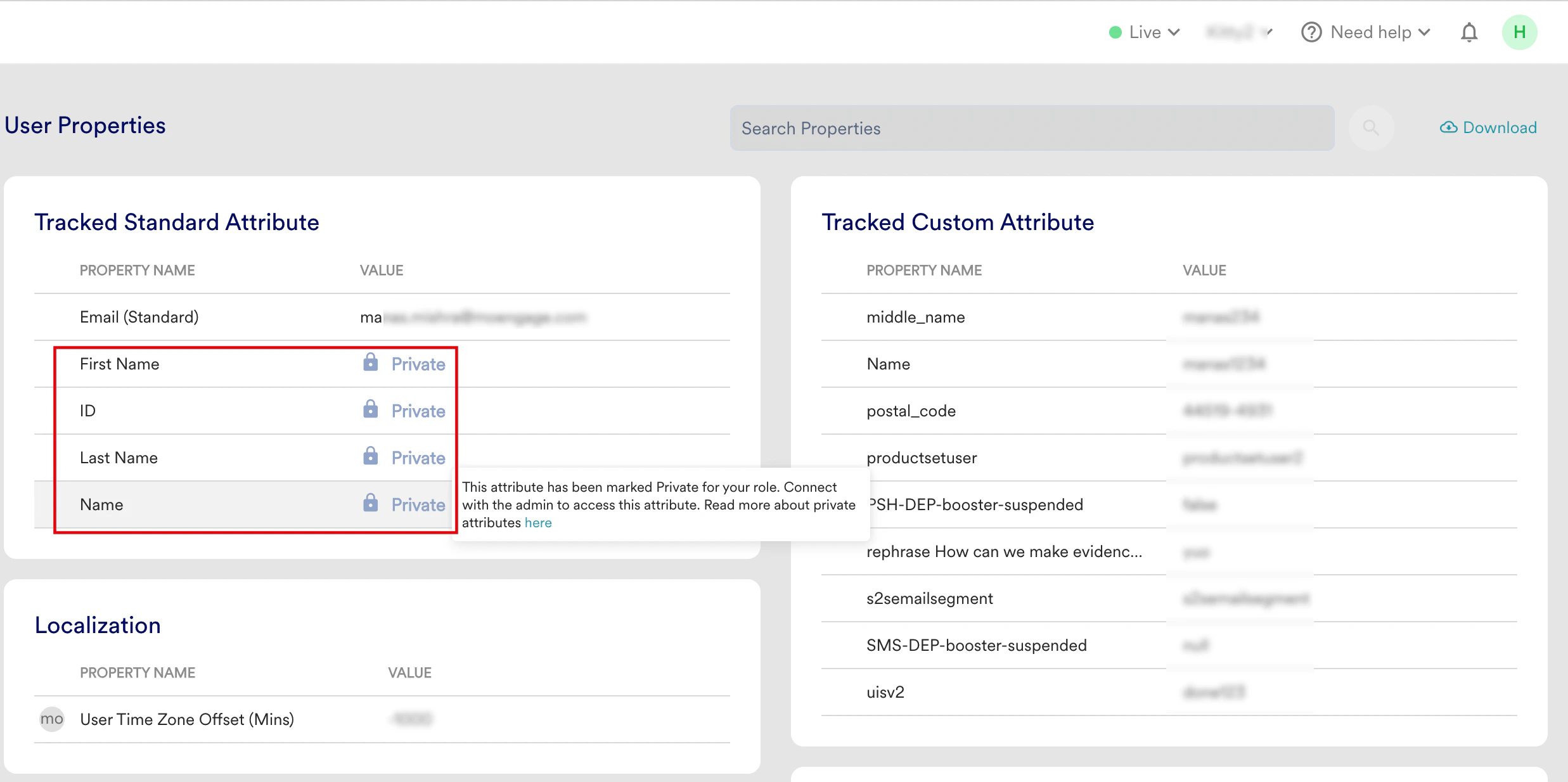
Perform the following steps to view the masked attributes on the **User Info** tab:
1. Click **Show count** while creating a segment on the **Create Segment** page, and expand the **Query results**.
2. On the **Sample users** section, select the desired user to view their user profile.
3. On the **User Profile**, click the **User info** tab, and then click **User Properties**.\
Accessibility to masked attributes depends on your assigned role. If you have the permission to view these attributes, you can see the real values of masked attributes. Otherwise, these appear as **Private**.
## User Info Tab
Perform the following steps to view the masked attributes on the **User Info** tab:
1. Click **Show count** while creating a segment on the **Create Segment** page, and expand the **Query results**.
2. On the **Sample users** section, select the desired user to view their user profile.
3. On the **User Profile**, click the **User info** tab, and then click **User Properties**.\
Accessibility to masked attributes depends on your assigned role. If you have the permission to view these attributes, you can see the real values of masked attributes. Otherwise, these appear as **Private**.
 ## Activity Info Tab
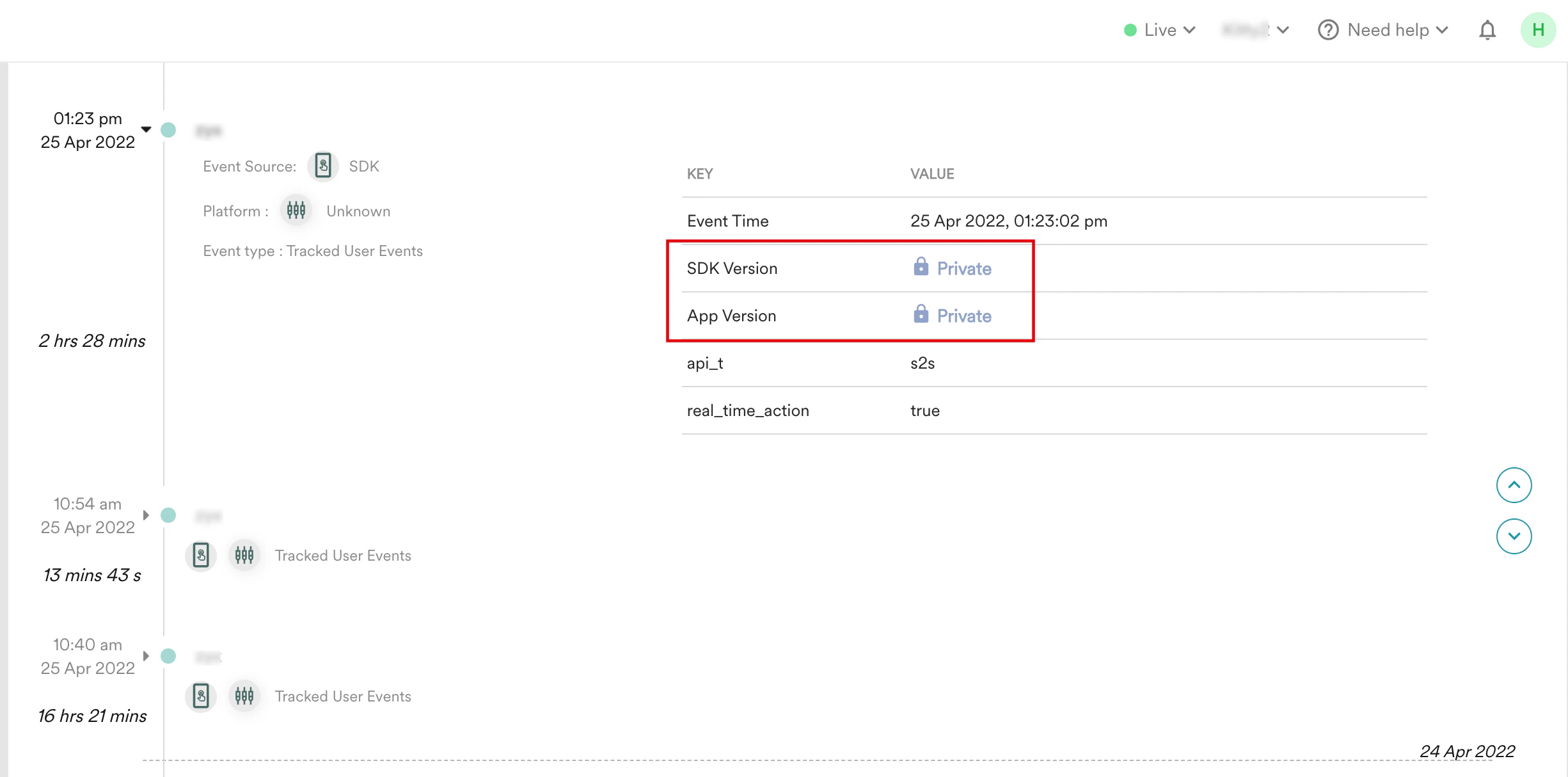
Perform the following steps to view the masked attributes on the **Activity Info** tab:
1. Click **Show count** while creating a segment on the **Create Segment** page, and expand the **Query results**.
2. On the **Sample users** section, select the desired user to view their user profile.
3. On the **User Profile**, click the **Activity info** tab.\
Accessibility to masked attributes depends on your assigned role. If you have the permission to view these attributes, you can see the real values of masked attributes. Otherwise, these appear as **Private**.
## Activity Info Tab
Perform the following steps to view the masked attributes on the **Activity Info** tab:
1. Click **Show count** while creating a segment on the **Create Segment** page, and expand the **Query results**.
2. On the **Sample users** section, select the desired user to view their user profile.
3. On the **User Profile**, click the **Activity info** tab.\
Accessibility to masked attributes depends on your assigned role. If you have the permission to view these attributes, you can see the real values of masked attributes. Otherwise, these appear as **Private**.
 ## Value Suggestions
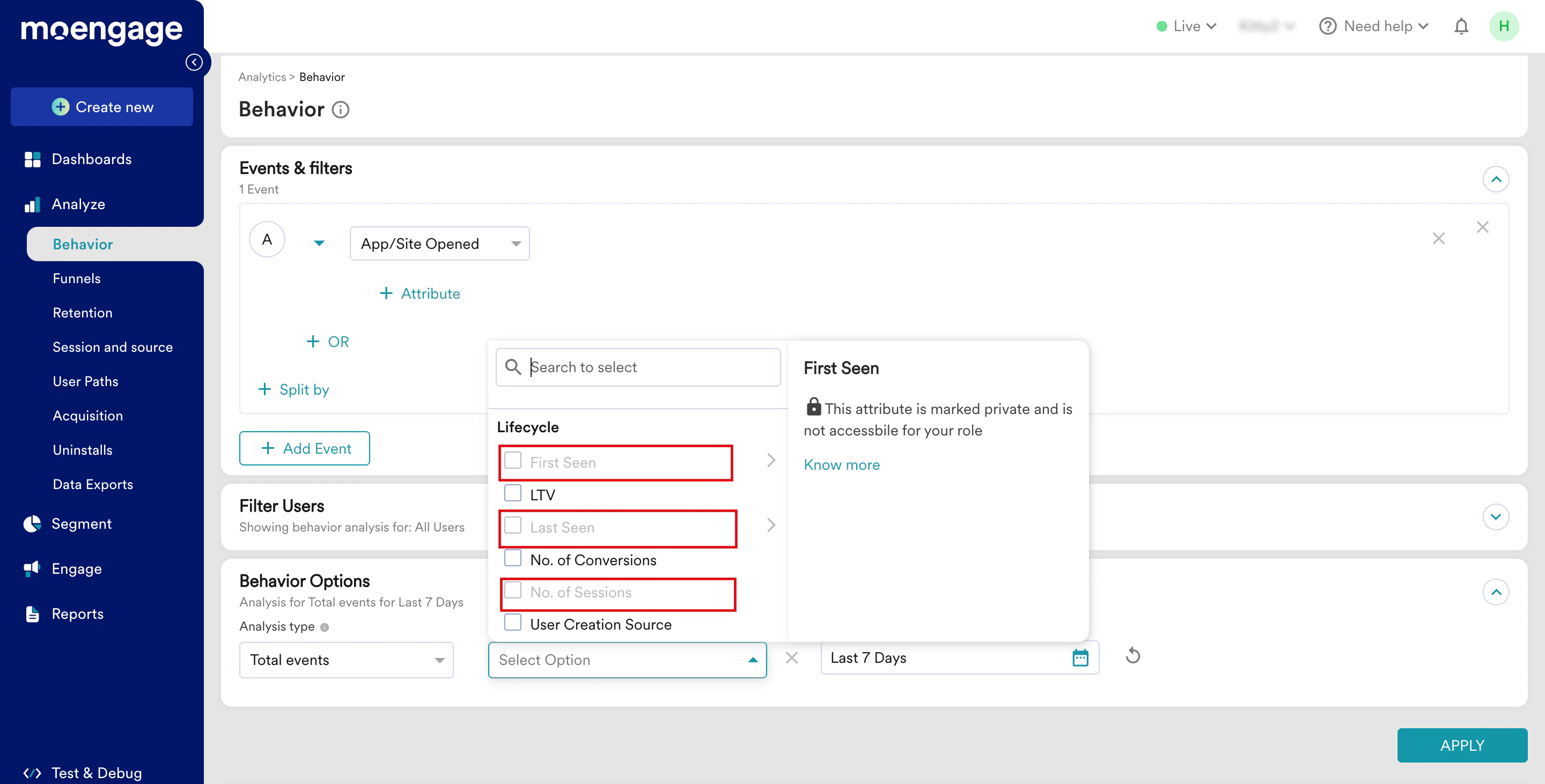
Visibility of masked value suggestions on the Segmentation and Analytics page depends on your role.\
These suggestions are disabled for roles without masking access. However, roles with masking permissions can see the real values behind the masked suggestions.
## Split by or Compare by in Analytics Pages
On [Behavior](/user-guide/analyze/analytics/behavior), [Funnel](/user-guide/analyze/analytics/funnels), and [Retention](/user-guide/analyze/analytics/retention) pages of **Analyze**, when you select the attributes for the **Split by** or **Compare by** functionalities, attribute visibility depends on your role. If masking is not accessible for your role, masked attributes are disabled. If accessible, you can view the actual values of the masked attributes.
## Value Suggestions
Visibility of masked value suggestions on the Segmentation and Analytics page depends on your role.\
These suggestions are disabled for roles without masking access. However, roles with masking permissions can see the real values behind the masked suggestions.
## Split by or Compare by in Analytics Pages
On [Behavior](/user-guide/analyze/analytics/behavior), [Funnel](/user-guide/analyze/analytics/funnels), and [Retention](/user-guide/analyze/analytics/retention) pages of **Analyze**, when you select the attributes for the **Split by** or **Compare by** functionalities, attribute visibility depends on your role. If masking is not accessible for your role, masked attributes are disabled. If accessible, you can view the actual values of the masked attributes.
 ## Test Users
You can view the list of test users and their masked PII by navigating to **Test & Debug** > **Test users** from the left navigation menu of the MoEngage UI. Accessibility to masked attributes depends on your assigned role. If you have the permission to view these attributes, you can see the real values of masked attributes. Otherwise, these appear as **Private** and **---** (masked).
## Test Users
You can view the list of test users and their masked PII by navigating to **Test & Debug** > **Test users** from the left navigation menu of the MoEngage UI. Accessibility to masked attributes depends on your assigned role. If you have the permission to view these attributes, you can see the real values of masked attributes. Otherwise, these appear as **Private** and **---** (masked).  ## Personalization Preview
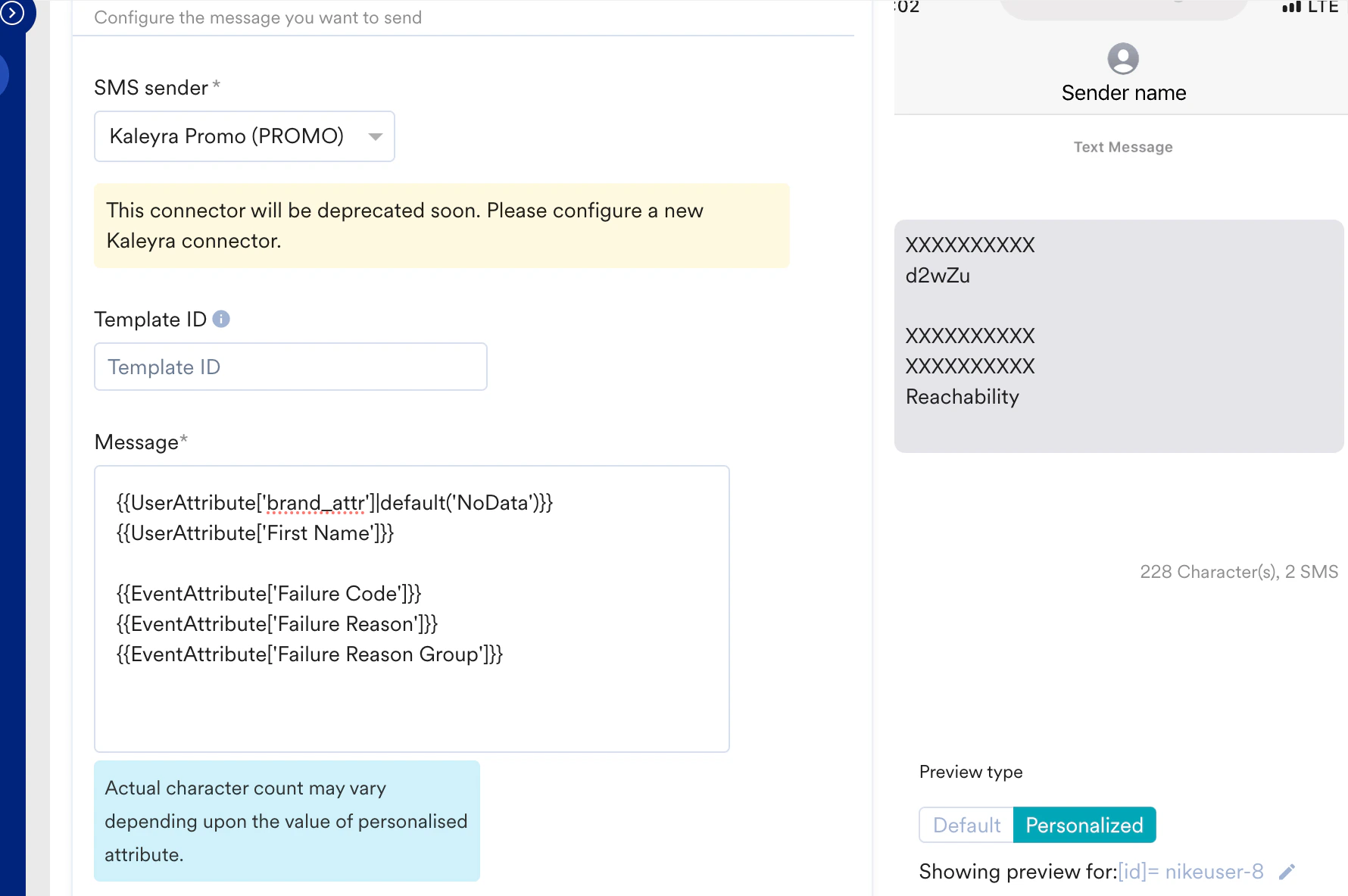
All the masked user attributes are shown as ***XXXXXXXXXX***on the personalization preview in the campaign creation pages. The following image displays the preview of masked PII attributes during the SMS campaign creation. For more information, refer to [PII Masking on Personalised Preview](/user-guide/data/privacy/personal-data-or-personally-identifiable-information-pii/pii-masking-on-personalised-preview).
## Personalization Preview
All the masked user attributes are shown as ***XXXXXXXXXX***on the personalization preview in the campaign creation pages. The following image displays the preview of masked PII attributes during the SMS campaign creation. For more information, refer to [PII Masking on Personalised Preview](/user-guide/data/privacy/personal-data-or-personally-identifiable-information-pii/pii-masking-on-personalised-preview).
 # Non-Dashboard Functionality
Features outside the MoEngage UI do not support PII masking. Hence, PII masking is not available for [Open Analytics](/user-guide/analyze/custom-analysis/open-analytics), [S3 Exports](/user-guide/data/exports/events/data-warehouse/s3-exports), and [MoEngage Streams](https://www.moengage.com/docs/api/data/moengage-streams).
These features are not available by default, require manual enablement, and are enabled on request. You can provide your team with access to these features as per your security and data needs.
# Non-Dashboard Functionality
Features outside the MoEngage UI do not support PII masking. Hence, PII masking is not available for [Open Analytics](/user-guide/analyze/custom-analysis/open-analytics), [S3 Exports](/user-guide/data/exports/events/data-warehouse/s3-exports), and [MoEngage Streams](https://www.moengage.com/docs/api/data/moengage-streams).
These features are not available by default, require manual enablement, and are enabled on request. You can provide your team with access to these features as per your security and data needs.