> ## Documentation Index
> Fetch the complete documentation index at: https://moengage.com/docs/llms.txt
> Use this file to discover all available pages before exploring further.
# User Profile
> Get a 360-degree view of each user in MoEngage — attributes, activity history, subscription status, and more. Learn how user profiles work.
User Profile gives a 360° view of a user's data stored in MoEngage, such as their first name, email address, subscription status, or the pages they visited on your website.
This documentation covers both the new and old UI of the User Profile. The new UI of the User Profile will be released in phases and if you wish to get it enabled earlier for your workspace, contact the MoEngage Support team.
A User Profile will be created and updated when a user opens your app or website that has the MoEngage SDK or when you upload user information through the UI or via API.
* Although MoEngage can ingest any amount of data, it follows a fair usage policy for data [tracking](/user-guide/data/key-concepts/data-tracking-policies) and [archiving](/user-guide/data/key-concepts/data-archival-retention-policy) to avoid misuse.
* If you have [Portfolio](/user-guide/settings/account/portfolio/portfolio) enabled for your workspace, the User Profile will have associated changes. For more information, refer to [Portfolio: Data Ingestion and Management](/user-guide/data/key-concepts/portfolio-data-ingestion-and-management).
**Prerequisites**
For managing user accounts, you must have the **User Profile Management** permission. This permission allows you to delete a user or edit their permissions. By default, this permission is automatically granted to the **Admin** and **Manager** roles. For more information, refer to [Access Roles](/user-guide/settings/account/team-management/access-roles).
# Access User Profile
You can access the **User Profile** in the following ways:
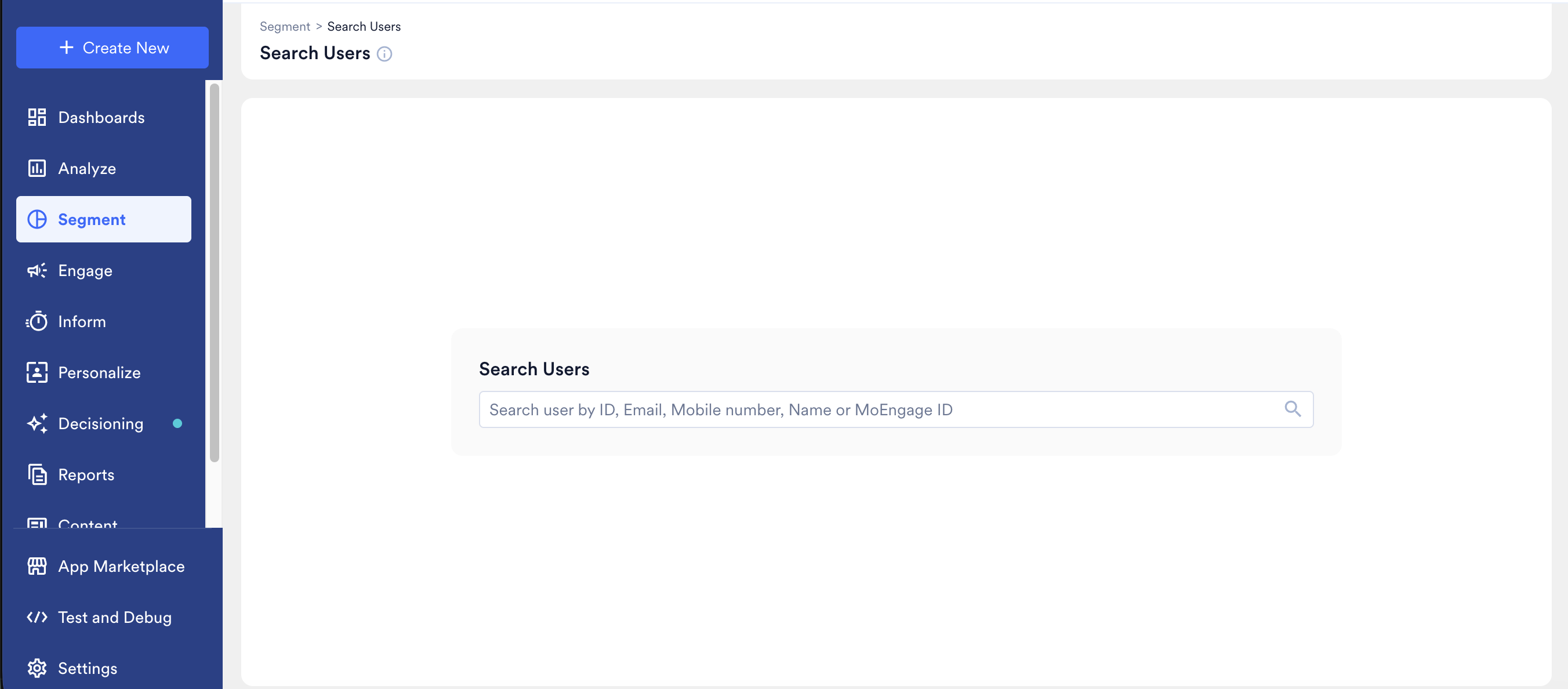
1. **Access using the Search Users option**: From the left navigation on your MoEngage dashboard, click **Segment** > **Search Users.**
2. On the **Search Users** page, search for the users by ID, Email, Mobile Number, Name, or MoEngage ID using the search bar.
 3. **Access user profiles based on user attributes:** From the left navigation on your MoEngage dashboard, click **Segment > + New segment.** Search for the users by ID, Email, Mobile Number, or MoEngage ID from the field provided in the right corner of the window. This search provides the list of users, matching the search text with the provided fields. Clicking on any of the rows will open the user profile.
.gif?s=628b3bbf626b0bd93c0f09b7871add64)
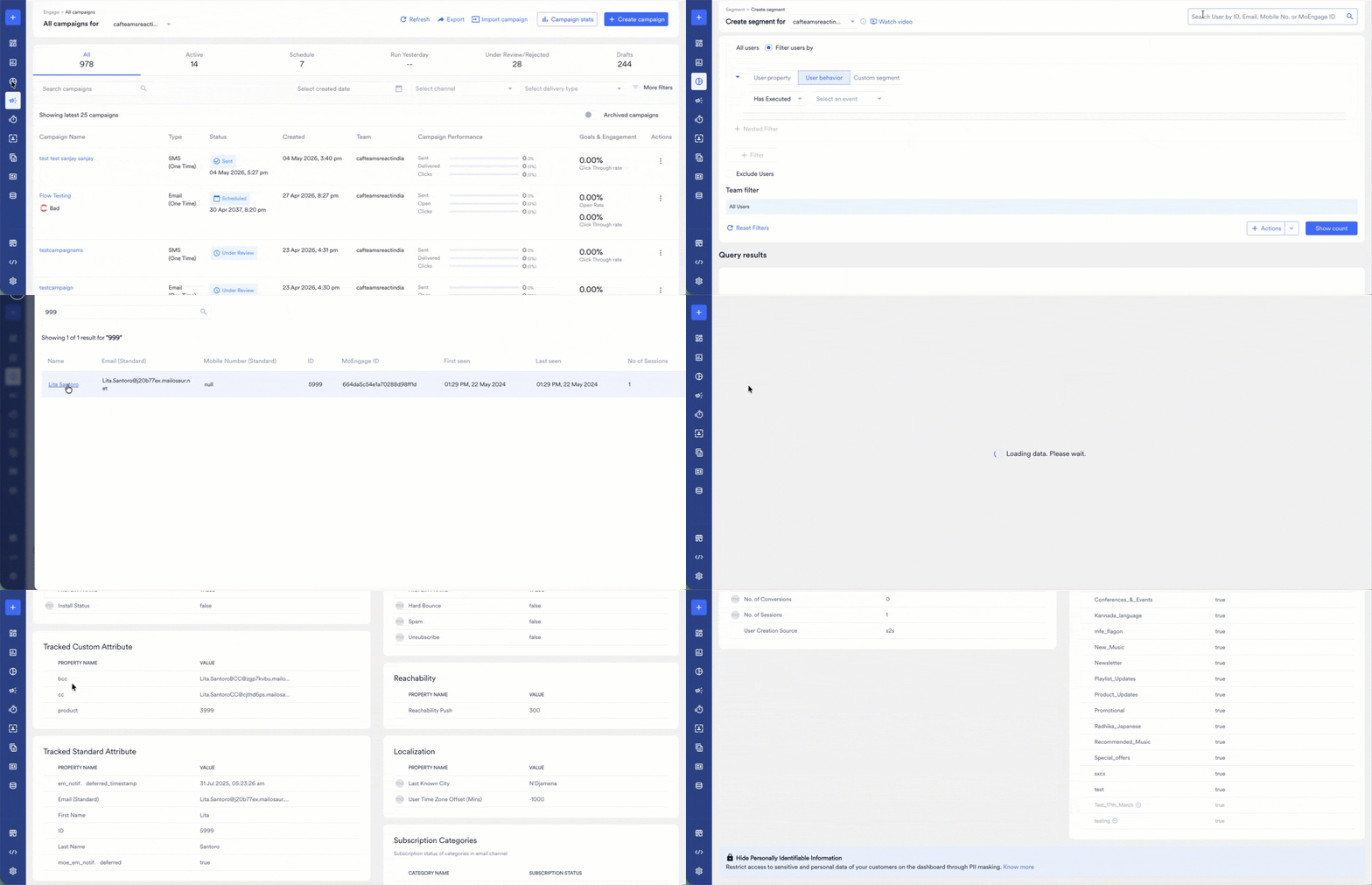 4. **Access user profiles based on criteria:** From the left navigation on your MoEngage dashboard, click **Segment** > **+ New segment.** Segment users based on the desired criteria. You can check your recent queries in the **Query Result** section. Click the user profile icon from the sample data to see the user details stored in MoEngage.
-1.gif?s=a4696a70d6a267f1bdb54f3c8fb81be7)
-2.gif?s=d3b57daa02db481052b6e8ca3fc34a06) * Any query in the user profile is performed using the server time, and the query result displays the event time.
* Event time is displayed in the User Profile and not the server time. For more information, refer to [Event Time and Server Time](/user-guide/data/event-data/event-time-and-received-time).
# User Profile
The User Profile contains the following sections:
* [Basic Details](/user-guide/data/user-data/user-profile#basic-details)
* [User Info (This section is labeled as **User Properties** in the new UI.)](/user-guide/data/user-data/user-profile#user-info/user-properties)
* [Activity Info (This section is labeled as **Event Activity** in the new UI.)](/user-guide/data/user-data/user-profile#activity-info/event-activity)
## Basic Details
This section displays fundamental user information, including:
* First Name
* Last Name
* Email ID
* Mobile Number
* Custom Identifiers: These are the custom user identifiers you configured in the Identity Resolution dashboard. This detail is only visible when you use the new UI.
* MoEngage ID
* Client ID
* Any query in the user profile is performed using the server time, and the query result displays the event time.
* Event time is displayed in the User Profile and not the server time. For more information, refer to [Event Time and Server Time](/user-guide/data/event-data/event-time-and-received-time).
# User Profile
The User Profile contains the following sections:
* [Basic Details](/user-guide/data/user-data/user-profile#basic-details)
* [User Info (This section is labeled as **User Properties** in the new UI.)](/user-guide/data/user-data/user-profile#user-info/user-properties)
* [Activity Info (This section is labeled as **Event Activity** in the new UI.)](/user-guide/data/user-data/user-profile#activity-info/event-activity)
## Basic Details
This section displays fundamental user information, including:
* First Name
* Last Name
* Email ID
* Mobile Number
* Custom Identifiers: These are the custom user identifiers you configured in the Identity Resolution dashboard. This detail is only visible when you use the new UI.
* MoEngage ID
* Client ID
.png?fit=max&auto=format&n=ZKLzlUPwWt6PWeT4&q=85&s=eb59370562e79be21b1a4c3ff7754624)
 ## User Info/User Properties
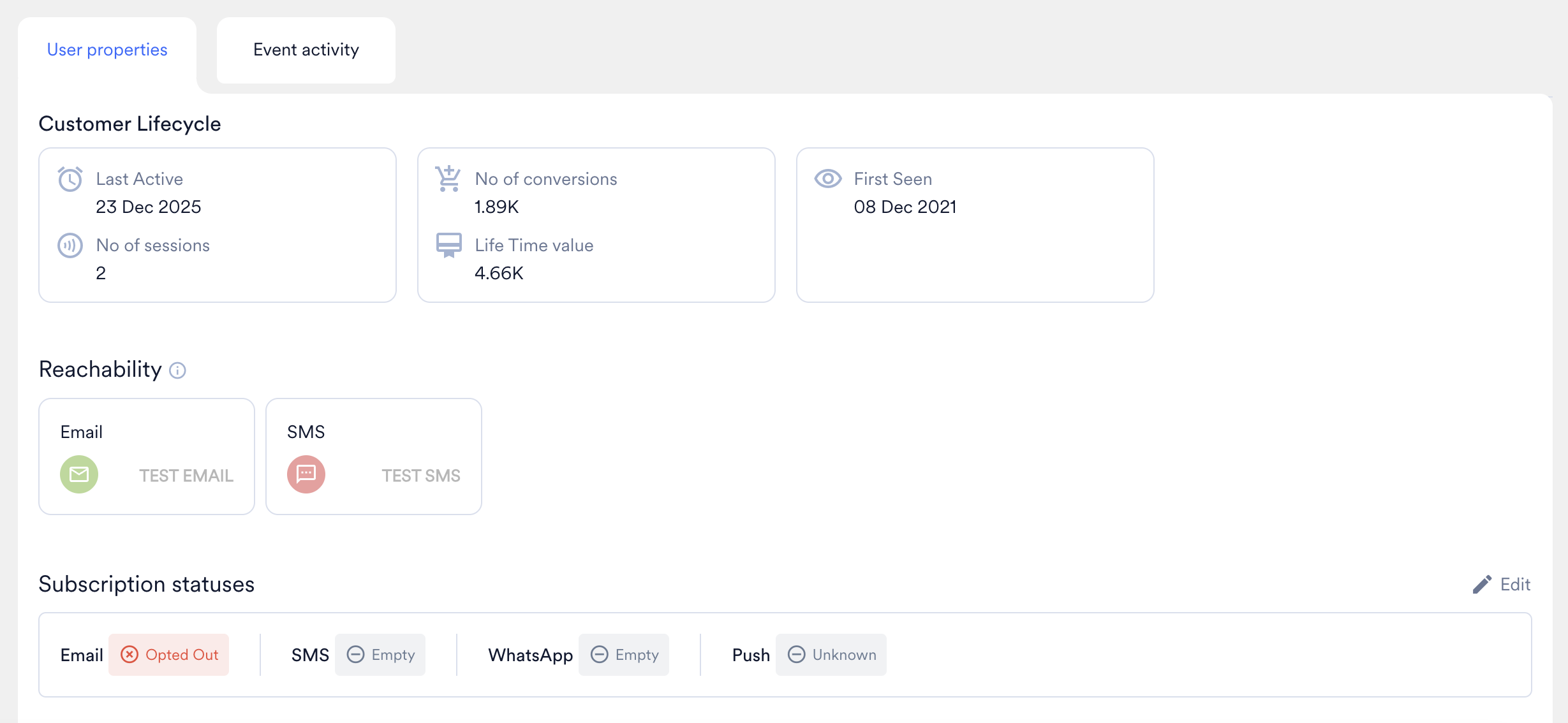
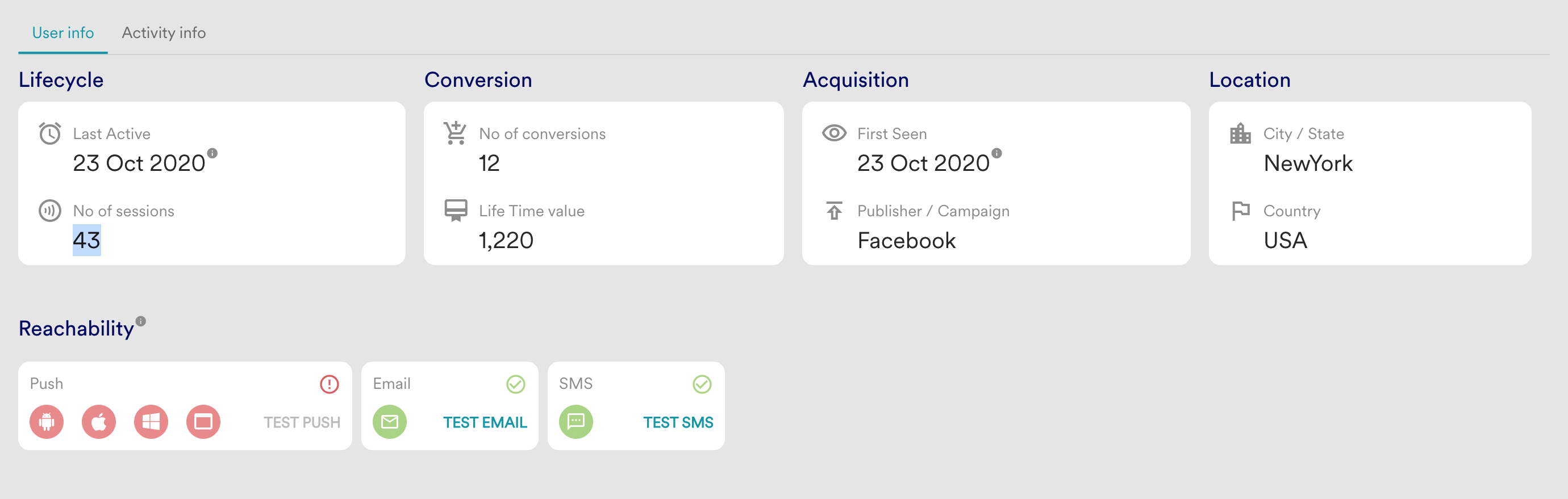
This section presents information about the user, such as Lifecycle, Conversion, Acquisition, Location details, and Reachability.
## User Info/User Properties
This section presents information about the user, such as Lifecycle, Conversion, Acquisition, Location details, and Reachability.
 ### Lifecycle
This section provides a high-level summary of the user's recent activity. It shows:
* **Last Active**: The date the user was last active on the platform.
* **No of sessions**: No.of sessions done by the user. This is the number of times a user has performed the App/Site Open event.
### Conversion
This section details the user's conversion metrics, which indicate their value and engagement with the platform. It shows:
* **No of conversions**: No. of conversion events done by the user.
* **Life Time value**: Life time value of the user. This is the total sum of revenue attributes present in the *Conversion goal* event performed by a user. LTV is updated every time the conversion goal event is executed by the user. For more information, refer to [Configure Lifetime Value (LTV)](/user-guide/data/user-data/derived-user-attributes#configure-lifetime-value-ltv).
### Acquisition
This section provides information about how the user was first acquired. It shows:
* **First Seen**: The date the user was first seen or registered on the MoEngage platform.
* **Publisher / Campaign**: Name of the Publisher/Campaign through which the user installed the app.
### Location
This section displays the geographical location of the user. It shows:
* **City / State**: The user's city and state.
* **Country**: The user's country.
### Reachability
Reachability shows whether the user can be reached/connected through various channels like push, email, and SMS. The green tick mark on the Push card shows at least one platform or device on which this user is reachable. The red exclamation mark represents the user is not reachable on the respective platform or channel. For more information, refer to [User Reachability](/user-guide/segment/reachability/user-reachability). Testing Reachability Use **Test Push, Test Email,** and **Test SMS** buttons to quickly send the test notification to the user. Test Push and Test Email send a preconfigured Push and Email, respectively. Test SMS requires the user to fill in the text message, as laws in a few countries (i.e. India) require whitelisted text to send the SMS.
### Subscription Statuses
The **Subscription Statuses** section is only available in the new UI.
This section allows you to view and manually edit the subscription status for Email and SMS channels.
### Lifecycle
This section provides a high-level summary of the user's recent activity. It shows:
* **Last Active**: The date the user was last active on the platform.
* **No of sessions**: No.of sessions done by the user. This is the number of times a user has performed the App/Site Open event.
### Conversion
This section details the user's conversion metrics, which indicate their value and engagement with the platform. It shows:
* **No of conversions**: No. of conversion events done by the user.
* **Life Time value**: Life time value of the user. This is the total sum of revenue attributes present in the *Conversion goal* event performed by a user. LTV is updated every time the conversion goal event is executed by the user. For more information, refer to [Configure Lifetime Value (LTV)](/user-guide/data/user-data/derived-user-attributes#configure-lifetime-value-ltv).
### Acquisition
This section provides information about how the user was first acquired. It shows:
* **First Seen**: The date the user was first seen or registered on the MoEngage platform.
* **Publisher / Campaign**: Name of the Publisher/Campaign through which the user installed the app.
### Location
This section displays the geographical location of the user. It shows:
* **City / State**: The user's city and state.
* **Country**: The user's country.
### Reachability
Reachability shows whether the user can be reached/connected through various channels like push, email, and SMS. The green tick mark on the Push card shows at least one platform or device on which this user is reachable. The red exclamation mark represents the user is not reachable on the respective platform or channel. For more information, refer to [User Reachability](/user-guide/segment/reachability/user-reachability). Testing Reachability Use **Test Push, Test Email,** and **Test SMS** buttons to quickly send the test notification to the user. Test Push and Test Email send a preconfigured Push and Email, respectively. Test SMS requires the user to fill in the text message, as laws in a few countries (i.e. India) require whitelisted text to send the SMS.
### Subscription Statuses
The **Subscription Statuses** section is only available in the new UI.
This section allows you to view and manually edit the subscription status for Email and SMS channels.
 * **Edit subscription status**: Click the edit icon to change the subscription status. Currently, manual overrides are supported only for Email and SMS. WhatsApp and Push remain read-only.
* **Email subscription status**: The email subscription status includes **Subscribed** and **Unsubscribed**. If your workspace has [Double-optin ](https://help.moengage.com/hc/en-us/articles/36186002401940-Opt-in-Management#h_01JQR42AZB39G5SSND4YM6XHBJ)configured, the subscription status includes **Optin pending**, **Double-opted in**, and **Opted out**.\
**Note**: For users using SendGrid as the email connector, updating the status in MoEngage automatically triggers a downstream update to SendGrid to keep statuses in sync. This change also generates internal tracking events and an entry in the Audit Logs. The events generated include:
* *Email Resubscribed*
* *Email Opt-in Status Updated*
* *Email Unsubscribed*
* **SMS subscription status**: Updating SMS status directly modifies the corresponding subscription attribute value.
### User Properties
This section shows all user attributes with respect to the user.
* **Edit subscription status**: Click the edit icon to change the subscription status. Currently, manual overrides are supported only for Email and SMS. WhatsApp and Push remain read-only.
* **Email subscription status**: The email subscription status includes **Subscribed** and **Unsubscribed**. If your workspace has [Double-optin ](https://help.moengage.com/hc/en-us/articles/36186002401940-Opt-in-Management#h_01JQR42AZB39G5SSND4YM6XHBJ)configured, the subscription status includes **Optin pending**, **Double-opted in**, and **Opted out**.\
**Note**: For users using SendGrid as the email connector, updating the status in MoEngage automatically triggers a downstream update to SendGrid to keep statuses in sync. This change also generates internal tracking events and an entry in the Audit Logs. The events generated include:
* *Email Resubscribed*
* *Email Opt-in Status Updated*
* *Email Unsubscribed*
* **SMS subscription status**: Updating SMS status directly modifies the corresponding subscription attribute value.
### User Properties
This section shows all user attributes with respect to the user.
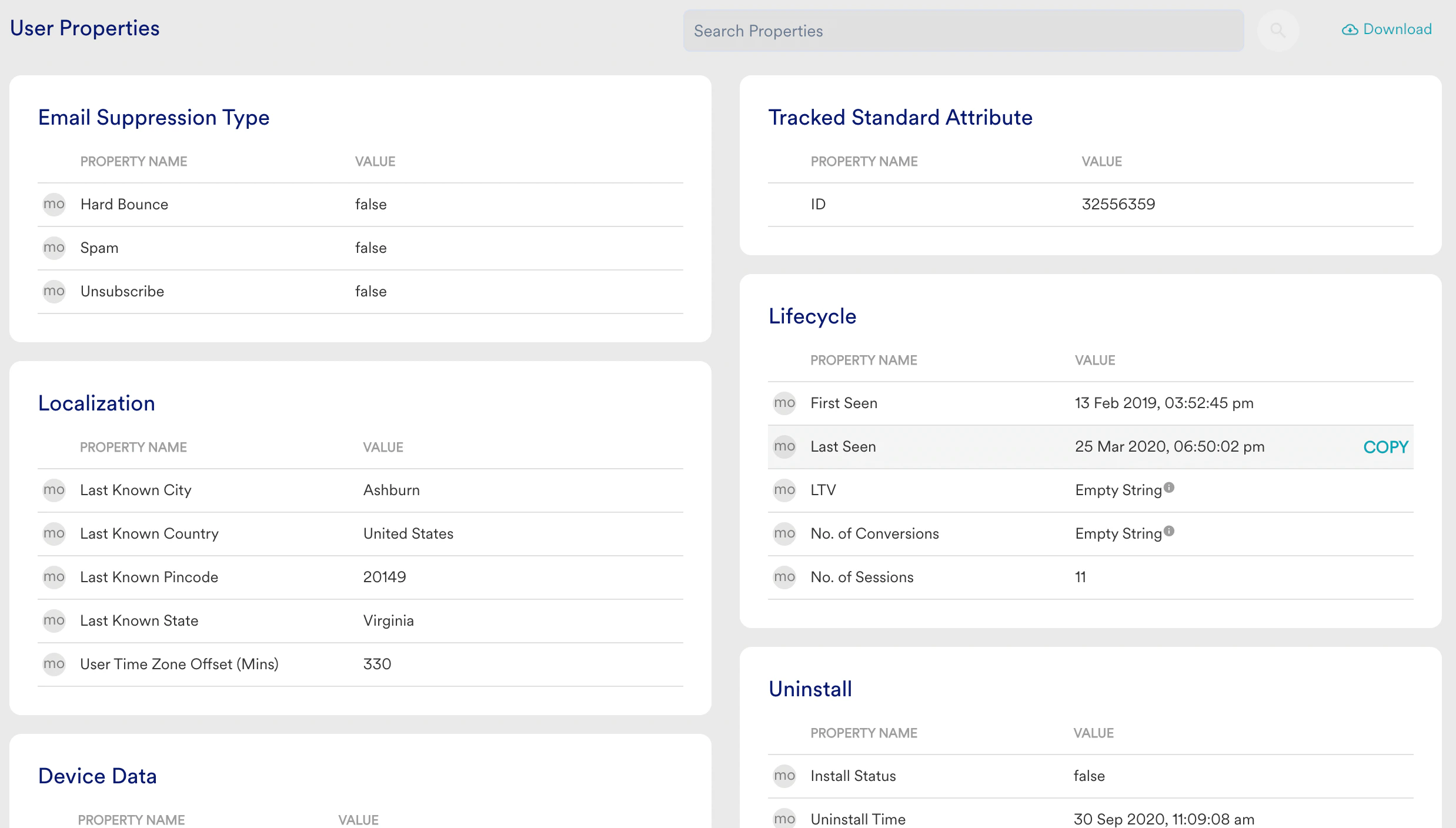 You can access these from the **User Properties** drop-down during user segmentation, where they are organized into categories. A ‘mo’ symbol next to a property indicates that it is derived from or generated by MoEngage.
* To search for users using a specific value, hover over the property and click **COPY**.
* To export the entire list to a CSV file click **Download** in the right corner.
* To view the complete list of properties and their related information, refer [here](/user-guide/data/event-data/derived-events-and-attributes).
PII (Personally Identifiable Information) marked properties are shown as **Private** in the User Profile. To learn more, see [PII Masking](/user-guide/data/privacy/personal-data-or-personally-identifiable-information-pii/pii-masking).
## Activity Info/Event Activity
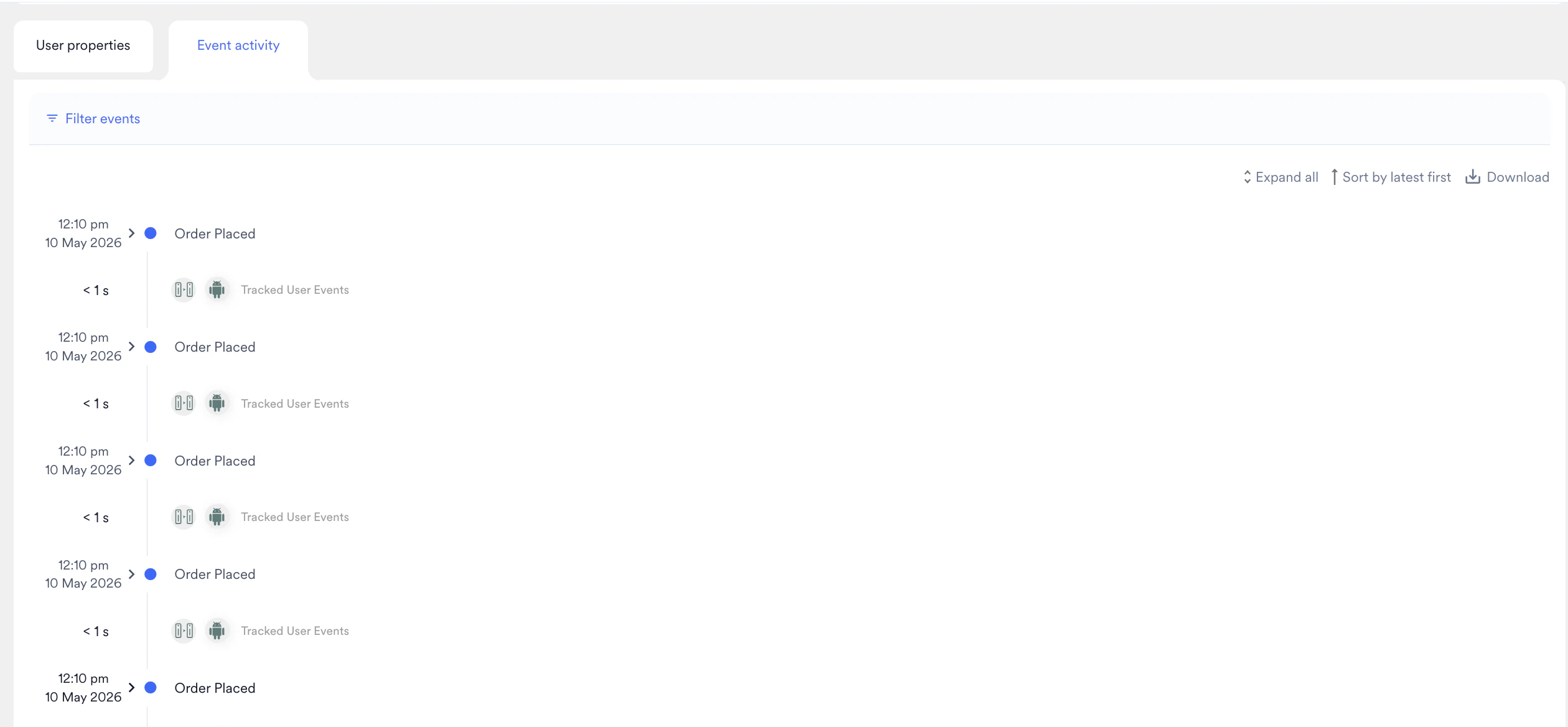
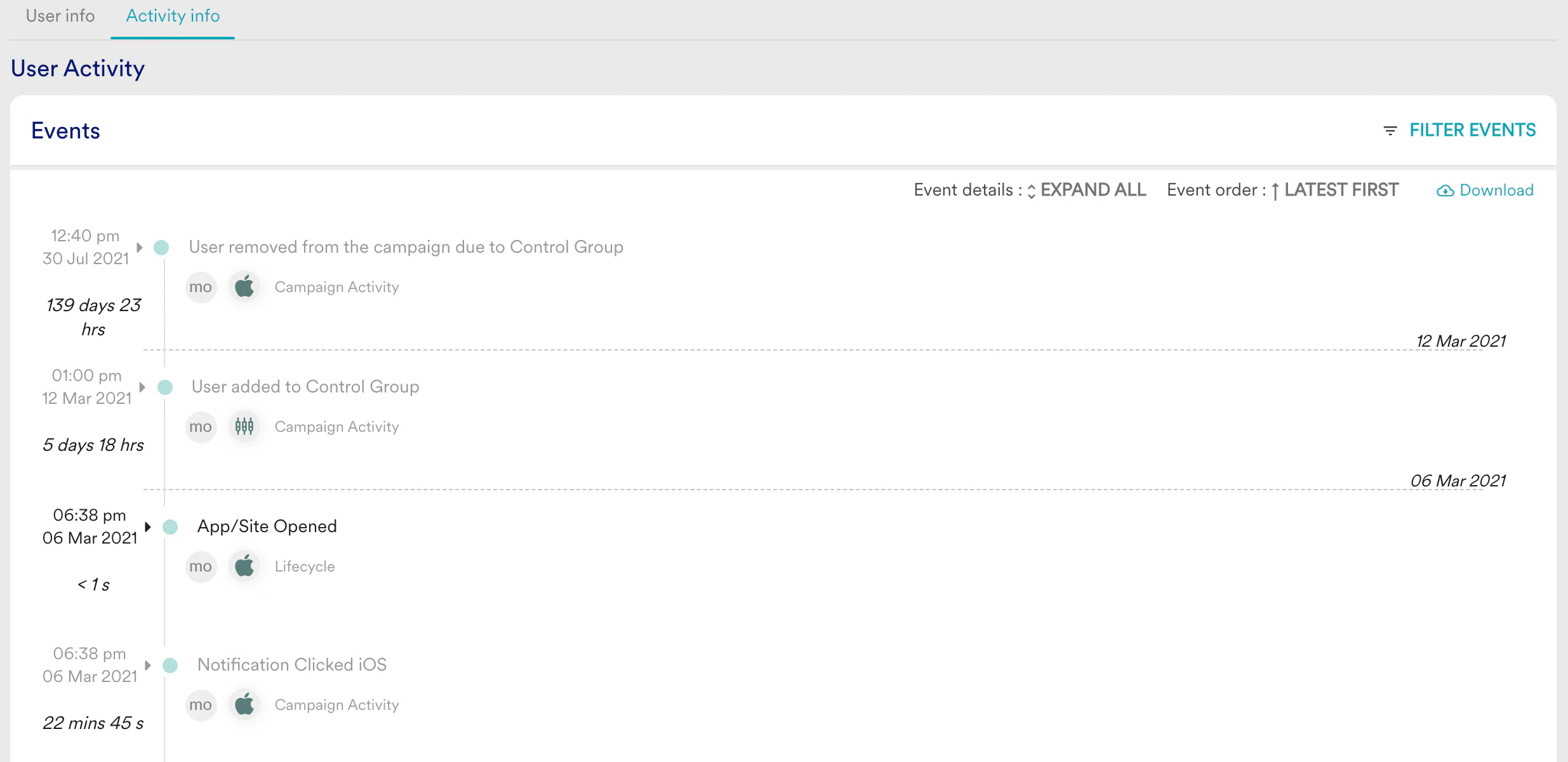
The **Event activity** (or Activity Info) section displays a timeline of actions a user has performed, with their associated attributes. This data covers user activity based on your plan and data center configuration, and the event list is sorted in a Latest First order by default. If you want to look at user activity beyond 30 days, refer [here](/user-guide/data/user-data/user-profile#user-activity-beyond-30-days).
You can access these from the **User Properties** drop-down during user segmentation, where they are organized into categories. A ‘mo’ symbol next to a property indicates that it is derived from or generated by MoEngage.
* To search for users using a specific value, hover over the property and click **COPY**.
* To export the entire list to a CSV file click **Download** in the right corner.
* To view the complete list of properties and their related information, refer [here](/user-guide/data/event-data/derived-events-and-attributes).
PII (Personally Identifiable Information) marked properties are shown as **Private** in the User Profile. To learn more, see [PII Masking](/user-guide/data/privacy/personal-data-or-personally-identifiable-information-pii/pii-masking).
## Activity Info/Event Activity
The **Event activity** (or Activity Info) section displays a timeline of actions a user has performed, with their associated attributes. This data covers user activity based on your plan and data center configuration, and the event list is sorted in a Latest First order by default. If you want to look at user activity beyond 30 days, refer [here](/user-guide/data/user-data/user-profile#user-activity-beyond-30-days).
 Device attributes (Device Density DPI, Device Height, Device Manufacturer, Device Model, Device Screen, Dimension, Device Width, Network Type, OS Version) and Source attributes (utm\_source, utm\_medium, utm\_campaign, utm\_id, utm\_content, utm\_term) are not available as Events in the user profile.
**Filters** User activity can be filtered on various parameters to analyze desired events and sections of the user profile. The filters are:
* Date Range Filters
* Platform Filters
* Event or Campaign Filters You can use different combinations of filters to fetch the required details of the user based on their activity.
Device attributes (Device Density DPI, Device Height, Device Manufacturer, Device Model, Device Screen, Dimension, Device Width, Network Type, OS Version) and Source attributes (utm\_source, utm\_medium, utm\_campaign, utm\_id, utm\_content, utm\_term) are not available as Events in the user profile.
**Filters** User activity can be filtered on various parameters to analyze desired events and sections of the user profile. The filters are:
* Date Range Filters
* Platform Filters
* Event or Campaign Filters You can use different combinations of filters to fetch the required details of the user based on their activity.
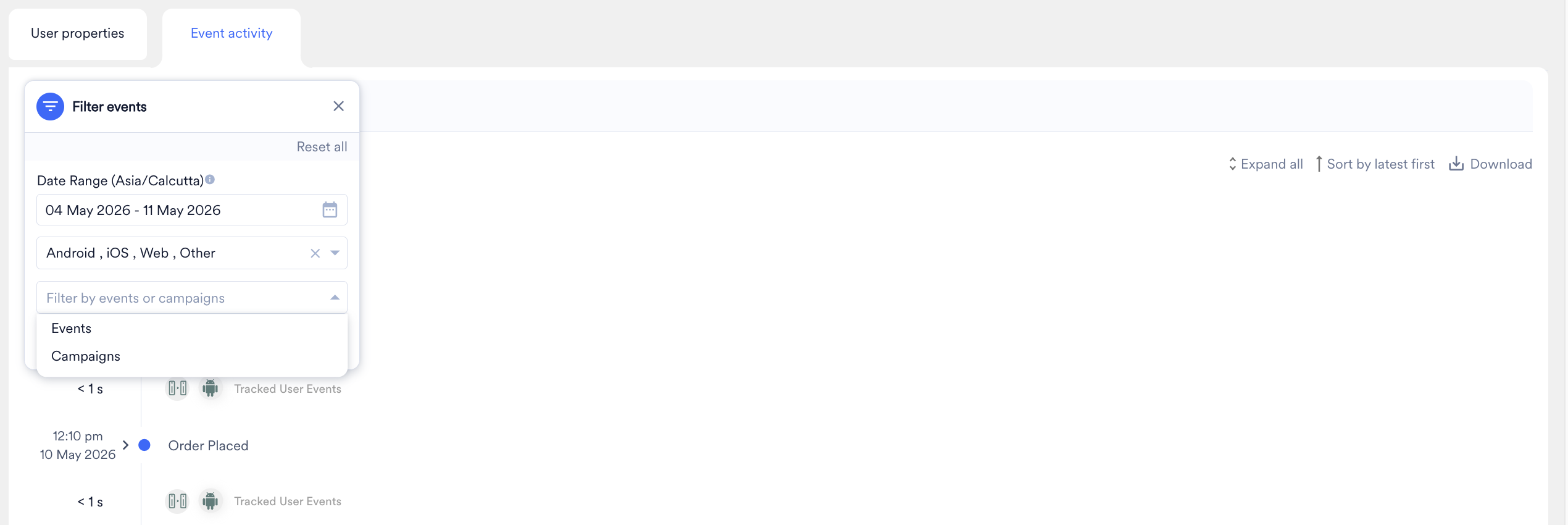
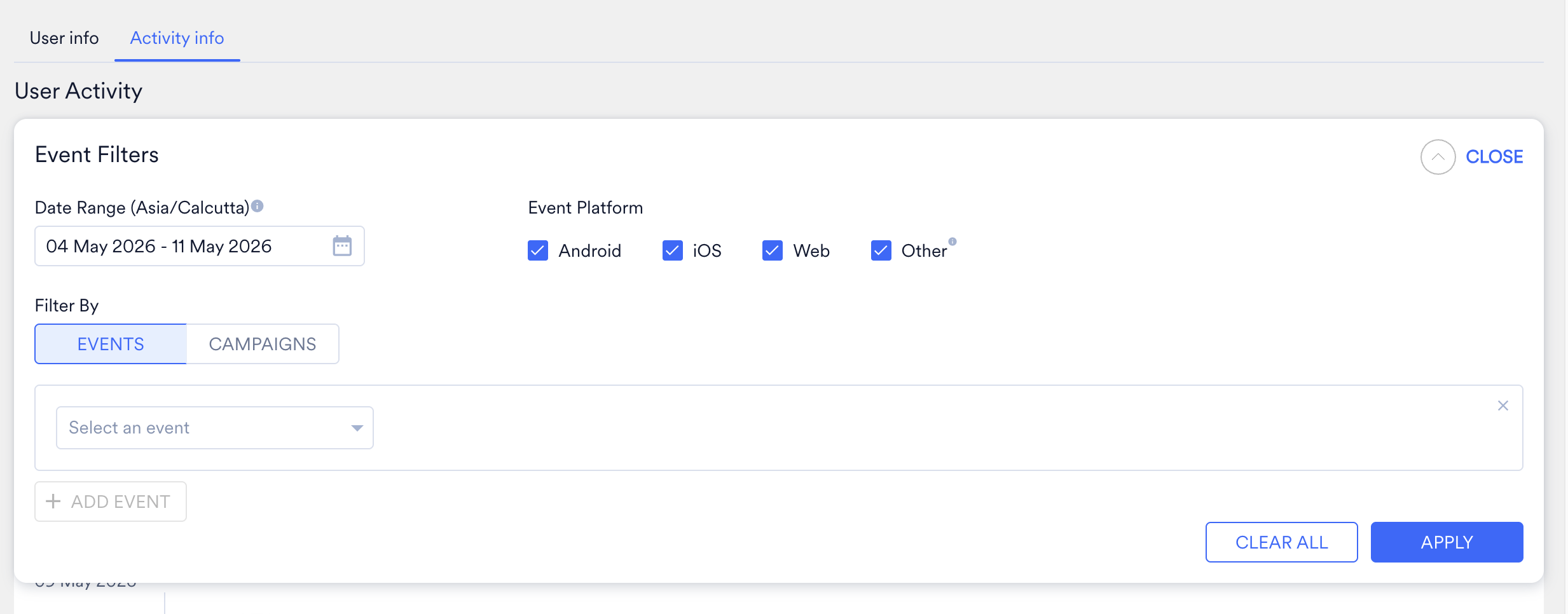 **Event Filters**
The **Event Filter** is labelled as **Filter Events** in the new UI.
User activity can be filtered for up to 5 events. Any event and respective attributes present in the account can be used to filter the customer activity. This is similar to filtering user activity present in segmentation. **Campaign Filters** Campaign filters allow you to filter the Campaign activities of the user. These filters allow you to fetch all campaigns or individual campaigns based on the campaign events performed by the user. The activity page includes additional features, which are listed below:
**Event Filters**
The **Event Filter** is labelled as **Filter Events** in the new UI.
User activity can be filtered for up to 5 events. Any event and respective attributes present in the account can be used to filter the customer activity. This is similar to filtering user activity present in segmentation. **Campaign Filters** Campaign filters allow you to filter the Campaign activities of the user. These filters allow you to fetch all campaigns or individual campaigns based on the campaign events performed by the user. The activity page includes additional features, which are listed below:
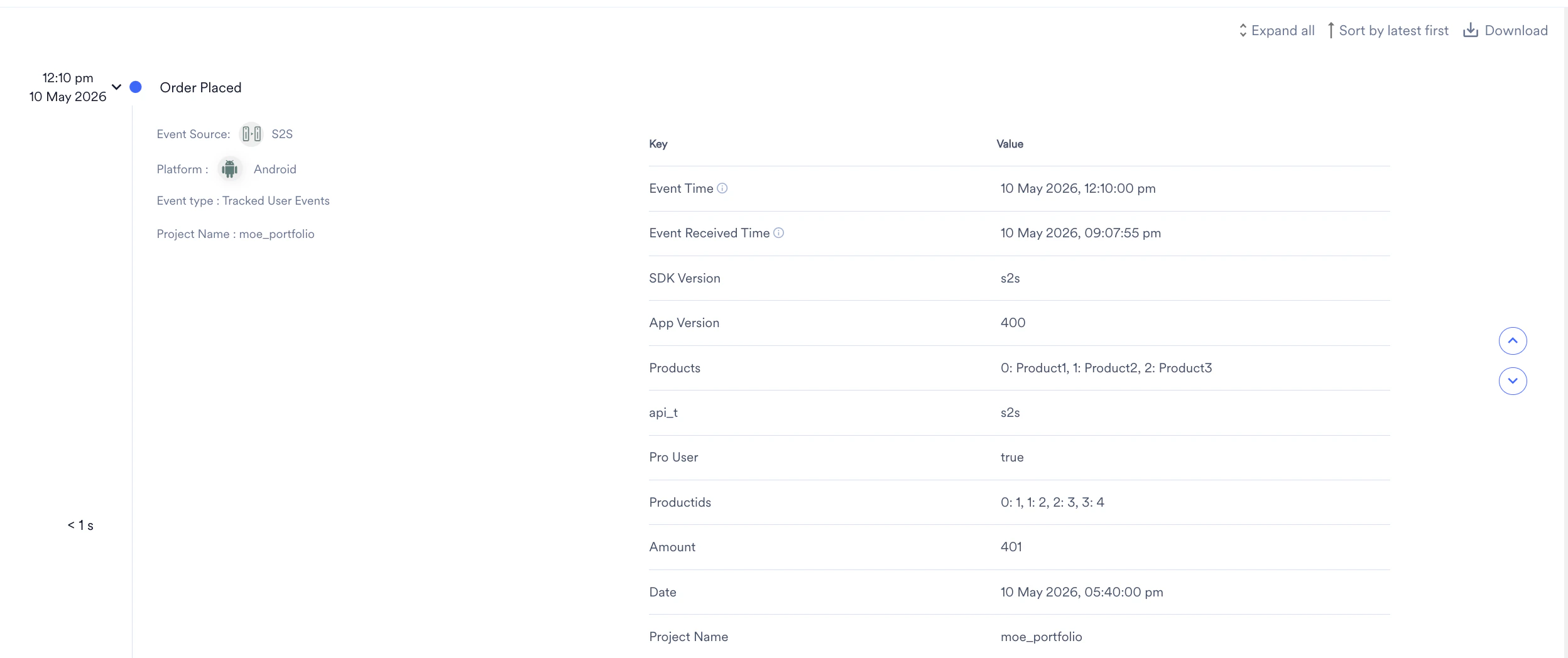
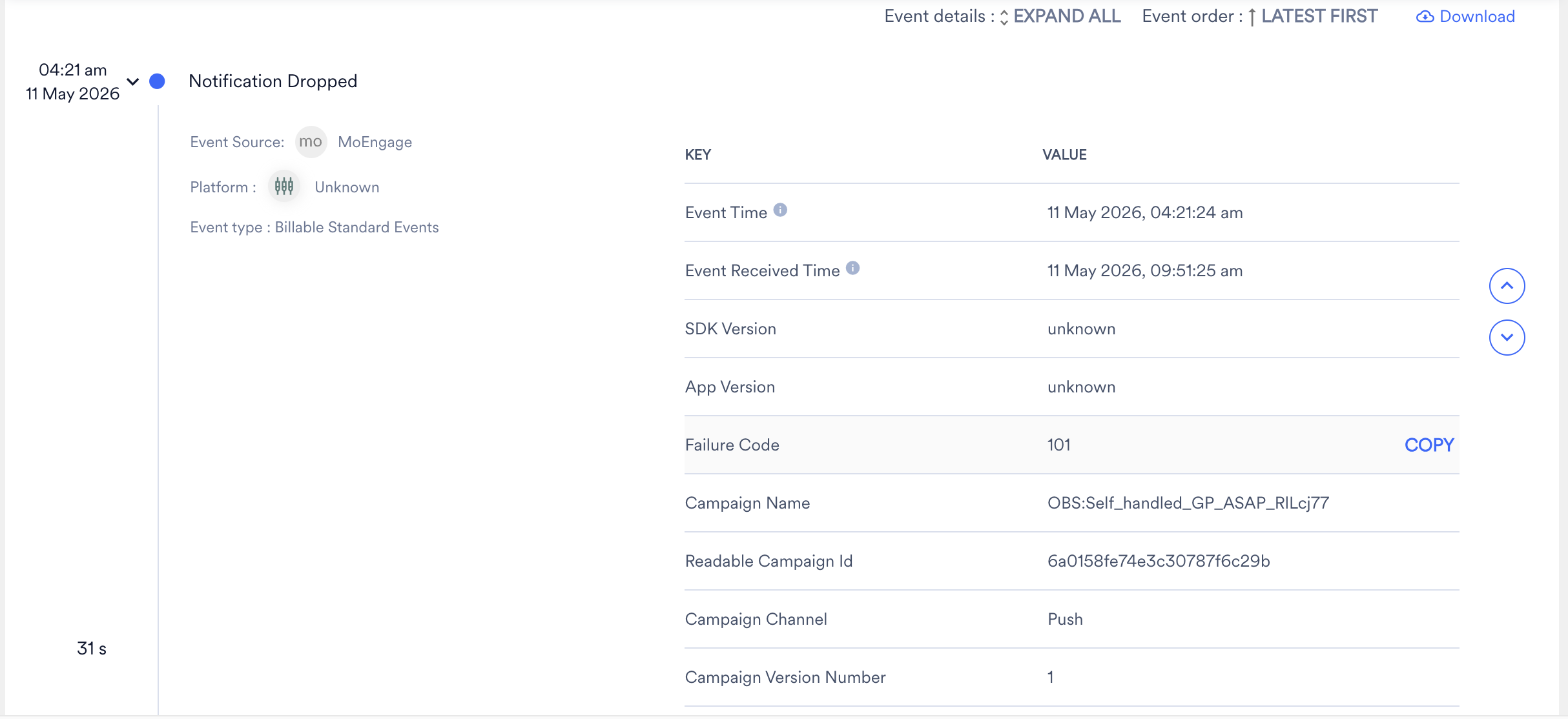 * The activity timeline can be sorted by the LATEST FIRST order or the Oldest First Order. Your preference is saved on your device.
* You can EXPAND and COLLAPSE the event list for a detailed attribute view. Your preference will be saved on your device and can be changed as needed.
* The timeline on the left side of the window allows you to compare the time difference between any two consecutive events.
* Event Source, Event Platform, and Event category are displayed below each event.
* You can perform quick navigation by the Go to top and Goto bottom buttons.
* Easily copy any attribute value using the COPY button by hovering over the attribute.
* You can open the campaign details page directly from the user campaign activity
* Dotted lines between two events represent the date change
* View Interstitial Events between any filtered events
* Download the filtered event and event attribute by clicking on the **Download** button available in the top right corner of the **User Activity** > **Events** section.
### User Activity beyond 30 days
Activity Info (Event Activity) can also show events and event attributes of a user for the entire duration of your account's data retention. Please follow the steps below to access the events of a user beyond 30 days:
1. Navigate to the **Filter Events (Event Filter)** section at the top of the **Activity Info (Event Activity)** page.
2. Select a date range of up to 7 days beyond the last 30 days. You can select the date range up to the maximum data retention period of your account.
* The activity timeline can be sorted by the LATEST FIRST order or the Oldest First Order. Your preference is saved on your device.
* You can EXPAND and COLLAPSE the event list for a detailed attribute view. Your preference will be saved on your device and can be changed as needed.
* The timeline on the left side of the window allows you to compare the time difference between any two consecutive events.
* Event Source, Event Platform, and Event category are displayed below each event.
* You can perform quick navigation by the Go to top and Goto bottom buttons.
* Easily copy any attribute value using the COPY button by hovering over the attribute.
* You can open the campaign details page directly from the user campaign activity
* Dotted lines between two events represent the date change
* View Interstitial Events between any filtered events
* Download the filtered event and event attribute by clicking on the **Download** button available in the top right corner of the **User Activity** > **Events** section.
### User Activity beyond 30 days
Activity Info (Event Activity) can also show events and event attributes of a user for the entire duration of your account's data retention. Please follow the steps below to access the events of a user beyond 30 days:
1. Navigate to the **Filter Events (Event Filter)** section at the top of the **Activity Info (Event Activity)** page.
2. Select a date range of up to 7 days beyond the last 30 days. You can select the date range up to the maximum data retention period of your account. 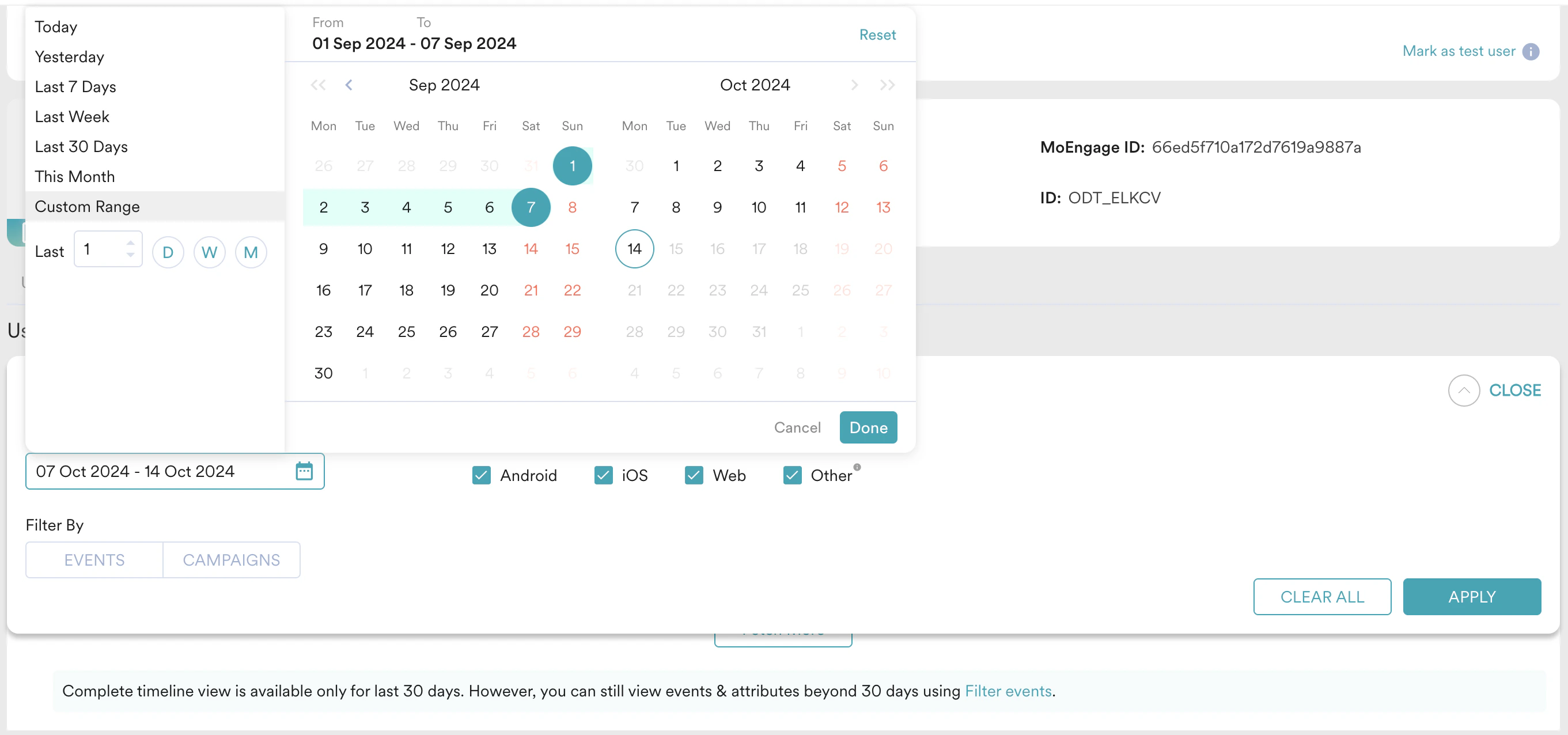 3. Select the events and attributes that you want to view for the user. You can select up to 10 events and 5 attributes per event.
 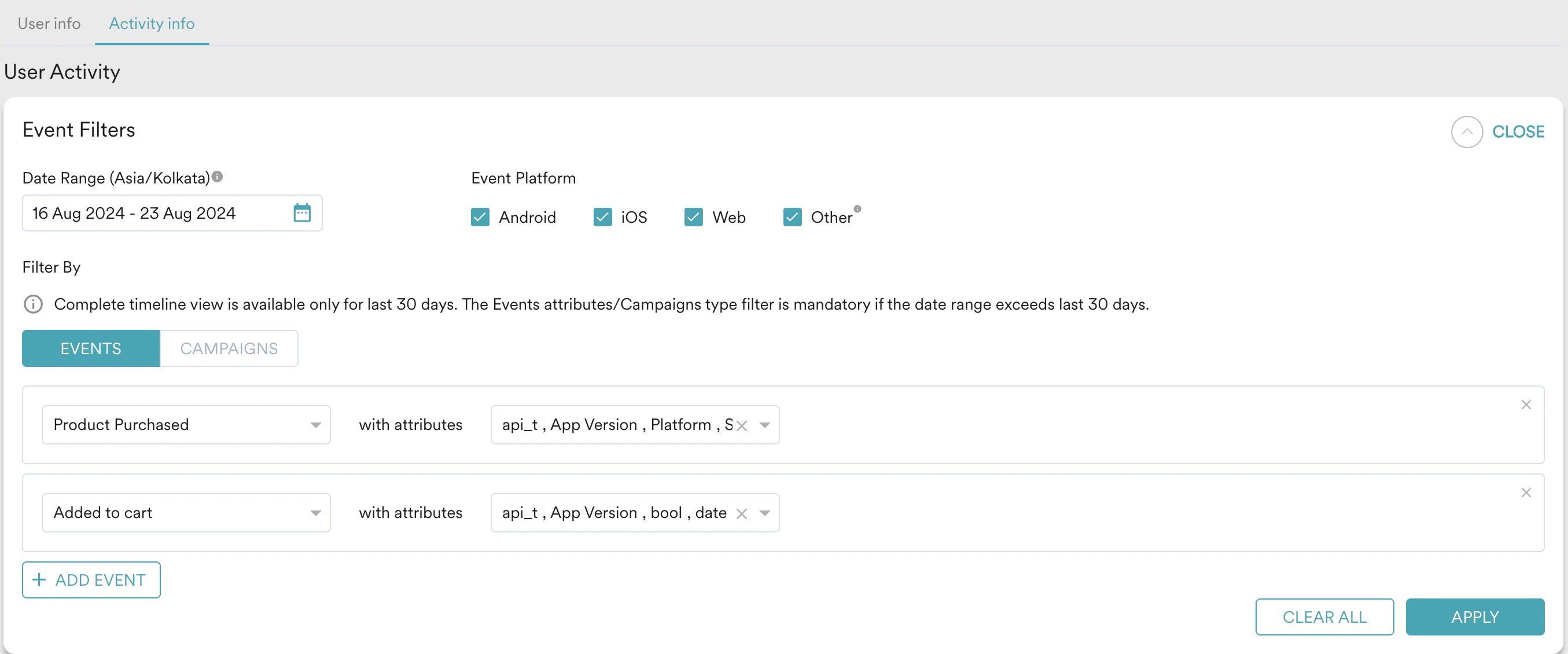 4. Click **Apply,** and you should be able to see the chosen events and event attributes within the given date range for the user.
## Actions
If you are using the new UI, you can use the **Actions** button to perform the following:
* **Delete User:** You can permanently delete a user profile. Upon clicking delete, a warning is shown. Note that it may take up to 24 hours for the deletion to reflect across the system and the user profile will still be available until permanently deleted. This action is recorded in the [Audit Logs](/user-guide/settings/account/audit-logs/audit-logs).
4. Click **Apply,** and you should be able to see the chosen events and event attributes within the given date range for the user.
## Actions
If you are using the new UI, you can use the **Actions** button to perform the following:
* **Delete User:** You can permanently delete a user profile. Upon clicking delete, a warning is shown. Note that it may take up to 24 hours for the deletion to reflect across the system and the user profile will still be available until permanently deleted. This action is recorded in the [Audit Logs](/user-guide/settings/account/audit-logs/audit-logs).