> ## Documentation Index
> Fetch the complete documentation index at: https://moengage.com/docs/llms.txt
> Use this file to discover all available pages before exploring further.
# Offering Migration
> Move offerings between MoEngage workspaces within the same data cluster, or from a test to a production workspace.
# Overview
The offering migration feature allows you to move offerings from one workspace to another within the same data cluster. For example, you can build and test an offering in a lower environment and then replicate it in your production workspace without recreating it from scratch. You only see workspaces you have access to.
You can migrate offerings in the **Active**, **Scheduled**, **Archived**, and **Expired** states. Offerings in the **Draft** state cannot be migrated. Decision Policy and Personalize API experiences are not migrated.
# Prerequisites
* Offer Decisioning must be enabled in both the source and destination workspaces. If it is not enabled in the destination workspace, the **Import offering** button does not appear.
* In the **source** workspace, you need at least **View** permission on the **Offerings** component. In the **destination** workspace, you need the **Create & Manage** or **Create, Manage & Publish** permission on the **Offerings** component.
* The source and destination workspaces must be in the same data cluster, and you must have access to both.
# Import an Offering
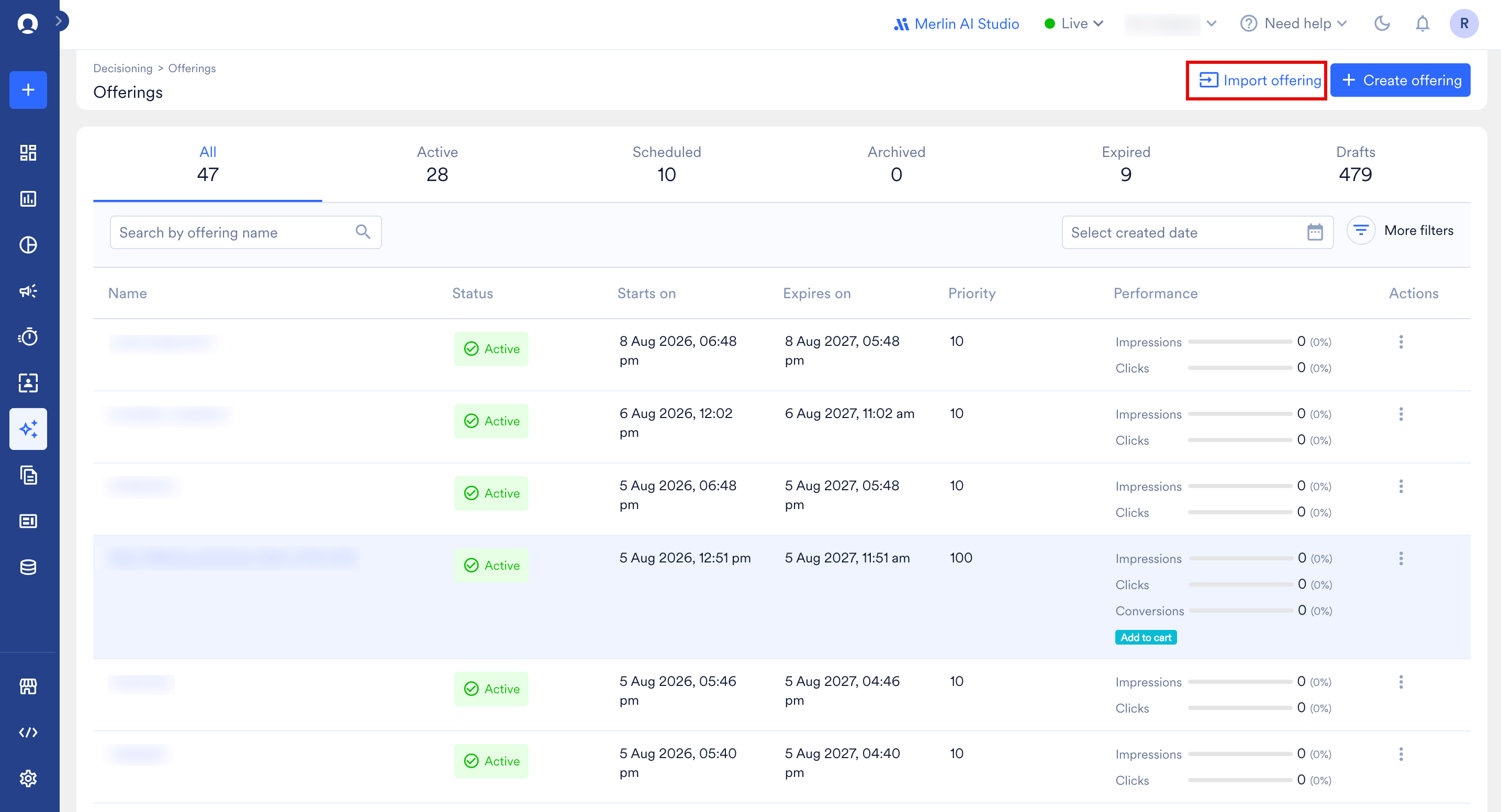 Perform the following steps to migrate an offering from one workspace to another:
1. Go to the All Offerings page in your MoEngage dashboard.
2. In the upper-right corner, click **Import offering**. The Import offering window appears.
There are two steps to importing an offering, and they are:
1. [Select offerings](/docs/user-guide/decisioning/offer-decisioning/offering-migration#step-1-select-offerings)
2. [Review imported offerings](/docs/user-guide/decisioning/offer-decisioning/offering-migration#step-2-review-imported-offerings)
## Step 1: Select Offerings
Perform the following steps to migrate an offering from one workspace to another:
1. Go to the All Offerings page in your MoEngage dashboard.
2. In the upper-right corner, click **Import offering**. The Import offering window appears.
There are two steps to importing an offering, and they are:
1. [Select offerings](/docs/user-guide/decisioning/offer-decisioning/offering-migration#step-1-select-offerings)
2. [Review imported offerings](/docs/user-guide/decisioning/offer-decisioning/offering-migration#step-2-review-imported-offerings)
## Step 1: Select Offerings
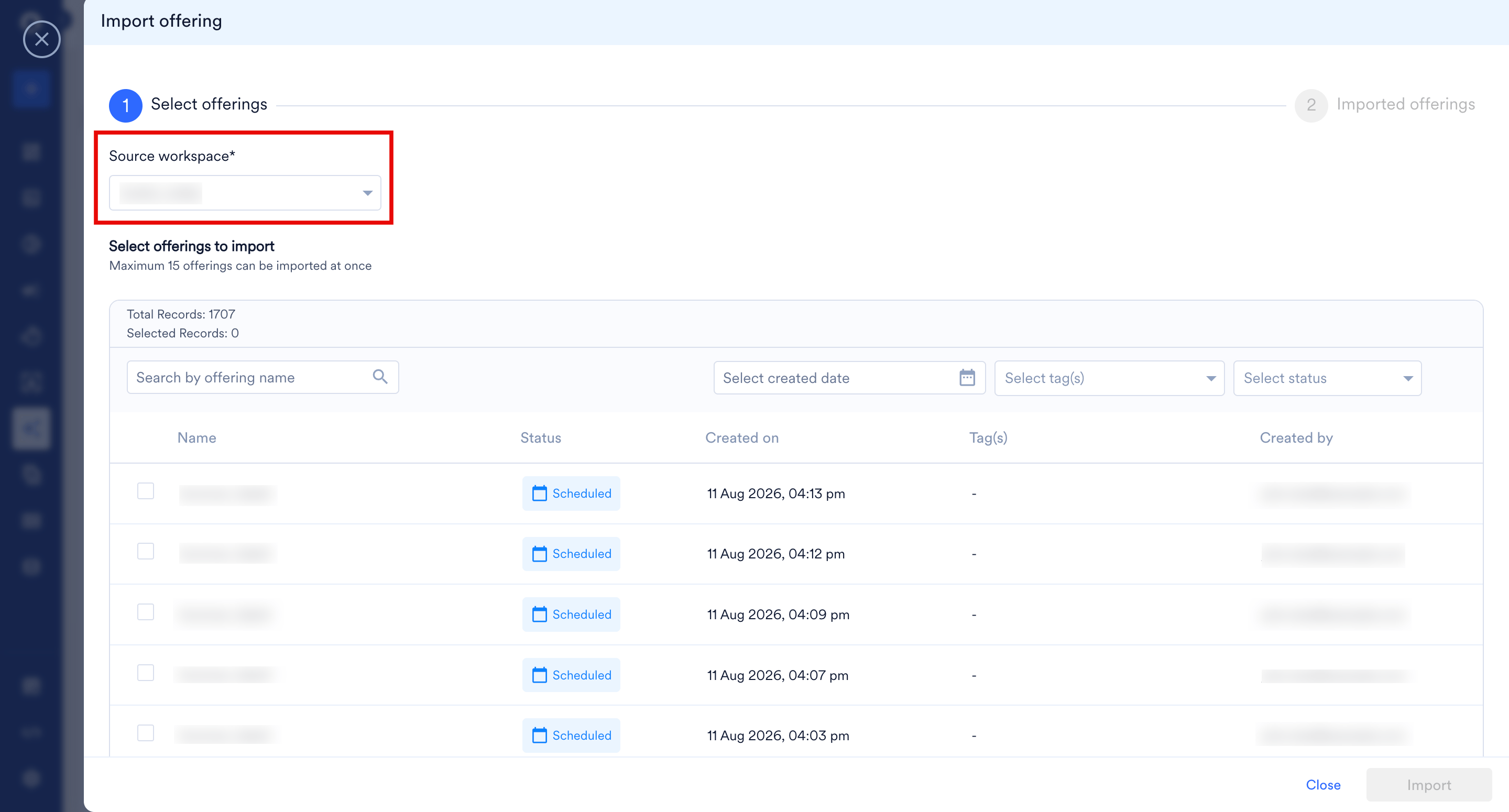 1. In the **Source workspace** list, select the workspace you want to import offerings from. This is the workspace where the offerings were originally created. Any workspace you have access to appears in this list, even if Offer Decisioning is not enabled on it. If you select a workspace where Offer Decisioning is not enabled, the following message appears and you cannot continue: *The Offer decisioning feature is not enabled for the selected source workspace. Please select a different workspace.* After you select a valid source workspace, its offerings appear in the **Select offerings to import** list.
2. Search for the required offerings by name.
3. You can filter the offerings by created date, tags, and status.
4. Select the offerings you want to migrate. Each offering shows its name, status, created date, tags, and creator.
5. Click **Import**. You are taken to step 2, Review imported offerings.
1. In the **Source workspace** list, select the workspace you want to import offerings from. This is the workspace where the offerings were originally created. Any workspace you have access to appears in this list, even if Offer Decisioning is not enabled on it. If you select a workspace where Offer Decisioning is not enabled, the following message appears and you cannot continue: *The Offer decisioning feature is not enabled for the selected source workspace. Please select a different workspace.* After you select a valid source workspace, its offerings appear in the **Select offerings to import** list.
2. Search for the required offerings by name.
3. You can filter the offerings by created date, tags, and status.
4. Select the offerings you want to migrate. Each offering shows its name, status, created date, tags, and creator.
5. Click **Import**. You are taken to step 2, Review imported offerings.
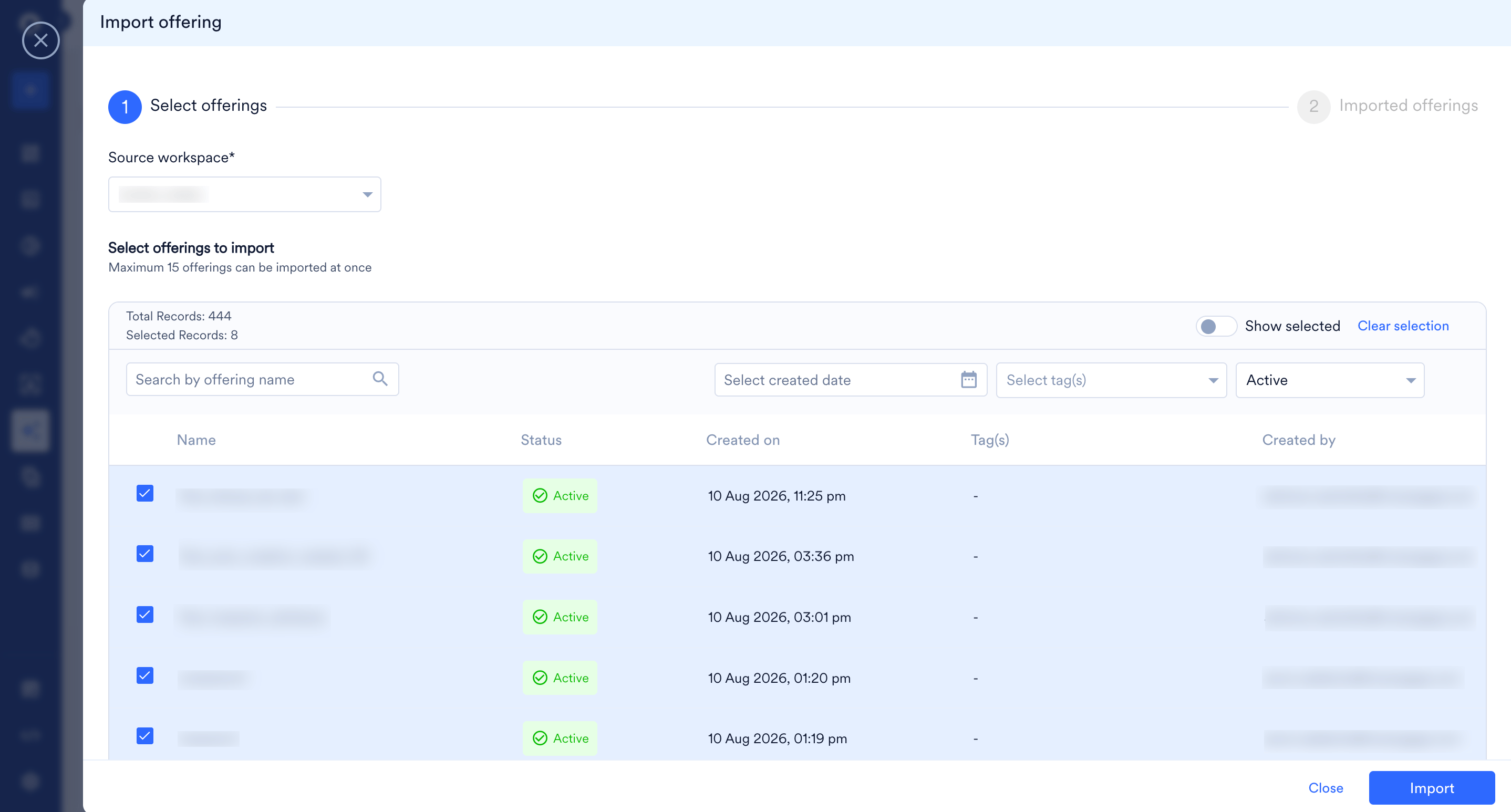 You can select a maximum of 15 offerings for a single import.
## Step 2: Review Imported Offerings
1. After the import runs, each offering shows an **Import status**. The following table lists the possible import statuses.
| **Status** | **Definition** | **Example** |
| ----------------------------------- | --------------------------------------------------------------------------------------------------------------------------------------------------------------------------------------------------------------- | --------------------------------------------------------------------------------------------------------------------------------------------------------------------------------------------- |
| **Successfully imported** | Indicates your offering imported successfully and is ready to be reviewed and created. | |
| **Imported with errors** | Indicates the imported offering is missing a required field value. You must fix these errors before you can create the offering. | For example, if an offering in the source workspace uses a user event or user attribute that is not available in the destination workspace, you will see the **Imported with errors** status. |
| **Imported with warnings** | Indicates the imported offering is missing an optional value, or uses a feature that is not enabled in the destination workspace. You can still create the offering with warnings, but fixing them is optional. | For example, if a feature used by the offering — such as Global Control Group — is not enabled in the destination workspace, you will see the **Imported with warnings** status. |
| **Imported with errors & warnings** | Indicates the imported offering has both missing required and optional field values. You must fix all errors before creating the offering. | |
You can select a maximum of 15 offerings for a single import.
## Step 2: Review Imported Offerings
1. After the import runs, each offering shows an **Import status**. The following table lists the possible import statuses.
| **Status** | **Definition** | **Example** |
| ----------------------------------- | --------------------------------------------------------------------------------------------------------------------------------------------------------------------------------------------------------------- | --------------------------------------------------------------------------------------------------------------------------------------------------------------------------------------------- |
| **Successfully imported** | Indicates your offering imported successfully and is ready to be reviewed and created. | |
| **Imported with errors** | Indicates the imported offering is missing a required field value. You must fix these errors before you can create the offering. | For example, if an offering in the source workspace uses a user event or user attribute that is not available in the destination workspace, you will see the **Imported with errors** status. |
| **Imported with warnings** | Indicates the imported offering is missing an optional value, or uses a feature that is not enabled in the destination workspace. You can still create the offering with warnings, but fixing them is optional. | For example, if a feature used by the offering — such as Global Control Group — is not enabled in the destination workspace, you will see the **Imported with warnings** status. |
| **Imported with errors & warnings** | Indicates the imported offering has both missing required and optional field values. You must fix all errors before creating the offering. | |
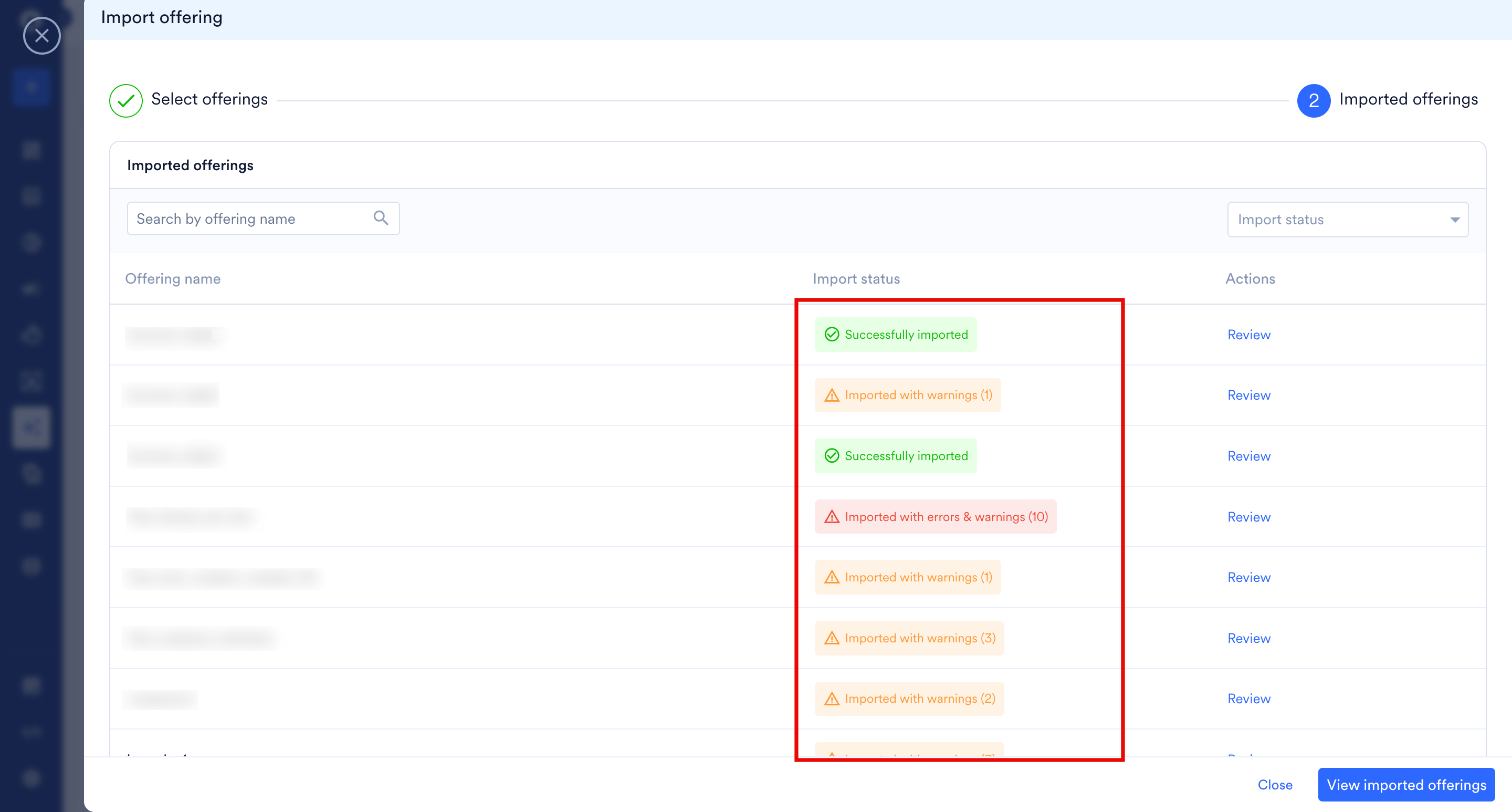 2. To review an individual offering and fix its issues, click **Review** in the **Actions** column.
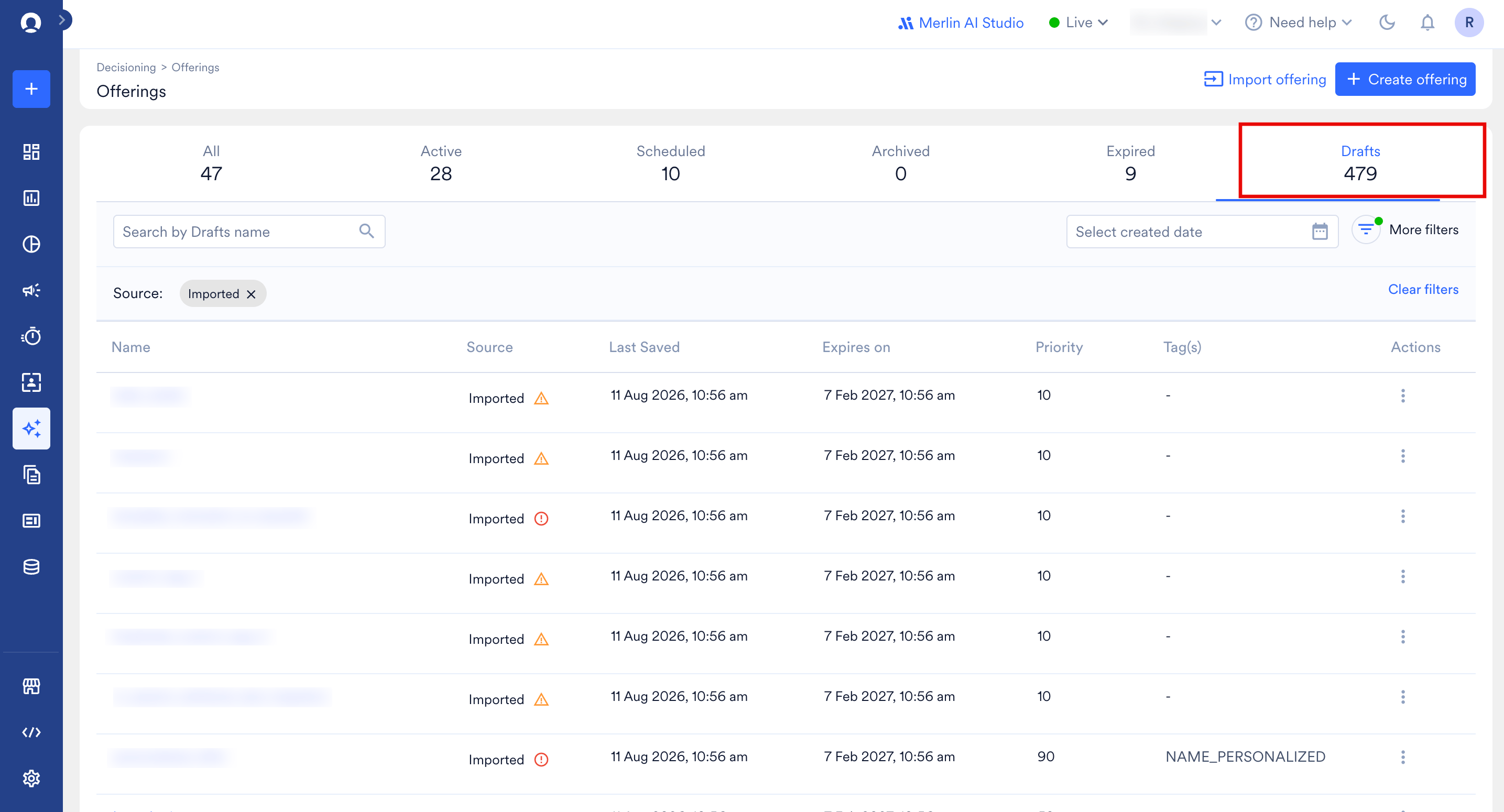
3. To view all imported offerings, click **View imported offerings**. This opens the **Drafts** tab on the All Offerings page. Here, imported offerings display **Imported** as their source, and offerings created directly in the workspace display **Original** as their source. Offerings with errors or warnings have a warning or error symbol next to the **Imported** label in the **Source** column.
2. To review an individual offering and fix its issues, click **Review** in the **Actions** column.
3. To view all imported offerings, click **View imported offerings**. This opens the **Drafts** tab on the All Offerings page. Here, imported offerings display **Imported** as their source, and offerings created directly in the workspace display **Original** as their source. Offerings with errors or warnings have a warning or error symbol next to the **Imported** label in the **Source** column.
 # Identify and Resolve Errors and Warnings in Imported Offerings
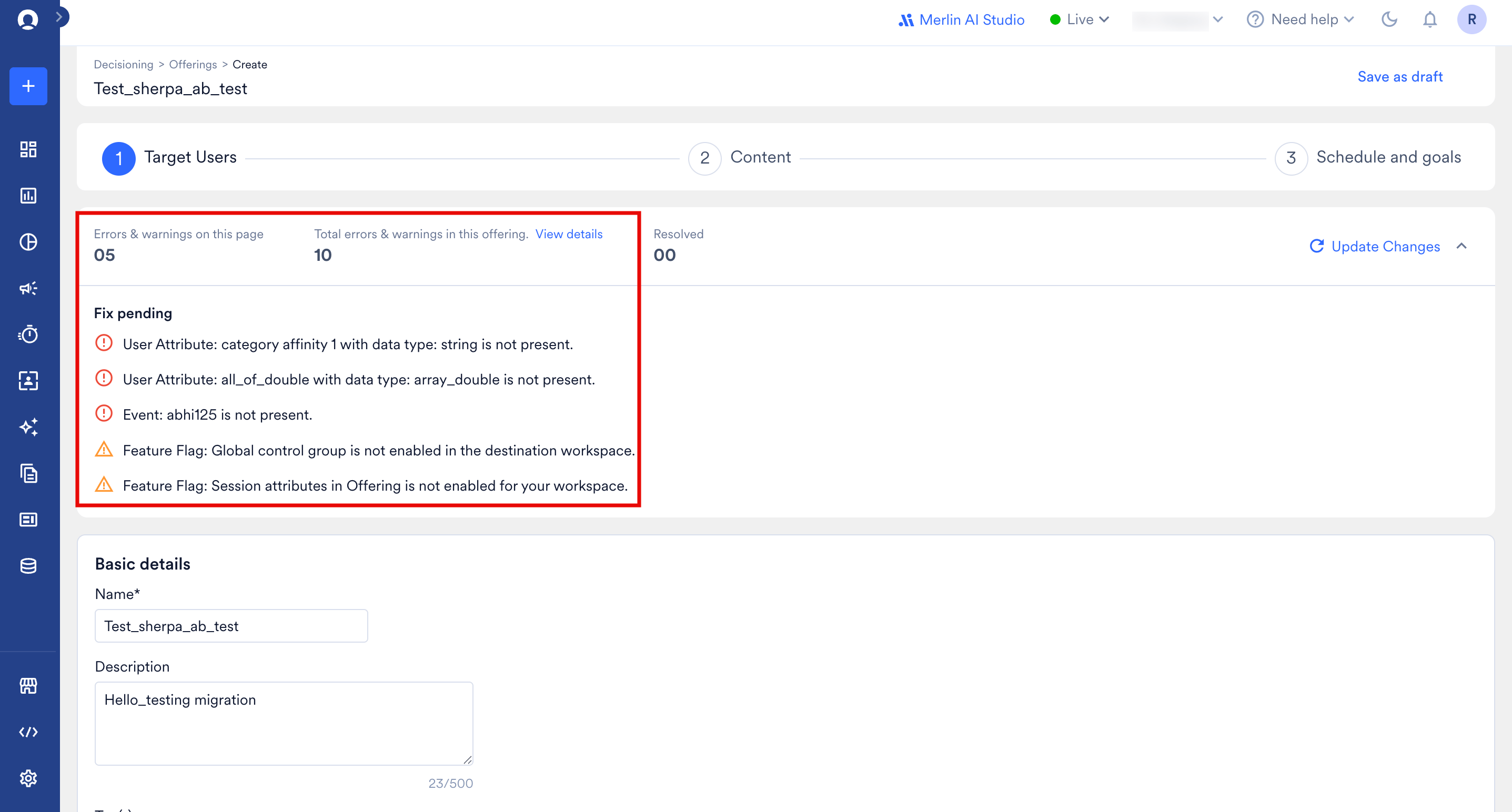
When you open an imported offering with errors or warnings, it opens in the offering editor. At the top of each setup step, you see a section with the following information:
| **Field** | **Definition** |
| -------------------------------------------- | --------------------------------------------------------------------------------------------------------------------------------------------------------------------------- |
| **Errors & warnings on this page** | The count of errors and warnings on the current setup step. |
| **Total errors & warnings in this offering** | The total count of errors and warnings across all steps. Click **View details** to see every pending and resolved issue in one place. |
| **Resolved** | The count of errors and warnings you have resolved. |
| **Fix pending** | This section lists the reasons for the errors and warnings. Use this information to fix the issues. After you fix an issue, click **Update Changes** to refresh the counts. |
# Identify and Resolve Errors and Warnings in Imported Offerings
When you open an imported offering with errors or warnings, it opens in the offering editor. At the top of each setup step, you see a section with the following information:
| **Field** | **Definition** |
| -------------------------------------------- | --------------------------------------------------------------------------------------------------------------------------------------------------------------------------- |
| **Errors & warnings on this page** | The count of errors and warnings on the current setup step. |
| **Total errors & warnings in this offering** | The total count of errors and warnings across all steps. Click **View details** to see every pending and resolved issue in one place. |
| **Resolved** | The count of errors and warnings you have resolved. |
| **Fix pending** | This section lists the reasons for the errors and warnings. Use this information to fix the issues. After you fix an issue, click **Update Changes** to refresh the counts. |
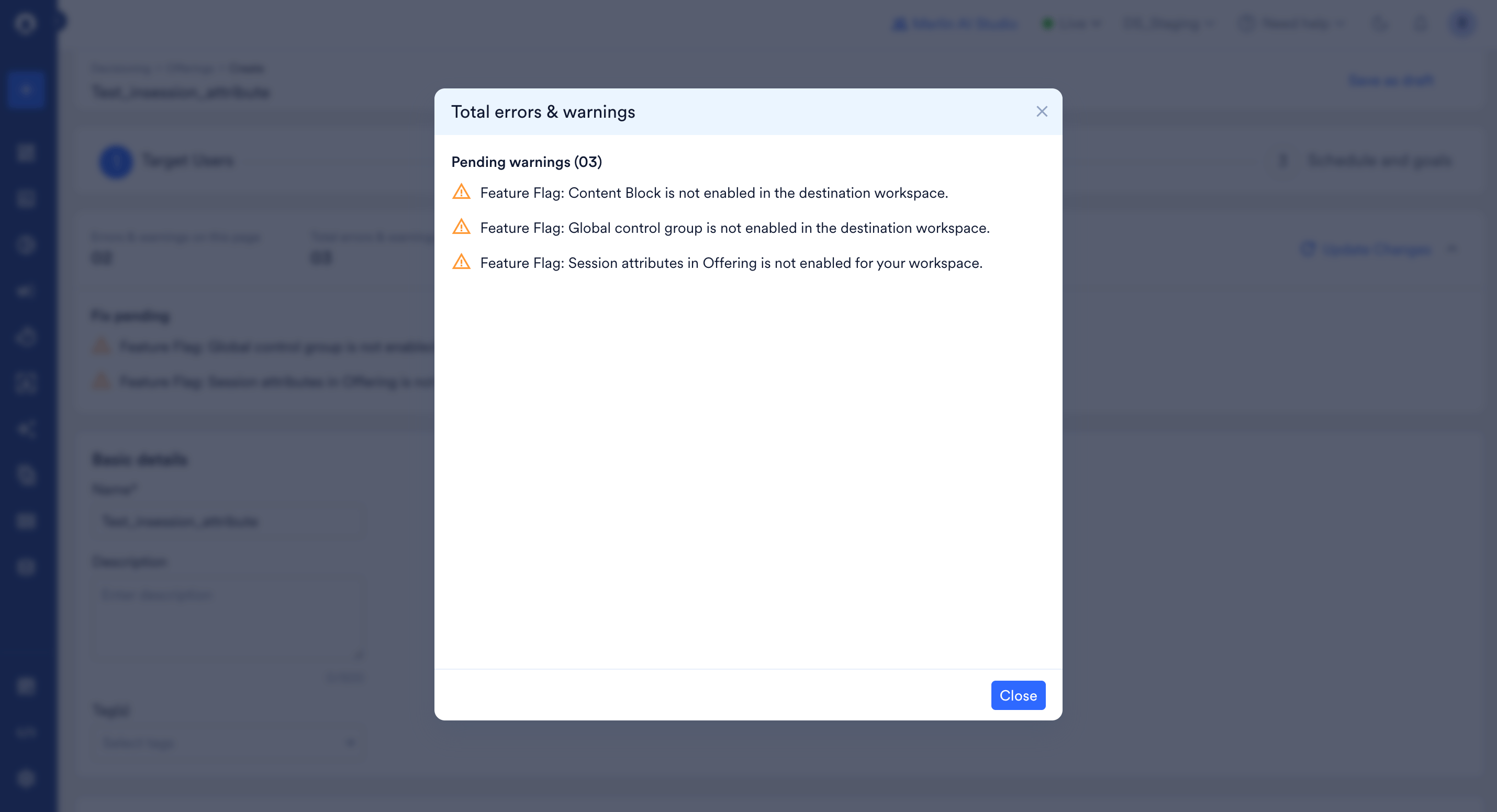
 To see all pending and resolved issues for the offering in one place, click **View details** next to the total count.
 Errors are missing required values that you must fix before you can create the offering. Warnings are missing optional values that do not block creation.
If an imported offering uses a **tag**, **custom segment**, or **content block** that does not exist in the destination workspace, the system creates it automatically. You do not need to recreate these manually.
The following table lists common errors and warnings you may see and how to resolve them.
| **Issue** | **Type** | **How to resolve** |
| ------------------------------------------------------------------------------------------------------------------------------ | -------- | ------------------------------------------------------------------------------------------------------------------------------------------ |
| A user attribute used in the offering is not present in the destination workspace. | Error | Create the user attribute in the destination workspace. |
| A user event (such as Product Purchase) used in segmentation or a conversion goal is not present. | Error | Create the event, or select a different event in the destination workspace. |
| An attribute used within a user event is not present. | Error | Create the event attribute in the destination workspace. |
| A personalization template used in a variation is not present. | Warning | Create the template, or select another template for that variation. If you do not, MoEngage defaults to JSON as the Offering Content type. |
| An offering attribute, or one of its dropdown values, is not present. | Warning | Create the offering attribute and its values in the destination workspace. |
| A feature used by the offering — such as Global Control Group, Offering Control Group, or Session Attributes — is not enabled. | Warning | Enable the feature in the destination workspace. |
An imported offering's schedule follows the same defaults as a new offering: the **Start date** is set to the current time plus one hour, and the **End date** is set to one year after the start. You can change these on the **Schedule and goals** step before you create the offering.
# Create the Imported Offering
After you resolve the errors, click **Create** on the **Schedule and goals** step to activate the offering. The **Create** button stays disabled while any errors remain. You can create an offering that has only warnings, but not one that has errors.
Each import is recorded in the workspace audit log as an **Offering Imported** activity.
# FAQs
You can import offerings that are in the **Active**, **Scheduled**, **Archived**, or **Expired** state in the source workspace. Offerings in the **Draft** state cannot be imported.
A source workspace appears in the dropdown as long as you have access to it, whether or not Offer Decisioning is enabled on it. However, you can only import from a workspace where Offer Decisioning is enabled — if you select one where it is not enabled, a message asks you to select a different workspace. If a workspace you expect is missing from the dropdown entirely, you most likely do not have access to it. Contact your workspace administrator to verify.
You need permissions in both workspaces:
* **Source workspace:** at least **View** permission on the **Offerings** component.
* **Destination workspace:** **Create & Manage** or **Create, Manage & Publish** permission on the **Offerings** component.
If you are unsure of your permissions, check with your MoEngage workspace administrator.
No. Importing creates an independent copy in the destination workspace. The original offering in the source workspace stays unchanged — its status, configuration, and any live traffic it serves are unaffected.
If they do not already exist in the destination workspace, the import creates these for you automatically:
* Tags used on the offering
* Content blocks referenced in the offering
* Custom segments used for eligibility targeting
You do not need to create these manually.
Some items are not created automatically. Missing **required** items show as **errors** (you must fix them before you can create the offering); missing **optional** items show as **warnings** (you can still create the offering).
Shown as **errors**:
* User attributes used in eligibility, conversion goals, or Jinja expressions
* User events used in segmentation or as conversion goals
* Event attributes used in segmentation or as conversion goals
Shown as **warnings**:
* Personalization templates used in a variation
* Offering attributes and their dropdown values
* Features such as Global Control Group, Offering Control Group, or Session Attributes that are not enabled in the destination workspace
Create the missing element in the destination workspace, then re-link it in the offering. For the full list, see the errors and warnings table above.
You must fix all **errors** before you can create the offering. **Warnings** do not block creation — you can create the offering with warnings still present, though it is good practice to review each one.
Open the imported offering from the **Drafts** tab. A validation banner at the top of the offer setup steps shows the number of issues on the current page, the total across the offering, and how many you have resolved. The **Fix pending** section below lists each issue with a specific message — for example, "User Attribute: 'loyalty\_tier' with data type: String is not present."
Errors are missing required values that you must fix before you can create the offering. Warnings are missing optional values that do not block creation.
If an imported offering uses a **tag**, **custom segment**, or **content block** that does not exist in the destination workspace, the system creates it automatically. You do not need to recreate these manually.
The following table lists common errors and warnings you may see and how to resolve them.
| **Issue** | **Type** | **How to resolve** |
| ------------------------------------------------------------------------------------------------------------------------------ | -------- | ------------------------------------------------------------------------------------------------------------------------------------------ |
| A user attribute used in the offering is not present in the destination workspace. | Error | Create the user attribute in the destination workspace. |
| A user event (such as Product Purchase) used in segmentation or a conversion goal is not present. | Error | Create the event, or select a different event in the destination workspace. |
| An attribute used within a user event is not present. | Error | Create the event attribute in the destination workspace. |
| A personalization template used in a variation is not present. | Warning | Create the template, or select another template for that variation. If you do not, MoEngage defaults to JSON as the Offering Content type. |
| An offering attribute, or one of its dropdown values, is not present. | Warning | Create the offering attribute and its values in the destination workspace. |
| A feature used by the offering — such as Global Control Group, Offering Control Group, or Session Attributes — is not enabled. | Warning | Enable the feature in the destination workspace. |
An imported offering's schedule follows the same defaults as a new offering: the **Start date** is set to the current time plus one hour, and the **End date** is set to one year after the start. You can change these on the **Schedule and goals** step before you create the offering.
# Create the Imported Offering
After you resolve the errors, click **Create** on the **Schedule and goals** step to activate the offering. The **Create** button stays disabled while any errors remain. You can create an offering that has only warnings, but not one that has errors.
Each import is recorded in the workspace audit log as an **Offering Imported** activity.
# FAQs
You can import offerings that are in the **Active**, **Scheduled**, **Archived**, or **Expired** state in the source workspace. Offerings in the **Draft** state cannot be imported.
A source workspace appears in the dropdown as long as you have access to it, whether or not Offer Decisioning is enabled on it. However, you can only import from a workspace where Offer Decisioning is enabled — if you select one where it is not enabled, a message asks you to select a different workspace. If a workspace you expect is missing from the dropdown entirely, you most likely do not have access to it. Contact your workspace administrator to verify.
You need permissions in both workspaces:
* **Source workspace:** at least **View** permission on the **Offerings** component.
* **Destination workspace:** **Create & Manage** or **Create, Manage & Publish** permission on the **Offerings** component.
If you are unsure of your permissions, check with your MoEngage workspace administrator.
No. Importing creates an independent copy in the destination workspace. The original offering in the source workspace stays unchanged — its status, configuration, and any live traffic it serves are unaffected.
If they do not already exist in the destination workspace, the import creates these for you automatically:
* Tags used on the offering
* Content blocks referenced in the offering
* Custom segments used for eligibility targeting
You do not need to create these manually.
Some items are not created automatically. Missing **required** items show as **errors** (you must fix them before you can create the offering); missing **optional** items show as **warnings** (you can still create the offering).
Shown as **errors**:
* User attributes used in eligibility, conversion goals, or Jinja expressions
* User events used in segmentation or as conversion goals
* Event attributes used in segmentation or as conversion goals
Shown as **warnings**:
* Personalization templates used in a variation
* Offering attributes and their dropdown values
* Features such as Global Control Group, Offering Control Group, or Session Attributes that are not enabled in the destination workspace
Create the missing element in the destination workspace, then re-link it in the offering. For the full list, see the errors and warnings table above.
You must fix all **errors** before you can create the offering. **Warnings** do not block creation — you can create the offering with warnings still present, though it is good practice to review each one.
Open the imported offering from the **Drafts** tab. A validation banner at the top of the offer setup steps shows the number of issues on the current page, the total across the offering, and how many you have resolved. The **Fix pending** section below lists each issue with a specific message — for example, "User Attribute: 'loyalty\_tier' with data type: String is not present."