> ## Documentation Index
> Fetch the complete documentation index at: https://moengage.com/docs/llms.txt
> Use this file to discover all available pages before exploring further.
# Branching of Users in Flows
> Split users in MoEngage Flows using conditional branches, event checks, attribute filters, or random splits to personalize journeys and experiments.
# Overview
You would often want to split your users based on certain conditions within a flow to personalize the experience or split your users randomly to experiment. MoEngage offers the following ways to split your users:
| Way to Split | Description |
| -------------------------- | ----------------------------------------------------------------------------------------------------------------------------------------------------------------------------------- |
| Check User Attribute | This stage allows you to split your users based on who meets the defined user properties check. |
| Has Done Event | This stage allows you to split your users based on who meets the defined actions-based check. |
| Conditional Split | This stage allows you to divide users based on a combination of their user properties and actions, resulting in a maximum of 25 different paths. |
| Campaign-Based Conditions | These are custom stages that are displayed after you add *Action* stages in the flow. This allows you to split users based on conditions related to the previously-added campaigns. |
| A/B Split | This stage allows you to split users randomly based on the defined allocation percentage and experiment on them. |
| Intelligent Path Optimizer | This stage allows you to split users randomly using the Merlin AI intelligence of MoEngage and help you experiment on them. |
# Use Cases
### Split Users Based on Conditions
The following are the use cases for splitting users on conditions:
* Want to split your users based on their preferred languages? Add a *Conditional Split* to help you achieve the same.
* Want to exit users who have done a specific action? Add a *Has Done Event* stage to help you achieve the same.
* Want to exit users whose user property meets a specific value? Add a *Check User Attribute* stage to help you achieve the same.
* Want to split users based on whether the last email was sent to the users? Add an *On Send Email Message* stage to help you achieve the same.
### Split Users Randomly
The following is the use case for splitting users randomly:
* Want to split users randomly to find the channel type that works for my user base? Add an *A/B split* stage to help you achieve the same.
When you want to divide your users based on the Entry Criteria, add a Conditional Split or a Has Done Event Stage and select the option under the **Flow Entry Events** Category. When this option is selected, MoEngage considers the event that allowed the user to enter the flow while deciding the path for the user.
# Add Condition Stages
Perform the following steps to add condition stages:
1. On the MoEngage Canvas, click **+**.
2. In the Add stage dialog box, do one of the following:
* In the search bar, search for the stage directly. From the search result, click the option you want to add. For example, if you search for "conditional", the **Conditional Split** option is displayed. 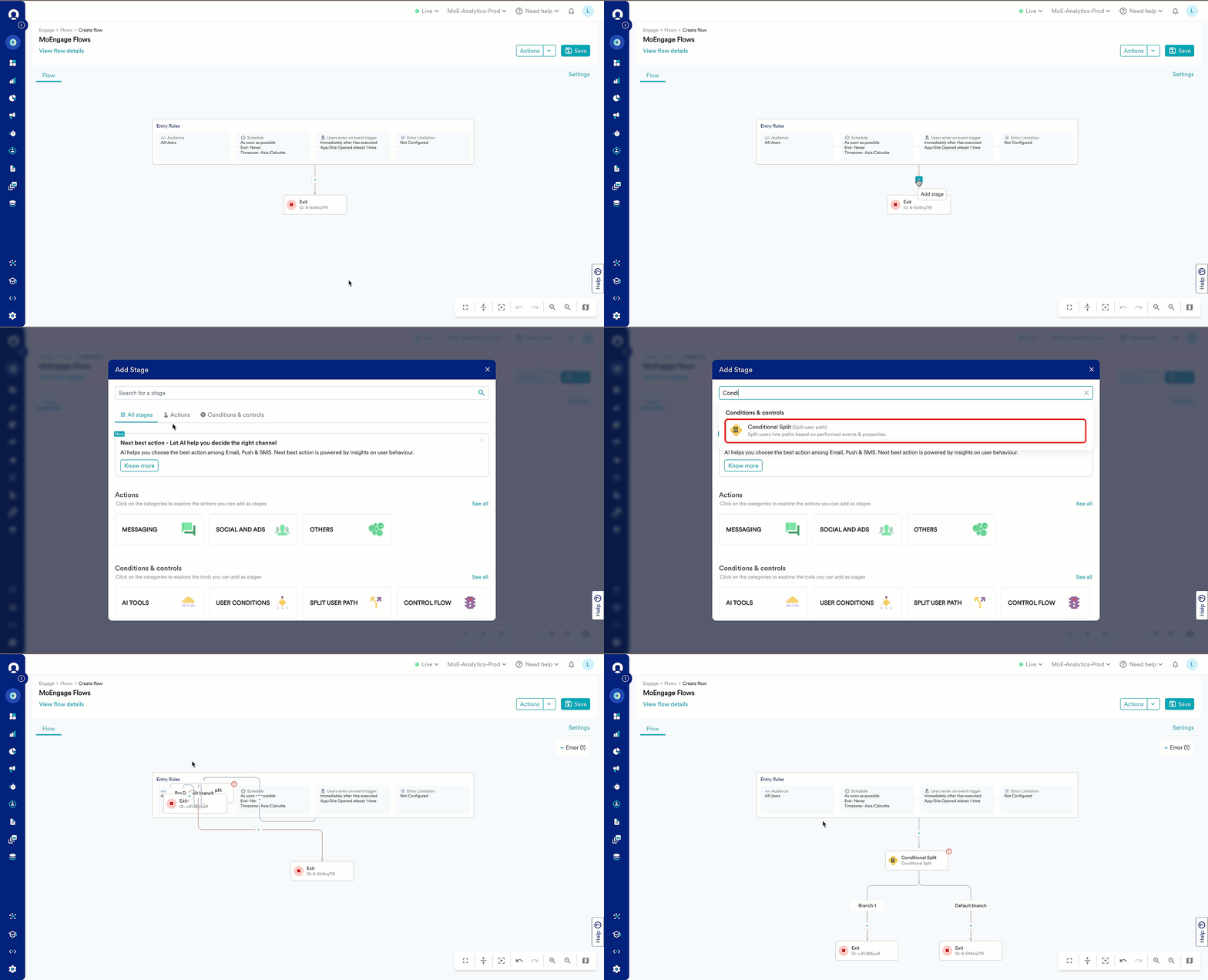 * On the **All stages** tab:
1. Under **Conditions & controls**, click the category to explore the condition stages you can add:
| Category | Stages Available |
| ------------------- | ------------------------------------------------------------------------------------------------------------------------------ |
| **AI TOOLS** | Intelligent path optimizer |
| **USER CONDITIONS** |
* On the **All stages** tab:
1. Under **Conditions & controls**, click the category to explore the condition stages you can add:
| Category | Stages Available |
| ------------------- | ------------------------------------------------------------------------------------------------------------------------------ |
| **AI TOOLS** | Intelligent path optimizer |
| **USER CONDITIONS** | - Check User Attribute
- Has done event
|
| **SPLIT USER PATH** | - Conditional Split
- A/B Split
|
| Action conditions | - Has received push notifications
- Has dismissed push notifications and other campaign-based conditions
|
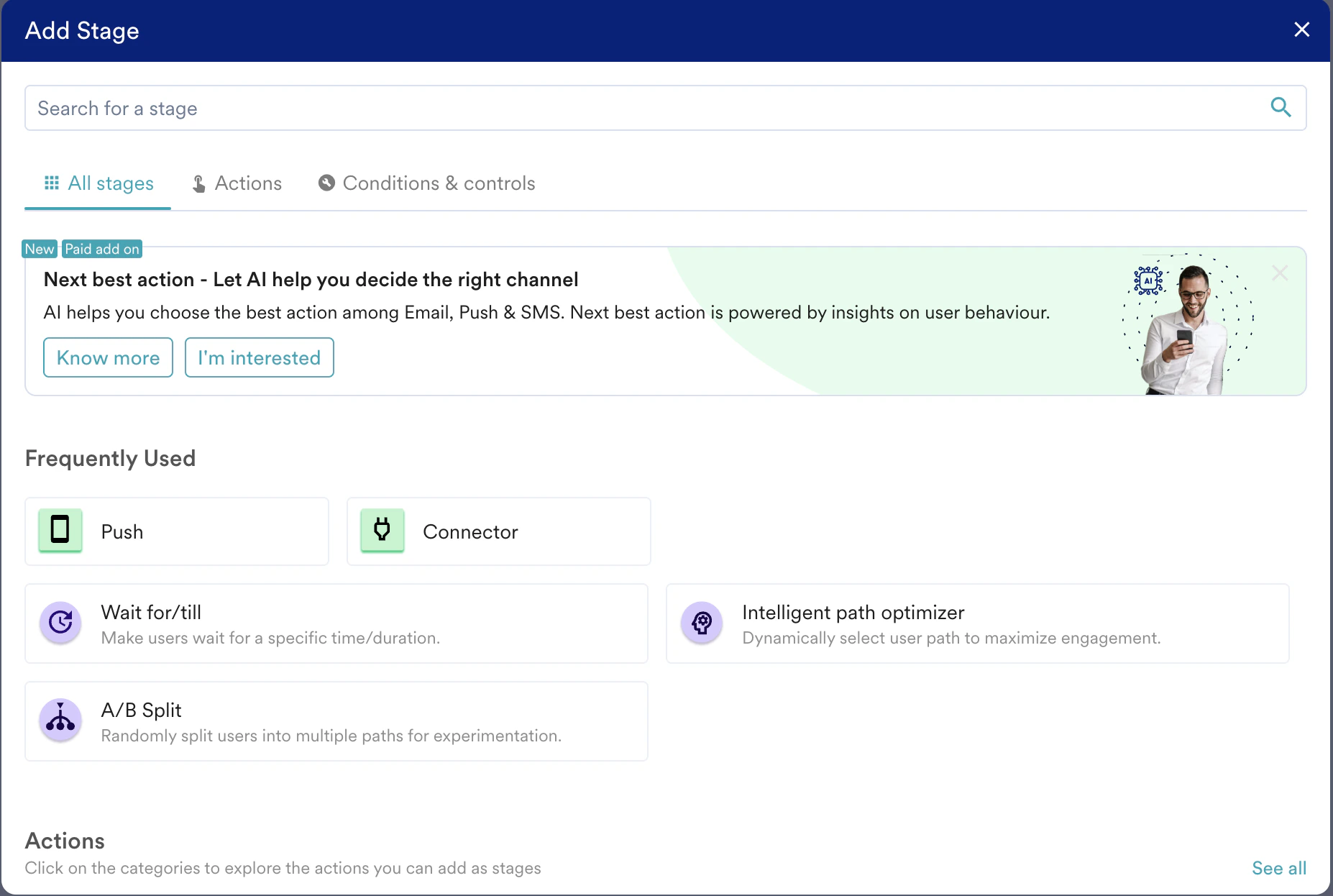
2. Click the stage you want to add.  The five frequently used stages are displayed under the **Frequently Used** section on the **All stages** tab. The list of available stages changes dynamically based on your workspace. Click the required stage to add it to the flow.
  * On the **Conditions & controls** tab, click the stage you want to add.
 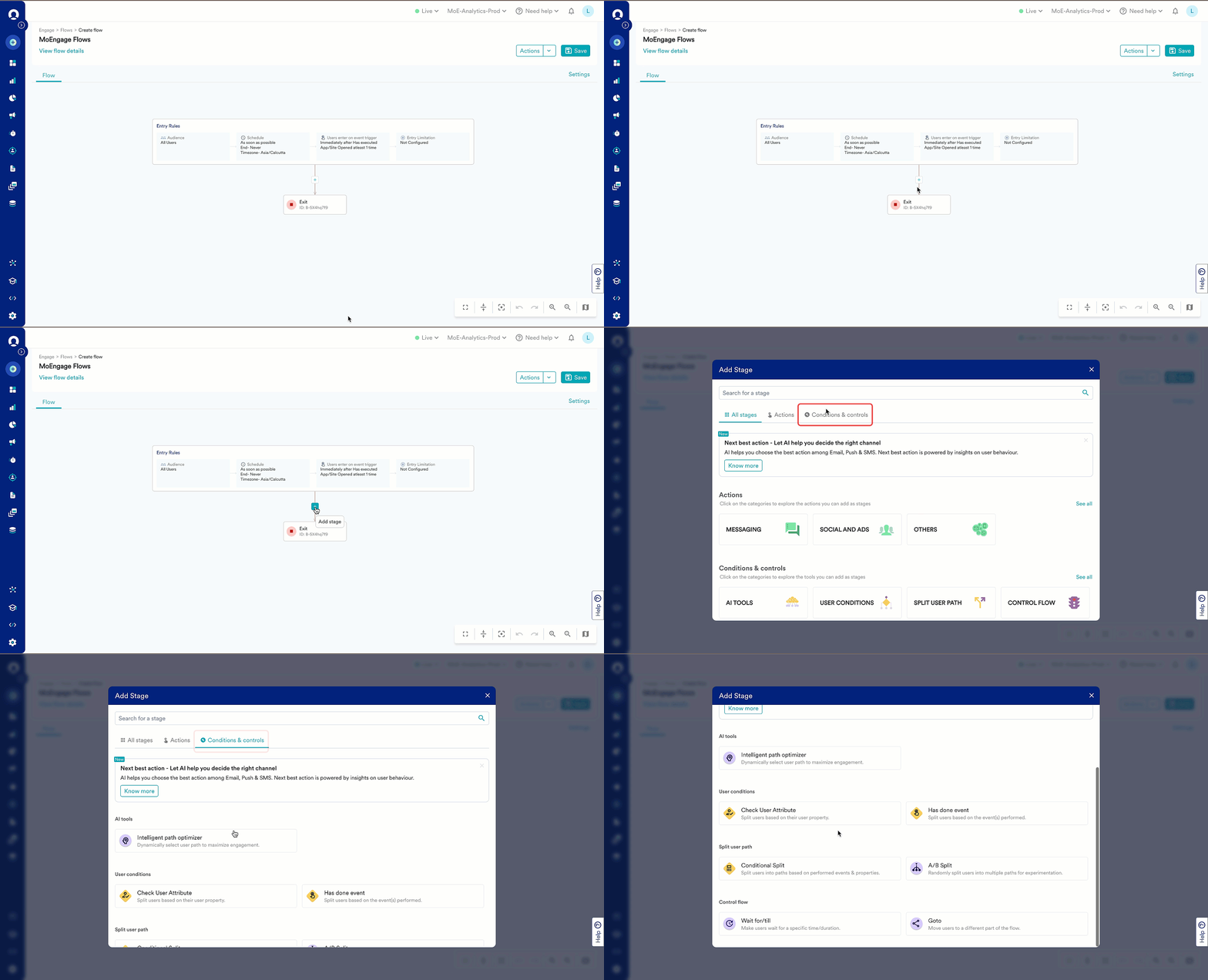 The selected stage is added to the canvas.
# Configure Condition Stages
## Split Users on Conditions
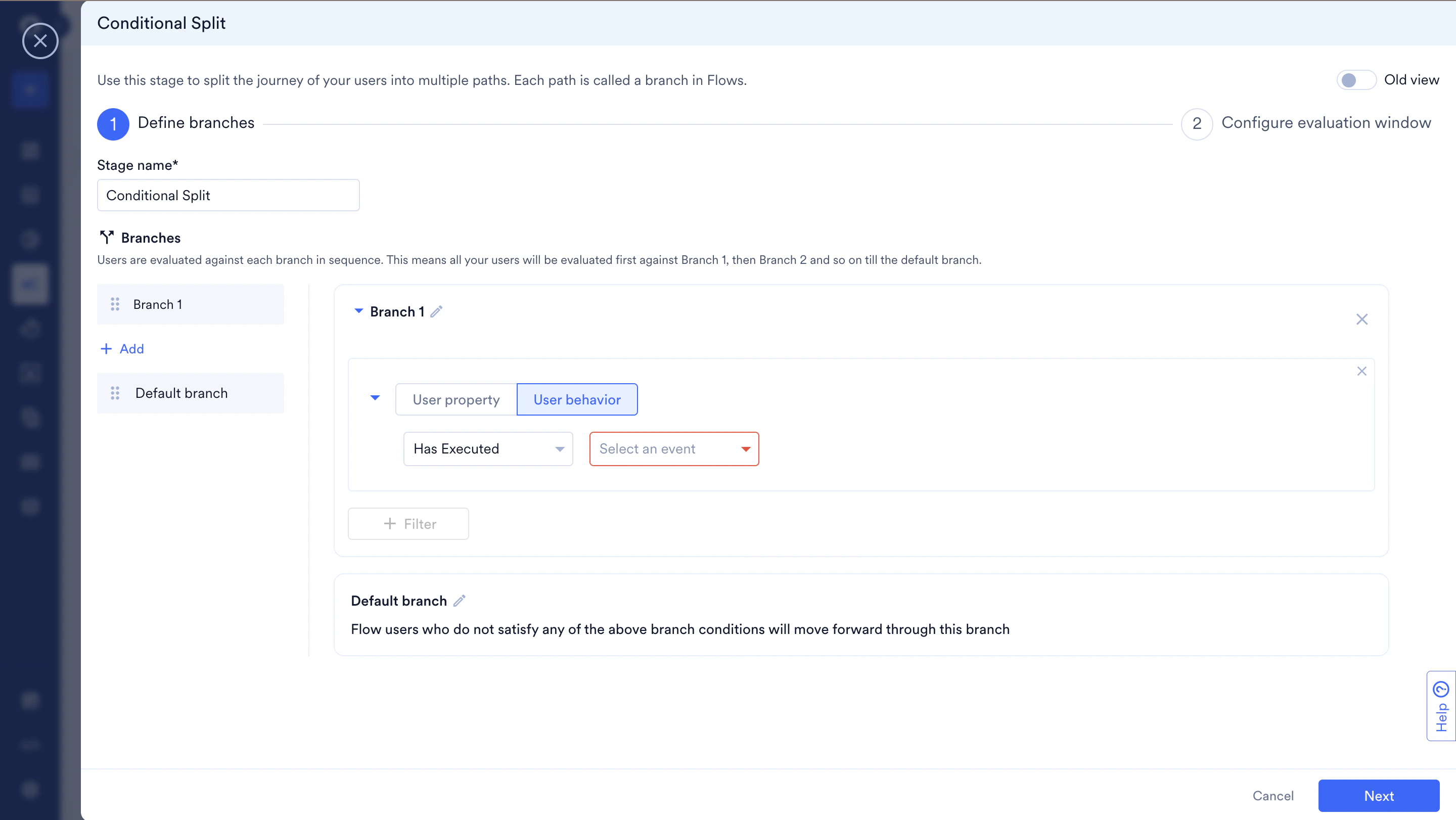
After adding a **Conditional Split** stage, perform the following steps to configure it:
This is an Early Access feature. To enable it for your account, please contact your MoEngage Customer Success Manager (CSM) or the Support team.
#### **Step 1: Define Branches**
The selected stage is added to the canvas.
# Configure Condition Stages
## Split Users on Conditions
After adding a **Conditional Split** stage, perform the following steps to configure it:
This is an Early Access feature. To enable it for your account, please contact your MoEngage Customer Success Manager (CSM) or the Support team.
#### **Step 1: Define Branches**
 | Field | Description |
| -------------- | ----------------------------------------------------------------------------------------------------------------------------------------------------------------------------------------------------------------------------------------------------------------------------------------------------------------------------------------------------------------------------------------------------------------------------------------------------------------------------------------------------------------------------------------------------------------------------------------------------------------------------------------------------------------------------------------------------------------------------------------------------------------------------------------------------------------------------------------------------------------------------------------------------------------------------------------------------------------------------------------------------------------------------------------------------------------------------------------------------------------------------------------------------------------------------------------------------------------------------------------------------------------------------------------------------------------------------------------------------------------------------------------------------------------------------------------------------------------------------------------------------------------------------------------------------------------------------------------------------------------------------------------------------------------------------------------------------------------------------------------------------------------------------------------------------------------------------------------------------------------------------------------------------------------------------------------------------------------------------------------------------------------------------------------------------------------------------------------------------------------------------------------------------------------------------------------------------------------------------------------------------------------------------------------------------------------------------------------------------------------------------------------------------------------------------------------------------------------------------------------------------------------------------------------------------------------------------------------------------------------------------------------------------------------------------------------------------------------------------------------------------------------------------------------------------------------------------------------------------------------------------------------------------------------------------------------------------------------------------------------------------------------------------------------------------------------------------------------------------------------------------------------------------------------------------------------------------------------------------------------------------------------------------------- |
| **Stage name** | Enter a name for the stage to manage and identify the condition. |
| **Branches** | Users are evaluated against each branch in sequence. All users are evaluated first against Branch 1, then Branch 2, and so on, until the default branch.
| Field | Description |
| -------------- | ----------------------------------------------------------------------------------------------------------------------------------------------------------------------------------------------------------------------------------------------------------------------------------------------------------------------------------------------------------------------------------------------------------------------------------------------------------------------------------------------------------------------------------------------------------------------------------------------------------------------------------------------------------------------------------------------------------------------------------------------------------------------------------------------------------------------------------------------------------------------------------------------------------------------------------------------------------------------------------------------------------------------------------------------------------------------------------------------------------------------------------------------------------------------------------------------------------------------------------------------------------------------------------------------------------------------------------------------------------------------------------------------------------------------------------------------------------------------------------------------------------------------------------------------------------------------------------------------------------------------------------------------------------------------------------------------------------------------------------------------------------------------------------------------------------------------------------------------------------------------------------------------------------------------------------------------------------------------------------------------------------------------------------------------------------------------------------------------------------------------------------------------------------------------------------------------------------------------------------------------------------------------------------------------------------------------------------------------------------------------------------------------------------------------------------------------------------------------------------------------------------------------------------------------------------------------------------------------------------------------------------------------------------------------------------------------------------------------------------------------------------------------------------------------------------------------------------------------------------------------------------------------------------------------------------------------------------------------------------------------------------------------------------------------------------------------------------------------------------------------------------------------------------------------------------------------------------------------------------------------------------------------------------- |
| **Stage name** | Enter a name for the stage to manage and identify the condition. |
| **Branches** | Users are evaluated against each branch in sequence. All users are evaluated first against Branch 1, then Branch 2, and so on, until the default branch. - Click the pen icon beside the branch name to change the name of the branch or path. This name helps you identify the path or condition.
**Note**: Ensure the *display name* does not exceed 20 characters. - Use one of the following:
- User property
- In the list, select a user property.
- Provide the property details. The filter is the primary filter condition.
- Click **+ Filter** to add more filters to the primary filter condition.
- User behavior
- In the list, select one of the following:
- **Has Executed**
- **Has Not Executed**
- In the list, select an event. Events include any flow entry conditions.
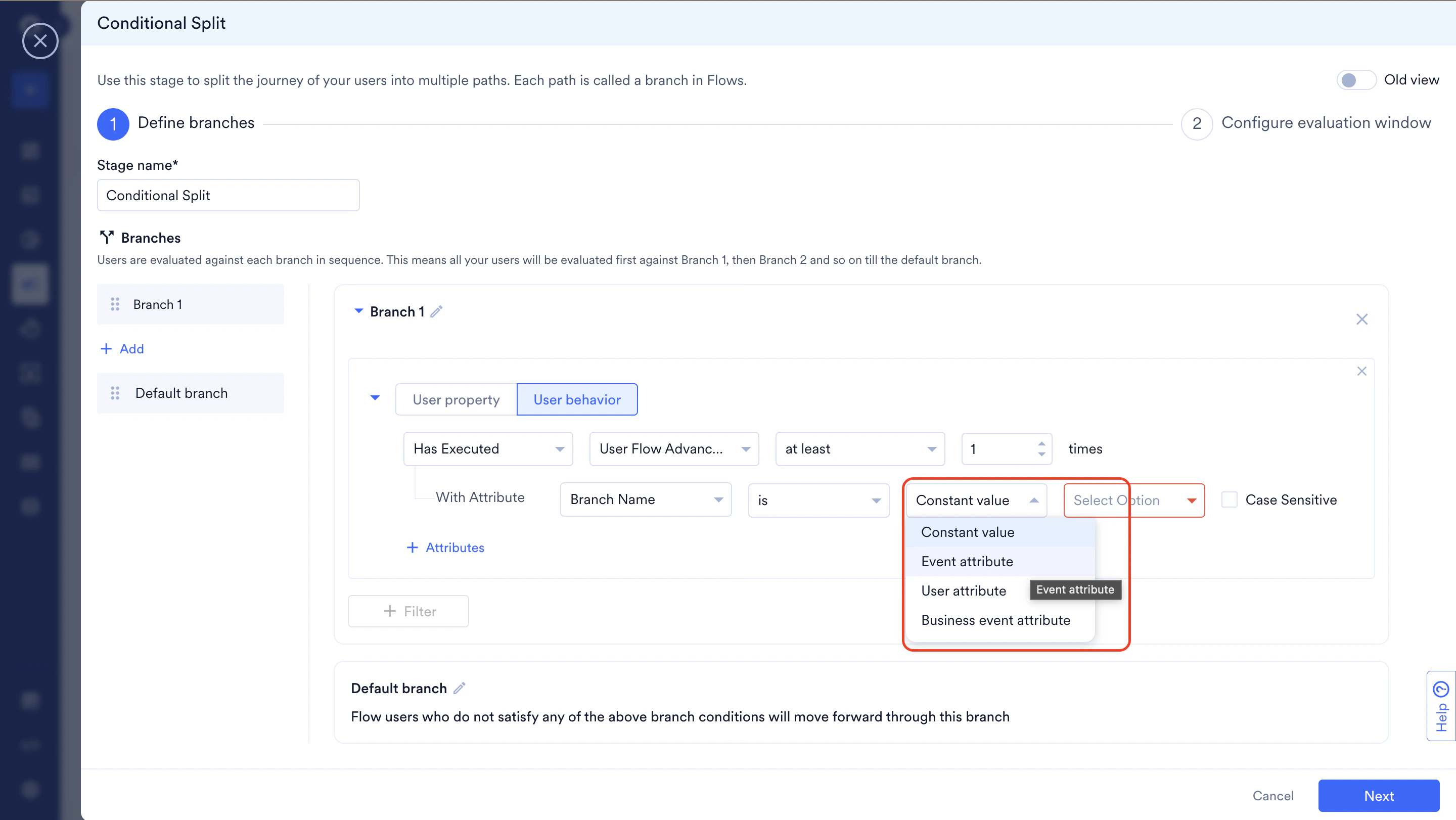
- Click **+ Attributes** to add filters to the primary condition.
- The default **Constant value** helps you complete the filter with specific static values.
- Use **Event attribute** (applicable for all types of flows), **User attribute** (applicable for all types of flows), and **Business event attribute** (applicable only for Business Event Triggered flows) to link this primary condition with the event-trigger or business event trigger conditions and define dynamic checks.
- For more information, refer to [Linked Conditions](/docs/user-guide/flows-cross-channel-messaging/create/create-flows/linked-conditions)
|
| **+Filter** | - Click to add another filter with the primary condition.
- Click **AND** or **OR** to define the relationship between filters.
- In the list, select the type of user attributes.
- Add additional conditional checks and link them to previous user actions with [Linked Conditions](/docs/user-guide/flows-cross-channel-messaging/create/create-flows/linked-conditions).
|
1. Click **+** **Add** to include more branches as part of the conditional split stage.
* Branches are evaluated in sequence. **Branch 1** has the highest priority, which decreases as you move down the list. The **Default branch** has the lowest priority.
* For example, when there is a conditional split where a user matches both branch 1 and branch 2 conditions, they move down Branch 1 because of its highest priority. So, in a conditional split, where the user matches more than one branch's criteria, the order of the branches matters.
2. To delete a branch within Conditional Split or to duplicate the branch, hover over the list of branches mentioned on the left side.
1. Click **Duplicate** to create a copy of a branch. The new branch is automatically named "Copy of Branch ``"
2. Similarly, click **Delete** to remove a branch from the stage. 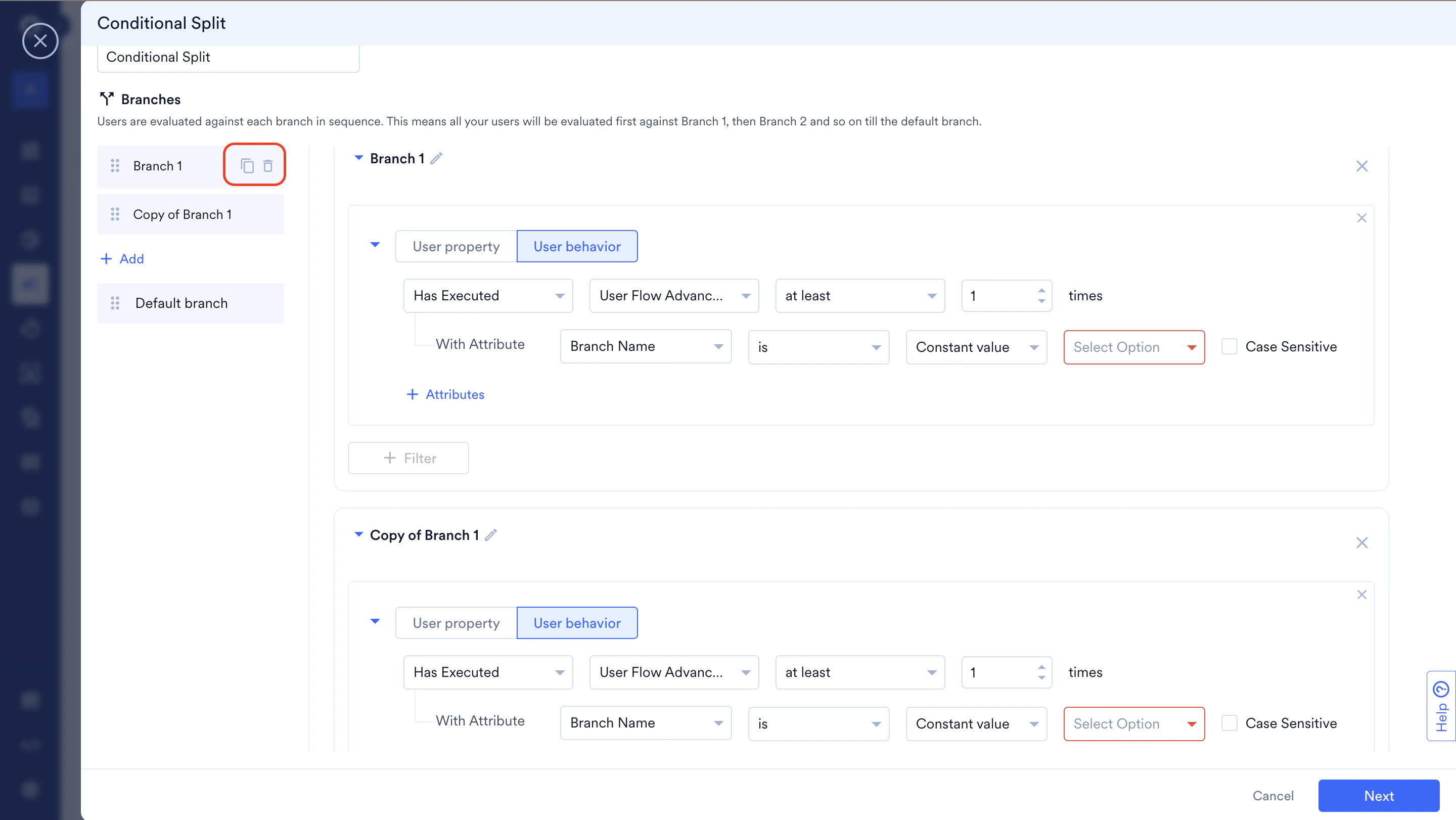 3. To reposition branches, drag and move branches.
Click **Next** to proceed to Step 2.
#### **Step 2: Configure Evaluation Window**
In this step, define the time window for evaluating the condition by setting a **start point** (using the timeline slider) and an **end point** (using the wait duration).
3. To reposition branches, drag and move branches.
Click **Next** to proceed to Step 2.
#### **Step 2: Configure Evaluation Window**
In this step, define the time window for evaluating the condition by setting a **start point** (using the timeline slider) and an **end point** (using the wait duration).
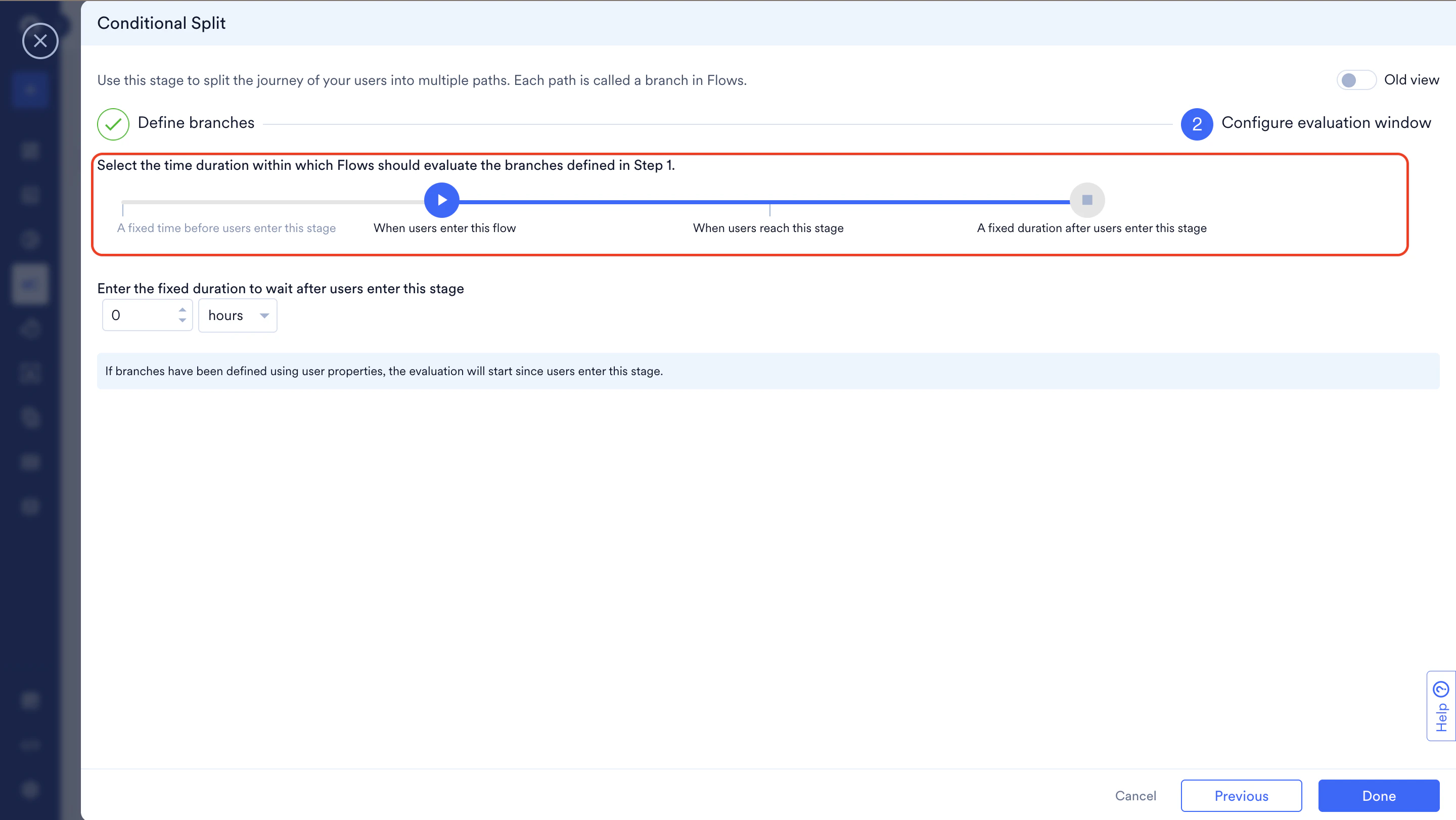 **How It Works:** The evaluation window consists of a **start point** and an **end point** (calculated as: when the user enters the stage + wait duration).
| Slider Position | Configuration Fields | Evaluation Window | Old UI Equivalent |
| ---------------------------------------------- | ------------------------------------------------------------------------------------------------------------------------------------------------------------------------------------------------------------------------------------------------------------------------------------------------------------------------------------------------------------------------------ | ---------------------------------------------------------------------------------------------------------------------------------------------------------------------------------------------------------------------------------------------------------------------------------------------------------------------------------------------------------------------------------------- | ------------------------------ |
| **A fixed time before users enter this stage** |
**How It Works:** The evaluation window consists of a **start point** and an **end point** (calculated as: when the user enters the stage + wait duration).
| Slider Position | Configuration Fields | Evaluation Window | Old UI Equivalent |
| ---------------------------------------------- | ------------------------------------------------------------------------------------------------------------------------------------------------------------------------------------------------------------------------------------------------------------------------------------------------------------------------------------------------------------------------------ | ---------------------------------------------------------------------------------------------------------------------------------------------------------------------------------------------------------------------------------------------------------------------------------------------------------------------------------------------------------------------------------------- | ------------------------------ |
| **A fixed time before users enter this stage** | - **Enter the fixed time to evaluate before users reach this stage.**
- Enter duration (number).
- Select unit: mins, hours, days.
- Max: 30 days
- **Enter the fixed duration to wait after users enter this stage**
- Enter duration (number).
- Select unit: mins, hours, days
- Max: 30 days
| - **Start**: Time before reaching the stage.
- **End**: Time after reaching the stage.
***Example***: *User reaches stage at 2:00 PM*
*- "5 mins before" + "10 mins after"*
*- Evaluates: 1:55 PM to 2:10 PM* | "In the past" |
| **When users enter this flow** | **Enter the fixed duration to wait after users enter this stage** - Enter duration (number)
- Select unit: mins, hours, days
- Max: 30 days
***Note:*** Start time is automatically set to flow entry time (max 30-day lookback)
| - **Start**: When the user enters the flow
- **End**: When the user reaches the stage + wait duration
***Example:*** - User enters flow on Jan 1, reaches stage on Jan 5 at 2:00 PM - "5 hours after" - Evaluates: Jan 1 to Jan 5 7:00 PM
- If the user enters on Jan 1 but reaches the stage on Feb 15, it evaluates from Jan 16 only
| "Since entering the flow" |
| **When users reach this stage** | **Enter the fixed duration to wait after users enter this stage** - Enter duration (number)
- Select unit: mins, hours, days
- Max: 30 days
***Note:*** Start time is automatically set to when the user exited the previous stage
| - **Start**: When the user exits the previous stage
- **End**: When the user reaches this stage + wait duration
*Example:* User exits previous stage at 2:00 PM, reaches this stage at 2:30 PM
- "2 hours after"
- Evaluates: 2:00 PM to 4:30 PM | "Since exiting the last stage" |
1. Click the pen icon to edit the condition.
2. Do the following:
| Field | Description |
| -------------------------------------- | --------------------------------------------------------------------------------------------------------------------------------------------------------------------------------------------------------------------------------------------------------------------------------------------------------------------------------------------------------------------------------------------------------------------------------------------------------------------------------------------------------------------------------------------------------------------------------------------------------------------------------------------------------------------------------------------------------------------------------------------------------------------------------------------------------------------------------------------------------------------------------------------------------------------------------------------------------------------------------------------------------------------------------------------------------------------------------------------------------------------------------------------------------------------------------------------------------------------------------------------------------------------------------------------------------------------------------------------------------------------------------------------------------------------------------------------------------------------------------------------------------------------------------------------------------------------------------------------------------------------------------------------------------------------------------------------------------------------------------------------------------------------------------------------------------------------------------------------------------------------------------------------------------------------------------------------------------------------------------------------------------------------------------------------------------------------------------------------------------------------------------------------------------------------------------------------------------------------------------------------------------------------------------------------------------------------------------------------------------------------------------------------------------------------------------------------------------------------------------------------------------------------------------------------------------------------------------------------------------------------------------------------------------------------------------------------------------------------------------------------------------------------------------------------------------------------------- |
| **Stage name** | Type to modify the condition's name to manage and identify the condition. |
| **Evaluate the following conditions** | In the list, click an option to choose the start of your evaluation window: - **Since entering the flow**
This defines the start time to be *from the time the user has entered the current flow*. MoEngage evaluates the condition from the time the user entered the flow to decide whether the user meets the condition. However, the maximum look-back is 30 days.
For example: - If a user enters the flow on January 1 and reaches the condition stage that’s defined to evaluate “Since they entered the flow” on February 15, MoEngage can evaluate only from January 14 because the maximum look-back it has is 30 days.
- If a user enters the flow on January 1 and reaches the condition stage that’s defined to evaluate “Since they entered the flow” on January 15, MoEngage can evaluate from January 1, that is, the time they entered, because this falls within the max limit defined.
- **Since exiting the last stage**
This defines the start time to be *from the time the user has moved from the previous stage* in the flow to the next stage. - **In the past**
This defines the start time to be *from the set timeframe in the past*. Set the time in minutes, hours, or days. MoEngage evaluates the condition for the time you mention with this option.
For example: - If a user enters the flow on January 1 and reaches the condition stage that’s defined to evaluate “In the past for 30 Days” on January 15, MoEngage will evaluate from December 14, effectively for the defined 30-day period.
- If a user enters the flow on January 1 and reaches the condition stage that’s defined to evaluate “In the past for 30 Days” on February 20, MoEngage can evaluate from January 21, effectively for the defined 30-day period.
|
| **Condition is satisfied if the user** | - In the **Display name** box, type or paste the name of the branch or path.
**Note:** Ensure that the *display name* has a maximum of 20 characters only. - Use one of the following:
- User property
- In the list, select the user property.
- Provide the property details. The filter is the primary filter condition.
- Click **+ Filter** to add additional filters to the primary filter condition.
- User behavior
- In the list, select one of the following:
- Has Executed
- Has Not Executed
- In the list, select one of the events. Events include any of the flow entry conditions as well.
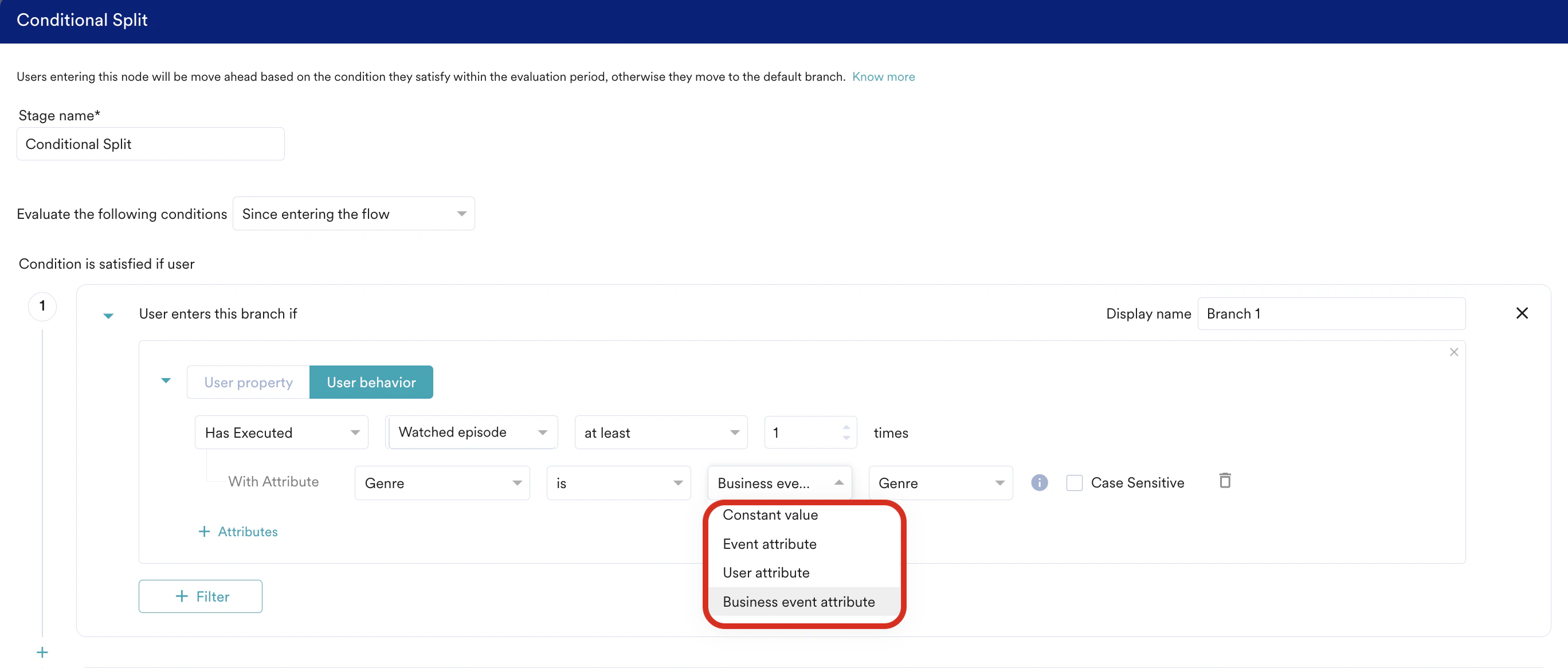
- Click **+ Attributes** to add additional filters to the primary condition. The default **Constant value** helps you complete the filter with specific static values. The **Event attribute** (applicable for all types of flows), **User attribute** (applicable for all types of flows), and **Business event attribute** (applicable only for Business Event Triggered flows) option, as shown above, helps you link this primary condition with the event-trigger or business event trigger condition and define dynamic checks. To know more, refer to [Linked Conditions](/docs/user-guide/flows-cross-channel-messaging/create/create-flows/linked-conditions)
|
| **+ Filter** | - Click to add another filter with the primary conditions.
- Click **AND** or **OR**.
- Similar to the step above, you can add additional conditional checks and link them to previous user actions with [Linked Conditions](/docs/user-guide/flows-cross-channel-messaging/create/create-flows/linked-conditions).
|
| **Keep evaluating for the next** | - Turn it on to check if the condition is met for the set time duration from the start time defined in **Evaluate the following conditions**.
- Type or use the up and down arrow keys to set the time duration.
- In the list, select the minutes, hours, or days to set the evaluation duration.
|
3. Use the **+** icon to add more branches as part of the conditional split stage. **Branch 1** has the highest priority, and the priority reduces as you progress down. **Default branch** has the least priority. For example, when there is a conditional split where a user X matches both branch 1 and branch 2 conditions, the user moves down Branch 1 as that has the highest priority. So, for a conditional split, the order of branches plays an important role where the user moves provided they match more than one branch's criteria.
* The default branch does not have any conditions.
* You can add personalized and dynamic conditional checks based on the previous user actions with [Linked Conditions](/docs/user-guide/flows-cross-channel-messaging/create/create-flows/linked-conditions).
* Users navigate to the default branch when they do not meet the conditions applied in the conditional split.
* The order of branches will influence which branch path the user takes in a conditional split, because the priority of the branches decreases from the first branch to the last branch or the default branch.
* Users meeting the primary branch will leave as soon as they meet the criteria. Meanwhile, in the other branches, they will leave only after the completion of the evaluation period.
* Users navigate the branch and follow the branch after meeting the evaluation criteria.
When you edit a published flow having a conditional split, the following are applicable:
* Change the display name.
* Change the branch evaluation conditions.
* Cannot add a new branch.
* Cannot delete a branch.
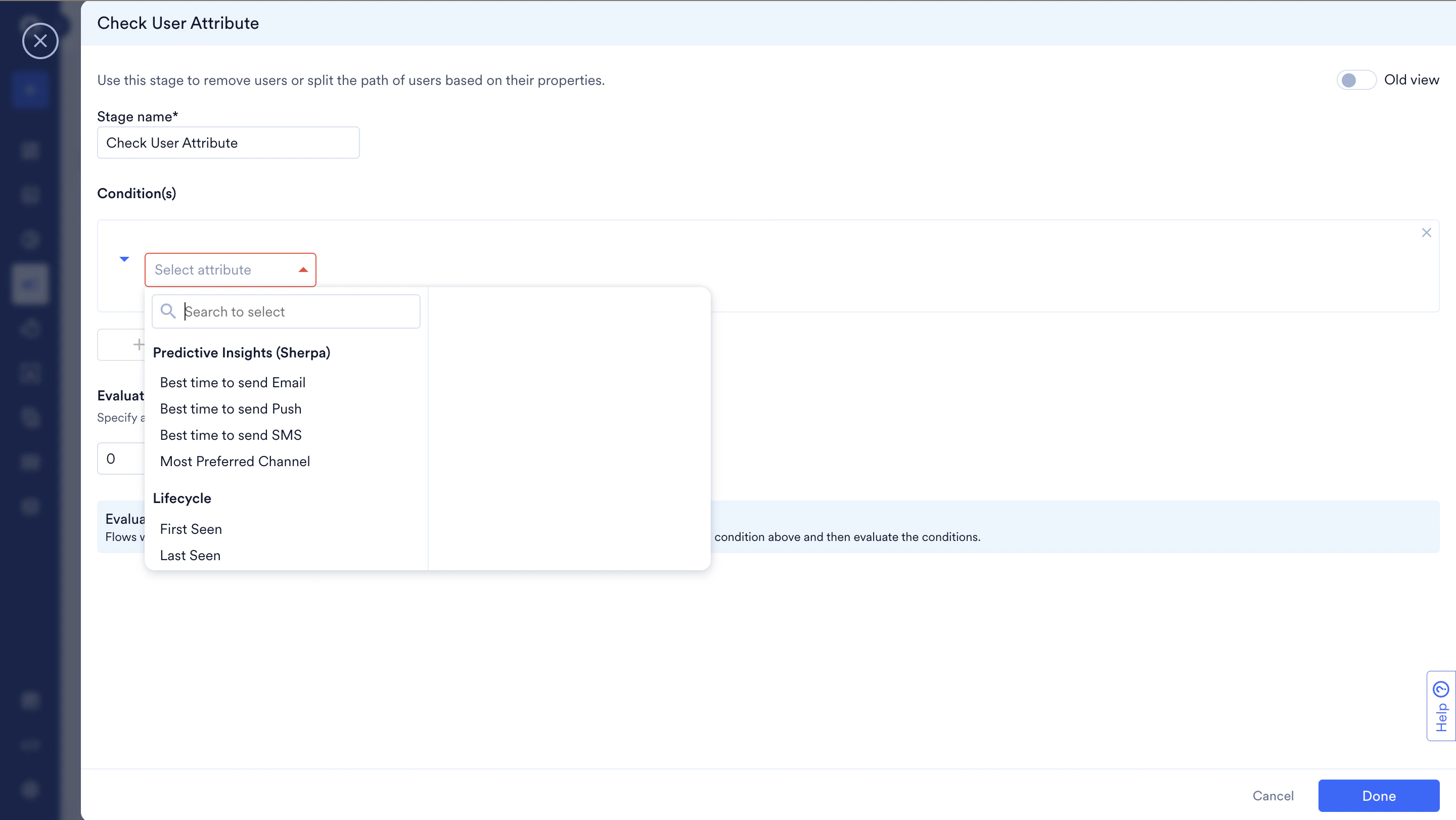
After adding a **Check User Attribute** stage, perform the following steps to configure it:
This is an Early Access feature. To enable it for your account, please contact your MoEngage Customer Success Manager (CSM) or the Support team.
 | Field | Description |
| ------------------------------------ | ----------------------------------------------------------------------------------------------------------------------------------------------------------------------------------------------------------------------------------------------------------------------------------------------------------------------------------------------------------------------------------------------------------------------------------------------------------------------------------------------------------------------------------------------------------------------------------------------------------------------------------------------------------------------------------------------------------------------------------------------------------------------------------------------------------------------------------------------------------------------------------------------------------------------------------------------------------------------------------------------------------------------------------------------------------------------------------------------------------------------------------------------------------------------------------------------------------------------------------------------------------------------------------------------------------------------------------------------------------------------------------------------------------------------------------------------------------------------------------------------------------------------------------------------------------------------------------------------------------------------------------------------------------------------------------------------------------------------------------------------------------------------------------------------------------------------------------------------------------------------------------------------------------------------------------------------------------------------------------------------------------------------- |
| **Stage name** | Enter a name for the stage to manage and identify the condition. |
| **Condition(s)** | Define the user property condition by selecting a user attribute from the list The default Constant value helps you complete the filter with specific static values.
| Field | Description |
| ------------------------------------ | ----------------------------------------------------------------------------------------------------------------------------------------------------------------------------------------------------------------------------------------------------------------------------------------------------------------------------------------------------------------------------------------------------------------------------------------------------------------------------------------------------------------------------------------------------------------------------------------------------------------------------------------------------------------------------------------------------------------------------------------------------------------------------------------------------------------------------------------------------------------------------------------------------------------------------------------------------------------------------------------------------------------------------------------------------------------------------------------------------------------------------------------------------------------------------------------------------------------------------------------------------------------------------------------------------------------------------------------------------------------------------------------------------------------------------------------------------------------------------------------------------------------------------------------------------------------------------------------------------------------------------------------------------------------------------------------------------------------------------------------------------------------------------------------------------------------------------------------------------------------------------------------------------------------------------------------------------------------------------------------------------------------------- |
| **Stage name** | Enter a name for the stage to manage and identify the condition. |
| **Condition(s)** | Define the user property condition by selecting a user attribute from the list The default Constant value helps you complete the filter with specific static values. - Use the ***User attribute*** (applicable to all flow types) and ***Business event attribute*** (applicable only to Business Event Triggered flows) options to link this condition to other user attributes or the business event trigger condition, and to define dynamic checks. To know more, refer to [Linked Conditions](/docs/user-guide/flows-cross-channel-messaging/create/create-flows/linked-conditions).

|
| **+Filter** | - Click to add another filter with the primary condition.
- Click **AND** or **OR** to define the relationship between filters.
- Select the type of user attribute from the list.
|
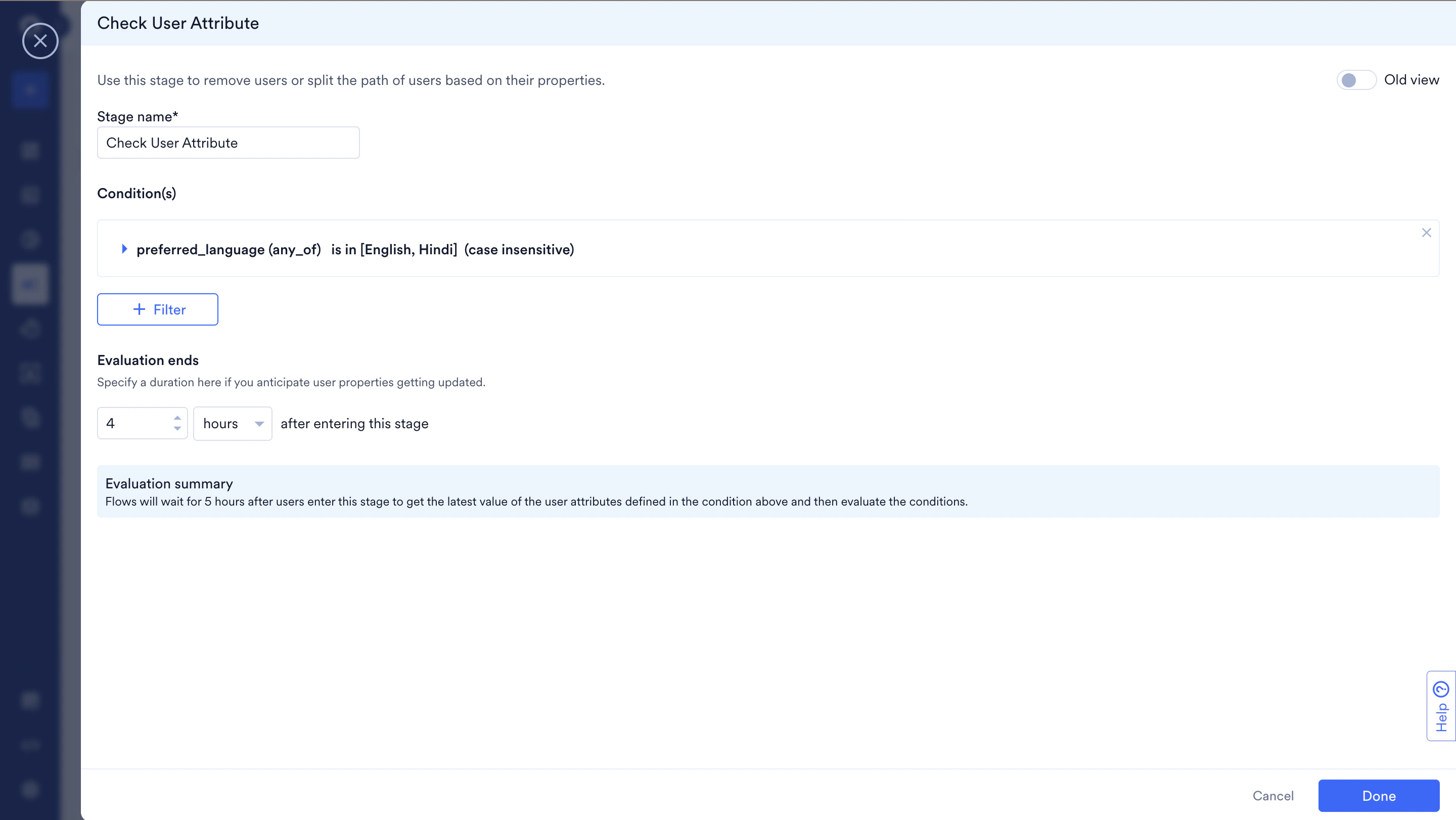
| **Evalutation Window Configuration** | Specify the maximum duration to wait before evaluating the condition in ***Evaluation Ends***: - Enter the time duration (number)
- Select the time unit: minutes, hours, or days
|
**How it works:**
Once a user reaches this stage:
* MoEngage checks the evaluation window to see if the condition is met.
* If the condition is met, the user immediately moves to the "Yes" path.
* If the condition is not met, MoEngage waits up to the specified duration before moving the user to the "No" Path.
* In the meantime, if the user attribute is updated, they are evaluated to move users in real-time.
 1. Click the pen icon to edit the condition.
2. Do the following:
| Field | Description | |
| ---------------------------------- | --------------------------------------------------------------------------------------------------------------------------------------------------------------------------------------------------------------------------------------------------------------------------------------------------------------------------------------------------------------------------------------------------------------------------------------------------------------------------------------------------------------------------------------------------------------------------------------------------------------------------------------------------------------------------------------------------------------------------------------------------------------------------------------------------------------------------------------------------------------------------------------------------------------------------------------------------------------------------------------------------------------------------------------------------------------------------------------------------------------------------------------------------------------------------------------------------------------------------------------------------------------------------------------------------------------------------------------------------------------------------------------------------------------------------------------------------------------------------------------------------------------------------------------------------------------------------------------------------------------------------------------------------------------------------------------------------------------------------------------------------------------------------------------------------------------------------------------------------------------------------------------------------------------------------------------- | - |
| **Stage name** | Type to modify the condition's name to manage and identify the condition. | |
| **Condition is satisfied if user** | In the list, select one of the attributes.
1. Click the pen icon to edit the condition.
2. Do the following:
| Field | Description | |
| ---------------------------------- | --------------------------------------------------------------------------------------------------------------------------------------------------------------------------------------------------------------------------------------------------------------------------------------------------------------------------------------------------------------------------------------------------------------------------------------------------------------------------------------------------------------------------------------------------------------------------------------------------------------------------------------------------------------------------------------------------------------------------------------------------------------------------------------------------------------------------------------------------------------------------------------------------------------------------------------------------------------------------------------------------------------------------------------------------------------------------------------------------------------------------------------------------------------------------------------------------------------------------------------------------------------------------------------------------------------------------------------------------------------------------------------------------------------------------------------------------------------------------------------------------------------------------------------------------------------------------------------------------------------------------------------------------------------------------------------------------------------------------------------------------------------------------------------------------------------------------------------------------------------------------------------------------------------------------------------- | - |
| **Stage name** | Type to modify the condition's name to manage and identify the condition. | |
| **Condition is satisfied if user** | In the list, select one of the attributes.
The default **Constant value** helps you complete the filter with specific static values. The **User attribute** (applicable for all types of flows) and **Business event attribute** (applicable only for Business Event Triggered flows) options, as shown below, help you link this condition with other user attributes or the business event trigger condition and define dynamic checks. To know more, refer to [Linked Conditions](/docs/user-guide/flows-cross-channel-messaging/create/create-flows/linked-conditions). 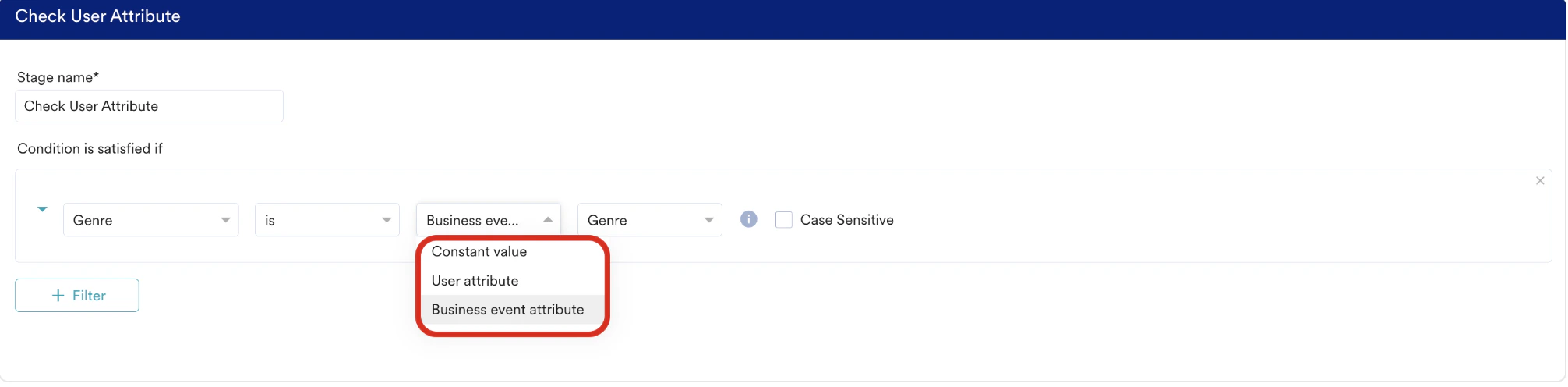 | |
| **+ Filter** |
| |
| **+ Filter** | - Click to add another filter with the primary filter.
- Click **AND** or **OR**.
- In the list, select the type of user attributes.
| |
| **Keep evaluating for the next** | - Turn it on to check if the condition is met for the set time duration.
- Type or use the up and down arrow keys to set the time duration.
- In the list, select minutes, hours, or days to set the evaluation duration.
| |
For example, a user came to the event condition evaluation at time T (after viewing a product page), and you want to track whether your user has added the product to the cart and made the purchase within 2 hours. MoEngage Flows will check for the next two hours if the condition is met.
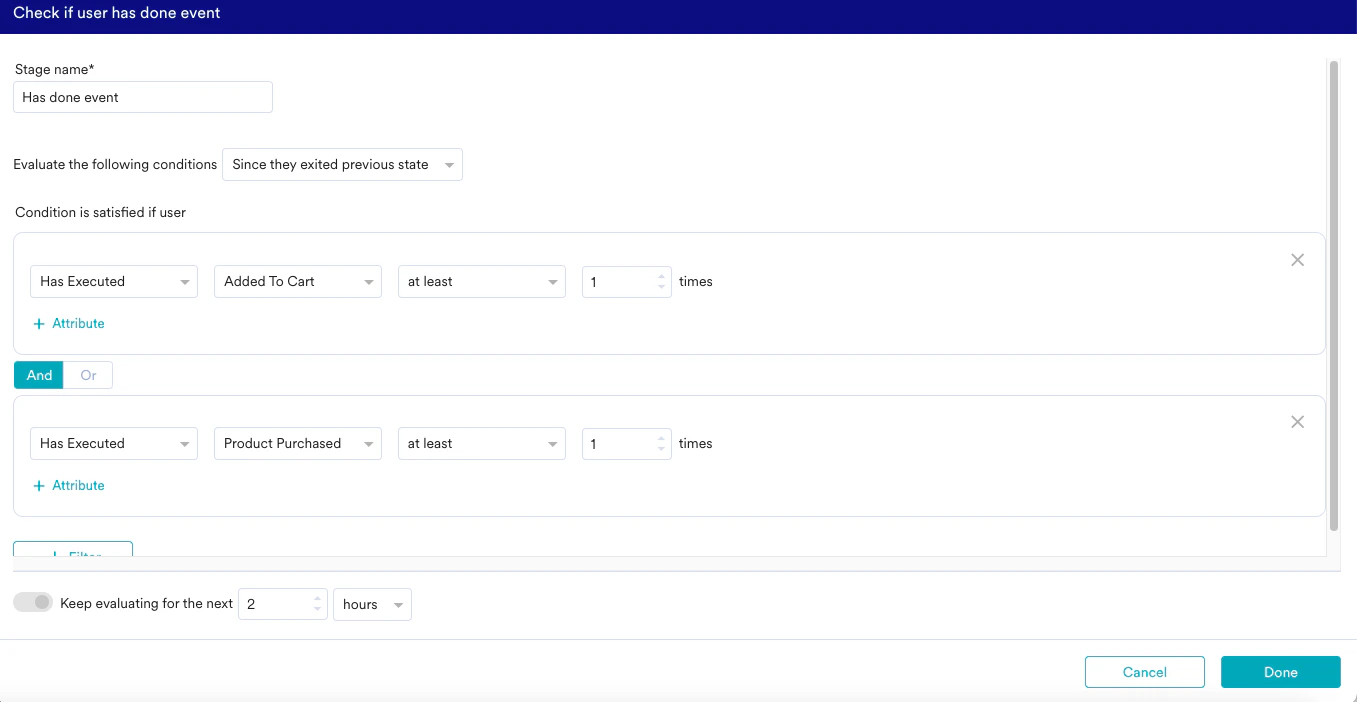 If yes, it will immediately move to the *yes* branch. If the condition is not met at the end of 2 hours, it will move to the *no* branch. Marketers can accordingly decide the subsequent flow paths. The system checks if the actions have been taken in the past since the user entered the journey. The system will wait 2 hours if the condition is not met. After 2 hours, it will move to the *yes* or *no* branch based on the current status.
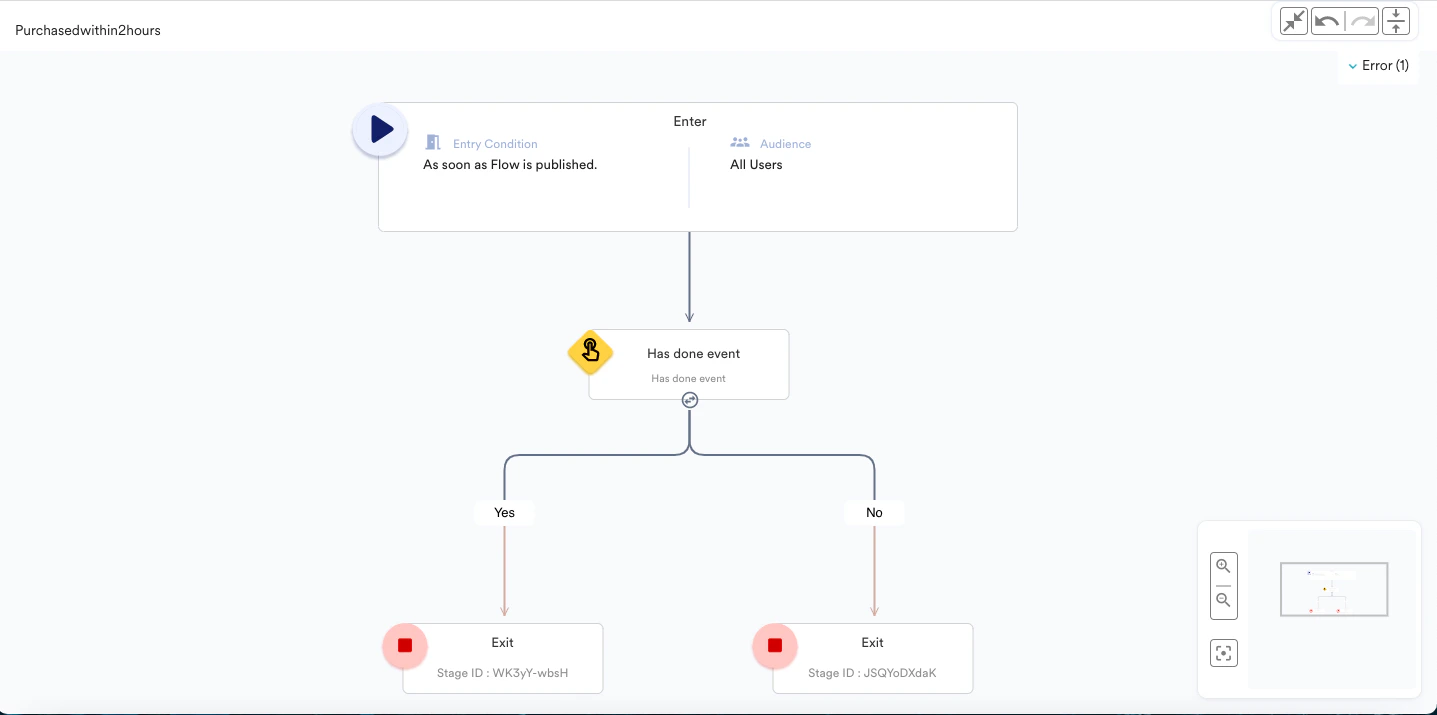 The evaluation starts when the user reaches the event condition. For certain use cases, marketers might want to check whether some actions have been taken since their users have entered the journey. Marketers can use the option accordingly.
#### Next Steps
If the condition is met, the user will immediately move to the *yes* branch. If the condition is not met at the end of the evaluation window, the user will move to the *no* branch. Marketers can accordingly decide the subsequent flow paths.
After adding a **Has done event** stage, perform the following steps to configure it:
This is an Early Access feature. To enable it for your account, please contact your MoEngage Customer Success Manager (CSM) or the Support team.
Click the pen icon to define the condition:
#### **Step 1: Define Condition(s)**
| Field | Description |
| -------------------------------------- | -------------------------------------------------------------------------------------------------------------------------------------------------------------------------------------------------------------------------------------------------------------------------------------------------------------------------------------------------------------------------------------------------------------------------------------------------------------------------------------------------------------------------------------------------------------------------------------------------------------------------------------------------------------------------------------------------------------------------------------------------------------------------------------------------------------------------------------------------------------------------------------------------------------------------------------------------------------------------------------------------------------------------------------------------------------------------------------------------------------------------------------------------------------------------------------------------------------------------------------------------------------------------------------------------------------------------------------------------------------------------------------------------------------------------------------------------------------------------------------------------------------------------------------------------------------------------------------------------------------------------------------------------------------------------------------------------------------------------------------------------------------------------------------------------------------------------------------------------------------------------------------------------------------------------------------------------------------------------------------------------------------------------------------------------------------------------------------------------------------------------------------------------------------------------------------------------------------------------------------------------------------------------------------------------------------------------------------------------------------------------------------------------------------------- |
| **Stage name** | Enter a name to identify and manage this condition. |
| **Condition is satisfied if the user** |
The evaluation starts when the user reaches the event condition. For certain use cases, marketers might want to check whether some actions have been taken since their users have entered the journey. Marketers can use the option accordingly.
#### Next Steps
If the condition is met, the user will immediately move to the *yes* branch. If the condition is not met at the end of the evaluation window, the user will move to the *no* branch. Marketers can accordingly decide the subsequent flow paths.
After adding a **Has done event** stage, perform the following steps to configure it:
This is an Early Access feature. To enable it for your account, please contact your MoEngage Customer Success Manager (CSM) or the Support team.
Click the pen icon to define the condition:
#### **Step 1: Define Condition(s)**
| Field | Description |
| -------------------------------------- | -------------------------------------------------------------------------------------------------------------------------------------------------------------------------------------------------------------------------------------------------------------------------------------------------------------------------------------------------------------------------------------------------------------------------------------------------------------------------------------------------------------------------------------------------------------------------------------------------------------------------------------------------------------------------------------------------------------------------------------------------------------------------------------------------------------------------------------------------------------------------------------------------------------------------------------------------------------------------------------------------------------------------------------------------------------------------------------------------------------------------------------------------------------------------------------------------------------------------------------------------------------------------------------------------------------------------------------------------------------------------------------------------------------------------------------------------------------------------------------------------------------------------------------------------------------------------------------------------------------------------------------------------------------------------------------------------------------------------------------------------------------------------------------------------------------------------------------------------------------------------------------------------------------------------------------------------------------------------------------------------------------------------------------------------------------------------------------------------------------------------------------------------------------------------------------------------------------------------------------------------------------------------------------------------------------------------------------------------------------------------------------------------------------------- |
| **Stage name** | Enter a name to identify and manage this condition. |
| **Condition is satisfied if the user** | - In the list, select one of the following:
- **Has Executed**
- **Has Not Executed**
- Select an event from the dropdown. This includes:
- Custom events tracked in your workspace
- Flow entry events (to check the event that triggered the flow entry)
- Click **+ Attributes** to add additional filters to the primary condition.
- Use this default **Constant value** to complete the filter with specific static values.
- Use **Event attribute** (applicable for all types of flows), **User attribute** (applicable for all types of flows), and **Business event attribut** (applicable only for Business Event Triggered flows) option to link this primary condition with the event-trigger or business event trigger condition and define dynamic checks. For more information, refer to [Linked Conditions](/docs/user-guide/flows-cross-channel-messaging/create/create-flows/linked-conditions).
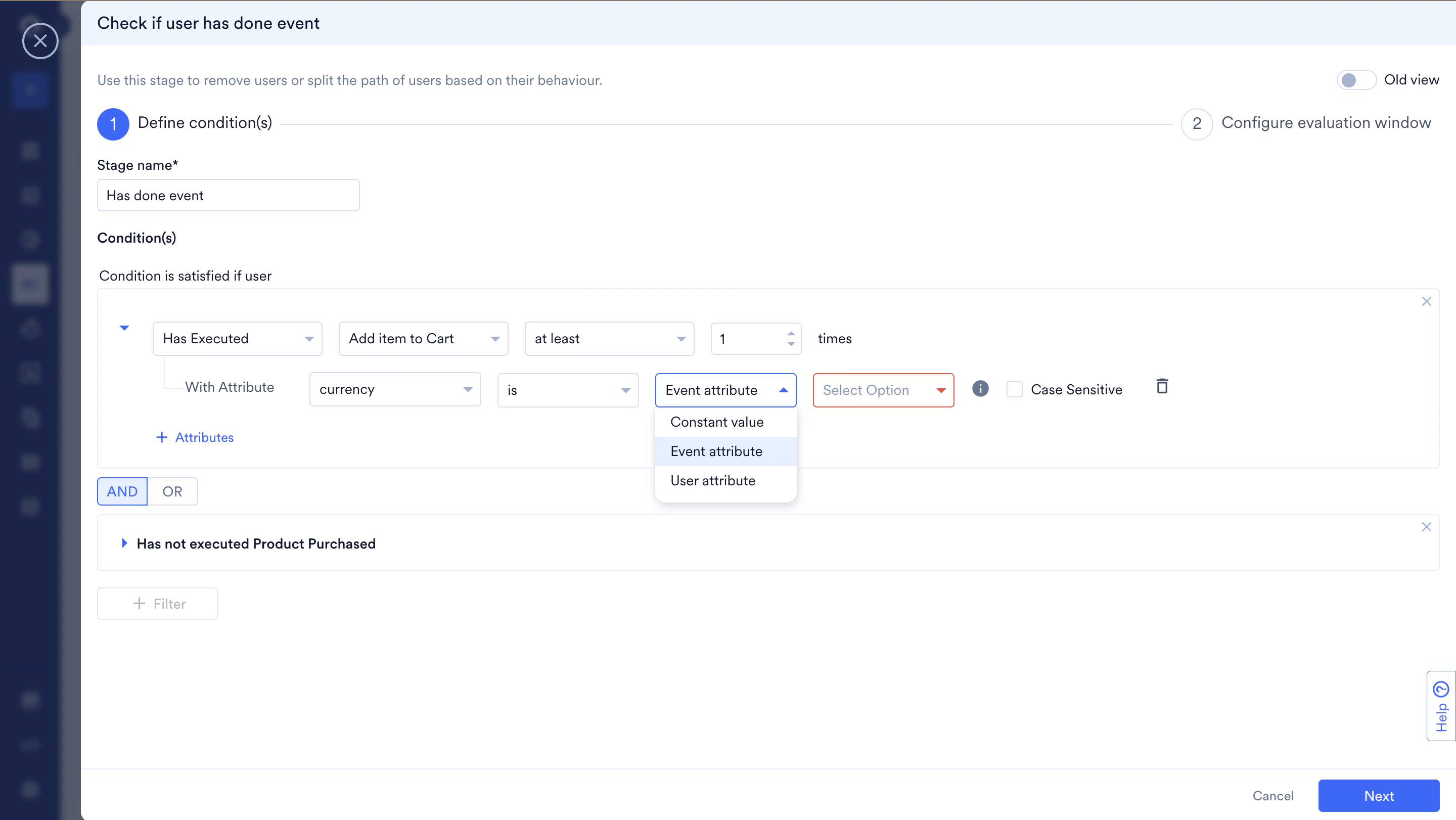
|
| **+Filter** | - Click to add another filter to the primary condition.
- Select **AND** or \*\*OR \*\*to define the relationship between filters.
- In the list, select the type of user attributes.
- Add additional conditional checks and link them to previous user actions with [Linked Conditions](/docs/user-guide/flows-cross-channel-messaging/create/create-flows/linked-conditions).
|
Click **Next** to proceed to Step 2.
#### **Step 2: Configure Evaluation Window**
In this step, you define the time window for evaluating the condition by setting a **start point** (using the timeline slider) and an **end point** (using the wait duration).
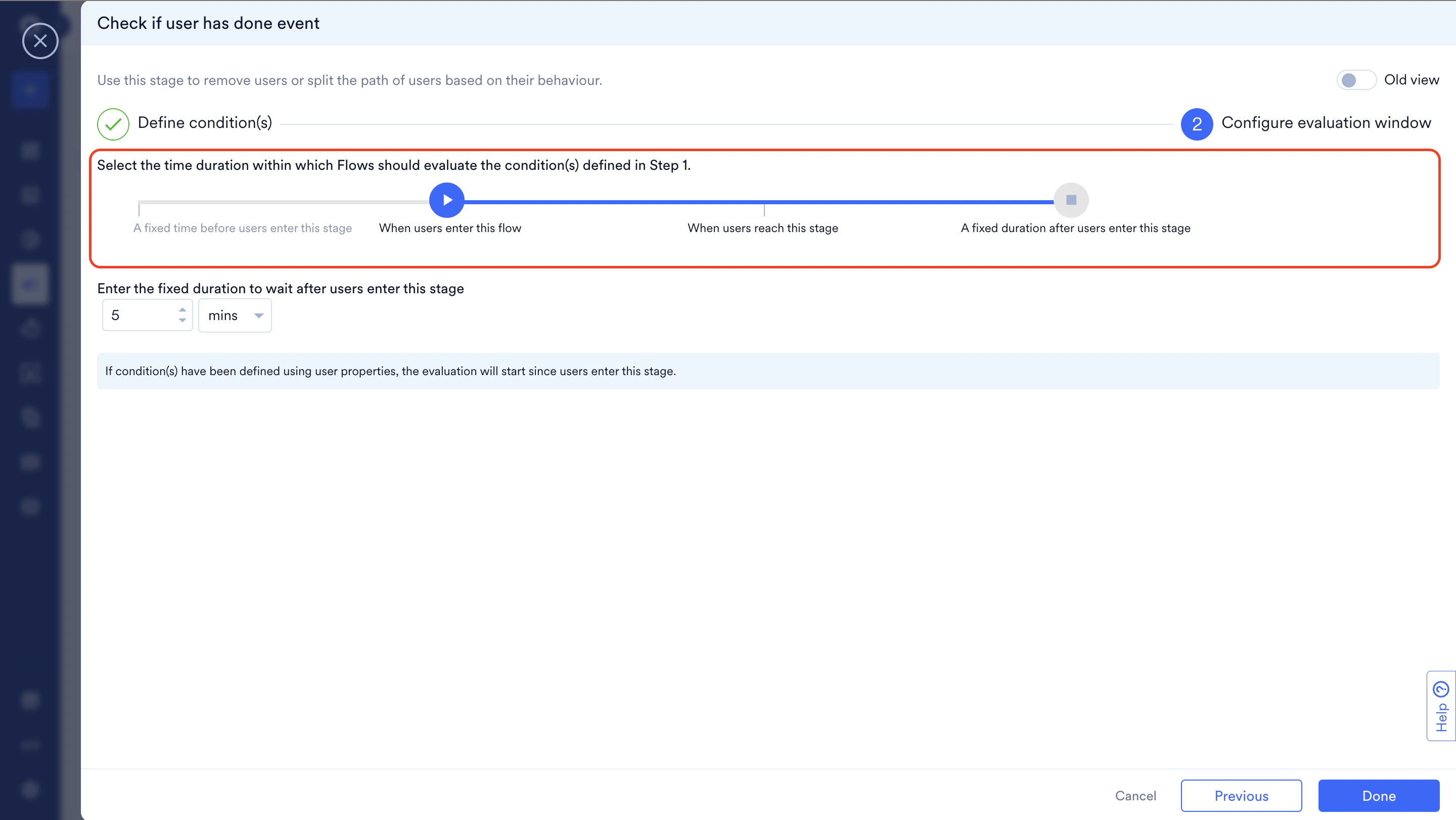 **How It Works:** The evaluation window has a **start point** (determined by slider position) and an **end point** (always when the user enters this stage + wait duration). Together, they create the complete timeframe for checking if your condition is met.
| Slider Position | Configuration Fields | Evaluation Window | Old UI Equivalent |
| ---------------------------------------------- | ---------------------------------------------------------------------------------------------------------------------------------------------------------------------------------------------------------------------------------------------------------------------------------------------------------------------------------------------------------------------------------- | -------------------------------------------------------------------------------------------------------------------------------------------------------------------------------------------------------------------------------------------------------------------------------------------------------------------- | ------------------------------ |
| **A fixed time before users enter this stage** |
**How It Works:** The evaluation window has a **start point** (determined by slider position) and an **end point** (always when the user enters this stage + wait duration). Together, they create the complete timeframe for checking if your condition is met.
| Slider Position | Configuration Fields | Evaluation Window | Old UI Equivalent |
| ---------------------------------------------- | ---------------------------------------------------------------------------------------------------------------------------------------------------------------------------------------------------------------------------------------------------------------------------------------------------------------------------------------------------------------------------------- | -------------------------------------------------------------------------------------------------------------------------------------------------------------------------------------------------------------------------------------------------------------------------------------------------------------------- | ------------------------------ |
| **A fixed time before users enter this stage** | - **Enter the fixed time to evaluate before users enter this stage.**
- Enter duration (number)
- Select unit: mins, hours, days.
- Max: 30 days
- **Enter the fixed duration to wait after users enter this stage**
- Enter duration (number)
- Select unit: mins, hours, days
- Max: 30 days
| Start: \[Time before reaching stage] End: \[Time after reaching stage]
***Example***: *User reaches stage at 2:00 PM*
*- "5 mins before" + "10 mins after"*
*- Evaluates: 1:55 PM to 2:10 PM* | "In the past" |
| **When users enter this flow** | **Enter the fixed duration to wait after users enter this stage** - Enter duration (number)
- Select unit: mins, hours, days
- Max: 30 days
***Note:***\_ Start time is automatically set to flow entry time (max 30-day lookback)\_ | - Start: When user entered the flow
- End: When user reaches stage + wait duration
***Example:*** User enters flow Jan 1, reaches stage Jan 5 at 2:00 PM - "5 hours after" - Evaluates: Jan 1 to Jan 5 7:00 PM If user enters Jan 1 but reaches stage Feb 15, evaluates from Jan 16 only | "Since entering the flow" |
| **When users reach this stage** | **Enter the fixed duration to wait after users enter this stage** - Enter duration (number)
- Select unit: mins, hours, days
- Max: 30 days
***Note:*** Start time is automatically set to when user exited previous stage | - Start: When user exited previous stage
- End: When user reaches this stage + wait duration
***Example:***
User exits previous stage at 2:00 PM, reaches this stage at 2:30 PM
- "2 hours after"
- Evaluates: 2:00 PM to 4:30 PM | "Since exiting the last stage" |
**How Evaluation Works**
Once a user reaches this stage, MoEngage evaluates the window (start point to end point):
1. **If the condition is already met:** The user immediately moves to the **"Yes"** branch
2. **If the condition is not yet met:** MoEngage continues checking until the end point is reached
3. **At the end point:**
* Condition met: The user moves to the **"Yes"** branch
* Condition not met: The user moves to the **"No"** branch
1. Click the pen icon to edit the condition.
2. Do the following:
| Field | Description |
| -------------------------------------- | ---------------------------------------------------------------------------------------------------------------------------------------------------------------------------------------------------------------------------------------------------------------------------------------------------------------------------------------------------------------------------------------------------------------------------------------------------------------------------------------------------------------------------------------------------------------------------------------------------------------------------------------------------------------------------------------------------------------------------------------------------------------------------------------------------------------------------------------------------------------------------------------------------------------------------------------------------------------------------------------------------------------------------------------------------------------------------------------------------------------------------------------------------------------------------------------------------------------------------------------------------------------------------------------------------------------------------------------------------------------------------------------------------------------------------------------------------------------------------------------------------------------------------------------------------------------------------------------------------------------------------------------------------------------------------------------------------------------------------------------------------------------------------------------------------------------------------------------------------------------------------------------------------------------------------------------------------------------------------------------------------------------------------------------------------------------------------------------------------------------------------------------------------------------------------------------------------------------------------------------------------------------------------------------------------------------------------- |
| **Stage name** | Type to modify the condition's name to manage and identify the condition. |
| **Evaluate the following conditions** | In the list, click an option to choose the start of your evaluation window: - **Since entering the flow**
This defines the start time to be *from the time the user has entered the current flow*. MoEngage evaluates the condition from the time the user entered the flow to decide whether the user meets the condition. However, the maximum look-back is 30 days. For example: - If a user enters the flow on January 1 and reaches the condition stage that’s defined to evaluate “Since they entered the flow” on February 15, MoEngage can evaluate only from January 14 because the maximum look-back it has is 30 days.
- If a user enters the flow on January 1 and reaches the condition stage that’s defined to evaluate “Since they entered the flow” on January 15, MoEngage can evaluate from January 1, that is, the time they entered, because this falls within the max limit defined.
- **Since exiting the last stage**
This defines the start time to be *from the time the user has moved from the previous stage* in the flow to the next stage. - **In the past**
This defines the start time to be *from the set timeframe in the past*. Set the time in minutes, hours, or days. MoEngage evaluates the condition for the time you mention with this option. For example: - If a user enters the flow on January 1 and reaches the condition stage that’s defined to evaluate “In the past for 30 Days” on January 15, MoEngage will evaluate from December 14, effectively for the defined 30-day period.
- If a user enters the flow on January 1 and reaches the condition stage that’s defined to evaluate “In the past for 30 Days” on February 20, MoEngage can evaluate from January 21, effectively for the defined 30-day period.
|
| **Condition is satisfied if the user** | - In the list, select one of the following:
- **Has Executed**
- **Has Not Executed**
- In the list, select one of the user attributes.
The filter is the primary filter condition. - Click **+ Attributes** to add additional filters to the primary condition. The default **Constant value** helps you complete the filter with specific static values. The **Event attribute** (applicable for all types of flows), **User attribute** (applicable for all types of flows), and **Business event attribute** (applicable only for Business Event Triggered flows) option, as shown above, helps you link this primary condition with the event-trigger or business event trigger condition and define dynamic checks. To know more, refer to [Linked Conditions](/docs/user-guide/flows-cross-channel-messaging/create/create-flows/linked-conditions).
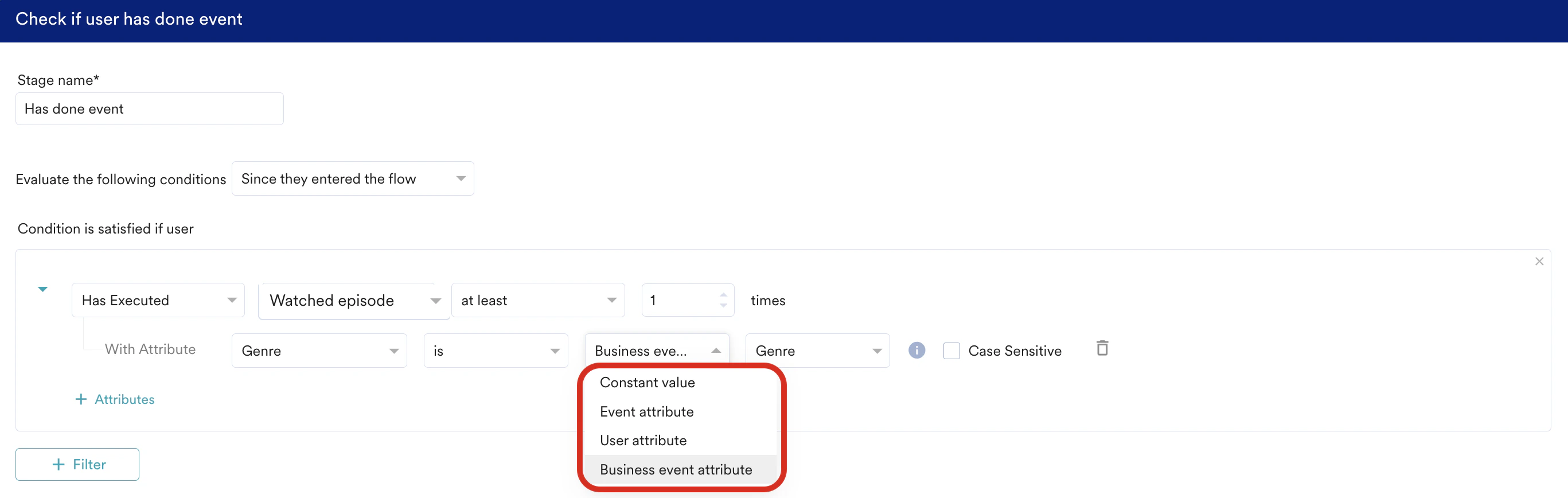
|
| **+Filter** | - Click to add another filter with the primary condition.
- Click **AND** or **OR**.
- In the list, select the type of user attributes.
- You can add additional conditional checks and link them to previous user actions with [Linked Conditions](/docs/user-guide/flows-cross-channel-messaging/create/create-flows/linked-conditions).
|
| **Keep evaluating for the next** | - Turn it on to check if the condition is met for the set time duration from the start time defined in **Evaluate the following conditions**.
- Type or use the up and down arrow keys to set the time duration.
- In the list, select minutes, hours, or days to set the evaluation duration.
|
For example, a user came to the event condition evaluation at time T (after viewing a product page), and you want to track whether your user has added the product to the cart and made the purchase within 2 hours. MoEngage Flows will check for the next two hours if the condition is met.
If yes, it will immediately move to the *yes* branch. If the condition is not met at the end of 2 hours, it will move to the *no* branch. Marketers can accordingly decide the subsequent flow paths.
The system checks if the actions have been taken in the past since the user entered the journey. The system will wait 2 hours if the condition is not met. After 2 hours, it will move to the *yes* or *no* branch based on the current status.
The evaluation starts when the user reaches the event condition. For certain use cases, marketers might want to check whether some actions have been taken since their users have entered the journey. Marketers can use the option accordingly.
### Campaign-Based Conditions
The following are the types of campaign-based conditions provided by MoEngage:
Perform the following steps for an email campaign:
1. Select one of the following conditions:
| Field | Description |
| ------------------------- | ------------------------------------------------------------------------------------------------------------------------- |
| On send email message | Checks whether the email is sent to the user. |
| Has opened email message | Checks whether the user has opened the received email message. |
| Has clicked email message | Checks whether the user has clicked any link in the received email message. |
| Has unsubscribe email | Checks whether the targeted user has unsubscribed from receiving the email campaigns. |
| On email drop | Checks whether the targeted email for the user was not sent because of previous hard bounces, marked spam, or complaints. |
| On email spam | Checks whether the email sent to the targeted user was marked as spam mail. |
| On email bounce | Checks whether the email sent to the targeted user was bounced. |
| On hard bounce | Checks whether the email sent to the targeted user was hard-bounced. |
2. Check for event occurrence.
1. Type or use the up and down buttons to set the time.
2. In the list, select minutes, hours, or days.
3. Click **Done** to add the action or **Cancel** to cancel the action.
The evaluation will be done for the mentioned timeframe since the user has entered the stage.
Perform the following for the Connector campaign:
1. Select Connector sent successfully to check whether the connector is sent to the user.
2. Check for event occurrence.
1. Type or use the up and down buttons to set the time.
2. In the list, select minutes, hours, or days
3. Click **Done** to add the action or click **Cancel** to cancel the action.
The evaluation will be done for the mentioned timeframe since the user has entered the stage.
Perform the following for the push campaign:
1. Select one of the following conditions:
| Field | Description |
| ------------------------------- | --------------------------------------------------------------------- |
| Has received push notification | Checks whether the user has received the push notification. |
| Has dismissed push notification | Checks whether the user has dismissed the received push notification. |
| Has clicked push notification | Checks whether the user has clicked the received push notification. |
2. Check for event occurrence
1. Type or use the up and down buttons to set the time.
2. In the list, select minutes, hours, or days
3. Click **Done** to add the action or **Cancel** to cancel the action.
The evaluation will be done for the mentioned timeframe since the user has entered the stage.
Perform the following for the SMS campaign:
1. Select SMS sent successfully to check whether the SMS is sent to the user.
2. Check for event occurrence
1. Type or use the up and down buttons to set the time.
2. In the list, select minutes, hours, or days.
3. Click **Done** to add the action or **Cancel** to cancel the action.
The evaluation will be done for the mentioned timeframe since the user has entered the stage.
Perform the following for the On-site Messaging campaign:
1. Select one of the following conditions:
| Field | Description |
| ---------------------------- | -------------------------------------------------------- |
| Has seen the on-site message | Checks whether the user has seen the on-site message. |
| Has clicked on-site message | Checks whether the user has clicked the on-site message. |
| Has closed on-site message | Checks whether the user has closed the on-site message. |
2. Check for event occurrence.
1. Type or use the up and down buttons to set the time.
2. In the list, select minutes, hours, or days.
3. Click **Done** to add the action or **Cancel** to cancel the action.
The evaluation will be done for the mentioned timeframe since the user has entered the stage.
Perform the following for the In-app Messaging campaign:
1. Select one of the following conditions:
| Field | Description |
| --------------------------------- | -------------------------------------------------------------- |
| Has seen mobile in-app message | Checks whether the user has seen the mobile in-app message. |
| Has clicked mobile in-app message | Checks whether the user has clicked the mobile in-app message. |
| Has closed mobile in-app message | Checks whether the user has closed the mobile in-app message. |
2. Check for event occurrence.
1. Type or use the up and down buttons to set the time.
2. In the list, select minutes, hours, or days.
3. Click **Done** to add the action or **Cancel** to cancel the action.
The evaluation will be done for the mentioned timeframe since the user has entered the stage.
Perform the following for the Card campaign:
1. Select one of the following conditions:
| Field | Description |
| ------------------- | -------------------------------------------------------------- |
| On send card | Checks whether the card was sent successfully. |
| Has received card | Checks whether the card was received by the user successfully. |
| Has seen card | Checks whether the card was seen by the user successfully. |
| Has clicked on card | Checks whether the card was clicked by the user successfully. |
2. Check for event occurrence.
1. Type or use the up and down buttons to set the time.
2. In the list, select minutes, hours, or days.
3. Click **Done** to add the action or **Cancel** to cancel the action.
The evaluation will be done for the mentioned timeframe since the user has entered the stage.
Do the following for the WhatsApp campaign:
1. Select one of the following conditions:
| Field | Description |
| ------------------------------ | ------------------------------------------------------ |
| Message Delivered Successfully | Checks whether the message was delivered successfully. |
| Message Delivery Failed | Checks whether the message delivery failed. |
| Message Sent Successfully | Checks whether the message was sent successfully. |
| Message Read | Checks whether the message was read successfully. |
2. Check for event occurrence
1. Type or use the up and down buttons to set the time.
2. In the list, select minutes, hours, or days.
3. Click **Done** to add the action or **Cancel** to cancel the action.
The evaluation will be done for the mentioned timeframe since the user has entered the stage.
Do the following for the Facebook campaign:
1. Select **Facebook audience synced successfully** to check whether the users of Facebook campaigns are synced with MoEngage.
2. Check for event occurrence
1. Type or use the up and down buttons to set the time.
2. In the list, select minutes, hours, or days.
3. Click **Done** to add the action or **Cancel** to cancel the action.
The evaluation will be done for the mentioned timeframe since the user has entered the stage.
Do the following for the Google Ads Audience campaign:
1. Select **Google Ads audience synced successfully** to check whether the users of Google Ads campaigns are synced with MoEngage.
2. Check for event occurrence
1. Type or use the up and down buttons to set the time.
2. In the list, select minutes, hours, or days.
3. Click **Done** to add the action or **Cancel** to cancel the action.
The evaluation will be done for the mentioned timeframe since the user has entered the stage.
## Split Users Randomly
A/B Split allows you to test up to five flow paths variations to determine which is the best-performing option. You can experiment with different channels, different messages on the same channel, and different message frequencies across these flow paths.
You can configure the experiment and, after analyzing the performance of each branch on publishing the flow, change the user distribution in favour of the winning branch. This enables most users entering the flow to go forward with the best-performing branch.
**Opt for intelligence**
You can configure MoEngage Flows to automatically adjust the user attribution in favor of the best-performing branch as more and more users enter the flow.
For more information, refer to [Intelligent Flow Path optimizer](#overview).
### Test Setup
Add A/B Split at any part of your flow from the control category of flow stages.
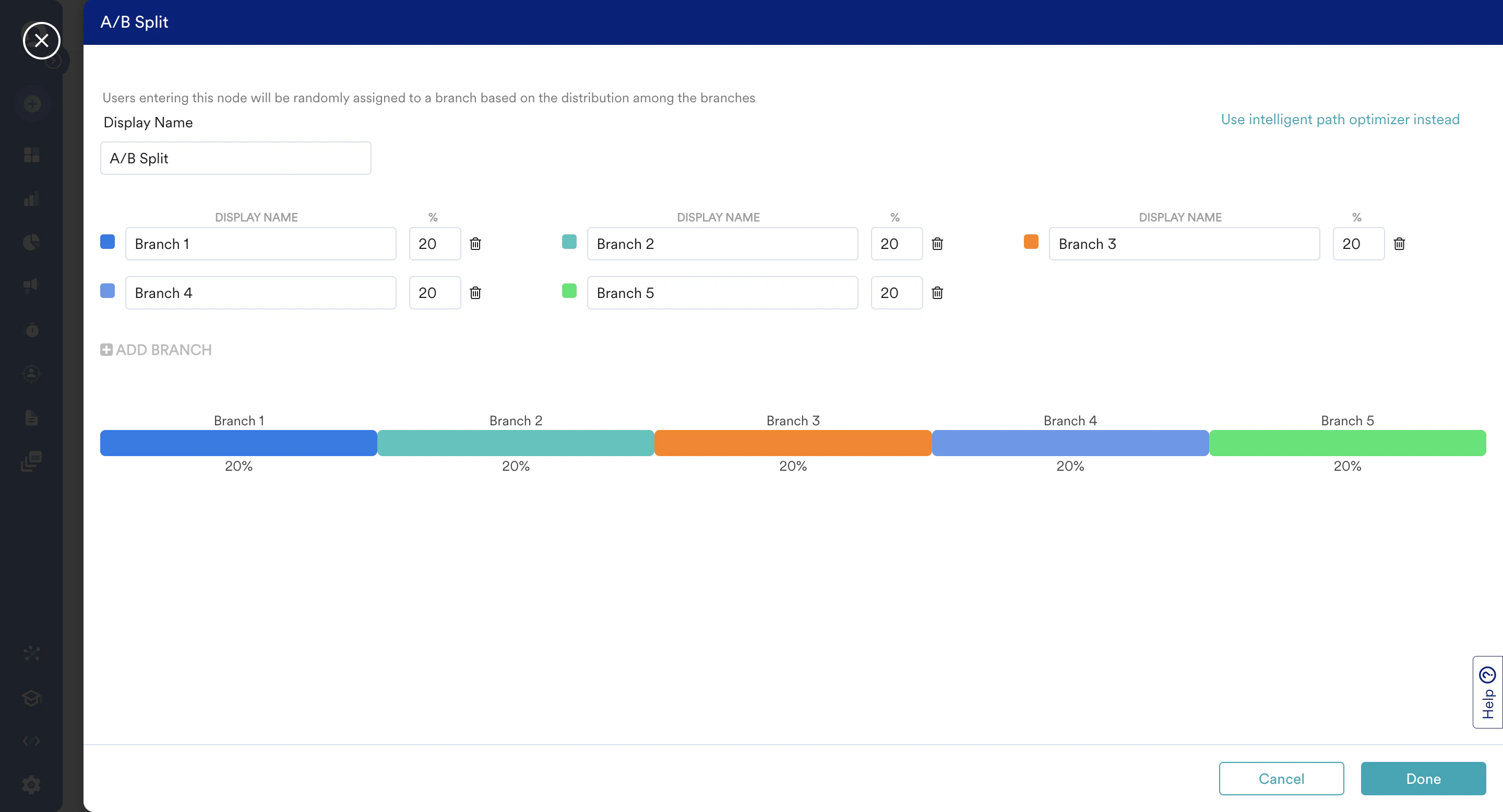 * Add the number of branches you want to experiment with. You can add up to five branches in one A/B split stage.
* Configure the user distribution split for each branch. The variation percentage can be between 0-100 for each branch.
* Make sure that the sum of all the branch variation percentages is 100.
**Test Everything**
You can use the A/B split at any stage in a flow and add up to five A/B splits in one flow.
Make sure to add different display names for each branch to distinguish between the branches on the canvas.
### Understand the Performance
As users enter the flow, each branch's performance keeps updating on the canvas.
* Add the number of branches you want to experiment with. You can add up to five branches in one A/B split stage.
* Configure the user distribution split for each branch. The variation percentage can be between 0-100 for each branch.
* Make sure that the sum of all the branch variation percentages is 100.
**Test Everything**
You can use the A/B split at any stage in a flow and add up to five A/B splits in one flow.
Make sure to add different display names for each branch to distinguish between the branches on the canvas.
### Understand the Performance
As users enter the flow, each branch's performance keeps updating on the canvas. 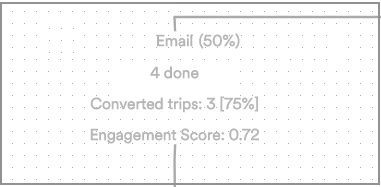 * **Email (50%)** denotes the display name of the branch and the configured user distribution for the branch, which is 50 in this example.
* **4 Done** is the number of flow trips that have gone through this branch.
* **Converted trips** are the number of branch trips that resulted in at least one conversion. 75% is the conversion rate for the branch in the example above.
* The **Engagement Score** is a derived metric reflecting the engagement of the branch. The higher the number, the better the engagement. For more information on how the engagement score is calculated, refer [here](/docs/user-guide/flows-cross-channel-messaging/create/intelligence-in-flows/intelligent-path-optimizer).
**What is a branch?**
* All the action stages from an A/B split node to the flow exit stage are included in tracking the branch's performance.
* If the branch splits into multiple branches, the resulting branches are considered part of the parent branch.
* If a branch merges into another branch at some point, the common flow path is considered a part of both the merging branches.
### Find a Winner
You can analyze and compare the branches' performances in the report for your *split node*. You can click the report option hovering over the stage on canvas or go to the split node stats section in the flow's detailed stats page and filter on a particular split node from the list.
* **Email (50%)** denotes the display name of the branch and the configured user distribution for the branch, which is 50 in this example.
* **4 Done** is the number of flow trips that have gone through this branch.
* **Converted trips** are the number of branch trips that resulted in at least one conversion. 75% is the conversion rate for the branch in the example above.
* The **Engagement Score** is a derived metric reflecting the engagement of the branch. The higher the number, the better the engagement. For more information on how the engagement score is calculated, refer [here](/docs/user-guide/flows-cross-channel-messaging/create/intelligence-in-flows/intelligent-path-optimizer).
**What is a branch?**
* All the action stages from an A/B split node to the flow exit stage are included in tracking the branch's performance.
* If the branch splits into multiple branches, the resulting branches are considered part of the parent branch.
* If a branch merges into another branch at some point, the common flow path is considered a part of both the merging branches.
### Find a Winner
You can analyze and compare the branches' performances in the report for your *split node*. You can click the report option hovering over the stage on canvas or go to the split node stats section in the flow's detailed stats page and filter on a particular split node from the list.
 After analyzing the branch performance, you can choose to edit the configured user distribution so that most of the users entering the flow next will go forward through the best-performing branch.
Intelligent Path optimizer allows you to A/B test up to five branches where Merlin AI automatically keeps adjusting the user distribution towards the best-performing path. You can focus on experimenting on which channel to use or what should be the messaging frequency in each branch and let Merlin AI optimize the user distribution.
While deputizing Merlin AI to optimize the user distribution, you must also configure the metric you are expecting to maximize in your flow. This can be one of Engagement, Conversion, or both.
**Worthy Alternative** If you wish to handle the user distribution manually, you can opt for A/B Split. For more information, refer [here](/docs/user-guide/flows-cross-channel-messaging/create/experimentation/ab-split-in-flows).
### Configure Intelligent Path Optimizer
You can add an Intelligent Path Optimizer at any part of your flow where you want to experiment with some worthy alternative options.
Make sure you name each branch distinctly to identify them on the canvas. At every stage, you can experiment with up to five flow paths, and in each flow, you add up to five such stages.
### Maximized Metric Selection
MoEngage Flows can solve a variety of use cases which can be generalized into two main categories.
* For increasing user engagement
* For increasing user conversions
So while optimizing a flow, MoEngage depends on your selection of metrics to be maximized to align the optimization to the *flow goals*.
### How Does This Work?
Initially, the users get uniformly distributed, and as MoEngage get more performance results, Merlin AI keeps adjusting the user distribution towards the best-performing branch. Based on which metric is configured to be maximized, MoEngage tracks different performance stats of each branch involved in the experiment.
* **Maximizing conversions**\
For each branch, MoEngage aims to maximize the ratio of converted branch trips/total trips of the branch. This can be loosely termed as the **Branch CVR** as well.\\
**Things to notice** MoEngage refrained from using total branch conversions as the maximized metric because that would give preference to users doing multiple conversions on a branch and would also favour a branch having more action campaigns. Both necessarily would not mean that the branch that eventually wins is the most optimized one.\
MoEngage tries to find the optimized branch based on the most common user behavior leading to conversion.
* **Maximizing engagement**\
Similar to the conversion calculation, MoEngage aims to optimize the total engaged trips instead of total engagement for each branch. To do this, MoEngage gives an engagement score to each branch and tries to maximize that score instead of total clicks or email opens of the branch.\
The engagement score for the branch is the ratio between the number of branch trips that have fetched a click from at least one of the action campaigns (BTC) + one-tenth of the number of branch trips that have only fetched email opens (BTO) and Total Branch Trips. **Engagement Score** **= (BTC+ 1/10(BTO))/Total Branch Trips**
**Help Us** The engagement score allows MoEngage to optimize for the best-performing branch, which might not necessarily be the branch with the most clicks or most emails open.
If this approach does not suit your use case or expectation, contact MoEngage at [product@moengage.com](mailto:product@moengage.com).
* **Maximizing the combination of engagement and conversion**\
For each branch, MoEngage combines Branch CVR and Engagement score with emphasis on branch CVR because fetching conversions is more important than generating engagement. So the Maximized metric, in this case, becomes **Branch CVR + 1/10( Engagement Score)**.
Merlin AI distributes maximum users toward the best-performing branch when the user reaches the path optimizer stage.
**Keep Experimenting**
Merlin AI does not stop distributing users towards low-performing branches even when a branch is identified to be performing better as the best-performing branch may keep changing from time to time as more and more users go through the flow.
### Analyze the Performance
Each flow branch's performance keeps updating on the flow canvas as more and more users go through it.
After analyzing the branch performance, you can choose to edit the configured user distribution so that most of the users entering the flow next will go forward through the best-performing branch.
Intelligent Path optimizer allows you to A/B test up to five branches where Merlin AI automatically keeps adjusting the user distribution towards the best-performing path. You can focus on experimenting on which channel to use or what should be the messaging frequency in each branch and let Merlin AI optimize the user distribution.
While deputizing Merlin AI to optimize the user distribution, you must also configure the metric you are expecting to maximize in your flow. This can be one of Engagement, Conversion, or both.
**Worthy Alternative** If you wish to handle the user distribution manually, you can opt for A/B Split. For more information, refer [here](/docs/user-guide/flows-cross-channel-messaging/create/experimentation/ab-split-in-flows).
### Configure Intelligent Path Optimizer
You can add an Intelligent Path Optimizer at any part of your flow where you want to experiment with some worthy alternative options.
Make sure you name each branch distinctly to identify them on the canvas. At every stage, you can experiment with up to five flow paths, and in each flow, you add up to five such stages.
### Maximized Metric Selection
MoEngage Flows can solve a variety of use cases which can be generalized into two main categories.
* For increasing user engagement
* For increasing user conversions
So while optimizing a flow, MoEngage depends on your selection of metrics to be maximized to align the optimization to the *flow goals*.
### How Does This Work?
Initially, the users get uniformly distributed, and as MoEngage get more performance results, Merlin AI keeps adjusting the user distribution towards the best-performing branch. Based on which metric is configured to be maximized, MoEngage tracks different performance stats of each branch involved in the experiment.
* **Maximizing conversions**\
For each branch, MoEngage aims to maximize the ratio of converted branch trips/total trips of the branch. This can be loosely termed as the **Branch CVR** as well.\\
**Things to notice** MoEngage refrained from using total branch conversions as the maximized metric because that would give preference to users doing multiple conversions on a branch and would also favour a branch having more action campaigns. Both necessarily would not mean that the branch that eventually wins is the most optimized one.\
MoEngage tries to find the optimized branch based on the most common user behavior leading to conversion.
* **Maximizing engagement**\
Similar to the conversion calculation, MoEngage aims to optimize the total engaged trips instead of total engagement for each branch. To do this, MoEngage gives an engagement score to each branch and tries to maximize that score instead of total clicks or email opens of the branch.\
The engagement score for the branch is the ratio between the number of branch trips that have fetched a click from at least one of the action campaigns (BTC) + one-tenth of the number of branch trips that have only fetched email opens (BTO) and Total Branch Trips. **Engagement Score** **= (BTC+ 1/10(BTO))/Total Branch Trips**
**Help Us** The engagement score allows MoEngage to optimize for the best-performing branch, which might not necessarily be the branch with the most clicks or most emails open.
If this approach does not suit your use case or expectation, contact MoEngage at [product@moengage.com](mailto:product@moengage.com).
* **Maximizing the combination of engagement and conversion**\
For each branch, MoEngage combines Branch CVR and Engagement score with emphasis on branch CVR because fetching conversions is more important than generating engagement. So the Maximized metric, in this case, becomes **Branch CVR + 1/10( Engagement Score)**.
Merlin AI distributes maximum users toward the best-performing branch when the user reaches the path optimizer stage.
**Keep Experimenting**
Merlin AI does not stop distributing users towards low-performing branches even when a branch is identified to be performing better as the best-performing branch may keep changing from time to time as more and more users go through the flow.
### Analyze the Performance
Each flow branch's performance keeps updating on the flow canvas as more and more users go through it.
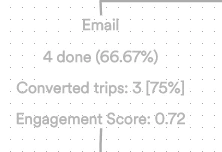 * A branch can be identified by its branch name. **Email** is the branch name in the above example.
* **4 done** is the number of branch trips in the example above, and these 4 trips constitute 66.67% of the total trips reaching the Intelligent Path Optimizer stage.
* **Convertrip trip** count is the number of branch trips that lead to at least one conversion from one of the action campaigns in the branch.
* The E**ngagement score** of the branch is also shown for each branch, regardless of which metric is maximized for the branch.
- All action stages, from an Intelligent Path Optimizer stage to the flow exit stage, are included in tracking the branch's performance.
- If the branch splits into multiple branches, the resulting branches are considered part of the parent branch.
- If a branch merges into another branch at some point, the common flow path is considered a part of both the merging branches.
You can analyze and compare the branches' performances in the report for your *split node*. You can click the report option that appears on hovering over the stage on canvas or go to the split node stats section in the flow's detailed stats page and filter on a particular split node from the list.
* A branch can be identified by its branch name. **Email** is the branch name in the above example.
* **4 done** is the number of branch trips in the example above, and these 4 trips constitute 66.67% of the total trips reaching the Intelligent Path Optimizer stage.
* **Convertrip trip** count is the number of branch trips that lead to at least one conversion from one of the action campaigns in the branch.
* The E**ngagement score** of the branch is also shown for each branch, regardless of which metric is maximized for the branch.
- All action stages, from an Intelligent Path Optimizer stage to the flow exit stage, are included in tracking the branch's performance.
- If the branch splits into multiple branches, the resulting branches are considered part of the parent branch.
- If a branch merges into another branch at some point, the common flow path is considered a part of both the merging branches.
You can analyze and compare the branches' performances in the report for your *split node*. You can click the report option that appears on hovering over the stage on canvas or go to the split node stats section in the flow's detailed stats page and filter on a particular split node from the list.
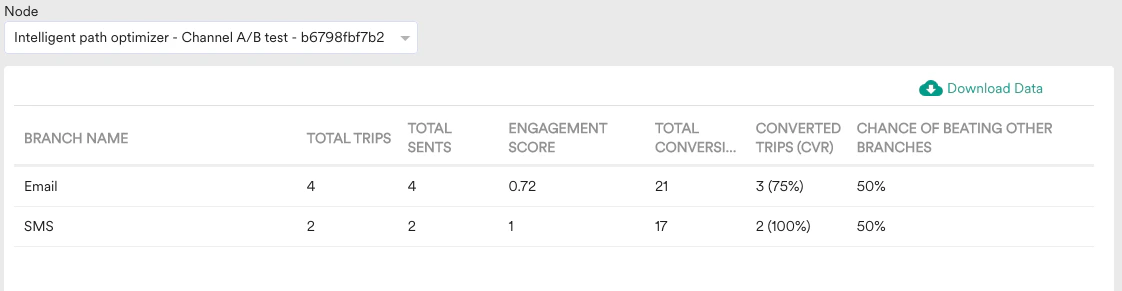 All MoEngage AI products, which were previously referred to as *Sherpa AI*, are now known as *Merlin AI*.