> ## Documentation Index
> Fetch the complete documentation index at: https://moengage.com/docs/llms.txt
> Use this file to discover all available pages before exploring further.
# Create a Flow
> Step-by-step guide to creating MoEngage Flows from scratch, using templates, or with Merlin AI Assist for cross-channel lifecycle campaign automation.
MoEngage Flows is a series of Cross-channel (across the channels such as Email, Push, SMS, and so on) Lifecycle campaigns that will be sent to your customers based on their actions or inaction on your app or website.
Ensure that the channel settings are configured.
To create a flow:
1. Navigate to the MoEngage Dashboard.
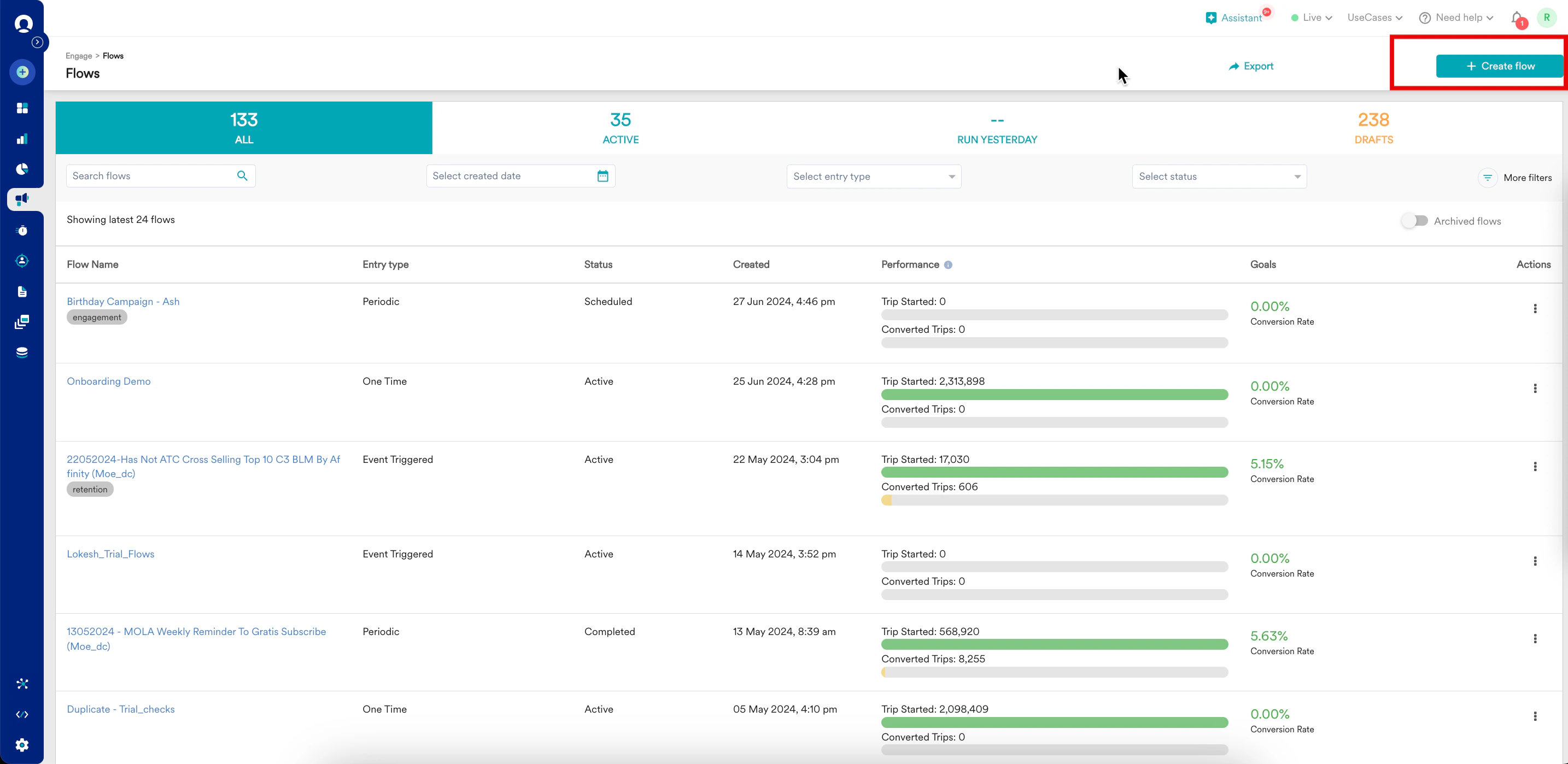
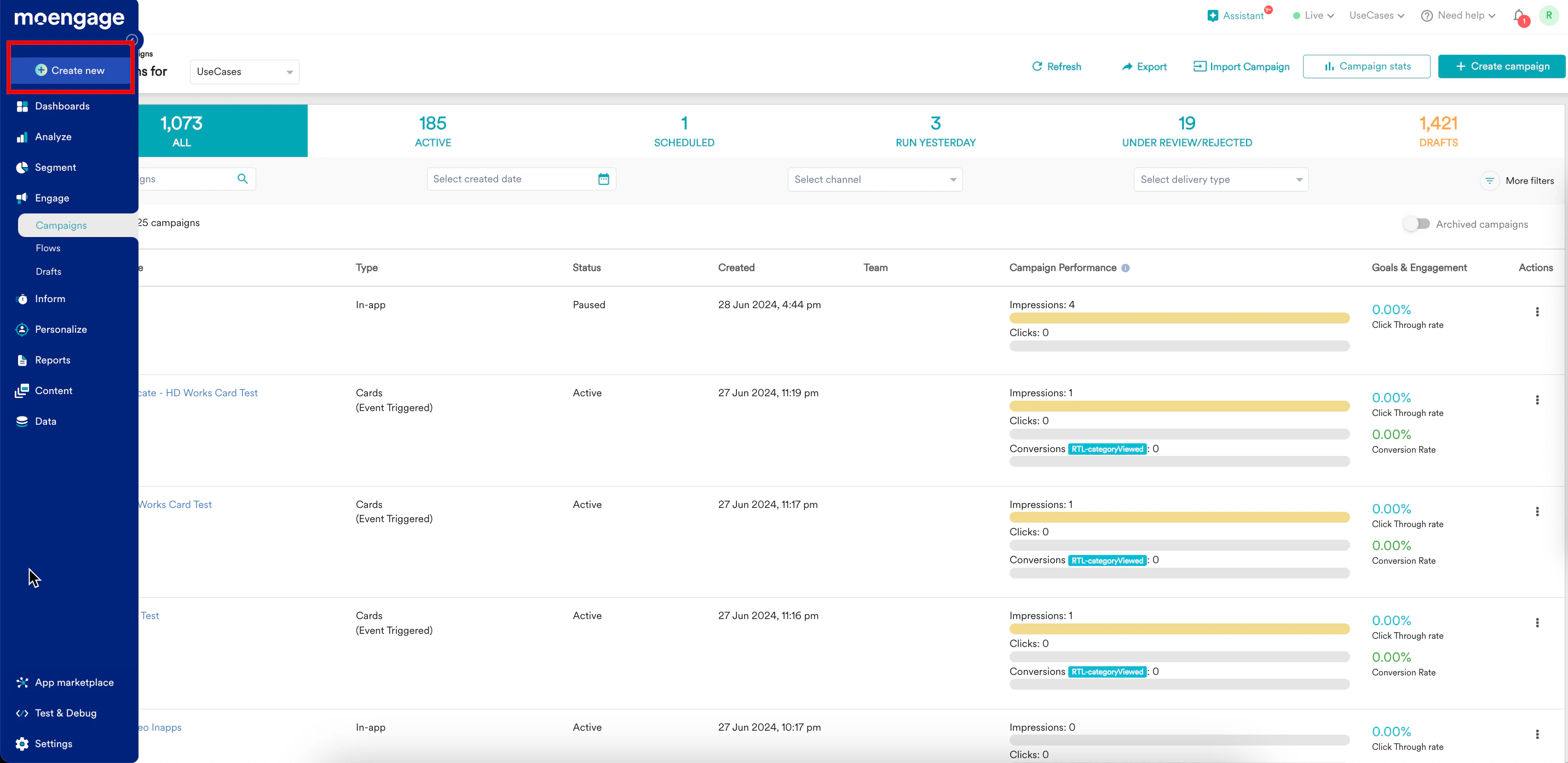
2. From the left navigation, use one of the following options.
1. Click **Flows**. The Flows page is displayed. 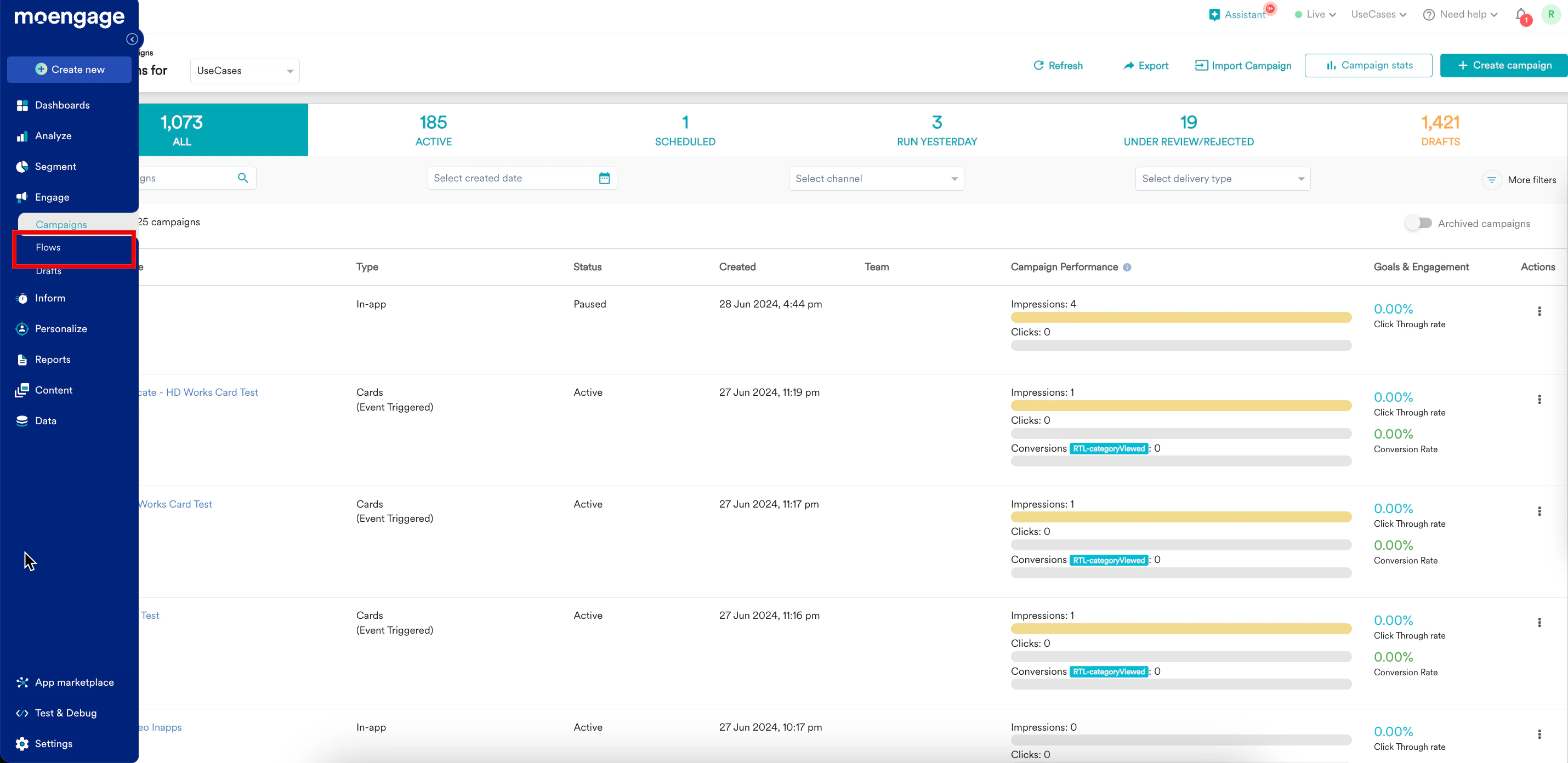 2. At the top right corner, click **+ Create flow**.
  1. Click **Create new**. The following page is displayed.
  2.
2. 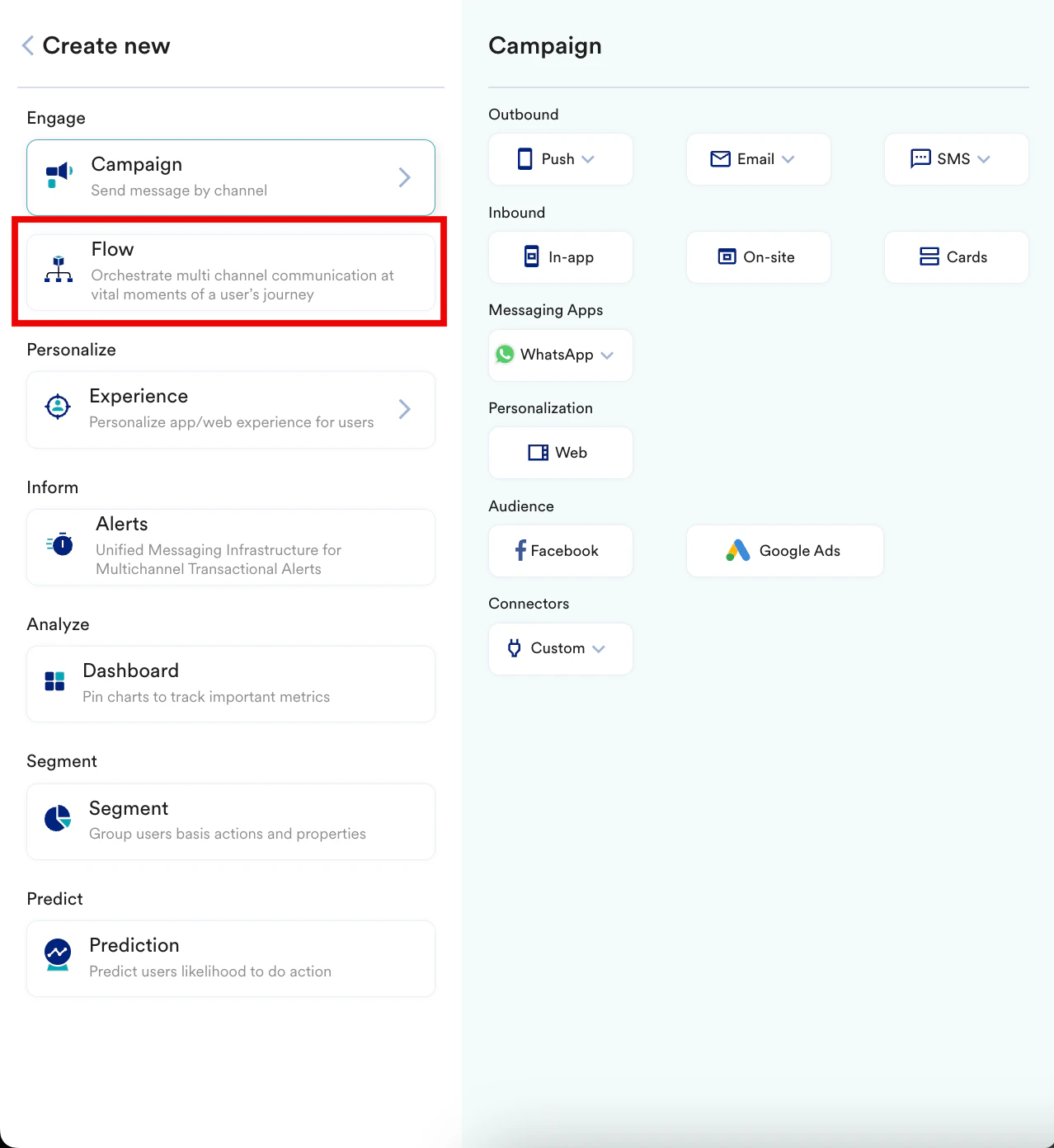 3. From the resulting pop up, use one of the following options to create a flow:
* [Using Merlin AI Flows Assist](#Using-Merlin-AI-Flows-Assist) or
* [Using a flow template](#h_01HZRZ46M06N20P0TVS7CPN6QF) or
* [Start from scratch](#01H812S21FJ8B8BGWW6P2DG9BE)
# Option 1: Using Merlin AI Flows Assist
Merlin AI Flows Assist is an AI-driven orchestrator that translates natural language marketing strategies into technically accurate MoEngage flows. By utilizing a multi-agent system, it interprets user intent, automatically selects the most effective strategic path based on historical patterns, and architects a complete visual journey directly on the canvas. This process includes converting marketing ideas into precise technical instructions and optimizing them with industry-specific context to ensure every journey is relevant and ready for deployment. For more information, refer to [Create a Flow Using AI Assist](/user-guide/flows-cross-channel-messaging/create/create-flows/create-a-flow-using-ai-assist) and [Merlin AI Flows Assist](/user-guide/ai-and-intelligence/merlin-ai/merlin-ai-flows-assist).
# Option 2: Create a Flow Using a Flow Template
Flow templates provide you with inspiration for crafting your flows based on your goals - onboarding, incentivization, and engagement.You can create single-channel or multiple-channel flows for sending reminders for abandoned carts, reach out to customers who are a churn risk, and improve app/website engagement. The various Flow templates are discussed below :
## Template Types
There are two basic template types
* **Adoption**: Adoption templates can be used for onboarding new customers and are available for a single channel and multiple channels.
* **Engagement**: Engagement templates are available for single, multiple, or specific channels such as the web and app. They can be used for improving app or website engagement, engaging with customers who have looked up certain offerings or added certain products to their carts and abandoned them, and reaching out to customers who are a churn risk.
You can choose one of the following templates when creating a flow:
| Template Type | Template Name | Description |
| ------------- | ---------------------------------------------- | -------------------------------------------------------------------------------------------------------------------------------------------------------------------------------------------------------------------------------------------------------------------------------------------------------------------------------------------------------------------------------------------------------------------------------------------------------------------------------------------- |
| Adoption | Onboard Customers - Single Channel | Use this template to welcome new customers and guide them in their journey with your product or service. This template makes use of a single channel for communicating with customers during their onboarding phase and nudging customers towards their first purchase once they've onboarded. |
| Adoption | Onboard Customers - Multi-Channel | Use this template to welcome new customers and use multiple channels to communicate with customers. You can leverage the power of A/B testing to identify the best channel to communicate with new users (and use this information for other onboarding Flows). This template also employs locales and conditional splits to identify the local language of the users and communicate with them in the same language. |
| Engagement | Abandoned Cart Reminder - Single Channel | Use this template to send a reminder to users who have added items to their cart but have yet to make a purchase. The template uses the Wait For/Till Node element to send the nudge after a time delay (the user is sent the nudge only post a fixed time interval after they add the items to the cart) and checks if the user has abandoned the cart or made a purchase post the set interval before sending the communication. This template employs a single channel for communication. |
| Engagement | Abandoned Cart Reminder - Multi Channel | Use this template to nudge users who've abandoned their carts towards making a purchase by employing multiple channels. |
| Engagement | Browse Abandonment - Multi-Channel | Use this template to engage with customers who've viewed products or looked up specific categories of products but haven't made a purchase yet. This template will help you send contextual communication and you get to leverage the power of Intelligent Path Optimization (IPO) to distribute users automatically to the best performing path intelligently using Merlin AI. |
| Engagement | Customer Reactivation - Multi-channel | Use this template to engage with customers who haven't been active on your platform for quite some time. This template helps you send curated offers and communicate with dormant customers. Since the Next Best Action (NBA) is employed in this template, communication is sent to each customer in the channel that they are most likely to engage with and at the time that they are most likely to do so. |
| Engagement | Periodic Customer Reactivation - Multi-channel | Use this template to engage with dormant customers in a periodic manner (every ten days). This template leverages the power of NBA to communicate with each customer in their preferred channel at the time that they are most likely to engage in that channel. |
| Engagement | Engage customers on App | Use this template to engage with customers who haven't been on their app for a few days using NBA. The template uses in-app and card campaigns to nudge customers towards a purchase once they are on the app. |
| Engagement | Engage customers on Web | Use this template to engage with customers who haven't been on their app for a few days using NBA. The template uses a combination of Web Push, On-site messaging, Cards and Google Ads to nudge customers towards a purchase once they are on the app. |
Now that you know the types of templates, you can use them to create flows.
* You can edit the Flow template to add event checks wherever necessary and edit the campaign content.
* You can add or delete stages to the template as required.
## Use a Template
1. Select the flow template and click **Use template**.
2. Add entry conditions, define the target audience, and conversion goal (if any) for the flows.
3. Review the campaigns in the template and modify them as required.
4. Add new stages or paths if necessary, as per the business use case.
5. After the structure of your flow is ready, you can click **Save** to save it as a draft. To publish the flow, your next action depends on your account's settings:
* If the Campaign Approval workflow is disabled, you can publish the flow directly.
* If the Campaign Approval workflow is enabled, you have the permission to create, manage, and publish campaigns, you can publish the flow directly .
* If the Campaign Approval workflow is enabled and you only have the **Create & Manage** permission, you must submit the flow for approval. For more information, refer [here](#h_01K0E4E6XW2QY4X7HVPQMGJA1W).
3. From the resulting pop up, use one of the following options to create a flow:
* [Using Merlin AI Flows Assist](#Using-Merlin-AI-Flows-Assist) or
* [Using a flow template](#h_01HZRZ46M06N20P0TVS7CPN6QF) or
* [Start from scratch](#01H812S21FJ8B8BGWW6P2DG9BE)
# Option 1: Using Merlin AI Flows Assist
Merlin AI Flows Assist is an AI-driven orchestrator that translates natural language marketing strategies into technically accurate MoEngage flows. By utilizing a multi-agent system, it interprets user intent, automatically selects the most effective strategic path based on historical patterns, and architects a complete visual journey directly on the canvas. This process includes converting marketing ideas into precise technical instructions and optimizing them with industry-specific context to ensure every journey is relevant and ready for deployment. For more information, refer to [Create a Flow Using AI Assist](/user-guide/flows-cross-channel-messaging/create/create-flows/create-a-flow-using-ai-assist) and [Merlin AI Flows Assist](/user-guide/ai-and-intelligence/merlin-ai/merlin-ai-flows-assist).
# Option 2: Create a Flow Using a Flow Template
Flow templates provide you with inspiration for crafting your flows based on your goals - onboarding, incentivization, and engagement.You can create single-channel or multiple-channel flows for sending reminders for abandoned carts, reach out to customers who are a churn risk, and improve app/website engagement. The various Flow templates are discussed below :
## Template Types
There are two basic template types
* **Adoption**: Adoption templates can be used for onboarding new customers and are available for a single channel and multiple channels.
* **Engagement**: Engagement templates are available for single, multiple, or specific channels such as the web and app. They can be used for improving app or website engagement, engaging with customers who have looked up certain offerings or added certain products to their carts and abandoned them, and reaching out to customers who are a churn risk.
You can choose one of the following templates when creating a flow:
| Template Type | Template Name | Description |
| ------------- | ---------------------------------------------- | -------------------------------------------------------------------------------------------------------------------------------------------------------------------------------------------------------------------------------------------------------------------------------------------------------------------------------------------------------------------------------------------------------------------------------------------------------------------------------------------- |
| Adoption | Onboard Customers - Single Channel | Use this template to welcome new customers and guide them in their journey with your product or service. This template makes use of a single channel for communicating with customers during their onboarding phase and nudging customers towards their first purchase once they've onboarded. |
| Adoption | Onboard Customers - Multi-Channel | Use this template to welcome new customers and use multiple channels to communicate with customers. You can leverage the power of A/B testing to identify the best channel to communicate with new users (and use this information for other onboarding Flows). This template also employs locales and conditional splits to identify the local language of the users and communicate with them in the same language. |
| Engagement | Abandoned Cart Reminder - Single Channel | Use this template to send a reminder to users who have added items to their cart but have yet to make a purchase. The template uses the Wait For/Till Node element to send the nudge after a time delay (the user is sent the nudge only post a fixed time interval after they add the items to the cart) and checks if the user has abandoned the cart or made a purchase post the set interval before sending the communication. This template employs a single channel for communication. |
| Engagement | Abandoned Cart Reminder - Multi Channel | Use this template to nudge users who've abandoned their carts towards making a purchase by employing multiple channels. |
| Engagement | Browse Abandonment - Multi-Channel | Use this template to engage with customers who've viewed products or looked up specific categories of products but haven't made a purchase yet. This template will help you send contextual communication and you get to leverage the power of Intelligent Path Optimization (IPO) to distribute users automatically to the best performing path intelligently using Merlin AI. |
| Engagement | Customer Reactivation - Multi-channel | Use this template to engage with customers who haven't been active on your platform for quite some time. This template helps you send curated offers and communicate with dormant customers. Since the Next Best Action (NBA) is employed in this template, communication is sent to each customer in the channel that they are most likely to engage with and at the time that they are most likely to do so. |
| Engagement | Periodic Customer Reactivation - Multi-channel | Use this template to engage with dormant customers in a periodic manner (every ten days). This template leverages the power of NBA to communicate with each customer in their preferred channel at the time that they are most likely to engage in that channel. |
| Engagement | Engage customers on App | Use this template to engage with customers who haven't been on their app for a few days using NBA. The template uses in-app and card campaigns to nudge customers towards a purchase once they are on the app. |
| Engagement | Engage customers on Web | Use this template to engage with customers who haven't been on their app for a few days using NBA. The template uses a combination of Web Push, On-site messaging, Cards and Google Ads to nudge customers towards a purchase once they are on the app. |
Now that you know the types of templates, you can use them to create flows.
* You can edit the Flow template to add event checks wherever necessary and edit the campaign content.
* You can add or delete stages to the template as required.
## Use a Template
1. Select the flow template and click **Use template**.
2. Add entry conditions, define the target audience, and conversion goal (if any) for the flows.
3. Review the campaigns in the template and modify them as required.
4. Add new stages or paths if necessary, as per the business use case.
5. After the structure of your flow is ready, you can click **Save** to save it as a draft. To publish the flow, your next action depends on your account's settings:
* If the Campaign Approval workflow is disabled, you can publish the flow directly.
* If the Campaign Approval workflow is enabled, you have the permission to create, manage, and publish campaigns, you can publish the flow directly .
* If the Campaign Approval workflow is enabled and you only have the **Create & Manage** permission, you must submit the flow for approval. For more information, refer [here](#h_01K0E4E6XW2QY4X7HVPQMGJA1W).
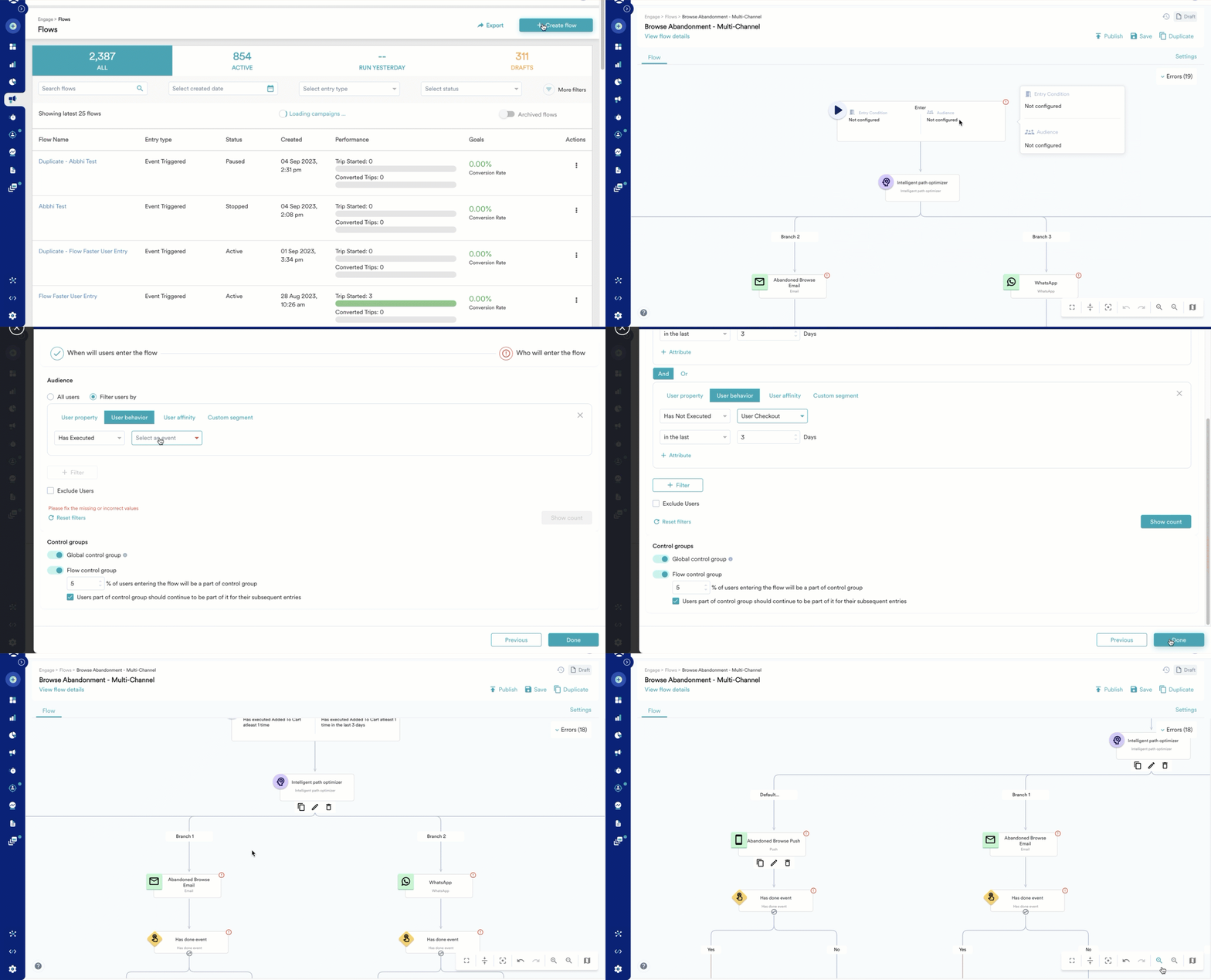 # Option 3: Create a Flow from Scratch
You can start with a blank canvas and build a flow of your choice. The following are the steps to create a flow from scratch:
1. [Details and goals](#Details-and-Goals): Define the goal of the flow and add the required details.
2. [When will users enter the flow](#When-Will-Users-Enter-the-Flow): Define when the users will enter the flow.
3. [Who will enter the flow](#Who-Will-Enter-the-Flow): Define the audience of the flow.
You can directly enter the canvas from any step during flow creation. Click **Skip to Canvas** to open the MoEngage canvas.
## Details and Goals
After you click **+ Start with a blank canvas**, the Create flow page is displayed. This section contains the following:
### Flow Details
The flow details section contains the following fields:
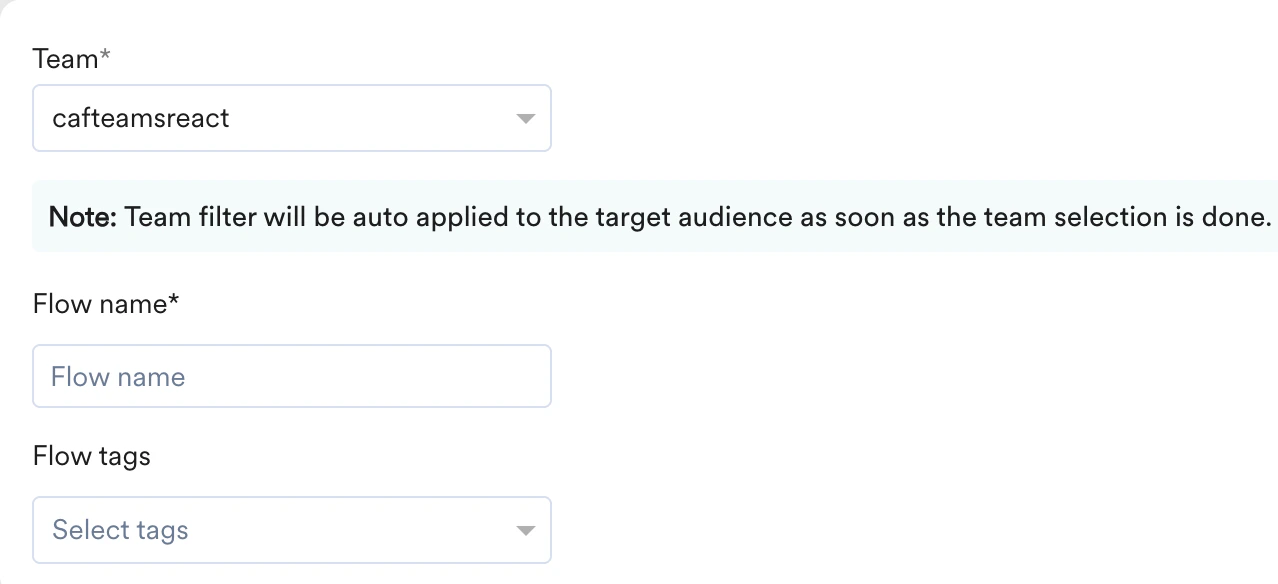
* **Team:** If your organization has **Team** enabled, in the **Team** list, select your team to associate with the flow. For more information, refer to [Teams in MoEngage](/user-guide/settings/account/team-management/teams-in-moengage).
* **Flow name**: Enter the name of the flow to manage and identify the flow. The flow name must have at least five characters, and the limit is 256. The flow name can contain special characters.
* **Flow tags**: Select flow tags from the drop-down list to provide clarity to tags. You can select a maximum of five tags. For more information, refer to [Tags in MoEngage](/user-guide/campaigns-and-channels/getting-started/introduction/campaign-tags).
# Option 3: Create a Flow from Scratch
You can start with a blank canvas and build a flow of your choice. The following are the steps to create a flow from scratch:
1. [Details and goals](#Details-and-Goals): Define the goal of the flow and add the required details.
2. [When will users enter the flow](#When-Will-Users-Enter-the-Flow): Define when the users will enter the flow.
3. [Who will enter the flow](#Who-Will-Enter-the-Flow): Define the audience of the flow.
You can directly enter the canvas from any step during flow creation. Click **Skip to Canvas** to open the MoEngage canvas.
## Details and Goals
After you click **+ Start with a blank canvas**, the Create flow page is displayed. This section contains the following:
### Flow Details
The flow details section contains the following fields:
* **Team:** If your organization has **Team** enabled, in the **Team** list, select your team to associate with the flow. For more information, refer to [Teams in MoEngage](/user-guide/settings/account/team-management/teams-in-moengage).
* **Flow name**: Enter the name of the flow to manage and identify the flow. The flow name must have at least five characters, and the limit is 256. The flow name can contain special characters.
* **Flow tags**: Select flow tags from the drop-down list to provide clarity to tags. You can select a maximum of five tags. For more information, refer to [Tags in MoEngage](/user-guide/campaigns-and-channels/getting-started/introduction/campaign-tags).
 ### Conversion Goals
Define the conversion to track conversion for the flow. The conversion goal configured for the flow is treated as the conversion goal of all the campaigns part of the flow.
* You can add five conversion goals for a single flow. For more information, refer to [Add multiple goals to flows](/user-guide/flows-cross-channel-messaging/create/actions-in-flows/add-multiple-conversion-goals).
* You can publish the flow without any goals.
Define the goals by selecting the following:
| Field | Description |
| -------------------- | --------------------------------------------------------------------------------------------------------------------------------------------------------------------------------------------------------------------------------------------------------------------------------------------------------------------------------------------------------------------------------------------------------------------------------------------------------------------------------------------------------------------------------------------------------------------------------------------------------------------------------------------------------------------------------------------------------------------------------------------------------------------------------------------------------------------------------------------------------------------------------------------------------------------------------------------------------------------------------------------------------------------------------------------------------------------------------------------------------------------------------------------------------------------------------------------------------------------------------------------------------------------------------------------------------------------------------------------------------------------------------------------------------------------------------------------------------------------------------------------------------------------------------------- |
| Goal name | Type the name of the goal to manage and identify the goal. |
| Event name | Select from the drop-down the defined events based on which the goal is tracked. For more information, refer to [Events and Attributes](/user-guide/data/event-data/derived-events-and-attributes). |
| Attribute | Select from the drop-down the defined attributes, conditions, and values to filter or drill down the goal being tracked. For more information, refer to [Events and Attributes](/user-guide/data/event-data/derived-events-and-attributes). |
| Track above goal for | Set an attribution window that is the Time period for which conversion goals are tracked after an impression or clicks based on the attribution type.
### Conversion Goals
Define the conversion to track conversion for the flow. The conversion goal configured for the flow is treated as the conversion goal of all the campaigns part of the flow.
* You can add five conversion goals for a single flow. For more information, refer to [Add multiple goals to flows](/user-guide/flows-cross-channel-messaging/create/actions-in-flows/add-multiple-conversion-goals).
* You can publish the flow without any goals.
Define the goals by selecting the following:
| Field | Description |
| -------------------- | --------------------------------------------------------------------------------------------------------------------------------------------------------------------------------------------------------------------------------------------------------------------------------------------------------------------------------------------------------------------------------------------------------------------------------------------------------------------------------------------------------------------------------------------------------------------------------------------------------------------------------------------------------------------------------------------------------------------------------------------------------------------------------------------------------------------------------------------------------------------------------------------------------------------------------------------------------------------------------------------------------------------------------------------------------------------------------------------------------------------------------------------------------------------------------------------------------------------------------------------------------------------------------------------------------------------------------------------------------------------------------------------------------------------------------------------------------------------------------------------------------------------------------------- |
| Goal name | Type the name of the goal to manage and identify the goal. |
| Event name | Select from the drop-down the defined events based on which the goal is tracked. For more information, refer to [Events and Attributes](/user-guide/data/event-data/derived-events-and-attributes). |
| Attribute | Select from the drop-down the defined attributes, conditions, and values to filter or drill down the goal being tracked. For more information, refer to [Events and Attributes](/user-guide/data/event-data/derived-events-and-attributes). |
| Track above goal for | Set an attribution window that is the Time period for which conversion goals are tracked after an impression or clicks based on the attribution type.
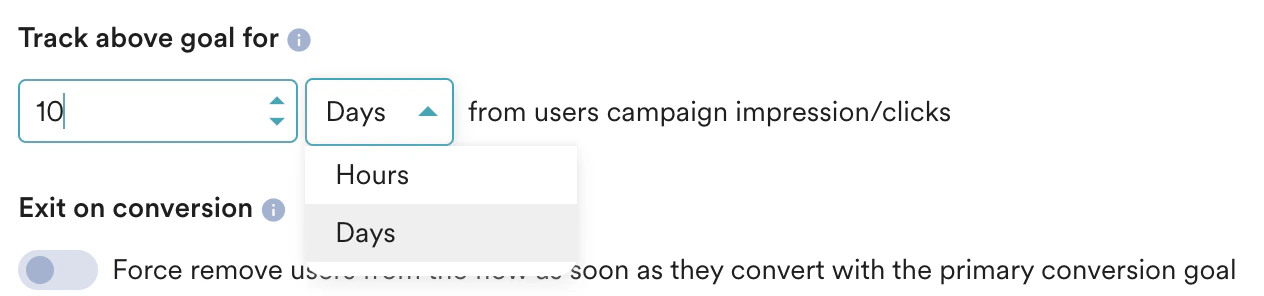 |
| Exit on conversion | Turn on this toggle to forcefully exit users from the flow as soon as they convert with the primary conversion goal.
|
| Exit on conversion | Turn on this toggle to forcefully exit users from the flow as soon as they convert with the primary conversion goal.
 |
Click **+ New goal** to add more goals.
You can change the goal, tags, and exiting users on conversion setting at any point in time before publishing the Flow by clicking **Settings**. For more information, refer to [Flow Settings](/user-guide/flows-cross-channel-messaging/create/configure-flows/flow-settings).
|
Click **+ New goal** to add more goals.
You can change the goal, tags, and exiting users on conversion setting at any point in time before publishing the Flow by clicking **Settings**. For more information, refer to [Flow Settings](/user-guide/flows-cross-channel-messaging/create/configure-flows/flow-settings).
 Click **Next** to navigate to the [When will users enter the flow](#When-Will-Users-Enter-the-Flow) step.
## When Will Users Enter the Flow
Select one of the following to define when the will user enter the flow.
To define the trigger condition, do the following:
* In the **If user** section,
1. Under **Primary trigger event (s)**, in the **Has Executed** field, **Select an event** from the list to define the primary trigger event for the user to enter the flow.
2. Click **+ Add alternate trigger event** to add multiple events under **Primary trigger event(s)**. This will allow users to enter the flow if they perform any of the events defined in the Primary trigger event. (This is optional)
3. Click **+ Attributes** to add attributes to any of the added primary triggers. (This is optional)
Click **Next** to navigate to the [When will users enter the flow](#When-Will-Users-Enter-the-Flow) step.
## When Will Users Enter the Flow
Select one of the following to define when the will user enter the flow.
To define the trigger condition, do the following:
* In the **If user** section,
1. Under **Primary trigger event (s)**, in the **Has Executed** field, **Select an event** from the list to define the primary trigger event for the user to enter the flow.
2. Click **+ Add alternate trigger event** to add multiple events under **Primary trigger event(s)**. This will allow users to enter the flow if they perform any of the events defined in the Primary trigger event. (This is optional)
3. Click **+ Attributes** to add attributes to any of the added primary triggers. (This is optional) 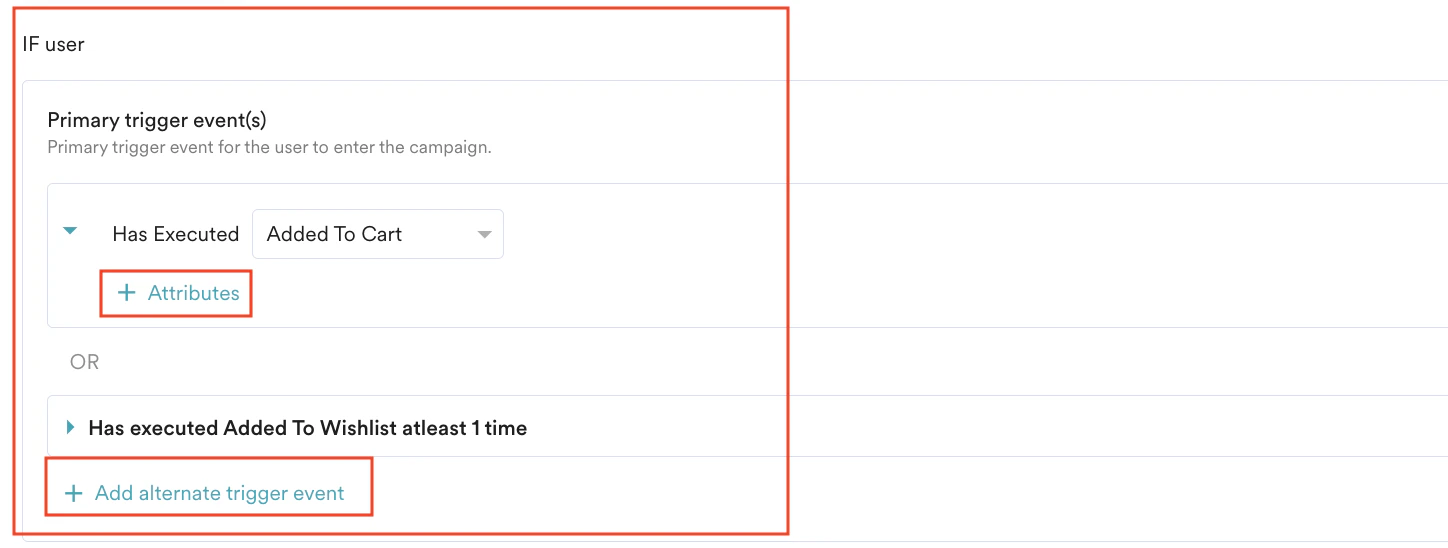 To define a secondary trigger condition, do the following:
* In the **AND** section,
1. Click **+ Add secondary trigger event**.
2. Under **Secondary trigger event(s)**, select **Has Executed** or **Has Not Executed** based on your requirements select the event from **Select an event** list to define these secondary trigger events along with the primary trigger event for the user to enter the flow.
3. Click **+ Add more trigger event** to add multiple events under **Secondary** **trigger event(s)**. (This is optional)
4. Click **+ Attributes** to add attributes to any of the added secondary triggers. (This is optional).\
You can add personalized dynamic checks for users based on their previous actions. For more information, refer to [Linked Conditions](/user-guide/flows-cross-channel-messaging/create/create-flows/linked-conditions).
To define a secondary trigger condition, do the following:
* In the **AND** section,
1. Click **+ Add secondary trigger event**.
2. Under **Secondary trigger event(s)**, select **Has Executed** or **Has Not Executed** based on your requirements select the event from **Select an event** list to define these secondary trigger events along with the primary trigger event for the user to enter the flow.
3. Click **+ Add more trigger event** to add multiple events under **Secondary** **trigger event(s)**. (This is optional)
4. Click **+ Attributes** to add attributes to any of the added secondary triggers. (This is optional).\
You can add personalized dynamic checks for users based on their previous actions. For more information, refer to [Linked Conditions](/user-guide/flows-cross-channel-messaging/create/create-flows/linked-conditions). 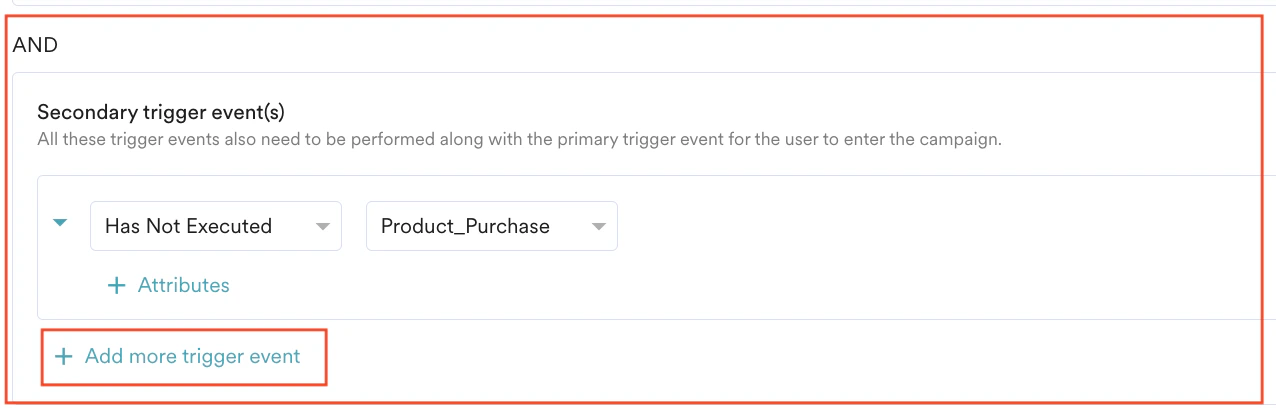 * In **THEN enter the user** section,
1. Select **Immediately** to allow users to enter the user immediately.\
This is applicable only when Primary triggers are defined for the flow.
2. Select **With Delay** to allow the user to enter the flow at a delayed time interval by providing the following details:
1. Type the time value and select minutes, hours, or days. The entered value can range between 2 minutes and 30 days (both inclusive).
2. Select **Before** or **After**to specify whether the user should enter the Flow before or after the specified time interval.
When you add multiple primary trigger events, only the **After** option is allowed to specify the time interval. However, when only one primary trigger event is added, both the **Before** and **After** options are allowed to personalize your delay.
3. Select the attribute relative to which this time calculation has to be done. To learn more about this, click [here](/user-guide/campaigns-and-channels/getting-started/triggers/event/create-an-event-triggered-campaign).
* In **THEN enter the user** section,
1. Select **Immediately** to allow users to enter the user immediately.\
This is applicable only when Primary triggers are defined for the flow.
2. Select **With Delay** to allow the user to enter the flow at a delayed time interval by providing the following details:
1. Type the time value and select minutes, hours, or days. The entered value can range between 2 minutes and 30 days (both inclusive).
2. Select **Before** or **After**to specify whether the user should enter the Flow before or after the specified time interval.
When you add multiple primary trigger events, only the **After** option is allowed to specify the time interval. However, when only one primary trigger event is added, both the **Before** and **After** options are allowed to personalize your delay.
3. Select the attribute relative to which this time calculation has to be done. To learn more about this, click [here](/user-guide/campaigns-and-channels/getting-started/triggers/event/create-an-event-triggered-campaign). 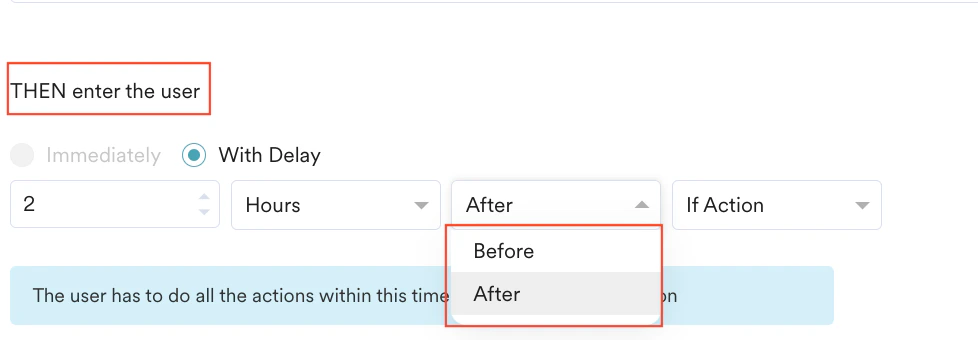 **Flow Schedule Settings** Under **Start**, select one of the following options to trigger the flow:
| Field | Action |
| ----------------------------- | -------------------------------------------------------------------------------------------------------------------------------------------------------------------------------------------------------------------------------------------------------------------------------------------------------------------------------------------------------------------------------------------------------------------------------------------------------------------------------------------------------------------------------------------------------------------------------------------------------------------------------------------------------------------------------------------------------------------------------------------------------------------------------------------------------------------------------------------------------- |
| **As soon as possible** | Triggers the flow immediately. You can select:
**Flow Schedule Settings** Under **Start**, select one of the following options to trigger the flow:
| Field | Action |
| ----------------------------- | -------------------------------------------------------------------------------------------------------------------------------------------------------------------------------------------------------------------------------------------------------------------------------------------------------------------------------------------------------------------------------------------------------------------------------------------------------------------------------------------------------------------------------------------------------------------------------------------------------------------------------------------------------------------------------------------------------------------------------------------------------------------------------------------------------------------------------------------------------- |
| **As soon as possible** | Triggers the flow immediately. You can select: - **Campaign time zone** - the timezone in which the campaign should be sent.
- **Ends**: You can choose the end time for the flow by selecting the End option to control when to stop new entries to the Flow. The following options are available:
- **Never**: the flow never ends.
- **On**: the Flow ends on the end date specified in the **End date** and **End time** fields.
|
| **At specific date and time** | Triggers the flow at the specified time, time zone, or predicted time. This section helps you send the campaign on a specific date and time and contains the following fields: - **Campaign time zone** - the timezone in which the campaign should be sent.
- **Start date** - the date on which the campaign should be sent.
- **Send time** - the time at which the campaign should be sent. Select am or pm depending on when the time of day at which the campaign should be sent.
- **Ends**: You can choose the end time for the flow by selecting the End option to control when to stop new entries to the Flow. The following options are available:
- **Never**: the flow never ends.
- **On**: the Flow ends on the end date specified in the **End date** and **End time** fields.
|
To schedule the flow at a fixed time, do the following: Under **User entry**, select one of the following options to trigger the flow:
| Field | Action |
| ----------------------------- | -------------------------------------------------------------------------------------------------------------------------------------------------------------------------------------------------------------------------------------------------------------------------------------------------------------------------------------------------------------------------------------------------------------------------------------------------------------------------------------------------------------------------------------------------------------------------------------------------------------------------------------------------------------------------------------------------------------------------------------------------------------------------------------------------------------------------------------------------------------------------------------------------------------------------------------------------------------------------------------------------------------------------------------------------------------------------------------------------------------------------------------------------------------------------------------------------------------------------------------------------------------------------------------------------------------------------------------------------------------------------------------------------------------------------------------------------------------------------------------------------------------------------------------------------------------------------------------------------------------------------------------------------------------------------------------------------------------------------------------------------------------------------------------------------------------------------------------------------------------------------------------------------------------------------------------------------------------------------------------------------------------------------------------------------------------------------------------------------------------------------------------------------------------------------------------------------------------------------------------------------------------------------------------------------------------------------------------------------------------------------------------------------------------------------------------------------------------------------------------------------------------------------------------------------------------------------------------------------------------------------------------------------------------------------------------------------------------------------------------------------------------------------------------------------------------------------------------------------------------------------------------------------------------------------------------------------------------------------------------------------------------------------------------------------------------------------------------------------------------------------------------------------------------------------------------------------------------------------------------------------------------------------------------------------------------------------------------------------------------------------------------------------------------------------------------------------------------------------------------------------------------------------------------------------------------------------------------------------------------------------------------------------------------------------------------------------------------------------------------------------------------------------------------------------------------------------------------------------------------------------------------------------------------------------------------------------------------------------------------------------------------------------------------------------------------------------------------------------------------------------------------------------------------------------------------------------------------------------------------------------------------------------------------------------------------------------------------------------------------------------------------------------------------------------------------------------------------------------------------- |
| **As soon as possible** | Select the option to ensure the user enters the flow one-time as soon as possible. 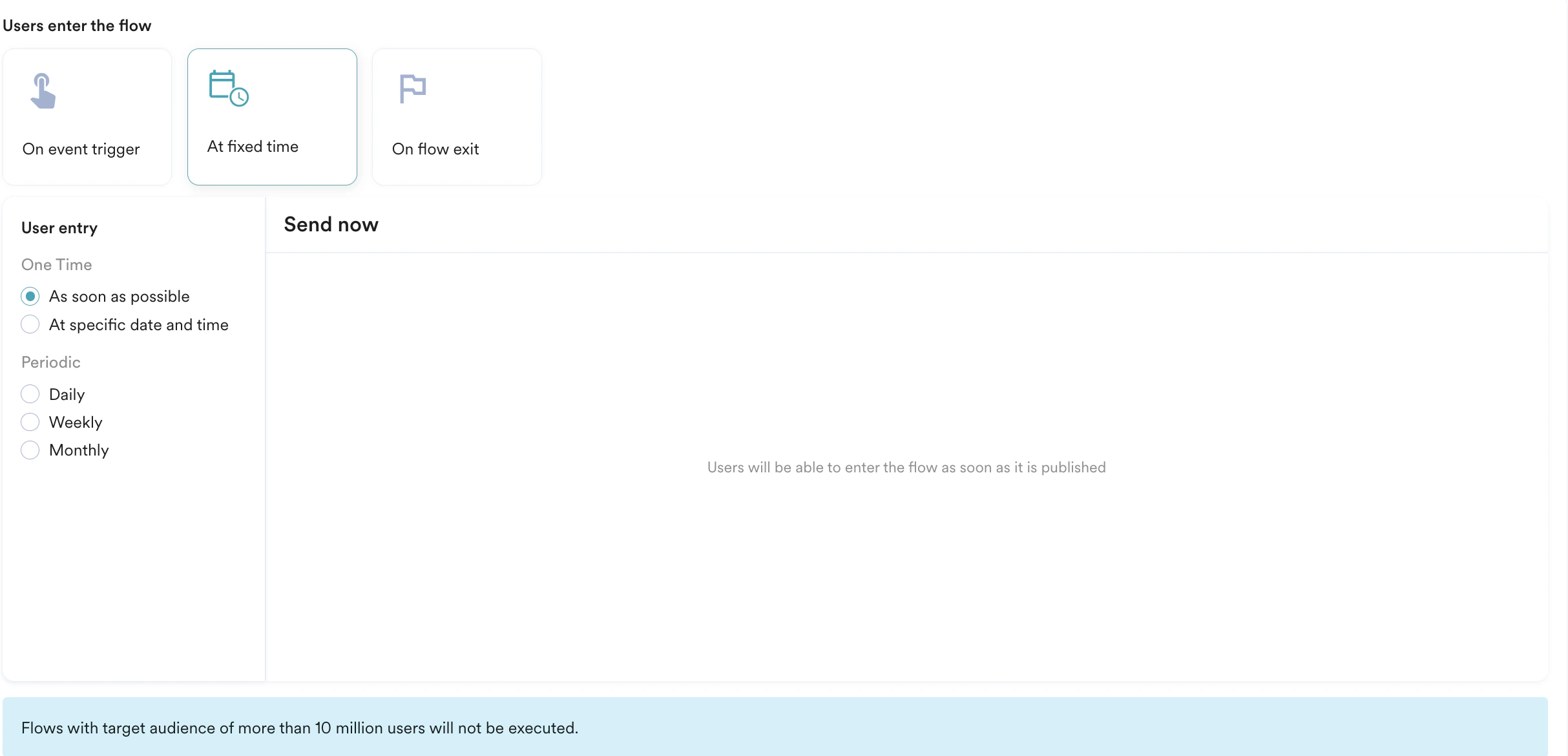 |
| **At specific date and time** | Follow these steps to allow the user to enter the flow one-time at the specified time and date:
|
| **At specific date and time** | Follow these steps to allow the user to enter the flow one-time at the specified time and date: - Select the time zone.
- Select the date from the calendar.
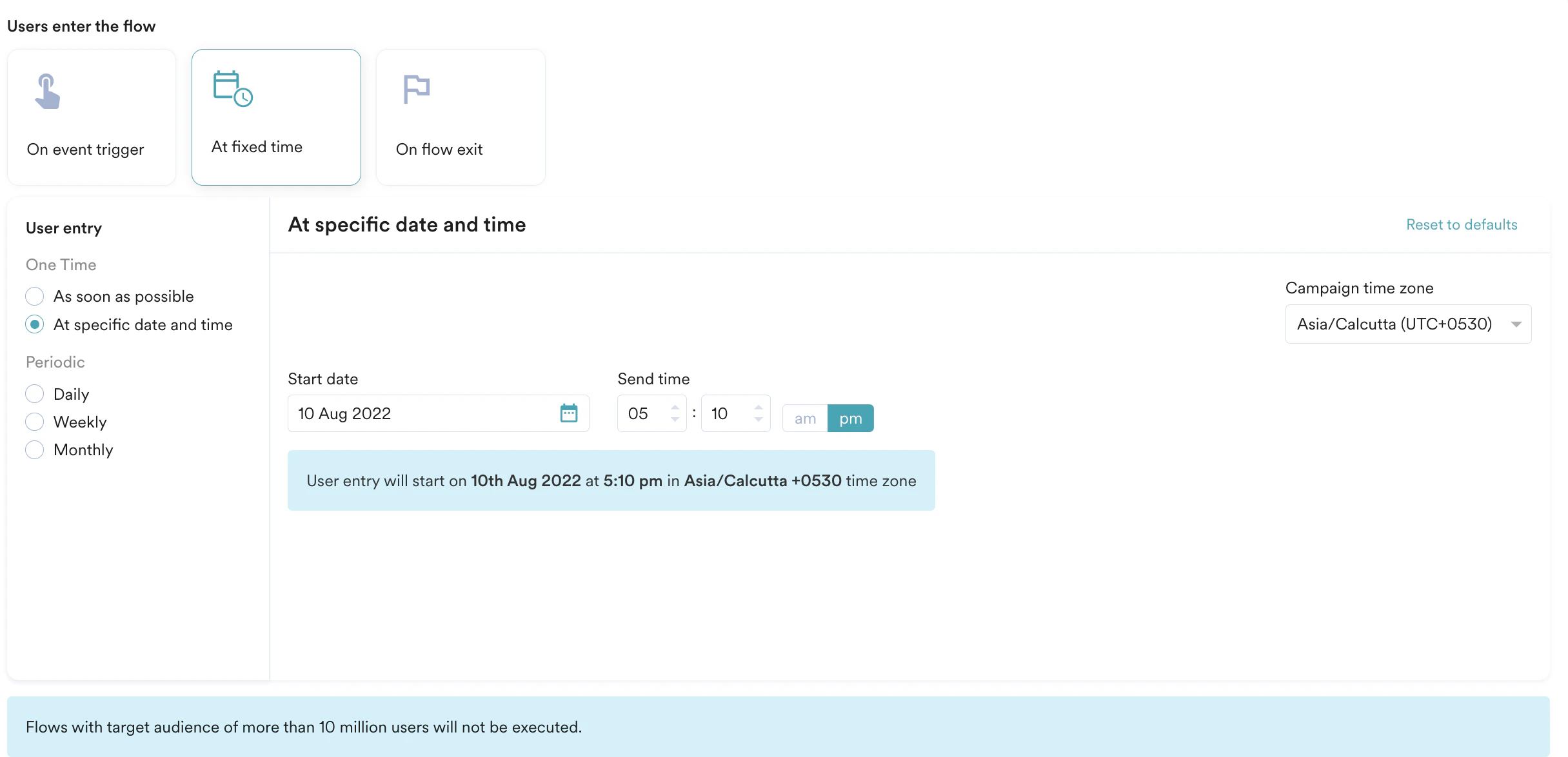
- Type or use the up and down arrows to set the time.
- Click am or pm.
|
| **Daily** | Follow these steps to allow the user to enter the flow at a Daily frequency starting from a specified time and date: 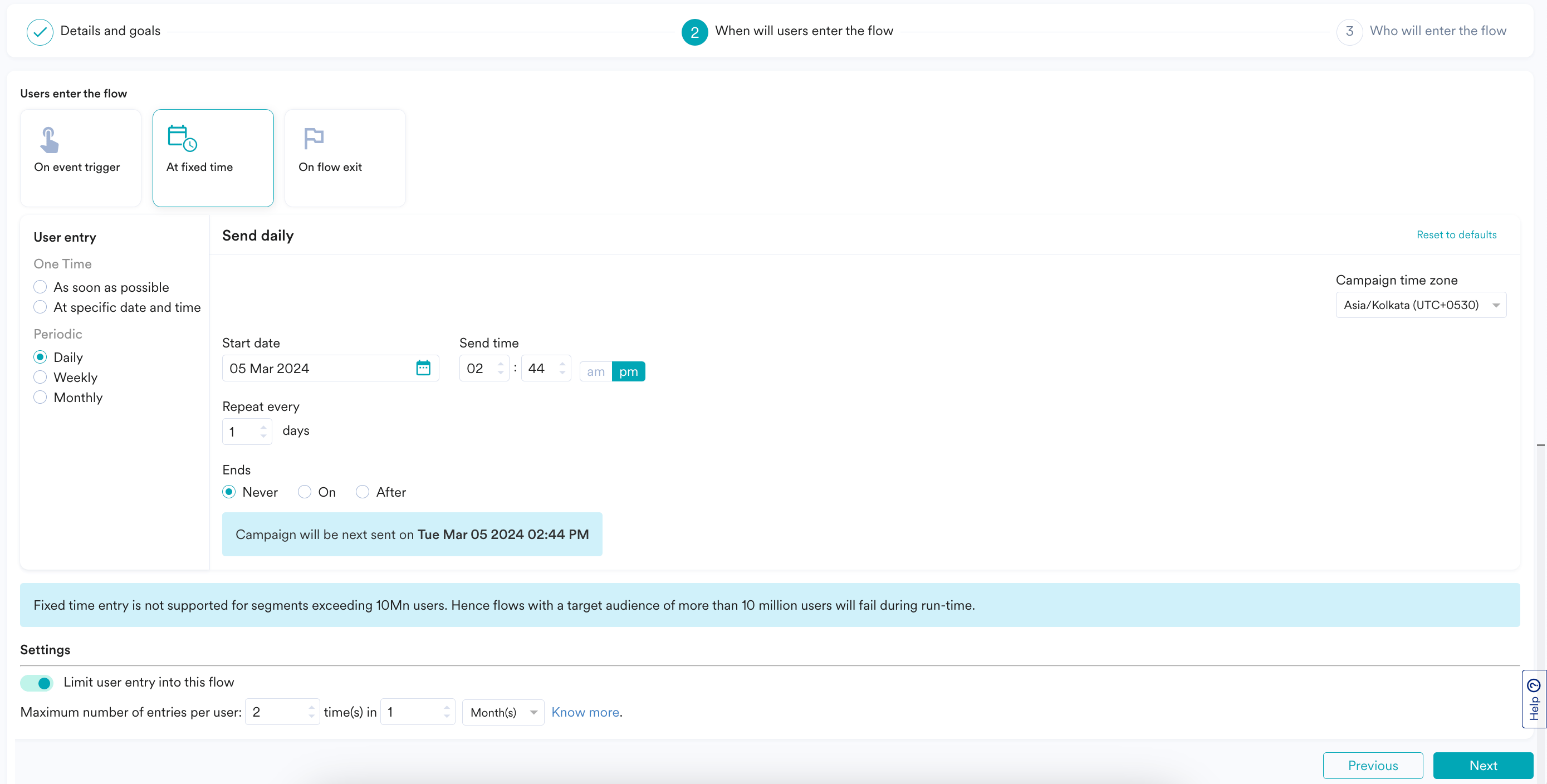
- Select the time zone.
- Select the start date from the calendar.
- Type or use the up and down arrows to set the start time in hours and minutes.
- Click am or pm.
- Use **Repeat Every** to select the frequency of days on which the user is allowed to enter the flow.
- Do one of the following to define the End time and date at which the system will stop new entries to the flow:
- Click **Never** to ensure the user can always enter the flow.
- Click **On** and select the end date from the calendar. **Note**: Ensure that the end date is greater than the start date.
- Click **After** and select the number of occurrences after which the campaign ends.
|
| **Weekly** | Follow these steps to allow the user to enter the flow at a Weekly frequency starting from a specified time and date: 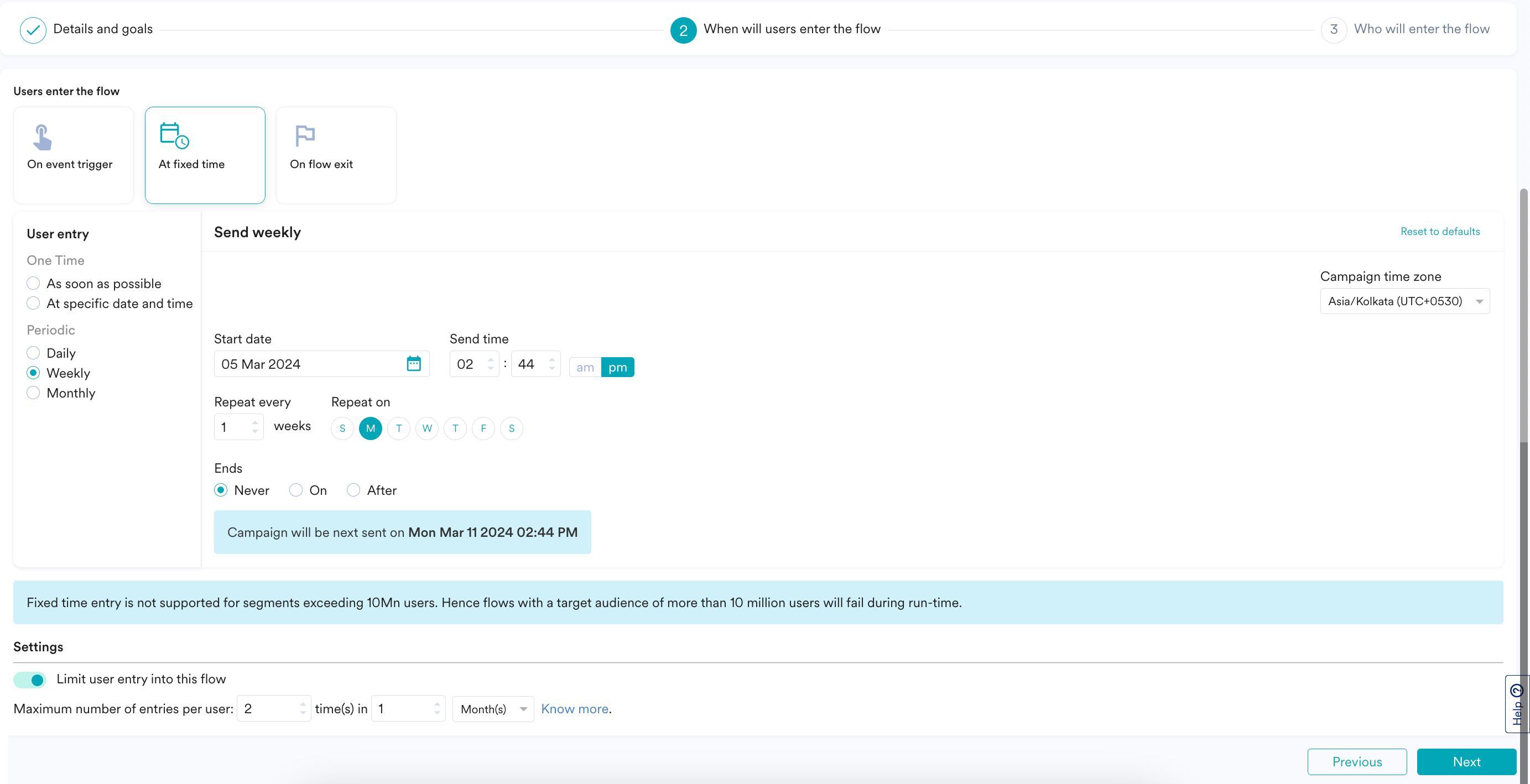
- Select the time zone.
- Select the start date from the calendar.
- Type or use the up and down arrows to set the start time in hours and minutes.
- Click am or pm.
- Select the frequency at which the user is allowed to enter the flow using **Repeat every** and **Repeat on** option.
- Select the days of the week on which the user is allowed to enter the flow every week in **Repeaton**;and
- the frequency in weeks for which the flow should allow users to enter from **Repeat every**. For example, choosing Monday and Friday in the 'Repeat on' section, and 3 in the 'Repeat every' section means that the campaigns will be sent 3 weeks once on Monday and Friday of the week.
- Do one of the following to define the End time and date at which the system will stop new entries to the flow:
- Click **Never** to ensure the user can always enter the flow.
- Click **On** and select the end date from the calendar. **Note**: Ensure that the end date is greater than the start date.
- Click **After** and select the number of occurrences after which the campaign ends.
|
| **Monthly** | Follow these steps to allow the user to enter the flow at a Monthly frequency starting from a specified time and date: 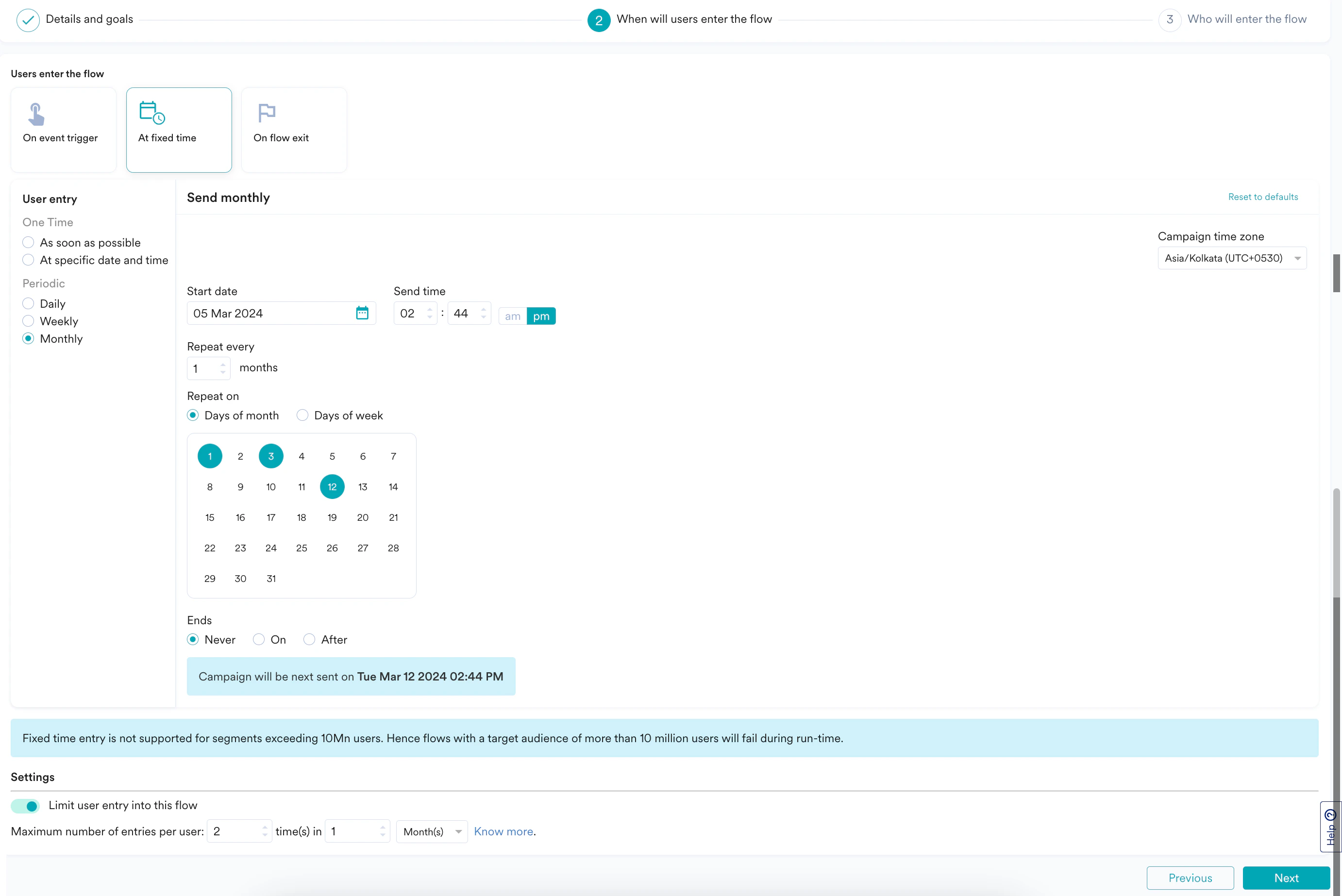
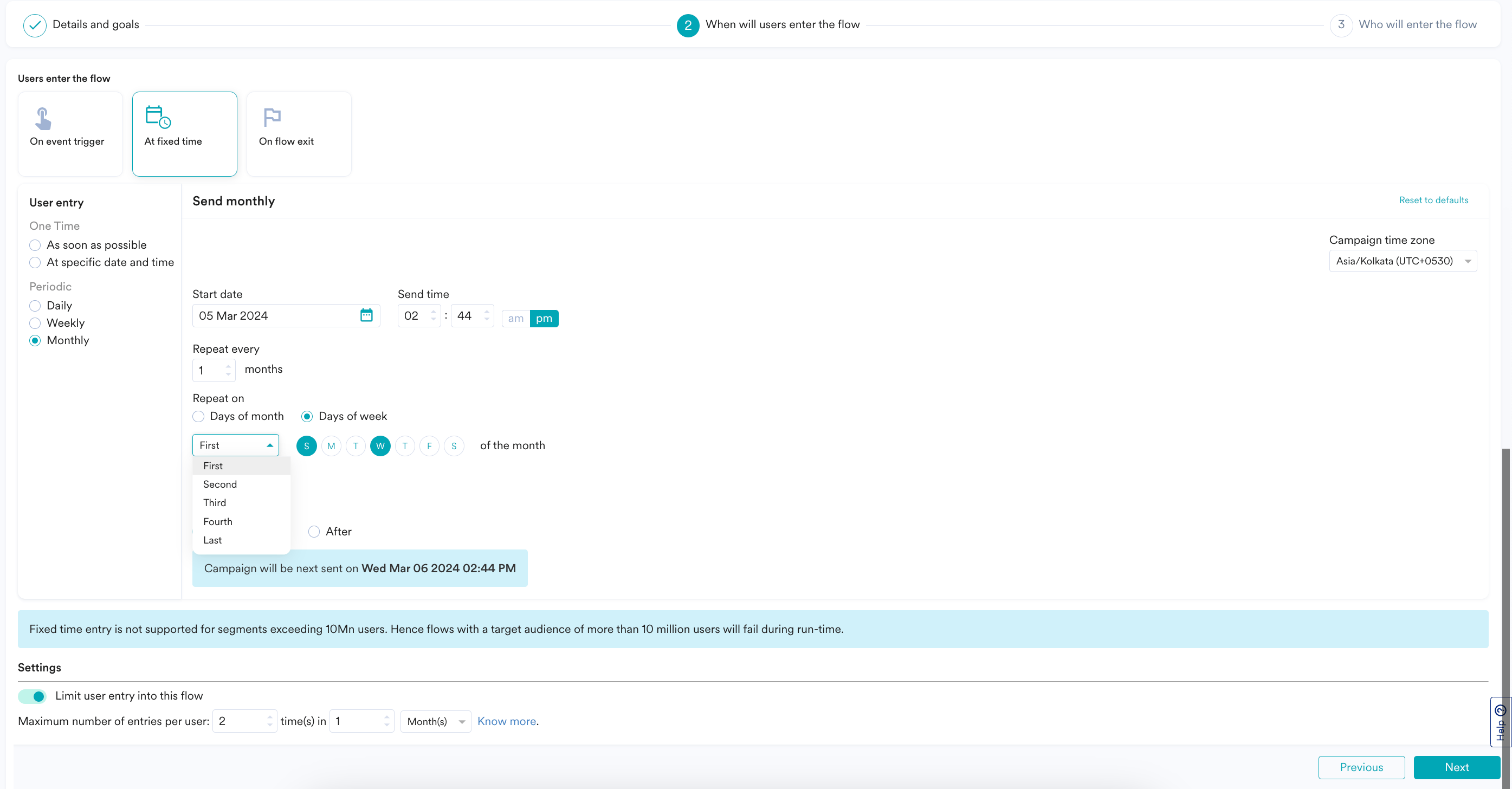
- Select the time zone.
- Select the start date from the calendar.
- Type or use the up and down arrows to set the start time in hours and minutes.
- Click am or pm.
- Select the frequency at which the user is allowed to enter the flow using '**Repeat on**' and '**Repeat every**'.
- **Days of month**: Select the days of the month on which the user is allowed to enter the flow and the frequency in months from **Repeat every** option.
- For example, choosing '7' in the calendar in the 'Repeat on' section and '3' months in 'Repeat every' means that the user will be allowed to enter the flow on the seventh of a month once every three months. Note: Multiple days can be selected in a month.
- **Days of week**: Select the days of the week on which the user is allowed to enter the flow and the frequency in months from **Repeat every** option.
- With this feature, users can be allowed to enter the flow on the first Mondays of every month or second Tuesdays and Wednesdays of every month and so on.
- Do one of the following to define the End time and date at which the system will stop new entries to the flow:
- Click **Never** to ensure the user can always enter the flow.
- Click **On** and select the end date from the calendar. **Note**: Ensure that the end date is greater than the start date.
- Click **After** and select the number of occurrences after which the campaign ends.
|
Select the following details to allow the user to enter the current flow on exiting an existing flow: To define a primary trigger condition, do the following:
* In the **If user performs** section,
1. Under **Primary trigger(s)**, in the **Has Exited** list, select a flow in the **Select by name** list from which the user exits the flow.
2. Click the **+ Add alternate flow exit** to add multiple flow exits under **Primary trigger (s)**. (This is optional)
3. Click the **+ Add exit stage filter** to add attributes to any of the added primary trigger events. (This is optional) 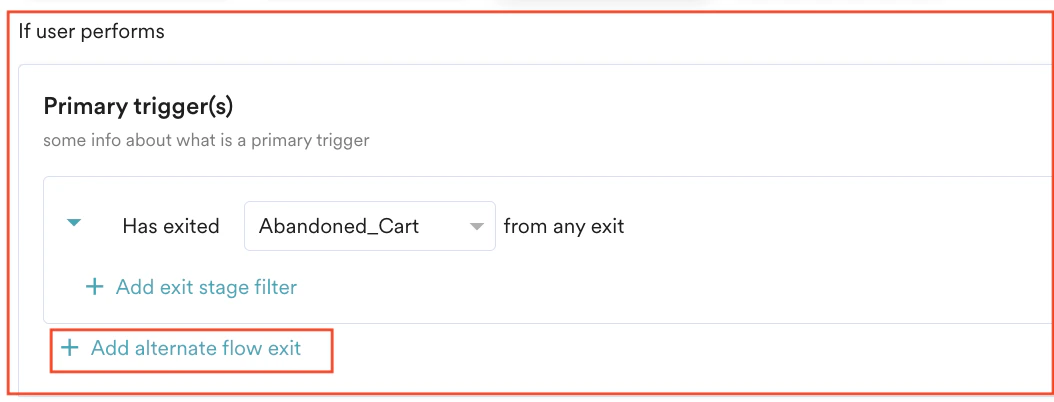 To define a secondary trigger condition, do the following:
* In the **AND** section,
1. Click **+ Add secondary trigger event**.
2. Under **Secondary trigger event(s)**, select **Has Executed** or **Has Not Executed** based on your requirements and select the flow in the **Select an event** list to define the secondary trigger events along with the primary trigger event for the user to enter the flow.
3. Click the **+ Add more trigger event** to add multiple flow exits under **Secondary** **trigger event(s)**. (This is optional)
4. Click the **+ Attributes** to add attributes to any of the added secondary trigger events. (This is optional)
To define a secondary trigger condition, do the following:
* In the **AND** section,
1. Click **+ Add secondary trigger event**.
2. Under **Secondary trigger event(s)**, select **Has Executed** or **Has Not Executed** based on your requirements and select the flow in the **Select an event** list to define the secondary trigger events along with the primary trigger event for the user to enter the flow.
3. Click the **+ Add more trigger event** to add multiple flow exits under **Secondary** **trigger event(s)**. (This is optional)
4. Click the **+ Attributes** to add attributes to any of the added secondary trigger events. (This is optional) 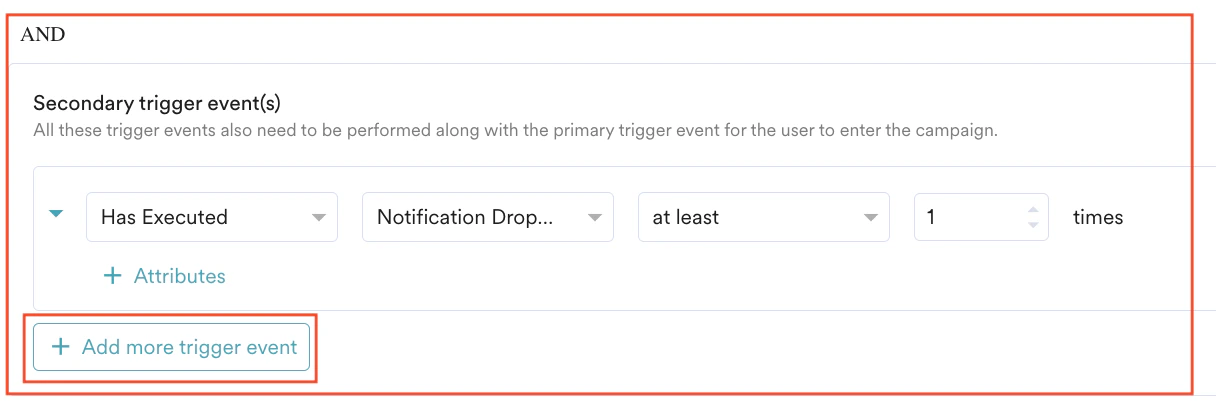 * In the **THEN user enter the flow** section,
1. Select **Immediately** to allow the user to enter the flow within the next 30 to 60 seconds.\
You can allow the user to enter the flow only if the condition is' If'.
2. Select **With Delay** and provide the following details to define the delay after flow exit:
1. Type the value of the time.
2. Select minutes, hours, or days.
**Flow Schedule Settings**
Under **Start**, select one of the following options to trigger the flow:
| Field | Action |
| ----------------------------- | -------------------------------------------------------------------------------------------------------------------------------------------------------------------------------------------------------------------------------------------------------------------------------------------------------------------------------------------------------------------------------------------------------------------------------------------------------------------------------------------------------------------------------------------------------------------------------------------------------------------------------------------------------------------------------------------------------------------------------------------------------------------------------------------------------------------------------------------------------- |
| **As soon as possible** | Triggers the flow immediately. You can select:
* In the **THEN user enter the flow** section,
1. Select **Immediately** to allow the user to enter the flow within the next 30 to 60 seconds.\
You can allow the user to enter the flow only if the condition is' If'.
2. Select **With Delay** and provide the following details to define the delay after flow exit:
1. Type the value of the time.
2. Select minutes, hours, or days.
**Flow Schedule Settings**
Under **Start**, select one of the following options to trigger the flow:
| Field | Action |
| ----------------------------- | -------------------------------------------------------------------------------------------------------------------------------------------------------------------------------------------------------------------------------------------------------------------------------------------------------------------------------------------------------------------------------------------------------------------------------------------------------------------------------------------------------------------------------------------------------------------------------------------------------------------------------------------------------------------------------------------------------------------------------------------------------------------------------------------------------------------------------------------------------- |
| **As soon as possible** | Triggers the flow immediately. You can select: - **Campaign time zone** - the timezone in which the campaign should be sent.
- **Ends**: You can choose the end time for the flow by selecting the End option to control when to stop new entries to the Flow. The following options are available:
- **Never**: the flow never ends.
- **On**: the Flow ends on the end date specified in the **End date** and **End time** fields.
|
| **At specific date and time** | Triggers the flow at the specified time, time zone, or predicted time. This section helps you send the campaign on a specific date and time and contains the following fields: - **Campaign time zone** - the timezone in which the campaign should be sent.
- **Start date** - the date on which the campaign should be sent.
- **Send time** - the time at which the campaign should be sent. Select am or pm depending on when the time of day at which the campaign should be sent.
- **Ends**: You can choose the end time for the flow by selecting the End option to control when to stop new entries to the Flow. The following options are available:
- **Never**: the flow never ends.
- **On**: the Flow ends on the end date specified in the **End date** and **End time** fields.
|
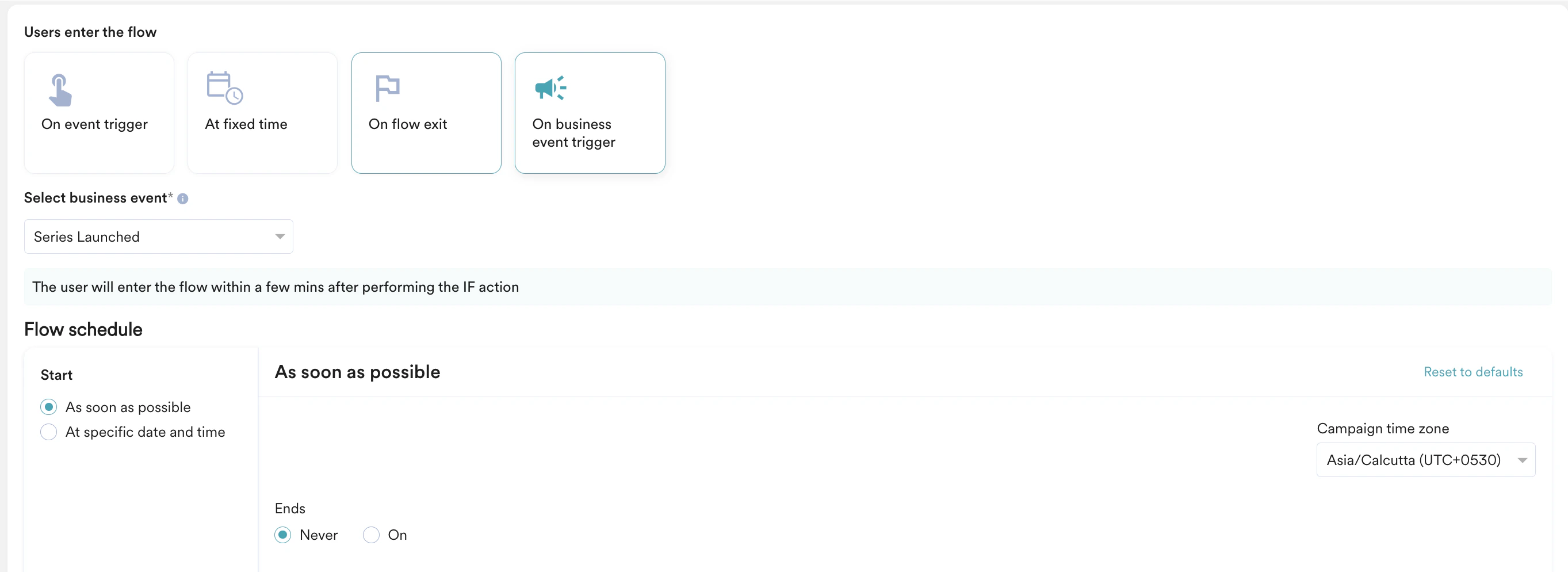
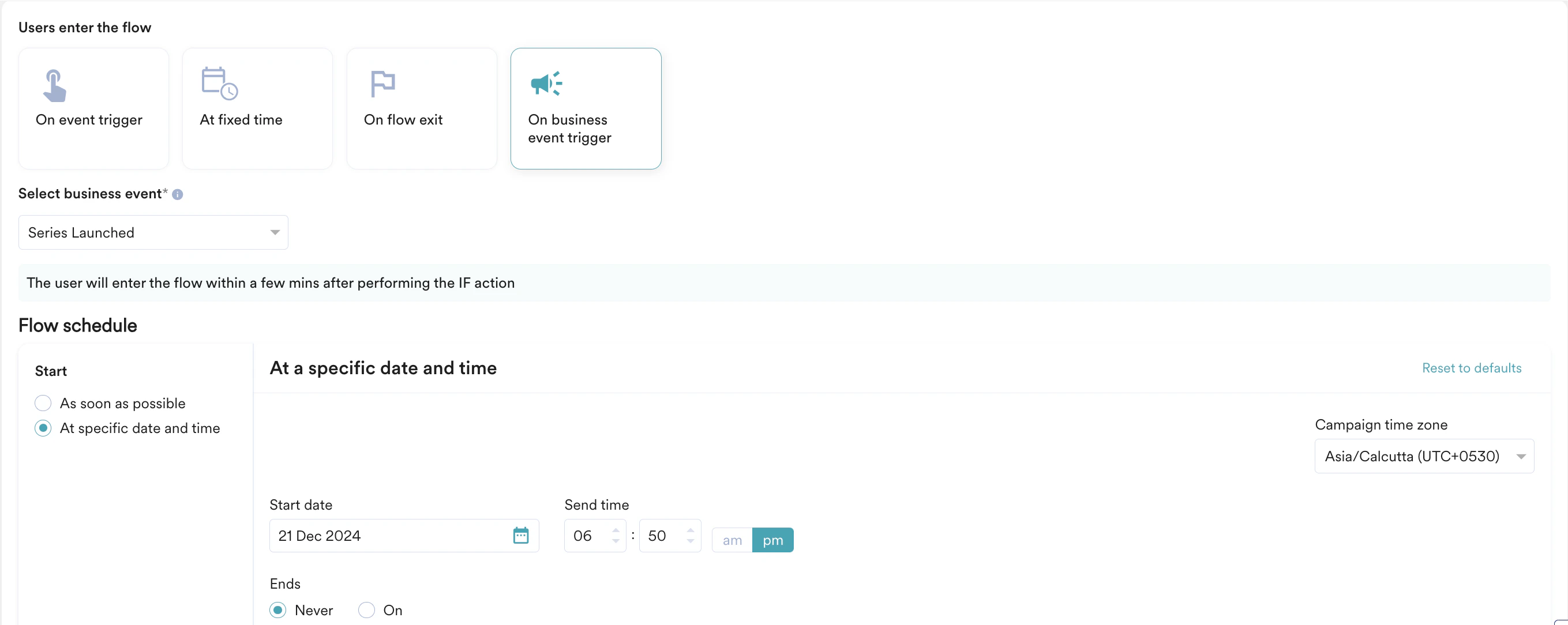
To make users enter the flow on a business event trigger, perform the following steps:
1. In the **Select Business Event** list, click a business event (for example, *Series Launched*).
2. Select one of the following options to define the Flow schedule:
| Field | Action |
| ----------------------------- | ------------------------------------------------------------------------------------------------------------------------------------------------------------------------------------------------------------------------------------------------------------------------------------------------------------------------------------------------------------------------------------------------------------------------------------------------------------------------------------------------------------------------------------------------------------------------------------------------------------------------------------------------------------------------------------------------------------------------------------------------------------------------------------------------------------------------------------------------------------------------------------------------------------------------------------------------------------------------------------------------------------------------------------------------------------------------------------------------------------------------------------------------------------------------------------------------------------------------------------------------------------------------------------------------------------------------------------------------------------------------------------------------------------------------------------------------------------------------------------------------------------------------------------------------------------------------------------------------------------------------------------------------------------------------------------------------------------------------------------------------------------------------------------------------------------------------------------------------------------------------------------------------------------------------------------------------------------------------------------------------------------------------------------------------------------------------------------------------------------------------------------------------------------------------------------------------------------- |
| **As soon as possible** | Triggers the flow immediately. You can select: - **Campaign time zone** - the timezone in which the flow should start/ end.
- **Ends**: You can choose the end time for the flow by selecting the **End** option to control when to stop new entries to the Flow. The following options are available:
- **Never**: the flow never ends.
- **On**: the Flow ends on the end date specified in the **End date** and **End time** fields.
|
| **At specific date and time** | Triggers the flow at the specified time and time zone. This section helps you send the campaign on a specific date and time and contains the following fields: - **Campaign time zone** - the timezone in which the flow should start/end.
- **Start date** - the date on which the campaign should be sent.
- **Send time** - the time at which the campaign should be sent. Select **am** or **pm** depending on when the time of day at which the campaign should be sent.
- **Ends**: You can choose the end time for the flow by selecting the **End** option to control when to stop new entries to the Flow. The following options are available:
- **Never**: the flow never ends.
- **On**: the Flow ends on the end date specified in the **End date** and **End time** fields.
|
### Limit User Entry Settings
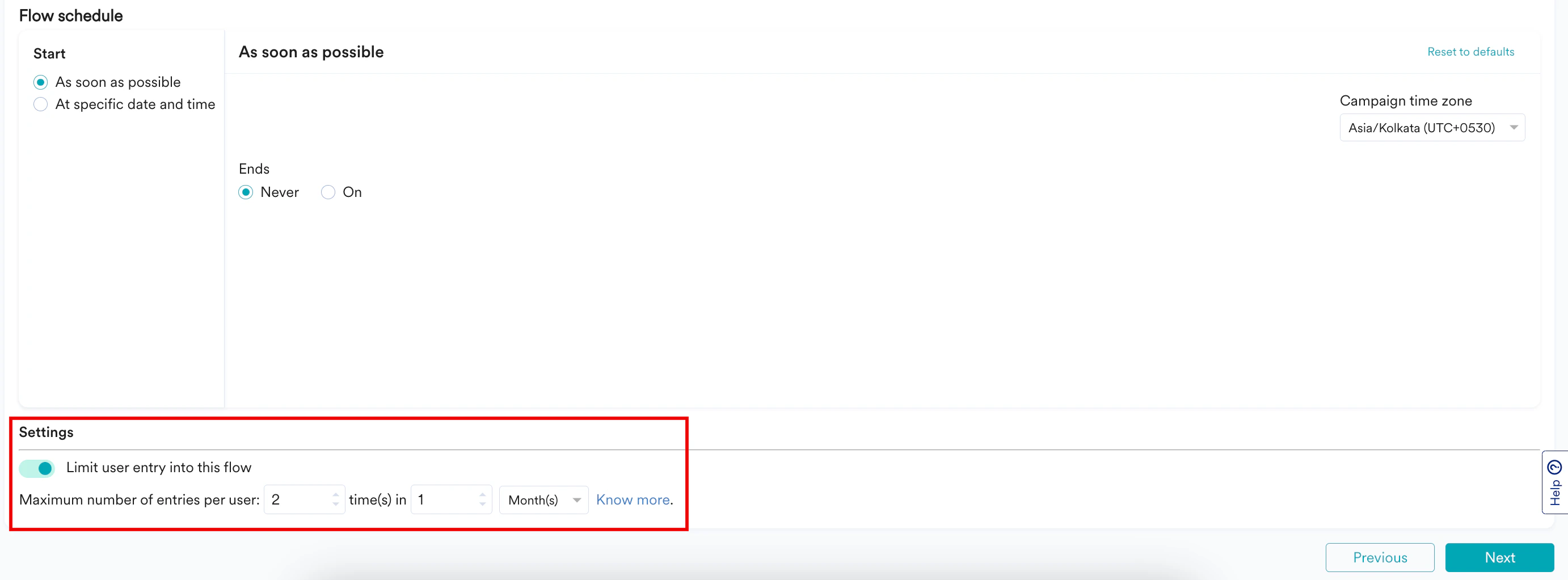
When you select **At fixed time** under the **Users enter the flow** section, the **Limit user entry into this flow**toggle is visible only when you select a **Periodic** option.
To limit the number of times a user enters the flow, turn the **Limit user entry into this flow** toggle on and enter a value in the following fields:
1. Define the maximum entry limit. For example, 2 times.
2. Configure the frequency. For example, 1 month. The range can be from a minimum of 1 day to a maximum of 1 year (both inclusive).
 | Frequency | Example | How It Works |
| --------- | ----------------------------------------------------------- | ---------------------------------------------------------------------------------------------------------------------------------------------------------------------------------------------------------------------------------------------------------------------------------------------------------------------------- |
| Day(s) | Maximum number of entries per user: 2 time(s) in 5 Day(s) | A user who enters a flow at 08:35AM on January 1, 2024 can enter the flow for a maximum of one more time before 08:35AM on January 6, 2024. |
| Week(s) | Maximum number of entries per user: 2 time(s) in 1 Week(s) | A user who enters a flow at 08:35AM on January 1, 2024 can enter the flow for a maximum of one more time until 7 days are passed from 08:35AM January 1, that is, 08:35AM on January 8, 2024. |
| Month(s) | Maximum number of entries per user: 2 time(s) in 1 Month(s) | A user who enters a flow at 08:35AM on January 1, 2024 can enter the flow for a maximum of one more time until 30 days are passed from 08:35AM January 1, that is, 08:35AM on January 31, 2024. **Note:** If you select the **Month(s)** option, MoEngage considers 30 days regardless of the number of days in that month. |
| Year(s) | Maximum number of entries per user: 2 time(s) in 1 Year | A user who enters a flow at 08:35AM on January 1, 2024 can enter the flow for a maximum of one more time until 365 days are passed from 08:35AM January 1, that is, 08:35AM on December 31, 2024. |
### Global Exit Criteria
Under **Flow Exit**, turn the **Exit based on conditions** toggle on to define flow exit conditions. When the users fulfill the conditions defined, MoEngage removes them from their last known position in the flow regardless of where they are. The exit criteria are applicable for all flow types (for example, **On event trigger**, **At fixed time**, **On flow exit**, and **On business event trigger**).
| Frequency | Example | How It Works |
| --------- | ----------------------------------------------------------- | ---------------------------------------------------------------------------------------------------------------------------------------------------------------------------------------------------------------------------------------------------------------------------------------------------------------------------- |
| Day(s) | Maximum number of entries per user: 2 time(s) in 5 Day(s) | A user who enters a flow at 08:35AM on January 1, 2024 can enter the flow for a maximum of one more time before 08:35AM on January 6, 2024. |
| Week(s) | Maximum number of entries per user: 2 time(s) in 1 Week(s) | A user who enters a flow at 08:35AM on January 1, 2024 can enter the flow for a maximum of one more time until 7 days are passed from 08:35AM January 1, that is, 08:35AM on January 8, 2024. |
| Month(s) | Maximum number of entries per user: 2 time(s) in 1 Month(s) | A user who enters a flow at 08:35AM on January 1, 2024 can enter the flow for a maximum of one more time until 30 days are passed from 08:35AM January 1, that is, 08:35AM on January 31, 2024. **Note:** If you select the **Month(s)** option, MoEngage considers 30 days regardless of the number of days in that month. |
| Year(s) | Maximum number of entries per user: 2 time(s) in 1 Year | A user who enters a flow at 08:35AM on January 1, 2024 can enter the flow for a maximum of one more time until 365 days are passed from 08:35AM January 1, that is, 08:35AM on December 31, 2024. |
### Global Exit Criteria
Under **Flow Exit**, turn the **Exit based on conditions** toggle on to define flow exit conditions. When the users fulfill the conditions defined, MoEngage removes them from their last known position in the flow regardless of where they are. The exit criteria are applicable for all flow types (for example, **On event trigger**, **At fixed time**, **On flow exit**, and **On business event trigger**).
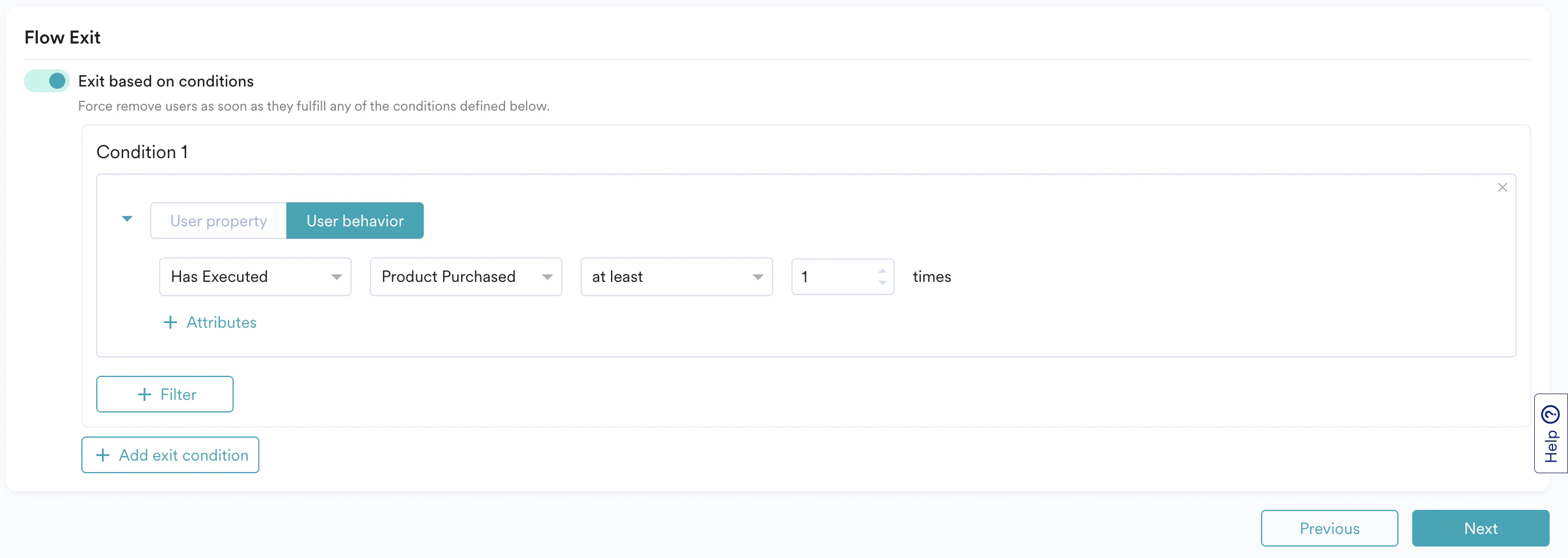 MoEngage evaluates users on these conditions right from the time they enter the flow to the time they exit the flow due to reasons such as:
* Passing through an exit stage in the flow path
* Fulfilling the conditions in the exit criteria
* Achieving the conversion goal defined in the flow
You can define the exit criteria using events triggered by users or user properties that you track for them:
MoEngage evaluates users on these conditions right from the time they enter the flow to the time they exit the flow due to reasons such as:
* Passing through an exit stage in the flow path
* Fulfilling the conditions in the exit criteria
* Achieving the conversion goal defined in the flow
You can define the exit criteria using events triggered by users or user properties that you track for them:
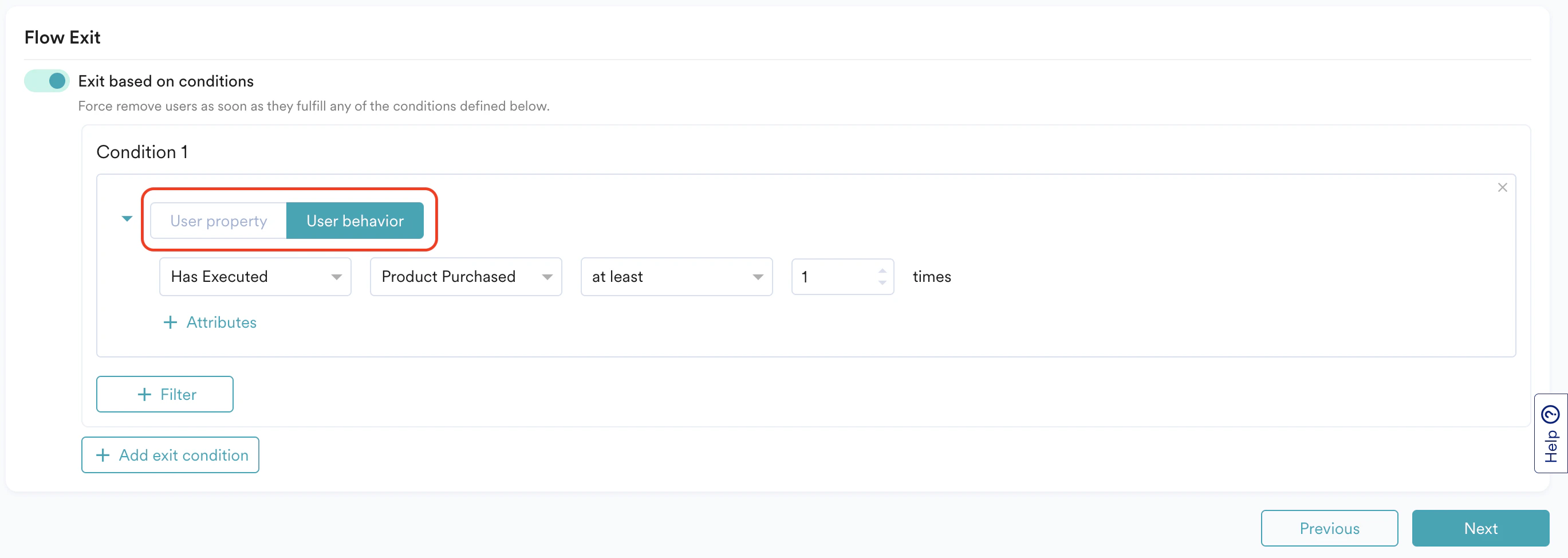 * **User property**: On the **User property** tab, you can define the exit criteria using user properties by specifying a value for a specific attribute. For example:
* Remove users when their membership is Gold (this can be used when the flow has a fixed agenda to convert users to Gold Membership).
* **User behavior**: On the **User behavior** tab, you can define the exit criteria using the list of events tracked in MoEngage.For example:
* Remove users when they have purchased any product after entering the flow
* Remove users when they have purchased the same product that they added to their cart after entering the flow
* You can achieve this and similar use cases by linking the primary trigger event and the Exit Condition. For more information, see [Linked Conditions](/user-guide/flows-cross-channel-messaging/create/create-flows/linked-conditions)
* Remove users when they have purchased the same product that is now back in stock.
#### Supported Filters
You can define exit criteria only using conditions that are of string, integer, and Boolean data types.
MoEngage does not support the conditions defined with following filters:
* Custom segments
* Affinity segments
* Array type and GeoPoint
* Special Date Filters (Daily where the hour, Weekly where the day, Monthly where the day, Yearly where the month, Yearly where the date)
* last n weeks, hours, months
* last n days where n> or equal to 30 days
* Merlin AI-based attributes
If you use a filter that is not supported, an error message will be displayed. You will have to select a filter that is supported to fix the issue.
* **User property**: On the **User property** tab, you can define the exit criteria using user properties by specifying a value for a specific attribute. For example:
* Remove users when their membership is Gold (this can be used when the flow has a fixed agenda to convert users to Gold Membership).
* **User behavior**: On the **User behavior** tab, you can define the exit criteria using the list of events tracked in MoEngage.For example:
* Remove users when they have purchased any product after entering the flow
* Remove users when they have purchased the same product that they added to their cart after entering the flow
* You can achieve this and similar use cases by linking the primary trigger event and the Exit Condition. For more information, see [Linked Conditions](/user-guide/flows-cross-channel-messaging/create/create-flows/linked-conditions)
* Remove users when they have purchased the same product that is now back in stock.
#### Supported Filters
You can define exit criteria only using conditions that are of string, integer, and Boolean data types.
MoEngage does not support the conditions defined with following filters:
* Custom segments
* Affinity segments
* Array type and GeoPoint
* Special Date Filters (Daily where the hour, Weekly where the day, Monthly where the day, Yearly where the month, Yearly where the date)
* last n weeks, hours, months
* last n days where n> or equal to 30 days
* Merlin AI-based attributes
If you use a filter that is not supported, an error message will be displayed. You will have to select a filter that is supported to fix the issue.
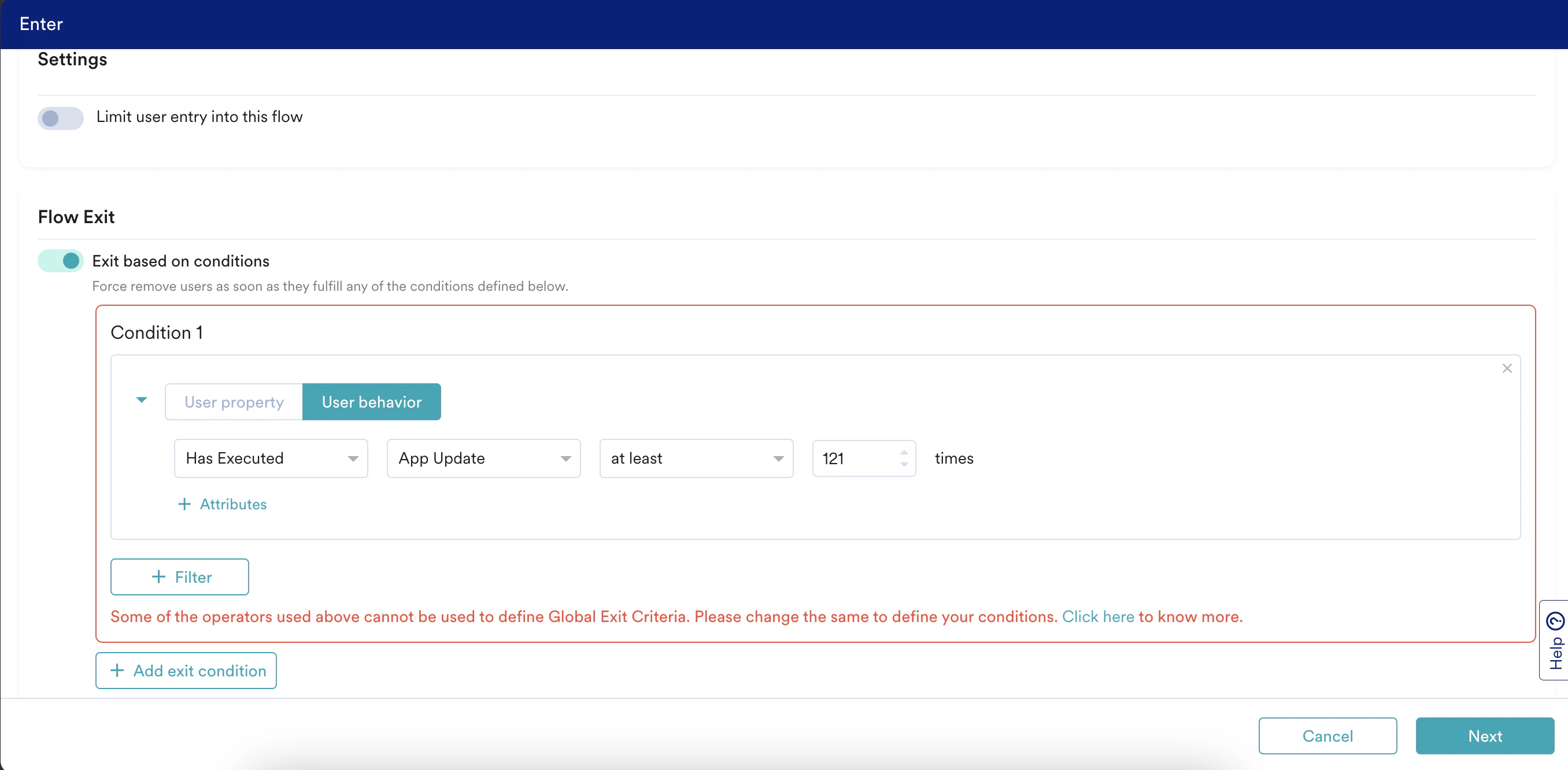 Click **+ Add exit condition** to include additional conditions, with a limit of five conditions. Each condition will be evaluated using OR logic with the others. If the users fulfills any of these conditions (in any order), they will exit the flow. For example, if the users fulfill the Condition 3 first, they will exit the flow even though they have not fulfilled the Condition 1.
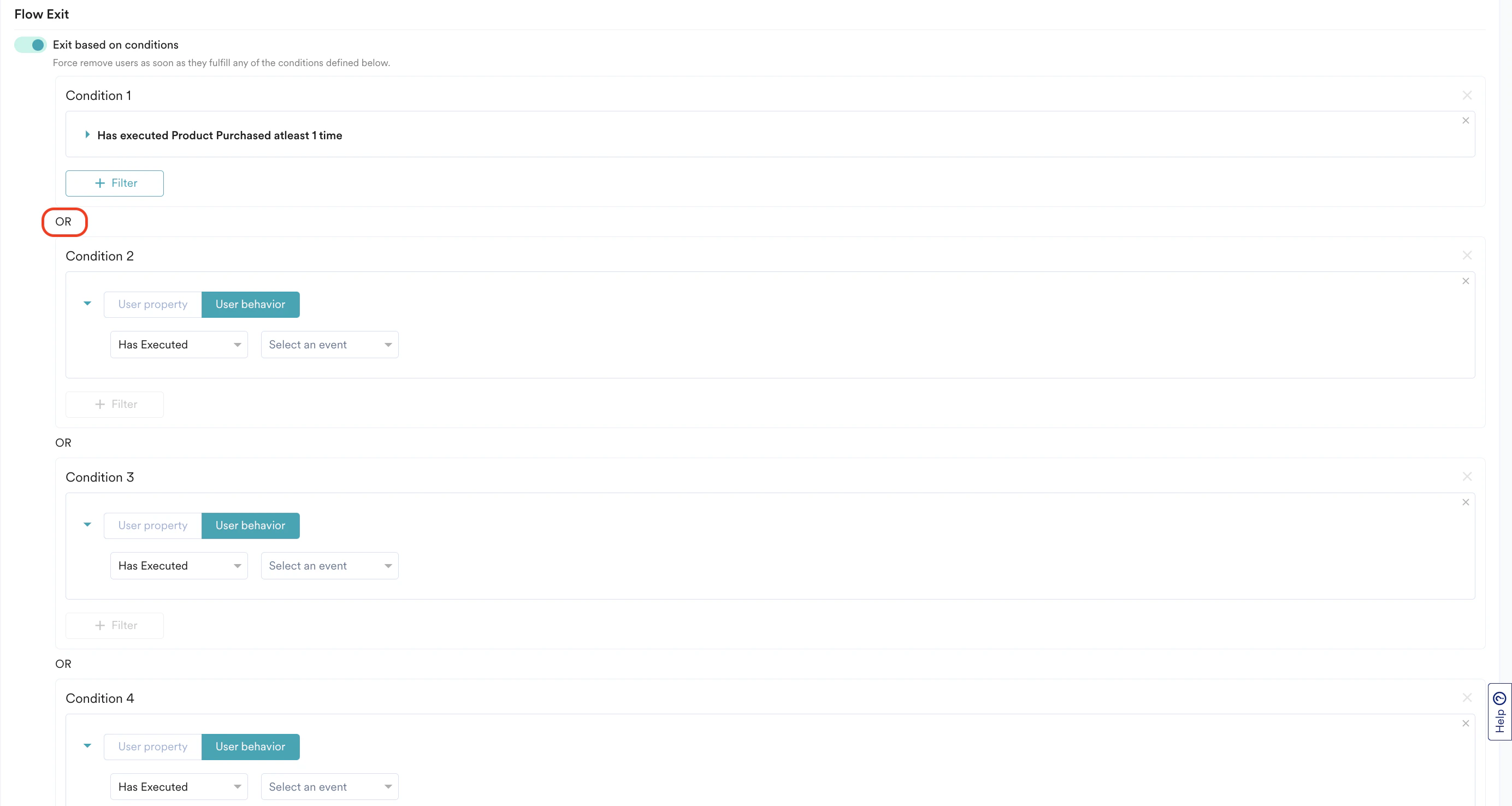 Within each condition, you can add sub-conditions. Click **+ Filter** to add more conditions. You can add a maximum of five sub-conditions. Each sub-condition will be evaluated using AND logic with the others. Only If the users fulfills all conditions, they will exit the flow.
 If there are multiple sub-conditions used in a condition, users must fulfill all sub-conditions within a 30-day period in any order to satisfy the exit condition. For example, in Condition 1, you have defined the following sub-conditions.
* Has Executed App/Site Opened at least 1 time
* Last Seen Date is on July 25, 2024
* Last Known City is New York
If there are multiple sub-conditions used in a condition, users must fulfill all sub-conditions within a 30-day period in any order to satisfy the exit condition. For example, in Condition 1, you have defined the following sub-conditions.
* Has Executed App/Site Opened at least 1 time
* Last Seen Date is on July 25, 2024
* Last Known City is New York
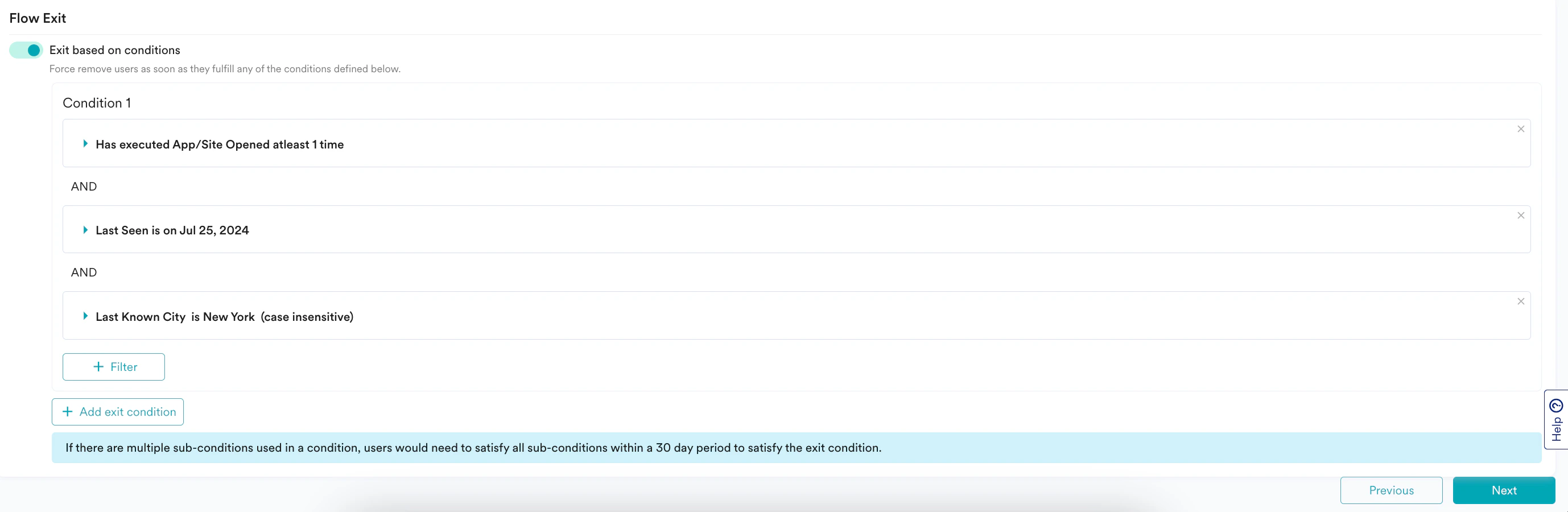 If the users fulfill the fist two conditions on August 1, 2024, they do not exit flow immediately. MoEngage waits for 30 days from August 1 for the last condition to be fulfilled. If it happens before August 31, the users will exit the flow. If it happens on September 2, the users will not exit the flow because the first two conditions are outside the 30-day window.
You can edit an exit criteria even after you publish the flow. However, MoEngage creates a new version of the flow in this case. This is not applicable for one-time flows.
Click **Next** to navigate to [Who will enter the flow](#Who-Will-Enter-the-Flow) step.\
OR\
Click **Previous** to navigate to the [Details and Goals](#Details-and-Goals) step.
## Who Will Enter the Flow
Select the Target Audience or the target segment for the flow. You can use multiple filters to create the target audience.\
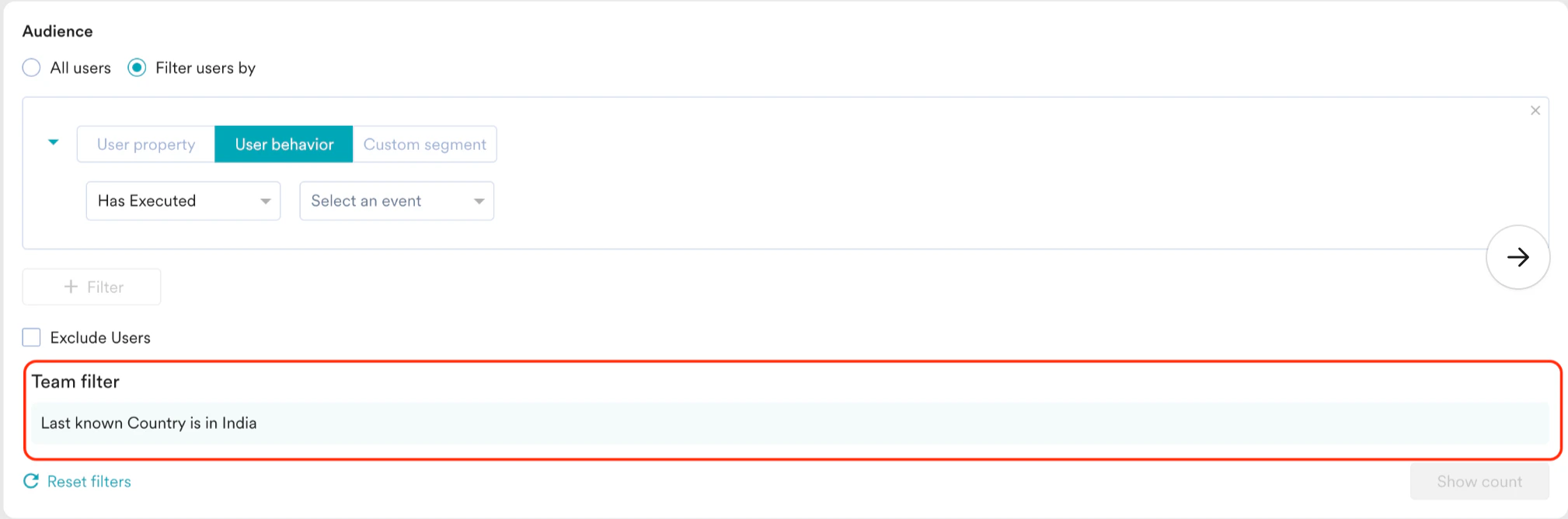
If your organization uses Teams 2.0, it automatically adds the team's original targeting criteria to any new rules you create. For more information, refer [here](/user-guide/settings/account/team-management/teams-20-in-moengage).
If the users fulfill the fist two conditions on August 1, 2024, they do not exit flow immediately. MoEngage waits for 30 days from August 1 for the last condition to be fulfilled. If it happens before August 31, the users will exit the flow. If it happens on September 2, the users will not exit the flow because the first two conditions are outside the 30-day window.
You can edit an exit criteria even after you publish the flow. However, MoEngage creates a new version of the flow in this case. This is not applicable for one-time flows.
Click **Next** to navigate to [Who will enter the flow](#Who-Will-Enter-the-Flow) step.\
OR\
Click **Previous** to navigate to the [Details and Goals](#Details-and-Goals) step.
## Who Will Enter the Flow
Select the Target Audience or the target segment for the flow. You can use multiple filters to create the target audience.\
If your organization uses Teams 2.0, it automatically adds the team's original targeting criteria to any new rules you create. For more information, refer [here](/user-guide/settings/account/team-management/teams-20-in-moengage).
 The following options are available:
This filter option allows you to select all the app users. When you use this option, you cannot add multiple filters.
The following options are available:
This filter option allows you to select all the app users. When you use this option, you cannot add multiple filters. 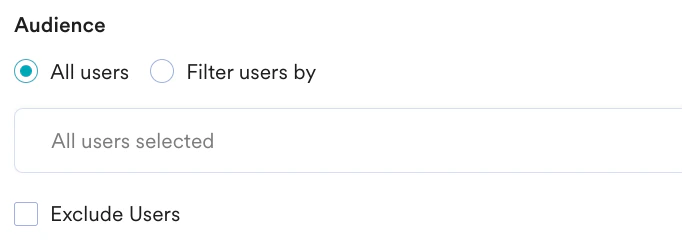 This filter option allows you to select the users based on user properties such as first seen, last seen, city, etc. Click the **User property** tab and do the following:
1. Select the desired attribute in the **Select attribute** list. This enables filters based on the attributes selected.
2. Select any filters with the conditions in the dropdown list. For example, string attributes can have filter conditions such as 'is' and 'is not,' while integer attributes can have different filters.
3. The default **Constant value** helps you complete the filter with specific static values. The **User attribute** (applicable for all types of flows) or **Business event attribute** (only for Business Event Triggered flows) option, as shown below, allows you to define the conditions using a different user attribute or business event attribute.\
For example, refer to the following screenshot to create a flow that announces the launch of a new *Thriller* series and targets users who have preferred the *Thriller* as the *Genre*.
This filter option allows you to select the users based on user properties such as first seen, last seen, city, etc. Click the **User property** tab and do the following:
1. Select the desired attribute in the **Select attribute** list. This enables filters based on the attributes selected.
2. Select any filters with the conditions in the dropdown list. For example, string attributes can have filter conditions such as 'is' and 'is not,' while integer attributes can have different filters.
3. The default **Constant value** helps you complete the filter with specific static values. The **User attribute** (applicable for all types of flows) or **Business event attribute** (only for Business Event Triggered flows) option, as shown below, allows you to define the conditions using a different user attribute or business event attribute.\
For example, refer to the following screenshot to create a flow that announces the launch of a new *Thriller* series and targets users who have preferred the *Thriller* as the *Genre*. 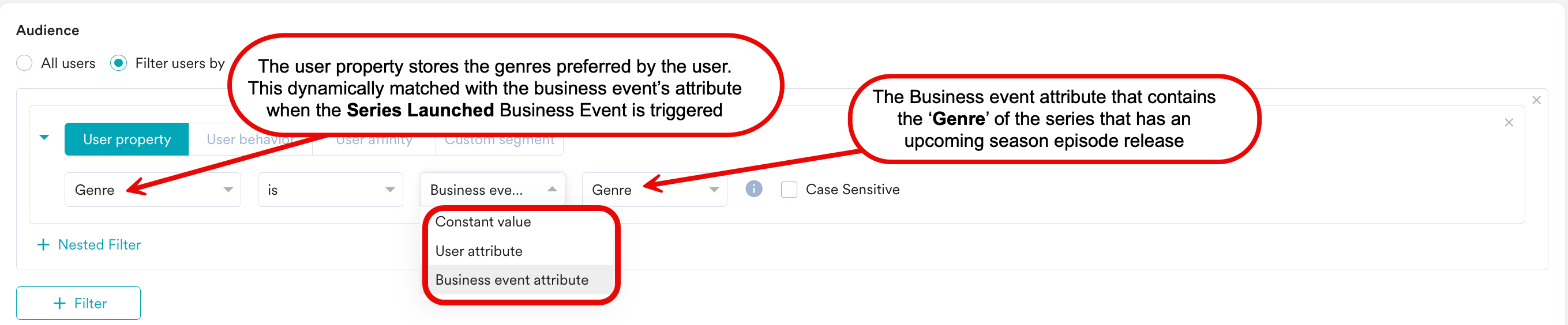 For more information, refer to [Create Segments](/user-guide/segment/segment-operations/create-segments).
This filter option allows you to select the users based on the behavior of the users or events, such as 'App/Site Opened,' 'Viewed Product,' and so on. Click the **User Behavior** tab and do the following:
1. Select the **User Behaviour** from the dropdown list.
2. Select an event in the **Select an event** list.
3. Enter the event frequency and time duration for the event execution.
4. Click **+ Attributes and** select the desired attribute in the **Select attribute** list. This enables filters based on the attributes selected. For example, string attributes can have filter conditions such as 'is' and 'is not,' while integer attributes can have different filters.
5. The default **Constant value** helps you complete the filter with specific static values. The **User attribute** (applicable for all types of flows) or **Business event attribute** (only for Business Event Triggered flows) option, as shown below, allows you to define the conditions using a different user attribute or business event attribute.For example, refer to the following screenshot to create a flow that announces the launch of a new *Thriller* series and targets users who have watched *Thriller* in the *Genre* at least once in the past 3 days:
For more information, refer to [Create Segments](/user-guide/segment/segment-operations/create-segments).
This filter option allows you to select the users based on the behavior of the users or events, such as 'App/Site Opened,' 'Viewed Product,' and so on. Click the **User Behavior** tab and do the following:
1. Select the **User Behaviour** from the dropdown list.
2. Select an event in the **Select an event** list.
3. Enter the event frequency and time duration for the event execution.
4. Click **+ Attributes and** select the desired attribute in the **Select attribute** list. This enables filters based on the attributes selected. For example, string attributes can have filter conditions such as 'is' and 'is not,' while integer attributes can have different filters.
5. The default **Constant value** helps you complete the filter with specific static values. The **User attribute** (applicable for all types of flows) or **Business event attribute** (only for Business Event Triggered flows) option, as shown below, allows you to define the conditions using a different user attribute or business event attribute.For example, refer to the following screenshot to create a flow that announces the launch of a new *Thriller* series and targets users who have watched *Thriller* in the *Genre* at least once in the past 3 days: 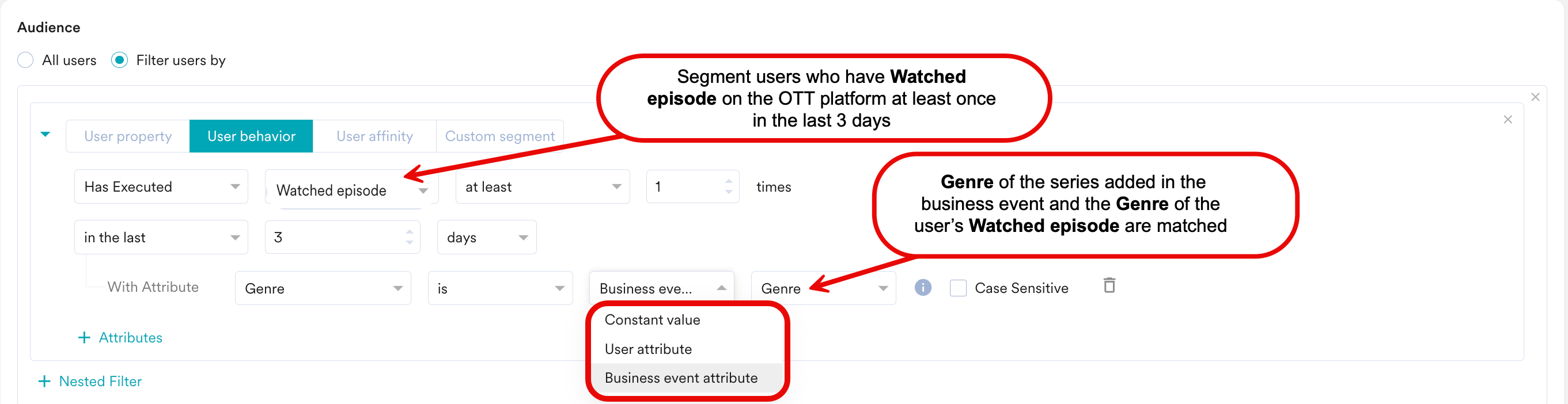 For more information, refer to [Create Segments](/user-guide/segment/segment-operations/create-segments)
1. Select the desired user event or attribute.
2. Select the user affinity parameter from the following:
* **Predominantly**: Select affinity attribute with a filter condition and provide the affinity values.
* **For a minimum of**: Select affinity attribute with a filter condition and provide the affinity values.
* **Most no. of times**: Enter a value or use the arrows to provide the top percentage of users.
* **Least no. of times**: Enter a value or use the arrows to provide the bottom percentage of users.
3. Enter or use the arrows to provide the time duration for the event execution.
4. Click **+ Attributes** to add more attributes to the filter. For more information, refer to [Create Segments](/user-guide/segment/segment-operations/create-segments)
For more information, refer to [Create Segments](/user-guide/segment/segment-operations/create-segments)
1. Select the desired user event or attribute.
2. Select the user affinity parameter from the following:
* **Predominantly**: Select affinity attribute with a filter condition and provide the affinity values.
* **For a minimum of**: Select affinity attribute with a filter condition and provide the affinity values.
* **Most no. of times**: Enter a value or use the arrows to provide the top percentage of users.
* **Least no. of times**: Enter a value or use the arrows to provide the bottom percentage of users.
3. Enter or use the arrows to provide the time duration for the event execution.
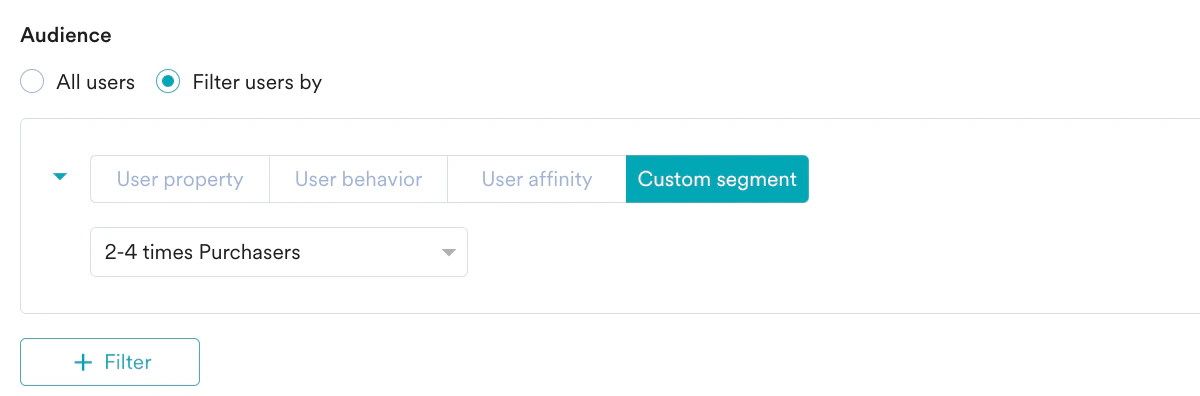
4. Click **+ Attributes** to add more attributes to the filter. For more information, refer to [Create Segments](/user-guide/segment/segment-operations/create-segments) 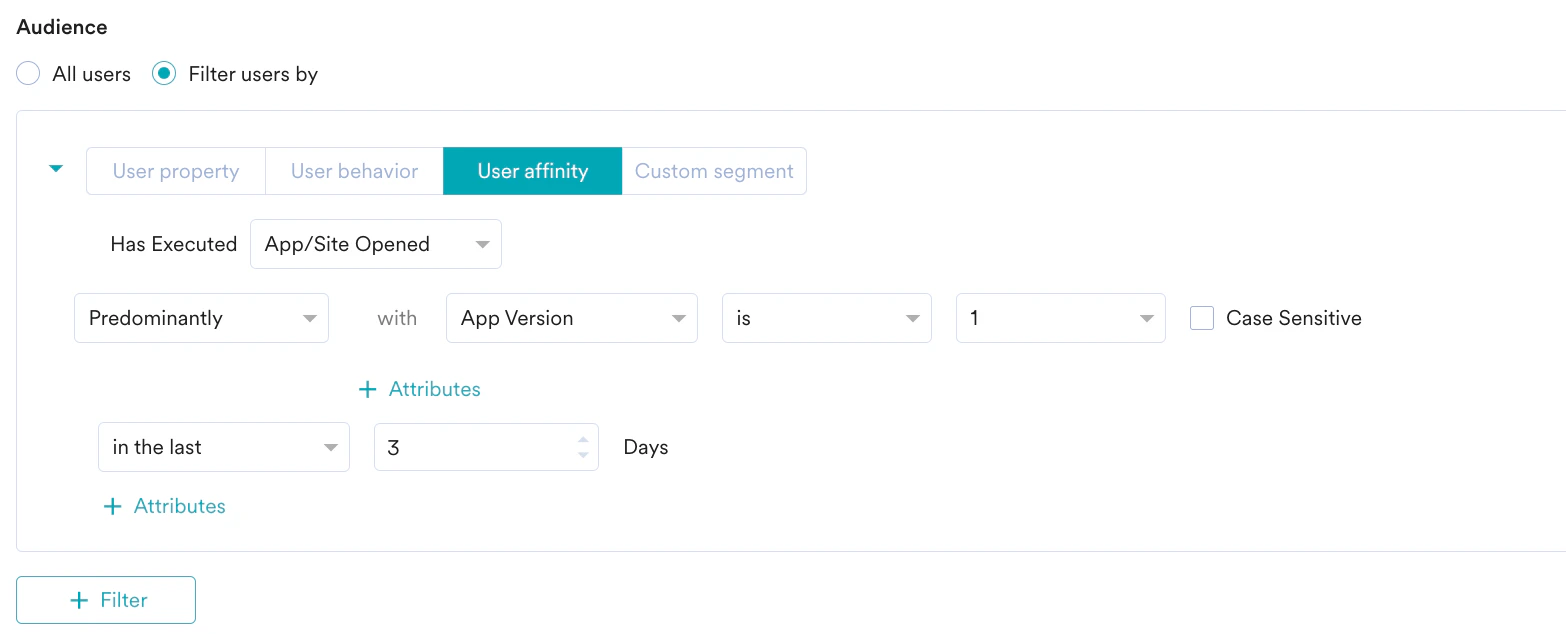 This filter option allows you to select a custom segment as the target audience. Select a custom segment as the target audience from the list of custom segments available. For more information, refer to [Custom Segments](/user-guide/segment/segment-operations/custom-segments).
  After selecting the filter criteria, you can do the following as well:
 * **Create Multiple Filters** You can create and combine multiple user property rules, user activity rules, and custom segment rules to create a complex user segment using this option.
1. Click **+ Filter**.
2. Click **AND** or **OR**.
3. Select the attribute or event and define the filter conditions.
* **Exclude Users**: Select this checkbox to define the filter criteria for users to be excluded from the flow. For more information on excluding users, refer to [Preference Management](/user-guide/campaigns-and-channels/mobile-push/getting-started-with-mobile-push/preference-management-for-push-notifications).
* **Reset filters**: Click this option to reset the segmentation filters.
* **Show count**: Click this button to display the total number of users who are currently in the configured segment.
* **Create Multiple Filters** You can create and combine multiple user property rules, user activity rules, and custom segment rules to create a complex user segment using this option.
1. Click **+ Filter**.
2. Click **AND** or **OR**.
3. Select the attribute or event and define the filter conditions.
* **Exclude Users**: Select this checkbox to define the filter criteria for users to be excluded from the flow. For more information on excluding users, refer to [Preference Management](/user-guide/campaigns-and-channels/mobile-push/getting-started-with-mobile-push/preference-management-for-push-notifications).
* **Reset filters**: Click this option to reset the segmentation filters.
* **Show count**: Click this button to display the total number of users who are currently in the configured segment. 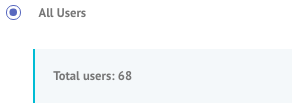 ### Control Group
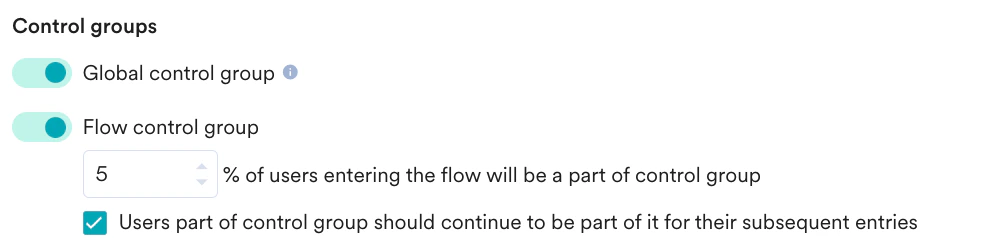
You can enable the control groups to which you want to send the campaign. For more information about control groups, refer to [Control Group](/user-guide/campaigns-and-channels/getting-started/introduction/control-groups). In the **Control groups** section:
* Turn the **Global control group** toggle on to not send the campaign to the list of users in the Global control group. Refer to [here](/user-guide/settings/advanced-settings/global-control-group) to know more.
* Turn the **Flow control group** toggle on to not send the campaigns in this particular flow to a random subset of users. Refer [here](/user-guide/campaigns-and-channels/getting-started/introduction/control-groups) to know more.
* Define the percentage of users to be marked as the Control group when they enter the flow.
* Keep the selection of the "**Users part of control group should continue to be part of it for their subsequent entries"** checkbox to continue users who are part of the control group in their subsequent entries.\
For more information, refer to [Control Group](https://moengage.com/docs/user-guide/campaigns-and-channels/getting-started/introduction/control-groups).
### Control Group
You can enable the control groups to which you want to send the campaign. For more information about control groups, refer to [Control Group](/user-guide/campaigns-and-channels/getting-started/introduction/control-groups). In the **Control groups** section:
* Turn the **Global control group** toggle on to not send the campaign to the list of users in the Global control group. Refer to [here](/user-guide/settings/advanced-settings/global-control-group) to know more.
* Turn the **Flow control group** toggle on to not send the campaigns in this particular flow to a random subset of users. Refer [here](/user-guide/campaigns-and-channels/getting-started/introduction/control-groups) to know more.
* Define the percentage of users to be marked as the Control group when they enter the flow.
* Keep the selection of the "**Users part of control group should continue to be part of it for their subsequent entries"** checkbox to continue users who are part of the control group in their subsequent entries.\
For more information, refer to [Control Group](https://moengage.com/docs/user-guide/campaigns-and-channels/getting-started/introduction/control-groups).
 Click **Next** to open the flow in the Canvas.\
OR\
Click **Previous** to go to the [When will users enter the flow](#When-will-users-enter-the-flow) step.
# Design and Publish Your Flow
1. To design the structure of your flow, click **+** to add the following to the flows:
* [Actions](/user-guide/flows-cross-channel-messaging/create/actions-in-flows/add-actions-to-flows)
* [Conditions](/user-guide/flows-cross-channel-messaging/create/conditions-and-controls-in-flows/branching-of-users-in-flows)
* [Controls](/user-guide/flows-cross-channel-messaging/create/conditions-and-controls-in-flows/force-move-or-delay-users-in-flows)
2. After the structure of your flow is ready, click **Save** to save it as a draft. To publish the flow your next action depends on your account's settings:
* If the Campaign Approval workflow is disabled, you can publish the flow directly.
* If the Campaign Approval workflow is enabled and you have the permission to create, manage, and publish campaigns, you can publish the flow directly.
* If the Campaign Approval workflow is enabled and you only have the **Create & Manage** permission, you must submit the flow for approval. For more information, refer [here](#When-Will-Users-Enter-the-Flow).
## The Approval Flow
As a creator, to send the flow for approval, perform the following steps:
1. On the flow canvas page, select the **Actions** button on the right side.
2. In the **Actions** list, select **Send for Approval**. The **Send for approval** pop-up window appears.\
The MoEngage identifies any configuration errors in your flow which are displayed in the **Error** panel on the right side of the canvas.You must resolve all listed errors before you can send the flow for approval.
Click **Next** to open the flow in the Canvas.\
OR\
Click **Previous** to go to the [When will users enter the flow](#When-will-users-enter-the-flow) step.
# Design and Publish Your Flow
1. To design the structure of your flow, click **+** to add the following to the flows:
* [Actions](/user-guide/flows-cross-channel-messaging/create/actions-in-flows/add-actions-to-flows)
* [Conditions](/user-guide/flows-cross-channel-messaging/create/conditions-and-controls-in-flows/branching-of-users-in-flows)
* [Controls](/user-guide/flows-cross-channel-messaging/create/conditions-and-controls-in-flows/force-move-or-delay-users-in-flows)
2. After the structure of your flow is ready, click **Save** to save it as a draft. To publish the flow your next action depends on your account's settings:
* If the Campaign Approval workflow is disabled, you can publish the flow directly.
* If the Campaign Approval workflow is enabled and you have the permission to create, manage, and publish campaigns, you can publish the flow directly.
* If the Campaign Approval workflow is enabled and you only have the **Create & Manage** permission, you must submit the flow for approval. For more information, refer [here](#When-Will-Users-Enter-the-Flow).
## The Approval Flow
As a creator, to send the flow for approval, perform the following steps:
1. On the flow canvas page, select the **Actions** button on the right side.
2. In the **Actions** list, select **Send for Approval**. The **Send for approval** pop-up window appears.\
The MoEngage identifies any configuration errors in your flow which are displayed in the **Error** panel on the right side of the canvas.You must resolve all listed errors before you can send the flow for approval. 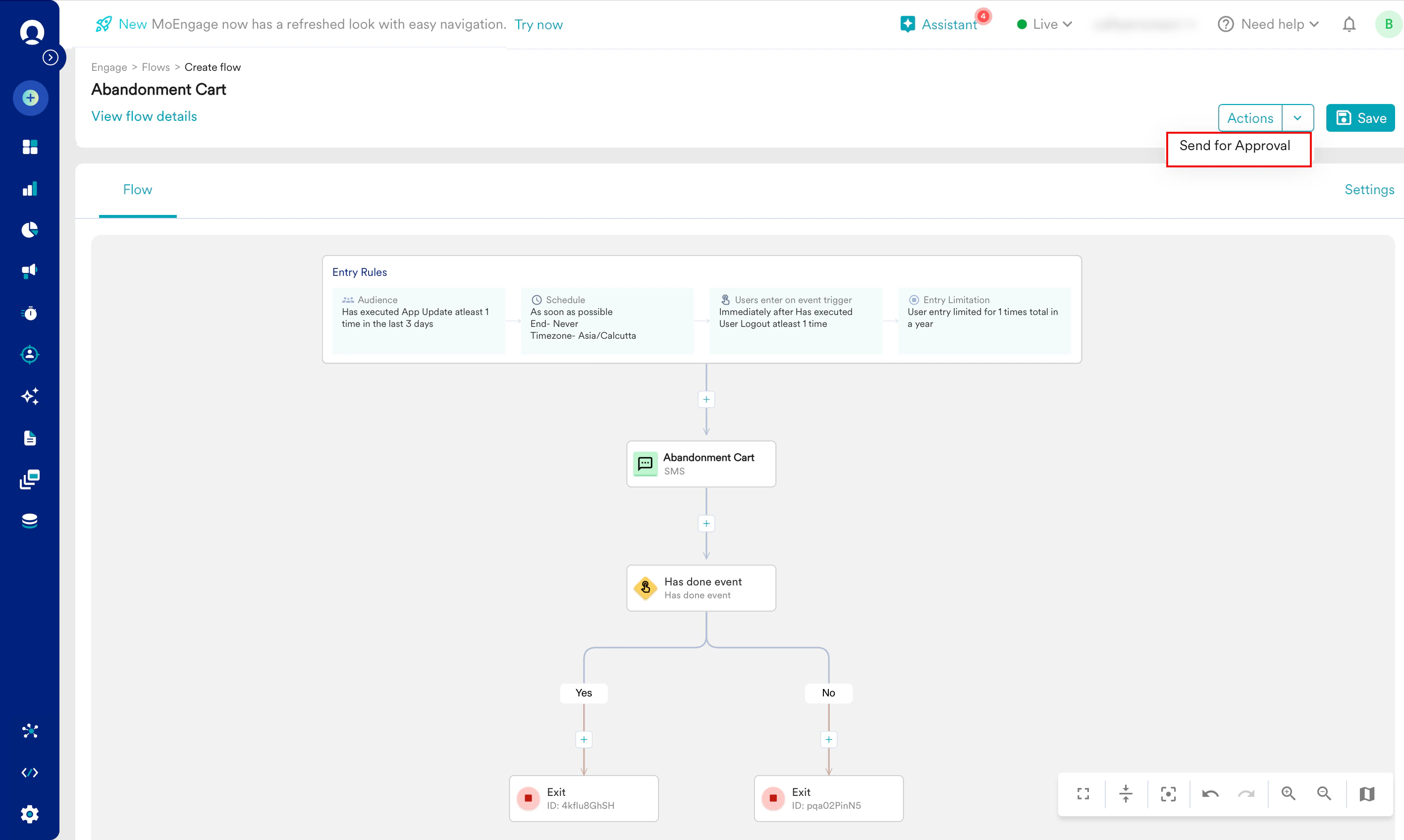 3. You must select the users who would review and approve your flow.
1. In the **Start typing to filter approvers** box, search for the users (Admins or Managers) from the team you selected in the [Details and Goals](#h_01HWK15KM97Q81E3AGRN9E1XB6) step.
2. Click **+ Add next** to the name of each user you want to review the flow. The selected users appear in the **Selected Approvers** section on the right.
4. In the **Add yours comment here (optional)** box, you can add comments to provide context, instructions, or notes for your approvers.
5. Click **Send for approval**.
3. You must select the users who would review and approve your flow.
1. In the **Start typing to filter approvers** box, search for the users (Admins or Managers) from the team you selected in the [Details and Goals](#h_01HWK15KM97Q81E3AGRN9E1XB6) step.
2. Click **+ Add next** to the name of each user you want to review the flow. The selected users appear in the **Selected Approvers** section on the right.
4. In the **Add yours comment here (optional)** box, you can add comments to provide context, instructions, or notes for your approvers.
5. Click **Send for approval**. 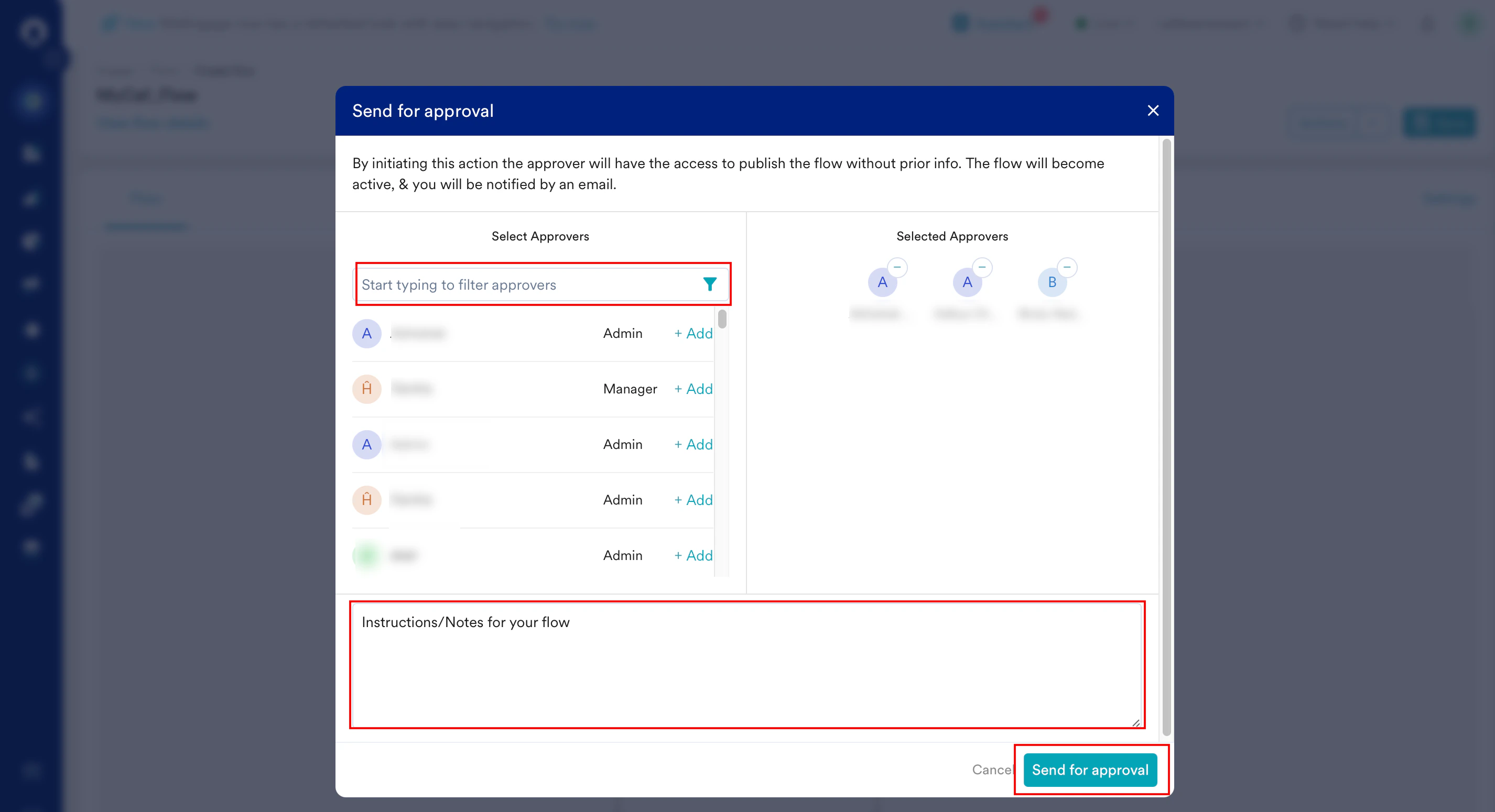 6. The selected approvers receive an email notification informing them that the flow is awaiting their review. While the flow is in the **Under Review** state, you have the following options.
1. **Edit the flow**: You can edit a flow that is **Under Review**. After making the edits, you must resend the flow for another review by clicking **Update and send for approval**. Then, repeat steps 3 through 5.
6. The selected approvers receive an email notification informing them that the flow is awaiting their review. While the flow is in the **Under Review** state, you have the following options.
1. **Edit the flow**: You can edit a flow that is **Under Review**. After making the edits, you must resend the flow for another review by clicking **Update and send for approval**. Then, repeat steps 3 through 5. 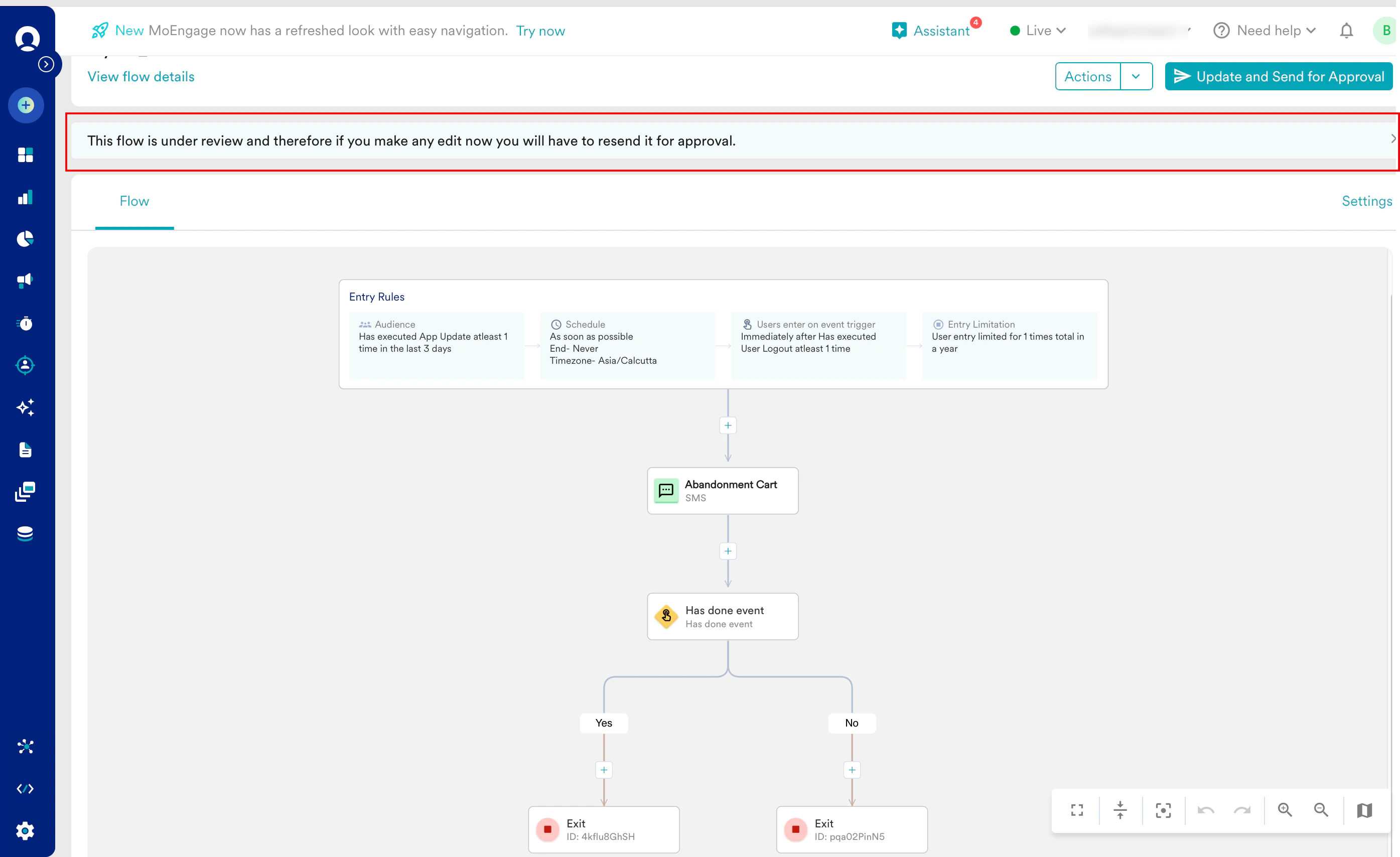 2. **Follow up with approvers**: To follow-up, click **Remind Reviewers**.The approvers receive a reminder notification.
 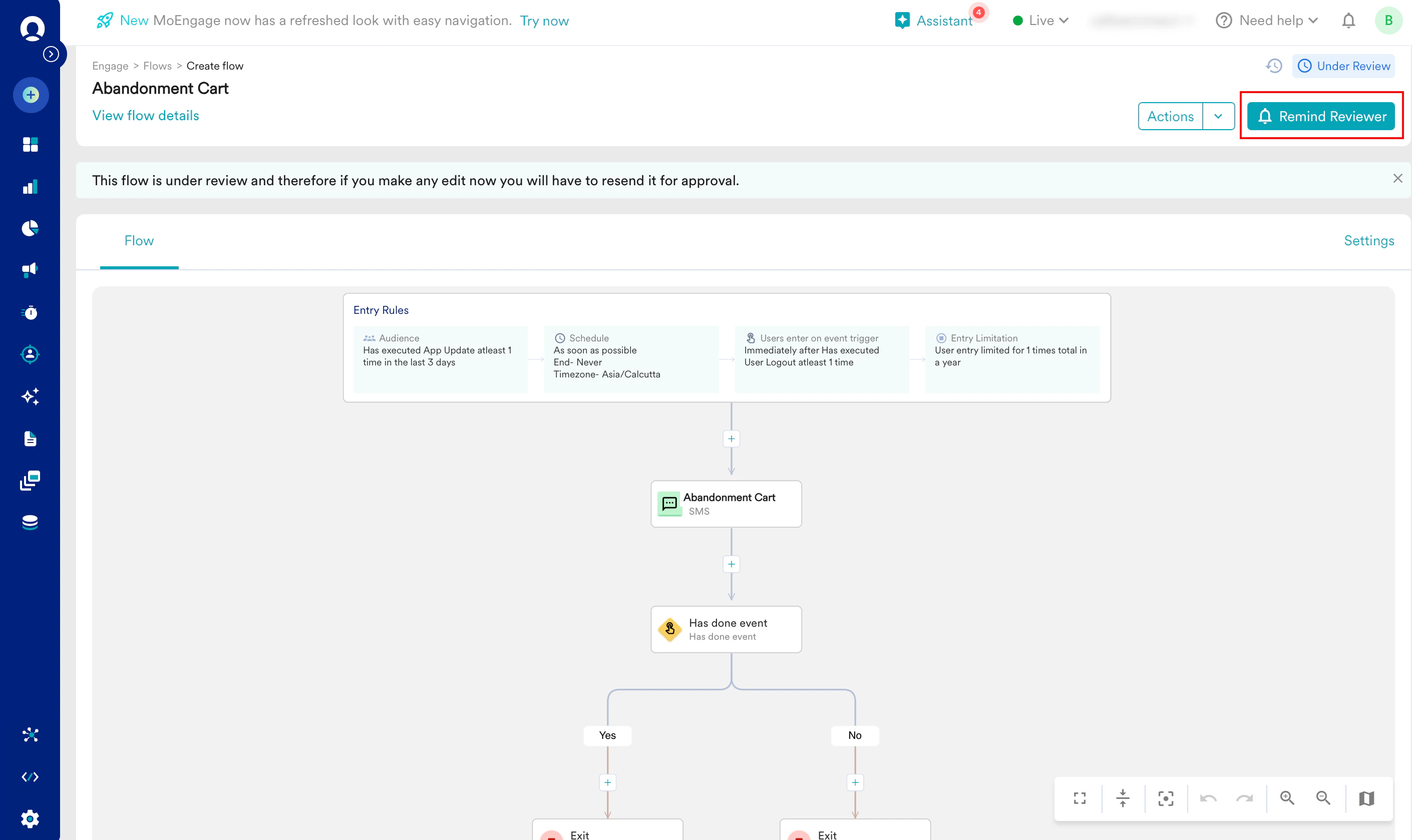 To review the flow, perform the following steps:
1. Open the email you received from MoEngage and click **Click to** **Review Flow**.
To review the flow, perform the following steps:
1. Open the email you received from MoEngage and click **Click to** **Review Flow**. 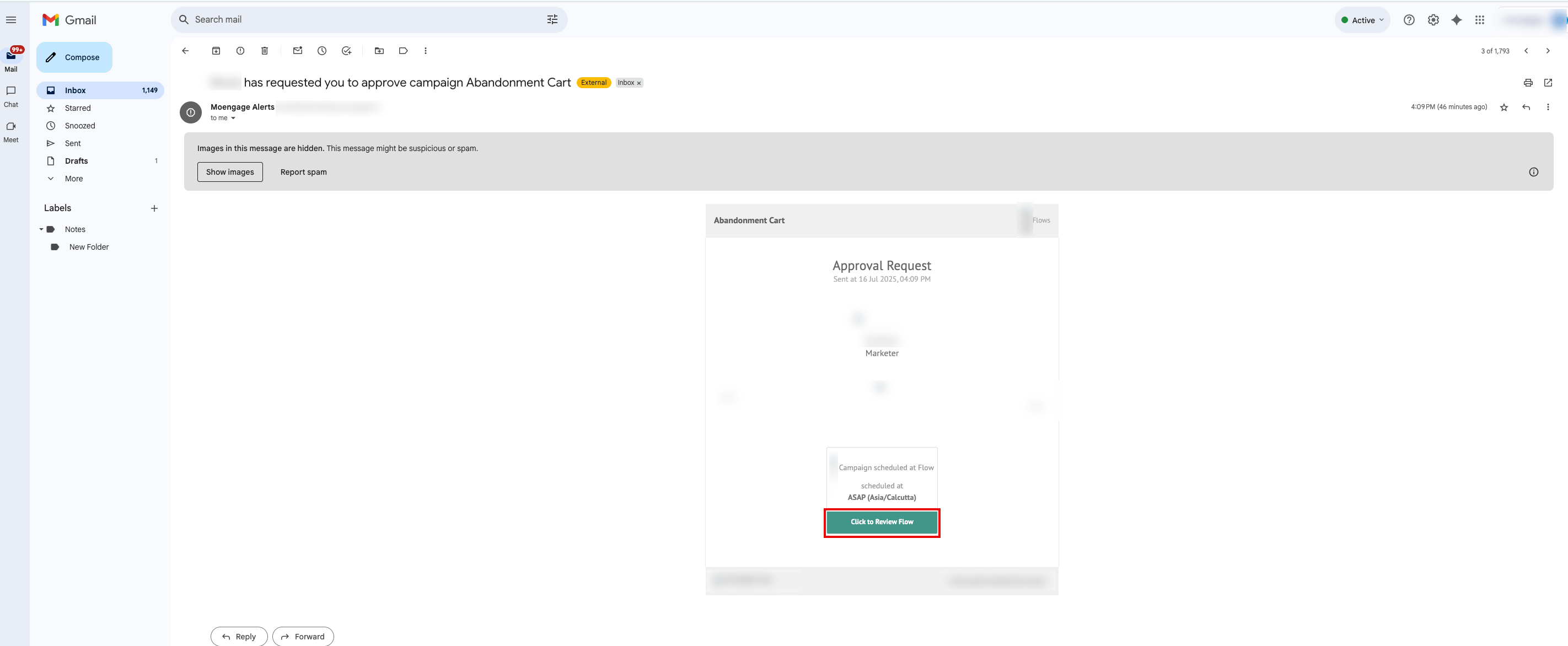 OR.\
Navigate to the **All Flows** page. In the **Select status** filter select the **Under Review** checkbox.This provides the list of flows awaiting your approval.
2. Click the flow you want to open.
OR.\
Navigate to the **All Flows** page. In the **Select status** filter select the **Under Review** checkbox.This provides the list of flows awaiting your approval.
2. Click the flow you want to open. 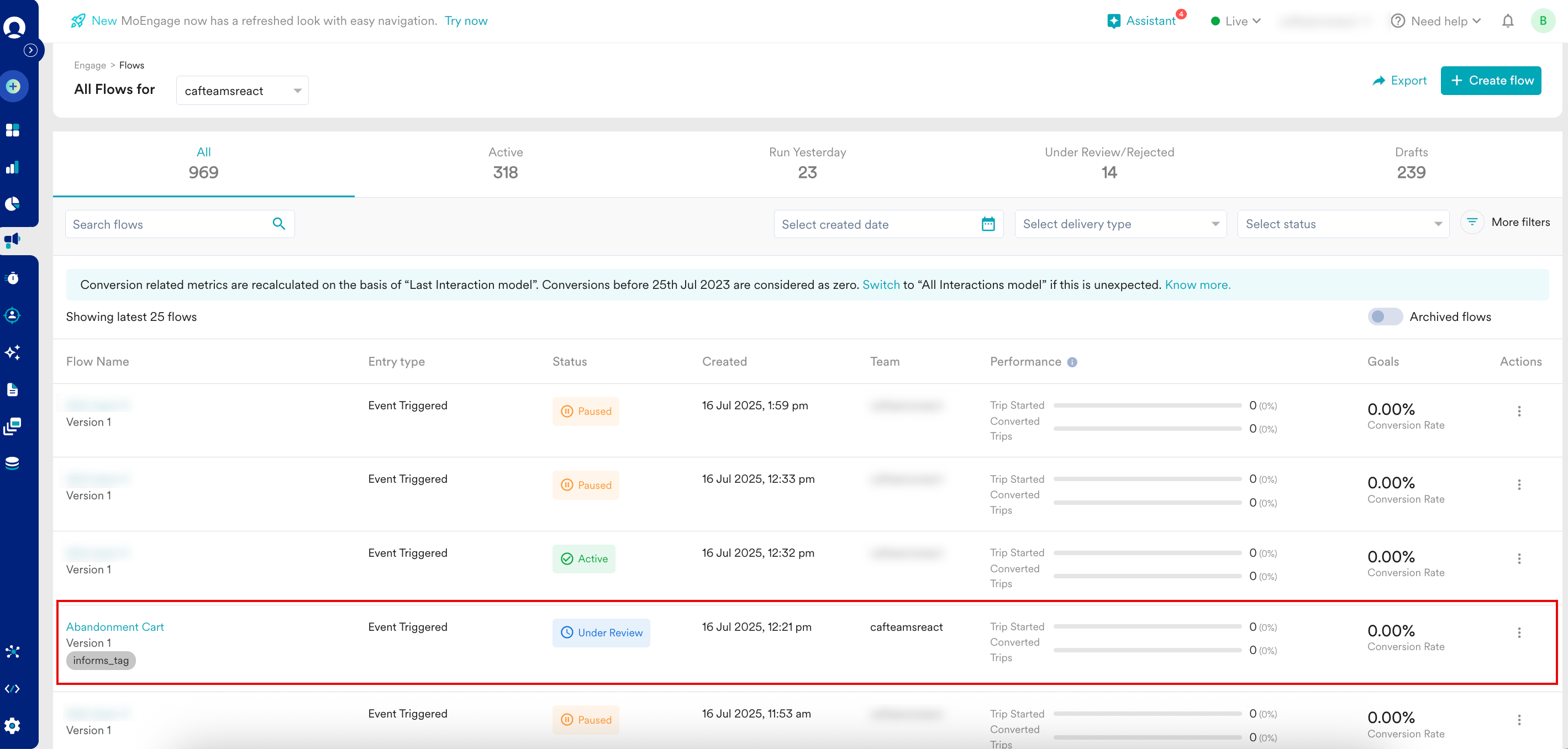 You must review the flow by verifying the configurations of every stage. After the review is complete, and if there are no corrections required for the flow, perform the following steps:
1. On the flow canvas page, click **Approve and Publish** on the right side.
You must review the flow by verifying the configurations of every stage. After the review is complete, and if there are no corrections required for the flow, perform the following steps:
1. On the flow canvas page, click **Approve and Publish** on the right side. 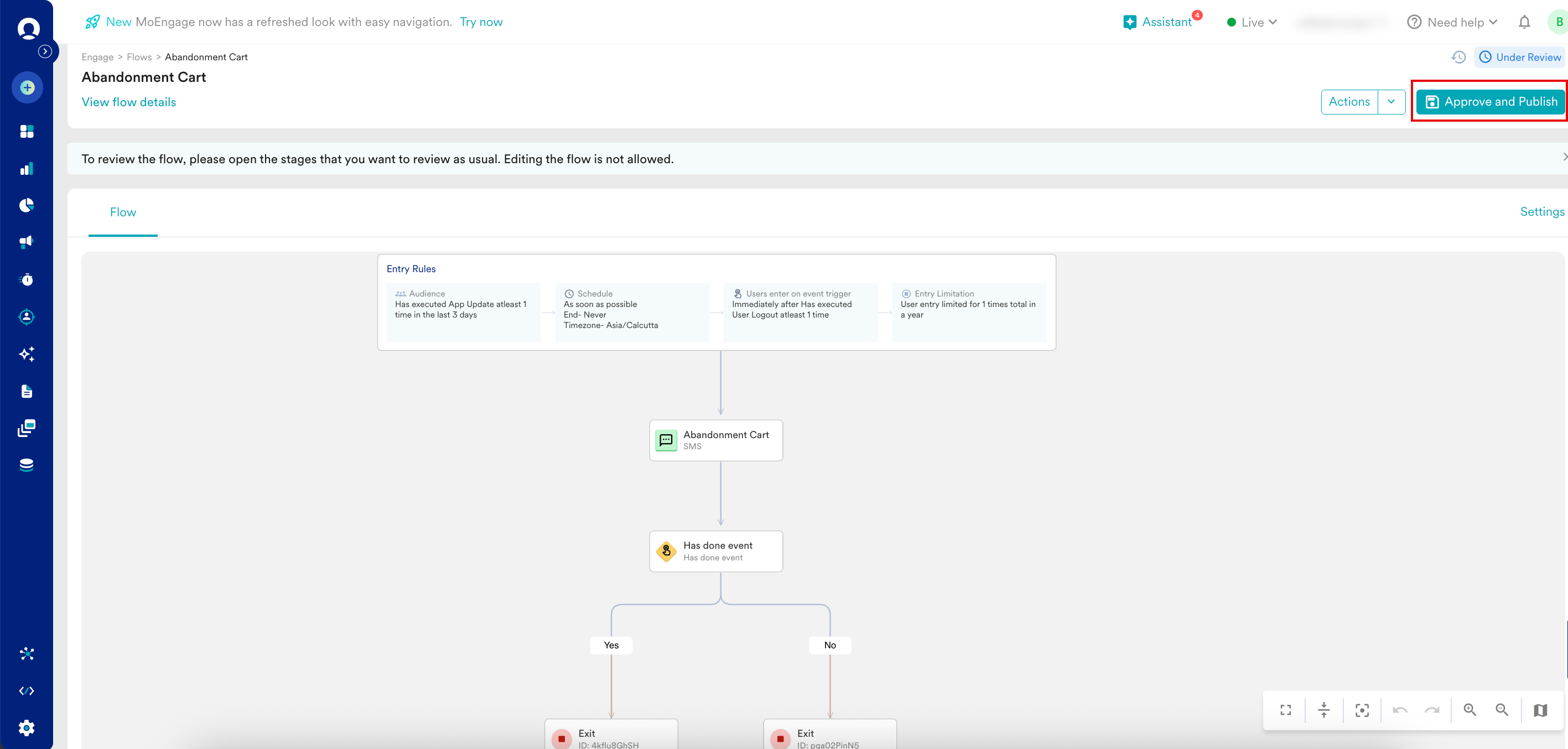 The **Approve & publish** flow pop-up window appears.
2. In the **Add yours comment here** **(optional)** box, add the comments for the creator.
3. Click **Approve & publish**.
The **Approve & publish** flow pop-up window appears.
2. In the **Add yours comment here** **(optional)** box, add the comments for the creator.
3. Click **Approve & publish**. 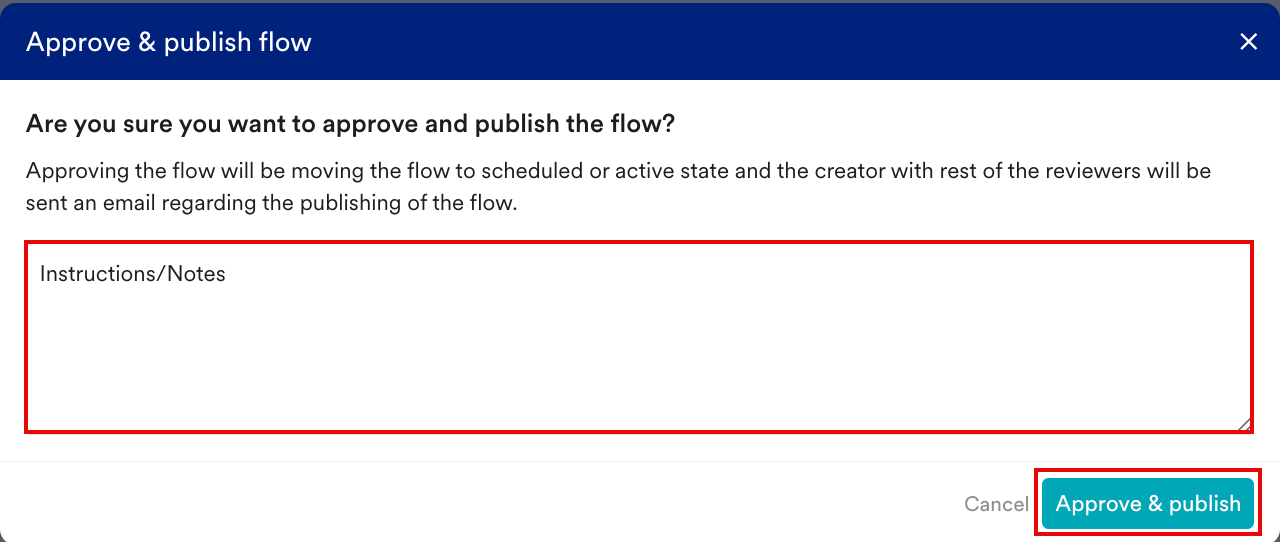 After you publish, the flow becomes **Active** or **Scheduled** based on the flow (for example, **On event trigger** or **At fixed time**). The creator and the other approvers receive an email notification informing them that the flow is published. If the flow requires corrections, you must perform the following steps:
1. On the flow canvas page,select the **Actions** button on the right side.
2. In the **Actions** list, select **Reject**.
After you publish, the flow becomes **Active** or **Scheduled** based on the flow (for example, **On event trigger** or **At fixed time**). The creator and the other approvers receive an email notification informing them that the flow is published. If the flow requires corrections, you must perform the following steps:
1. On the flow canvas page,select the **Actions** button on the right side.
2. In the **Actions** list, select **Reject**. 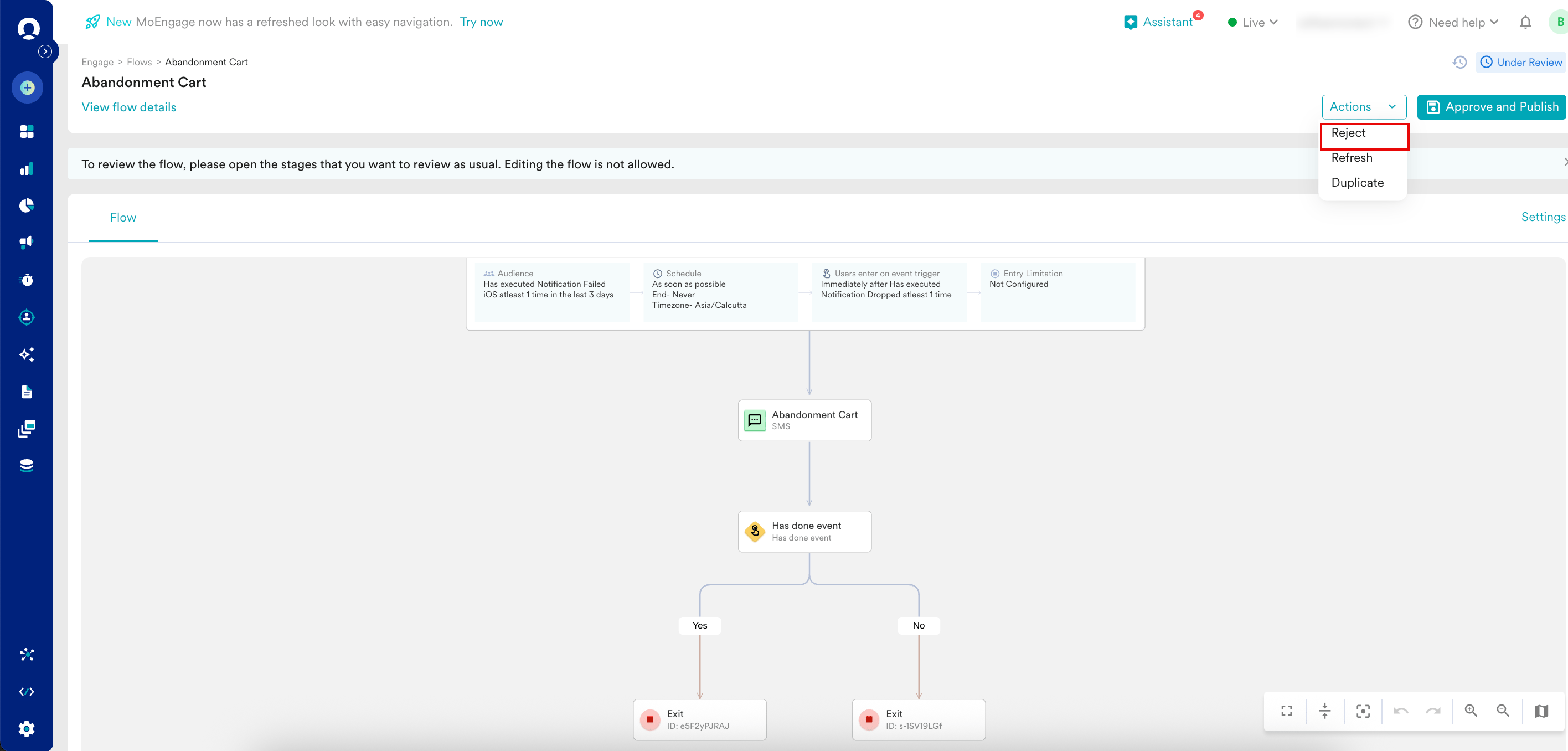 The **Reject the flow** pop-up window appears.
3. In the **Add your comments here** box, you must add comments that explain why the creator needs to make edits.
4. Click **Reject flow**.
The **Reject the flow** pop-up window appears.
3. In the **Add your comments here** box, you must add comments that explain why the creator needs to make edits.
4. Click **Reject flow**. 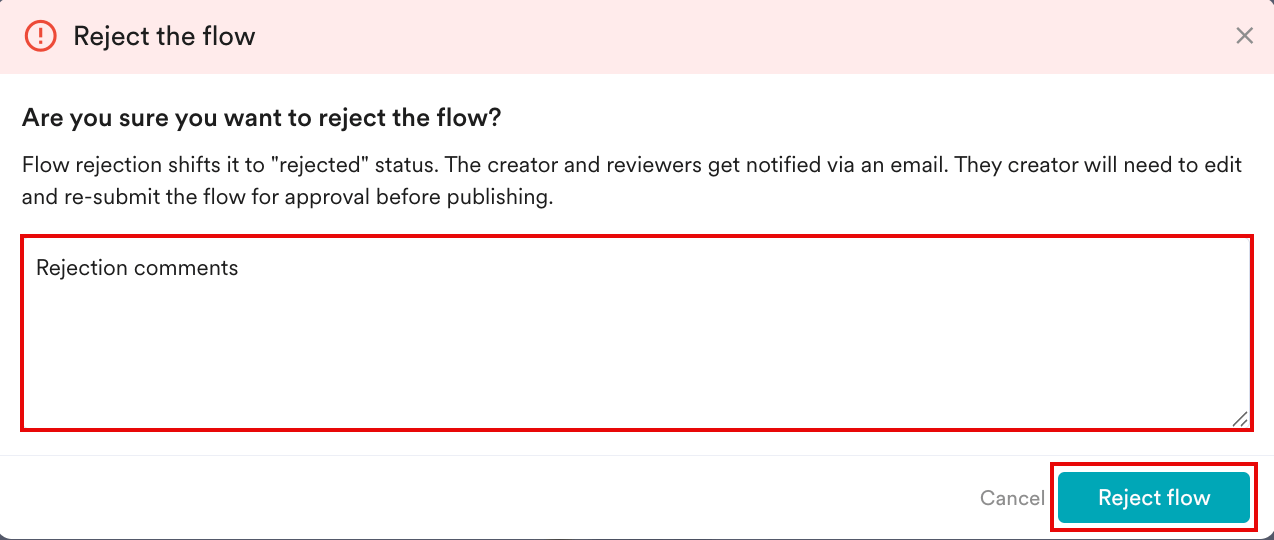 After you reject the flow, the creator and other approvers receive an email notification with your comments.
* When a flow is rejected, creators can find the approver's comments in their email notification and the [Flow Audit logs](/user-guide/flows-cross-channel-messaging/create/create-flows/editing-a-flow).
* After making the requested changes, MoEngage can resubmit the flow by following the approval process. For more information, refer [here](#The-Approval-Flow).
All MoEngage AI products, which were previously referred to as *Sherpa AI*, are now known as *Merlin AI*.
After you reject the flow, the creator and other approvers receive an email notification with your comments.
* When a flow is rejected, creators can find the approver's comments in their email notification and the [Flow Audit logs](/user-guide/flows-cross-channel-messaging/create/create-flows/editing-a-flow).
* After making the requested changes, MoEngage can resubmit the flow by following the approval process. For more information, refer [here](#The-Approval-Flow).
All MoEngage AI products, which were previously referred to as *Sherpa AI*, are now known as *Merlin AI*.