> ## Documentation Index
> Fetch the complete documentation index at: https://moengage.com/docs/llms.txt
> Use this file to discover all available pages before exploring further.
# Web Push Notifications Integration Validation
> Validate web push notification integration with MoEngage step by step. Test push token generation, notification delivery, and click tracking on browsers.
This article explains Web Push Notifications Integration validation manually in a stepwise manner.
# What is to be Validated?
To make sure Push notifications are working properly.
# Validation Procedure
1. Push Token Generation
* On [your profile](/user-guide/data/user-data/user-profile) page, the Web push icon has to be green.
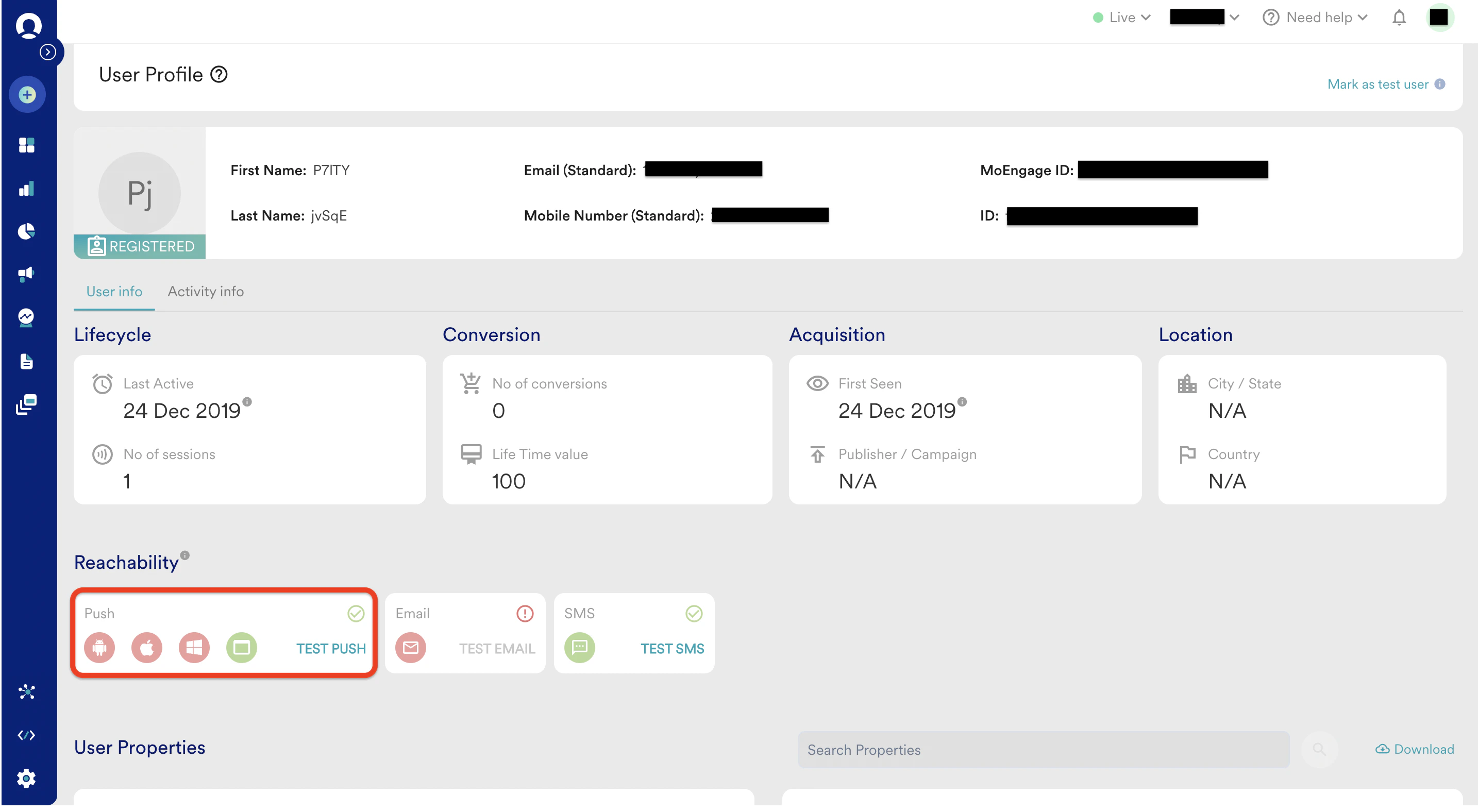 * You can also check this by installing the MoEngage extension on your browser. [Link](https://chrome.google.com/webstore/detail/moengage-sdk/dhggnkfnnoebbfofpimfehcklnekmbgi)
.png?fit=max&auto=format&n=ug1DZn3QSotOzs8r&q=85&s=31b9da4a3a506533a257266d399dc73d) 2. Push notification received on the device
* Create a general Push campaign on the Dashboard for your device
* Test the notification from the test option at the 3rd stage of creation.
* If you get a successful response, create a campaign. In the case of failure, check for the failure reasons.
2. Push notification received on the device
* Create a general Push campaign on the Dashboard for your device
* Test the notification from the test option at the 3rd stage of creation.
* If you get a successful response, create a campaign. In the case of failure, check for the failure reasons.
.png?fit=max&auto=format&n=ug1DZn3QSotOzs8r&q=85&s=759d302a4fad80380a9fde7f496c262e) 3. Notification Redirection
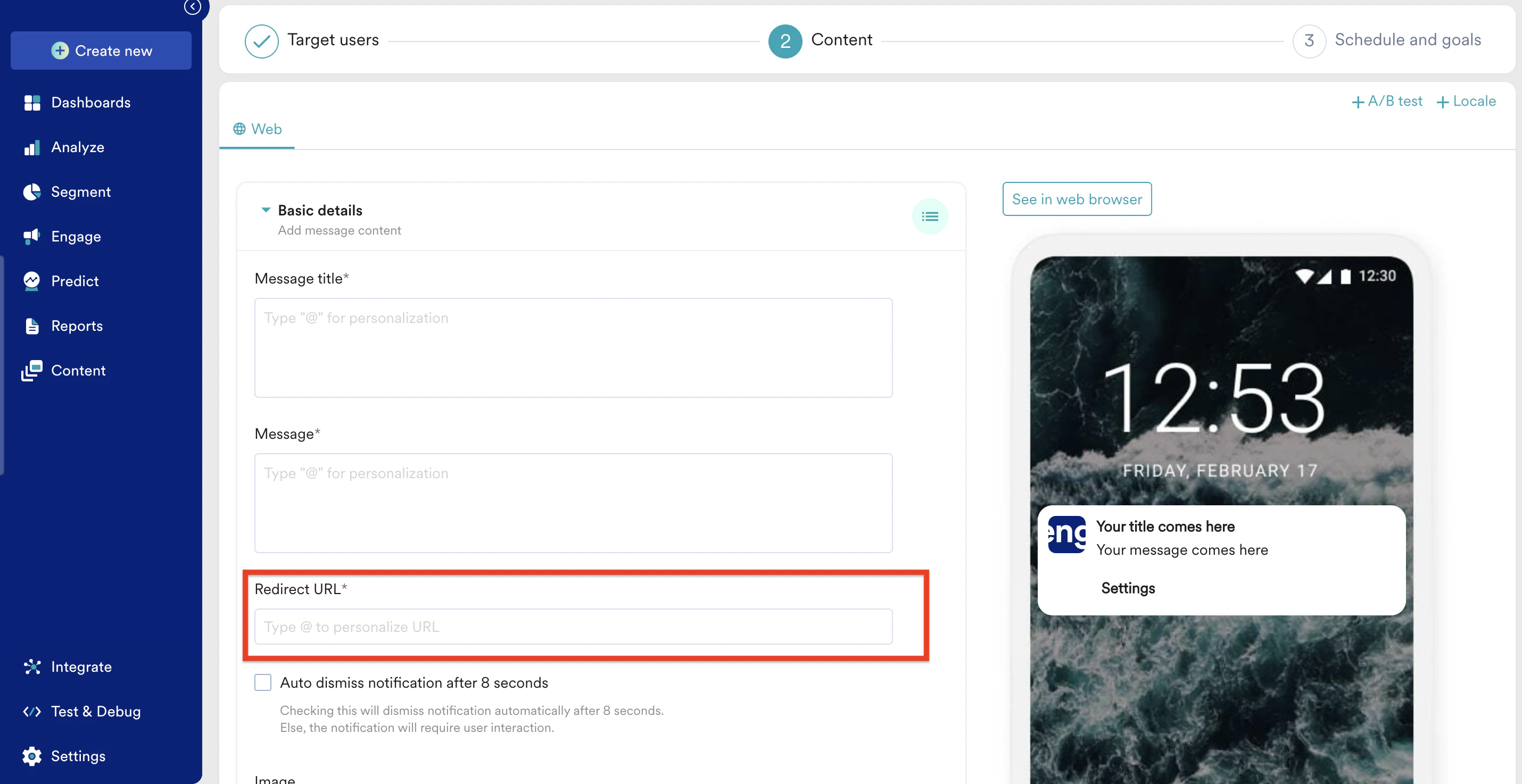
* Provide the redirection URL while creating the campaign. And once the message is received click on it and check if it is redirecting you to the URL
3. Notification Redirection
* Provide the redirection URL while creating the campaign. And once the message is received click on it and check if it is redirecting you to the URL
 4. Notification stats
* Once the campaign is sent out, the campaign stats should show the impressions and clicks.
4. Notification stats
* Once the campaign is sent out, the campaign stats should show the impressions and clicks.
.png?fit=max&auto=format&n=ug1DZn3QSotOzs8r&q=85&s=f7845710816472431dbe7f14ea28d06f) # Success Criteria
1. Push token has to be generated for the users
2. Notification should be displayed correctly
3. The redirection should work as expected
4. The Impressions and clicks have to be captured.
# Potential issues and Solutions
1. If tokens are not generated correctly, the reachable user base will be less than the actual users. To fix issues related to tokens, please check the [Web](/developer-guide/web-sdk/web-push/web-push-overview) SDK docs.
2. Incorrect Redirection will lead to confusion/miss in opportunities.
3. If the clicks and impressions are not recorded, we cannot understand the impact of the campaign. To fix impressions and click tracking issues, please check the [Web](/developer-guide/web-sdk/web-push/web-push-overview) SDK docs.
# Success Criteria
1. Push token has to be generated for the users
2. Notification should be displayed correctly
3. The redirection should work as expected
4. The Impressions and clicks have to be captured.
# Potential issues and Solutions
1. If tokens are not generated correctly, the reachable user base will be less than the actual users. To fix issues related to tokens, please check the [Web](/developer-guide/web-sdk/web-push/web-push-overview) SDK docs.
2. Incorrect Redirection will lead to confusion/miss in opportunities.
3. If the clicks and impressions are not recorded, we cannot understand the impact of the campaign. To fix impressions and click tracking issues, please check the [Web](/developer-guide/web-sdk/web-push/web-push-overview) SDK docs.