> ## Documentation Index
> Fetch the complete documentation index at: https://moengage.com/docs/llms.txt
> Use this file to discover all available pages before exploring further.
# Dynamic Template Selector
> Configure Rule-Based Templates in MoEngage Inform to dynamically serve the correct message variant for a single alert based on real-time user or API attributes, eliminating the need for multiple duplicate alerts.
# Overview
MoEngage Inform supports **Dynamic Template Selector** via **Rule-Based Templates**. Instead of creating multiple distinct alerts for variations of the same transactional trigger, you can create a single alert that dynamically serves the correct template variant. The message template variation is selected in real time based on user or API attributes, rather than standard random percentage splits or optimization rules.
# Use Cases
When dealing with complex transactional notifications (such as banking activity or security warnings), the optimal message context relies heavily on individual data variables. For example, an "Account Withdrawal" notification may have multiple variations:
* Variation A: For standard domestic ATM transactions (e.g., "You successfully withdrew \$100 from an ATM at \[Location]. If this wasn't you, lock your card instantly in the app.")
* Variation B: For authorized international transactions (e.g., "International withdrawal detected: \$100 withdrawn in \[Country]. Since your travel notice is active, no action is required.")
* Variation C: For blocked, high-risk security threats (e.g., "Security Alert: We blocked a suspicious withdrawal attempt of \$1,000 in \[Location]. Tap here to verify your identity.")
Without this feature, you would have to create and manage up to 30 distinct alerts to cover every permutation. Rule-Based Templates allow you to manage a single alert that conditionally routes the recipient to the correct localized or contextualized message template variant.
# Configure Dynamic Template Selector
To configure the dynamic template selector, perform the following steps:
1. [Create a Rule Set](/user-guide/inform/advanced-concepts/dynamic-template-selector#create-a-rule-set)
2. [Create an Alert with Rule Set](user-guide/inform/advanced-concepts/dynamic-template-selector#configure-an-alert-with-rule-sets)
3. [Define Variant Templates & Content](/user-guide/inform/advanced-concepts/dynamic-template-selector#define-variant-templates-&-content)
## Create a Rule Set
Before applying dynamic selection to your alerts, you must build the conditional criteria inside a **Rule Set**.
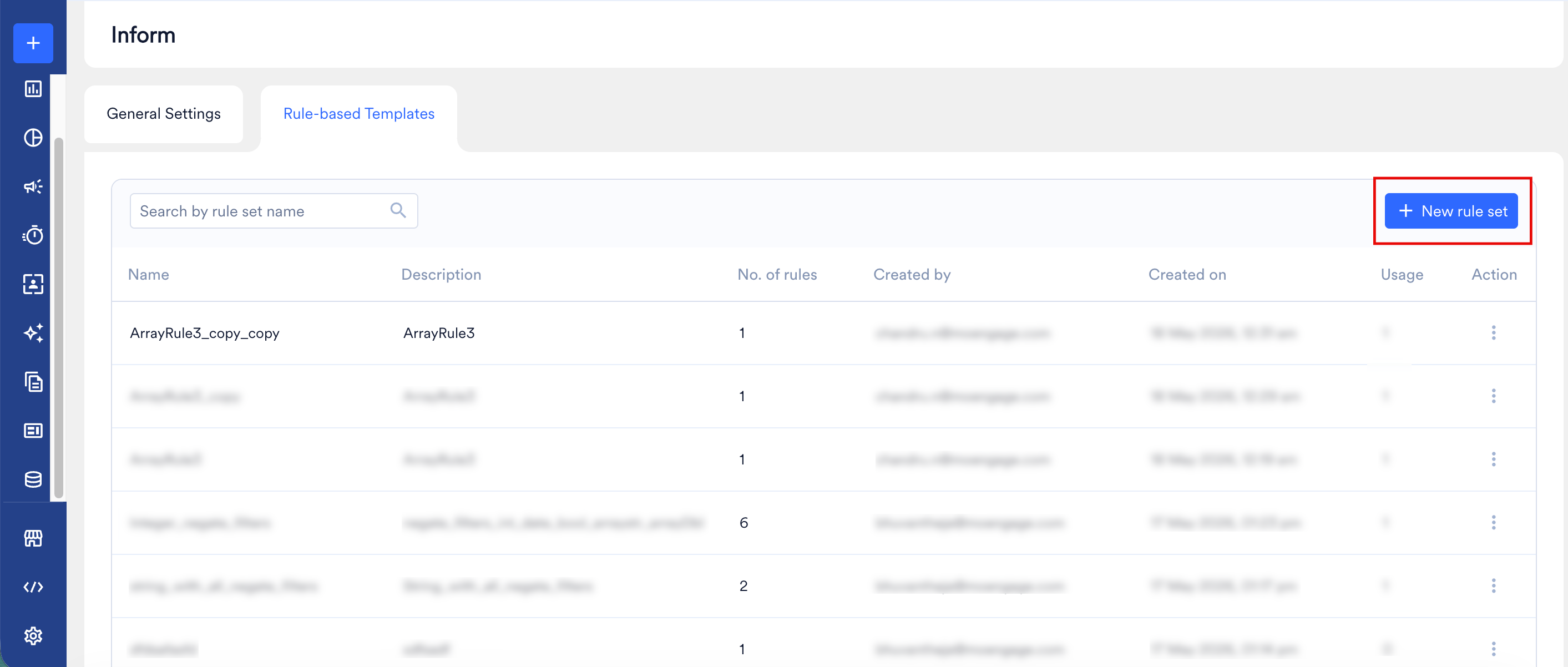
1. Log in to the MoEngage dashboard and navigate to **Settings >Inform** on the left-side panel.
2. Select the **Rule-based Templates** tab.
3. Click the **+ New rule set** button.
 ### Configure Rule Set Details
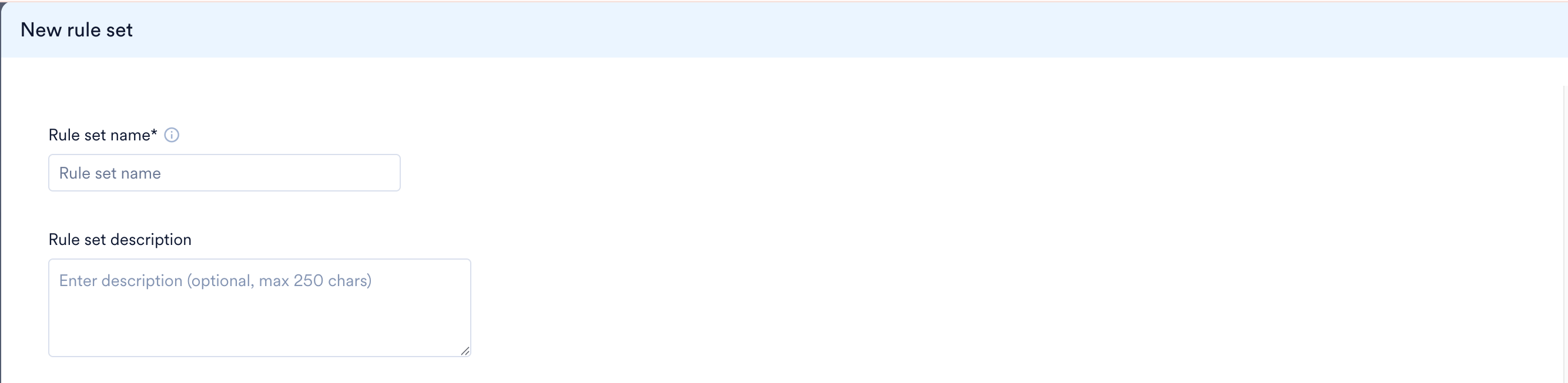 * **Rule set name:** Enter a unique, recognizable name that identifies the transactional use case or event flow (e.g., `Bill_Ready_Notification_Flow`). This name helps you easily identify and select this specific logic framework when creating alerts later.
* **Rule set description:** Add an optional summary detailing the conditions managed within this set (max 250 characters).
### Define Rules
Within the **Rule definition** section, configure one or more individual rules using evaluation attributes. Use this section to construct individual conditional paths for your templates. Each rule functions as an "IF" statement—if incoming user or API data matches the conditions defined here, MoEngage serves the specific message template associated with this rule.
* **Rule set name:** Enter a unique, recognizable name that identifies the transactional use case or event flow (e.g., `Bill_Ready_Notification_Flow`). This name helps you easily identify and select this specific logic framework when creating alerts later.
* **Rule set description:** Add an optional summary detailing the conditions managed within this set (max 250 characters).
### Define Rules
Within the **Rule definition** section, configure one or more individual rules using evaluation attributes. Use this section to construct individual conditional paths for your templates. Each rule functions as an "IF" statement—if incoming user or API data matches the conditions defined here, MoEngage serves the specific message template associated with this rule.
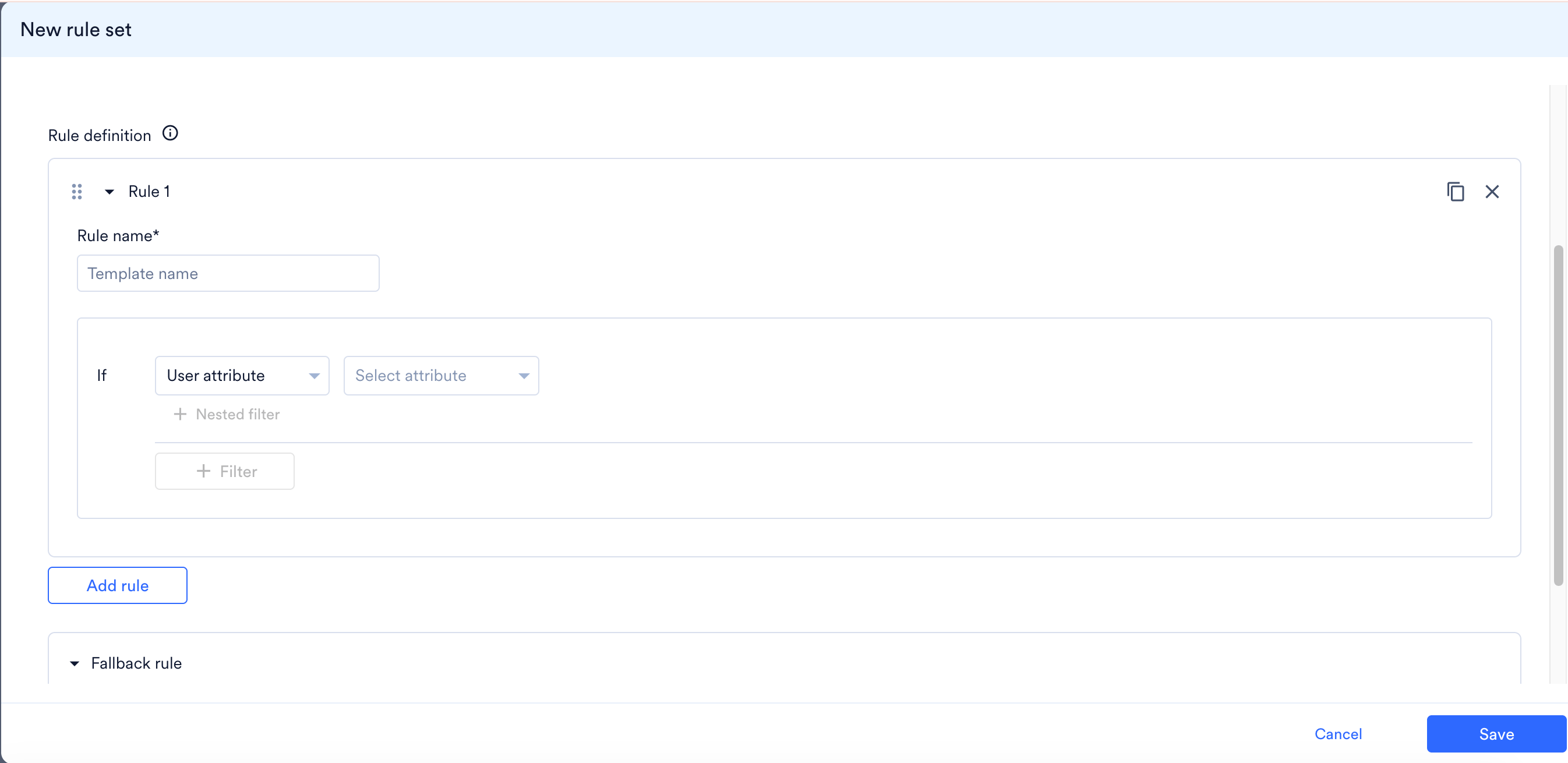 1. **Rule Name:** Enter a unique identifier for this option (e.g., `Autopay_Enabled` or `Limit_Exceeded`).
2. **Conditional Selection ("If" criteria):** Select **API Attribute** or **User Attribute** from the drop-down menu.
* Define the criteria (e.g., Attribute Name: `autopay_status`, Operator: `Is`, Value: `true`).
3. **Add Multiple Rules:** Click **Add rule** to append further logical evaluations to sequence other variations in the order of priority.
4. **Rule Name:** Enter a clear, descriptive label for the rule path (e.g., `Autopay_Enabled` or `High_Risk_Alert`). This name appears directly as a dedicated tab title when you write your message content in Step 2 of creating an alert.
5. **Attribute Dropdown (**`User attribute `**/** `API attribute`**):** Select the category of data you want MoEngage to evaluate at runtime.
* Choose **API attribute** if you are routing variations based on real-time transactional payload data sent via the trigger.
* Choose **User attribute** if you are routing variations based on permanent properties stored in the customer's profile.
6. **Select attribute:** The specific data field or variable key that needs to be evaluated (e.g., `account_status`, `order_amount`, or `country`). If a variable does not appear in the pre-populated dropdown, you can type the name directly into the field.
7. **+ Nested filter:** Click this button to add sub-conditions beneath a primary attribute line, allowing you to build complex dependencies (e.g., Check if `User attribute` is True **AND** a secondary sub-variable matches a specific value).
8. **+ Filter:** Click this button to append a new operational condition row within the same rule card, using logical operators (like AND/OR) to join multiple attribute validation lines.
9. **Add rule:** Click this button to generate a brand new, separate rule card block. This allows you to chain multiple distinct variations in the order of priority within the same overarching Rule Set.
### Actions
1. **Rule Name:** Enter a unique identifier for this option (e.g., `Autopay_Enabled` or `Limit_Exceeded`).
2. **Conditional Selection ("If" criteria):** Select **API Attribute** or **User Attribute** from the drop-down menu.
* Define the criteria (e.g., Attribute Name: `autopay_status`, Operator: `Is`, Value: `true`).
3. **Add Multiple Rules:** Click **Add rule** to append further logical evaluations to sequence other variations in the order of priority.
4. **Rule Name:** Enter a clear, descriptive label for the rule path (e.g., `Autopay_Enabled` or `High_Risk_Alert`). This name appears directly as a dedicated tab title when you write your message content in Step 2 of creating an alert.
5. **Attribute Dropdown (**`User attribute `**/** `API attribute`**):** Select the category of data you want MoEngage to evaluate at runtime.
* Choose **API attribute** if you are routing variations based on real-time transactional payload data sent via the trigger.
* Choose **User attribute** if you are routing variations based on permanent properties stored in the customer's profile.
6. **Select attribute:** The specific data field or variable key that needs to be evaluated (e.g., `account_status`, `order_amount`, or `country`). If a variable does not appear in the pre-populated dropdown, you can type the name directly into the field.
7. **+ Nested filter:** Click this button to add sub-conditions beneath a primary attribute line, allowing you to build complex dependencies (e.g., Check if `User attribute` is True **AND** a secondary sub-variable matches a specific value).
8. **+ Filter:** Click this button to append a new operational condition row within the same rule card, using logical operators (like AND/OR) to join multiple attribute validation lines.
9. **Add rule:** Click this button to generate a brand new, separate rule card block. This allows you to chain multiple distinct variations in the order of priority within the same overarching Rule Set.
### Actions
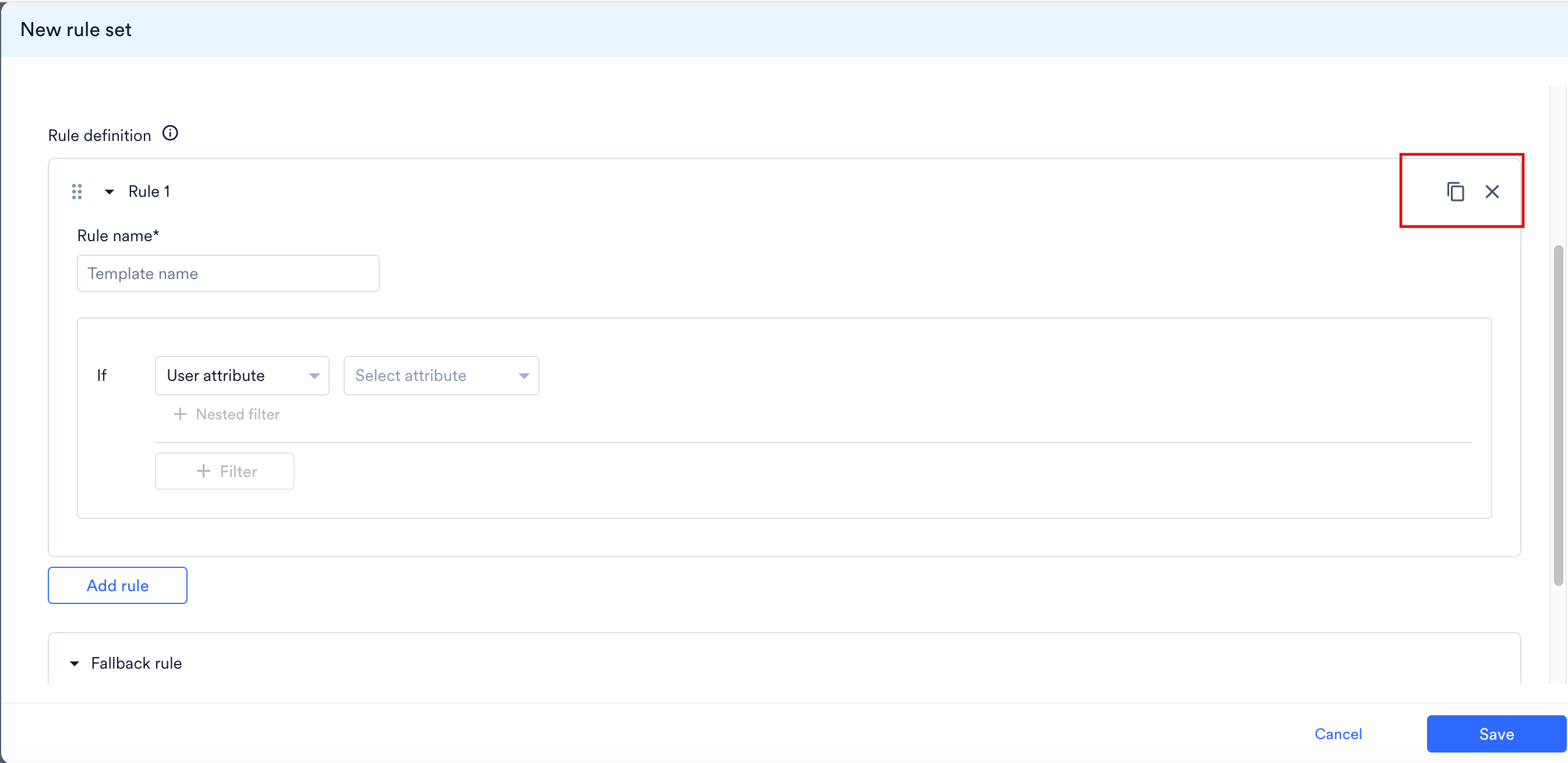 * **Copy Icon:** Duplicates the current rule card with all its pre-configured filters intact to save setup time for similar rules.
* **Delete Icon (**`X`**):** Permanently removes the specific rule card from your setup.
### Set Fallback Action
The **Fallback rule** acts as a catch-all safety parameter if incoming runtime data fails to match any of your explicitly defined conditional rules above. The following options are available for fallback action:
* **Copy Icon:** Duplicates the current rule card with all its pre-configured filters intact to save setup time for similar rules.
* **Delete Icon (**`X`**):** Permanently removes the specific rule card from your setup.
### Set Fallback Action
The **Fallback rule** acts as a catch-all safety parameter if incoming runtime data fails to match any of your explicitly defined conditional rules above. The following options are available for fallback action:
 * **Use default rule:** Serves a standard fallback variation template so the user still receives an update.
* **Don't use any rule:** Drops the notification attempt entirely if no conditions match.
Click **Save** to commit the new template logic framework.
## Configure an Alert with Rule Sets
After your Rule Set is saved, you can link it directly to your target transactional workflows.
* **Use default rule:** Serves a standard fallback variation template so the user still receives an update.
* **Don't use any rule:** Drops the notification attempt entirely if no conditions match.
Click **Save** to commit the new template logic framework.
## Configure an Alert with Rule Sets
After your Rule Set is saved, you can link it directly to your target transactional workflows.
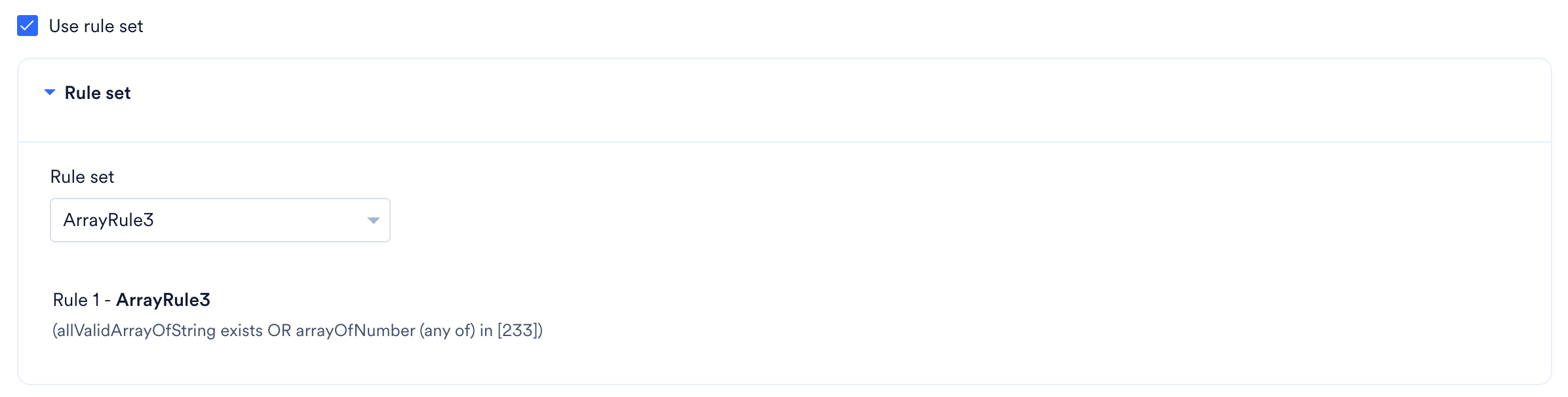 1. Navigate to [**Step 1: Alert Details**](/user-guide/inform/create/create-alert#alert-details) of the Inform alert creation journey.
2. Select the **Use rule set** check box.
3. In the **Rule set** section, select the previously configured Rule Set from the dropdown.
4. Click **Next**.
## Define Variant Templates & Content
On **Step 2: Content** of Inform alert creation journey, MoEngage dynamically creates layout blocks for every rule configured inside your designated Rule Set.\\
1. Navigate to [**Step 1: Alert Details**](/user-guide/inform/create/create-alert#alert-details) of the Inform alert creation journey.
2. Select the **Use rule set** check box.
3. In the **Rule set** section, select the previously configured Rule Set from the dropdown.
4. Click **Next**.
## Define Variant Templates & Content
On **Step 2: Content** of Inform alert creation journey, MoEngage dynamically creates layout blocks for every rule configured inside your designated Rule Set.\\
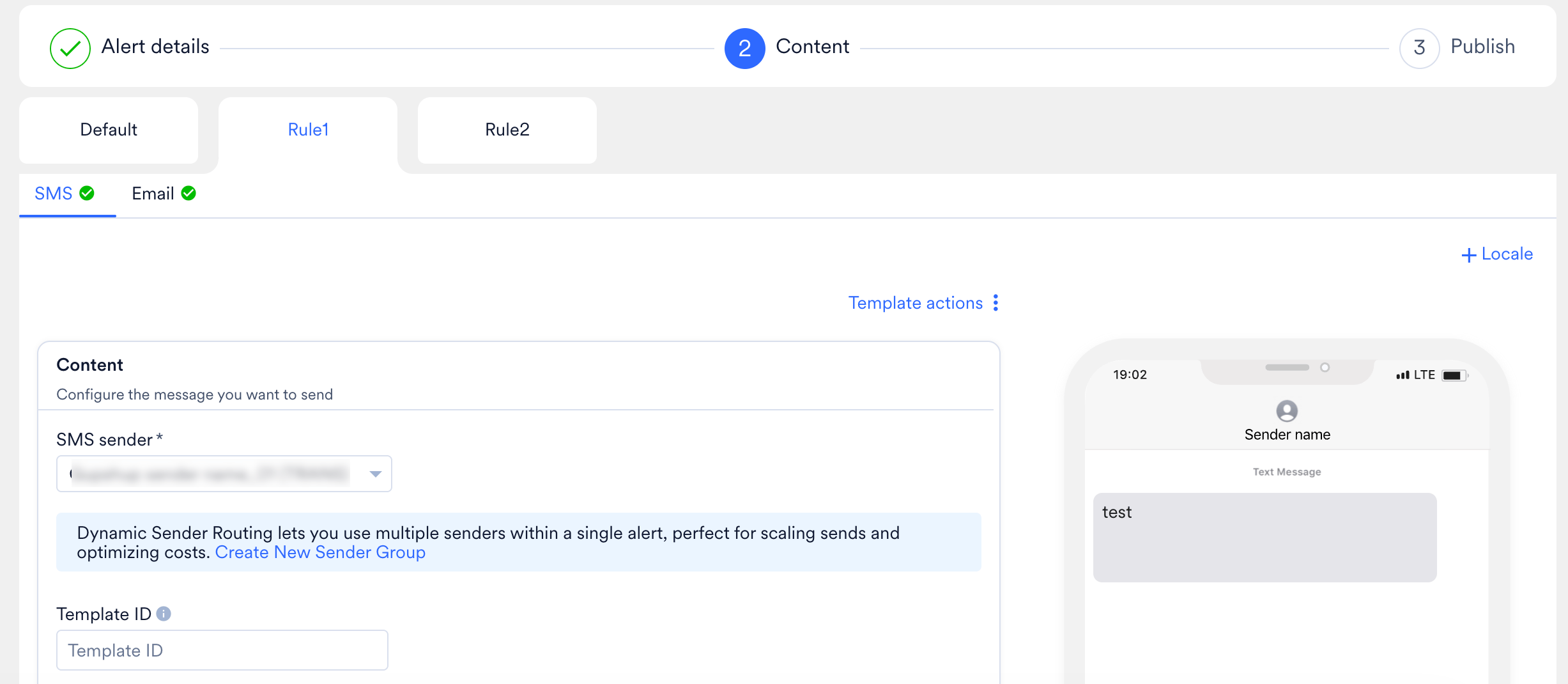 1. You can see explicit tabs mapped directly to your custom rules (e.g., `Rule 1`, `Rule 2`, etc.).
2. Select each individual tab to configure the unique message content assigned to that conditional path.
3. The **Default** tab is automatically generated if you enabled a fallback rule during Rule Set configuration. This tab contains the baseline template that MoEngage serves if none of your custom evaluation rules match incoming customer or API data at runtime.
4. Within each rule tab, you can navigate between active channel sub-tabs to customize content parameters specifically for that channel.
After you have systematically configured and validated the content across all rule blocks and active channels, click **Next** to proceed to Step 3 and **Publish** your alert. Upon publication, MoEngage outputs a unified API payload format that handles all conditional execution paths seamlessly.
1. You can see explicit tabs mapped directly to your custom rules (e.g., `Rule 1`, `Rule 2`, etc.).
2. Select each individual tab to configure the unique message content assigned to that conditional path.
3. The **Default** tab is automatically generated if you enabled a fallback rule during Rule Set configuration. This tab contains the baseline template that MoEngage serves if none of your custom evaluation rules match incoming customer or API data at runtime.
4. Within each rule tab, you can navigate between active channel sub-tabs to customize content parameters specifically for that channel.
After you have systematically configured and validated the content across all rule blocks and active channels, click **Next** to proceed to Step 3 and **Publish** your alert. Upon publication, MoEngage outputs a unified API payload format that handles all conditional execution paths seamlessly.