> ## Documentation Index
> Fetch the complete documentation index at: https://moengage.com/docs/llms.txt
> Use this file to discover all available pages before exploring further.
# Personalize Alert
> Personalize transactional alert content in MoEngage Inform using the personalization editor or Jinja templates with attribute fallbacks.
Alerts can be personalized in the content creation step of Alert creation using the *Text personalization* button or using JINJA.
# Personalize with the Personalization Editor
To personalize, do the following:
1. In Step 2: Content of create alert, click the **Text personalization** button. 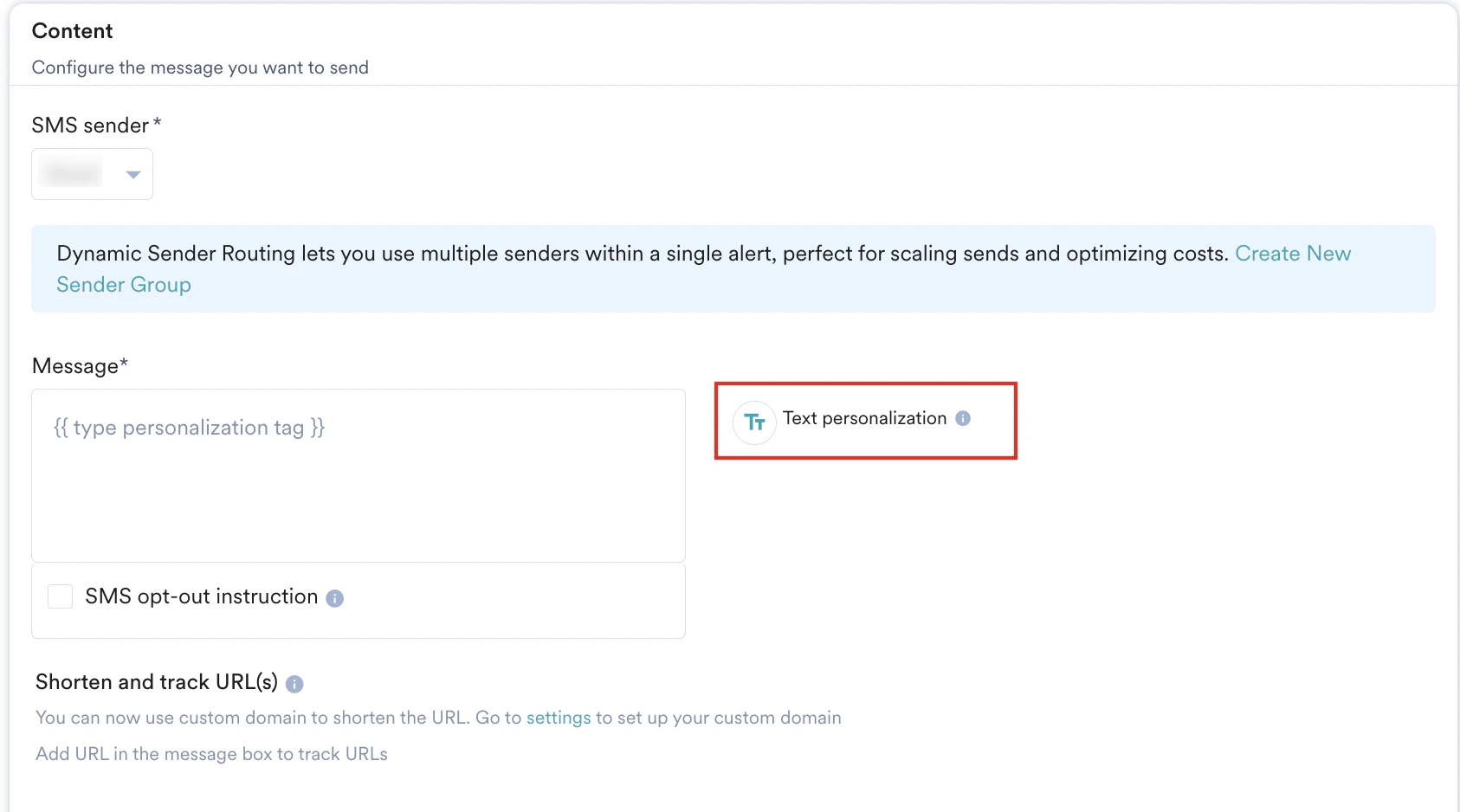 2. Add the attribute to be personalized in the **Personalisation Attribute** field on the screen that pops up.
3. You can specify user attributes as fallbacks for the personalized attribute. Note: User Attributes must be enabled in Inform Settings for this option to be available. For more information, refer to [User Attribute settings](/user-guide/settings/miscellaneous/settings-inform#user-attribute-settings).
2. Add the attribute to be personalized in the **Personalisation Attribute** field on the screen that pops up.
3. You can specify user attributes as fallbacks for the personalized attribute. Note: User Attributes must be enabled in Inform Settings for this option to be available. For more information, refer to [User Attribute settings](/user-guide/settings/miscellaneous/settings-inform#user-attribute-settings). 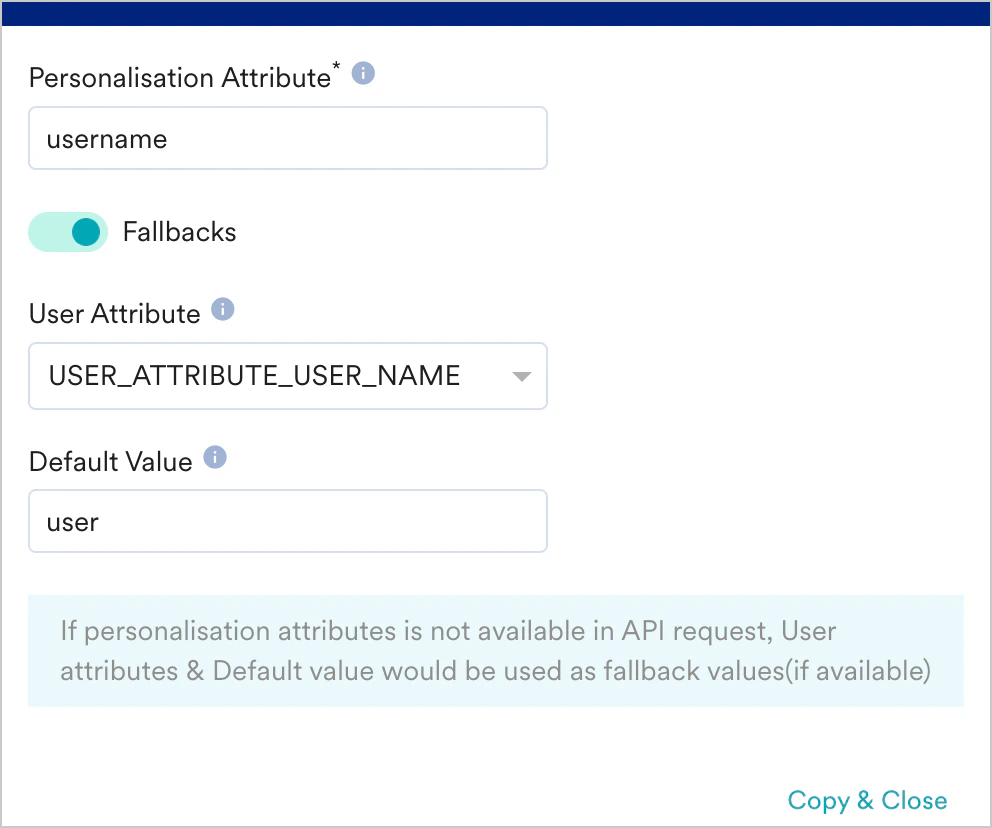 4. Click **Copy & Close** to copy the personalized attribute to the clipboard.
5. Paste the copied value in the message editor using standard keyboard shortcuts.
The names of the user attribute added for personalization can contain only the following: String characters, a combination of alphabets and numbers, and underscores. For example, the attribute name to be personalized can be *username* or *user\_name, or usernmae1,* while *user name* and *user name1* are not allowed. If the attribute name were to contain any character other than string characters or underscore or alphanumerics, for example, spaces, only numbers, or special characters, personalization would not work.
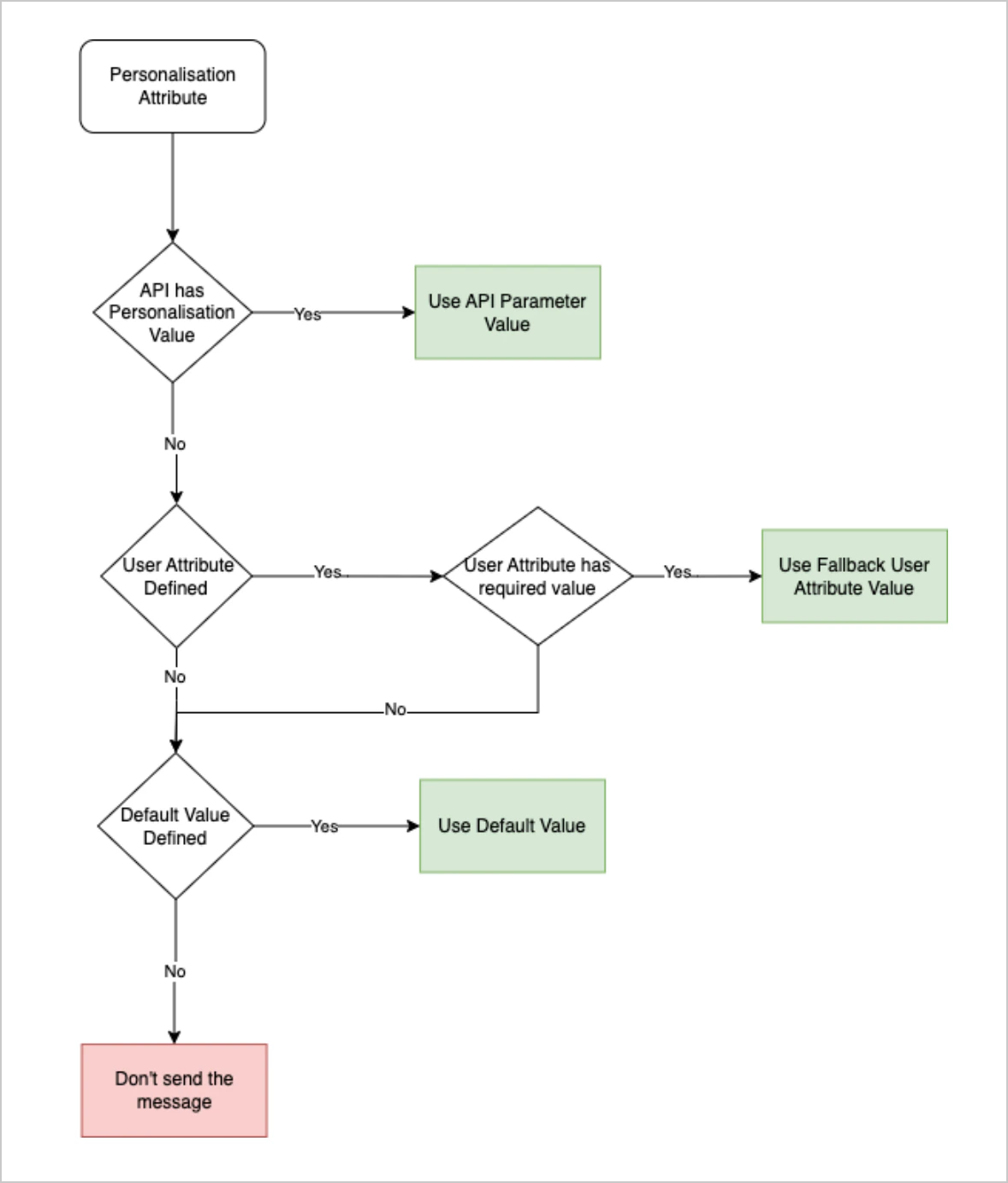
The following flow diagram depicts how personalization works with User Attributes as fallbacks.
4. Click **Copy & Close** to copy the personalized attribute to the clipboard.
5. Paste the copied value in the message editor using standard keyboard shortcuts.
The names of the user attribute added for personalization can contain only the following: String characters, a combination of alphabets and numbers, and underscores. For example, the attribute name to be personalized can be *username* or *user\_name, or usernmae1,* while *user name* and *user name1* are not allowed. If the attribute name were to contain any character other than string characters or underscore or alphanumerics, for example, spaces, only numbers, or special characters, personalization would not work.
The following flow diagram depicts how personalization works with User Attributes as fallbacks.
 Here is a sample message body where the user's first name and order id have been personalized with user attributes as fallbacks.
**Sample Message Body**
`Hi {{username|default("{{UserAttribute['USER_ATTRIBUTE_USER_NAME']|default('user')}}")}}!`
Your order `{{orderid}}` has been placed successfully.
Happy Shopping!
Team MoEngage
The following flow diagram depicts how personalization works when User Attributes are disabled.
Here is a sample message body where the user's first name and order id have been personalized with user attributes as fallbacks.
**Sample Message Body**
`Hi {{username|default("{{UserAttribute['USER_ATTRIBUTE_USER_NAME']|default('user')}}")}}!`
Your order `{{orderid}}` has been placed successfully.
Happy Shopping!
Team MoEngage
The following flow diagram depicts how personalization works when User Attributes are disabled.
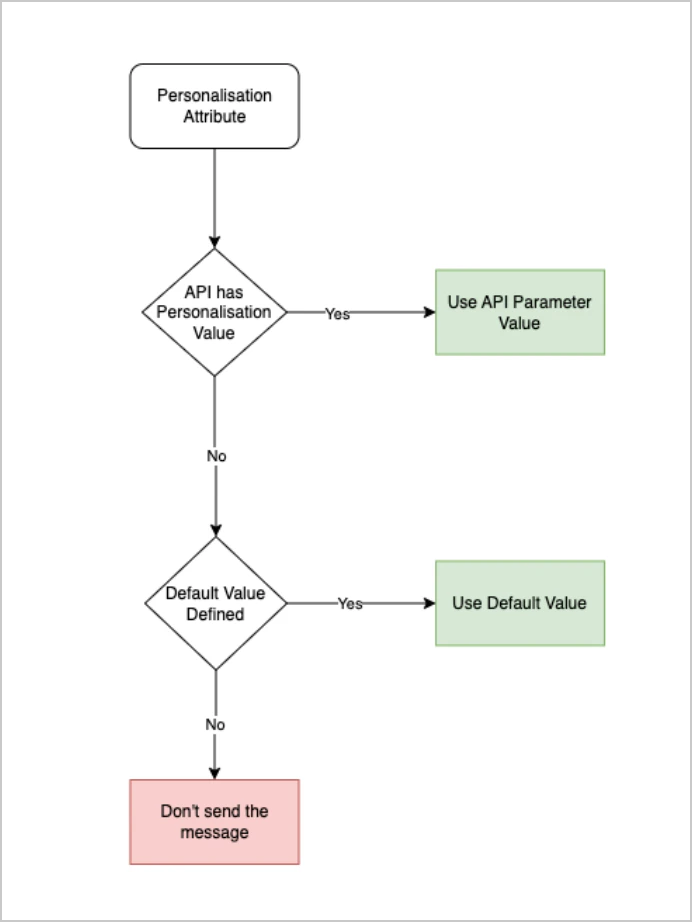 **Note:** If the user attributes are disabled (post-enabling), the standard SLA will apply to the subsequent API requests.
Here is a sample message body where the user's first name and order id have been personalized.
**Sample Message Body**
Hi `{{firstname}}`!
Your order `{{orderid}}` has been placed successfully.
Happy Shopping!
Team MoEngage
## Sample Payload with personalization
JSON
```json wrap theme={null}
{
"user_id": "john_doe",
"payloads": {
"SMS": {
"recipient": "+1555555555",
"personalized_attributes": {
"firstname": "John",
"orderid": "#order HXY-12345-ZSDF"
}
},
"EMAIL": {
"recipient": "john.doe@moengage.com",
"personalized_attributes": {
"firstname": "John",
"orderid": "#order HXY-12345-ZSDF"
}
}
}
```
The firstname and orderid need to be sent when the request is triggered.
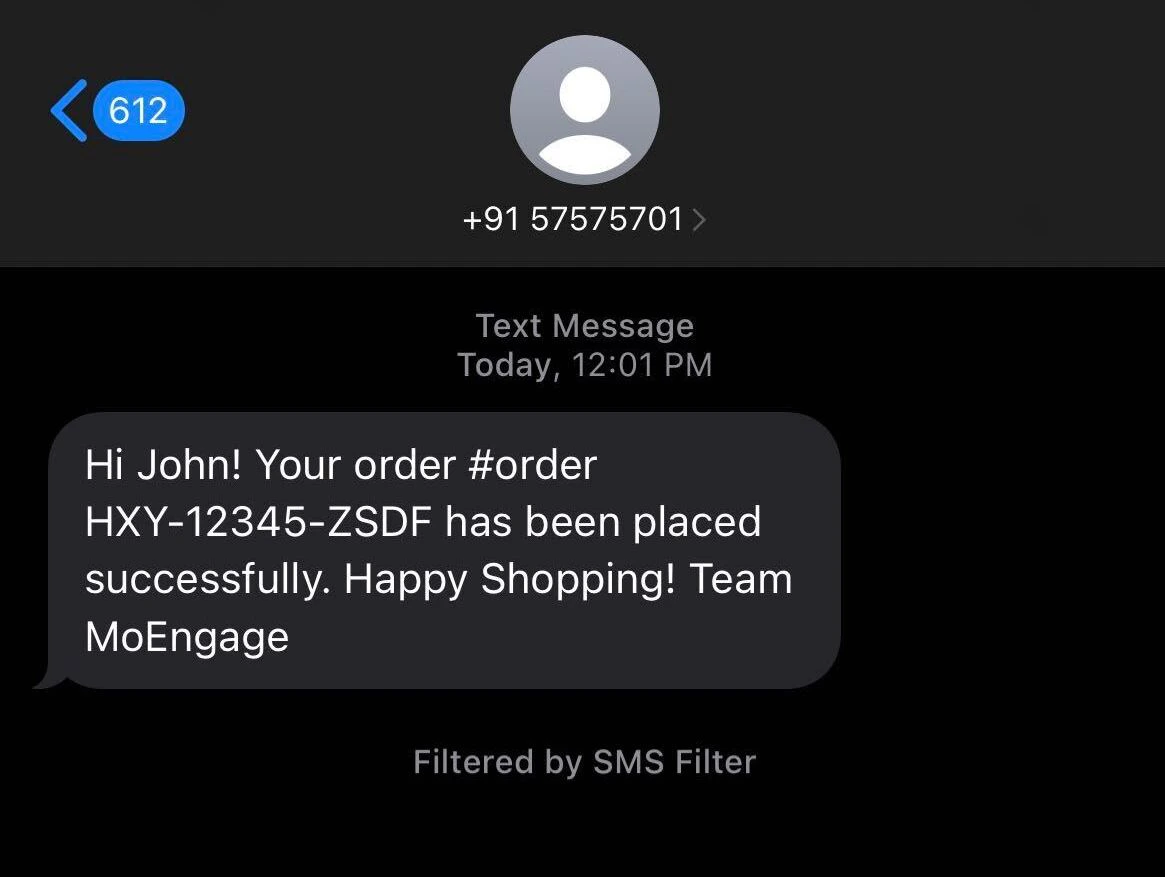
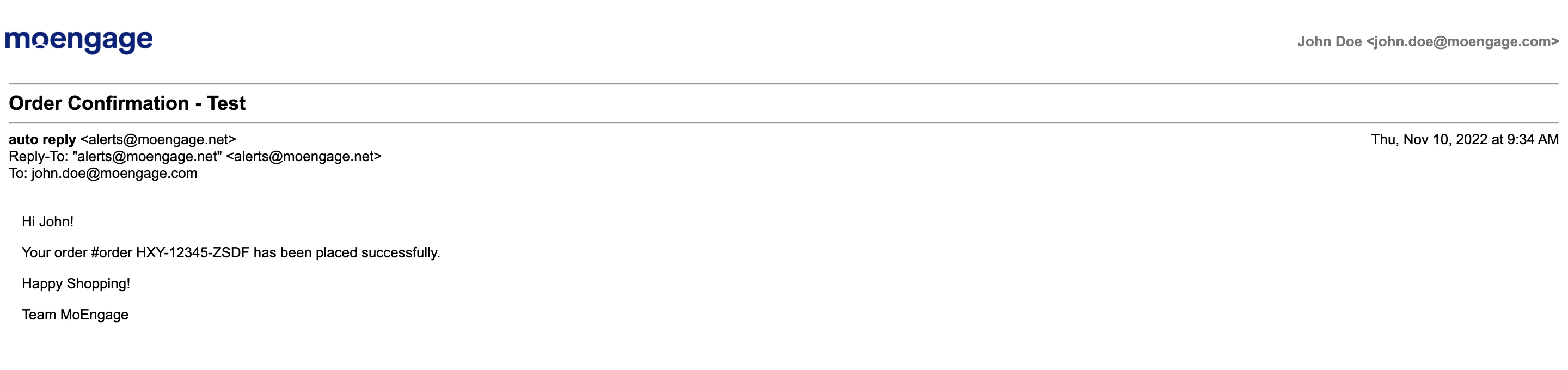
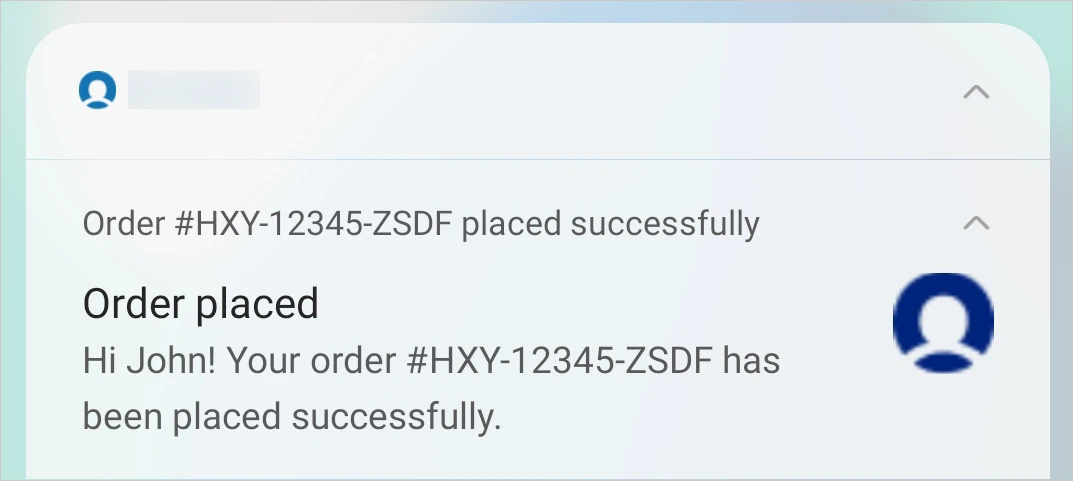
## Personalized Alert as received by the customer
**Note:** If the user attributes are disabled (post-enabling), the standard SLA will apply to the subsequent API requests.
Here is a sample message body where the user's first name and order id have been personalized.
**Sample Message Body**
Hi `{{firstname}}`!
Your order `{{orderid}}` has been placed successfully.
Happy Shopping!
Team MoEngage
## Sample Payload with personalization
JSON
```json wrap theme={null}
{
"user_id": "john_doe",
"payloads": {
"SMS": {
"recipient": "+1555555555",
"personalized_attributes": {
"firstname": "John",
"orderid": "#order HXY-12345-ZSDF"
}
},
"EMAIL": {
"recipient": "john.doe@moengage.com",
"personalized_attributes": {
"firstname": "John",
"orderid": "#order HXY-12345-ZSDF"
}
}
}
```
The firstname and orderid need to be sent when the request is triggered.
## Personalized Alert as received by the customer
 # Personalization Using Content Blocks
Content Blocks are reusable content that can be used in alerts. Personalizing alerts by leveraging the *Content Blocks* feature enhances user engagement, efficiency, and the overall customer experience. For more information on creating content blocks for alerts, refer to [Content Blocks](/user-guide/content/content-blocks/content-blocks).
## Adding a Content Block
1. To add a content block, click the **Text personalization** button. The Inform personalization pop-up window is displayed.
# Personalization Using Content Blocks
Content Blocks are reusable content that can be used in alerts. Personalizing alerts by leveraging the *Content Blocks* feature enhances user engagement, efficiency, and the overall customer experience. For more information on creating content blocks for alerts, refer to [Content Blocks](/user-guide/content/content-blocks/content-blocks).
## Adding a Content Block
1. To add a content block, click the **Text personalization** button. The Inform personalization pop-up window is displayed. 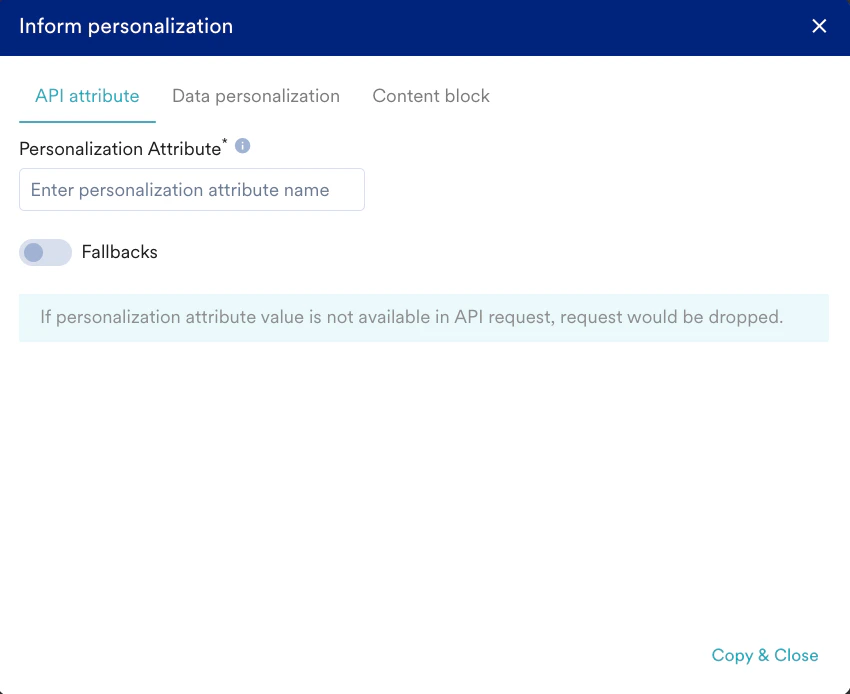 2. Navigate to the **Content block** tab.
3. Select the desired content block from the **Select content block** drop-down.
2. Navigate to the **Content block** tab.
3. Select the desired content block from the **Select content block** drop-down. 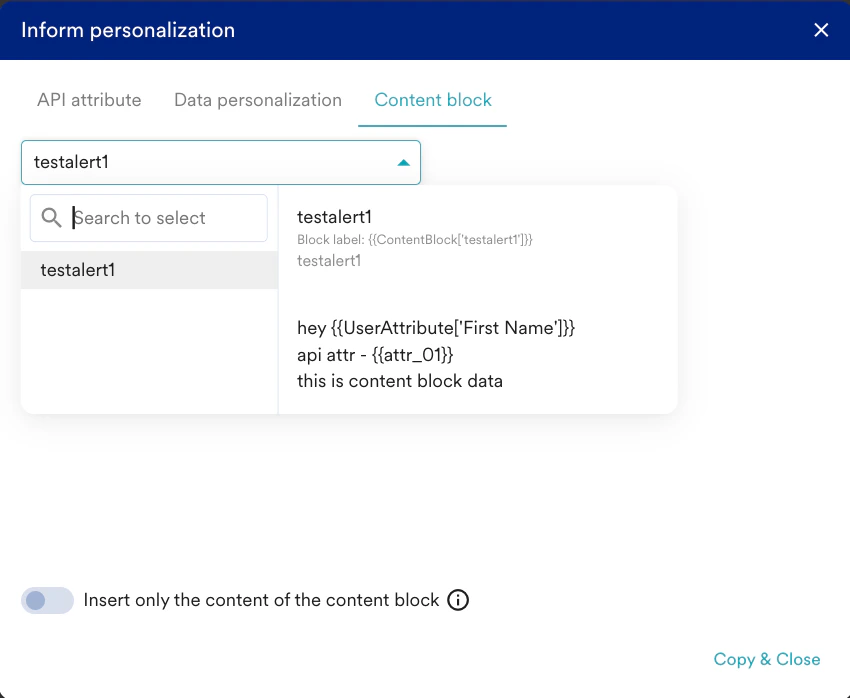 4. You can also insert only the content of the content block using the following toggle.
  This means that only the content will be inserted while detaching itself from the existing content block and any future updates will not be reflected.
5. Click **Copy & Close** to copy the personalized attribute to the clipboard.
6. Paste the copied value in the message editor using standard keyboard shortcuts.
# Personalize using JINJA
To personalize an alert using JINJA, add the JINJA to the template editor in the content creation step and pass the attributes used in the JINJA in the \_personalized\_attributes\_object in your request payload.
## Sample Payload with personalization
Sample Email Payload
```json theme={null}
{
"alert_id": "652fba0290f2820d05e12852",
"user_id": "John_Doe",
"transaction_id": "135671868",
"payloads": {
"EMAIL": {
"recipient": "john.doe@example.com",
"personalized_attributes": {
"items": [
{
"name": "iPhone 15",
"price": "2500 AED",
"image": "https://yourbrand.com/iPhone.jpg"
},
{
"name": "Macbook Air",
"price": "3000 AED",
"image": "https://yourbrand.com/MacbookAir.jpg"
},
{
"name": "Airpods",
"price": "800 AED",
"image": "https://yourbrand.com/Airpods.jpg"
}
],
}
}
}
}
```
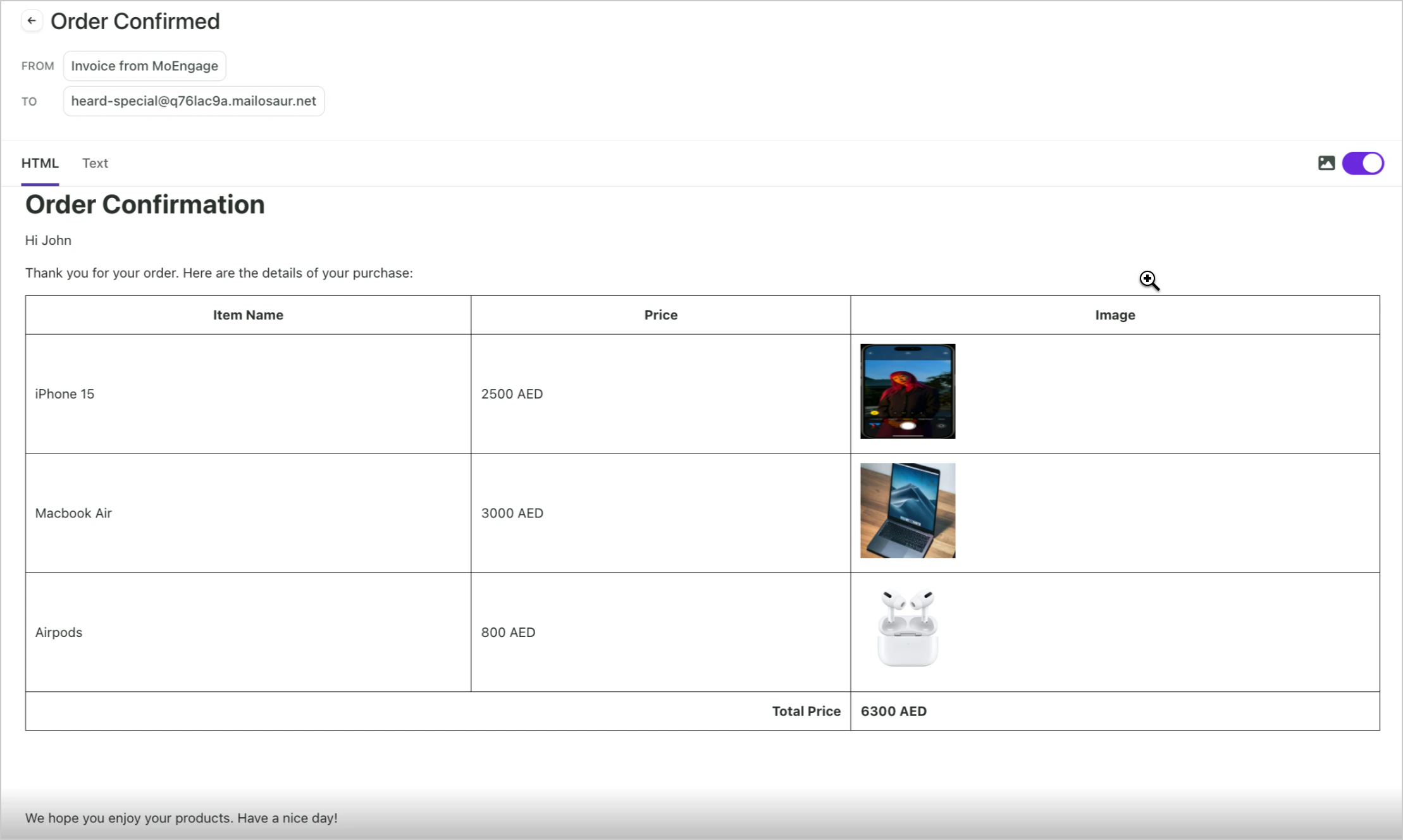
## Personalized Alert Received by the customer
This means that only the content will be inserted while detaching itself from the existing content block and any future updates will not be reflected.
5. Click **Copy & Close** to copy the personalized attribute to the clipboard.
6. Paste the copied value in the message editor using standard keyboard shortcuts.
# Personalize using JINJA
To personalize an alert using JINJA, add the JINJA to the template editor in the content creation step and pass the attributes used in the JINJA in the \_personalized\_attributes\_object in your request payload.
## Sample Payload with personalization
Sample Email Payload
```json theme={null}
{
"alert_id": "652fba0290f2820d05e12852",
"user_id": "John_Doe",
"transaction_id": "135671868",
"payloads": {
"EMAIL": {
"recipient": "john.doe@example.com",
"personalized_attributes": {
"items": [
{
"name": "iPhone 15",
"price": "2500 AED",
"image": "https://yourbrand.com/iPhone.jpg"
},
{
"name": "Macbook Air",
"price": "3000 AED",
"image": "https://yourbrand.com/MacbookAir.jpg"
},
{
"name": "Airpods",
"price": "800 AED",
"image": "https://yourbrand.com/Airpods.jpg"
}
],
}
}
}
}
```
## Personalized Alert Received by the customer