> ## Documentation Index
> Fetch the complete documentation index at: https://moengage.com/docs/llms.txt
> Use this file to discover all available pages before exploring further.
# Alert Info
> Navigate to alert info in the updated MoEngage Inform UI to view channel configuration, request details, and test code snippets easily.
To view the alert info, perform the following steps:
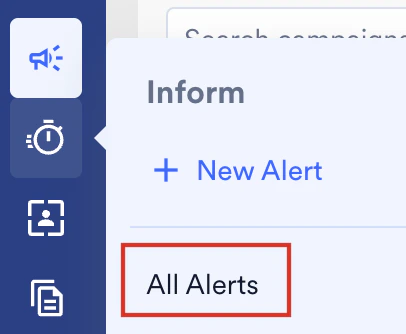
1. On the sidebar menu in MoEngage, hover over the Inform menu item  . The **Inform** menu appears.
2. Click **All Alerts**.
. The **Inform** menu appears.
2. Click **All Alerts**.
 3. Click the desired alert and navigate to the **Info** tab of that alert.
This section contains information about the Alert, such as:
1. 1. Channels for which the Alert has been configured along with information about the default and fallback channels if the channel order is sequential sending.
2. Request Details:
3. Click the desired alert and navigate to the **Info** tab of that alert.
This section contains information about the Alert, such as:
1. 1. Channels for which the Alert has been configured along with information about the default and fallback channels if the channel order is sequential sending.
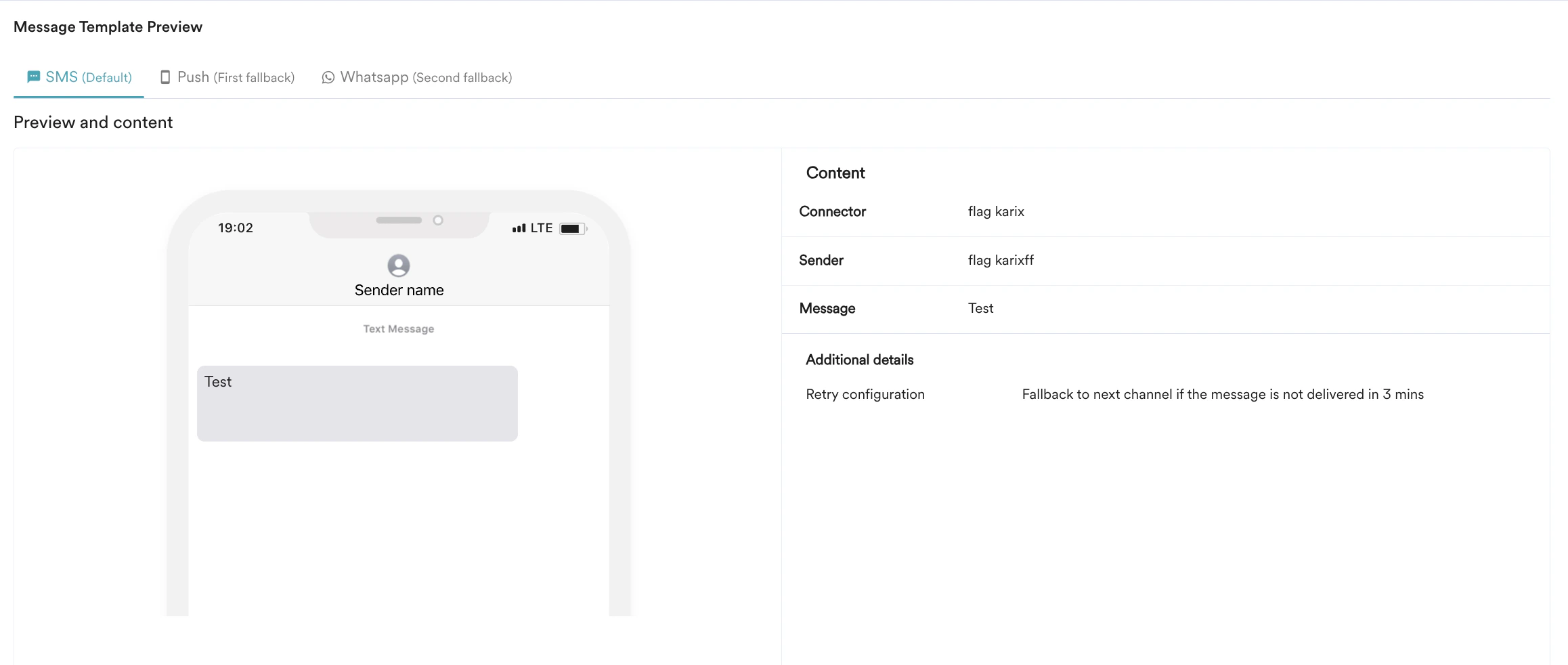
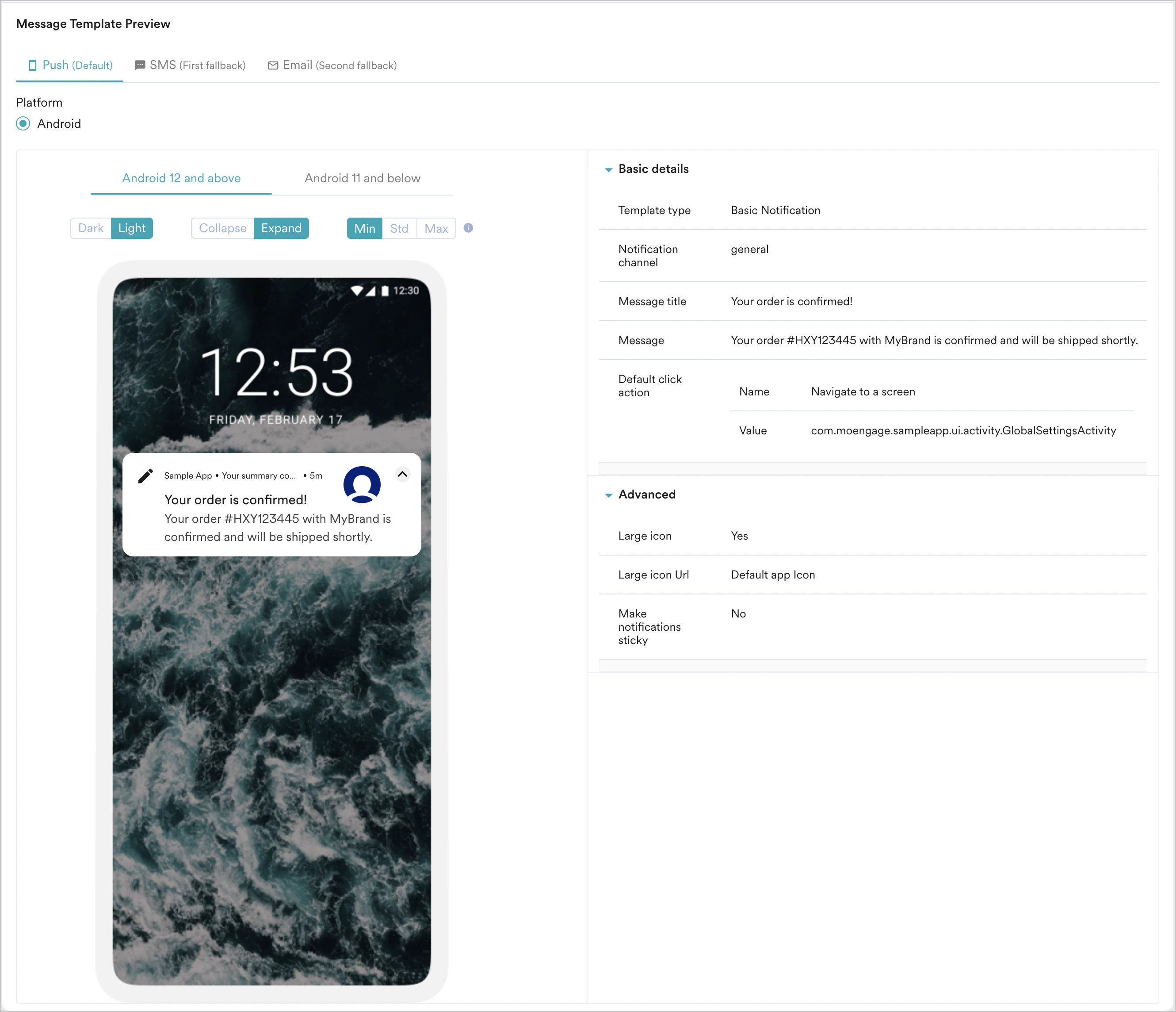
2. Request Details: 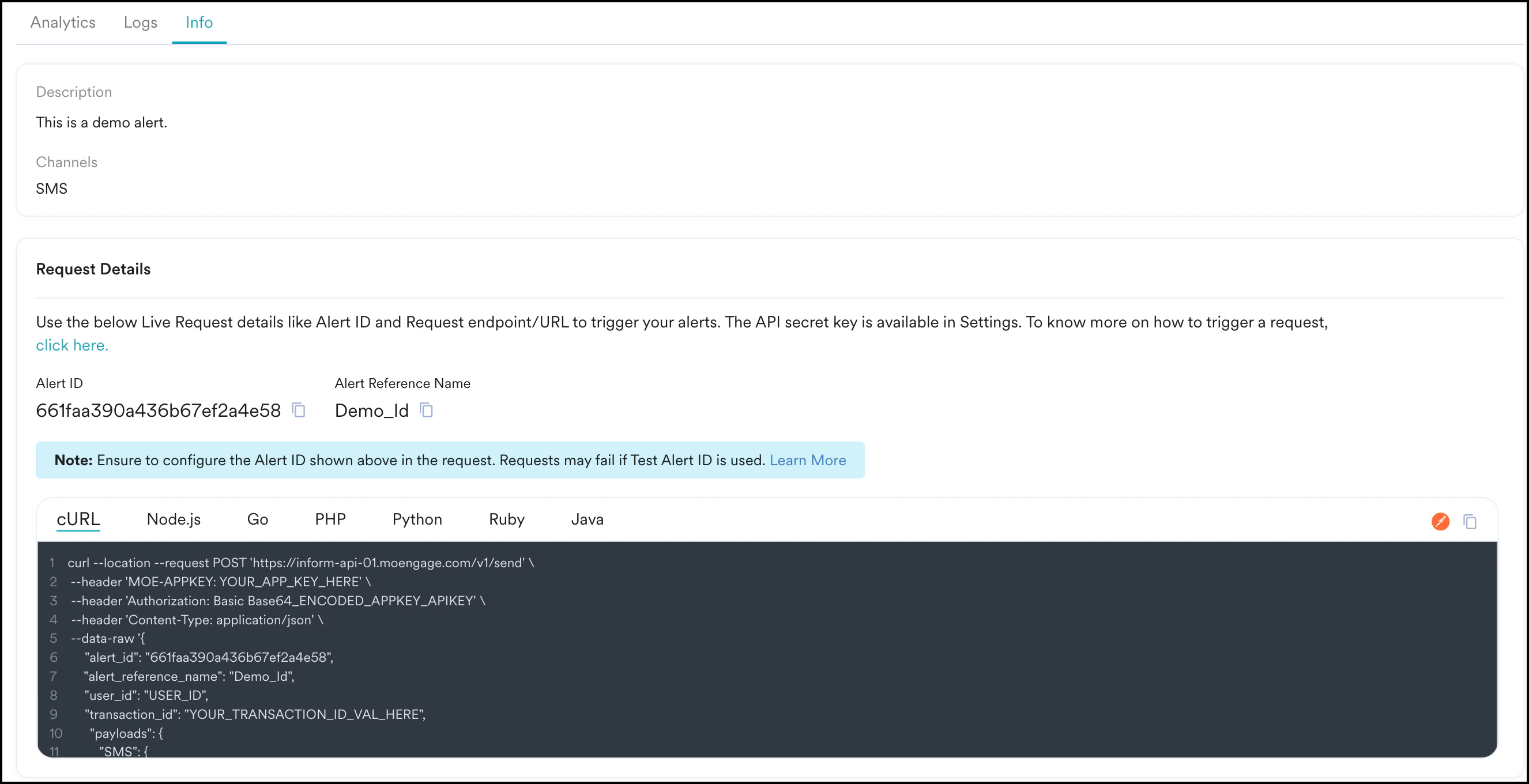 3. Channel-level message previews
 You can test the Alert on an external console using the code snippets in different languages, as shown below.
For more information, refer to [Test your Alert](/user-guide/inform/create/test-alert).
* The Alert ID or Reference ID mentioned above in the code snippets must be used while sending Live Alerts. In case you use the Test Alert ID that is available during Alert creation, the request will fail.
* The logs get populated instantaneously when an API request is received, and you can view them in the Alert Logs tab.
You can test the Alert on an external console using the code snippets in different languages, as shown below.
For more information, refer to [Test your Alert](/user-guide/inform/create/test-alert).
* The Alert ID or Reference ID mentioned above in the code snippets must be used while sending Live Alerts. In case you use the Test Alert ID that is available during Alert creation, the request will fail.
* The logs get populated instantaneously when an API request is received, and you can view them in the Alert Logs tab.